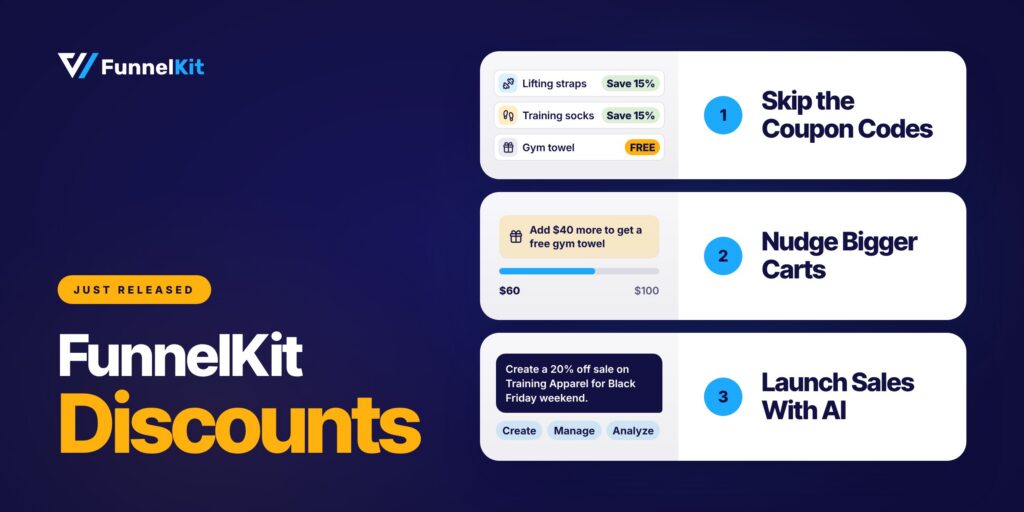
FunnelKit Discounts is here! You can now run sale prices, free gifts, Buy 2 Get 1 Free offers, and buy-more-save-more deals right from your WooCommerce store.
And you don’t have to manage any of it manually.
No coupon codes to create or share. No customers searching their inbox for a discount code.
Just set up your offer, choose the products, and FunnelKit Discounts applies it automatically when a shopper meets the conditions.
Let’s say you run a gym gear store. A shopper adds a tub of pre-workout to their cart. When they open the cart, they see a little nudge: “Spend $40 more and get a free gym towel.”
Sounds like a good deal, so they head back and add lifting straps and training socks to their order. Both are 15% off.
The towel is added to their cart automatically, with its price set to $0. They can also see their total savings right there in the cart.
One item turned into three, and they got a free gift along the way. No coupon codes, no extra work from your team.
That’s the idea behind FunnelKit Discounts.
You get six types of discount campaigns, built-in cart offers that encourage shoppers to add more, campaign analytics to see how your deals are performing, and an AI assistant that can set up a campaign from a single prompt.
With Black Friday coming up, it’s a great time to give your store a smarter way to run promotions.
Everything You Get With FunnelKit Discounts
Here’s a look at what you can do with FunnelKit Discounts:
- Six types of discount campaigns: Choose from Simple Discount, Total Spend, Free Products, Buy X for Fixed Price, Buy X Get Y Off, and Bulk Pricing. Whether you want to offer a quick 15% discount, give away free gifts, or set up tiered pricing, there’s a campaign for it.
- Automatic discounts, no coupon codes: Once a shopper’s cart meets your campaign conditions, the discount is applied automatically. No codes to share, copy, or enter at checkout.
- A cart that encourages shoppers to spend more: Show offers on product pages, display notices in the cart, and nudge shoppers to add one more item to unlock a better deal.
- Savings shoppers can actually see: Show crossed-out prices, Save badges, and a Total Savings line so customers know exactly what they’re getting. These savings stay visible from the product page right through to the order email.
- Targeting and scheduling: Decide who sees each offer. Target specific user roles, schedule campaigns for a set date range, or run promotions on weekends only.
- Full control over discount stacking: Run multiple campaigns in the same cart and arrange them by priority using drag and drop. You decide which discount takes precedence when offers overlap.
- Control over coupon stacking: Want shoppers to use a coupon on top of an existing campaign discount? Allow it. Prefer to keep the two separate? Block coupon codes with a single click.
- Campaign analytics built in: See how each campaign is performing with reports on orders, revenue, and total discounts given. No need to piece together data from different places.
- FunnelKit AI integration: Create campaigns, make changes, and pull reports using AI assistants like Claude, ChatGPT, and Cursor.
- Works with your FunnelKit setup: FunnelKit Discounts fits right into your existing sales flow. It works with order bumps, one-click upsells, Product Bundles, Sliding Cart, Stripe express payments, and Sublium.
Why We Built FunnelKit Discounts
WooCommerce gives you two ways to offer discounts out of the box: sale prices and coupons. They’re useful, but they only take you so far.
Sale prices are tied to individual products. Want to run a Buy 2 Get 1 Free deal? Give 20% off when someone buys four or more? Throw in a free towel on orders over $100? You’ll need something extra to make that happen.
Coupons aren’t much better from the shopper’s side. They need to know the code, remember where they saw it, and enter it at checkout. If they forget or miss a step, they miss the deal altogether.
That’s why store owners often turn to discount rules plugins.
But adding another plugin can bring its own headaches. Rules overlap and behave in unexpected ways. Discounts get applied to order bumps and upsells when they shouldn’t.
And a weekend promotion might even reduce the price of future subscription renewals.
We thought there had to be a better way.
We wanted a discount system that works naturally with your WooCommerce store, without creating more things to manage.
One that applies the right deal automatically, makes it easy to see which discount takes priority on each product, and keeps your funnel offers and subscription renewals untouched.
That’s why we built FunnelKit Discounts.
Six Campaign Types for Every Kind of Sale
In FunnelKit Discounts, every deal starts with a campaign. Pick the discount type, choose which products it applies to, set your audience and schedule, and you’re ready to go.
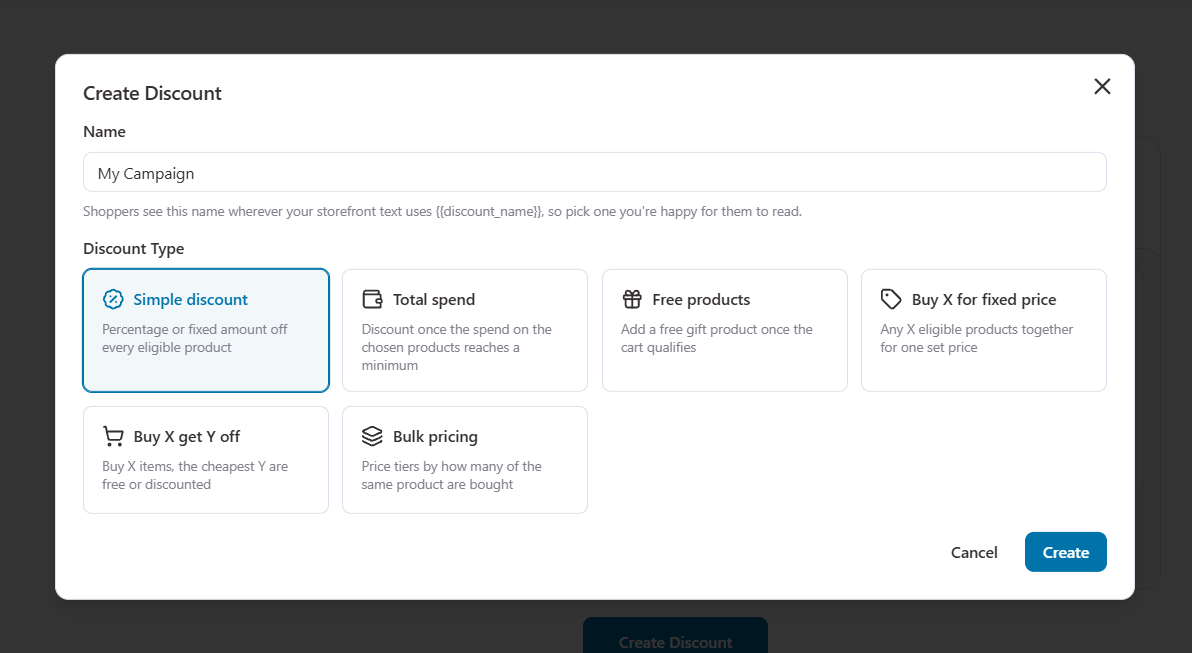
Just switch the campaign to Active, and FunnelKit takes it from there.
Let’s walk through all six campaign types using examples from our demo gym store.
| Campaign type | What shoppers get | Example |
|---|---|---|
| Simple Discount | Takes a percentage or fixed amount off selected products | 15% off the Training Apparel category |
| Total Spend | Rewards shoppers when their cart reaches a spending target | Spend $200, save $25 |
| Free Products | Adds a free gift to the cart automatically | Get a free gym towel on orders over $100 |
| Buy X for Fixed Price | Lets shoppers buy a set number of items for one price | Any 2 supplements for $60 |
| Buy X Get Y Off | Discounts or gives away the cheapest items in a group | Buy 2 accessories, get the 3rd free |
| Bulk Pricing | Reduces the per-item price as shoppers buy more | 10% off 2 to 3 items, 20% off 4 or more |
All six campaign types share the same targeting, scheduling, and display settings.
The only thing that changes is how you configure the discount itself. So once you’ve created your first campaign, the rest will feel familiar.
1. Simple Discount
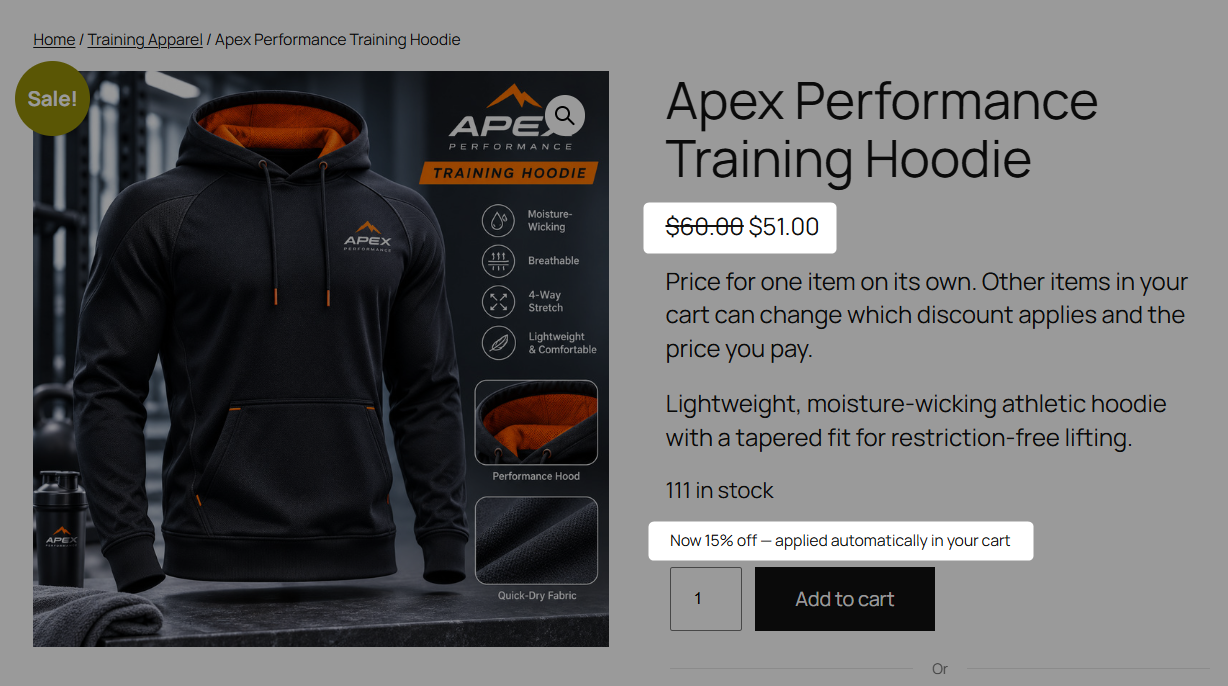
This is your classic sale, with a lot more flexibility. Offer a percentage or fixed-amount discount across your entire store, selected categories, or specific products.
Shoppers see the original price crossed out, the discounted price, and your campaign message right above the Add to Cart button.
A Save badge also appears next to discounted items in the cart, so shoppers don’t miss the deal.
2. Total Spend
Want shoppers to add a little more to their carts? Give them a spending target worth reaching.
Set a minimum order value, and once a shopper crosses it, the discount applies automatically.
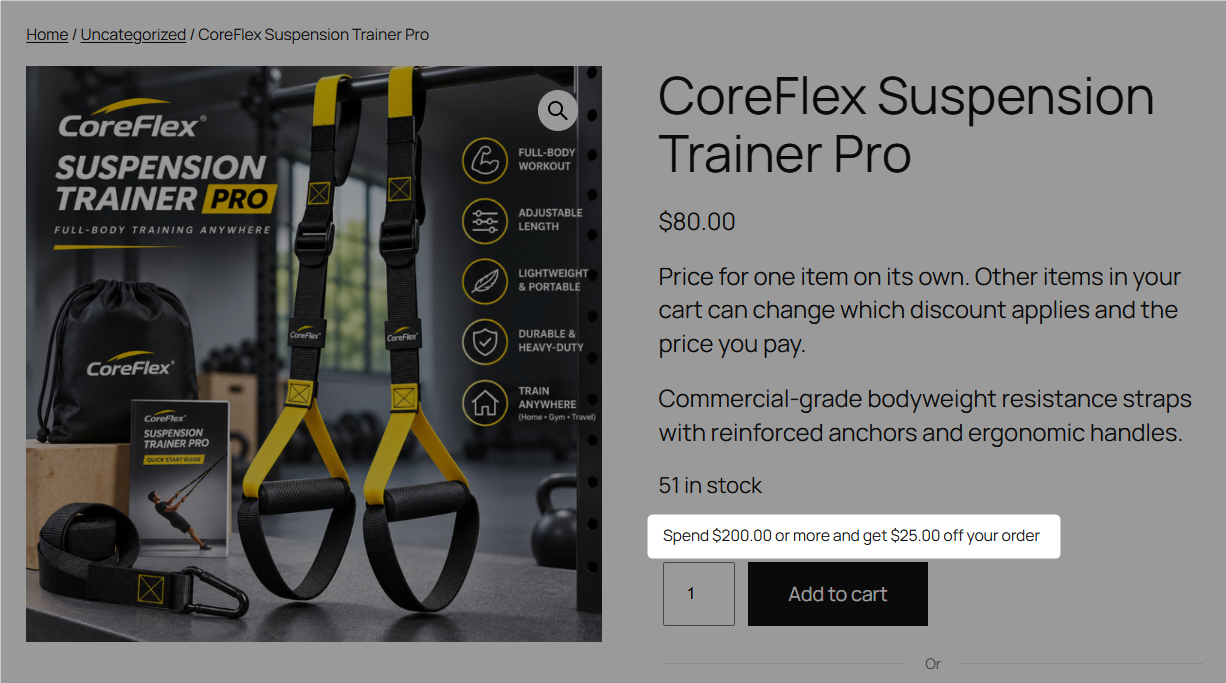
Please note that the discount applies once to the cart total, not separately to every product.
3. Free Products
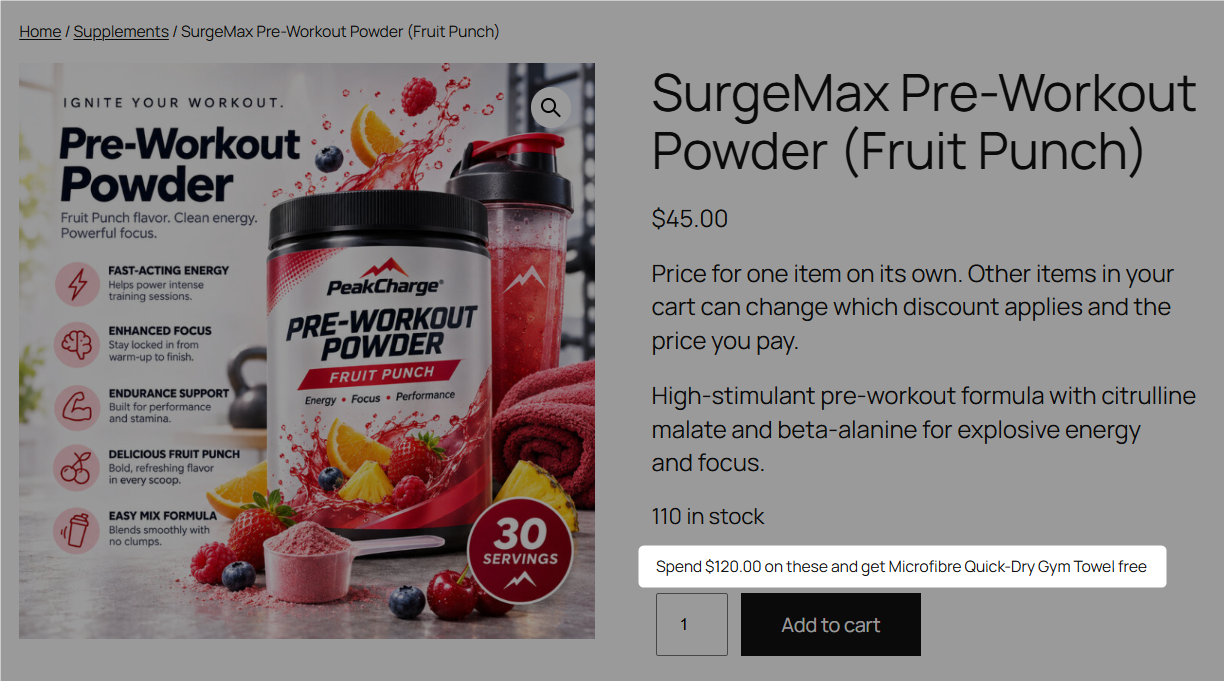
Everyone loves a free gift. And sometimes, it’s just the nudge a shopper needs to complete a bigger order.
With this campaign, you can offer free products based on the number of items purchased or the amount spent.
Once shoppers meet the conditions, FunnelKit Discounts adds the gift to their cart at $0.
What if they’re still a little short? The cart tells them exactly how much more they need to spend to unlock the gift.
If they later remove items and fall below the minimum, the gift is removed too, along with a message explaining how to qualify again.
4. Buy X for Fixed Price
You’ve probably seen offers like “2 for $60” or “3 for $45” in stores. Now you can run the same kind of deal in WooCommerce.
Choose how many products shoppers need to buy and set one fixed price for the bundle.
They can mix and match any eligible products to complete the offer, which makes this especially useful for supplements and other consumables.
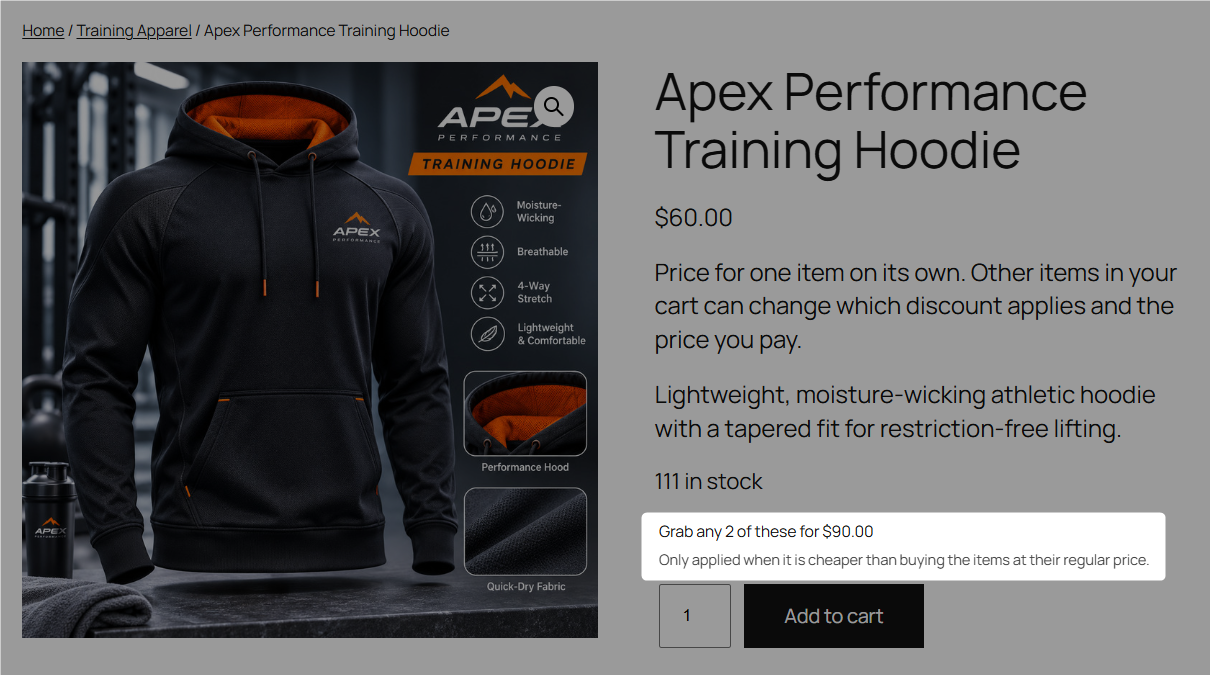
There’s also a handy pricing safeguard. FunnelKit Discounts won’t increase the price of a cheaper product just to make the deal work.
If an item already costs less than its share of the fixed-price offer, it keeps its lower price.
5. Buy X Get Y Off
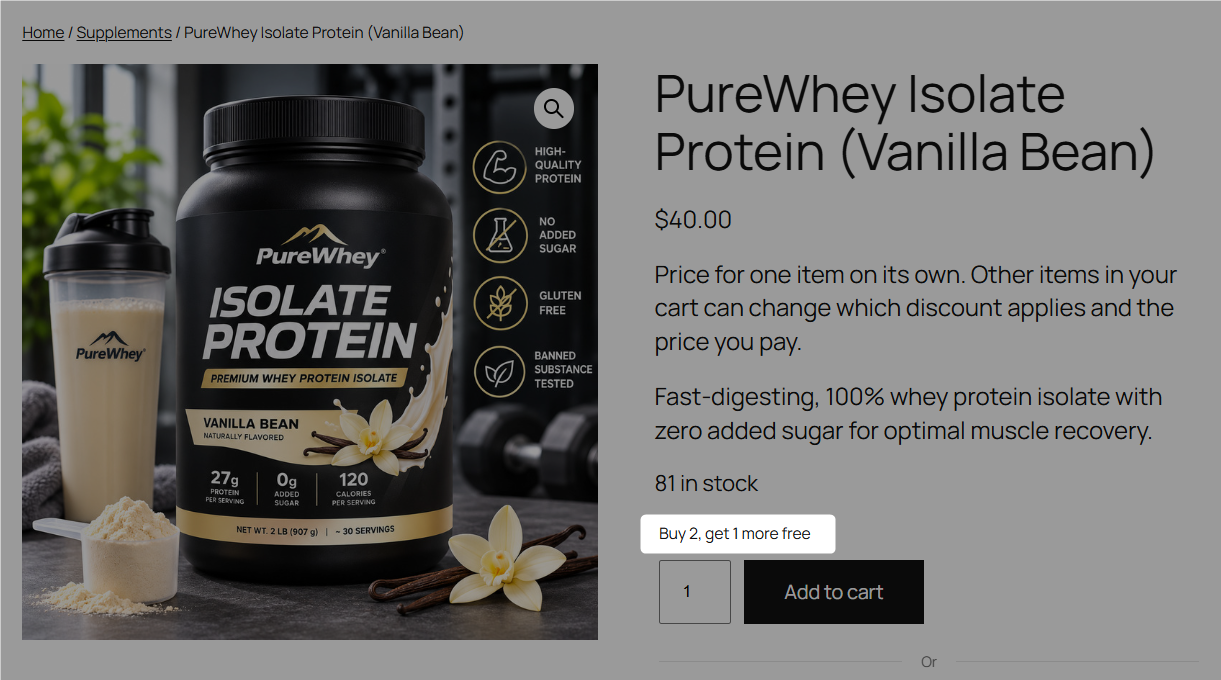
Buy 2, get 1 free. Buy 3, get the next one at 50% off. These are the kinds of offers shoppers understand right away.
Choose how many items customers need to pay for, how many additional items qualify for a discount, and the discount amount.
You can go up to 100% off to make those extra items completely free.
When shoppers qualify, FunnelKit Discounts applies the discount to the cheapest items in each group.
And if they’re one item short, the cart gives them a nudge: “Add 1 more eligible item and the cheapest 1 will be free.”
6. Bulk Pricing
Give shoppers a better price when they buy more. That’s the whole idea behind bulk pricing.
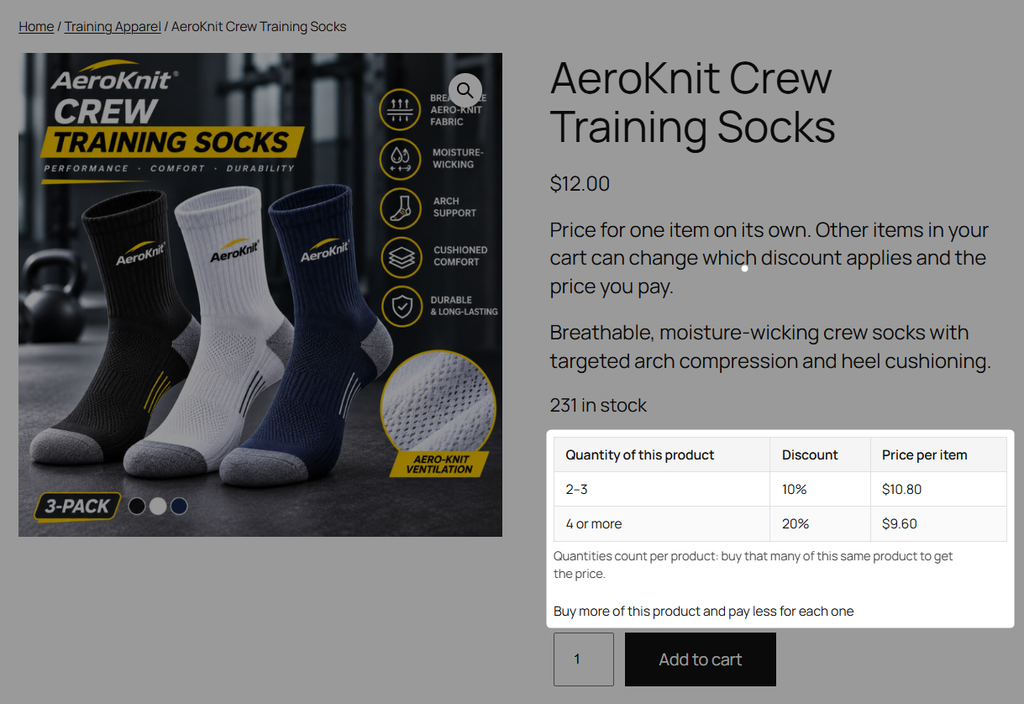
You can create multiple quantity tiers, each with its own discount. For example:
- Buy 2 to 3 items and get 10% off
- Buy 4 or more items and get 20% off
Shoppers don’t have to guess how much they’ll save, either. A pricing table on the product page shows every available tier and the price per item.
They can compare the options before adding anything to their cart and decide whether buying a few extra items is worth it.
Your Cart Becomes Your Best Salesperson
Running a great deal is one thing, but making sure shoppers actually notice it is another.
FunnelKit Discounts takes care of that by showing offers at the right moments, reminding shoppers how close they are to unlocking the next deal, and making their savings visible throughout the buying journey.
Here’s where shoppers see your offers:
| Where shoppers are | What they see |
|---|---|
| Product page | Crossed-out regular prices, campaign messages, and bulk pricing tables |
| Cart | Notices for active deals and nudges to unlock the next offer |
| Cart and checkout | Save badges on discounted items and a Total Savings line |
| Order confirmation, emails, and My Account | A “You saved” row just above the order total |
You also get to decide what these messages say and where they appear.
Add a custom message to product pages, choose from six placement options, and write a separate notice for the top of the cart.
This way, your offers fit naturally into your store instead of looking like generic promotional pop-ups.
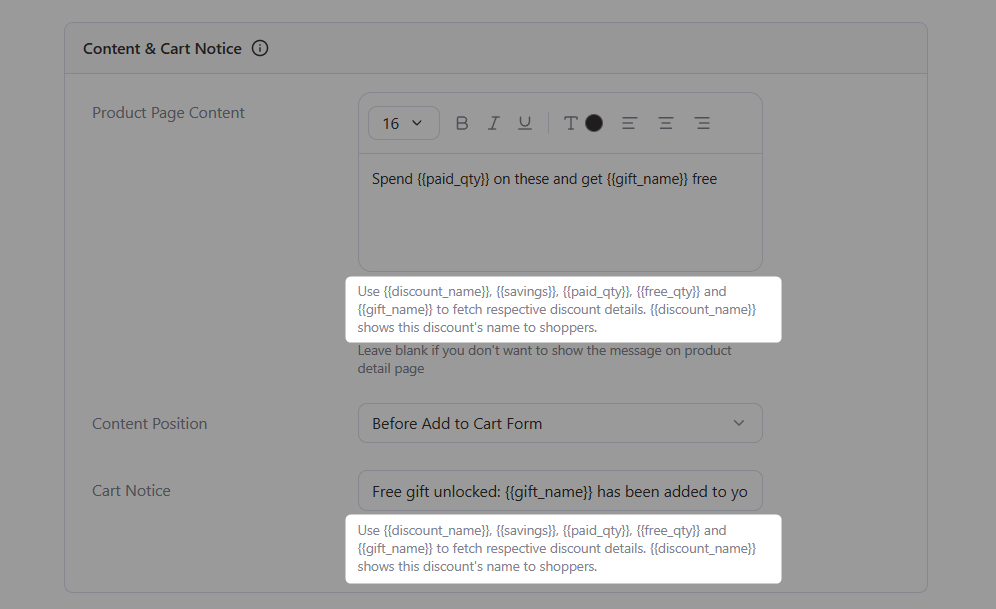
Want to show shoppers exactly how much they’re saving? Smart tags make that easy.
Add tags like {{savings}}, {{discount_value}}, or {{gift_name}} to your messages, and FunnelKit fills in the details automatically. Change the campaign later, and the values update too.
But the real difference shows up when shoppers are close to unlocking a deal.
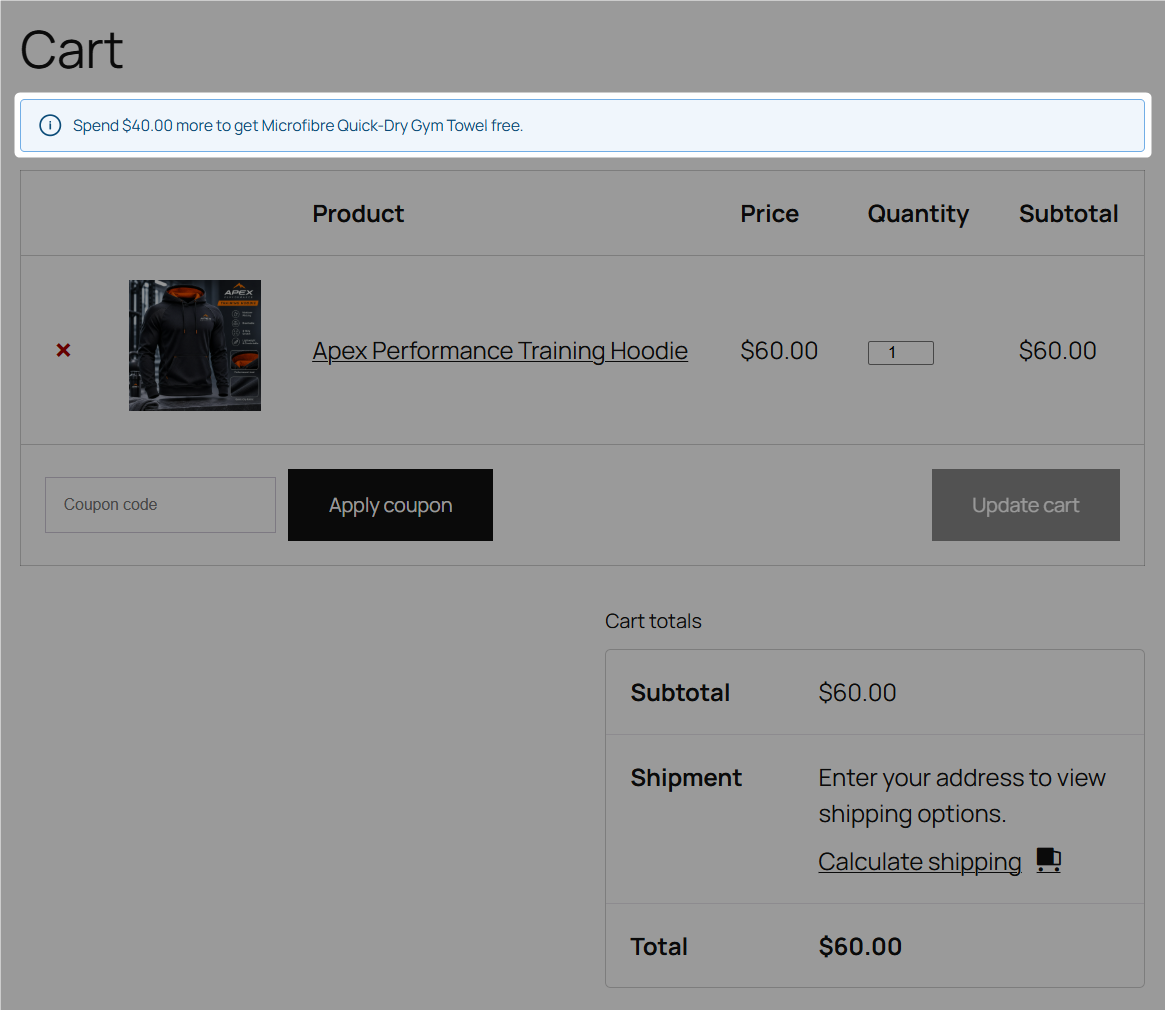
Imagine someone has $60 worth of products in their cart, and a free gym towel is available on orders over $100.
Instead of leaving them to figure that out, FunnelKit Discounts shows a message: “Add $40 more to get a free gym towel.”
That’s a much better reason to browse a little longer and add another product.
Show the Right Deal to the Right Shopper at the Right Time
Not every offer needs to be available to everyone, all the time. Maybe you’re planning a Black Friday promotion, want to give members an exclusive discount, or run a flash sale every weekend.
FunnelKit Discounts lets you set all of this up in advance and handle the rest automatically.
Here’s how you control who sees a deal and when:
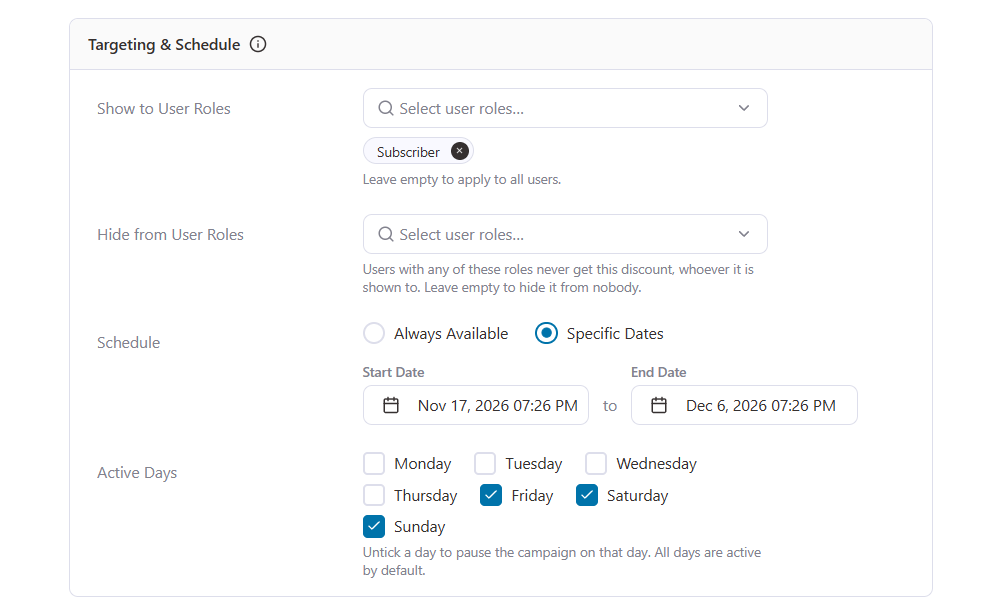
- Show to User Roles: Want to give members or wholesale buyers a special price? Choose the user roles that can access the campaign. You can include guests too, or keep the offer exclusive to logged-in users.
- Hide from User Roles: Exclude specific groups from a promotion. For example, select “Guests (not logged in)” to make a deal available only to logged-in customers.
- Schedule: Keep a campaign available at all times or set specific start and end dates. Perfect for seasonal promotions and limited-time offers.
- Active Days: Choose which days of the week a campaign should run. Want a weekend-only sale? Just select Friday, Saturday, and Sunday, and untick the rest.
There’s also no risk of accidentally publishing an unfinished deal. Every new campaign starts as a Draft and stays that way until you activate it.
Once a campaign is live, you can check its status right from the Discounts list.
Badges show whether it’s Scheduled, Expired, or Paused for the day, so you can see what’s happening without opening each campaign.
Stack Your Offers Without the Guesswork
You don’t have to limit your store to one promotion at a time. You can run an apparel sale, a supplement discount, and a free gift offer at the same time.
FunnelKit Discounts lets multiple campaigns run in the same cart while keeping the discount rules easy to manage.
So, what happens when two campaigns apply to the same product?
FunnelKit Discounts follow a simple priority system. Each product gets the price from the first eligible campaign in your Discounts list.
Free gift campaigns work a little differently because they don’t change product prices. Their gifts are simply added on top.
Want a different campaign to take priority? Just drag it higher in the list. Your new order is saved as soon as you drop it.
You also get a few handy tools to keep everything under control:
- Priority warnings: A storewide campaign can easily take priority over more specific offers. If that happens, FunnelKit warns you and shows how many campaigns are being blocked, so you can fix the order before it becomes a problem.
- A Discounts tab on every product: Open any product in your dashboard to see all the campaigns that apply to it, which one wins, and why. You can also add or remove campaigns and change their priority without leaving the product page.
- FKD in the admin bar: Want to check what’s happening on the actual product page? Visit it while logged in as an admin, hover over FKD in the admin bar, and you’ll see the winning campaign and why the others didn’t apply. This information is only visible to admins, never shoppers.
What about WooCommerce coupons? You get to decide how they work with your campaigns.
By default, coupons can stack on top of campaign discounts. If you’d rather prevent that, enable Block coupons on campaign items. Coupons will then apply only to products that aren’t already covered by a campaign.
No more guessing which discount takes priority or wondering why two offers aren’t working together. You stay in control.
Built to Play Nice With Your FunnelKit Stack
FunnelKit Discounts slots right into the rest of FunnelKit, and every plugin keeps control of the prices it sets. No double discounts, no surprises.
- Funnel Builder: Order bumps keep the bump price and one-click upsells keep the offer price. Accepting a bump never knocks out the campaign discount on the main product.
- FunnelKit Bundles: Frequently Bought Together and Fixed Bundle widgets show each product at its campaign price, so the widget total matches the cart.
- Sliding Cart: The side cart shows campaign prices on your regular products.
- FunnelKit Payment Gateway for Stripe: Apple Pay and Google Pay buttons on product pages quote the campaign price.
- Sublium and WooCommerce Subscriptions: Campaigns skip subscription items, so a weekend sale never lowers every future renewal. With Sublium, one-time purchases of the same product still get the deal.
It also supports the WooCommerce Cart and Checkout blocks, the classic cart and checkout, HPOS, WooCommerce Product Add-Ons, and popular currency switchers like Aelia, CURCY, and WOOCS.
See Exactly What Every Deal Earns
Discounts can bring in more orders, but are they actually worth running? That’s what FunnelKit Discounts helps you figure out.
It tracks the orders and revenue generated by each campaign, so you can see which offers are working, which ones need tweaking, and where your discounts are going.
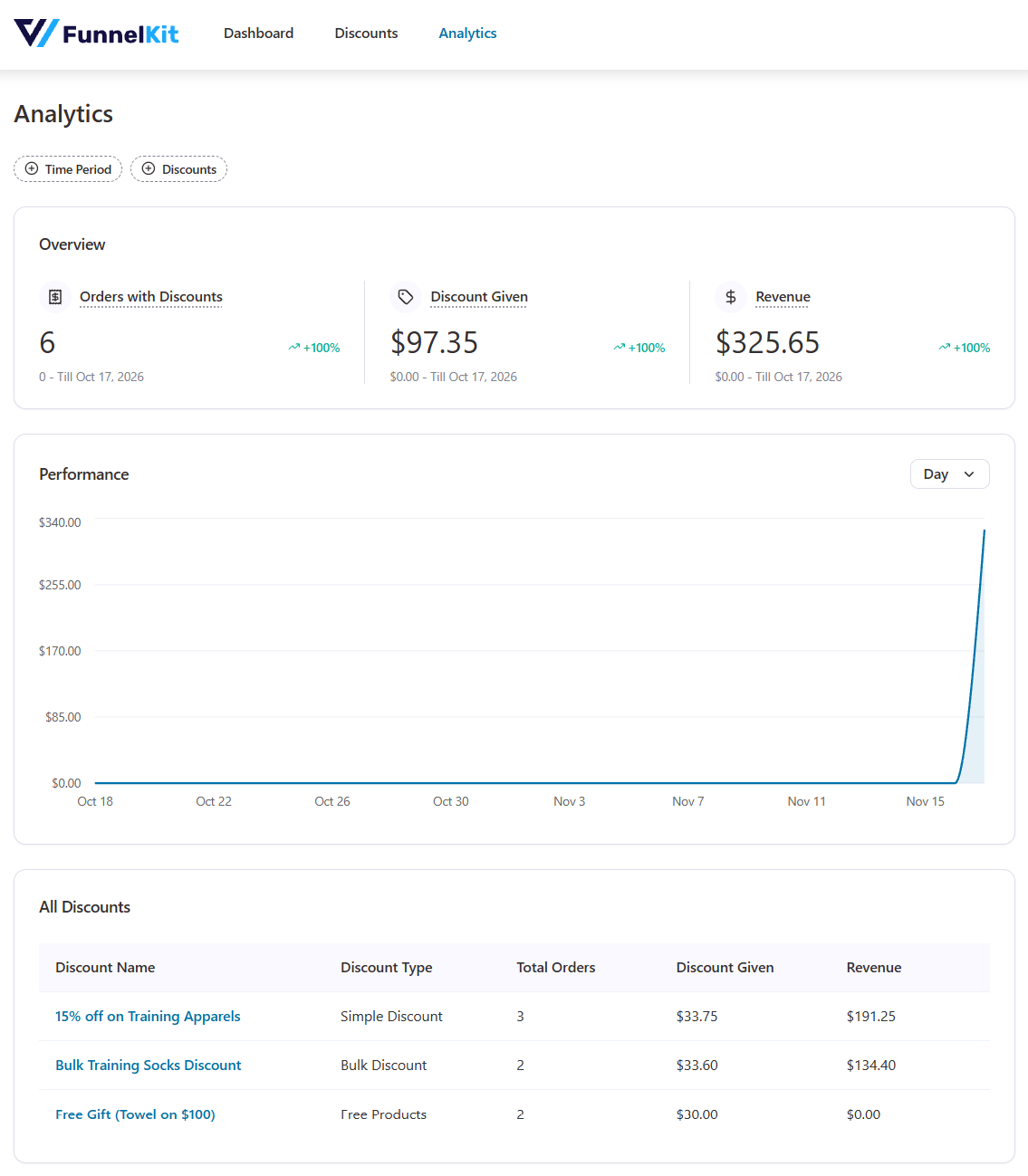
The Dashboard gives you a quick overview of the last 31 days, including:
- Orders that used a discount
- Revenue generated
- Total discounts given
- Your five best-performing campaigns
- A feed of your most recent discounted orders
Want to dig into the numbers? Head over to Analytics. Choose any date range, filter the results by campaign, and compare performance with the previous period or the same dates last year.
For example, if you’re running your Black Friday campaign again this year, you can compare it with last year’s results and see what’s changed.
And we keep the revenue numbers honest. FunnelKit counts only the products discounted by your campaigns, after refunds. Taxes and shipping aren’t included.
So you’re not looking at inflated order totals. You’re seeing the revenue your discount campaigns actually generated.
Launch a Sale Just by Asking AI With FunnelKit MCP
This is one of our favorite parts of FunnelKit Discounts. You can create and manage discount campaigns using FunnelKit AI, right from the AI assistant you already work with.
Connect Claude, ChatGPT, Claude Code, Codex, Cursor, or VS Code, and start giving instructions in plain English. No need to jump between settings or build every campaign manually.
Here are a few things you can ask:
- “Create a 20% off sale on the Training Apparel category for Black Friday weekend.”
- “Give a free gym towel on every order over $100.”
- “Add bulk pricing to the suspension trainer: 10% off for 2 to 3, 20% off for 4 or more.”
- “Duplicate the weekend hoodie deal and schedule it for next Saturday and Sunday.”
- “Move the supplement bundle above the storewide sale.”
- “Which campaigns cost more in discounts than they earned this month?”
That’s just a sample of what you can do. You can create campaigns, update existing ones, change priorities, check schedules, and pull performance reports without leaving your AI assistant.
Not sure what to ask? We’ve made that easier too.
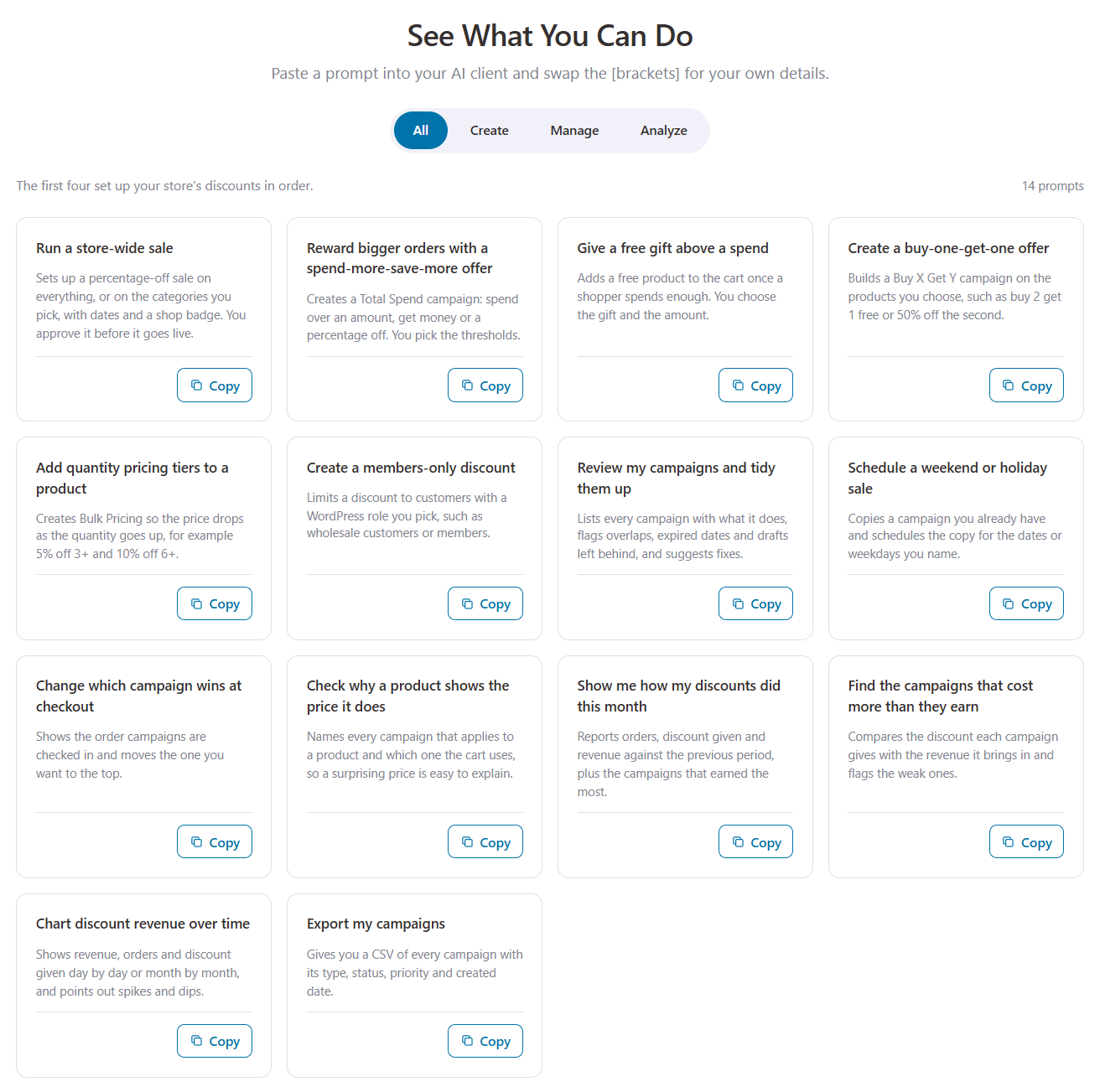
The FunnelKit AI screen comes with ready-to-use prompts organized into three groups: Create, Manage, and Analyze. Pick one, copy it, and get started.
And don’t worry, you still have control over what the AI can do. Choose Read Only access if you only want to pull reports and review campaign data.
Deleting a campaign is always handled from your WordPress dashboard, never through AI.
Launch Your First Campaign in Three Steps
Ready to try it out? Getting started with FunnelKit Discounts takes just a few minutes.
Here’s what to do:
- Download the plugin: Log in to your FunnelKit account and download the FunnelKit Discounts plugin ZIP file.
- Install it on WordPress: Head to Plugins ⇨ Add Plugin ⇨ Upload Plugin, upload the ZIP file, and install and activate it.
- Create your first campaign: Go to FK Discounts ⇨ Discounts, click Create Discount, choose your campaign type, configure your offer, and switch it to Active.
That’s it! Your first discount campaign is ready to go.
Before installing, make sure your store meets these requirements:
- WordPress 5.4 or higher
- PHP 7.4 or higher
- WooCommerce 8.0 or higher
Planning to use FunnelKit AI? You’ll also need a live website running on HTTPS and WordPress 6.9 or higher.
Make sure to add your license key under FunnelKit ⇨ Settings ⇨ General to receive plugin updates directly from FunnelKit.
Frequently Asked Questions
Do shoppers need a coupon code to get a campaign discount?
No. Campaigns apply automatically as soon as a cart meets their conditions. Shoppers see the savings on the product page, in the cart, and in their order emails.
Can I run more than one campaign at a time?
Yes. Several campaigns can apply to one cart. Each product gets the price of the first campaign in your Discounts list that applies to it, and free gifts come on top.
Can shoppers use a coupon on top of a campaign price?
By default, yes. To stop it, select Block coupons on campaign items under Marketing ⇨ Discounts and go to Settings. To limit just one coupon, check Exclude sale items on that coupon instead.
Does a campaign discount the sale price or the regular price?
It starts from the price the product sells at today. If a product is already on sale, the campaign discounts the sale price.
Will campaigns discount my subscription renewals?
No. Campaigns skip subscription items from WooCommerce Subscriptions and Sublium on the first payment and on every renewal.
Do my spend thresholds include tax?
No. Total Spend minimums and free gift spend thresholds count product prices before tax, coupons, and other campaign discounts.
Fire Up Your First Campaign Today!
You don’t need to change your entire store to get started. Pick one of your best-selling products and try a simple offer.
Give shoppers a free gift when they spend a certain amount, or run a Buy 2 Get 1 Free deal.
Then watch how shoppers respond to the cart messages and nudges.
Once the campaign has been running for a while, head to the Dashboard to see how many orders it brought in and how much revenue it generated.
This is just version 1.0, and we have plenty more planned. Have an idea for a discount campaign you’d love to see? We’d love to hear it. Share your feedback with us and help shape what’s next.
Black Friday is just around the corner. Give your cart something extra to sell and let the deals do the talking!
Try Risk-free with 14 Days Money Back Guarantee
Thank you for reading. Stay connected with us on the Facebook group, X (Twitter) and YouTube channel for more tips to help grow your business.