FunnelKit Discounts for WooCommerce can apply several campaigns to one cart. You choose the order it checks them in.
This guide explains how priority works, how to change it, and how to check which campaign wins on a product.

How Campaign Priority Works
Several campaigns can apply to the same cart. A product never gets 2 campaign prices, though. Each product gets the price of the first campaign in your Discounts list that applies to it.
FunnelKit Discounts checks your active campaigns from the top of the Discounts list. These rules decide what happens below the top:
- Price campaigns: a campaign that prices a product skips the campaigns below it for that product.
- Free gift campaigns: they change no price, so they add their gift on top of the other campaigns.
- Deals: a deal, such as Buy X Get Y or Buy X for Fixed Price, claims only the items it counted. A campaign further down can still price the other items.
- Bulk campaigns: they claim only the items they priced.
How to Change Campaign Priority Using FunnelKit Discounts
Here are the steps to follow below:
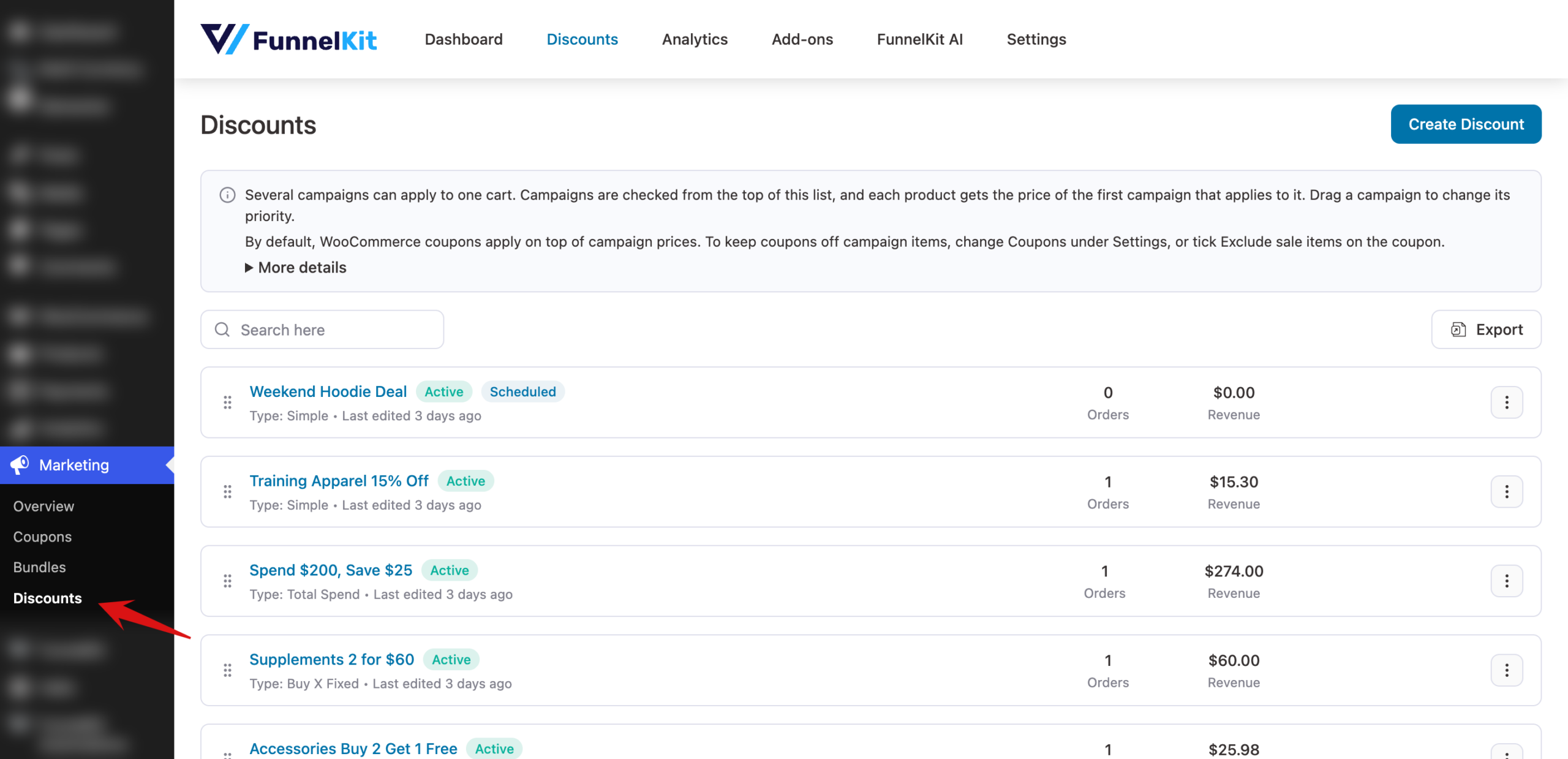
Step 1: Open the Discounts List
From your WordPress admin sidebar, go to Marketing » Discounts.
Step 2: Drag a Campaign to a New Position
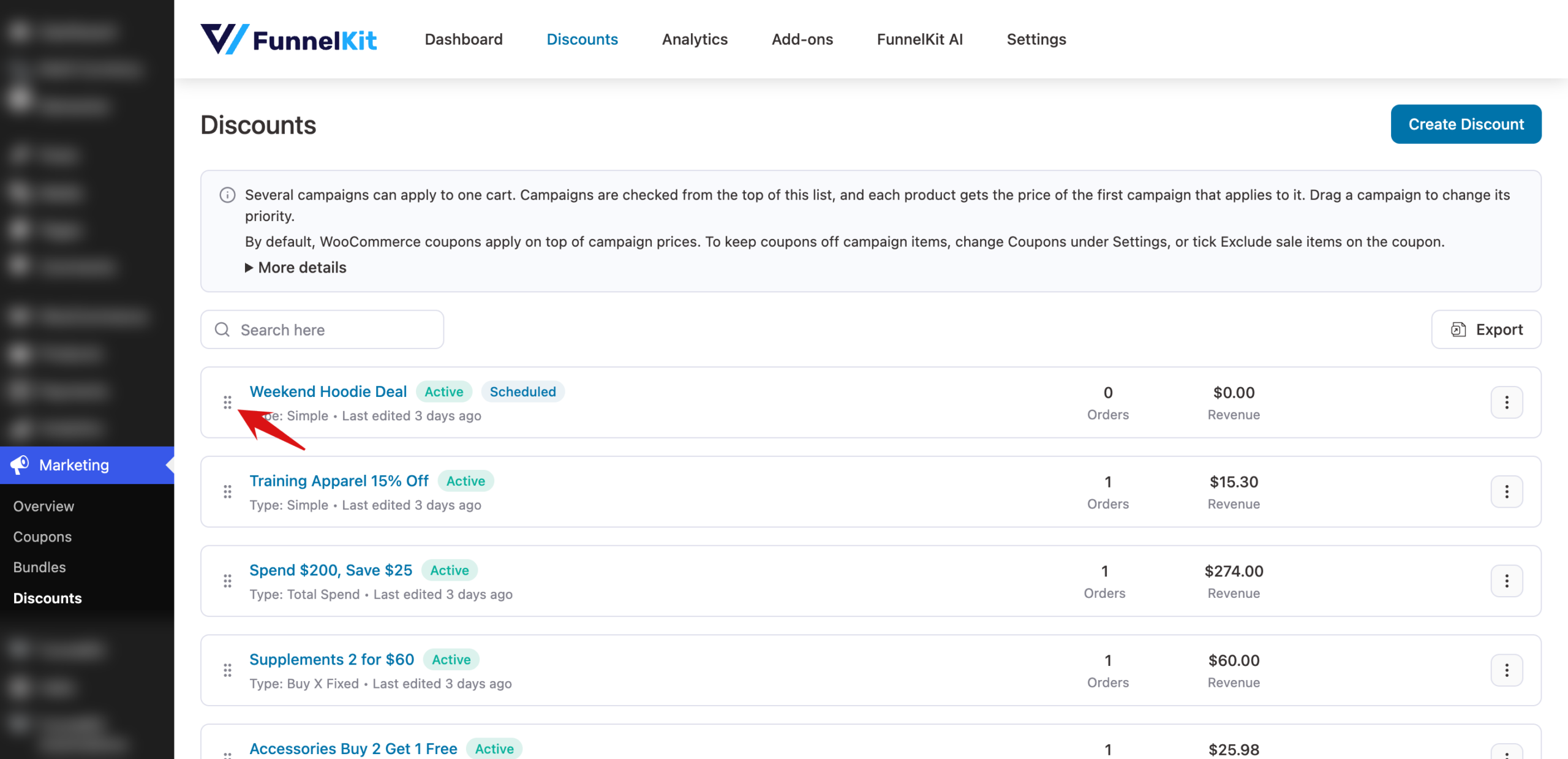
Drag a campaign by the handle on the left of its row. This way, you can put your most important campaign at the top. FunnelKit Discounts saves the new order as soon as you drop the campaign.
Knowing When a Campaign Applies
A campaign applies to a product when all of its conditions are met. FunnelKit Discounts checks them in this order:
- The shopper’s user role
- The schedule dates
- The active days
- The products and exclusions
- The type’s own condition, such as a minimum spend or a quantity
If any condition fails, FunnelKit Discounts skips the campaign and checks the next one. It also skips a Buy X for Fixed Price bundle that saves the shopper nothing.
To read these rules on screen, click More details under the note above the list.
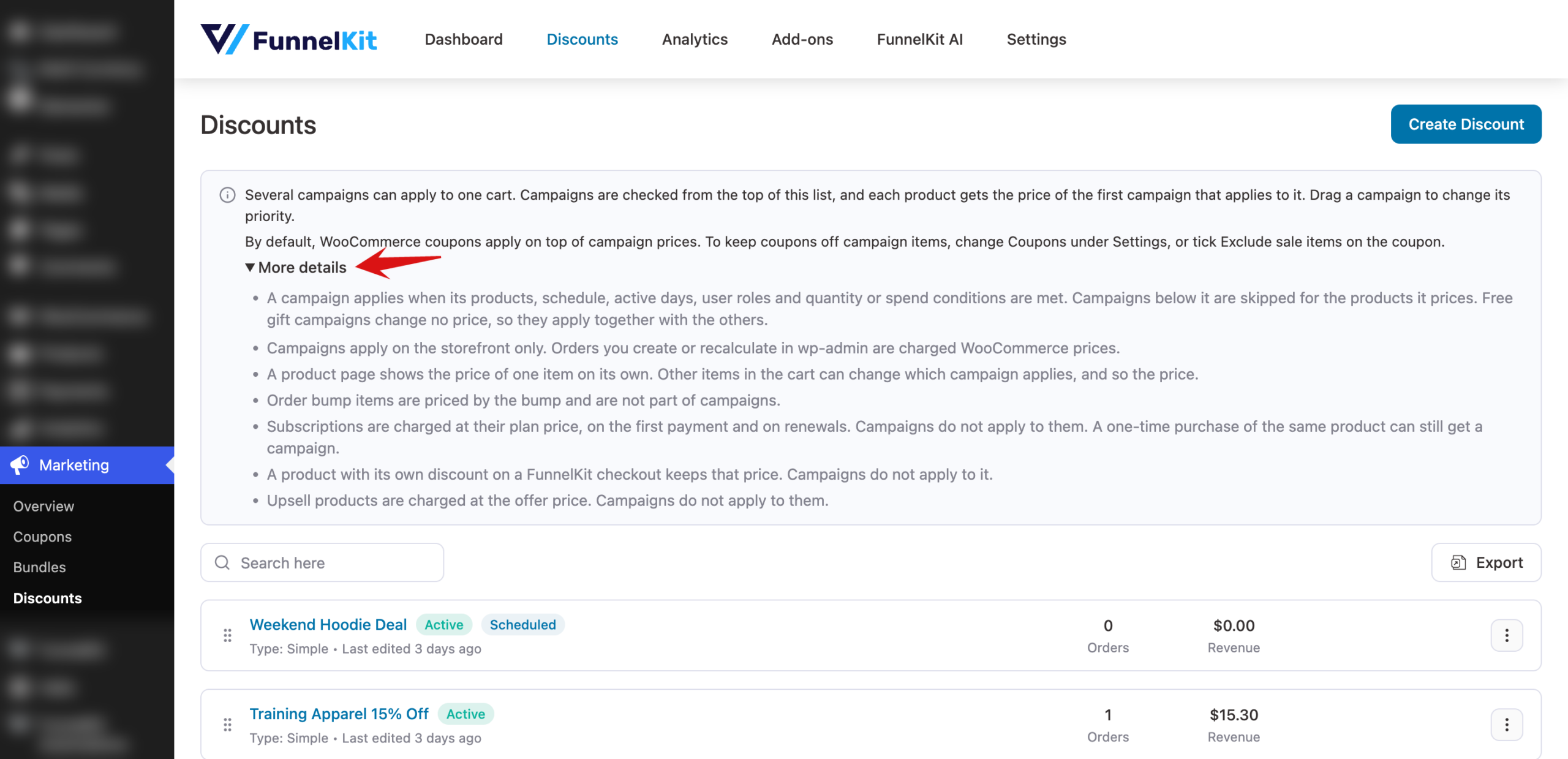
The note also lists the items that campaigns do not price. These include order bump items, subscriptions, and upsell products. Products with their own discount on a FunnelKit checkout also keep that price. For details, see FunnelKit Plugins Integration and Subscription Plugins Integration.
Seeing a Priority Warning
Some campaigns price every product in your store. This happens with a Simple discount on all products that has no exclusions, no user role limits, no schedule, and no active days limit. While it is active, no price campaign below it can apply.
When this happens, a warning above the list names the campaign. It also says how many active campaigns below it will never apply. Free gift campaigns still apply.
To fix this, drag a more specific campaign above it. You can also narrow the products of the storewide campaign.
Seeing Several Campaigns in the Cart
In this example, the cart has 2 supplements and a pack of training socks. The supplement deal prices the supplements. The apparel sale prices the socks.
The cart shows a notice for each campaign that applied. Below them, a message tells the shopper what more to add to get the next offer. In this example, the message names the spend that unlocks a free gym towel.
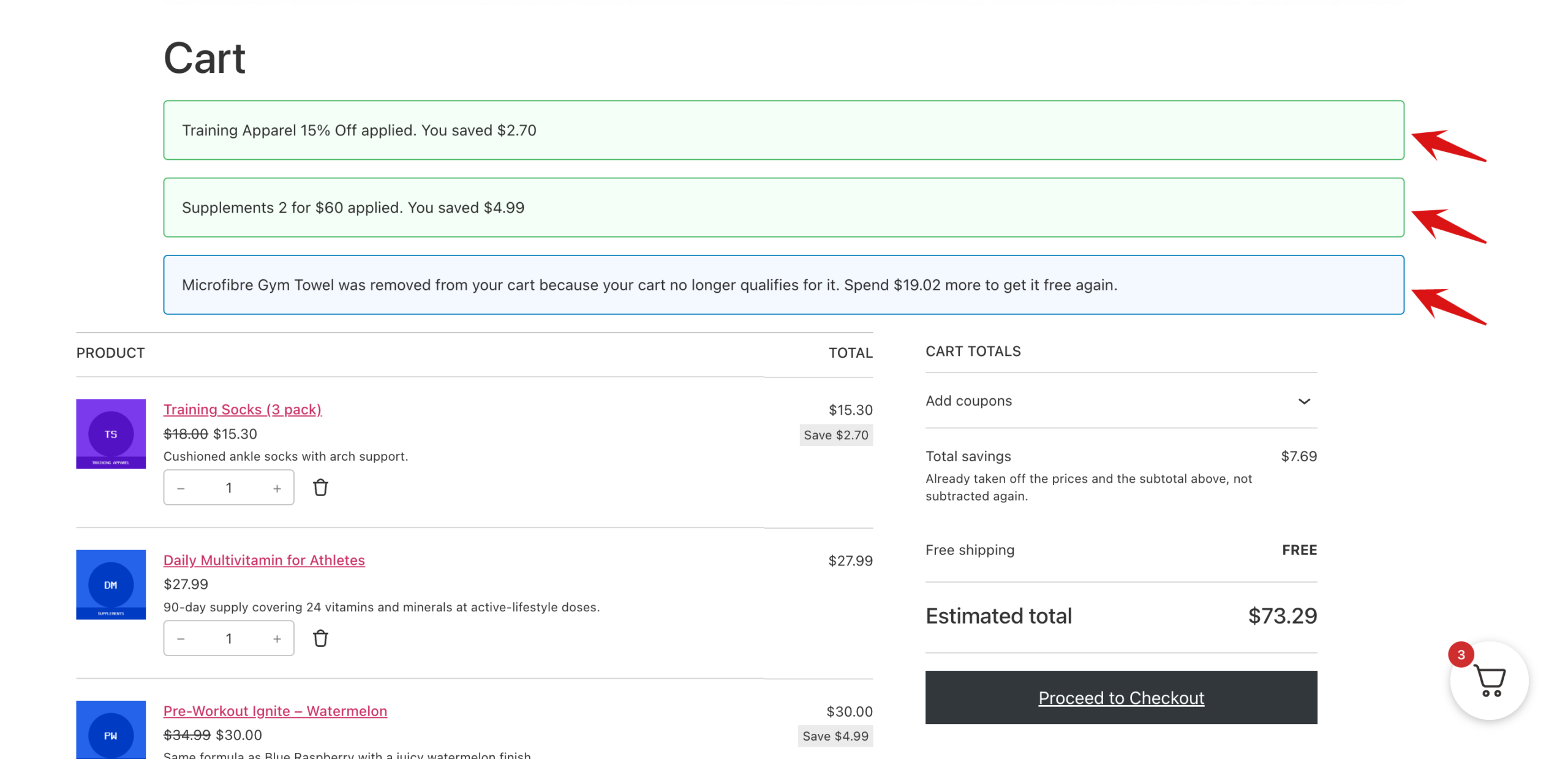
Only the first campaign in the list that the cart nearly qualifies for gets this message. A Bulk campaign can add a message for each product in the cart.
When a free gift leaves the cart, its message always shows too. It explains why the gift left and how to get it back.
Checking Which Campaign Wins on a Product
When you are logged in as an administrator, open any product page on your store. The WordPress admin bar shows an FKD item with the campaign that wins for that product.
Hover over the FKD item to see the winning campaign, its priority, and its type. The menu also lists every matching campaign, with the reason FunnelKit Discounts skipped any of them.
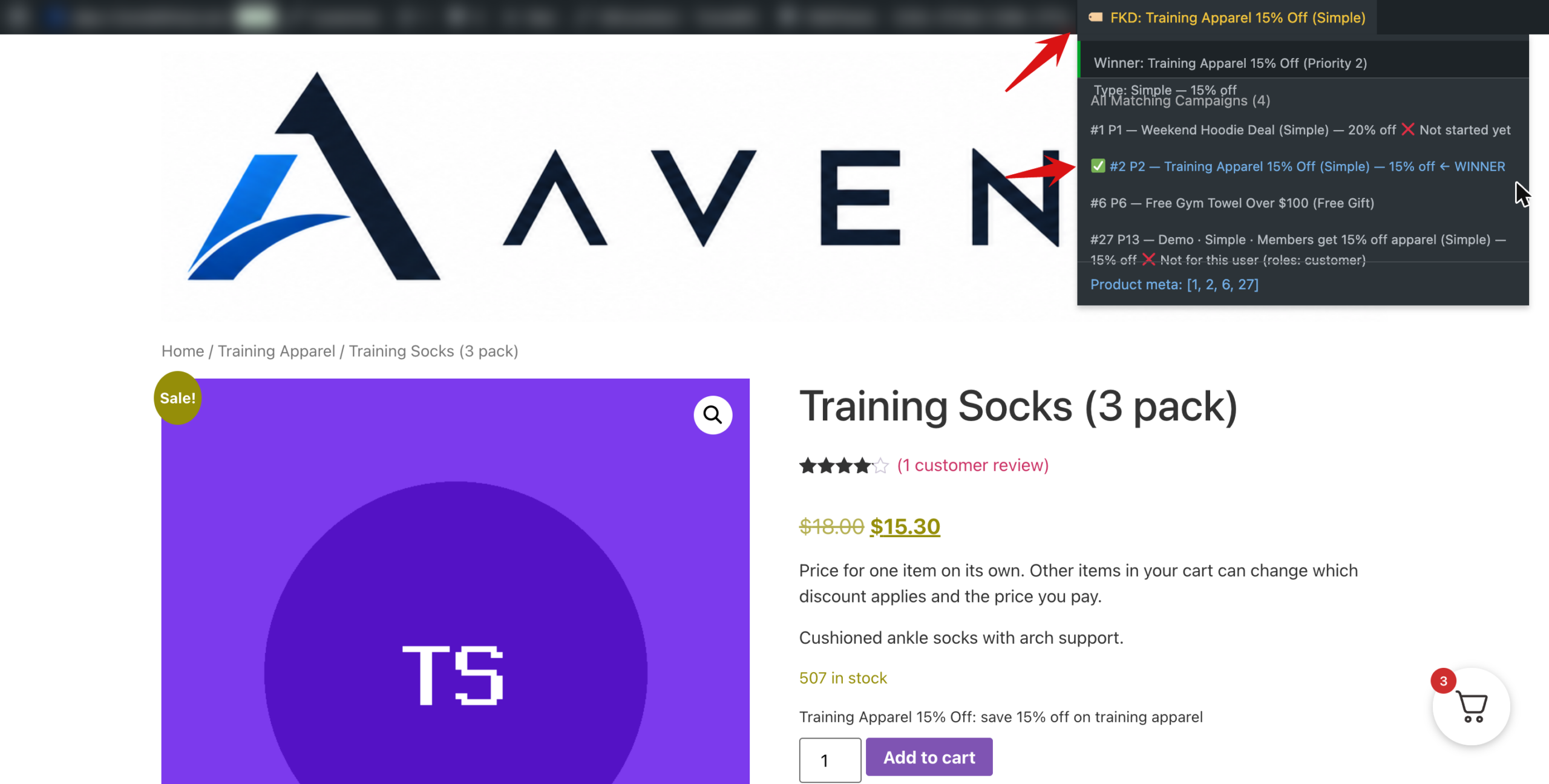
The FKD item checks each campaign’s schedule, user role, and active days. It does not check cart conditions, such as a minimum spend or a quantity.
That’s it! You now know how FunnelKit Discounts picks the campaigns for each cart. Next, see how coupons work with your campaigns in Using Coupons With Campaigns.
FAQ
Why did my campaign not apply to a cart?
Most often, a campaign higher in the list already priced the product. A campaign also skips the cart when one of its conditions fails, such as the user role, the date, or the minimum spend. To check a product, open its Discounts tab or look at the FKD item in the admin bar.
For more about roles, see the Beginner’s Guide to WordPress User Roles and Permissions.