FunnelKit Discounts for WooCommerce shows shoppers how much they saved, and saves the campaigns that applied to each order. This guide shows you where shoppers see their savings and how to check the discounts on an order.

Showing Savings to Shoppers
FunnelKit Discounts shows the shopper’s savings at every step:
- Cart and Checkout blocks: a Total savings line, with a note under it that the saving is already taken off the prices.
- Classic cart and checkout: the same saving in a Discount row above the total.
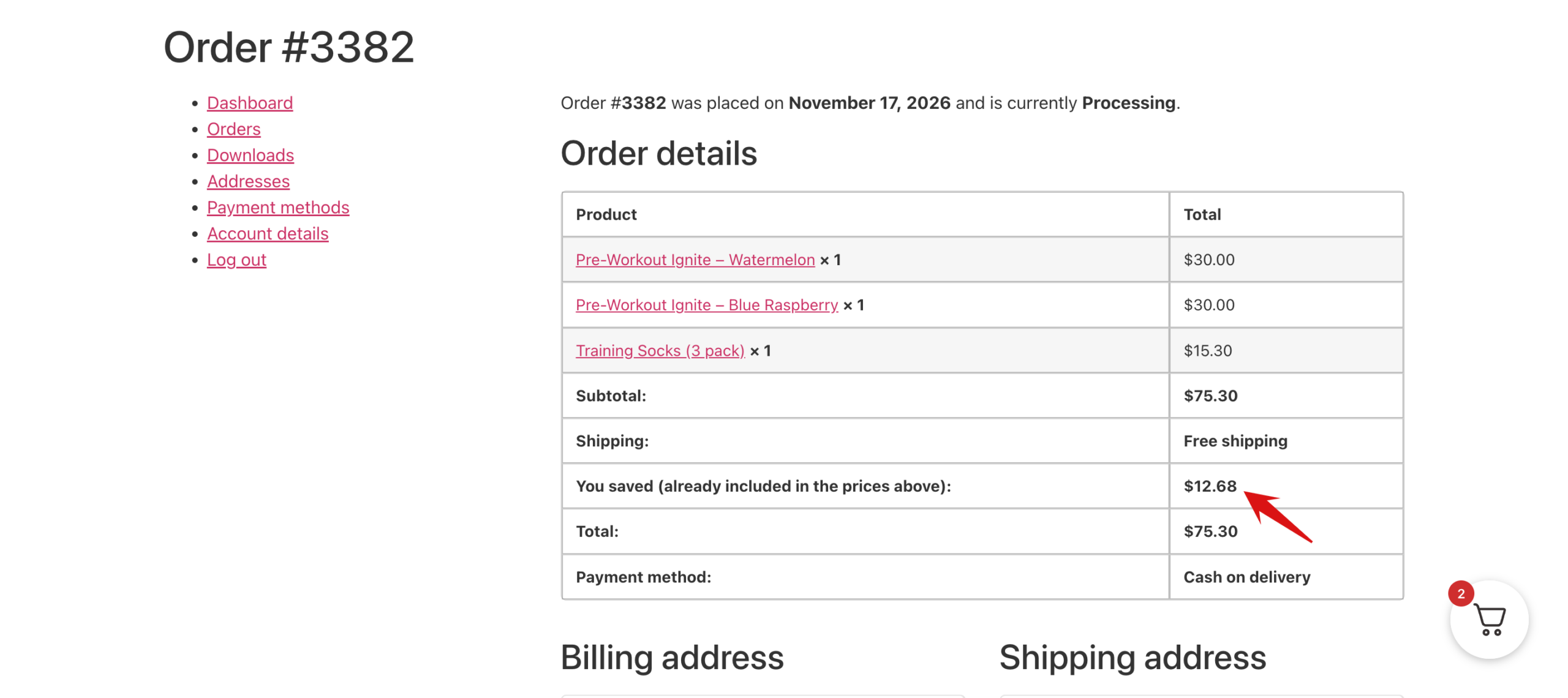
- After the order: the order confirmation page, the order emails, and the order in My Account show a savings row above the total. It reads You saved (already included in the prices above).
Here is how the savings row looks when a shopper opens the order in My Account.
How to Check Discounts on an Order Using FunnelKit Discounts
FunnelKit Discounts saves the campaigns that applied to each order at checkout. Here are the steps to follow below:
Step 1: Open the Order
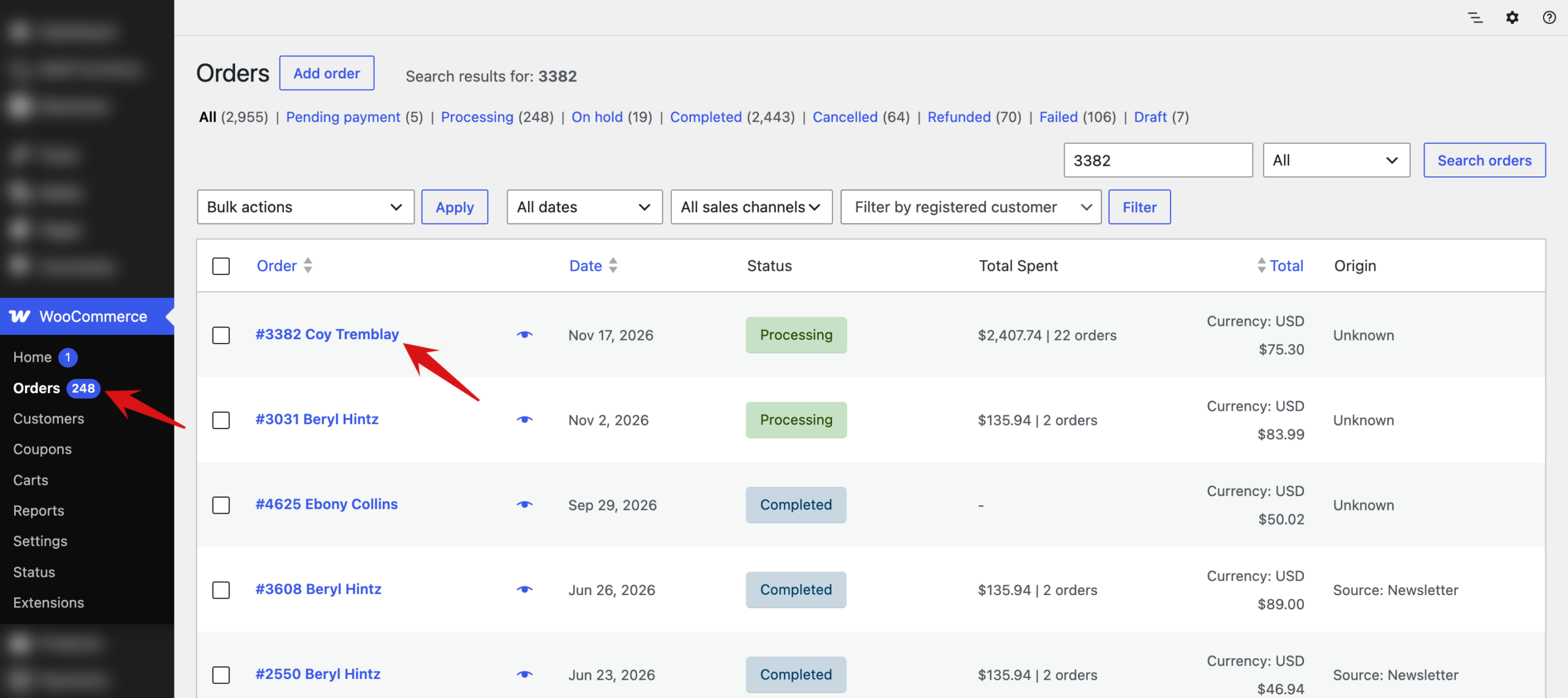
From your WordPress admin sidebar, go to WooCommerce » Orders. Then click the order to open it.
Step 2: Check the FunnelKit Discounts Section
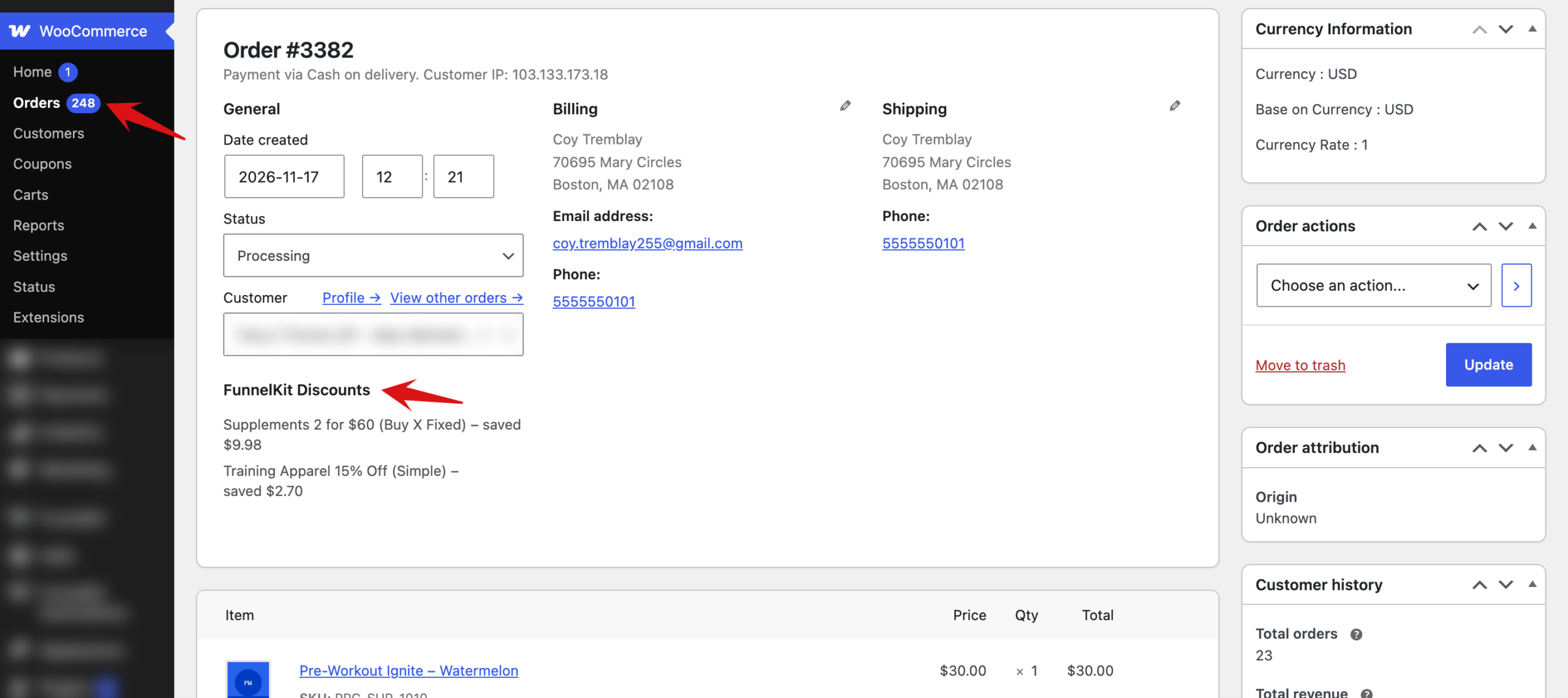
Under the order details, the FunnelKit Discounts section lists each campaign, its type, and the amount saved.
That’s it! You now know where shoppers see their savings and how to check the campaigns on any order.
FAQ
Do campaigns add notes to my orders?
No. FunnelKit Discounts records the campaigns in the FunnelKit Discounts section on the order edit screen instead. That section lists each campaign, its type, and the amount saved.