FunnelKit Discounts has a built-in integration with translation plugins, such as Polylang and WPML. Your campaigns work in every language of your store, as long as each campaign lists the translated products and categories it should cover.
In this guide, we will explain how the translation plugins integration works, how to cover every language in a campaign, and how to translate the plugin itself.

How the Integration Works
Translation plugins make a separate copy of each product and category for each language. FunnelKit Discounts matches campaigns by product and category. So each campaign covers only the products and categories it lists.
- All Products: a campaign on All Products covers every language.
- Specific products or categories: a campaign covers a translated product only when you add that product or its category too.
We tested this with the free Polylang plugin, with English and French. In the cart, the results were:
- Category campaign: a campaign on the English Training Apparel category discounted the English socks. The French copy of the socks kept its regular price.
- Product campaign: a campaign on the English socks only also left the French copy at its regular price.
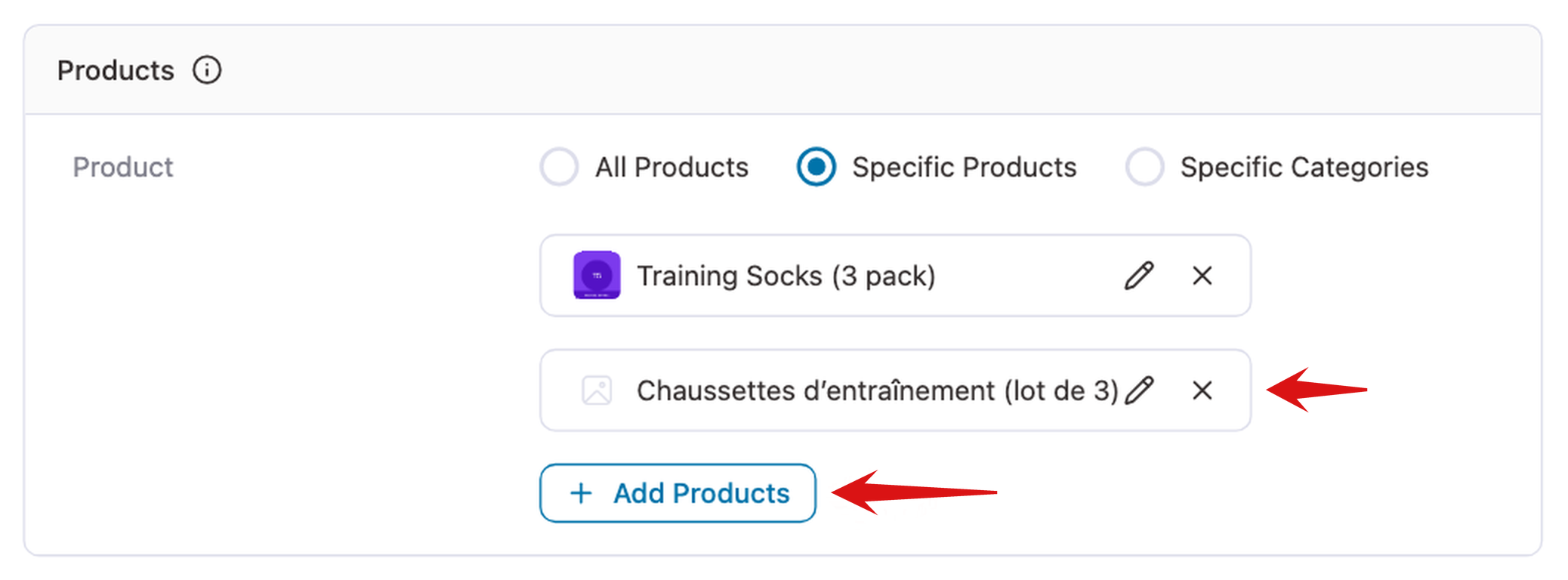
- Translated copy added: after we added the French copy, or its French category, to the campaign, the French copy got the discount too.
Covering Every Language in a Campaign
To cover every language, add each translated product to the campaign under Add Products. For a category campaign, add each translated category under Specific Categories. The product and category searches in the campaign editor find items in every language.
Exclusions also match by product and category. To exclude a product in every language, exclude each translated copy of it too.
How Campaign Messages and Settings Work
Campaign messages that you wrote yourself, such as product page content and cart notices, show exactly as you typed them. If you kept a sample message, it shows in the language of the plugin’s translation.
FunnelKit Discounts also reads WPML and Polylang to find your site’s main address for license checks and for FunnelKit AI.
Translating the Plugin
You can translate the text that shoppers see in the store. This covers the cart messages, the product page notes, and the sample campaign messages. In version 1.0.0, the admin screens of the plugin show in English.
The plugin uses the text domain funnelkit-discounts-for-woocommerce. Its translation template is languages/funnelkit-discounts-for-woocommerce.pot in the plugin folder.
To translate the plugin, follow these steps:
- Open the template file in a translation tool, such as Poedit.
- Translate the text.
- Save the translation as a
.mofile. - Name the file with the text domain and your locale, such as
funnelkit-discounts-for-woocommerce-fr_FR.mo. - Upload the file to the
wp-content/languages/plugins/folder of your site.
WordPress then shows the translated text to shoppers who use that language.
To upload the file with an FTP client, see this guide on how to use FTP to upload files to WordPress.
FAQ
Do my campaigns work on every language of my site?
A campaign on All Products works on every language. A campaign on specific products or categories covers only the ones it lists. To cover a translated product, add the translated product or its translated category to the campaign.
Do I need to set up the translation plugins integration?
No. The integration works on its own once your translation plugin is active. You only need to add the translated products or categories to your campaigns.