FunnelKit Discounts has a built-in integration with the WooCommerce Cart and Checkout blocks. It also supports the classic cart and checkout pages, so your campaigns work whichever type your store uses.
In this guide, we will explain how campaign savings show with each cart and checkout type.

How the Integration Works
FunnelKit Discounts supports both the WooCommerce Cart and Checkout blocks and the classic cart and checkout pages. There is no setting to change for either type.
Cart and Checkout Blocks
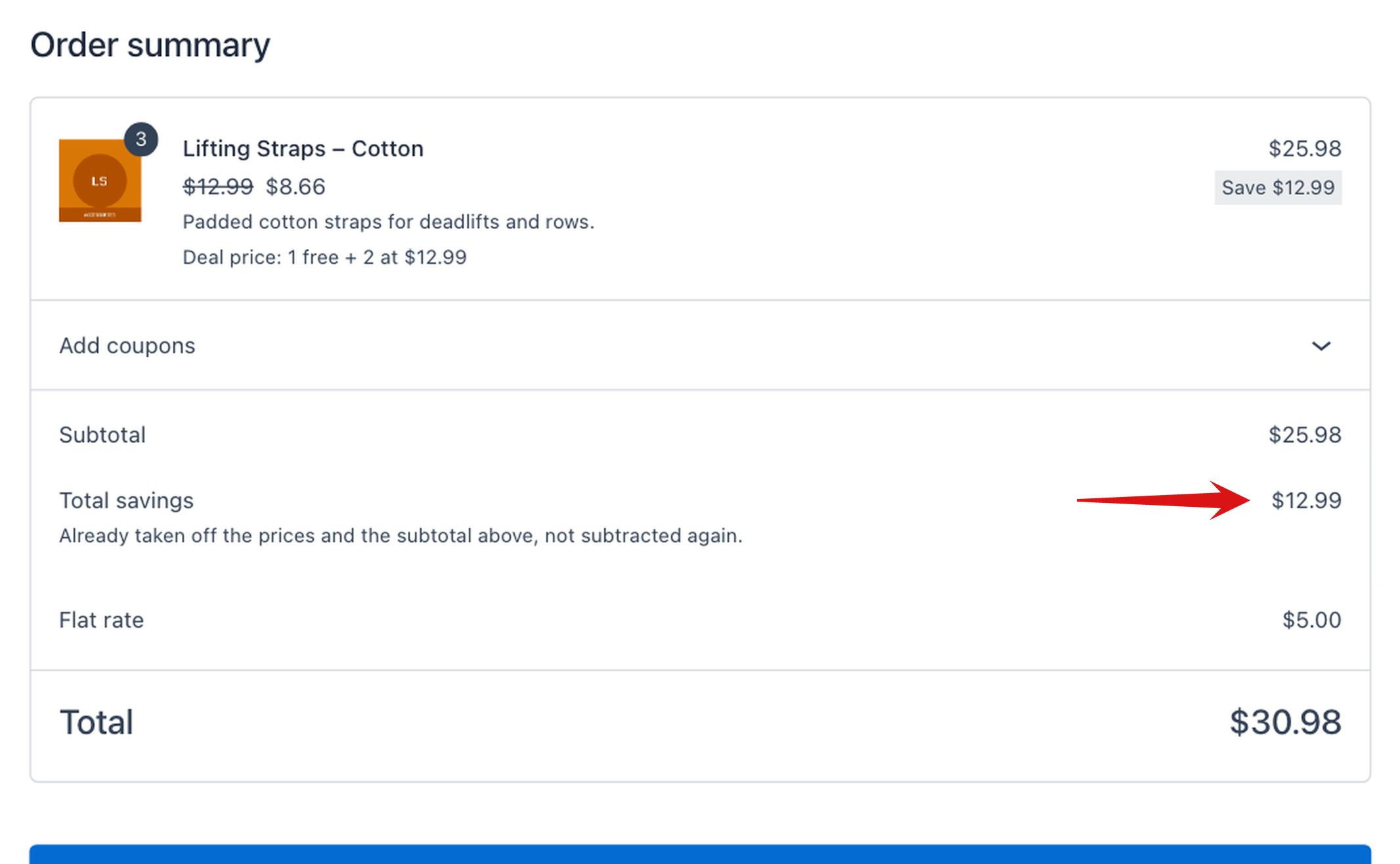
With the blocks, the cart and the checkout show a Total savings line with the campaign discount. A note under it explains that the saving is already taken off the prices above.
Classic Cart and Checkout
The classic cart and checkout show the subtotal before campaign discounts, then a Discount row with the campaign discount.
Things to Keep in Mind
Keep these points in mind with both cart types:
- Cart notices: the notices show at the top of the cart page on both cart types. They do not show on the checkout page.
- Free gifts: free gift items have a fixed quantity of 1 and no remove link in both cart types.
- Reports: orders placed through the block checkout are recorded in the Dashboard and Analytics, like classic checkout orders.
FAQ
Do I need to set up the Cart and Checkout blocks integration?
No. The integration works on its own. Your campaigns apply on the block cart and checkout and on the classic pages without any setting.
Why does the checkout not show my cart notice?
Cart notices show at the top of the cart page only. On the checkout, shoppers see the campaign saving in the order summary instead.