FunnelKit Discounts for WooCommerce adds sale prices, bundle deals, free gifts, and quantity pricing to your WooCommerce store. You install it from a zip file, then activate your license from its Settings page.
In this guide, we will show you how to install FunnelKit Discounts for WooCommerce, activate your license, and check that it is ready to use.

FunnelKit Discounts for WooCommerce works with the WooCommerce Cart and Checkout blocks and with the classic cart and checkout. It also supports High-Performance Order Storage (HPOS).
For details, see our guide on using FunnelKit Discounts for WooCommerce with other plugins.
How to Install FunnelKit Discounts for WooCommerce
Here are the steps to follow below:
Step 1: Download the Plugin Zip File
FunnelKit Discounts for WooCommerce installs from a zip file that you upload to WordPress.
First, log in to your FunnelKit account. Then download the FunnelKit Discounts for WooCommerce zip file. Keep the file zipped.
Step 2: Upload the Plugin
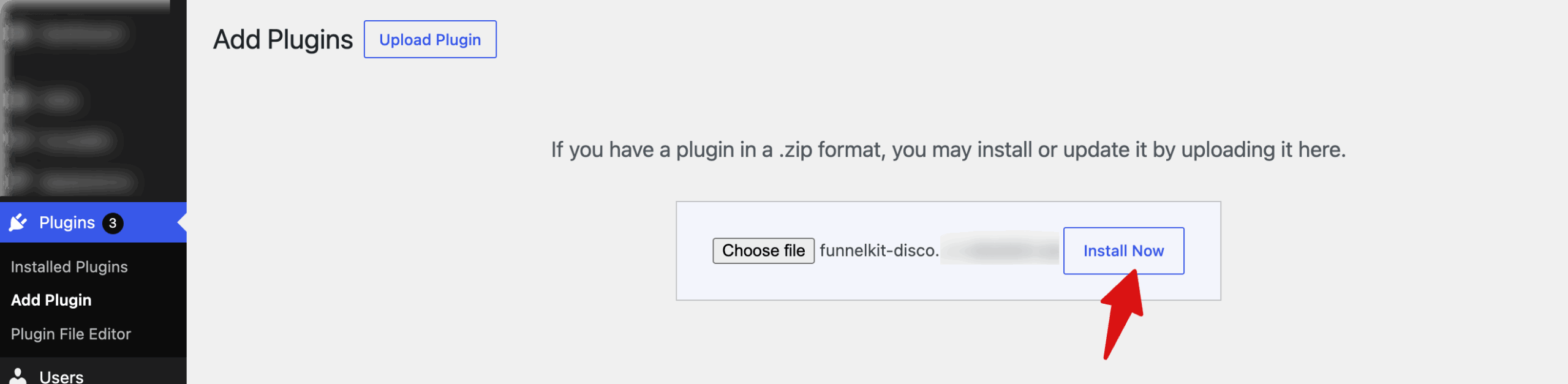
Next, in your WordPress admin sidebar, go to Plugins » Add Plugin. At the top of the page, click the Upload Plugin button.An upload form opens. Click Choose File and select the zip file from your computer. After that, click Install Now.
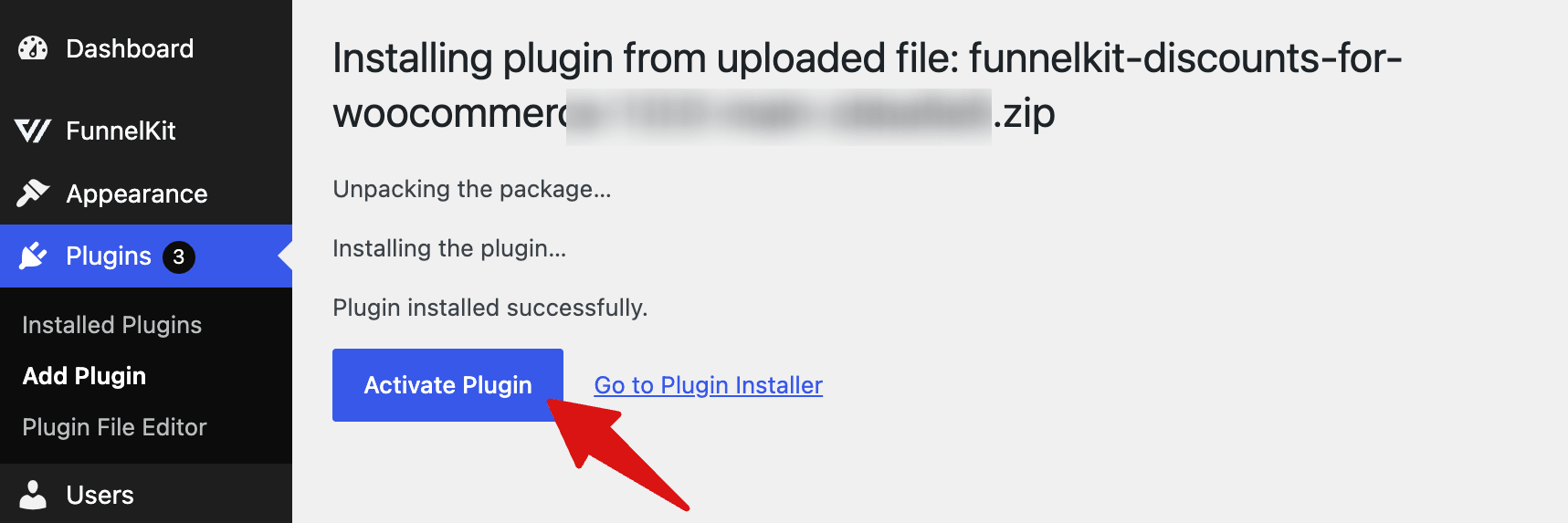
When the upload finishes, WordPress shows the message Plugin installed successfully. That screen also has an Activate Plugin button. It does the same thing as the Activate link in the next step.
Step 3: Activate the Plugin
Go to Plugins » Installed Plugins in your admin sidebar. In the FunnelKit Discounts for WooCommerce row, click Activate.
FunnelKit Discounts for WooCommerce is now installed and active on your site.
FunnelKit Discounts for WooCommerce needs WooCommerce to apply discounts. On the Plugins screen, its row shows Requires: WooCommerce.
WordPress 6.5 and higher use this requirement to manage both plugins. You can activate FunnelKit Discounts for WooCommerce only while WooCommerce is active.
While FunnelKit Discounts for WooCommerce is active, the WooCommerce row lists it under Required by. WordPress keeps WooCommerce active until you deactivate FunnelKit Discounts for WooCommerce.
If WooCommerce is ever missing, the Discounts menu stays hidden. A notice then tells you that FunnelKit Discounts for WooCommerce needs WooCommerce. To show the menu again, install and activate WooCommerce.
Step 5: Activate Your License
Now, activate your license key from the Settings page. In your WordPress dashboard sidebar, go to Marketing » Discounts » Settings.
The Settings page has 3 sections: License, Coupons, and Product index. The License section is at the top.
Your license key is in your FunnelKit account. To find it, click the Login to your FunnelKit account link under the license field.
Paste your key into the FunnelKit Discounts Pro field. Then click Activate.
When the license server accepts the key, a message confirms that your license is active.
After you activate a key, this section shows the date your license expires. For a lifetime license, it shows Lifetime license instead. A Deactivate button also replaces the Activate button.
That is it! FunnelKit Discounts for WooCommerce is installed, and your license is active.
Next, take a quick tour of the plugin in our guide on exploring the FunnelKit Discounts menu.