A Free products discount adds a gift to the cart at no cost once the order qualifies. In this guide, we will set one up that adds a free gym towel to every order of $100 or more.
This guide covers the steps for one example. For every field of this campaign type, see Giving Free Products in FunnelKit Discounts.

How to Set Up a Free Products Discount Using FunnelKit Discounts
Here are the steps to follow below:
Step 1: Create the Campaign
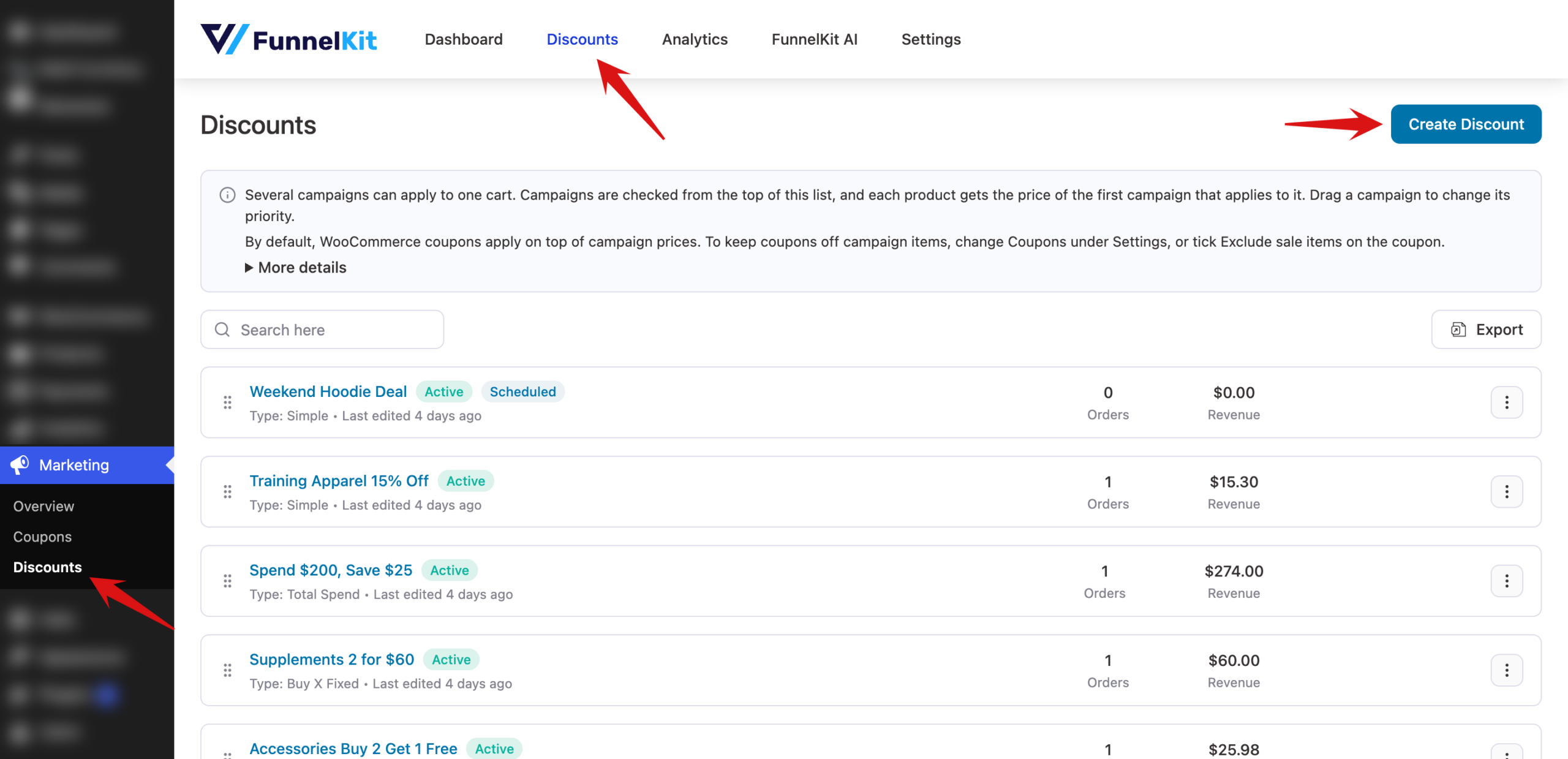
In your WordPress dashboard, go to Marketing » Discounts and open the Discounts tab. Then click Create Discount in the top right corner.
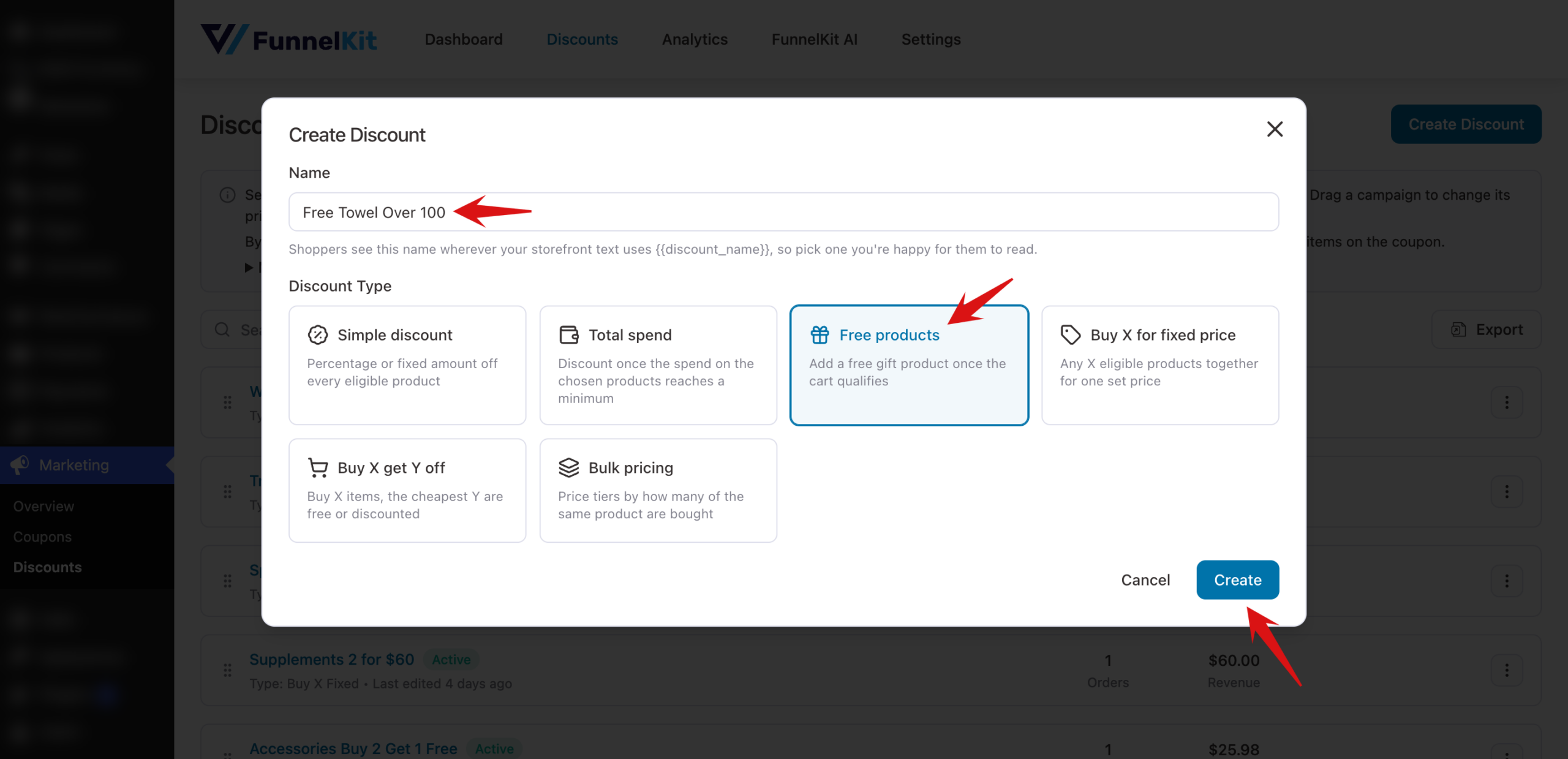
A Create Discount window opens. In the Name field, type a name such as Free Towel Over 100. Shoppers can see this name, so pick one you are happy for them to read.
Then choose Free products as the Discount Type and click Create.
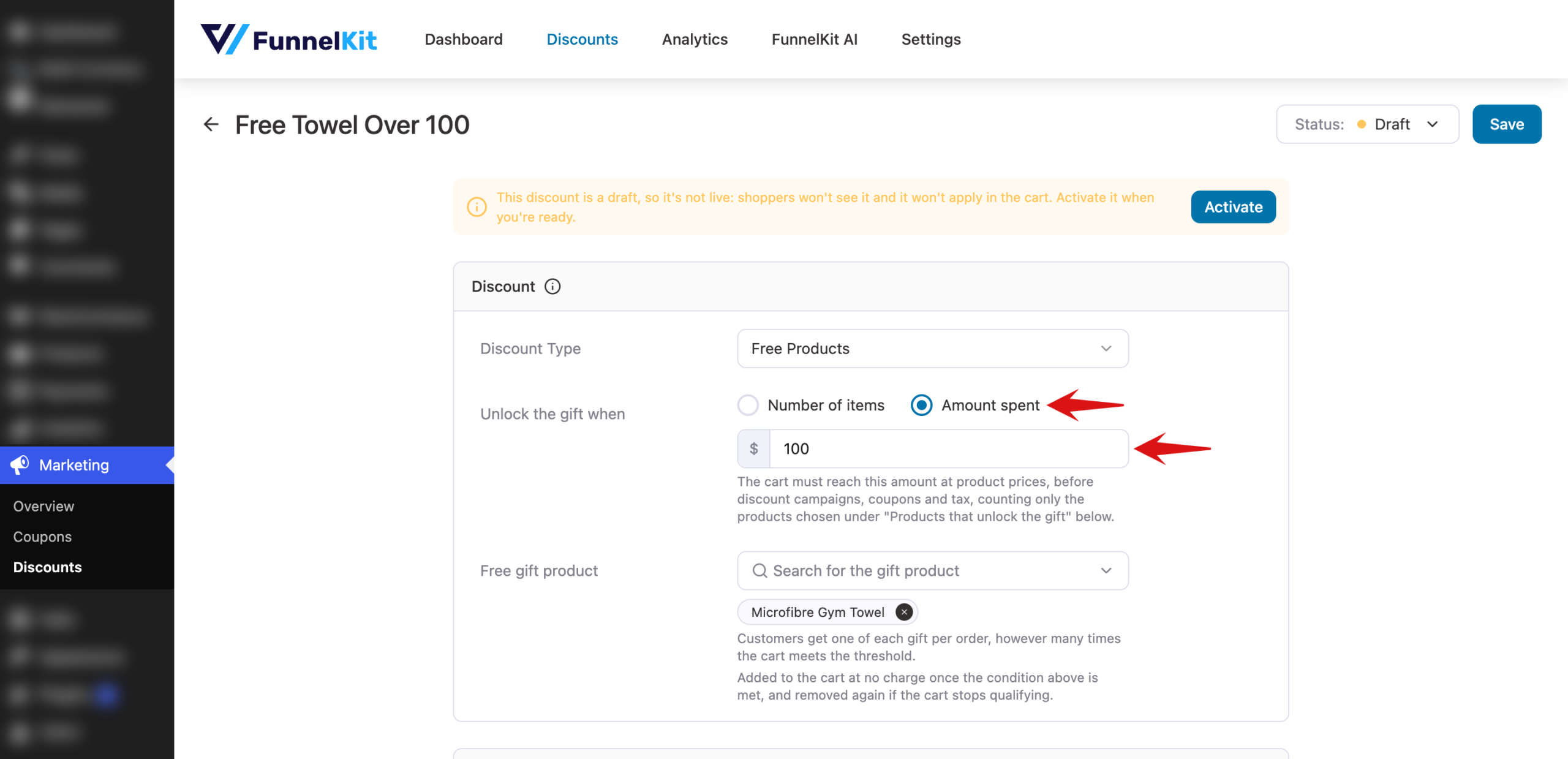
The campaign editor opens. The new campaign starts as a Draft, so shoppers do not see it yet.
Step 2: Choose What Unlocks the Gift
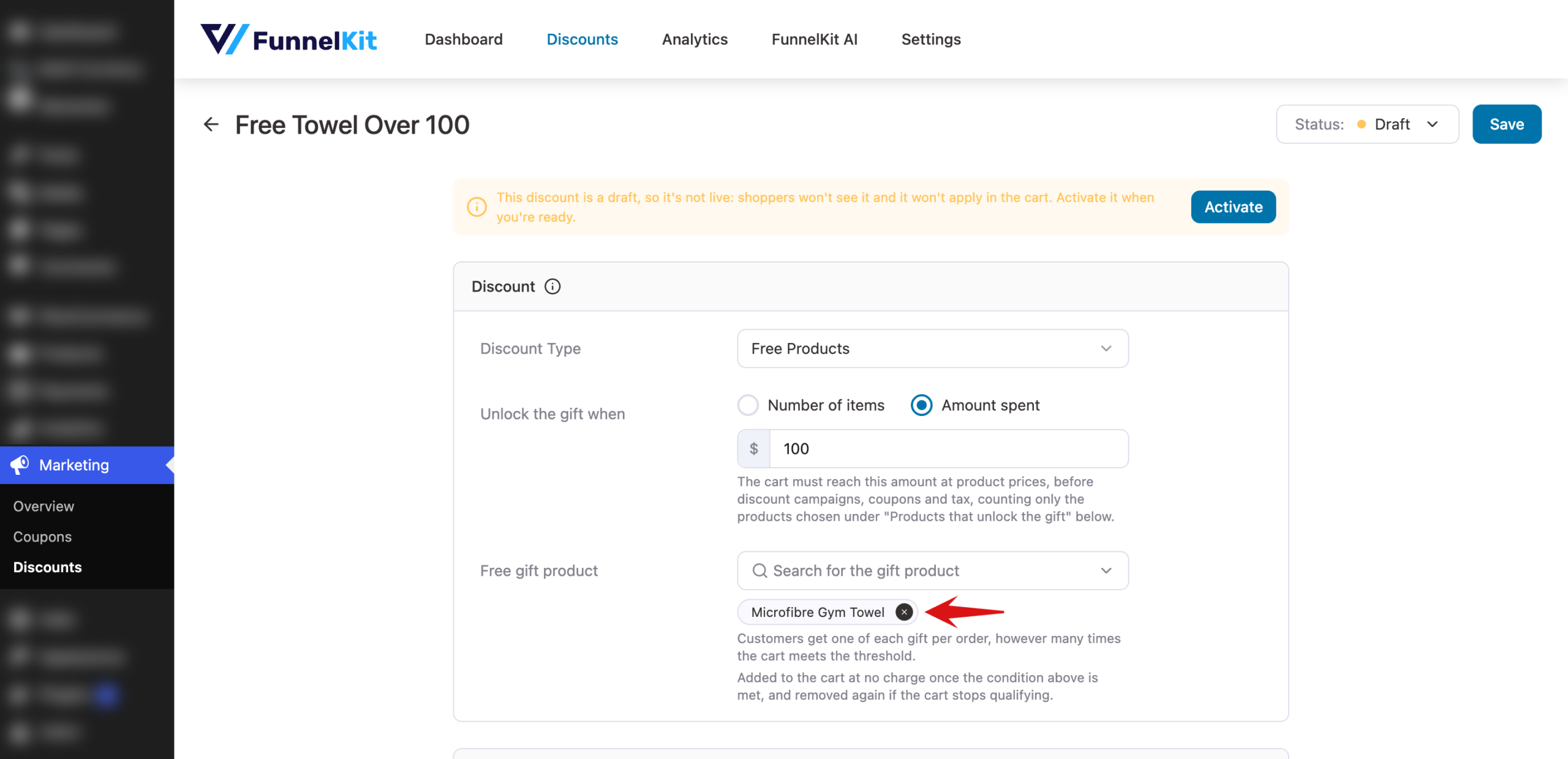
In the Discount section, find Unlock the gift when. Choose Amount spent and type 100 in the field below it.
To unlock the gift by item count instead, choose Number of items. Then type a whole number.
Step 3: Pick the Gift
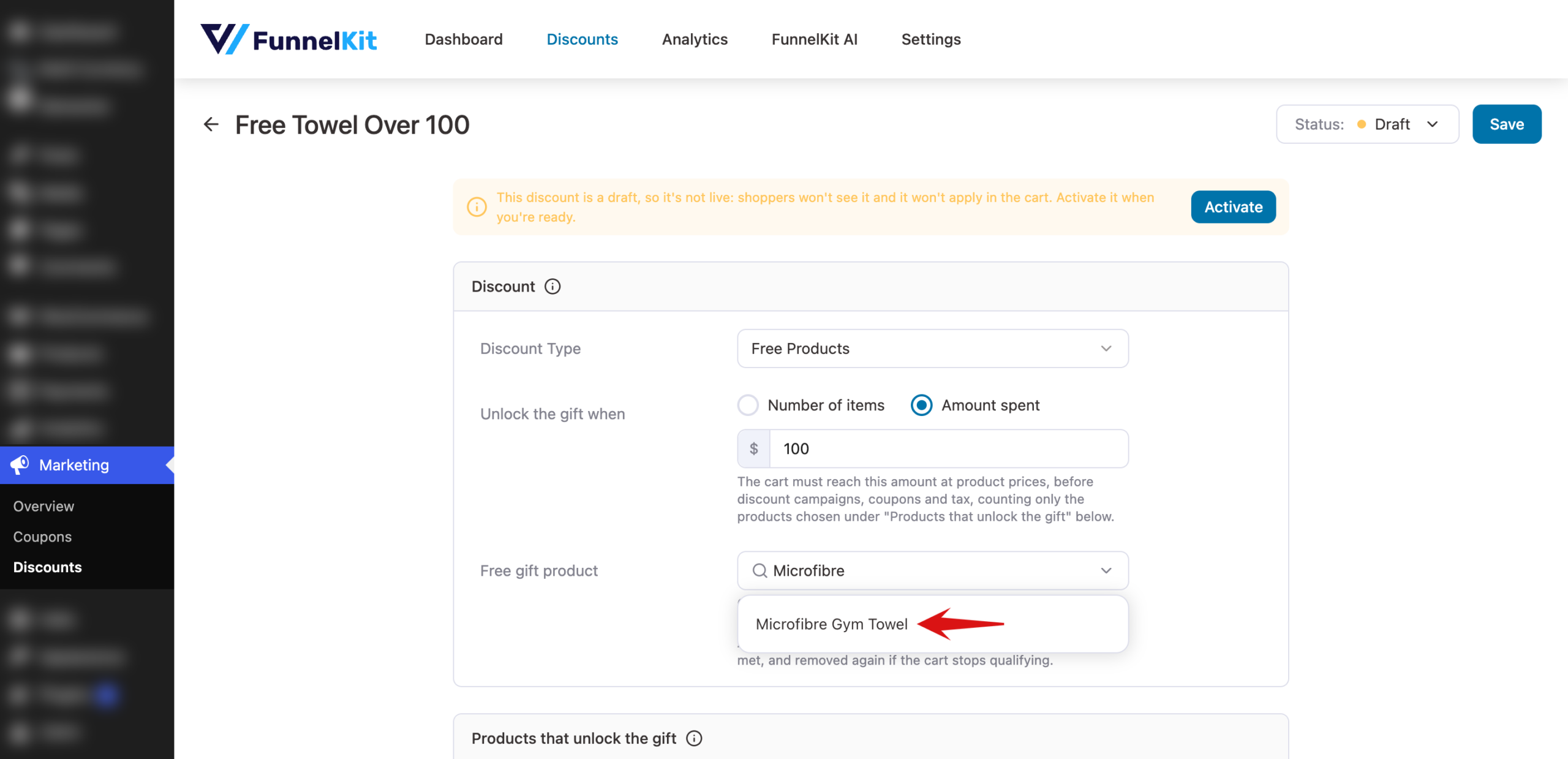
Click the Free gift product field and type the product name, such as Microfibre. Then pick Microfibre Gym Towel from the list.
The towel now shows below the field. You can pick more than one gift.
Step 4: Choose the Products
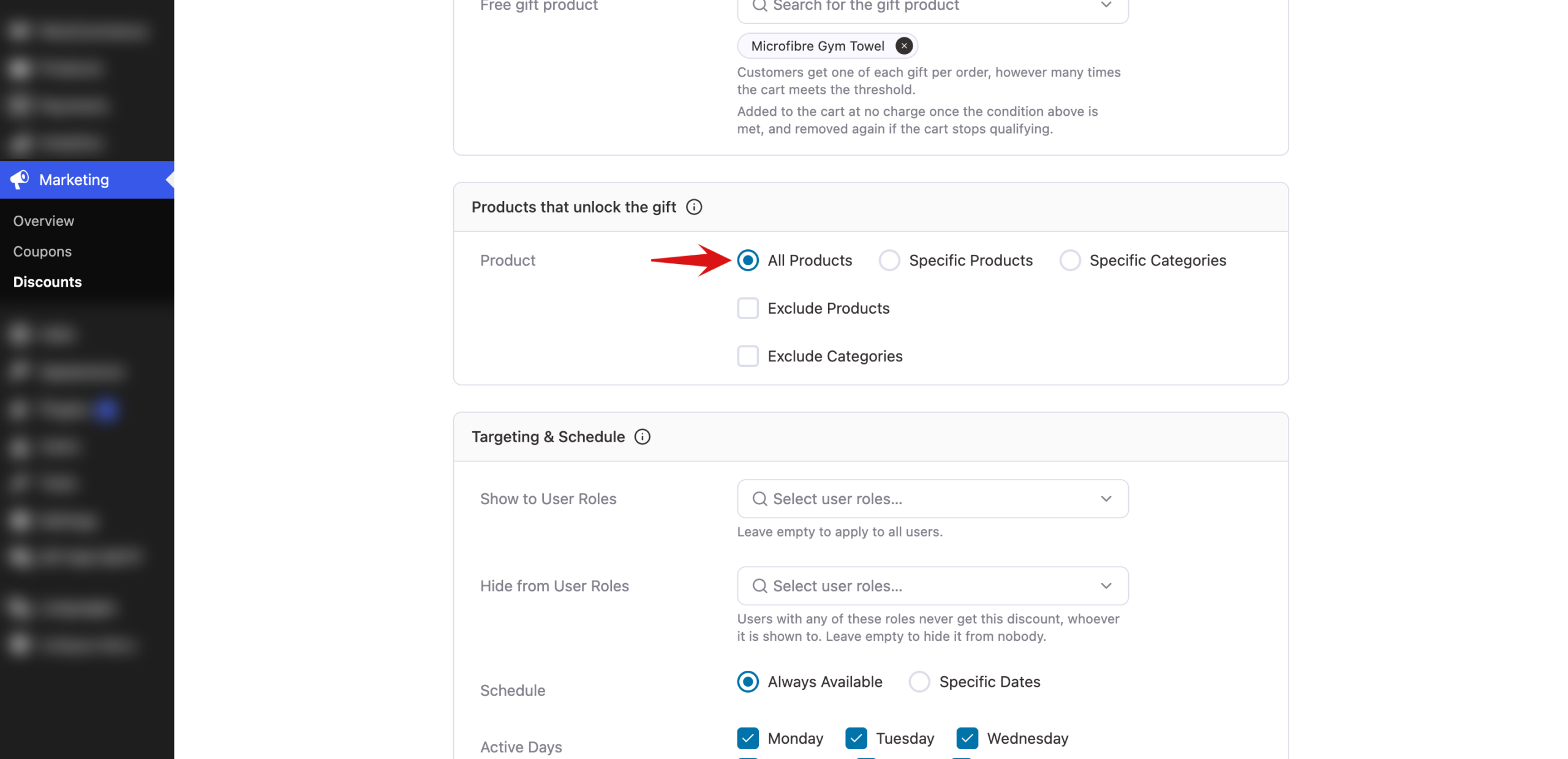
In the Products that unlock the gift section, keep All Products selected. Only these products count toward the $100.
Step 5: Choose Who Gets It and When
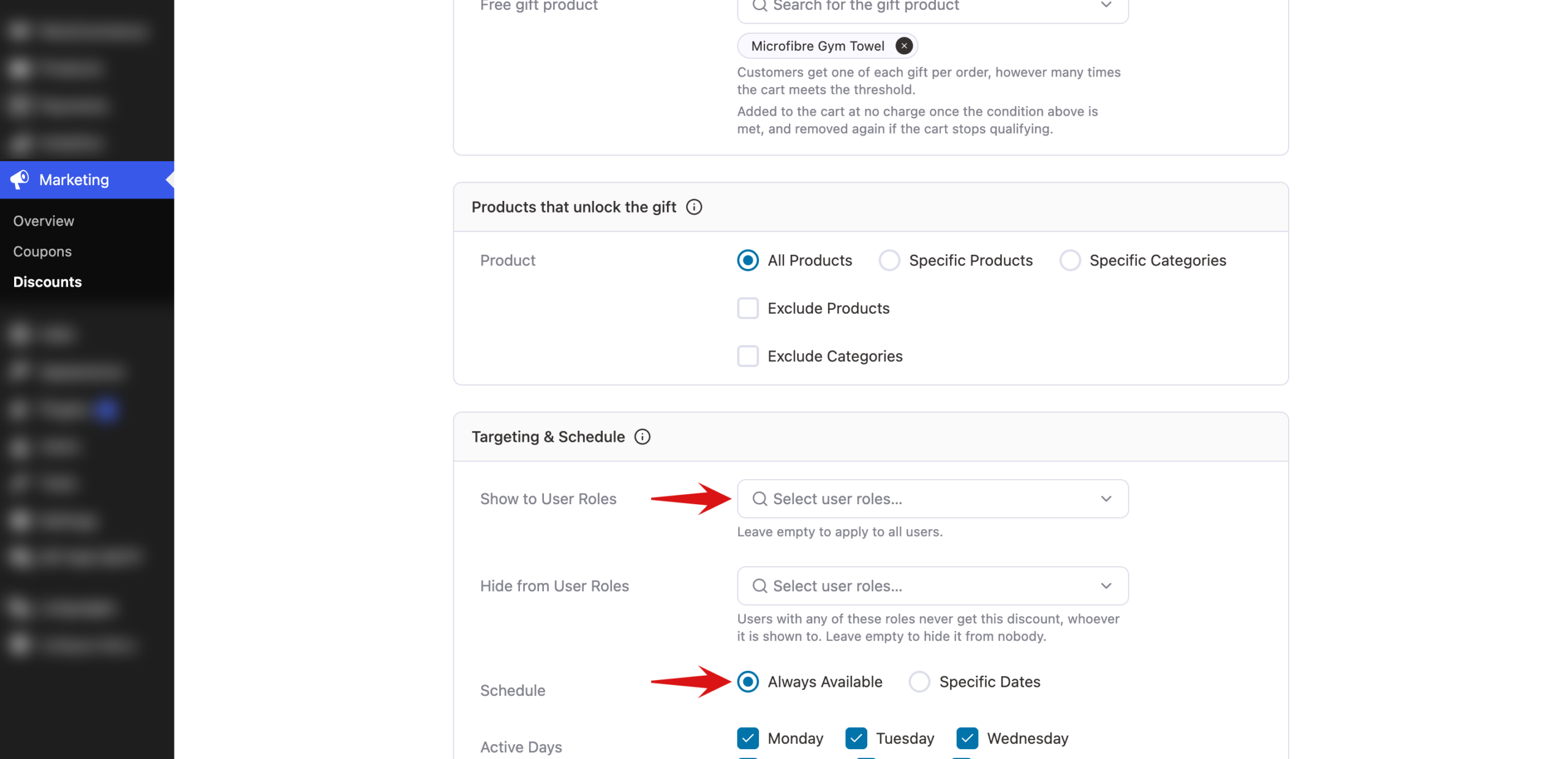
In the Targeting & Schedule section, leave Show to User Roles empty to offer the gift to every shopper, including guests.
To run the offer with no end date, keep Schedule set to Always Available.
Step 6: Edit the Shopper Messages
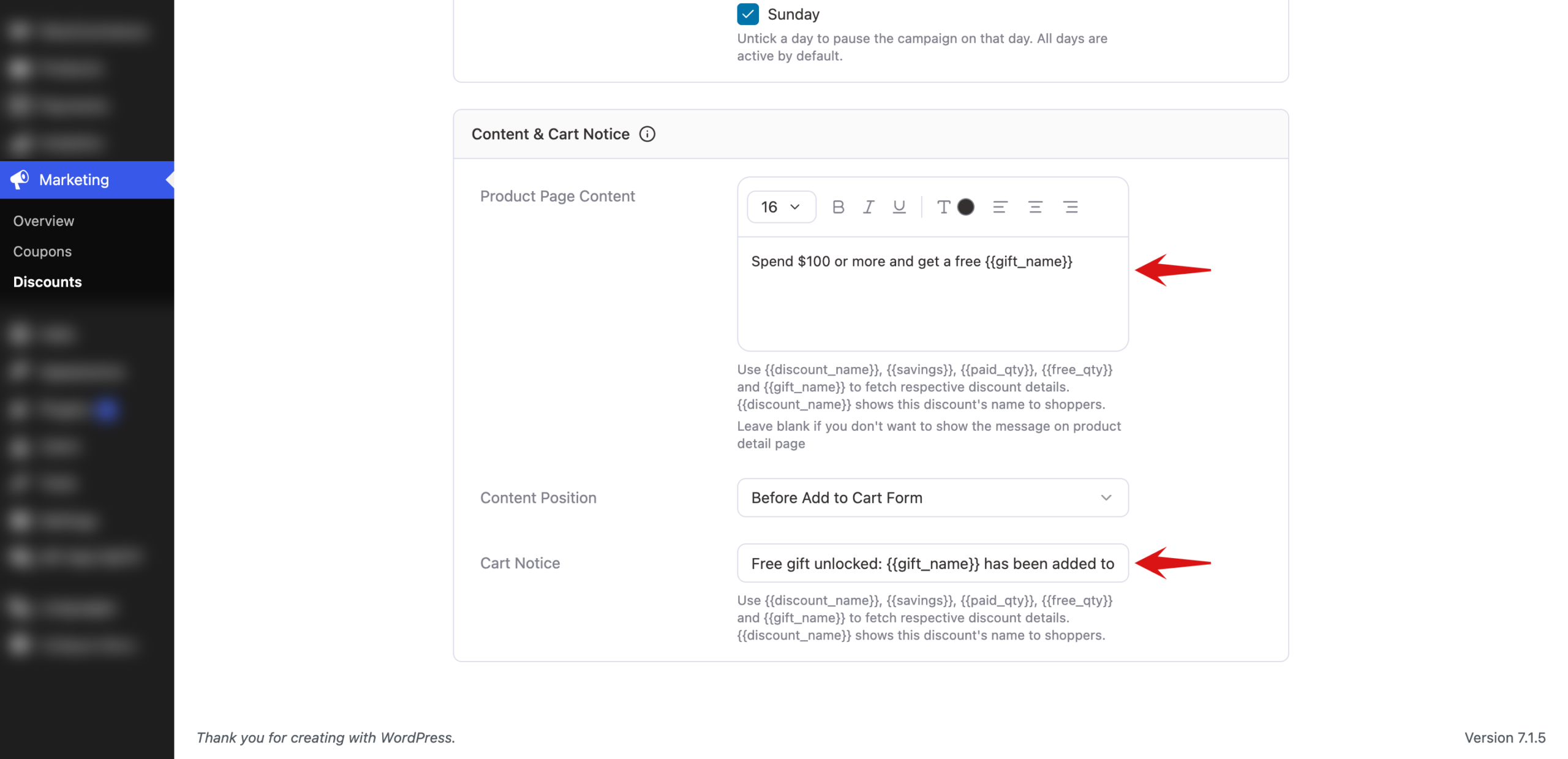
Scroll to the Content & Cart Notice section. Each field starts with a sample message that describes the offer.
Edit the Product Page Content to tell shoppers about the gift. Then edit the Cart Notice that shows when the gift is added.
Both fields accept smart tags. For example, {{gift_name}} shows the gift product and {{discount_name}} shows the campaign name. The editor lists the tags for this campaign type under each field.
Step 7: Save and Activate the Campaign
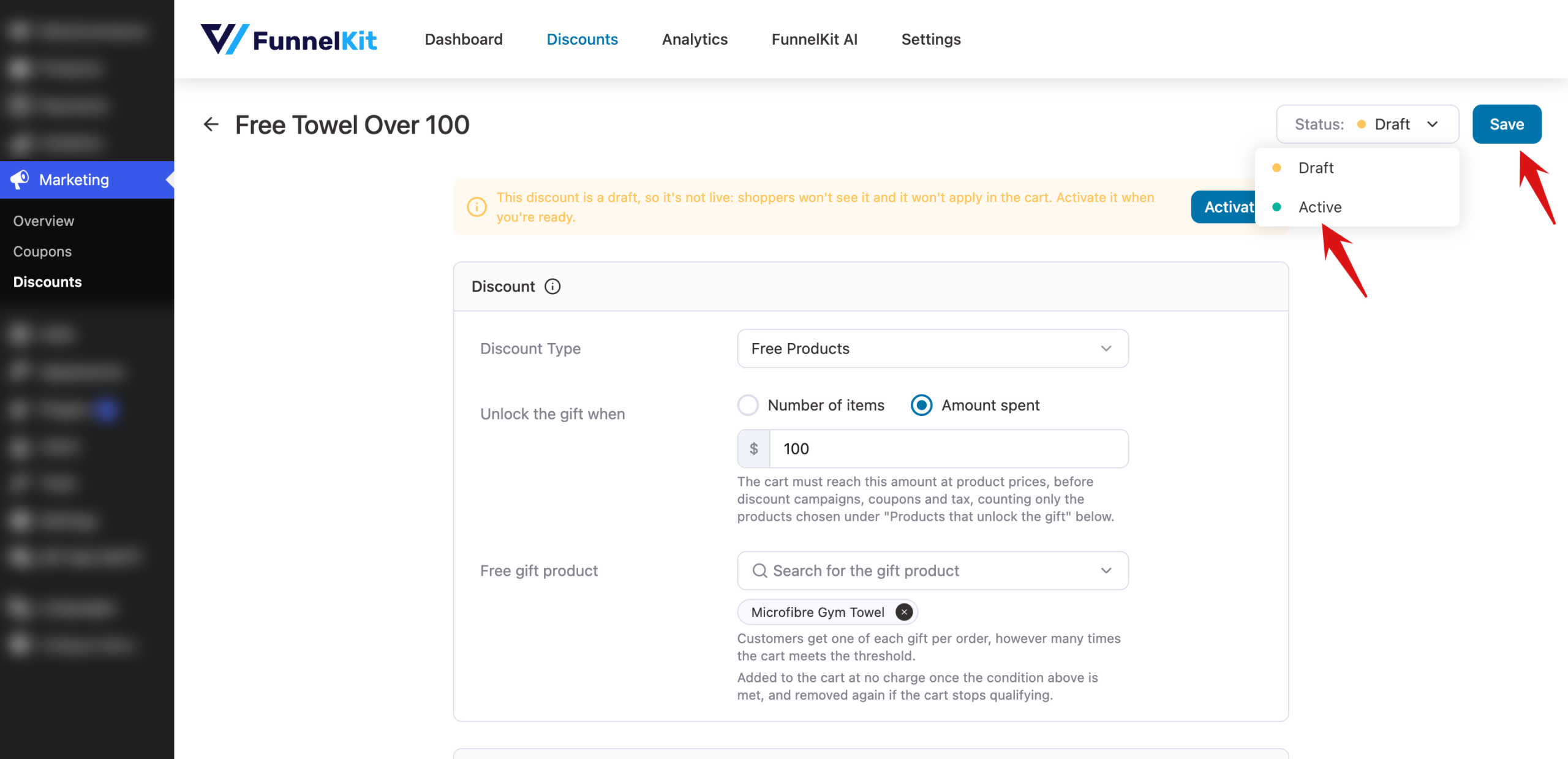
Click Save in the top right corner. Then open the Status menu and choose Active.
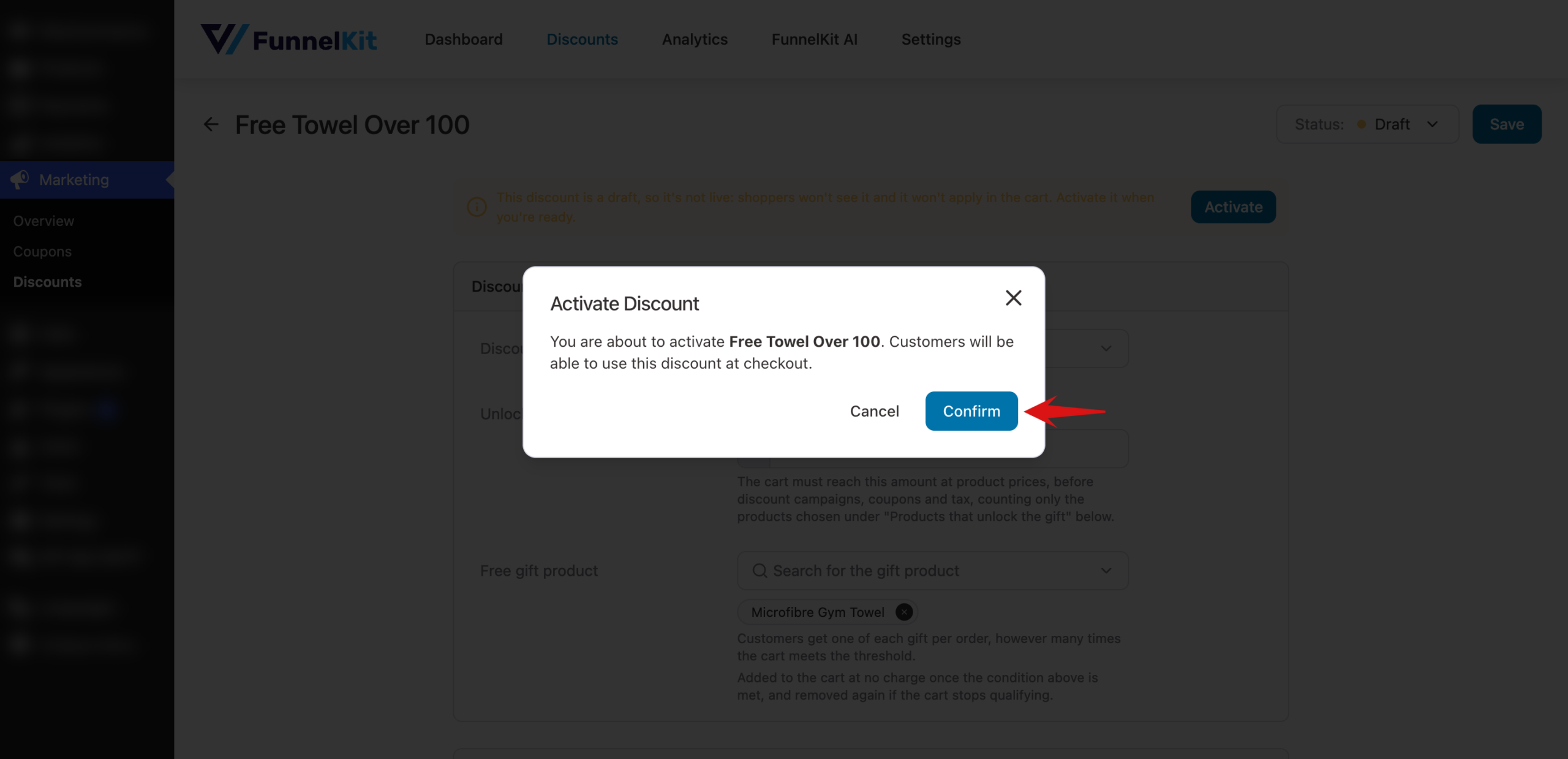
An Activate Discount window opens. Click Confirm to make the campaign live.
If a field has an error, FunnelKit Discounts asks you to fix it before the campaign goes live.
Step 8: Check the Offer on Your Store
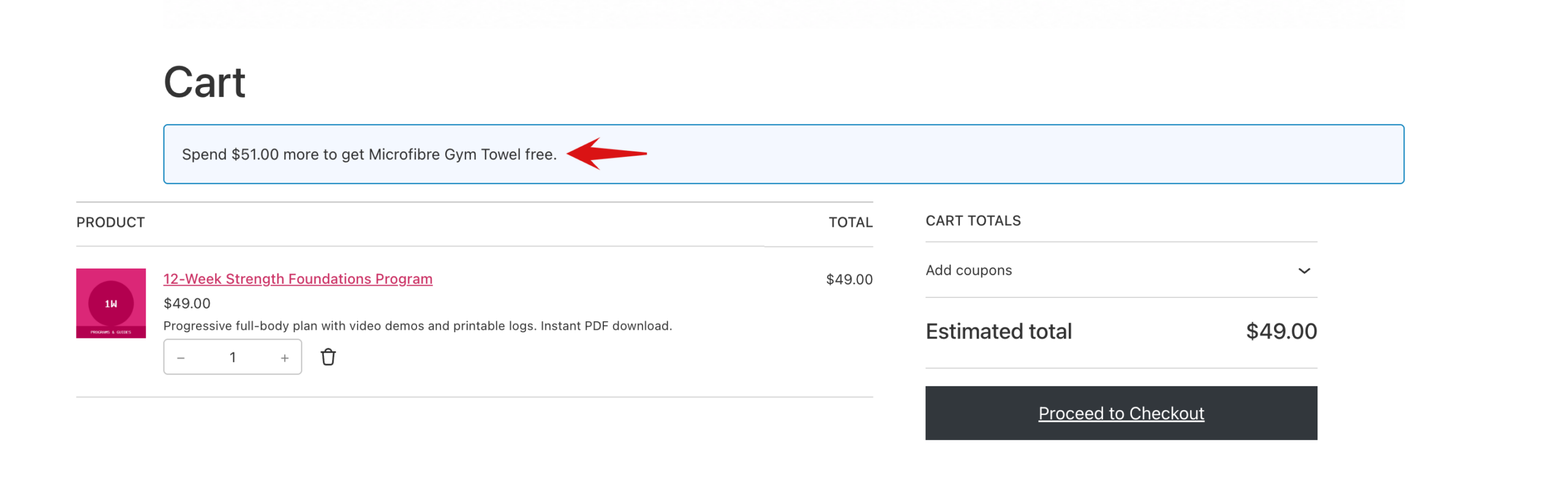
Before the cart qualifies, a message tells the shopper how much more to spend to get the gift.
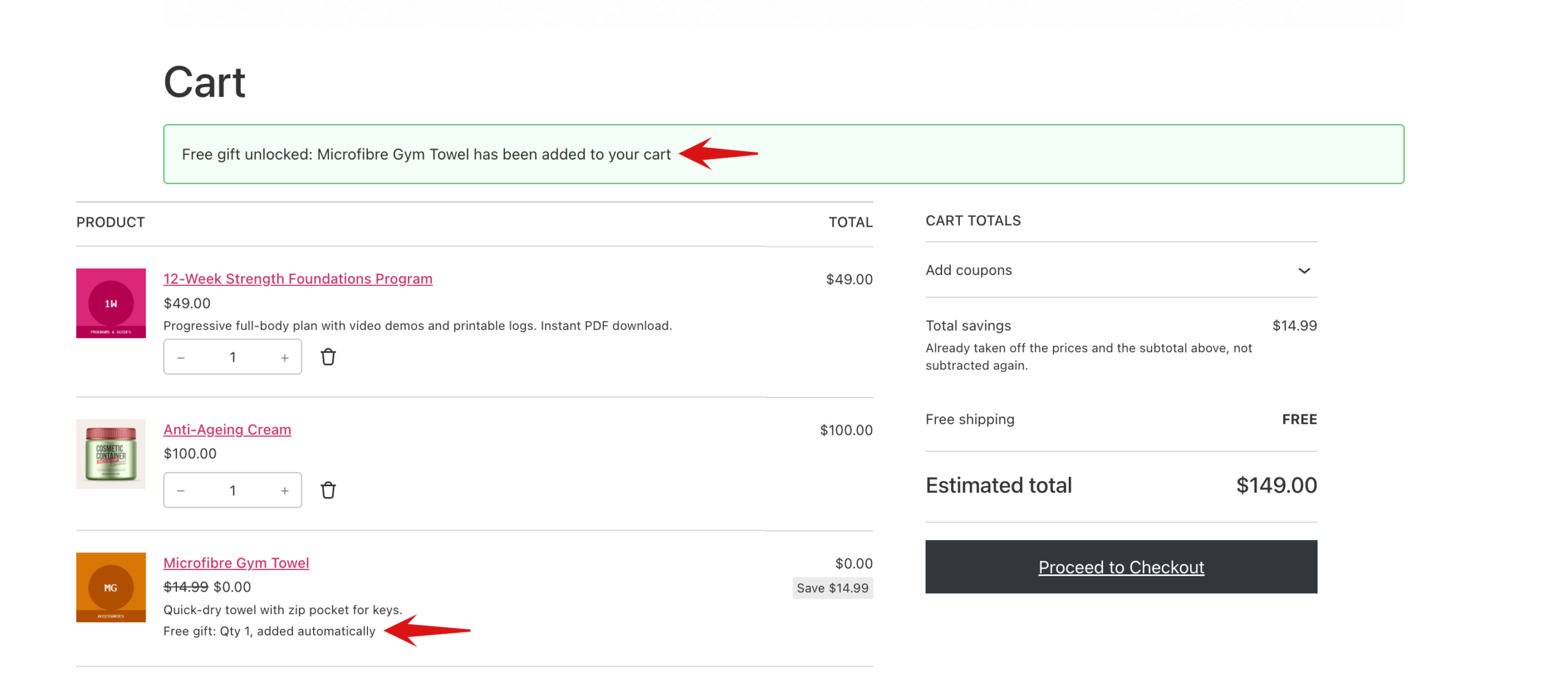
Once the cart reaches $100, the towel appears in the cart at $0. The gift line reads Free gift: Qty 1, added automatically.
If the cart drops below $100, FunnelKit Discounts removes the gift and explains why.
That is it! Your Free products discount is now live on your store.
FAQ
Can shoppers get the gift more than once in one order?
No. FunnelKit Discounts adds each gift 1 time per order, however many times the cart meets the amount.