FunnelKit Discounts for WooCommerce lets you control how WooCommerce coupons work with your discount campaigns.
This guide shows you how to block coupons on campaign items, and how to exclude campaign items from a single coupon.

How Coupons Work With Campaigns
By default, WooCommerce coupons apply on top of campaign prices. In this example, a 10% coupon applies to items that already have a campaign discount.
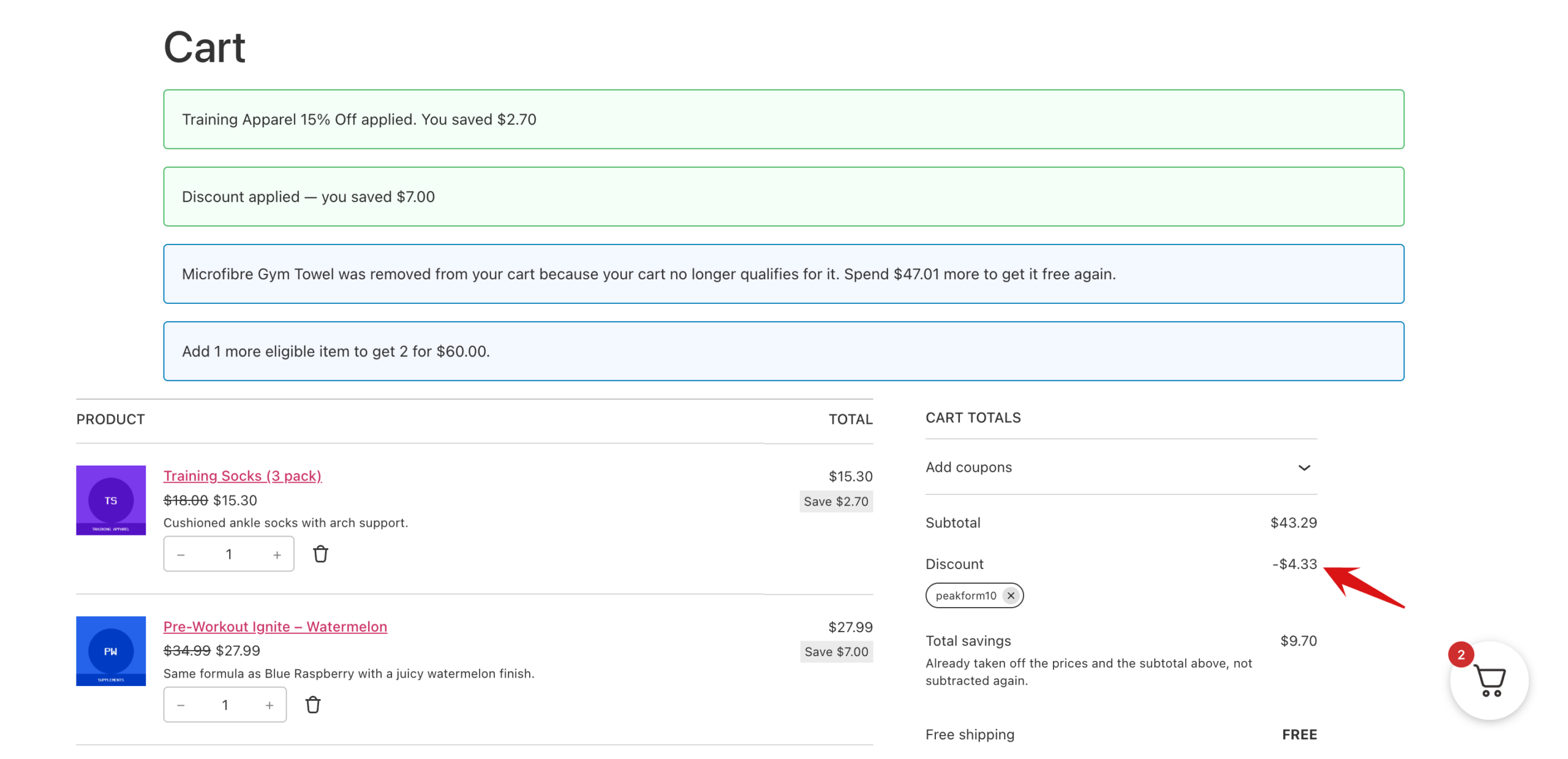
If you do not want shoppers to combine the 2, you can block coupons on campaign items.
How to Block Coupons on Campaign Items Using FunnelKit Discounts
Keep the default if you want shoppers to combine a coupon with a campaign. Block coupons if the campaign price must be the lowest price a shopper can get.
Here are the steps to follow below:
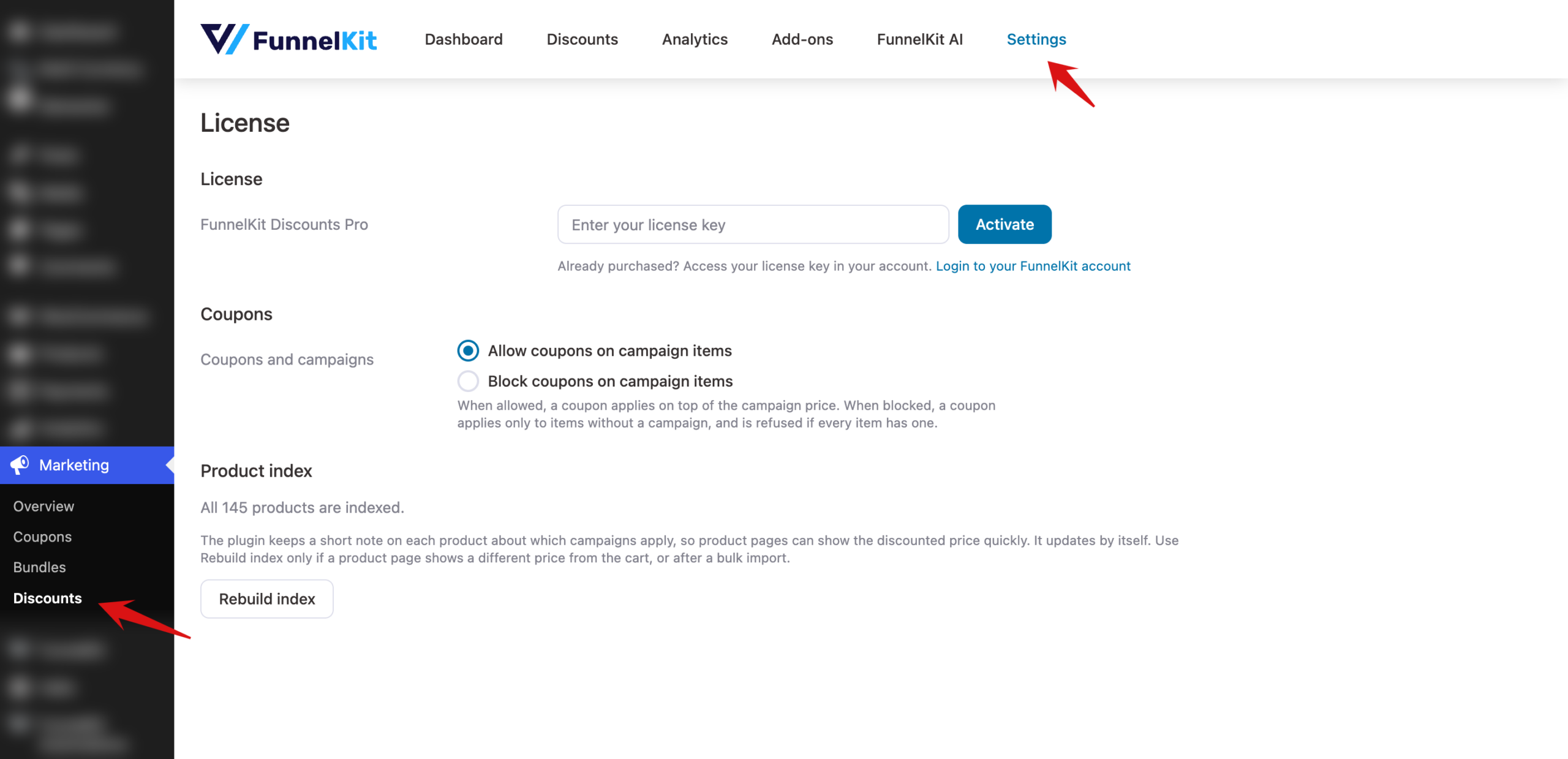
Step 1: Open the Settings Tab
From your WordPress admin sidebar, go to Marketing » Discounts, then click the Settings tab.
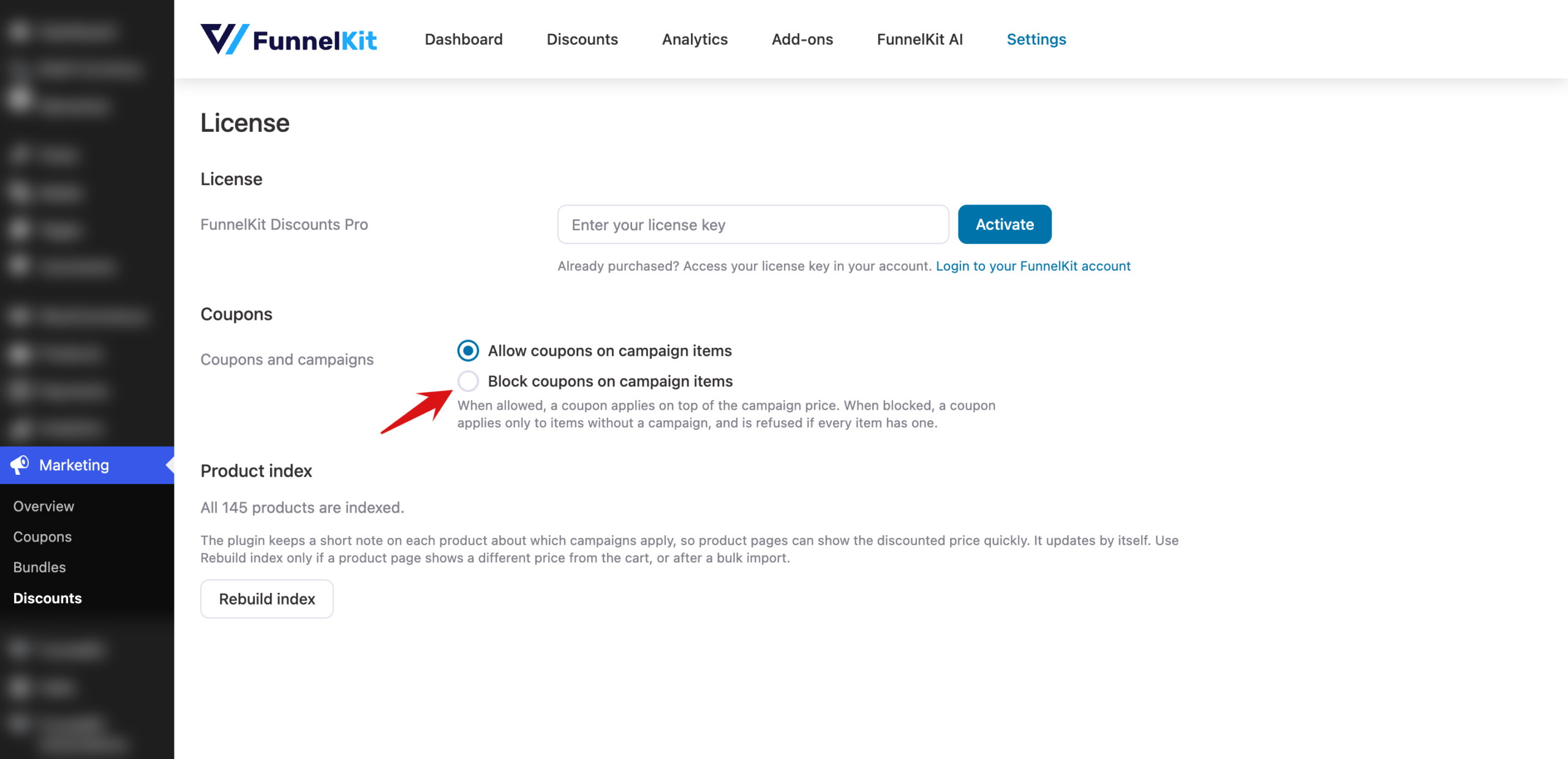
Step 2: Select Block Coupons on Campaign Items
In the Coupons section, select Block coupons on campaign items. The setting saves as soon as you click it.
Step 3: Check What Shoppers See
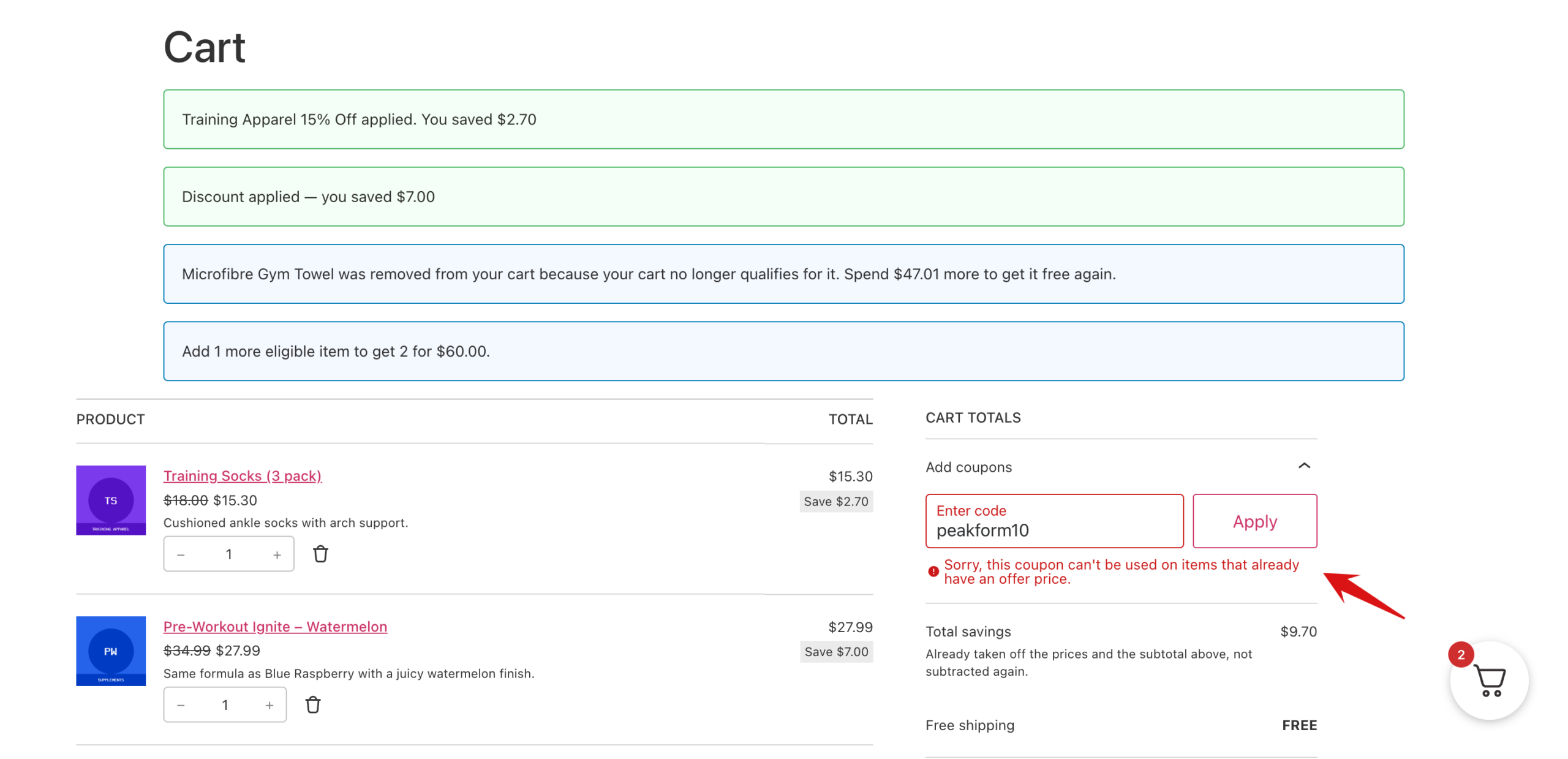
When coupons are blocked, a coupon applies only to items without a campaign. Items that cost nothing, such as a free gift, do not count as items without a campaign.
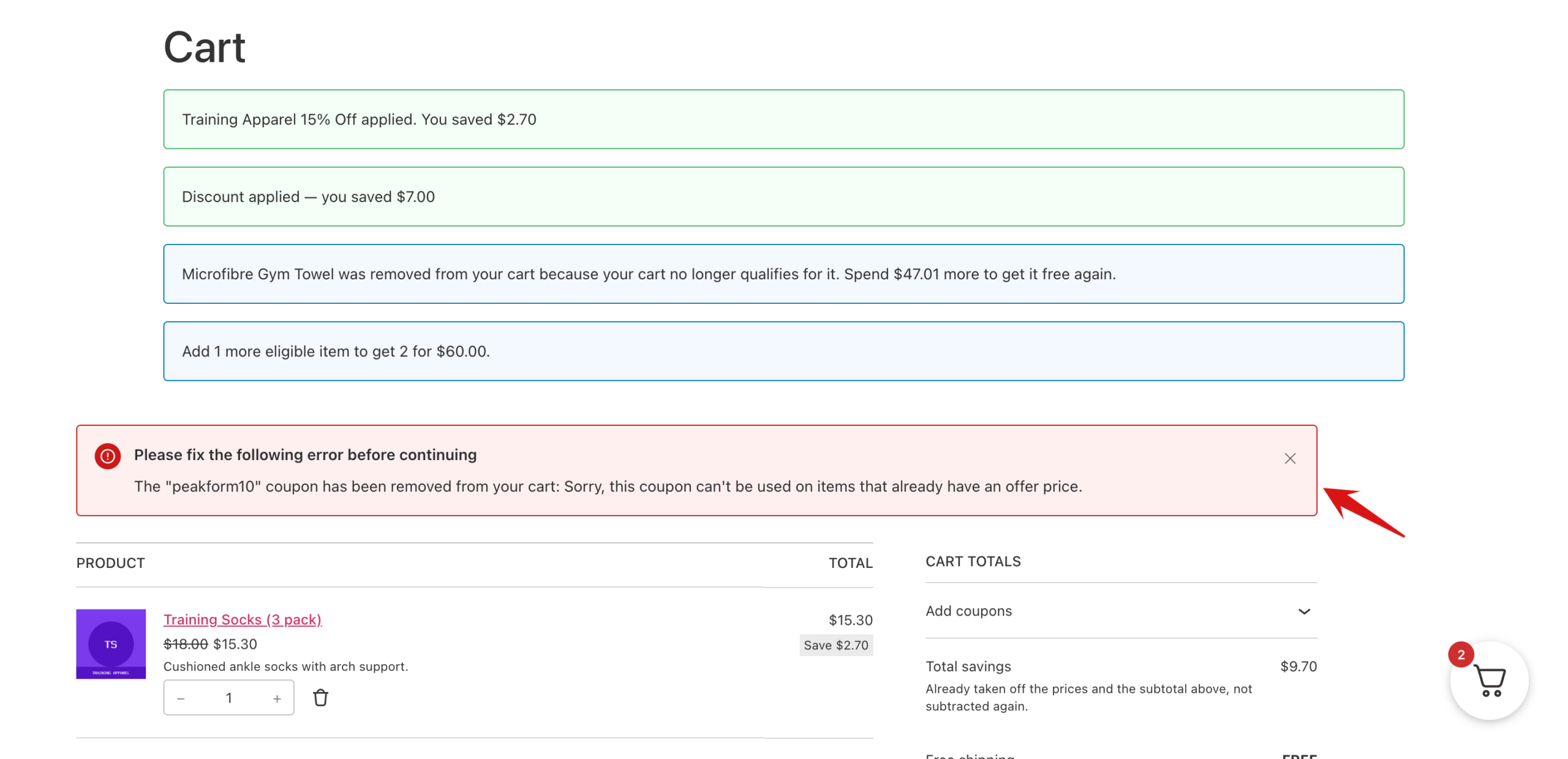
If every item in the cart has a campaign, the store refuses the coupon. The shopper sees this message under the coupon field: Sorry, this coupon can’t be used on items that already have an offer price.
A coupon can also leave the cart later. In this example, the coupon applied to a multivitamin with no campaign price. When the shopper removed the multivitamin, only campaign items were left.
FunnelKit Discounts then removes the coupon and tells the shopper why. In the Cart block, the message names the coupon once: The “peakform10” coupon has been removed from your cart: Sorry, this coupon can’t be used on items that already have an offer price.
How to Exclude Campaign Items From One Coupon
You can also stop a single coupon from applying to campaign items. FunnelKit Discounts sets each campaign price as the item’s sale price. Because of this, the WooCommerce Exclude sale items option also skips campaign items.
This option fits when only some coupons must skip campaign items. It also skips products that have their own WooCommerce sale price.
Here are the steps to follow below:
Step 1: Open the Coupon
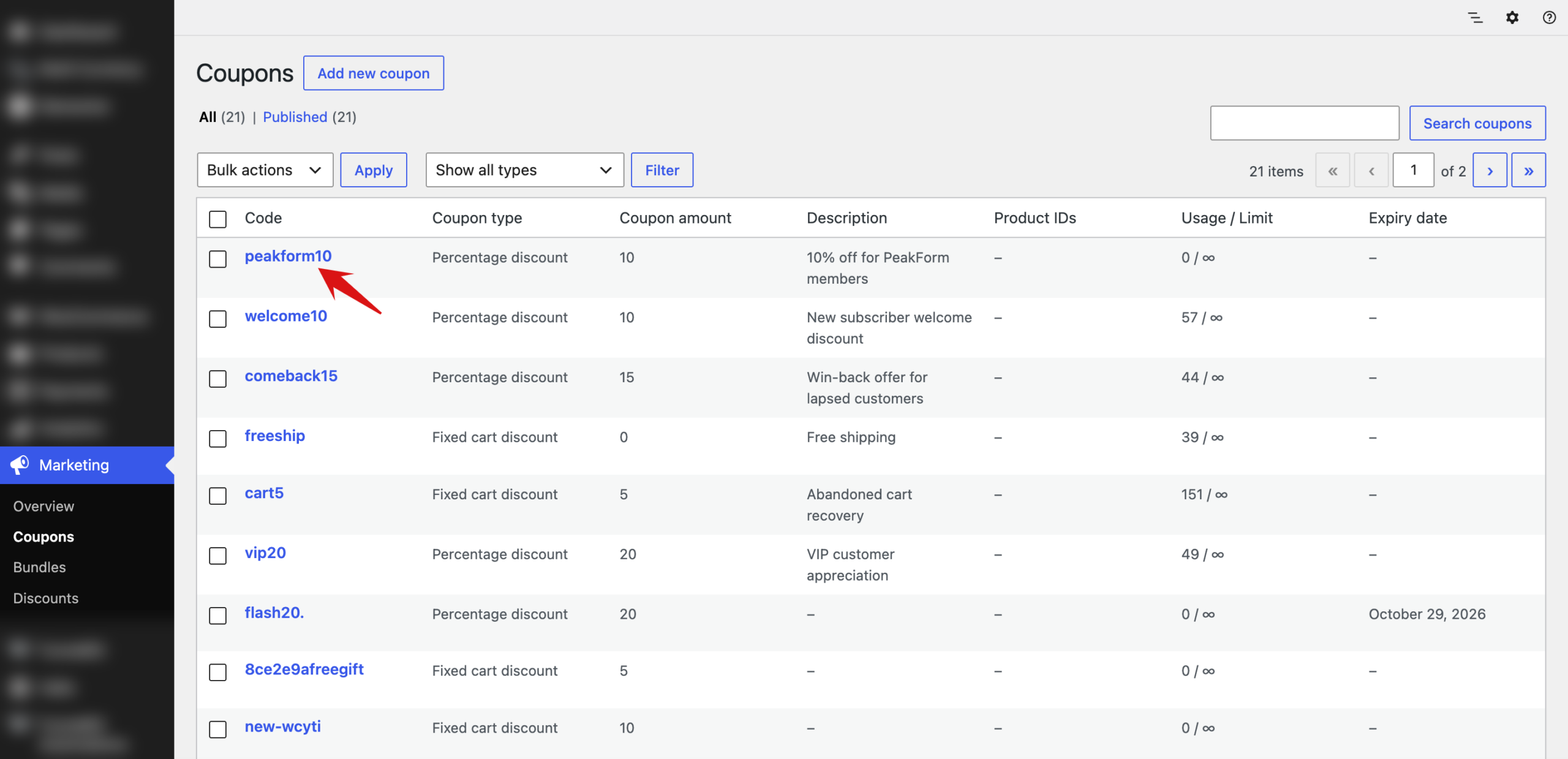
From your WordPress admin sidebar, go to Marketing » Coupons. Then click the coupon you want to edit.
For more about coupon options, see the WooCommerce coupon management guide.
Step 2: Check Exclude Sale Items
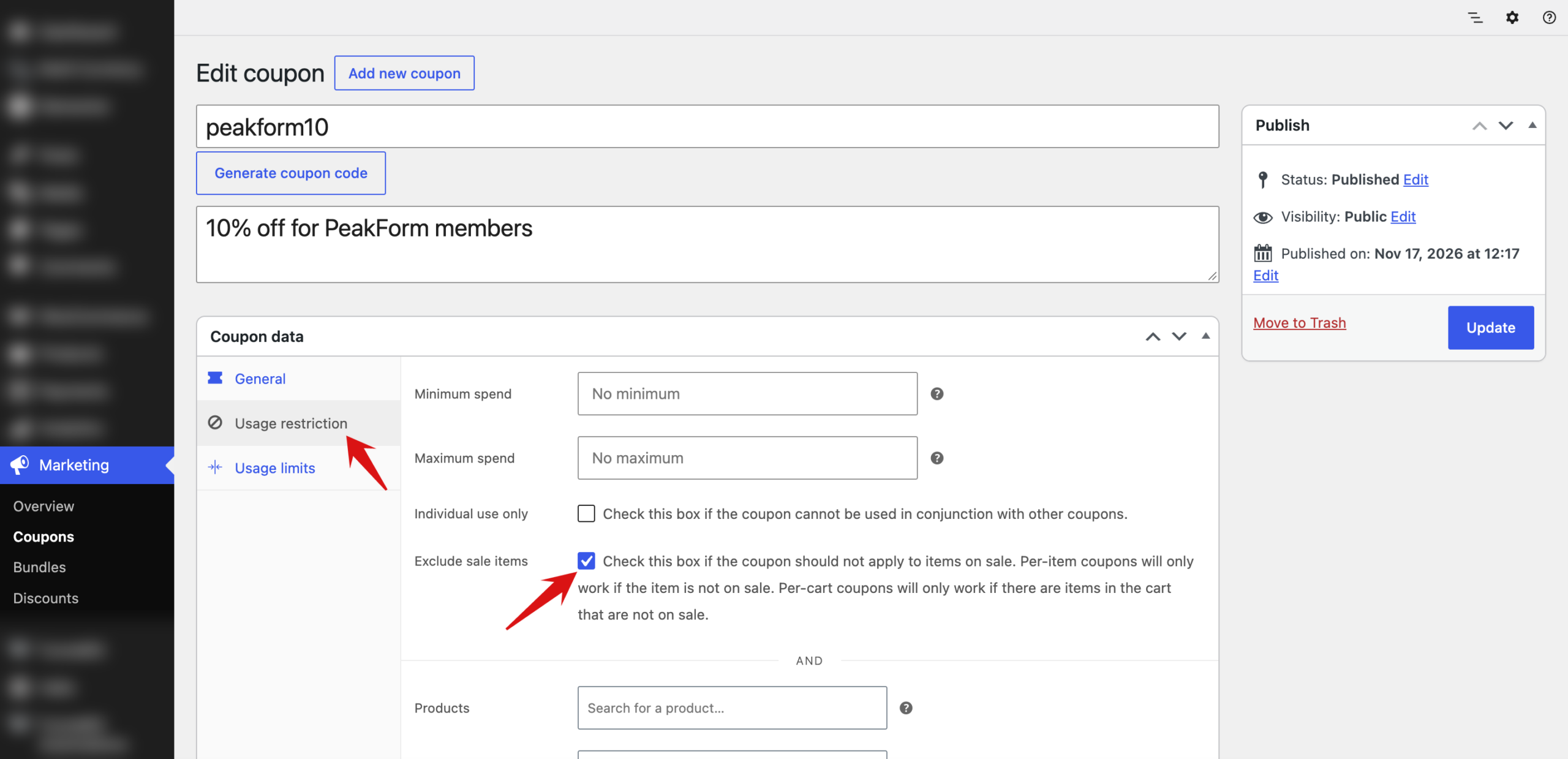
Open the Usage restriction tab. Then check the Exclude sale items box.
Step 3: Update the Coupon
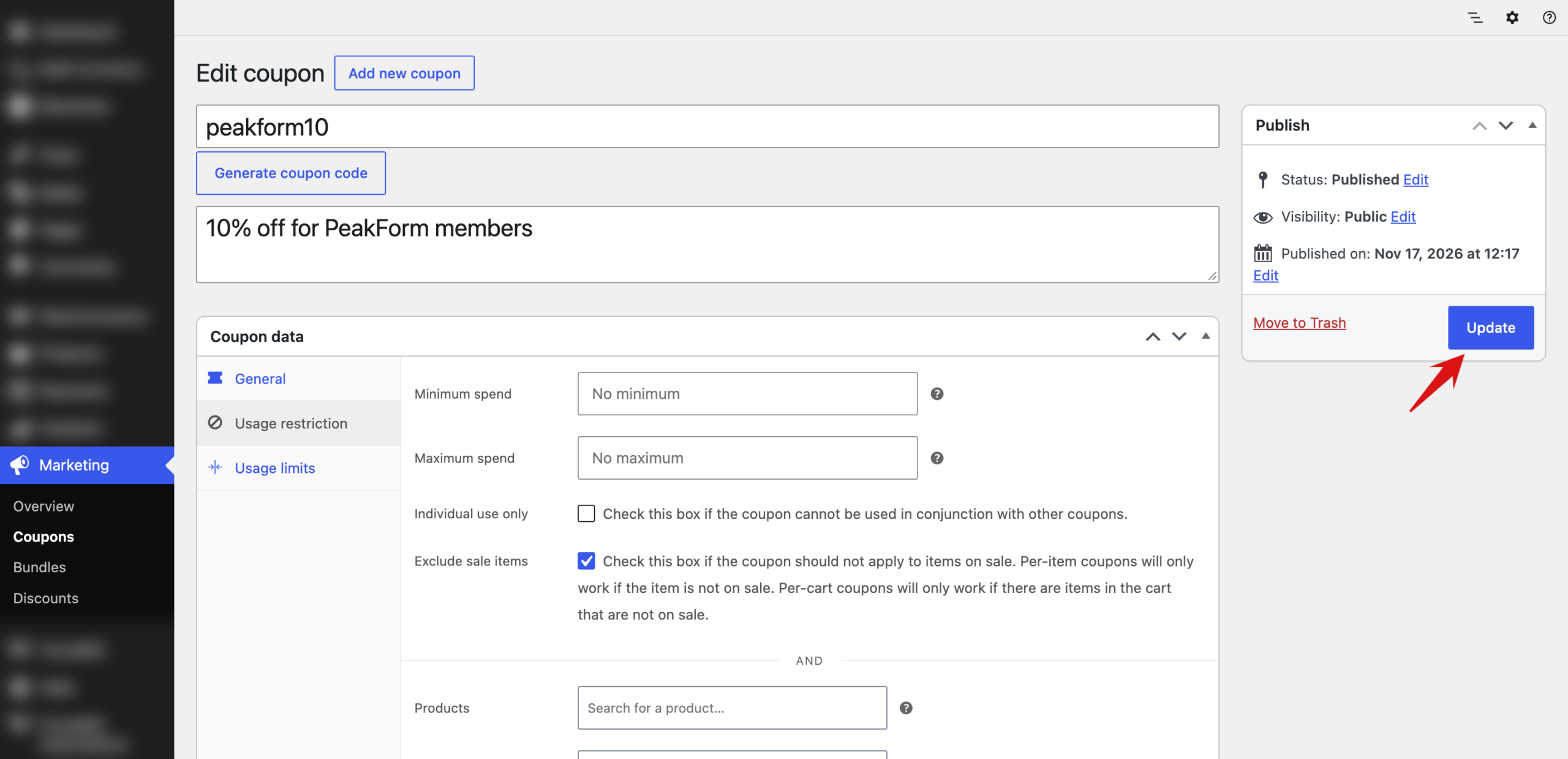
When you are done, click Update in the Publish box to save the coupon.
That’s it! Next, see where shoppers see their savings in Checking Discounts on an Order.
FAQ
Can I block coupons for just one campaign?
The Coupons setting covers every campaign. To stop a single coupon from applying to campaign items, check Exclude sale items on that coupon instead.