FunnelKit Discounts for WooCommerce adds a Discounts tab to every product. From this tab, you can see every campaign that covers the product without leaving the product.
This guide shows you how to change the campaign order, remove the product from a campaign, and add it to other campaigns from the product edit screen.

How to View the Campaigns of a Product Using FunnelKit Discounts
The Discounts tab helps when you want to know why a product has a certain price. Here are the steps to follow below:
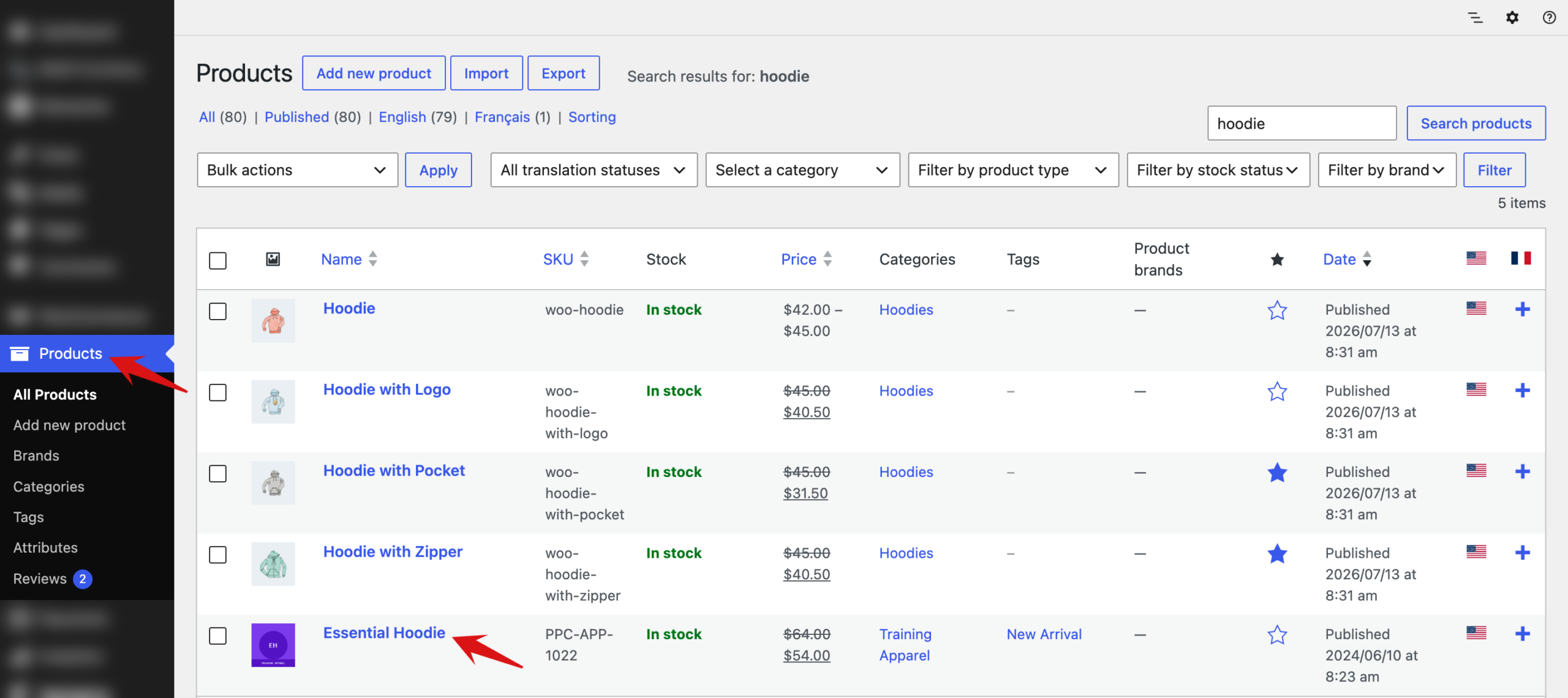
Step 1: Open the Product
From your WordPress admin sidebar, go to Products. Then click a product to edit it.
Step 2: Open the Discounts Tab
In the Product data box, click the Discounts tab.
A summary at the top says which campaigns apply to the product and what each one gives. Below it, a table lists the active campaigns that cover the product, in priority order.
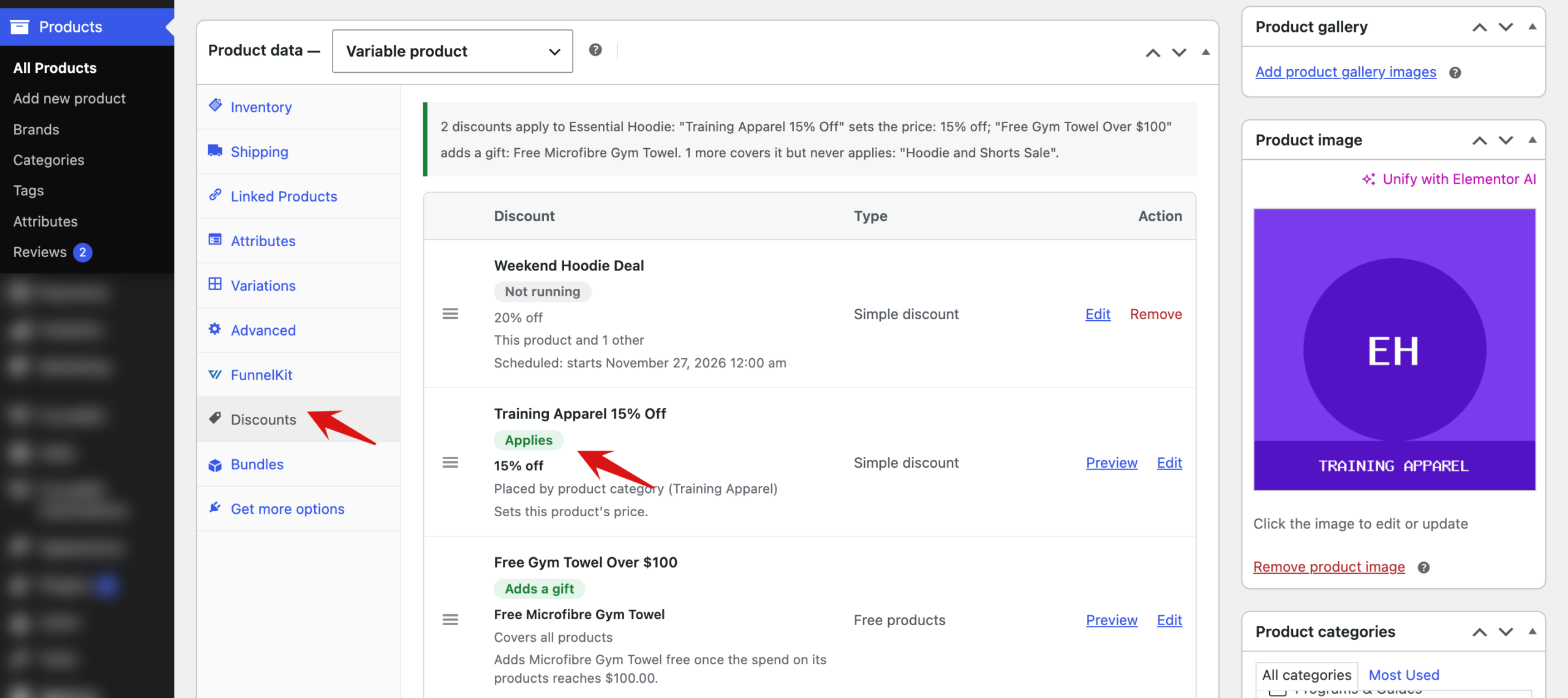
Each row shows a state label:
- Applies: the campaign sets the product’s price.
- Adds a gift: a free gift campaign covers the product.
- Depends on the cart: the campaign needs a cart condition first, such as a spend.
- Not applying: a campaign above it always applies to this product.
- When the one above is off: the campaign applies only while a part-time campaign above it is not running.
- Not running: the campaign has not started yet, has ended, or is off today because of its active days.
- Some users only: the campaign is for some user roles only.
Each row also gives the reason for its state under the campaign name. Applies and Adds a gift show in green. The other states show in grey.
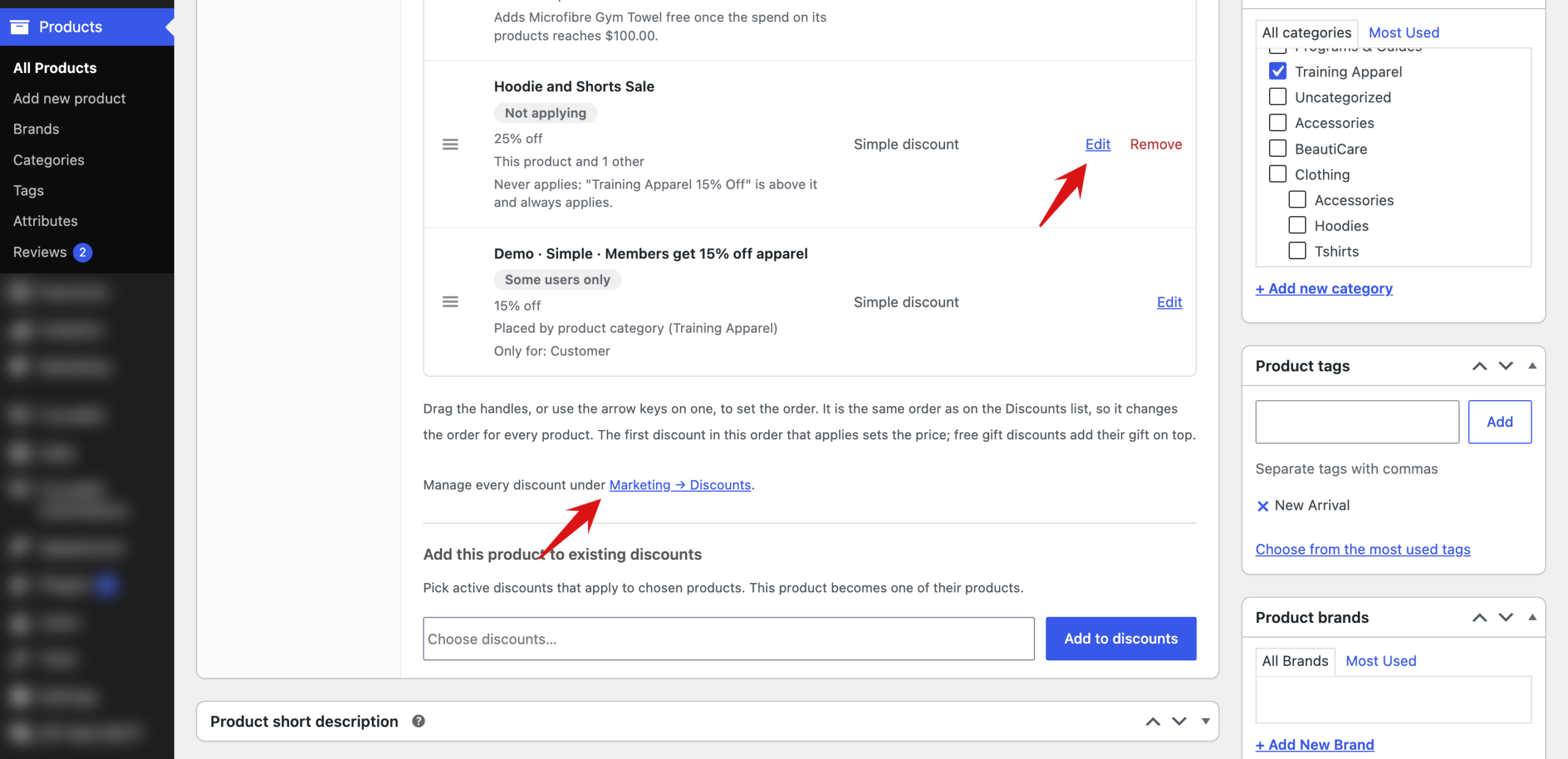
The Action column has an Edit link that opens the campaign. Some rows also have a Preview link or a Remove button. Under the table, the Marketing → Discounts link opens your Discounts list.
Changing the Order From the Product
To change the priority, drag a campaign by its handle. You can also click a handle and use the up and down arrow keys.
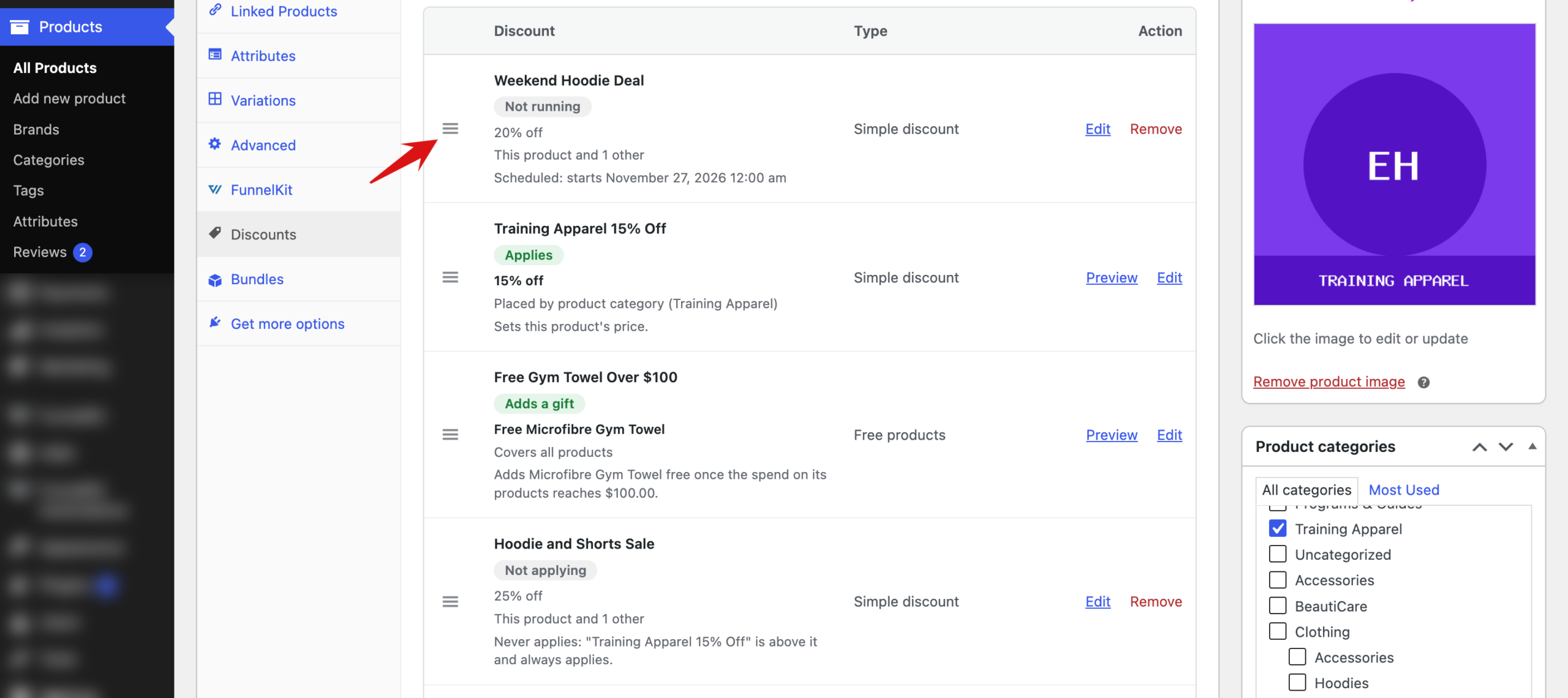
This is the same order as the Discounts list. So a change here changes the order for every product.
The tab saves the new order at once and shows an Order saved message. You do not need to click Update on the product.
Removing the Product From a Campaign
When a campaign lists this product by name, its row has a Remove button. To remove the product from that campaign, click Remove. Then confirm the message that opens.
In this example, the Hoodie and Shorts Sale campaign lists 2 products. So you can remove the hoodie from it.
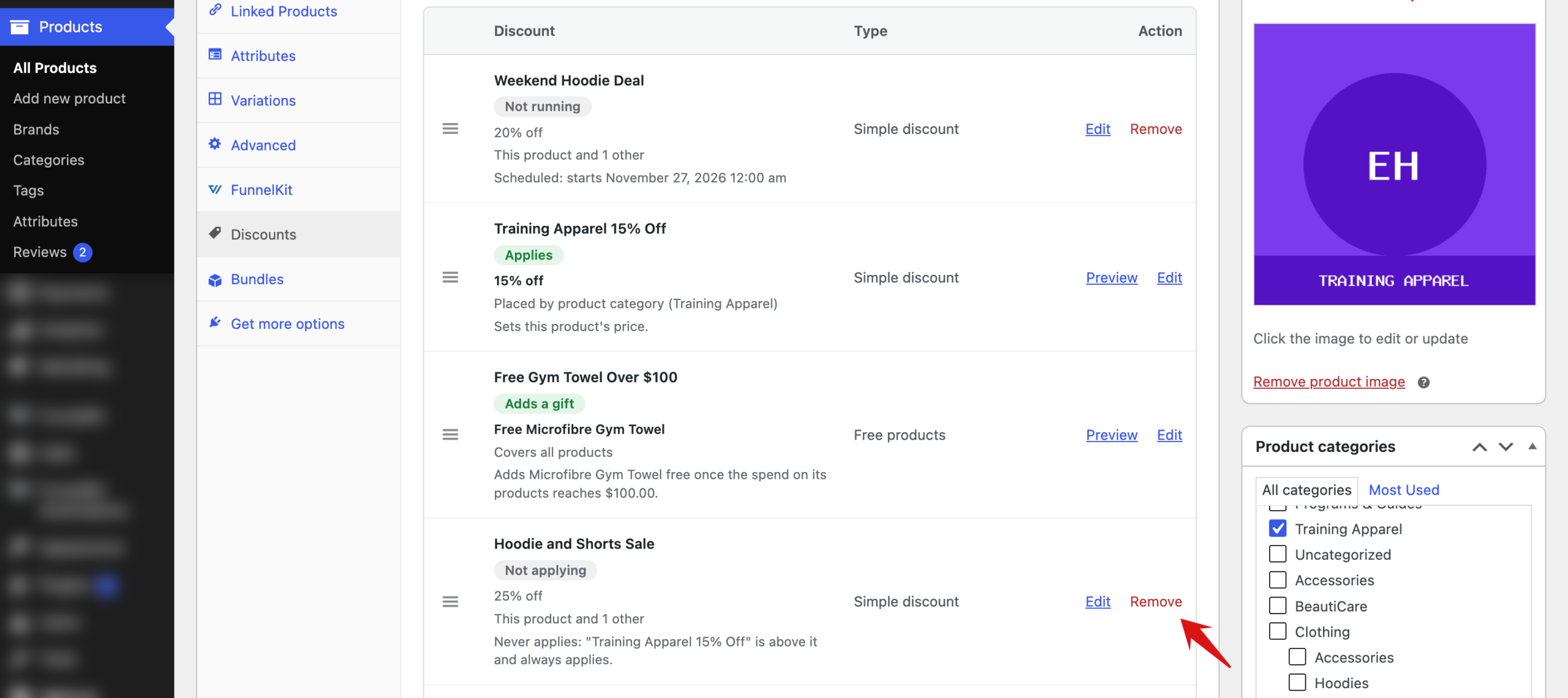
The tab saves the change at once and shows a Removed from message with the campaign name.
How to Add the Product to Other Campaigns Using FunnelKit Discounts
The same tab also adds this product to more campaigns. Here are the steps to follow below:
Step 1: Pick the Campaigns
Under Add this product to existing discounts, click the field. The list shows active campaigns that apply to chosen products. Pick the campaigns you want.
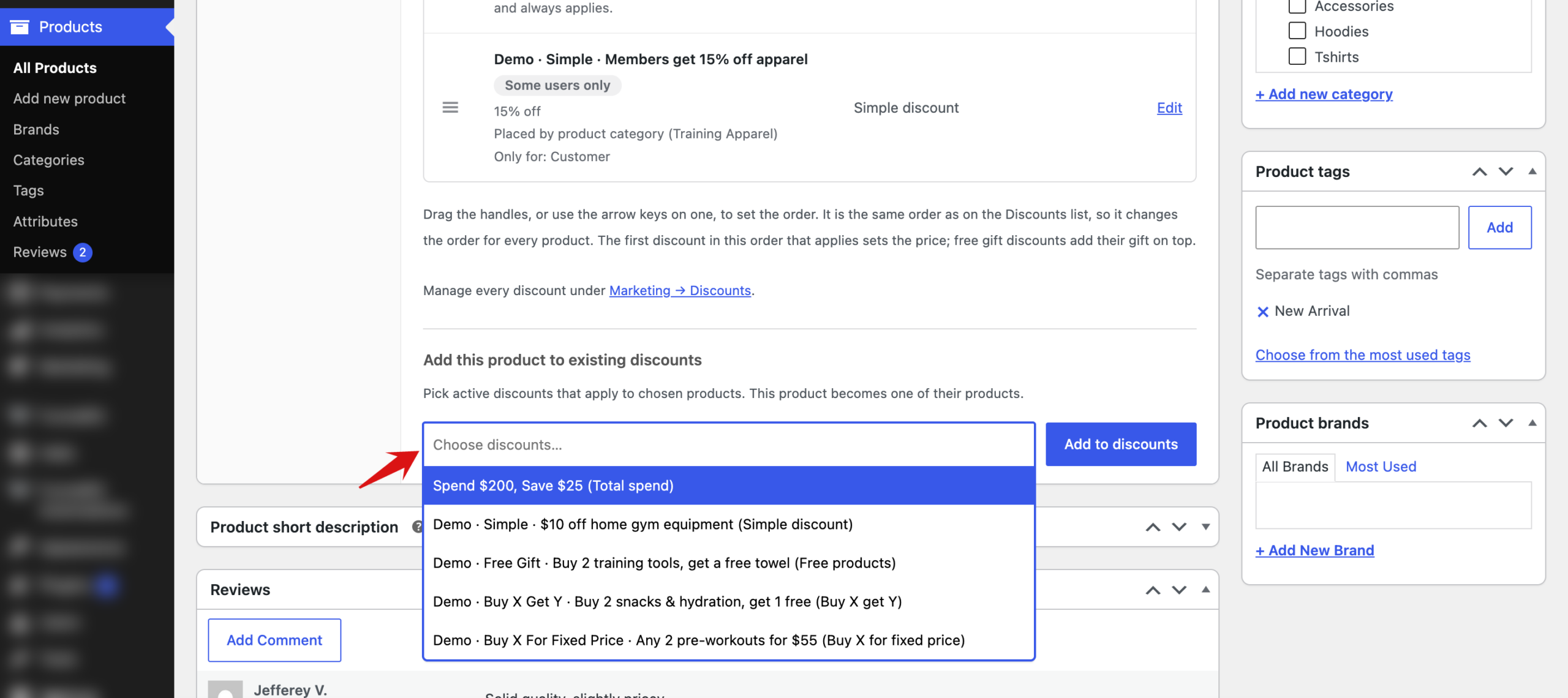
Step 2: Click Add to Discounts
When your campaigns show in the field, click Add to discounts.
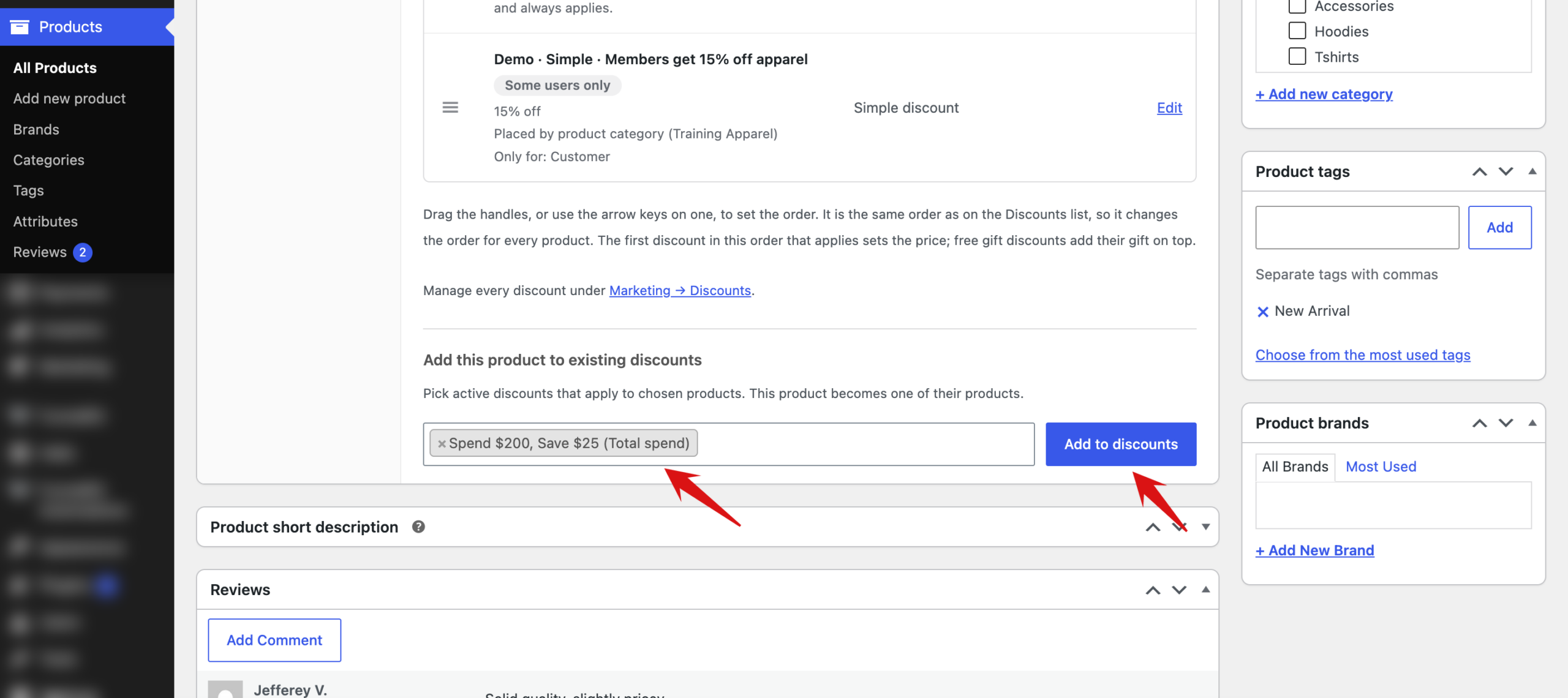
The product then becomes one of that campaign’s products. The tab saves the change at once and shows how many campaigns it added the product to.
That’s it! Next, see Checking Which Campaign Wins on a Product to check a product from its own page.