FunnelKit Discounts for WooCommerce keeps all your campaigns in the Discounts list. From this list, you can check each campaign’s state, activate or pause it, make a copy, delete it, and export every campaign to a CSV file.

Managing Campaigns in the Discounts List
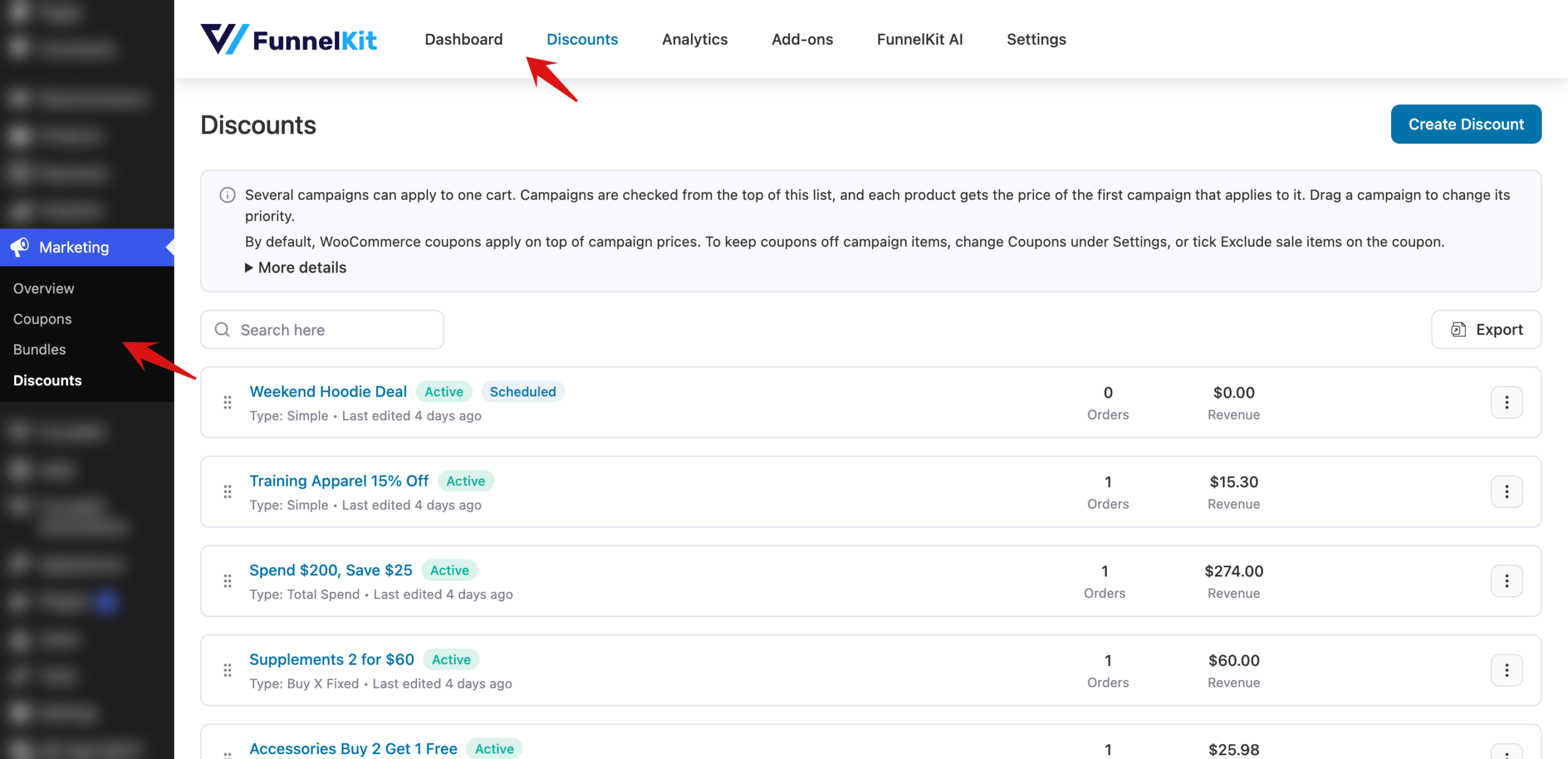
From your WordPress admin sidebar, go to Marketing » Discounts. The Discounts tab opens with the list of all your campaigns.
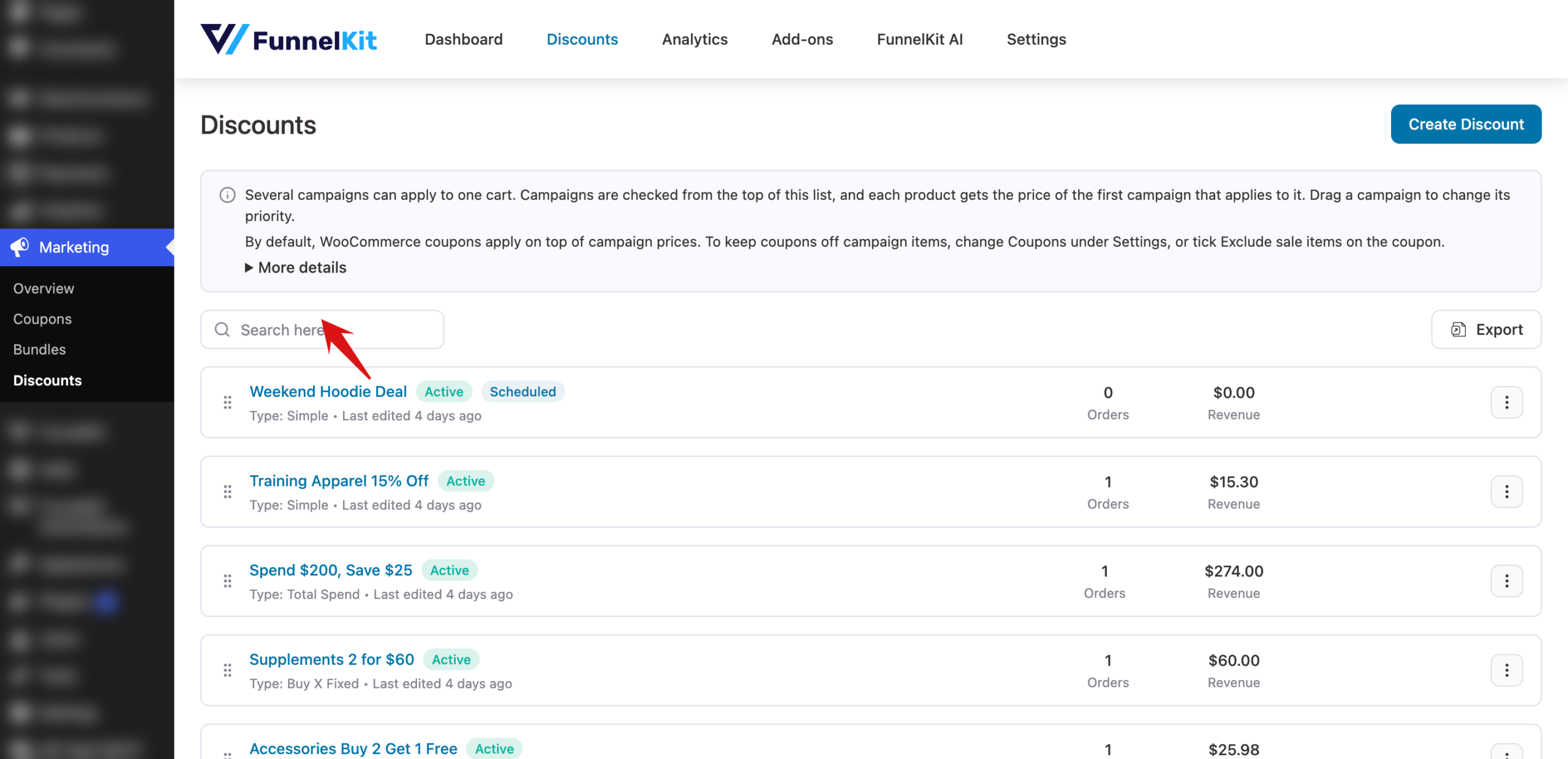
To find a campaign quickly, type its name in the Search here field above the list. The list filters the campaigns by name as you type.
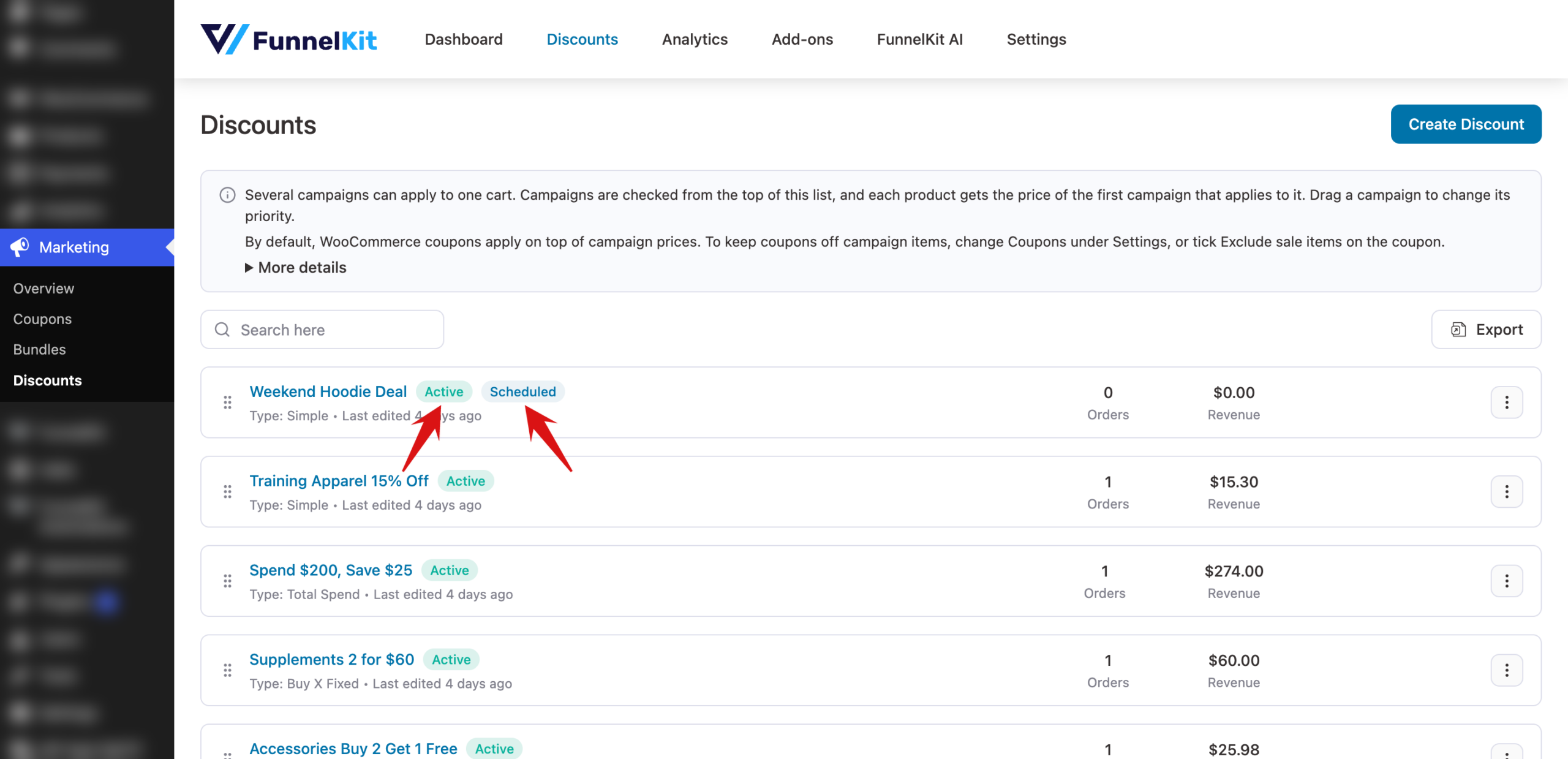
Each new campaign goes to the bottom of the list. Each row shows the campaign type, its orders, its revenue, and one or more badges with the campaign’s state. In this example, the Weekend Hoodie Deal is active but scheduled to start later, so it shows both the Active and Scheduled badges.
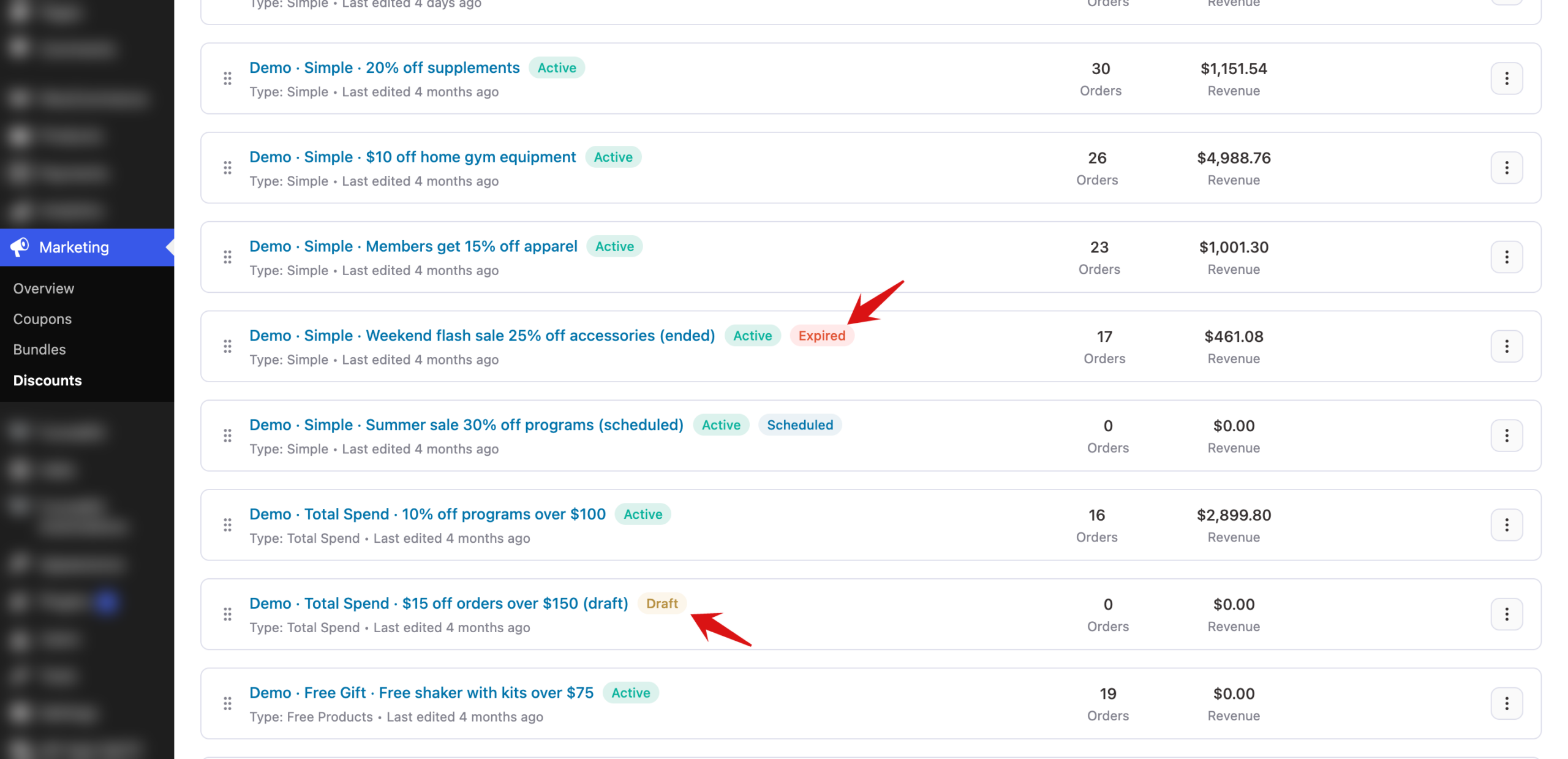
These are the badges you can see:
- Active: the campaign is live.
- Draft: the campaign is saved but not live.
- Scheduled: the start date is still in the future.
- Expired: the end date has passed.
- Paused today: today is not one of the campaign’s active days.
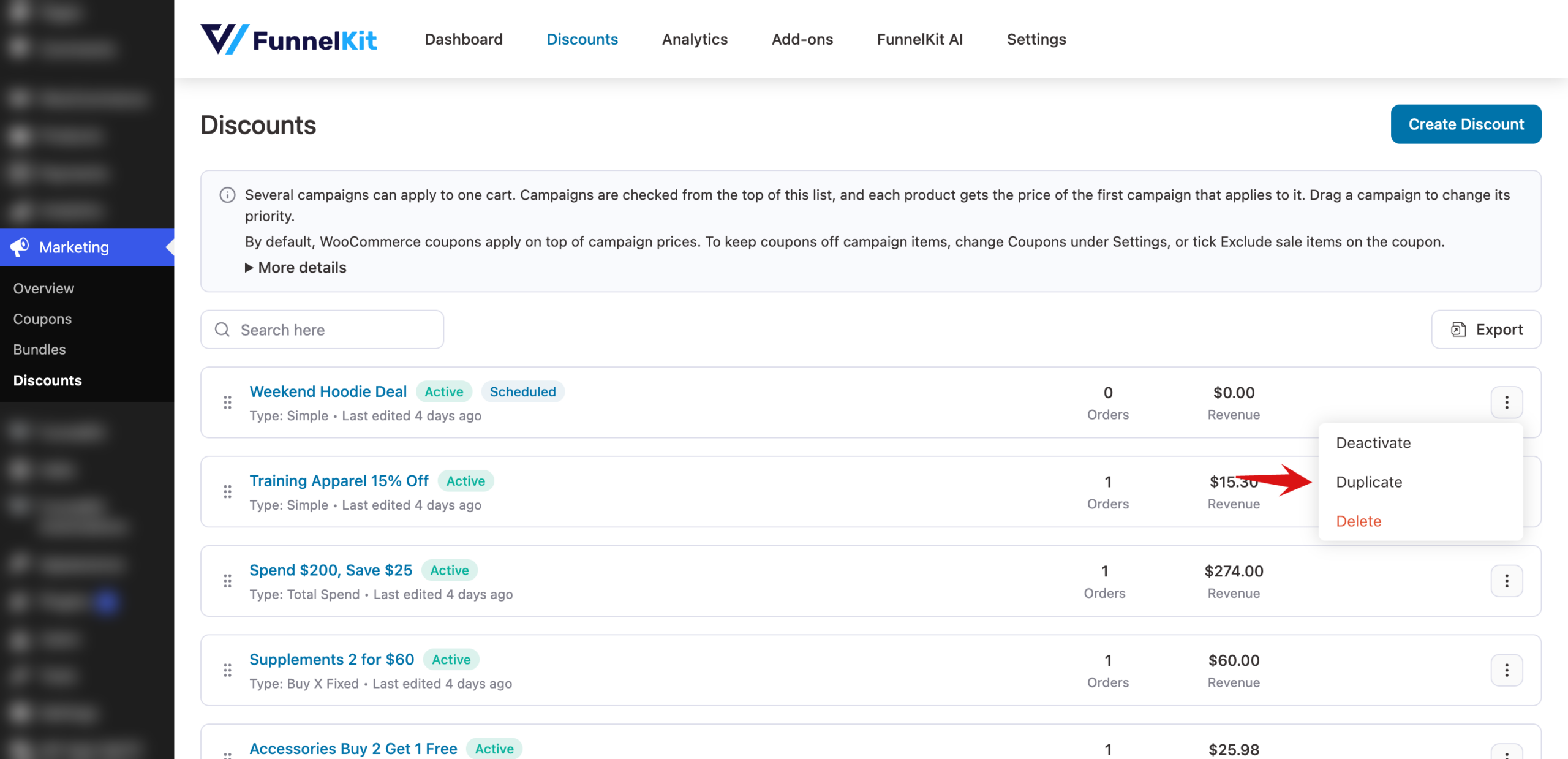
For more options, click the three-dot menu at the end of a row. From this menu, you can:
- Activate or Deactivate: Deactivate sets the campaign back to Draft, so it stops applying on your store.
- Duplicate: the copy gets “(Copy)” after its name. It starts as a Draft at the bottom of the list.
- Delete: deleting is permanent. The campaigns below it move up to fill the gap.
The order of the list matters. Several campaigns can apply to one cart, and each product gets the price of the first campaign in the list that applies to it. To learn more, see our guide on setting campaign priority.
How to Export Your Campaigns Using FunnelKit Discounts
Here are the steps to follow below:
Step 1: Click Export
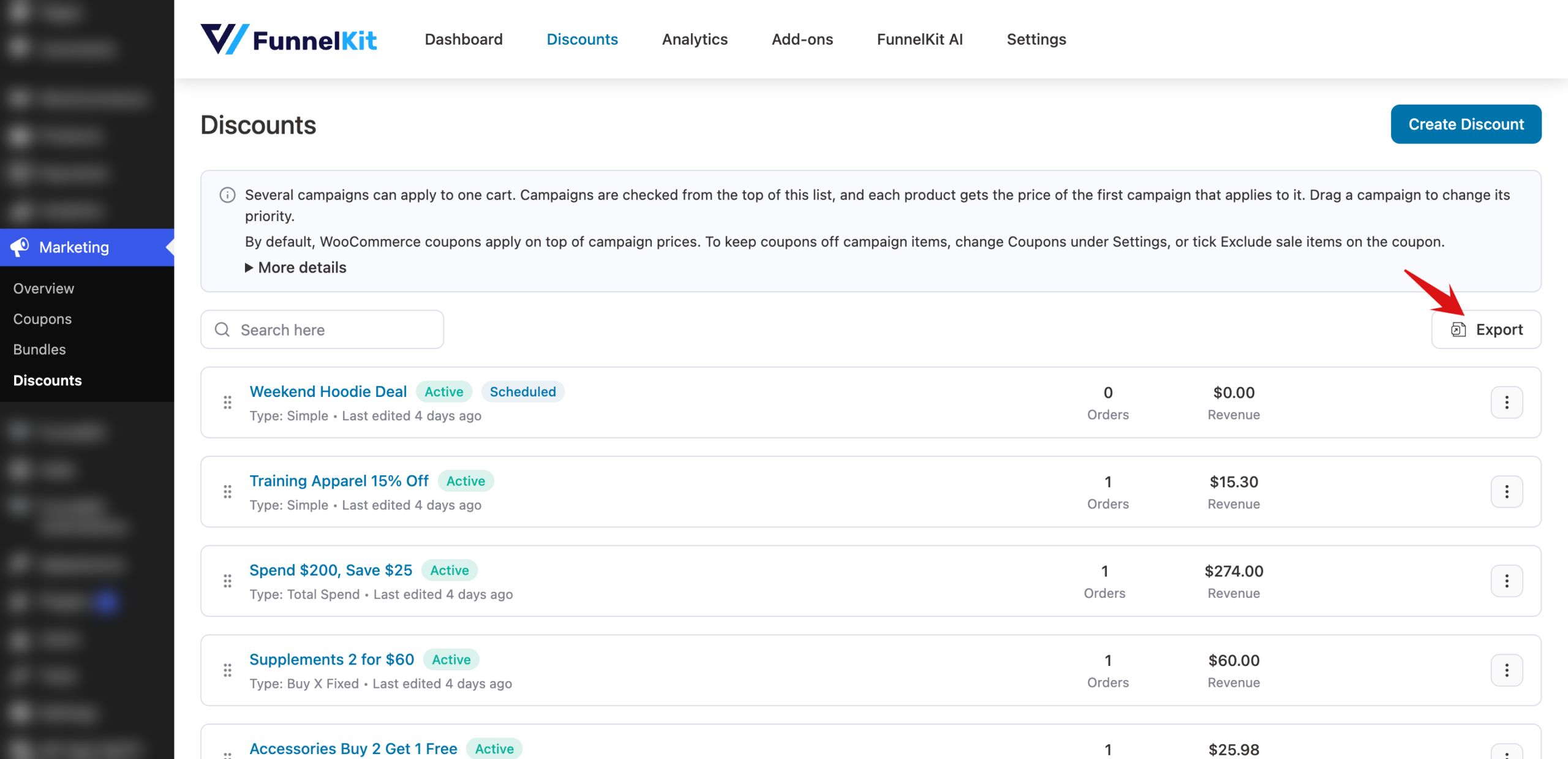
To download a spreadsheet of your campaigns, click Export above the list.
Step 2: Confirm the Export
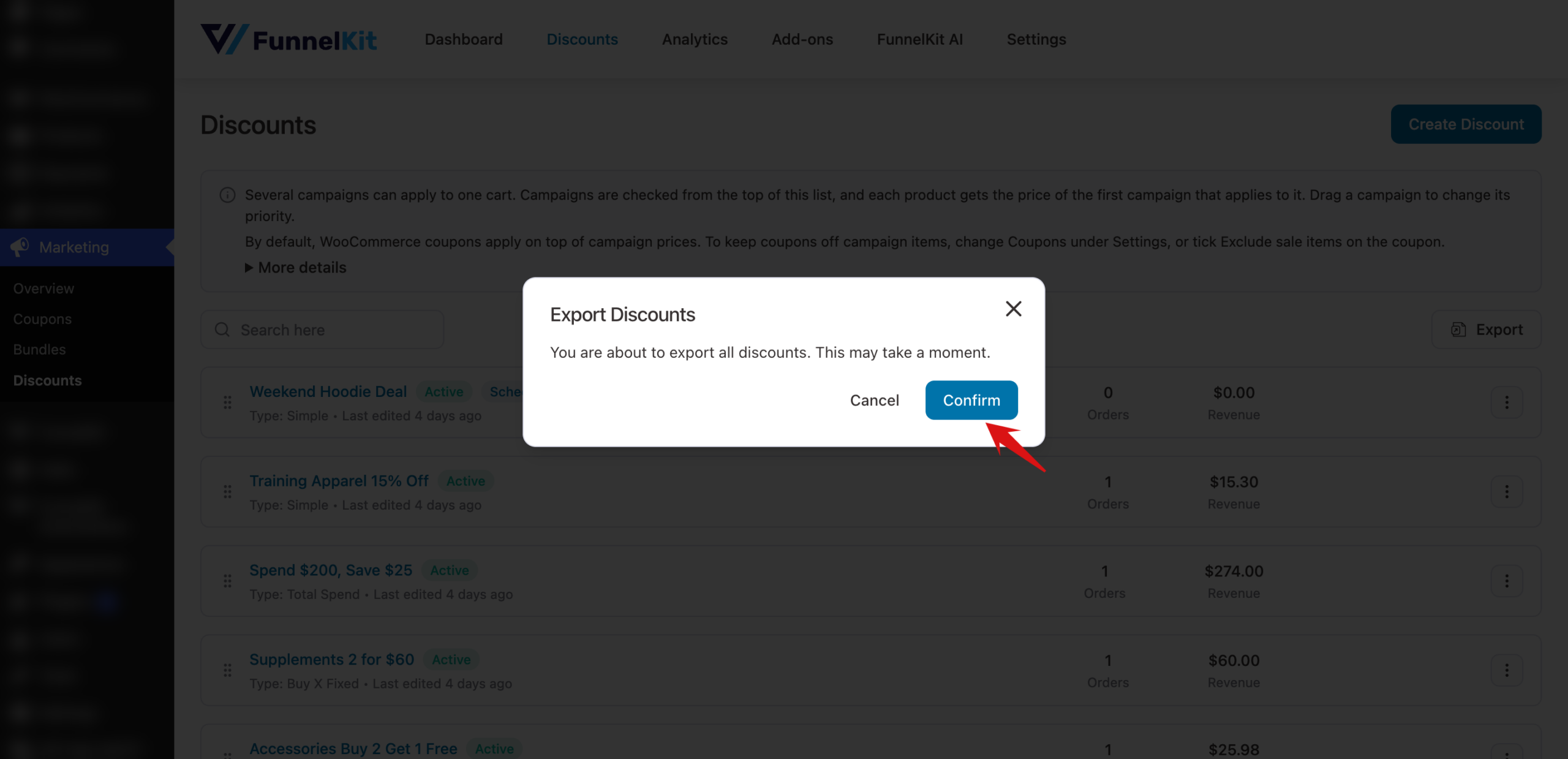
The Export Discounts window opens. Click Confirm.
Step 3: Download the File
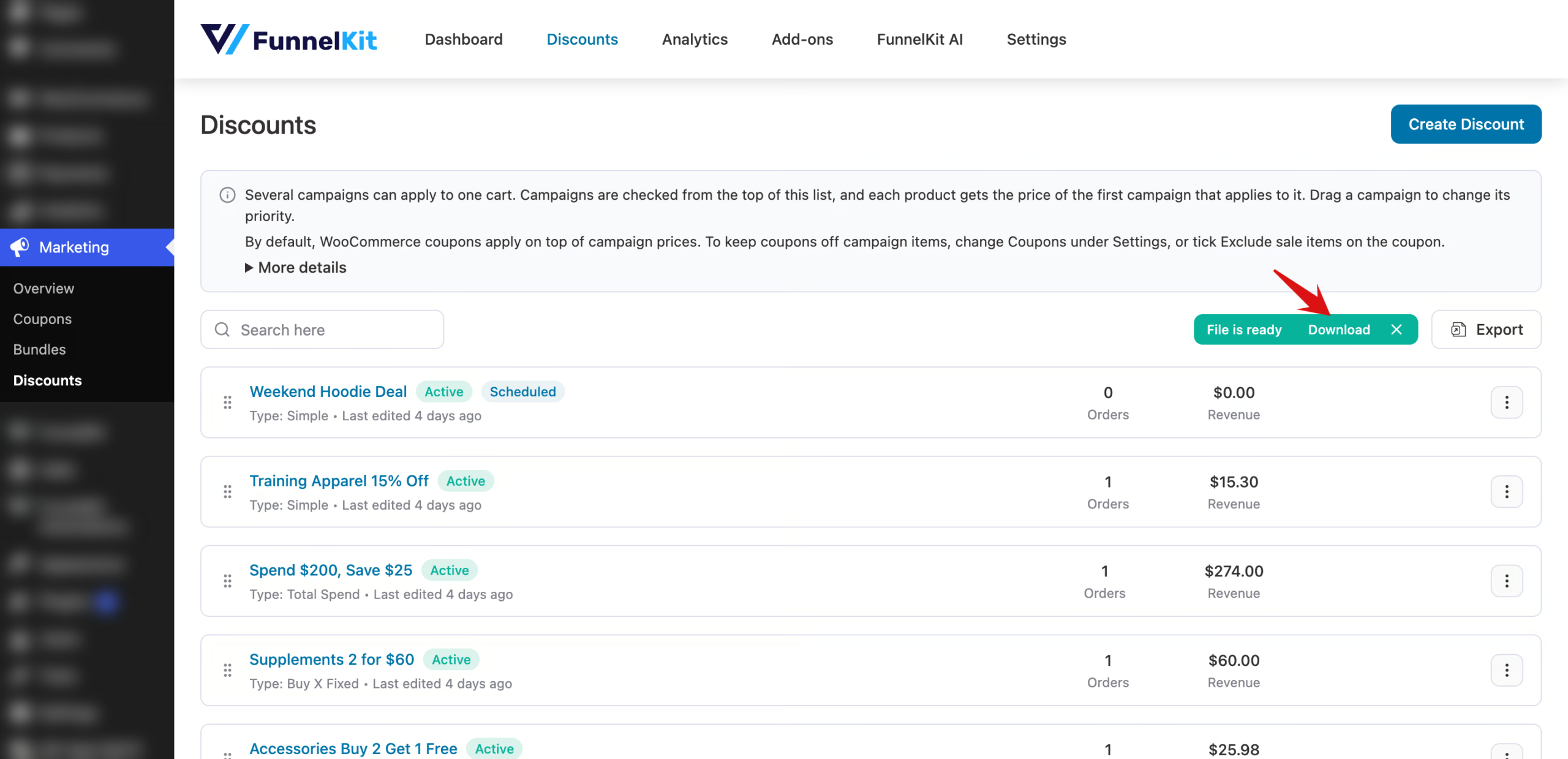
FunnelKit Discounts prepares a CSV file with every campaign. When the file is ready, a green File is ready bar appears next to the Export button. To save the file, click Download in this bar.
The file has these columns: ID, Name, Type, Status, Priority, Orders, Revenue, and Created At. Orders and Revenue are the totals of each campaign for all dates.
That’s it! You can now manage and export your campaigns from the Discounts list.
FAQ
Can I undo a deleted campaign?
No. Deleting a campaign removes it permanently. To keep a campaign for later, click Deactivate in its menu instead.