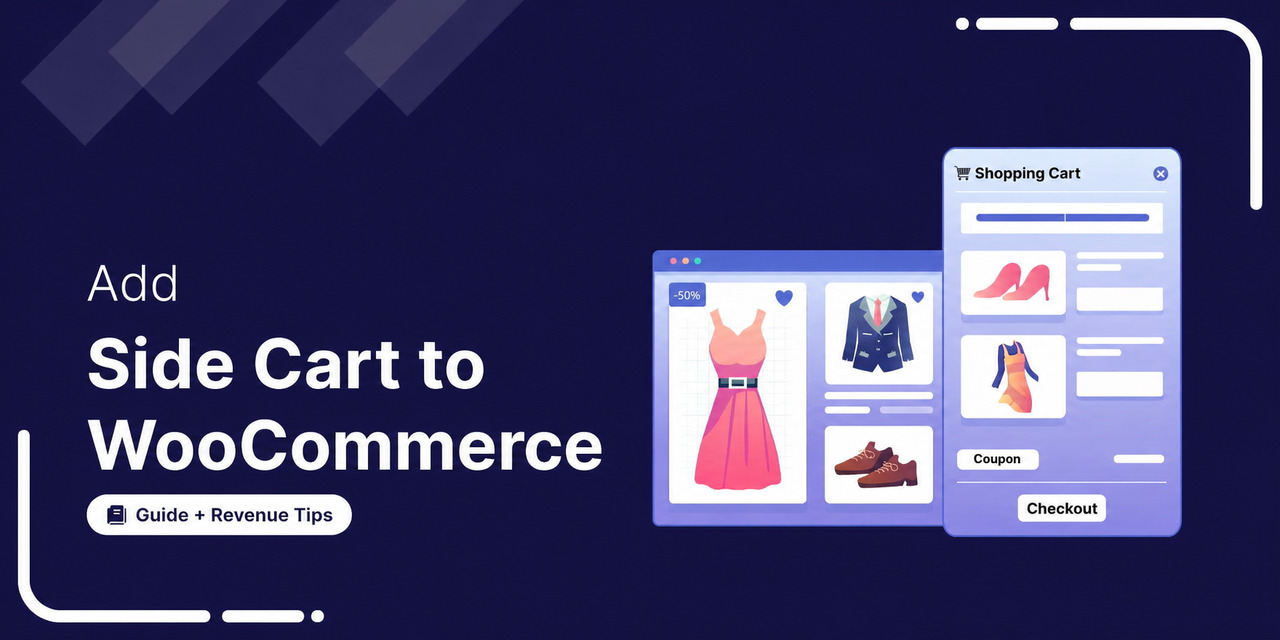
A WooCommerce side cart is a panel that slides in when shoppers add a product to their cart.
Customers can review items, change quantities, apply coupons, and proceed to checkout without leaving the page.
But WooCommerce does not include a side cart by default. When a customer adds a product, they either see a small notice or get redirected to the default cart page.
Every extra page load between "add to cart" and "place order" gives shoppers another chance to leave.
In this guide, we will show you how to add a slide-out cart to your WooCommerce store using a free WordPress plugin, with no code required.
We will also cover how to customize the cart drawer to match your brand, what to add to it to increase order value, how it compares to the default mini cart, and how to fix the most common issues.
Watch this quick tutorial on setting up the WooCommerce side cart in your store:
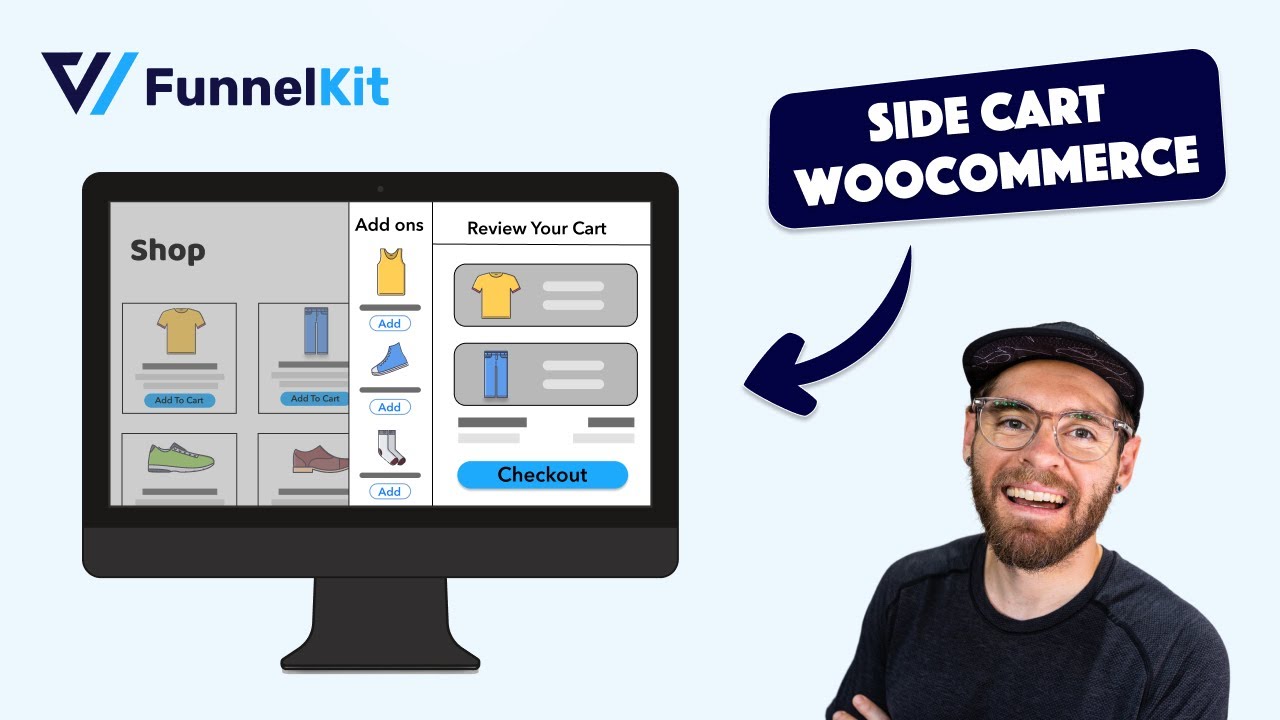
Table of Contents
- 1 What Is a Side Cart in WooCommerce? (Side Cart vs. Mini Cart vs. Cart Page)
- 2 How to Add a Side Cart to WooCommerce for Free (Step-by-Step)
- 3 5 Ways to Raise AOV From the WooCommerce Side Cart
- 4 FunnelKit Cart Free (Lite) vs. Pro: Feature Comparison
- 5 Side Cart Not Showing or Not Updating? 6 Common Fixes
- 6 Add a WooCommerce Side Cart and Stop Losing Sales at the Cart Page!
What Is a Side Cart in WooCommerce? (Side Cart vs. Mini Cart vs. Cart Page)
A side cart is a slide-out panel, sometimes called a cart drawer, sliding cart, or floating cart, that appears from the edge of the screen the moment a shopper adds an item.
It shows the products in the basket, lets buyers change quantities, apply a coupon, and move to checkout, all without a page reload.
The confusion usually starts because WooCommerce ships with three different cart surfaces that aren't interchangeable.
Here's how the slide-out cart drawer compares to the classic mini cart widget and the full cart page.
| Feature | Cart Page | Mini Cart Widget | Side Cart (Slide-Out Drawer) |
|---|---|---|---|
| How it appears | Full separate page (/cart/) | Small dropdown or widget block | Panel that slides over the current page |
| Requires page reload | Yes | Usually yes | No (fully AJAX) |
| Edit quantities inline | Yes | Rarely | Yes |
| Apply coupons in place | Yes | No | Yes |
| Free shipping progress bar | No (needs code) | No | Yes |
| In-cart upsells | No | No | Yes |
| Keeps shopper on the page | No | Partially | Yes |
| Best for | Final review | Header cart preview | Reducing clicks to checkout |
The cart page is a destination, the mini cart is a preview, and the side cart is a conversion tool.
Because the slide-out cart never sends buyers to a separate URL, it removes the two page loads WooCommerce's default flow forces between add to cart and place order, and that's where a large share of carts are abandoned.
A mini cart shows what's in the basket; a side cart lets shoppers act on it by adjusting, upselling, applying a coupon, and checking out without breaking their browsing momentum.
How to Add a Side Cart to WooCommerce for Free (Step-by-Step)
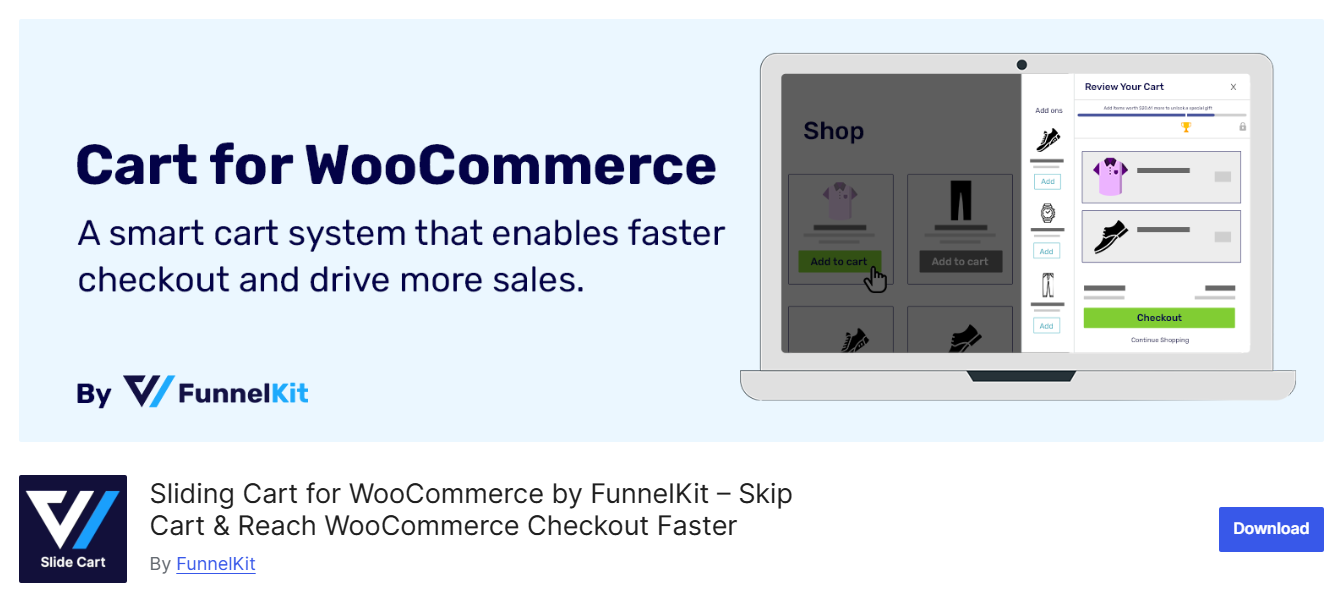
You can add a working cart drawer to any WooCommerce store in about five minutes using the free FunnelKit Cart Lite plugin from WordPress.org without any code or theme edits.
Step 1: Install the plugin and enable the side cart
From your WordPress dashboard, go to Plugins ⇨ Add New, search for FunnelKit Cart, then click Install Now and Activate.
If you prefer, download the ZIP from the WordPress.org plugin repository and upload it under Plugins ⇨ Add New ⇨ Upload Plugin. It works with any theme that runs WooCommerce.
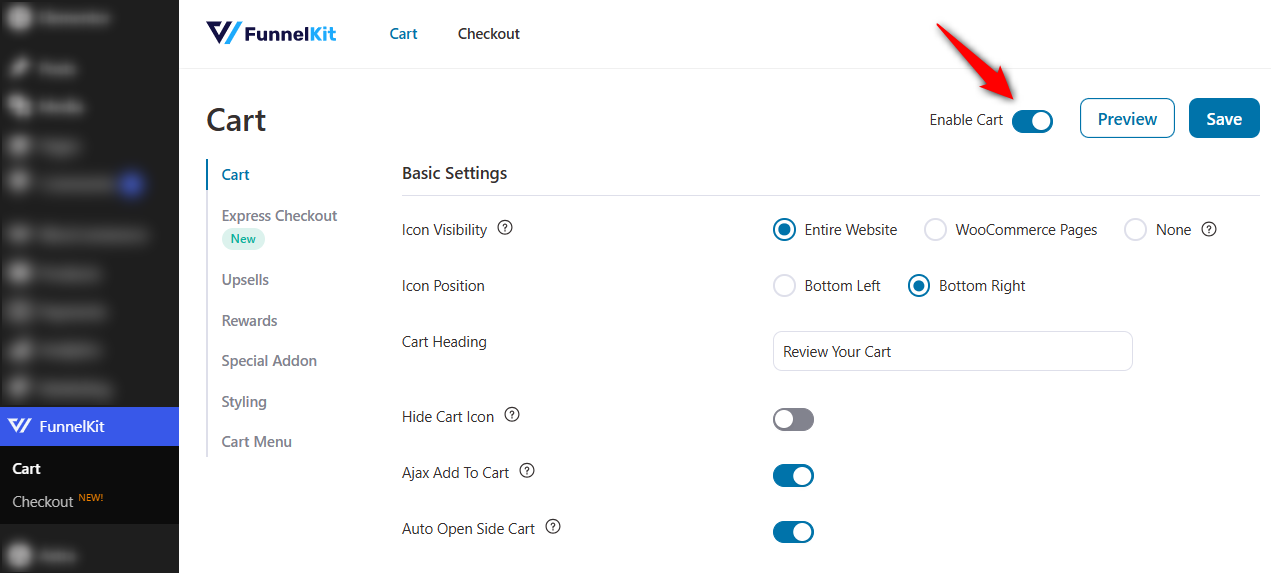
After activation, open the plugin's settings and switch the side cart to Enabled. The moment it's on, adding any product to the basket triggers the slide-out panel.
You can test it by adding a product from your shop page. You'll see the drawer animate in from the right (or from the left if you change it later).
Step 2: Set the cart icon display and position
Next, decide where the floating cart icon appears. You can show it across the entire website, only on WooCommerce pages, or hide it and trigger the cart from your menu instead.
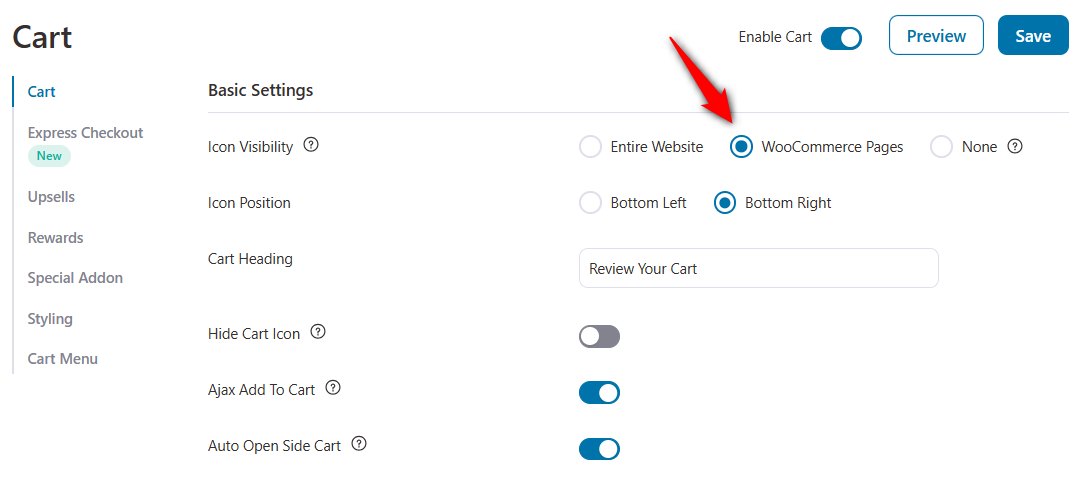
The icon sits at the edge of the screen with a count badge showing how many items are in the cart.
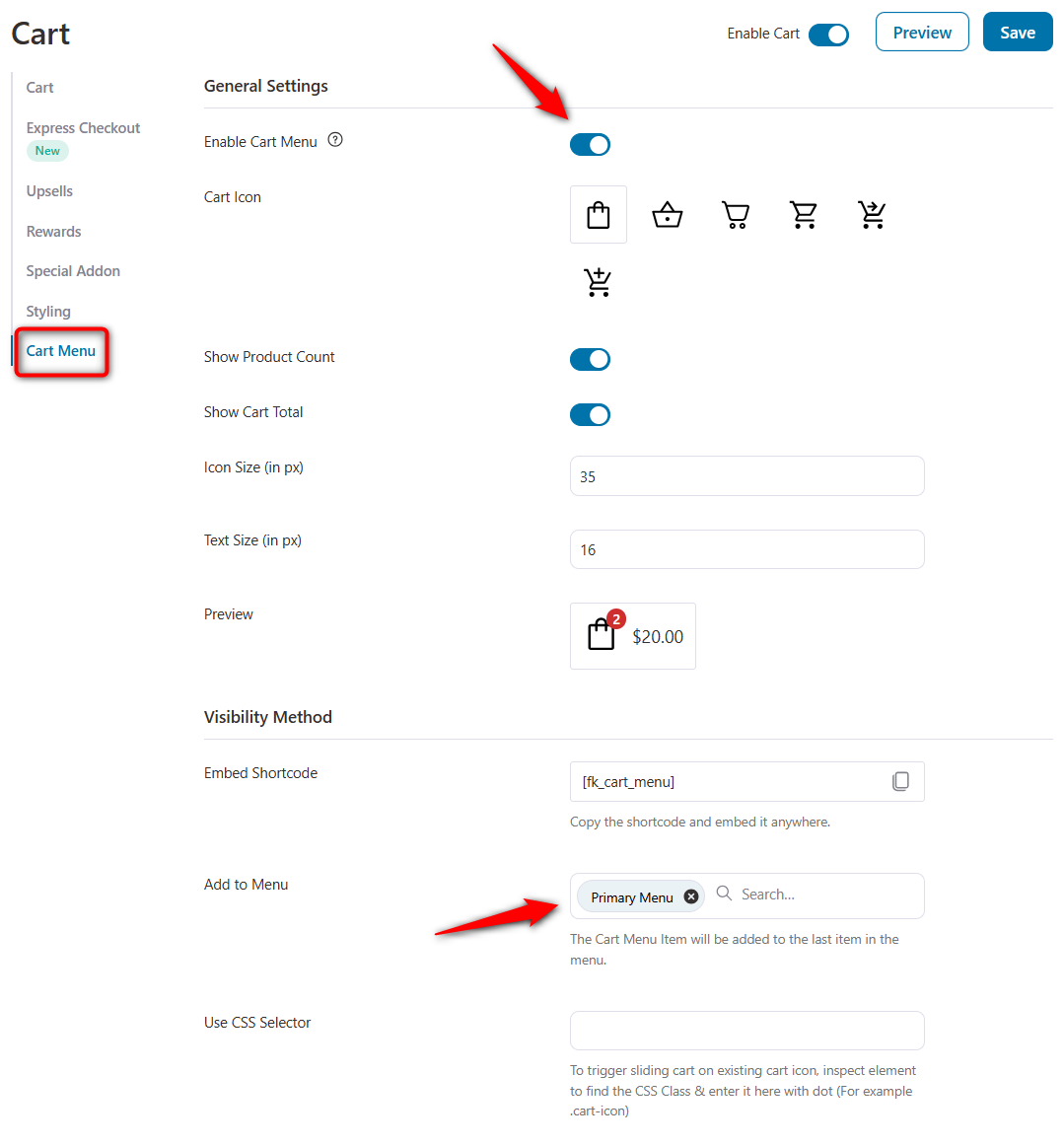
If you prefer a header cart, open the Cart Menu settings and append the cart icon to any WordPress menu. You can also embed the cart anywhere on your site using the built-in shortcode, which is useful for custom headers built with page builders.
Step 3: Customize the side cart design
This is where you make the sliding cart feel native to your store. Open the Design and Cart settings to control every visible element of the drawer.
Set the cart heading, choose whether the drawer slides in from the left or right, and enable or disable the coupon field.
If you run frequent promotions, keep the coupon field visible so shoppers can apply codes without having to hunt for the cart page. If you rarely discount, hide it to remove a distraction that sends people off-site searching for codes.
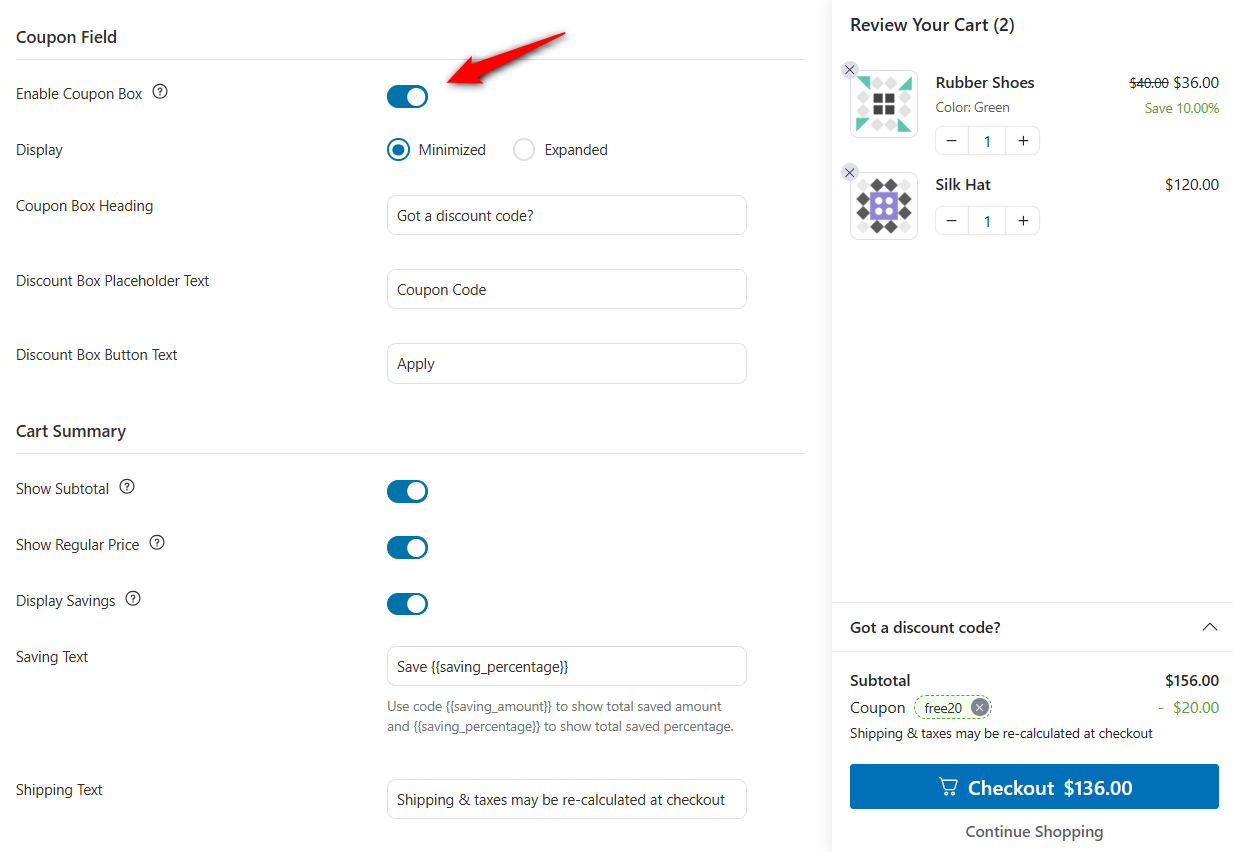
Next, adjust the checkout button. Edit the button text, link it to your checkout page, and make it the strongest visual element in the drawer.
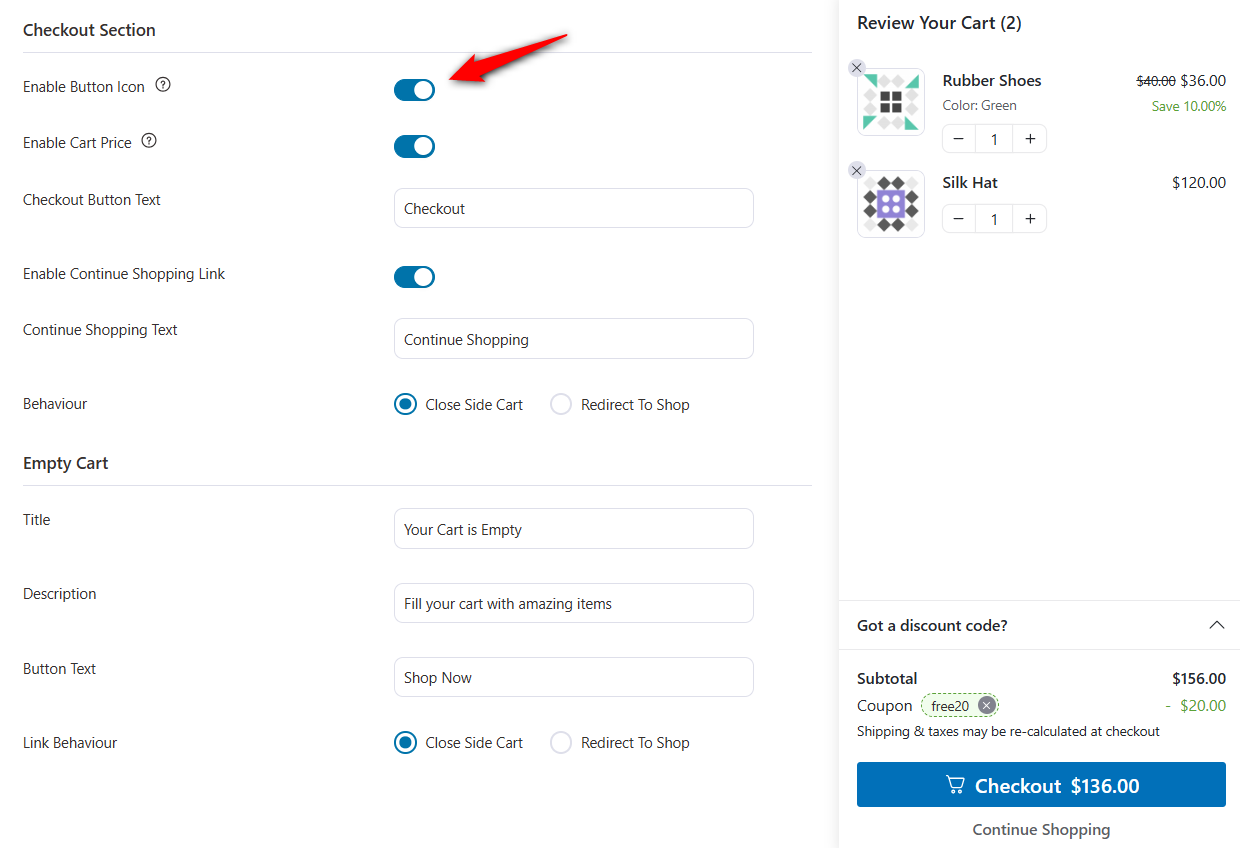
Enable quantity steppers so customers can adjust items inline, and turn on the remove item control so cart edits never require a page visit.
Finally, apply your branding. Change the colors of the cart background, text, buttons, and upsell blocks to match your theme.
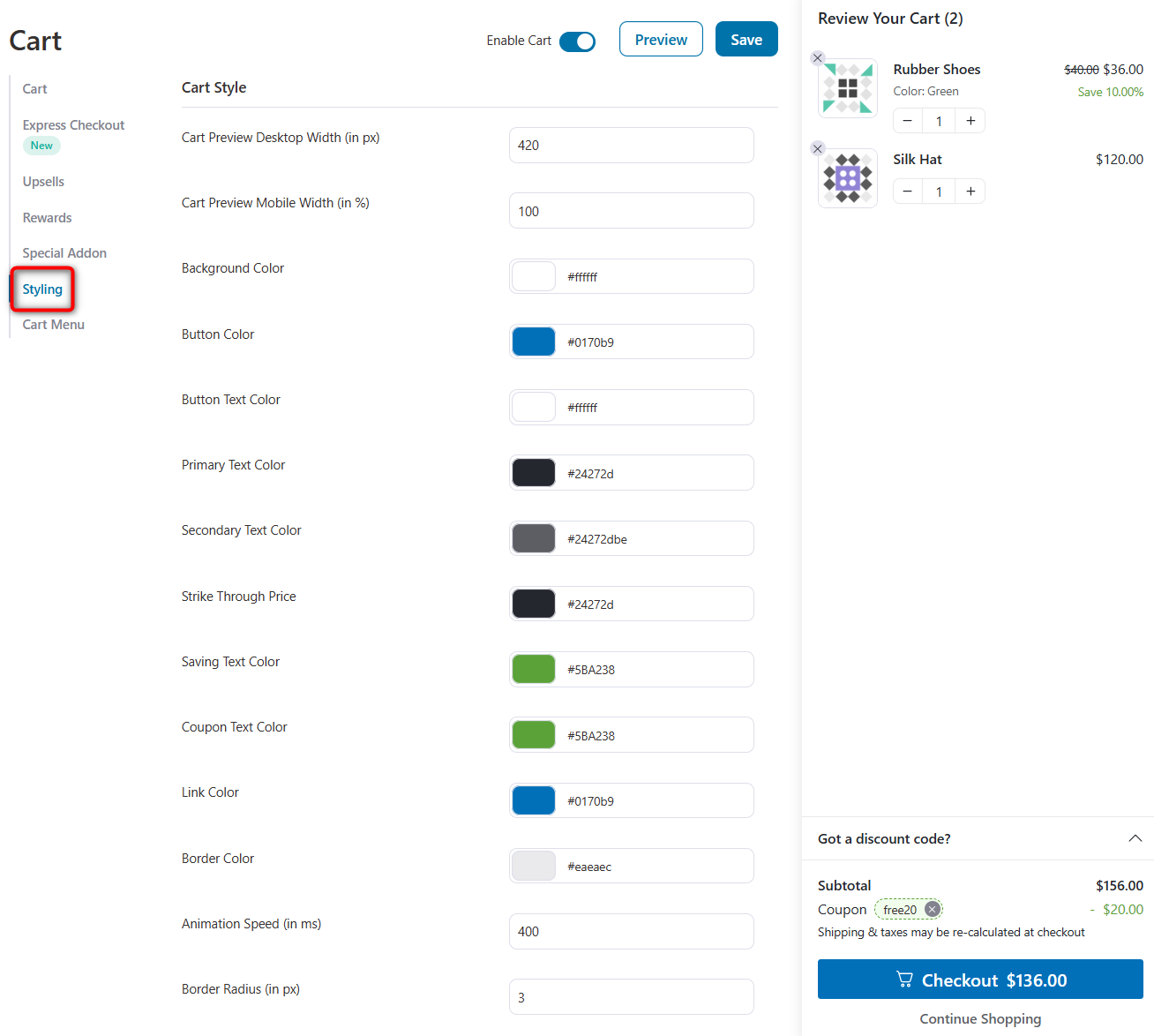
A cart drawer that looks native builds more trust than one that obviously came from a plugin.
If your store runs in multiple languages, FunnelKit Cart is compatible with WPML, Polylang, TranslatePress, and Weglot, and lets you add translations for each cart label.
Step 4: Save and test your side cart
Click Save and open your store in a new tab. Go to any product page, add the item to your cart, and confirm the drawer slides in the cart, along with the product, subtotal, and checkout button.
Update the quantity, remove the item, and re-add it to verify the AJAX updates fire without a page reload. Then click through to checkout and place a test order.
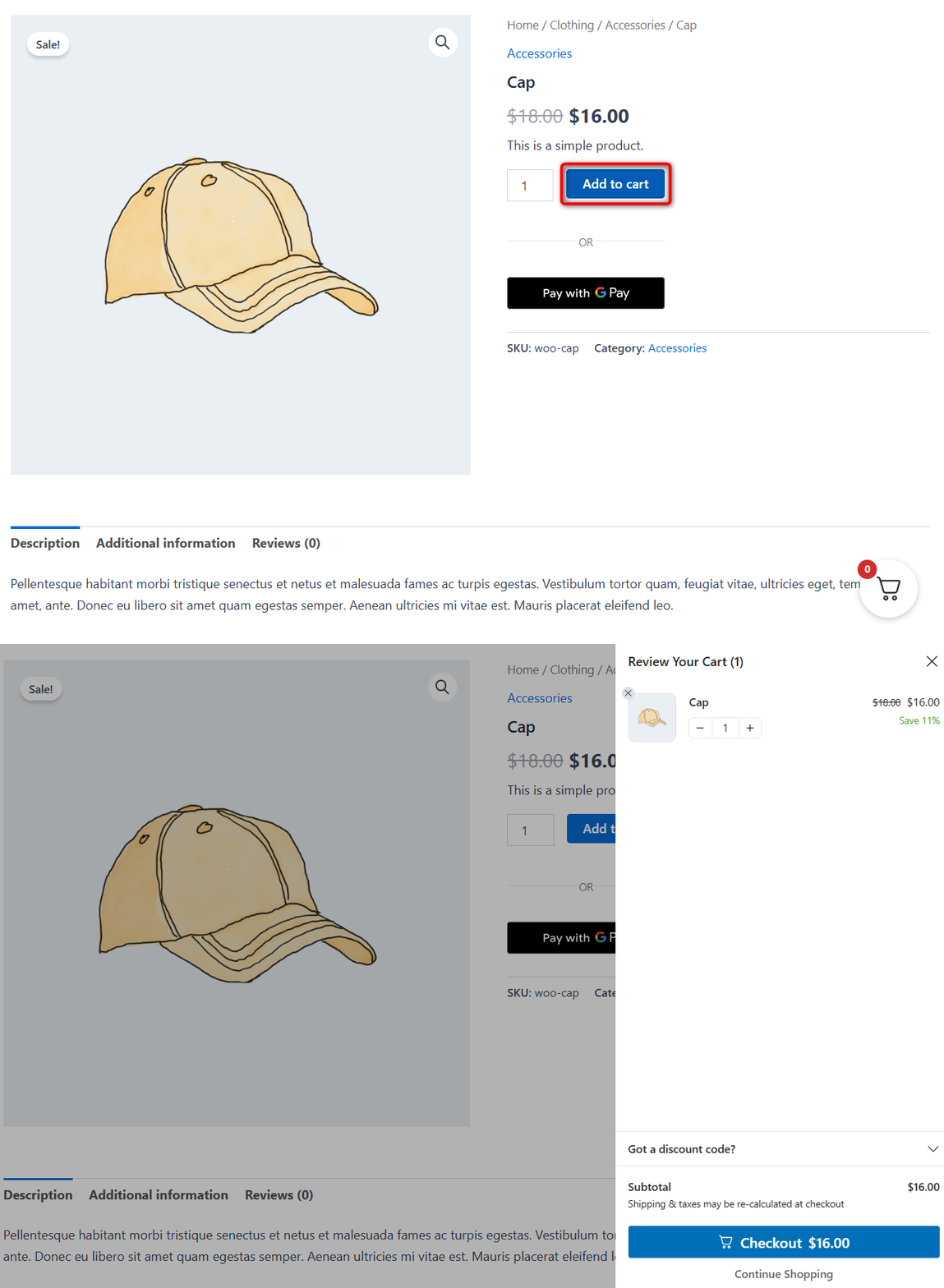
Test on both desktop and mobile devices. On mobile, check that the drawer covers the screen cleanly, the close control is easy to tap, and the checkout button stays visible above the fold.
5 Ways to Raise AOV From the WooCommerce Side Cart
This is where a cart drawer stops being a convenience and starts being a revenue engine.
A plain sliding cart just lists items; the features below turn the panel into the highest-intent upsell surface on your store. Shoppers are already committed enough to have added something.
Layer these on in order of impact.
1. Add a free shipping bar and milestone rewards
Set spending milestones that unlock free shipping, an auto-applied discount, and a free gift.
Configure it inside the side cart settings.
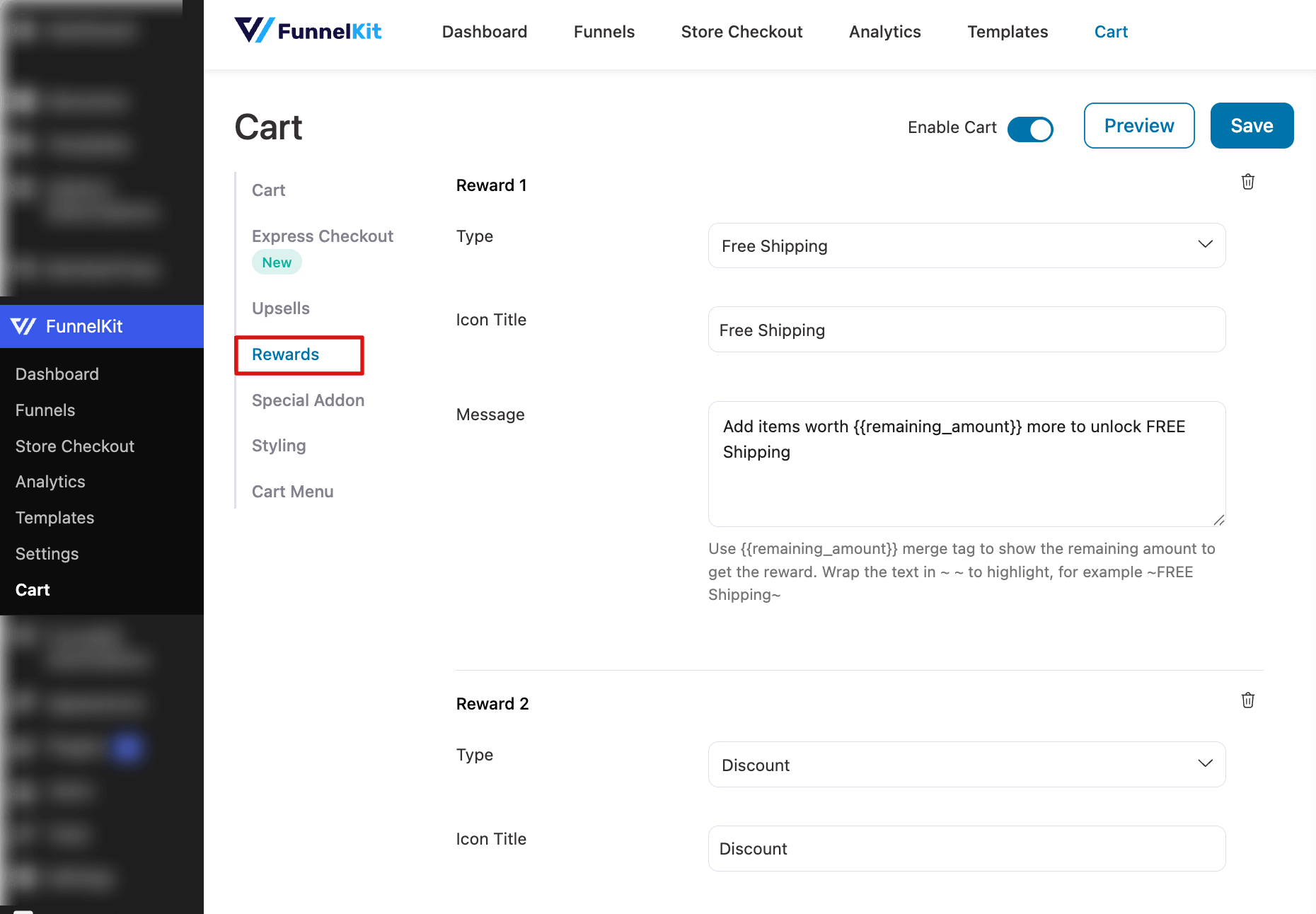
A progress bar in the notice area, for example, "You're $18 away from unlocking free shipping", shows exactly how much more the shopper needs to add, which nudges them to increase their cart total on their own.
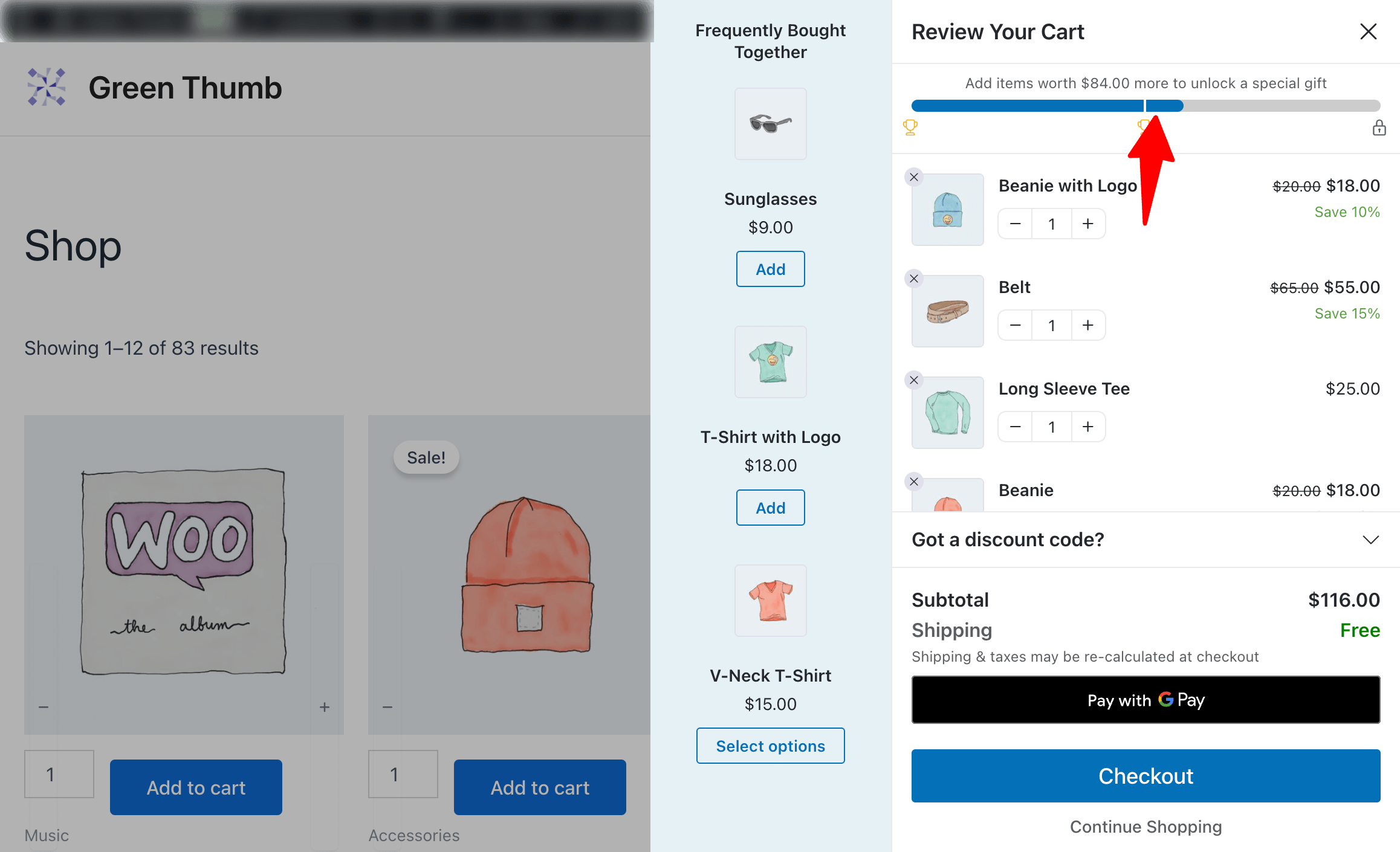
Beyond free shipping, use tiered rewards, such as spend $75, unlock a discount; spend $120, get a free gift to gamify basket-building. Progressive rewards create an arcade pull that keeps shoppers reaching for the next tier.
2. Offer in-cart upsells and cross-sells
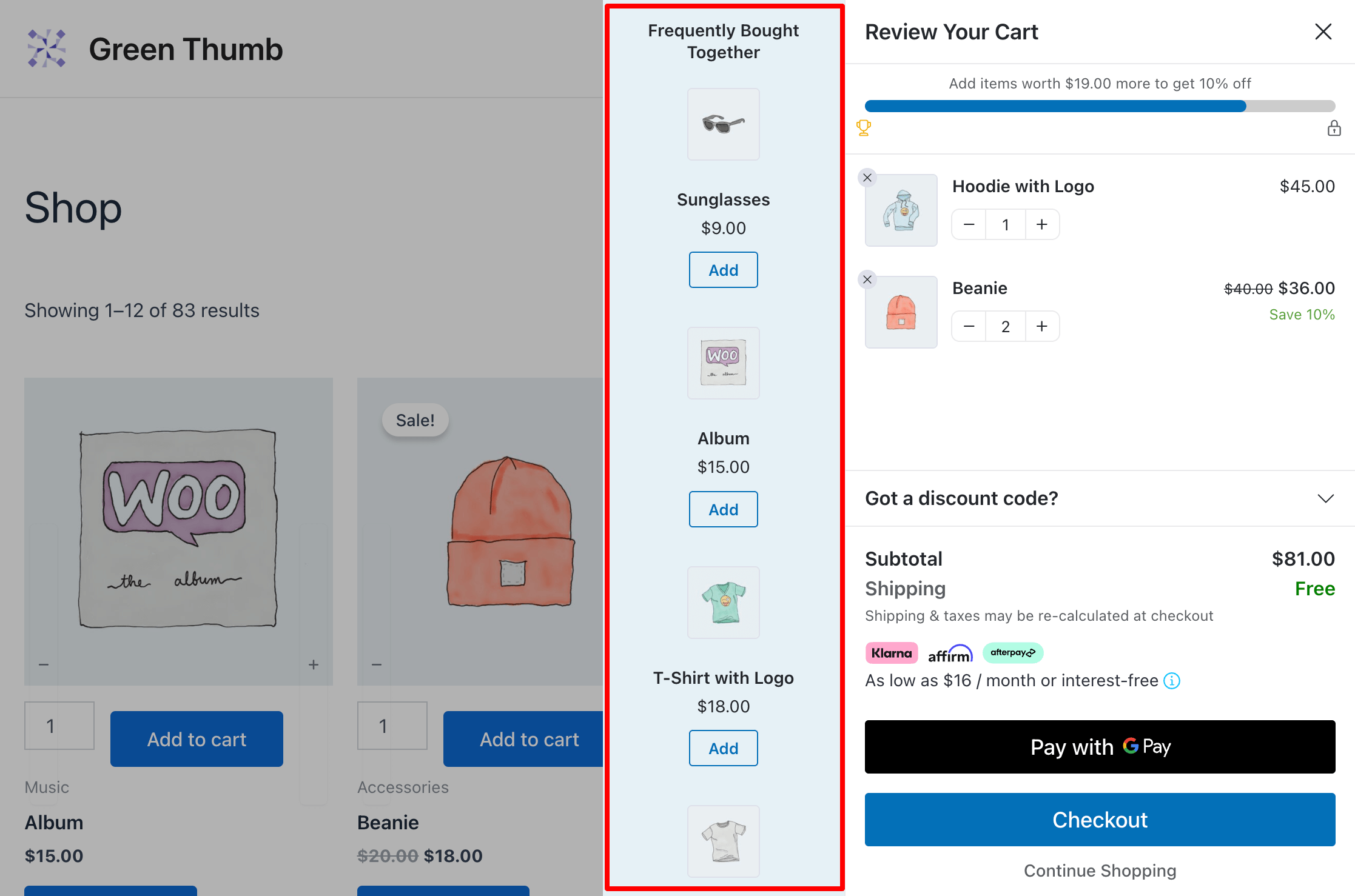
Surface a relevant product or a one-click add-on directly inside the drawer, for example, "Add a matching case for $12".
You can seamlessly assign upsells and cross-sells for every product from a single interface, with default recommendations as a fallback, so you never have to edit product pages one by one.
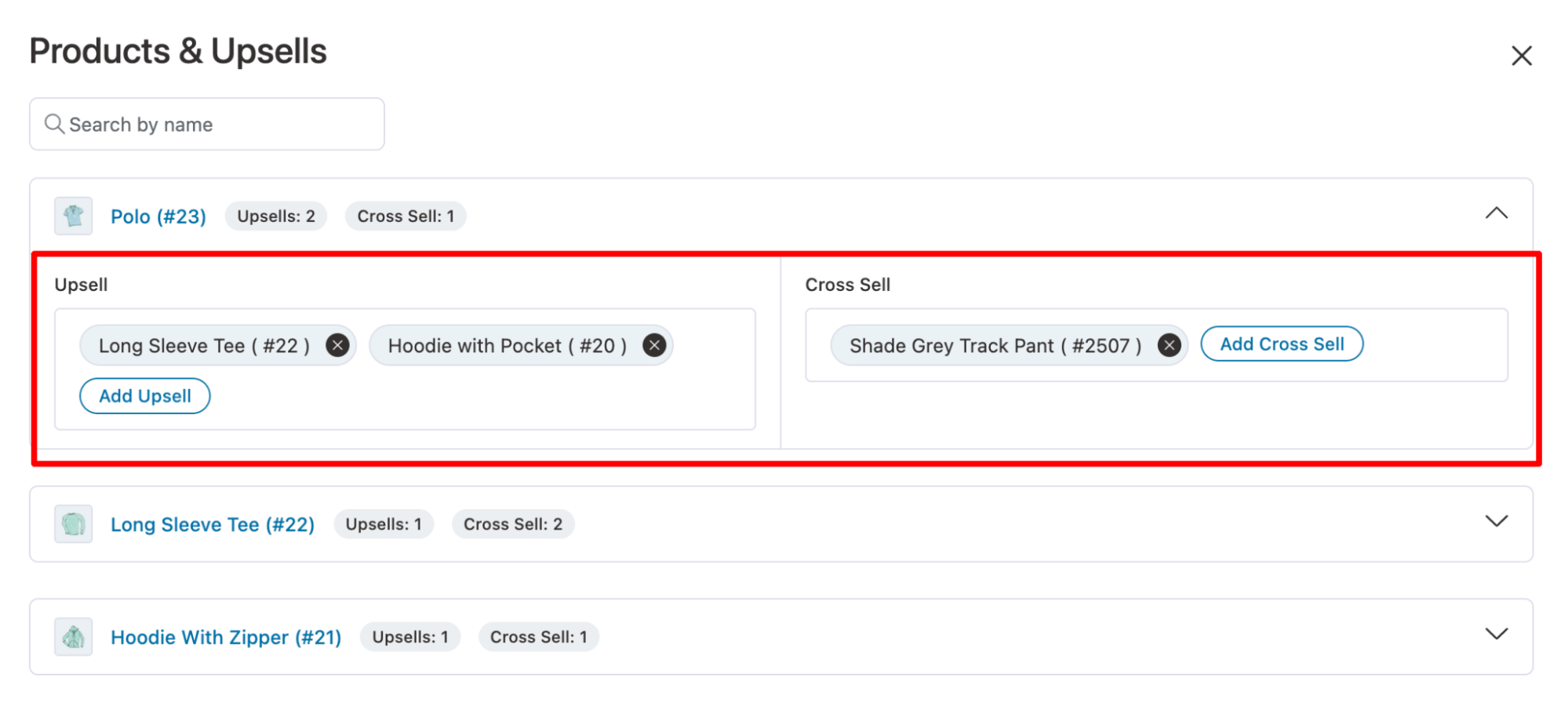
Choose the upsells and cross-sells you'd like to display for users to add. Each item can have different recommendations.
Furthermore, if a product has no associated upsells or cross-sells, FunnelKit Cart offers the option to use Default Upsells.
Here's how it shows up on the front end:
3. Enable express checkout buttons
Turn on the Apple Pay and Google Pay buttons in the cart drawer so returning shoppers can pay with one tap.
Wallet visibility depends on the customer’s browser and device, and the plugin includes a test mode to preview how the buttons appear.
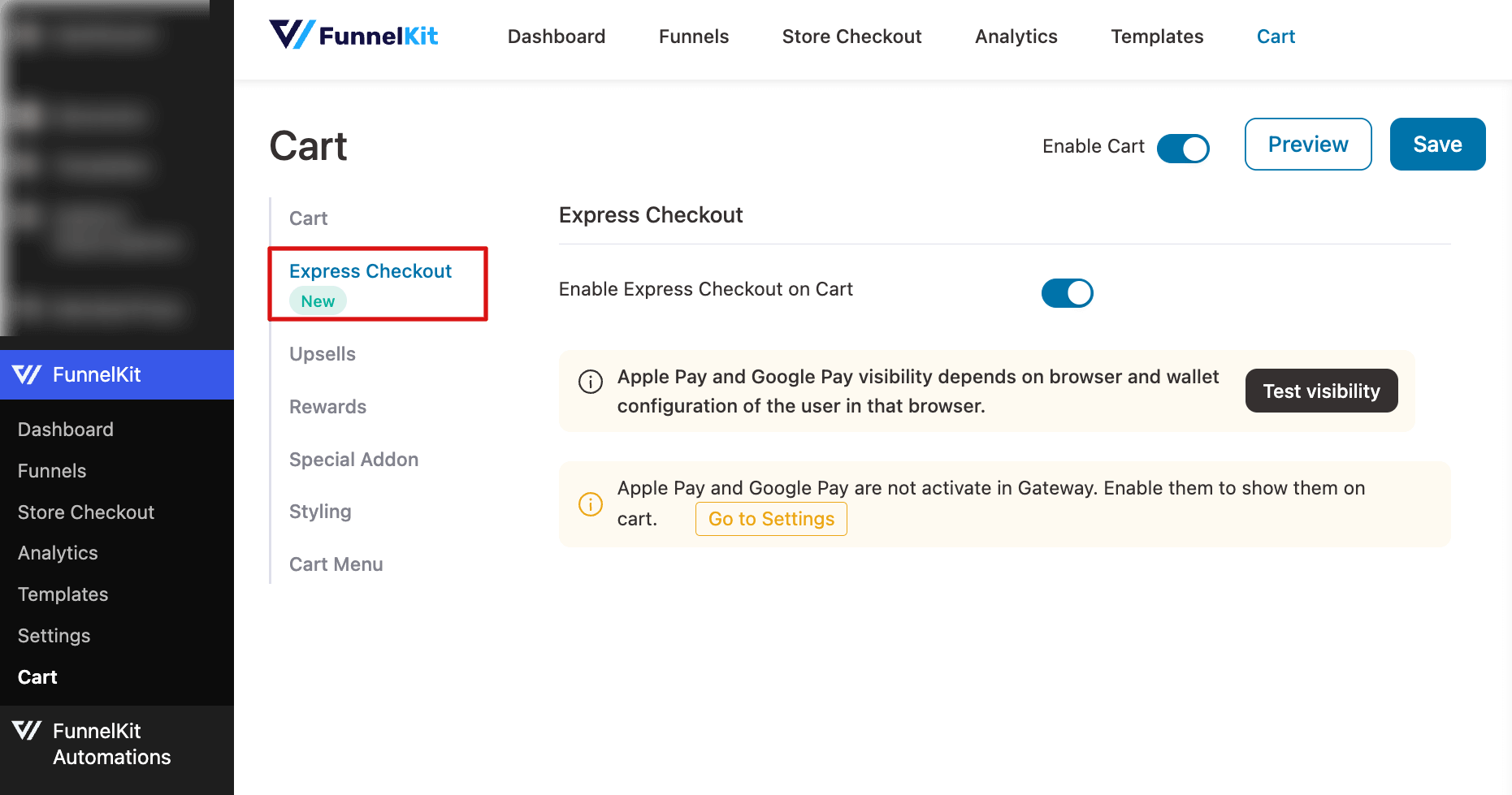
4. Offer special add-ons like shipping protection or gift wraps
A special add-on is a one-click optional offer inside the cart, such as shipping protection, gift wrapping, or a limited-time deal.
Setting up a special add-on is simple. You can enable it in the FunnelKit Cart settings by selecting the add-on type (e.g., a toggle or checkbox) and choosing which product to feature.
You can add a heading, a description, and even upload a custom image to make it more appealing. You can customize the add-on's styling to match your store's design, including colors, text, and background.
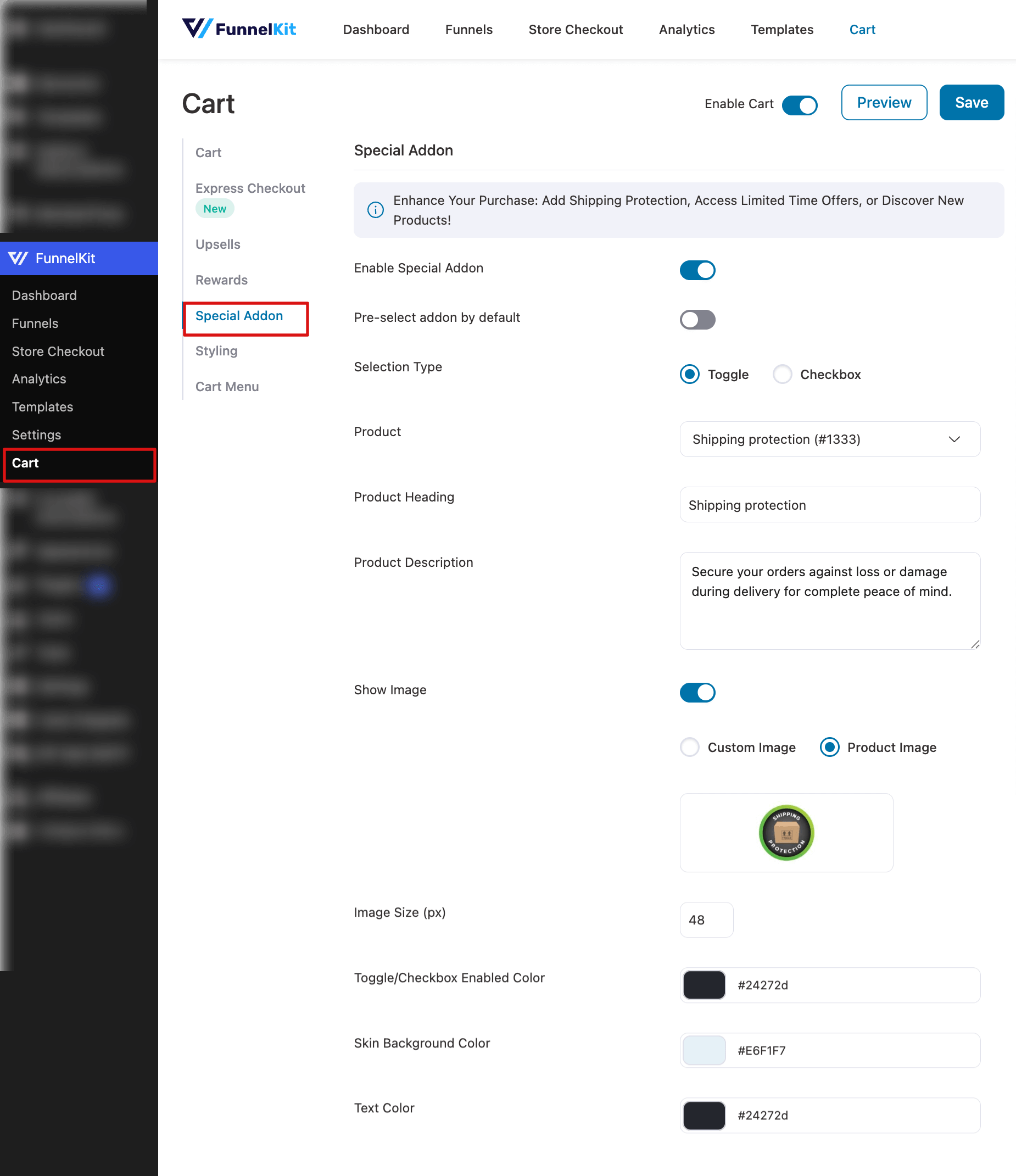
It appears as a toggle or checkbox with its own heading, image, and styling, and it is one of the lowest-friction ways to raise order value.
5. Let shoppers pick product variations in the cart
Variable products can be offered as recommendations with a variant selector right inside the floating cart.
Customers choose the size or color without visiting the product page, keeping them one click away from checkout.
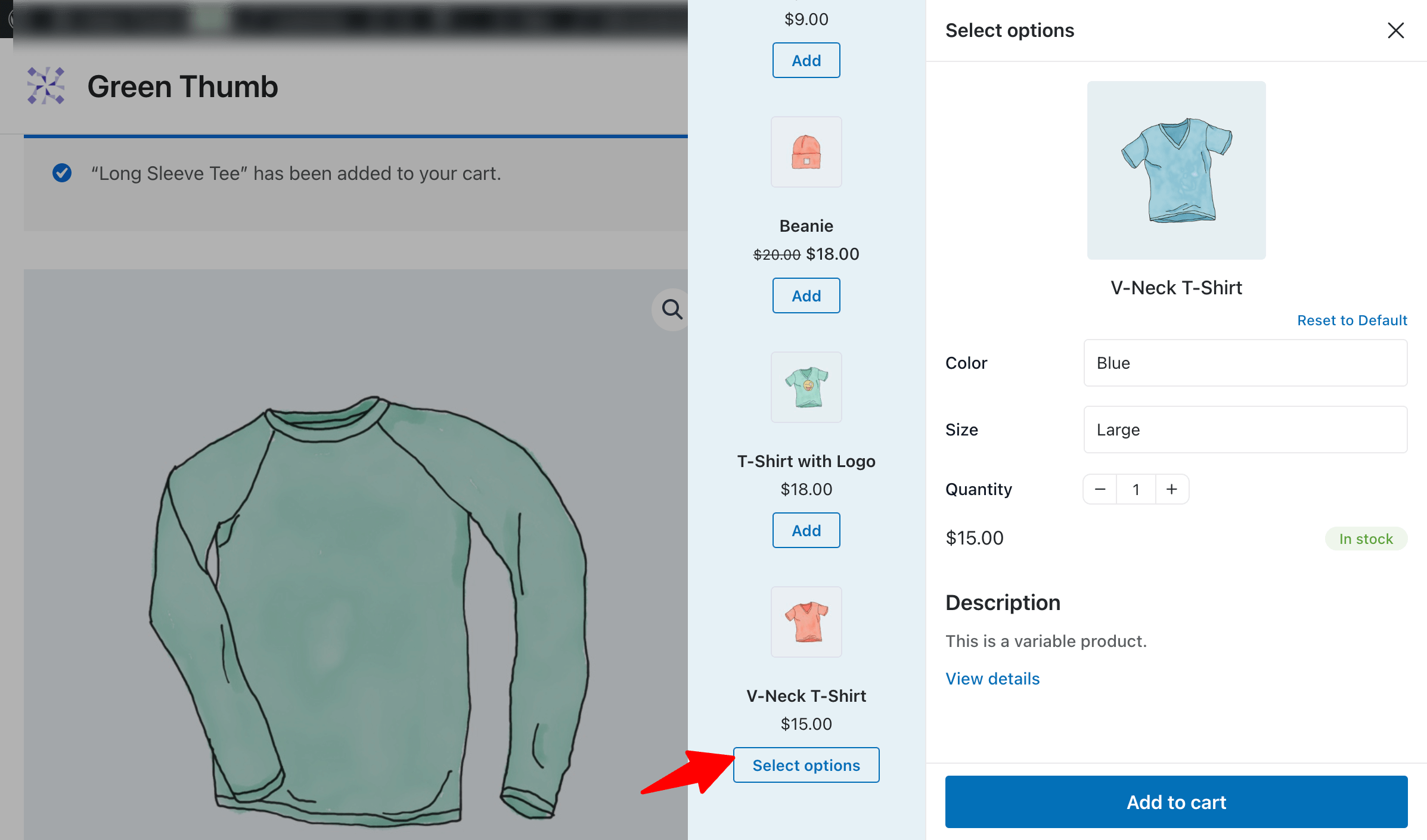
The beginner-friendly and simple UI makes the process effortless.
FunnelKit Cart Free (Lite) vs. Pro: Feature Comparison
The free Lite plugin covers everything most stores need to launch a working slide-out cart. Pro adds the revenue features. Here's the honest split so you know exactly where the line falls before you decide.
| Feature | Free (Lite) | Pro |
|---|---|---|
| Slide-out cart drawer | ✅ Yes | ✅ Yes |
| Floating cart icon | ✅ Yes | ✅ Yes |
| Quantity editing in cart | ✅ Yes | ✅ Yes |
| In-cart coupon field | ✅ Yes | ✅ Yes |
| Basic color/branding customization | ✅ Yes | ✅ Yes |
| Cart menu shortcode | ✅ Yes | ✅ Yes |
| Express checkout inside the cart | ✅ Yes | ✅ Yes |
| Free shipping progress bar | ❌ No | ✅ Yes |
| In-cart upsells and cross-sells | ❌ No | ✅ Yes |
| Special add-ons | ❌ No | ✅ Yes |
| Reward milestones | ❌ No | ✅ Yes |
| Cart analytics | ❌ No | ✅ Yes |
If your goal is simply to add a cart drawer and remove the extra clicks to checkout, the free version does that completely without any trial or watermark.
Upgrade to Pro when you're ready to turn the drawer into an AOV tool with shipping bars, upsells, and rewards.
That's the entire difference; there's no crippled free tier here, just a conversion layer on top.
Side Cart Not Showing or Not Updating? 6 Common Fixes
Most side cart problems trace back to caching or a theme's AJAX handling, not the plugin itself. Here are the six issues store owners hit most often and how to clear each one.
- Side cart not showing at all
Confirm the drawer is toggled Enabled in settings, then hard-refresh (Ctrl/Cmd + Shift + R).
If it still doesn't appear, a theme or another plugin may be suppressing the icon. Deactivate plugins one by one to find the conflict.
- Side cart not updating after add to cart (AJAX issue).
This issue is almost always a caching problem. In your caching plugin, exclude the cart's AJAX endpoints and the cart fragments from being cached.
- WP Rocket hiding the side cart
WP Rocket's "Delay JavaScript Execution" and lazy-render features can prevent the drawer's scripts from loading.
Add the cart plugin's scripts to WP Rocket's exclusion list, or disable delayed JS on cart-bearing pages.
- Cart opens while editing your pages in Elementor
As noted earlier, Elementor's editor fires add-to-cart previews that trigger the drawer. This is editor-only behavior; check the published page to confirm the live experience is correct.
- Quantities not changing / stepper unresponsive
A JavaScript conflict from another plugin is usually the cause. Open your browser console, look for errors when you click the stepper, and disable the offending plugin or add its scripts to a defer/exclude list.
- Drawer looks broken or unstyled
Your theme's CSS may be overriding the drawer, or a minification plugin mangled its stylesheet.
Exclude the cart's CSS from minification/combination, and clear every cache layer (plugin, server, and CDN) before retesting.
If none of these resolve it, clear all caches, including any server-level or CDN cache, and retest in an incognito window, which bypasses browser cache entirely.
Frequently Asked Questions
Enable the floating cart icon in the plugin settings for a persistent on-screen button, and for the header specifically, use the cart menu setting or paste the cart shortcode into a custom menu item. That gives you a clickable cart link in your navigation without editing any template files.
You can restyle the default cart page with your theme's customizer, a page builder, or CSS. But a side cart largely removes the need to: because shoppers review, adjust, and check out from the slide-out drawer, most never load the standalone cart page, so you tune the drawer instead of the page.
No, a side cart does not work with Elementor. You can restyle the default cart page with default customization settings or custom CSS.
Yes, there is a WooCommerce side cart plugin, like FunnelKit Cart Lite, that is free on WordPress.org and includes a slide-out drawer, a floating icon, quantity editing, an in-cart coupon field, and basic customization. You only need Pro for revenue features like free-shipping bars, upsells, and express checkout.
Yes. Enable express checkout to show one-tap wallet buttons (Google Pay, Apple Pay) inside the drawer, letting shoppers pay without ever loading the cart or checkout page. Keep the standard checkout button available for buyers who don’t use wallets.
The mini cart is WooCommerce's default widget that displays a small summary of basket contents, usually a dropdown from a header icon showing the item count and subtotal. It previews the cart but offers little interactivity.
A slide-out side cart converts better because shoppers can edit quantities, apply coupons, see a free-shipping bar, and check out without a page reload.
Add a WooCommerce Side Cart and Stop Losing Sales at the Cart Page!
We covered what a WooCommerce side cart is, how it beats the default mini cart and cart page, how to set one up in four steps, and what to add inside the drawer to grow your average order value.
For the fastest path, we recommend FunnelKit Cart. The free Lite version gets a polished cart drawer live today, and the paid plans add the upsells, rewards, and express checkout that turn the drawer into a revenue channel.
Get the complete funnel-building and store checkout solution for WooCommerce 👇
Damanjeet Singh
November 3, 2026With FunnelKit MCP, you can ask how your WooCommerce store did yesterday and get the numbers in a single reply. It pulls data directly from your funnels, emails, and carts....
Editorial Team
October 9, 2026A downsell gives customers a cheaper option after they turn down your main offer. If you show it too soon, you might convince them to skip the original offer and...
Editorial Team
October 8, 2026WooCommerce guest checkout lets shoppers buy from your store without creating an account. They enter an email, their billing details, and payment, and the order goes through. It's a built-in...