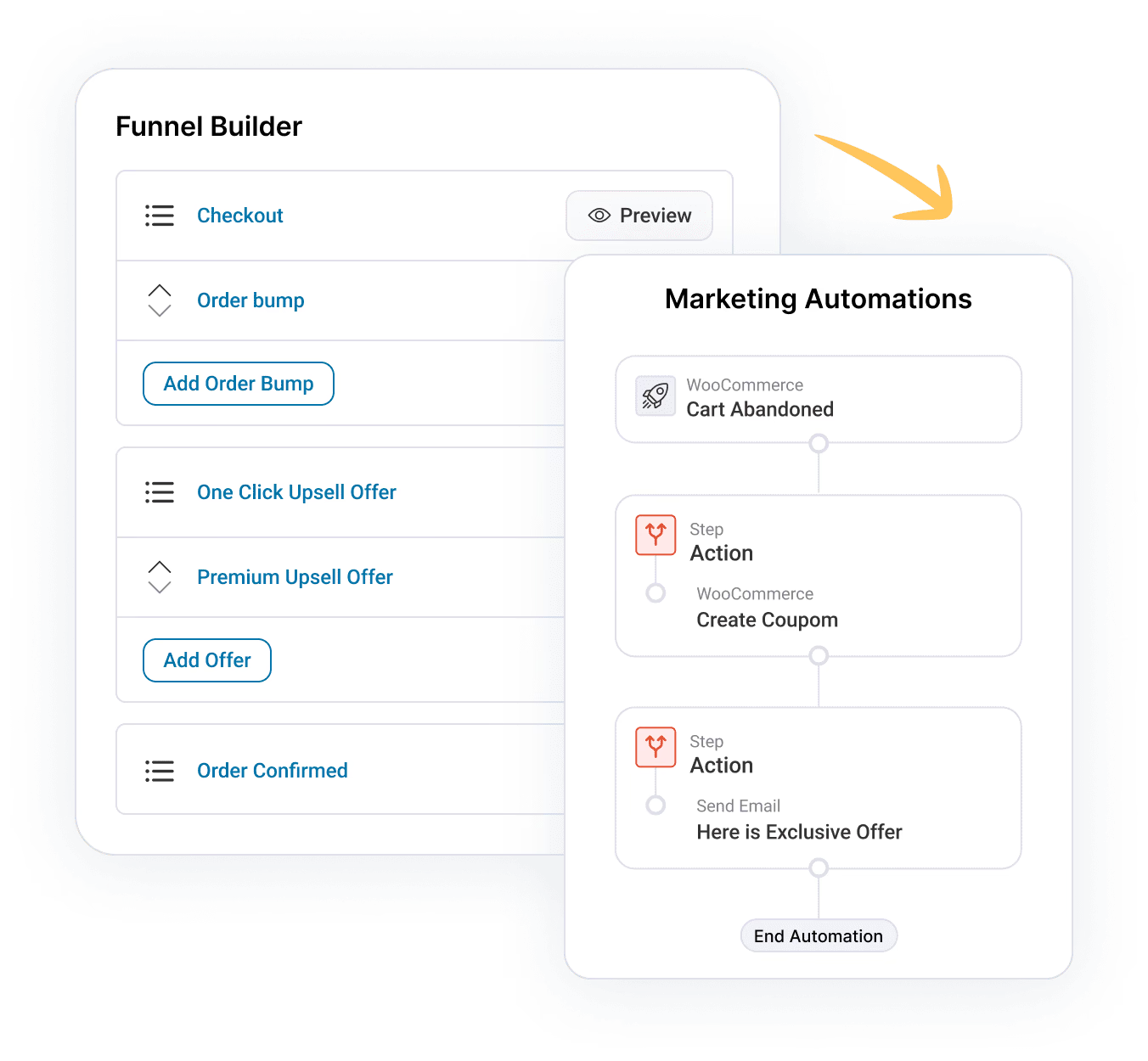
Already connected FunnelKit AI to one AI client? You can add it to another client, such as ChatGPT or Cursor, without connecting your site again. The new client uses the same connection, so it works with Funnel Builder, FunnelKit Automations and new FunnelKit products.
How to Add Another AI Client
Follow these steps to add a new AI client:
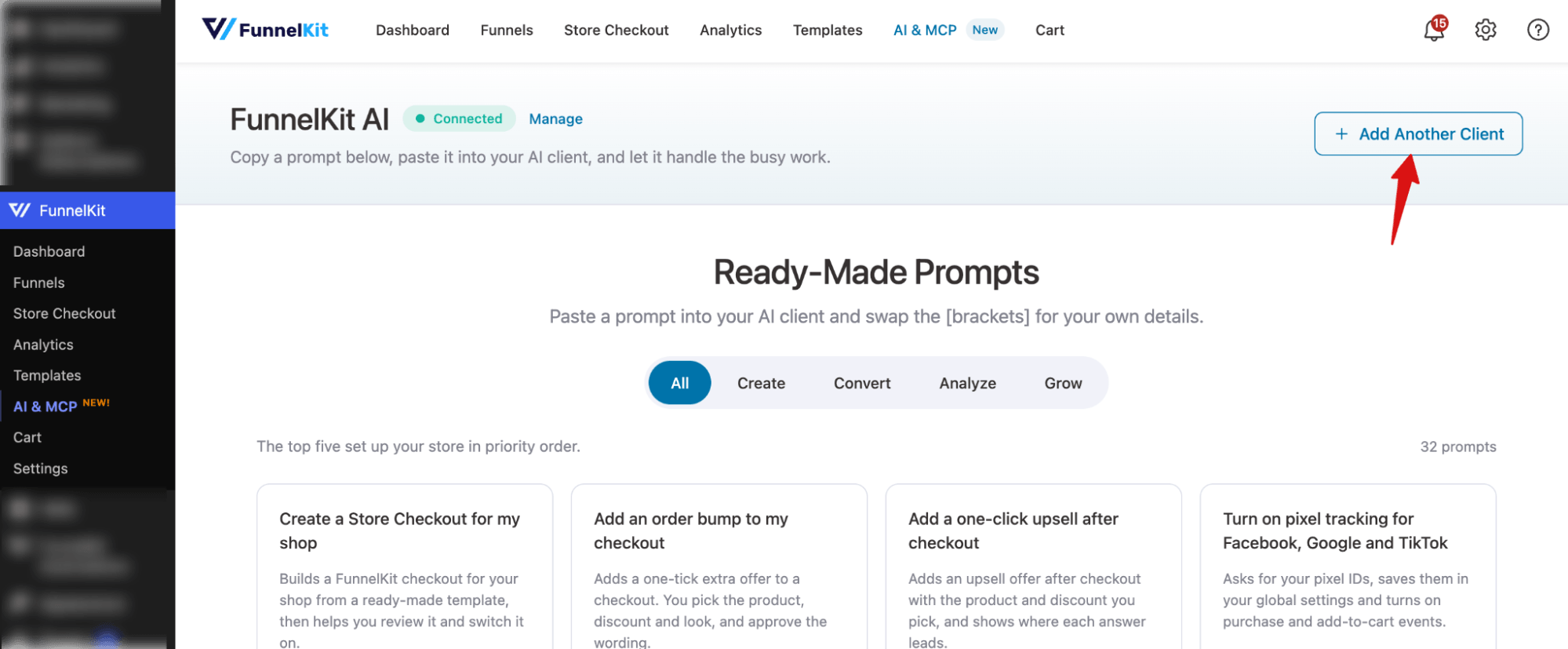
Step 1: Click Add Another Client
Go to FunnelKit → AI & MCP (or FunnelKit Automations → AI & MCP) and click Add Another Client at the top right of the page.
Step 2: Pick Your Client
A panel opens with the clients you can add: Claude, ChatGPT, Claude Code, Codex, Cursor and VS Code. Pick one, and its setup steps appear below. If you already use FunnelKit AI on another site, click Add this site instead.
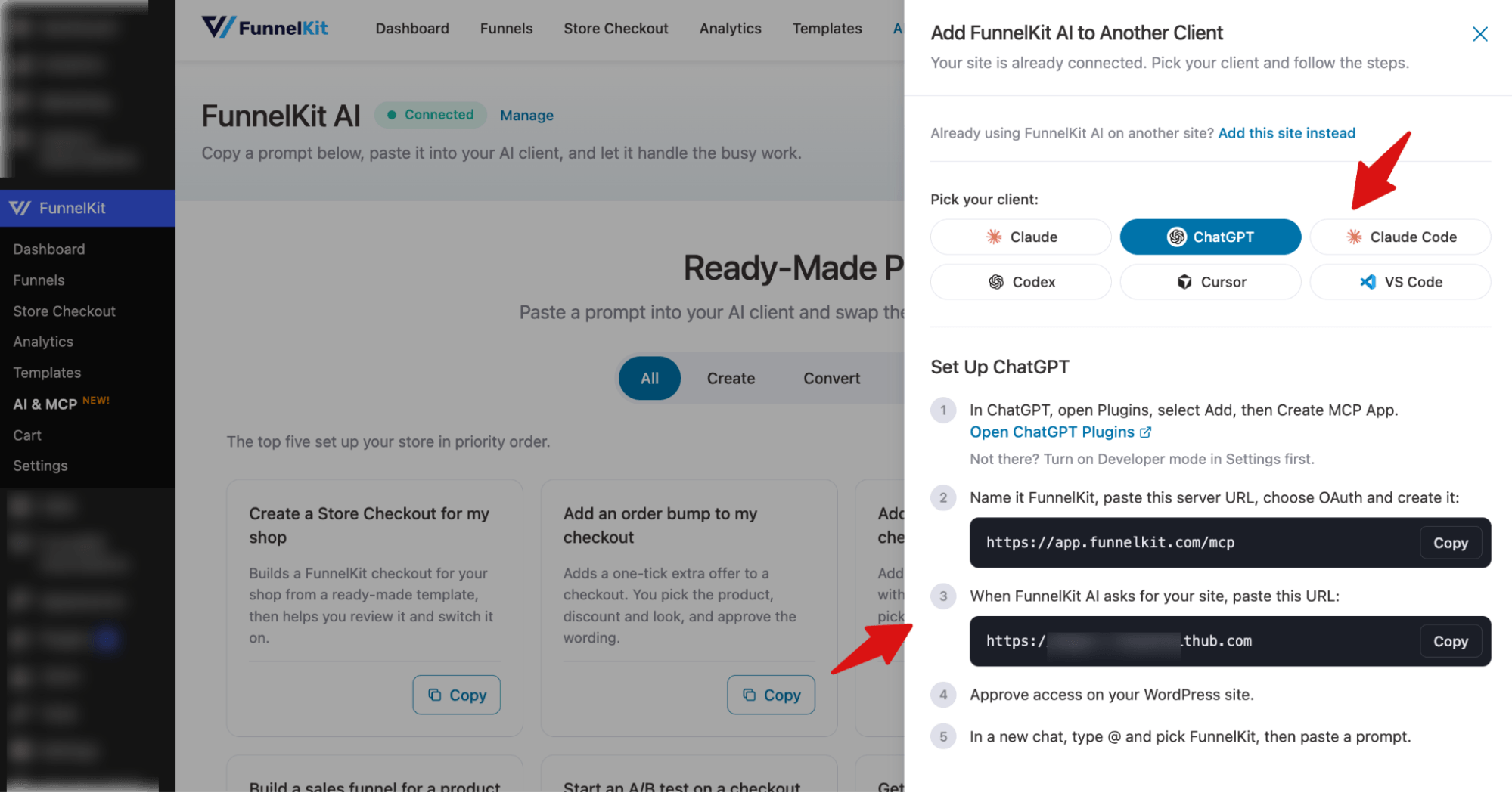
For example, here are the steps for ChatGPT:
- In ChatGPT, open Plugins, select Add, then Create MCP App. If you don't see it, turn on Developer mode in Settings first.
- Name it FunnelKit, paste the server URL https://app.funnelkit.com/mcp, choose OAuth, and create it.
- When FunnelKit AI asks for your site, paste your site URL. The panel shows it with a Copy button.
- Approve access on your WordPress site.
- In a new chat, type @, pick FunnelKit, then paste a prompt.
The steps change for each client, so follow the ones shown in the panel for the client you pick.