WooCommerce SEO is how you get your products in front of people already looking for what you sell on Google.
Skipping it will turn your store into something that looks a bit like a badly organized bookshop.
Some shelf labels are missing, the stockroom door is wide open, and the same book somehow ends up on five different shelves.
Shoppers have a hard time finding what they want, and Google has a harder time figuring out which pages matter.
The value is easy to put into perspective.
Say an ad click costs you $1.20. And a category page bringing in 1,500 organic visits a month is potentially worth $1,800 in traffic you didn't have to buy.
Unlike an ad, the organic traffic can keep coming in as long as the page holds its rankings.
WooCommerce works reasonably well out of the box, but it can leave organic traffic behind in plenty of places.
Add-to-cart URLs and filter combinations can create pages search engines have little reason to crawl, while thin product information gives Google less to work with and shoppers less reason to click.
In this guide, we'll optimize an example store step by step using WordPress settings and a free SEO plugin, with no code required.
We'll start with the basic setup, then work through product and category pages, structured data, and the technical fixes that help Google crawl and understand the store properly.
The Short Version
Make sure Google can reach your store, run one free SEO plugin, and give every product original copy and complete data (brand, GTIN, price, stock).
Add short intros to your categories, keep add-to-cart and low-value filter URLs out of the crawl, then track which organic pages actually produce revenue.
Table of Contents
- 1 What SEO for WooCommerce Involves (and Why It Pays)
- 2 Can You Handle Store SEO Yourself? Three Starting Points
- 3 How to Optimize Your WooCommerce Store for SEO Without Code
- 3.1 Step 1: Configure your WordPress and WooCommerce settings
- 3.2 Step 2: Install and configure a free SEO plugin
- 3.3 Step 3: Find keywords for products, categories, and posts
- 3.4 Step 4: Optimize product pages
- 3.5 Descriptions that rank and sell
- 3.6 Step 5: Optimize category, shop and filter pages
- 3.7 Step 6: Add product structured data
- 3.8 Step 7: Fix the technical issues WooCommerce creates
- 3.9 Step 8: Get products into Google Shopping and AI results
- 3.10 Step 9: Build content and links that lift your categories
- 3.11 Step 10: Measure results and connect search to revenue
- 4 Mistakes That Quietly Cost Stores Traffic
- 5 Frequently Asked Questions
- 6 Start Ranking Your WooCommerce Products This Week!
What SEO for WooCommerce Involves (and Why It Pays)
WooCommerce SEO builds on WordPress SEO. It doesn't replace it.
People sometimes ask whether WordPress or WooCommerce is better for SEO, but that's not really the right comparison.
WooCommerce runs on WordPress, so your store gets the same SEO foundations and then adds a whole set of ecommerce pages and URLs to manage.
That extra layer is where most of the work comes in:
| Areas | WordPress SEO | What WooCommerce adds |
|---|---|---|
| Pages to optimize | Posts and pages | Product, category, tag, and shop pages |
| Duplicate URL sources | Archives and tags | Variations, filters, sort orders, and add-to-cart links |
| Structured data | Article and organization details | Product details such as price, stock, GTIN, shipping, and returns |
| Pages to keep out of search | Very few | Cart, checkout, and My Account |
| Where results appear | Search results | Search results, Google Shopping, and product answers in AI features |
AI search such as AI Overview and AI Mode adds another place for your products to show up, but it doesn't require a completely separate SEO strategy.
AI features still rely heavily on the pages, product information, and structured data that search engines can understand.
If you get the foundations right, you'll have a better chance of appearing in both traditional results and AI-generated answers.
What WooCommerce SEO can do for your store:
- Stop paying for every visit: A page that earns organic rankings can keep bringing in shoppers without you paying for each click.
- Reach people with buying intent: Someone searching for "stonewashed linen duvet cover queen" is much closer to a purchase than someone searching for "bedroom decorating ideas".
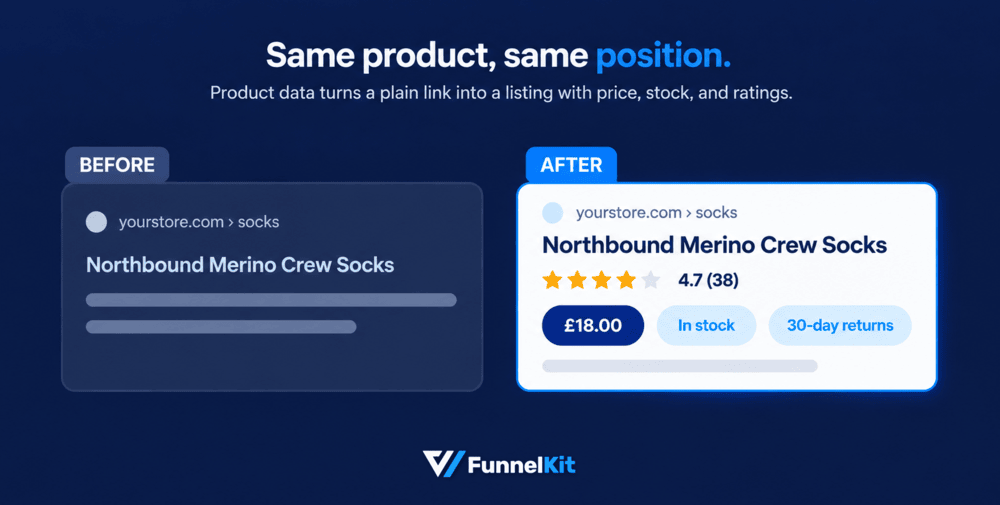
- Your listings can stand out: Product structured data can help Google show details such as price, availability, and ratings alongside your result when eligible.
- Appear in free Google Shopping listings: Your product data can also make your products eligible for free listings across Google's shopping surfaces.
- Your store can get faster: Cleaning up unnecessary URLs, scripts, and plugins can improve the shopping experience and your technical SEO.
And the part worth remembering is that SEO can compound.
Fix a product page today and, if it earns and keeps a good position, it can continue bringing in traffic months or even years from now.
An ad campaign only keeps running while you're paying for it.
Can You Handle Store SEO Yourself? Three Starting Points
Yes. You don't need to be an SEO expert or a developer to handle the basics of WooCommerce SEO.
A lot of the work comes down to settings, page structure, and writing better product and category content.
As your catalog grows, the amount of technical cleanup you need changes.
Under 100 products: Get the basics right
Work through the five setup steps below, then give each product useful, original copy and add a short introduction to your important categories.
For a smaller store, a few focused hours can cover most of the fundamentals.
100 to 5,000 products: Start setting rules
Decide which product tags, filters, and other URL variations actually deserve to be crawled and indexed.
Build useful buying guides around your important categories, and connect a Merchant Center feed if you sell physical products.
Once you're dealing with thousands of URLs or frequent bulk product changes, having a developer available starts to make sense.
Over 5,000 products: Pay attention to crawling
At this size, you can create more URLs than Google can reasonably crawl and understand.
Filter combinations, faceted navigation, duplicate pages, and poor feed data can quickly become bigger problems.
A technical SEO specialist is worth considering, and Google Search Console's Crawl Stats report becomes much more useful when you're making large catalog changes.

How to Optimize Your WooCommerce Store for SEO Without Code
Everything here happens inside your WordPress dashboard.
We'll use WordPress and WooCommerce settings plus a free SEO plugin.
These steps work the same with Yoast SEO, Rank Math, All in One SEO (AIOSEO), or SEOPress.
Follow the step-by-step instructions below to optimize your store:
Step 1: Configure your WordPress and WooCommerce settings
A few settings determine whether Google can see your store, so start here.
- Site visibility: Newer versions of WooCommerce put new stores in Coming soon mode, which shows visitors and search engines a placeholder page. When you're ready to launch, go to WooCommerce ⇨ Settings ⇨ Site visibility and select Live.
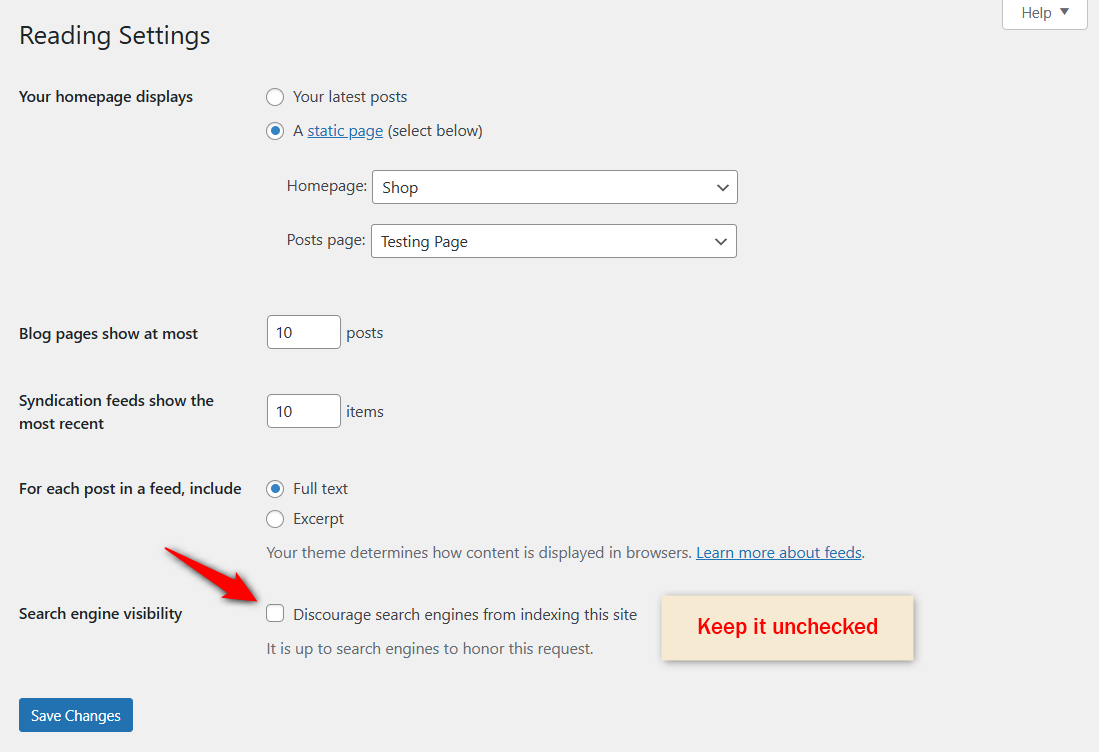
- Search engine visibility: Go to Settings ⇨ Reading and make sure "Discourage search engines from indexing this site" is unchecked. Google does exactly what that box asks, and it's easy to leave ticked after a build.
- HTTPS: Make sure every page loads over https://, and redirect the www and non-www versions of your domain to one address.
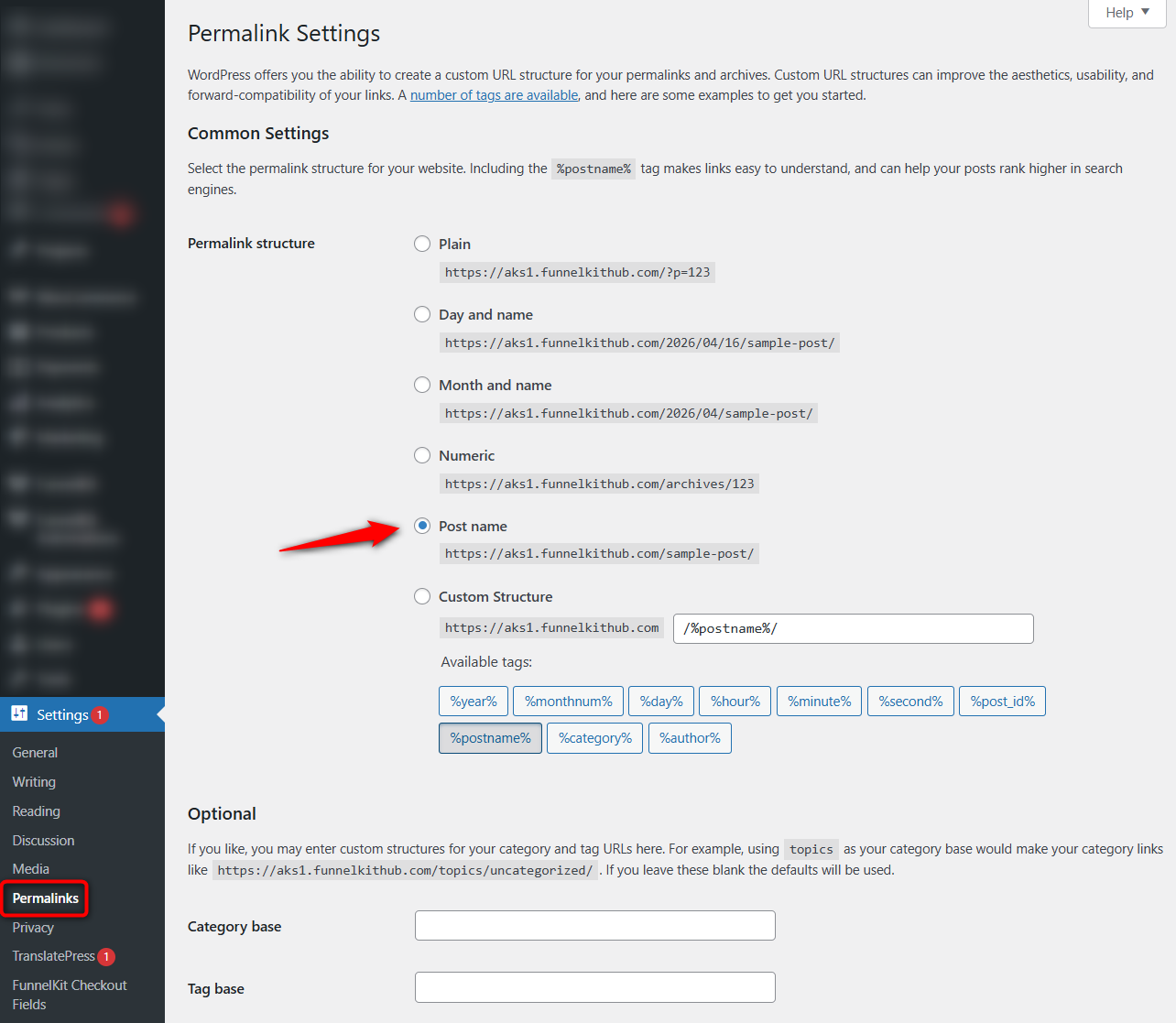
- Permalinks: Go to Settings ⇨ Permalinks and choose "Post name". WooCommerce keeps a /product/ base for products, so your coffee mug will be at yourstore.com/product/coffee-mug/, and that's perfectly fine.
- Product identifiers and brands: Open the product's Inventory tab and fill in the GTIN, UPC, EAN, or ISBN field, which WooCommerce added in version 9.2. Then assign its brand under Products ⇨ Brands, a core feature since version 9.6.
- Reviews: Turn on product reviews under WooCommerce ⇨ Settings ⇨ Products.
Configure your preferred title tag format for product pages, category pages, and blog posts.
Set your cart, checkout, account pages, and tag archives to noindex. These pages add no SEO value and wasting your valuable crawl budget on pages is not good for pages that will never rank anyway.
Step 2: Install and configure a free SEO plugin
Pick one SEO plugin and run through its setup wizard. Don't run two at the same time.
Multiple SEO plugins can output duplicate titles, canonicals, or structured data, making troubleshooting much harder.
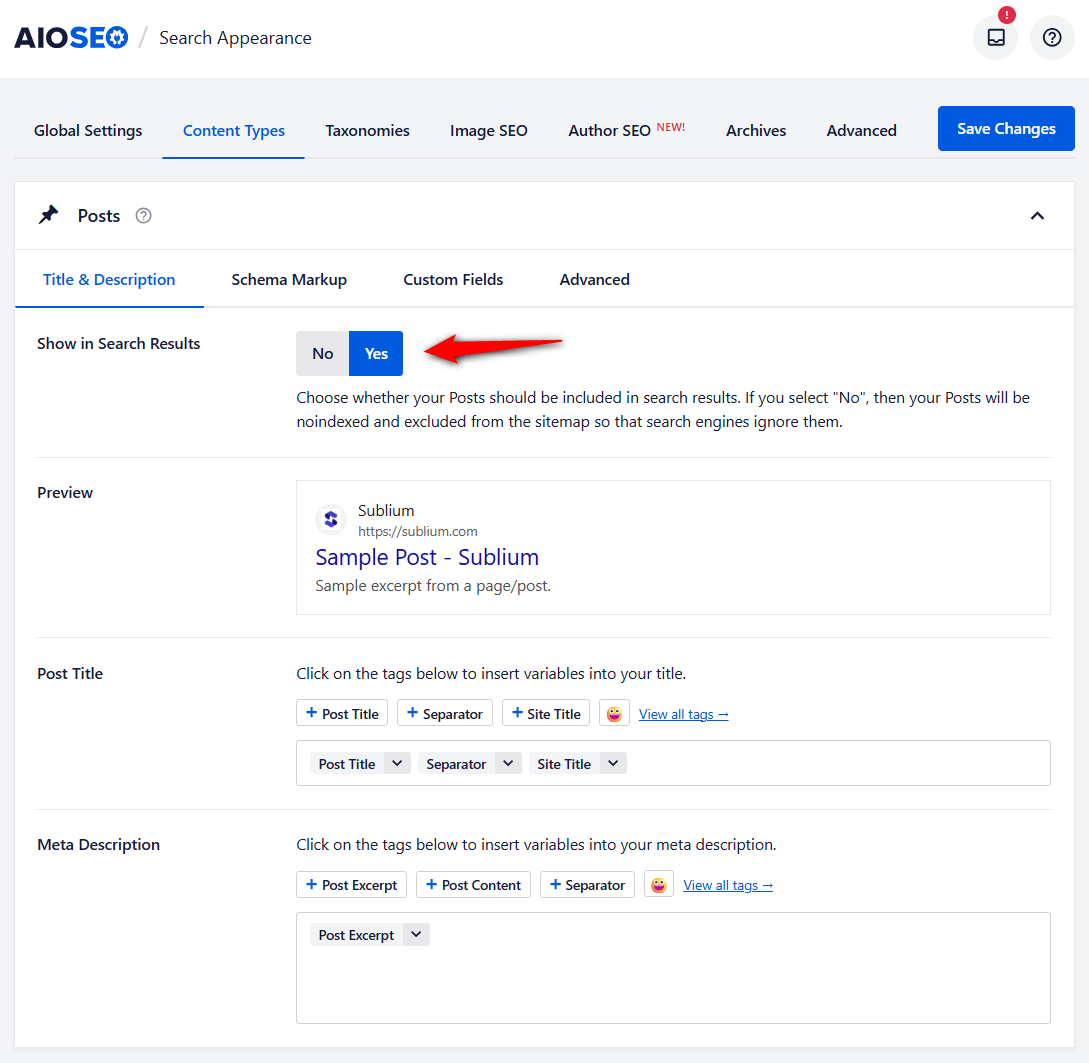
Once the wizard is finished, check these settings:
- Title templates: A pattern using the product name, an important attribute, and your brand works well for many stores. For example, "Stonewashed Linen Duvet Cover, Queen | YourBrand"
- Meta descriptions: Write custom descriptions for your best products rather than relying entirely on an automatically generated template.
- Archive indexing: Keep your products and important product categories indexable. We'll deal with product tags and other archives later.
- Breadcrumbs: Turn them on so the duvet cover has a clear path through the catalog: Home → Linen Bedding → Duvet Covers.
- Product schema: Make sure your SEO plugin is outputting product structured data. If it asks for a brand source, connect it to your WooCommerce brand data where supported.
- Sitemaps: Include the page types you actually want Google to discover and index. Don't add pages you've deliberately set to noindex.
If you're looking for other useful free additions, see our guide to free WooCommerce plugins worth installing.
Step 3: Find keywords for products, categories, and posts
Store keyword research is less about finding hundreds of new keywords and more about sorting the ones that matter.
You already know what you sell. The job is figuring out which page should answer each search.
Match each keyword to the right page type
| Query | Intent | Page that should rank |
|---|---|---|
| merino wool socks | Broad commercial | Category |
| merino wool crew socks | Narrower commercial | Subcategory or attribute page |
| womens merino hiking socks size 9 | Specific product | Product |
| Northbound charcoal crew socks | Brand plus product | Product |
| best socks for hiking | Research | Buying guide |
| how to wash merino wool | Informational | Blog post |
| sock shop [city] | Local | Store or location page |
The important part is not just knowing what people search for. It's matching the search to the page that can satisfy it best.
Get that wrong and your own pages can start competing with each other.
A product page targeting a broad term like "merino wool socks" is unlikely to beat a well-built category page for the same query, especially when that category has more internal links pointing to it.
Free keyword research tools
You don't need an expensive SEO platform to build a useful keyword list.
Start with the data you already have:
| Tool | What it gives you |
|---|---|
| Search Console, Performance ⇨ Queries | Terms you already rank 5 to 20 for, the cheapest wins available |
| Google Keyword Planner | Volume ranges and related terms |
| Google Trends | Seasonality, which matters for apparel, gifting, and outdoor gear |
| Autocomplete, People Also Ask, related searches | Question phrasing for your FAQs and H3s |
| Bing Webmaster Tools keyword research | A second dataset, free, usually ignored |
| Your own site search log | What buyers ask for in their words, not Google’s |
One useful habit is to compare your keyword list with your existing pages before creating anything new.
If you already have a page ranking for a query, improve that page first.
Creating another URL for the same intent can make the problem harder, not easier.
Step 4: Optimize product pages
Your product pages are where SEO and conversion finally meet.
You want Google to understand exactly what you're selling, but you also need a shopper to land on the page and think, "Yes, this is the one".
Product titles and SEO titles
Your product title does a lot of work. On the page, it's usually your H1. It can also feed product listings and other shopping surfaces, while being the first thing a shopper sees when they land on the page.
Write the title the way a buyer would actually describe the product: brand + product + important attribute.
For example, "Northbound Merino Wool Crew Socks, Charcoal"
Keep the on-page title natural. If you need a shorter version for the search result, set the SEO title separately.
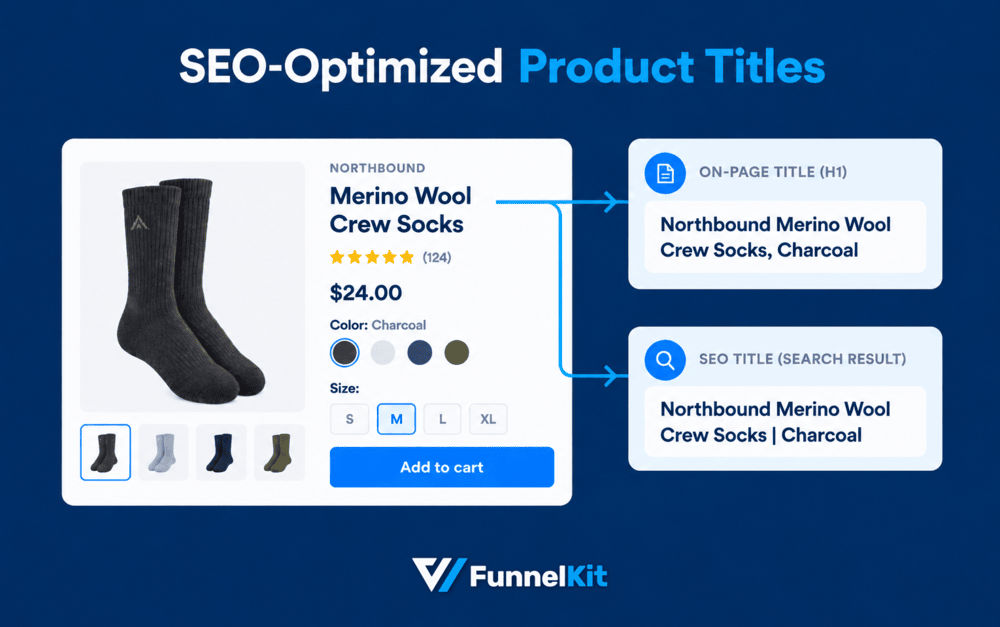
Around 60 characters is a useful guideline, but don't force a title to fit an arbitrary character count if cutting it makes the result less clear.
Put useful product details in the title when shoppers actually search for them: size, color, material, compatibility, model number, or another defining attribute.
Don't turn the title into a string of benefits and keywords.
Descriptions that rank and sell
If the manufacturer sells the same product to 400 other stores, copying its description gives Google very little that is unique to your page.
Rewrite it because you don't need 1,000 words. You need information that helps someone decide whether the product is right for them.
| Before | After |
|---|---|
| Made from premium materials for exceptional comfort and durability. Perfect for everyday use. Available in multiple sizes. | These crew socks use 72% merino for warmth without the itch, with a reinforced heel designed to handle regular boot wear. They sit about two inches above the ankle, so they work well with mid-height hiking boots. They're machine washable at 30°C and available in UK sizes 4 to 12. If you tend to run hot, consider a lighter-weight option. |
The second version gives the shopper something they can actually use: material, fit, height, care instructions, and sizing.
A simple product may only need a few hundred useful words, while a technical product might need considerably more.
Cover the questions that affect the buying decision instead of padding the page to hit a number.
Product images: filenames, alt text, formats
Images are part of the product experience, but they're also useful search assets when you handle them properly.
- Filenames: Rename images before uploading them. merino-crew-socks-charcoal.jpg tells you more than IMG_4471.jpg.
- Alt text: Describe what's actually in the image for people who can't see it. For example: "Charcoal merino crew socks, side view showing the reinforced heel." Don't stuff the target keyword into every image.
- Format: Use modern formats such as WebP or AVIF where your setup supports them. Compress images and size them appropriately for their largest displayed dimensions.
- Image sitemap: Check that your SEO setup includes product images in the relevant sitemap output.
Variable products and variations
A product with four sizes and three colors doesn't necessarily need 12 separate indexable pages.
In most cases, keep one main product URL and let shoppers choose the size or color on that page.
Make sure the underlying product and variation data is accurate, including price, availability, and product identifiers where applicable.
If your implementation exposes separate URLs for variations, check whether those URLs actually provide enough unique value to deserve indexing.
Don't create indexable pages simply because WooCommerce can generate them.
There is an exception: a variation or model with genuine search demand of its own may deserve a separate landing page.
If people search for that model number or product name specifically, give it its own URL and useful content rather than treating it as a duplicate.
Reviews and customer questions
Reviews are one of the easiest ways to add genuinely useful, product-specific content because your customers create it for you.
Ask for a review after the customer has had enough time to use the product.
For something like clothing, 7 to 14 days after delivery can be a reasonable starting point.
For products that need longer to evaluate, wait longer.
Customer questions serve the same purpose. They often surface details your original description missed, and the answers can make the page more useful for future shoppers.
Out-of-stock and discontinued products
Don't automatically delete a product page just because the item isn't available today.
What you do depends on whether the product is coming back.
- Temporarily out of stock: Keep the URL live if you expect to restock it. Show the current stock status and, where possible, offer a back-in-stock notification.
- Discontinued with a successor: Redirect the old URL to the replacement product when the new product genuinely serves the same intent.
- Discontinued with no replacement: If the page has useful traffic or backlinks, consider keeping it live with clear messaging and relevant alternatives. If there's no value left, redirect it to the most relevant category or return an appropriate 410/404 response.
The key is not to send every discontinued product to the homepage or leave a thin page with no useful information.
Handle each URL based on what a shopper who lands there actually needs.
Step 5: Optimize category, shop and filter pages
If we could fix just one page type on a WooCommerce store, we'd start with category pages.
They usually target the broader commercial searches, attract a lot of internal links, and yet they're often treated as nothing more than a grid of product images.
Category descriptions above and below the grid
An empty category page gives Google very little context about what the category actually covers.
A competitor with a useful category page that explains the products, differences, and buying considerations has much more to work with.
Start with a short introduction above the product grid.
Two or three sentences are enough to tell shoppers what they'll find and confirm that they're in the right place.
Then put the more detailed content below the products.
This is where you can cover buying advice, sizing, materials, common questions, and links to relevant guides.
That gives shoppers the products without making them scroll through a wall of text, while still giving the page useful content that can help it rank.
Filters and faceted navigation (what to index and what to block)
Filters are useful for shoppers but can be expensive for search engines.
A store with dozens of filters can generate thousands of URL combinations, most of which don't deserve crawling.
The answer isn't to index every filter or block every filter.
Decide which combinations have genuine search value.
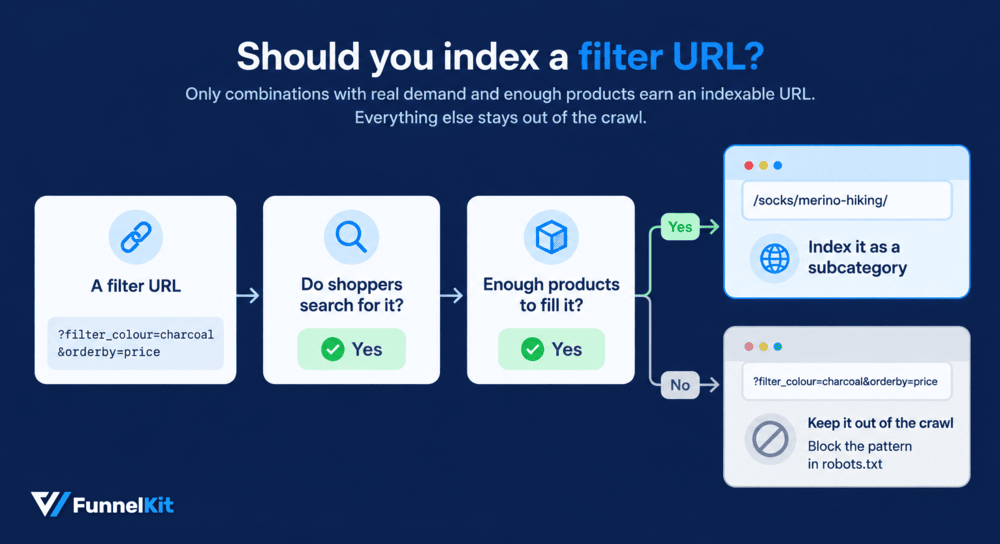
- A filter combination with real search demand and useful inventory can become a proper landing page with its own URL, title, heading, and content. For example, /socks/merino-hiking/ could work as an indexable landing page because it describes a meaningful product group. Ideally, we'd make it a proper subcategory rather than leave it as a temporary filter URL.
- Other combinations should generally stay out of the crawl. A URL such as ?filter_colour=charcoal&orderby=price is unlikely to deserve its own search result, especially if your store can generate thousands of similar combinations.
If you have a large number of filter combinations, deal with the URL patterns and crawl rules directly.
Should product tags and attributes be indexed?
As a starting point, we'd usually keep product tag archives out of the index.
They often overlap with existing categories and don't add enough unique value.
Don't use a fixed product count as the only test, though.
A better question is whether the archive deserves to be a search landing page.
Look for three things:
- Useful inventory: Does the page contain enough relevant products to be useful?
- Unique value: Can you add meaningful copy, buying guidance, or other information that isn't just a repeat of another category?
- Search demand: Are people actually searching for this topic?
A "charcoal" archive probably doesn't need to rank. A focused "merino" page might.
If an attribute consistently meets the same criteria as one of your important commercial categories, that's usually a sign that it should become a proper category or landing page instead of remaining an automatically generated archive.
Pagination
Don't hide products on later category pages just to keep the first page looking clean.
Keep normal pagination crawlable and give each paginated URL its own appropriate canonical.
Avoid pointing page 2, 3, and 4 back to page 1, because those pages can contain products Google won't discover elsewhere.
Google stopped treating rel="next" and rel="prev" as indexing signals in 2019.
You don't need to add them as an SEO tactic, and guides that still present them as something Google uses for pagination are outdated.
The goal is to let shoppers browse the catalog normally while making sure search engines can discover products that aren't visible on the first page.
Step 6: Add product structured data
Structured data helps Google understand your products and can make them eligible for product snippets and merchant listings.
Required and recommended product properties
At a minimum, your product markup needs the name, image, and an offers block with the price, currency, and availability.
You should also provide brand, a unique product identifier such as gtin8, gtin13, gtin14, or mpn, and priceValidUntil where applicable.
If your products have genuine reviews, include that data too.
{
  "@context": "https://schema.org/",
  "@type": "Product",
  "name": "Northbound Merino Wool Crew Socks, Charcoal",
  "image": ["https://yourstore.com/wp-content/uploads/merino-crew-socks-charcoal.jpg"],
  "description": "72% merino crew socks with a reinforced heel, UK sizes 4 to 12.",
  "sku": "NB-SOCK-CRW-CHR",
  "gtin13": "0712345678905",
  "brand": { "@type": "Brand", "name": "Northbound" },
  "offers": {
    "@type": "Offer",
    "url": "https://yourstore.com/socks/merino-crew-charcoal/",
    "priceCurrency": "GBP",
    "price": "18.00",
    "priceValidUntil": "2027-03-31",
    "itemCondition": "https://schema.org/NewCondition",
    "availability": "https://schema.org/InStock"
  },
  "aggregateRating": {
    "@type": "AggregateRating",
    "ratingValue": "4.7",
    "reviewCount": "38"
  }
}
For variable products, wrap the variants in ProductGroup:
{
  "@context": "https://schema.org/",
  "@type": "ProductGroup",
  "name": "Northbound Merino Wool Crew Socks",
  "productGroupID": "NB-SOCK-CRW",
  "variesBy": ["https://schema.org/size", "https://schema.org/color"],
  "hasVariant": [
    { "@type": "Product", "sku": "NB-SOCK-CRW-CHR-M", "gtin13": "0712345678905", "color": "Charcoal", "size": "M" },
    { "@type": "Product", "sku": "NB-SOCK-CRW-CHR-L", "gtin13": "0712345678912", "color": "Charcoal", "size": "L" }
  ]
}
Don't copy either example into production without adapting it to your actual product data.
Your structured data should describe what is genuinely on the page.
Run your product pages through Google's Rich Results Test before publishing. More importantly, check that the markup matches what shoppers can actually see.
If your schema says a product costs $18, but the page shows $20, you've got a data consistency problem that a validation tool won't magically fix.
Shipping and return details
You can give Google shipping and return information without a Merchant Center account.
Since November 2025, eligible online merchants can configure this information through Search Console settings, or you can add organization-level shipping and return policy markup to your policy pages.
If you use both, Search Console settings take precedence, while product-level policies can override the site-wide defaults.
For most stores, the Search Console option is the simpler route because it doesn't require code.
Configure it once, then move on to the pages that actually need work.
Fixing common schema warnings in Search Console
| Warning | What it means | Fix |
|---|---|---|
| Missing field “brand” | No manufacturer set | Add a brand attribute or plugin field mapped to schema |
| Missing field “gtin” | No unique identifier | Fill the WooCommerce GTIN field on the Inventory tab |
| Missing field “priceValidUntil” | Offer has no expiry | Set a rolling date in your plugin, 6 to 12 months out |
| Missing field “shippingDetails” | No shipping data | Configure in Search Console, or add organization-level markup |
| Missing field “hasMerchantReturnPolicy” | No returns data | Same as above |
| Either “offers”, “review”, or “aggregateRating” should be specified | Product with no offer block | Check the plugin’s schema output for that product type |
A warning isn't the same thing as an error. A product with a missing brand warning can still appear in search.
Still, it's worth cleaning up warnings where you have the underlying data.
If your store already knows the brand, GTIN, shipping policy, or return policy, there's little reason to leave Google guessing.
What changed in 2026: FAQ rich results are gone
Google no longer shows FAQ rich results in Search for sites as of May 7, 2026. Search Console reporting for the feature was also removed in June.
That changes how you should think about FAQ schema.
Any guide telling you to add FAQ schema specifically to get those expandable dropdowns in Google is out of date.
The FAQ markup can still help search engines understand the questions and answers on a page, but you shouldn't add it expecting a special FAQ result in Search.
Keep the FAQs themselves. They're useful because they're questions shoppers actually ask, and good FAQ content can fill gaps in your product or category copy.
Just don't build the section around a rich-result feature that Google no longer displays.
Step 7: Fix the technical issues WooCommerce creates
WooCommerce can create a surprisingly large number of URLs that shoppers never need to see in Google.
This includes add-to-cart actions, sorting combinations, price filters, layered navigation, internal searches, and more.
The goal isn't to block everything. It's to clearly distinguish URLs that should be crawled and indexed from URLs that exist only to make the store work.
Robots.txt rules for add-to-cart, sorting, and filter URLs
For stores with a lot of faceted navigation or action URLs, controlling those patterns can make a meaningful difference to crawling.
Google has even discussed WooCommerce add-to-cart parameters as a crawling problem at scale, and older themes and third-party plugins can still generate these URLs.
Don't assume your store is covered just because you're running the latest WooCommerce.
Open a product or category page, inspect the rendered HTML, and look at the actual URLs your theme and plugins generate.
A starting point for robots.txt looks like this:
User-agent: *
# Action and sort parameters
Disallow: /*add-to-cart=
Disallow: /*orderby=
# Layered navigation filters (rename to your filter plugin's parameters)
Disallow: /*filter_
Disallow: /*min_price=
Disallow: /*max_price=
# Internal search results
Disallow: /*?s=

# Sitemap path depends on your SEO plugin
Sitemap: https://yourstore.com/sitemap_index.xml
Add Disallow: /*add-to-wishlist= if you run a wishlist plugin.
Pay attention to the wildcard. A rule such as Disallow: /?add-to-cart= only targets a very specific URL pattern on the homepage.
Add-to-cart parameters can appear on product, shop, and category URLs, so the rule needs to match the parameter wherever it occurs.
On our sock store, for example, we'd block the color and price filter combinations and sort parameters, but leave /socks/merino-hiking/ crawlable because we decided in Step 5 that it deserves to be a real landing page.
Don't block a URL pattern just because it's a filter. Block combinations with no search value, while keeping deliberate SEO landing pages accessible.
After making the change, test the file and watch Crawl Stats over the following weeks.
And always check your actual parameter names before copying these rules. Different themes and filter plugins use different URL structures.
Cart, checkout, and account pages
WooCommerce generally adds noindex to cart, checkout, and My Account pages.
Verify the actual output on your store rather than assuming the defaults are still in place.
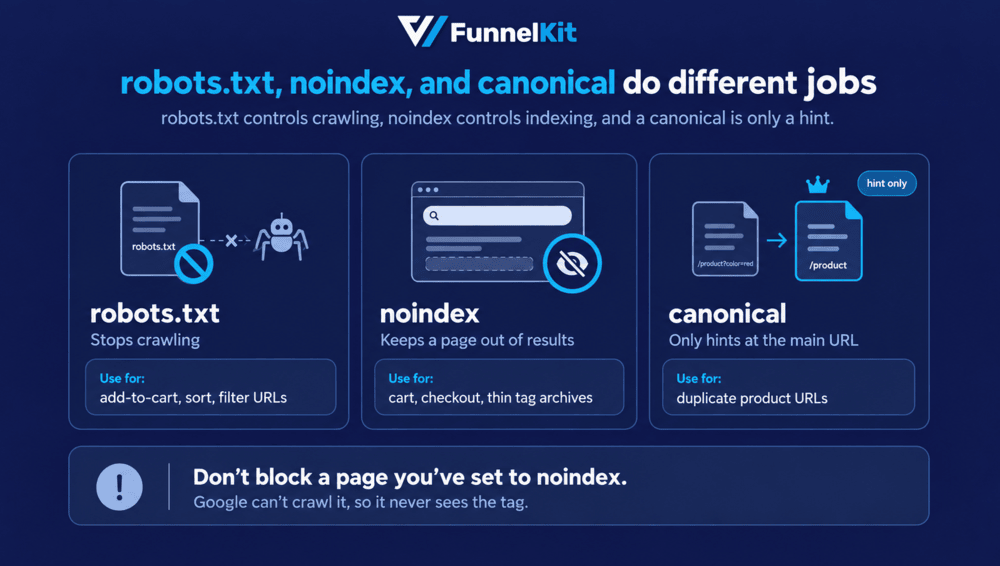
Don't block those same pages in robots.txt. Google needs to crawl a page to see its noindex directive.
So if you block it first, Google can't reliably read the tag, which can lead to statuses such as "Indexed, though blocked by robots.txt".
The distinction is worth remembering:
- noindex controls whether a page can appear in search
- robots.txt controls whether crawlers can access a URL
They solve different problems. Using robots.txt to handle every page you don't want indexed often creates more problems than it solves.
Canonicals and duplicate content
Canonicals help Google understand which version of a URL you consider the primary one.
For a typical WooCommerce store:
- Product and category pages should have a self-referencing canonical.
- Paginated pages should generally have their own canonical rather than all pointing back to page one.
- Sorted and filtered URLs that aren't intended as standalone pages can point to the clean category URL where appropriate, but don't rely on canonical tags as your only crawl-control mechanism.
- A product that appears in several categories should normally keep one product URL rather than generating a separate URL for each category path. WooCommerce's
/product/base makes this straightforward. - If you suspect another site has copied your product description, search for a distinctive sentence in quotes. If the copied version outranks yours, investigate the duplication and indexing situation rather than assuming your own page is automatically protected.
Please note that canonical is a hint, not a command.
If Google sees substantially different content or conflicting signals, it can choose a different canonical.
XML sitemaps
Your sitemap should contain the URLs you actually want Google to discover and consider for indexing:
- Products
- Optimised categories
- Important pages
- Blog posts
It shouldn't be filled with filtered URLs, internal search results, or taxonomies you've deliberately chosen not to index.
Submit the sitemap index in Search Console, then compare what you've submitted with what Google has indexed in the Pages report.
A large gap doesn't automatically mean something is broken. Some submitted URLs may be duplicates, recently published, low-value, or simply not selected for indexing. But if thousands of your products are submitted and only a small portion are indexed, that's a signal worth investigating.
Speed and Core Web Vitals for stores
Core Web Vitals are based on real-user data when Google has enough field data, with the assessment made at the 75th percentile. The current "good" thresholds are:
- LCP: 2.5 seconds or less
- INP: 200 milliseconds or less
- CLS: 0.1 or less
A PageSpeed Insights score of 90 doesn't automatically mean your real shoppers are having a fast experience. Likewise, a lower lab score isn't necessarily a problem if your field data is healthy.
For a WooCommerce store, we'd usually look at these areas first:
- LCP: Often the main product image or another large above-the-fold element. Compress it, use modern formats like WebP or AVIF where appropriate, and don't lazy-load the image responsible for LCP.
- INP: Often third-party JavaScript. Tag managers, chat widgets, review tools, tracking scripts, and heavy menus can all add work when someone interacts with the page. Remove what you don't actually use.
- CLS: Usually caused by things moving after the page loads, such as promotional bars, fonts, ads, or images without reserved dimensions.
Before committing to a new theme, test its demo store with PageSpeed Insights and the Rich Results Test.
If the theme needs a pile of scripts and workarounds to perform well with eight demo products, think twice before putting it under a 2,000-product catalog.
Why products aren't indexed
Search Console gives you the status. The useful part is figuring out what to do next.
| Search Console status | Usual cause on a store | Fix |
|---|---|---|
| Discovered, currently not indexed | Crawl capacity spent on filter and action URLs | Ship the robots.txt rules, add internal links to the product |
| Crawled, currently not indexed | Manufacturer copy, thin or duplicated page | Rewrite the description, add reviews and specifics |
| Duplicate without user-selected canonical | No self-referencing canonical | Fix canonical output in your SEO plugin |
| Duplicate, Google chose a different canonical | Variation or filtered URL competing with the parent | Consolidate, canonicalize, link internally to the parent |
| Excluded by noindex tag | Plugin taxonomy rule or theme setting | Check noindex rules in your SEO plugin |
| Blocked by robots.txt | Over-broad disallow rule | Narrow the rule to the parameter pattern |
| Indexed, though blocked by robots.txt | Noindex tag on a blocked URL, unreadable | Unblock so Google can read the tag, then let it drop |
| Soft 404 | Empty category or discontinued product page | Redirect, repopulate, or return a proper 404 |
| Not found (404) | Deleted products still linked internally | 301 to the successor or parent category |
| Page with redirect | Old URL from a permalink change | Expected, a problem only if the chain is long |
Step 8: Get products into Google Shopping and AI results
Getting a product indexed is one thing, but getting Google enough information to understand, compare, and surface that product is another.
For WooCommerce stores, that means keeping your product feed as clean as your product pages and making the important information easy for both shoppers and search systems to understand.
Google for WooCommerce and free listings
The free Google for WooCommerce extension connects your catalog to Merchant Center and can make eligible products available in free listings, including the Shopping tab.
It also keeps important details such as titles, prices, images, and stock availability in sync.
Three things matter most when you set up the feed:
- Product data completeness. Give Google the information it needs: brand, GTIN where available, condition, availability, and an accurate price. Keep these details consistent with your product page and structured data.
- Title format. Your feed title doesn't need to be identical to the page title. Include the details that help someone identify the product quickly: brand, product, important attribute, then size or color where relevant. For example: Northbound Merino Wool Crew Socks, Charcoal, UK 9.
- Policy pages. Make shipping, returns, contact information, and terms easy to find. Your store policies should also match what you actually offer. Don't treat these as an afterthought when setting up Merchant Center.
Version 3.6.0 of Google for WooCommerce, released in April 2026, added YouTube Shopping support.
That lets eligible stores use the same product catalog to tag products in videos, Shorts, and the channel's shopping experience.
If you're already making product videos, there's little reason not to connect the catalog and use those videos as another way for shoppers to find the products.
Preparing product data for AI Overviews and AI Mode
There's no special schema that gets a product into an AI Overview. Google says its AI search features don't require special structured data.
The same principle applies everywhere in SEO, i.e., make the page genuinely useful and make the important information easy to understand.
For product pages, that means:
- Answer important questions early: If shoppers need to know whether a product fits, works with something, or suits a particular use, answer that clearly rather than burying it halfway down the page.
- Give specific details: Measurements, materials, compatibility, sizing, care instructions, ingredients, delivery windows, warranty information, and other concrete facts are much more useful than generic marketing copy.
- Keep the information consistent: The price, availability, product identifiers, reviews, and other key details on the page should match your structured data and product feed.
- Write FAQs for shoppers: A good FAQ answers questions that genuinely come up before purchase. Don't create one just because you think FAQ markup will unlock a search feature.
There's also no shortage of tactics claiming they can get your brand mentioned in AI answers.
We'd ignore most of them because no reliable markup trick or word-count formula guarantees inclusion.
Google's spam policies also explicitly cover attempts to manipulate generative AI responses in Search.
The better strategy is to make your product page the clearest source of truth about what you're selling.
Keep the feed accurate, answer the questions shoppers actually have, and make sure the same facts appear consistently across your page, schema, and Merchant Center data.
Step 9: Build content and links that lift your categories
Once your technical foundation is clean, the next job is giving your category pages enough context and authority to compete.
The easiest way to do that is to build useful content around the products you already sell, then connect that content back to your commercial pages.
Buying guides and comparisons that feed product pages
A category page probably isn't the right answer to a search like "best socks for hiking". A buying guide is.
That guide can then introduce the different options, link to your hiking sock category, and send shoppers to the products that fit what they're looking for.
Three formats work particularly well for ecommerce stores:
- Comparisons: "Merino vs. synthetic hiking socks"
- Fit and buying guides: "How to choose the right hiking sock"
- Care and maintenance guides: "How to wash merino wool without shrinking it"
The key is connecting them to your catalog. Each guide should belong to a clear topic or category and link naturally to the relevant category and product pages.
Don't write ten unrelated blog posts and hope the internal links sort themselves out later.
For campaign pages that sit outside your normal catalog structure, our guide to building a dedicated landing page covers the approach separately.
Internal linking from hub to category to product
Think of your site as a hierarchy rather than a collection of individual pages:
Buying guide (hub)
   ⇒ Category: Merino socks
        ⇒ Product: Crew socks, charcoal
        ⇒ Product: Ankle socks, navy
   ⇒ Category: Hiking socks
        ⇒ Product: Trail crew, black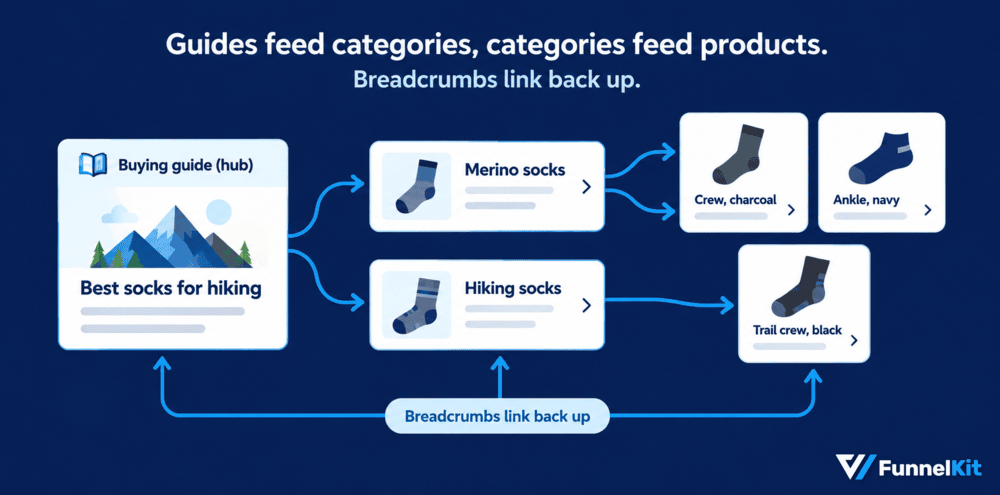
The guide introduces the topic. The category handles the broader commercial search. The product page handles the specific product query.
A few rules keep this structure healthy:
- Don't leave important products or categories buried several layers deep.
- Link every important category from relevant guides, related categories, or other useful site pages.
- Link from category pages to the products that belong there.
- Use descriptive anchor text that tells the shopper what they'll find. “Merino hiking socks” is useful; “click here” isn't.
- Vary your anchor text naturally. You don't need to force the exact same keyword into every internal link.
- Look for orphaned products and categories that have no meaningful internal links pointing to them.
There is no magic number for how many links a page should have or exactly how many clicks a product should be from the homepage.
Link building that works for stores
You don't need hundreds of backlinks to make an ecommerce site competitive.
A handful of relevant links from sites that actually matter in your niche can be more useful than a large pile of generic links.
We'd skip tactics built primarily to manufacture links, especially paid placements that pass ranking credit, link exchanges at scale, and bulk guest posts written around exact-match anchor text.
Instead, look for reasons someone would genuinely want to link to your store.
- Product-led PR: Publish original data from your catalog, customer research, or industry surveys, then pitch the findings to relevant publications.
- Supplier and stockist pages: If you sell another brand's products, check whether that supplier maintains a retailer or stockist directory. If they do, make sure you're listed.
- Industry and ecosystem pages: Associations, events, local organizations, and genuinely useful industry directories can provide relevant links when you have a real connection to them.
- Unlinked mentions: Find websites already mentioning your brand or products and ask whether they can link to the relevant page.
- Free resources: A genuinely useful checklist, calculator, template, or original research can earn links because people actually want to reference it.
The common thread is that the link exists for a reason beyond SEO.
If you'd still want the mention even if Google ignored the link, it's probably a healthier tactic.
For the tools that can support the broader marketing setup, our roundup of marketing plugins that complement your SEO setup covers the options without turning your store into a pile of unnecessary scripts.
Local SEO for stores with a physical location
If you have a physical shop, pickup location, showroom, or defined service area, local SEO deserves its own setup.
Start with your Google Business Profile.
Complete it properly, keep your business name, address, and phone number consistent across important listings, and make sure your website clearly explains where you operate.
If you have multiple locations, give each one a useful location page rather than sending every listing to the homepage.
Include the address, opening hours, contact details, services, and anything else that helps someone decide whether to visit.
You can also use LocalBusiness structured data where it accurately describes the business and location.
Local search has its own ranking signals and isn't simply an extension of your normal organic rankings.
Treat your Business Profile, location pages, reviews, and local relevance as a separate part of the SEO plan rather than assuming your product and category rankings will automatically carry over.
Step 10: Measure results and connect search to revenue
Getting more organic traffic is useful. Knowing which traffic turns into revenue is what tells you where to invest next.
Metrics that matter
Rankings help diagnose SEO, but they don't show whether the work is helping the business.
These five numbers give you a much better view:
| Metric | Where | Why it matters |
|---|---|---|
| Indexed products vs total products | Search Console, Pages report | The ceiling on everything else |
| Non-brand organic clicks | Search Console, filtered | Growth, as distinct from people who already knew you |
| CTR on top-20 queries | Search Console | Title and description work, the cheapest wins available |
| Organic revenue by landing page | GA4 | The only number the business cares about |
| Core Web Vitals pass rate by template | Search Console, CWV report | Where the technical debt actually sits |
Check these monthly rather than obsessing over them every day.
Ecommerce SEO usually moves over weeks and months, and daily changes can send you chasing normal fluctuations.
For our sock store, we'd start with indexed products versus total products.
If half the catalog isn't indexed, there's little point celebrating a higher CTR on the products Google can already find.
Tracking organic revenue in GA4
Search Console tells you how people found your site. GA4 tells you what happened after they arrived.
Set up GA4 with ecommerce events such as view_item, add_to_cart, begin_checkout, and purchase.
Then connect Search Console and build a report that lets you compare landing pages with traffic source, revenue, and conversion rate.
That's where the SEO picture gets much more useful.
You might discover that a buying guide gets 8,000 organic visits but generates very little revenue, while a category getting 1,500 visits produces five times as much.
The second page may deserve more internal links, better content, and more link-building effort.
Our walkthrough on setting up GA4 ecommerce tracking for WooCommerce covers the event configuration end to end.
If you're already running FunnelKit, its analytics can also help break revenue down by funnel and offer when one landing page feeds several conversion paths.
After the click: Don't lose the traffic you earned
SEO gets someone to the store. Your checkout determines how much of that traffic turns into revenue.
Baymard's research consistently puts average cart abandonment at around 70%, and checkout complexity is one reason shoppers leave.
That makes the checkout worth auditing once organic traffic starts growing.
Three changes are worth looking at first:
- Reduce unnecessary checkout fields and offer express payment methods
Apple Pay and Google Pay can remove a lot of typing, particularly on mobile.
Our guide to reducing friction at checkout covers which fields to remove first, while our guide to one-page checkout covers ways to shorten the process further.
- Recover abandoned carts
Some visitors will leave without buying even when the checkout works perfectly.
A short, well-timed email sequence can bring back a portion of those orders. Here's how to recover abandoned carts in WooCommerce.
- Keep the buying experience connected
If adding a product suddenly sends someone through several unnecessary page loads, it's easy to lose momentum.
A side-panel cart or similar setup can let shoppers review their order without leaving the product or shop experience.
These changes won't improve your Google rankings. That's not what they're for.
They improve the value of the rankings you've already earned. If SEO brings another 1,000 qualified visitors to the store but your checkout converts badly, getting another 1,000 visitors isn't necessarily the next best move.
Traffic is the input. Revenue is the outcome. Your SEO process should measure both.
Mistakes That Quietly Cost Stores Traffic
Most WooCommerce SEO problems aren't dramatic. They're small decisions that compound across hundreds or thousands of URLs.
Here are the ones we see most often:
1. Blocking cart and checkout in robots.txt while relying on noindex
If Google can't crawl the page, it can't see the noindex tag.
Use noindex for index control and robots.txt for crawl control.
2. Canonicalizing filtered URLs and assuming crawling stops
A canonical is a hint, not a crawl directive. If you don't want Google spending time on filter combinations, deal with the crawlable URL pattern separately.
3. Deleting out-of-stock products without checking their value
A temporarily unavailable product can still have rankings, backlinks, and useful history. Keep the URL when a restock is expected.
For discontinued products, redirect or retire the URL based on what replaces it.
4. Publishing manufacturer descriptions across hundreds of products
If 300 product pages contain essentially the same copy Google can find elsewhere, don't be surprised when some struggle to get indexed.
Add information that is specific to your store, product, customers, and use cases.
5. Keyword-stuffing product titles
Product titles have to work for shoppers first. Cramming every possible keyword into the title can make it harder to scan and can push the useful product details out of view.
6. Changing the permalink structure on a live store without a redirect map
A URL change can affect hundreds or thousands of pages at once.
Map the old URLs to their new equivalents before you make the switch, then test the redirects.
7. Chasing a PageSpeed score instead of real-user performance
A lab score helps you find problems, but Core Web Vitals field data shows what real visitors experience.
Fix the underlying performance issues rather than trying to hit an arbitrary score.
8. Changing the publication or updated date without actually updating the content
Changing dates to make old content look fresh isn't a substitute for improving it.
Google has specifically warned against manipulating dates to make pages appear newly updated.
9. Indexing every tag and attribute archive because your SEO plugin allowed it
More indexed URLs don't automatically mean more organic traffic.
If an archive has no useful content, search demand, or distinct purpose, it probably doesn't need to be indexed.
10. Treating SEO as a launch task
Your initial setup matters, but product data, indexation, redirects, internal links, performance, and search demand all change as the store grows.
Put a monthly SEO check on the calendar rather than waiting for traffic to disappear.
Frequently Asked Questions
Not at all, and WooCommerce actually gives you more control, from your URLs to your product markup. The catch is that hosting and speed are your job.
Shopify handles those for you, but it locks you into fixed paths like /products/ and /collections/.
Not strictly. WooCommerce already outputs basic product markup, and developers can extend it with the woocommerce_structured_data_product filter.
You'd still need custom code for titles and sitemaps, though, so a free plugin is the easier route for almost every store.
Not directly. Cart and checkout pages are kept out of search results by default, so they never rank.
A better checkout changes how many of your organic visitors become buyers, and that's what your rankings are really worth.
Yes. Treat them like any other product page, and spell out the billing period and what renews in plain text.
For downloads, list the file format and license terms people search for.
New pages can get indexed within days, but rankings take longer. Google’s own guidance says SEO improvements often take four months to a year to pay off. (Source: Google Search Central)
Competitive categories and brand-new domains tend to take longer.
No, the whole setup runs on free tools, from your SEO plugin to Search Console. Paid SEO plugins cost between $49 and $178.80 a year for one site if you want extras.
Agency pricing depends on your catalog, so ask for a quote based on your store.
Start Ranking Your WooCommerce Products This Week!
You don't need to fix your entire store before you see progress.
Start with the pages with the most potential, clean up the technical problems getting in the way, and build from there.
Here's how we'd spend the first week:
- Days 1 and 2: Work through the setup steps. Check your indexing settings, permalinks, sitemap, SEO plugin, and Search Console.
- Days 3 to 5: Rewrite your ten best-selling or highest-potential product pages. Improve the titles, descriptions, images, product data, and internal links.
- Day 6: Add useful introductions to your top categories and decide which tags, attributes, and filter combinations should stay out of the index.
- Day 7: Connect Google for WooCommerce, check your product feed, and review the Pages report in Search Console for indexing problems.
Then give Google some time to recrawl the changes.
Come back to the same reports each month and look for products getting indexed, categories gaining clicks, and organic landing pages generating revenue.
And once that traffic starts arriving, don't waste it at checkout.
A faster checkout, express payment options, and abandoned-cart recovery can turn more of those organic visits into orders.
That's where FunnelKit comes in: it gives you tools to reduce checkout friction and recover carts that would otherwise disappear.
Editorial Team
October 11, 2026You can customize the WooCommerce cart page with the Cart block, a page builder like Elementor, or CSS and PHP snippets. Which method works for you depends on the cart...
Editorial Team
October 9, 2026A WooCommerce discount lowers what a shopper pays, either through a reduced product price or a code entered at checkout. Out of the box, WooCommerce gives you two ways to...
Editorial Team
October 9, 2026A downsell gives customers a cheaper option after they turn down your main offer. If you show it too soon, you might convince them to skip the original offer and...