


WooCommerce tags are labels you assign to products so shoppers can find related items across your store.
They work similarly to social media hashtags.
Tag a product with "eco-friendly" or "summer-sale". Suddenly, it starts showing up right next to other items with that exact same tag, even if those items live in totally different categories on the opposite side of your store's navigation menu.
The problem is that most WooCommerce store owners either skip tags altogether or mix them up with categories and attributes.
As a result, there will be a messy catalog after six months, making it take 10 clicks to find anything instead of 2.
When products have no tags, browsing suffers, on-site search gets worse, and people close the tab before they ever reach a product page that might have interested them.
In this guide, we'll explain what WooCommerce product tags are, how they differ from the other two taxonomies (categories and attributes), and the exact steps for adding them to products so that your customers can actually use them to navigate your store.
We also walk through tag examples by store type and some practices worth adopting around navigation, search, and automation.
Table of Contents
- 1 WooCommerce Tags vs Categories vs Attributes
- 2 How to Add WooCommerce Tags to Your Products?
- 3 How to Delete, Merge and Clean Up WooCommerce Tags?
- 4 WooCommerce Product Tag Examples
- 5 8 Best Practices to Get More Value from Your WooCommerce Tags
- 6 WooCommerce Tags: Frequently Asked Questions (FAQs)
- 7 Start Organizing Your WooCommerce Store with Tags Today!
WooCommerce Tags vs Categories vs Attributes
Store owners constantly confuse these three, and it causes real organizational headaches down the line.
All three are technically product taxonomies, but they do entirely different jobs.
- Categories
Categories are your store's main organizational structure.
Think of categories as the actual aisles in a physical shop. They build your store's core structure. They're hierarchical. That means nesting subcategories inside parent ones is standard practice.
Picture a clothing brand. You'd likely have Men, Women, and Kids. Under those? Shirts, Pants, and Jackets all nest under their respective parents.
Customers see this hierarchy reflected in your navigation menus the moment they visit.
You should assign each product to at least one category. Forgot to assign one? WooCommerce places it into "Uncategorized" by default.
- Tags
Tags are flat labels with no hierarchy and no parent-child relationships. They simply describe specific characteristics.
Imagine sticking a bright Post-it note on random items to highlight a shared trait.
A "waterproof" tag might apply to a men's jacket, some women's boots, and a random accessory backpack.
Categories simply can't bridge that gap since they stay locked inside their own specific branch.
Tags are entirely optional in WooCommerce. Add zero, or add twenty, it's completely up to you.
- Attributes
This is where things get structured. Attributes handle variations and filtering by defining measurable facts such as size (S, M, L, XL), color (Red, Blue, Black), or materials.
If you sell variable products where someone must select a size before clicking the add to cart button, you are using attributes.
They also run those sidebar filtering widgets so shoppers can quickly narrow down search results.
Here is a quick comparison:
| Feature | Categories | Tags | Attributes |
|---|---|---|---|
| Structure | Hierarchical (parent/child) | Flat (no hierarchy) | Structured (name/value pairs) |
| Required? | Yes (default: Uncategorized) | No | No (unless for variations) |
| Purpose | Main store organization | Cross-category grouping | Product specifications and variations |
| Creates an archive page? | Yes | Yes | Yes (if set to public) |
| Used for product variations? | No | No | Yes |
| Used for layered navigation? | Yes | No (by default) | Yes |
| Example | "Women > Shoes > Sneakers" | "eco-friendly", "new-arrival" | "Size: 8", "Color: White" |
When to use each one:
Need a clear hierarchical store structure? Categories are the answer because they form your primary navigation and give customers a way to browse by product type.
Tags are best for shared characteristics that cross category boundaries. For example, materials ("organic-cotton"), promotions ("black-friday-deal"), or any descriptor that touches products across multiple categories can be marked as a tag.
Need a structured product specification, particularly for variable products where customers pick a size or color? Go with attributes. This is your go-to for enabling faceted filtering in sidebars or shop pages.
All three of these complement each other and an organized WooCommerce store uses them together.
How to Add WooCommerce Tags to Your Products?
WooCommerce handles tag management right out of the box, directly in the WordPress backend. No extra plugins needed here.
Step 1: Add tags while editing a WooCommerce product
Pop open any product inside your dashboard.
Check the right-hand side for the Product tags panel, type a name and click on 'Add'.
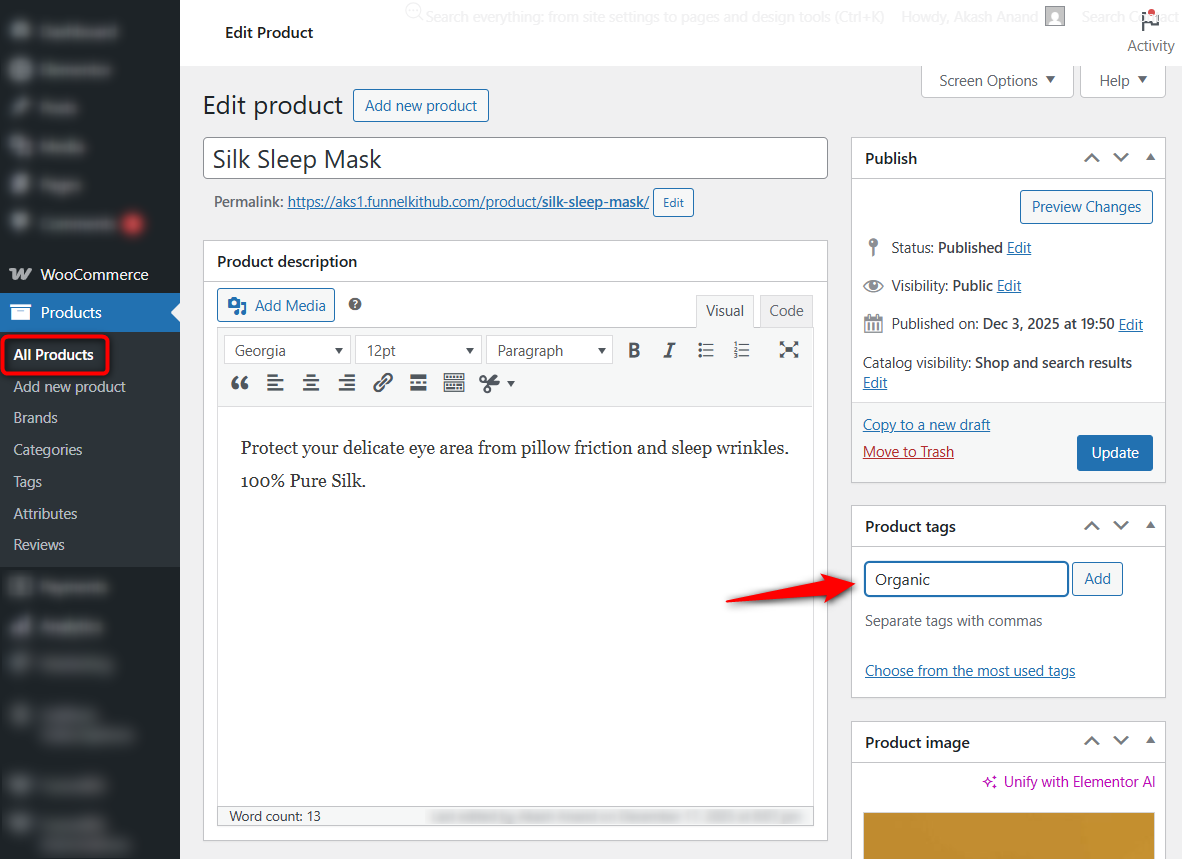
Got several? Separate them using commas. The system will start suggesting existing ones as you type.
Type a brand new word, and WooCommerce automatically generates the new tag on the spot.
Step 2: Manage tags in bulk
Tagging individually works fine for a handful of items. Hitting 50+? That gets miserable fast.
Head over to Products ⇨ Tags. This is your central hub to create, edit, or set URL slugs (turning "Eco Friendly" into "eco-friendly"). You can also add descriptions here.
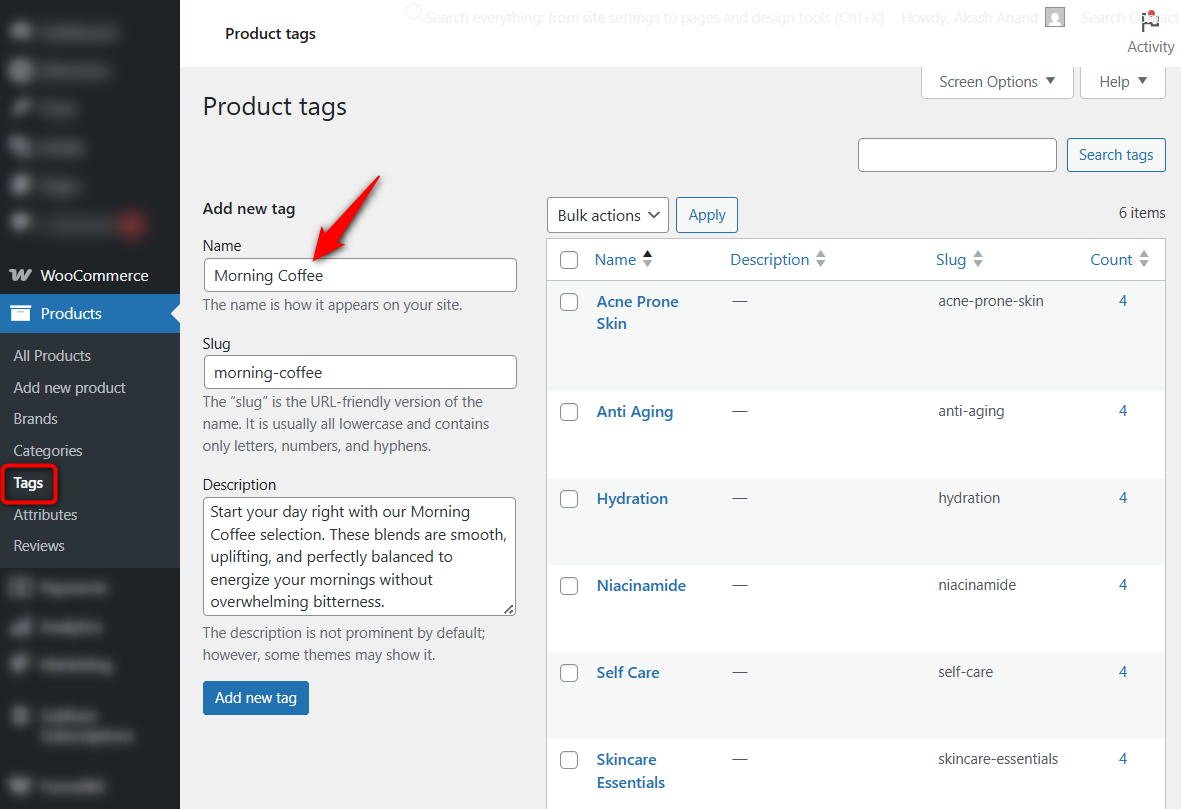
Do not ignore that description field. It's a massive missed SEO opportunity because WooCommerce actually prints that text directly onto the tag archive page.
Drop in a quick, keyword-heavy sentence explaining the tag.
Step 3: Assign tags to multiple products at once
Got a massive batch of inventory needing a tag? Use the Quick Edit tool.
Go to Products ⇨ All Products and select the checkboxes next to the products you want to tag.
Click the "Quick Edit" option for any one of them, or use the Bulk Actions dropdown to edit multiple products simultaneously.
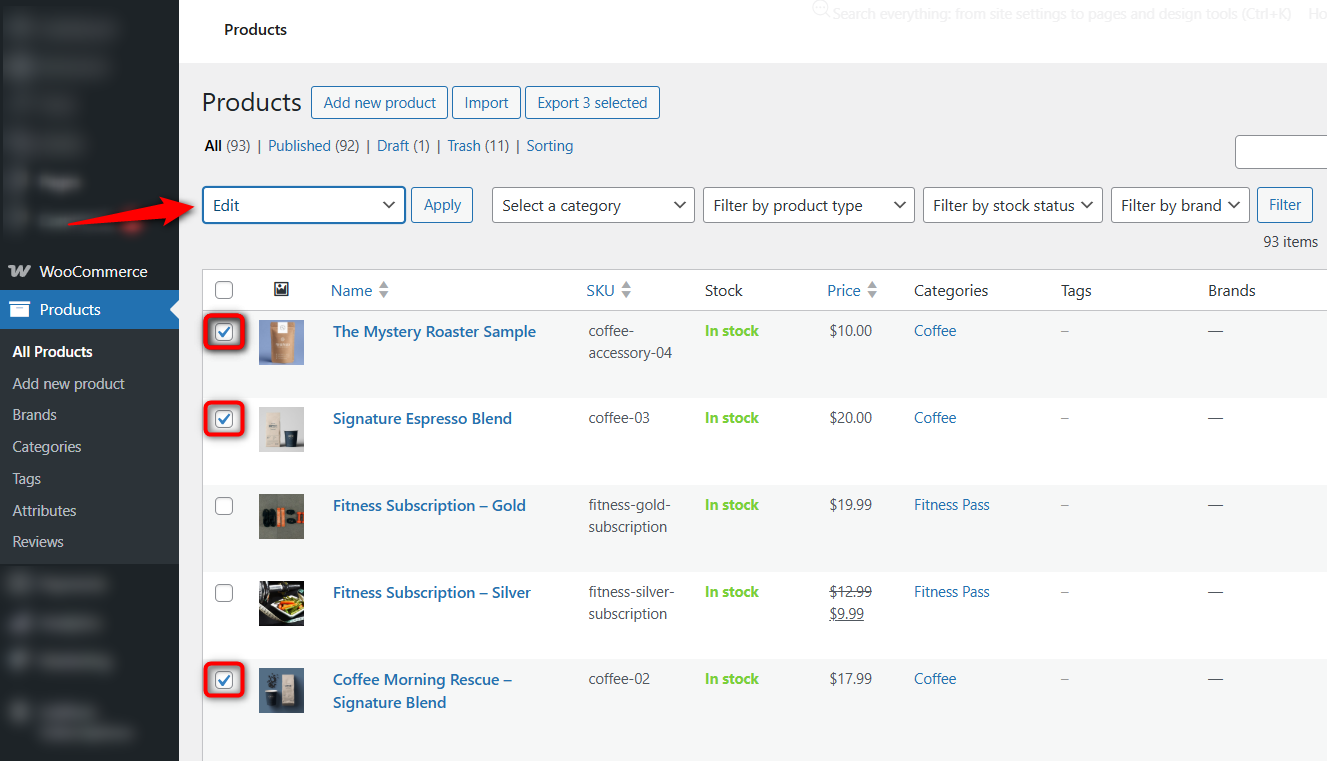
In the Quick Edit panel, you will see a "Product tags" field where you can type and add tags.
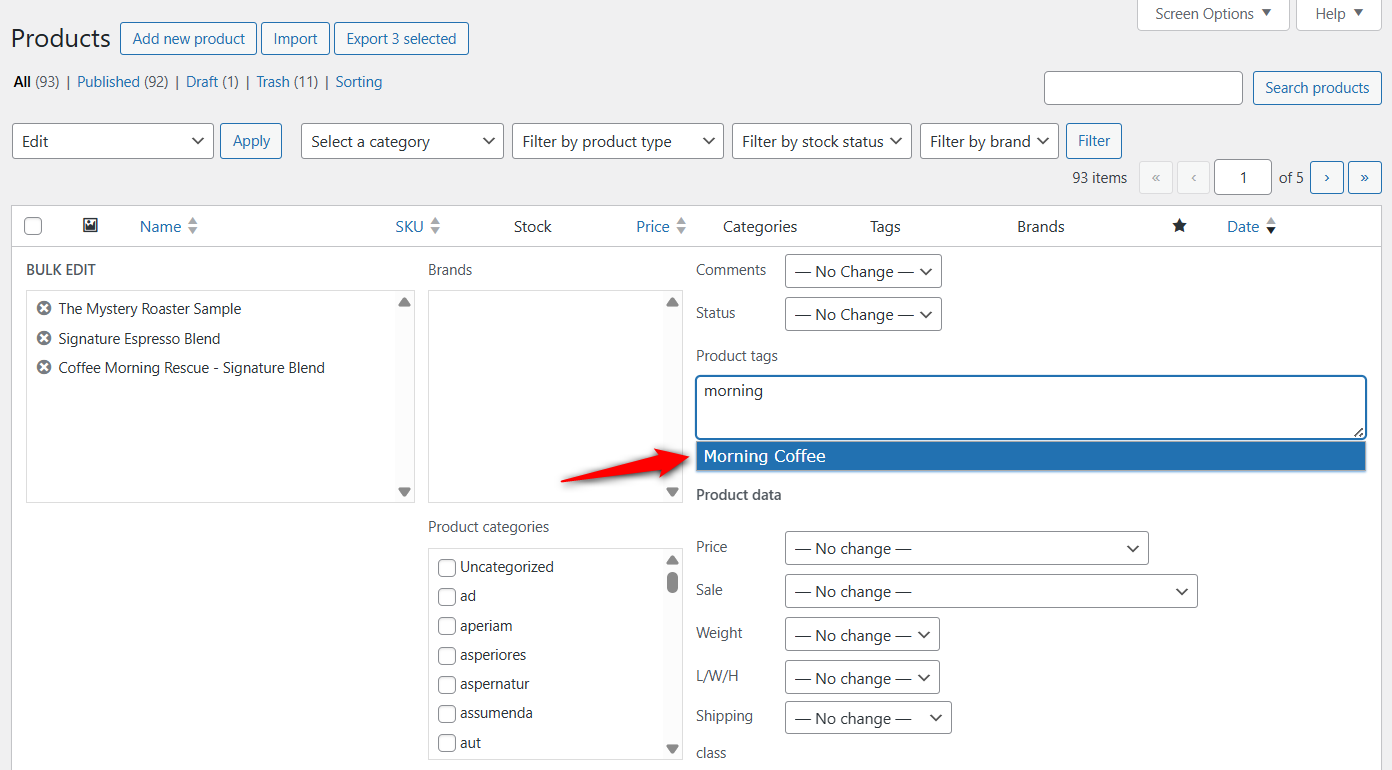
This saves significant time when tagging a large batch of products with a shared name.
Step 4: Display tags on your store
By default, WooCommerce shows tags on the individual product page, usually sitting right beneath the description.
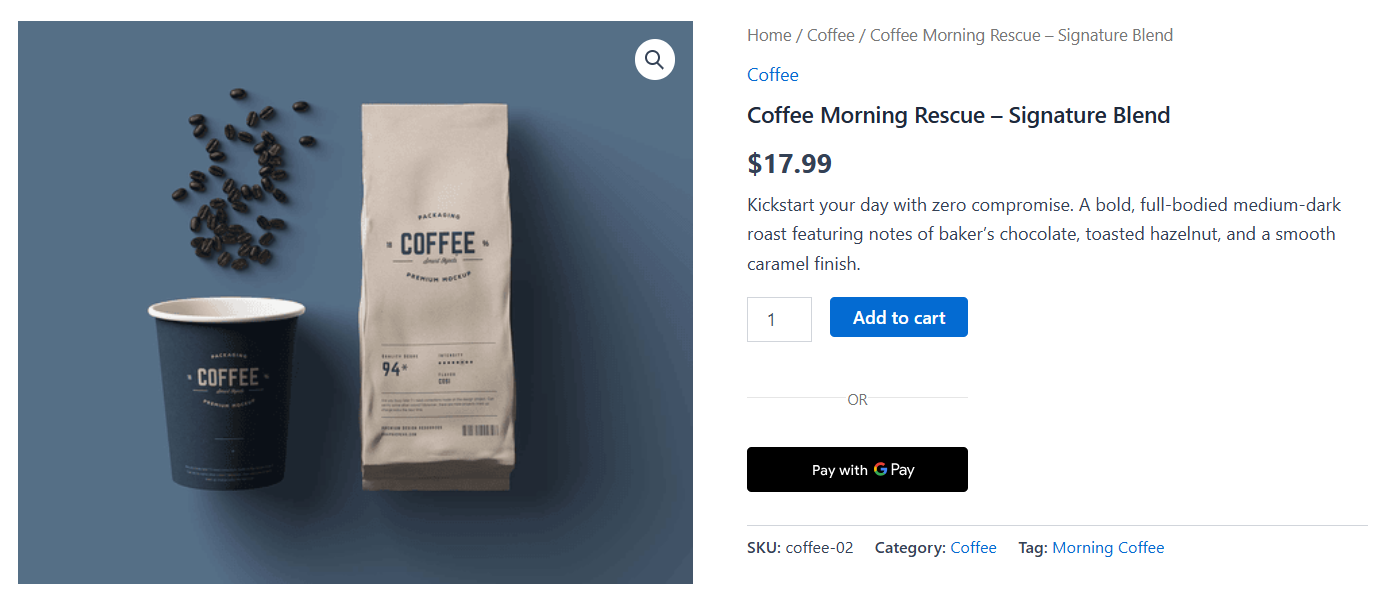
Want them showing up in your sidebar? Jump to Appearance ⇨ Widgets and drag a "Product Tag Cloud" into place. It displays popular tags as clickable links.
To showcase items from a specific tag inside a blog post or page, drop this shortcode:
[products tag="eco-friendly" columns="4" limit="8"]That instantly builds a clean 4-column grid showing up to 8 items. Swap the slug to pull whatever group you need.
Block editor fans can use the "Products by Tag" block to avoid shortcodes entirely.
Step 5: Review your tag structure and test
Load up your live site. Click a tag. Did the right items show up? Awesome.
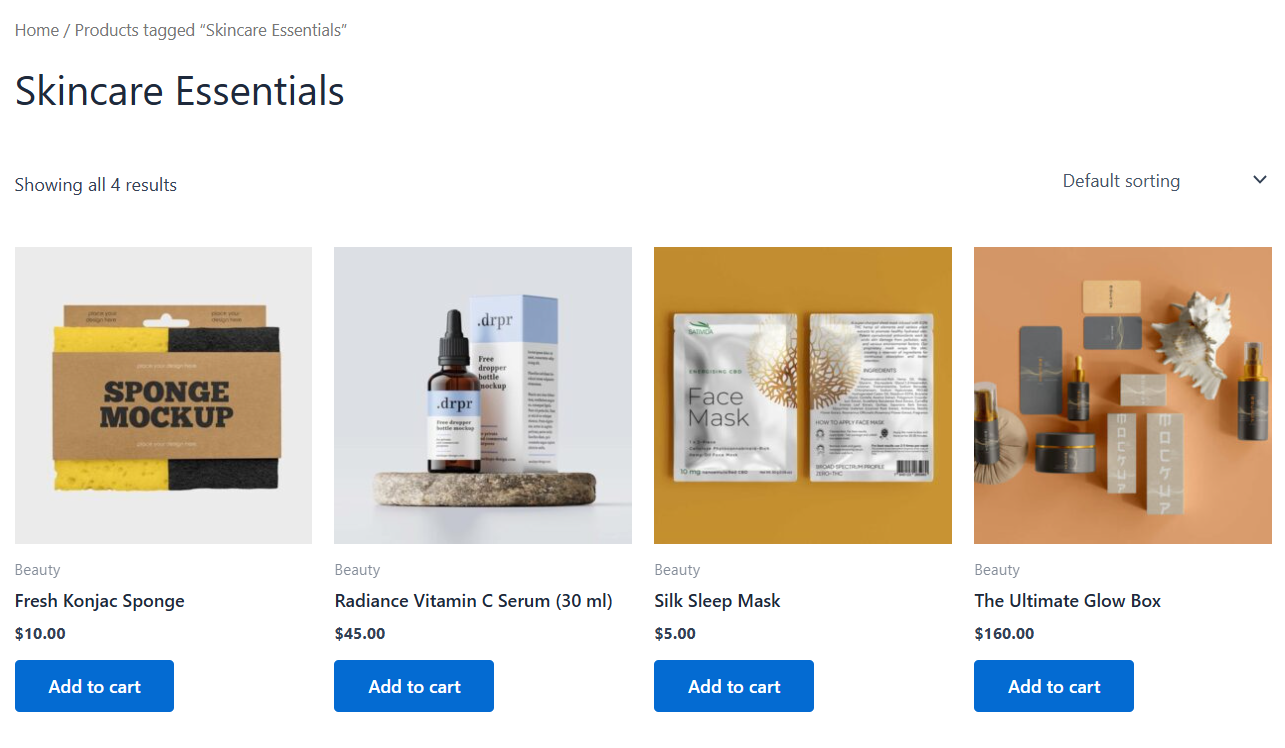
Now check the tag cloud widget on both desktop and mobile.
If you see the wrong inventory or a totally blank page, it's due to the mistyped slug.
Go back into your settings, double-check the spelling, and reload. Test this again on your phone, since tag links notoriously wrap weirdly on mobile screens.
How to Delete, Merge and Clean Up WooCommerce Tags?
Give a WooCommerce store about three months. Without maintenance, the tag list quickly becomes a wasteland of typos, duplicates, and dead links attached to none of your product inventory.
Deleting WooCommerce tags
Under Products ⇨ Tags, sort by the "Count" column to spot the zeros. Hover and delete.
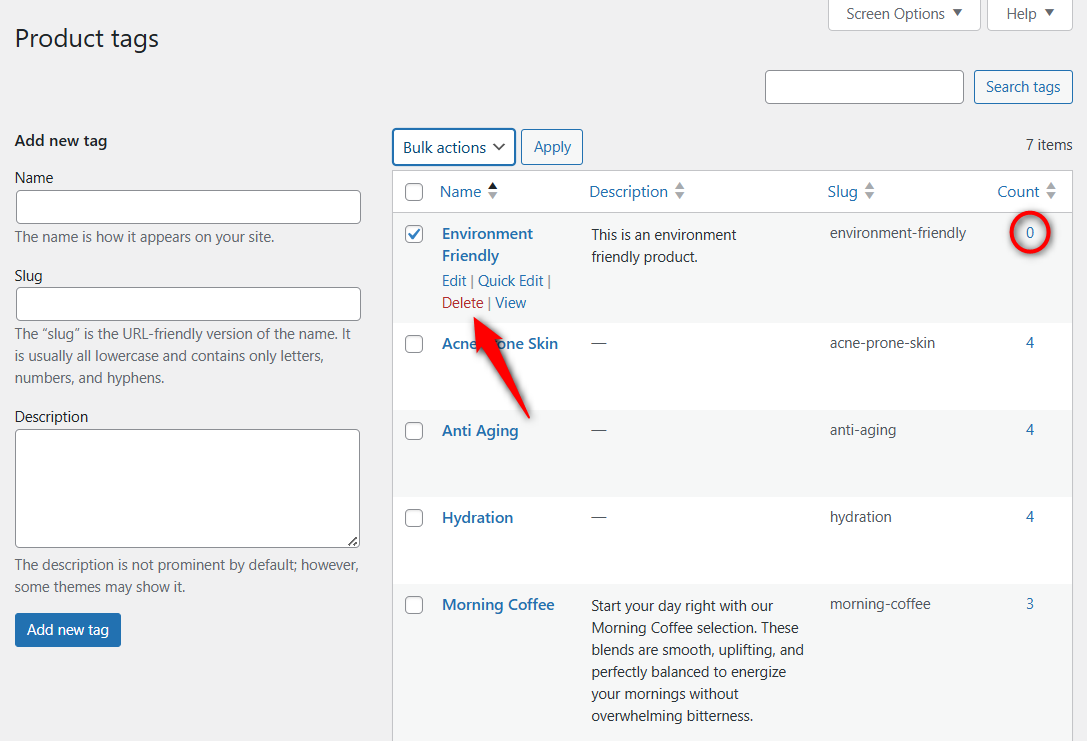
Keep in mind that deleting a tag wipes it from every attached product.
If that specific archive page was attracting good traffic from Google, that URL will return a 404 error.
For high-performing tags, set up a 301 redirect to a relevant category rather than blindly trashing them.
Merging duplicate tags
WooCommerce has no merge button, which is annoying when you discover that "eco-friendly", "Eco-Friendly," and "eco friendly" all exist as separate tags, each with its own set of products.
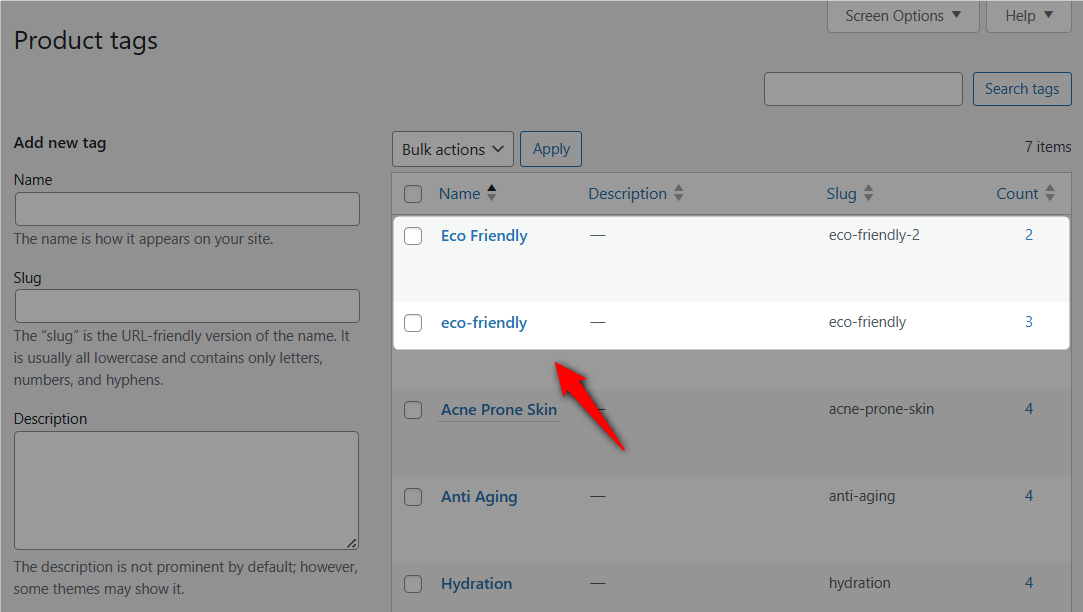
Decide which tag survives. Edit one of the duplicates and change its slug to match the surviving tag's slug exactly.
WooCommerce does not allow two tags sharing a slug, so it automatically pushes the duplicate's product assignments into the survivor and the duplicate disappears while the products stay assigned.
If you want more visibility into what moves where, do it manually. Open each product attached to the duplicate, remove the wrong tag, add the correct one, then delete the now-empty duplicate.
Takes longer but gives you full control, which matters in a catalog with 500+ SKUs where a misassignment could send a product to the wrong archive page.
The Bulk Tag Creator plugin helps stores with dozens of duplicate tags and handles batch reassignment.
Finding orphan and low-value tags
On the Products ⇨ Tags screen, sort by the Count column in ascending order.
Tags with 0 or 1 products? Candidates for deletion or consolidation.
A tag assigned to a single product is not creating any cross-category browsing value. Either assign it to more products or delete it.
We recommend doing this cleanup quarterly. 15 minutes of tag maintenance every three months prevents the kind of tag bloat that makes your tag cloud useless and your archive pages thin.
WooCommerce Product Tag Examples
The technical setup takes five minutes. Strategy is where people get stuck. Here are some quick niche examples to get you started:
General-purpose tags: "best-seller," "gift-idea," or "clearance." Use these to group items for a flash sale without wrecking your main menu with temporary categories. Tag them, drop a shortcode on a landing page, and launch your email campaign.
Clothing and fashion: Think style, season, or occasion. "casual," "sustainable-fashion," or "date-night." Someone looking for a date outfit can browse shoes and dresses simultaneously without clicking through ten different menus.
Electronics and gadgets: Search by feature. "wireless," "usb-c," or "budget-pick." Shoppers looking for a "usb-c" connection honestly don't care if the item is a charger or a hub. They just need the spec.
Digital products: Format or skill level. "beginner," "printable," or "spreadsheet." This immediately stops buyers from guessing if a template actually fits their software skills.
Food and grocery: Dietary needs are massive here. "organic," "vegan," or "gluten-free." A shopper avoiding gluten clicks one link and sees every safe item across snacks, baking, and sauces.
Home and furniture: Room or style. "mid-century-modern," "solid-wood," or "living-room." Perfect for versatile items that fit effortlessly into multiple spaces.
8 Best Practices to Get More Value from Your WooCommerce Tags
Let's look at effective best practices to get the most value from your product tags in WooCommerce.
- Keep tags consistent across your entire catalog
Use lowercase, hyphenated tag slugs with one naming convention. No exceptions.
We have seen stores with “eco friendly”, “Eco-Friendly”, and “ecofriendly” all existing as separate tags, each with only a handful of products assigned. Three tag archive pages that should be one.
That kind of fragmentation kills both navigation value and any SEO benefit the tags might otherwise provide.
- Add 3 to 8 tags per product
That is the sweet spot. If you add more than this, WooCommerce tags will start to look like a word jumble.
If you put in fewer than this, you won't get much benefit from tagging at all.
Each tag on a product should genuinely help a customer find that product through a pathway that categories alone do not offer.
- Noindex thin tag pages and optimize the rest
Tags with fewer than 5 products and no description should be set to noindex in Yoast SEO or Rank Math to avoid diluting your site’s SEO.
For tags with 10+ products and real search volume, write a unique description, include the tag in your sitemap, and treat that archive page like a landing page worth ranking.
- Use tags to create dynamic product collections
Tag products with “summer-2025” or “flash-sale” and display them anywhere on your site using the [products tag=“your-tag”] shortcode or the Products by Tag block.
This turns tags from a passive organizational tool into an active merchandising tool that you can deploy on landing pages, blog posts, homepage sections, and email campaigns without touching your category structure or creating any new pages in WordPress.
- Audit and clean up unused tags quarterly
Orphan tags accumulate fast. Every tag assigned to zero products still generates an archive page, which wastes crawl budget.
15 minutes of quarterly cleanup will help you. Sort by Count on the Products ⇨ Tags screen, merge duplicates, and delete tags with no products.
- Use tags to power personalized marketing automations
Product tags become a real revenue lever when you connect them to your marketing workflows.
With FunnelKit Automations, for example, you can build automated email sequences that trigger based on the product tags a customer’s purchase carries.
Someone purchases a product tagged “starter-kit”? Automatically send a follow-up series recommending advanced products two weeks later.
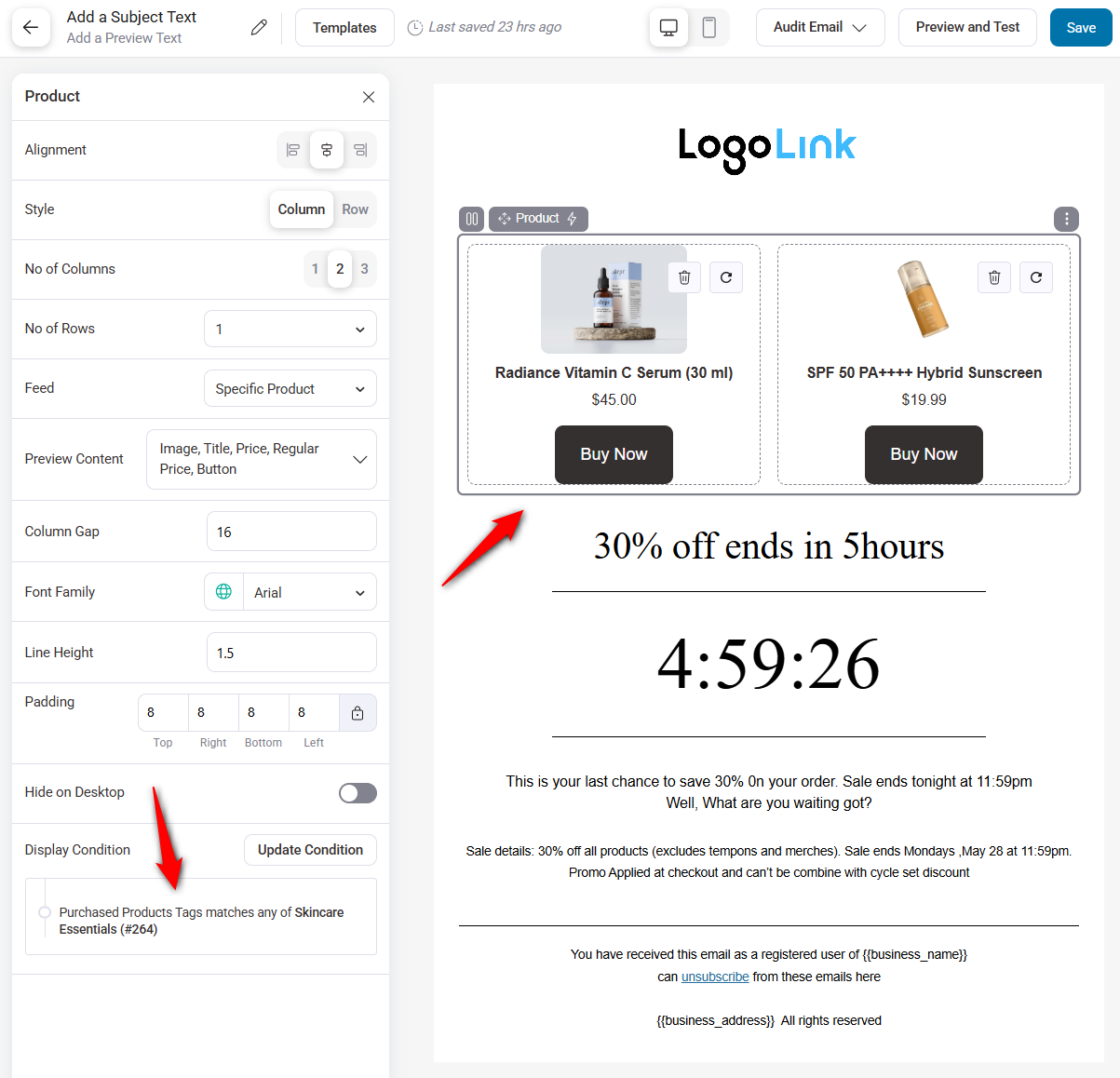
That connection turns simple product organization into personalized customer experiences that directly drive repeat purchases and higher lifetime value.
- Set up tag-based shipping and pricing rules
Several WooCommerce shipping plugins support tag-based conditional logic.
Tag products as “fragile”, “oversized”, or “free-shipping-eligible” and configure your shipping plugin to automatically apply the correct rate at checkout.
The same approach works for discount plugins. Tag products with “loyalty-discount” and create a coupon rule that applies only to products carrying that tag.
- Do not confuse tags with categories or attributes
Tags complement your category structure. If you find yourself creating tags like “mens-shoes” or “size-large”, you should stop immediately. Those belong as categories or attributes.
Tags are for descriptors that genuinely cross category boundaries: “gift-idea”, “handmade”, “seasonal-favorite”.
WooCommerce Tags: Frequently Asked Questions (FAQs)
WooCommerce tags are a built-in WordPress taxonomy that acts like flexible labels for your product catalog. They group items by shared traits that fall outside your rigid main category structure.
Here is exactly what a solid tagging strategy does for your store:
- Boosts product discoverability: Categories alone are limiting. Tags let a shopper click "vegan" and instantly view food, skincare, and supplements on a single archive page.
- Fixes internal site search: 70% of e-commerce searches fail to find related terms. WooCommerce natively indexes tags. If you tag items "travel-size" or "wireless", your search bar actually finds them.
- Group products across categories: Want a "gifts-under-50" section? Tags are flat, not hierarchical. You can group products across your entire catalog without breaking your existing category tree.
- Generates SEO-friendly landing pages: Every tag creates its own SEO-friendly archive page (e.g.,
yourstore.com/product-tag/slug/). Those pages are indexable. If your main categories target broad terms like "women's shoes", your tag pages can go after the specific long-tail terms that your categories aren't covering, things like "vegan leather sneakers" or "wide-fit running shoes" that have lower competition and higher purchase intent because the shopper already knows exactly what they want. - Segments your catalog for targeted marketing: Tags let you group products for promotions and automations. You can trigger highly personalized email campaigns based on the specific tags attached to a customer's recent purchase.
- Automates conditional shipping and pricing rules: Need to charge extra for specific items? Tag them "fragile" or "oversized". Plugins like Flexible Shipping will read those tags and auto-apply the correct rates or discounts at checkout.
Yes, WooCommerce tags affect SEO, but it depends entirely on how you use them. Each tag generates an archive page at your store, and those pages can rank for long-tail keywords in Google.
The catch? Too many thin tag pages with two products and no description are flooding your index. That actually hurts your site.
What works: keep fewer tags, make each one count, and write a real description for every tag that has actual search volume behind it.
If there are tags that nobody is searching for, set those to noindex through Yoast SEO or Rank Math so Google stops wasting crawl budget on thin pages with two products and no description that are never going to rank for anything meaningful anyway.
No, WooCommerce order tags are not the same as product tags.
Order tags are labels you assign to orders to manage internal workflows, such as flagging them as "priority", "wholesale", or "needs-review". WooCommerce does not include order tagging by default, so you need an extension to add this functionality.
Product tags organize your catalog for customers who are browsing and searching your store.
Order tags are strictly an internal tool. Your fulfillment team uses them to sort, filter, and figure out which orders need attention first. Customers never see them.
Yes. WooCommerce has a built-in CSV importer that includes a "Tags" column. Enter your tags as comma-separated values in that column, then import via Products > All Products > Import.
For more advanced imports, use plugins like WP All Import and Product Import Export for WooCommerce, which let you import tags from CSV, XML, or Excel files with full column mapping and scheduling.
No, WooCommerce tags cannot be used for filtering products. There are third-party plugins, like Product Filter by flavor, that can add tag-based filtering if you really need it.
But honestly, if faceted search is a priority for your store, attributes are the better choice for the characteristics you want customers to filter by on the shop page.
WooCommerce doesn't have a built-in convert categories to tags tool. The WordPress categories and tags converter under Tools > Import only works for post categories and post tags, not WooCommerce product taxonomies.
You can do this via CSV export by copying the values from the "Categories" column into the "Tags" column. Then reimporting it.
Or you can do it via custom code.
Start Organizing Your WooCommerce Store with Tags Today!
We covered everything related to WooCommerce product tags with best practices for building a tagging system that actually drives product discovery, SEO value, and revenue.
What separates stores with useful tags from stores with a cluttered mess? Consistent naming and regular cleanup.
Additionally, keep SEO-optimized descriptions on high-traffic tag pages and connect tags to the rest of your marketing stack.
This way, your automated email sequences can be triggered by purchase tags, conditional shipping rules based on product tags, or seasonal landing pages built with a single shortcode, so they do more than just sit there collecting dust in your WordPress dashboard.
For stores ready to take product tags beyond organization and into revenue generation, we recommend connecting product tags to automated marketing workflows with FunnelKit Automations.
This turns a simple organizational layer into personalized customer experiences that drive repeat purchases and measurably higher lifetime value.
Related Resources:
- Reduce Cart Abandonment in WooCommerce
- Send Automated Emails in WooCommerce
- Offer Product Cross-Sells in WooCommerce
- How to Customize the WooCommerce Checkout Page
- WooCommerce Checkout Optimization: The Complete Guide

Editorial Team
August 27, 2026Have you ever noticed the cart icon at the top of many online stores? It’s more than just a design choice. It can greatly improve your customers' experience. A cart...
Editorial Team
August 27, 2026WooCommerce frequently bought together offers are one of the easiest ways to increase revenue on a product page. Think about the counter at a kitchen appliance store. Let's say someone...
Editorial Team
August 24, 2026WooCommerce discount setups make the customer do the work, i.e., create a code, put it in an email, and hope enough people paste it at checkout to justify the margin...






