


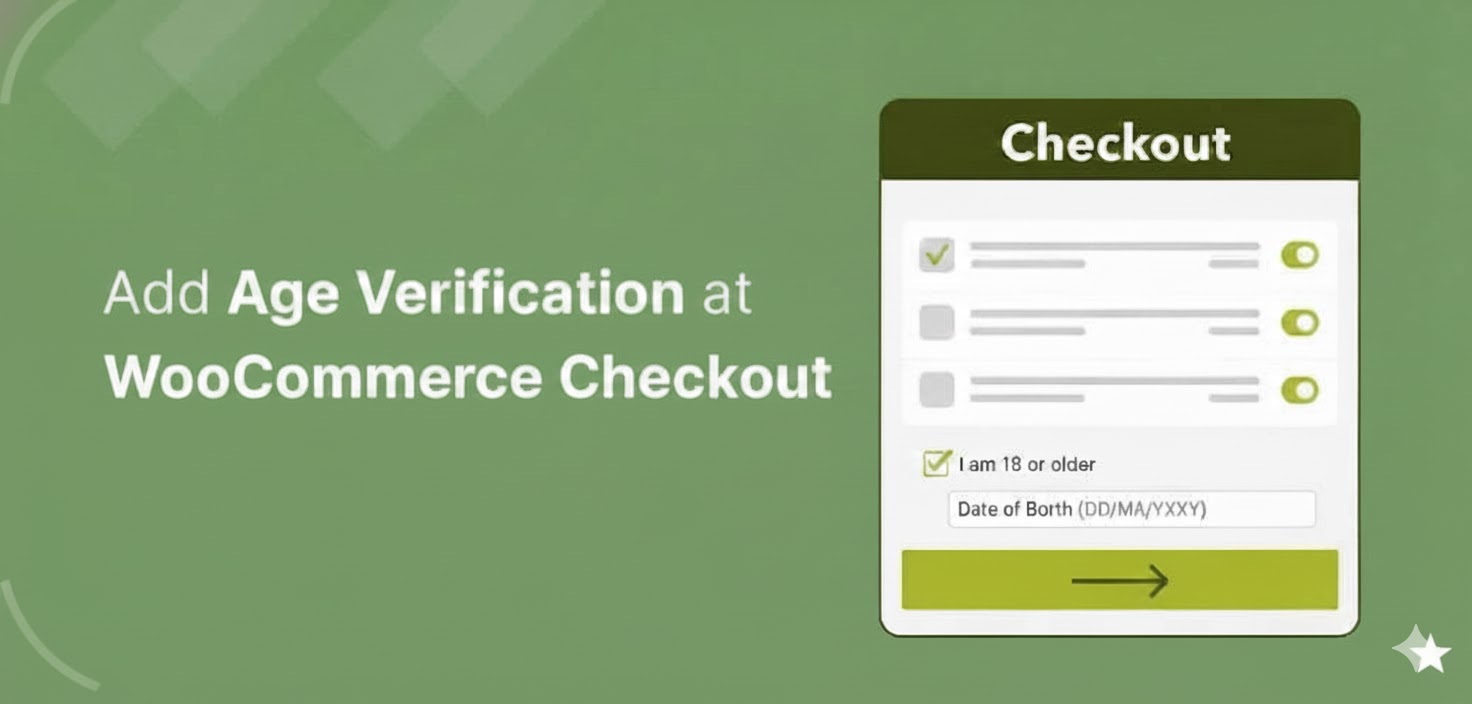
WooCommerce age verification checkout becomes important the moment you sell products that are restricted by age.
If you sell products like alcohol, tobacco, or vapes, verifying a customer’s age is not just a good practice. In many countries, it is a legal requirement.
Some other items can fall into this category too, such as high-caffeine energy drinks, certain supplements, fireworks, or mature-rated video games.
The tricky part is that WooCommerce doesn’t really help with this out of the box. There is no built-in age gate at checkout. No date-of-birth field. No confirmation step that stops someone underage from placing an order.
So if you are running a WooCommerce store, you have to add that verification yourself.
The good news is that it’s not difficult. You don’t need to write custom code or rebuild your checkout page.
In this guide, I’ll walk you through how to add age verification to your WooCommerce checkout step by step.
Table of Contents
- 1 What Is WooCommerce Age Verification at Checkout?
- 2 How to Add WooCommerce Age Verification at Checkout Without Code
- 3 8 Best Practices to Stay Compliant Without Hurting Conversions
- 4 More Questions About WooCommerce Age Verification at Checkout
- 5 Does WooCommerce have built-in age verification?
- 6 How do I add a date of birth field to WooCommerce checkout?
- 7 Can I block underage users from purchasing specific products in WooCommerce?
- 8 Will age verification slow down my checkout?
- 9 Can I add age verification with custom code instead of a plugin?
- 10 Is checkout age verification needed if I already have a site-wide pop-up?
- 11 What are the best WooCommerce age verification plugins?
- 12 Start Protecting Your WooCommerce Store With Age Verification
What Is WooCommerce Age Verification at Checkout?
WooCommerce age verification at checkout is a control that prevents customers from completing a purchase unless they confirm they meet a minimum age requirement.
It appears in the checkout form as a mandatory checkbox that must be checked before the order can be placed. In some cases, you can also request a birthdate to verify whether the customer is over a certain age.
When a customer reaches the checkout page, they see the verification step alongside the standard billing and payment fields.
If they skip it, an error message is displayed, preventing them from completing the order.
Note: WooCommerce checkout age verification differs from a site-wide age gate, which appears on the homepage or at the site entry point. Checkout-level verification is a second, harder-to-bypass layer that fires at the point of purchase.
Why Add Age Verification to Your WooCommerce Checkout?
Stores that sell age-restricted products carry a legal responsibility to prevent underage purchases.
Research shows that over 60% of online vendors selling age-restricted products either had no effective age verification or relied on easily bypassed methods, highlighting major compliance gaps in online retail.
This makes adding verification at checkout, where actual purchases happen, critically important.
Here is why adding age verification to your WooCommerce checkout is non-negotiable when you sell certain products:
- Legal compliance
Selling alcohol, tobacco, vaping products, CBD, or bladed items without proper age checks can violate local and national regulations. In the UK, for example, the Licensing Act 2003 and the Offensive Weapons Act 2019 impose strict age-verification duties on retailers shipping bladed articles. Failing to comply can lead to serious legal consequences, including fines and criminal liability.
- Protection against liability
A simple checkbox or date-of-birth confirmation creates a documented record that the customer confirmed their age at the point of sale. While this does not eliminate risk entirely, it demonstrates that the store took reasonable steps to prevent underage access.
- Compliance for international shipping
Age-restriction laws vary widely by country and by product category. Stores that ship internationally need a flexible age-verification system that can apply different rules based on the product type and the customer’s destination.
- Customer trust and brand credibility
Displaying a clear age-verification step signals that your store takes compliance seriously. For regulated industries, this helps build confidence with both customers and payment providers.
- Avoiding payment processor issues
Payment processors such as Stripe and PayPal enforce acceptable-use policies for age-restricted goods. Stores that lack visible age controls risk payment disputes, account limitations, or even suspension.
How to Add WooCommerce Age Verification at Checkout Without Code
To add age verification to your WooCommerce checkout without writing any code, we will use FunnelKit Funnel Builder.
This age-verification-at-checkout plugin lets you customize the WooCommerce checkout page and add age-verification fields as mandatory checkboxes. You can also add a dob field to check if the person is over a certain age.
Both the free and pro versions are required. Make sure to install and activate them.
Next, follow the steps below:
Step 1: Create a custom store checkout
Before you can add an age verification checkbox, you need to first create a Global Store Checkout to replace the default WooCommerce checkout page.
To create and customize the checkout page, you can use any of the popular page builders, including Elementor, Divi, Bricks, and Gutenberg. Make sure to set your default page builder before proceeding.
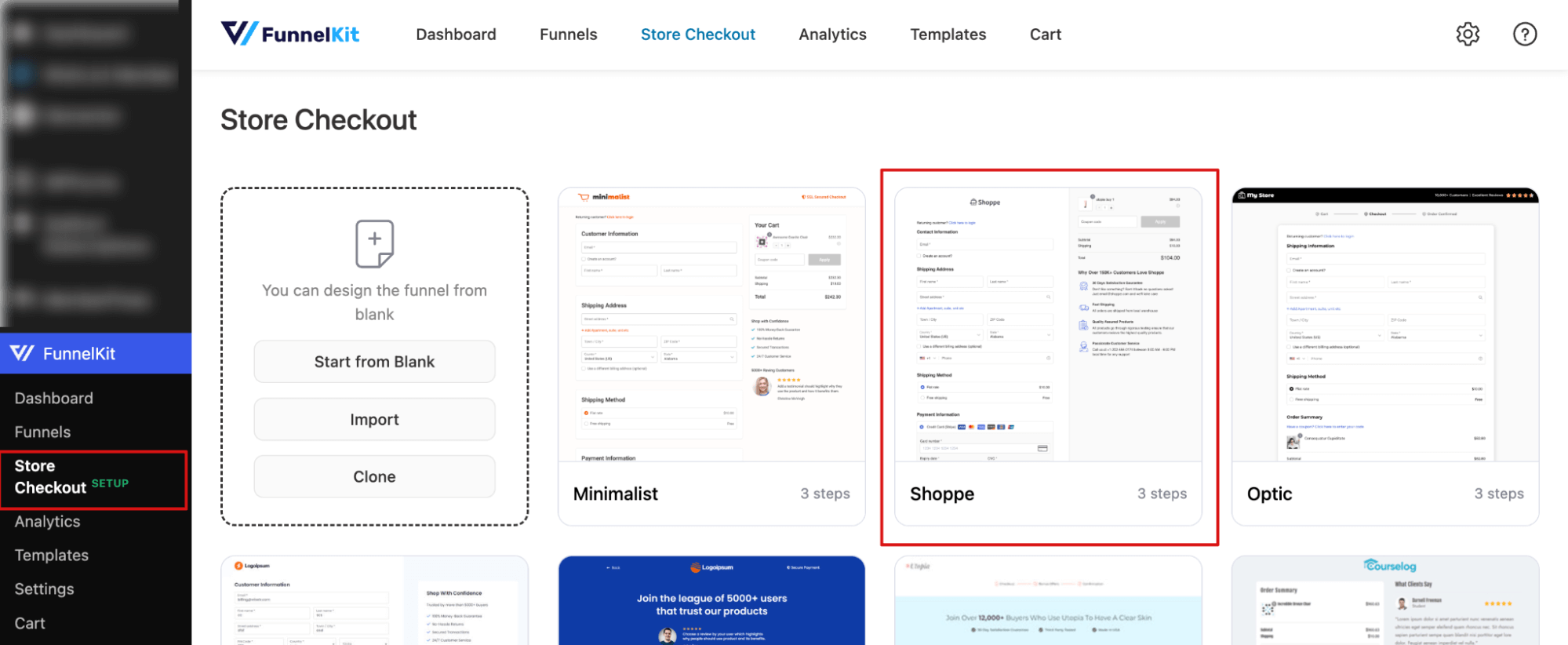
After that, go to FunnelKit ⇒ Store Checkout.
FunnelKit offers a range of pre-built templates for high-converting sales funnels and checkout pages. Simply hover over the one you like and click Preview.
For this guide, we’re using the Shopify-like template.
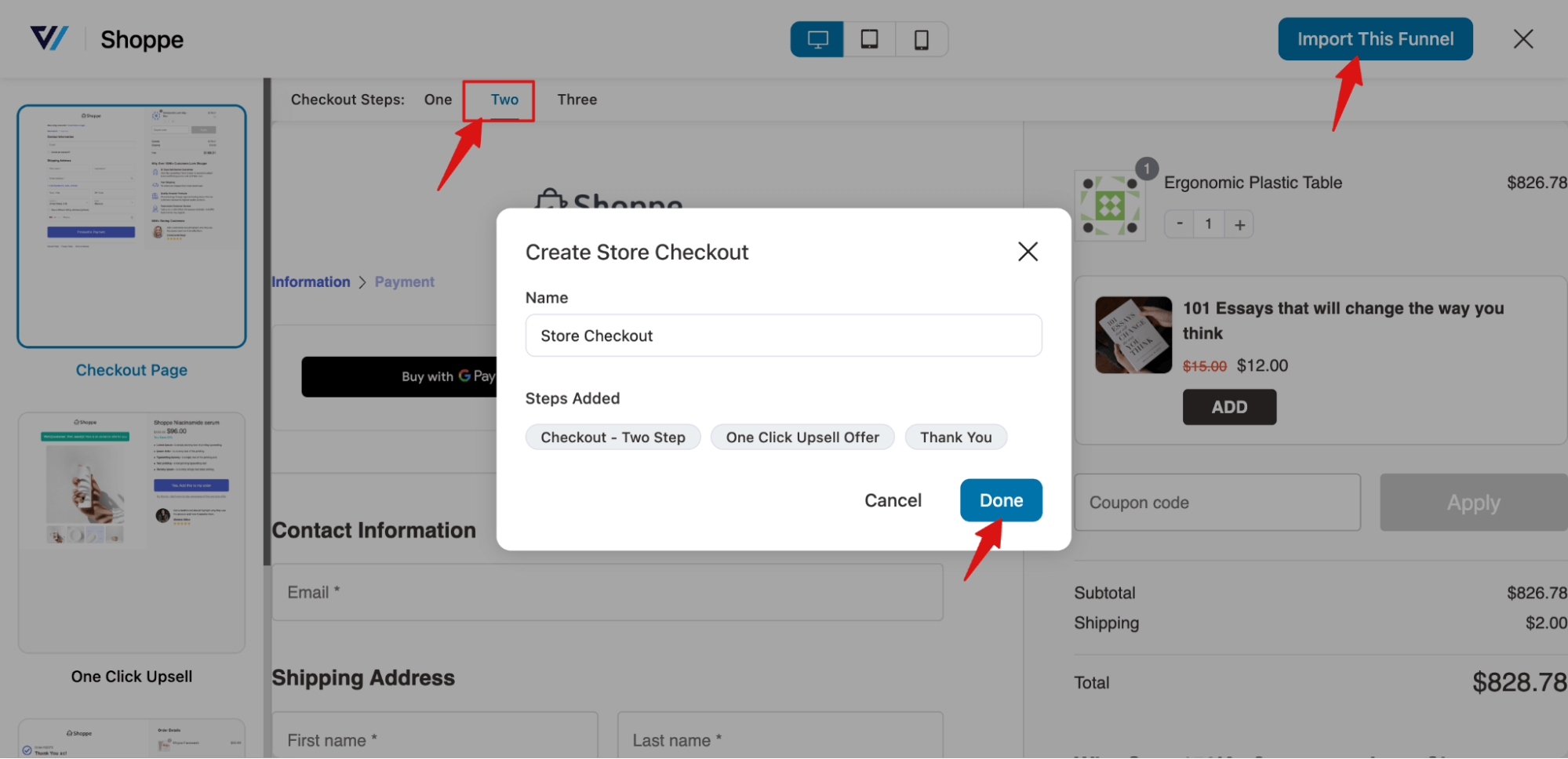
Next, choose your checkout type, either single-step or multi-step, then click ‘Import This Funnel’, give it a name, and hit ‘Add’. For this guide, we’re using the two-step checkout.
Note: FunnelKit Funnel Builder templates include 3 steps: checkout, upsell, and thank you. Once done, all three steps get imported into your WooCommerce store.
Step 2: Create an age verification checkbox field
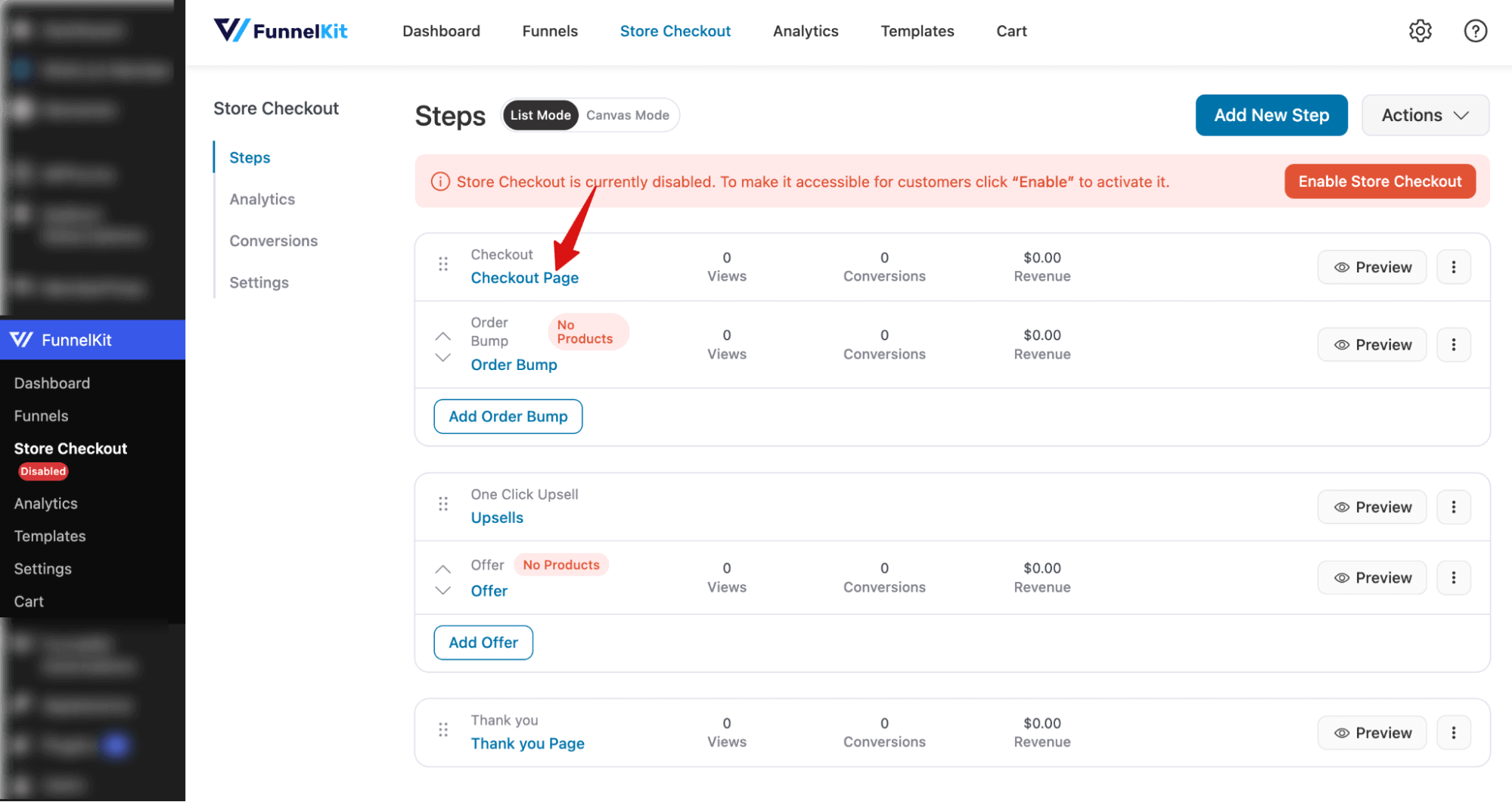
To customize the WooCommerce checkout page and add a mandatory age-verification checkbox, click the Checkout step.
You can click “Edit Template” to customize the layout and content of your checkout page.
To create a checkbox field for age verification, scroll down to the checkout form fields section, then go to the Advanced section and click ‘Add New Field’.
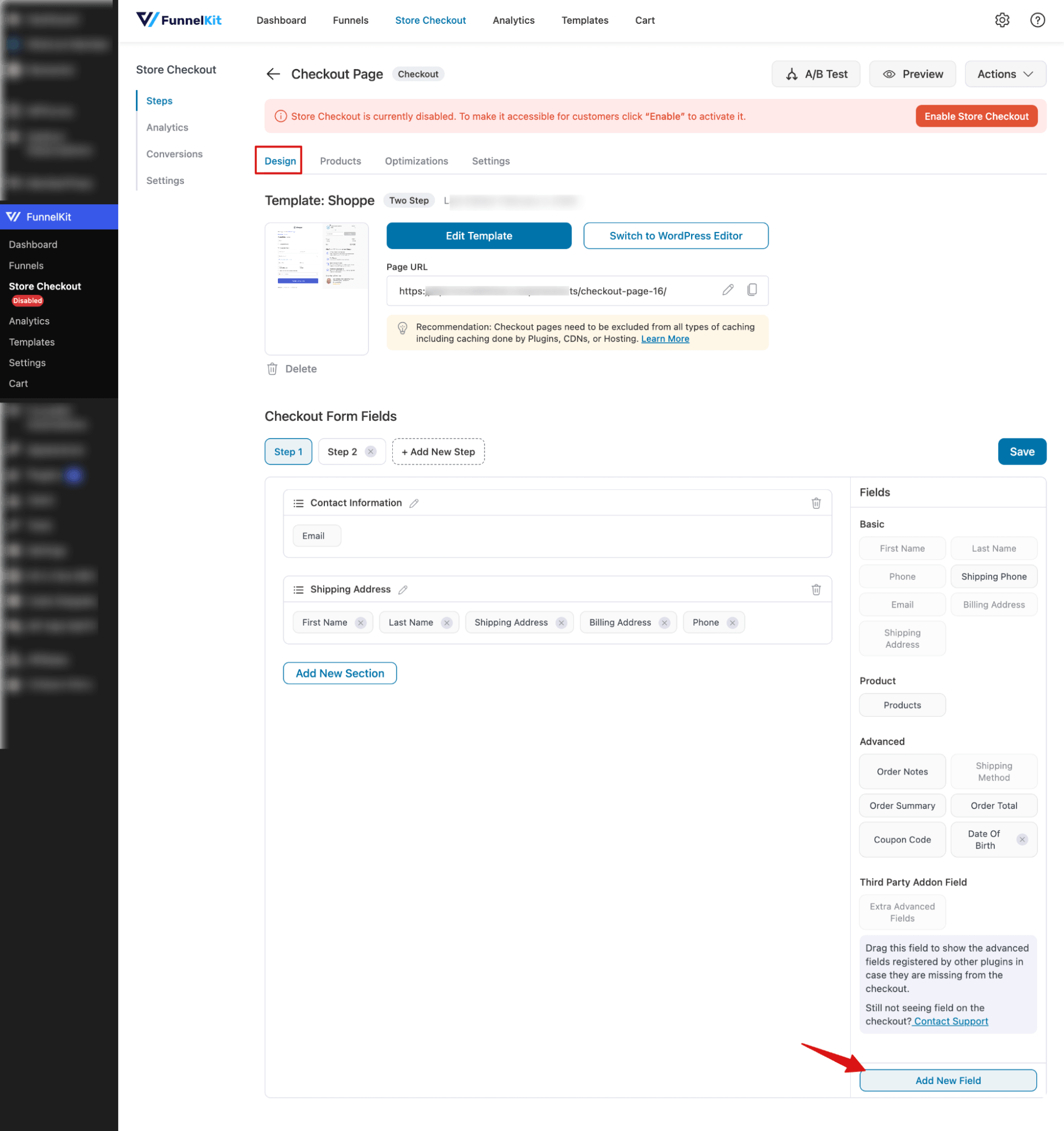
We will create a required checkbox field that asks shoppers to confirm they are old enough to purchase age-restricted products.
To add the age verification checkbox, configure the following:
- Field Type: Select “Checkbox”.
- Label: Enter a label, for example, “I am 18 or older”.
- Field ID (Order Meta Key): Add a field ID, for example, age_verification (use underscores for multiple words).
- Default: Set a default value if needed. Here, we set it to False, meaning it is not checked by default.
- Show On Thank You Page: Enable to display confirmation on the thank you page
- Show In Order Email: Enable to include it in order emails using merge tags
- Required: Enable if this field must be checked before completing the purchase. For age verification, this should be “enabled.”
Finally, click ‘Add’ to create the custom WooCommerce checkout field.
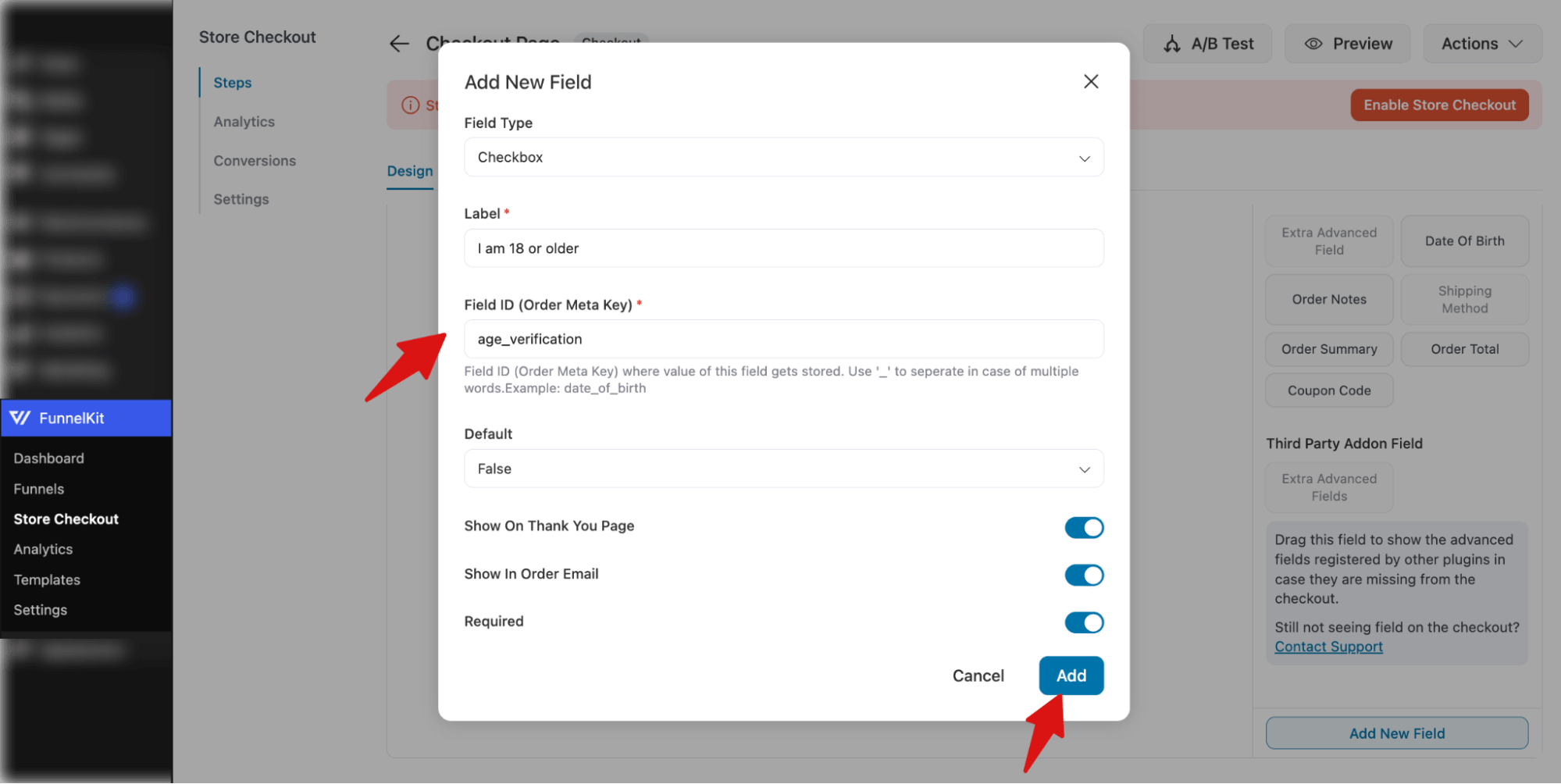
Step 3: Add age verification to the WooCommerce checkout
The new checkbox field will appear in the Advanced section. To add it to the checkout form, simply drag and drop it into the desired location.
We recommend placing it just before the payment options so customers can confirm their age before entering payment details and completing the checkout.
Note: We added a dedicated section for the age verification field to make it more visible and prominent.
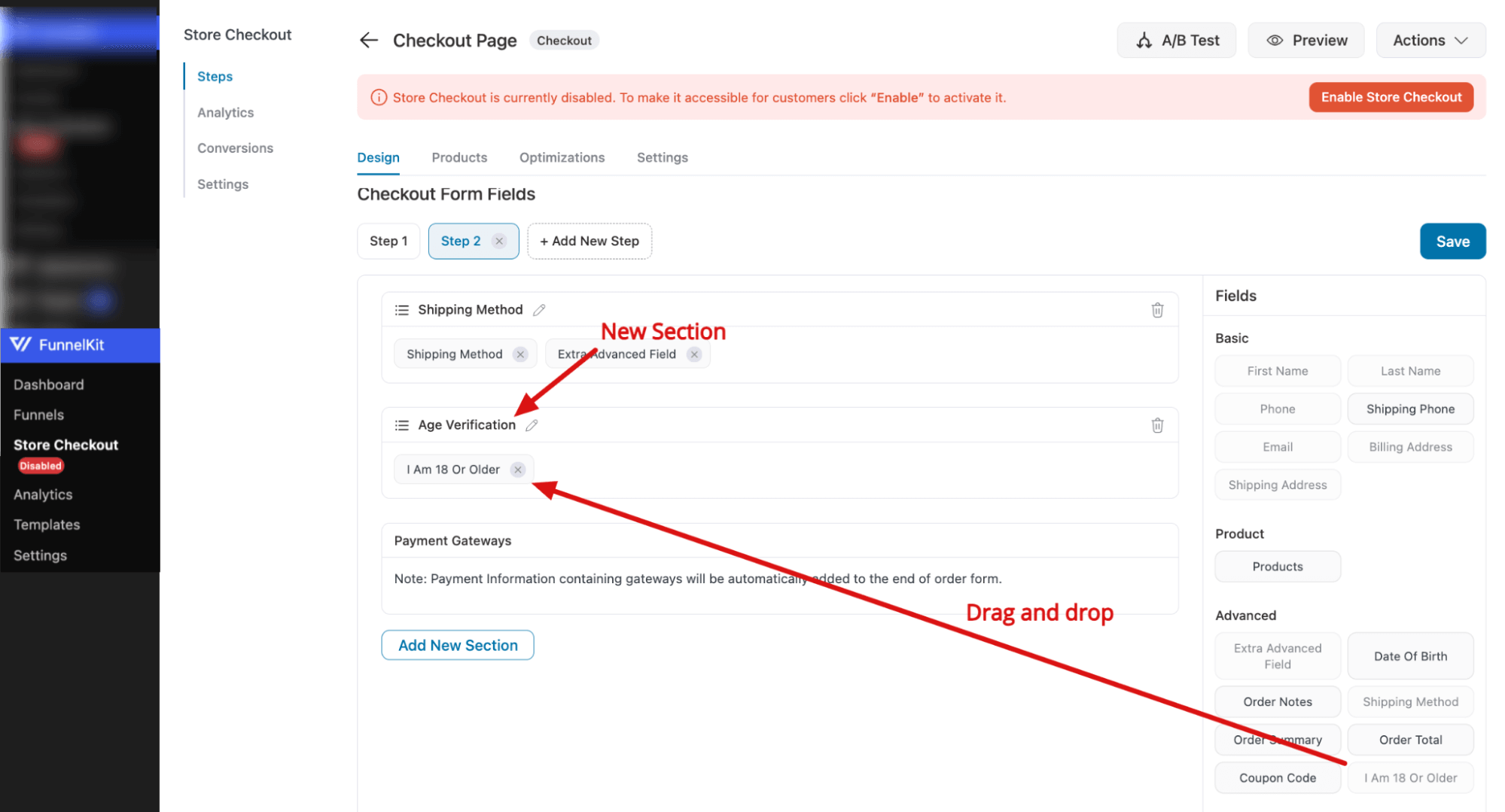
Make sure to hit Save changes.
Step 4: Add a field to check the date of birth
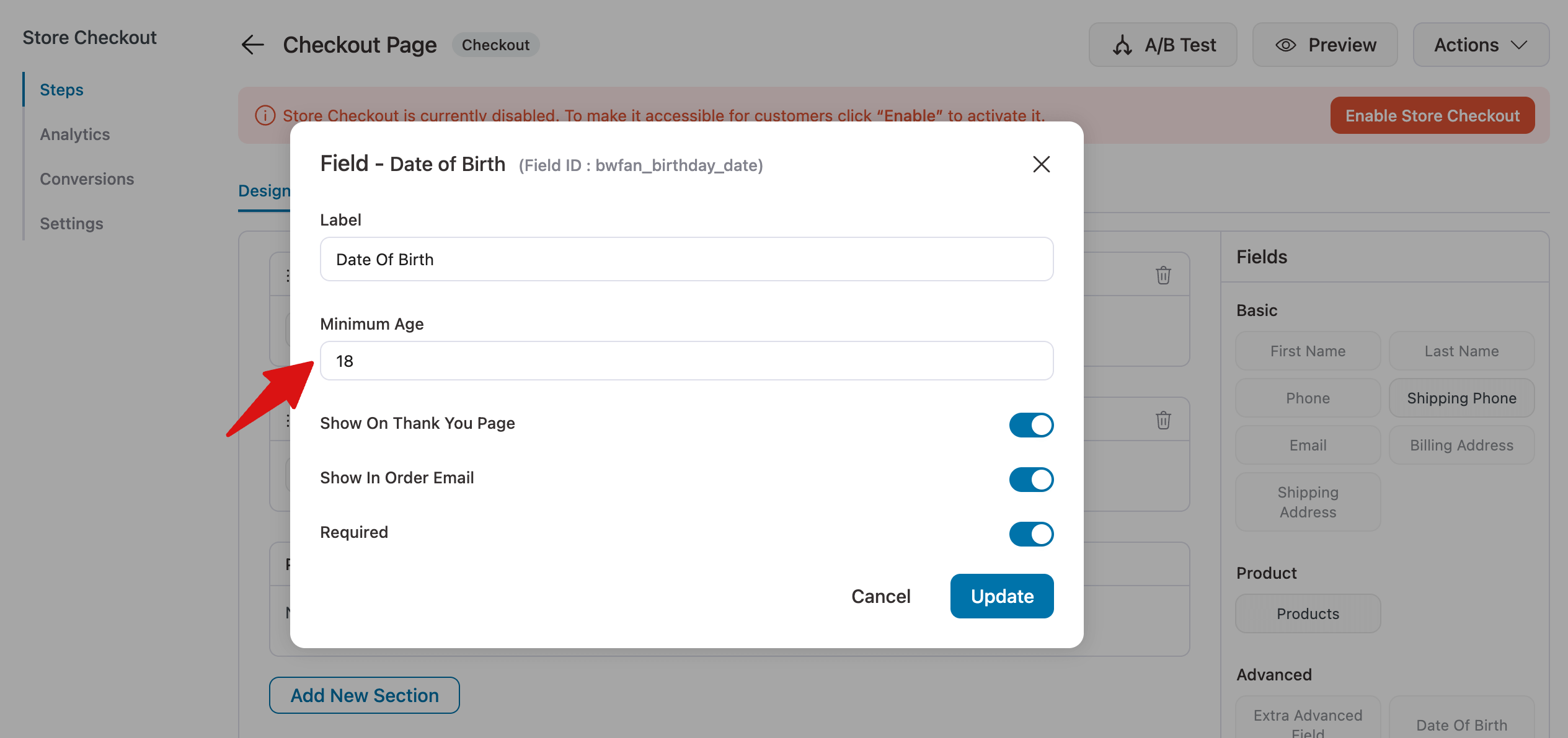
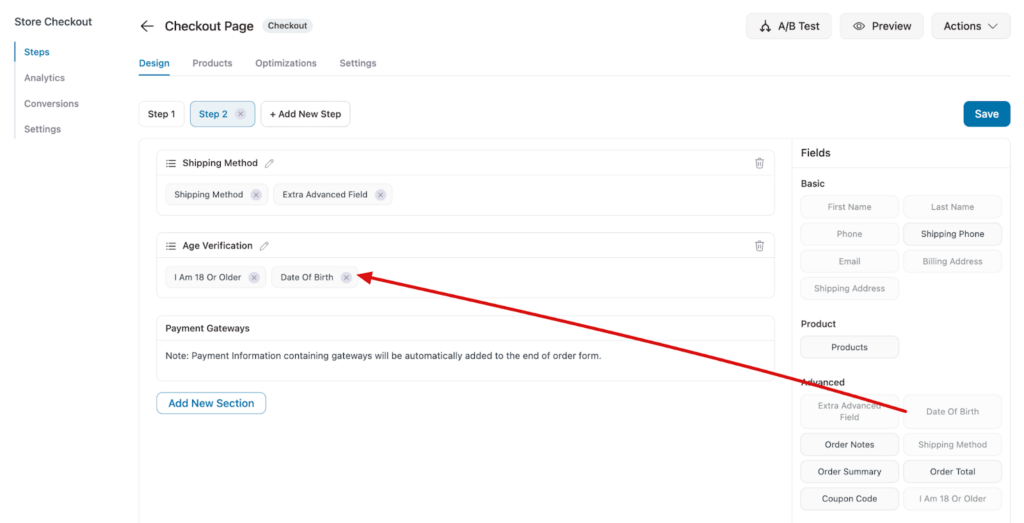
Next, drag and drop the “Date of Birth” field right after the age verification checkbox.
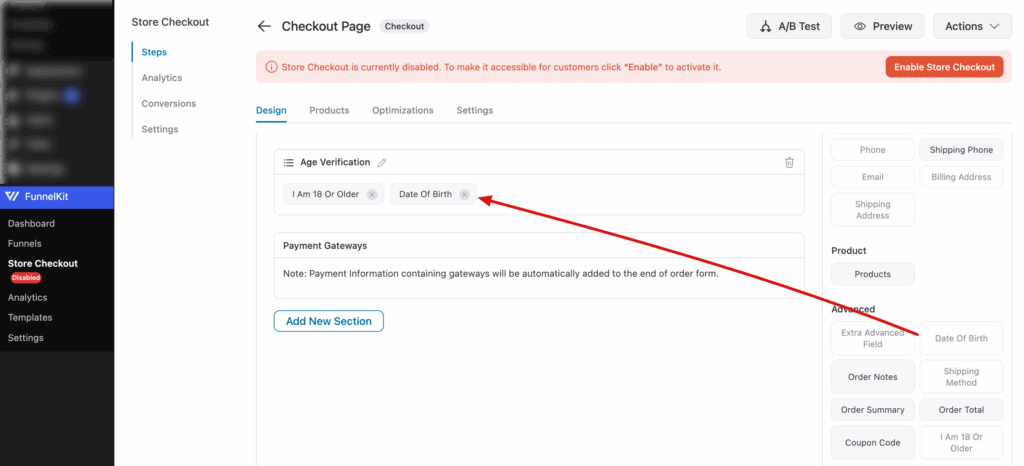
Then click the field to open its settings panel and set the minimum age requirement. This allows the system to check whether the customer’s birthdate meets the required age before they can complete the checkout.
Step 5: Enable store checkout
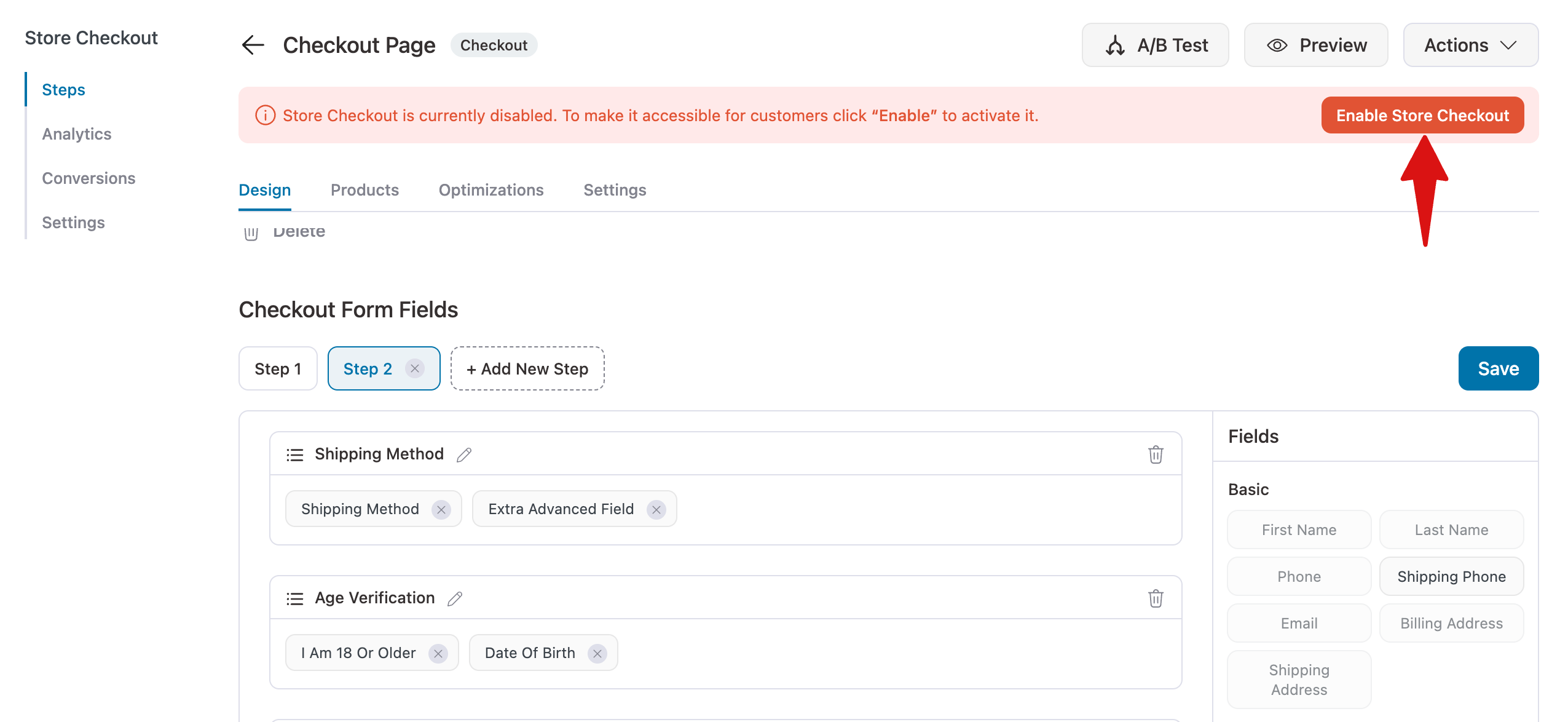
Lastly, click the “Enable Store Checkout” button at the top to activate checkout, which includes a required age verification checkbox.
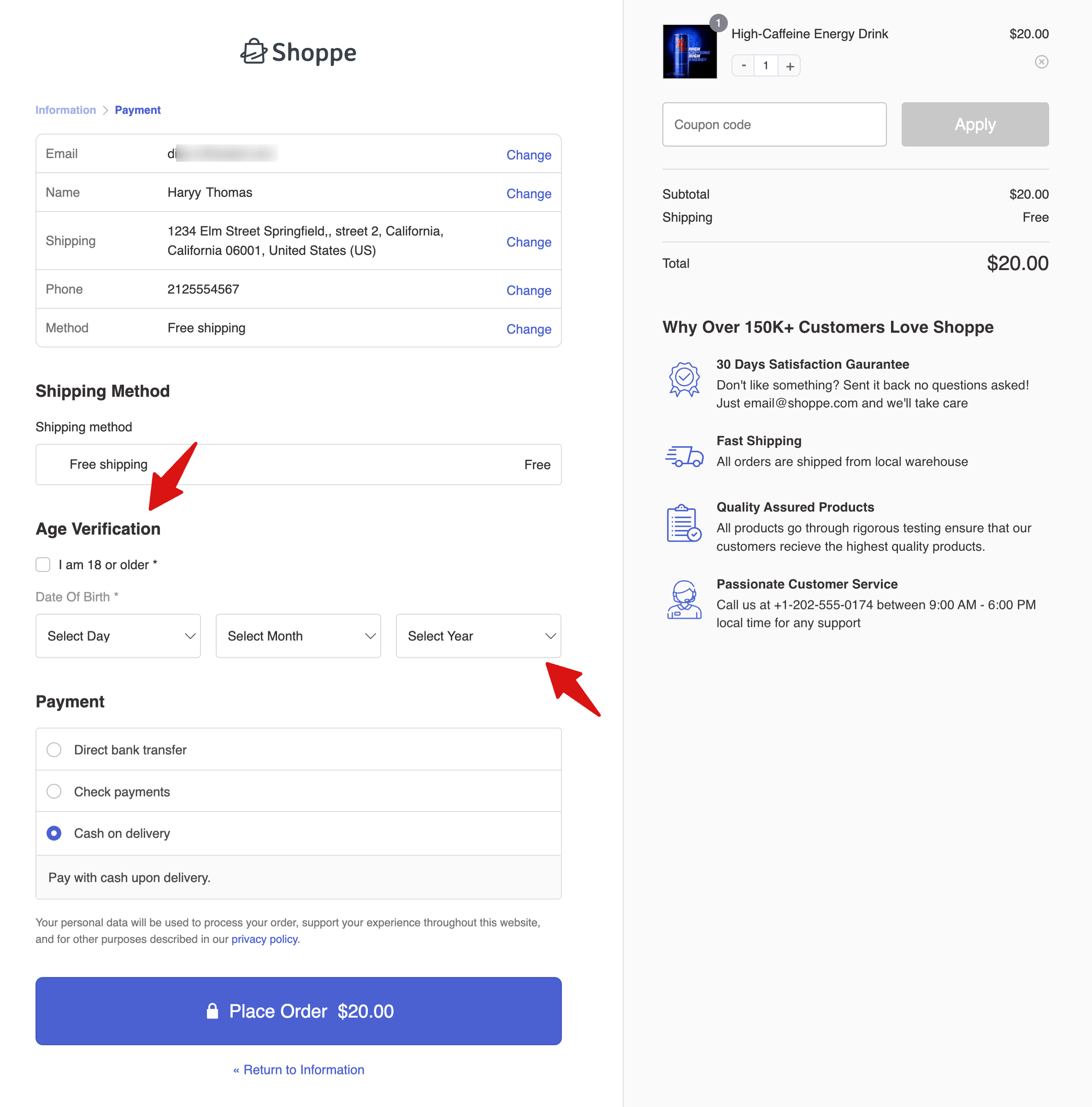
Lastly, place a test order to confirm the age verification checkbox appears at checkout and functions correctly.
The checkbox should be unchecked by default and the dob field unset, requiring customers to confirm they are old enough before completing their purchase.
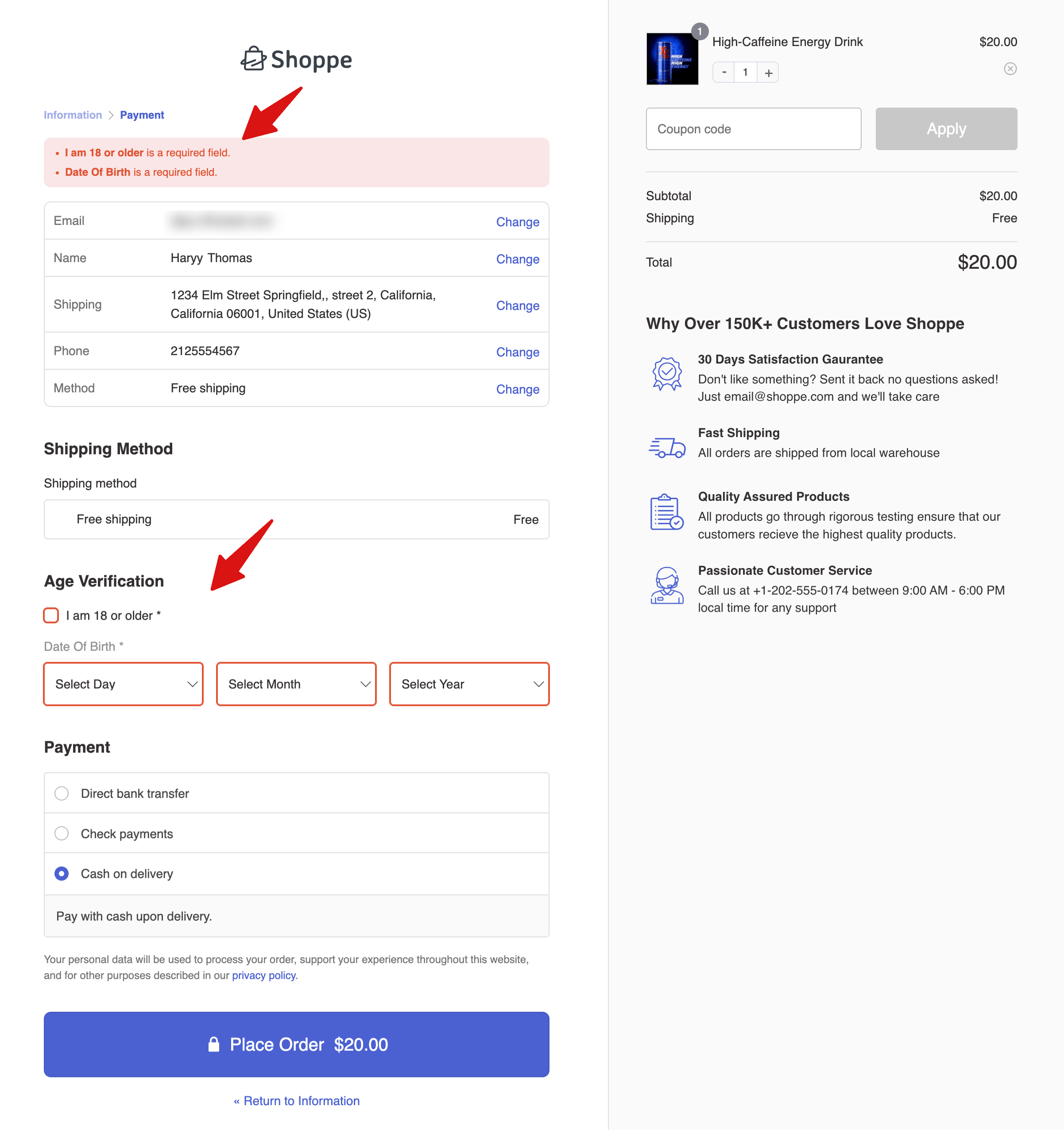
If they try to check out without confirming, they will see an error message.
Depending on your setup, the checkbox field should also be available on the thank-you page.
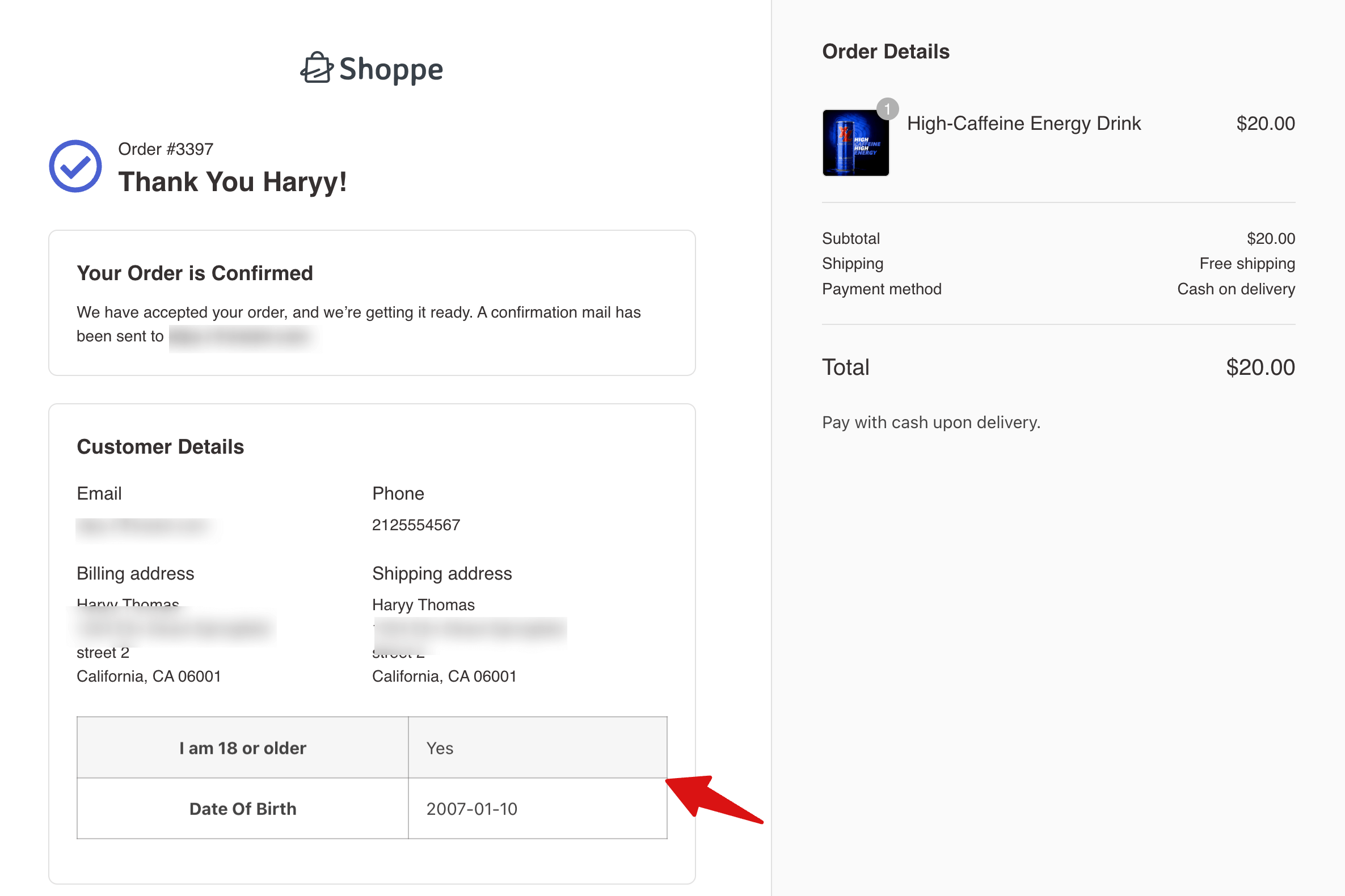
That's all it takes to add an age verification field to your WooCommerce checkout page.
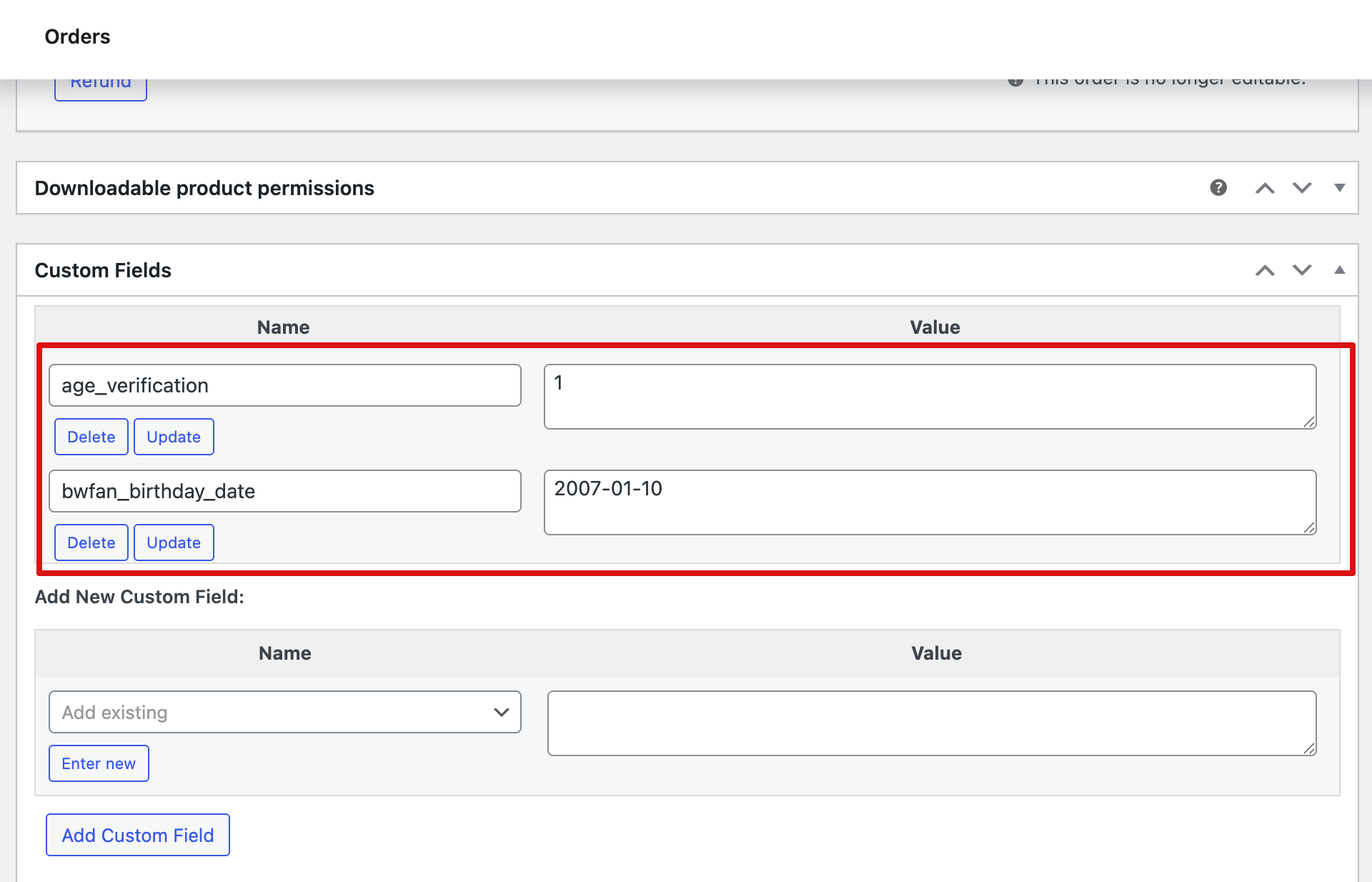
You can also view the customer’s entered information on the order details page in WP Admin under the Custom Field section.
8 Best Practices to Stay Compliant Without Hurting Conversions
- Place the verification field close to the “Place Order” button
Positioning the age-confirmation step as one of the final action points maximizes visibility and ensures customers see it before submitting. Fields placed higher in the form are more frequently overlooked, which leads to failed order attempts and customer frustration.
- Use plain, legally accurate language in your field label
Avoid vague copy like "I am old enough". State the minimum age explicitly and, where relevant, reference your product type. Clear language reduces disputes and provides stronger documentation if a compliance question arises later.
- Match the minimum age threshold to your shipping regions
The legal age for purchasing vape products is 18 in the UK and EU, but 21 in the United States. Alcohol minimums also vary by country. If you ship internationally, consider using conditional rules to apply different thresholds based on the customer's shipping address.
- Store the age confirmation with the order record
Make sure your age verification field data is saved to the WooCommerce order. This creates an audit trail showing that the customer confirmed their age at the time of purchase. FunnelKit saves custom field data to the order by default.
- Do not rely on a site-wide pop-up alone
A cookie-based age gate at the site entrance is easily bypassed or dismissed. Adding a mandatory field at checkout provides a second, harder-to-bypass control point. For regulated products, checkout-level verification is the more defensible compliance layer.
- Test your verification step on mobile devices
According to Statista, over 60% of ecommerce transactions are completed on mobile devices. A checkbox or date-of-birth field that renders poorly on a small screen will create friction and increase order abandonment. Verify that the field is clearly visible and easy to interact with on phones and tablets.
- Consult a legal professional for your specific product and region
Age verification requirements vary significantly by product type, jurisdiction, and sales channel. A checkbox at checkout may satisfy the standard for some products in some regions but fall short for others. We recommend seeking legal advice to confirm your age verification setup meets the specific requirements for your industry and shipping destinations.
- Optimize Your Checkout for Conversions Alongside Compliance
Adding age verification is a legal necessity, but it should never come at the expense of checkout performance.
A cluttered layout, too many fields, or a poorly placed confirmation step can increase abandonment. FunnelKit Funnel Builder lets you embed age verification directly into a conversion-optimized checkout, with pre-built templates and mobile-ready layouts, so compliance and conversions work together rather than against each other.

More Questions About WooCommerce Age Verification at Checkout
Got more questions about age verification at WooCommerce checkout? Here are the frequently asked questions with answers:
Does WooCommerce have built-in age verification?
A mandatory checkbox only records that the customer has self-declared their age; it does not verify their identity. For low- to medium-risk products, such as knives, energy drinks, or supplements, this is generally considered sufficient. For higher-risk items, like alcohol, cannabis, or firearms, third-party age verification is recommended. This can involve the customer uploading a government-issued ID, using an identity verification service, or other secure verification methods. Always consult a solicitor or compliance professional to ensure your approach meets the legal requirements for your product and region.
How do I add a date of birth field to WooCommerce checkout?
Use FunnelKit Funnel Builder’s field editor. Open your checkout step, click Add Field, select a date input, and label it “Date of Birth.” Make it required. The DOB is saved automatically in the order record.
Can I block underage users from purchasing specific products in WooCommerce?
Yes. You can add an age verification checkbox at checkout to prevent underage users from completing their purchase. The full step-by-step process for setting this up is shown in this blog.
Will age verification slow down my checkout?
A simple age verification checkbox or DOB field adds no measurable load time. Third-party ID verification services introduce a small extra step, but these API calls are usually fast. The main impact is minor friction any required field can slightly affect conversions, so make it easy to complete.
Can I add age verification with custom code instead of a plugin?
Yes. You can add a checkbox using the woocommerce_review_order_before_submit hook and validate it with woocommerce_checkout_process. This works for simple cases but lacks conditional logic and order-level data storage. For more complex requirements, a plugin is easier to maintain.
Is checkout age verification needed if I already have a site-wide pop-up?
A site-wide pop-up is a first layer, but it can be bypassed by clicking “No” or clearing cookies. Many compliance frameworks recommend a second verification step at checkout, since that’s when the transaction is legally completed. Using both layers is best for regulated products.
What are the best WooCommerce age verification plugins?
If you need to verify a customer’s age before allowing purchases, several plugins can help you add age checks to your WooCommerce store. These tools usually work by adding a checkbox, date-of-birth field, or popup age gate before customers can access certain pages or complete checkout. Below are five popular options and what they are best suited for.
- FunnelKit Funnel Builder is a strong option if you want age verification built directly into the checkout process. It lets you add custom fields such as a date-of-birth input or an age confirmation checkbox, while also giving you a conversion-optimized checkout and funnel features. It has a free version, and paid plans start at $99.50 per year.
- WooCommerce Age Verification Popup focuses on a simple age gate that appears before visitors can view products or content. It supports multiple verification methods such as age entry, date of birth, or a confirmation checkbox. It doesn’t have a free version, and paid plans start at $29 per year.
- Age Verification Manager offers more flexible control over where age checks appear. You can trigger verification on specific products, categories, the cart, or checkout. It also supports date-of-birth verification or self-confirmation and can remember verified users. There is no free version, and premium plans start at $29 per year.
- Age Gate is a simple and lightweight plugin that shows a popup asking visitors to confirm their age. It can be applied site-wide or to specific pages or products, making it a good option for stores that only need basic age restriction. It is free to use.
- Age Verification Screen for WooCommerce adds a fullscreen or modal age verification screen where users confirm their age using a checkbox or date-of-birth input. It can restrict access to selected WooCommerce pages or products. This plugin is also free.
Each of these plugins approaches age verification a little differently, so the right choice depends on whether you want verification at checkout, a site-wide popup gate, or more granular control over specific products or pages.
Start Protecting Your WooCommerce Store With Age Verification
Selling age-restricted products online carries real legal risk, and a default WooCommerce checkout does nothing to reduce it.
Adding a mandatory verification step at the point of purchase is one of the simplest ways to demonstrate compliance, protect your business from liability, and keep payment processors happy.
FunnelKit Funnel Builder makes the entire process straightforward, giving you a fully customizable checkout with built-in field controls, order-level data storage, and room to grow as your store scales.
Whether you're selling vapes, alcohol, supplements, or bladed goods, having a documented confirmation from every customer at the moment they buy is the kind of paper trail that matters when regulators come asking.
Set it up once, test it thoroughly across devices, and you are ready to outweigh the consequences of skipping it.
So, get FunnelKit Funnel Builder today.
Editorial Team
October 11, 2026You can customize the WooCommerce cart page with the Cart block, a page builder like Elementor, or CSS and PHP snippets. Which method works for you depends on the cart...

Editorial Team
October 9, 2026A WooCommerce discount lowers what a shopper pays, either through a reduced product price or a code entered at checkout. Out of the box, WooCommerce gives you two ways to...
Editorial Team
October 9, 2026A downsell gives customers a cheaper option after they turn down your main offer. If you show it too soon, you might convince them to skip the original offer and...






