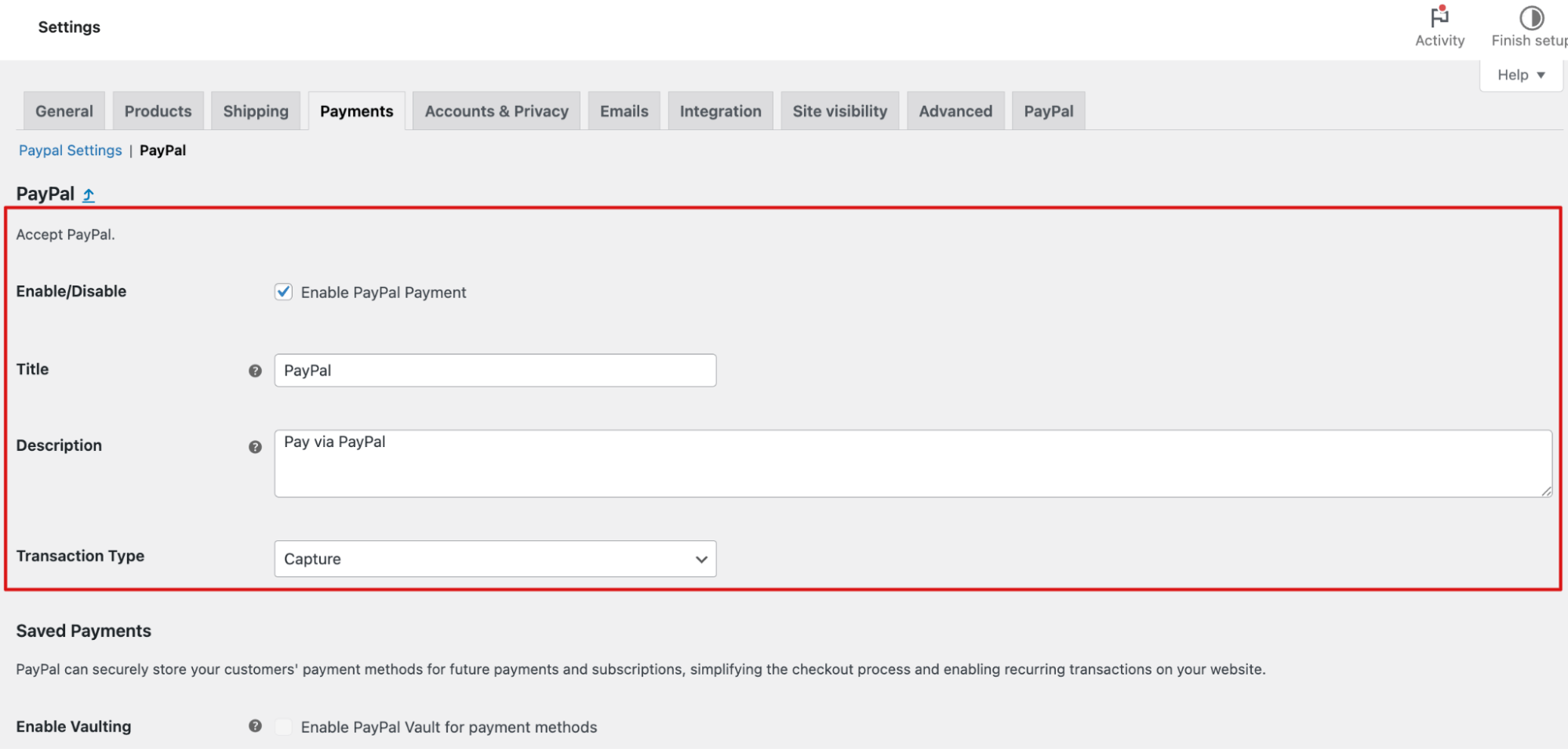
The PayPal settings allow you to enable or disable PayPal payments, configure saved payment options, and customize the appearance of the PayPal buttons.
Accept PayPal
Here you can set up how to accept PayPal payments with the following settings:
- Enable / Disable: Turn this option on to allow customers to pay using PayPal at checkout. When disabled, PayPal will not appear as a payment option on your store.
- Title: This controls the payment method title shown to customers at checkout. Default: PayPal
- Description: This is the short description displayed below the payment title on the checkout page.Default: Pay via PayPal
- Transaction Type:
- Capture – Charges the customer immediately after the order is placed.
- Authorize – Places a temporary hold on the customer’s funds, allowing you to capture the payment later.
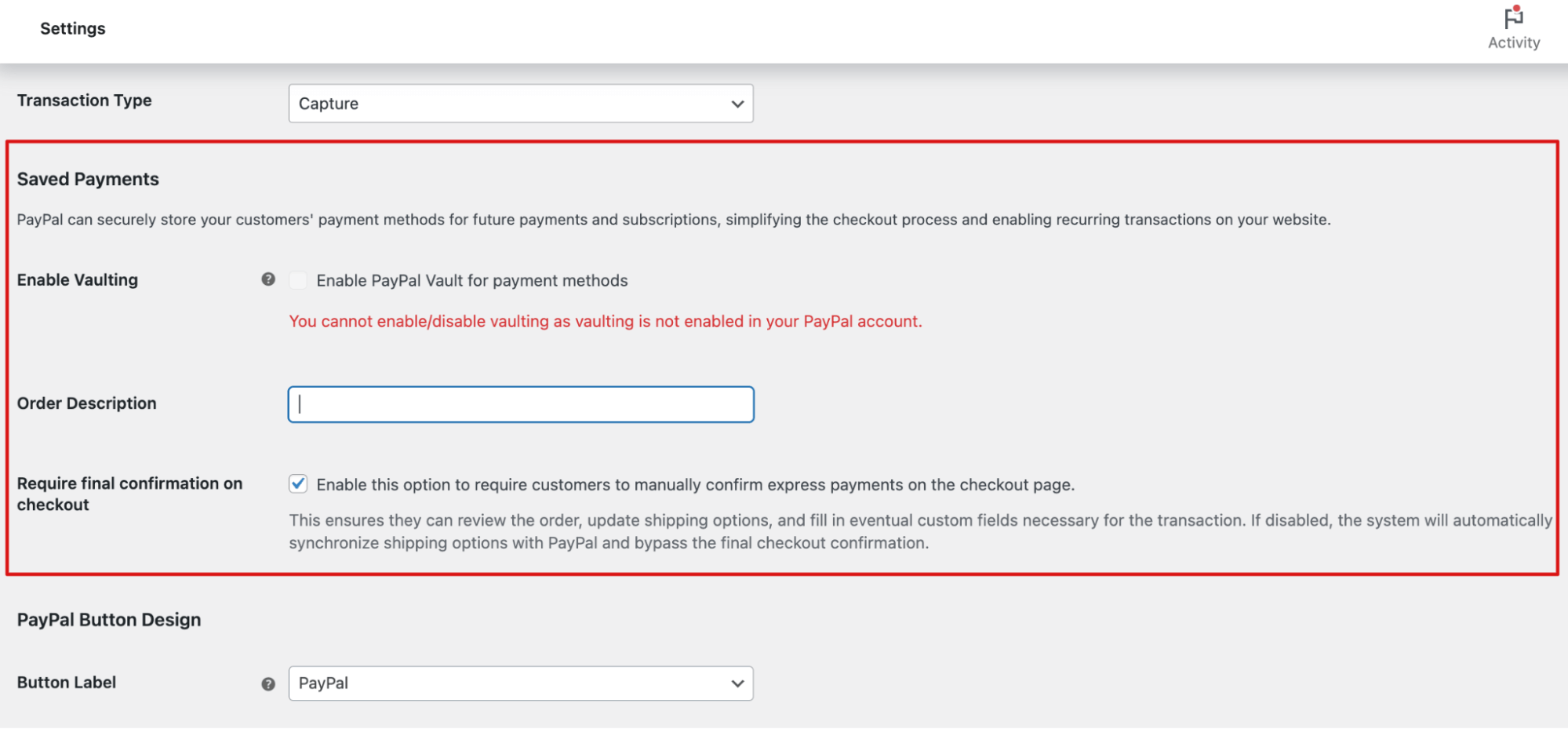
Saved Payments
Here you can configure how PayPal saves payment methods and handles express checkout behavior with the following settings:
- Enable Vaulting: Turn this option on to allow PayPal to securely store your customers' payment methods for future purchases and subscriptions. This simplifies the checkout process and enables recurring transactions.
Note: If vaulting is not enabled in your PayPal account, you will not be able to enable or disable this option.
- Order Description: This controls the description that appears in the customer’s PayPal account for the transaction. It helps customers identify their purchase.
- Require Final Confirmation on Checkout: Enable this option to require customers to manually confirm express payments on the checkout page. This allows them to review their order, update shipping options, and complete any required custom fields before the transaction is finalized.
If disabled, shipping options will automatically sync with PayPal, and the final checkout confirmation step will be skipped for a faster checkout experience.
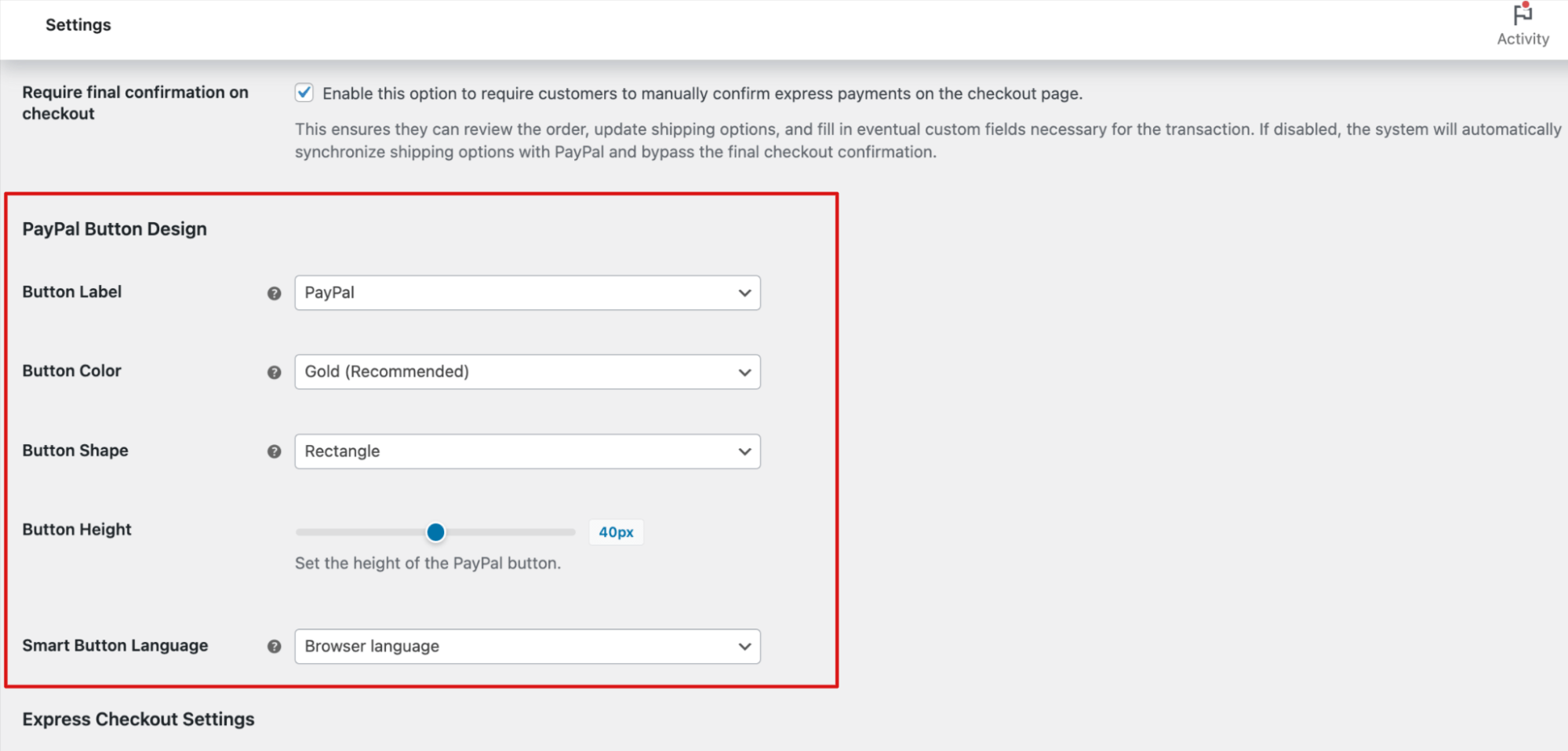
PayPal Button Design
Here you can customize the appearance of the PayPal button displayed on your store.
- Button Label: This controls the text displayed on the PayPal button. Default: PayPal
- Button Color: Choose the color of the PayPal button to match your store design. Default: Gold (Recommended)Gold is recommended for better visibility and brand recognition.
- Button Shape: Select the shape of the PayPal button.Default: Rectangle
- Button Height: Set the height of the PayPal button in pixels.Default: 40px. Adjust this value to match your theme’s button size and layout.
- Smart Button Language: Choose the language displayed on the PayPal smart button. Default: Browser Language. When set to Browser Language, the button automatically adapts to the customer’s browser language.
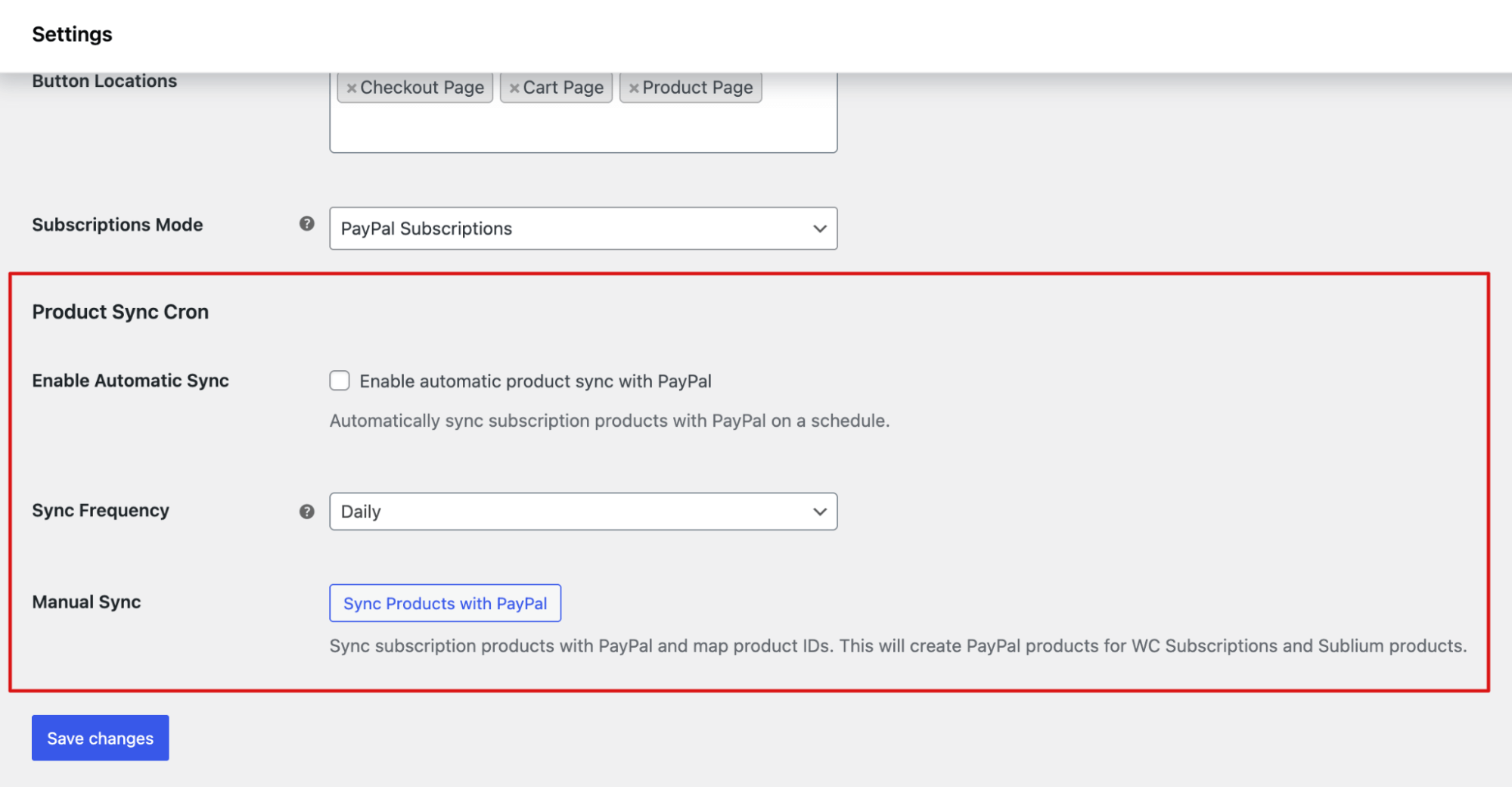
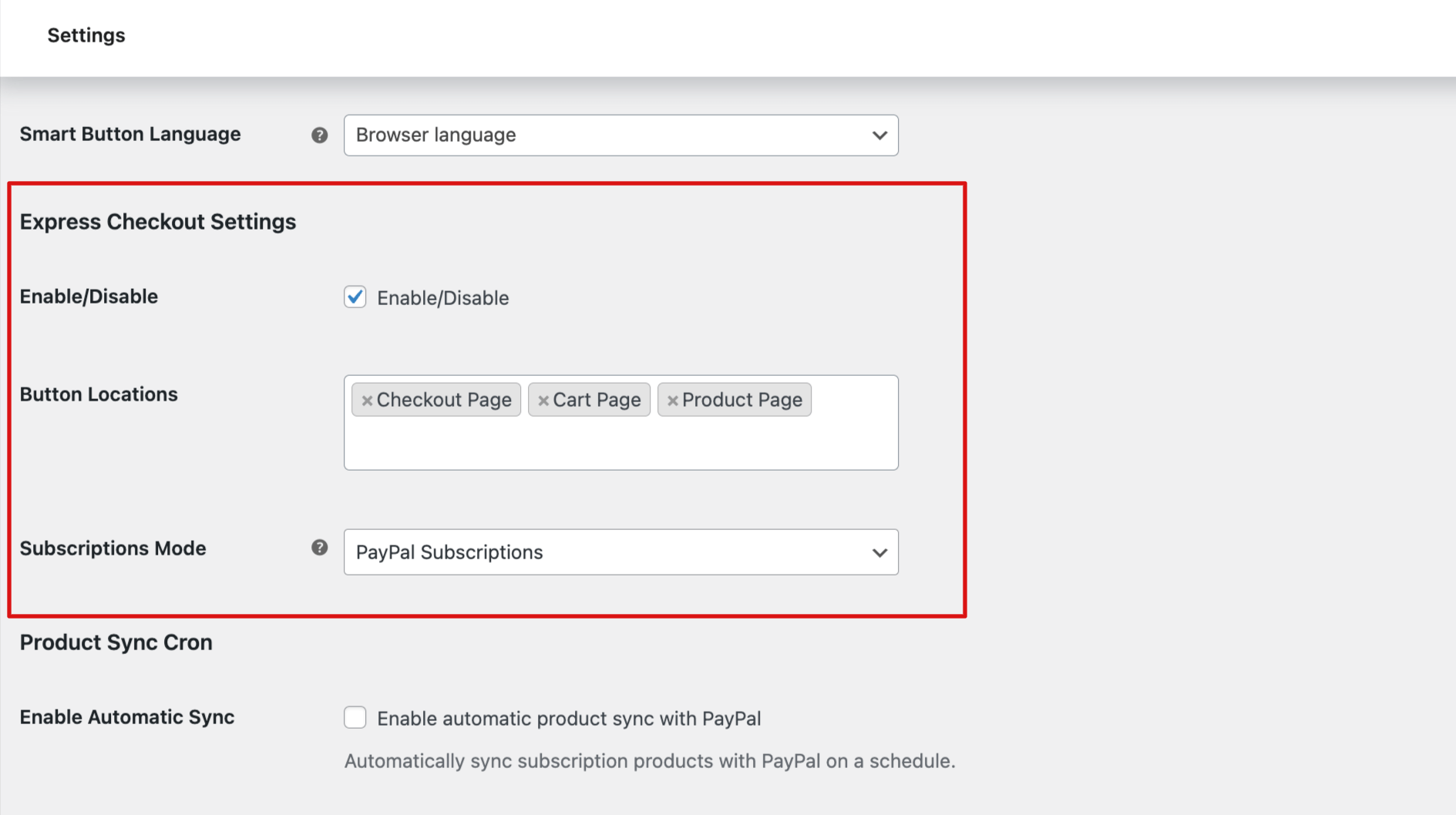
Express Checkout Settings
Here you can configure where and how the PayPal Express Checkout button appears on your store.
- Enable / Disable: Turn this option on to enable PayPal Express Checkout. When enabled, customers can complete their purchase quickly using PayPal without manually filling out all checkout details. When disabled, the Express Checkout button will not be displayed.
- Button Locations: Select where you want the PayPal Express button to appear. Options are the Checkout Page, Cart Page, Product Page, and FunnelKit Slide Cart. You can enable one or multiple locations based on your store’s checkout flow.
- Subscriptions Mode: Enable this option if you are using subscription products. This ensures PayPal correctly processes recurring payments and subscription renewals.
Product Sync Cron
Here you can manage how subscription products are synchronized with PayPal.
- Enable Automatic Sync: Check this option on to automatically sync subscription products with PayPal on a scheduled basis. This ensures your PayPal product data stays updated whenever subscription products are added or modified in your store.
- Sync Frequency: Choose how often products should sync with PayPal.
Default: Daily. Options are: Hourly, Daily, Twice Daily and Weekly. - Manual Sync: Click Sync Products with PayPal to manually start the synchronization process.