


Before you can start accepting payments in your WooCommerce store, you need to securely connect your website with your PayPal account.
This connection ensures:
- Payments from your customers are processed securely.
- Orders are automatically verified in WooCommerce.
- Funds from completed purchases are deposited directly into your PayPal account.
How To Connect PayPal To WooCommerce Store & Enable Payments
Step 1: Start the onboarding process
After activating the plugin hit on the “Start onboarding” process.

Now you will be redirected to the onboarding page.
Here you can connect using 2 methods:
- Method 1: Connect with PayPal
- Method 2: Set up manually with API credentials
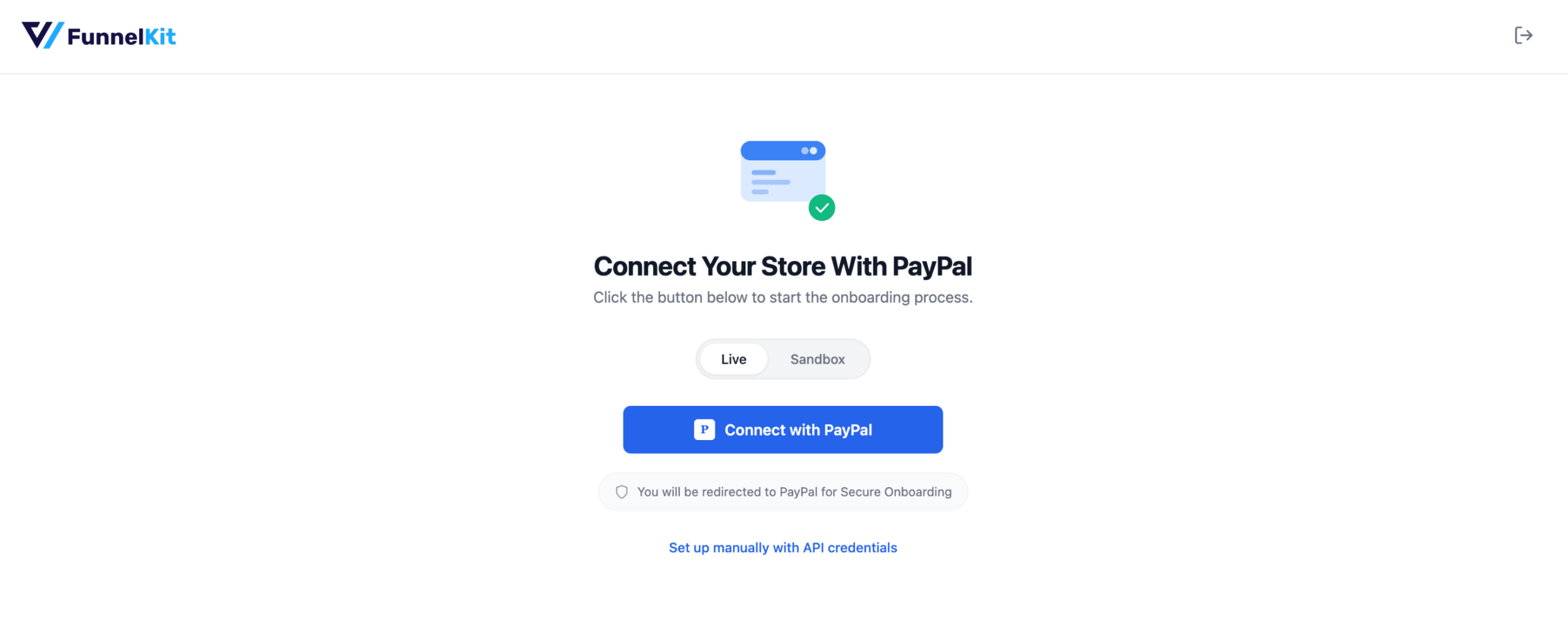
Move to the next section to find how to connect PayPal with your WooCommerce store.
Step 2: Connect PayPal with your WooCommerce store
You can follow either of these methods:
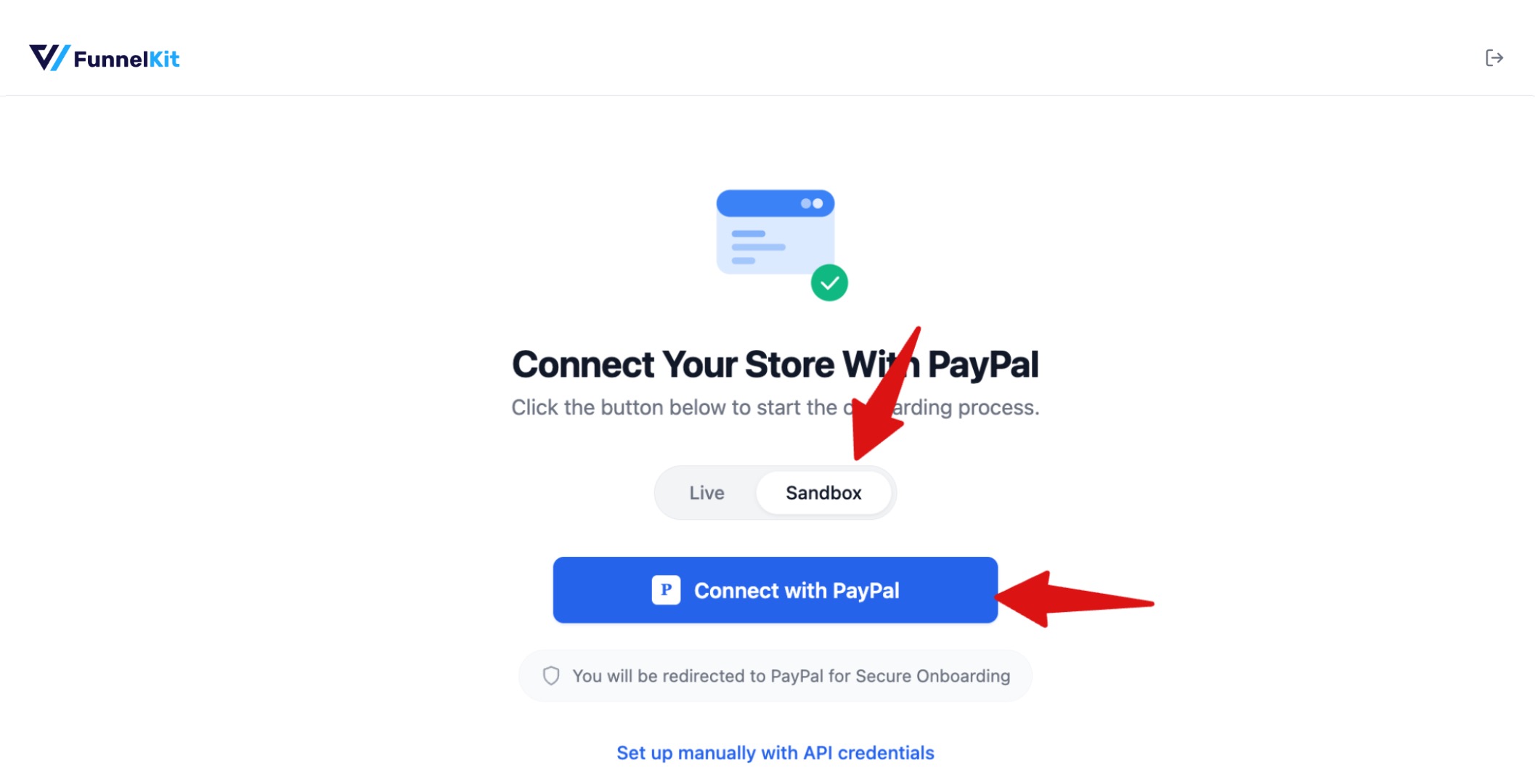
Note: Always choose Sandbox mode to connect, and after testing, move to Live mode.
Method 1: Connect with PayPal
For this, select the mode Live/Sandbox and click the " Connect with PayPal " button.
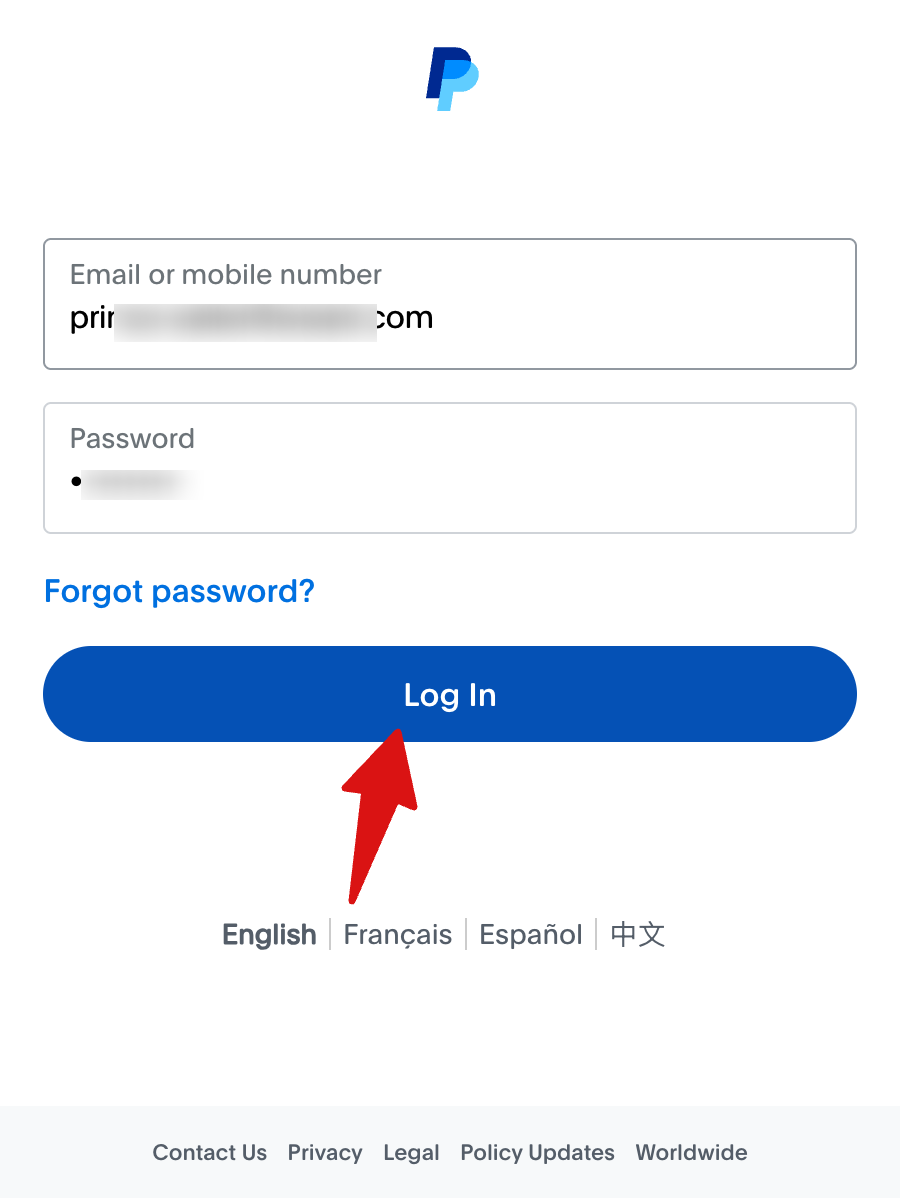
Next, provide login credentials to log in to your PayPal account.
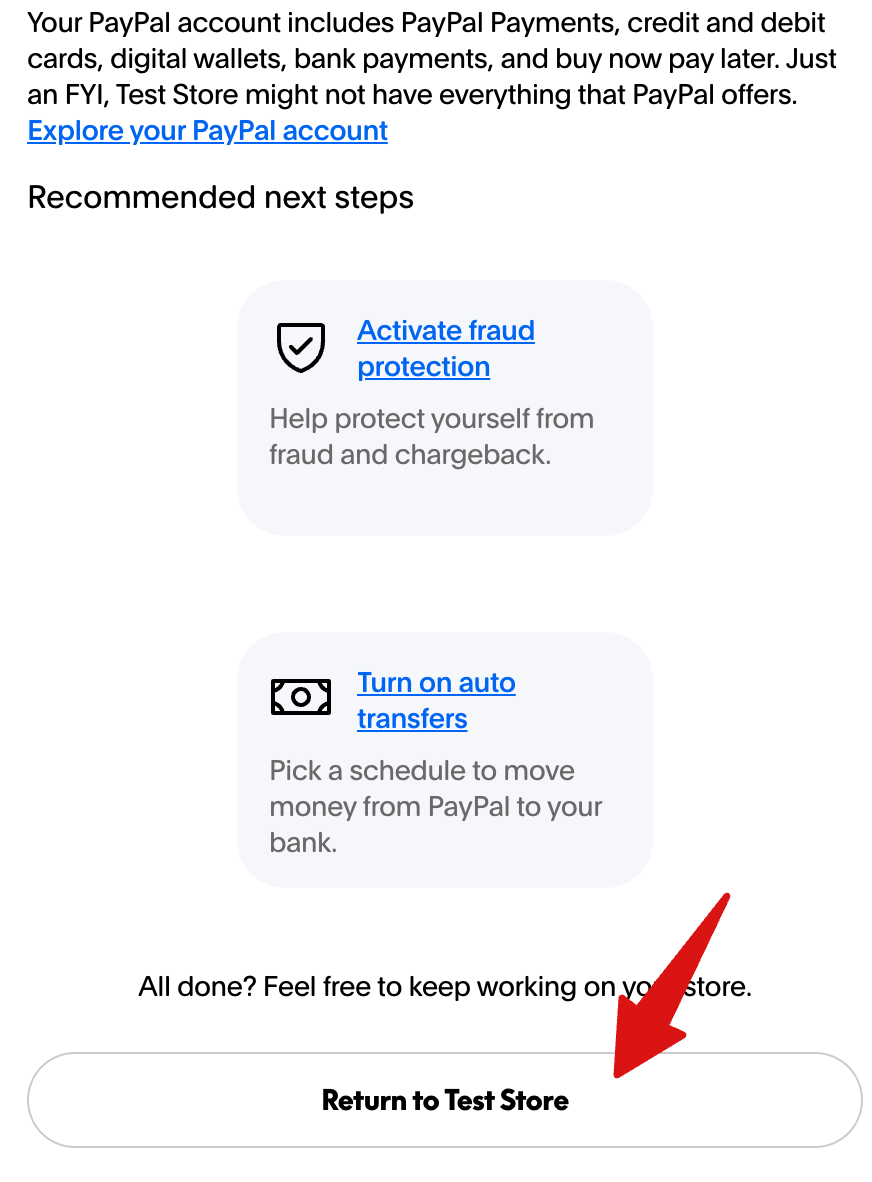
This will automatically make the connection. After successfully connecting to your store, you can return to your WooCommerce store.
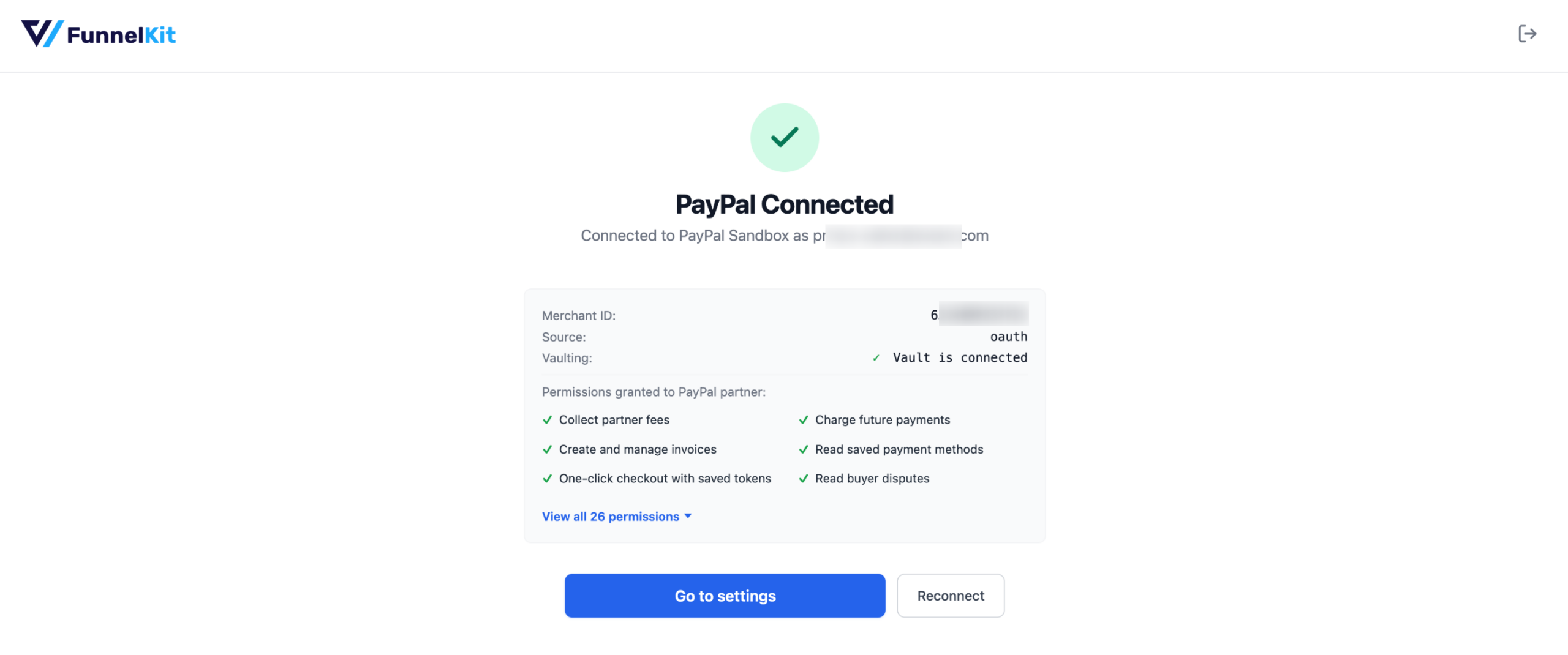
Next, click “Go to settings” to configure the payment methods.
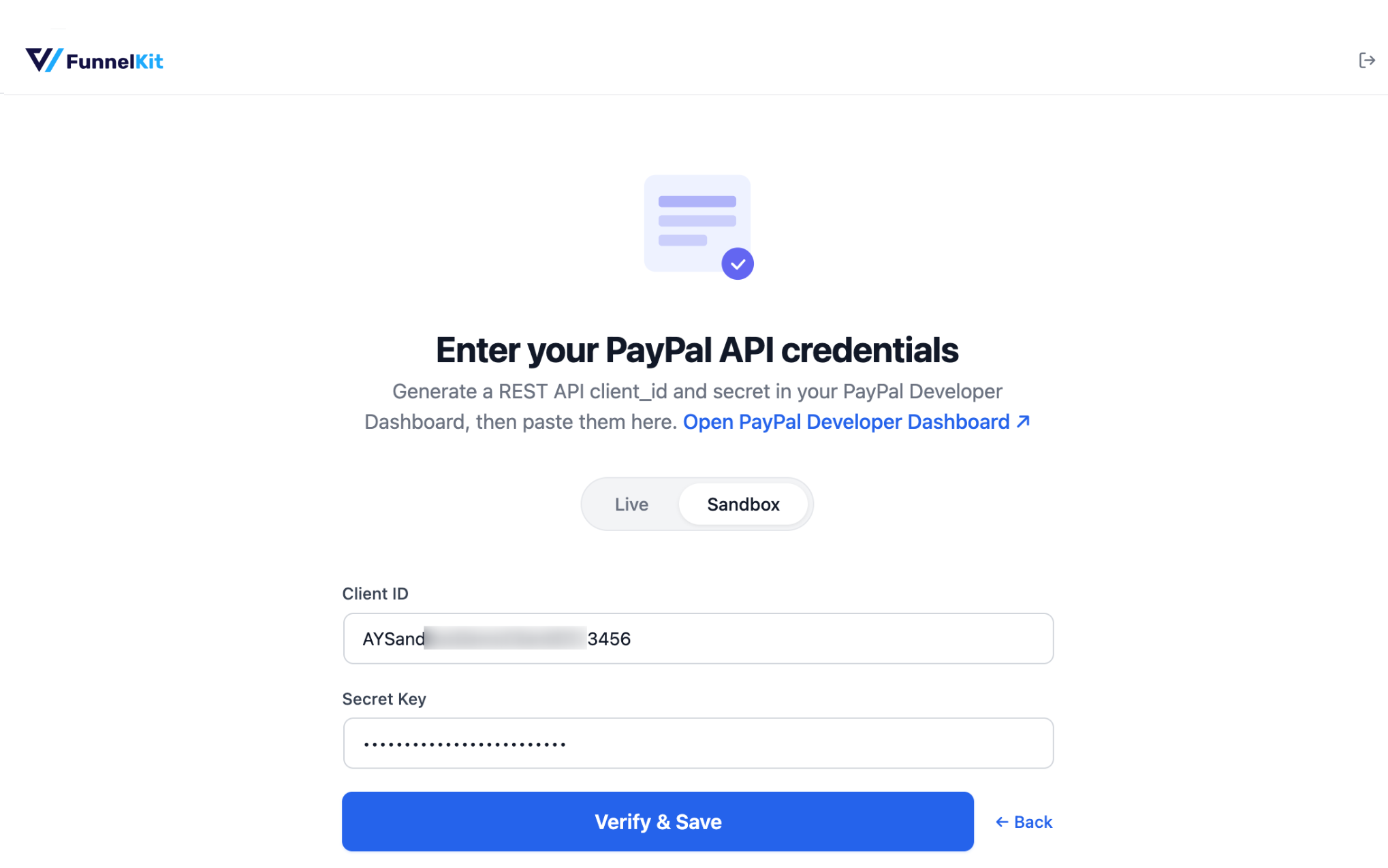
Method 2: Set up manually with API credentials
For this, first choose the method live/test then click the link “Set up manually with API credentials”
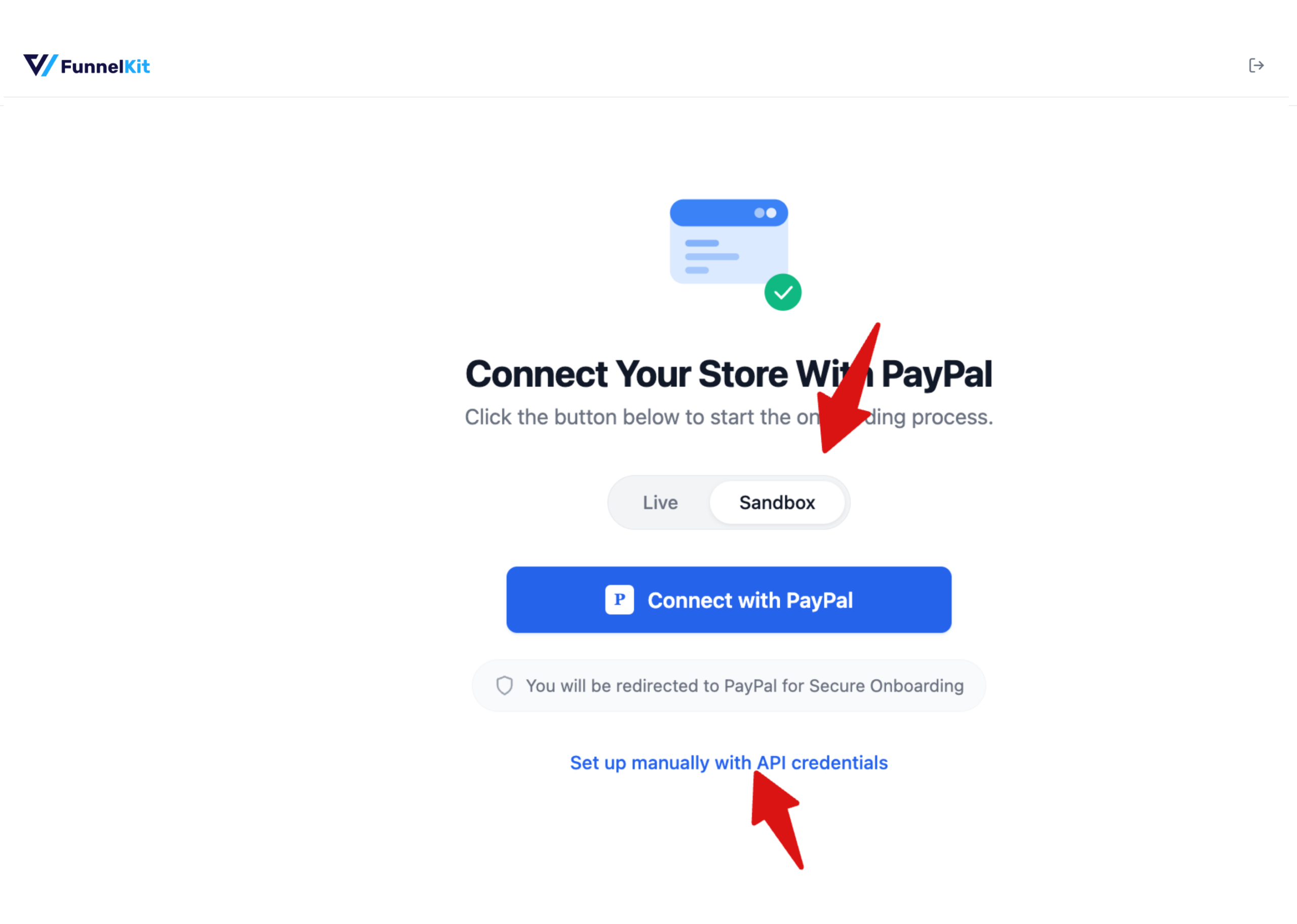
Now, to find the essential key and IDs, log in to https://developer.paypal.com.
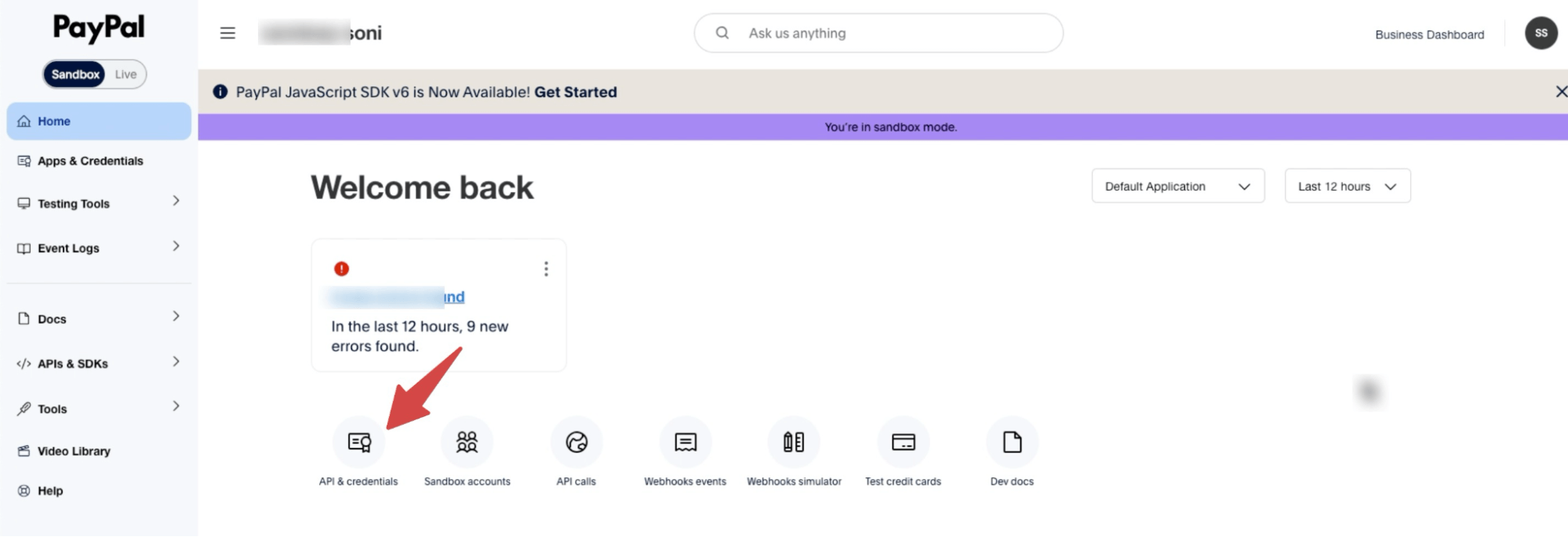
Here, from the dashboard, go to API & Credentials.
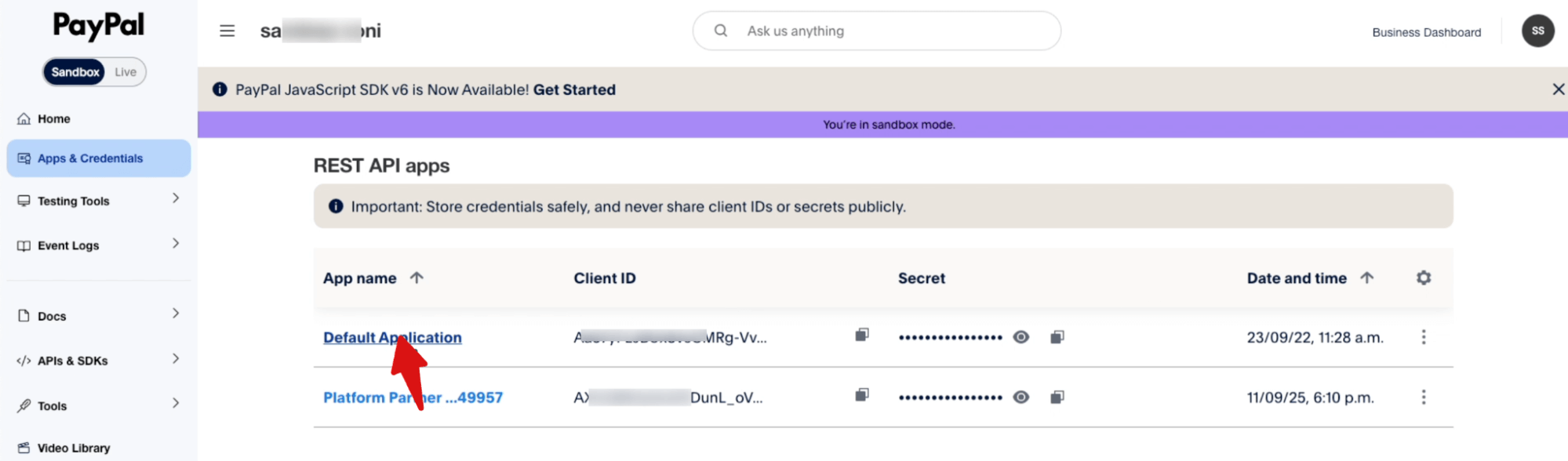
Next, click on “Default Application”.
From here, you can copy the Client ID and Secret Key.
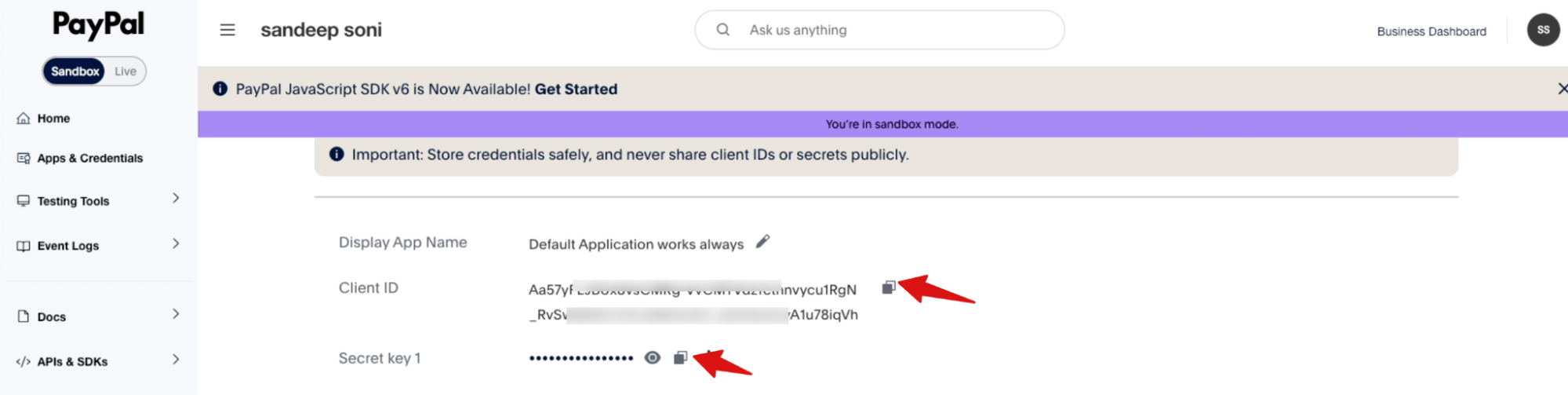
Next, manually provide the Client ID and Secret Key to verify and connect.
After successfully connecting your WooCommerce store to PayPal, you’ll see a “ Connected” message.
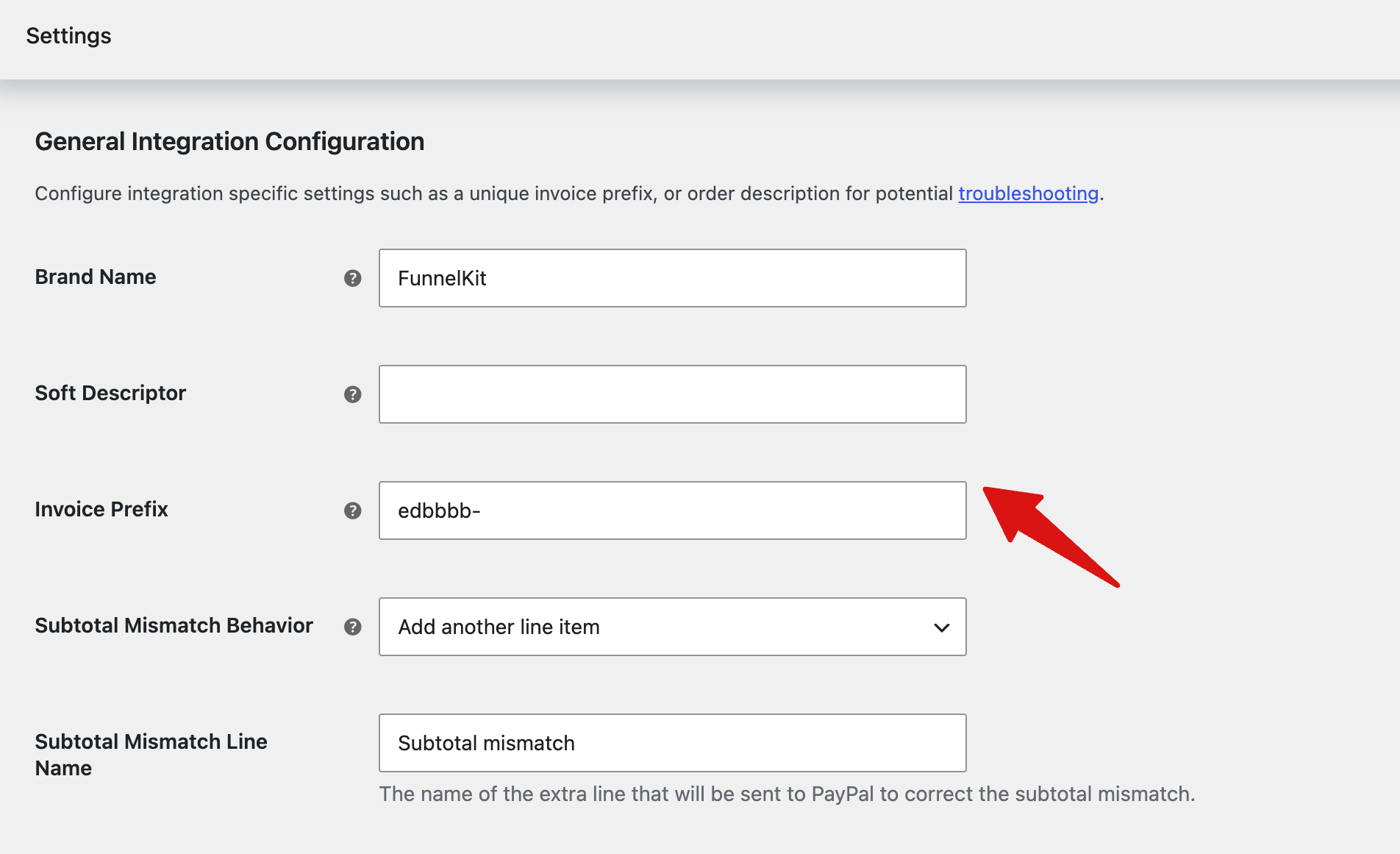
Step 3: General Integration Configuration
Configure the following settings to customize how your PayPal transactions are sent and displayed.
- Brand Name: Enter your business or brand name.
- Soft Descriptor: Enter a short description to help identify the transaction on the customer’s statement.
- Invoice Prefix: Add a unique prefix to PayPal invoice numbers for easy identification.
- Subtotal Mismatch Behavior: Choose how to handle subtotal mismatches: Add another line item or Do not send line items to PayPal
- Subtotal Mismatch Line Name: Enter the name of the additional line item used to correct the subtotal mismatch.
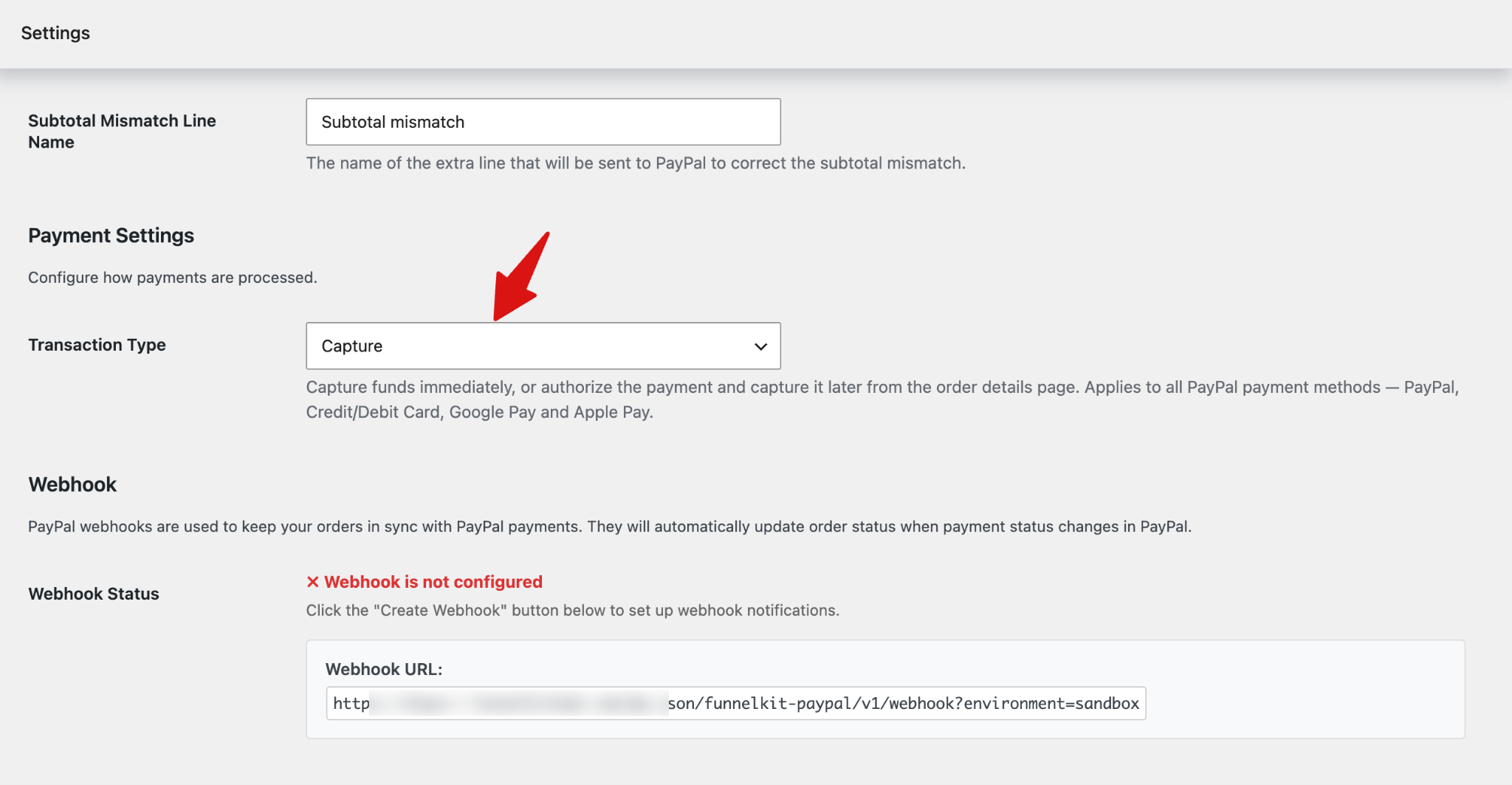
Step 4: Payment Configuration
Configure how payments are processed:
- Transaction Type: Choose how PayPal should process the payment.
- Capture: Select this if you want to charge the customer immediately when they place an order. This is the recommended option for most WooCommerce stores.
- Authorize: Select this if you want to authorize the customer’s payment first and capture the funds later. This is useful when you need to verify or fulfill the order before charging the customer. After authorization, capture the payment from the order when you are ready to charge the customer.
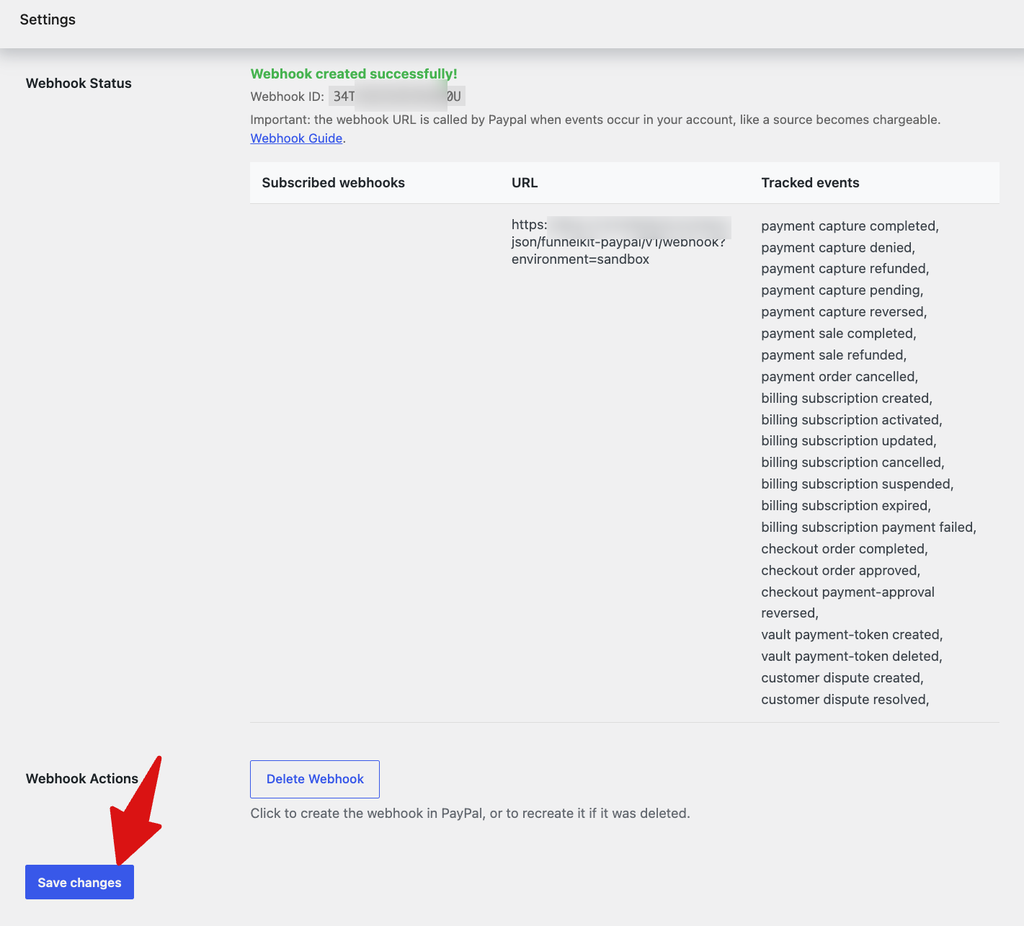
After the webhook is successfully created, make sure to save the changes.
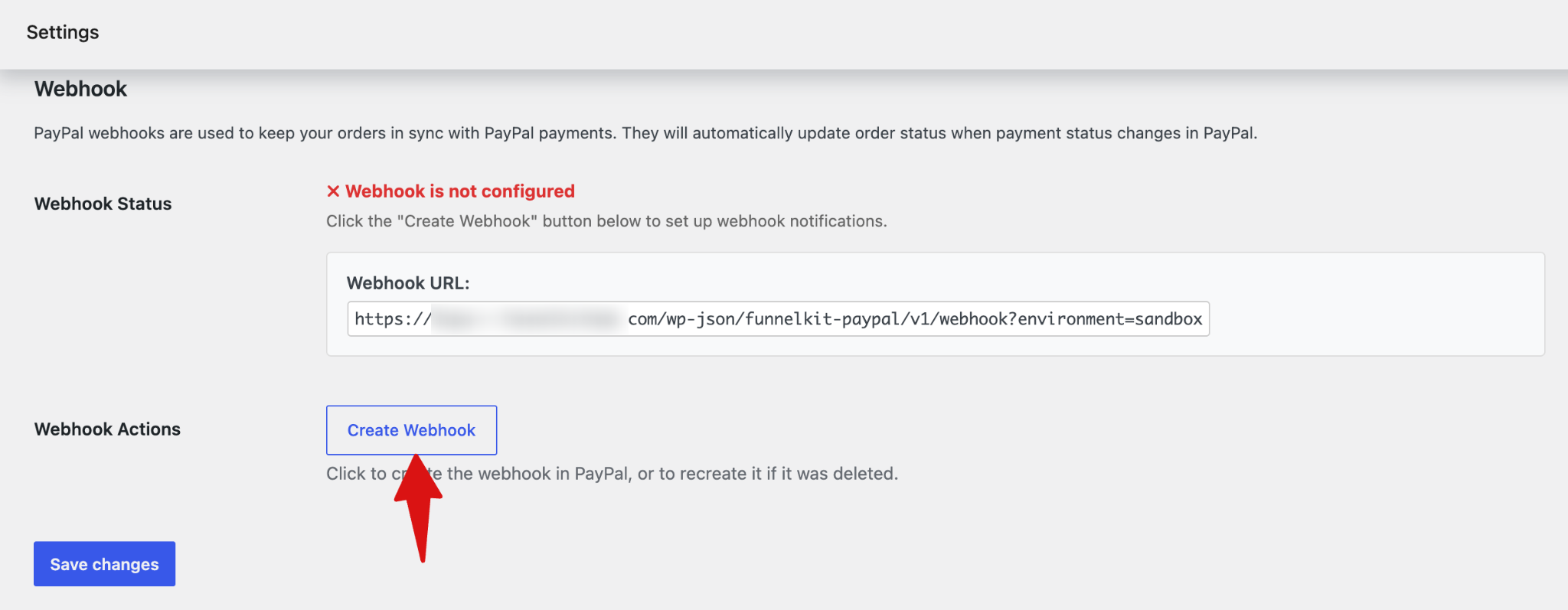
Step 5: Create Webhook
Now you need to create webhook.
Make sure to save the changes.
Now that the PayPal connection and settings are done, it’s time to set up the payment methods.


