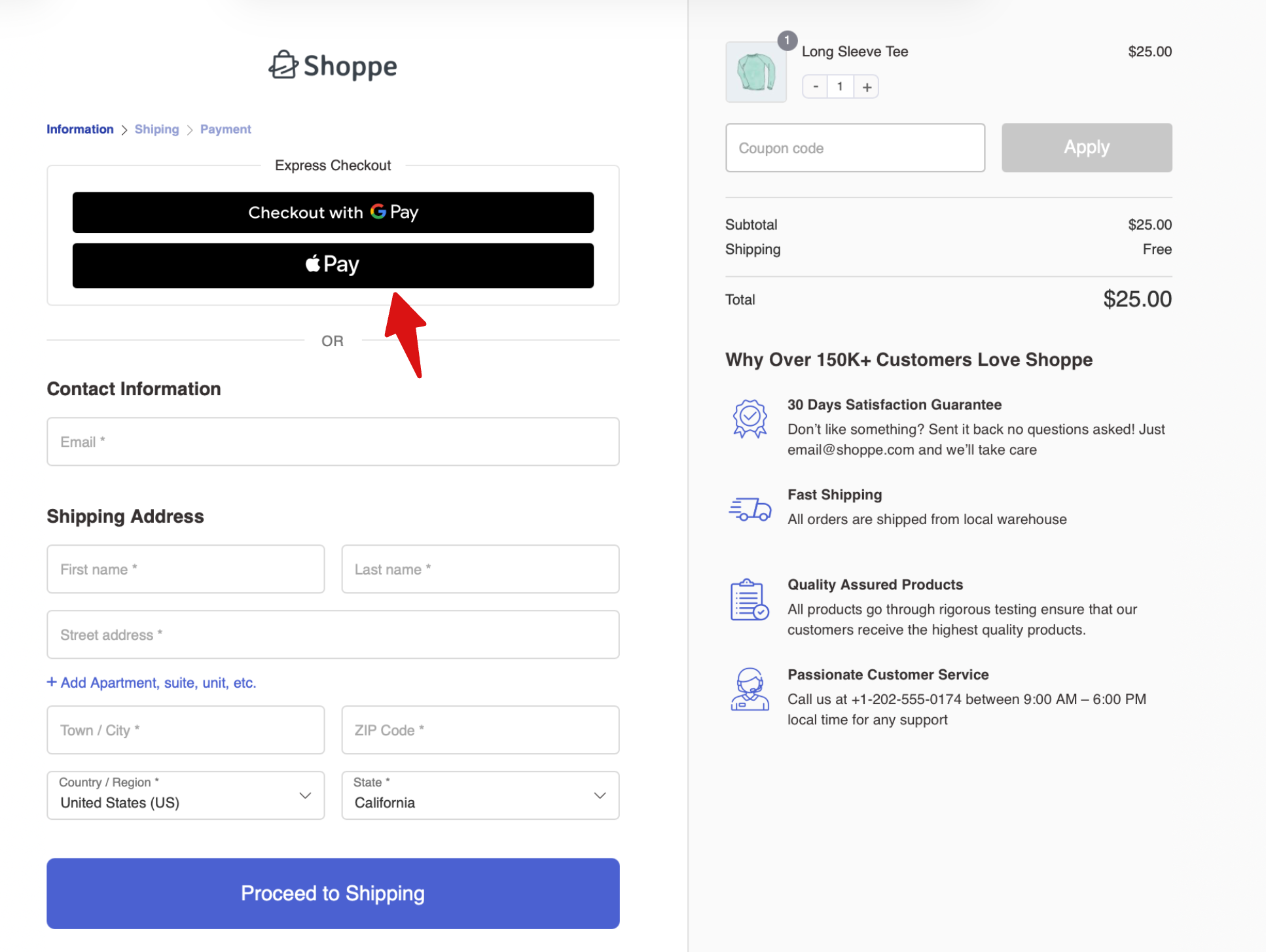
Accept Apple Pay through PayPal Advanced Card Processing. Customers using Safari on macOS or iOS can pay securely with Apple Pay using Touch ID or Face ID without manually entering their card details.
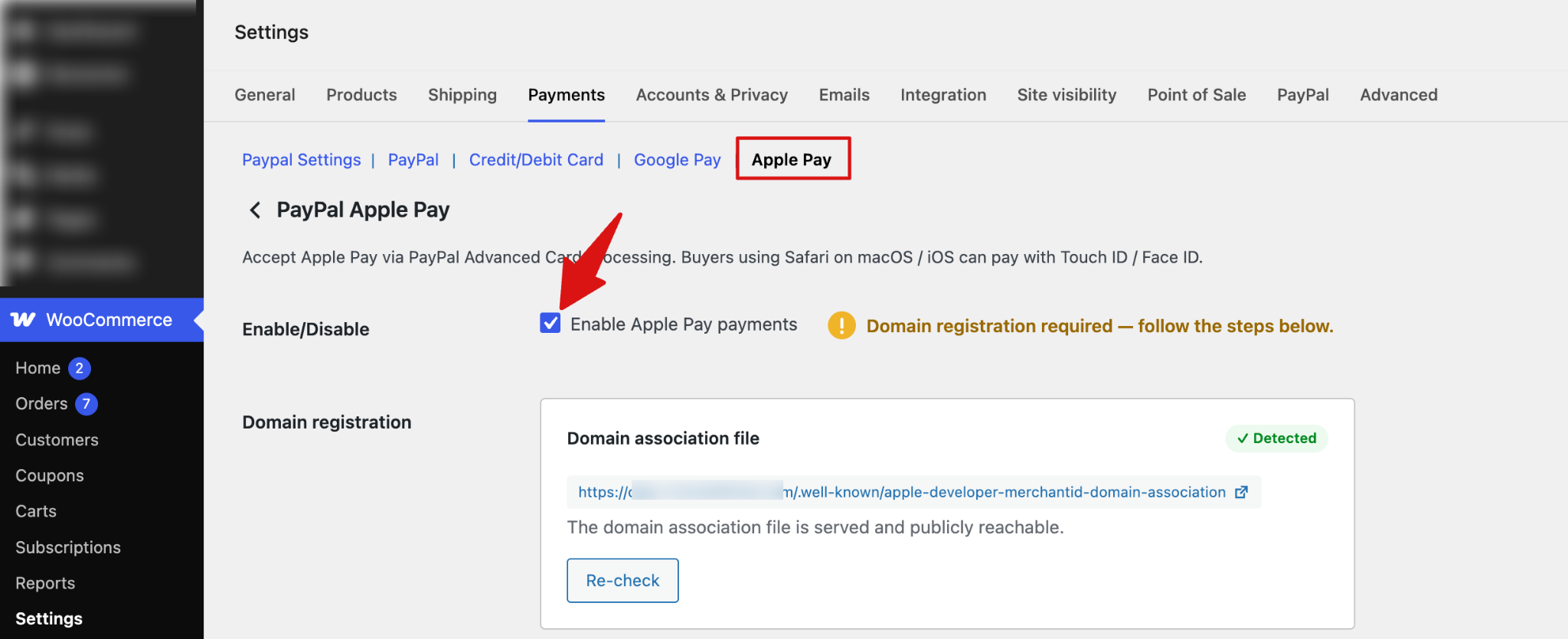
Step 1: Enable Apple Pay
Enable Apple Pay payments to allow customers to pay with Apple Pay through PayPal Advanced Card Processing.
Note: Domain registration is required before you can accept Apple Pay payments. Follow the steps below to register your domain with PayPal.
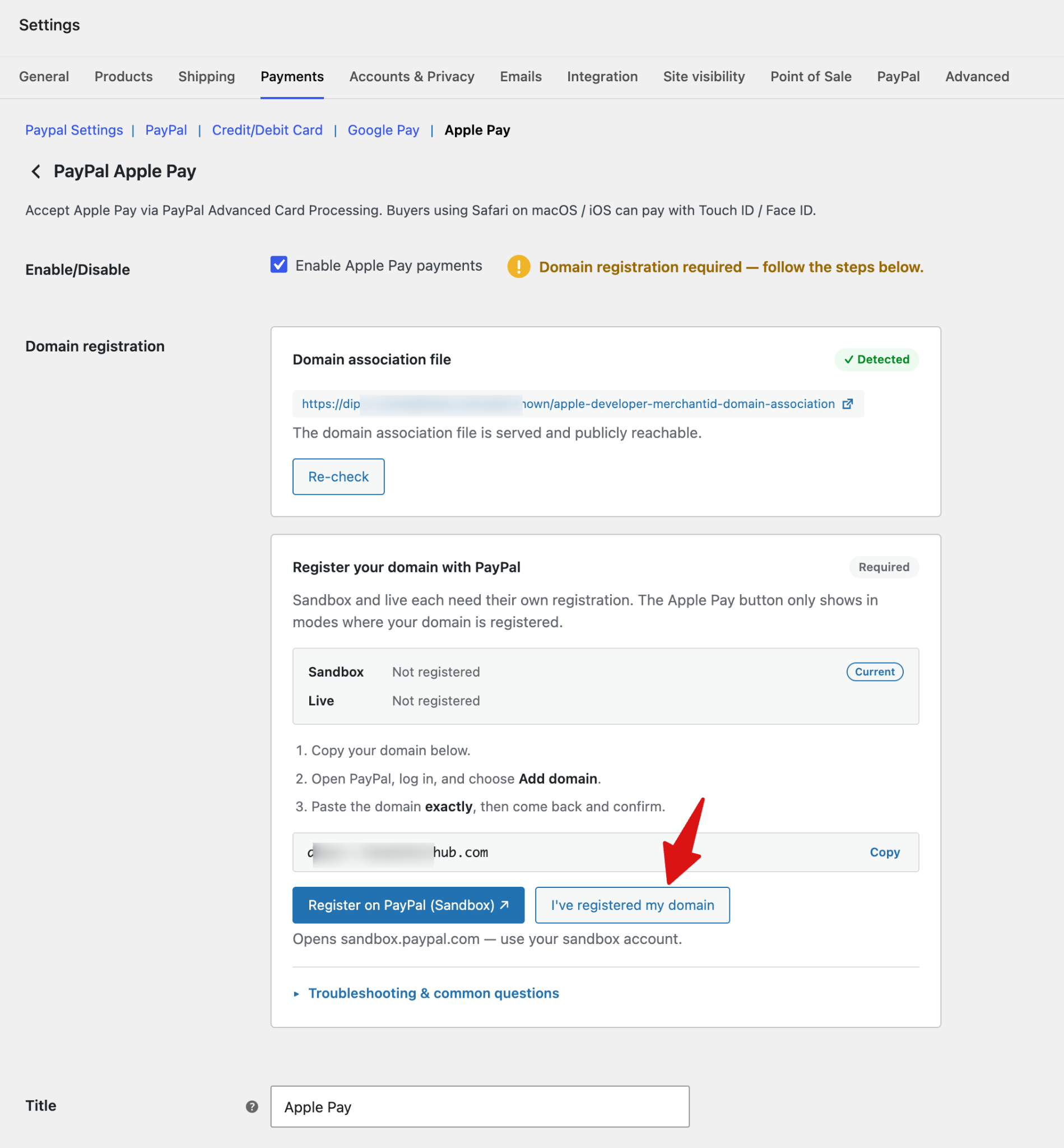
Step 2: Register Your Domain with PayPal
Register your store domain with PayPal before accepting Apple Pay payments.
- Click Register on PayPal to open PayPal and register your domain.
- Register your domain separately for both Sandbox and Live environments.
- Make sure you register the exact domain shown in the settings.
- After registering your domain, return to FunnelKit and click I've registered my domain.
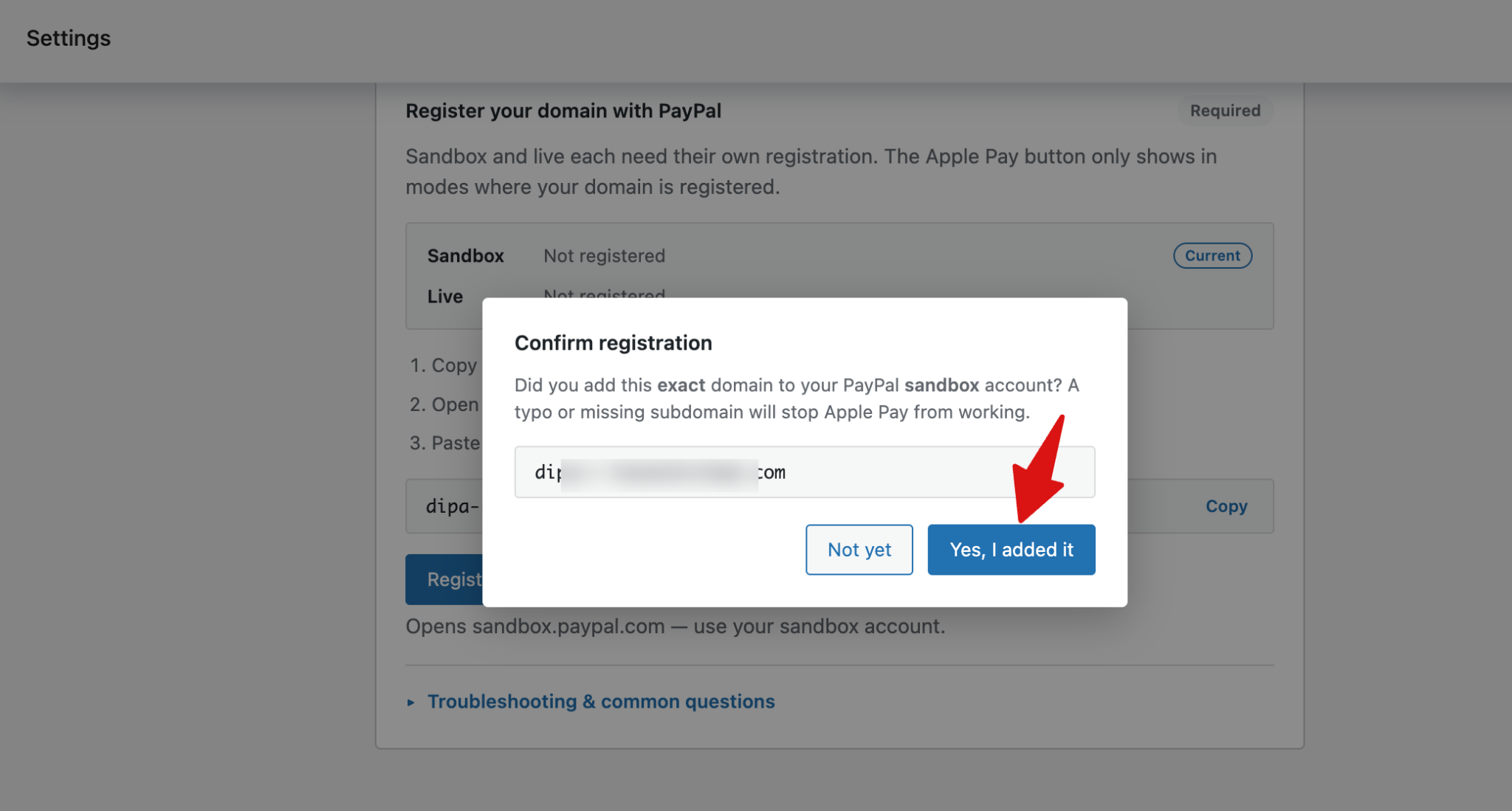
- Next, confirm that you added the domain by hitting the option “Yes, I added it”
Now you should see the domain registration successful message.
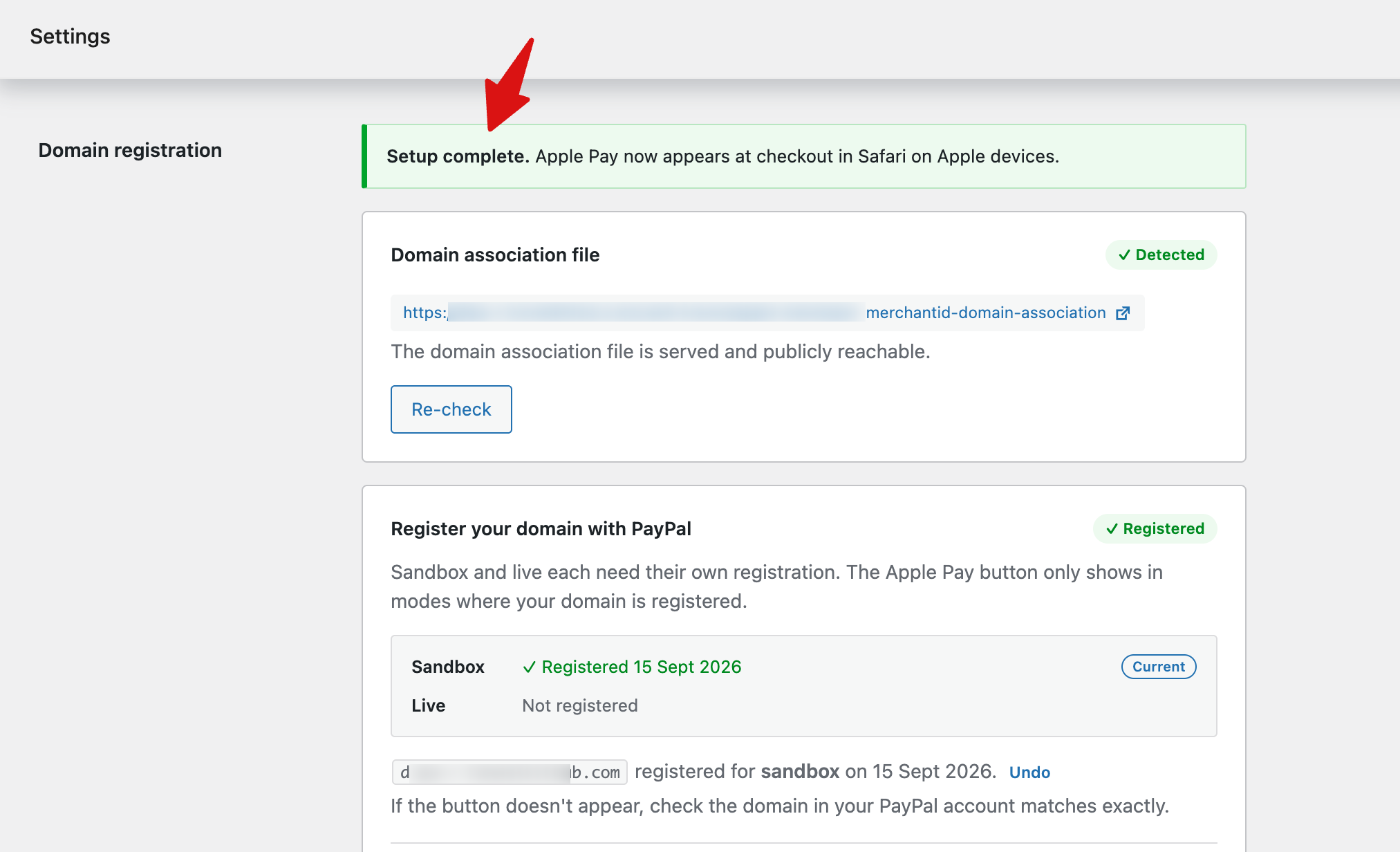
The Apple Pay button only appears in an environment where your domain is registered.
Note: The domain association file must be publicly accessible for domain registration to work. For troubleshooting and common questions, see the Troubleshooting & common questions
Step 3: Set Up the Title and Description
Enter the payment method title and description that customers will see at checkout.
- Title: Enter the payment method title.
- Description: Add a short description to provide customers with additional information about paying with Apple Pay.
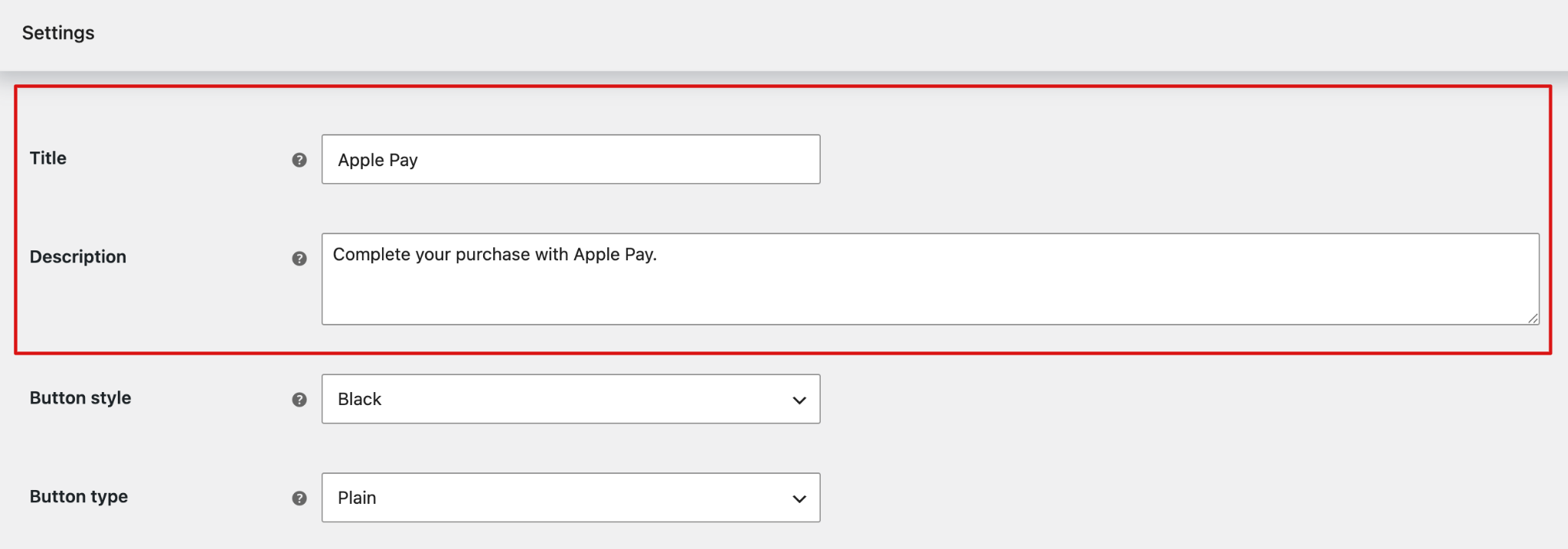
Step 4: Configure the Apple Pay Button
Customize the appearance and action of the Apple Pay button.
- Button Style: Choose the style of the Apple Pay button. Options are Black, White and White with outline.
- Button Type: Choose the action displayed on the Apple Pay button. Available options include Plain, Buy,Checkout, Pay, Order, Book, Donate and Subscribe.
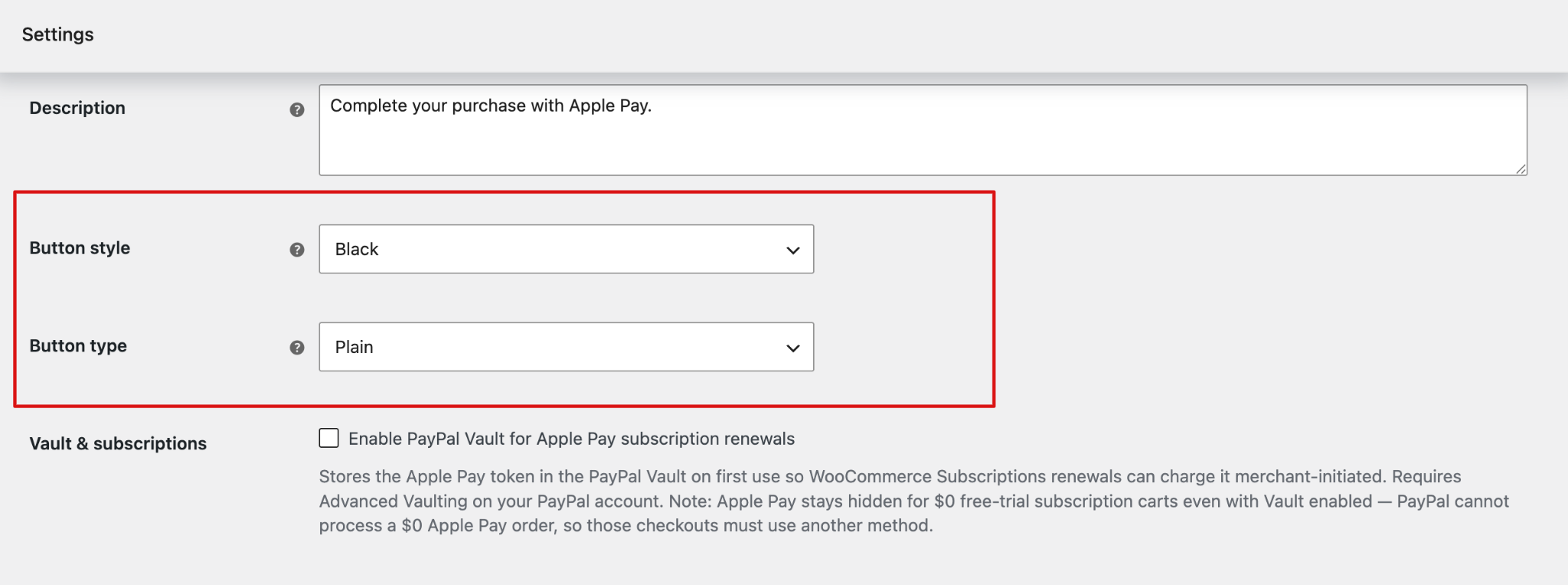
Step 5: Configure Vault & Subscriptions
Enable PayPal Vault for Apple Pay subscription renewals to save the Apple Pay payment token in the PayPal Vault for recurring subscription payments.
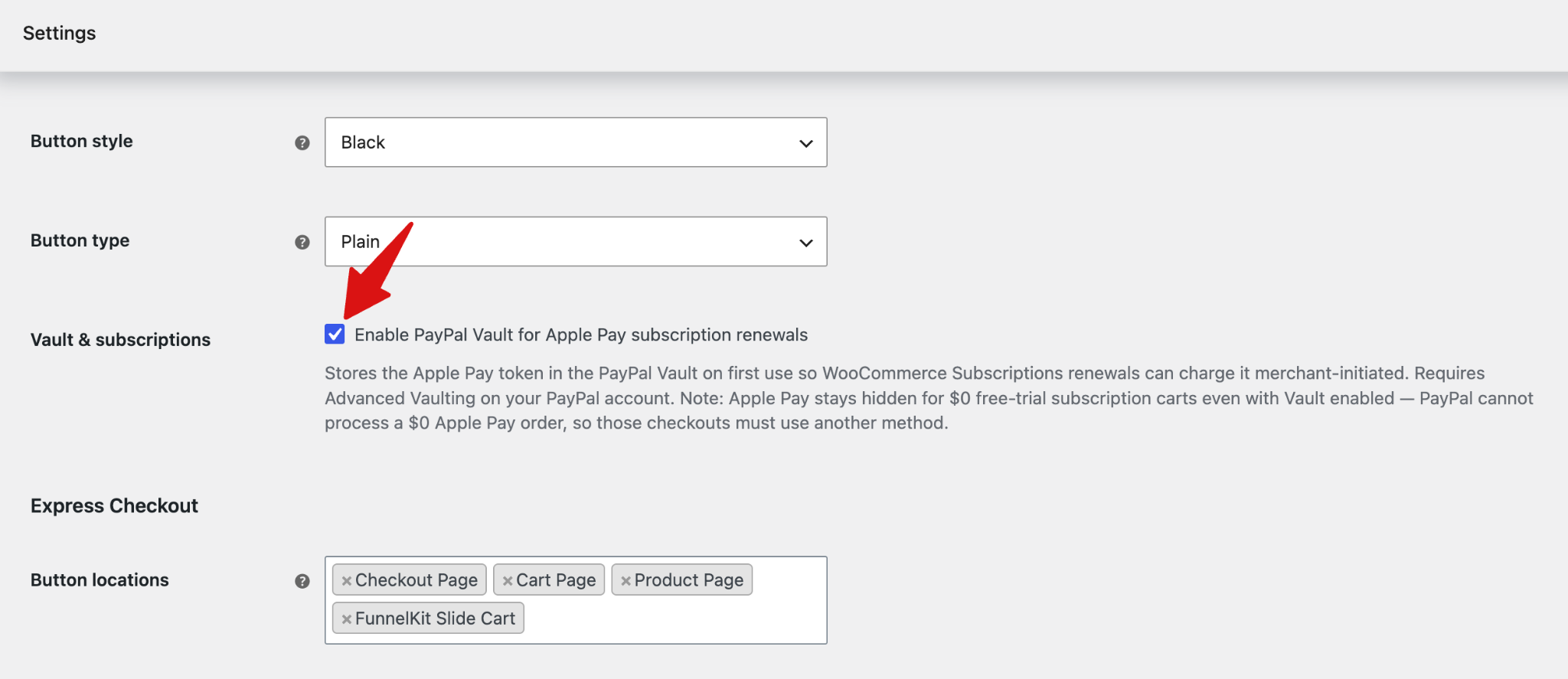
When enabled, Apple Pay tokens can be stored in the PayPal Vault and used for merchant-initiated payments for WooCommerce Subscriptions renewals.
Note: This feature requires Advanced Vaulting to be enabled on your PayPal account.
Apple Pay is not available for subscription carts with a $0 free trial, even when Vault is enabled, because PayPal cannot process a $0 Apple Pay order. Customers must use another payment method for these checkouts.
Step 6: Configure Express Checkout
Choose where to display the Apple Pay button.
Available locations include: Product Page, FunnelKit Slide Cart, Cart Page and Checkout Page.
You can select multiple locations to make Apple Pay available across different parts of your store.
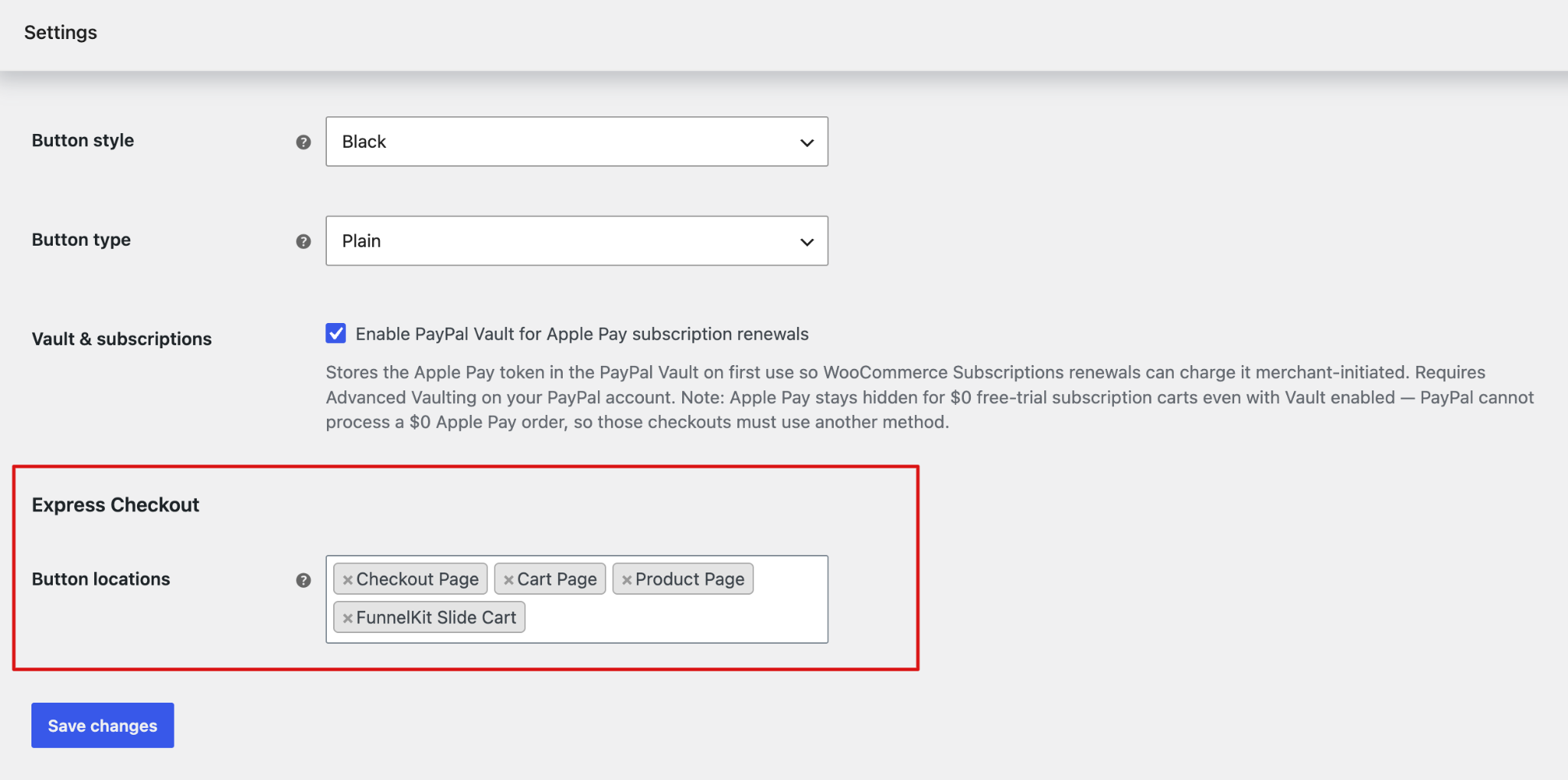
Click Save Changes to apply your PayPal Apple Pay settings.
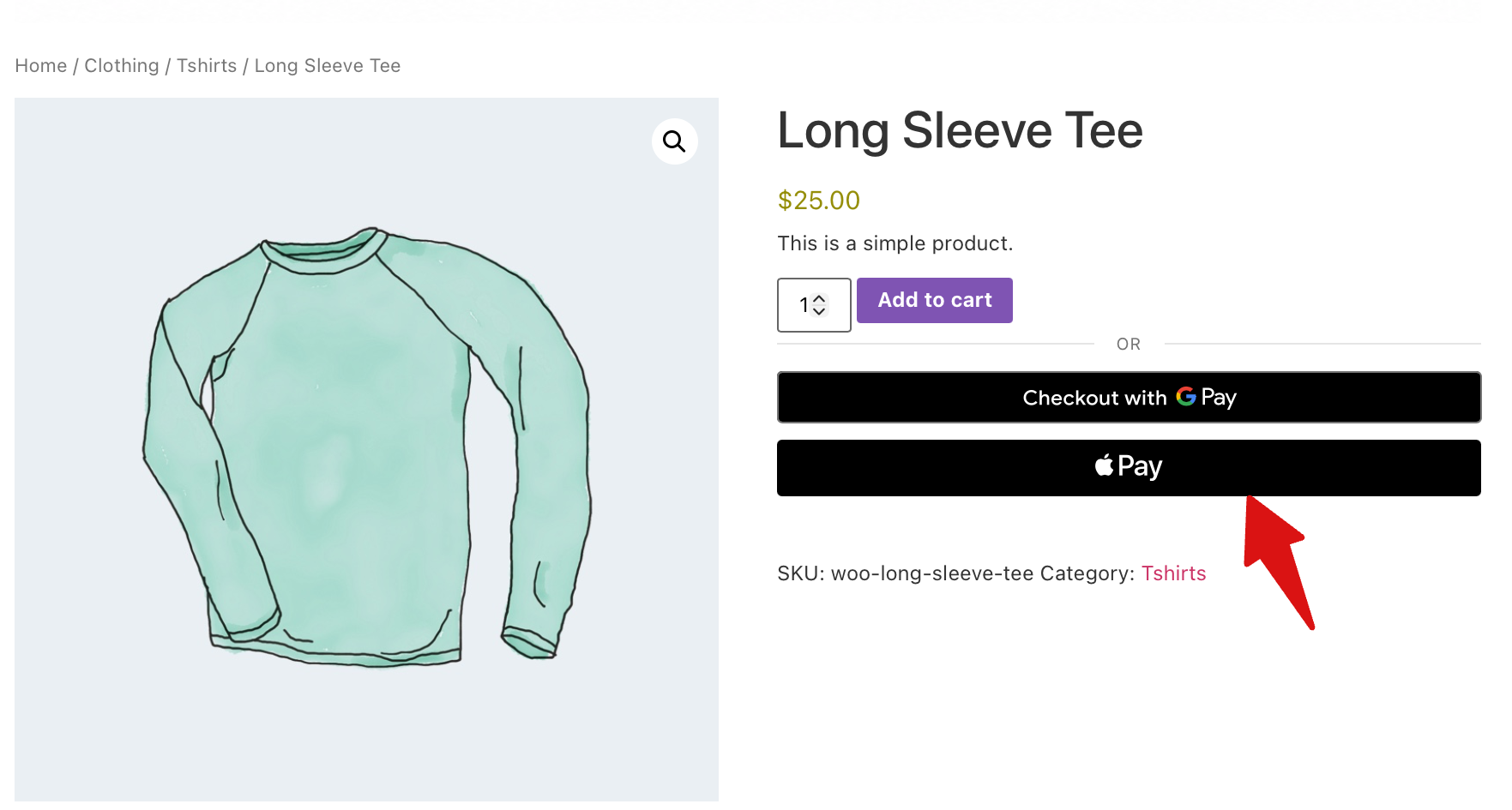
Here is how the PayPal Apple Pay buttons look on the product page:
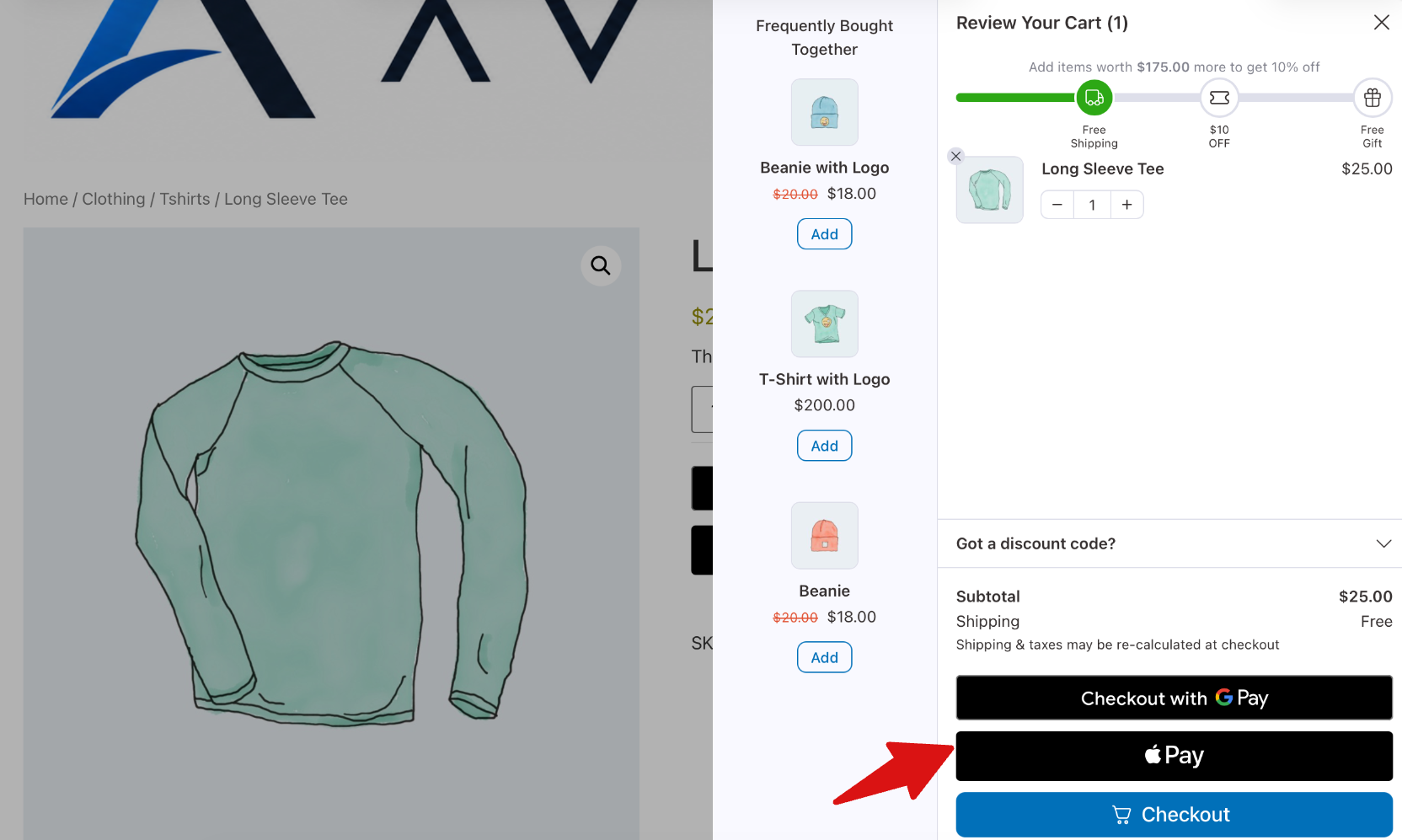
Here is how it looks on the FunnelKit Cart:
Finally, this is how it will appear on the checkout page.