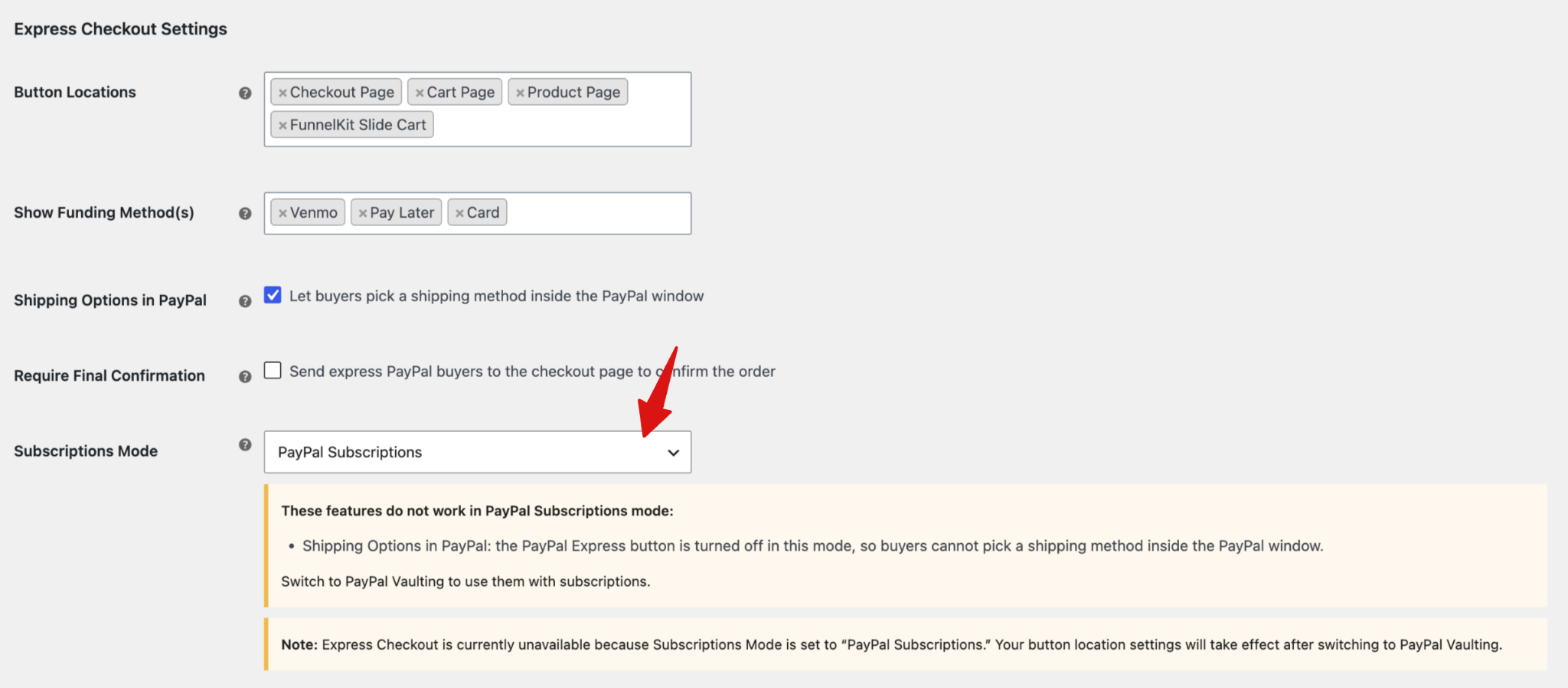
The PayPal settings allow you to enable or disable PayPal payments, configure saved payment options, and customize the appearance of the PayPal buttons.
Accept PayPal
Here you can set up how to accept PayPal payments with the following settings:
- Enable / Disable: Turn this option on to allow customers to pay using PayPal at checkout. When disabled, PayPal will not appear as a payment option on your store.
- Title: This controls the payment method title shown to customers at checkout. Default: PayPal
- Description: This is the short description displayed below the payment title on the checkout page.Default: Pay via PayPal
Saved Payments
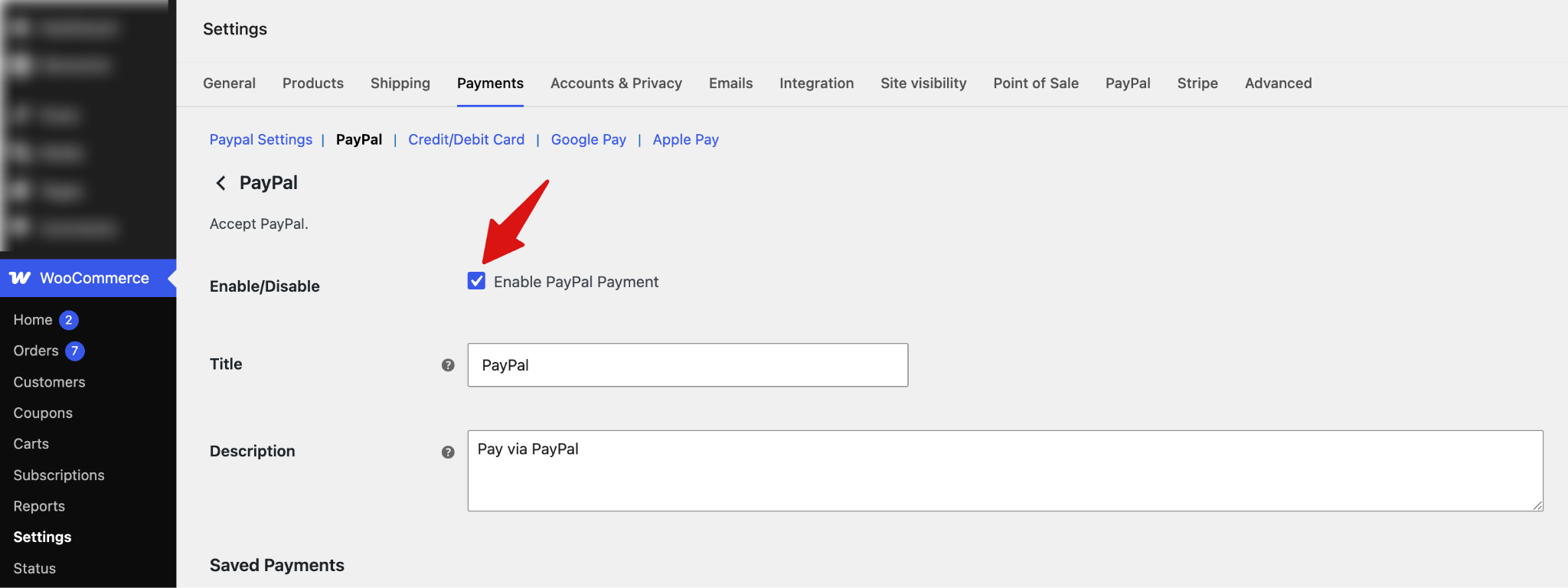
Configure how saved payments work:
Saved Payments
PayPal can securely store your customers' payment methods for future payments and subscriptions. This simplifies the checkout process and enables recurring transactions on your website.
Enable Vaulting: Enable PayPal Vault to securely save customers' payment methods for future payments and subscriptions.
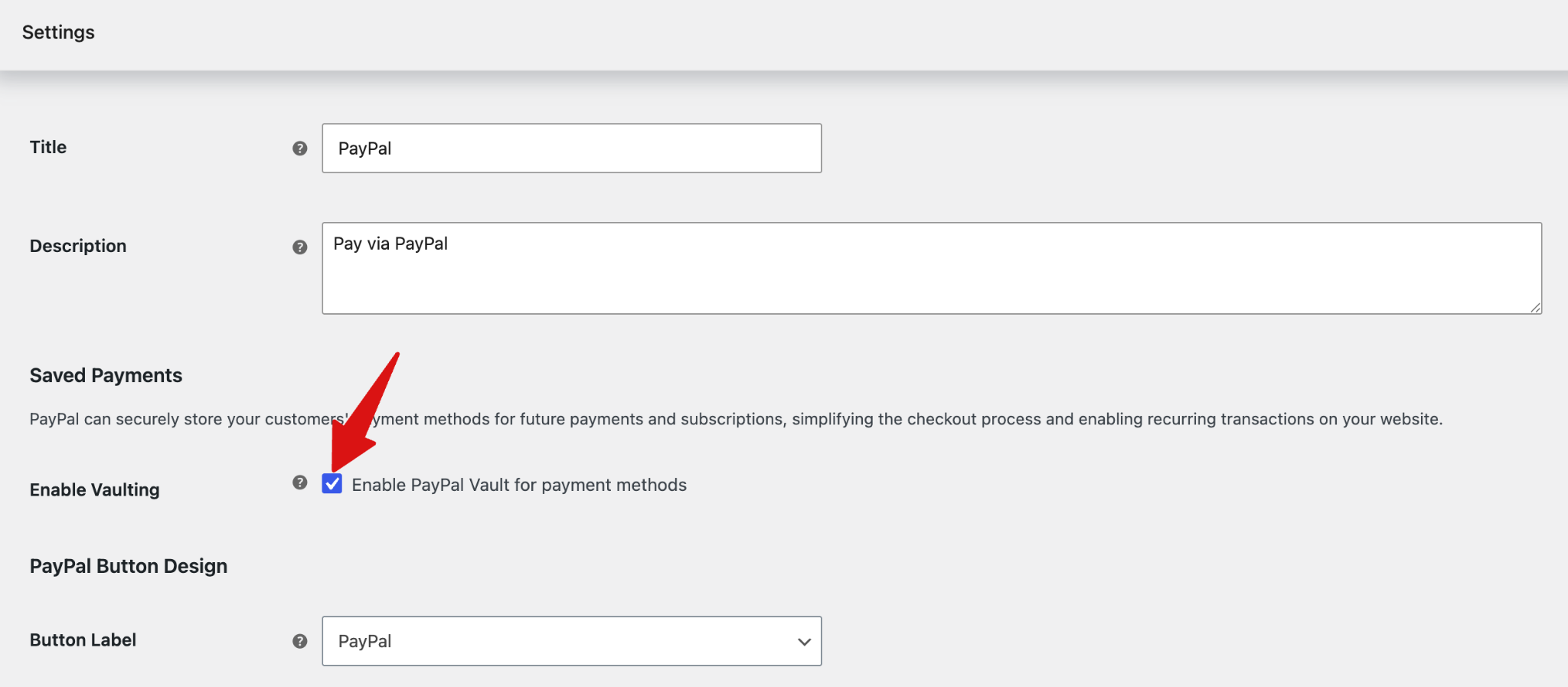
PayPal Button Design
Here you can customize the appearance of the PayPal button displayed on your store.
- Button Label: This controls the text displayed on the PayPal button. Options are PayPal, Checkout, PayPal Buy Now, and Pay With PayPal. Default: PayPal
- Button Color: Choose the color of the PayPal button to match your store design. Options are Gold, Blue, Silver, Black, and White. Default: Gold (Recommended). Gold is recommended for better visibility and brand recognition.
- Button Shape: Select the shape of the PayPal button.Options are Pill and Rectangle. Default: Rectangle
- Button Height: Set the height of the PayPal button in pixels.Default: 40px. Adjust this value to match your theme’s button size and layout.
- Smart Button Language: Choose the language displayed on the PayPal smart button. Default: Browser Language. When set to Browser Language, the button automatically adapts to the customer’s browser language.
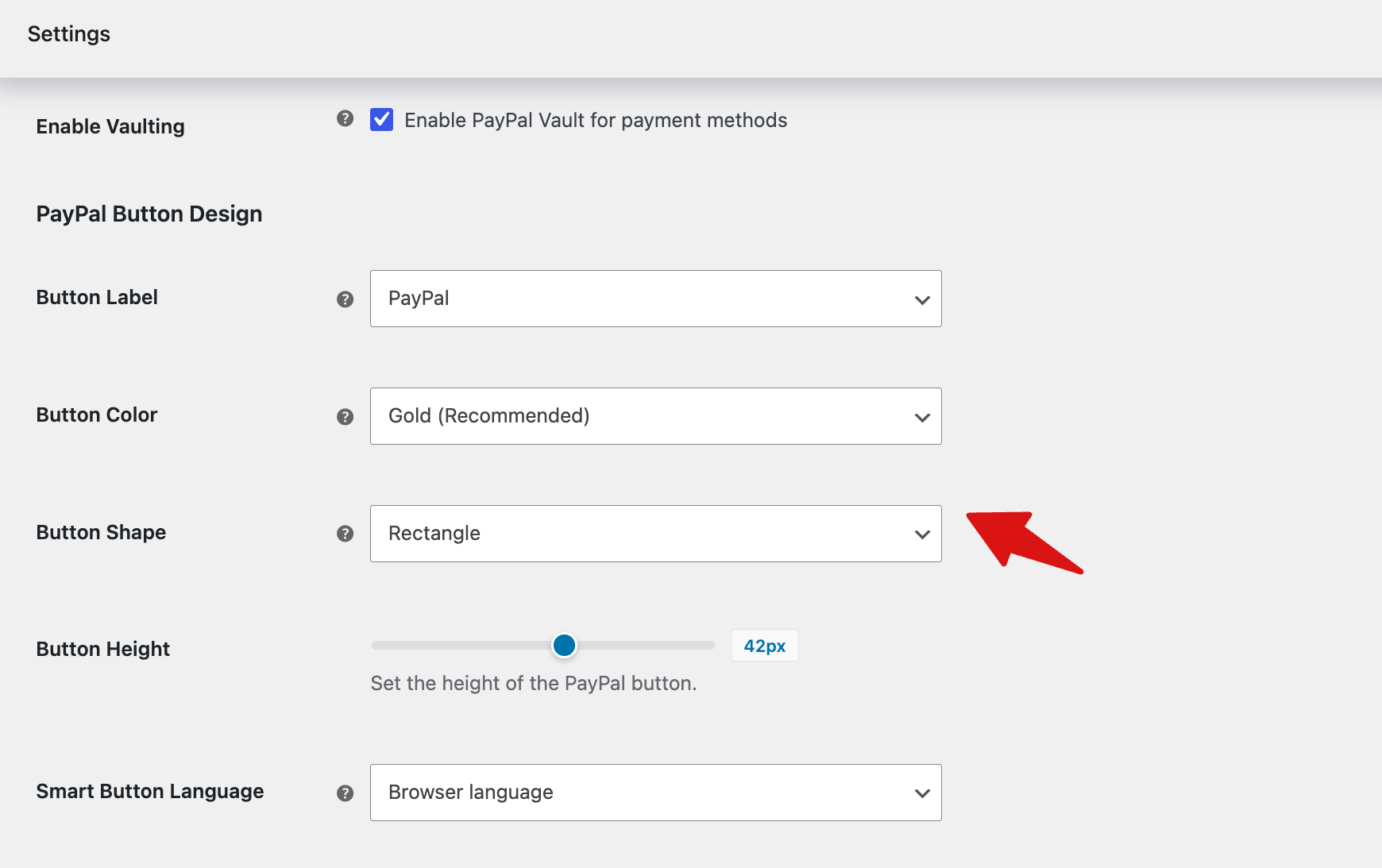
Express Checkout Settings
Here you can configure where and how the PayPal Express Checkout button appears on your store.
- Button Locations: Select where you want the PayPal Express button to appear. Options are the Checkout Page, Cart Page, Product Page, and FunnelKit Slide Cart. You can enable one or multiple locations based on your store’s checkout flow.
- Show Funding Method(s): Select the additional payment methods you want to display with the PayPal Express button. Options include Venmo, Pay Later, Card, Bancontact, EPS, Giropay, iDEAL, MyBank, Przelewy24, and SEPA.
- Subscriptions Mode: Choose how PayPal handles subscription payments. Options are PayPal Subscriptions, PayPal Vaulting, and Disable PayPal for subscriptions.