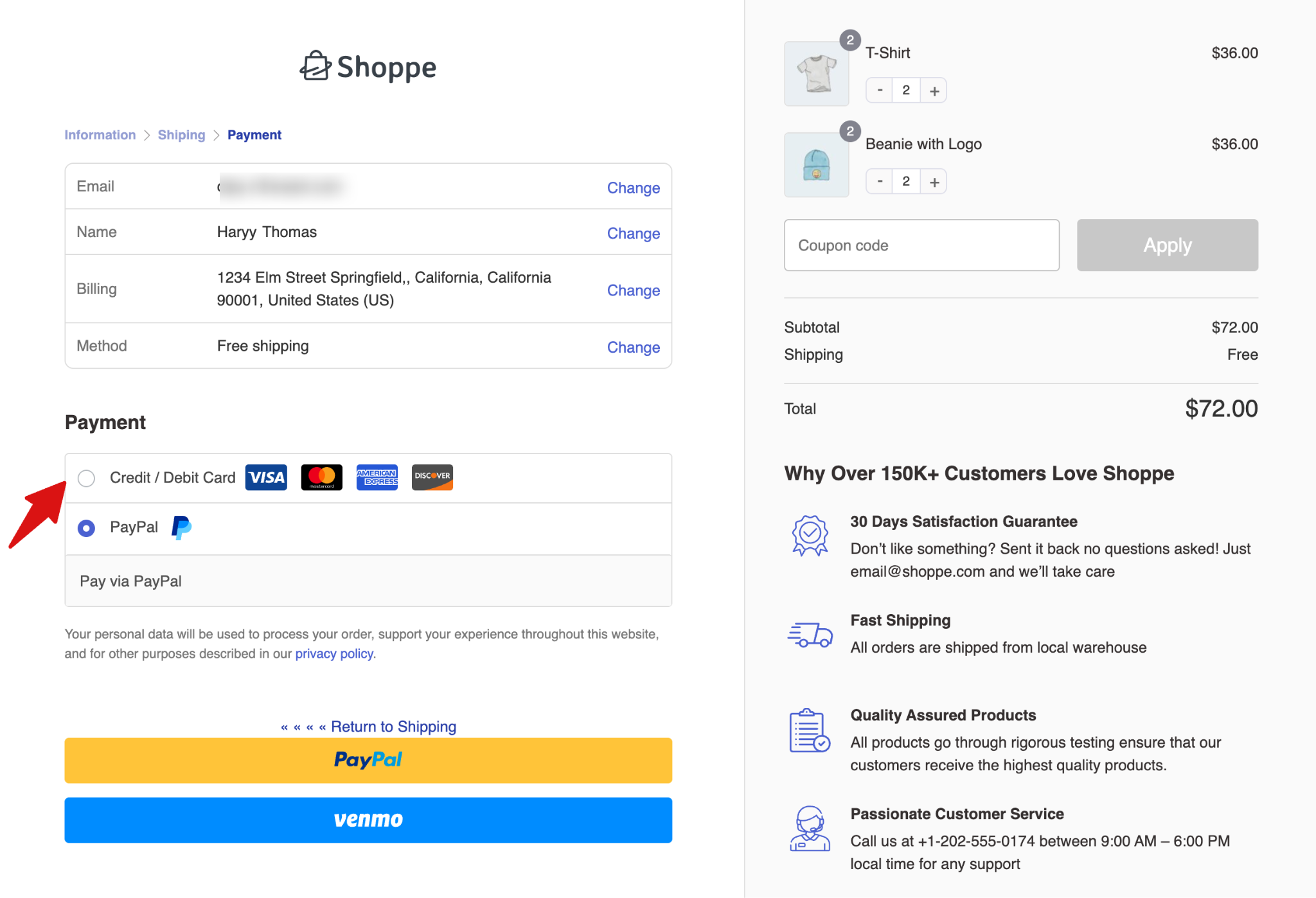
Accept credit and debit card payments through PayPal Advanced Card Processing. Customers enter their card details directly on your checkout page without being redirected to PayPal or opening a pop-up.
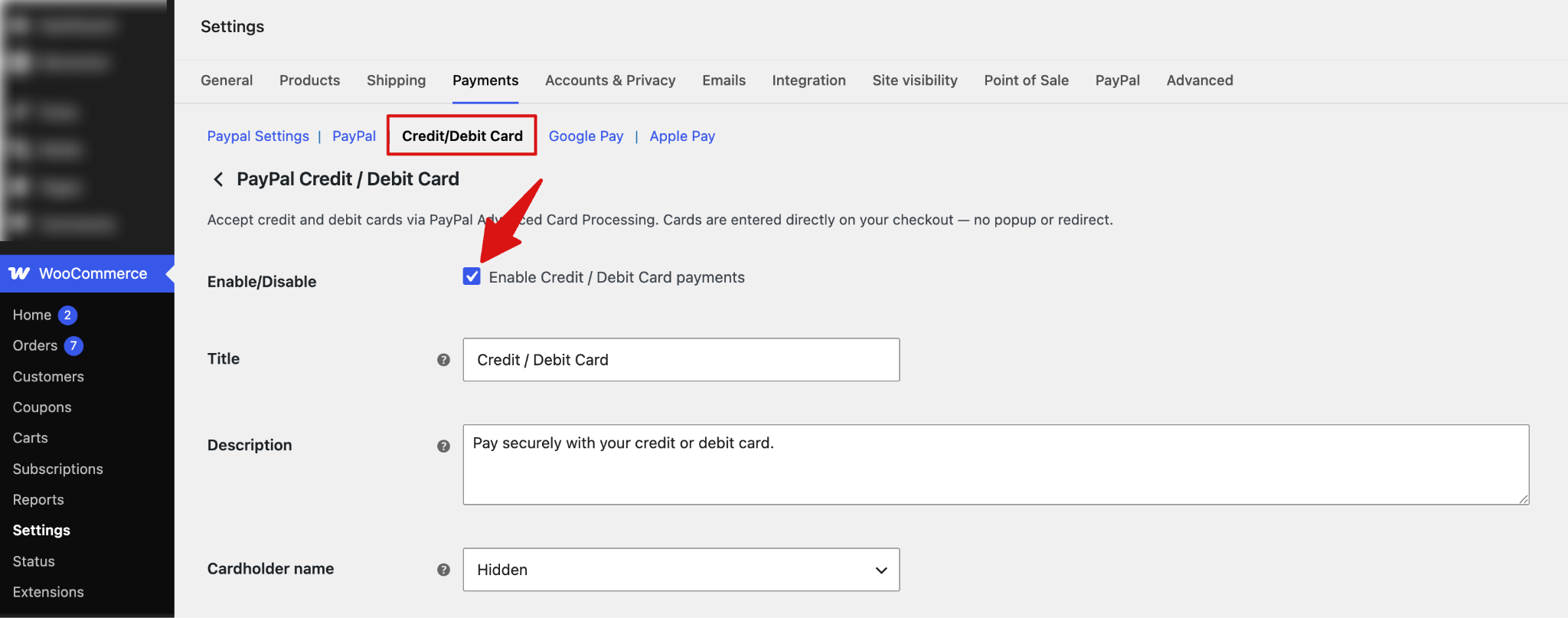
Step 1: Enable Credit / Debit Card
Navigate to the Credit/Debit Card tab to enable this option to accept credit and debit card payments through PayPal Advanced Card Processing.
Step 2: Set Up the Title and Description
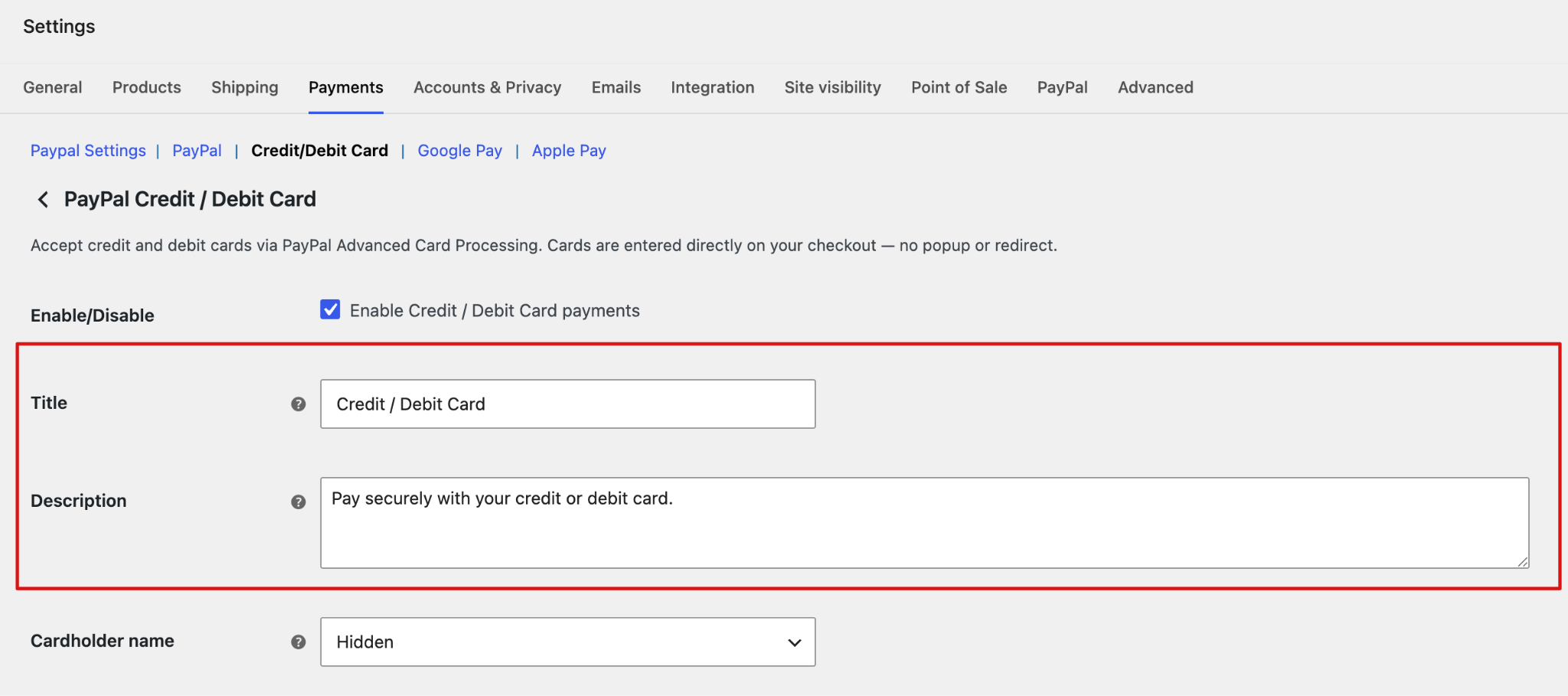
Enter the payment method title and description that customers will see at checkout.
- Title: Enter the payment method title.
- Description: Add a short description to provide customers with additional information about paying by credit or debit card.
Step 3: Configure Cardholder Name and Saved Cards
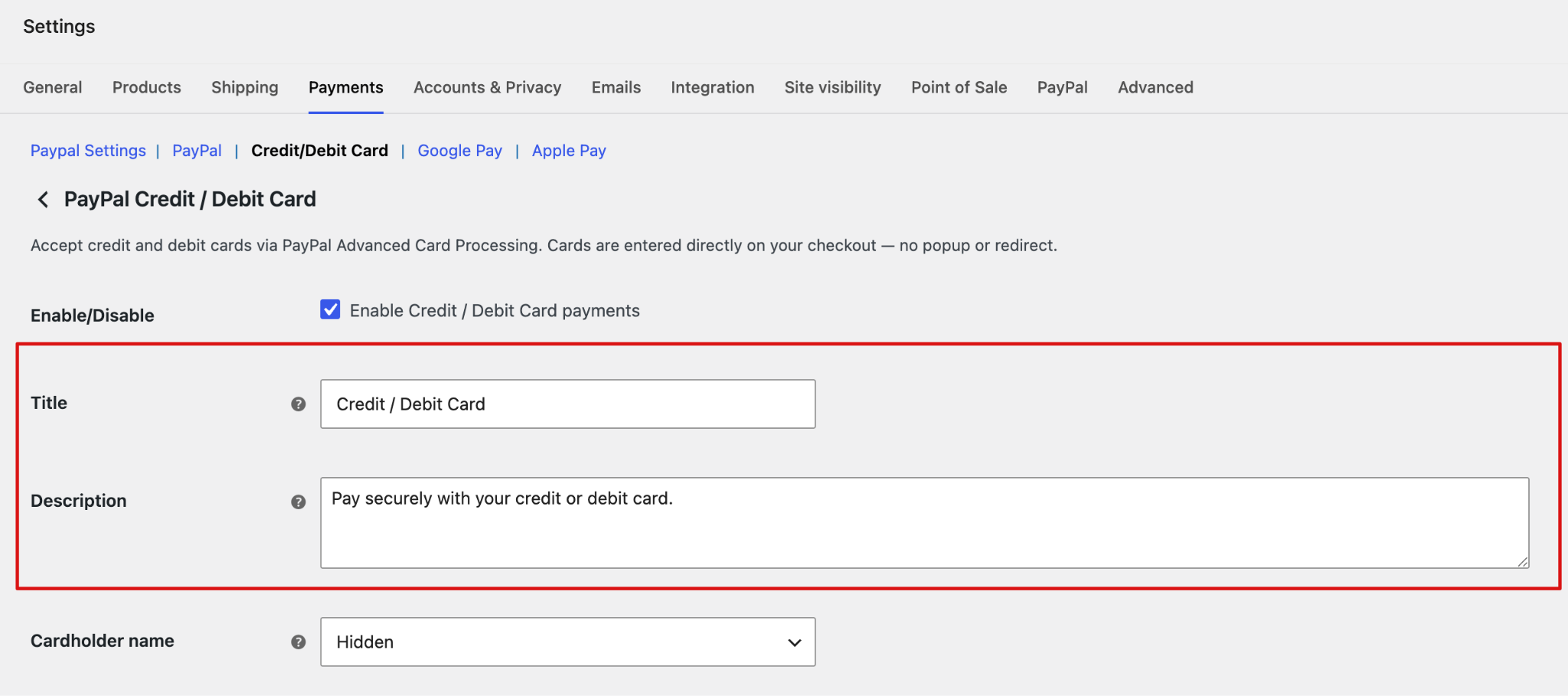
Configure the cardholder name requirement and PayPal Vault settings.
Cardholder Name: Choose whether customers need to enter the name associated with their card.
- Hidden: Do not display the cardholder name field.
- Optional: Display the field, but allow customers to leave it blank.
- Required: Require customers to enter their cardholder name.
Vault & Saved Cards: Enable PayPal Vault to securely save customers' payment methods for future purchases and subscription payments.
When enabled:
- Customers can see a Save card option during checkout.
- Saved cards can be used for one-click purchases.
- The payment method can be used with WooCommerce Subscriptions.
- For subscription products, the card is automatically saved when required for recurring payments.
Note: PayPal Vault must be connected before saved cards and subscription payments can be used.
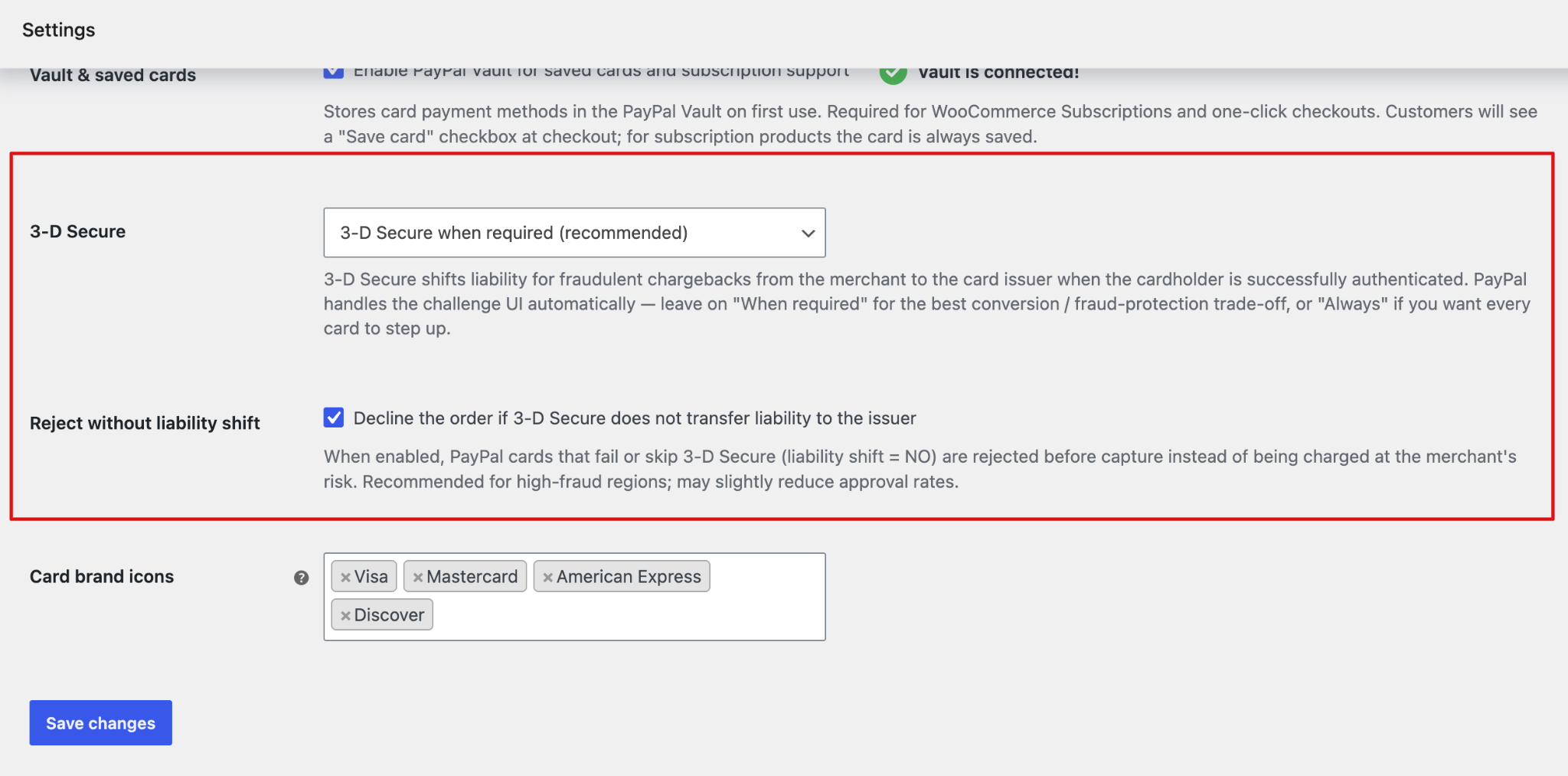
Step 4: Configure 3-D Secure and Liability Shift
Choose when PayPal should trigger 3-D Secure authentication and whether to reject transactions without a liability shift.
3-D Secure:
- 3-D Secure when required (recommended): PayPal triggers authentication when required based on the transaction and risk assessment.
- Always trigger 3-D Secure: Require authentication for every eligible card payment.
The When required option provides a balance between fraud protection and checkout conversion. Choose Always if you want to require authentication for every eligible card transaction.
Reject Without Liability Shift: Enable this option to decline a card payment when 3-D Secure authentication does not result in a liability shift to the card issuer.
When enabled, transactions where liability shift is not obtained are rejected before capture instead of being processed at the merchant's risk.
This can provide additional protection against fraudulent chargebacks, but may reduce payment approval rates for some transactions.
Step 5: Select Card Brand Icons and Save
Select the card brands you want to display at checkout.
Available card brands include:
- Visa
- Mastercard
- American Express
- Discover
- JCB
- Diners Club
- Maestro
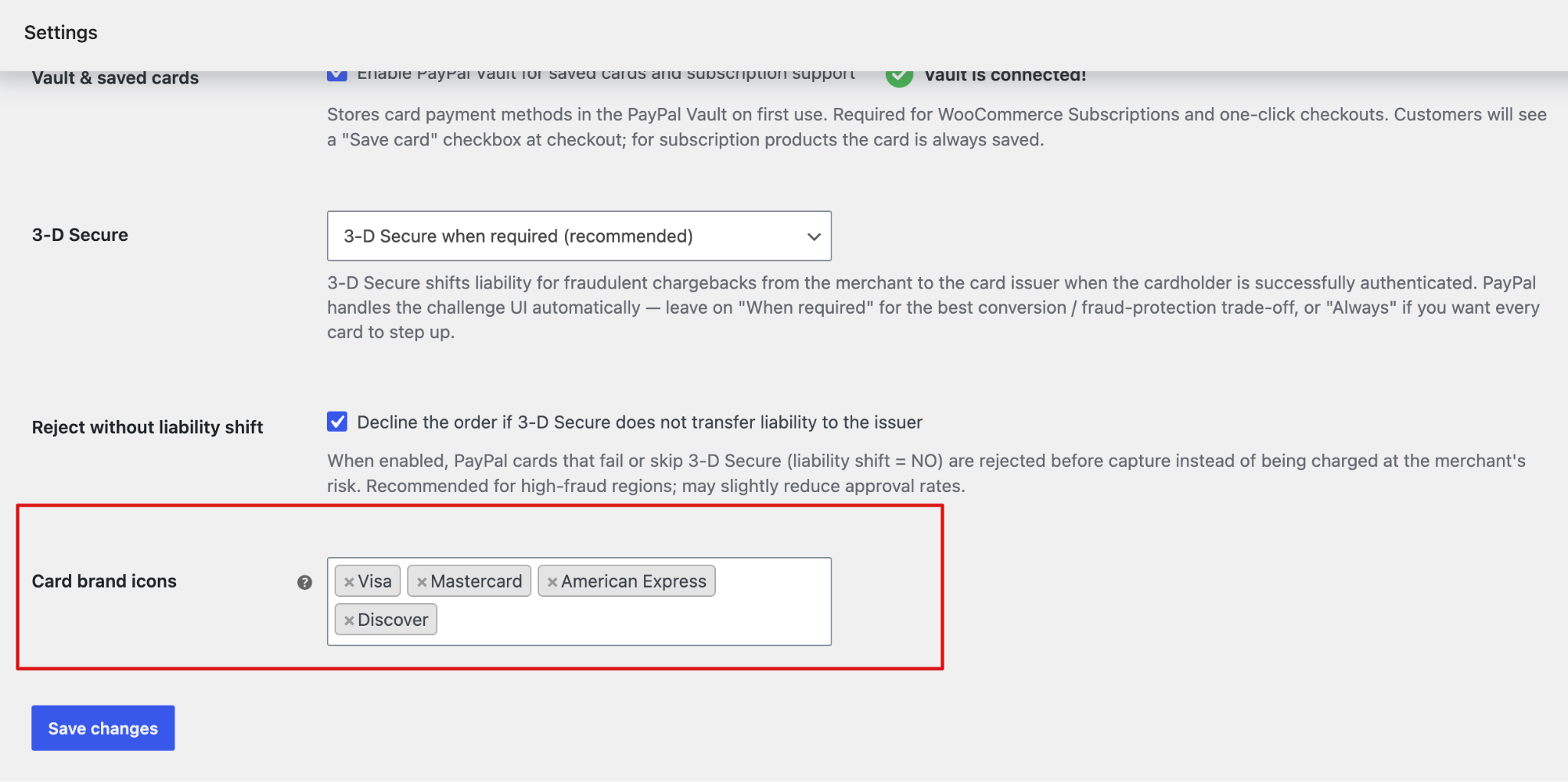
Click Save Changes to apply your PayPal Credit / Debit Card settings.
Now, users can choose PayPal credit/debit cards to complete their purchase.