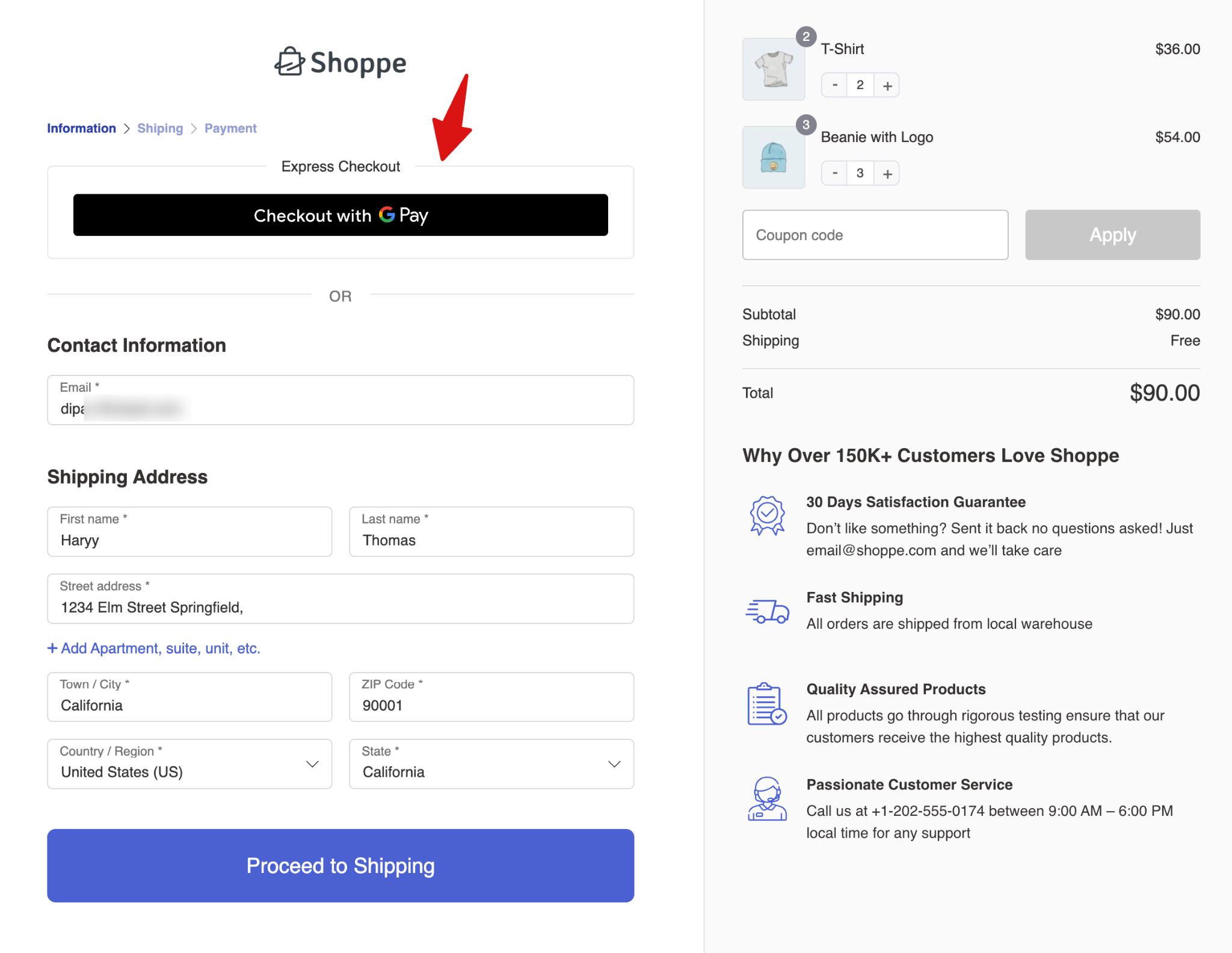
Accept Google Pay through PayPal Advanced Card Processing. The Google Pay button is displayed directly on your checkout, allowing customers to approve payments through the Google Pay sheet without leaving the page.
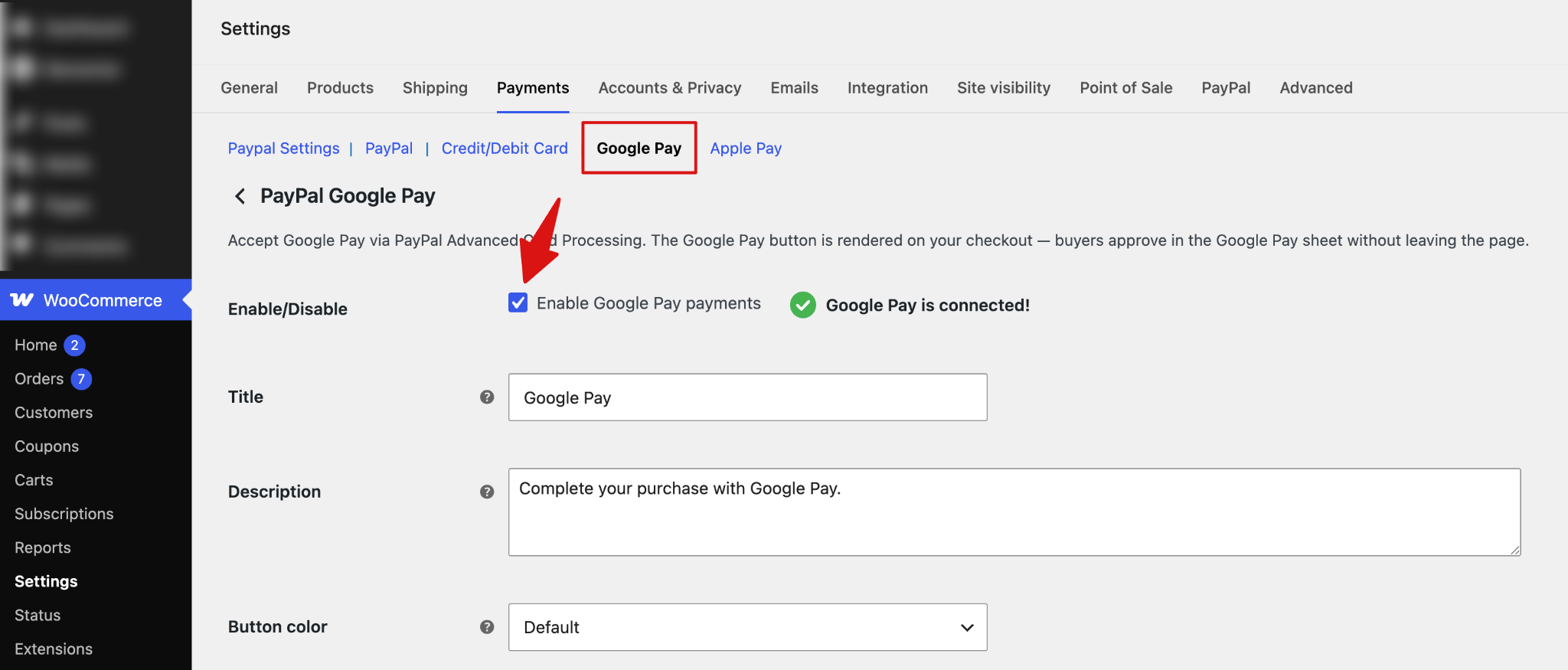
Step 1: Enable Google Pay
Enable Google Pay payments to allow customers to pay using Google Pay through PayPal Advanced Card Processing.
Note: Google Pay must be connected before you can accept Google Pay payments.
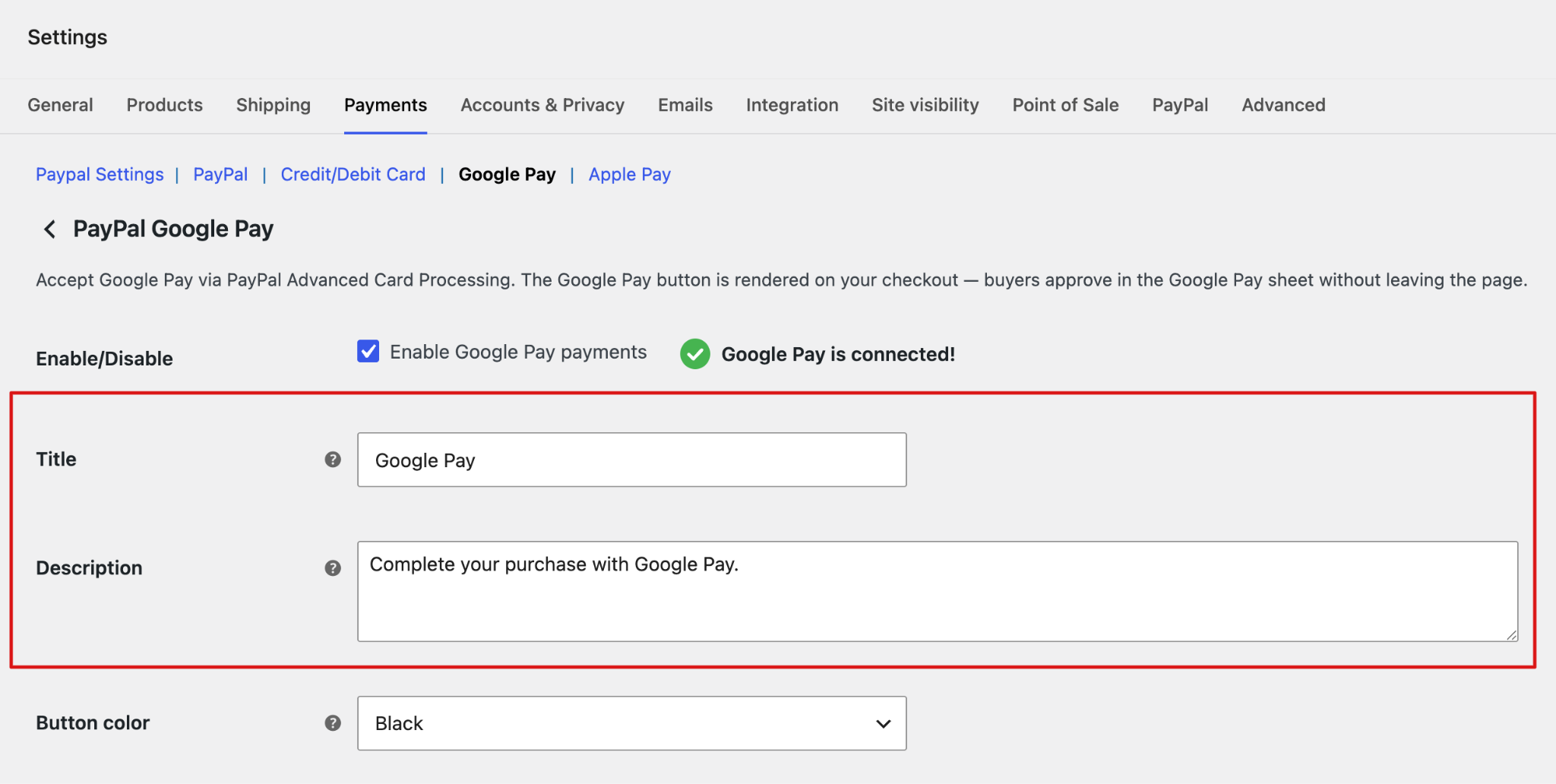
Step 2: Set Up the Title and Description
Enter the payment method title and description that customers will see at checkout.
- Title: Enter the payment method title.
- Description: Add a short description to provide customers with additional information about paying with Google Pay.
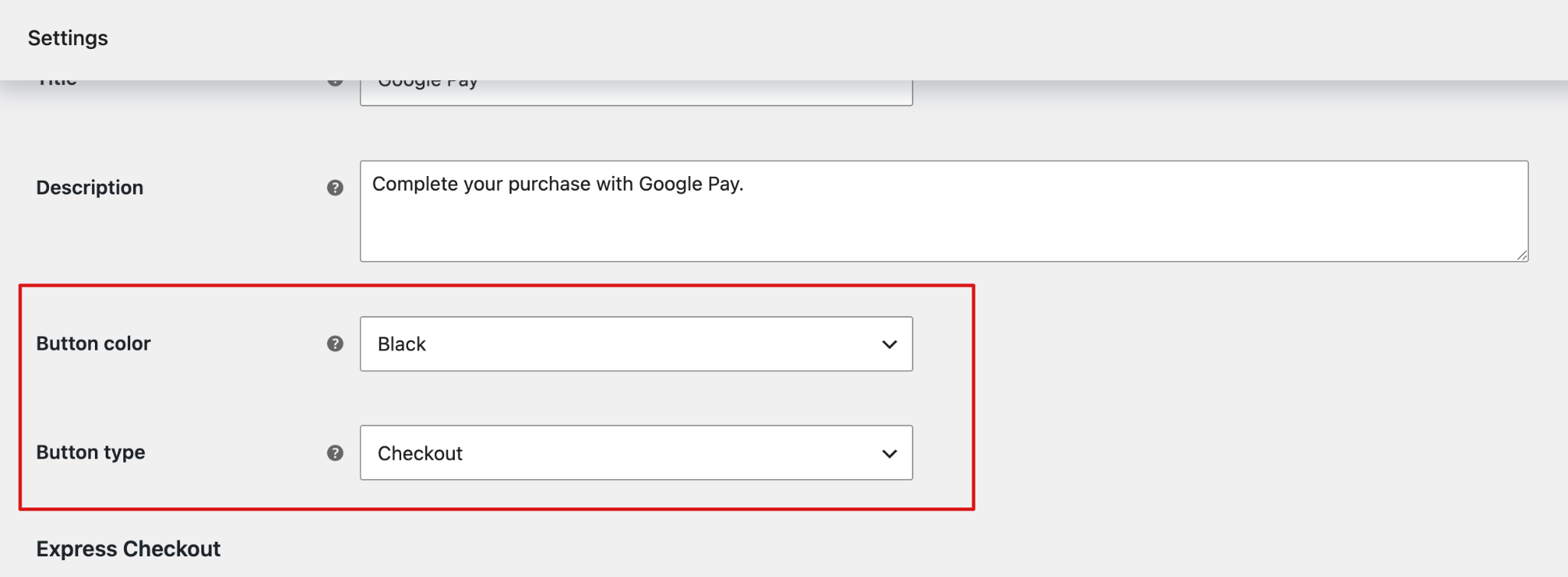
Step 3: Configure the Google Pay Button
Customize the appearance and action of the Google Pay button.
- Button Color: Choose the color of the Google Pay button. Options are default, black, and white.
- Button Type: Choose the action displayed on the Google Pay button. Available options include:
- Buy
- Book
- Checkout
- Donate
- Order
- Pay
- Plain
- Subscribe
Step 4: Configure Express Checkout
Choose where to display the Google Pay button.
Available locations include:
- Checkout Page
- Cart Page
- Product Page
- FunnelKit Slide Cart
You can select multiple locations to make Google Pay available across different parts of your store.
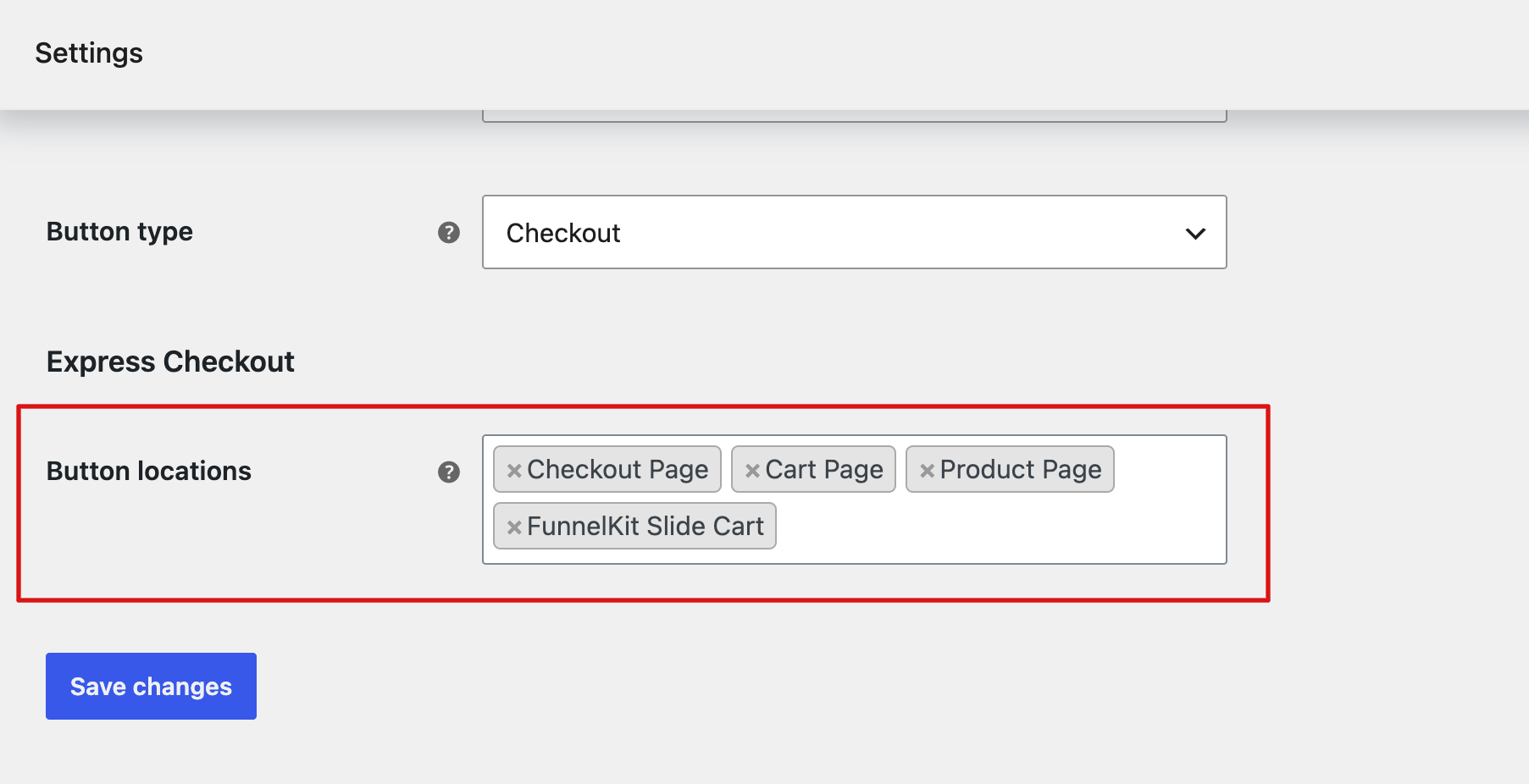
Click Save Changes to apply your PayPal Google Pay settings.
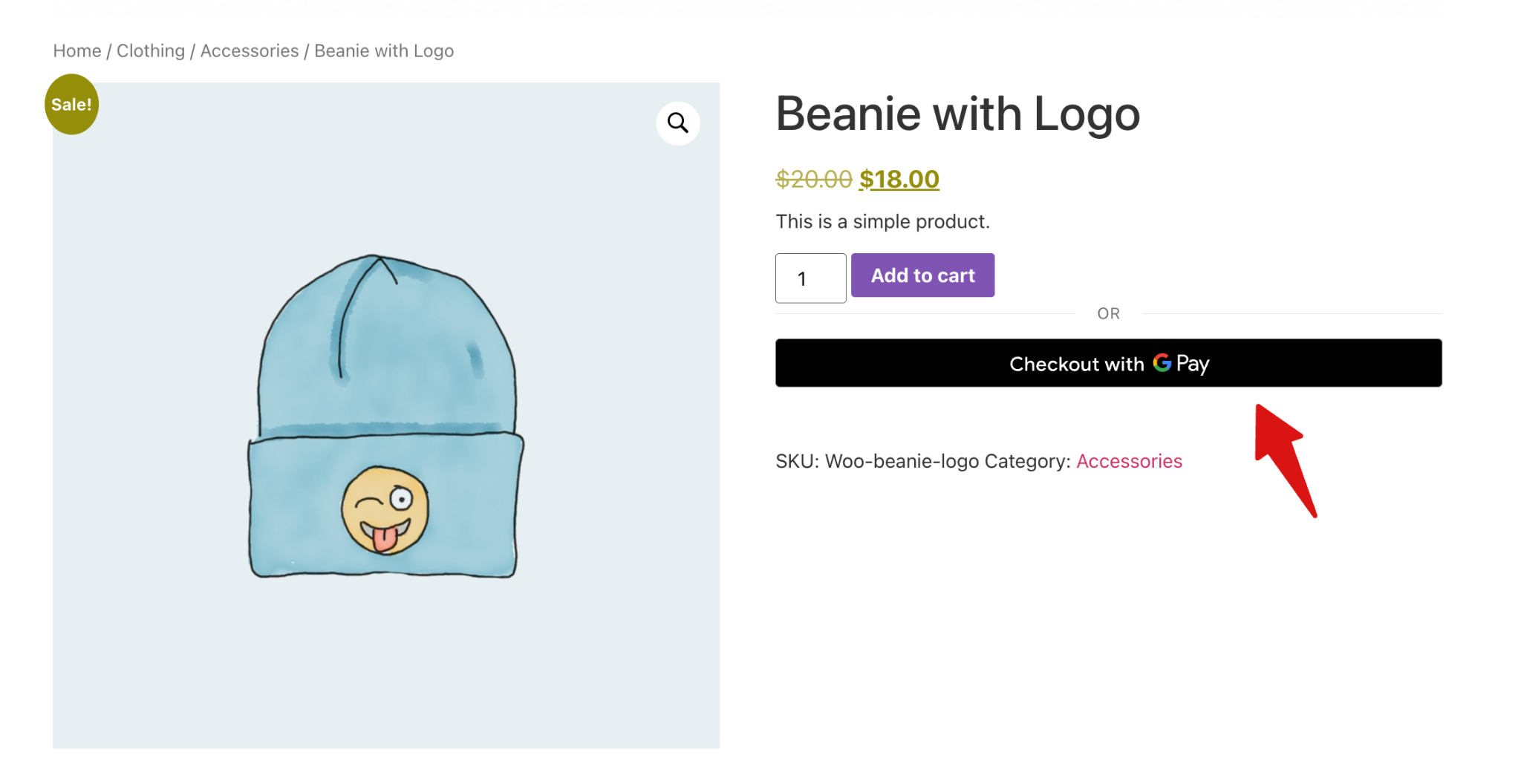
Here is how the PayPal Google Pay buttons look on the product page:
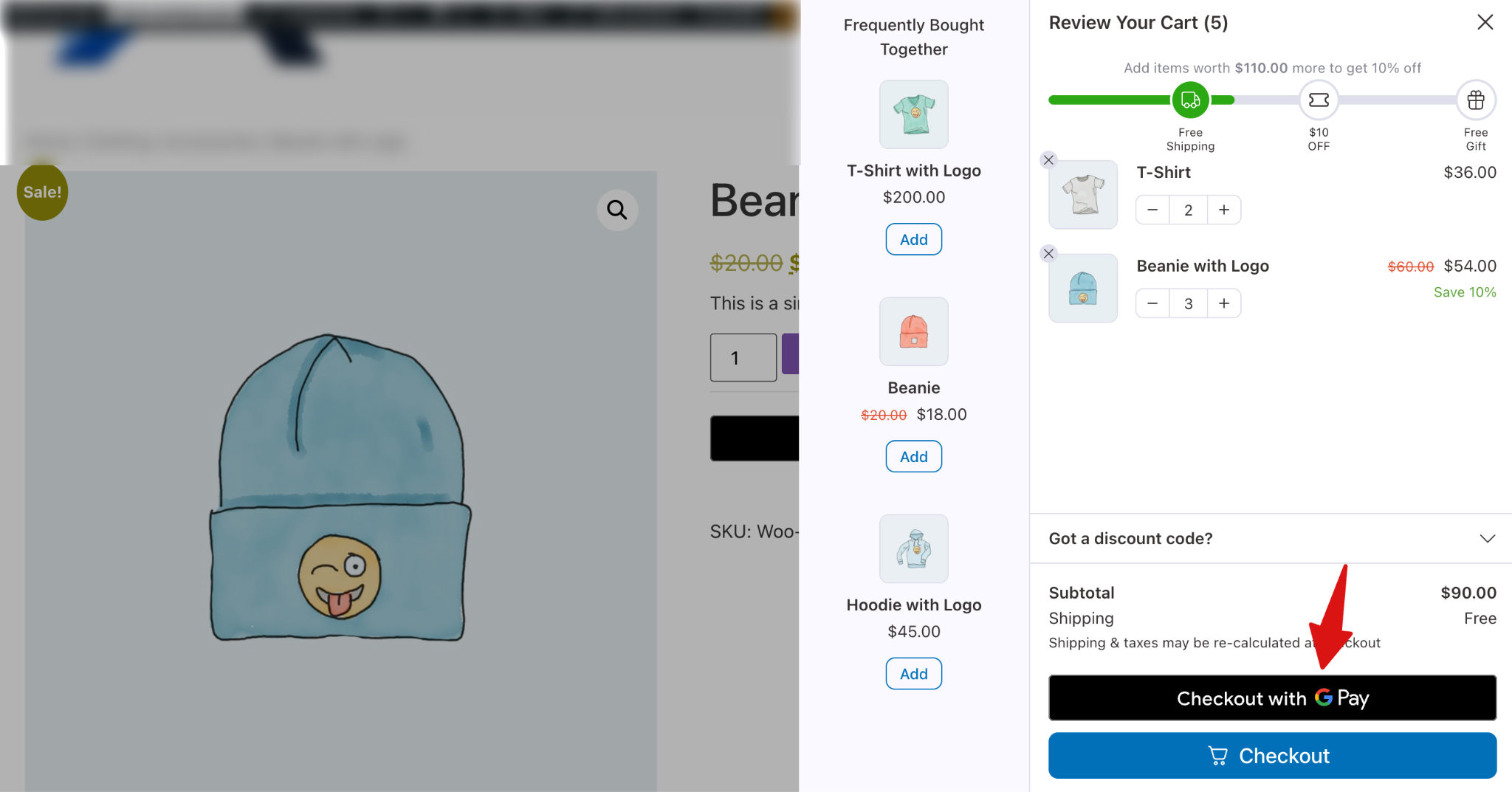
Here is how it looks on the FunnelKit Cart:
Finally, this is how it will appear on the checkout page.