


The PayPal gateway supports two different subscription modes: PayPal Subscriptions and Payment Vaulting.
These modes work differently and require different configurations.
Before setting up subscriptions, choose the mode that best fits your store’s needs.
| When to use PayPal Subscriptions | When to use Payment Vaulting |
| PayPal handles renewals automatically | Store handles renewals using saved payment method |
| PayPal retry logic for failed payments | Merchant manages retry logic |
| Minimal configuration | Full control over subscription changes |
| PayPal manages subscription lifecycle | WooCommerce/Sublium manages subscription lifecycle |
How To Select Subscription Mode
You can select your mode at:
WooCommerce → Settings → Payments → PayPal, and under “Express Checkout Settings” choose Subscription mode.

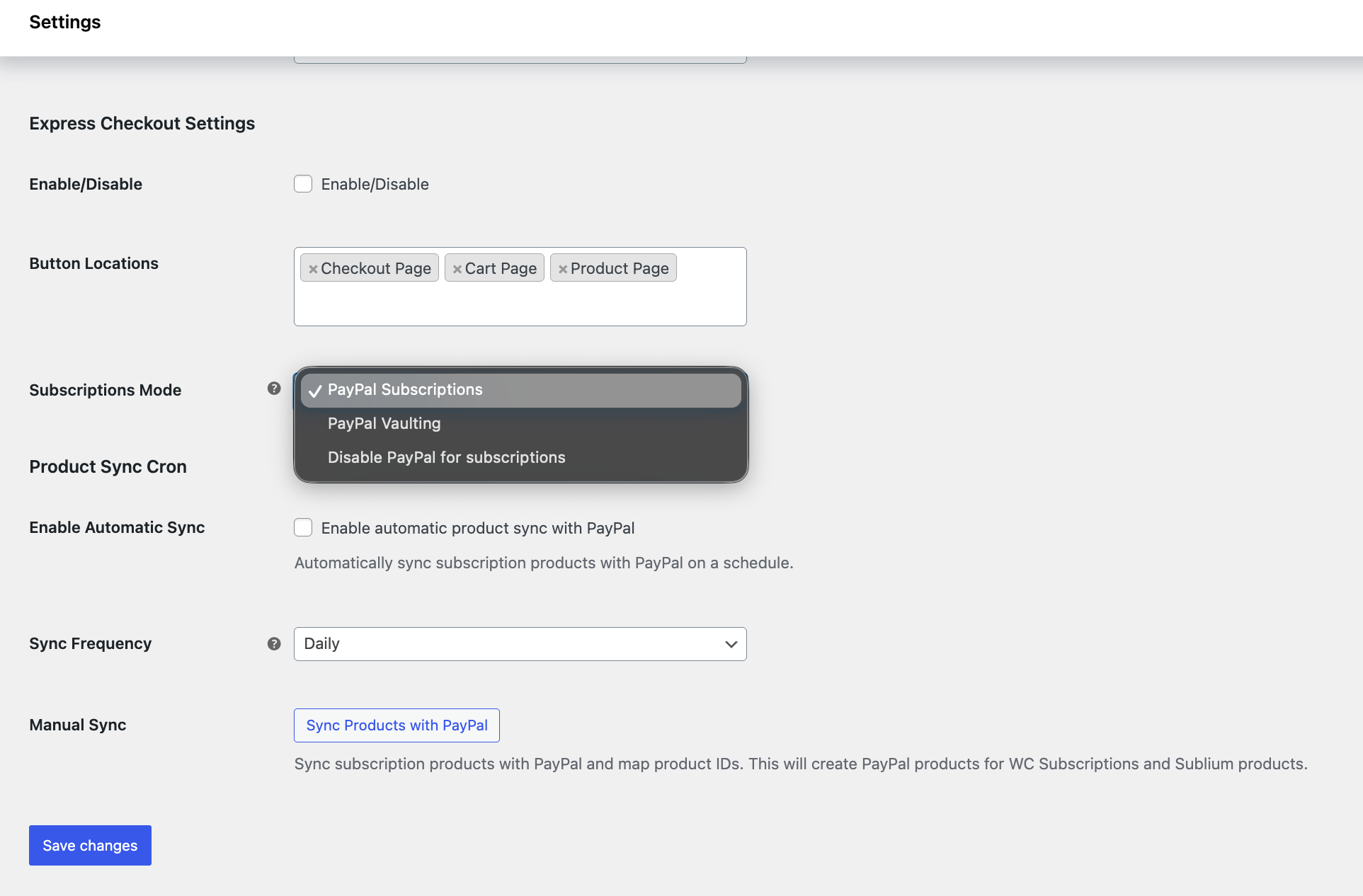
PayPal Subscriptions
PayPal manages the subscription and automatically charges the customer on renewal. Your store does not handle renewal payments.
Flow at Checkout and Renewal:
| Step | What Happens |
| Customer checkout | Customer selects a subscription product. |
| Plugin action | Creates PayPal Billing Plan (P-XXXXX) and PayPal Subscription (I-XXXXX) via PayPal API. |
| Customer approval | Customer approves subscription in PayPal popup. |
| Payment storage | PayPal stores payment method as part of the subscription agreement (Vault not required). |
| Renewal | PayPal automatically charges the customer. |
| Store notifications | Webhooks notify your store: PAYMENT.SALE.COMPLETED, BILLING.SUBSCRIPTION.ACTIVATED. |
What Gets Created:
- PayPal Subscription ID (I-XXXXX)
- PayPal Plan ID (P-XXXXX)
- WooCommerce/Sublium subscription linked to PayPal subscription
Requirements:
- PayPal Business account
- PayPal connected via OAuth or API credentials
- Webhooks configured
Troubleshooting:
- Subscription not created → Check API credentials and webhook configuration
- Renewals not showing → Verify webhook delivery


