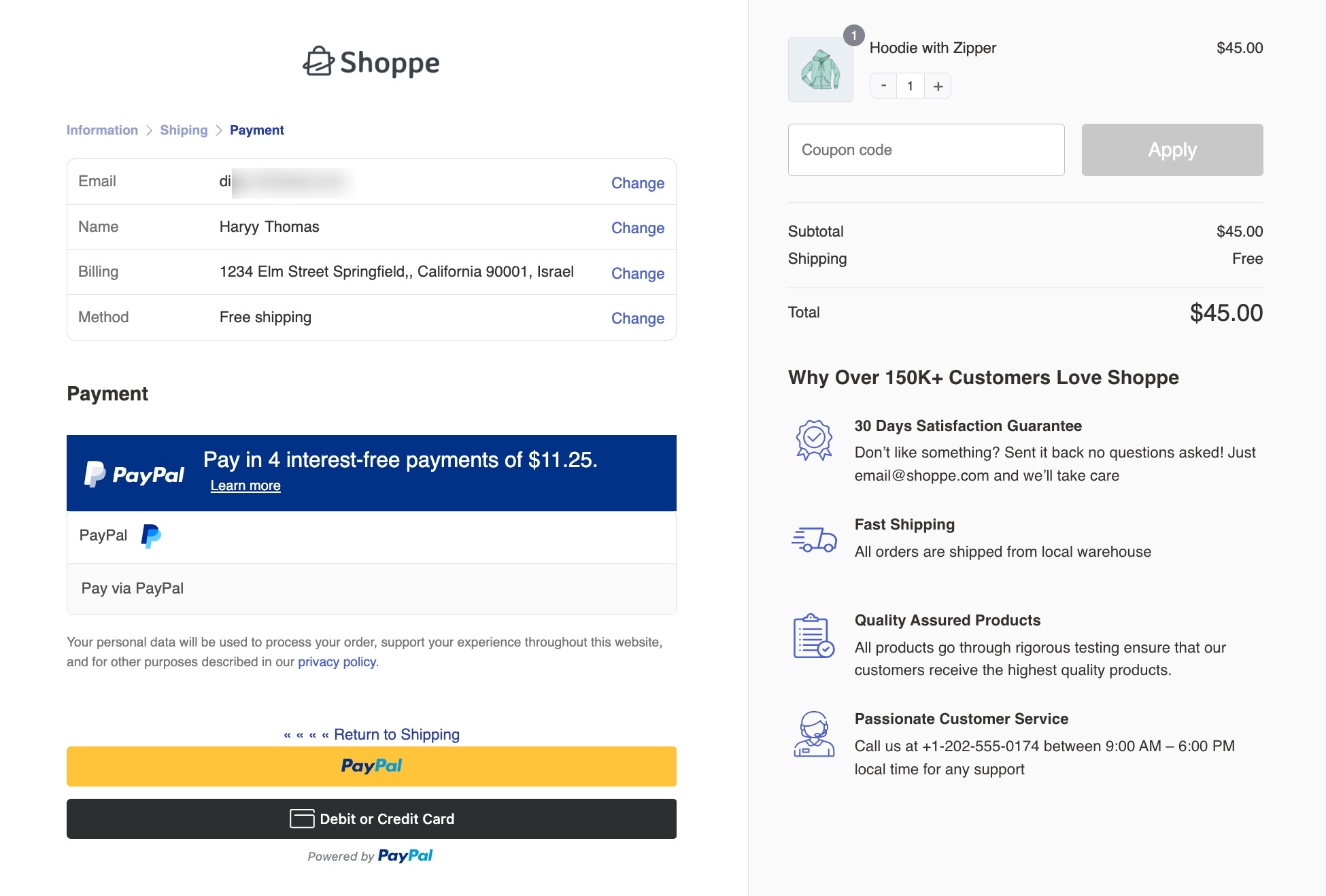
PayPal Pay Later messaging lets eligible customers know they can split their purchase into multiple payments. You can display this messaging on product, cart, and checkout pages.
To set it up, first enable PayPal payments in WooCommerce, then configure the Pay Later messaging settings to customize where and how it appears in your store.
Follow the steps below:
Step 1: Enable PayPal Payment
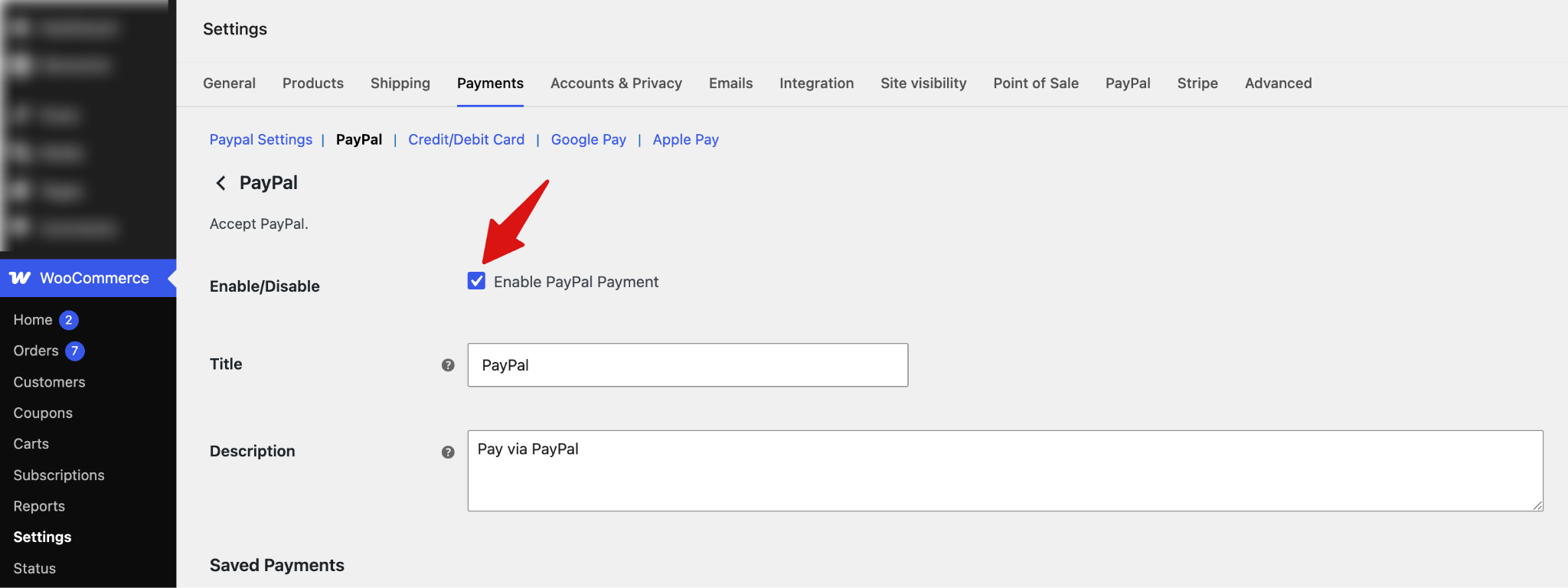
First, navigate to WooCommerce > Settings > Payments > PayPal and check the option "Enable PayPal Payment".
For other settings like title, description, saved payments, etc., check the PayPal settings documentation.
Step 2: Set Up Pay Later Messaging
Next, scroll down to the Pay Later Messaging section and configure the Pay Later messaging displayed across your store and customize its placement, layout, appearance, and banner style.
- Enable/Disable: Enable or disable Pay Later messaging on your store.
- Display Locations: Select where you want the Pay Later messaging to appear. Options are the Product Page, Cart Page, and Checkout Page. You can enable one or multiple locations.
- Layout: Choose how the Pay Later message is displayed. Options are Text or Flex (banner).
- Text Logo Type: Select the Pay Later logo style. Options are Primary, Alternative, Inline, or None.
- Text Logo Position: Choose where the logo appears in the message. Options are Left, Right, or Top.
- Text Color: Select the color of the Pay Later message text. Options are Black, White, Monochrome, or Grayscale.
- Text Size: Set the text size of the Pay Later message. Available options range from 10px to 16px.
- Flex Color: Select the color of the Pay Later Flex banner. Options are Blue, Black, White, White (no border), Gray, Monochrome, or Grayscale.
- Flex Ratio: Select the aspect ratio of the Pay Later Flex banner. Options are 1x1, 1x4, 8x1, or 20x1.
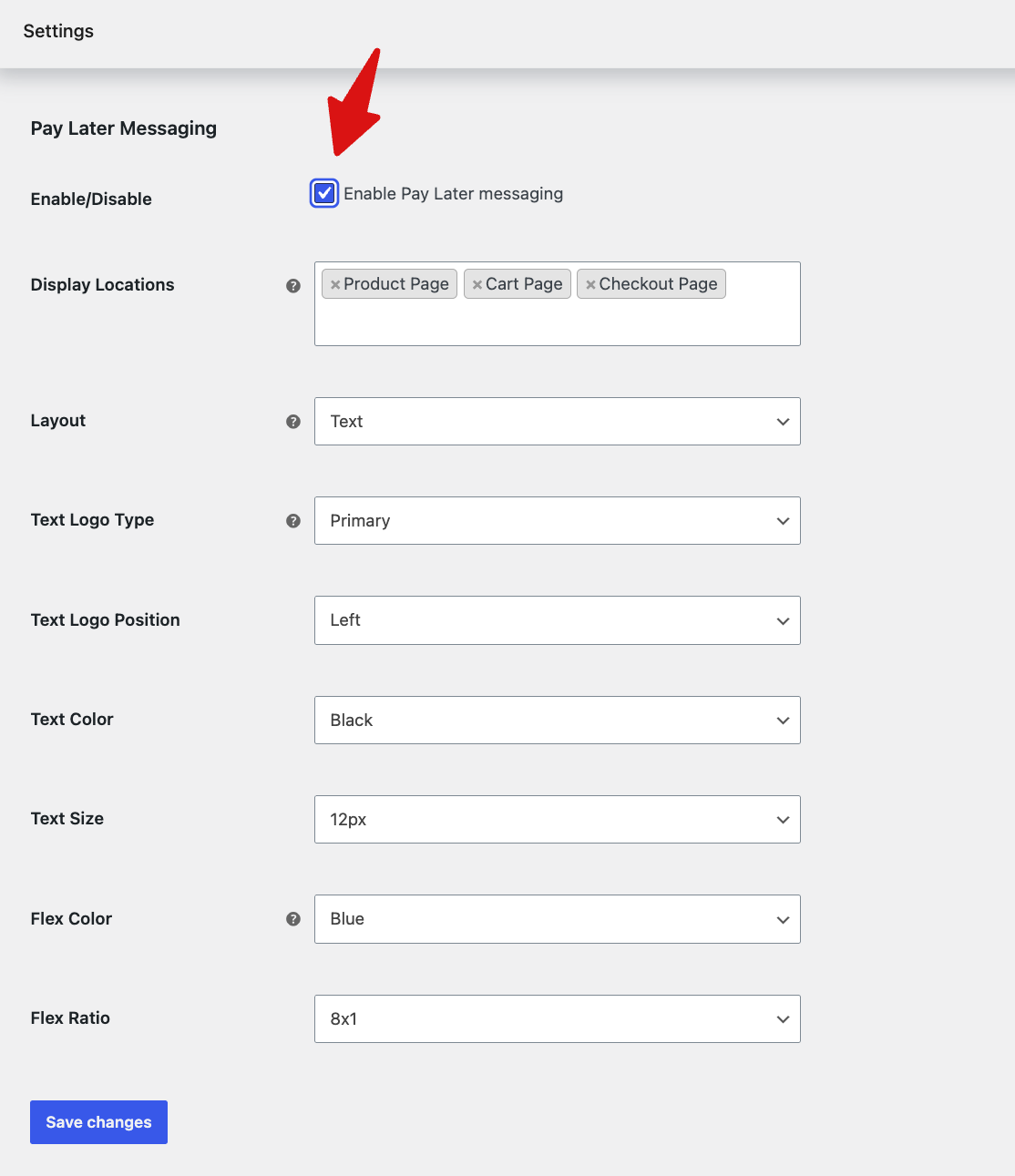
Click Save Changes to apply all the settings.
Now, users can choose PayPal to complete their purchase.
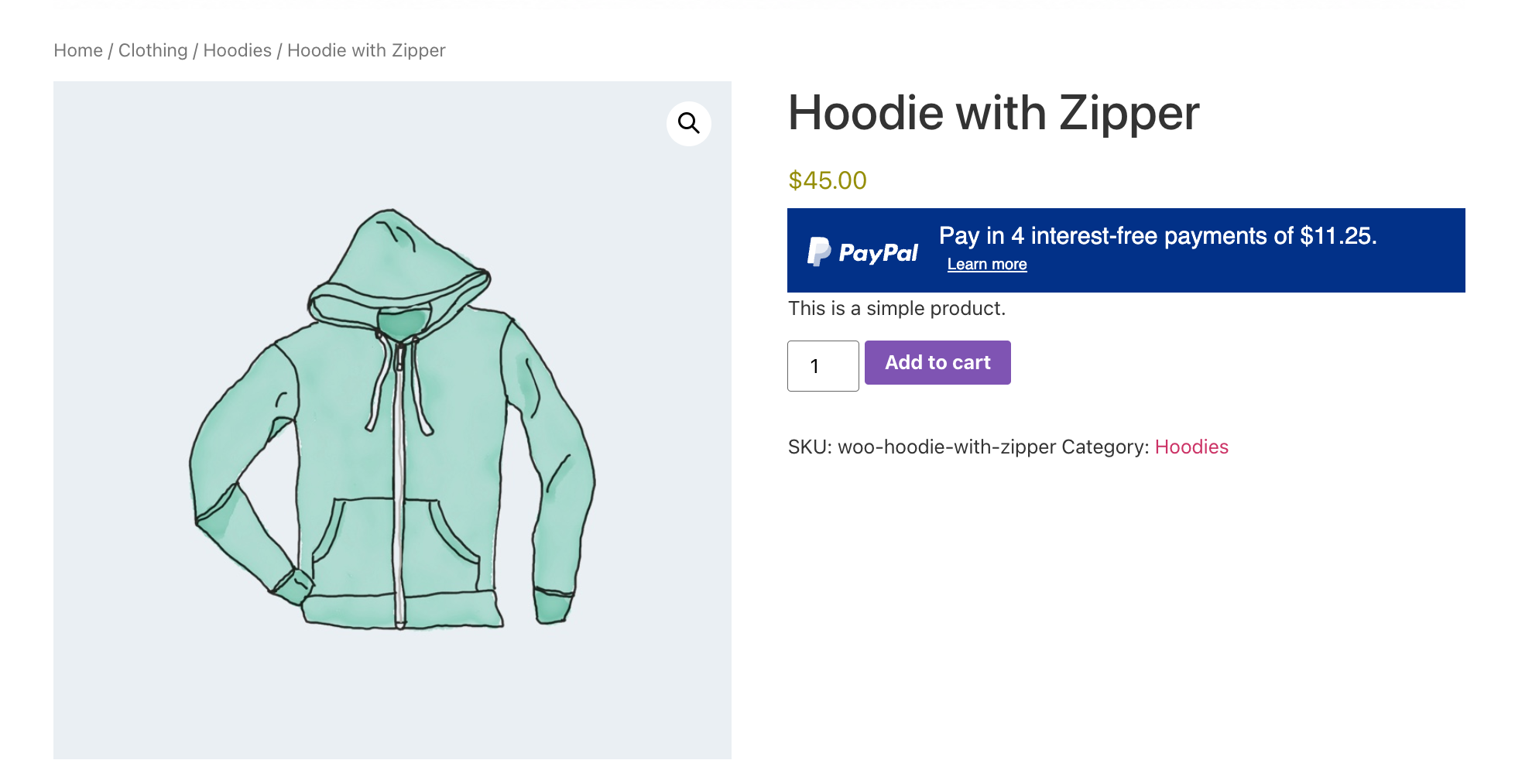
This is what the PayPal Pay Later option looks like on the product page:
Here is what PayPal looks like on the checkout page: