


Ensure you’ve connected your PayPal account with WooCommerce.
In Sandbox mode, go to your WooCommerce product page. The PayPal Express and Pay Later buttons appear right there.
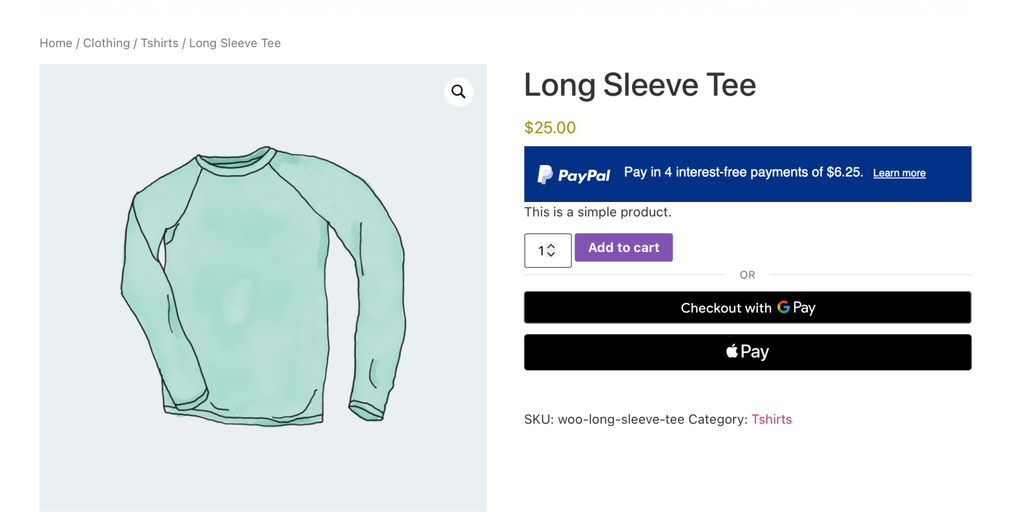
Add this item to your shopping cart and proceed to the WooCommerce checkout page.
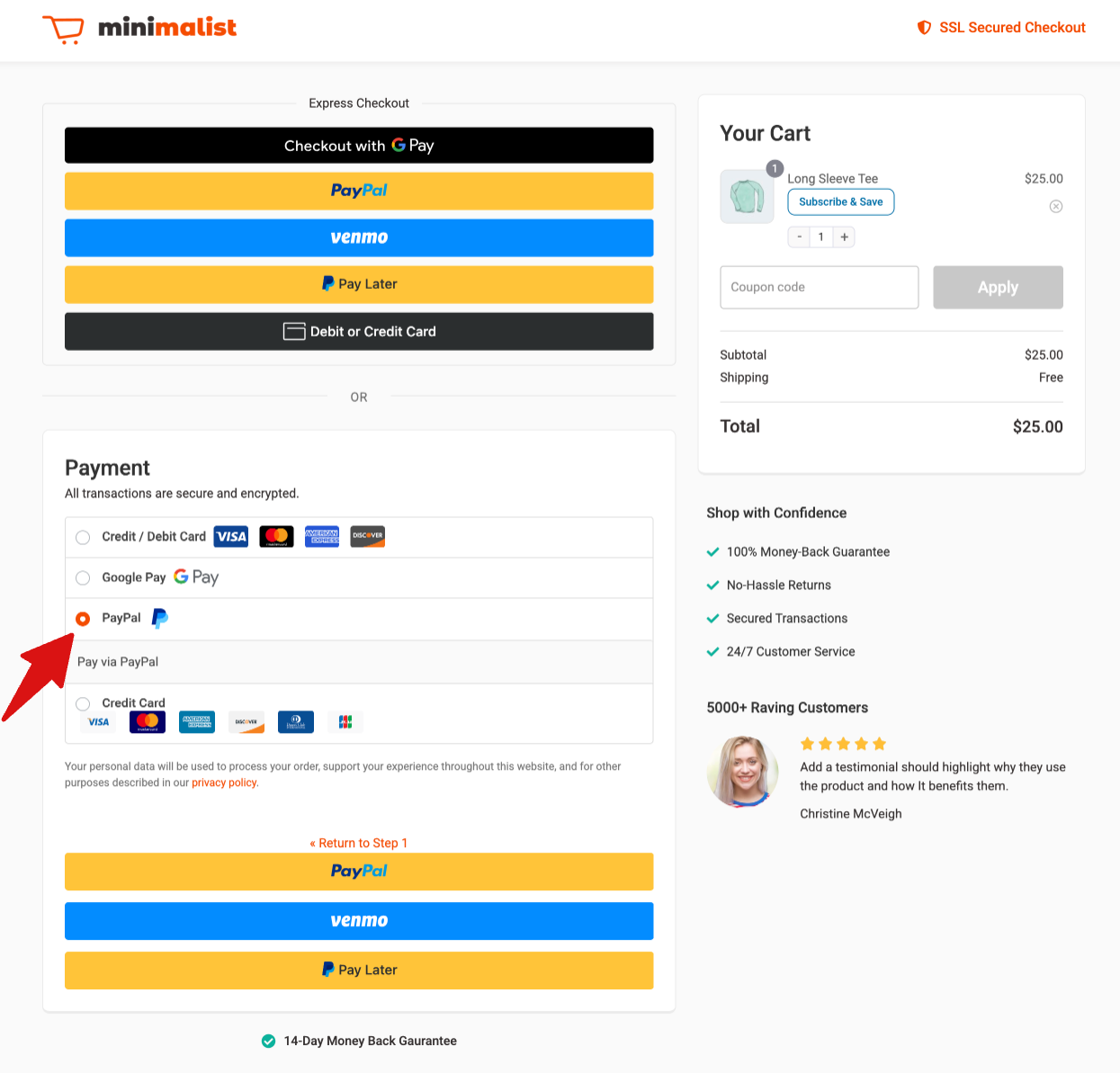
Please note that this high-converting checkout page is created with FunnelKit.
You’ll see the PayPal Express button here. You can also see PayPal as the inline payment method on the checkout page in your WooCommerce store.
Once the order details are filled in, customers can complete their purchase through PayPal in a few quick steps:
First, click the PayPal button.
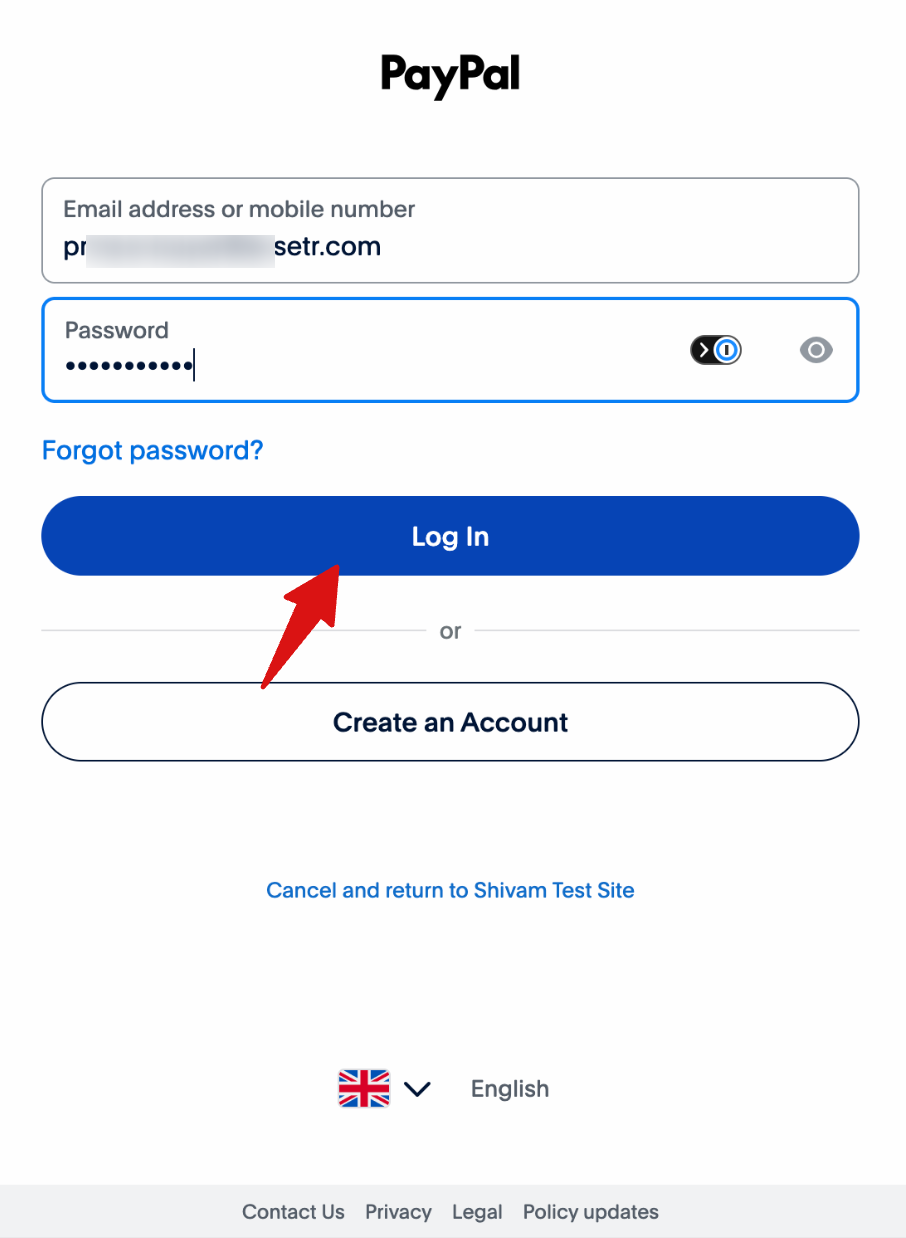
A pop-up window will open and ask the customer to log in to their PayPal account.
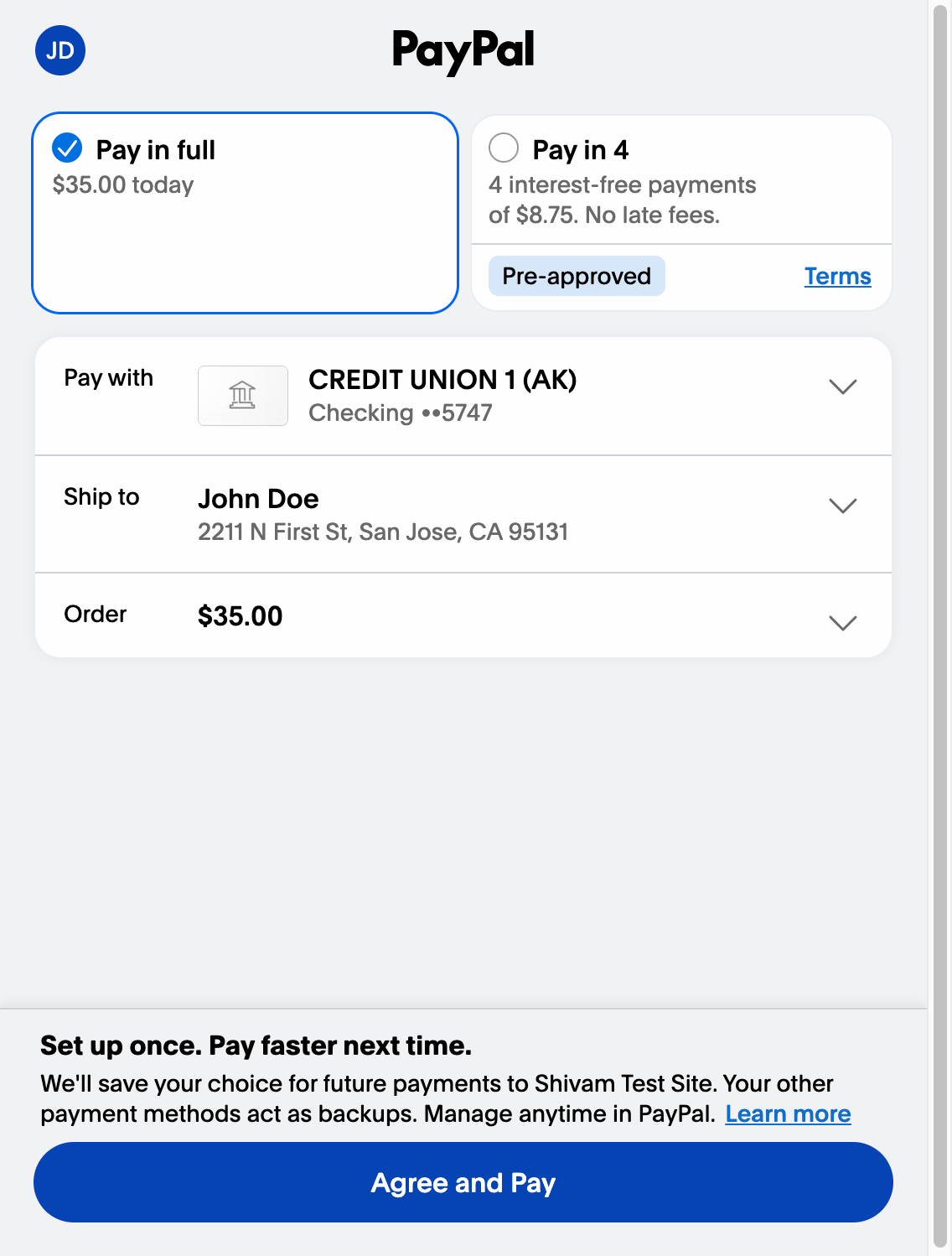
After logging in, the customer's saved payment methods will appear. Choose a payment method and click the Complete Purchase button.
Once the payment goes through, the customer is redirected to the thank you or order confirmation page.
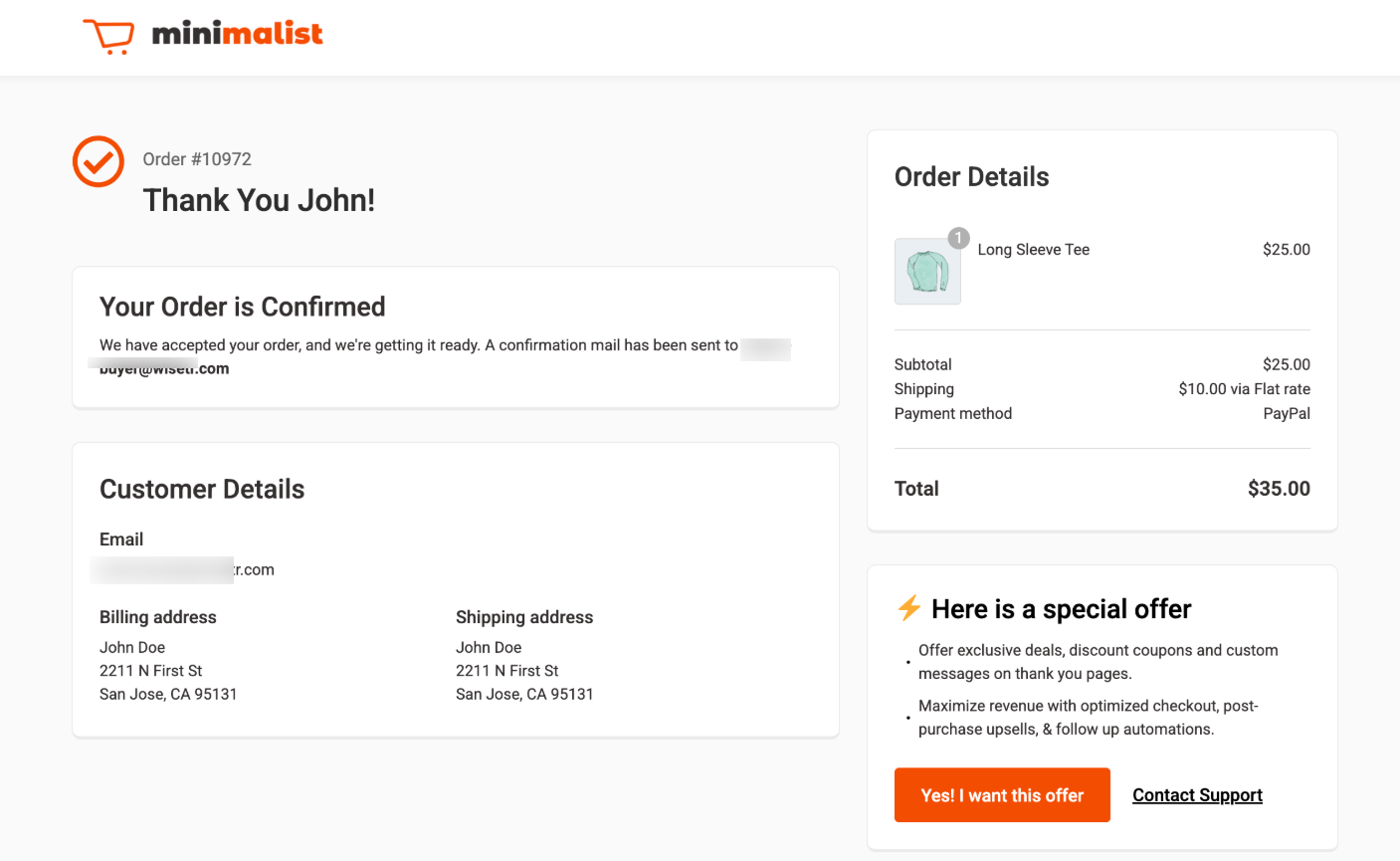
That's how you can test PayPal payment method in your WooCommerce store.


