Knowing how to test WooCommerce emails properly becomes important the moment a customer emails you asking, “Where’s my receipt?”
You check the order and everything looks fine. The payment went through, the order is marked as processing, and there are no obvious errors. But the email never reached the customer.
You only find out because they took the time to contact you.
And if that email has been failing for days, the problem can quickly affect dozens or even hundreds of orders.
Your customers may end up contacting your support, wondering whether their payment actually went through, or even opening a dispute.
However, the good news is that you can do a basic email check in about 30 seconds without placing a test order or installing another plugin.
All you need to do is go to WooCommerce ⇨ Settings ⇨ Email, choose the email you want to test, and preview it on both desktop and mobile.
You can even send a test email to your own inbox, but it only checks how it looks.
But keep in mind that a test email arriving in your inbox doesn’t necessarily mean your WooCommerce emails are reaching customers.
That’s why we’ll look at three ways to test WooCommerce emails, starting with a quick preview and ending with a full delivery check including logs and spam scores.
We’ll also cover what to check when a test email never arrives.
Table of Contents
- 1 What Testing a WooCommerce Email Actually Means
- 2 Method 1: Preview and Send a Test Email
- 3 Method 2: Test With a Real Order
- 4 Method 3: Test Whether Your Emails Actually Delivered
- 5 Other Plugins to Test Your Emails
- 6 Test Email Didn’t Arrive? Run These 7 Checks In Order
- 7 Frequently Asked Questions
- 8 Ready to Ship Order Emails You’ve Actually Verified?
What Testing a WooCommerce Email Actually Means
Most guides tell you to check your email template. But in our opinion, that’s a third of the job.
To ensure your emails perform as expected, here are the key things you should test in your WooCommerce emails:
| What to test | What it proves | How to test it |
|---|---|---|
| Design | The template renders with your logo, colors, and order table | Native preview, block editor preview, and per-device toggle |
| Triggers | The right email fires on the right status change, to the right person | Manual order and status change |
| Delivery | The message left your server and reached an inbox, not a spam folder | Status ⇨ Logs, authenticated SMTP, and mail-tester score |
| Compliance | Your domain authenticates, so mailbox providers accept the message | SPF, DKIM, DMARC alignment, and bounce codes |
Method 1: Preview and Send a Test Email
Use this when you’ve just edited a template and want to see the result before anything leaves your server.
Step 1: Open your email settings
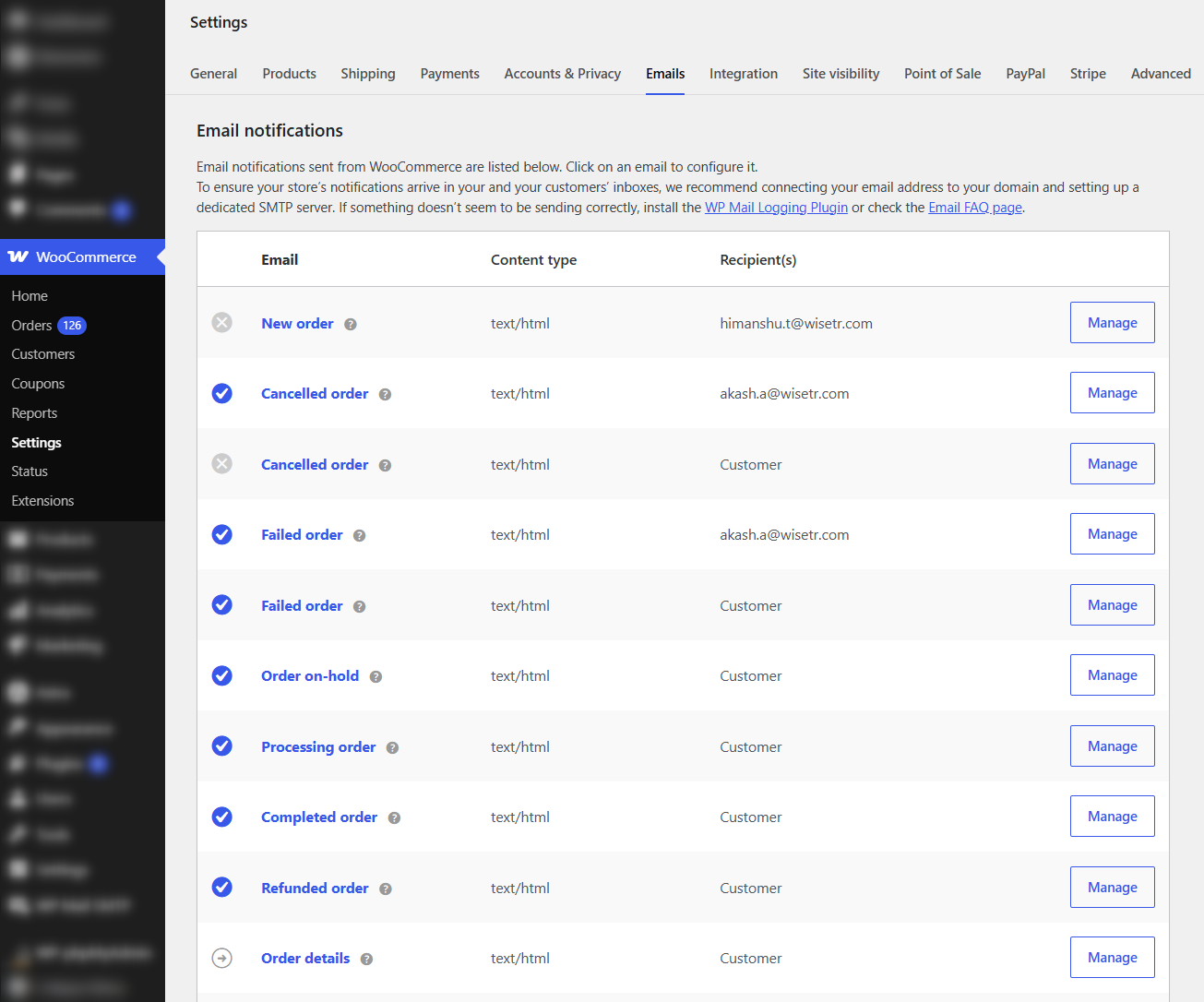
Head to WooCommerce ⇨ Settings ⇨ Emails to find all the transactional emails your store can send.
Each notification lists its recipient and whether it’s switched on.
Step 2: Preview the template
Click on the Customer processing order email and scroll down the preview section.
WooCommerce renders it with placeholder order data, so you get the header, order table, button styles and footer as a customer would see them.
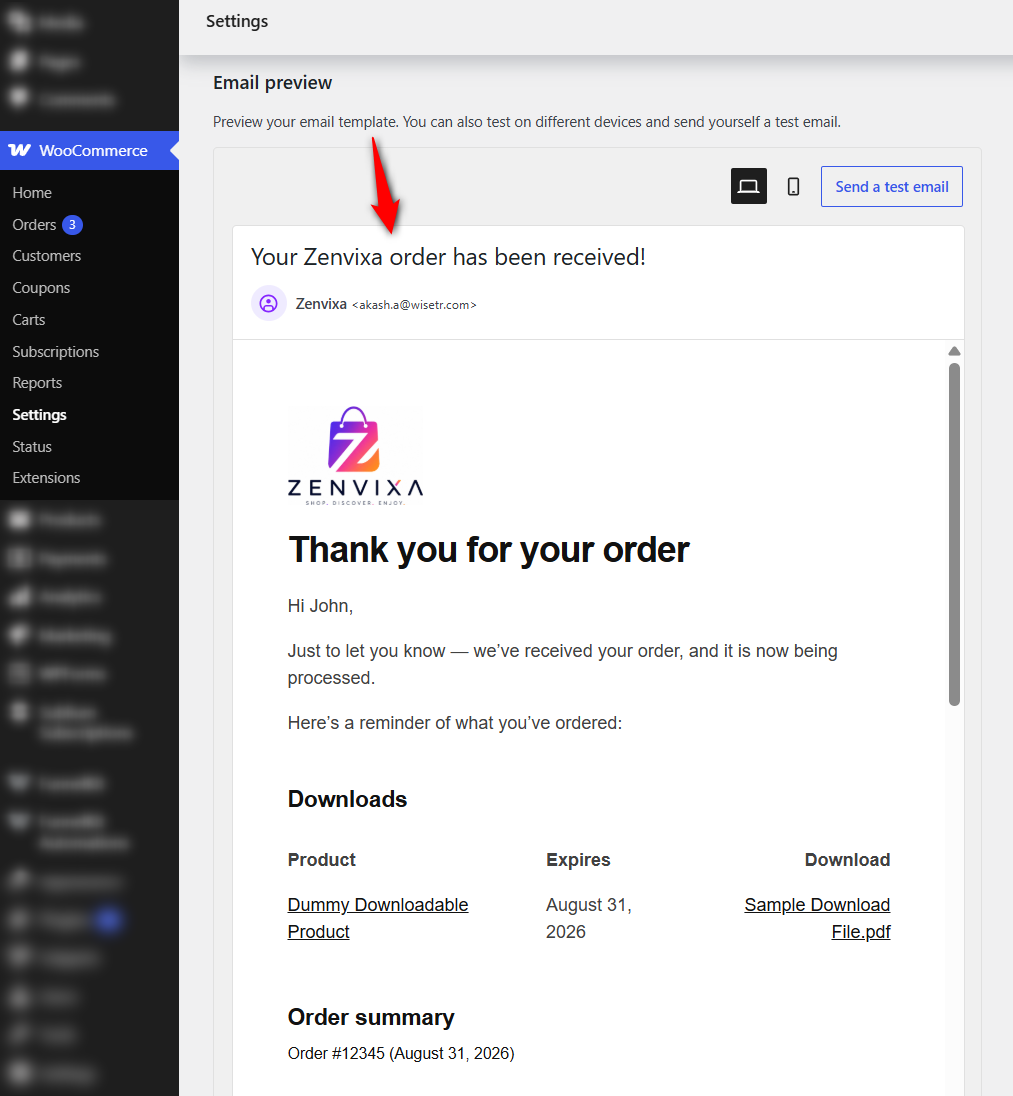
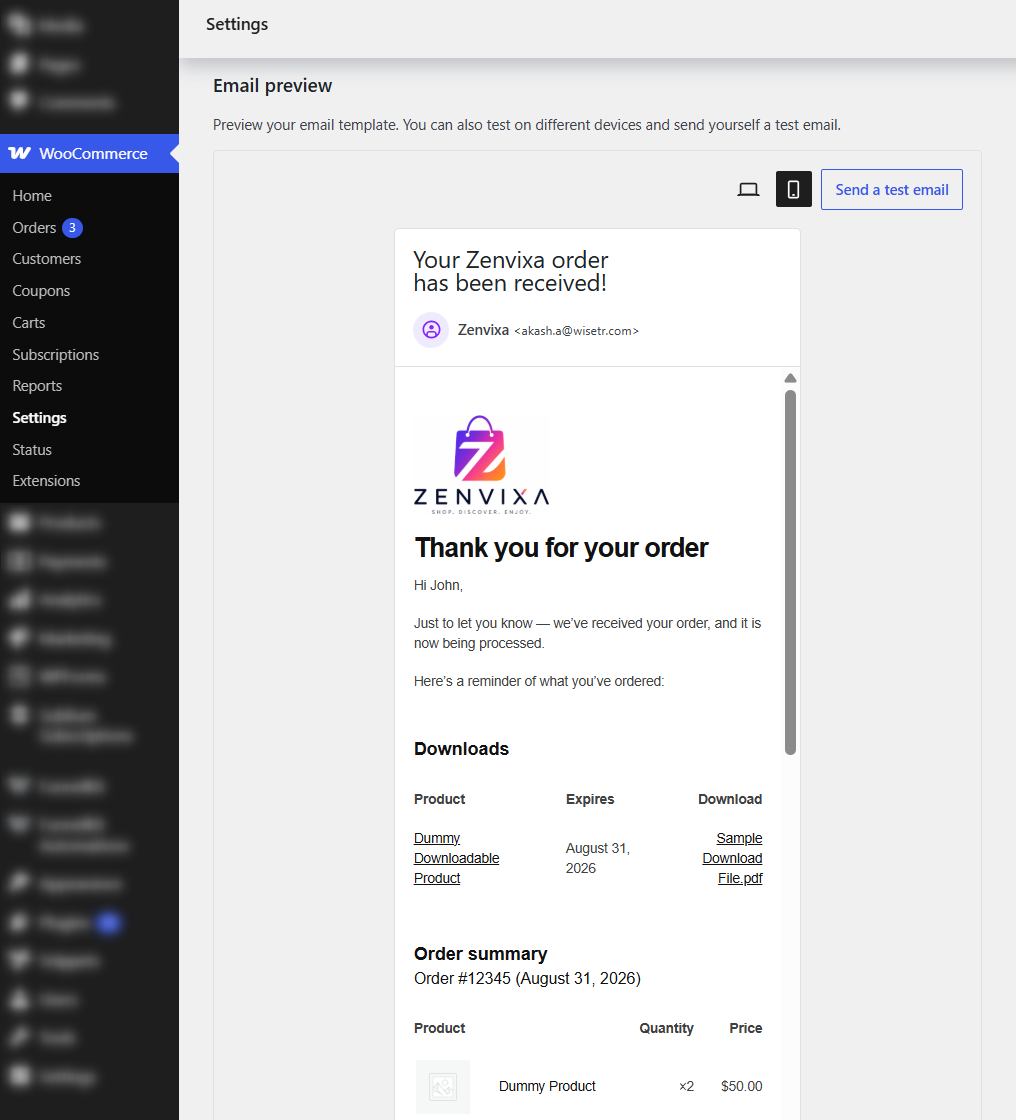
Toggle the mobile icon in the preview toolbar. Look out for an order table that overflows, a button that’s shrunk below tapping size, and a logo that crops instead of scaling.
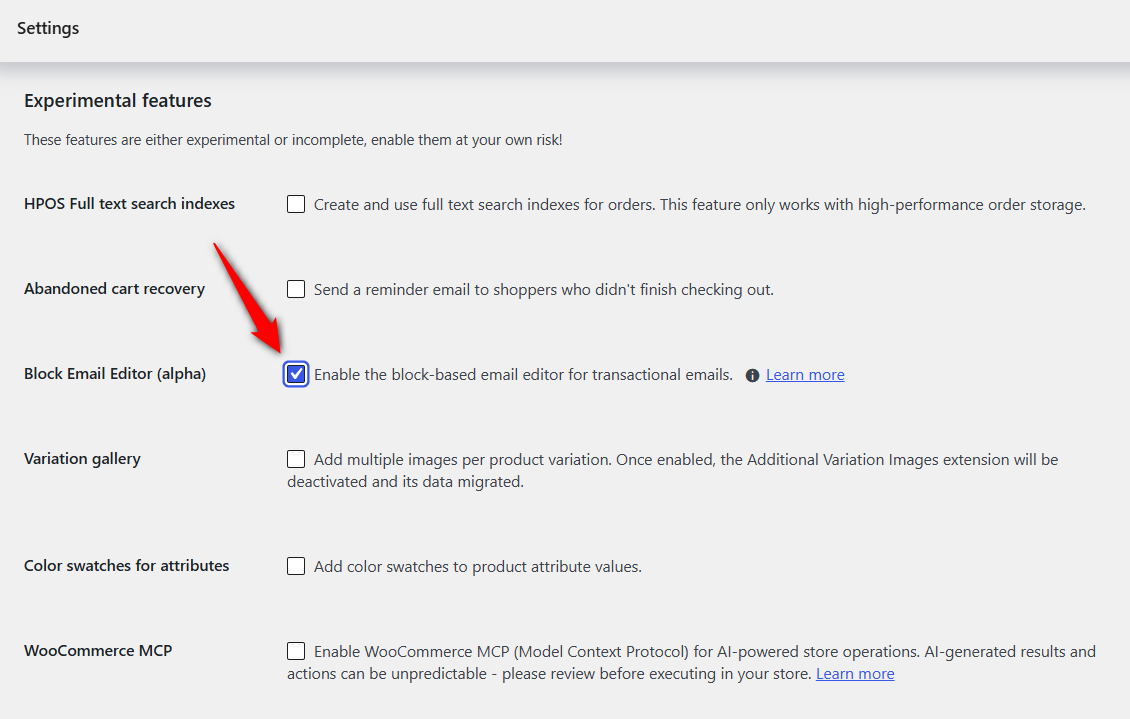
If your store runs the newer block email editor, the route differs slightly.
It’s still a beta feature, switched on under WooCommerce ⇨ Settings ⇨ Advanced ⇨ Features.
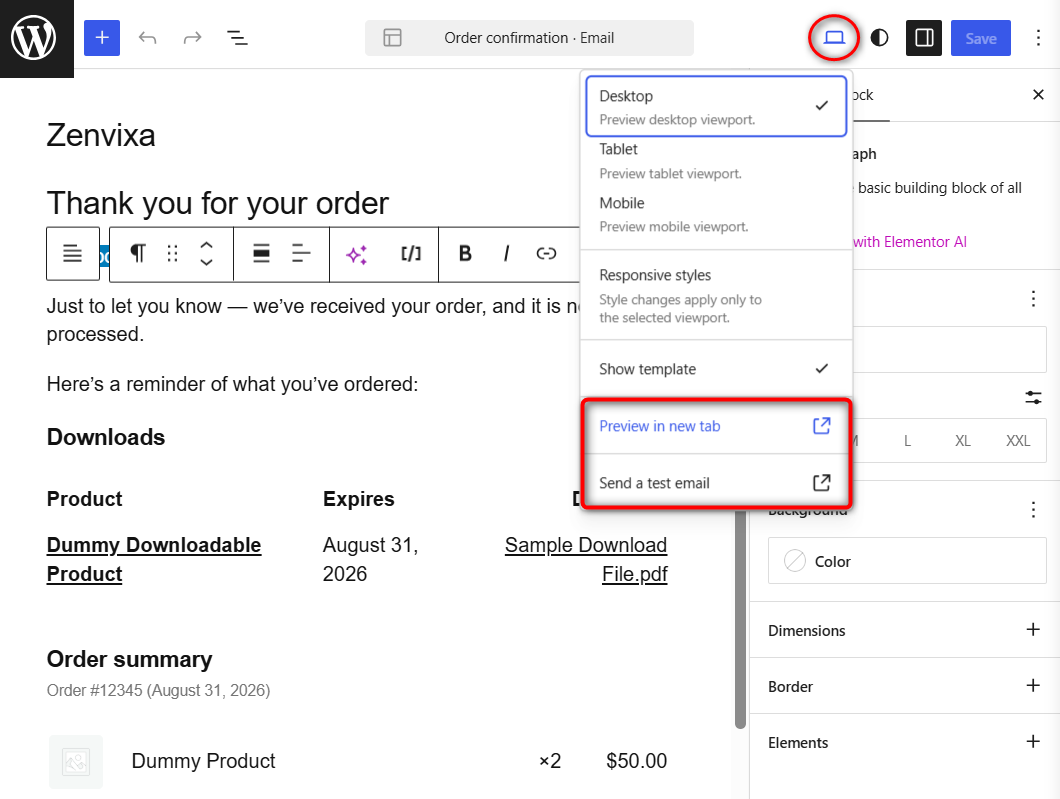
You edit each email like a post, and the View menu holds both the preview and the test send.
If you want to see how an order actually looks with its real products, coupons, and long product names, use the free Preview Emails for WooCommerce plugin.
It adds a WooCommerce ⇨ Preview Emails screen where you can choose both the email and an existing order.
Step 3: Send a test to your own email address
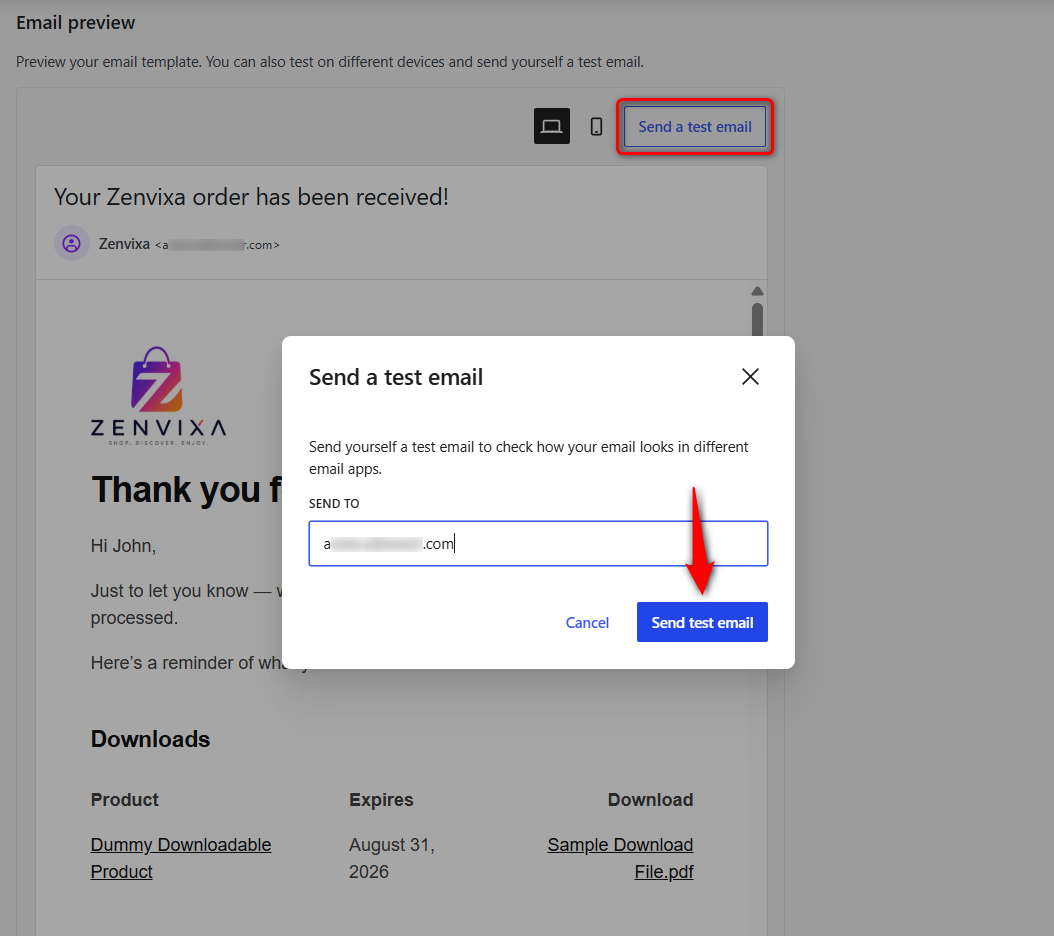
In the same Email preview panel, click 'Send a test email', enter your email address, and send it. It takes about 10 seconds but can catch a surprising number of issues.
Three simple habits make this test much more useful than just looking for a green tick:
- Test with a different email provider: If your store uses Google Workspace and you send the test to another Workspace address, you’re mostly testing internal delivery. Send tests to Gmail, Outlook.com, and an address on your own domain.
- Use plus addressing: For example, [email protected] still lands in your regular Gmail inbox. This way, you can easily filter all your tests into one label.
- Check your spam folder: An email being delivered doesn’t necessarily mean it landed in the inbox. Therefore, always check spam before calling the test a success.

Method 2: Test With a Real Order
Placeholder content can make everything look fine when it isn’t. Real products, an actual coupon, and a real tax line are where email templates tend to break, so let's test them quickly.
Step 1: Build a test order without taking payment
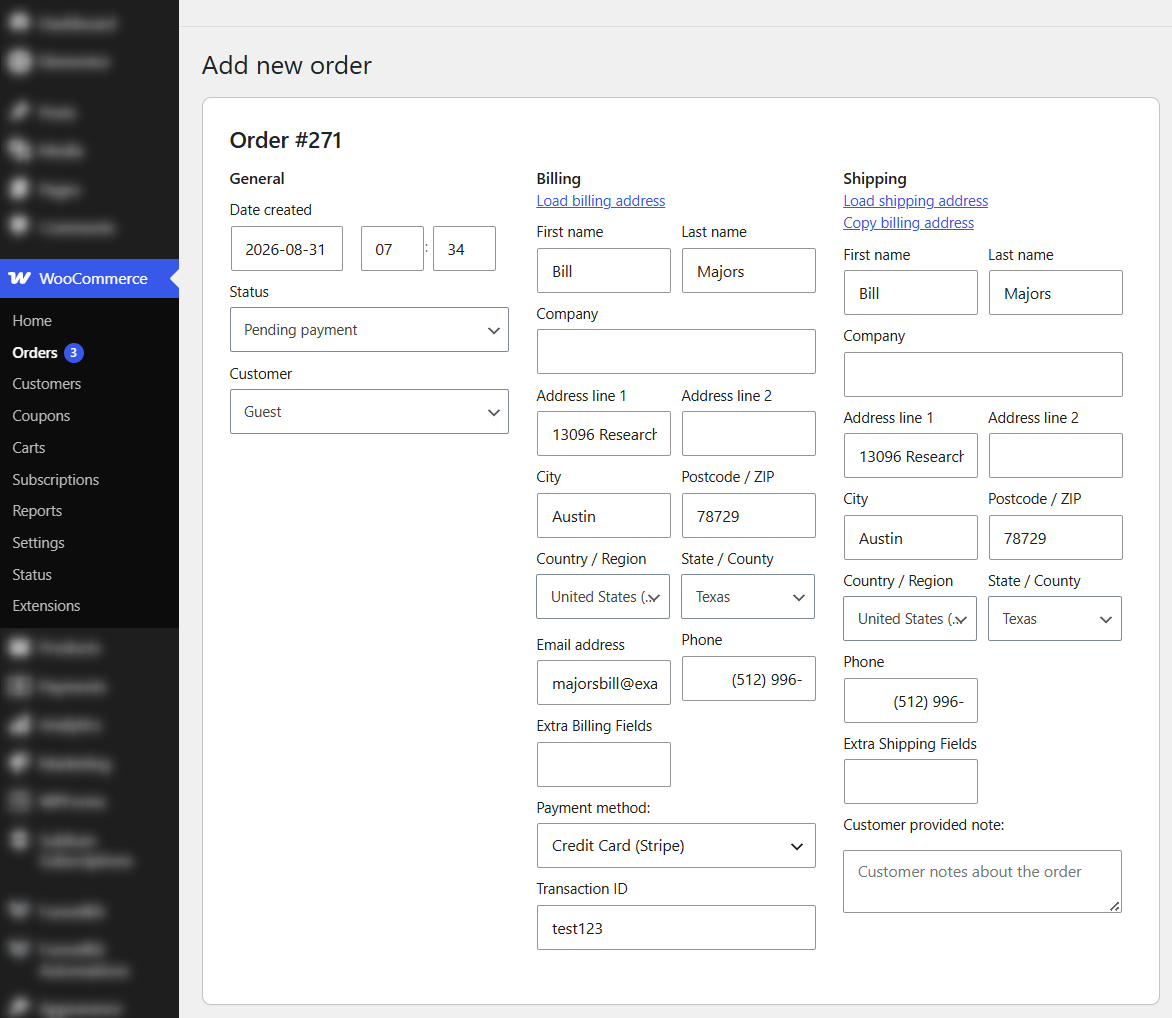
Go to WooCommerce ⇨ Orders ⇨ Add order.
Add an item, apply any coupon (optional), set a shipping method if you want, then put your own address in the billing email field so the customer notifications reach you.
Use at least two products and one with a variable item.
Want to test the full checkout flow instead? Enable Cash on delivery temporarily, or flip your payment gateway into sandbox mode.
Both let you place a genuine front-end order with no charge. Turn it off again before you go live.
Step 2: Trigger the email with a status change
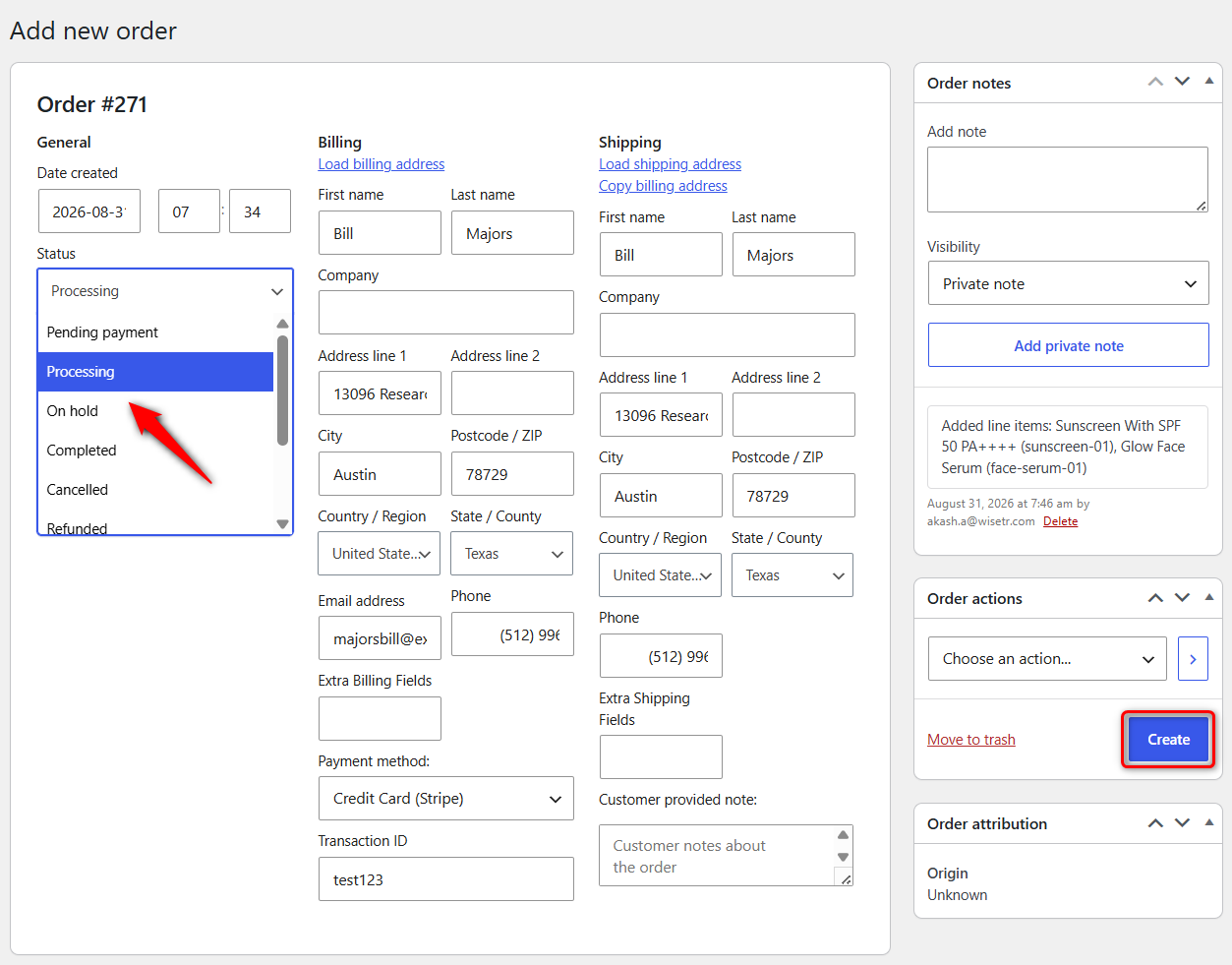
Switch the status to 'Processing'. That triggers the Customer processing order email and the admin New order email together.
Open both side by side to check if your coupon row, tax line, and second product are coming up alright.
Check the admin email landed too, at the address set under Settings ⇨ Emails ⇨ New order.
Admin notifications are the most commonly misconfigured, mostly because nobody goes looking for them.
Method 3: Test Whether Your Emails Actually Delivered
The templates look right. Now make sure customers actually receive them.
This is the other half of the job that many guides skip, and it’s where the real email problems usually show up.
Step 1: Send through authenticated SMTP
By default, WordPress sends email through the PHP mail() function. Those emails often go out without proper authentication and may use a sender address that usually doesn’t match your domain.
This is the exact pattern spam filters don’t like.
That's why it's best to route your WordPress emails through SMTP.
Install an SMTP plugin like WP Mail SMTP or FluentSMTP, connect it to a reliable sending service, and set up SPF, DKIM and DMARC records in your DNS.
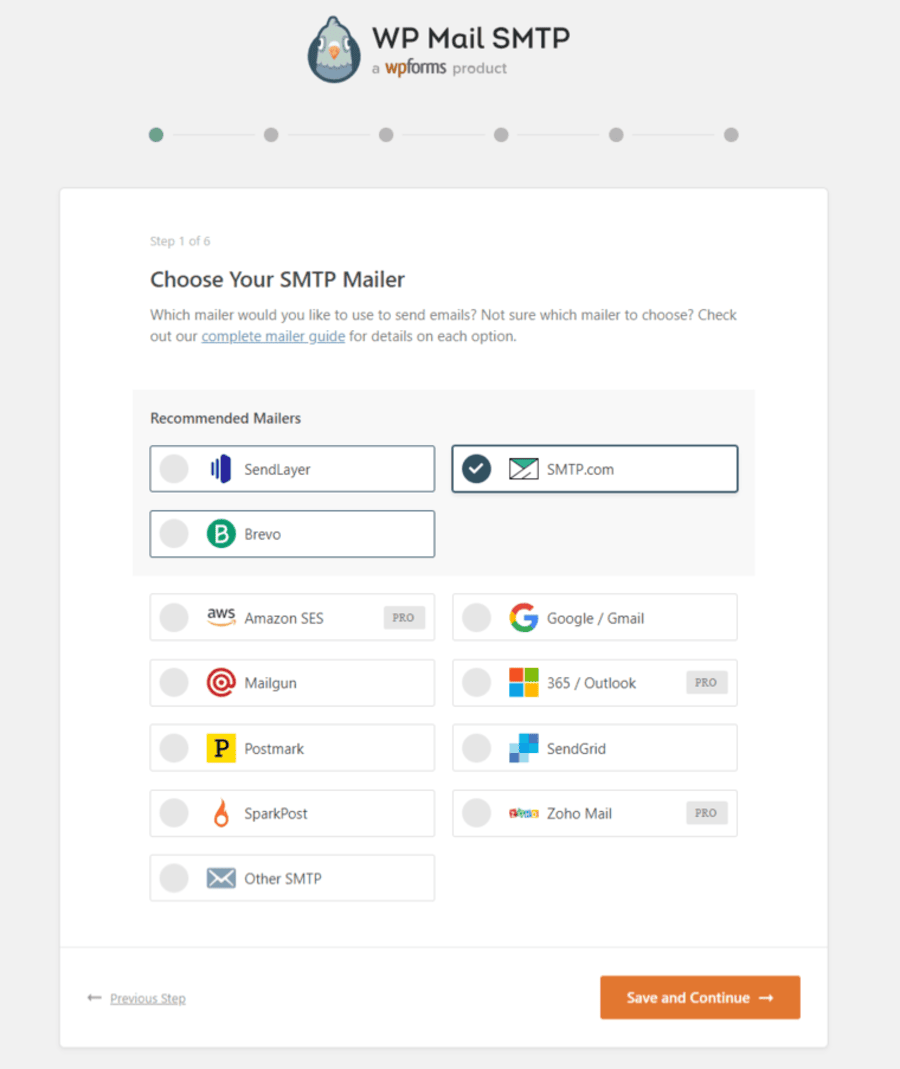
This gives your WooCommerce emails a much better chance of reaching the inbox instead of getting filtered or rejected.
Once done, you can send a test email from WP Mail SMTP.
Check email logs
Without the email log, “the customer says they never got it” is hard to verify.
A log tells you whether the send was attempted, whether the SMTP handoff worked, and what error came back if it didn’t.
Score the message against spam filters
Open mail-tester.com, copy the address it generates, and send your processing order email there.
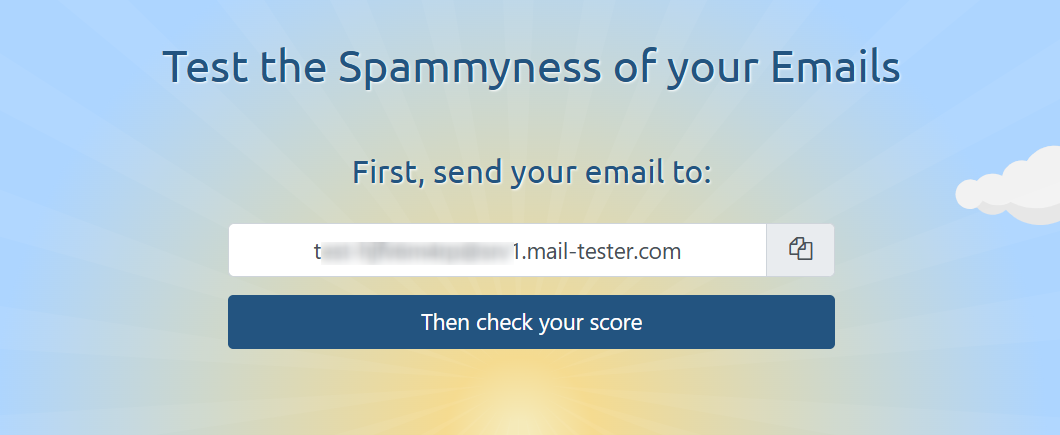
The score checks SPF, DKIM, DMARC, blacklist status, content flags, and message formatting, and it names each failure.
Anything below 8/10 is worth fixing before you assume delivery is healthy.
What Google, Yahoo, and Microsoft now require
Since February 2024, Gmail has required senders of 5,000 or more messages a day to personal Gmail accounts to authenticate with SPF and DKIM.
They need to publish a DMARC record, keep spam complaints under the stated threshold, and support one-click unsubscribe on marketing messages.
Google has continued tightening enforcement since November 2025.
Most stores never come near that volume, and order confirmations are exempt from the unsubscribe rule, but the authentication side has quietly become the standard everyone gets measured against.
For the full DNS setup and log configuration, see our guides to configuring WordPress SMTP and setting up a WooCommerce email log.
Other Plugins to Test Your Emails
| Capability | Native WooCommerce 11 | SMTP plugin | Automation plugin |
|---|---|---|---|
| Preview on desktop and mobile | Yes | No | Yes |
| Send a test to one address | Yes | Yes | Yes |
| Send a test to several addresses at once | No | Sometimes | Yes |
| Record of send attempts | Yes, Status → Logs | Yes, with SMTP response | Yes, unified across email types |
| What happened after handoff | No | Yes | Yes |
| Pre-send audit for broken links and message size | No | No | Yes |
| Spam scoring | No | No | No, use mail-tester |
| Cross-client rendering | No | No | No, use a rendering service |
For most stores, we look at WooCommerce core plus an SMTP service to close the gap entirely.
What matters more than your tooling budget is having a process you actually follow.
A store that runs the checklist below every month on free tools will catch more broken emails than one that buys a platform and never opens it.
You really start to need more when you’re sending abandoned cart, post-purchase, and broadcast emails alongside your transactional messages and you’re tired of checking different places to figure out whether an email was sent.
That's where FunnelKit Automations can help.
It lets you send test emails to multiple recipients at once and runs a pre-send check for things like broken links, missing URLs, and content that may get clipped.
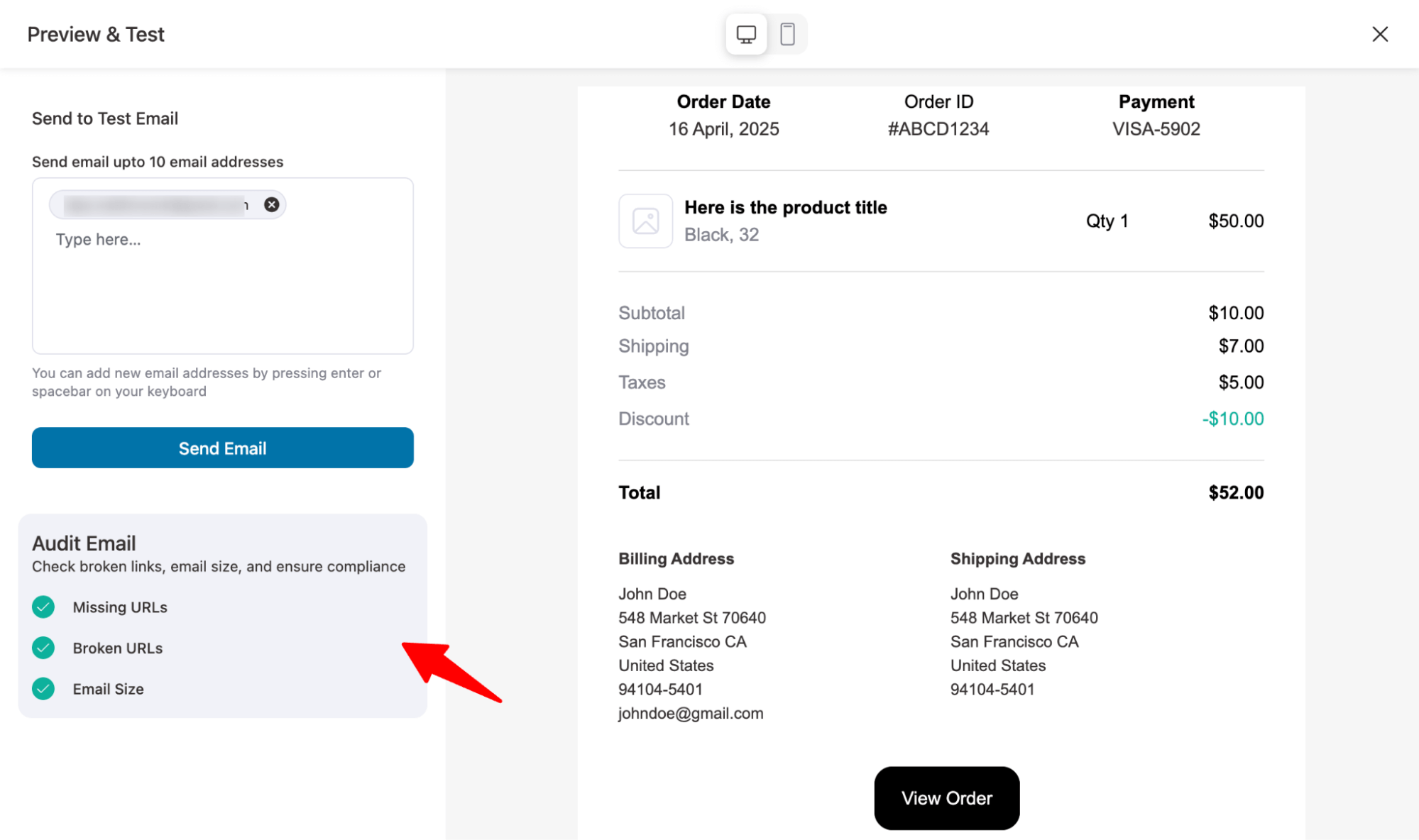
It also keeps your transactional, automated, and broadcast email logs in one place.
Please note that the audit feature comes in the visual email builder, which is available in the paid version.
And when you move an email into FunnelKit, it takes over that email’s template and lets you design beautiful, engaging emails.
Test Email Didn’t Arrive? Run These 7 Checks In Order
Work down this list if your test emails didn't arrive in your inbox:
1. Is the notification enabled and does it have a recipient?
Go to WooCommerce ⇨ Settings ⇨ Emails ⇨ Manage and make sure the notification is turned on and has a valid recipient.
Admin emails usually go to the address set under Settings ⇨ General, which may be an inbox nobody checks regularly.
2. Check WooCommerce logs
If there’s no send attempt logged, the trigger never fired and this is not a deliverability problem.
3. Check spam, promotions and other mail tabs
Check the receiving mailbox’s own filters and any server-level rules.
4. Check the From address
Ideally, it should use your store’s domain.
If the sender domain isn’t properly aligned with your authentication setup, DMARC can fail even when your SMTP connection is working.
5. Confirm you’re sending through authenticated SMTP instead of PHP mail()
Send a test to Mail-Tester and check the SPF, DKIM, and DMARC results to see whether your authentication is set up correctly.
6. Check the order status actually changed
Open the order and click on the Order notes panel.
If a payment gateway callback never reached your store, the order may still be stuck on Pending. In such cases, WooCommerce will not send any email.
7. Check the bounce message
A 550 5.7.x rejection is a DNS and authentication problem.
That usually needs to be fixed in your DNS records rather than inside WordPress.
Frequently Asked Questions
Yes. The preview under WooCommerce ⇒ Settings ⇒ Emails renders in your browser and sends nothing.
The free Preview E-mails for WooCommerce plugin does the same against a real order if you leave the Mail to field blank.
Create a manual order under WooCommerce ⇒ Orders ⇒ Add order, put your own address in the billing email field, then set the status to Processing. No payment is taken, and no card gets charged.
An SMTP test and a WooCommerce order email travel different paths.
Usually the order never reaches a status that triggers anything, because the payment gateway isn’t confirming payment back to WooCommerce.
It does. Both a preview and a send-test-email option sit on the email settings screen.
Stores on the newer block email editor will find them under the View menu inside the editor instead.
Send through authenticated SMTP rather than PHP mail, publish SPF, DKIM, and DMARC records, and send from an address on your own domain.
Then score the result on mail-tester before you assume it’s fixed.
Only if you test against a live order without swapping the billing address first, or run status changes on a staging clone that still holds customer data.
Point staging at a sandbox and change the billing email on any live order you touch.
Ready to Ship Order Emails You’ve Actually Verified?
You can get through all these methods mentioned above in about 20 minutes or less.
But the bigger win is making email testing part of your regular workflow instead of doing it once and forgetting about it.
Every template edit, host migration, DNS change, or payment gateway switch can cause an email notification to stop working without throwing an obvious error.
Spending 10 minutes testing after each change is far more useful than doing one big audit once a year.
You also don’t need to run all these tests every time.
We’d start with Method 2, because manually taking one order through four statuses will uncover more real-world problems than endless previewing.
Then add the delivery checks whenever you change your DNS, mail setup, or hosting.
If your store also sends abandoned cart, post-purchase, and broadcast emails, and you’d rather manage previews, multi-recipient testing, and email logs in one place instead of jumping between different tools, FunnelKit Automations brings those checks together with your transactional emails.
From smooth order updates to engaging campaigns, FunnelKit Automations helps you send error-free, on-brand emails that keep customers informed and satisfied.
Related Resources:
- Customize Your WooCommerce Emails
- Fix WooCommerce Not Sending Emails Issue
- Set Up a WooCommerce Email Log
- Send Engaging WooCommerce Transactional Emails
Editorial Team
October 2, 2026A WooCommerce invoice email gives customers a clear record of what they bought, what they paid, and how they paid. WooCommerce can send one out of the box, but only...
Editorial Team
September 29, 2026The WooCommerce subscription reminder email you get by default goes out once per renewal, on the same schedule for every plan you sell. That may be enough for a $15...
Editorial Team
September 24, 2026AutomateWoo gets the job done, but switching away from AutomateWoo is becoming increasingly common among WooCommerce store owners. If you're looking for the best AutomateWoo alternative for your WooCommerce store,...