


WooCommerce offline payment options are more important than many store owners realize.
While online cards and digital wallets dominate in some regions, millions of shoppers still prefer paying after placing an order.
For example, according to Go Globe, 64% of online shoppers in the Middle East show a strong preference for Cash on Delivery, especially for categories like electronics, fashion, and household products.
This is why WooCommerce includes built-in offline payment methods like bank transfers, check payments, and cash on delivery. These options allow businesses to accept orders without requiring instant online payment.
In this guide, we’ll explain what WooCommerce offline payments are, when they make sense for your store, and how to configure them correctly so customers know exactly how to complete their orders.
Table of Contents
- 1 What WooCommerce Offline Payment Actually Means
- 2 The 3 Built-In WooCommerce Offline Payment Methods
- 3 How to Set Up WooCommerce Offline Payment Methods Step by Step
- 4 How to Process Offline Orders in WooCommerce
- 5 When Online Payment Makes More Sense
- 6 Common Questions About WooCommerce Offline Payment
- 7 Where exactly do I find offline payment settings in WooCommerce?
- 8 How do I disable a WooCommerce offline payment method?
- 9 What happens to orders if a customer places an offline order and never pays?
- 10 Can I add a fee for Cash on Delivery?
- 11 Can I show offline payment methods only to certain customers, like wholesale accounts?
- 12 Do offline payment methods work with page builders like Elementor or Divi?
- 13 Set Up WooCommerce Offline Payments and Start Accepting Orders
What WooCommerce Offline Payment Actually Means
WooCommerce offline payment allows customers to complete checkout in your store without paying online at that time.
No card details, no payment gateway, no real-time transaction happening in the background.
The order gets created and recorded in WooCommerce as normal, and then payment happens separately, outside the platform entirely. That might be a check arriving in the mail a few days later, cash handed over at your door, or a bank transfer you watch for in your business account.
The 3 Built-In WooCommerce Offline Payment Methods
Before we walk you through how to set up WooCommerce offline payment, it helps to understand what each of the three methods does, because they are not interchangeable.
Each one suits a different payment arrangement, and picking the wrong one will cause confusion for your customers.
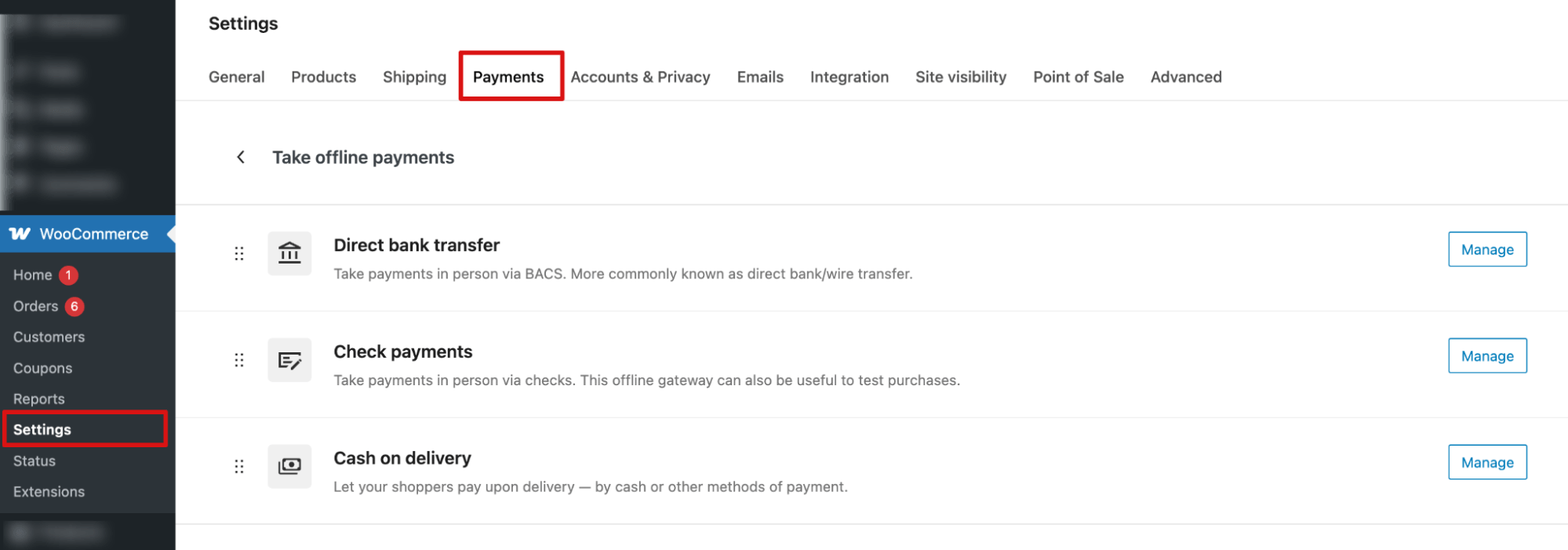
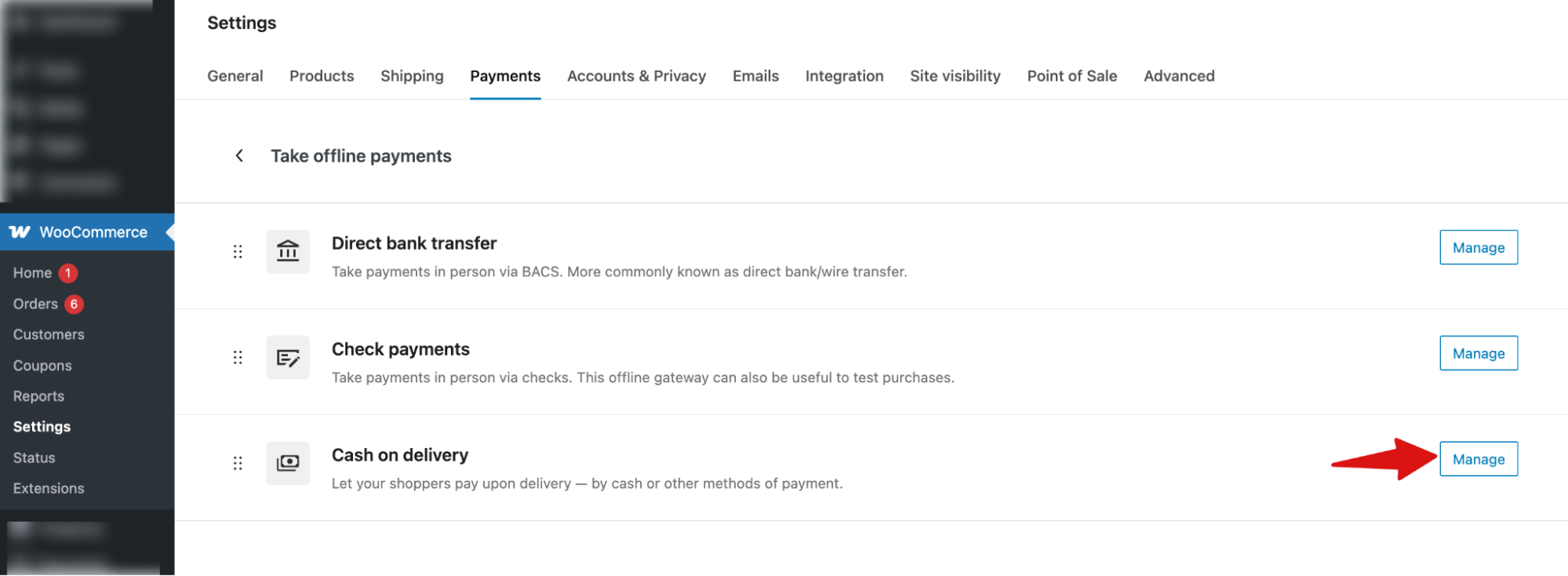
You will find all three in WooCommerce ⇒ Settings ⇒ Payments, under the “Take offline payments” section. You will find the following three offline payment methods.
1. Direct Bank Transfer (BACS)
Direct Bank Transfer is a manual payment method where the customer sends money directly to your bank account after placing their order. BACS stands for Bankers' Automated Clearing Services, though most people just call it a bank transfer or wire transfer.
The customer sees your bank account details on the confirmation page and in their email, then logs in to their bank and makes the transfer themselves.
BACS orders remain on hold until you see the money arrive in your account and manually update the order. One practical tip: in the instructions field, tell customers to use their order number as the payment reference when they make the transfer. Without that, matching incoming transfers to specific orders becomes genuinely painful when you have more than a handful coming in each week.
2. Check Payments
Check Payments is an offline method where the customer mails you a physical check, which you deposit and clear before fulfilling the order. At checkout, the customer sees whatever instructions you have written, typically who to make the check payable to and where to send it. Their order is created in WooCommerce with a status of On Hold.
That On Hold status does not change automatically. WooCommerce is waiting for you to confirm the check has arrived and cleared before it does anything else with the order. You should never ship until you have physically deposited the check and confirmed it has cleared, then manually move the order to Processing. Skipping this step and shipping against a check that later bounces is an easy mistake to make and a costly one.
3. Cash on Delivery
Cash on Delivery is a payment method where you or a courier hands over the goods and collects payment in person at the door. Unlike the other two methods, WooCommerce sets COD orders to Processing immediately upon placement, since delivery and payment occur together.
One useful configuration option is to restrict COD to specific shipping methods. If you only deliver locally, you can set it so COD only appears when a local delivery option is selected at checkout. This prevents customers further afield from choosing it when you have no practical way to collect from them.
Which Types of Businesses Actually Need Offline Payment
This is worth thinking through honestly, because offline payment is not the right default for every store. It creates manual work on your end, and for most standard consumer ecommerce, online payment through a card gateway is a smoother experience for everyone. But for certain types of businesses, offline payment is not a workaround. It is simply how things work.
- Wholesale and B2B Stores
Wholesale buyers typically operate on invoice terms. They want to place an order, receive the goods, and pay within 30 or 60 days via bank transfer. Asking them to enter a credit card at checkout can feel out of step with how business purchasing actually works, and can undermine the professional relationship you are trying to build. For this type of store, BACS or a customized Check Payments setup works well. You capture the order in WooCommerce, fulfil it, and handle payment through your normal invoicing process alongside it.
- Local Retailers and Delivery Businesses
If you run a local store with in-house delivery, Cash on Delivery makes straightforward practical sense. Your customer orders online, you pack the order, and collect cash at the door. There are no processing fees, no waiting for funds to settle, and no payment gateway to manage. This works particularly well for food businesses, florists, local hardware stores, and similar retailers who have moved their ordering online but still operate within a defined local delivery area.
- Service Businesses Using WooCommerce to Capture Orders
Some service providers use WooCommerce as an order or quote capture tool rather than a traditional store. They do not want payment at checkout. They want the customer to submit what they need, and then follow up to confirm details and arrange payment separately. A customized Check Payments setup works well here, where the instructions field explains the process clearly. It turns WooCommerce into a lightweight enquiry system without any additional plugins.
- High-Value or Custom Orders
Customers buying something expensive or bespoke, such as custom furniture, made-to-order equipment, or large art pieces, will often prefer bank transfer over entering card details for a significant sum. At higher price points, bank transfer is a familiar and trusted method for many buyers, and offering it can remove a genuine hesitation at checkout.
- Stores Selling in Markets Where Offline Payment Is the Norm
In many parts of Southeast Asia, the Middle East, and Latin America, cash on delivery and bank transfer are the dominant payment preferences, not edge cases. Research from markets like Indonesia, Egypt, and Mexico consistently shows high rates of COD and bank transfer usage compared to card payments. If a meaningful portion of your customer base is in these regions, offering offline payment options is not a concession. It is meeting your customers where they already are.
- Regulated or Restricted Industries
Some product categories face restrictions from card payment processors. Certain supplements, firearms accessories, and other regulated goods are regularly flagged or declined by major gateways. For stores in these categories, BACS can become a practical necessity, since standard payment infrastructure may simply not be available to them.
How to Set Up WooCommerce Offline Payment Methods Step by Step
The setup process is the same for all three methods, so once you have done one, the rest take about two minutes each. Here is how it works.
Step 1: Navigate to WooCommerce payments
Go to WooCommerce > Settings in your WordPress dashboard and click the Payments tab at the top of the page.
Next, expand the “Take offline payments” tab.
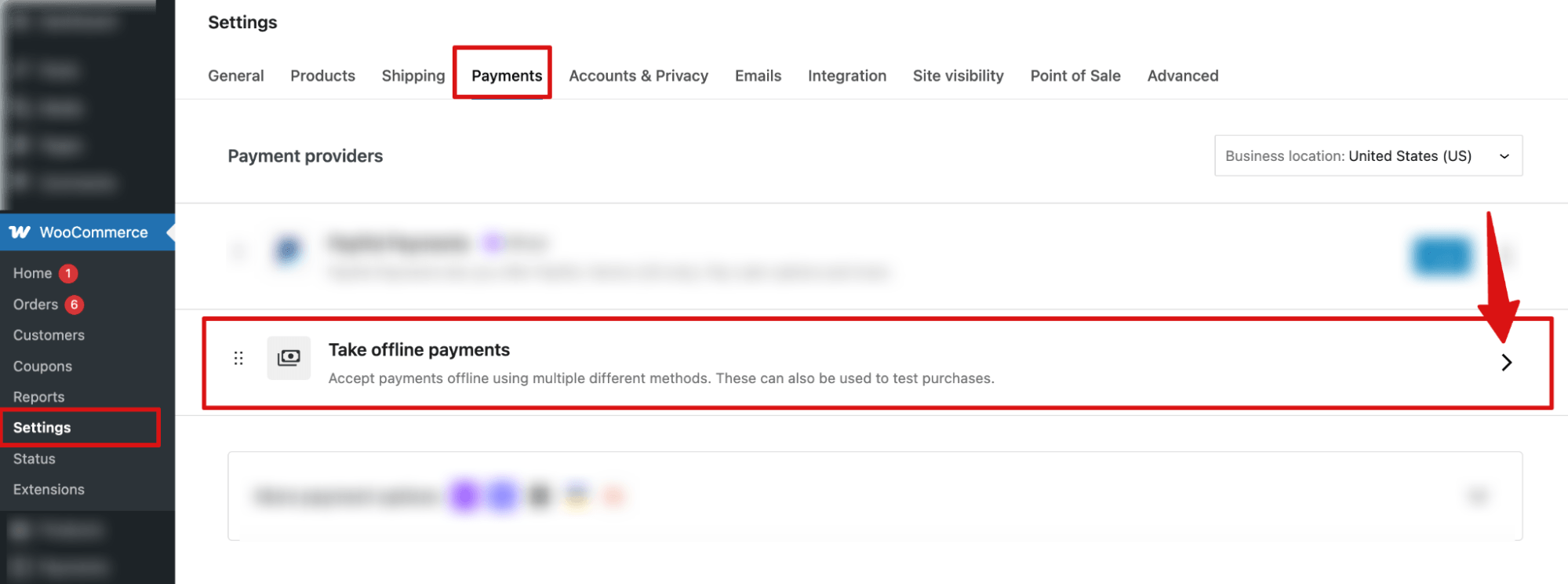
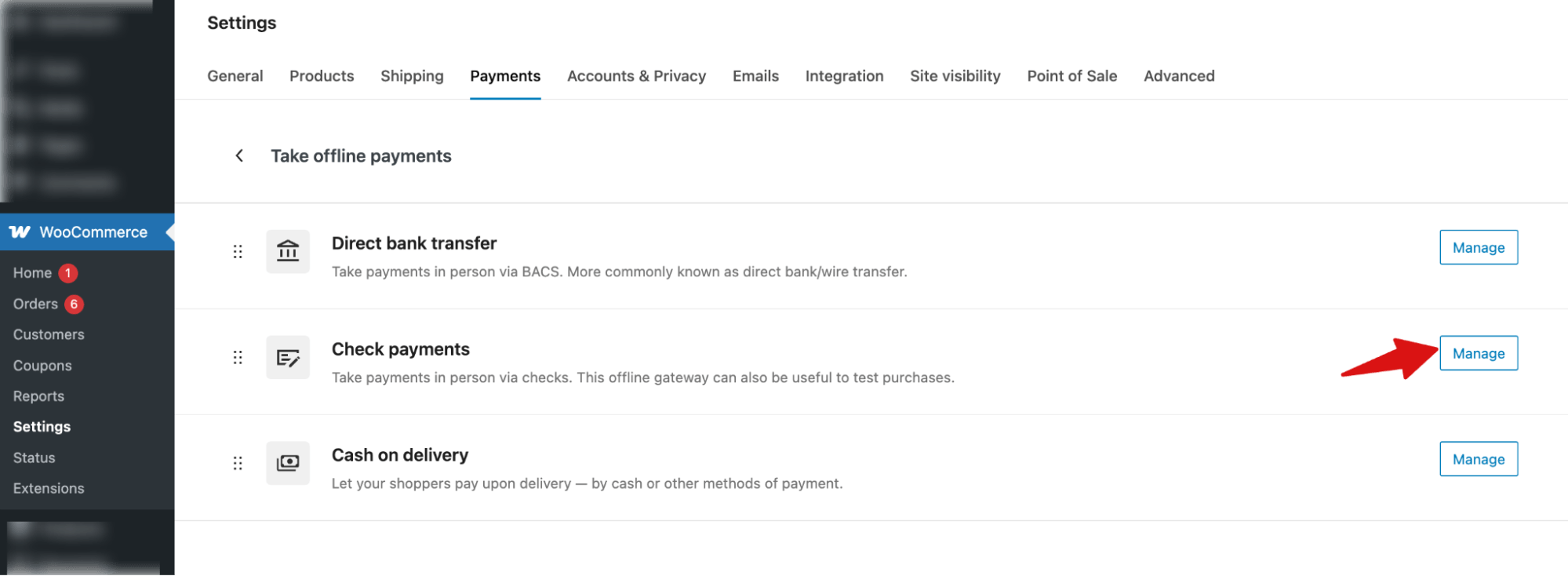
Here, you can find the WooCommerce offline payment methods, including Check Payments, Cash on Delivery, and Direct Bank Transfer.
Step 2: Enable and Configure Direct Bank Transfer
To enable and configure Direct Bank Transfer, hit the option “Manage” next to it.
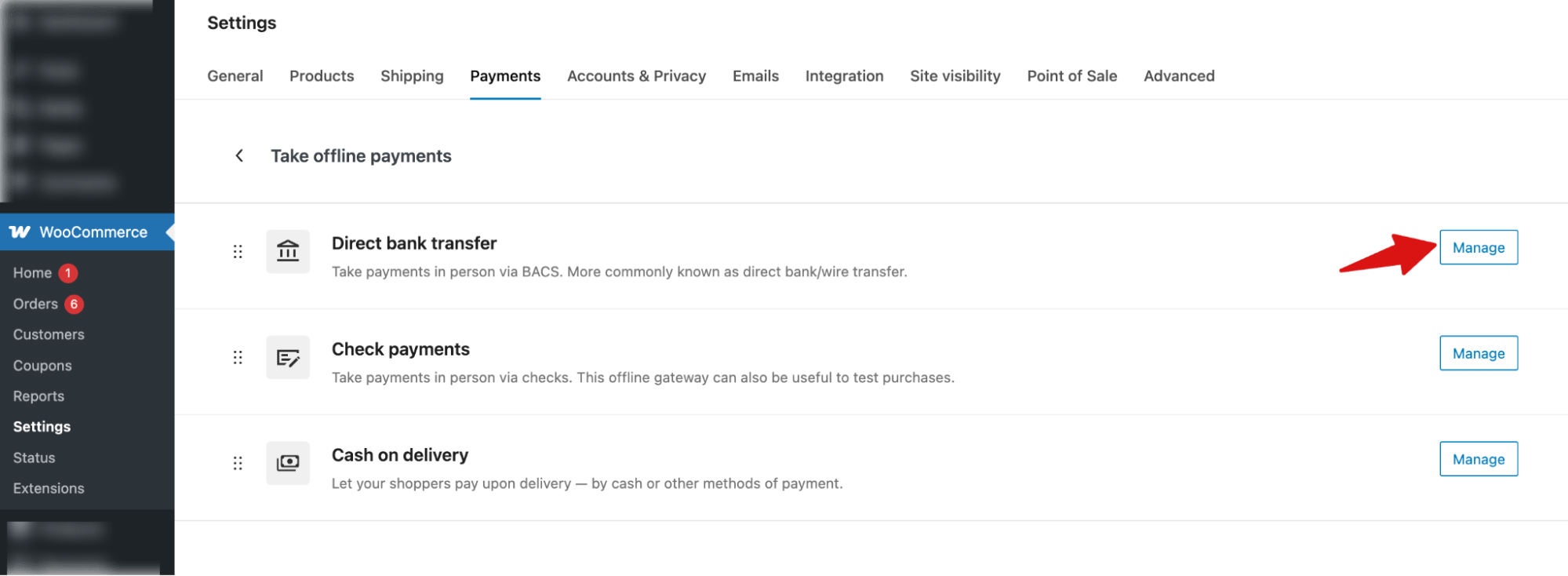
Next, configure the following:
- Enable / Disable: Turn this option on to activate the bank transfer payment method in WooCommerce. Once enabled, customers will see Direct Bank Transfer as a payment option at checkout.
- Title: This is the name of the payment method displayed on the checkout page. You can keep the default or customize it to something clearer. Example titles: Direct Bank Transfer, Bank Transfer, Pay via Bank Transfer, etc.
- Description: This text appears on the checkout page when customers select this payment method. Use it to briefly explain how the payment works. Default: Make your payment directly into our bank account. Please use your Order ID as the payment reference. Your order will not be shipped until the funds have cleared in our account.
- Instructions: These instructions appear on the thank you page and in the order confirmation email after the order is placed. Use this field to give clear steps on how the customer should complete the payment.
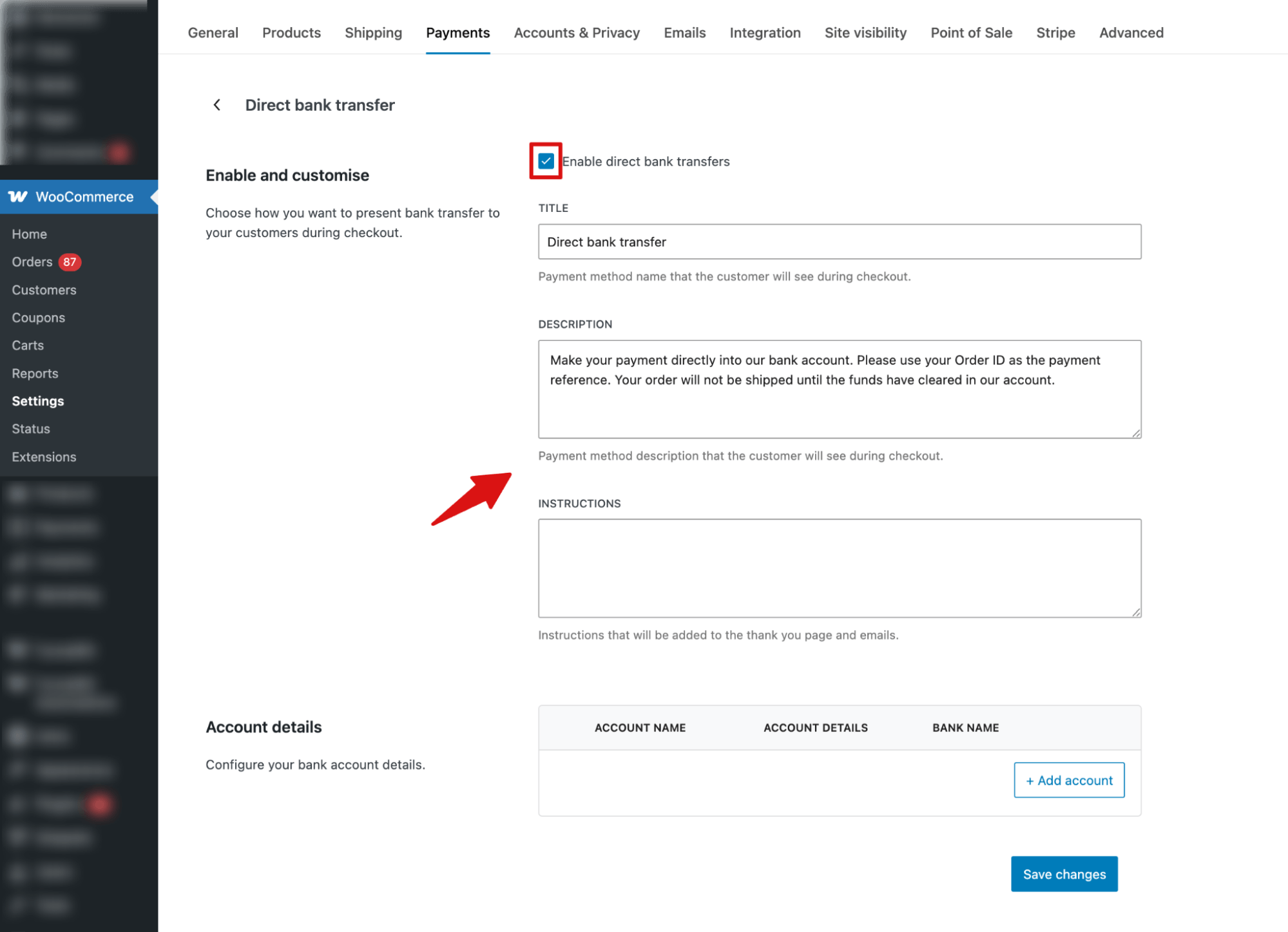
To add “Account Details”, hit the button “+Add account”.
Then, enter the bank information that customers will use to send the payment. Fill in the following fields:
- Country: Select the country from the dropdown list.
- Account Name – Name on the bank account
- Account Number – Your bank account number
- Bank Name – The bank where the account is held
- Routing Number – Used for domestic transfers in some countries
- IBAN – International Bank Account Number (for international transfers)
- BIC / SWIFT – Bank identifier used for international transfers
Then, hit save to add the account details.
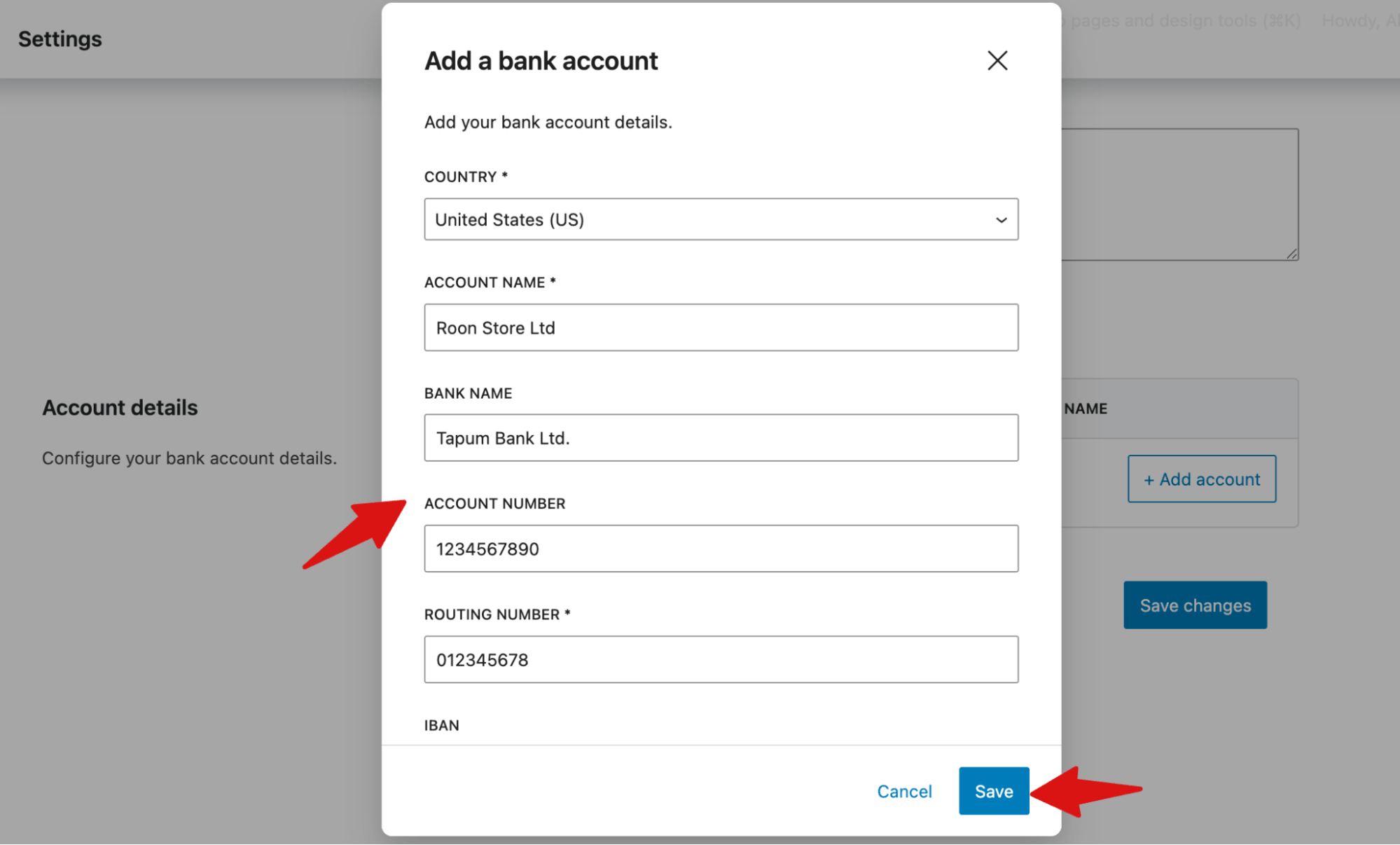
Note: Click “+Add account” if you want to add multiple bank accounts.
After entering all details, click “Save changes” to apply the settings. The bank transfer option will then appear at checkout for customers.
Step 3: Enable and Configure Check Payments
Next, to enable and configure Check Payments, click the “Finish Set Up” option next to it.
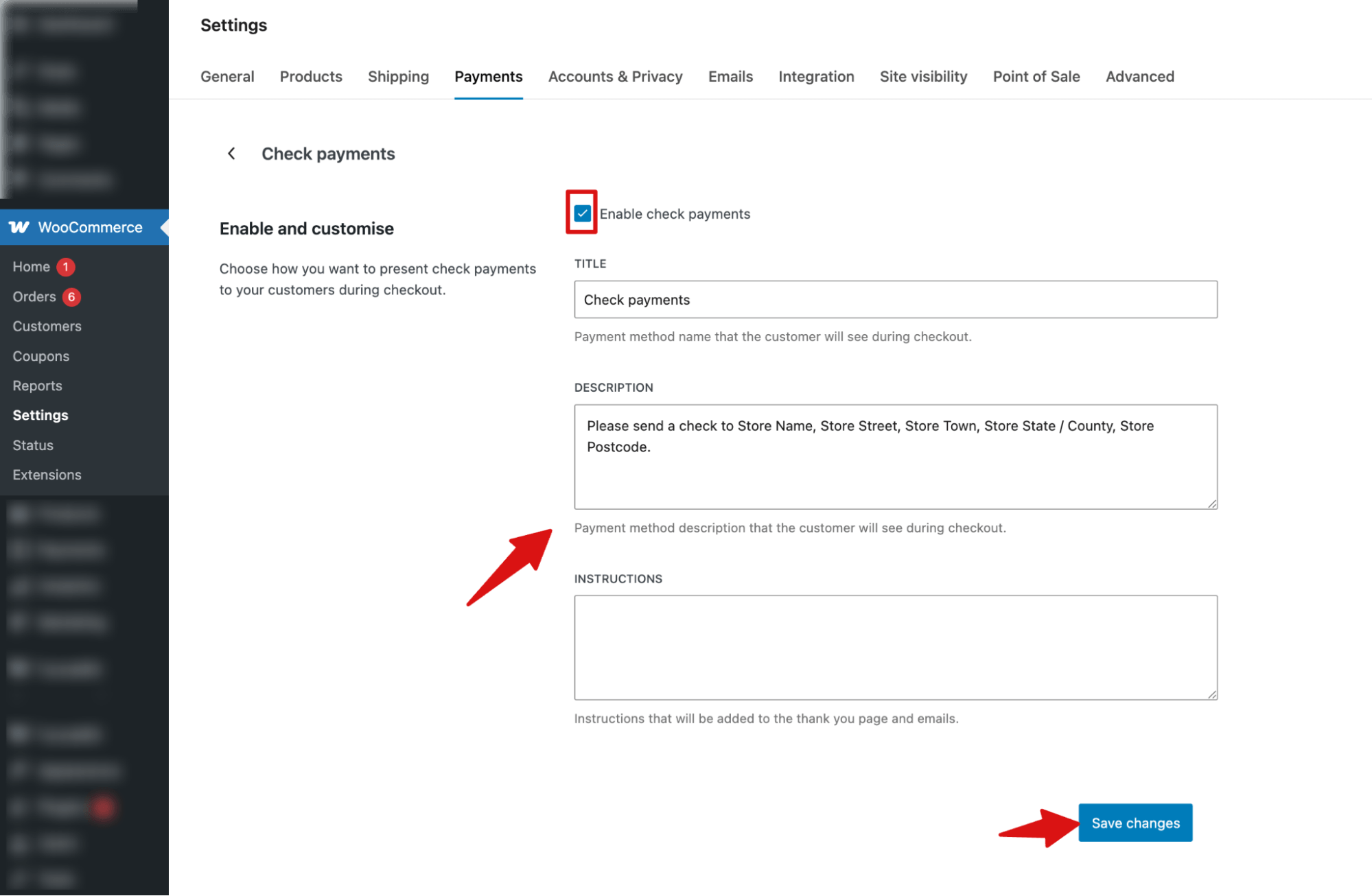
Now, configure the following:
- Enable / Disable: Turn this option on to activate the check payment method in WooCommerce. Once enabled, customers will see Check Payments as a payment option at checkout.
- Title: This is the name of the payment method displayed on the checkout page. You can keep the default or customize it to something clearer.
Example titles: Check Payments, Pay by Check, Mail a Check - Description: This text appears on the checkout page when customers select this payment method. Use it to briefly explain how the payment works. Default: Please send your payment by check to our store address.
- Instructions: These instructions appear on the thank you page and in the order confirmation email after the order is placed. Use this field to give clear steps on how the customer should complete the payment.
To save, click “Save changes”.
Step 4: Enable and Configure Cash on Delivery
Next, to enable and configure “Cash On Delivery”, click the “Finish Set Up” option next to it.
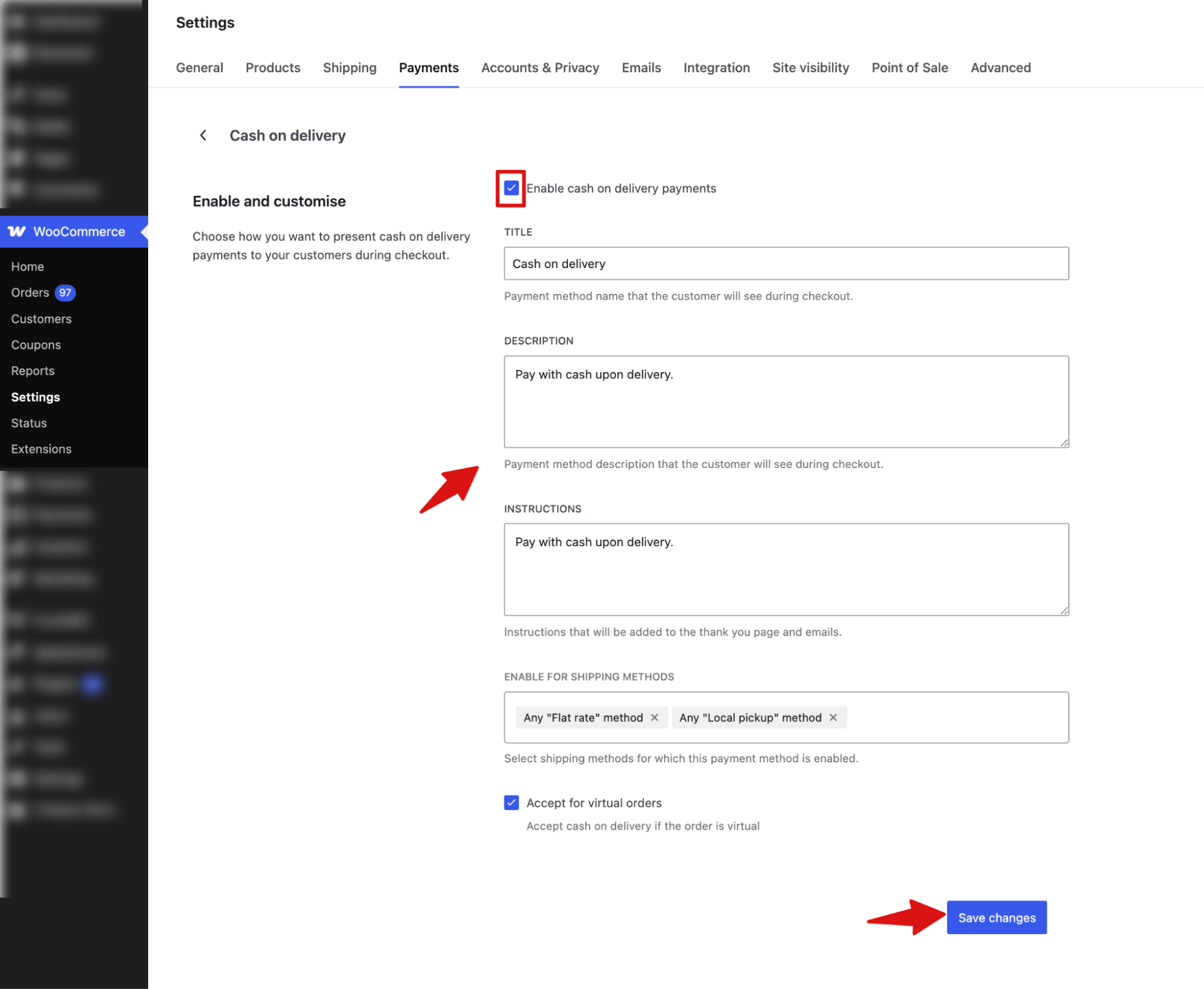
Next, configure the following:
- Enable / Disable: Turn this option on to activate the cash on delivery payment method in WooCommerce. Once enabled, customers will see Cash on Delivery as a payment option at checkout.
- Title: This is the name of the payment method displayed on the checkout page. You can keep the default or customize it to something clearer. Example titles: Cash on Delivery, Pay on Delivery, COD, etc.
- Description: This text appears on the checkout page when customers select this payment method. Use it to briefly explain how the payment works. Default: Pay with cash upon delivery.
- Instructions:These instructions appear on the thank you page and in the order confirmation email after the order is placed. Use this field to give clear steps on how the customer should complete the payment. Default: Pay with cash upon delivery.
- Enable for Shipping Methods: Select the shipping methods where cash on delivery will be available. You can enable it for all Flat Rate, Free Shipping, and Local Pickup methods, or restrict it to specific shipping zones you have already set up in your store.
- Accept for Virtual Orders: Enable this option to allow cash on delivery for virtual/downloadable products (optional), usually left disabled.
Make sure to hit “Save Changes” to update the configurations.
Step 5: Save and Place a Test Order for Each Method
Once you have configured all three methods, click Save Changes, then go through your store checkout as a customer for each method.
Place a test order using each payment method and check two things: confirm that the instructions appear correctly on the thank-you page, and open the confirmation email to make sure all payment details are there and readable.
Here, we are placing a test order with the bank transfer offline payment method.

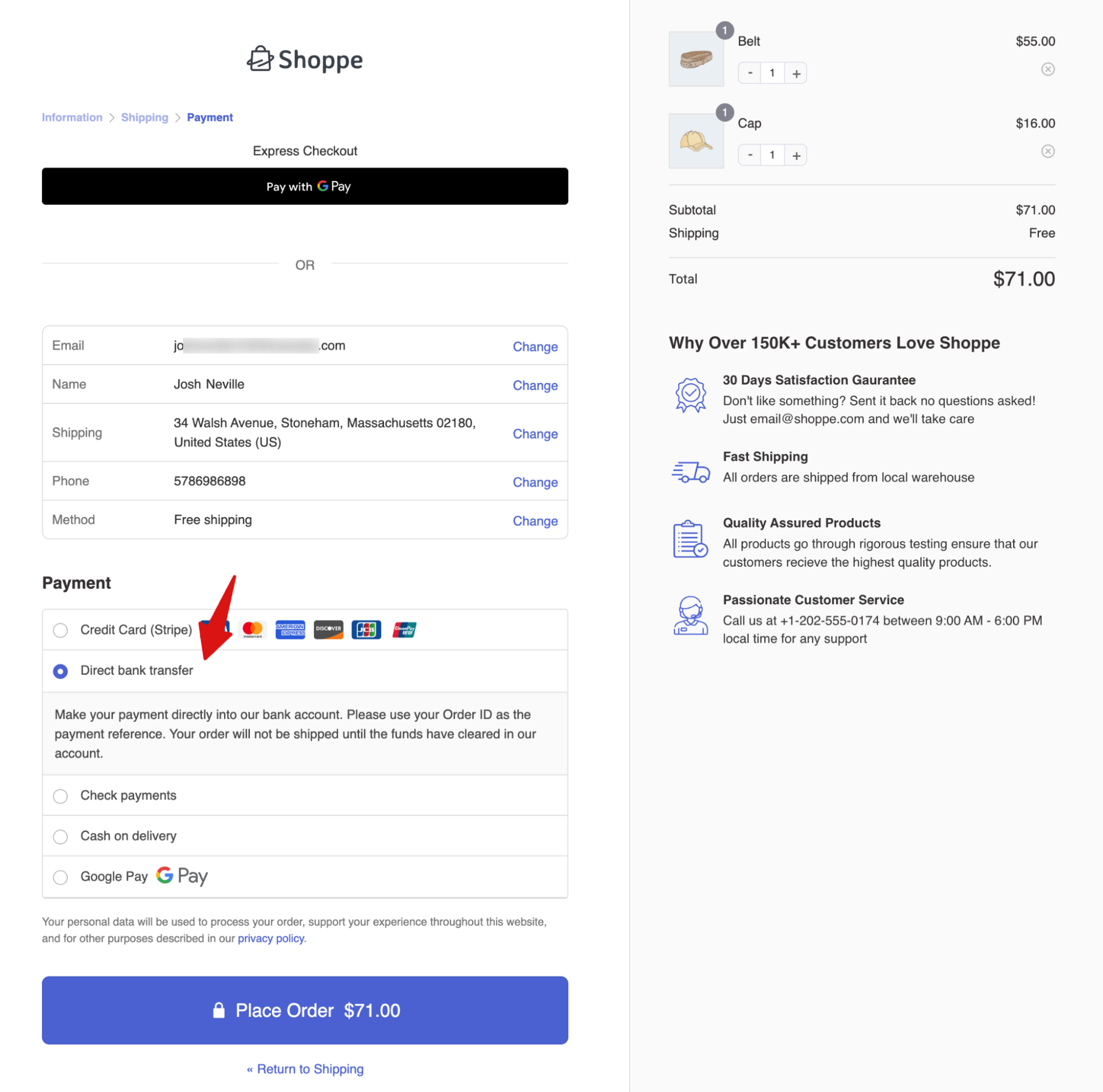
As you can see, the bank details are available on the thank you page.
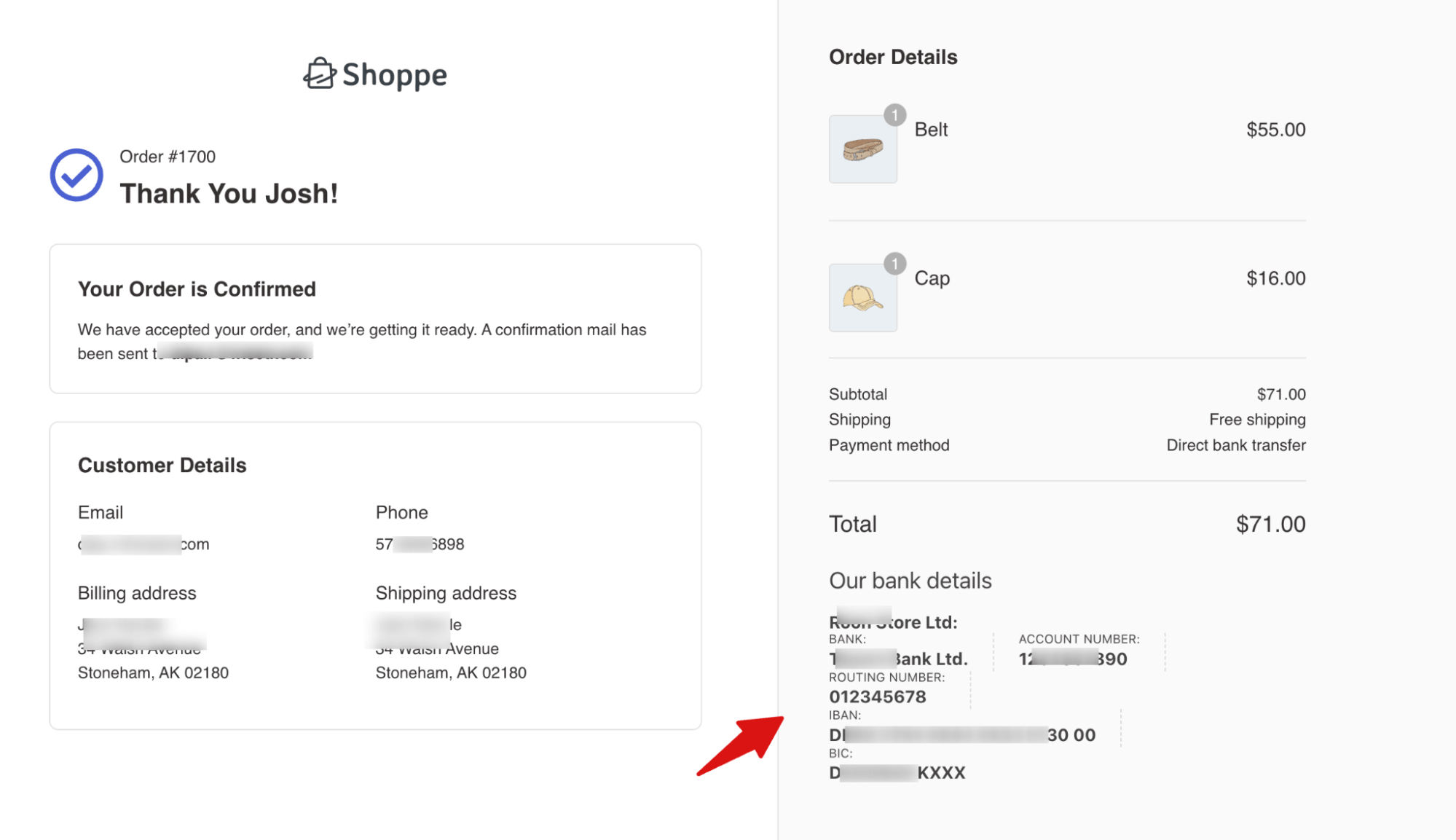
On the order processing email, you can see the bank details.
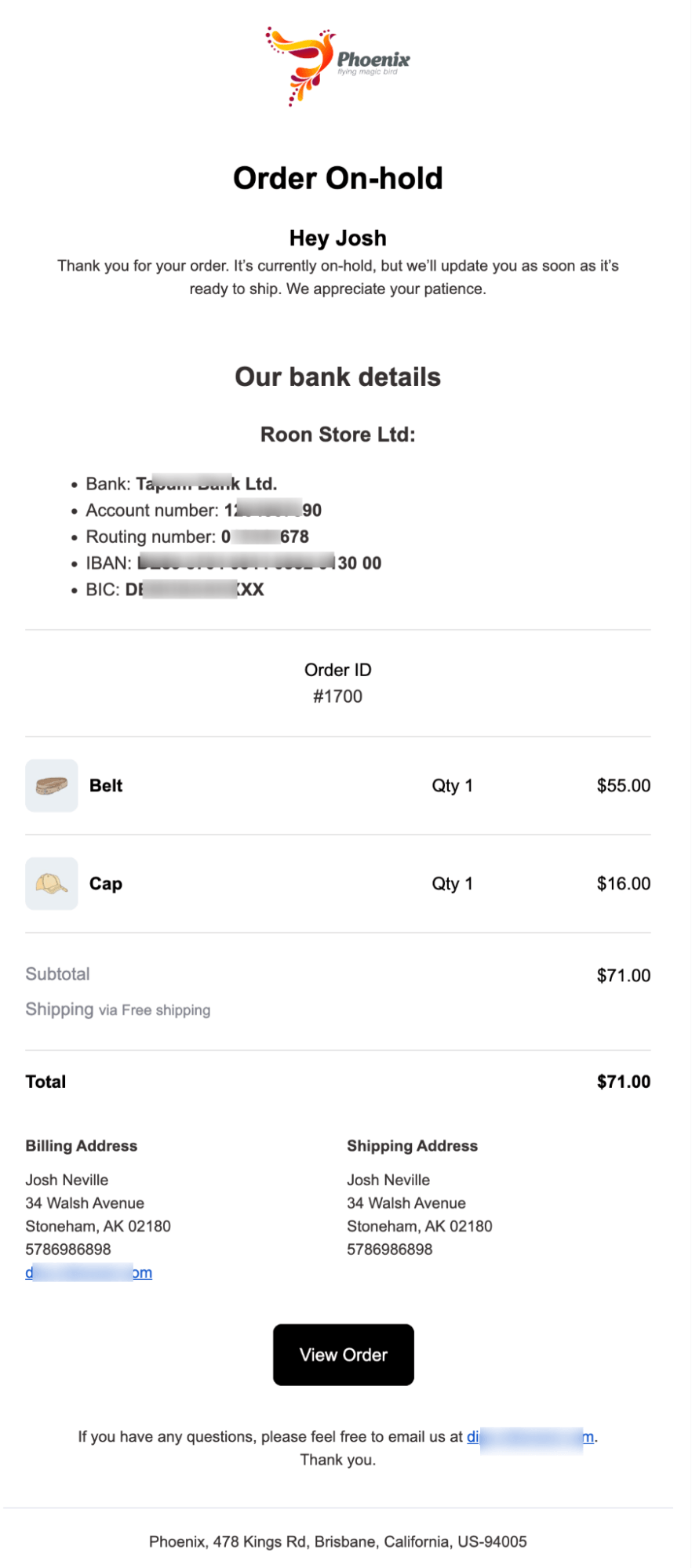
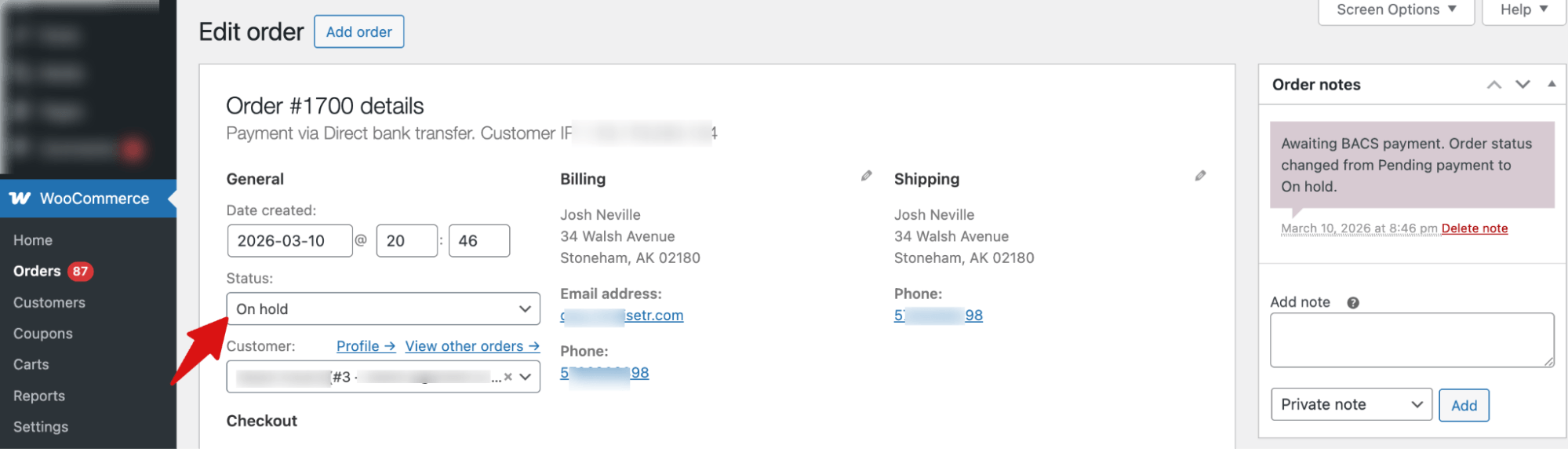
Then go to WooCommerce > Orders and verify the order status is correct. Direct Bank Transfer and Check Payments orders should show as On Hold, and Cash on Delivery orders should show as Processing.
In our test order, the offline payment method is Direct Bank Transfer, so the status is showing as “On Hold”.
How to Process Offline Orders in WooCommerce
This catches a lot of store owners off guard the first time. Offline orders do not process themselves. WooCommerce creates the order and then waits for you. Here is what you need to do for each method.
- Direct Bank Transfer
For Direct Bank Transfer, watch your bank account for the incoming transfer. When it arrives, match it to the order using the reference number, then update the order status to Processing and fulfil it.
- Check Payments
For Check Payments, leave the order on hold until the check physically arrives and clears in your bank account. Then go to the order in WooCommerce, update the status to Processing, and fulfil it. Do not ship first and check later.
- Cash on Delivery
For Cash on Delivery, the order is already being processed upon receipt. Deliver the order, collect payment, and then manually update the order to Complete in WooCommerce once you have confirmed the money is in hand.
The habit you need to build here is to check your WooCommerce orders regularly and filter for the On Hold status.
It is easy for offline orders to sit there unnoticed while the customer waits and eventually gets frustrated. Set aside time each morning to clear any On Hold orders that have received payment.
When Online Payment Makes More Sense
Honestly, offline payment may not be the right choice for every store, especially if you only offer offline payment.
If your customers are comfortable paying by card, if you sell to a broad consumer audience, or if your order volume is high enough that manually confirming every payment would eat up your day, online payment through a gateway like Stripe, PayPal, Square, etc. will serve you better.
You can’t add online payment without a plugin.
Here are the plugins we recommend for adding different online payment methods, along with offline payments, to your WooCommerce store:
- Stripe WooCommerce Payment Gateway: An integrated solution that lets you accept credit and debit cards, express payments like Apple Pay and Google Pay, Buy Now Pay Later options (Affirm, Klarna, Afterpay), and local payment methods like SEPA, iDEAL, and ACH Direct Debit.
- PayPal WooCommerce Payment Gateway: Supports PayPal Standard, Express Checkout, Pay Later messaging, subscription billing, and payment vaulting for returning customers.
- Square WooCommerce Payment Gateway: Lets you accept cards, Apple Pay, and Google Pay online while automatically syncing inventory, products, orders, and customer data in real time between your WooCommerce store and Square, ideal for merchants who sell both online and in person.
Common Questions About WooCommerce Offline Payment
Where exactly do I find offline payment settings in WooCommerce?
Go to WooCommerce ⇒ Settings, click the Payments tab, and scroll down to the section called "Take Offline Payments." All three methods are listed there.
How do I disable a WooCommerce offline payment method?
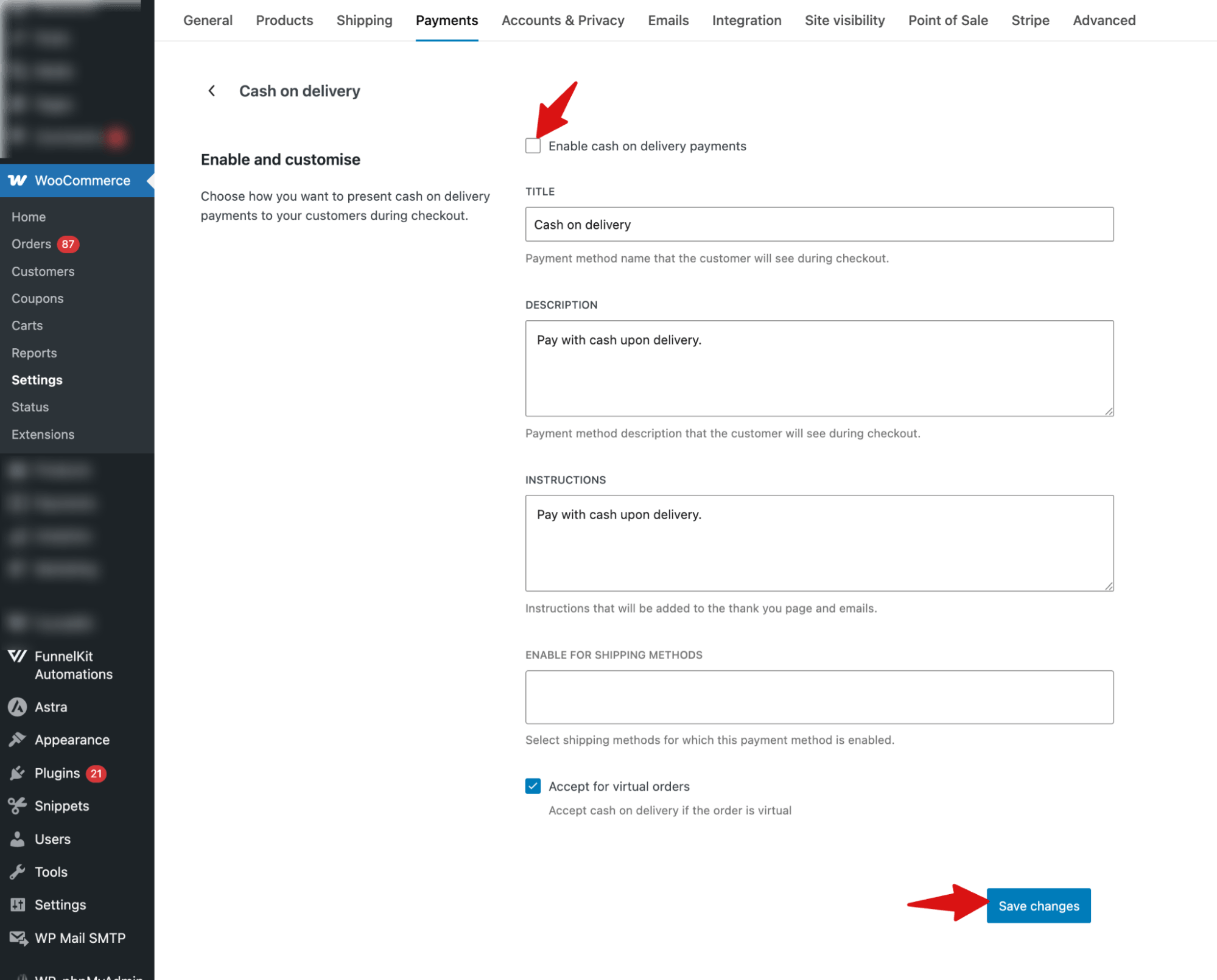
Navigate to offline payments and then click Manage next to the method, uncheck the Enable checkbox, and save. It will disappear from checkout immediately.
What happens to orders if a customer places an offline order and never pays?
The order will remain On Hold until payment is completed or the store owner manually cancels it. WooCommerce does not automatically cancel unpaid offline orders the way it can with pending online orders.
To avoid abandoned orders piling up, you can send reminder emails or private order notes asking the customer to complete the payment. If the customer still does not pay, you will need to cancel the order manually and restore the stock.
Building a weekly routine to review and clean up old On Hold orders is a good practice once your store is live.
Can I add a fee for Cash on Delivery?
WooCommerce does not include a built-in setting to add a separate Cash on Delivery fee. However, developers can add one using a custom code snippet that hooks into the woocommerce_cart_calculate_fees action and conditionally applies a fee when Cash on Delivery is selected at checkout.
Alternatively, some stores work around this by increasing shipping costs for delivery methods that allow COD.
Can I show offline payment methods only to certain customers, like wholesale accounts?
Not natively. By default, every enabled payment method is visible to all customers. To restrict a payment method by user role, you would need a code snippet or a plugin that conditionally controls payment method visibility. For most stores, this level of control is not necessary, but for B2B stores with mixed customer types, it can be worth setting up.
Do offline payment methods work with page builders like Elementor or Divi?
Yes. These methods are part of WooCommerce's checkout logic, not tied to any specific theme or page builder. They will appear correctly in any checkout page that uses the standard WooCommerce checkout block or shortcode, regardless of what page builder you are using.
Set Up WooCommerce Offline Payments and Start Accepting Orders
WooCommerce offline payment is one of those features that sounds more complicated than it is.
Once you understand that it simply means letting customers place orders without paying online at checkout, and that WooCommerce already gives you three solid ways to do that for free, the setup is genuinely quick.
If you run a wholesale operation, a local delivery business, a service-based store, or you are selling in a market where bank transfer or cash on delivery is what your customers expect, these built-in methods are all you need. Enable the right one for your situation, write clear instructions, and check your On Hold orders every day.
And if your business grows to the point where manual payment confirmation becomes a bottleneck, switching to an online gateway is just as easy. The option is always there.
Along with online payment, we recommend optimizing your checkout using FunnelKit Funnel Builder to maximize conversion rate and reduce cart abandonment.
Related Resources:
- How to Set Up WooCommerce Stripe Integration
- Best WooCommerce Payment Gateways
- WooCommerce Checkout Optimization to Improve Conversions
- Best WooCommerce Subscription Plugins For Recurring Revenue

Editorial Team
March 30, 2026Discover how to boost sales and customer loyalty with three smart ways to offer free gifts in your WooCommerce store. Want to boost WooCommerce sales and delight your customers? Offer...
Editorial Team
March 30, 2026If you're running a WooCommerce store, you already know that a single, static price tag doesn't always cut it. A first-time browser needs a different nudge than a wholesale buyer...
Editorial Team
March 27, 2026Want to turn one-time buyers into customers who keep coming back using WooCommerce? Then you need to find a WooCommerce subscription plugin. These plugins will help you automate billing, manage...






