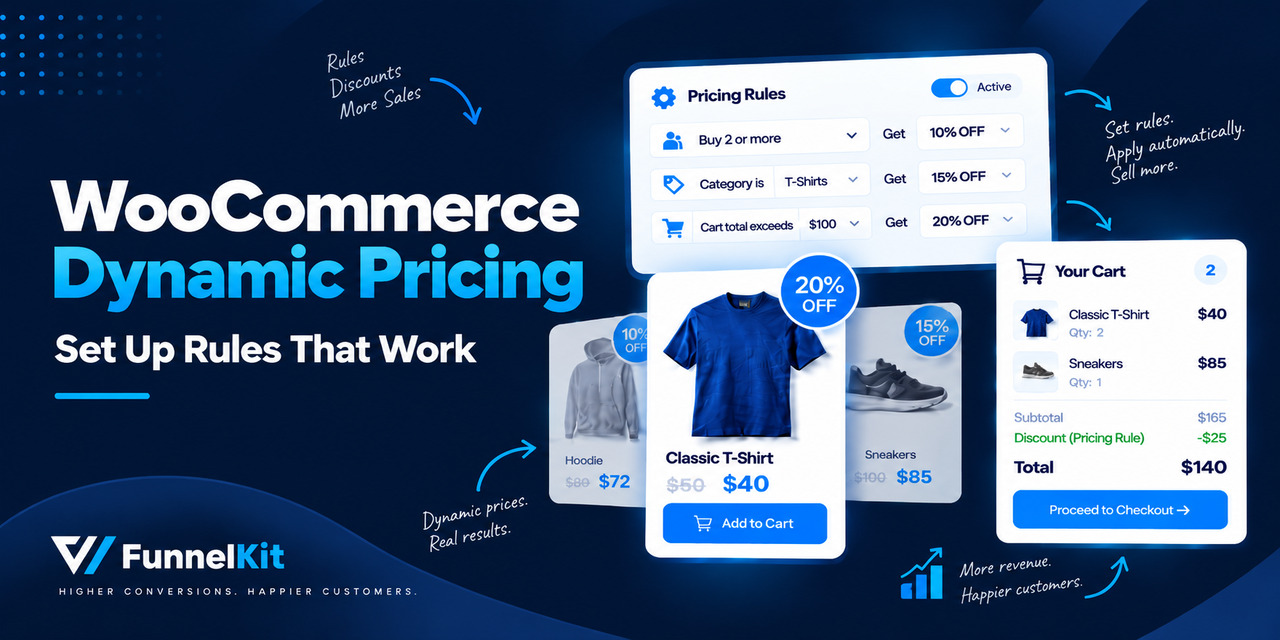
WooCommerce dynamic pricing works much like how a coffee wholesaler prices a pallet of beans.
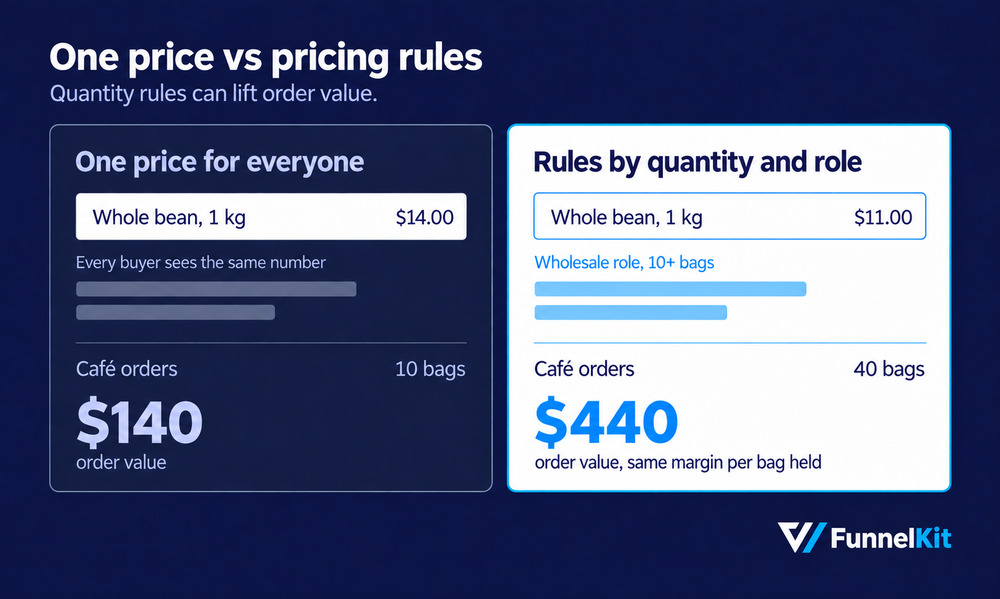
A café buying 40 bags gets a better price per bag than someone walking in and buying just one.
And the trade-off can make sense for both sides.
You might drop the price from $14 to $11 per bag, but instead of selling 10 bags, you sell 40. You give up $3 on each bag and make it back through the extra volume.
WooCommerce doesn't offer this kind of pricing out of the box.
You get a regular price, a sale price, and coupon codes that customers have to find and enter themselves.
If you want prices to change based on quantity, user role, cart value, date, or another condition, you'll need a pricing or discount plugin to handle those rules.
In this guide, we'll cover which plugins work best for different pricing rules and show you how to set up bulk discounts, wholesale pricing, and buy-one-get-one offers using a coffee store as an example.
We'll also cover when custom code makes sense, how dynamic pricing can affect performance, and the margin math you should check before offering a discount.
Table of Contents
- 1 WooCommerce By Default Per Product Pricing
- 2 The 8 Types of WooCommerce Pricing Rules
- 3 7 Best WooCommerce Dynamic Pricing Plugins Compared
- 3.1 1. Discount Rules for WooCommerce: The all-rounder
- 3.2 2. FunnelKit Cart: A dynamic cart discount tool
- 3.3 3. Advanced Dynamic Pricing: Best if you want to stay free
- 3.4 4. Acowebs: A simpler rule builder
- 3.5 5. YITH: For more complicated conditions
- 3.6 5. The official WooCommerce extension: The conservative choice
- 3.7 6. Addify: worth considering for B2B pricing
- 4 How to Set Up Quantity and Tiered Pricing (Step-by-Step)
- 5 How to Set Up Role-Based and Wholesale Pricing
- 6 How to Set Up BOGO and Buy X Get Y Offers
- 7 How to Set Up Cart-Total and Spend-Threshold Discounts
- 8 Do Pricing Rule Plugins Slow Down Your Store?
- 9 Troubleshooting: Why Your Pricing Rules Are Not Applying
- 10 Frequently Asked Questions
- 11 Ready to Put Flexible Pricing to Work in Your Store?
WooCommerce By Default Per Product Pricing
WooCommerce supports two prices per product: a regular price and a sale price.
You can also create coupons, but customers have to find the code and enter it at checkout.
It has no built-in way to change the price based on things like how many items someone buys, who they are, how much is in their cart, or when they are shopping.
For those kinds of conditional prices, you need a third-party pricing rules plugin.
That is where dynamic pricing plugins come in. Here's what each option can actually do:
| Method | Applies automatically | Varies by quantity | Varies by customer | Built into WooCommerce |
|---|---|---|---|---|
| Regular price | Yes | No | No | Yes |
| Sale price | Yes | No | No | Yes |
| Coupon code | No, customer must enter it | No | Limited | Yes |
| Pricing rules plugin | Yes | Yes | Yes | No |
The main difference is who does the work. With a coupon, the customer has to find the code, remember it, and enter it correctly.
This adds another step between finding a product and placing an order.
A pricing rule works in the background. If the cart meets your conditions, the discount is applied automatically.
Buy five bags and the bulk price kicks in. Log in as a wholesale customer to get your assigned rate.
Reach a certain cart value and the discount applies without the customer having to do anything.
The 8 Types of WooCommerce Pricing Rules
Most pricing plugins cover some combination of the eight rules below.
The ones you actually need should guide your plugin choice, so it's worth figuring that out before you start comparing pricing pages.
| Rule type | What it changes | Watch out for |
|---|---|---|
| Quantity / bulk | Per-unit price above a quantity threshold | Counting per variation vs across all variations |
| Tiered | Stepped per-unit price across ranges (1-4, 5-9, 10+) | Whether the tier applies to all units or only units above it |
| Role-based | Different price for logged-in customer roles | Page caching serving retail prices to wholesale users |
| Category / tag | Blanket adjustment across a taxonomy | Overlapping categories double-discounting |
| BOGO / Buy X Get Y | Adds a free or discounted item | Free item must be published, in stock, and priced |
| Cart total threshold | Discount once subtotal or item count is met | Shoppers never see it unless you surface progress |
| Scheduled | Rule live between two dates | Timezone mismatch between server and store settings |
| Purchase history | Price based on past orders or lifetime spend | Usually paid, and it runs an order lookup per cart load |
Most stores do not need all eight. In practice, you'll probably rely on two or three.
Once you start stacking several rules on top of each other, things can get messy.
One discount might override another, two rules might apply to the same product, or customers might struggle to understand why they are seeing a particular price.
The best pricing setup usually gives customers a clear reason to buy more without making the offer hard to understand.
If you're specifically setting up a time-limited promotion, see our guide to WooCommerce flash sales.
7 Best WooCommerce Dynamic Pricing Plugins Compared
We installed each plugin on a clean WooCommerce 11.1.0 staging site running Storefront, with 15 test products and no caching layer.
Then we tested six things that actually matter when you’re choosing a pricing plugin:
- Setup speed: How long it took to configure a rule like "buy 5, save 10%" from a fresh install.
- Variations: Did the pricing rule work with product variations, or only simple products?
- Cart load time: Chrome DevTools, 10 items in the cart, with three rules active.
- Free tier: How many of the eight rule types does the free version genuinely deliver?
- HPOS: Whether the plugin declares support for High Performance Order Storage.
- Frontend display: Does the shopper see the discount on the product page, or only at checkout?
We checked prices on each vendor's own website on September 10, 2026.
| Plugin | Best For | Active installs | Ratings | Price |
|---|---|---|---|---|
| Discount Rules for WooCommerce (Flycart) | All-round pricing rules with strong BOGO and cart discount support | 100,000+ | 4.9/5 (1366) | Free plan. Premium starts at $85/year |
| FunnelKit Cart for WooCommerce | Dynamic sliding cart with threshold-based discounts based on cart value | 30,000+ | 5/5 (109) | Free version. Pro is included with Funnel Builder ($149.50/year) |
| Advanced Dynamic Pricing For Woocommerce (AlgolPlus) | Stores wanting a powerful free option with bulk, role, BOGO, and gift rules | 20,000+ | 4.7/5 (120) | Free version. Premium plan starts at $60/year |
| Dynamic Pricing With Discount Rules for WooCommerce (Acowebs) | Lightweight pricing rules at a lower cost, with a powerful free version | 5,000+ | 4.5/5 (67) | Free version available. Pro starts at $49/year |
| YITH Dynamic Pricing & Discounts | Stores needing advanced BOGO logic, gift products, and extensive rule conditions | 27,000+ (claimed by their website) | 4.4/5 (122) | $144.99/year |
| WooCommerce Dynamic Pricing (Official) | Stores that need category and role pricing | 10,000+ (WooCommerce) | 3.3/5 (36) | $129/year |
| Product Dynamic Pricing and Discounts (Addify) | Stores that prefer a one-time payment over annual renewals | 700+ (WooCommerce) | 4.8/5 (12) | $99/year |
1. Discount Rules for WooCommerce: The all-rounder
If you want to install one plugin and cover most common pricing scenarios, Discount Rules for WooCommerce is the easiest place to start.
Its free version covers bulk, tiered, product, and cart discounts, which is enough for many stores.
The Pro version adds rules for things like BOGO offers, user roles, and purchase history.
You can also set rule priorities with drag-and-drop, which becomes useful once you have several discounts that could apply to the same product.
2. FunnelKit Cart: A dynamic cart discount tool
FunnelKit Cart is not a full dynamic pricing rules engine, so it would be misleading to compare it directly with the other six.
Its job is to encourage customers to spend more by showing rewards inside a sliding cart.
For example, you can offer a reward when the cart reaches a particular spending threshold.
That solves a different problem from quantity-based or role-based pricing.

3. Advanced Dynamic Pricing: Best if you want to stay free
Advanced Dynamic Pricing gives you a surprisingly broad set of features without requiring a paid license.
The free version includes bulk pricing, role-based discounts, BOGO deals, and free products.
The downside is the interface. Instead of walking you through a rule step by step, it gives you a series of conditional panels to configure.
The configurable panels work, but it takes a little more time to get comfortable with.
4. Acowebs: A simpler rule builder
Acowebs is worth considering if the rule builder itself is high on your list.
The interface is easier to follow than some of the more complicated options, and its paid plans start at a relatively low price.
The trade-off is that its condition set isn't as deep as YITH's, especially if you need several conditions in a single pricing rule.
5. YITH: For more complicated conditions
YITH makes more sense when your pricing rules go beyond simple quantity discounts.
You can combine conditions such as quantity, user role, category, and day of the week within a rule, giving you more control over complex promotions.
There is no free version, and it is one of the more expensive options in this comparison.
You are paying for that extra flexibility, so it is harder to justify for a store that only needs basic bulk pricing.
5. The official WooCommerce extension: The conservative choice
If you would rather stick with an extension from the official WooCommerce marketplace, its Dynamic Pricing extension covers the basics, including category and role-based pricing.
The limitation is that it does not handle every promotion type. For example, if BOGO offers are important to your store, you will need another solution.
At $129 a year, it's worth comparing against broader third-party options before you commit.
6. Addify: worth considering for B2B pricing
Addify is particularly useful when your pricing needs to go beyond assigning one discount to an entire WordPress user role.
It supports per-customer pricing and can display tiered pricing tables on product pages, which can help wholesale buyers.
If you run a B2B store with negotiated prices for individual customers, this is one option worth testing against your requirements.
How to Set Up Quantity and Tiered Pricing (Step-by-Step)
We will use Discount Rules for WooCommerce by Flycart for the walkthrough.
The free version covers the rules most stores start with. It handles bulk discounts, tiered pricing, product adjustments, and cart adjustments.
Pro adds BOGO, role-based pricing, purchase-history conditions, free shipping rules, and auto-applied coupons, starting at $85/year for a single site.
Install the plugin and follow the step-by-step instructions below.
Step 1: Create the rule
Navigate to WooCommerce ⇨ Discount Rules and click on 'Add New Rule'.
Give it a name and choose the 'Bulk Discount' type.
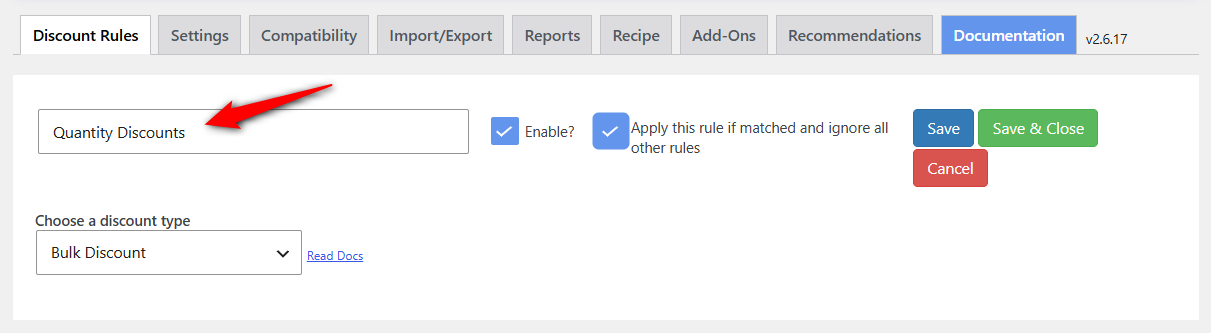
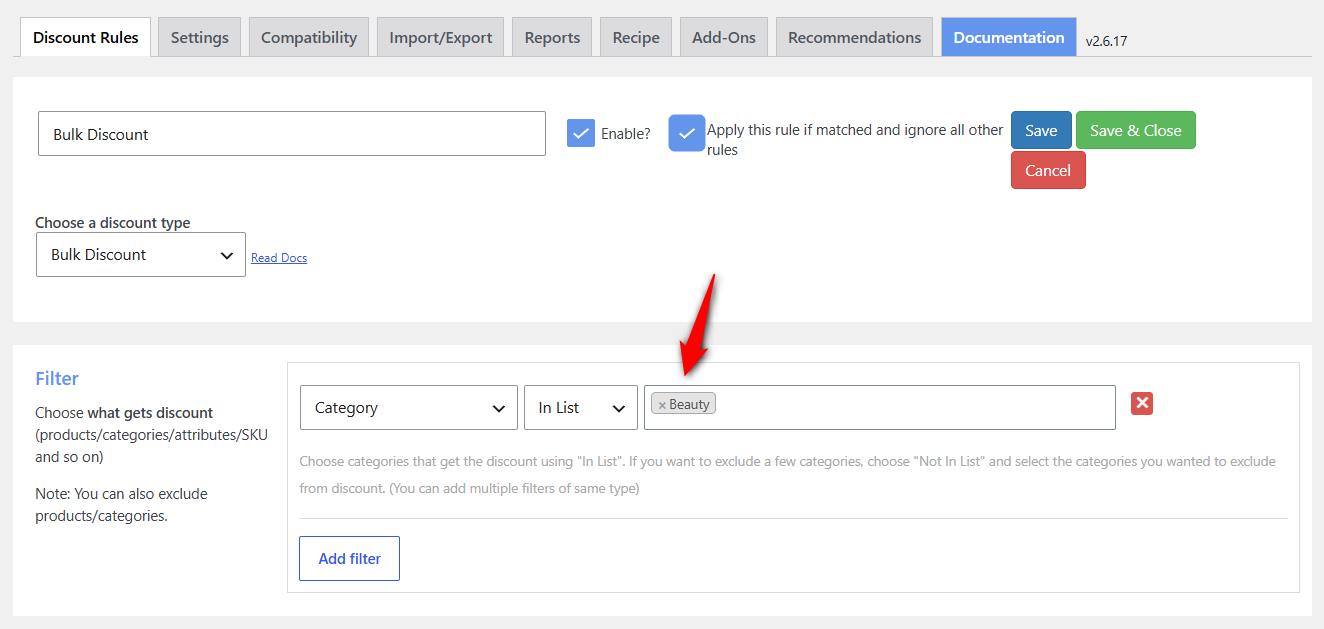
Under Filters, choose 'Product' and select Beauty.
Using a category instead of selecting individual products means new beauty SKUs can automatically fall under the rule when you add them later.
Step 2: Add your quantity tiers
Create three ranges:
- 1-4: No discount
- 5-9: 10% off
- 10+: 20% off
Keep the first range even though it does not include a discount. It helps the pricing table show the complete set of tiers on the product page.
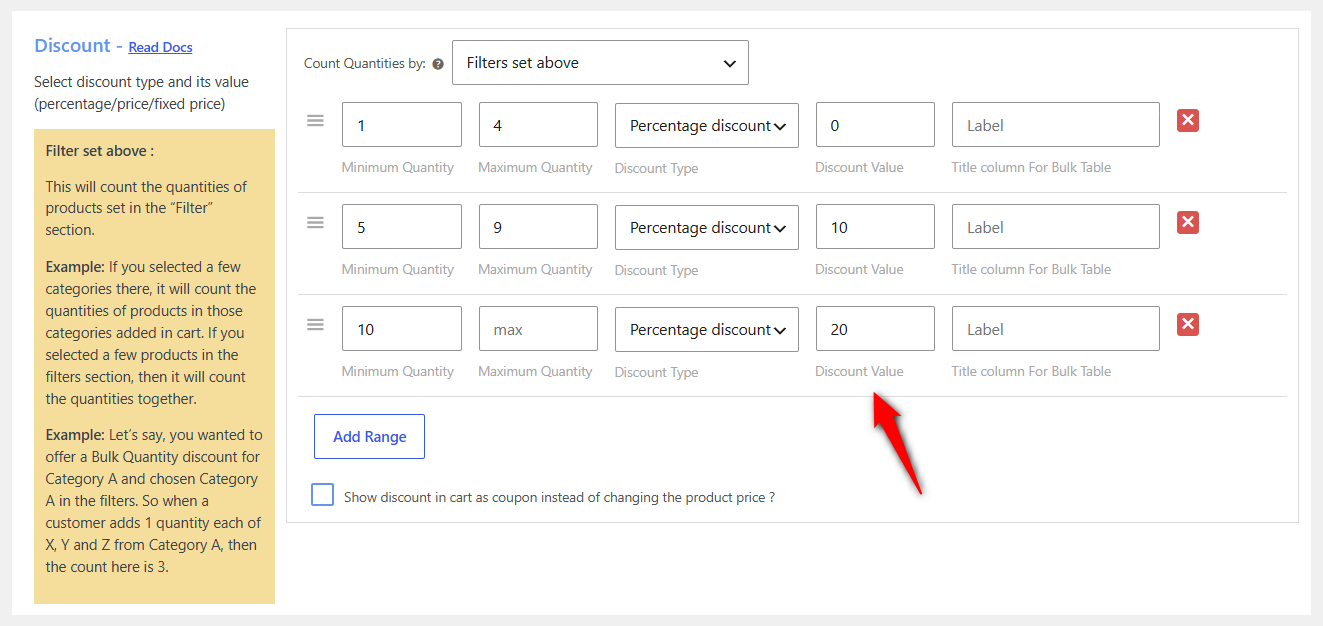
Set the bulk mode to count across all matched products, not per product.
Otherwise, a customer buying four quantities of one product and four of another has eight items in their cart but may not qualify for the 10% tier because neither product reached five units of its own.
Step 3: Display the tiers on the product page
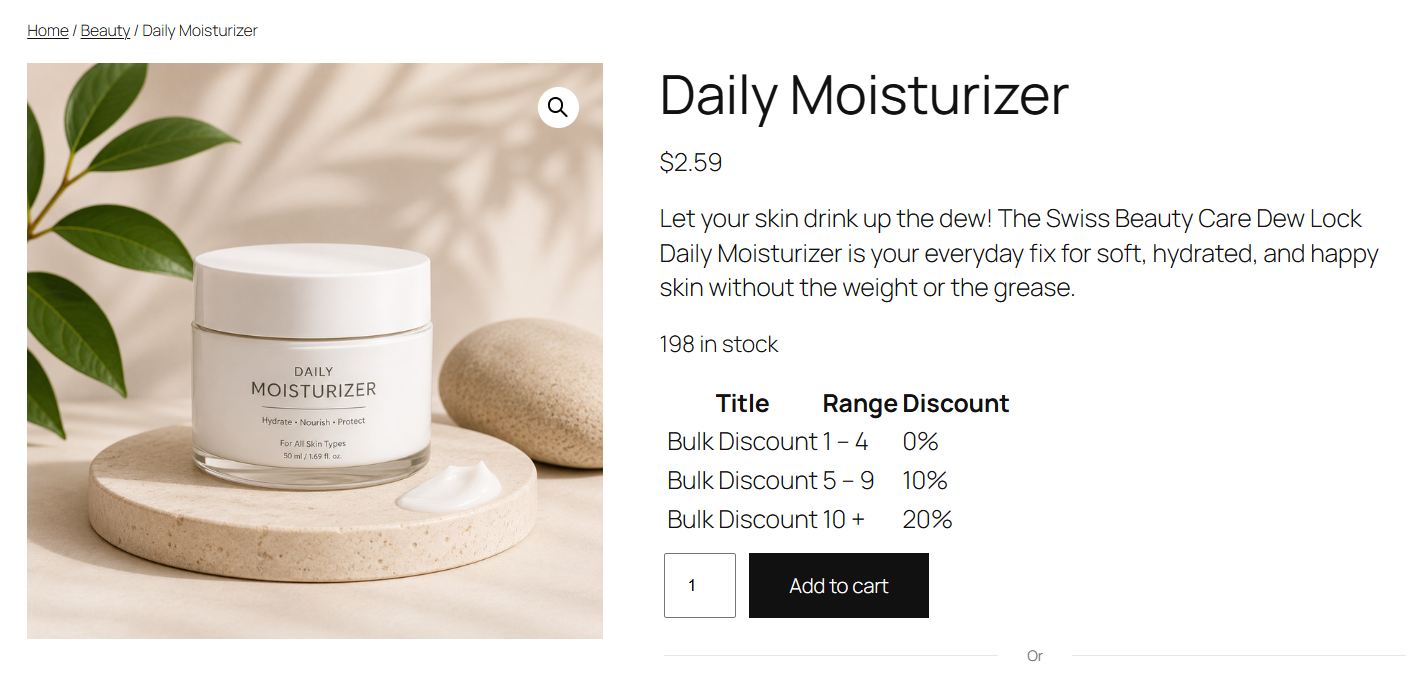
Turn on the discount table so shoppers can see how the pricing works before they add anything to the cart.
A discount nobody knows about isn't much of an incentive.
Worse, you may end up giving a customer a lower price on an order they would have placed anyway.
Priority matters when multiple rules could apply to the same product.
Set it now, even if you only have one rule, so you have a clear system when you add more later.
Add five quantities and make sure you're getting the discount you assigned.
Place a real test order and check the completed order line item.
The cart and the order are calculated at different points, so confirming both catches problems that a quick cart test can miss.
How to Set Up Role-Based and Wholesale Pricing
"Wholesale" can mean two very different things, and it helps to separate them before you start installing plugins.
If you simply want logged-in customers in a particular group to see different prices, that is a pricing rule.
If you need hidden prices, account approval, tax exemptions, payment terms, minimum order quantities and other B2B features, you are looking at a much bigger setup.
Let’s start with the pricing part.
Step 1: Create the wholesale rule
Add a wholesale user role with a role editor, or use the role your B2B plugin created. Avoid reusing the subscriber role.
Having a dedicated role makes it much easier to manage trade customers later, especially when you need to email or report on them separately.
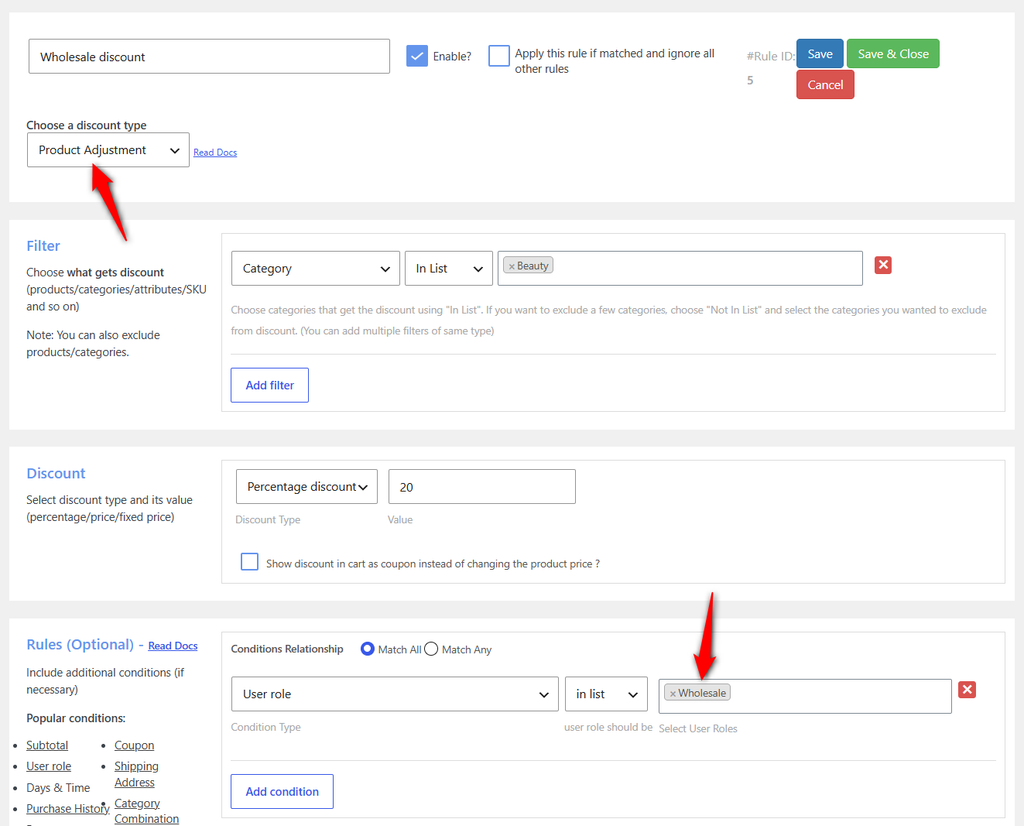
Next, go to Add New Rule ⇨ Product Adjustment. Name the rule by customer tier rather than the discount itself.
Set the adjustment to 20% off, then filter it to the beauty categories your customers actually buy.
Under Conditions, add the User Role in the list 'Wholesale'.
That tells the plugin who should get the discount. The other settings determine where and how that discount applies.
Step 2: Decide what retail pricing wholesale customers should see
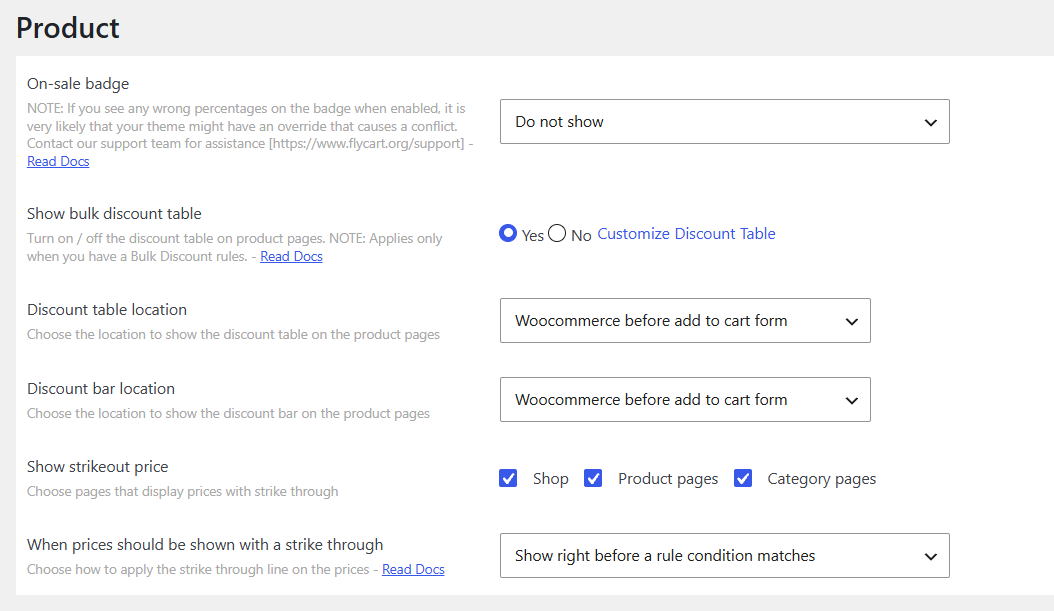
You can show the regular price with the wholesale price underneath it, or hide the retail strikethrough if trade customers only need to see their own price.
Decide what makes the most sense for your customers, then configure it in the display settings.
Step 3: Test with a real wholesale account
Log in as a wholesale user in a private browser window and check a category page, a product page, and the cart.
Do not rely on an admin account for this test. Admin users can behave differently from regular customers, and caching can make pricing problems particularly easy to miss.
If your trade customers reorder the same six SKUs every month, they probably do not want to click through your catalog each time.
A wholesale and bulk order form can make repeat ordering much faster, which may have a bigger impact on reorder rates than another few percentage points of discount.
How to Set Up BOGO and Buy X Get Y Offers
BOGO rules can get complicated quickly when you are combining them with other discounts.
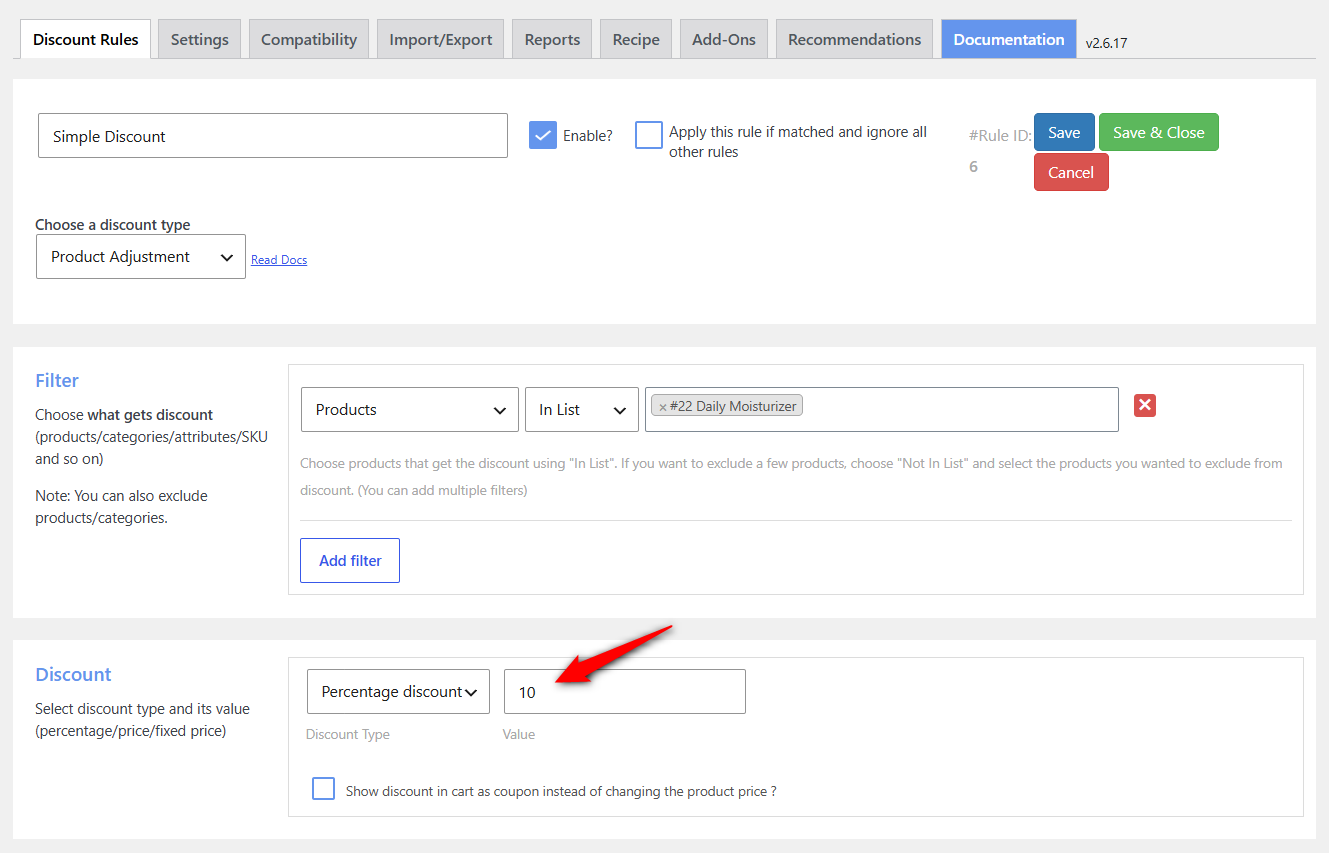
For example, you might want to give 10% off the moisturizer by default, but increase that to 15% when the customer also adds a sunscreen or face serum.
The cleanest way to handle that is with two rules and a priority setting.
Step 1: Create the base rule
Create a simple discount for the moisturizer at 10% off and set the match rules priority.
Step 2: Create the better offer
Add a second simple discount at 15%. Add a cart condition that checks whether the face serum and sunscreen are in the cart.
Set this rule to match first priority.
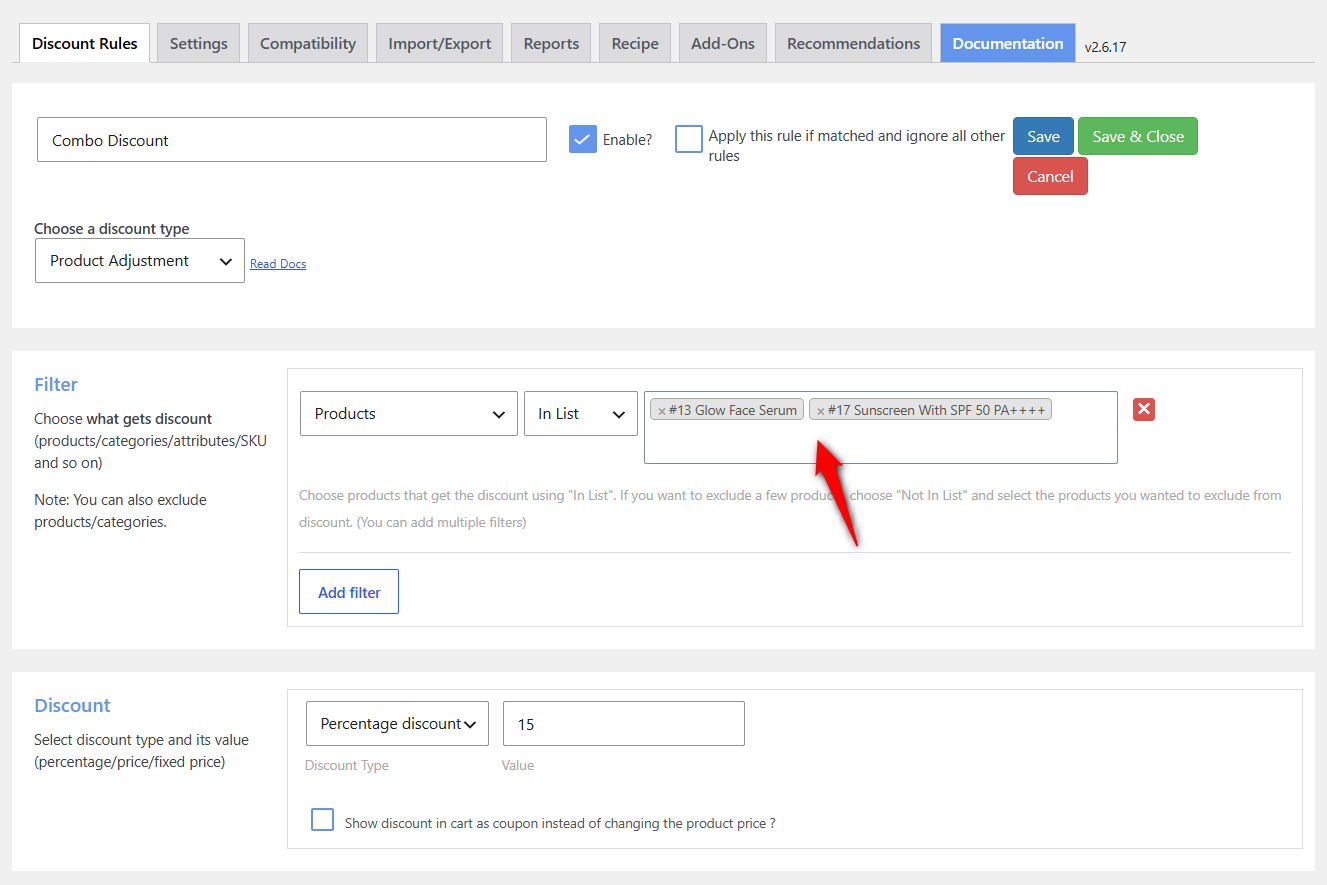
Turn on the exclusive or do not apply further rules option for the 15% rule.
Otherwise, both rules can match the same order, and you may end up applying discounts you never intended to combine.
Step 3: Use the BOGO discount
If the promotion is "Buy 1 moisturizer, get 1 serum free", choose the BOGO discount type.
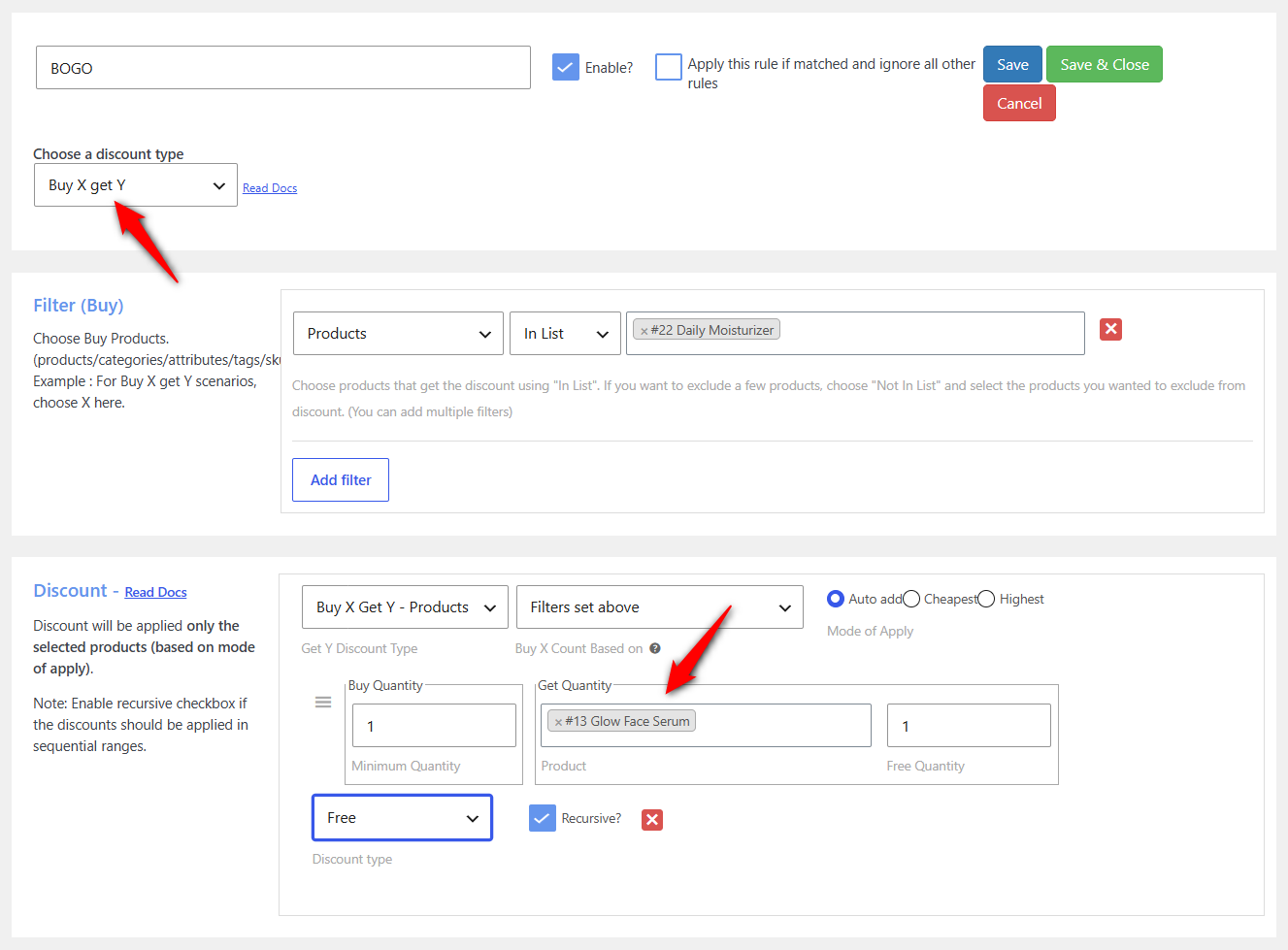
Set the serum to a free discount. If customers should receive another free serum when they buy four moisturizers, enable the repeat option.
The gift must still be a valid WooCommerce product. If it's unpublished, out of stock, or has no price, the BOGO rule may not be able to add it to the cart.
Give the gift product a normal price, and let the rule reduce it to zero.
Then test the complete flow from the product page through checkout.
For more BOGO setups and variations, see our guide to setting up buy one get one offers.
If you want to automatically add a product as a gift rather than treat it as a discount, our guide to free gifts with purchase is the better fit.
How to Set Up Cart-Total and Spend-Threshold Discounts
Spend-and-save discounts work differently from product-level pricing. They do not change the price shown on the product page.
The discount only appears once the cart reaches the required amount, which makes this one of the easiest rules to set up and one of the easiest to overlook.
Step 1: Set up threshold-based rewards
To offer dynamic pricing for products based on cart value, go to FunnelKit ⇨ Cart ⇨ Rewards and click 'Create Reward'.
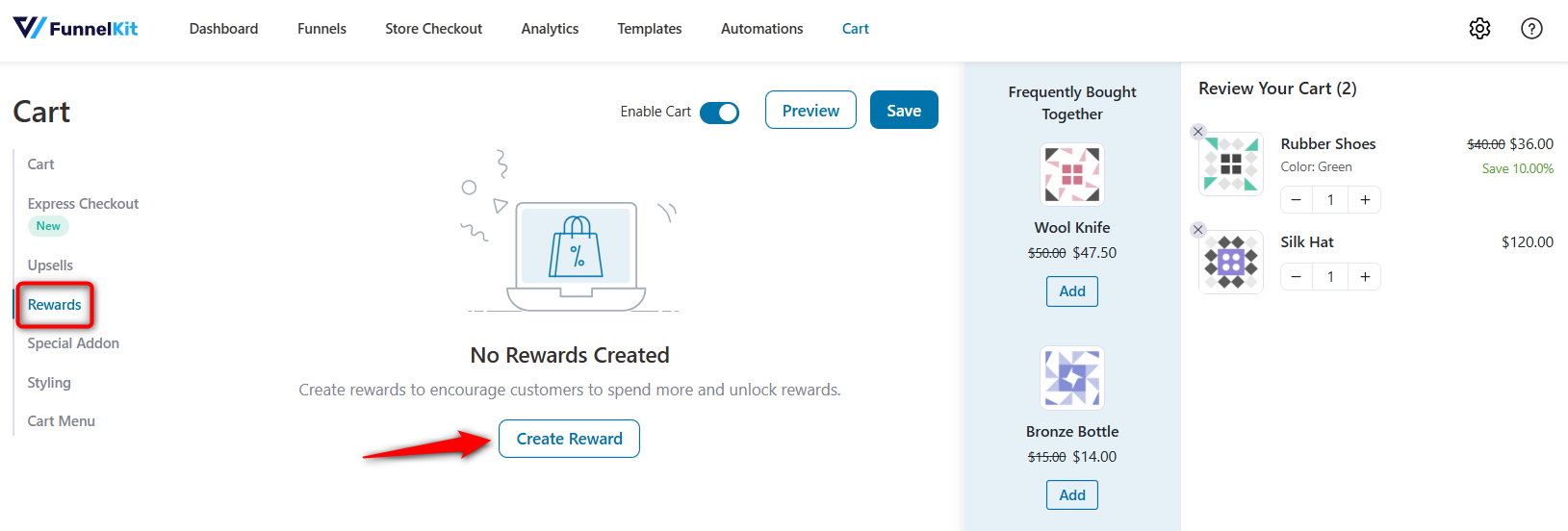
Here, you can offer three types of rewards:
- Free shipping
- Discount
- Free gift
Let's create a tiered discount. A 10% discount applies when the cart total reaches $100, and a 20% discount when it reaches $175.
Select 'Discount', enter the amount to get the reward, and the 10% off coupon.
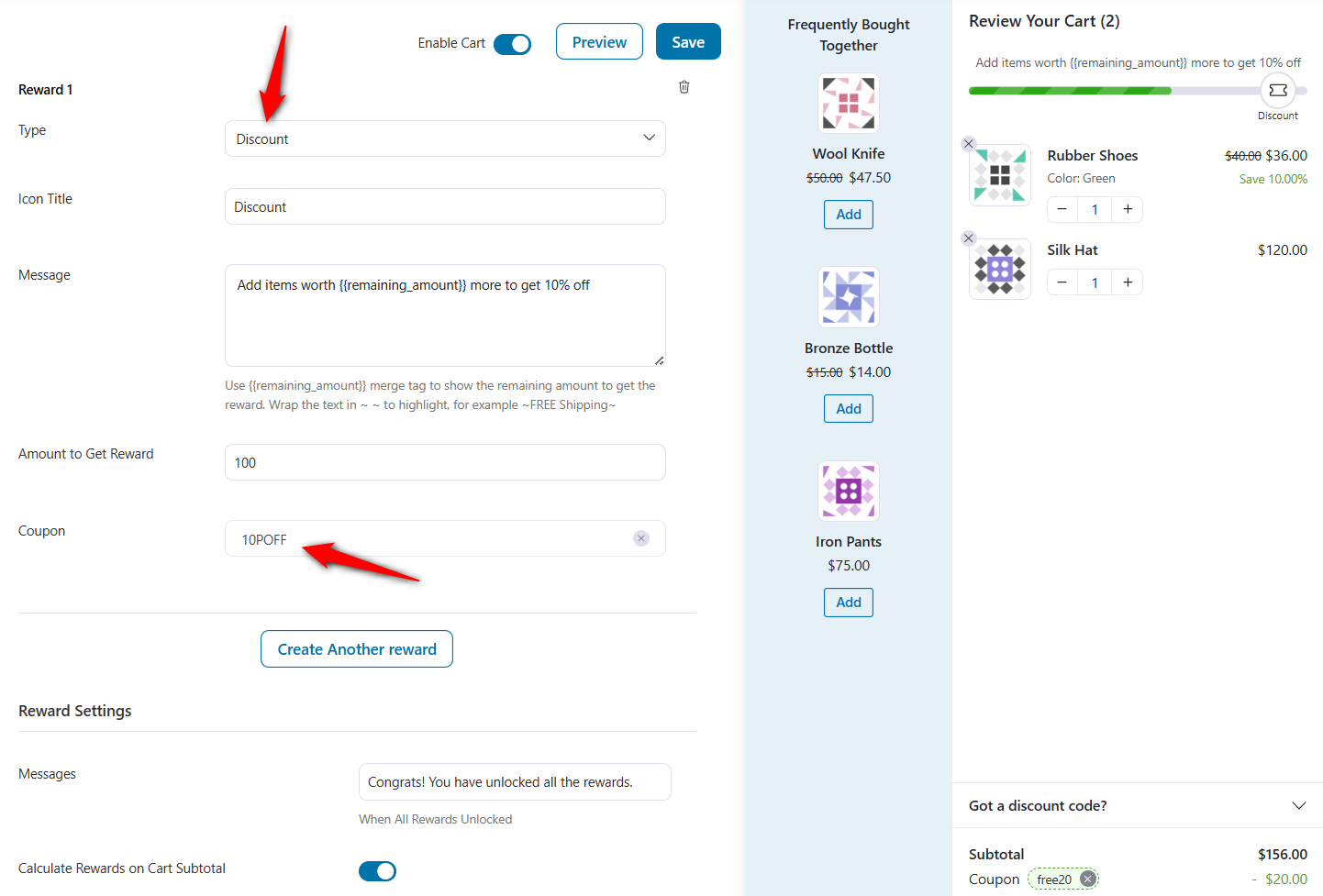
Repeat the process to create another reward: 20% off when the cart total reaches $175.
Once done, hit 'Save'.
You can even set up smart cart upsells to boost average order value, helping you hit those dynamic pricing thresholds faster.
Step 3: Test and verify your dynamic pricing in WooCommerce
Add a product to the cart, adjust the quantity to trigger your pricing tiers, and verify that the correct discounts appear in the cart and at checkout.
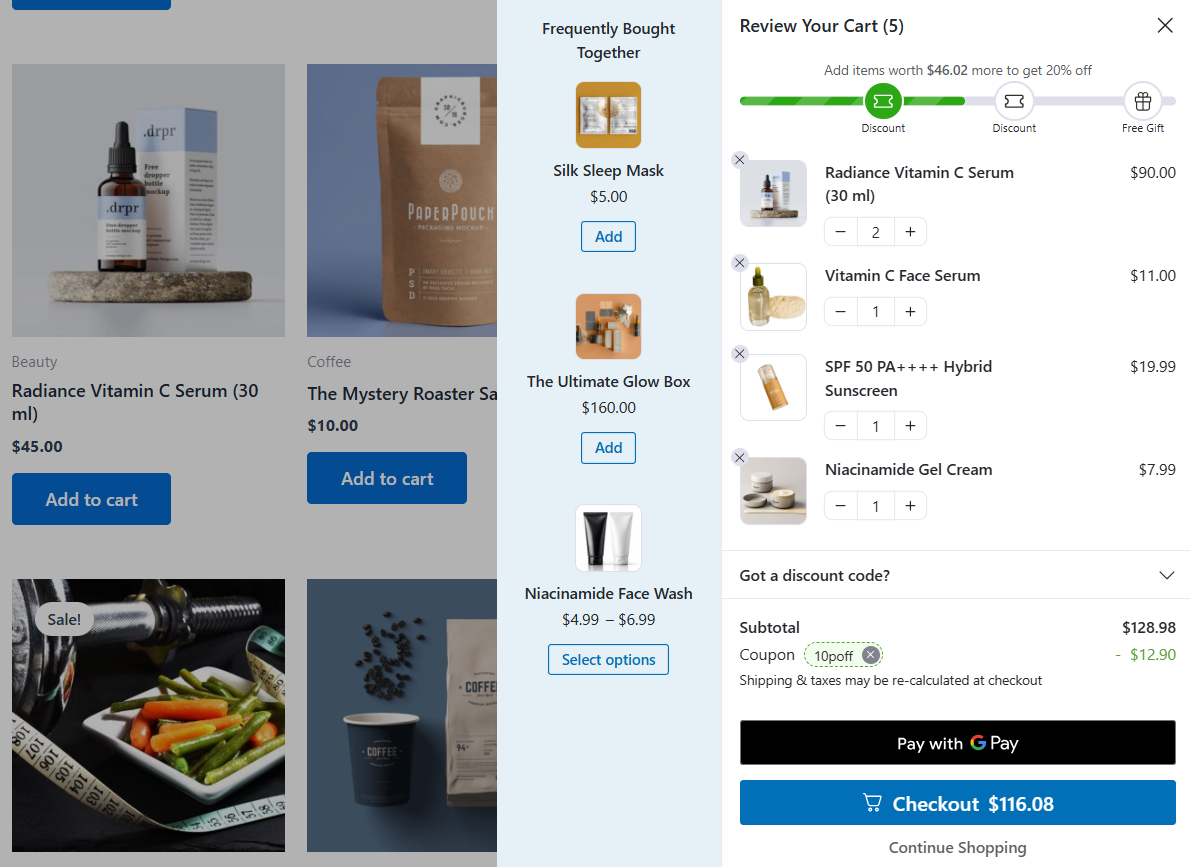
Place a test order to confirm the final order total is accurate.
Test on both desktop and mobile devices to ensure the pricing table displays correctly on smaller screens and the cart updates smoothly when quantities change.
Do Pricing Rule Plugins Slow Down Your Store?
Yes, pricing rule plugins can slow down your store. It's often overlooked when comparing these pricing plugins.
A pricing rule has to be evaluated when the cart changes and, depending on how the plugin displays pricing, sometimes when a product page loads too.
The more conditions you add, the more work the plugin has to do. A rule engine checking dozens of conditions across a large catalog doesn't do that work for free.
WooCommerce developers have reported plenty of pricing plugins becoming a bottleneck on larger stores.
One frequently discussed example involved a B2B store where a developer replaced a pricing plugin with custom code and brought load times down from more than 40 seconds to around 4.
That is one store with one setup, not a benchmark you can apply to every plugin, but it is a useful reminder that pricing logic can become expensive at scale.
Here's how to keep everything under control:
- Keep the number of active rules under control: Turn off seasonal promotions when they end instead of leaving old rules around indefinitely.
- Use category conditions where they make sense: Checking a category is generally cleaner than maintaining a rule with hundreds of individual product IDs.
- Only display what customers need: Discount tables, savings badges and other pricing elements can add their own queries and processing to product pages. If you are not using them, turn them off.
- Pay attention to caching: Dynamic pricing and full-page caching can be a tricky combination. A cached page could show one customer's price to another if the pricing conditions aren't handled correctly. Most caching plugins exclude cart and checkout pages by default, but product pages with role-based or customer-specific pricing may need additional exclusions.
The key is to measure the impact on your store rather than assume every pricing plugin will slow it down.
Load the same product page and cart with the plugin enabled and disabled, then compare the results in Chrome DevTools. If you see a significant difference, simplify your rules and test again before assuming you need a faster hosting plan. Sometimes the problem is the pricing logic, not the server.
Troubleshooting: Why Your Pricing Rules Are Not Applying
When a WooCommerce pricing rule does not behave as expected, the problem usually comes down to one of four things.
- The discount shows in the cart but not on the product page
This is usually a display setting, not a problem with the rule itself.
Many pricing plugins leave frontend price displays disabled by default.
Check that the discount table and strikethrough price are enabled, then hard-refresh the page.
Product pages are often cached more aggressively than the cart, so an old price can stick around even after the rule is working correctly.
- The cart total is wrong, or the discount is applied twice
Start by checking whether another plugin is also changing product prices.
A second discount plugin, wholesale extension, or currency switcher can hook into the same WooCommerce price calculations and either apply another discount or override the first one.
The easiest way to find the conflict is to test on staging and deactivate price-related extensions one at a time until the total looks right again.
If you have custom code hooked into woocommerce_before_calculate_totals, also check that it uses the did_action guard.
- The rule does not work with variable products
Variable products can be tricky because some plugins apply the rule to the parent product while others work with individual variations.
That difference matters when quantity is involved.
Check whether your plugin counts quantity across variations or separately for each one.
For example, a café buying three bags of coarse-ground beans and two bags of whole beans has five bags in the cart.
If the rule counts each variation separately, neither one reaches the five-item threshold.
- Discounts conflict with coupons or tax
Decide how automatic discounts and coupons should work together before you launch the promotion.
Different plugins handle this differently, and the default setting may not match what you intended.
Tax needs the same attention. Check whether the discount is calculated before or after tax.
On a tax-inclusive store, taking 10% off the displayed price produces a different final amount than taking 10% off the pre-tax price and then calculating tax.
That difference may look small on one item, but it becomes noticeable when you are processing a large wholesale order.

Frequently Asked Questions
For most stores, Discount Rules for WooCommerce by Flycart, since the free version already covers bulk, tiered, product and cart discounts.
If you need role rules and BOGO without paying, Advanced Dynamic Pricing has the more generous free tier.
If you only need trade pricing for logged-in wholesale accounts, a role-based rule in any pricing plugin does it.
A full wholesale suite only pays off when you also need registration approval, minimum order quantities, and tax exemptions.
Yes, with two rules. Build one for the single-product discount and a second for the combination at a higher discount, then set the second rule to a higher priority so it overrides the first.
Partially. Most pricing plugins discount the total booking cost rather than the per-hour unit price, which is a known limitation.
The usual workaround is to assign members a custom user role and discount the booking total instead of the unit rate.
If you would rather not run another plugin, WooCommerce hooks will do this directly, and for a store with one simple rule that is often the lighter choice.
add_action( 'woocommerce_before_calculate_totals', 'fk_apply_quantity_tier_pricing', 20, 1 );

function fk_apply_quantity_tier_pricing( $cart ) {

	if ( is_admin() && ! defined( 'DOING_AJAX' ) ) {
		return;
	}

	if ( did_action( 'woocommerce_before_calculate_totals' ) >= 2 ) {
		return;
	}

	// Quantity threshold => price multiplier. Highest threshold first.
	$tiers = array(
		10 => 0.80, // 10 or more bags, 20 percent off
		5  => 0.90, // 5 to 9 bags, 10 percent off
	);

	foreach ( $cart->get_cart() as $cart_item ) {

		$quantity = $cart_item['quantity'];
		$base     = (float) $cart_item['data']->get_regular_price();

		foreach ( $tiers as $min_qty => $multiplier ) {
			if ( $quantity >= $min_qty ) {
				$cart_item['data']->set_price( $base * $multiplier );
				break;
			}
		}
	}
}
The did_action check earns its place. WooCommerce fires woocommerce_before_calculate_totals more than once per request, and without that guard, the discount compounds on itself until a $14 bag costs $9.
Depends on the plugin. Ones that filter prices at runtime leave your stored prices untouched and revert cleanly.
Ones that overwrite the stored price leave the discounted figure sitting in the database, so check which one yours is before deactivating on a live store.
They can. Most plugins let you choose whether coupons stack with automatic discounts, exclude each other, or whether only the larger applies.
Set it explicitly and test a cart that qualifies for both.
Some plugins support per-customer pricing by targeting a user ID or email domain, which suits negotiated corporate accounts.
Role-based pricing is far easier to maintain at scale, so keep per-customer rules for genuine one-off contracts.
Ready to Put Flexible Pricing to Work in Your Store?
You now have a pricing rule that fits your catalog, a plugin that can run it, a margin floor that keeps the discount profitable, and a way to troubleshoot the most common failures.
For the beauty store, that meant moving from one price for everyone to volume tiers for products, wholesale rates for trade accounts, and a second-item offer to help move slower stock.
The important part is that pricing rules are only half the setup. It creates the reason to buy more.
The cart reminds shoppers how close they are to getting the better price.
That is why we would set up the pricing tiers first, then add the progress bar and cart rewards around them. The rule decides what the customer can earn. The cart gives them a reason to reach it.
Together, they give you a complete revenue optimization stack: pricing rules that encourage larger orders, cart rewards that push customers past spending thresholds, and checkout offers that maximize final order value.
Related Resources:
- How to set up WooCommerce BOGO offers
- How to create WooCommerce cart discounts
- Best WooCommerce coupon plugins
- How to offer WooCommerce free gifts
- How to create a WooCommerce order form for wholesale buyers
Editorial Team
October 11, 2026You can customize the WooCommerce cart page with the Cart block, a page builder like Elementor, or CSS and PHP snippets. Which method works for you depends on the cart...
Editorial Team
October 9, 2026A WooCommerce discount lowers what a shopper pays, either through a reduced product price or a code entered at checkout. Out of the box, WooCommerce gives you two ways to...
Editorial Team
October 9, 2026A downsell gives customers a cheaper option after they turn down your main offer. If you show it too soon, you might convince them to skip the original offer and...