


WooCommerce order management is the process of tracking, processing, and fulfilling customer orders from the moment a purchase is placed until it reaches the customer.
It includes monitoring order statuses, communicating updates to customers, processing refunds, and managing bulk actions within your order list.
Out of the box, WooCommerce provides a built-in order management system that works well for small to medium-sized stores.
In this guide, we’ll explain how the default system works and how to manage orders more efficiently.
In addition, we will share how to extend its capabilities with the right plugins so you can build a streamlined workflow that scales with your store’s growth.
Why WooCommerce Order Management Matters?
WooCommerce powers over 3.9 million online stores worldwide, making efficient order management critical as stores grow.
Poor order handling quickly creates bigger problems. Missed or delayed orders frustrate customers, increase support tickets, and can even lead to chargebacks. As order volume rises, manual workflows simply do not scale.
Here is why strong WooCommerce order management matters:
- Provides actionable data: Tracking fulfillment times, refunds, and order statuses helps you make smarter business decisions.
- Improves customer satisfaction: 96% of consumers say delivery experience influences whether they buy again (Metapack). Fast, accurate processing builds trust and repeat purchases.
- Protects revenue: Missed payments, duplicate orders, and processing errors can silently cost you sales.
- Reduces support tickets: Clear tracking and automated status updates significantly cut “Where is my order?” inquiries.
- Supports growth: Manual processes may handle 20 orders per day, but not 200. The right system makes scaling sustainable.
Table of Contents
- 1 How WooCommerce Order Management Works by Default
- 2 How to Manage WooCommerce Orders (Step by Step)
- 3 5 Best WooCommerce Order Management Plugins
- 4 6 Best Practices to Streamline WooCommerce Order Management
- 5 Frequently Asked Questions About WooCommerce Order Management
- 6 How do I view and manage WooCommerce orders?
- 7 Can I add custom order statuses in WooCommerce?
- 8 How do WooCommerce mini carts improve the shopping experience?
- 9 What is the WooCommerce Draft order status?
- 10 Is there a WooCommerce order management mobile app?
- 11 How do I manage orders and customers together in WooCommerce?
- 12 How to bulk edit WooCommerce orders?
- 13 Can WooCommerce order management be done without code?
- 14 How do franchises manage WooCommerce orders and payments?
- 15 Build a WooCommerce Order Management System That Scales
How WooCommerce Order Management Works by Default
WooCommerce provides a solid foundation for managing orders. Here’s what it covers.
In the following sections, we’ll break it down step by step.
You’ll learn what information an order contains, how default order statuses work, and which built-in options are available for viewing, filtering, and managing orders efficiently.
1. What an Order Includes
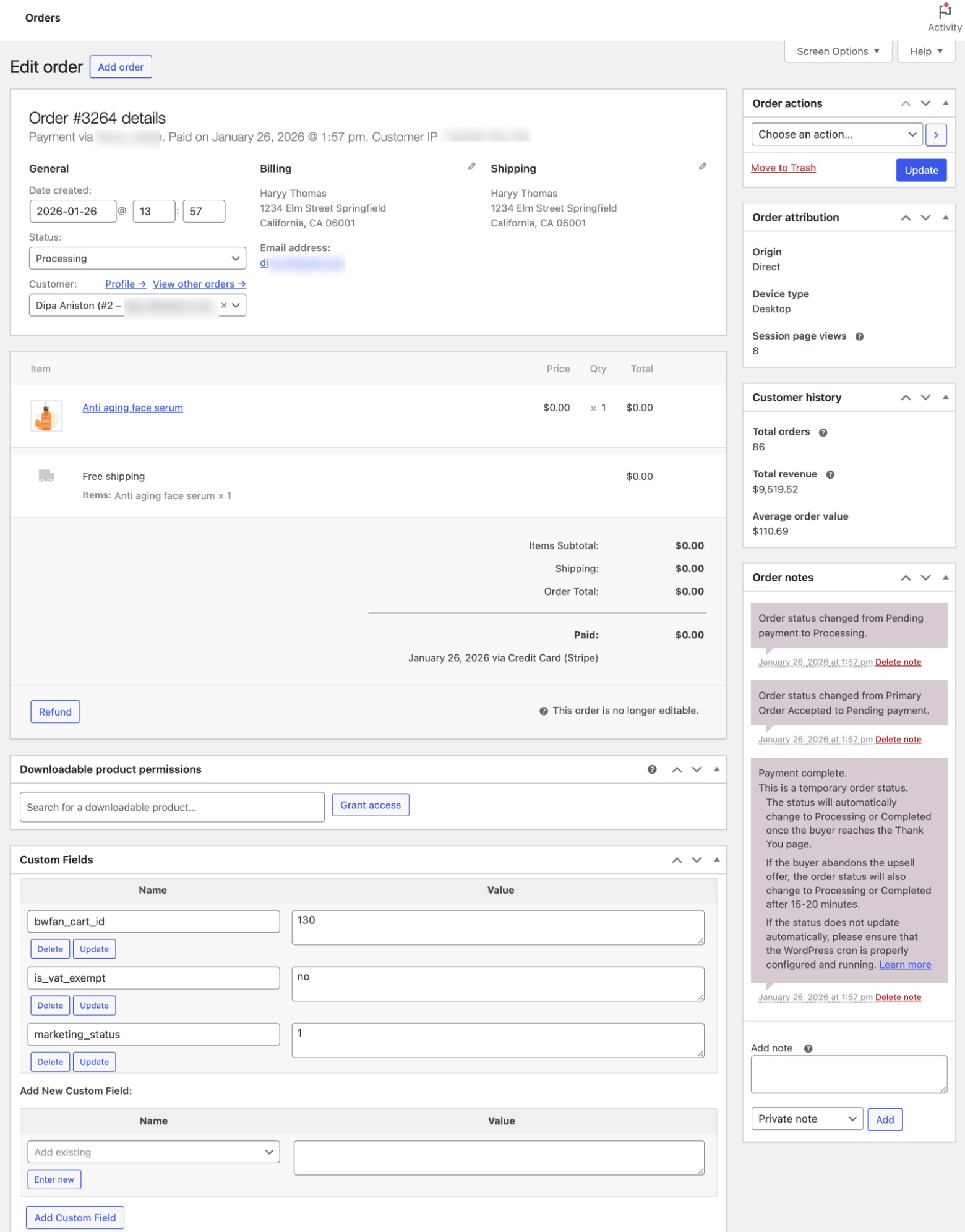
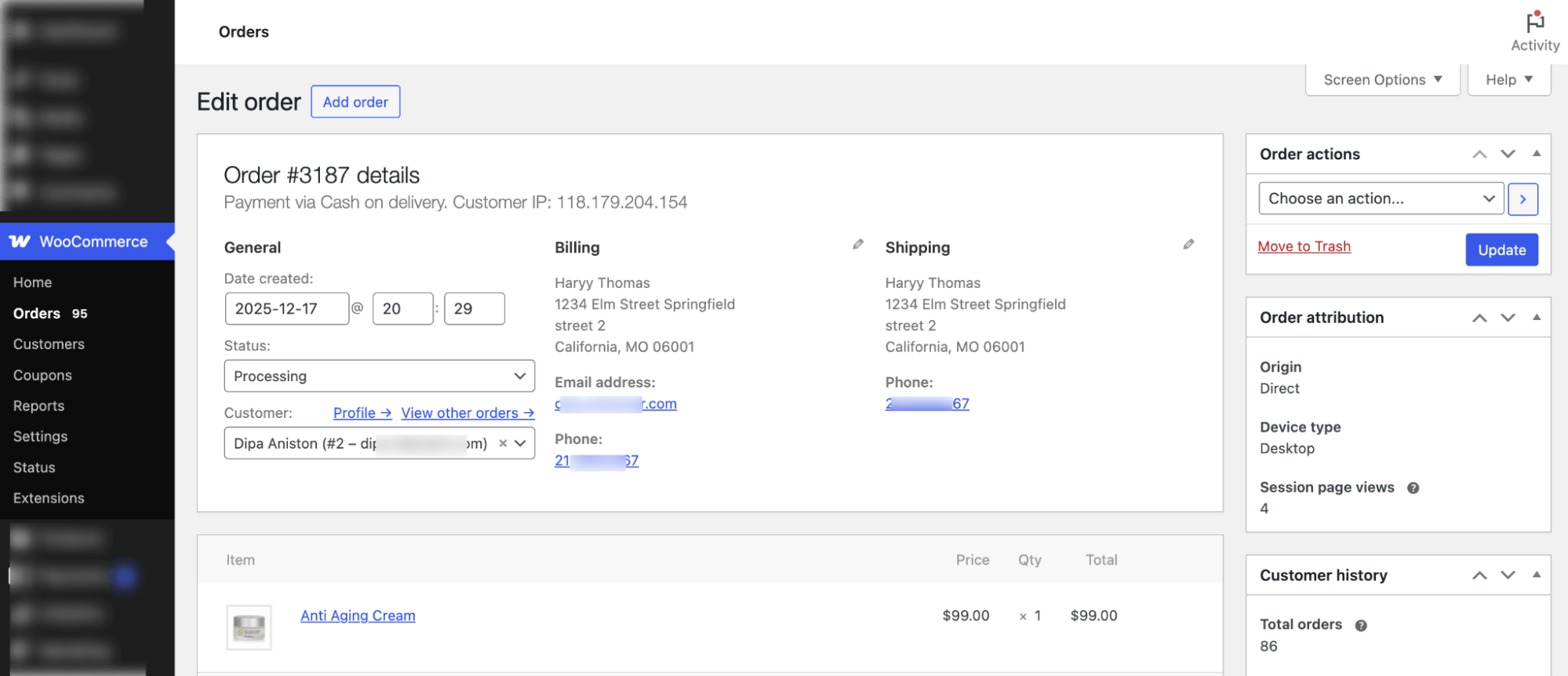
When you open an order, the Order Detailed Page gives you a complete view and full control over that specific order.
What It Includes:
When you open an order, the page is structured into clearly defined sections for quick management.
- Top Bar – Displays the Order ID, payment method, date & time, and customer IP, and includes an "Add Order" button to manually create a new order.
- General – Shows date created, editable order status dropdown, and linked customer profile for quick access to their account and past orders.
- Billing – Displays customer name, billing address, and email address.
- Shipping – Shows the recipient's name and complete shipping address.
- Order Items – Lists product name, thumbnail, price, quantity, line total, and the applied shipping method.
- Order Totals – Breaks down items subtotal, shipping cost, order total, and payment confirmation details.
- Order Actions (Sidebar) – Allows sending order details to the customer, resending new order notification, regenerating download permissions for virtual/downloadable products, updating the order, or moving it to trash.
- Order Attribution (Sidebar) – Displays order origin, device type, and session page views.
- Customer History (Sidebar) – Shows total orders, total revenue, and average order value.
- Order Notes (Sidebar) – Logs status changes, payment updates, and allows adding private or customer notes.
- Additional Sections – Includes refund option, downloadable product permissions, and custom fields management.
2. How Default Order Statuses Work
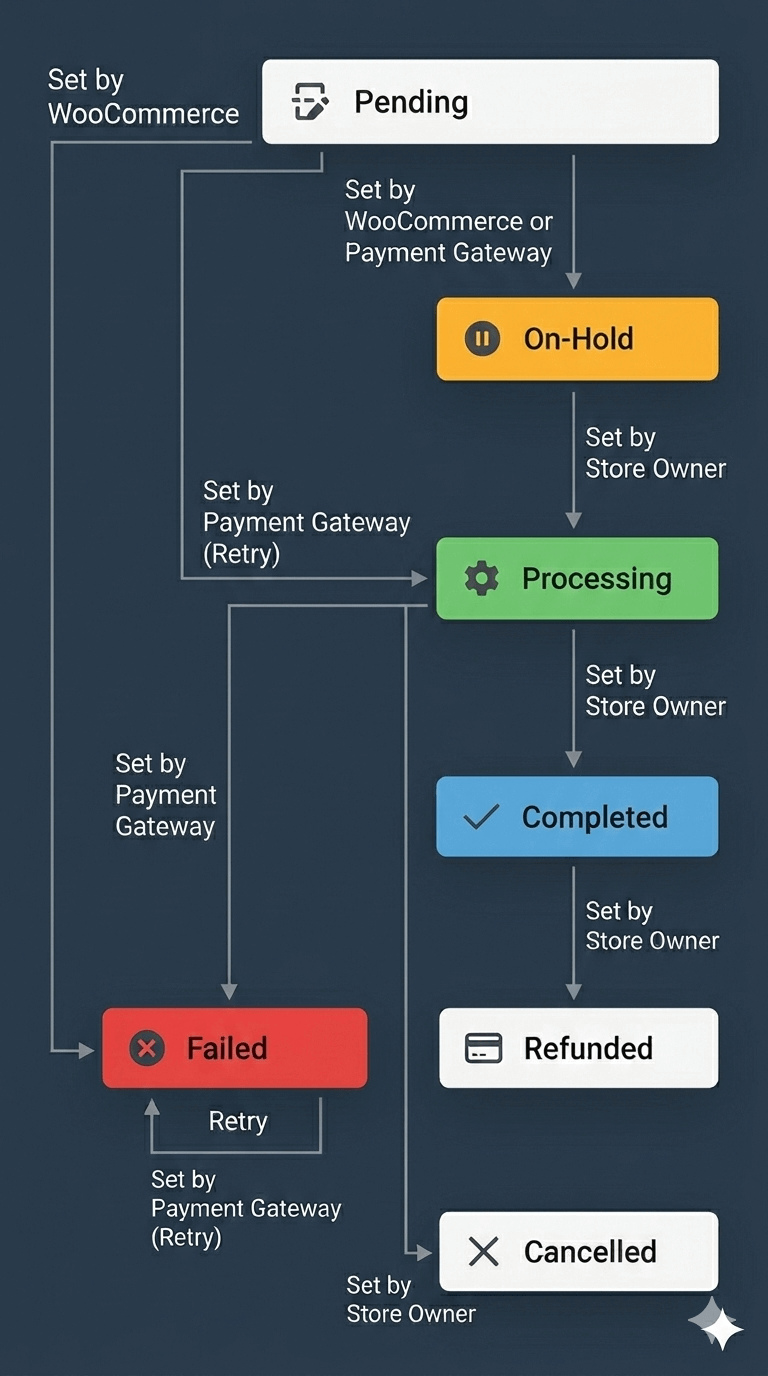
WooCommerce ships with eight default order statuses, each representing a distinct stage in the fulfillment lifecycle.
Understanding what each status means and what triggers it is essential for managing orders accurately.
Pending Payment is assigned when an order is received, but no payment has been made yet. The customer has typically started checkout but not completed it.
| Order Status | Description & Key Actions | Who Updates / How | Notes / Typical Use |
| Draft | The order started but was not completed. Stock is not affected and it awaits customer action. | Automatically when checkout is started | Only visible under Draft sub-tab and not counted in active orders |
| Pending Payment | Order received and waiting for confirmation. Stock remains unchanged. | Automatically, when payment is confirmed or manually by the admin/store owner | Common for offline payments or delayed gateways |
| On Hold | Order waiting for payment verification. Stock is reduced. | Manually by the admin or automatically by some gateways | Often used for offline payments like bank transfer or SEPA Direct Debit |
| Processing | Order ready for fulfillment. Stock has been reduced, and payment has been confirmed. | Automatically when payment is confirmed or manually by the admin/store owner | Virtual and downloadable products skip this status |
| Completed | Order fulfilled. Stock already accounted for. No further action needed. | Automatically for digital products or manually for physical products | Ready for reporting and archiving |
| Failed | Payment failed. Stock may be temporarily reserved. | Automatically by the payment gateway or manually if needed | Outside normal flow and may require intervention |
| Cancelled | Order cancelled. Stock is returned. | Manually by the admin or automatically if the payment expires | Some cancellations may require manual refunds |
| Refunded | Full refund issued. Stock is returned. | Automatically or manually by the store owner/manager | Can occur through WooCommerce or an external gateway |
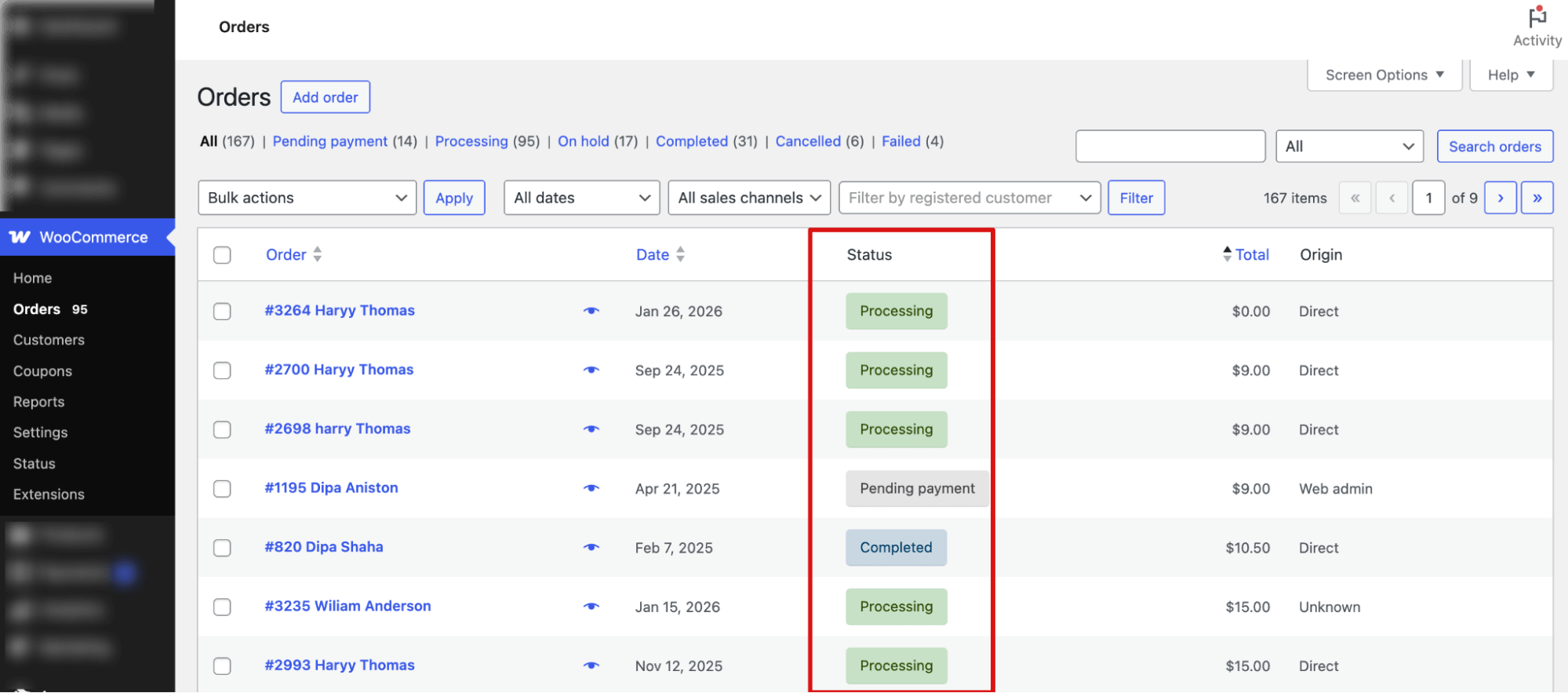
For many stores, these eight statuses cover the full order lifecycle.

3. Order List Management Options
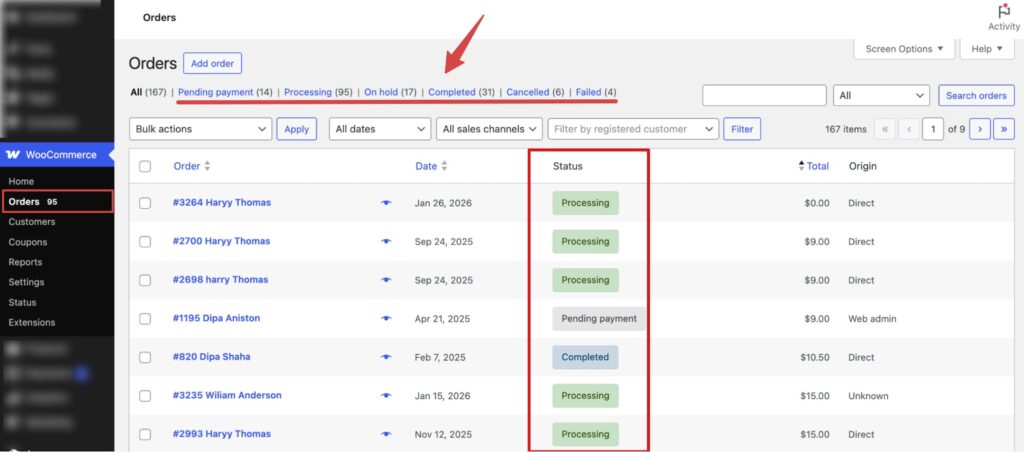
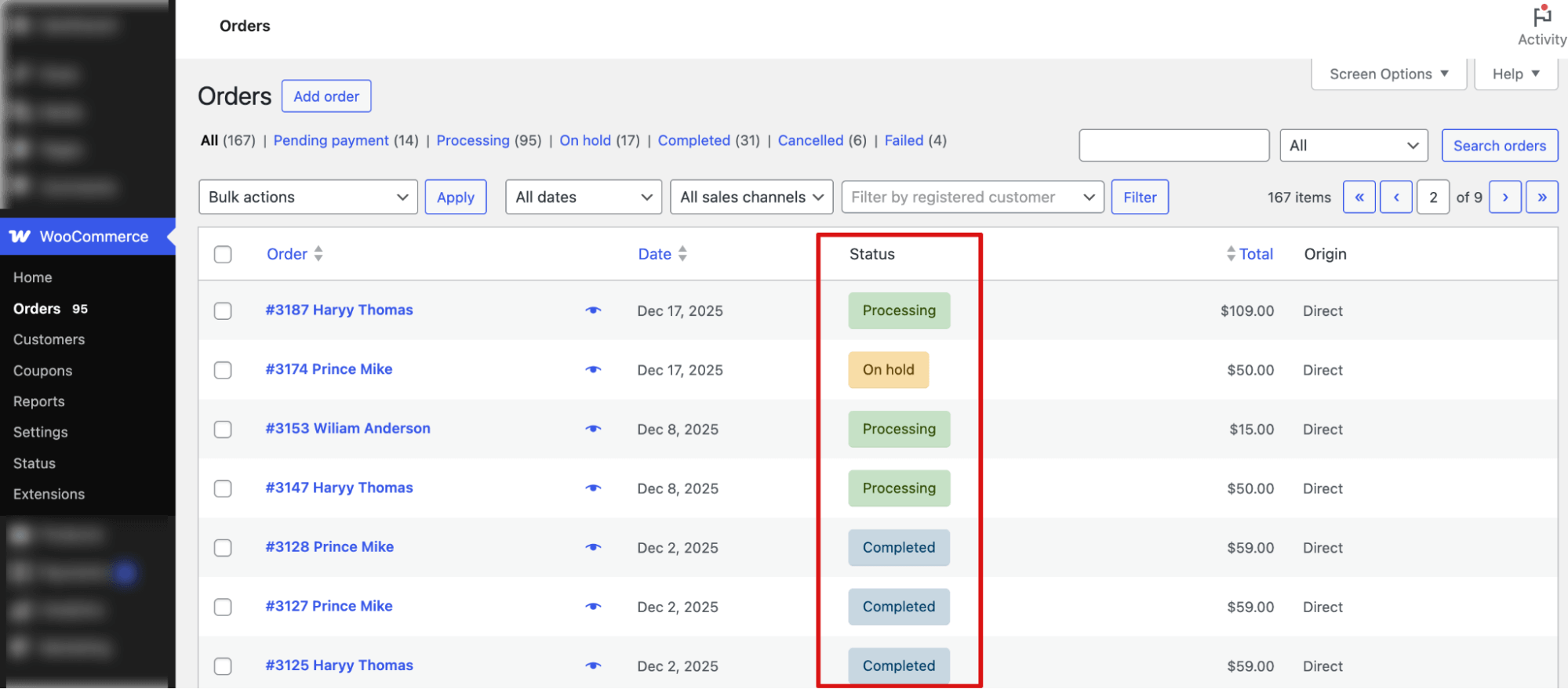
When a customer places an order, WooCommerce automatically captures all order details and adds them to the Orders list table.
You can find orders under WooCommerce ⇒ Orders in your WordPress dashboard.
What You See in the Orders List
Each row in the Orders table displays:
- Order number and customer name
- Date of purchase
- Order status
- Total amount spent
- Order origin (e.g., direct, admin, etc.)
This gives you a quick overview of all recent transactions without opening each order individually.
Note: You can switch to a different tab to check orders with different statuses like pending payment, processing, on hold, completed, cancelled, and failed.
WooCommerce provides multiple tools to manage orders efficiently:
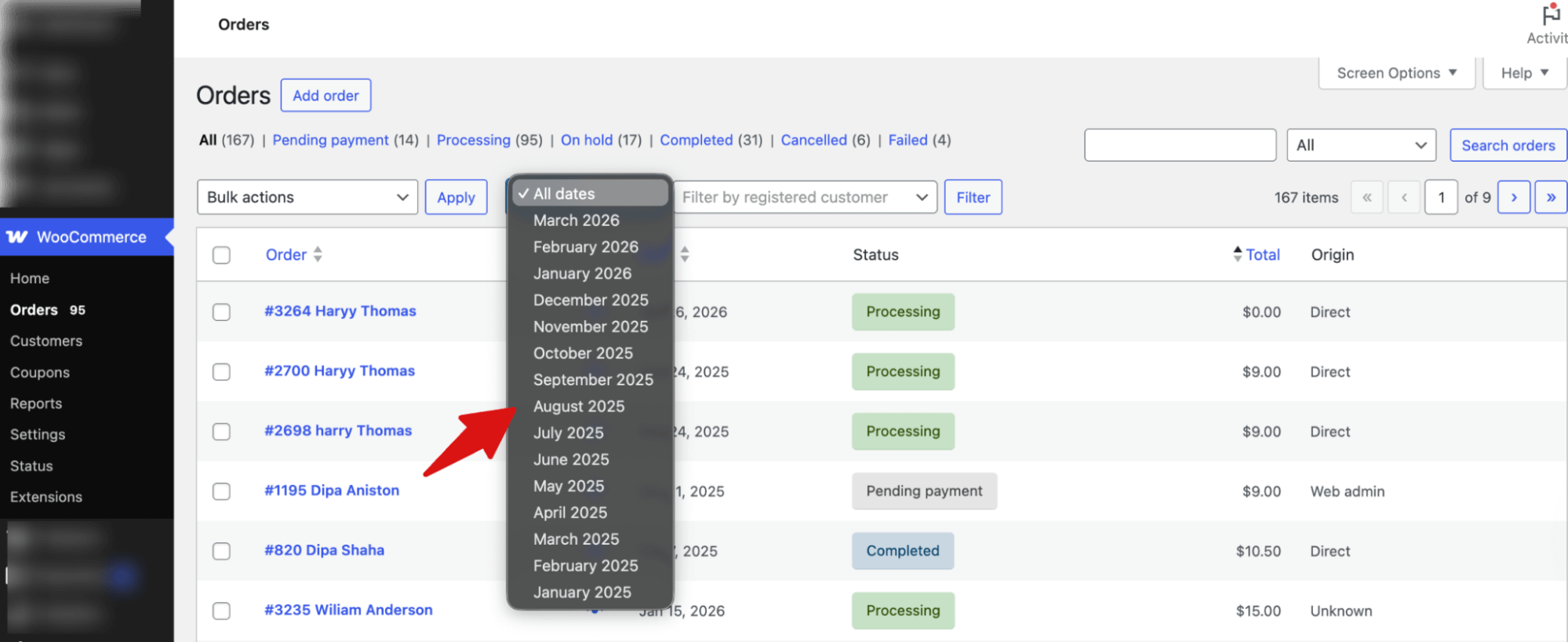
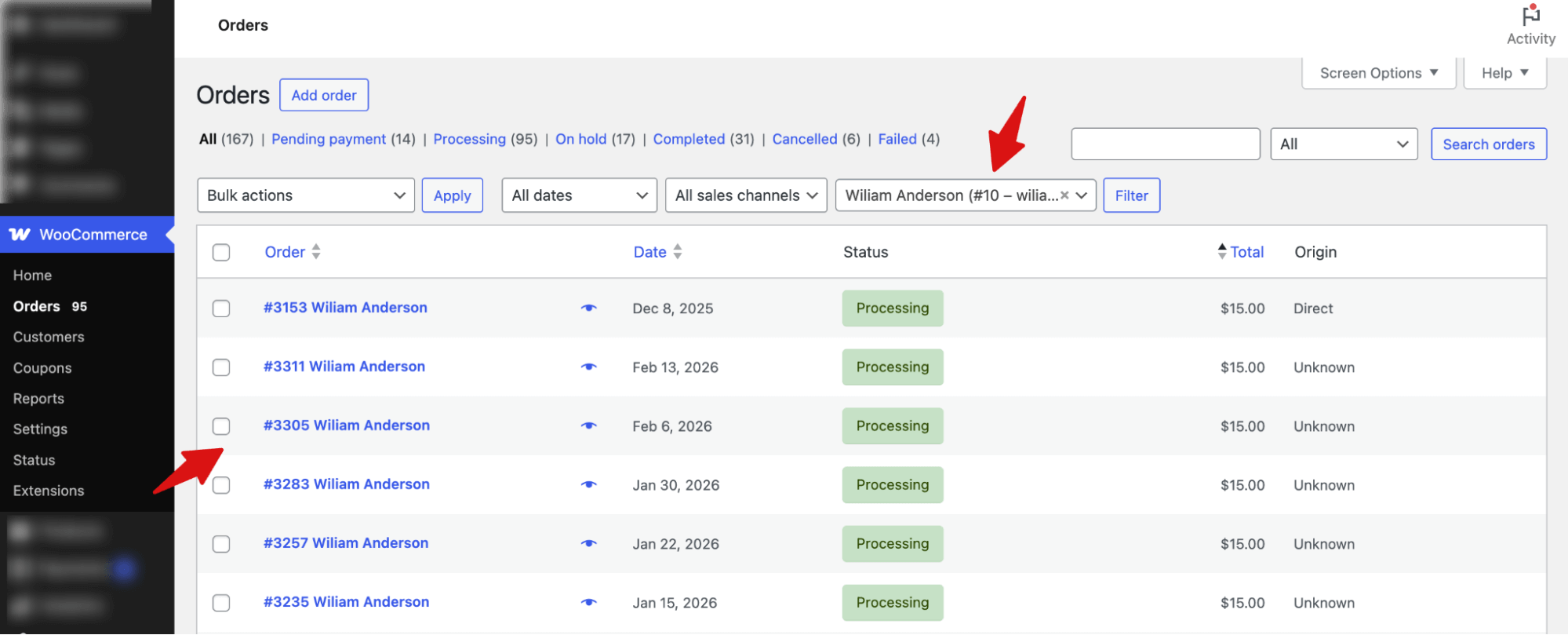
Filter orders
You can filter orders by order creation date.
You can filter orders by registered customer name.
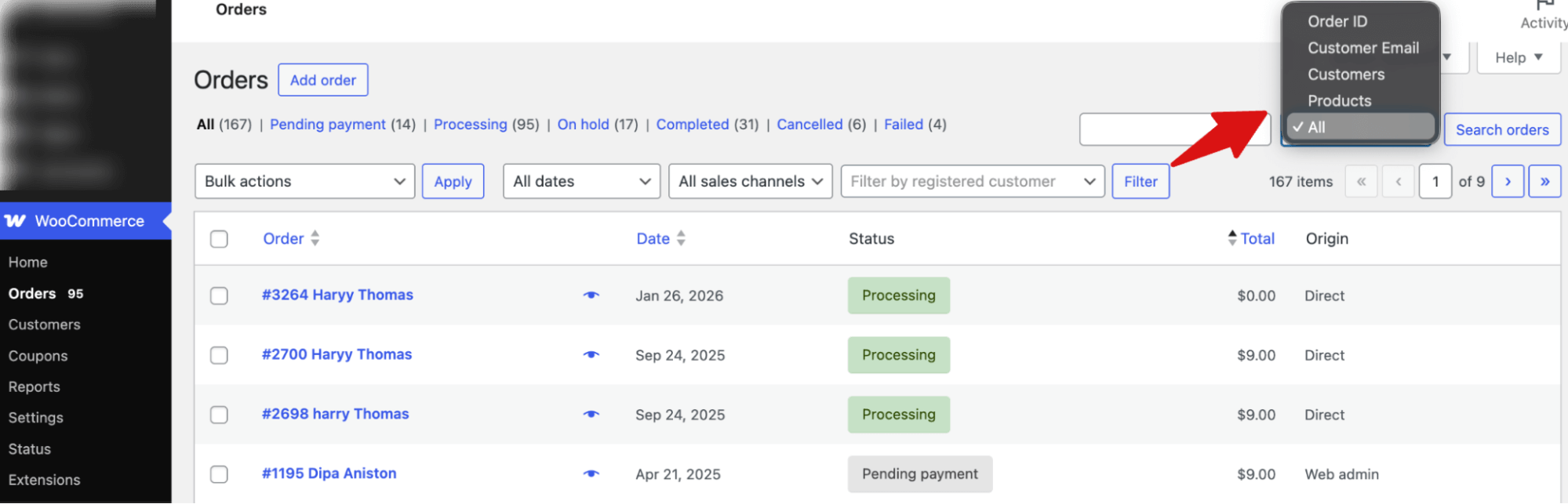
Search orders
You can search orders by Order ID, customer email, customer, or products.
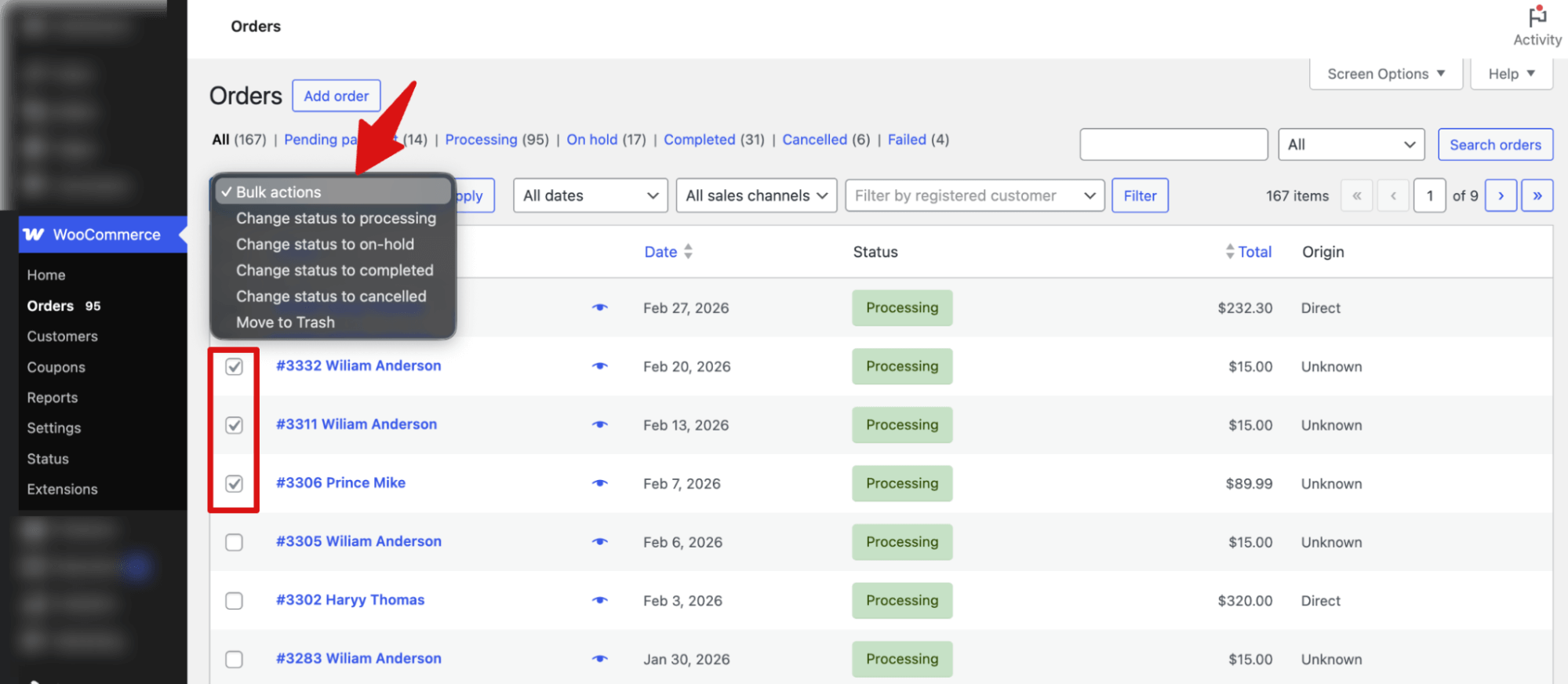
Bulk Actions
From the Orders list, you can also:
- Select multiple orders
- Bulk update order statuses
- Move multiple orders to trash
4. How Order Statuses Flow
A typical order moves through statuses in this sequence: Pending Payment, then either On Hold (for offline payment methods) or directly to Processing (for confirmed payments), and finally to Completed once the order is fulfilled.
At any point, an order can branch to Cancelled or Refunded. Failed orders sit outside this flow and may require manual intervention to recover.
Understanding this flow helps you identify where orders are getting stuck.
If a high volume of orders is sitting in 'On Hold', for example, it signals that your offline payment confirmation process needs attention or a payment gateway configuration issue is delaying automatic updates.
5. Order Notifications
WooCommerce sends automated email notifications to customers when their order status changes.
Here are the email notifications:
| Email Name | When It Is Sent | Recipient |
| New Order | When a new order is placed. | Admin |
| Cancelled Order | When an order is marked as cancelled. | Admin |
| Failed Order (Admin) | When a payment fails during checkout. | Admin |
| Failed Order (Customer) | When a customer’s payment attempt fails. | Customer |
| Order On-Hold | When the order status is set to on-hold. | Customer |
| Processing Order | When payment is received and the order moves to processing. | Customer |
| Completed Order | When the order is marked as completed. | Customer |
| Refunded Order | When the order is fully or partially refunded. | Customer |
| Order Details | Manually sent order details email. | Customer |
| Customer Note | When a note is added and marked for customer notification. | Customer |
| Reset Password | When a customer requests a password reset. | Customer |
| New Account | When a new customer account is created. | Customer |
How to Manage WooCommerce Orders (Step by Step)
Managing WooCommerce orders follows a simple workflow using the built-in tools.
Step 1: Review New Orders
Go to WooCommerce → Orders. Check orders marked Processing, Pending Payment, or On Hold first.
Open each order to verify products, quantities, billing, and shipping details before fulfillment begins.
Step 2: Update Order Status
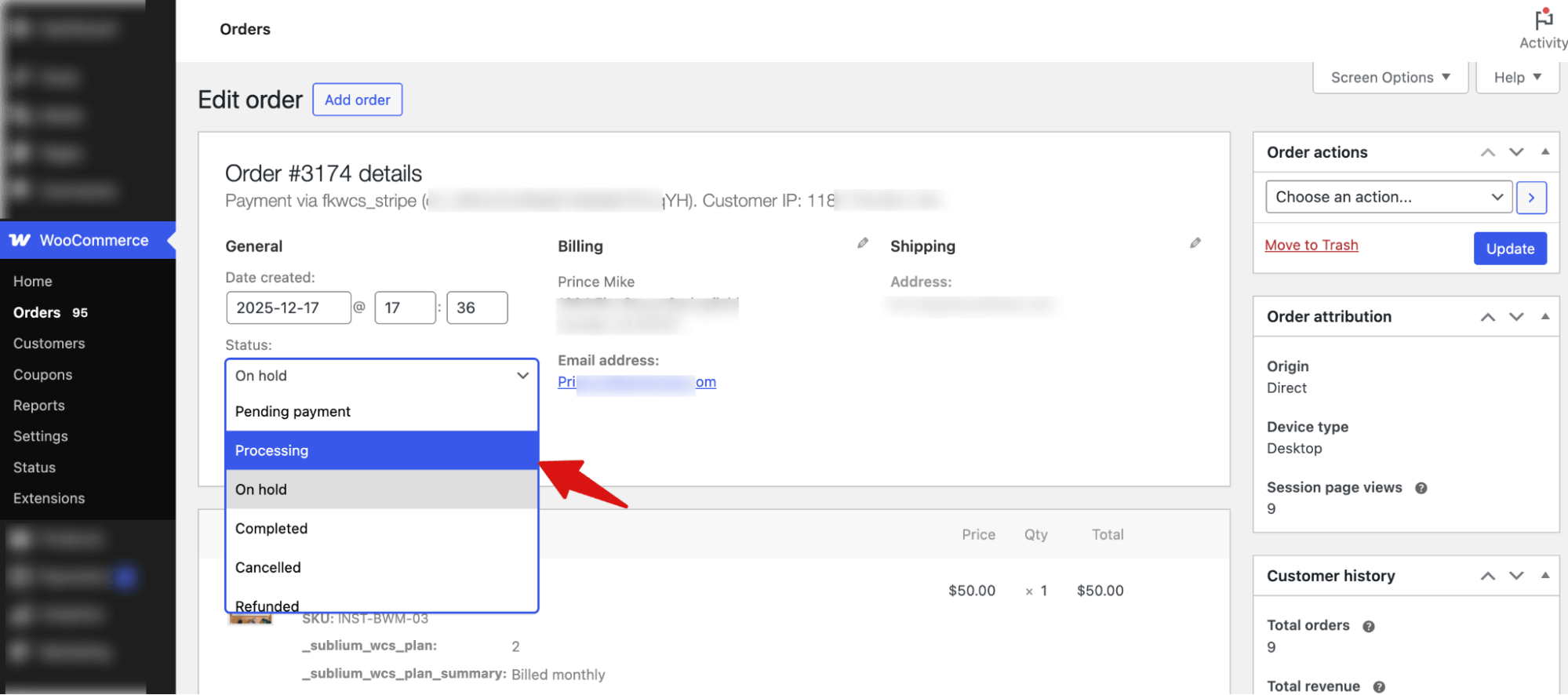
Once confirmed, update the order status to reflect its stage. You can change the status directly from the Orders list or inside the order page.
Use Bulk Actions to update multiple orders at once (default WooCommerce only allows bulk status changes).
Step 3: Add Notes or Customer Updates
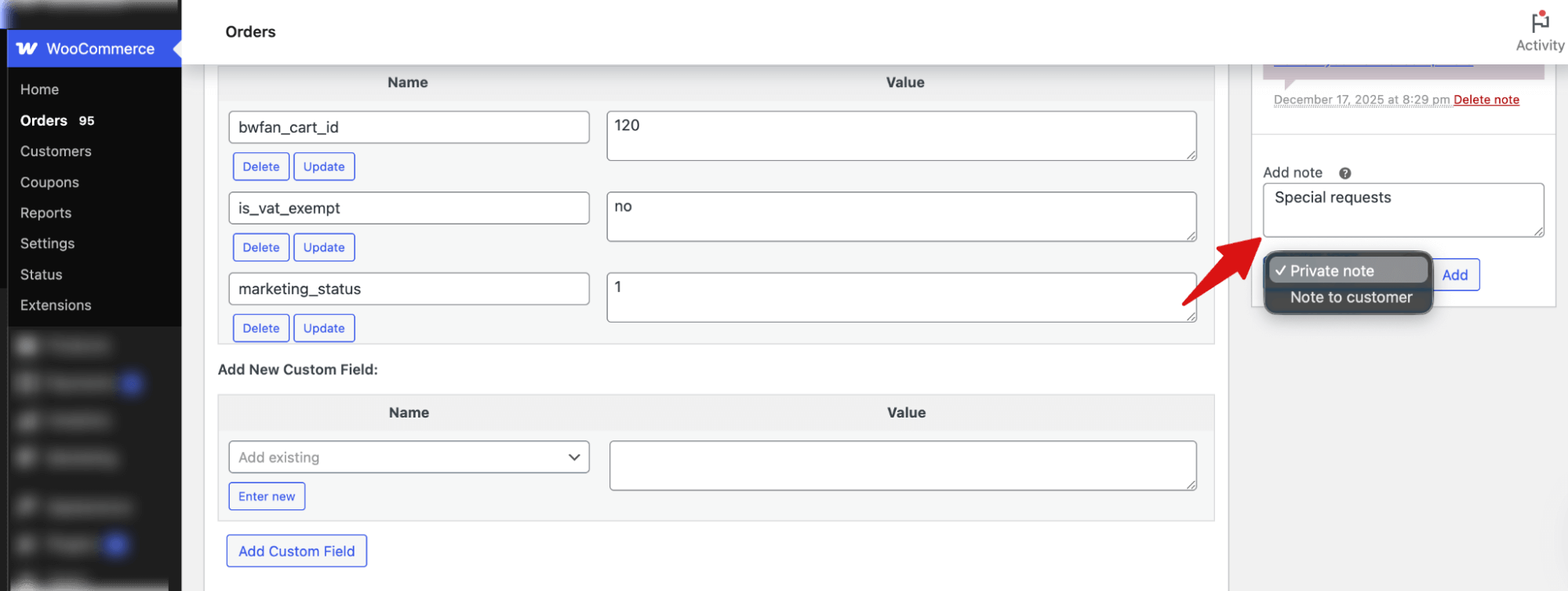
Use the “Private note” option to add internal comments (e.g., special requests or delays).
Switch to “Note to customer” to have WooCommerce automatically email the update.
Step 4: Process Refunds or Cancellations
Click Refund in the order to issue a full or partial refund.
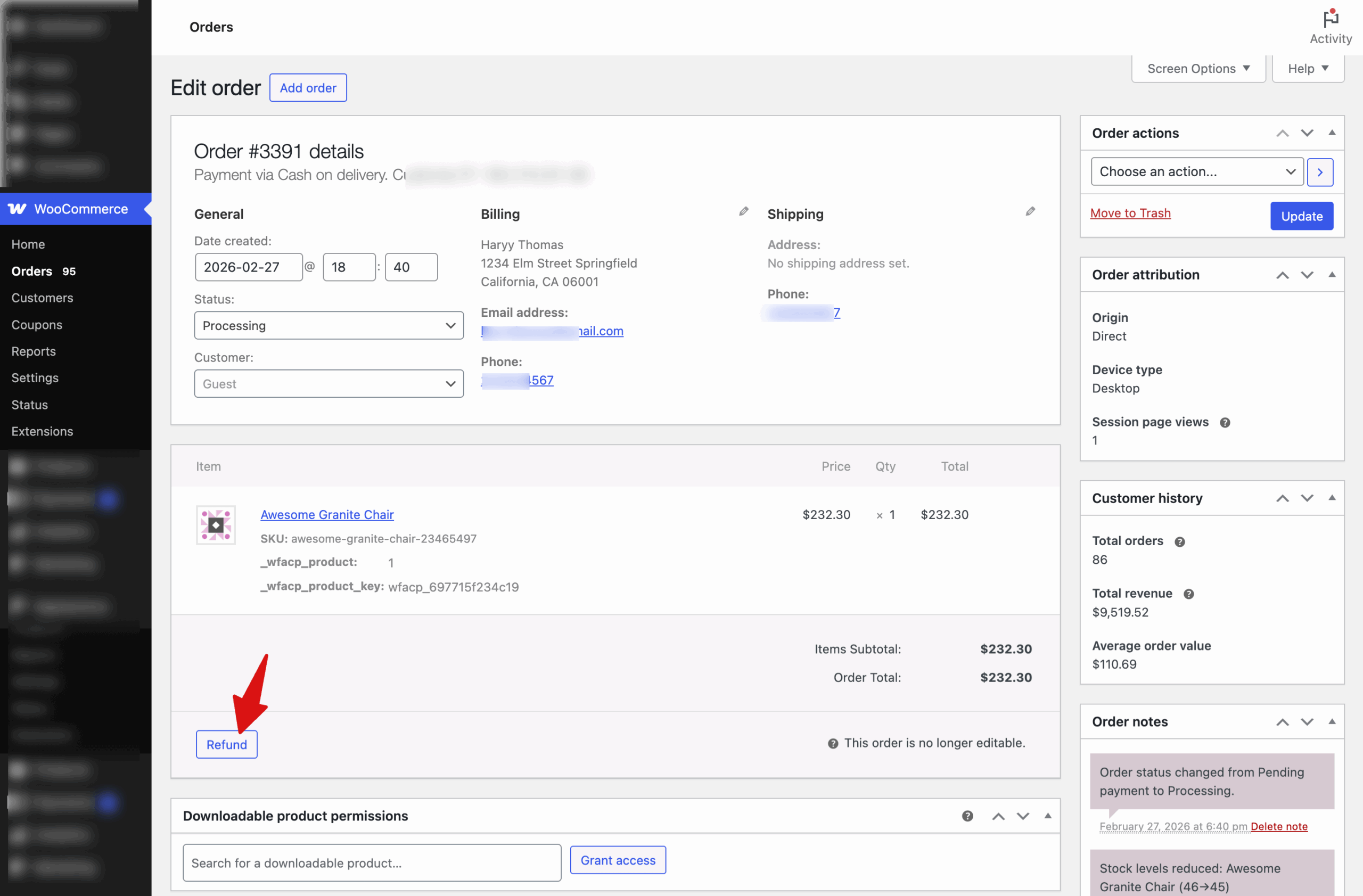
If the payment gateway supports it, WooCommerce processes it automatically. Otherwise, refund manually in your payment provider and update the order status.
For cancellations, change the status to Cancelled. Stock is restored automatically if inventory tracking is enabled.
Step 5: Mark as Completed
After shipping, update the order to Completed. This sends the confirmation email and moves the order out of the active queue.
Completed orders remain searchable and included in reports.
5 Best WooCommerce Order Management Plugins
Managing WooCommerce orders efficiently is crucial for both small and high-volume stores. The right plugins can help automate workflows, streamline fulfillment, improve admin efficiency, and keep your customers informed.
Here’s a curated list of five top plugins that each add unique value to your order management process.
| Plugin | Best For | Free Version | Paid Plans |
| FunnelKit Automations | Automates workflows: sends order data to Google Sheets, custom email notifications (order updates, abandoned cart recovery, win‑back campaigns), and triggers workflows based on order events | Yes | From $99.50/year |
| Custom Order Status Manager | Add unlimited custom order statuses with optional email notifications to match your fulfillment workflow | Yes | From $39.00 /year |
| Order Management Solution | Create and manage manual orders (phone/B2B/walk‑in), advanced customer search, custom pricing/discounts, and role‑based order creation | No | From ~$69/year |
| Automatic Order Printing for WooCommerce | Automatically prints invoices, packing slips, and labels to connected printers using PrintNode; bulk printing and custom templates | No | ~$119/year |
| Admin Columns | Enhances admin order management: custom columns, inline editing, filters, sorting, and bulk actions right on the orders list | Yes (limited) | From $99/year |
6 Best Practices to Streamline WooCommerce Order Management
Efficient WooCommerce order management is key to saving time and reducing errors. These best practices help you streamline workflows, keep customers informed, and ensure smooth fulfillment for every order.
1. Automate Order Notifications
Map all WooCommerce order statuses to automated emails for both physical and digital products. Keep customers informed about shipments, downloads, or any status updates.
Default WooCommerce emails are basic. Use FunnelKit Automations to send custom emails for all order events, plus triggers for abandoned cart reminders and win-back campaigns. Pair email notifications with SMS for maximum effectiveness.
2. Use Custom Order Statuses
Default WooCommerce statuses aren’t always enough for real-world workflows. Custom statuses give your team and customers a clearer picture of each order.
Add statuses like “Awaiting Approval,” “Partially Shipped,” or “Ready for Download” to match your process. Make sure to send notifications for custom order statuses as well.
3. Streamline Bulk Actions
Identify frequent order transitions and handle them in batches. This saves hours every week, e.g., marking 100 orders as “Completed”, or granting access to digital downloads in bulk.
Use a plugin like Admin Columns to enable inline editing and bulk actions directly in the orders list.
4. Improve Operation Management with Google Sheets
Share real-time WooCommerce order data in a Google Sheet with your warehouse, fulfillment team, or support staff. Any changes made to your website's new orders, updates, or cancellations are reflected instantly in Google Sheets.
This lets multiple team members access live order data without logging in to your site, keeping operations running smoothly while avoiding security risks. It’s perfect for better inventory management, faster order processing, and more efficient workflows.
5. Maintain Refund Workflows and Monitor Problematic Orders
Standardize refund and cancellation procedures and clearly document whether refunds are automatic or manual. Check failed or on-hold orders daily to recover payments and resolve gateway issues quickly.
Having a clear workflow and monitoring orders reduces errors, minimizes disputes, speeds up processing, and builds customer trust, ensuring your team can handle issues efficiently without missing revenue.
6. Combine Automation with a Support Team
Even the best automated workflows can’t answer every customer query. Ensure a dedicated support team is available for personal requests, unusual cases, or complex digital/physical product issues. Automation handles routine updates; humans handle exceptions.
Frequently Asked Questions About WooCommerce Order Management
Here are answers to the most common questions about managing orders in WooCommerce:
How do I view and manage WooCommerce orders?
Go to WooCommerce > Orders. Filter, search, or update order statuses. Click any order to see items, customer info, and payment details.
Can I add custom order statuses in WooCommerce?
WooCommerce doesn’t have built-in support. Use the code or the WooCommerce Order Status Manager plugin. You can send email notifications for custom statuses with FunnelKit Automations.
How do WooCommerce mini carts improve the shopping experience?
Mini carts (like slide-in carts) let shoppers view, update, or remove items without leaving the page. This speeds up checkout and reduces friction. WooCommerce doesn’t offer this by default.
What is the WooCommerce Draft order status?
Draft orders are incomplete checkouts or manually created orders. They don’t count in active totals and help track abandoned purchases.
Is there a WooCommerce order management mobile app?
Yes. The WooCommerce mobile app lets you manage orders, update statuses, and receive notifications.
How do I manage orders and customers together in WooCommerce?
Click a customer’s name in an order to view their history. Use Admin Columns Pro to filter and display customer info directly in the orders list.
How to bulk edit WooCommerce orders?
Default WooCommerce allows bulk status changes. Plugins like Admin Columns Pro enable bulk updates for shipping, notes, and custom fields.
Can WooCommerce order management be done without code?
Yes. Core tasks like status updates, refunds, order notes, and communications require no coding. Advanced automation can be added via plugins.
How do franchises manage WooCommerce orders and payments?
Use WordPress multisite with separate stores. Orders are routed centrally, payments are shared, and reporting is consolidated. Developer setup is recommended.
Build a WooCommerce Order Management System That Scales
Efficient order management isn't just about processing orders faster. It's about building a system that grows with your store.
Start with the basics, automate where you can, and add the right tools as your volume increases.
The stores that win in the long term are the ones that treat order management as a strategic priority, not an afterthought. Audit your current workflow, identify your biggest bottleneck, and fix it first.
If automation is your next step, FunnelKit Automations makes it easy to set up custom order notifications, abandoned cart recovery, and event-based workflows, all without touching a line of code.
More WooCommerce Resources
- How to Send WooCommerce Order SMS Notifications in Your Store
- How to Create a WooCommerce Order Form
- WooCommerce Order Notes: Everything You Need to Know
- How to Send WooCommerce Order SMS Notifications in Your Store

Editorial Team
March 23, 2026Does your WooCommerce store offer enough payment options? If not, you could be losing up to 13% of sales. [According to Baymard]. WooCommerce’s default payment options don’t always meet customer...
Editorial Team
March 23, 2026Quick Summary: Allowing quantity changes at checkout helps prevent users from returning to the cart page to make adjustments. It’s a small but meaningful fix that can reduce cart abandonment....
Editorial Team
March 23, 2026Adding a newsletter opt-in checkbox to your WooCommerce checkout is one of the simplest ways to grow an email list that actually drives revenue. Every customer completing a purchase is...






