Pinterest conversion tracking in WooCommerce tells you which pins actually turned into orders. But across many stores, it only catches about two-thirds of them.
Think about two people trying to count the same crowd walking through a door.
One is standing inside with a clicker. The other is watching from across the street through a window, but every few minutes, a delivery van blocks the view.
Both are counting honestly. Only one has a clear view.
That's basically what happens with the Pinterest tag. It tracks conversions from the shopper's browser, so things like ad blockers, payment redirects, and caching can get in the way.
Your store might record 100 orders at $54 each, while Pinterest reports only 68. You end up making decisions based on 32 sales that Pinterest never saw.
And the campaign that actually brought those customers in can end up looking like the worst performer.
That's the gap we're going to fix in this guide.
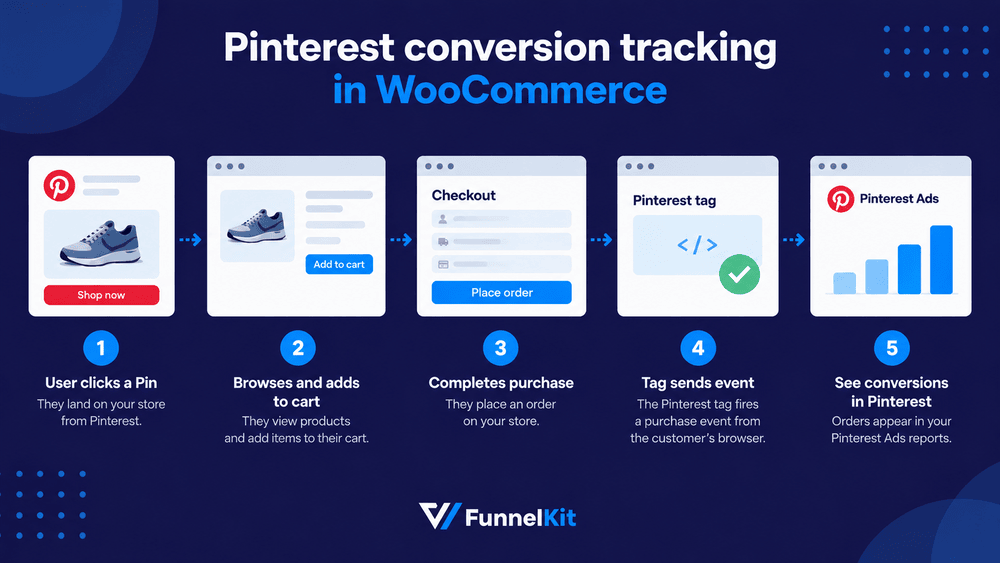
We'll start by looking at what the Pinterest tag actually sends.
Then we'll compare the three ways you can get conversion data out of WooCommerce and walk through the setup step by step using a real store setup.
Finally, we'll cover what most guides don't, i.e., what to do when Pinterest and WooCommerce still don’t agree, and the seven issues we see most often when conversion tracking goes wrong.
Table of Contents
- 1 What is Pinterest Conversion Tracking?
- 2 All 20 Pinterest Events Mapped to WooCommerce Hooks
- 3 Pinterest Tag vs Conversions API: Which One Do You Actually Need?
- 4 Choose Your Setup Route
- 5 Route 1: The Official Pinterest for WooCommerce Plugin
- 6 Route 2: Pinterest Conversion Tracking Setup With Plugin (Step by Step)
- 7 Route 3: Google Tag Manager With a WooCommerce Data Layer
- 8 Adding Server-Side Pinterest Events (Conversions API)
- 9 How to Test the WooCommerce Pinterest Conversion Tracking on Your Store?
- 10 7 Reasons Pinterest Tracking Stops Working on WooCommerce
- 11 Frequently Asked Questions
- 12 Start Measuring What Your Pinterest Ads Actually Earn!
What is Pinterest Conversion Tracking?
Pinterest conversion tracking sends shopper actions from your store to Pinterest Ads Manager, so campaigns get measured against real orders instead of clicks.
On most stores we review, only the first one works while the other three are missing or turned off.
That's usually why the conversion data in Pinterest looks much thinner than the sales in WooCommerce.
| Building block | What it does | Where it runs |
|---|---|---|
| Pinterest tag | Base code plus event codes that record actions in the shopper's browser | Client-side |
| Conversions API (CAPI) | Sends the same events straight from your server to Pinterest | Server-side |
| Enhanced match | Passes hashed customer data so Pinterest can match conversions without a cookie | Client or server |
| Deduplication | A shared event_id on matching events so one order counts once, not twice | Both |
Two of these are where we see most setups go wrong.
- Pinterest's checkout event means a completed purchase, not someone viewing the checkout page
This is an easy mistake to make if you're coming from GA4, where "checkout" usually refers to the start of the checkout flow. On Pinterest, Checkout means the transaction is complete.
If you want to track someone starting checkout, use InitiateCheckout instead.
If you map Checkout to your /checkout/ page, Pinterest may count every abandoned cart as a conversion.
Pinterest explains this in its tag documentation, and it's still one of the most common event-mapping mistakes we come across.
- Automatic enhanced match may already be enabled
Pinterest says that for new advertisers installing the tag for the first time, automatic enhanced match and all customer information details are enabled by default.
It stores a first-party _pin_aem cookie or _pin_aem_ls localStorage entry on your own domain, and that data can persist for a year.
So don't assume it's on or off. Check the current setting in Ads Manager. Your consent notice and privacy setup should match what the tag is actually collecting.
All 20 Pinterest Events Mapped to WooCommerce Hooks
Most WooCommerce guides stop at four events. Pinterest supports 20 on the web.
Here is each one, mapped to the WooCommerce or plugin hook that should fire it, and whether the browser is a reliable place to fire it from.
| Pinterest tag event | Conversions API name | WooCommerce trigger | Reliable browser-side? |
|---|---|---|---|
| PageVisit | page_visit | wp_head on product and post templates | Yes |
| ViewCategory | view_category | is_product_category() archive template | Yes |
| ViewContent | view_content | woocommerce_after_single_product | Yes |
| Search | search | is_search() with a product post type | Yes |
| AddToCart | add_to_cart | woocommerce_add_to_cart (server) or the added_to_cart JS event (AJAX) | Partly, AJAX adds get missed |
| AddToWishlist | add_to_wishlist | Wishlist plugin hook, e.g. yith_wcwl_added_to_wishlist | Yes |
| InitiateCheckout | initiate_checkout | woocommerce_before_checkout_form, or block checkout render | Partly, block checkout needs a JS listener |
| AddPaymentInfo | add_payment_info | payment_method_selected JS event | Yes |
| Checkout (the purchase) | checkout | woocommerce_payment_complete, not the thank-you page URL | No, fire this server-side |
| Signup | signup | woocommerce_created_customer or user_register | Yes |
| Lead | lead | Form plugin hook, e.g. wpcf7_mail_sent, gform_after_submission | Yes |
| Subscribe | subscribe | Opt-in submit, or woocommerce_subscription_status_active | Renewals: no, server only |
| Contact | contact | Contact form submit hook | Yes |
| CustomizeProduct | customize_product | Product add-ons or configurator plugin hook | Yes |
| Schedule | schedule | Booking plugin hook, e.g. woocommerce_booking_confirmed | Partly |
| StartTrial | start_trial | Subscription trial activation | No, server only |
| SubmitApplication | submit_application | Application form submit hook | Yes |
| FindLocation | find_location | Store locator plugin event | Yes |
| WatchVideo | watch_video | Video player progress event, no WooCommerce hook | Yes |
| Custom | custom | Any do_action you define | Yes |
The Conversions API also accepts app_install and app_open, but those are for apps, not websites. You can also send your own custom event names.
Pinterest's conversion event documentation includes the full list of supported events and parameters.
But three rows in that table matter most for accurate reporting: Checkout, AddToCart, and Subscribe.
These events are most likely to get lost on the browser side, and they're also the ones tied directly to revenue.
Pinterest Tag vs Conversions API: Which One Do You Actually Need?
| Parameters | Pinterest tag | Conversions API |
|---|---|---|
| Runs in | The shopper’s browser | Your server |
| Stopped by ad blockers | Yes | No |
| Survives an off-site gateway redirect | Often not | Yes |
| Captures refunds and status changes | No | Yes |
| Captures subscription renewals | No | Yes |
| Needs a Pinterest app approval | No | No |
| Setup effort | Minutes | Hours, or a connector |
When browser-only tracking is enough
If you sell low-consideration products, take payment on-site through an embedded gateway. Most of your customers aren't using aggressive ad blockers, so the Pinterest tag may give you a perfectly usable signal.
Set it up, verify a purchase, and move on to your creative and campaigns.
You don't necessarily need to add server-side tracking on day one.
Why both streams need a shared event_id
If the same purchase reaches Pinterest twice without a shared identifier, Pinterest can count it as two sales.
That's what event_id is for.
Give the browser event and the Conversions API event the same ID, and Pinterest can recognize that they're two reports of the same purchase and deduplicate them.
For WooCommerce, the order ID is a simple choice. Use the same order ID string in both event versions.
Then check the deduplicated totals in the Events Overview section of Ads Manager.
That lets you verify that deduplication is working, instead of simply assuming it is.
Pinterest’s Conversions API documentation covers the validation process. You can use the API with a Pinterest Business account without needing an app ID or separate application approval.
Choose Your Setup Route
There are four ways to set up Pinterest conversion tracking in WooCommerce.
The main difference is what happens to your purchase data when the customer leaves your store to complete payment.
| Route | Setup time | Events | Conversions API | Consent control | Cost |
|---|---|---|---|---|---|
| Official Pinterest for WooCommerce | 10 min | Core commerce set | Yes, on by default | Basic | Free |
| Plugin (FunnelKit, PixelYourSite) | 15 min | Depends on plugin | No for Pinterest, browser-side only | Plugin-level | Free to paid |
| Google Tag Manager + data layer | 2 to 4 hrs | Whatever you build | Only with a server container | Full, via consent mode | Free, server container hosting extra |
| Server-side GTM or a tracking vendor | 1 to 2 days | Full, both streams | Yes | Full | Paid |
For most WooCommerce stores, the honest recommendation is the official solution and the plugin route.
These are the only free routes that ship the Conversions API without you having to stand up infrastructure.
Route 1: The Official Pinterest for WooCommerce Plugin
This is the most straightforward place to start because Pinterest and WooCommerce built the integration together.
More importantly, Conversions API is enabled by default, along with enhanced match support. Both are automatically disabled if you turn off track conversions.
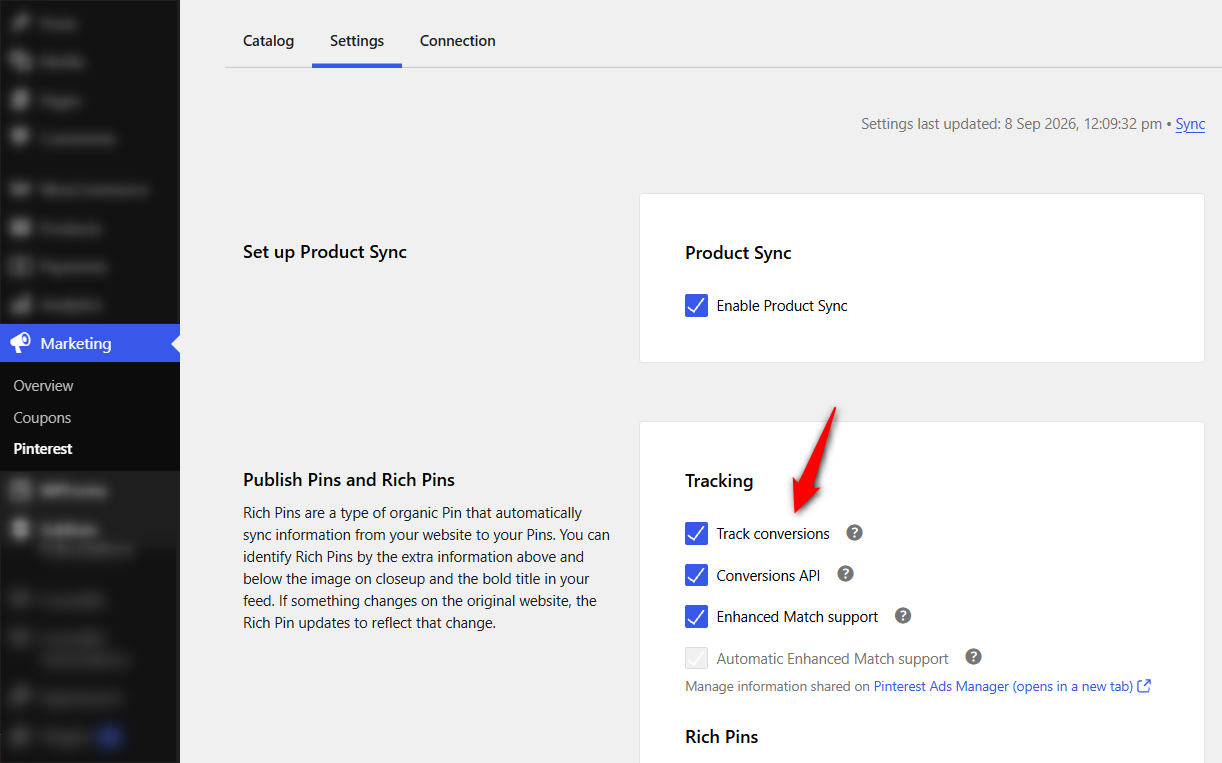
Install it, then go to Marketing ⇨ Pinterest ⇨ Settings and confirm three things:
- Track conversions is checked
- Conversions API is enabled
- Enhanced match support is enabled
Watch out for two things before you rely on it completely.
First, feed sync failures and disconnected accounts can happen without much warning. The plugin's WordPress.org support forum has recurring reports of Conversions API and connection issues.
If the connection silently drops, your tracking can go with it. A quick monthly check is worth adding to your routine.
Second, check the quality of the data being sent, not just whether events are firing.
One merchant reported that Pinterest flagged missing email, external ID, and click ID parameters across events such as Page Visit, Add to Cart, Search, and View Category.
Missing parameters can drag down your Event Quality Score even when conversions appear to be working.
In other words, seeing events in Pinterest isn't enough. Make sure the right events are arriving with the information Pinterest needs to match them properly.
Route 2: Pinterest Conversion Tracking Setup With Plugin (Step by Step)
If you already use a pixel plugin for Meta or GA4, this approach will feel familiar.
For this walkthrough, we'll use FunnelKit's Pinterest integration, but the same basic steps apply to most pixel plugins.
Step 1: Get your tag ID from Pinterest Ads Manager
In your Pinterest Business platform, go to Ads ⇨ Conversions.
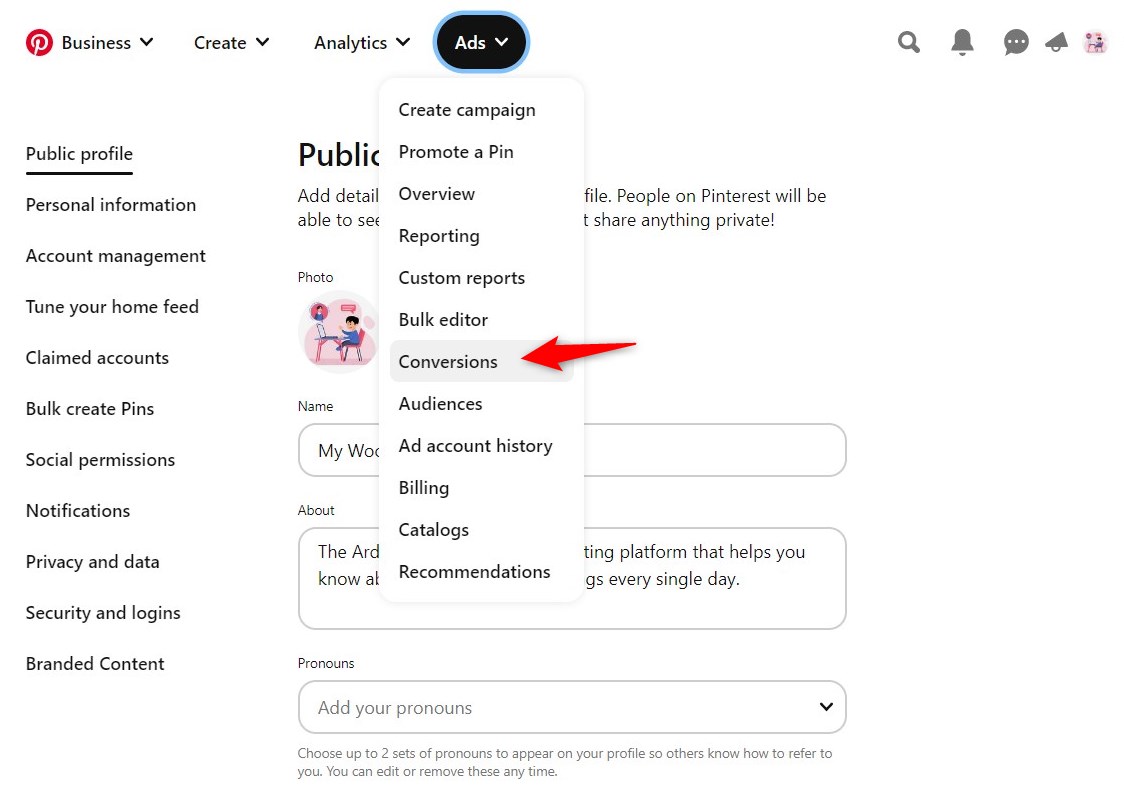
You'll be taken to the 'Tag Manager' section, where you can create your Pinterest tag.
Click on 'Get Started' to locate your Pinterest Tag ID.
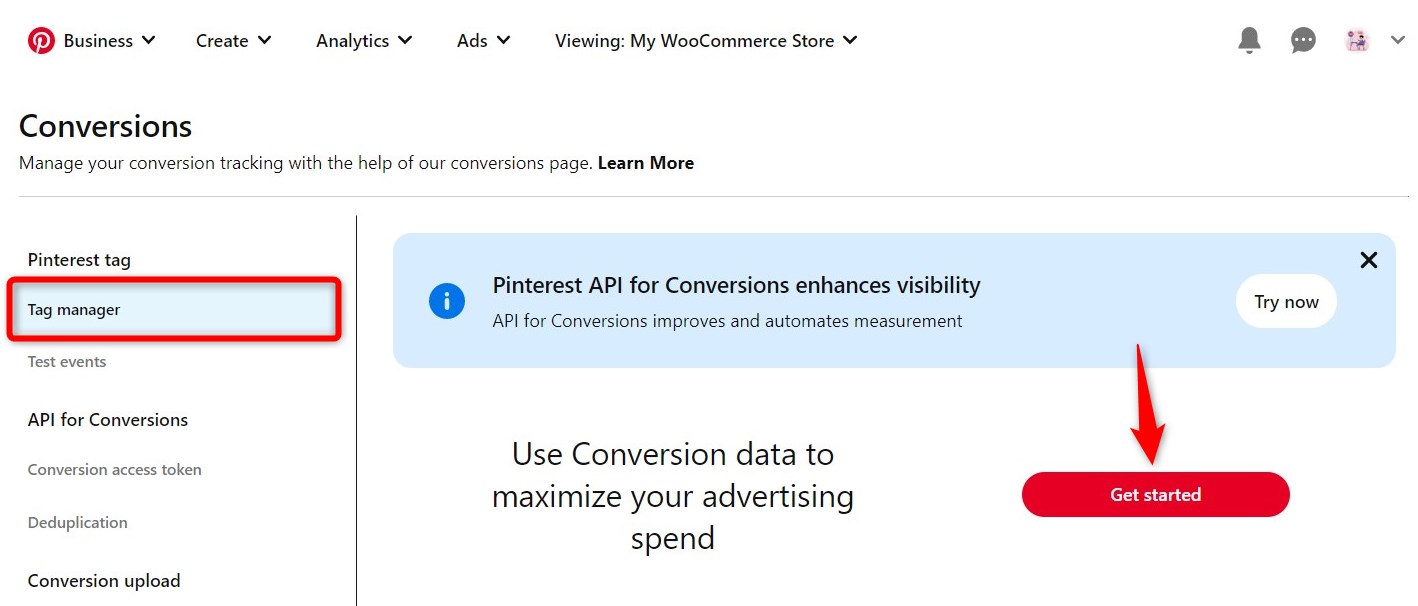
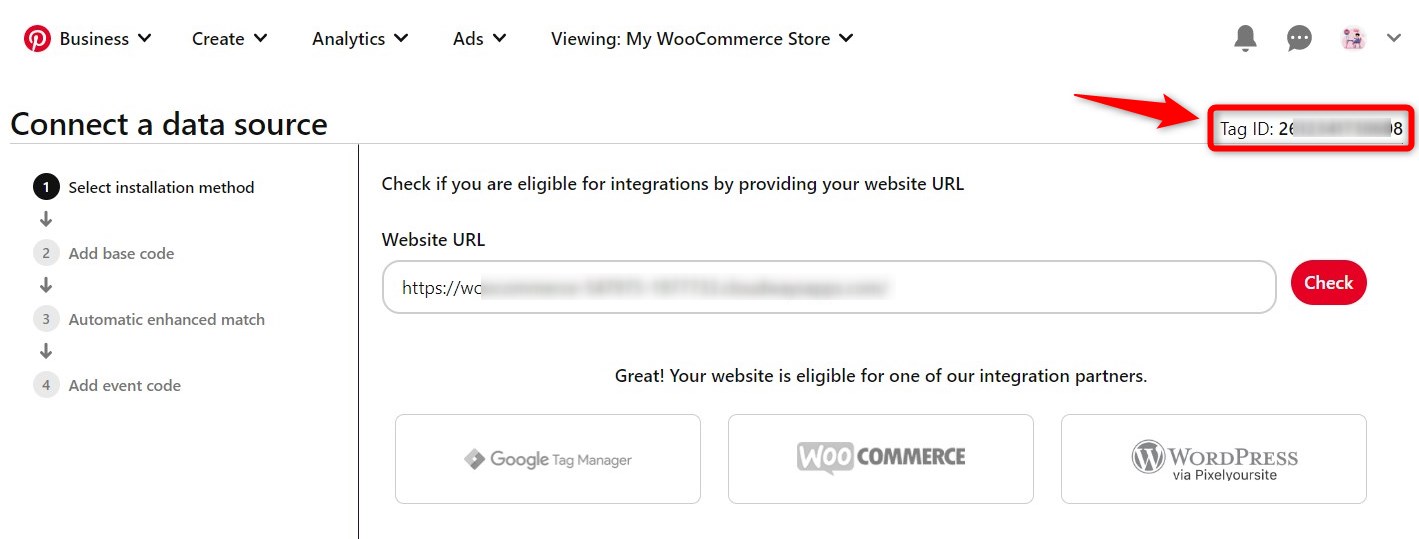
You'll get the Pinterest tag configuration for your website.
Here, you don't need to add any code to your website because FunnelKit takes care of that.
Just copy your Pinterest Tag ID.
Step 2: Add the tag ID and select events
Navigate to the 'Settings' section of the FunnelKit Funnel Builder. Under Pinterest, paste the Tag ID into the field.
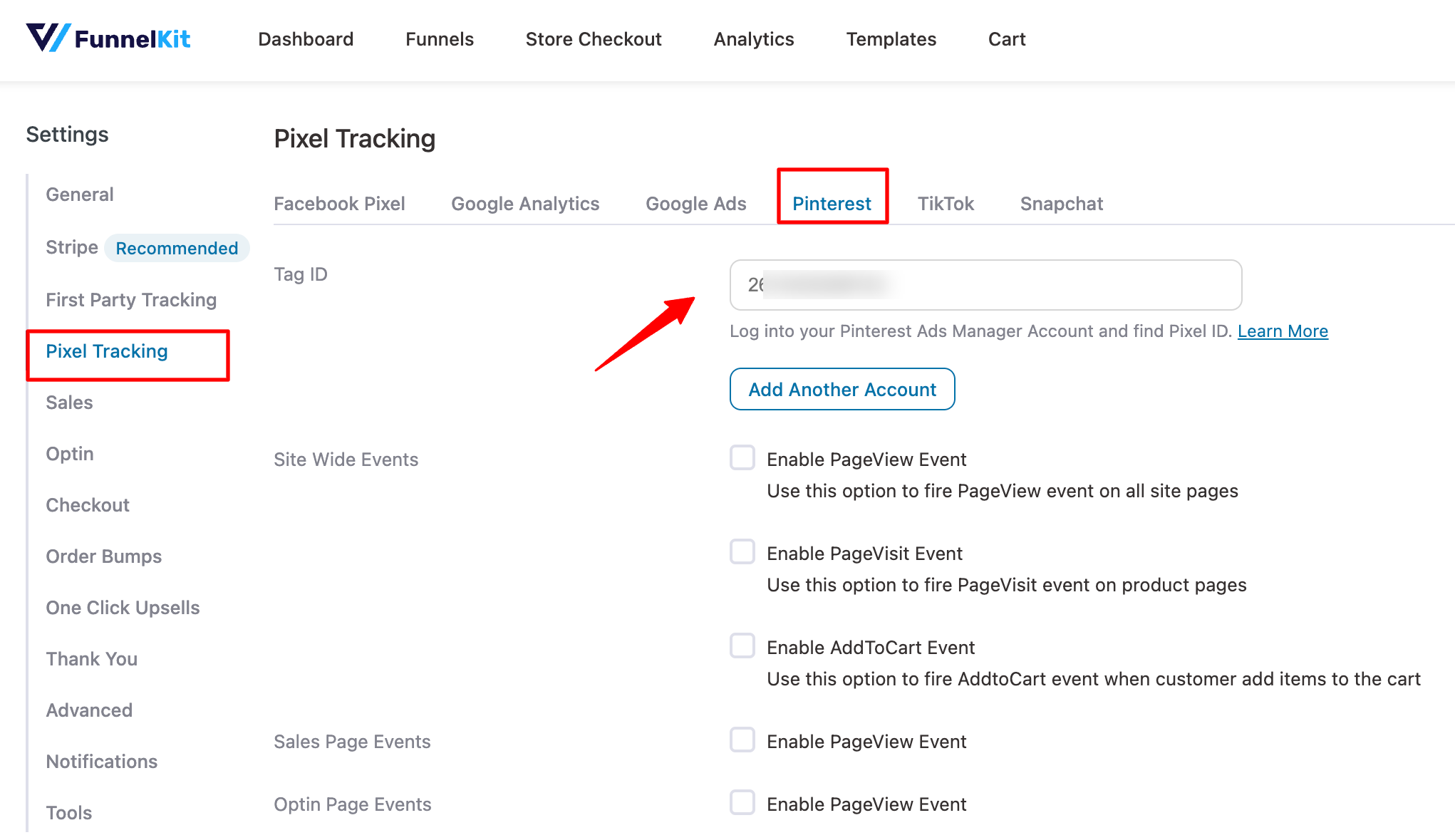
To add more than one Pinterest Tag ID, click Add Another Account and add it.
Next, enable the events you want to track in your store.
Here we'll enable the following events:
- Site-wide events - PageView, PageVisit, and AddtoCart
- Sales page event - PageView
- Optin page event - PageView and Lead
- Checkout event - PageView, AddtoCart, and InitiateCheckout
- Order Bump event - AddtoCart and Order Bump Conversion
- Purchase event - PageView and Purchase
- Track steps - Custom Funnel Step
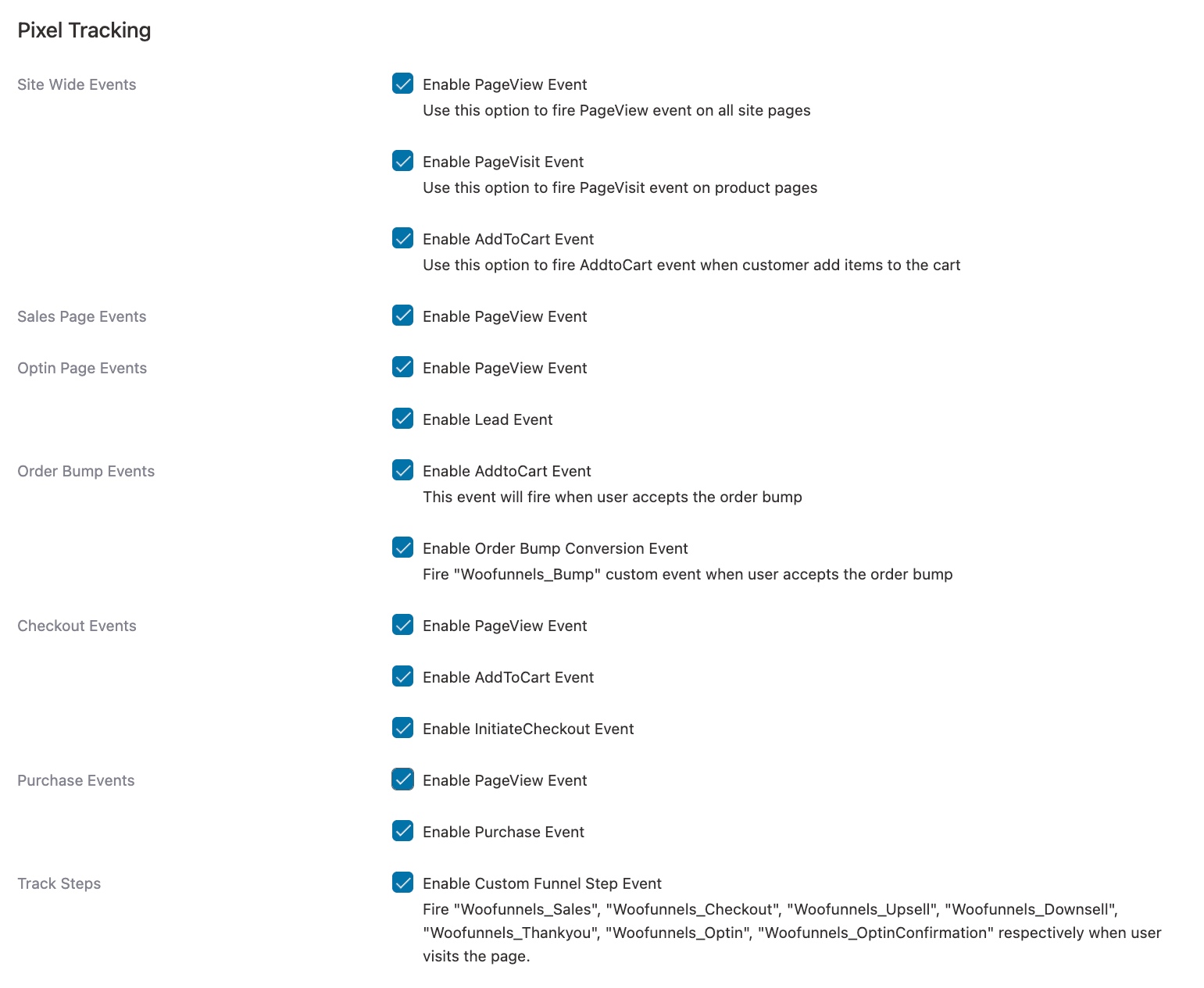
Click on 'Save' to lock in all the changes made.
This is how you can enable WooCommerce Pinterest conversion tracking in your online store.
Route 3: Google Tag Manager With a WooCommerce Data Layer
Choose GTM when you need more control over individual events than your plugin provides.
It makes sense when you need custom parameters, consent-mode controls, or one data layer that can feed several ad platforms at the same time.
The setup has three main pieces:
- A data layer plugin that exposes your product, cart, and order data
- A Pinterest tag template in your web container
- Triggers that connect those data layer events to the Pinterest events
Here are two rules that will save you a lot of trouble.
First, fire the Checkout tag from a data layer event you push server-side when woocommerce_payment_complete fires. Don't trigger it from a thank-you page view.
A page view can happen more than once, while the payment-complete hook gives you a much better signal that the transaction actually happened.
Second, pass an event_id with every tag from day one.
Even if you're only using browser tracking right now, this makes it much easier to add the Conversions API later.
You won't have to rebuild your tracking just to add server-side events.
Adding Server-Side Pinterest Events (Conversions API)
The Conversions API sends events directly from your server instead of relying on the shopper's browser.
Any Pinterest Business account can use the API. You can also batch up to 1,000 events in a single request.
Send events as close to real time as possible. Once the delay gets much beyond an hour, attribution can start to drift.
There are three WooCommerce-specific things to get right:
- Use woocommerce_payment_complete, not woocommerce_thankyou: The payment-complete hook fires when the payment gateway confirms the transaction. The thank-you hook fires when the order-received page loads, which can also happen after a failed payment or when someone refreshes the page.
- Hash customer identifiers before sending them: For email addresses, first trim whitespace and convert to lowercase, then SHA-256 hash it. Pinterest expects hashed identifiers, not raw values.
- Send refunds and cancellations too: This is one of the biggest advantages of having a server-side stream because WooCommerce knows when an order changes after the initial purchase. Yet many implementations still leave this out.
Once events are flowing, watch Event Quality Score (EQS).
Pinterest rates event quality as Good, Fair, or Needs Improvement based on customer information used for matching, event insights such as product IDs and order values, and duplicate events created when the Conversions API and Pinterest tag report the same conversion.
Pinterest’s EQS documentation explains which parameters affect each area.
You can also use the Conversions Health page in Ads Manager to see which parameters each event receives.
How to Test the WooCommerce Pinterest Conversion Tracking on Your Store?
To test whether Pinterest event-based tracking is working, we’ll use the Pinterest Tag Helper extension.
It’ll help us test the Pinterest tag implementation on your WooCommerce store.
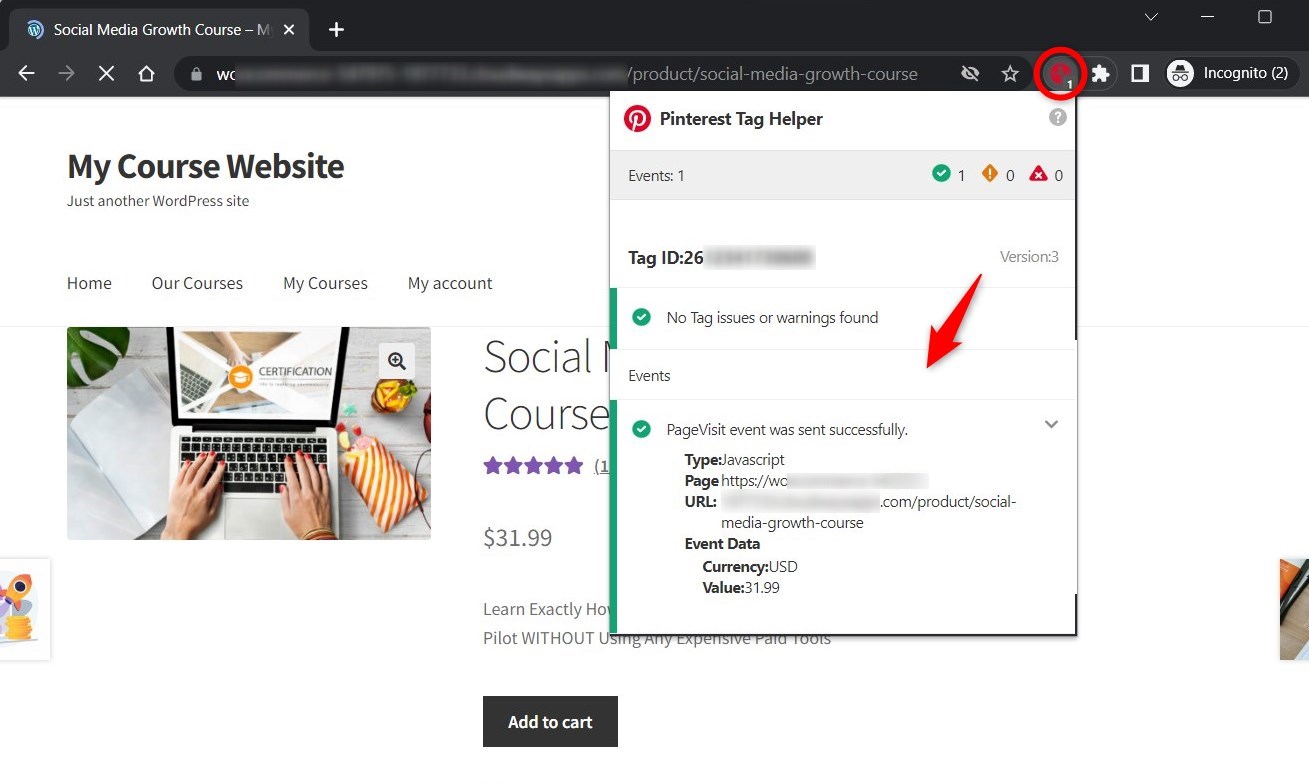
Navigate to the product catalog and view an item
Here, the Pinterest Tag Helper extension in your browser will show you how many events are running on that page.
Here, you’ll see one event, specifically the Page View event, running on this page.
Adding the item to the cart
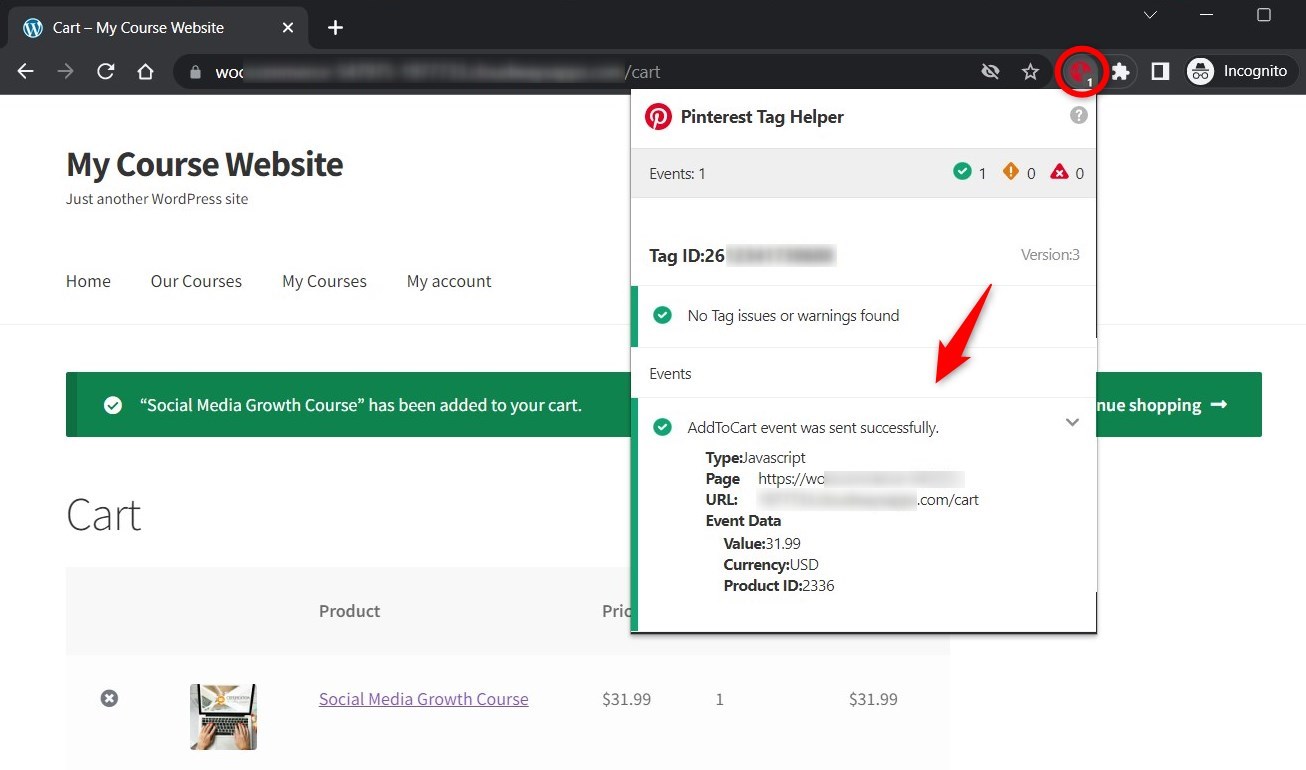
As you add this product to your cart, you’ll see the ‘Add to Cart’ event on this page.
Initiate the checkout process
Now, if you go to the checkout page, you'll see two events: Initiate Checkout and the Checkout page custom step event.
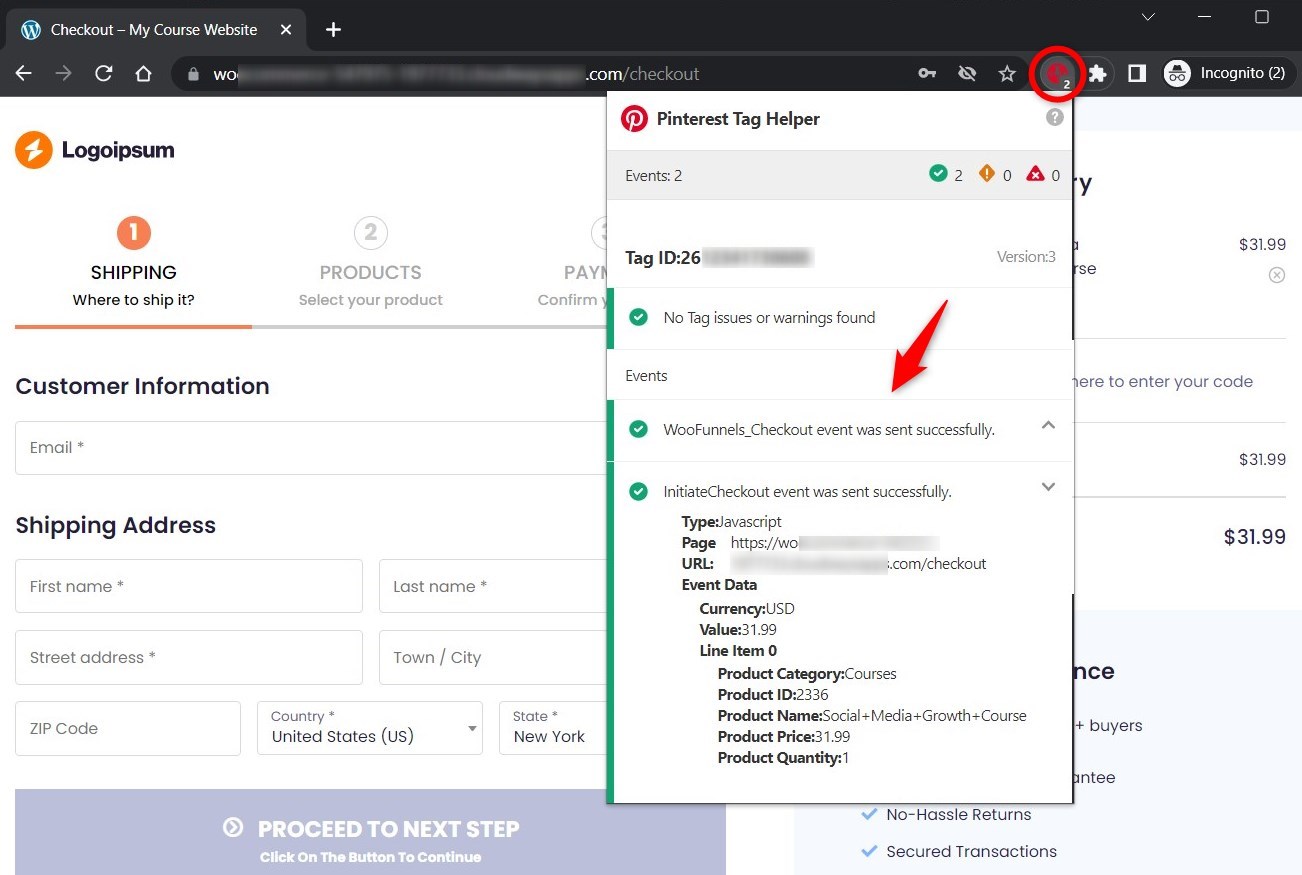
Fill out the details and make a test purchase
Now go ahead and make a purchase - you’ll see the ‘Purchase’ and ‘Thank You page custom step’ event gets fired.
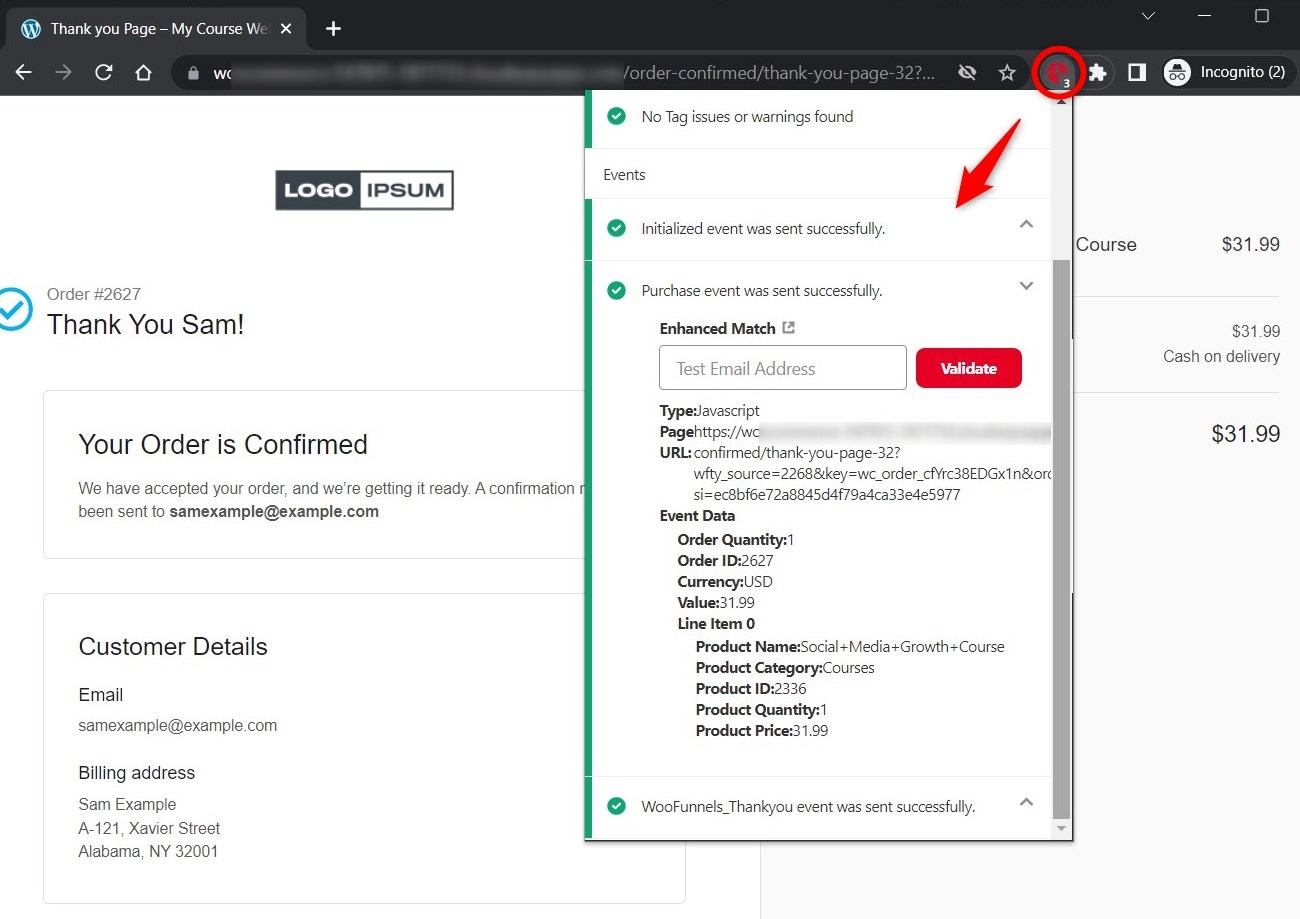
As you can see, the events are firing and being captured, so our Pinterest tag implementation works perfectly.
This is how you can test and track the event-based conversions in your WooCommerce store with a Pinterest tag.
7 Reasons Pinterest Tracking Stops Working on WooCommerce
You probably don’t need to check all seven. Start with the two that fit your checkout setup.
For most WooCommerce stores, that means looking at the payment redirect and caching first.
- Tag status shows "Uninitialized"
Uninitialized usually means Pinterest hasn't received an event from that tag ID yet.
Common culprits include a tag installed on the wrong domain, two plugins adding the same base code, or a caching/optimization plugin delaying the Pinterest script until after the event should have fired.
To check, open a product page in a private window, open your browser's developer tools, and look for a request to ct.pinterest.com.
- Checkout never fires after a gateway redirect
A customer goes to PayPal, Klarna, or a hosted Stripe checkout, completes the payment, and closes the tab instead of returning to your store.
The order exists in WooCommerce, but the browser event never happened.
This is one of the biggest reasons WooCommerce stores miss purchases in Pinterest, and browser-side tracking can only do so much.
The reliable fix is to capture the purchase server-side by hooking into the order lifecycle rather than waiting for the thank-you page to load.
- Cached order-received page
If your page cache serves a static version of /checkout/order-received/, the Pinterest tag may not run at all or, worse, it may run with stale order information.
Exclude the order-received endpoint, cart, and checkout from page caching.
You should also exclude the Pinterest script from JavaScript optimization if your optimization plugin delays or modifies it.
Our guide to the WooCommerce order-received page where the purchase event fires explains how the endpoint works.
- Duplicate purchases from two plugins
This usually happens when the official Pinterest plugin and another pixel plugin are both configured with the same tag ID.
Both plugins fire the Checkout event. Pinterest can deduplicate matching events when they share an event_id, but if each plugin generates its own ID, Pinterest sees two separate purchases.
The simple fix is to give one plugin ownership of the Pinterest tag and turn Pinterest tracking off in the other.
- Express wallets and block checkout skip the thank-you page
Apple Pay and Google Pay can complete an order directly from WooCommerce’s block checkout without loading the traditional PHP thank-you page.
That matters because browser tracking that depends on woocommerce_thankyou output has nothing to attach to when that page never renders.
The block checkout is React-based, so the old page-load approach may not capture these purchases.
Server-side capture is the safer solution here.
- Purchase value arrives as zero
There are three common reasons for this.
The tracking code may be trying to read the cart after WooCommerce has already emptied it.
The order total may also be read before payment confirmation has finished updating the order.
And if custom code still uses get_post_meta( $order_id, ... ), it can fail on stores using High-Performance Order Storage because order data is no longer necessarily stored in wp_postmeta.
Use wc_get_order() and read the values from the WooCommerce order object instead.
- Consent denied in the EEA and UK
If your consent banner prevents the Pinterest tag from firing when someone declines tracking, you’ll naturally see fewer browser conversions.
That’s expected, and it doesn’t mean you should remove the consent check.
Instead, track your consent-denial rate in your consent platform and treat the Pinterest numbers as a known undercount.
For example, if 15% of visitors decline the relevant consent, some portion of your browser-side conversions will be missing too.
Frequently Asked Questions
Only if you skip the event ID. Pinterest matches the browser copy and the server copy of an order using a shared event_id, then counts it once.
Send both streams without one, and yes, every order reports twice.
You can. Paste the base code into your theme header and attach the event codes by hand.
The catch is what comes next: you have to write JavaScript that pulls the order total and order ID from the WooCommerce session.
That code breaks on theme updates, and it needs attention every time Pinterest revises its spec.
Most stores end up on a plugin or Tag Manager for exactly that reason.
Neither on its own, and we would not pick a winner. Pinterest counts view-through conversions that GA4 does not, so Pinterest reporting higher is expected.
Pinterest reporting fewer conversions than GA4 is the real warning sign, because it usually means events are not arriving at all.
Not with the browser tag. A renewal charge occurs on your server with no browser session open, so no client-side event can exist.
To attribute recurring revenue back to Pinterest, send those renewals through the Conversions API.
Yes, they answer a different question. The tag reports conversions inside Pinterest Ads Manager.
UTMs let you compare Pinterest against your other channels in GA4 or any analytics tool.
Without them, Pinterest traffic is much harder to isolate cross-channel.
Yes. Pinterest supports a Custom event type plus advertiser-defined events, and recommends mapping any custom event to a standard one so it stays usable for optimization.
In WooCommerce, that usually means firing on a specific hook, like a wholesale application or a booking confirmation.
Only if you make it. The Pinterest tag sets cookies, so it has to stay blocked until an EEA or UK visitor consents. Your consent platform handles that.
Sending events from your server doesn't remove the obligation either, because consent applies to the data rather than how you deliver it.
Paste the base code into your site header with a header and footer plugin, then add Signup or Lead event codes to the pages where those actions are completed.
Most of the complexity in this guide comes from ecommerce events, which a content site doesn't need.
Start Measuring What Your Pinterest Ads Actually Earn!
Tracking Pinterest conversions in WooCommerce is essential to grow your store and make data-driven decisions. Without reliable tracking, your ad spend becomes guesswork, and you may pause high-performing campaigns by mistake.
Do one thing this week: place a real test order and compare the value Pinterest reports with the order total in WooCommerce.
That one check can tell you more about your tracking than another hour spent clicking through settings. If the numbers don’t match, the seven problems above give you a good place to start.
The bigger issue is the revenue nobody measures.
A tag that fires only on the confirmation page might capture the first product but miss an order bump, a one-click upsell, or a later renewal.
Over time, you end up optimizing campaigns against an average order value that's lower than what customers are actually spending.
Those small gaps add up quickly once you have real traffic.
FunnelKit lets you fire Pinterest events throughout the funnel, so your tracking can capture the full customer journey instead of stopping at the first purchase.
Beyond tracking, FunnelKit’s premium tools let you design high-converting checkouts, landing pages, and AOV-boosting offers, giving you everything you need to turn clicks into real revenue.
Editorial Team
October 7, 2026WooCommerce upsells are products you recommend in place of the one a shopper is viewing, usually a better or higher-priced version of it. WooCommerce has a built-in upsell field for...
Editorial Team
October 7, 2026WooCommerce checkout optimization is about making it easier for shoppers to finish their purchase. A customer can reach your checkout on their phone, look at the form for a few...
Editorial Team
October 5, 2026A WooCommerce Shopify checkout recreates the parts of Shopify’s checkout that shoppers already know. It includes a logo-only header, email first, express payment options at the top, address autocomplete, a...