


Managing a WooCommerce store means juggling orders, inventory, refunds, and customer messages across multiple tabs.
Your fulfillment team checks the dashboard. Your support team refreshes their inbox. Your marketing team digs through reports.
This is quite frustrating for distributed teams that already use Slack as their primary communication tool.
WooCommerce Slack integration bridges that gap.
You can route specific events, such as failed Stripe payments or low-stock warnings, directly into the channels where your staff already work. No dashboard hopping. No missed orders. No delayed responses.
In this guide, we will show you how to integrate WooCommerce with Slack using a WordPress plugin.
Furthermore, we'll walk you through the entire setup process, cover the must-have notifications to configure, and share best practices for keeping your team informed without overwhelming your channels.
Why Connect WooCommerce to Slack?
A WooCommerce Slack connection sends automated messages from your online store to your team's Slack workspace.
So rather than checking your WordPress dashboard for updates, your team receives them instantly in the channels they already use every day.
Slack has over 47.2 million daily active users and is used by more than 750,000 organizations worldwide.
Since thousands of companies already pay for Slack, leveraging it for store operations makes financial sense.
Here is why we recommend connecting your WooCommerce store to Slack:
- Ship faster: Fulfillment staff sees new purchases instantly instead of waiting to reload the orders page.
- Catch refunds and cancellations early: Cancellations are time-sensitive. Pushing these to a dedicated support channel lets agents intervene before the buyer leaves a negative review.
- Total visibility: Slack messages are easier to spot and act on, especially when they arrive in a dedicated channel that the entire team monitors throughout the day.
- Better coordination between departments: Sales, fulfillment, and customer support teams can all subscribe to different notification channels. Zero manual forwarding required.
- Less dashboard time: Slack brings all information to them, saving time and keeping everyone aligned, without store owners and managers having to log in just to check for orders.
64% of shoppers expect a response within one hour of reaching out. Connecting WooCommerce to Slack helps your team meet response-time expectations by surfacing important events in real time.
Table of Contents
- 1 How to Set Up WooCommerce Slack Integration? (Step-by-Step)
- 2 7 WooCommerce Notifications Worth Sending to Slack
- 3 6 Best Practices to Follow When Setting Up WooCommerce Slack Notifications
- 4 Frequently Asked Questions Related to WooCommerce Slack Integration
- 5 Set Up WooCommerce Slack Integration and Start Getting Notifications Today!
How to Set Up WooCommerce Slack Integration? (Step-by-Step)
To connect WooCommerce to Slack without writing custom PHP, we will use FunnelKit Automations.
FunnelKit Automations is a WordPress marketing automation plugin that includes a native Slack integration within its broader workflow engine.
It lets you create automated workflows that send Slack messages in response to WooCommerce events such as new orders, status changes, subscription renewals, and customer actions.
Not only that, you can build workflows that combine Slack alerts with email sequences, SMS messages, CRM tagging, and customer segmentation.
Get FunnelKit Automations Pro to unlock the Slack integration.
Here is the exact process for connecting WooCommerce to Slack and setting up automated actions.
Step 1: Connect Slack with WooCommerce
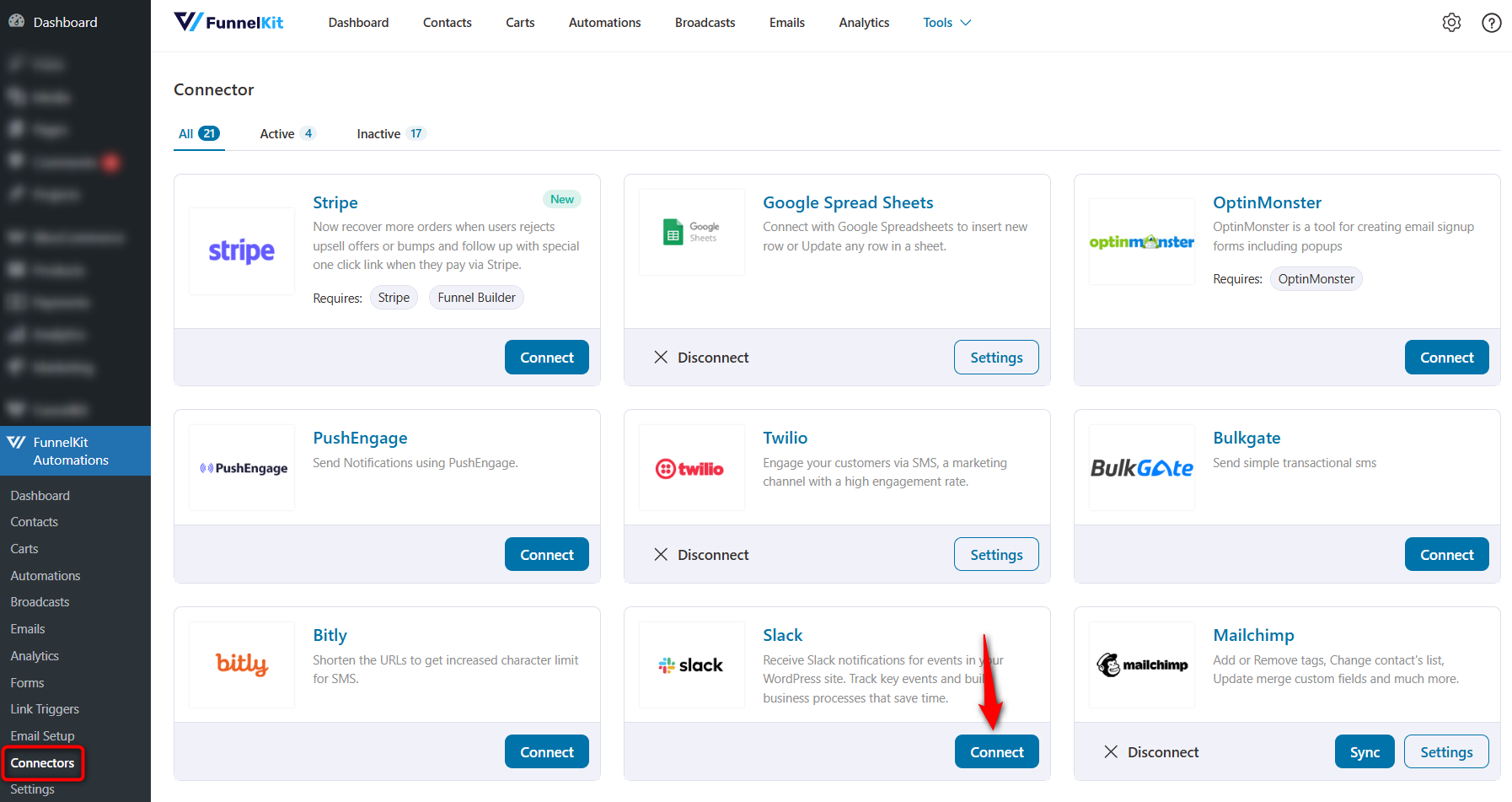
Navigate to FunnelKit Automations ⇨ Connectors from the WordPress dashboard.
Click on 'Connect' under the Slack connector.
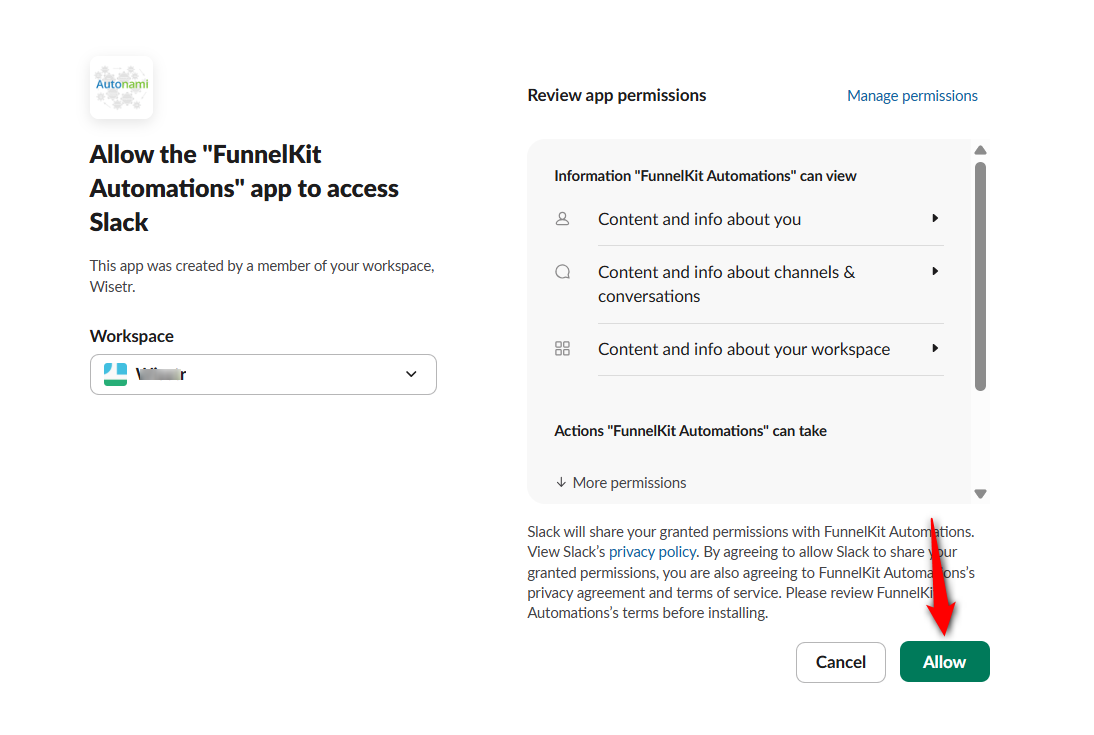
Log in to your Slack account and click 'Allow' to grant access.
The screen will bounce back to WooCommerce with a success message. Done.
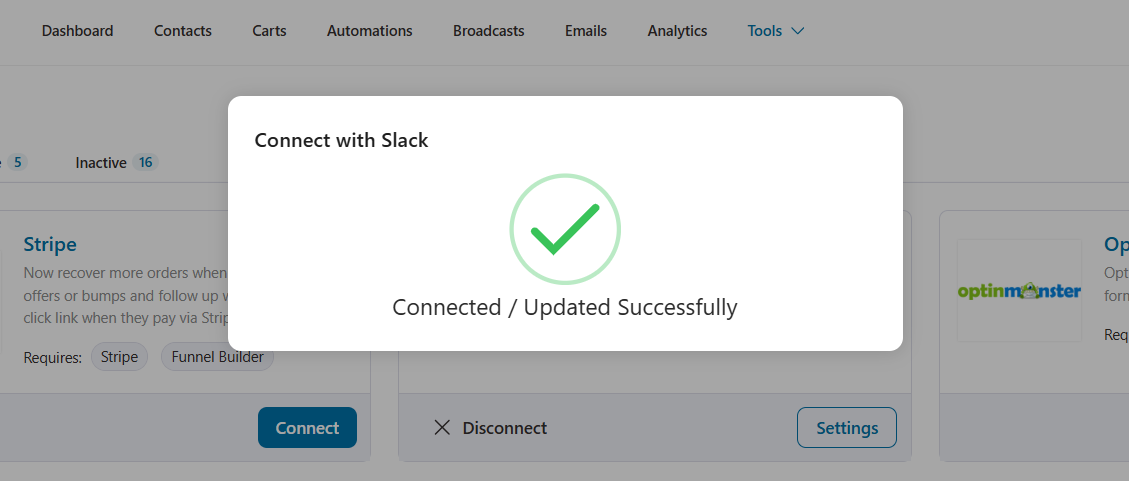
Your WooCommerce Slack integration is successful.
Step 2: Create a new automation
Let's build a workflow to ping Slack when a new purchase happens.
Go to the Automations section. Click the 'Create Automation' button.
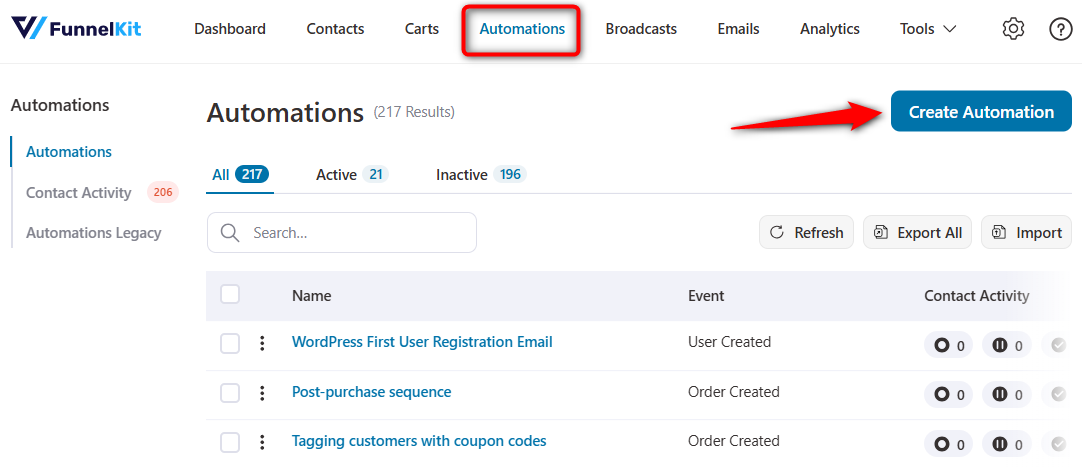
Click on 'Start from Scratch' to create a fresh automation.
Enter the automation name, then click the 'Create' button.
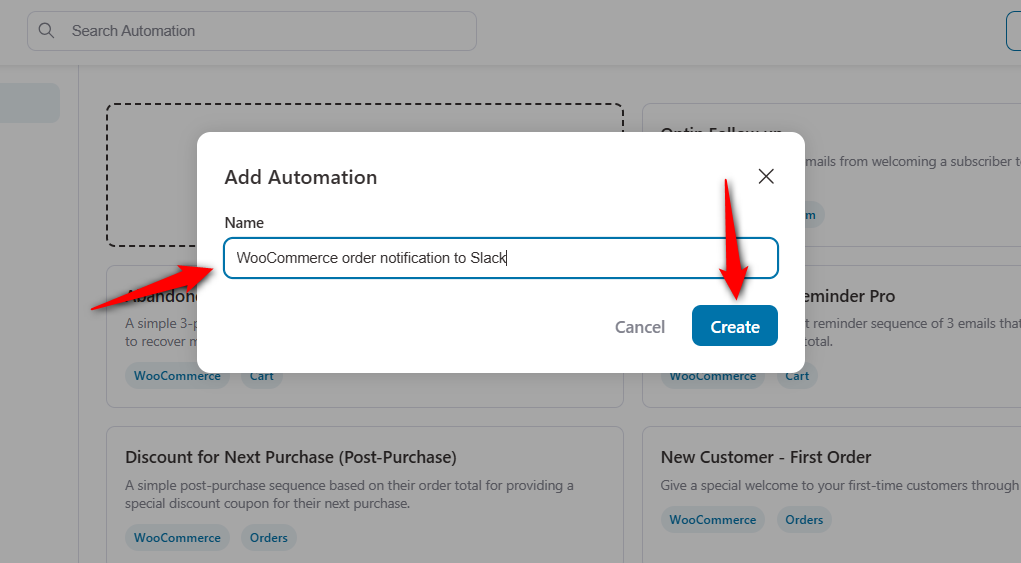
This drops you into the visual canvas.
Step 3: Add the WooCommerce order event trigger
On your workflow screen, click on 'Select an Event'.
Choose Order Created event under the WooCommerce tab. Hit 'Done'.
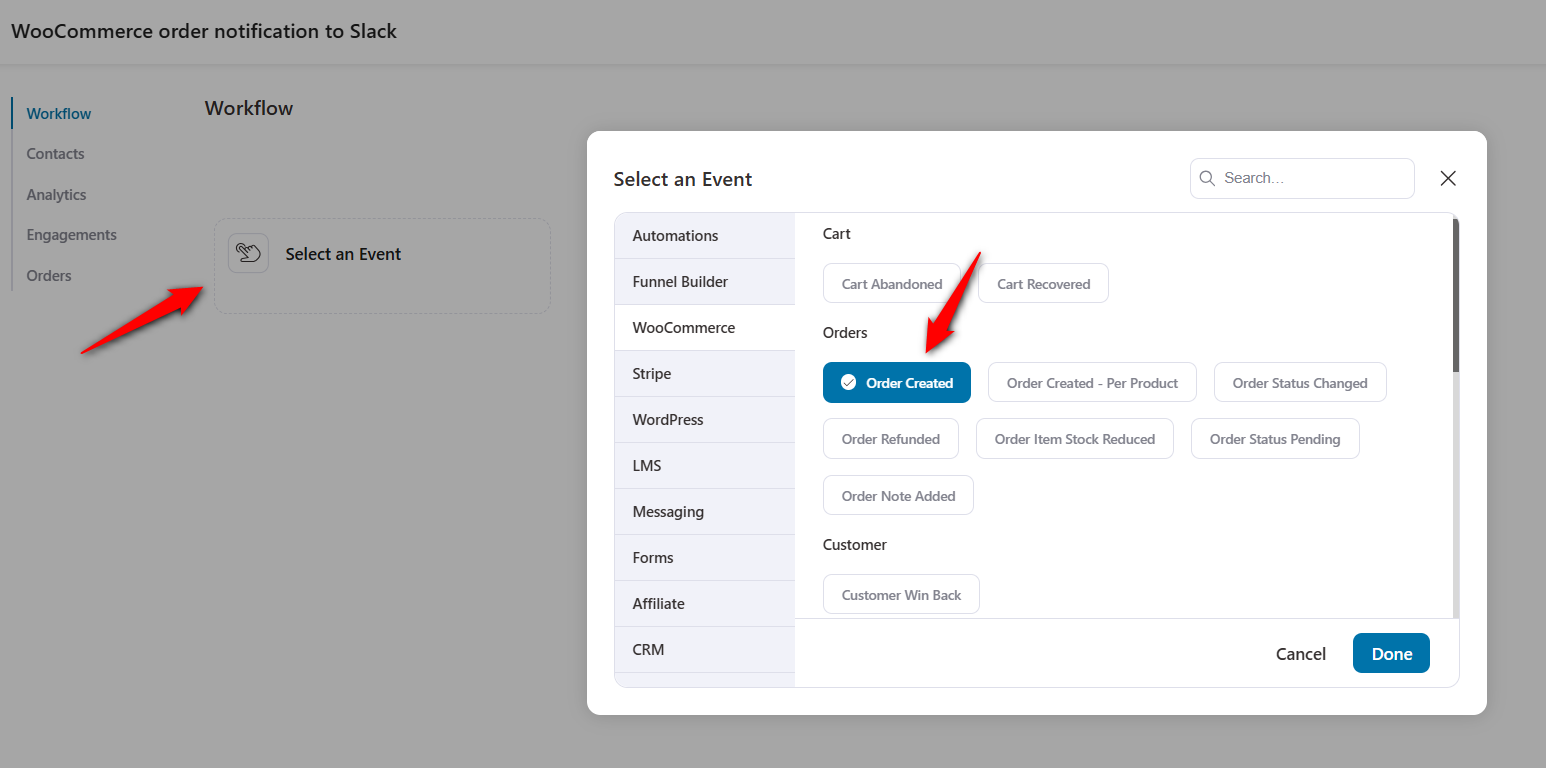
Configure the order created event.
Choose the order status, the item it contains, and automation runs on a contact.
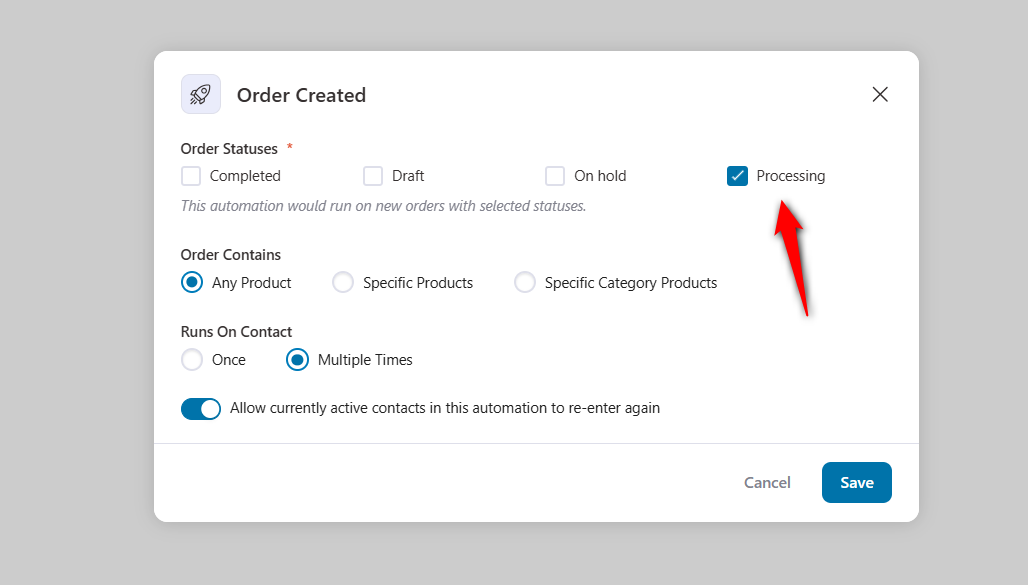
Once done, click on 'Save'.
This event will be triggered when a customer purchases a product from your WooCommerce store.
Step 4: Send the order notification to the Slack channel
Click the plus icon to specify what happens next. Select 'Action'.
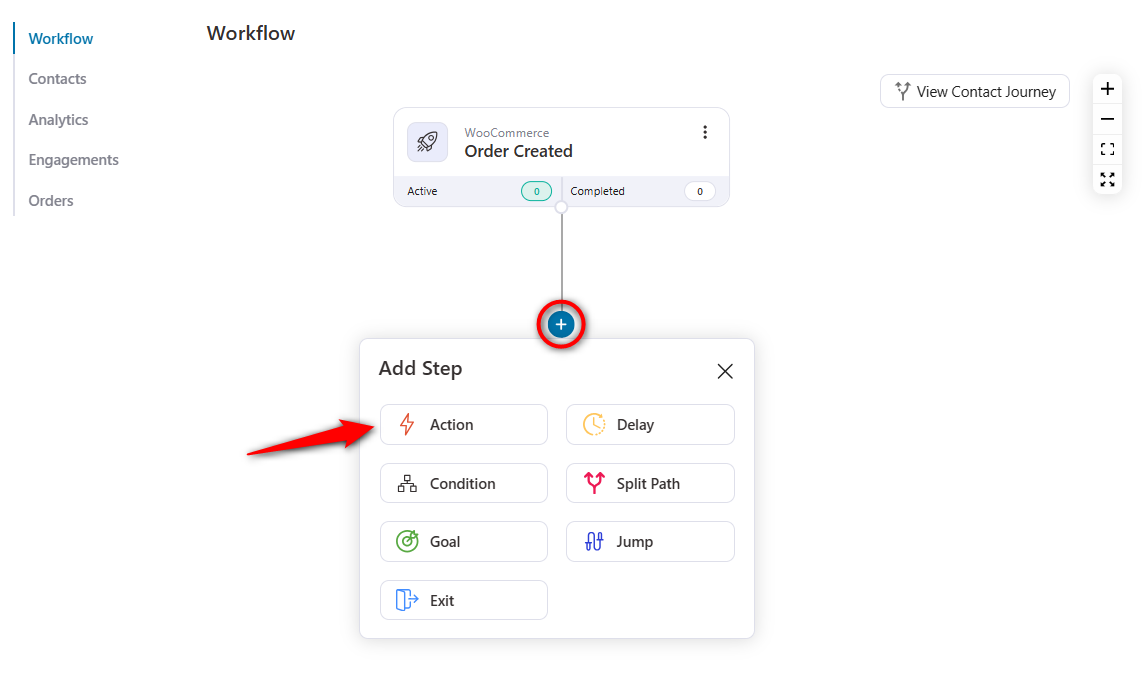
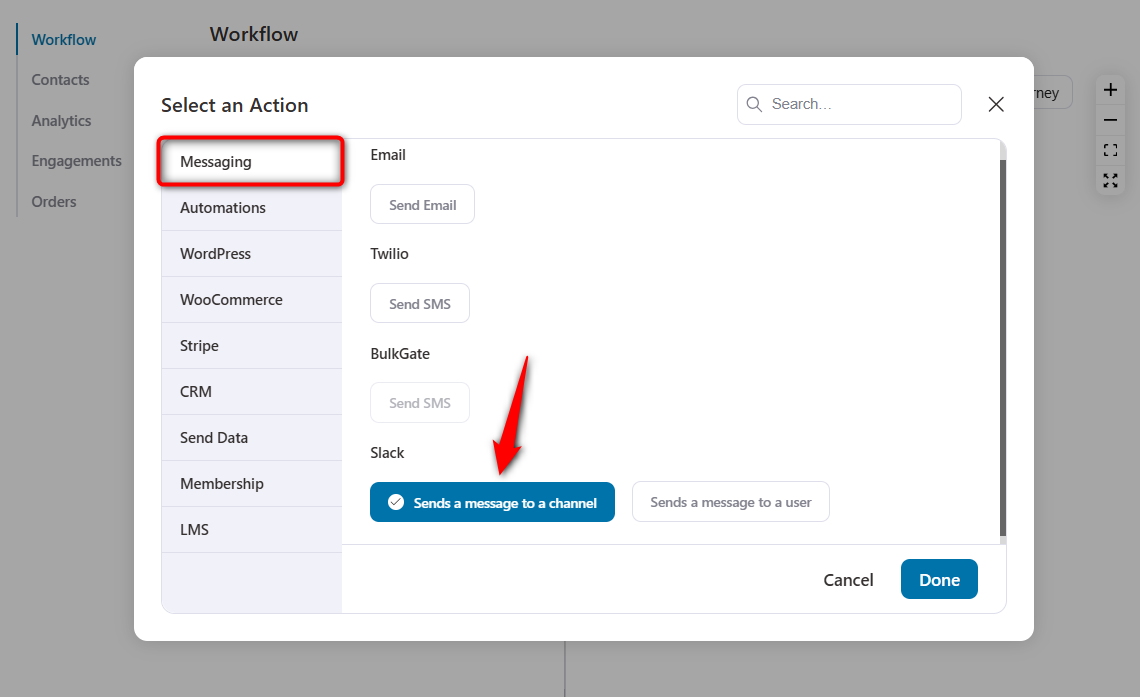
Pick 'Sends a message to a channel' under the Slack options. Hit 'Done'.
Select your destination Slack channel.
Draft the message. You can pull in exact order details using dynamic merge tags.
For example, drop in {{order_id}}, {{order_billing_first_name}}, and {{order_total}}.
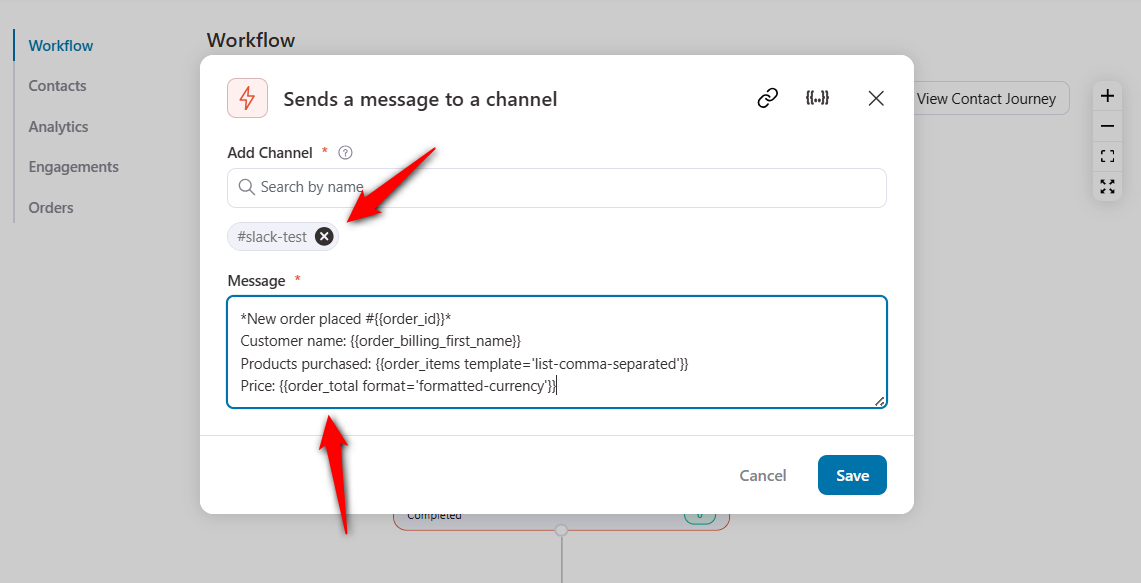
Click 'Save' when done.
Step 5: Activate and test Slack notifications for WooCommerce orders
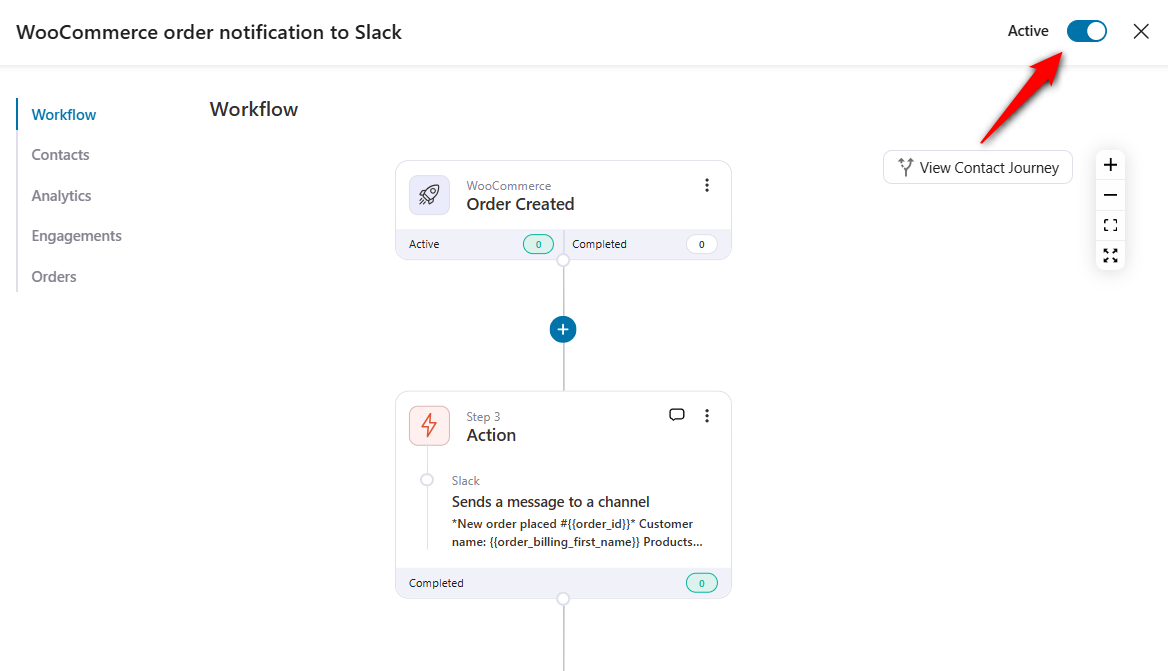
Turn on the toggle to activate your WooCommerce Slack automation for new orders.
To test your integration, go to your storefront, add a product to your cart, and complete the purchase.
Check Slack. The formatted message should appear instantly in your designated channel.
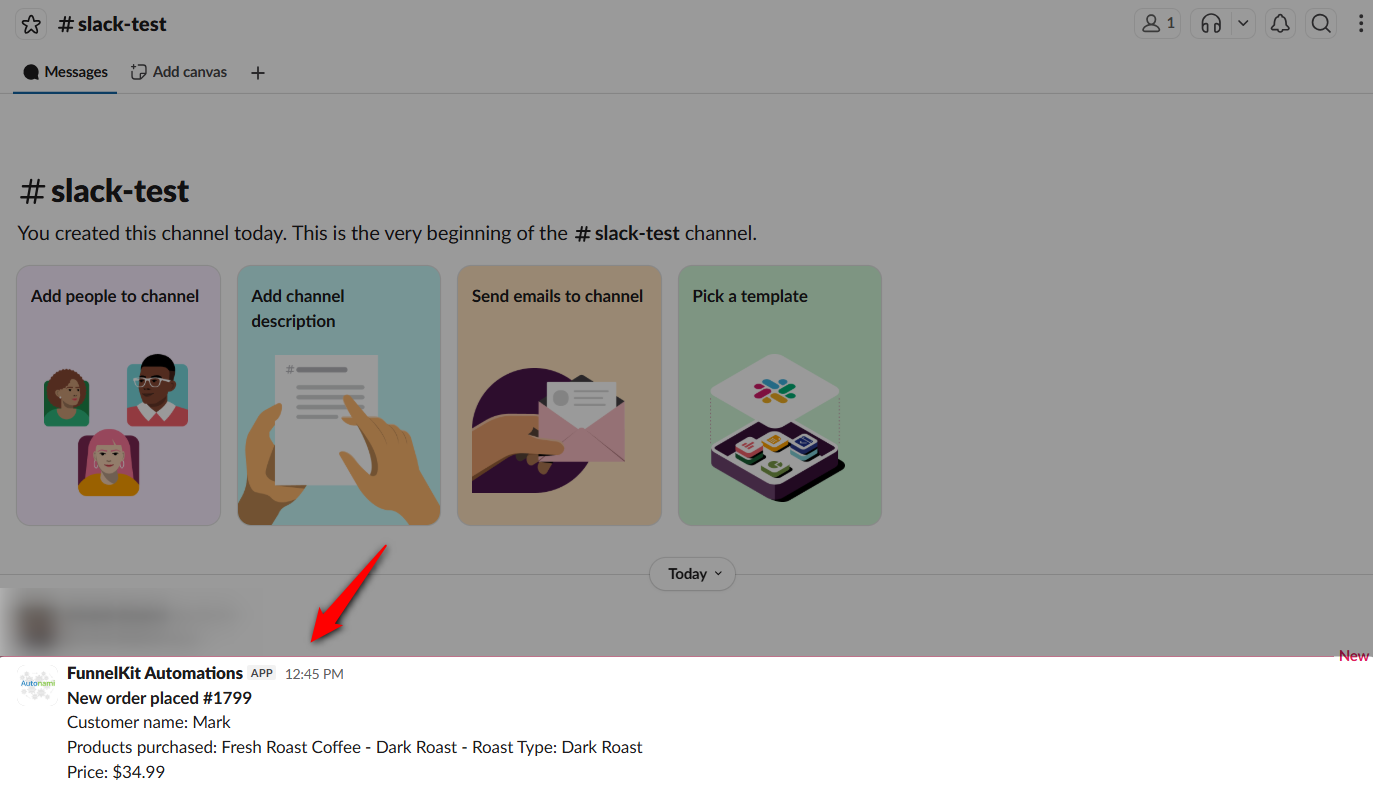
Working like a charm! This is how you can successfully set up WooCommerce Slack integration and automate your notifications.
7 WooCommerce Notifications Worth Sending to Slack
You don't want to spam your company channels. Here are the alerts that actually matter:
1. Send order alerts at every step of the journey
New purchase alerts are the primary reason store owners integrate WooCommerce to Slack. Include the order ID, name, and total.
Your fulfillment team can act on these immediately without logging into the dashboard.
You can even build multi-step flows that fire different notifications when the order ships, and when it is finally delivered.
2. Track refunds and cancellations in real time
Cancellations and refunds require immediate attention.
Routing these to a support channel gives your agents the context they need to intervene quickly.
Use the 'Order Status Changed' event trigger to set up automations for refunds and cancelled order statuses. Less back-and-forth. No lingering tickets.
3. Monitor inventory with low stock alerts
Configure alerts to trigger when a product's stock falls below a specified threshold.
Use the 'Order Item Stock Reduced' event.
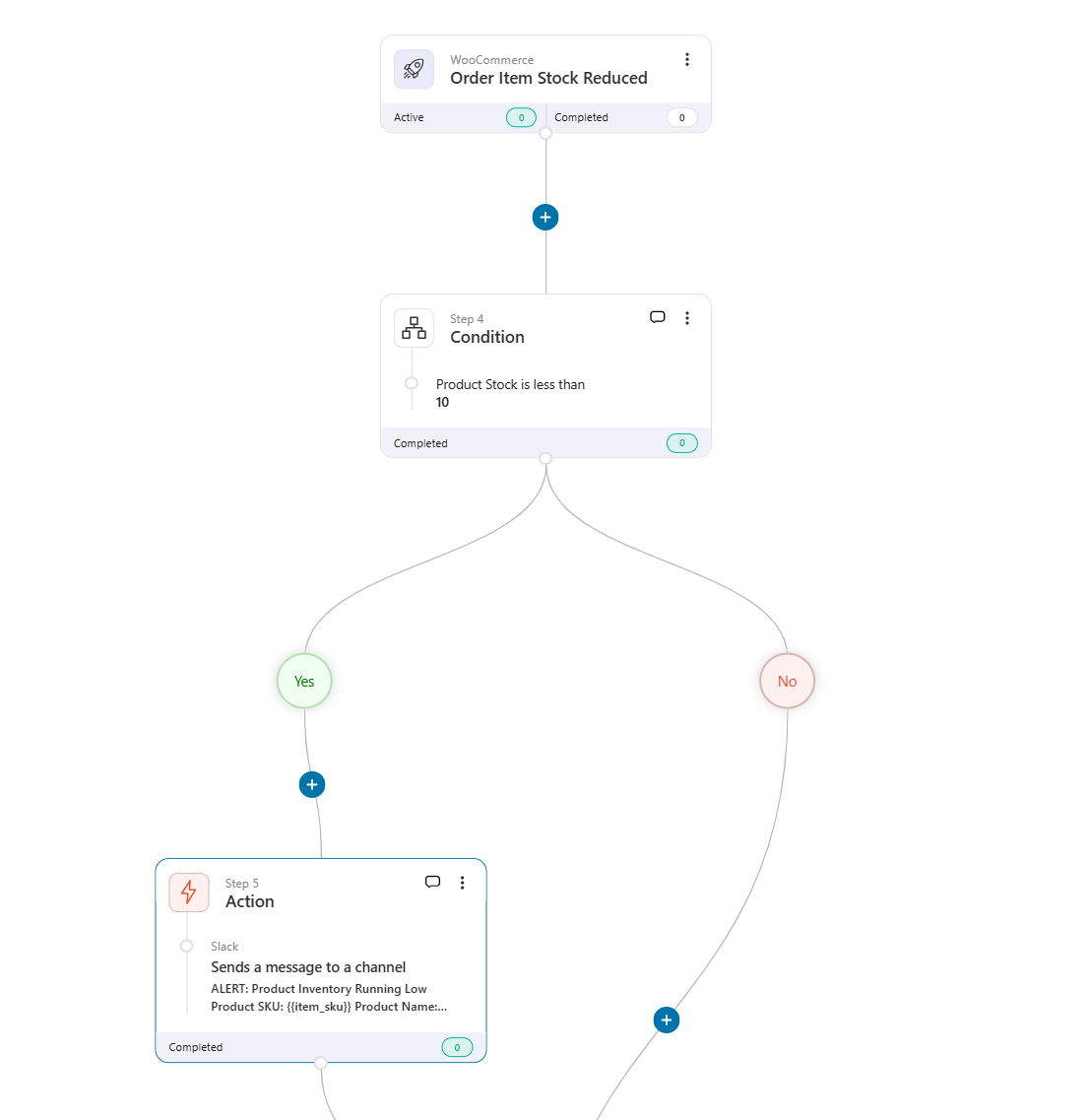
Operations teams get enough lead time to restock before a top-seller zeroes out.
4. Receive customer reviews and feedback instantly
1-star ratings need fast damage control. 5-star ratings can be pushed to social marketing.
Take advantage of the review-received event to send Slack alerts so your marketing and support teams can reach out to your customers.
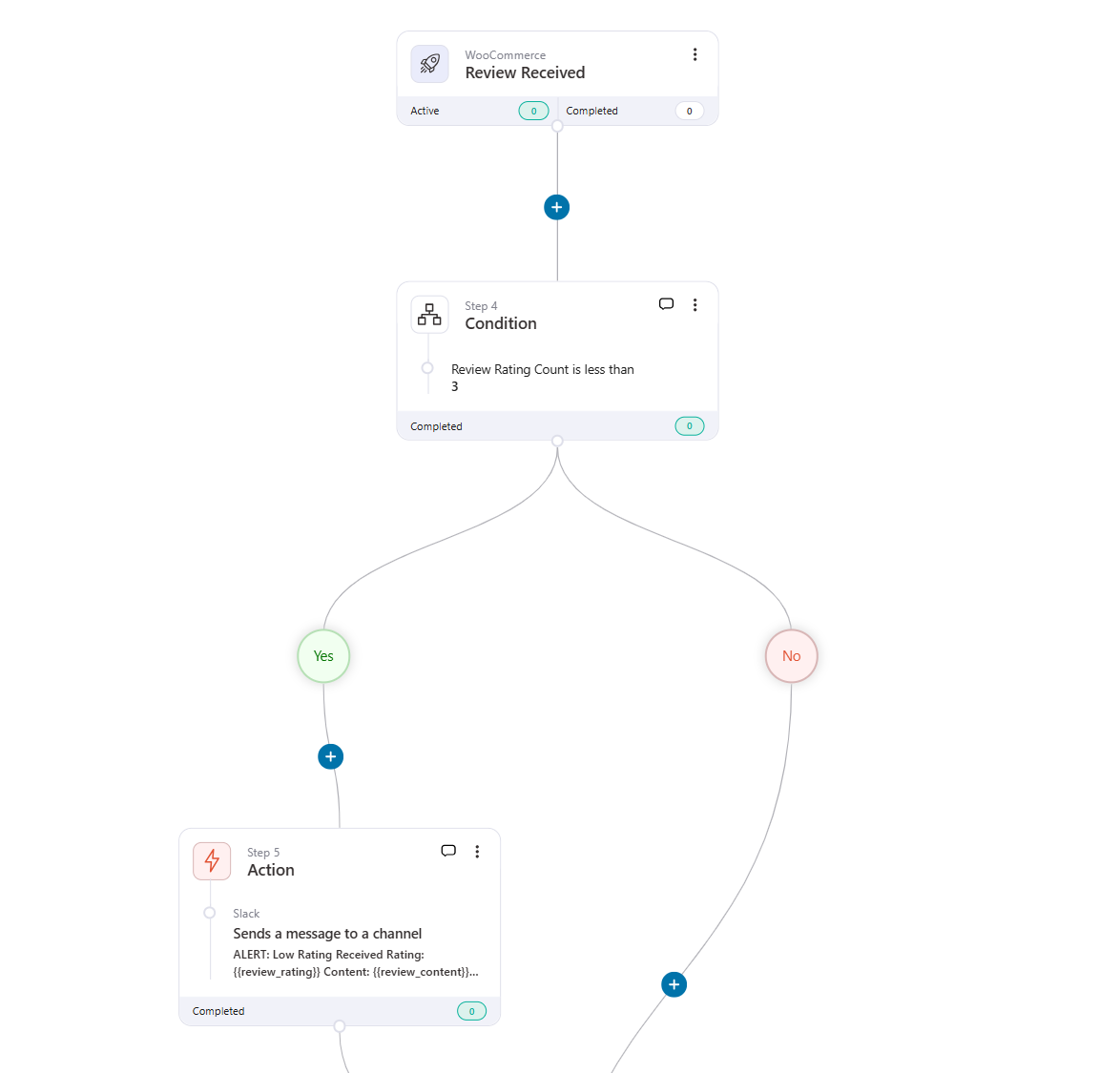
This is particularly useful for stores where customer reviews directly affect purchasing decisions.
5. Abandoned cart alerts
Push high-value abandoned carts into a sales channel.
Include the cart total and the items left behind. This allows your staff to trigger manual outreach or generate exclusive offers for massive orders.
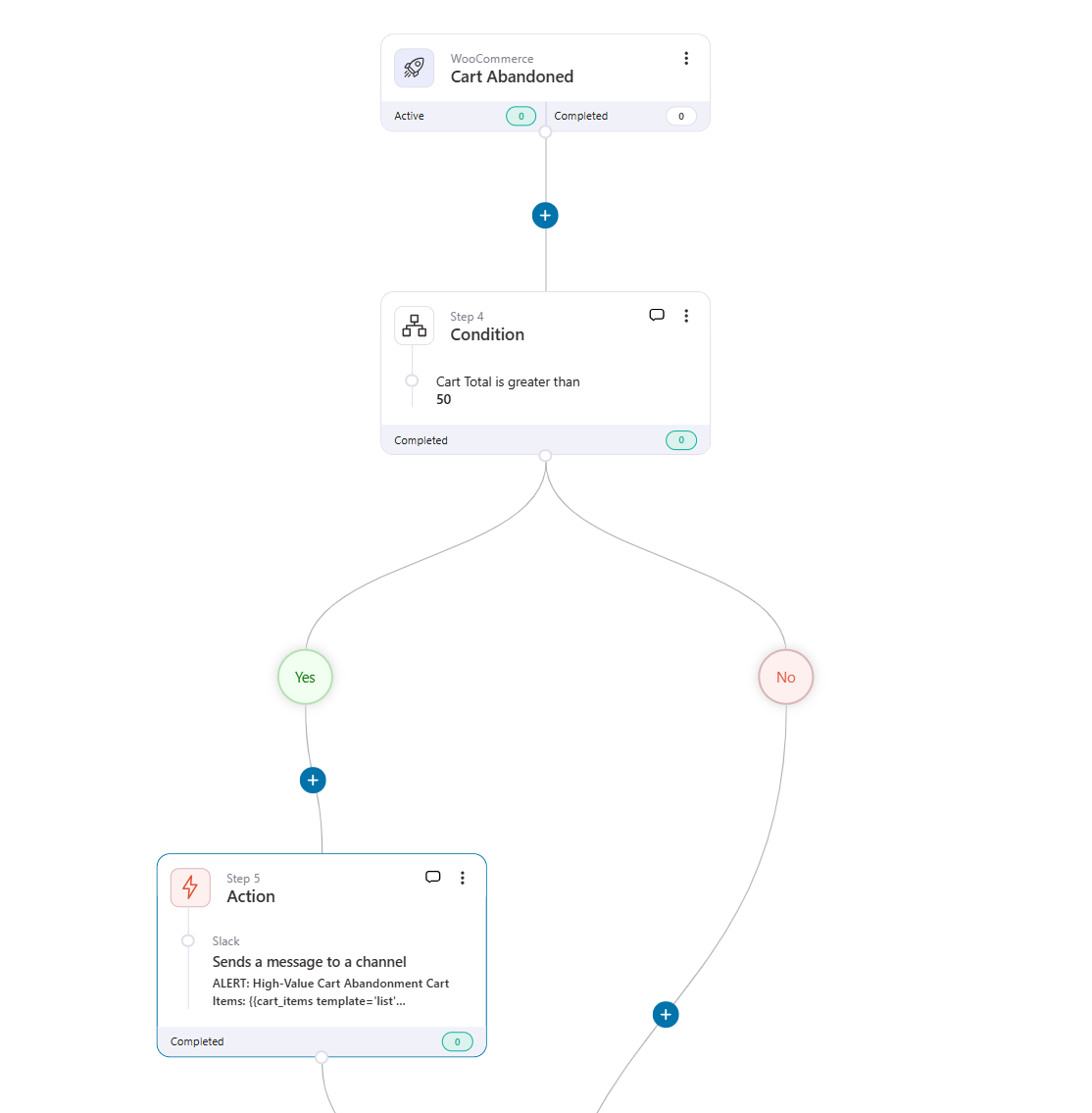
6. Get sales summaries and marketing updates
Skip the manual WooCommerce reporting. Send an automated daily or weekly summary of gross sales, top products, and acquisition metrics directly to the marketing team.
7. Subscription churn notifications
If you run a recurring revenue business, churn is critical.
Get pinged the second a subscription is paused, cancelled, or fails a renewal payment. Trigger your win-back protocols immediately.
6 Best Practices to Follow When Setting Up WooCommerce Slack Notifications
Here are proven tips to keep in mind when setting up notifications for WooCommerce - Slack integration.
- Use dedicated channels for different notification types
Create separate Slack channels for orders, refunds, low stock alerts, and customer reviews.
This prevents a single busy channel from burying important updates and lets team members subscribe only to channels relevant to their role.
A common setup is #woo-orders for fulfillment, #woo-support for refunds and cancellations, and #woo-inventory for stock alerts.
- Filter notifications by value or priority
Not every order needs a Slack alert, especially for high-volume stores.
Use conditional logic in your WooCommerce Slack plugin to send notifications only for high-value orders, first-time customers, or specific product categories.
This keeps your channels focused on the events that actually need human attention.
- Include a direct link to the WooCommerce order in every message
A Slack notification is only useful if your team can act on it quickly. Adding a direct link to the order in the WordPress admin saves time and eliminates the need to manually search for it.
Use merge tags to generate these links automatically.
- Keep notification messages short and scannable
Include only the essential details, such as order number, customer name, total, and a link.
Long, detailed messages slow your team down and make the channel harder to skim during busy hours.
If your team needs more detail, they can click through to the WooCommerce order page.
- Set up alerts for inventory and stock changes
Low stock notifications in Slack help your operations team reorder products before they sell out.
According to a PricewaterhouseCoopers report, 17% of customers will abandon a store after just one bad experience, and running out of a popular product certainly qualifies. (Source: Shopify)
Proactive stock monitoring through Slack helps prevent these lost sales.
- Review and refine your automations monthly
As your store grows, the notifications that mattered early on may become noise.
Audit your WooCommerce Slack automations regularly to remove outdated triggers and add new ones that match your current operations.
This keeps your Slack workspace clean and your team's attention focused on what matters.
Frequently Asked Questions Related to WooCommerce Slack Integration
Some plugins offer free tiers with limited functionality. FunnelKit Automations has a free version with core automation features, although the Slack action is available in the Pro plan.
Zapier and Make have free tiers, but they strictly cap your monthly tasks. If you want a completely free WooCommerce Slack integration solution, use a webhook-based approach with Slack's incoming webhooks feature, which requires some developer knowledge.
Yes, you can set this integration with WordPress hooks and the Slack API to send custom notifications without a plugin. This approach uses the woocommerce_new_order hook with a POST request to a Slack incoming webhook URL.
But maintaining custom PHP snippets through major WooCommerce core updates is tedious. For most store owners who are not comfortable with WooCommerce plugin development, a no-code plugin-based approach is the more practical choice.
Native plugins like FunnelKit Automations keep everything inside your WordPress dashboard and read WooCommerce order data directly from your database. This makes merge tags and data formatting more reliable.
Third-party connectors like Zapier and Make.com are useful for connecting WooCommerce to many external apps beyond Slack. It incurs recurring costs and can introduce data formatting issues.
For most stores, a plugin-based WooCommerce Slack integration solution is simpler, more reliable, and easier to troubleshoot.
Yes, WooCommerce Slack integration is secure because reputable plugins like FunnelKit Automations use OAuth-based authentication. It never stores your Slack password and communication happens over encrypted HTTPS. You can also revoke workspace access at any time.
Make sure to keep your WordPress site, plugins, and Slack workspace up to date to maintain a secure connection.
Yes, you can create separate automations for different event types and route each one to a different Slack channel. For example, order notifications can go to the #woo-orders channel, refund alerts to #woo-support, and low-stock alerts to #woo-inventory.
Yes. FunnelKit Automations supports WooCommerce Subscriptions triggers, which means you can receive Slack alerts for subscription renewals, cancellations, failed payments, and status changes. KestrelWP’s Slack for WooCommerce plugin also supports backorder notifications, and ShopMagic offers a flexible subscription add-on for similar functionality. This makes it possible to monitor recurring revenue events directly from your Slack workspace.
Set Up WooCommerce Slack Integration and Start Getting Notifications Today!
We have covered how to set up a WooCommerce Slack integration from start to finish.
This includes configuring triggers, customizing Slack messages with order data, deciding which notification types to send, and the best practices.
Connecting WooCommerce to Slack turns your team's messaging platform into a live ecommerce operations dashboard.
With FunnelKit Automations, you can set it up in under 5 minutes, customize every notification, add conditional logic to keep channels clean, and never pay per-task automation fees.
Editorial Team
April 8, 2026Setting up a WordPress autoresponder takes the manual work out of your communication, turning passive website visitors into engaged subscribers and paying customers. Rather than replying to form submissions by...
Editorial Team
April 1, 2026WooCommerce Google Sheets integration lets you automatically send your store's order, product, and customer data to a Google Sheets spreadsheet. Instead of exporting CSV files manually every time you need...

Editorial Team
March 26, 2026Do you want to send WooCommerce subscription emails to keep your customers informed and engaged with timely follow-ups? Every subscription business lives or dies by its emails. Those automated messages...






