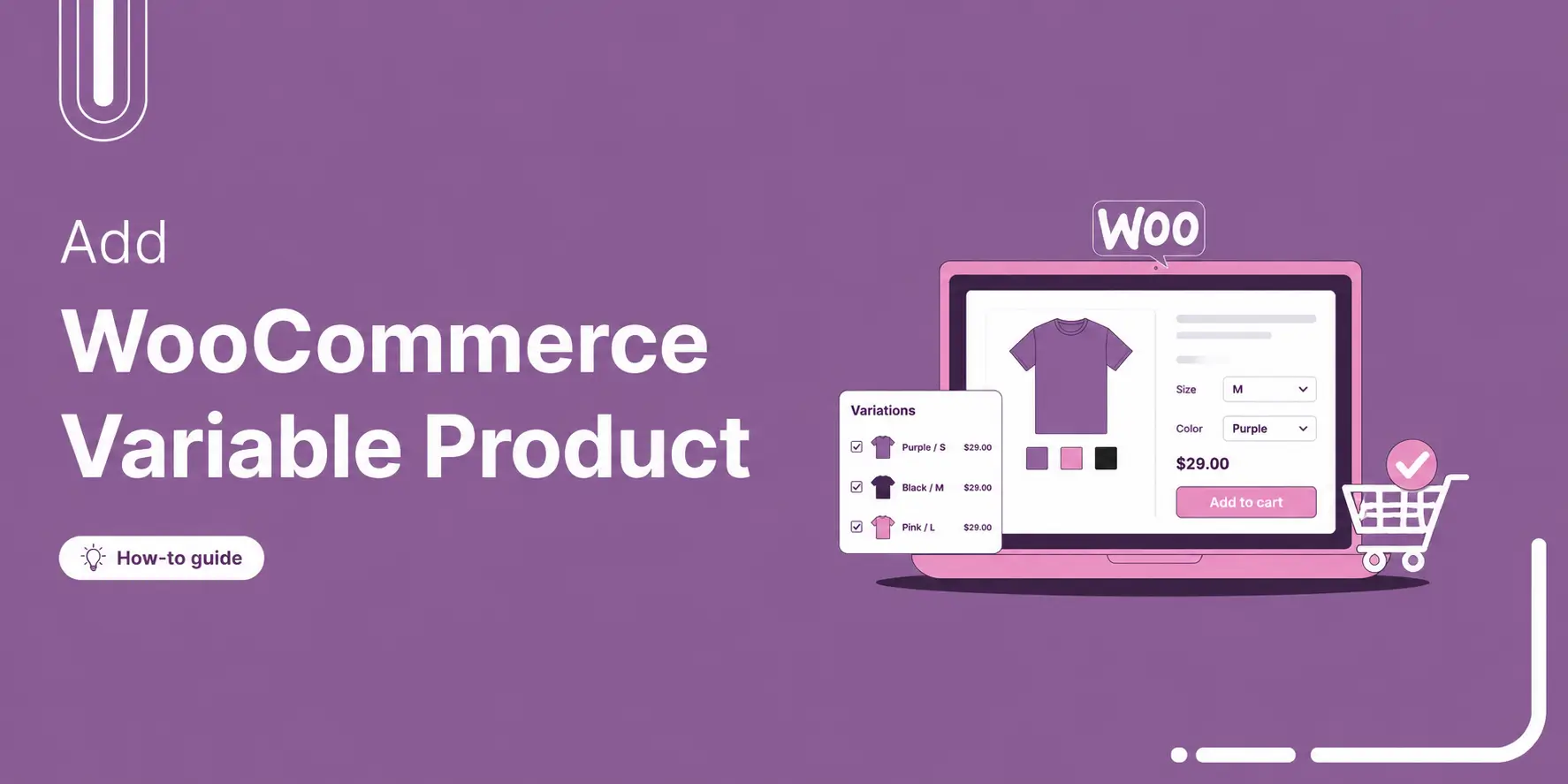
WooCommerce variable products let you sell different versions of the same item from one product page. Sizes, colors, materials, styles, etc.
Instead of a separate listing for each option, customers pick what they want on the product page.
It keeps your catalog cleaner and the shopping experience simpler.
For example, a clothing store does not need a different product for every size and color combination. One variable product handles it all.
In this guide, we’ll break down what variable products actually are, when you should use them instead of simple products, and how to set one up step by step.
Table of Contents
- 1 What Is a WooCommerce Variable Product?
- 2 Simple Product vs. Variable Product: When Each One Makes Sense
- 3 How to Create a Variable Product in WooCommerce: Step-by-step Guide
- 3.1 Step 1: Create the product and set the product type to Variable
- 3.2 Step 2: Add the necessary attributes to create variations
- 3.3 Step 3: Generate the variations of WooCommerce variable products
- 3.4 Step 4: Configure each variation (price, stock, image)
- 3.5 Step 5: Publish the WooCommerce variable product
- 4 How Stock Management Works for Variable Products In WooCommerce
- 5 Additional WooCommerce Variable Products Plugins
- 6 Real-Life Examples of Variable Products
- 7 Frequently Asked Questions About WooCommerce Variable Products
- 8 Can I add unlimited variations in WooCommerce?
- 9 Why are my WooCommerce variations not showing?
- 10 Should I use variable products or separate simple products linked with a plugin?
- 11 Can I use a different image for each variation?
- 12 Can I sell variable products as subscriptions in WooCommerce?
- 13 Now You Can Set Up WooCommerce Variable Products Confidently!
What Is a WooCommerce Variable Product?
A variable product is simply a way to sell the same product in different versions, like size, color, material, or style, without creating separate products for each one.
Everything sits under one main product, and customers choose their preferred option before adding it to the cart.
Structure of a Variable Product
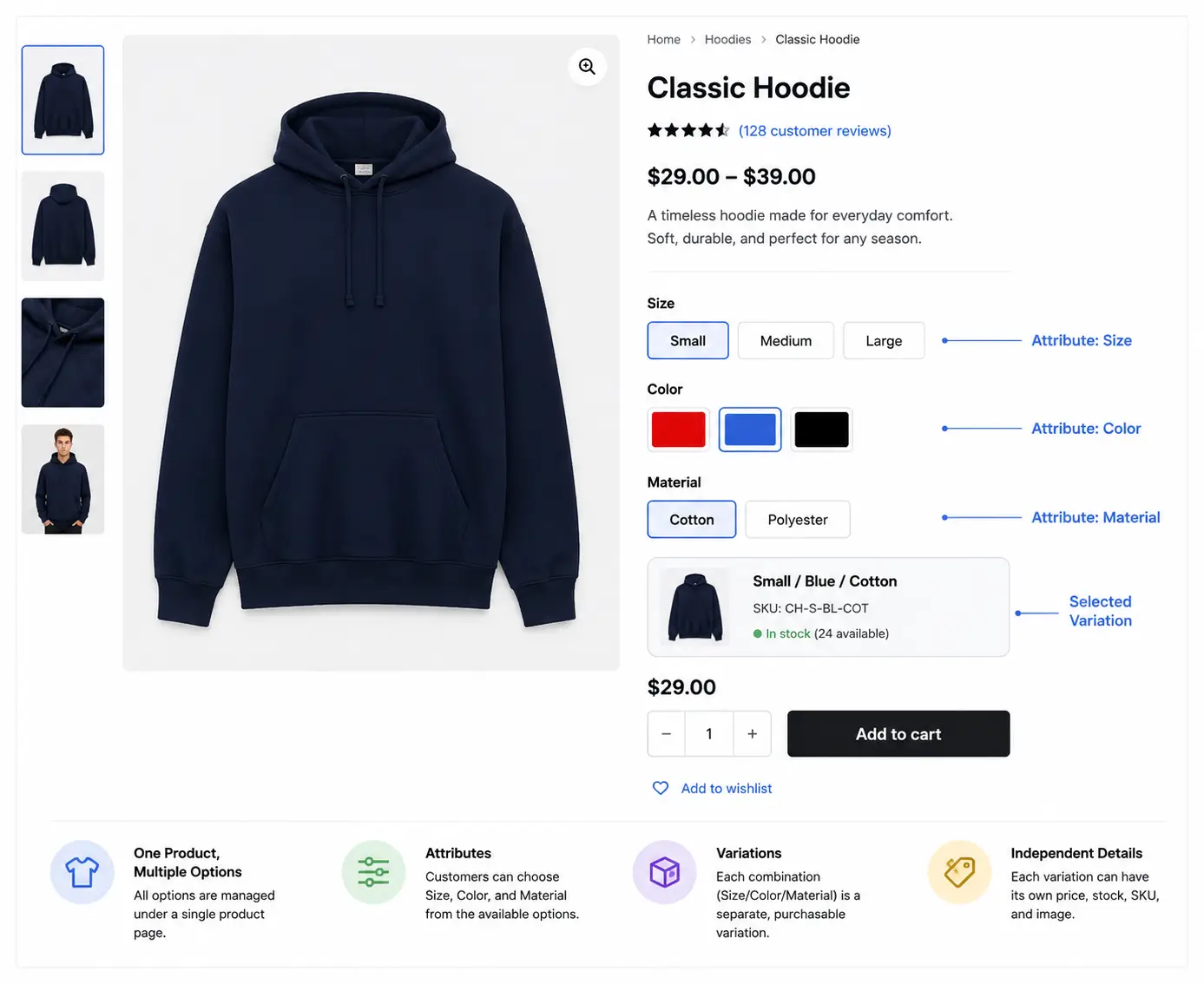
Variable products are built on two things: attributes and variations.
- Attributes
These are the options you define. They describe what choices exist for a product:
For example:
- Size: Small, Medium, Large
- Color: Red, Blue, Black
- Material: Cotton, Polyester
Now let's check how variations work.
- Variations
Variations are the actual purchasable combinations of those attributes. If you combine 3 sizes with 2 colors, you get 6 total variations. For example: Small/Red, Small/Blue, Medium/Red, Medium/Blue, Large/Red, and Large/Blue.
Each variation is independent and can have its own price, stock level, SKU, and image, if needed.
How Variable Products Work on the Front End For Customers?
On the product page, customers select their preferred options from dropdowns or buttons.
WooCommerce automatically matches the customer’s selection to the correct variation, pulling in the correct price, image, and stock availability for that exact combination.
No confusion, no back-and-forth. They pick what they want and add it to the cart, and check out just like a simple product.
Simple Product vs. Variable Product: When Each One Makes Sense
A simple product is used when there are no meaningful choices for the customer. On the other hand, a variable product is used when the customer needs to choose between different versions that affect what they’re buying.
In other words, if a product comes in multiple selectable options, such as size or color, it should be treated as a variable product.
Both physical and digital products can be simple or variable, depending on whether they have options or variations.
Simple Product (when to use it)
Use a simple product when you are selling a single, fixed version of something.
Examples:
- A handmade item with no variations
- A single-size poster or print
- A digital download, like a PDF or an ebook
In all of these cases, the customer doesn’t need to select anything before purchasing.
Variable Product (when to use it)
Use a variable product when the same product comes in different options that matter to the buyer.
Examples:
- T-shirts in different sizes and colors
- Shoes with multiple size options
- Protein powder in different flavors
- Products where the price or stock changes based on selection
- Software or digital downloads with different license types (personal vs commercial)
- Courses with different access levels or durations
Note: A common WooCommerce question is whether to use variable products or separate simple products linked with plugins. In most cases, variable products are preferred because they keep everything on one page, simplify inventory, and improve the shopping experience.
How to Create a Variable Product in WooCommerce: Step-by-step Guide
In this section, we’ll walk through the full setup process step by step so you understand what you’re looking at and why each part matters when creating WooCommerce variable products:
Step 1: Create the product and set the product type to Variable
Go to Products ⇒ Add New Product. Give the product a title, add your description, and upload your product images as you normally would.
Then scroll down to the Product Data panel below the editor. By default, it is set to Simple product. Click that dropdown and select “Variable product”.
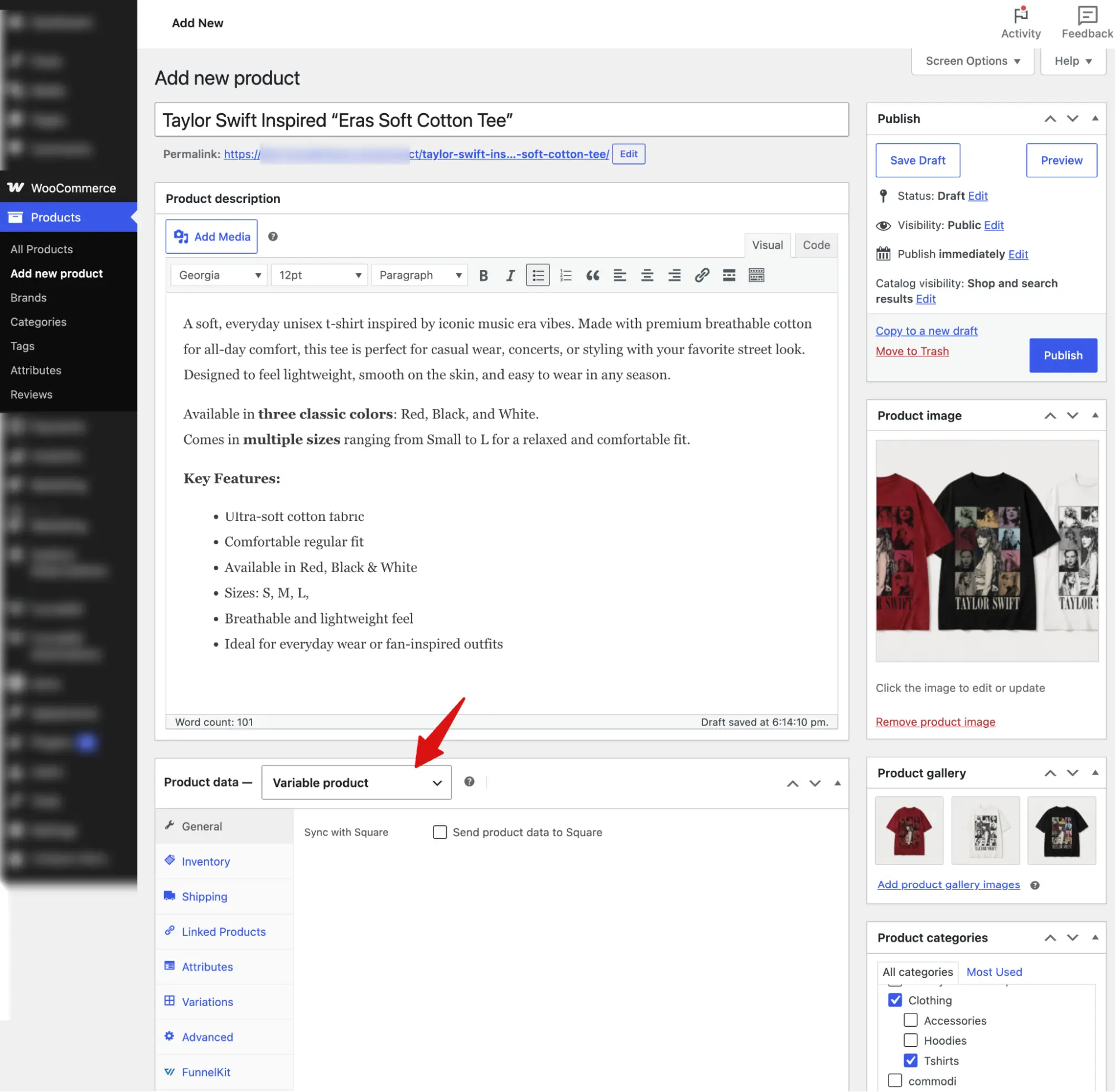
The tabs in the Product Data panel will update to display options specific to variable products.
Step 2: Add the necessary attributes to create variations
To add an attribute, click “Add new” and enter the attribute name (for example, Color). In the Values field, separate each value using a “|” (pipe symbol).
Then check both “Visible on the product page” and “Used for variations”, and finally click “Save attributes.”
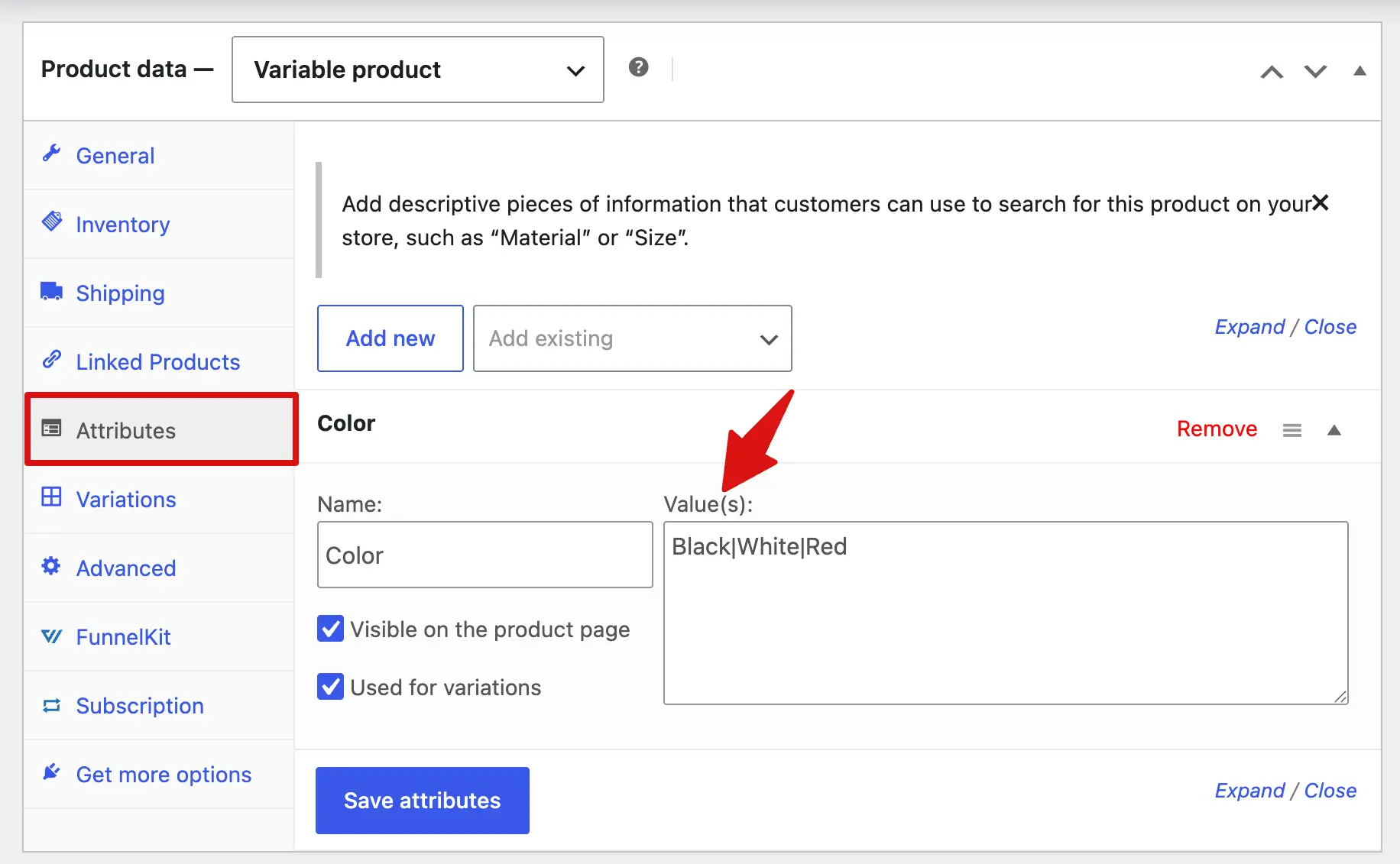
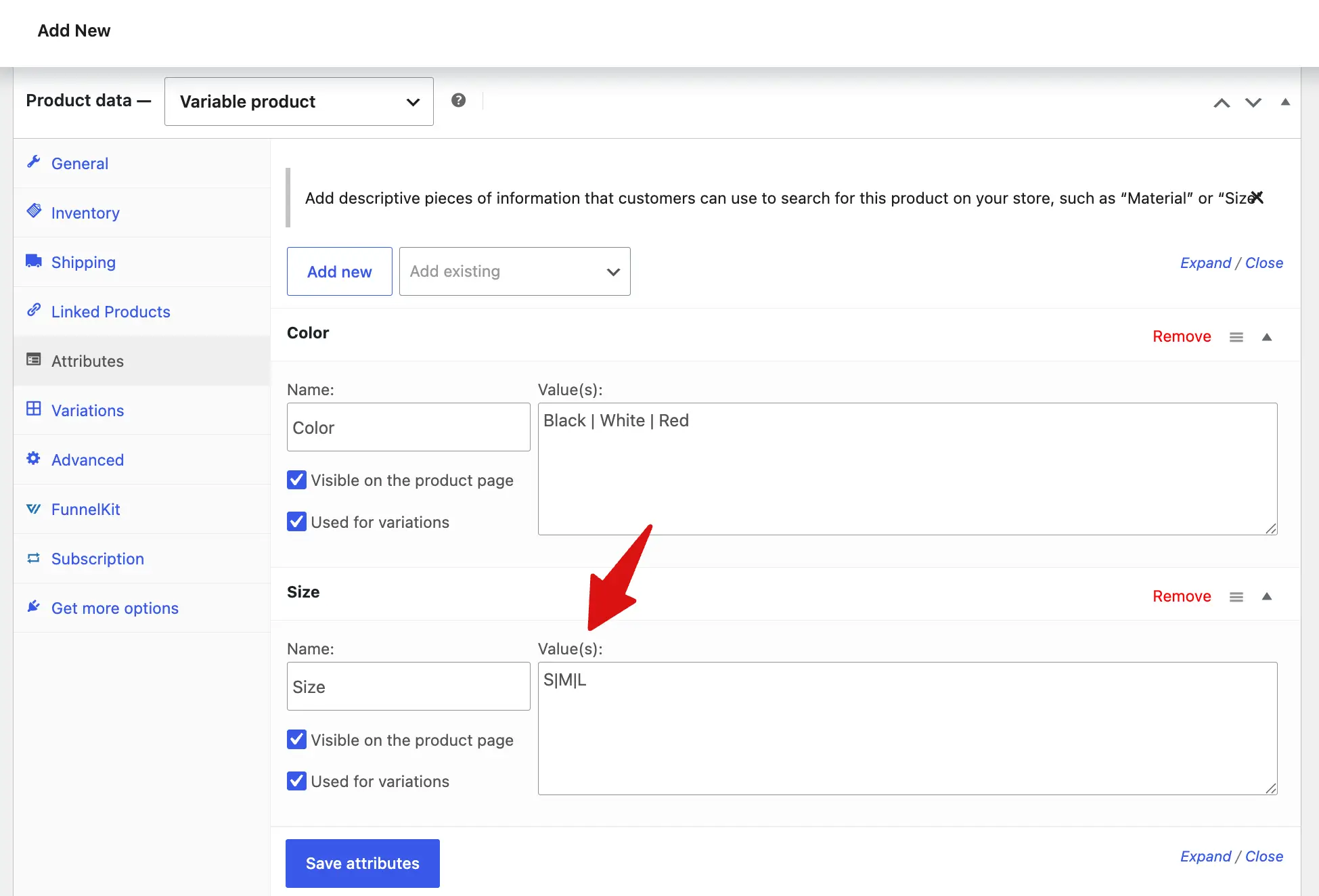
Similarly, you can add multiple attributes. In this example, we added Size and Color as product attributes.
Step 3: Generate the variations of WooCommerce variable products
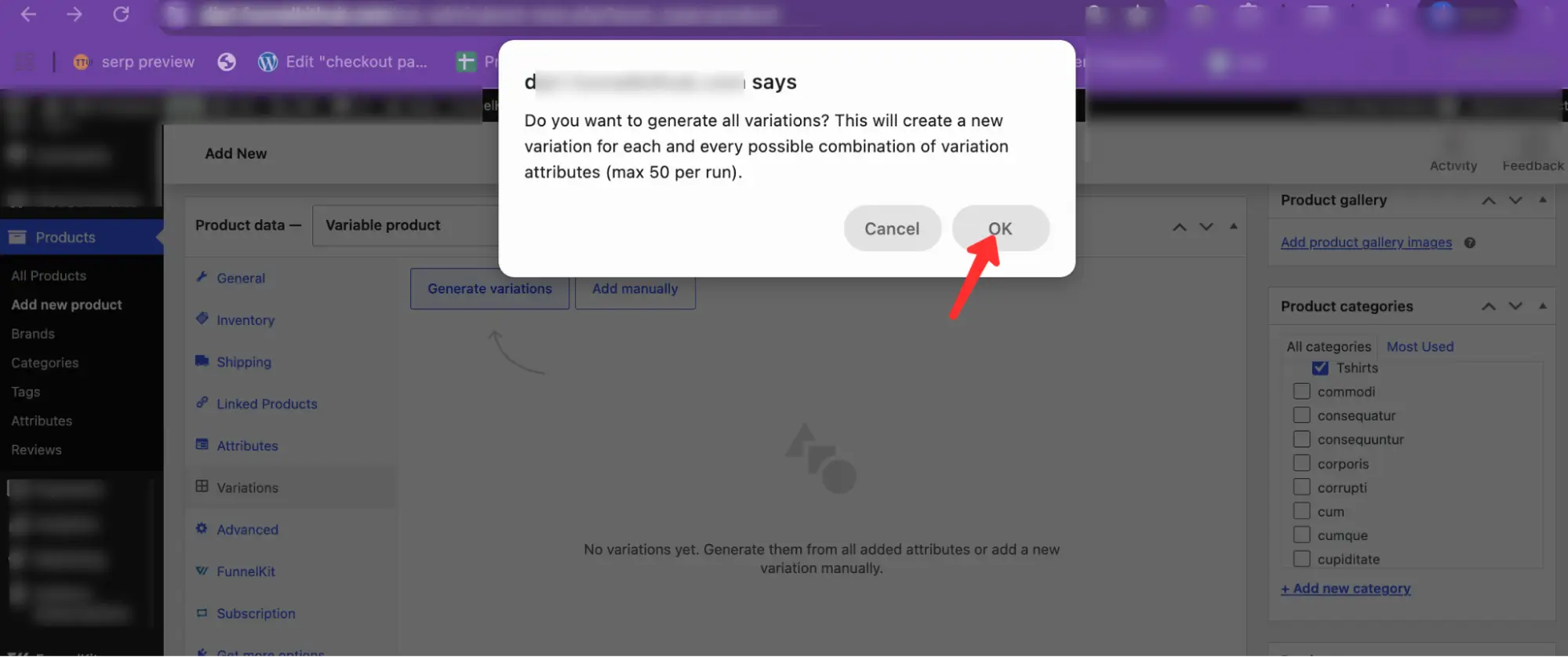
Now you can either manually create variations or generate them automatically. Click “Generate variations” to automatically create all possible combinations.
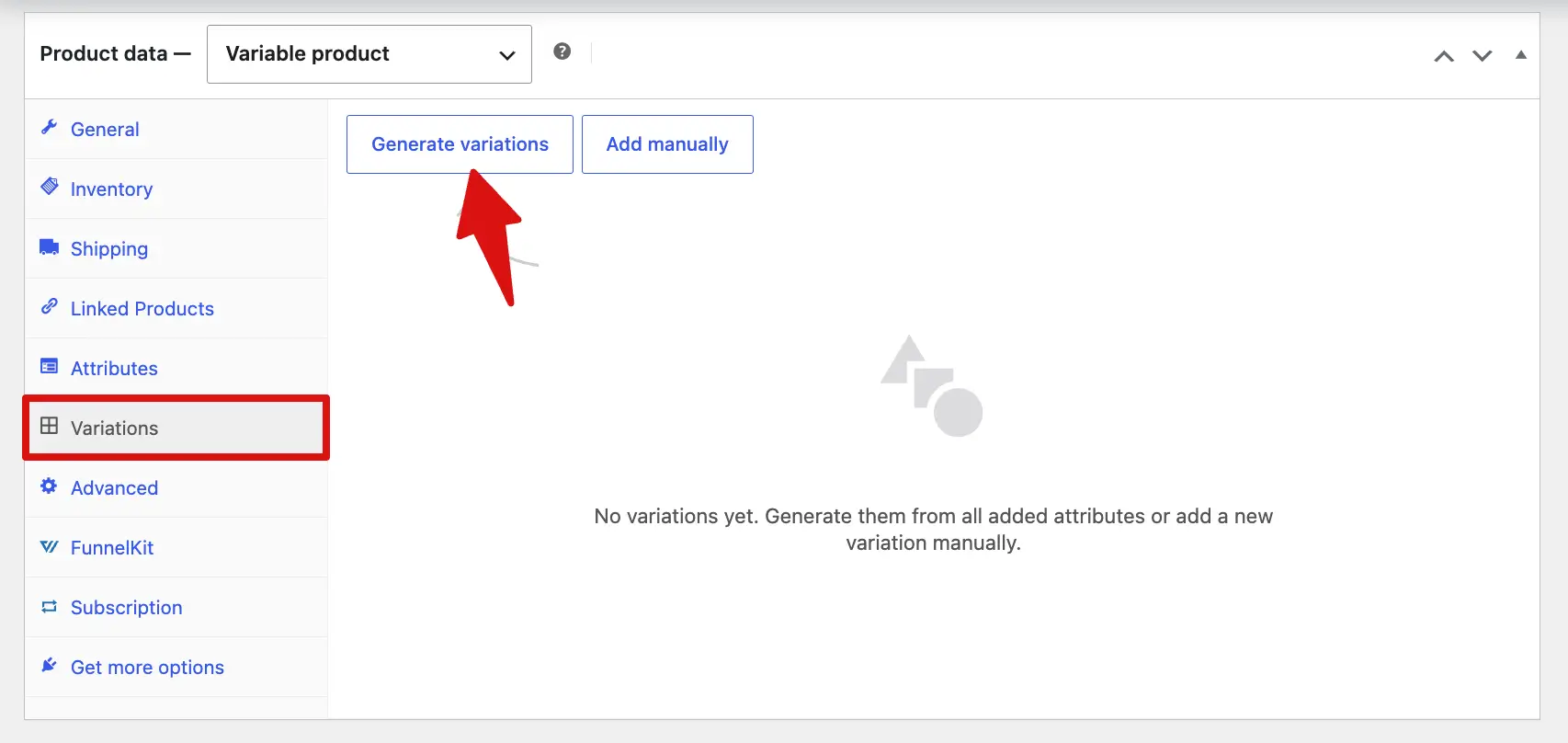
Next, it will ask for confirmation. Hit “ok” to confirm.
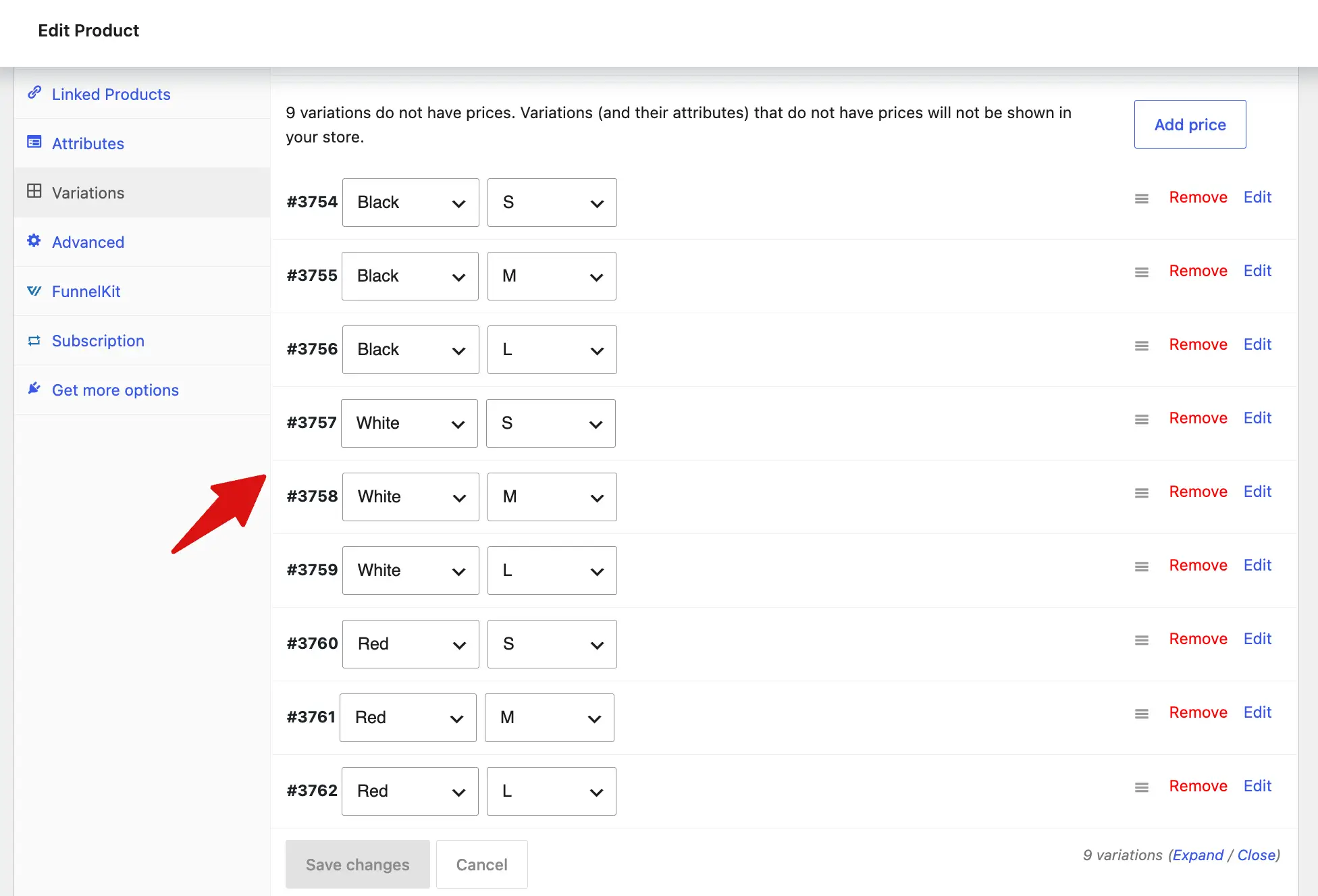
This will create all the variations with a different product ID. Each variation appears as a collapsed row showing its attribute combination.
Step 4: Configure each variation (price, stock, image)
This step takes the most time, and it is where the setup actually becomes a product.
Click the arrow on the left to expand each variation. At a minimum, you must set a regular price for every variation.
Inside each variation, you can also configure:
- Variation Image: Set a unique image for each variation so customers can visually see the selected color, style, or option.
- SKU: Add a SKU for easier inventory tracking and order fulfillment.
- Product Identifiers: Include GTIN, UPC, EAN, or ISBN details if available for better product identification.
- Product Type Settings: Enable Downloadable, Virtual, or Manage Stock options depending on the type of product you’re selling.
- Sale Pricing: Set a sale price and schedule discounts for specific dates or promotions.
- Stock Management: Add stock quantity, stock status, and backorder settings to manage availability properly.
- Low Stock Alerts: Configure a low stock threshold so you’re notified before inventory runs out.
- Shipping Details: Enter weight and dimensions (length, width, and height) for accurate shipping calculations.
- Shipping Class: Assign a shipping class if certain variations require different shipping rules or rates.
- Variation Description: Write a short description for each variation to highlight important details like fit, material, size, or comfort features.
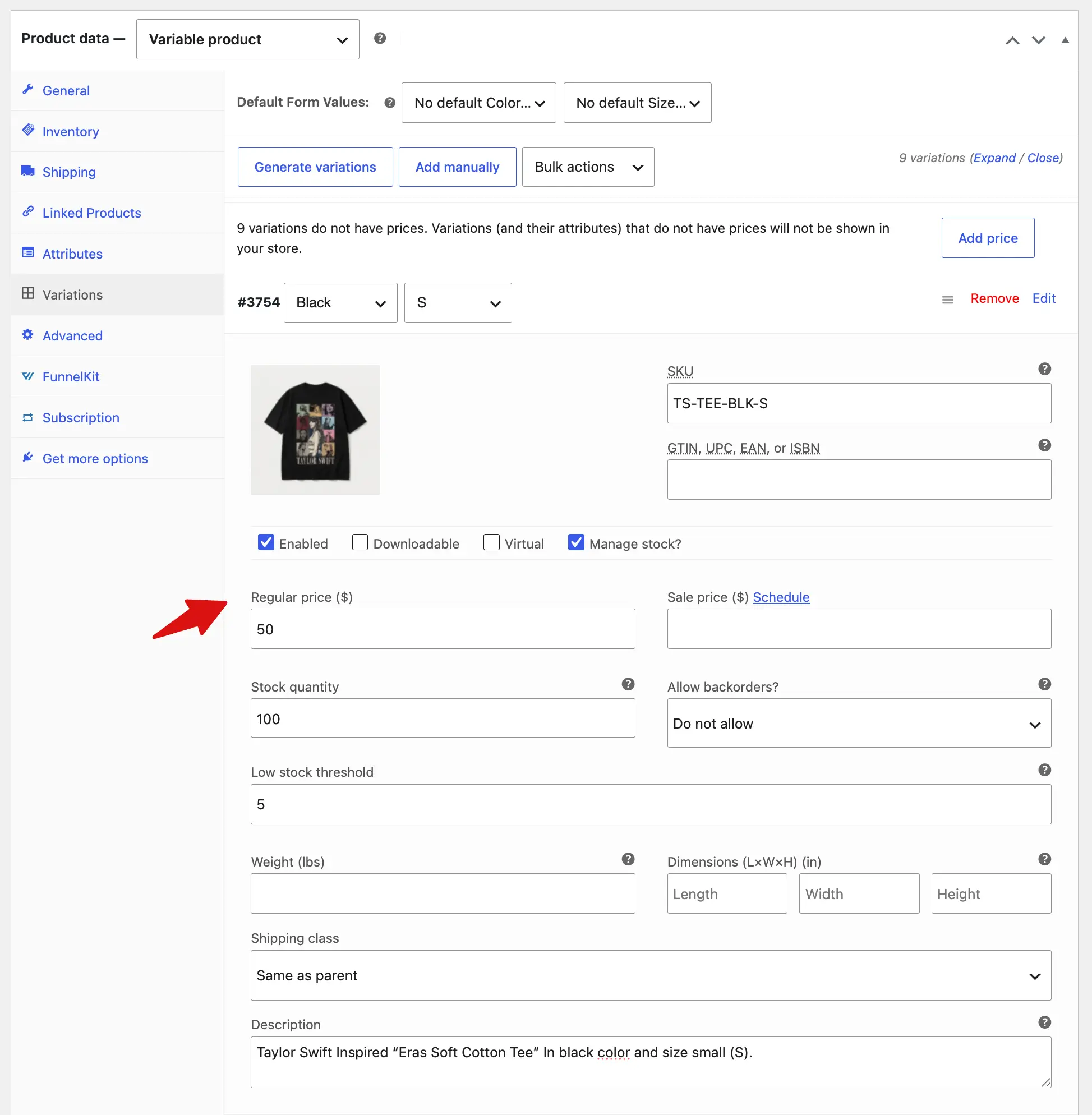
Repeat the same process for all the variations.
You can set different prices for different variations.
Step 5: Publish the WooCommerce variable product
Now all your variations are ready. But before you publish the product, it’s recommended to set a default variation.
In the Default Form Values section, set your most popular option to pre-select it on page load. This removes extra clicks and makes adding to the cart faster. If left blank, it shows “Choose an option,” which adds friction for shoppers.
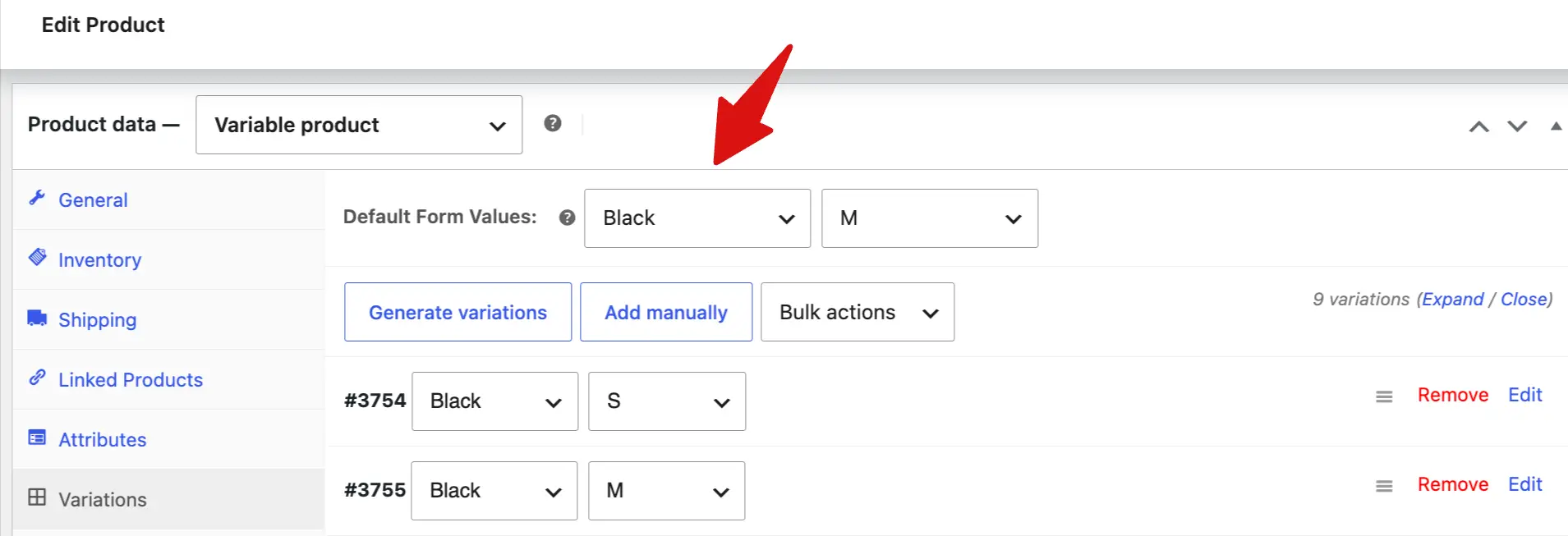
After that, publish the product.
Now, when you view the product, the default option is already selected. Just below the product title, you’ll see all available variation options.
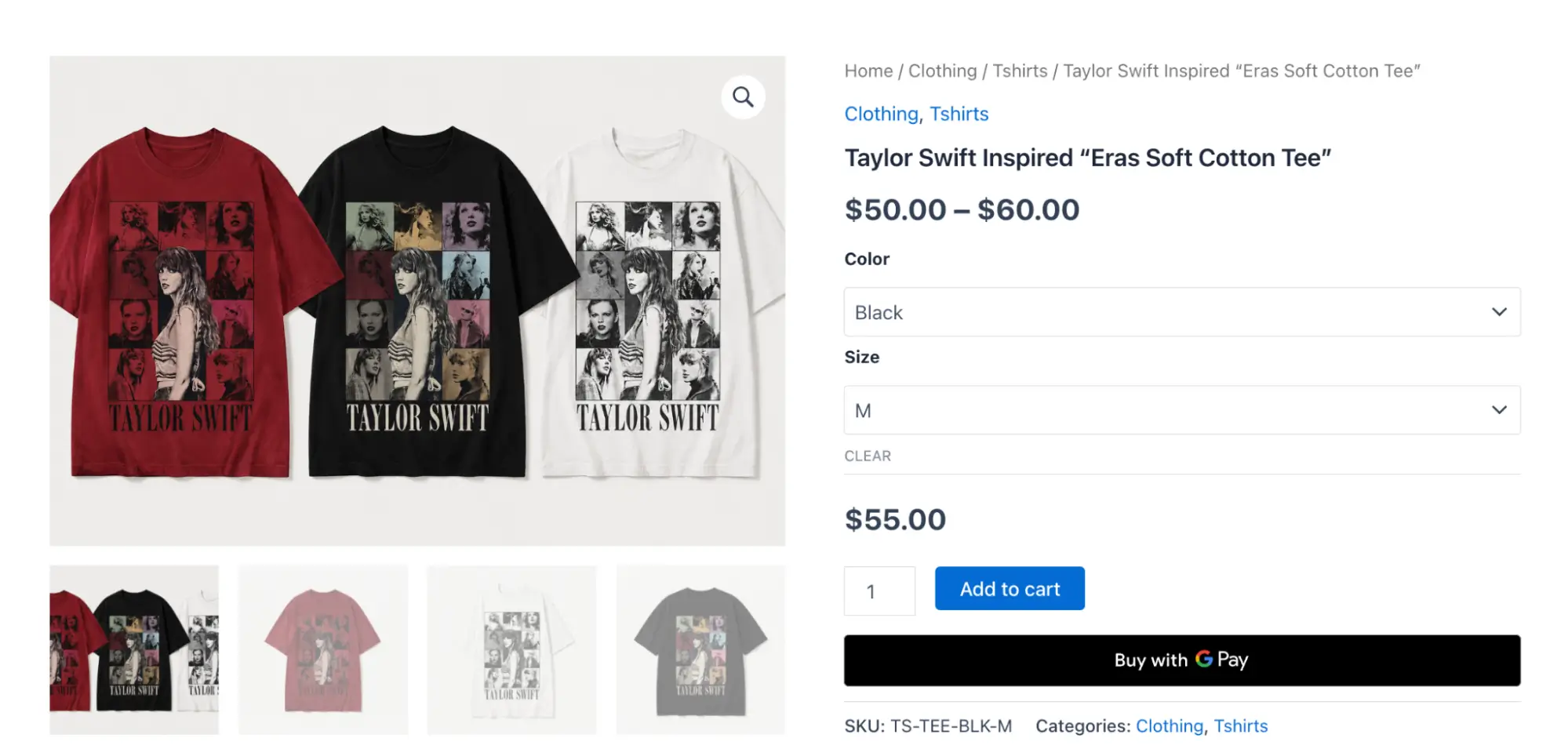
Customers can change attributes such as color and size to select their preferred variation. If each variation has its own image, it will update automatically along with the price.
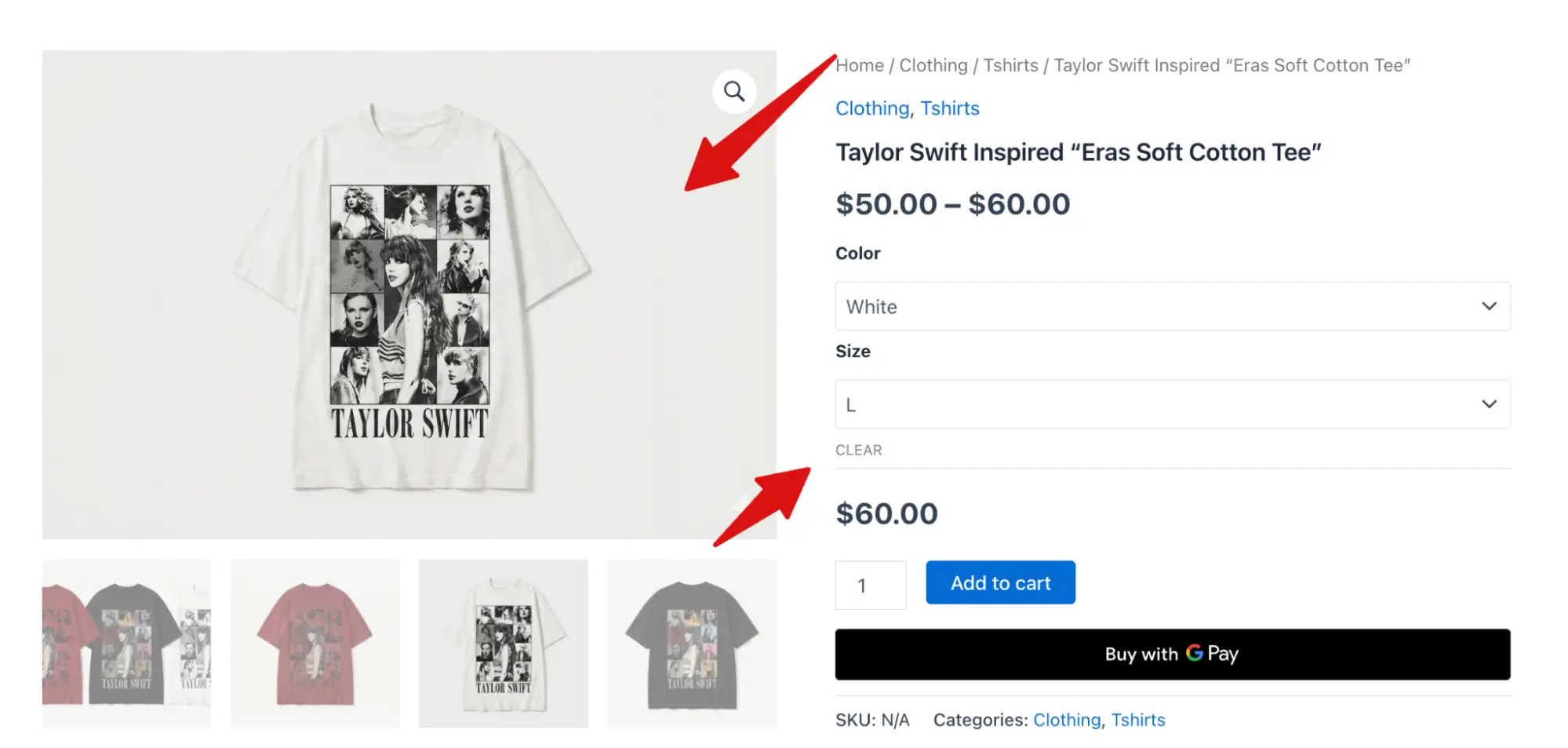
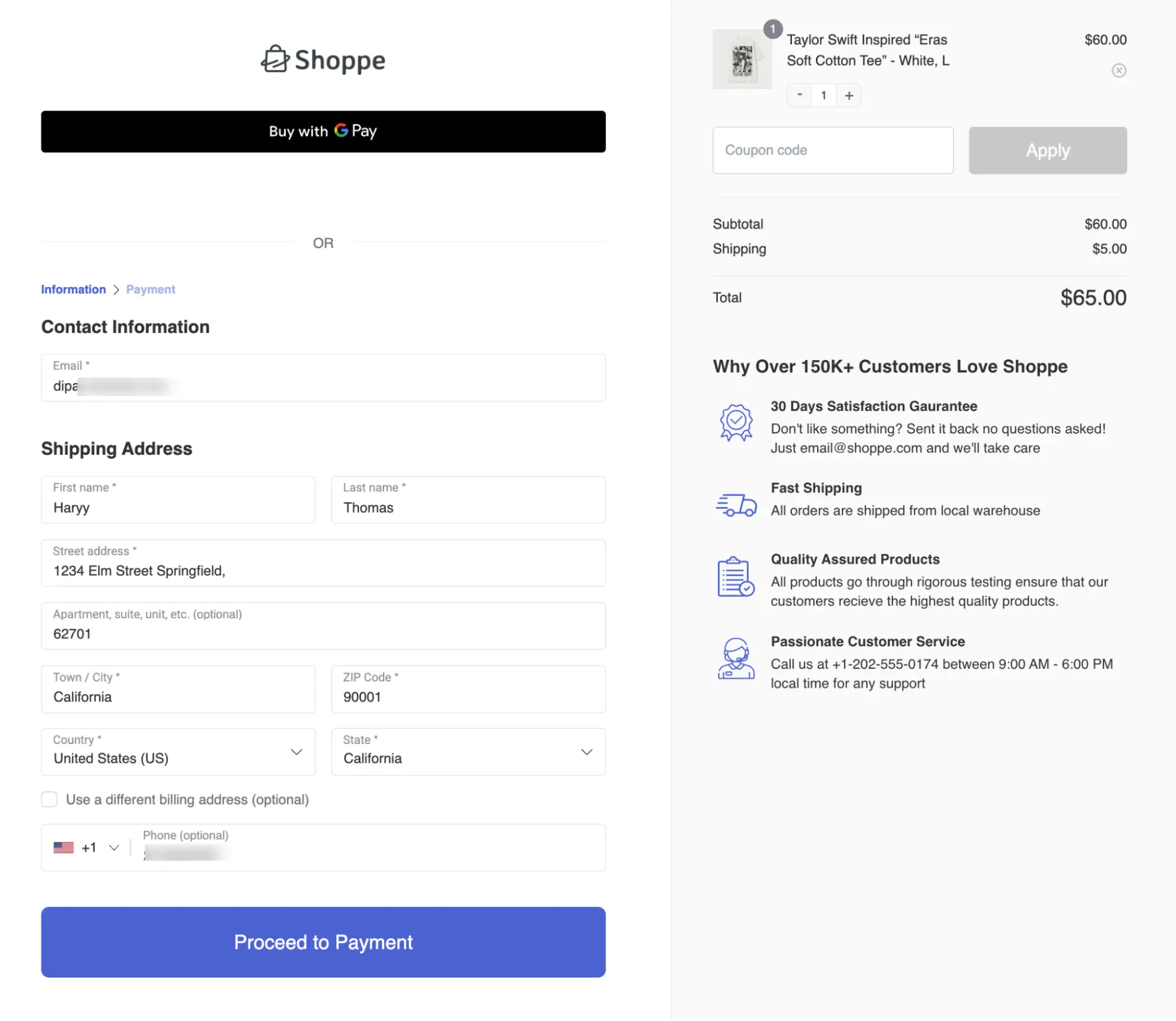
After selecting, they can simply add the chosen variation to the cart and proceed to checkout.
How Stock Management Works for Variable Products In WooCommerce
Variable products in WooCommerce basically give you two ways to handle inventory, and the difference comes down to how you want to think about stock.
Most stores end up using variation-level stock, but it helps to understand both.
If you manage stock at the parent product level, you’re treating all variations as one shared pool. So if you have 100 T-shirts, it doesn’t matter if someone buys Small or Large; it all comes from that same total.
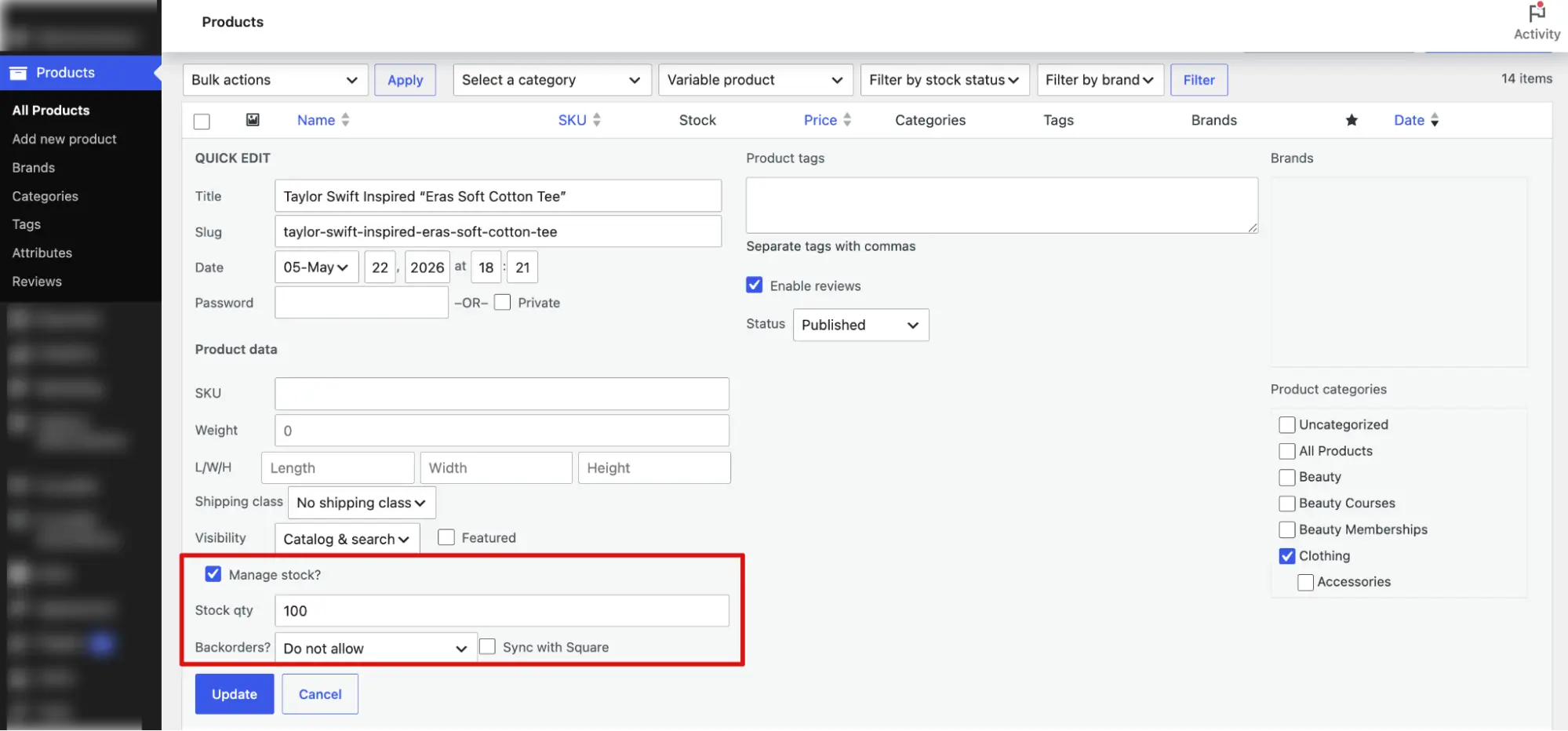
It’s simple, but not always realistic for products with different sizes or colors.
More commonly, you’ll manage stock at the variation level.
This is where each combination has its own quantity. So Small/Red might have 10 units, Medium/Blue might have 5, and so on. You go into each variation, enable stock management, and set the number individually.
This gives you much more control and is usually how real stores operate.
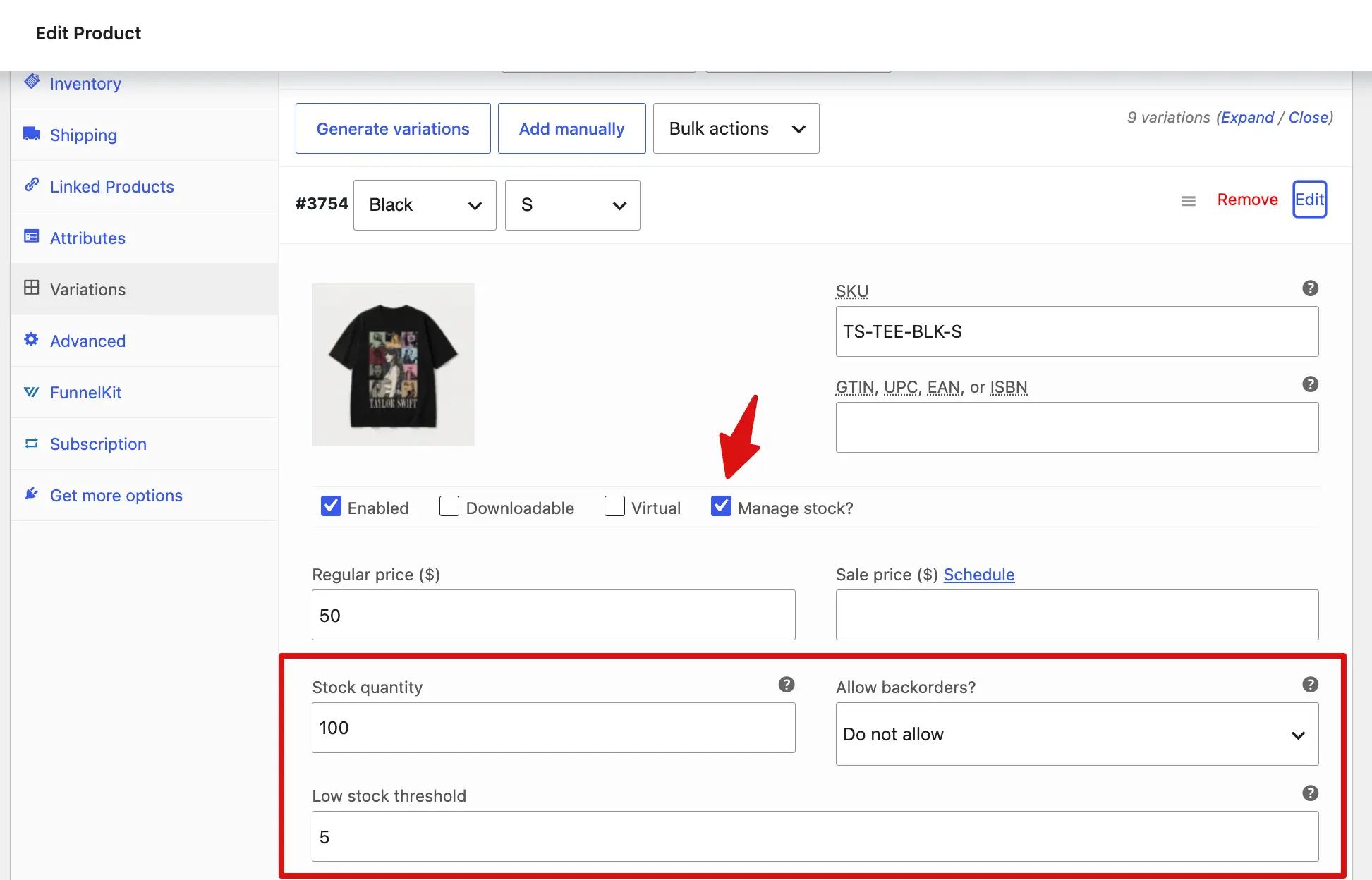
One small thing that often confuses people, even when a variation goes out of stock, WooCommerce doesn’t automatically hide it. It just greys out the “Add to cart” button and shows that the variation is out of stock.
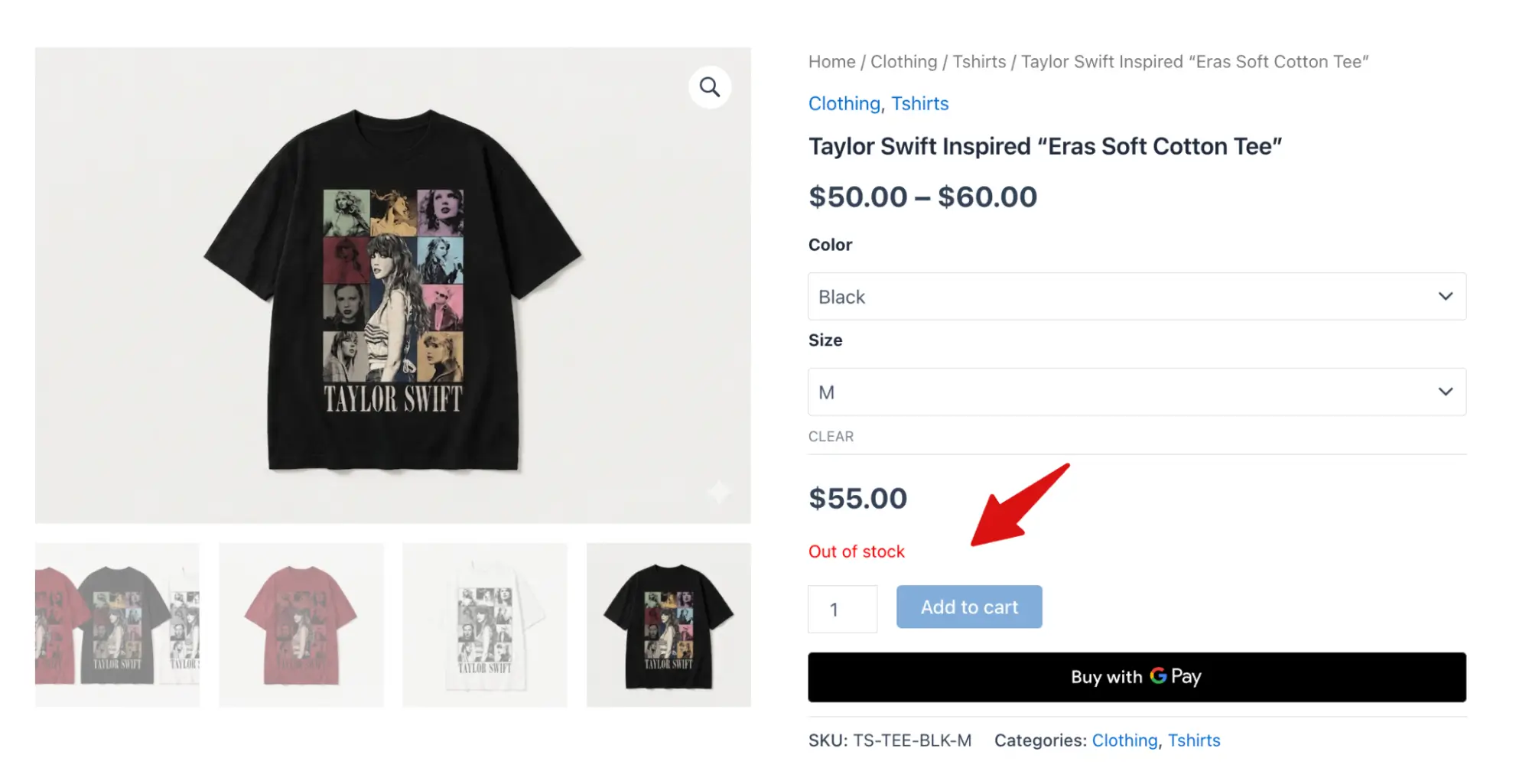
If you want those out-of-stock options completely hidden, that’s not controlled by the variation settings alone.
The general “hide out of stock items” option in WooCommerce settings only applies to full products, not individual variations. For that behavior, you’d need a plugin or a custom tweak.
Additional WooCommerce Variable Products Plugins
Once variable products start getting more complex, it’s not just about creating variations. It’s also about managing them properly, improving how they look, and making the buying experience smoother.
These plugins help cover different parts of that workflow.
- Variation Swatches for WooCommerce: Replaces dropdown variations with color, image, and label swatches to improve how customers select product variations.
- WPC Variation Swatches for WooCommerce: A lightweight swatches option that helps display variation attributes in a more visual and user-friendly way.
- FunnelKit Cart for WooCommerce: Improves the cart experience by allowing customers to change variations inside the cart drawer and supports upsell offers during checkout flow.
- Sublium Subscriptions for WooCommerce: Lets you sell variable products as subscriptions or installment-based payments, with flexible billing per variation.
- WooCommerce Product Table Lite: Displays products and variations in a searchable table layout so customers can compare options instead of using dropdowns.
Real-Life Examples of Variable Products
You see variable products everywhere in real life, even if you don’t think of them that way. It’s basically just one product that comes in different options.
- Smartphones
The iPhone 15 comes in 128GB, 256GB, and 512GB. Same phone. Different storage. Different price. Three variations under one product.
- Laptops
A MacBook listing shows RAM options and storage tiers side by side. 8GB or 16GB. 512GB or 1TB. Buyers configure what they need. One listing handles all of it.
- Clothing and shoes
Size and color selectors on a product page are variable products in their most basic form. A t-shirt in three sizes and four colors is twelve variations. One page.
- Food
A burger in small, medium, or large with optional spice levels. The kitchen makes the same item. The variation is in how it's served.
- Furniture
A sofa available in three fabric options and two frame sizes. Customers pick the combination that fits. The store manages stock at the variation level, not across six separate listings.
Frequently Asked Questions About WooCommerce Variable Products
Got more questions? Here are some of the frequently asked ones:
Can I add unlimited variations in WooCommerce?
Yes, there’s no strict limit. However, WooCommerce only loads 30 variations per Ajax request by default, which can affect performance or display on large products. You can increase this via code or use a performance-focused plugin if you manage high-variation products.
Why are my WooCommerce variations not showing?
Usually, this happens when one or more variations are missing a price. WooCommerce often hides unavailable variations when required data like pricing is missing. Also, check that the “Used for variations” box is enabled for attributes.
Should I use variable products or separate simple products linked with a plugin?
Most stores should use variable products. They’re easier to manage and keep your catalog clean. Separating simple products only makes sense if each variation needs its own SEO page or unique content. Otherwise, it adds unnecessary complexity.
Can I use a different image for each variation?
Yes. Each variation has its own image field inside the variation settings. When selected, WooCommerce automatically switches the product image to match that variation, useful for colors or visual differences.
Can I sell variable products as subscriptions in WooCommerce?
Yes, you can. With a subscription plugin like Sublium Subscriptions, you can easily sell variable products as subscriptions with multiple selling plans.
Now You Can Set Up WooCommerce Variable Products Confidently!
Variable products have more steps than simple products, but the process is consistent once you have been through it.
Define your attributes, generate variations, set a price on every single variation, and configure a default. The step that catches most store owners is the missing price, so double-check that before you publish.
If the default dropdown selectors feel limiting once your store is live, a swatches plugin is a low-effort upgrade that does not require rebuilding any of your products.
A well-built variable product catalog means nothing if checkout loses the sale.
Default WooCommerce checkout loses sales quietly. No obvious break, no error, just buyers who don't complete the purchase.
FunnelKit Funnel Builder fixes that. Streamlined layout, built-in order bumps and upsells, used by over 40,000 WooCommerce stores.
One change, measurable difference.
Get FunnelKit Funnel Builder today.
Editorial Team
October 11, 2026You can customize the WooCommerce cart page with the Cart block, a page builder like Elementor, or CSS and PHP snippets. Which method works for you depends on the cart...
Editorial Team
October 9, 2026A WooCommerce discount lowers what a shopper pays, either through a reduced product price or a code entered at checkout. Out of the box, WooCommerce gives you two ways to...
Editorial Team
October 9, 2026A downsell gives customers a cheaper option after they turn down your main offer. If you show it too soon, you might convince them to skip the original offer and...