


The WooCommerce My Account page is the central hub for your customers. It’s where they go to track orders, change shipping details, or reset a forgotten password.
Beyond just account management, it also plays an important role in the post-purchase experience and customer satisfaction. A smooth, well-structured account area can reduce support requests and make your store feel more professional.
WooCommerce creates the My Account page automatically during setup. Most store owners never look at it again until a customer emails saying the page is blank or they notice the default layout looks nothing like the rest of the site.
In this blog, we will share how each function of the WooCommerce my account page works, how to set it up, how to troubleshoot common errors, and which plugins are effective for changing the look and feel of the dashboard.
Table of Contents
- 1 What the WooCommerce My Account Page Actually Is & What It Includes
- 2 How to Set Up Your My Account Page
- 3 WooCommerce Account Endpoints Explained
- 4 Plugins You Can Use To Customize and Extend My Account In WooCommerce
- 5 Common My Account Page Problems and Fixes
- 6 Frequently Asked Questions About WooCommerce My Account Page
- 7 How do I redirect customers after logging in to WooCommerce?
- 8 How do I add a custom tab to the My Account page?
- 9 Can I customize the My Account page with code?
- 10 How do I remove tabs from the My Account menu?
- 11 Turn Your My Account Page Into a Better Customer Experience
What the WooCommerce My Account Page Actually Is & What It Includes
The My Account page is not where sales happen; it is where customers go after the sale, when they need to check something, fix something, or find something they cannot remember.
What customers see when they log in
When customers log in, they are redirected to the my account page. After logging in, it becomes a full dashboard with a sidebar menu on the left.
On my account dashboard tab, you can find links to
- View your recent orders
- Manage your shipping and billing addresses
- and edit your password and account details.
- Also, an option to log out (beside your user name)
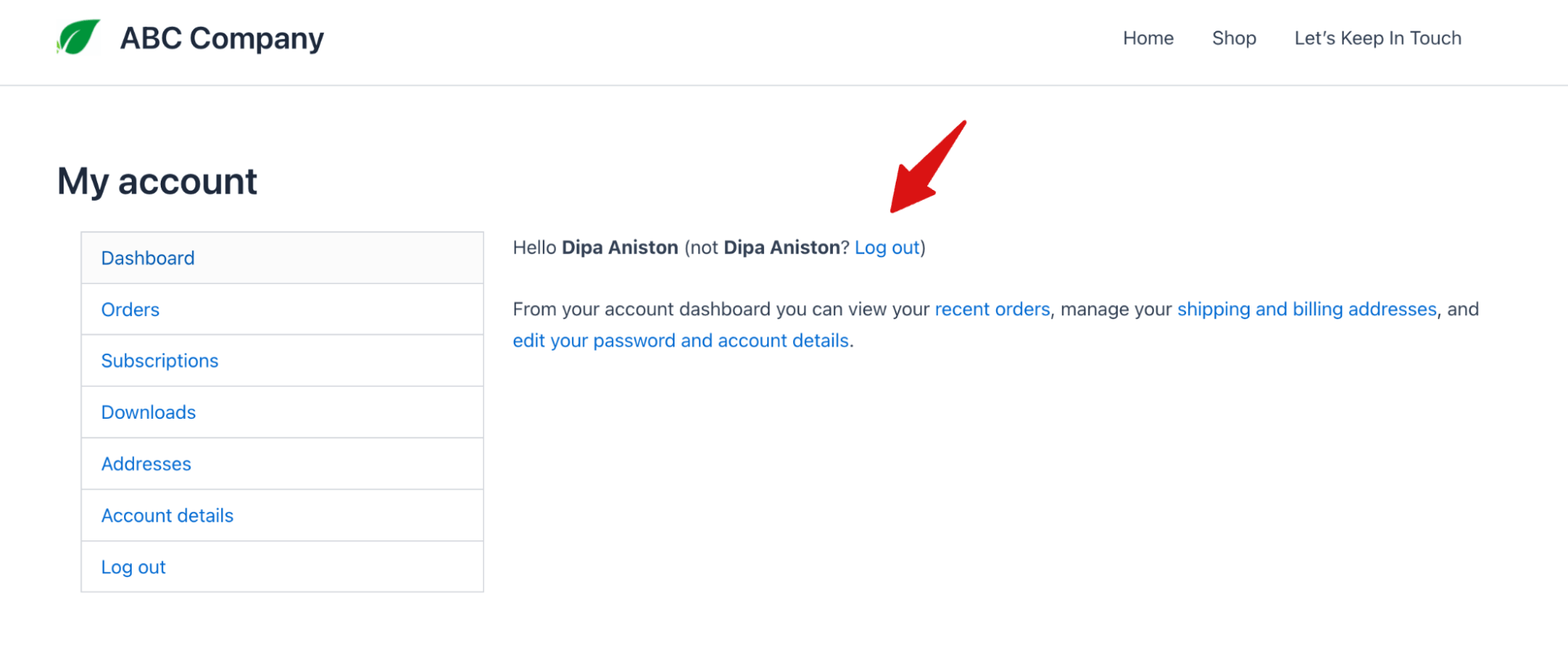
And on the sidebar, that menu is the main way customers navigate between their orders, downloads, saved addresses, payment details, and account settings.
Here is what each menu option includes:
Orders
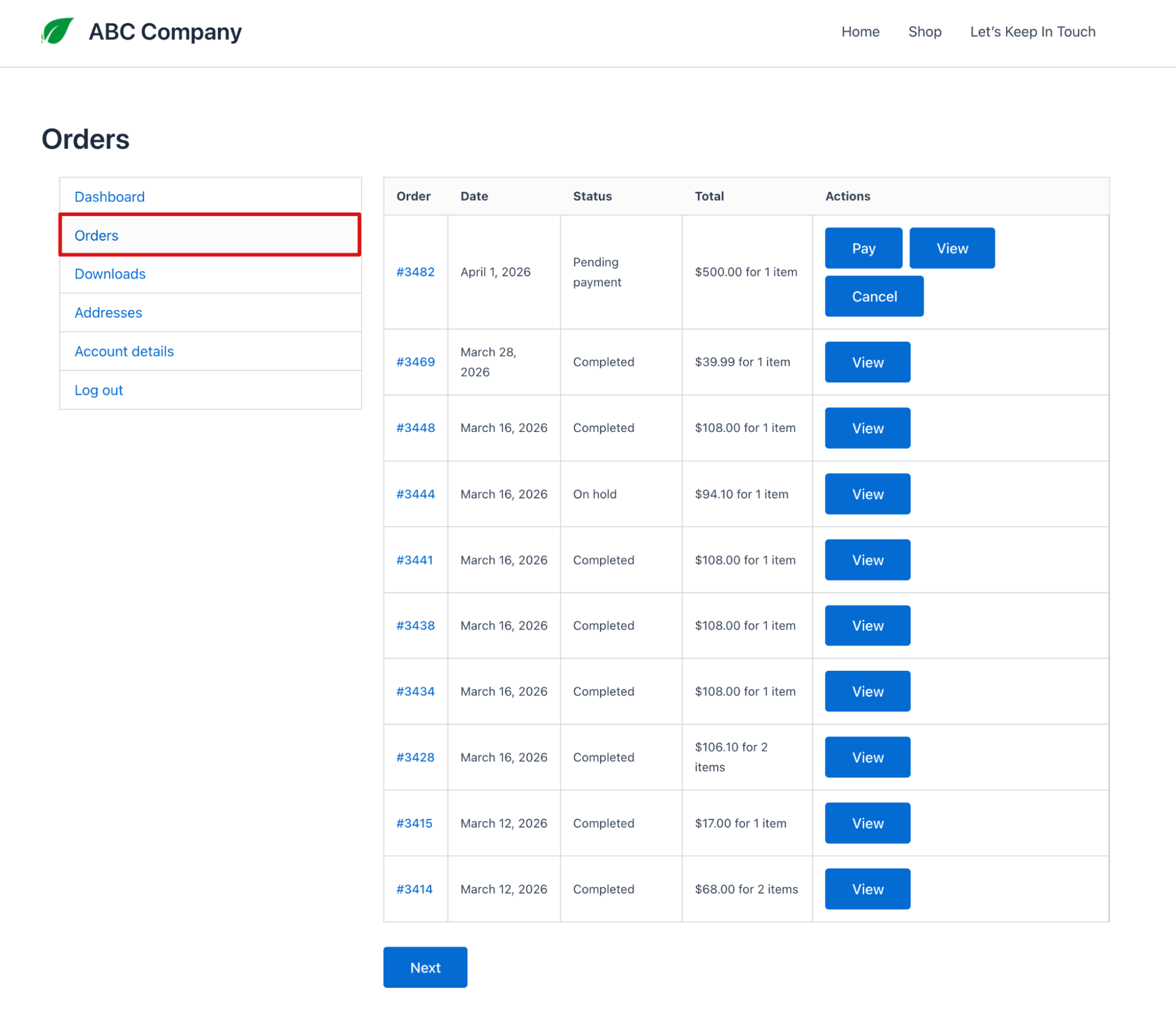
On the "Orders" tab, customers can see their order history. The orders list shows order number, date, status, total, and available actions for each one at a glance.
Two things in here are worth knowing about specifically.
Orders stuck in Failed or Pending payment get two buttons next to them: Pay and Cancel. Cancel is immediate, no confirmation screen, no second chance. The order is gone.
Pay is the more useful one. It opens a trimmed-down checkout that only asks for payment details, so the customer does not re-enter their address and reselect shipping just to finish paying for something they already tried to buy.
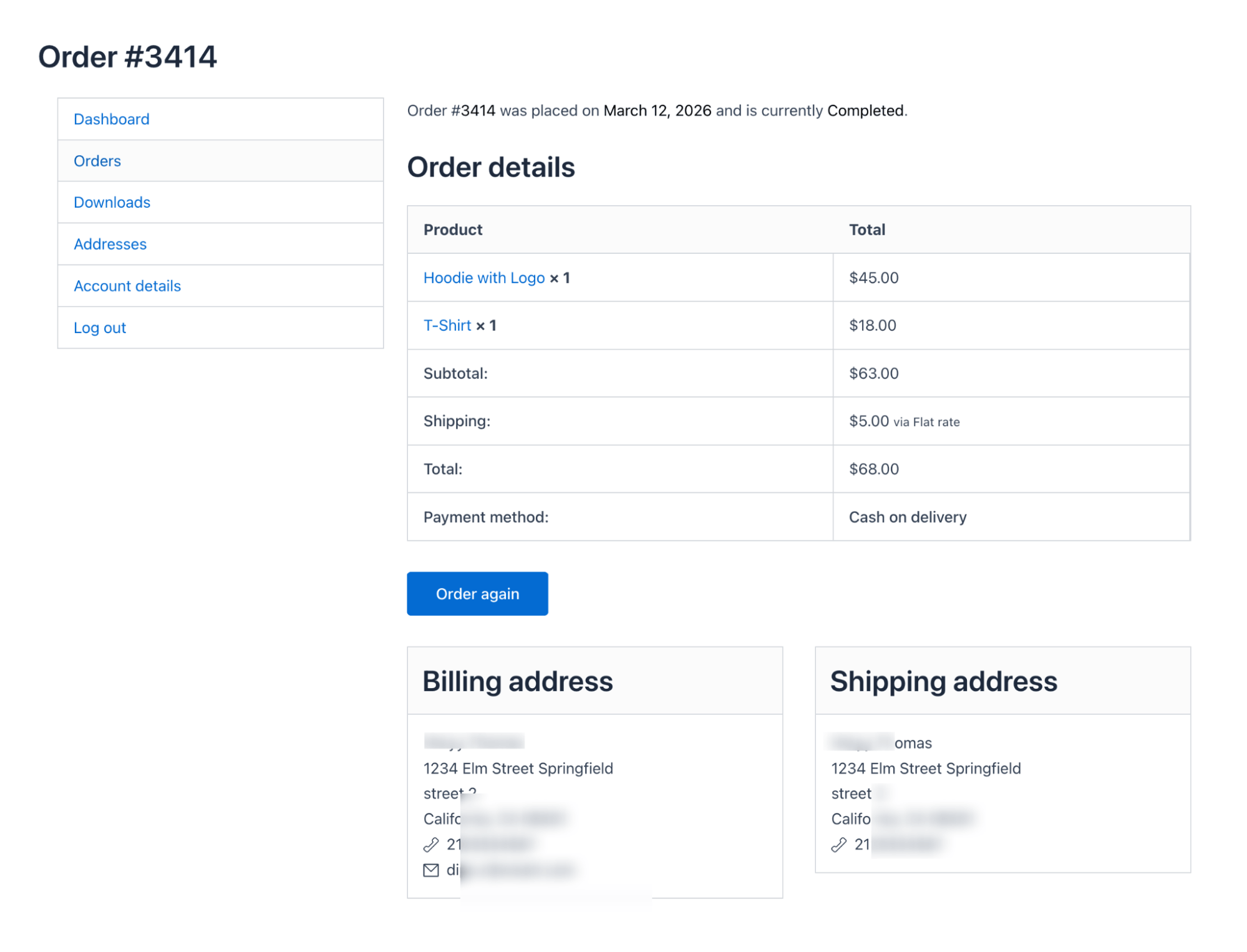
Completed orders show an Order again button on the detail page. It adds the same items to the cart and sends the customer to the cart page. They can adjust quantities or go straight to checkout from there.
Downloads
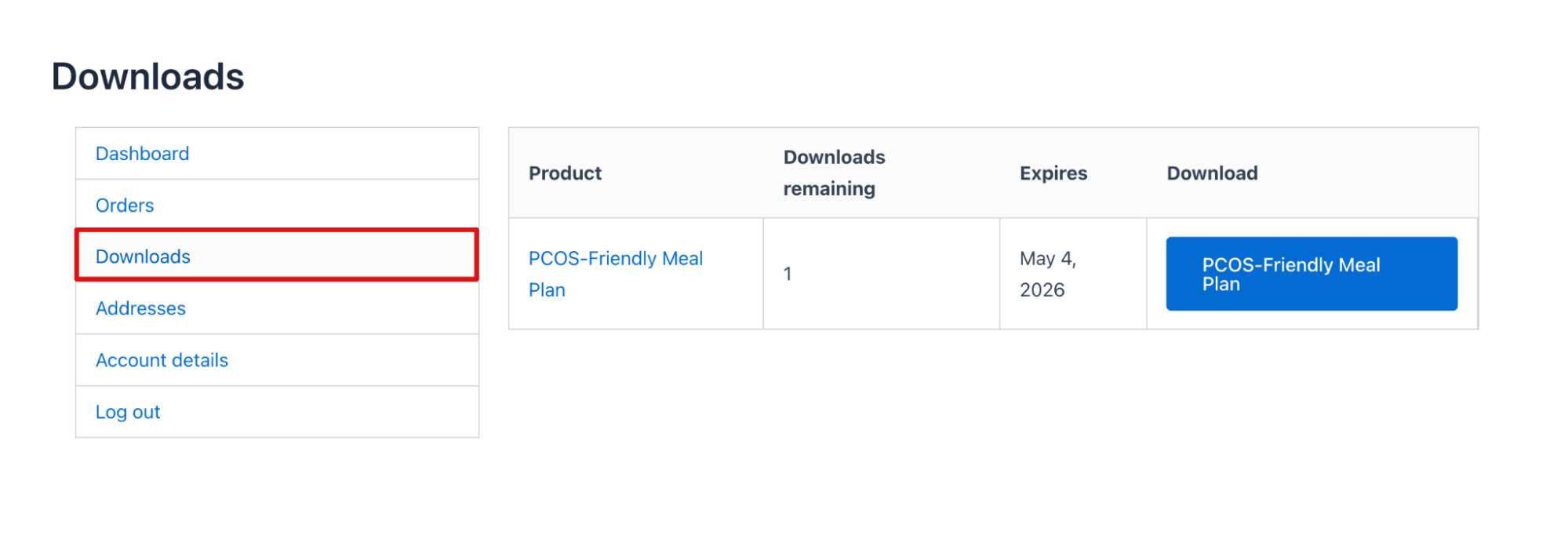
If a customer has bought downloadable products, the "Downloads" tab lists what is available to them. The list includes the product name, remaining downloads, expiry date, and a download button. Nothing complicated. It just needs to be there and work.
Addresses
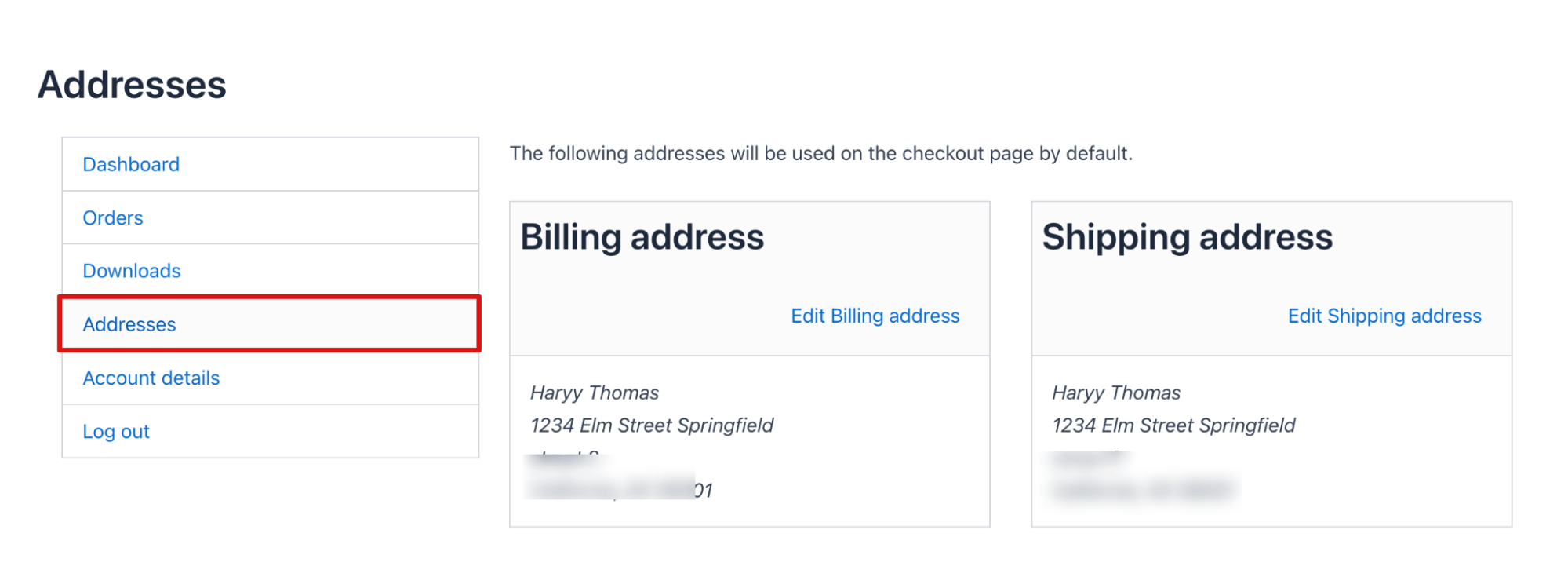
Two address books: billing and shipping. Customers can edit either one by clicking the edit icon, which opens the standard address fields. Changes here only affect how orders are billed and shipped. They do not change the name or email address on the account itself.
Payment methods
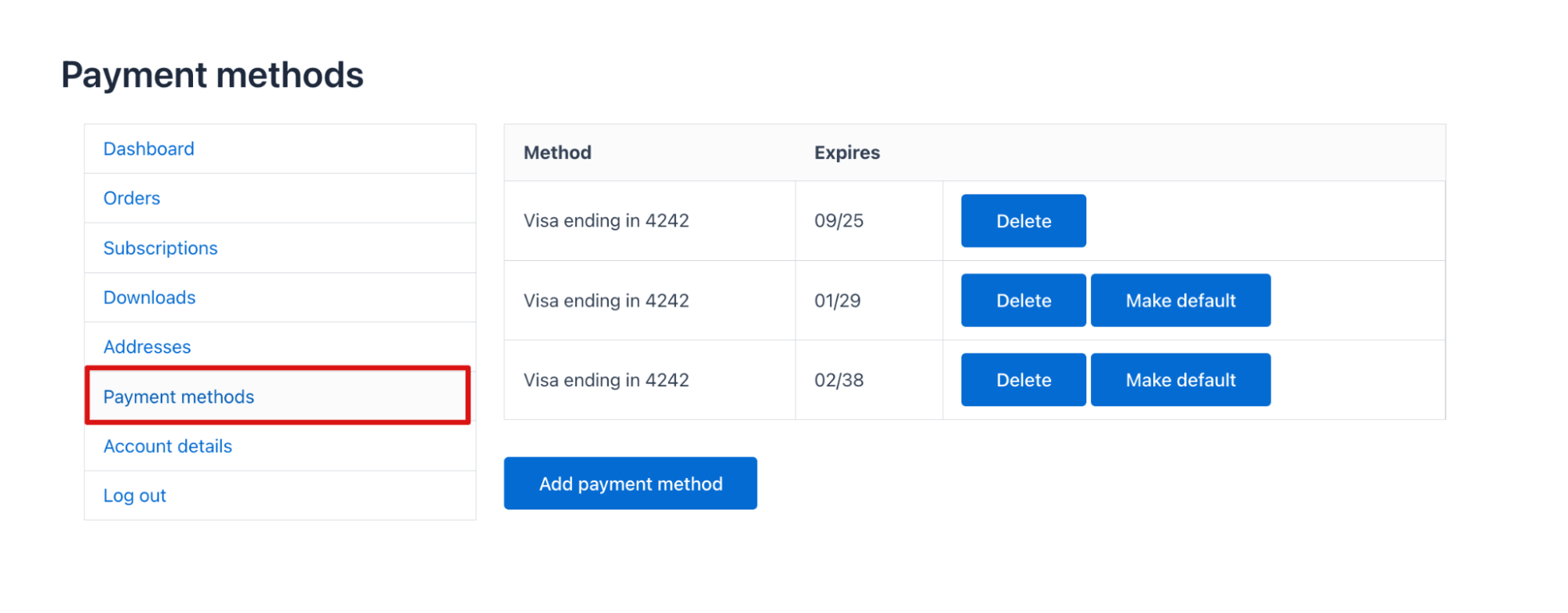
Saved cards show up here, provided the store is using a gateway that supports storing payment methods. If no compatible gateway is active, this tab either does not appear or shows no useful information.
Customers can make any payment method the default or delete any of the saved payment methods at any point.
Account details
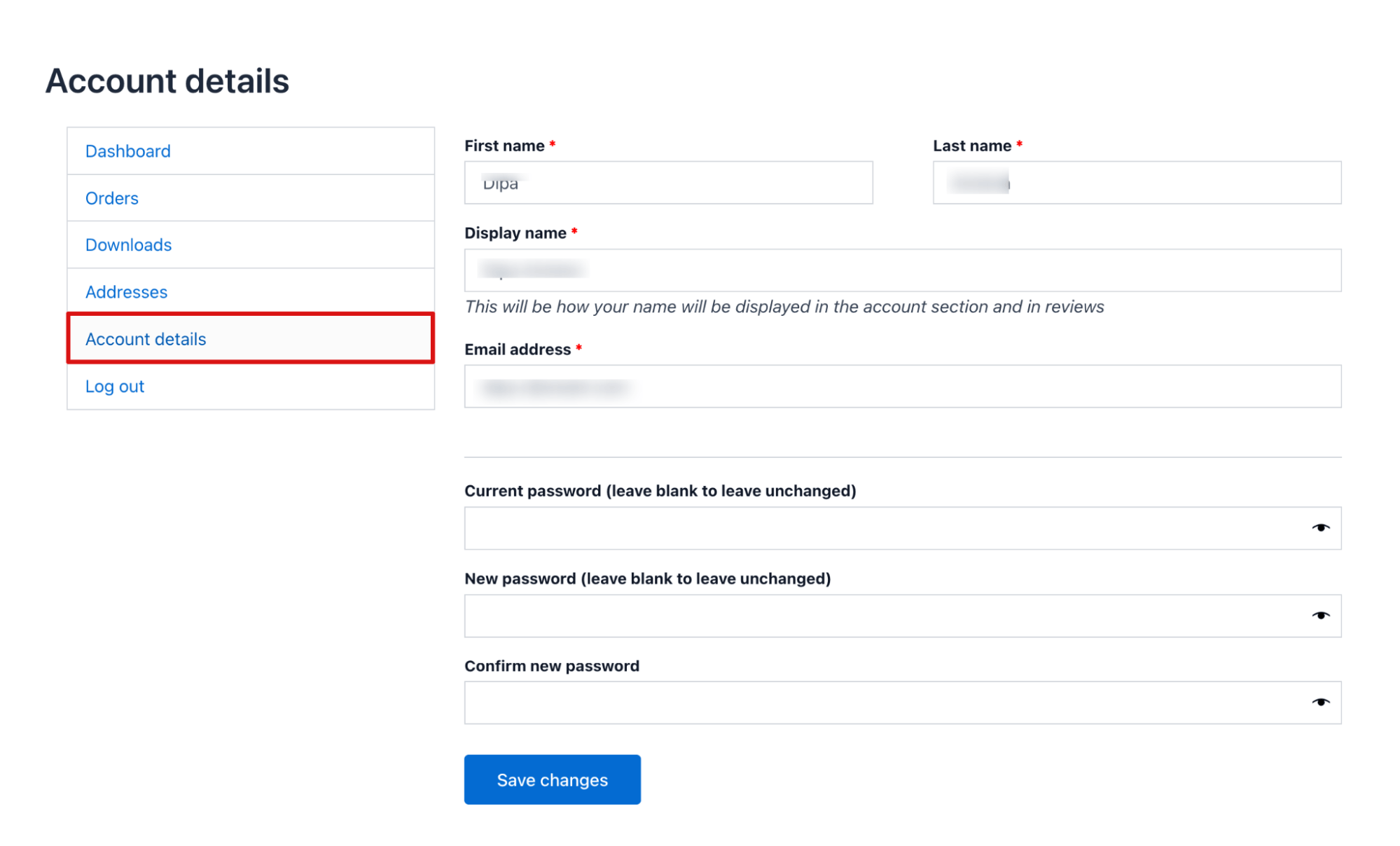
Name, display name, and password. The display name is what shows up in the account area and on any product reviews the customer leaves. Customers can update all three here independently of their billing information.
Logout
Bottom of the sidebar. Ends the session.
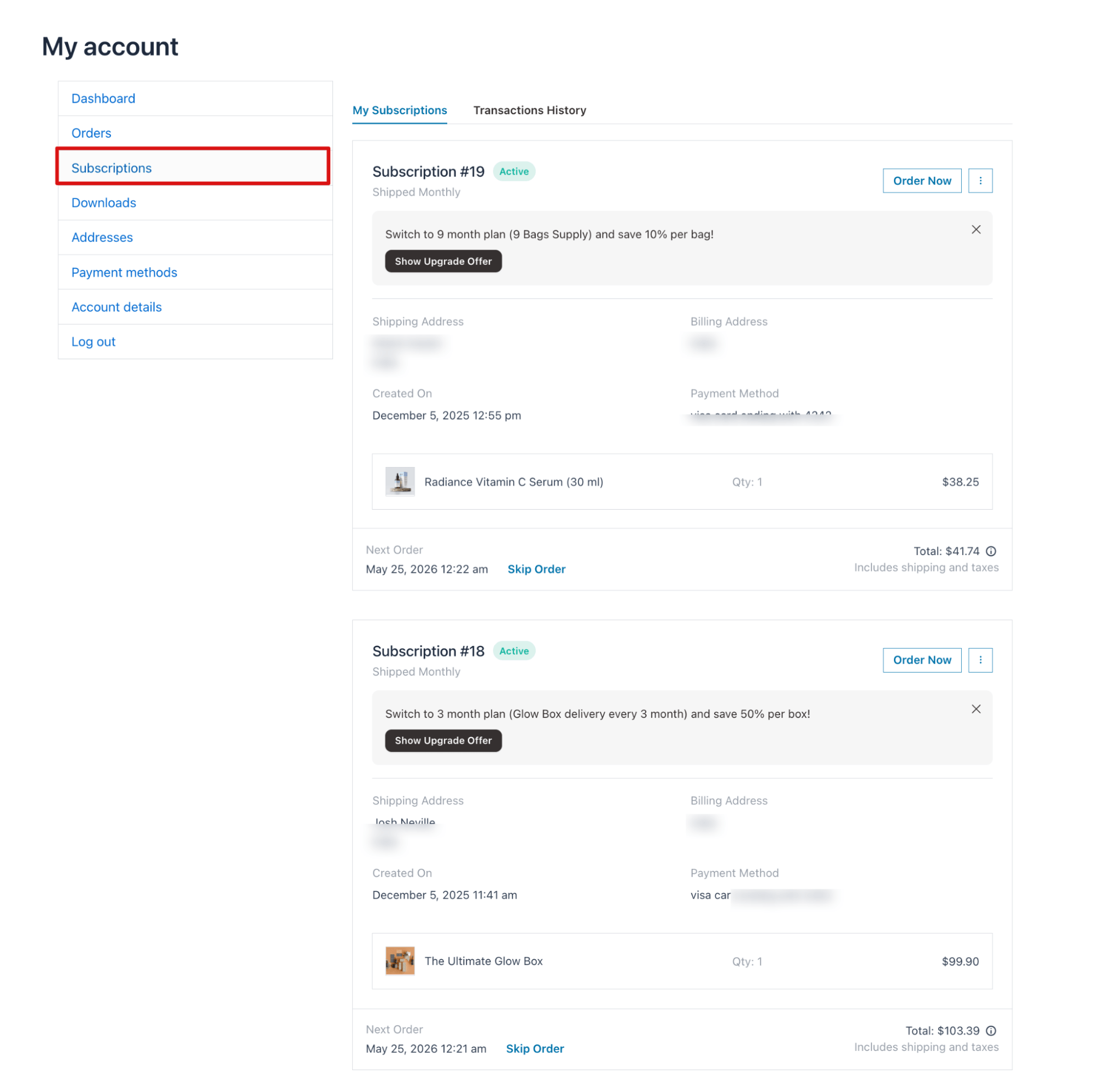
Subscriptions
If you sell subscriptions, customers will see a Subscriptions tab in their account sidebar once they have an active plan. This tab only shows up if a subscription plugin is installed.
From here, they can see everything about their current subscriptions: status, billing frequency, next order date, the payment method being charged, and the total. They can place an order early if they need something sooner, skip an upcoming delivery, upgrade their plan, or pull up their full transaction history. Most of this they can do without contacting support, which is the point.
How to Set Up Your My Account Page
WooCommerce auto-creates the My Account page during installation, so there is usually nothing to configure.
But if the page is missing, or you are setting up a store without running the wizard, the fix is two steps.
Step 1: Create the Page
Go to Pages > Add New, name it My Account, and add the shortcode [woocommerce_my_account] as the only content.
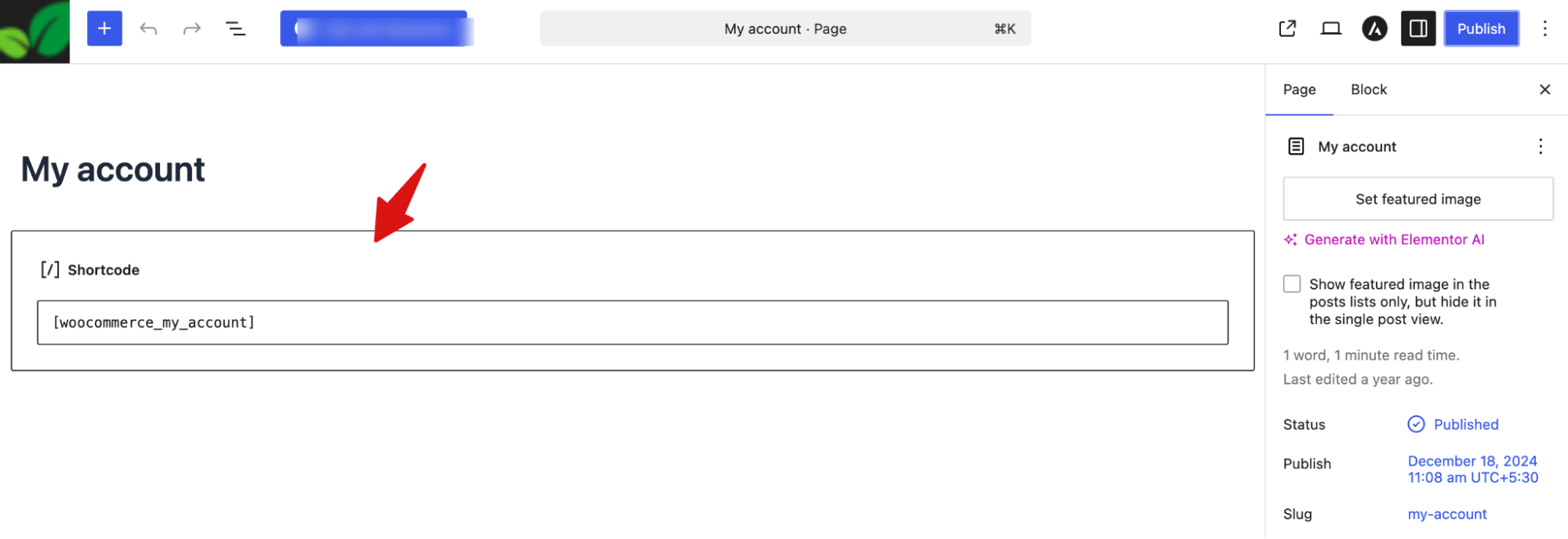
This shortcode loads the full account dashboard, login, and registration forms.
Step 2: Assign the Page in WooCommerce
Navigate to WooCommerce > Settings > Advanced, then select your newly created page from the My account page dropdown. Save changes so WooCommerce knows where to send customers.
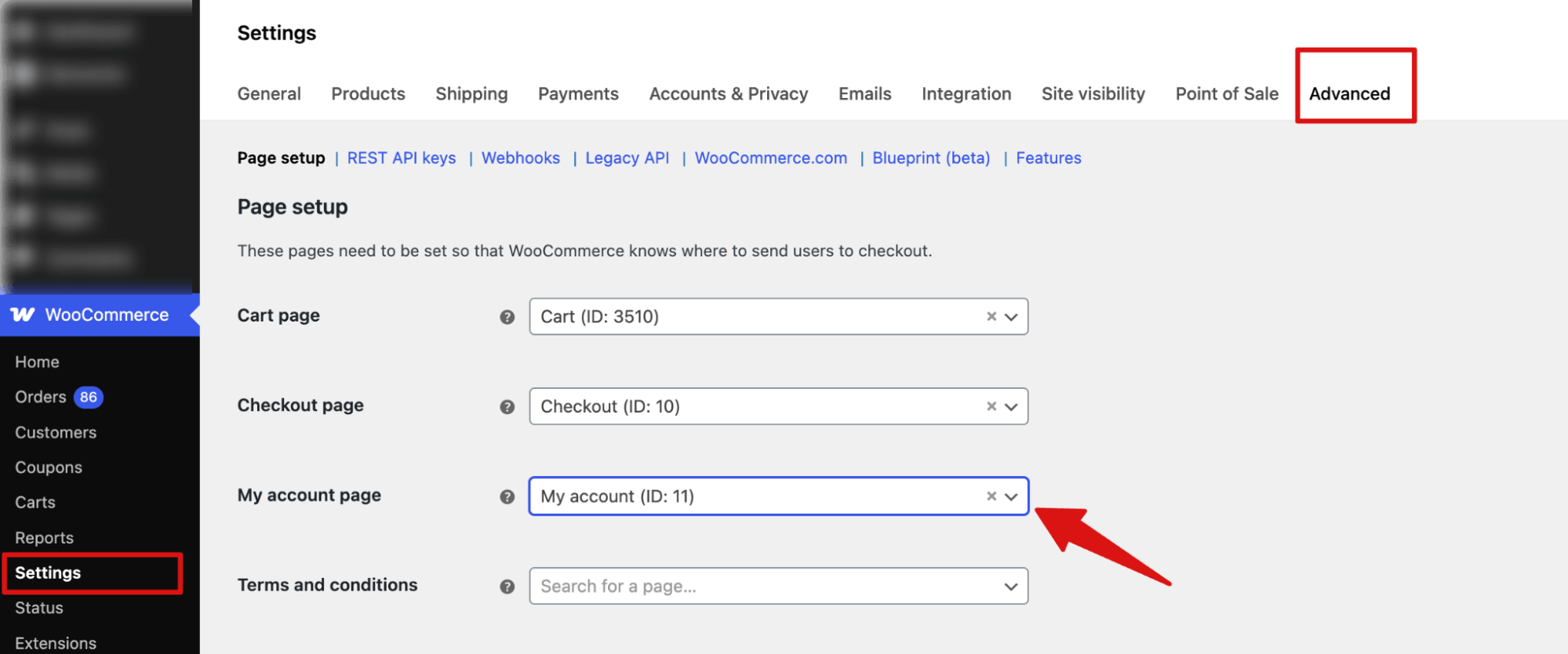
This is how you can set up my account page in WooCommerce.
WooCommerce Account Endpoints Explained
Endpoints are URL extensions WooCommerce uses to display different sections of the My Account page to show different sections. For example, they turn /my-account/ into pages like orders or account settings.
On the WooCommerce > Settings > Advanced, if you scroll down, you can find endpoints for my account page:
Each endpoint controls a specific area:
- Orders:
/orders/ - View order:
/view-order/ - Downloads:
/downloads/ - Edit account:
/edit-account/ - Addresses:
/edit-address/ - Payment methods:
/payment-methods/ - Lost password:
/lost-password/ - Logout:
/customer-logout/
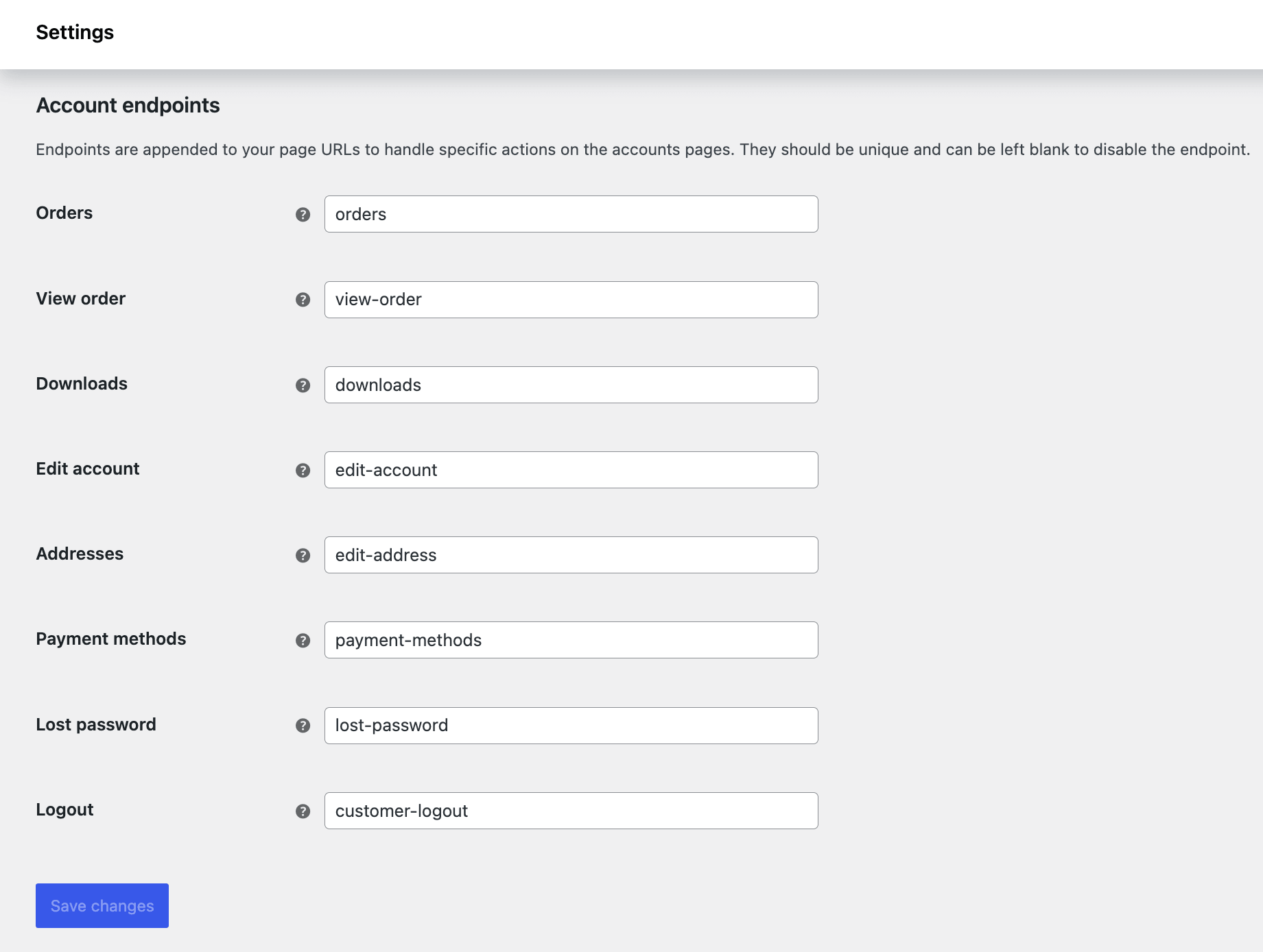
These endpoints must be unique and match your site structure. If you leave an endpoint blank, that section will be disabled and removed from the My Account menu.
Plugins You Can Use To Customize and Extend My Account In WooCommerce
WooCommerce’s default My Account page is functional, but quite basic. These plugins help you improve its design, add new features, and create a more user-friendly dashboard experience.
- Elementor: A popular visual builder that lets you redesign the My Account page layout, style, and sections without code. Great for full UI customization.
- Divi: A complete theme and builder similar to Elementor. You can visually style the My Account page and keep it consistent with your site design.
- Customize My Account Page for WooCommerce: Lets you add custom tabs, reorder menu items, rename endpoints, and control dashboard content easily from the backend.
- Booster for WooCommerce: Includes modules to extend the My Account page with extra menu items, custom pages, and additional user-facing features.
Common My Account Page Problems and Fixes
Issue #1: 404 error on /my-account/
The page exists but returns a 404. Usually happens after a migration, a domain change, or a fresh WooCommerce install, where the permalinks never got flushed.
Before anything else, go to Settings > Permalinks and hit Save Changes. Do not change anything, just save. This forces WordPress to rebuild its routing rules and clears most 404s on WooCommerce endpoints. Takes ten seconds and works more often than it should.
If that does not fix it, head to WooCommerce > Settings > Advanced and check whether a page is assigned to My Account. Migrations and theme switches occasionally wipe this assignment without any warning.
Issue #2 Blank or white screen
The page loads but shows nothing. No error, no content, just white. Almost always a conflict between your theme or a plugin and WooCommerce.
Swap your theme for a default WordPress one temporarily. Twenty Twenty-Four works fine for this. If the page loads, your theme is fighting with something in WooCommerce. If it is still blank, it is a plugin conflict, and you have to find it the slow way: deactivate one plugin at a time, refresh, repeat. Start with whatever changed most recently.
Issue #3: Login redirect goes to the wrong place
Start with the basics. Clear all caching, including plugin, browser, and CDN cache, since cached pages often cause blank or outdated content.
If the issue remains, it is likely a conflict. Temporarily disable plugins, especially caching, membership, or redirect plugins, and test again. You can also switch to a default theme to rule out theme issues.
If it works after that, reactivate things one by one to find what is causing the problem.
Frequently Asked Questions About WooCommerce My Account Page
How do I redirect customers after logging in to WooCommerce?
WooCommerce sends customers to the My Account dashboard by default. If you need to route them somewhere else, like a custom landing page or the shop, you can use the woocommerce_login_redirect filter in your theme's functions.php, or a plugin like "Peter's Login Redirect" that handles it through a settings interface without custom code.
How do I add a custom tab to the My Account page?
Natively, this requires PHP. You register a new endpoint using add_rewrite_endpoint(), add the menu item using the woocommerce_account_menu_items filter, and add content using a woocommerce_account_{endpoint}_endpoint action. If you prefer to skip the code, the free "Customize My Account for WooCommerce" plugin handles all of this through a settings screen.
Can I customize the My Account page with code?
Yes, and WooCommerce is well set up for it. The main hooks are woocommerce_account_menu_items for modifying the menu, woocommerce_account_{endpoint}_endpoint for adding content to custom tabs, and template overrides by copying files from woocommerce/templates/myaccount/ into your child theme's woocommerce/myaccount/ folder.
The WooCommerce developer documentation covers all of these in detail.
How do I remove tabs from the My Account menu?
For built-in sections like Downloads or Payment Methods, blank out the endpoint slug under WooCommerce > Settings > Advanced, and that section disappears from the menu. For more granular control, like hiding items based on user role, you need the woocommerce_account_menu_items filter or a plugin that supports role-based visibility.
Turn Your My Account Page Into a Better Customer Experience
Setting up and customizing your WooCommerce My Account page is simpler than it looks.
WooCommerce already handles most of the basics. The page is created automatically, endpoints manage each section, and the built-in settings give you control over login and account behavior.
Where many stores struggle is the experience. A default account page can feel disconnected and create friction for returning customers.
That said, the My Account page is only one part of the journey. If you want to boost sales, your checkout matters even more. This is where most drop-offs happen, and a smoother checkout can directly improve conversions.
With FunnelKit Funnel Builder, you can optimize your checkout, add order bumps, and create high-converting funnels that guide customers toward purchase.
Get your My Account page right, then focus on checkout. That combination is what drives real growth.
Dipa Shaha
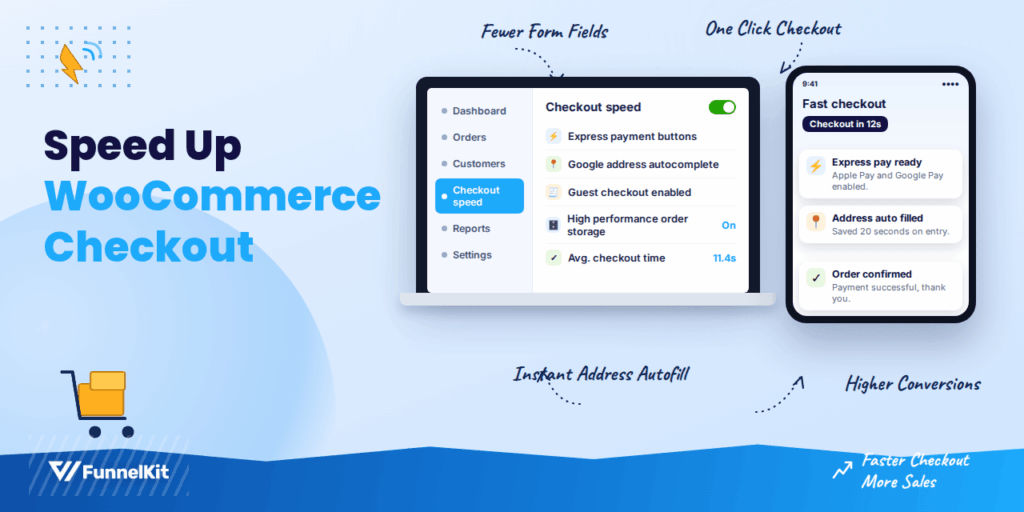
September 17, 2026Speeding up your WooCommerce checkout starts with knowing where the delay actually lives. Is it your server, your scripts, your payment gateway, or the sheer number of fields on the...
Dipa Shaha
September 7, 2026The right WooCommerce landing page plugin can help you build pages that convert better. According to Call Digital Fire’s 2026 analysis, optimized landing pages can achieve conversion rates of 6–11%,...
Editorial Team
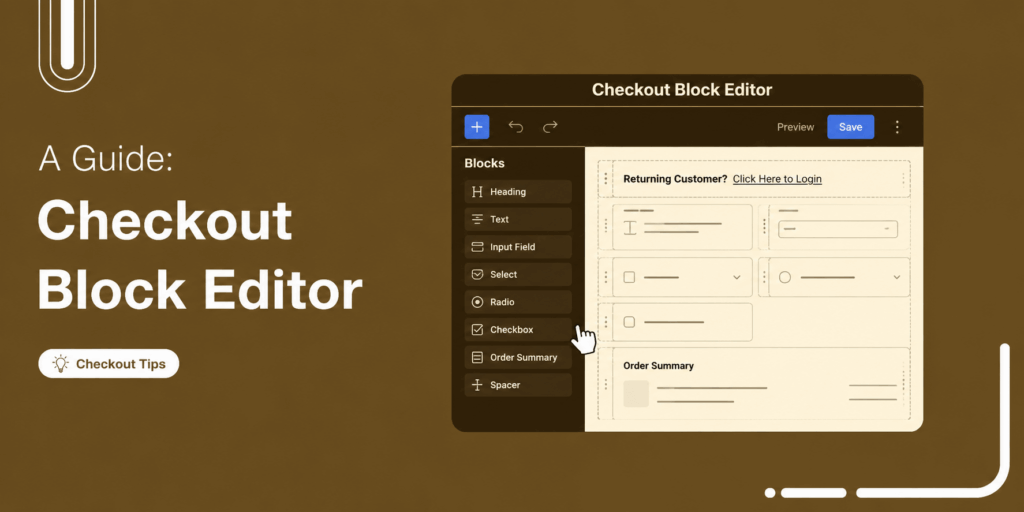
September 2, 2026The WooCommerce checkout block editor lets you build and customize your checkout page using Gutenberg, WordPress's native block editor. It comes built into WooCommerce by default. But it’s more of...






