Speeding up your WooCommerce checkout starts with knowing where the delay actually lives.
Is it your server, your scripts, your payment gateway, or the sheer number of fields on the form?
Most stores never find out. They install a caching plugin, call it done, and wonder why the checkout still crawls.
The problem is that WooCommerce checkout runs on a dynamic page. It calculates totals, taxes, and shipping in real time, talks to your payment gateway, and writes order data to the database, all while a customer is watching a spinner.
A generic speed plugin that works wonders on your blog often does nothing for this page, and can even break it.
In this guide, we will show you how to reduce checkout load time and improve checkout speed across the layers that actually matter: hosting, database, scripts, and the checkout flow itself. We will also cover which plugins genuinely help and which best practices keep your checkout fast after you have fixed it once.
Table of Contents
- 1 Why a Slow WooCommerce Checkout Costs You Sales
- 2 How Fast Should Your WooCommerce Checkout Load?
- 3 12 Ways to Speed Up WooCommerce Checkout
- 3.1 Tip #1: Move to hosting built for WooCommerce
- 3.2 Tip #2: Cut the checkout form down to essential fields
- 3.3 Tip #3:Add Google address autocomplete to speed up manual entry
- 3.4 Tip #4: Allow checkout without order creation for guests
- 3.5 Tip #5: Turn on High-Performance Order Storage (HPOS)
- 3.6 Tip #6: Audit and trim the scripts loading on checkout
- 3.7 Tip #7: Skip the cart page and switch to side cart for direct checkout
- 3.8 Tip #8: Use the right input types and autocomplete attributes
- 3.9 Tip #9: Add express payment and check your gateway's response time
- 3.10 Tip #10: Turn off order attribution and unused tracking scripts
- 3.11 Tip#11: Defer transactional emails so checkout does not wait on them
- 3.12 Tip #12: Test on mobile and keep monitoring after launch
- 4 Best Plugins to Speed Up WooCommerce Checkout
- 5 6 Best Practices to Keep Your WooCommerce Checkout Fast
- 6 Frequently Asked Questions
- 7 Speed Up WooCommerce Checkout Before It Costs You More Sales
Why a Slow WooCommerce Checkout Costs You Sales
A slow checkout does not just annoy shoppers. It quietly drains revenue every single day, often without showing up anywhere in your analytics as "speed."
According to the Baymard Institute, 18% of shoppers who abandon a cart do so because the checkout process felt too long or too complicated. (Source: Baymard Institute) Speed is a big part of that feeling, even when the customer describes it as "complicated" rather than "slow."
Here is why we recommend treating checkout performance as its own project, separate from general site speed:
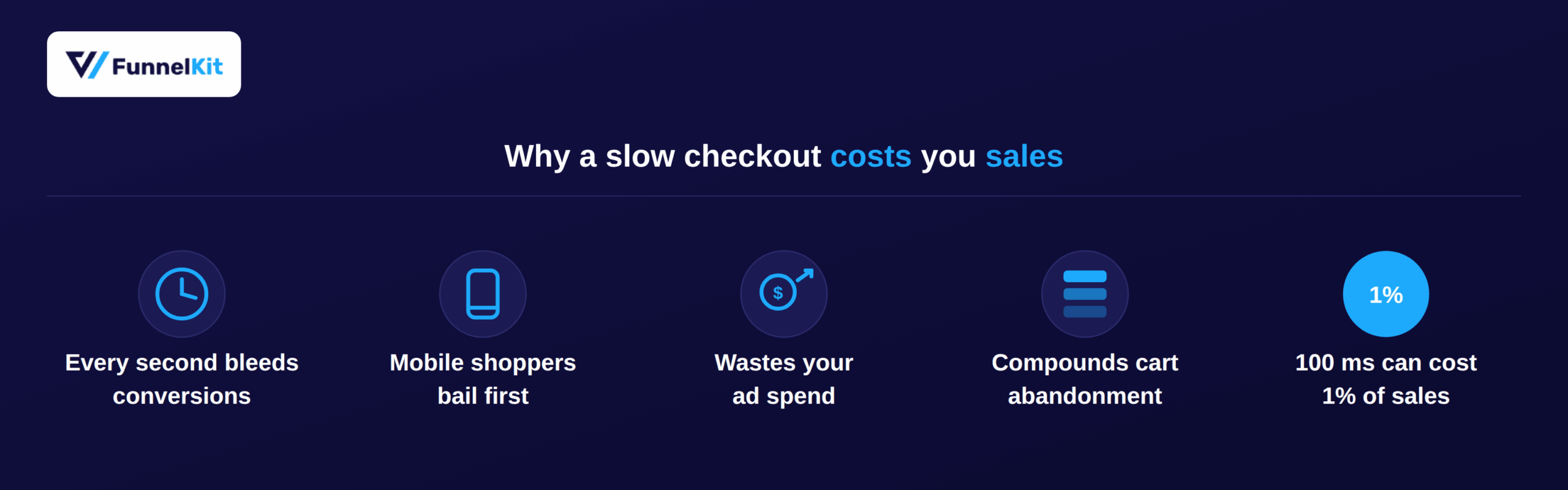
- Every extra second bleeds conversions. Google and Deloitte's "Milliseconds Make Millions" research found that a 0.1-second improvement in mobile load time lifted retail conversion rates by roughly 8%. A slow checkout works the same way in reverse.
- Mobile shoppers bail first. Most WooCommerce stores now see the majority of their traffic on mobile, and mobile connections amplify every delay a desktop shopper would barely notice.
- A slow checkout wastes ad spend. If you are paying for traffic through ads or promotions, every shopper lost to a slow checkout is a fully paid acquisition that converts to nothing.
- It compounds with every other cart abandonment reason. Long delivery times, unexpected costs, and forced account creation already push shoppers away. A sluggish checkout on top of that gives hesitant buyers one more reason to close the tab.
- Amazon's own numbers make the stakes obvious. Amazon has reported that a delay of just 100 milliseconds can cost it roughly 1% in sales at its scale. Few WooCommerce stores operate at that size, but the underlying mechanism, impatience compounding into lost revenue, is the same regardless of store size.
Put together, checkout speed is not a nice-to-have technical tweak. It is one of the few conversion levers you can pull without redesigning anything or discounting your products.
How Fast Should Your WooCommerce Checkout Load?
Before you start optimizing, it helps to know what "fast" actually means for a checkout page. A number without context is not a target.
Aim for your checkout page to load in under 2 seconds, with these supporting benchmarks based on Google's Core Web Vitals guidance:
| Metric | Target | What it measures |
| Largest Contentful Paint (LCP) | Under 2.5 seconds | How fast the main content becomes visible |
| Interaction to Next Paint (INP) | Under 200ms | How quickly the page responds to clicks and taps |
| Cumulative Layout Shift (CLS) | Below 0.1 | Whether elements jump around as the page loads |
| Time to Interactive | Under 3 seconds | When the page is fully usable, not just visible |
If your checkout page loads heavy scripts, runs coupon validation on every keystroke, or redirects through a payment gateway before showing a confirmation, it is easy to blow past these numbers without realizing it.
Test with Google PageSpeed Insights, GTmetrix, or Lighthouse before and after each change below, so you can confirm what actually moved the needle instead of guessing.
12 Ways to Speed Up WooCommerce Checkout
Some of these fixes live at the server level. Others live in your checkout form itself. Work through them roughly in this order, since hosting and database issues tend to set a ceiling on how much the smaller tweaks can help.
Tip #1: Move to hosting built for WooCommerce
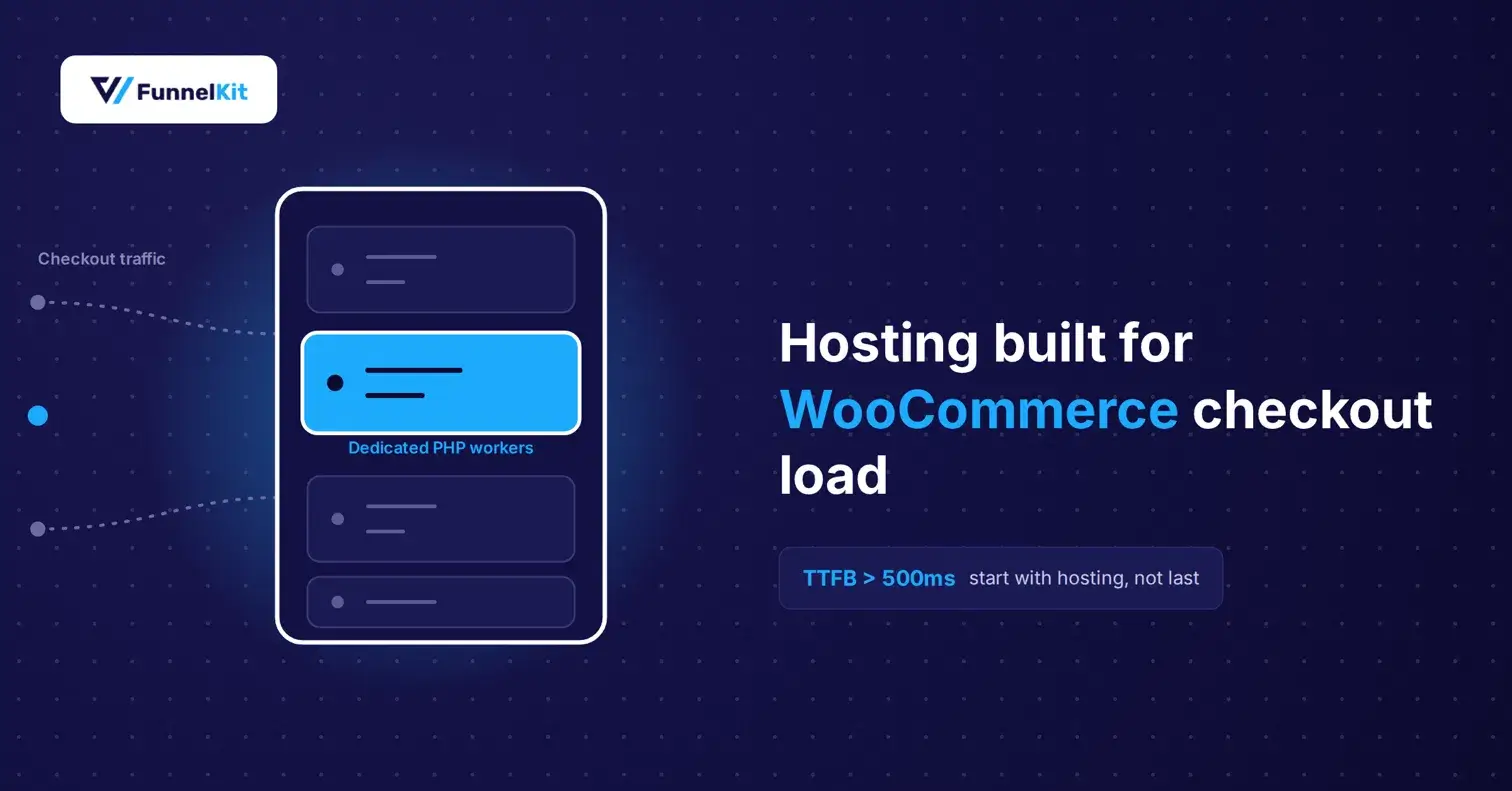
WooCommerce is not a static site. Every checkout writes order data, calculates tax and shipping, and often calls out to a payment gateway, all of which demand real server resources. Shared hosting plans built for brochure sites tend to buckle under this load, especially during traffic spikes.
Managed WooCommerce hosting (Cloudways, Kinsta, WP Engine, Pressable, or SiteGround's higher tiers) gives you dedicated PHP workers, object caching, and infrastructure tuned for exactly this kind of dynamic, database-heavy traffic.
If your Time to First Byte on the checkout page is consistently above 500ms, hosting is usually the first place to look, not the last.
Tip #2: Cut the checkout form down to essential fields
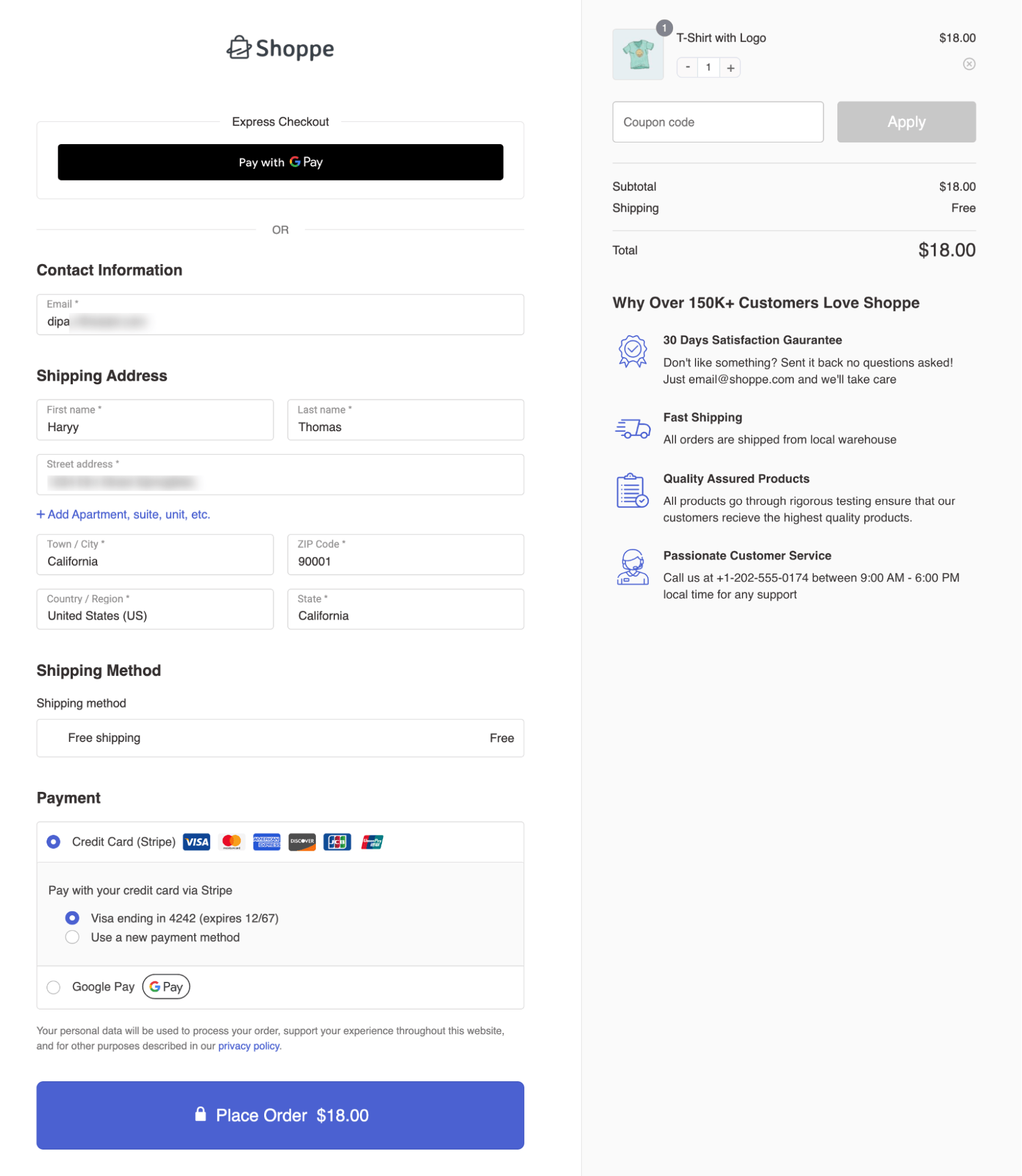
Every field on your checkout form is something a customer has to read, decide about, and fill in before you get paid. Company name, address line 2, and order notes are rarely necessary for a typical B2C store.
Note: You can use any checkout customizer plugin, like FunnelKit Funnel Builder, to remove unnecessary checkout fields without any coding. This shortens both the visual length of the form and the time it takes to complete it.
Tip #3:Add Google address autocomplete to speed up manual entry
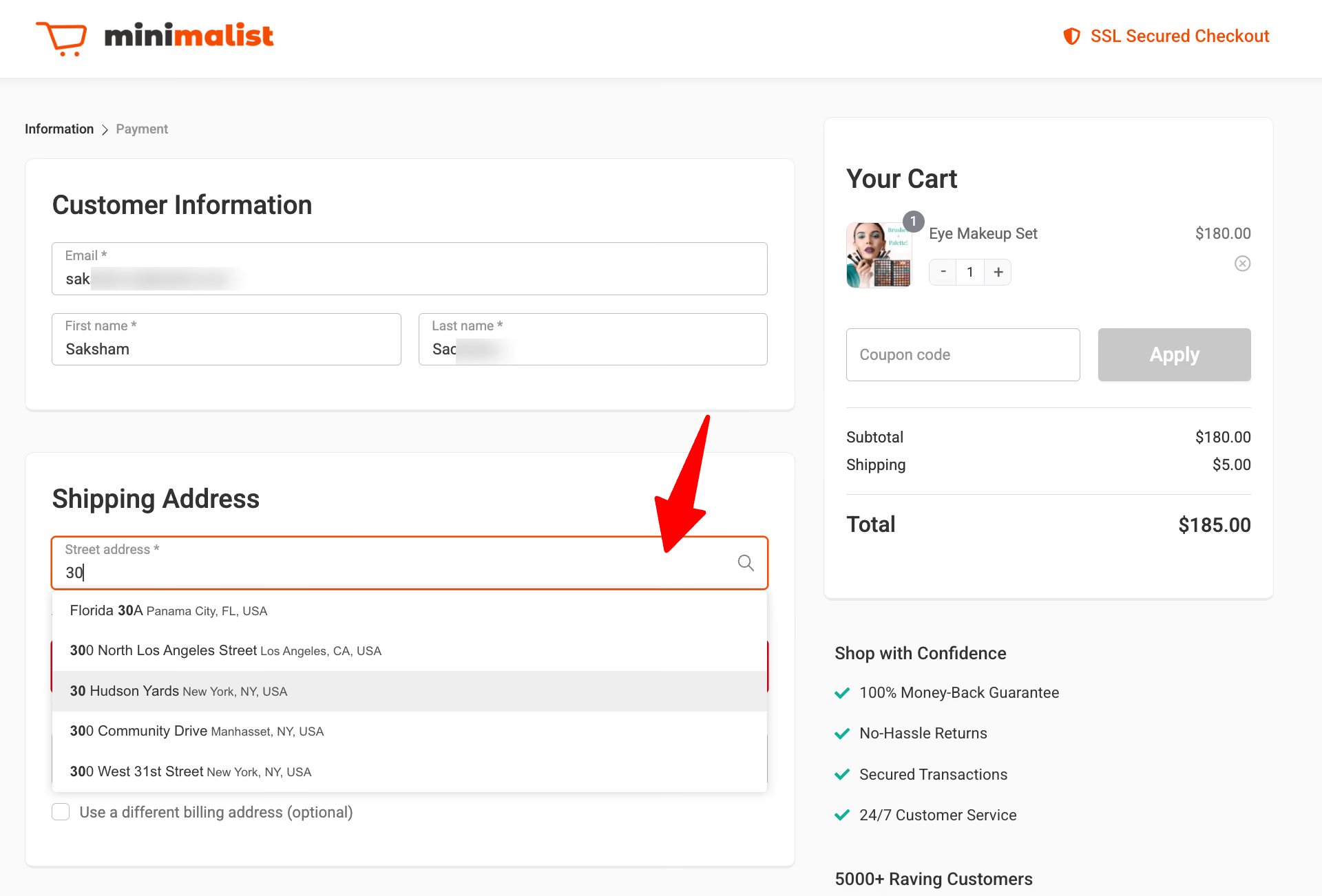
Typing out a full address- street, city, state, zip- is one of the slowest parts of checkout, especially on a mobile keyboard. Google Places autocomplete fixes that by suggesting the address as soon as someone starts typing and filling in the rest with one tap.
If you're on FunnelKit Funnel Builder, this is already built in. Turn on Google Address Autocomplete in checkout settings, add a Google Places API key, and it applies to billing and shipping fields automatically. If not, a standalone plugin like AutoComplete Address Checkout For WooCommerce does the same job.
Tip #4: Allow checkout without order creation for guests
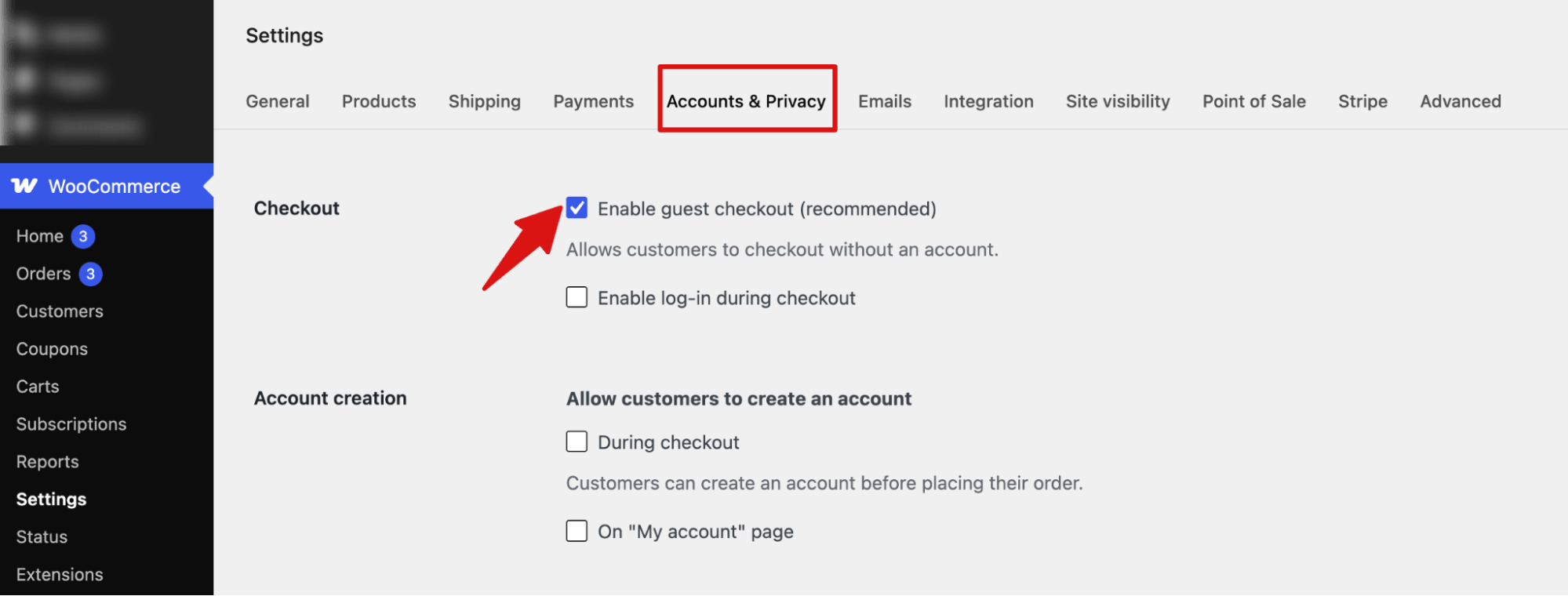
Guest checkout matters here too. Requiring account creation before purchase is consistently one of the top-cited reasons shoppers abandon carts, right after price concerns.
Go to WooCommerce → Settings → Accounts & Privacy and enable "Allow customers to place orders without an account."
Tip #5: Turn on High-Performance Order Storage (HPOS)
WooCommerce 8.2 and later ship with High-Performance Order Storage, which moves order data out of the general-purpose wp_postmeta table and into dedicated tables built for order queries. On stores with a meaningful order history, this alone can noticeably cut checkout and admin order-screen load times.
Go to WooCommerce → Settings → Advanced → Features and enable "High-Performance Order Storage."
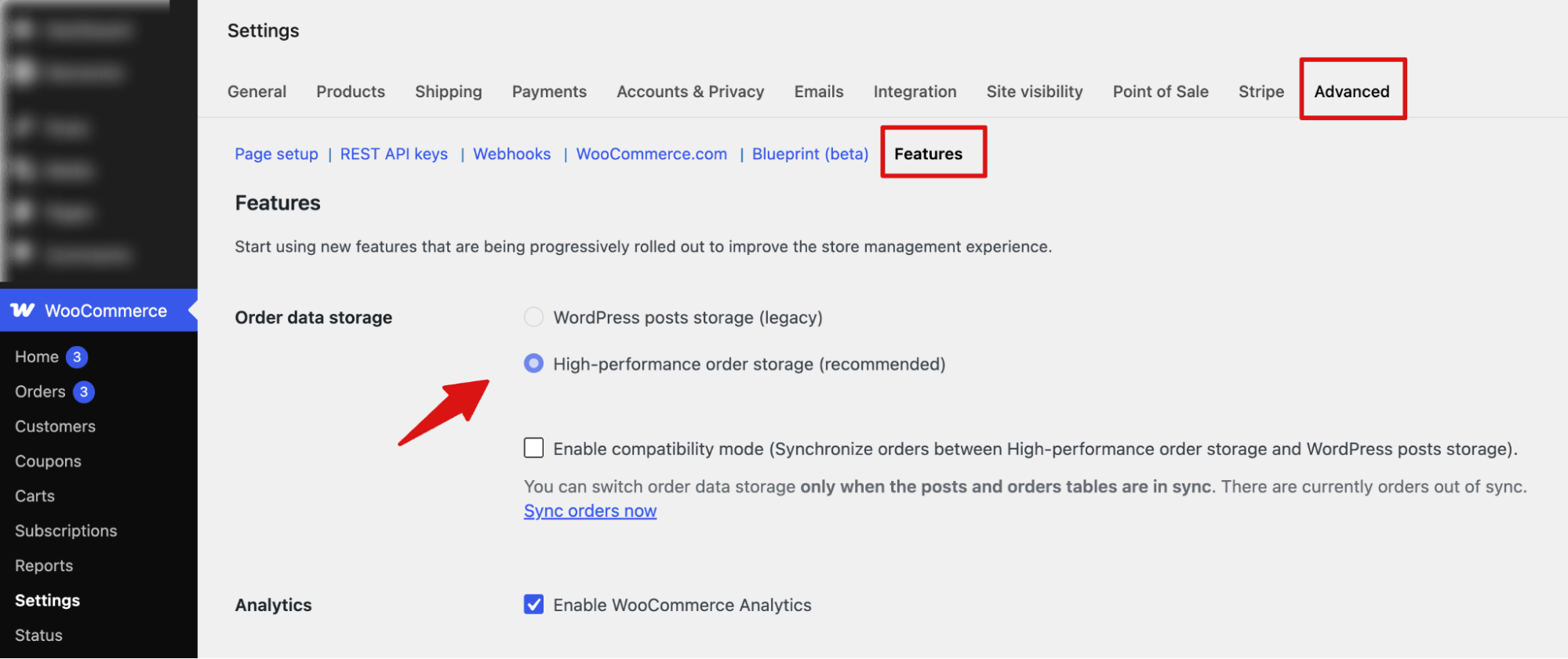
Run the sync in a maintenance window on larger stores, and confirm your key plugins (payment gateways, subscriptions, custom order exports) are HPOS-compatible before switching over on a live store.
Tip #6: Audit and trim the scripts loading on checkout
Themes and plugins routinely load their scripts and styles sitewide, checkout included, whether or not the page needs them. Sliders, mega-menu scripts, and sitewide analytics tags are common offenders.
Install Query Monitor on a staging site and load your checkout page. Look for functions taking over 100ms, database queries climbing into the hundreds, and third-party scripts that have no business being on this page.
Once you've identified the culprits, Asset CleanUp lets you unload those specific scripts and styles on checkout without touching the rest of your site.
Tip #7: Skip the cart page and switch to side cart for direct checkout
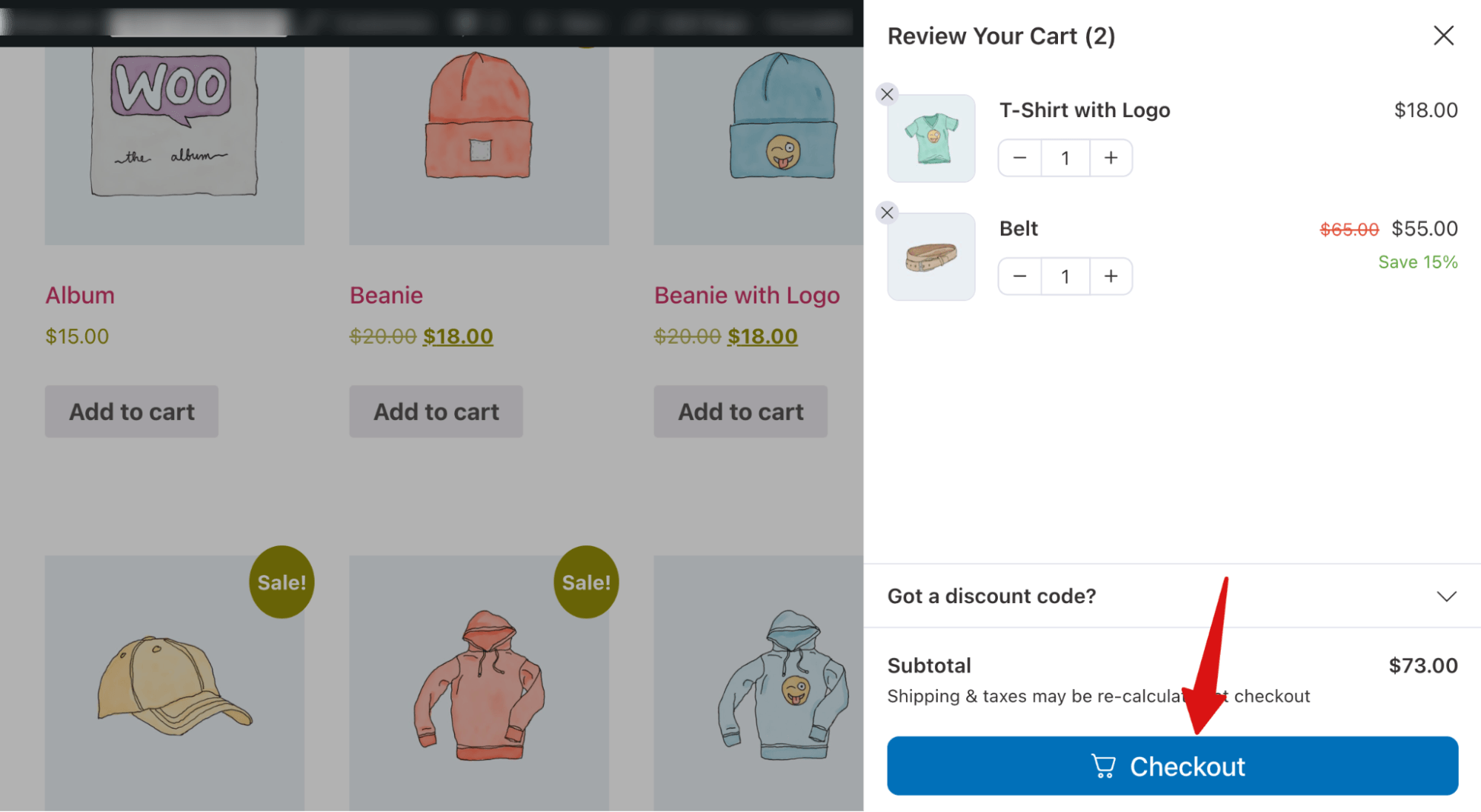
By default, WooCommerce sends shoppers to a separate cart page before checkout. That works fine for stores that use the cart page to push upsells or let people review a long order, but if you're not leaning on it for either, it's just one extra page load and one extra decision point standing between "add to cart" and "paid."
WooCommerce's own settings only get you halfway here. Under WooCommerce → Settings → Products → General, "Redirect to the cart page after successful addition" sends shoppers to the cart, not checkout, so it doesn't skip anything on its own. To send them straight to checkout instead, disable that setting.
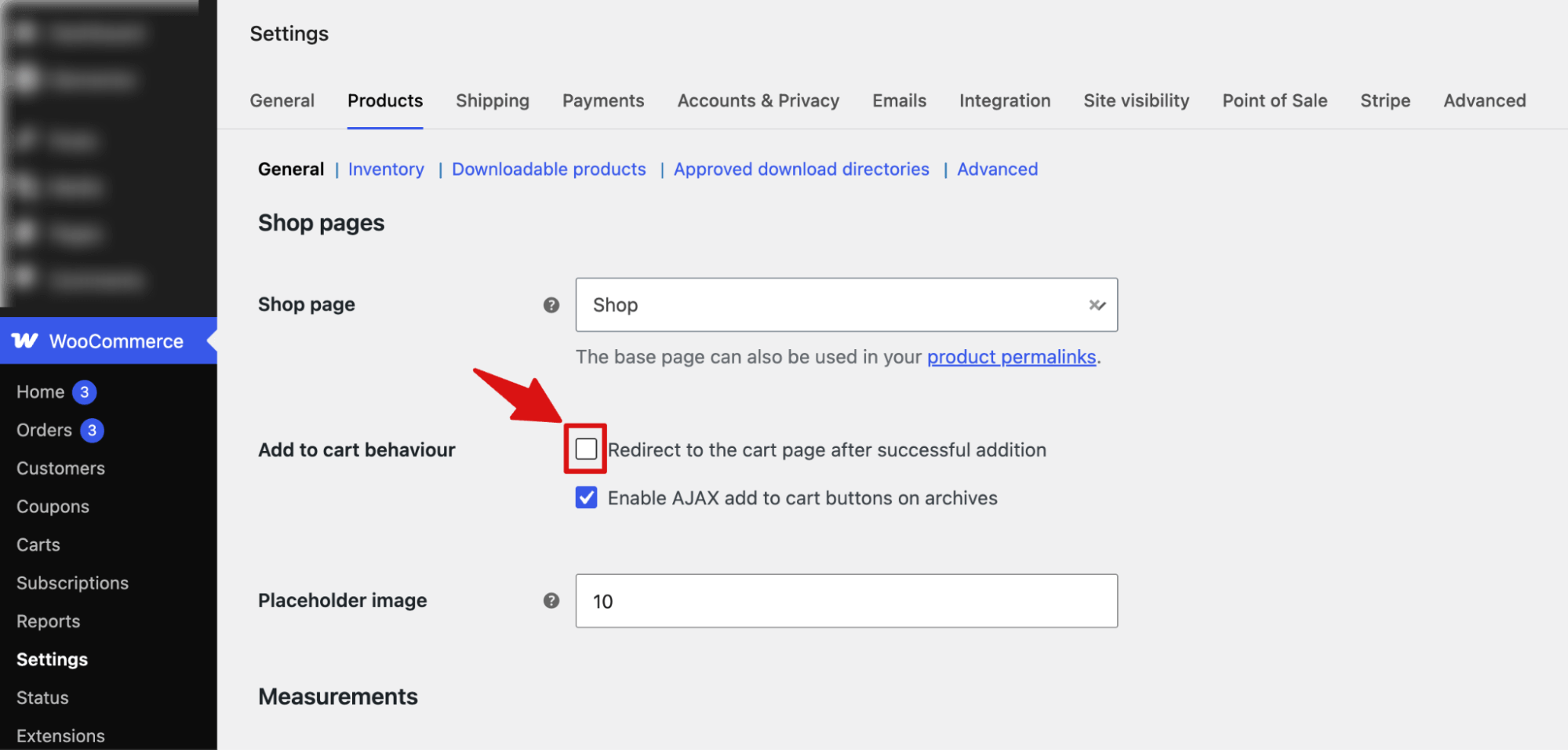
Next, pair either approach with a slide-out side cart so shoppers can still glance at what's in their order and adjust quantities without leaving the page they're on.
Tip #8: Use the right input types and autocomplete attributes
Most checkout forms use plain text inputs for every field, which forces mobile shoppers to hunt for the right keyboard themselves. Setting the correct input type, type="email" for email, type="tel" for phone, type="number" for card fields, brings up the matching keyboard automatically instead of the default alphabet layout.
Autocomplete attributes do similar work for browsers and saved-address managers. Tagging fields with autocomplete="street-address", autocomplete="postal-code", autocomplete="cc-number,", and similar lets Chrome, Safari, and password managers fill the form in one tap instead of making shoppers type everything by hand.
Neither change makes the page load faster. Both shave real seconds off how fast someone actually gets through checkout, which is what shoppers notice.
Tip #9: Add express payment and check your gateway's response time
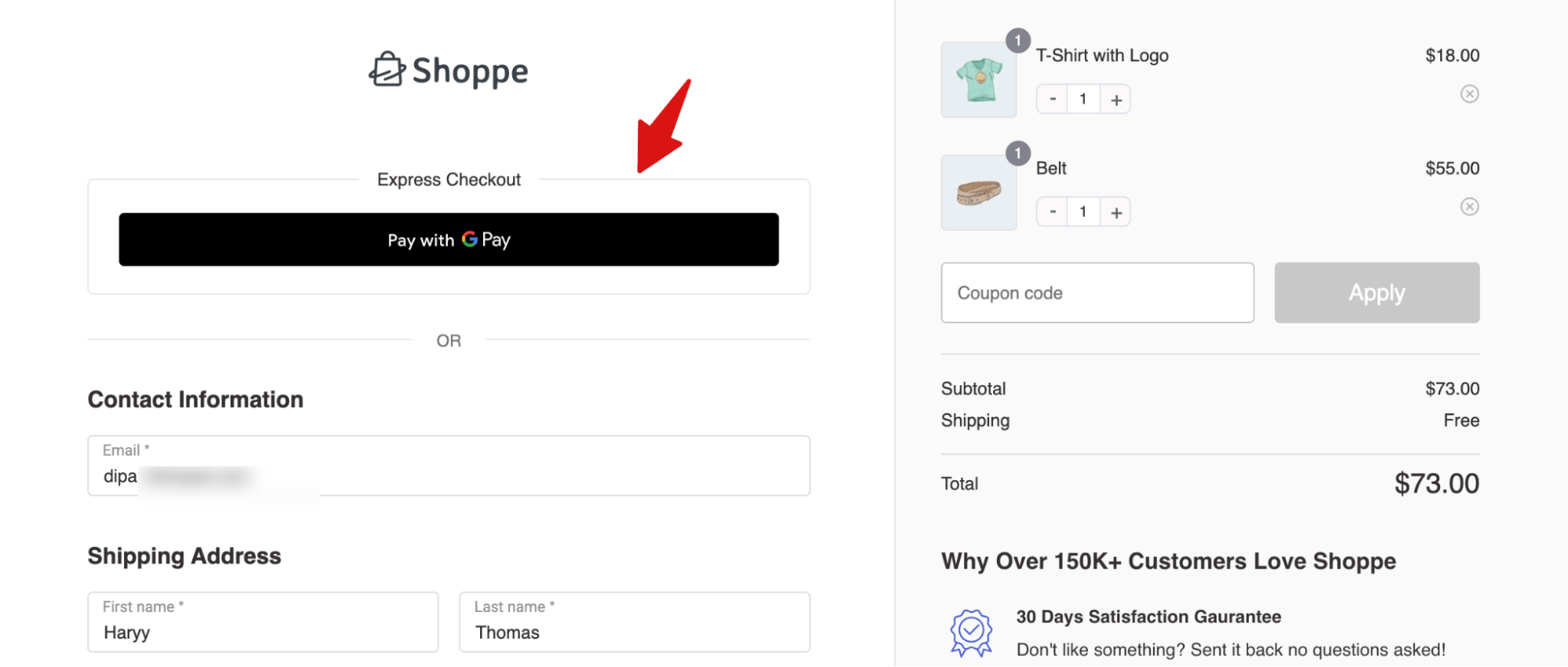
Express payment methods like Apple Pay, Google Pay, and PayPal let returning shoppers skip the form almost entirely, since their address and payment details are already saved with the wallet provider. This is one of the highest-leverage speed wins available, because it removes steps rather than just making the existing steps faster.
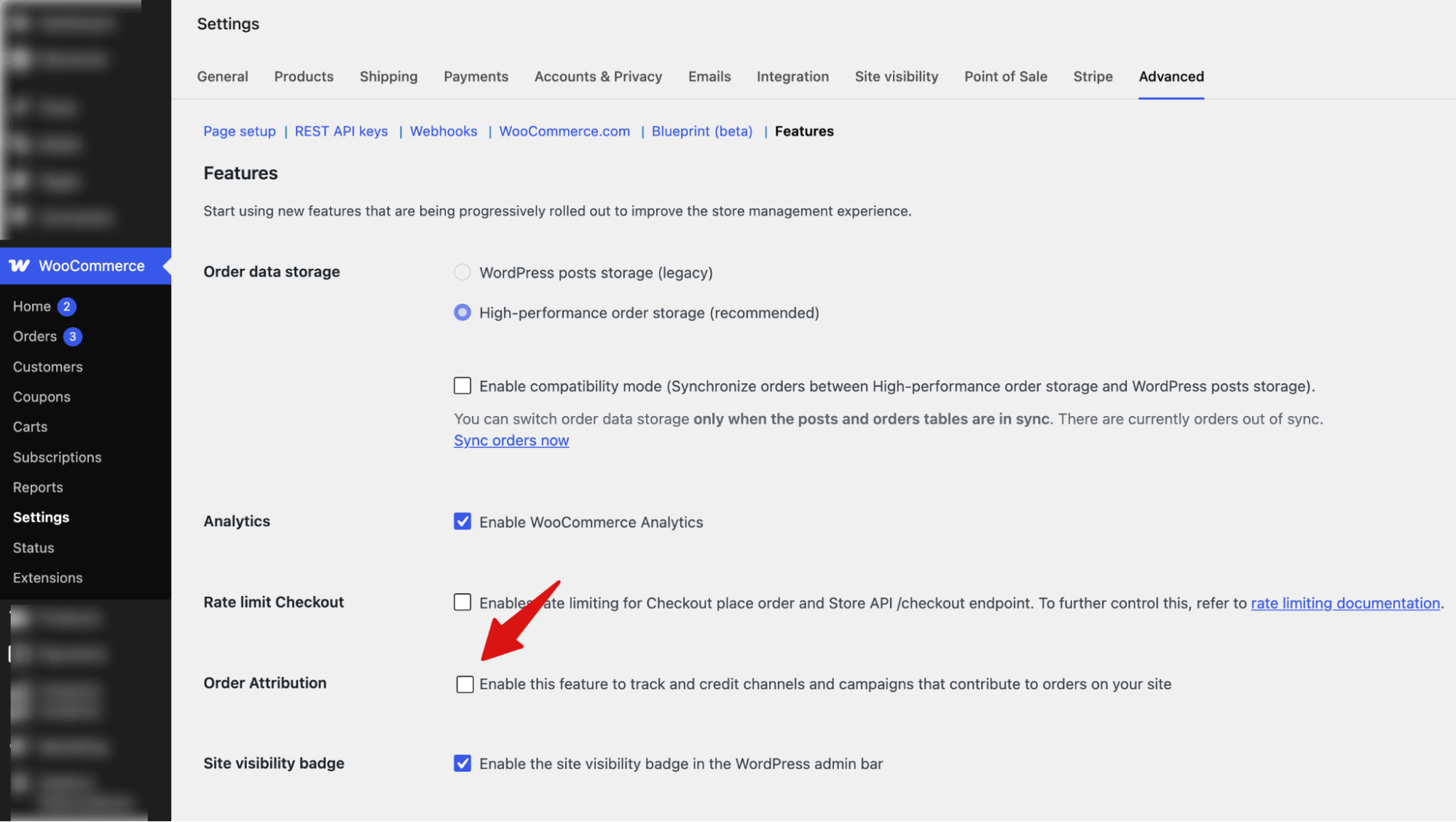
Tip #10: Turn off order attribution and unused tracking scripts
WooCommerce 8.5 and later include an order attribution feature that tracks where each order came from (referrer, device, session data, and so on). It is genuinely useful if you act on that data, but it adds scripts and processing to every checkout submission whether you use it or not.
If you are not actively reviewing attribution reports, go to WooCommerce → Settings → Advanced → Features and uncheck the “Order Attribution” option. Do the same audit for any sitewide tracking pixels, heatmap scripts, or chat widgets that fire on checkout without adding value there.
Tip#11: Defer transactional emails so checkout does not wait on them
By default, WooCommerce sends the order confirmation email synchronously, right before redirecting the customer to the thank you page. If your SMTP provider is slow to respond, the shopper sits there waiting on an email they cannot even see.
The fix is to push that email onto WooCommerce's built-in Action Scheduler queue instead of sending it inline. A simplified version looks like this:
add_action( 'woocommerce_order_status_processing', 'wisetr_defer_order_email', 20, 1 );

function wisetr_defer_order_email( $order_id ) {

    if ( function_exists( 'as_schedule_single_action' )

        && ! as_next_scheduled_action( 'wisetr_send_deferred_order_email', array( $order_id ) ) ) {

        as_schedule_single_action( time() + 10, 'wisetr_send_deferred_order_email', array( $order_id ) );

    }

}
Pair this with a matching hook that sends the actual email on the wisetr_send_deferred_order_email action. If you would rather avoid editing functions.php directly, a code snippets plugin like WPCode lets you add and manage this safely, and you can always deactivate the snippet to revert to WooCommerce's default synchronous behavior. WooCommerce's own developer documentation covers Action Scheduler in more depth if you want to extend this further.
Tip #12: Test on mobile and keep monitoring after launch
A checkout that feels fast on your office wifi can crawl on a customer's mobile connection. Test on a real phone, on cellular data, with a card you have not saved before, to get an honest picture of what shoppers experience.
After launch, do not assume the work is done. Set up ongoing monitoring (New Relic, or your host's built-in performance tools) so a plugin update, a new integration, or a traffic spike does not quietly undo everything you just fixed.
Best Plugins to Speed Up WooCommerce Checkout
If you want a hands-off way to optimize, reduce, or eliminate checkout bloat without touching code, several WordPress plugins can help, each covering a different layer of the problem.
| Plugin | Best for | Free version | Starting price |
|---|---|---|---|
| FunnelKit Funnel Builder | Building optimized checkout pages with a built-in field editor, express payment options, and a lightweight, distraction-free checkout template | Yes | $99.50/year |
| WP Rocket | Site-wide caching with checkout and cart exclusions built in by default | No | $59/year |
| Perfmatters | Selectively disabling scripts, fonts, and plugins on specific pages, including checkout | No | $29.95/year |
| Query Monitor | Identifying exactly what is slowing down your checkout, including database queries, scripts, and function timing | Yes | Free |
Query Monitor is a diagnostic tool rather than a fix. Run it first to find your actual bottleneck instead of guessing which tactic to try. WP Rocket and Perfmatters both handle general site caching and asset control well, though neither is built specifically for the checkout experience itself.
FunnelKit's checkout page is purpose-built to load lean by default, without the theme header, sidebar, or unrelated scripts that a standard checkout template inherits from your site. Combined with its field editor and native express checkout support, it addresses several of the fixes above (removing fields, adding express payment, cutting page bloat) inside one plugin instead of five.
6 Best Practices to Keep Your WooCommerce Checkout Fast
- Benchmark before and after every change. Run a speed test before you make a change and again right after, so you know whether it actually helped rather than assuming.
- Recheck speed after every WooCommerce or theme update. Updates occasionally reintroduce scripts or change default behavior on checkout without any announcement.
- Review field validation rules after trimming fields. Removing a field without also updating validation rules can leave broken required-field checks behind, which frustrates customers in a different way than slowness does.
- Avoid loading web fonts and icon libraries sitewide. If checkout only needs one font weight, load only that, instead of an entire font family across every page.
- Set a monthly reminder to re-run Query Monitor. New plugins and integrations creep in over time, and a five-minute audit catches bloat before it becomes a pattern.
- Watch gateway uptime, not just your own server. A fast site paired with a slow or unstable payment gateway still produces a slow checkout from the shopper's point of view.
Frequently Asked Questions
Start with hosting and database health (managed WooCommerce hosting, HPOS), then trim scripts and unnecessary checkout fields, and add express payment options. Query Monitor helps you confirm which of these actually matters for your specific store before you invest time in the rest.
The most common causes are underpowered shared hosting, plugins loading unnecessary scripts on the checkout page, a slow payment gateway, and a bloated database that has never had HPOS or basic cleanup applied. Query Monitor on a staging site will usually point to the specific cause within minutes.
Yes. Checkout is one of the most database and processing-heavy pages on a WooCommerce site, since it calculates totals, taxes, and shipping and writes order data in real time. Shared hosting plans built for static sites often cannot keep that fast under real traffic, while managed WooCommerce hosting is built specifically for this kind of load.
Yes, particularly plugins that load scripts sitewide instead of only on the pages that need them, or that run heavy database queries on every checkout submission. This does not mean you should avoid plugins altogether. It means auditing what each one actually does on the checkout page specifically.
It depends on your products and traffic. One-page checkout tends to load and complete faster for digital products, single-item purchases, and desktop-heavy traffic. Multi-step checkout often performs better for physical products with shipping and billing steps, mobile-heavy traffic, and larger carts, since it breaks the form into smaller, less overwhelming chunks.
Removing optional fields like company name or address line 2 has no effect on payment processing or core order data. Be more careful with fields tied to shipping calculations, tax rules, or a specific payment gateway's requirements, since removing those can break functionality rather than just shortening the form.
Yes, for some of these fixes. Deferring transactional emails, disabling order attribution, and adjusting checkout fields via the woocommerce_checkout_fields filter can all be done with a few lines of PHP in a code snippets plugin like WPCode. Deeper fixes like HPOS, hosting-level caching exclusions, and script auditing are configuration and infrastructure changes rather than something a snippet can solve.
It can, if the checkout and cart pages are not excluded from page caching. Most reputable caching plugins exclude /checkout/ and /cart/ by default, but if you are using an aggressive or custom caching setup, confirm those exclusions manually. A cached checkout can serve stale prices, outdated cart contents, or broken security nonces, which looks like a random bug rather than a caching issue.
Speed Up WooCommerce Checkout Before It Costs You More Sales
Eighteen percent of cart abandonment comes down to a checkout that felt too slow or too complicated. A tenth of a second in load time moves conversion by around eight percent. That is not theoretical once it is your store losing the sale.
We covered twelve fixes across the layers that actually slow a checkout down: hosting, database structure, script bloat, form length, and the checkout flow itself. One caching plugin was never going to touch all of that. If you only fix one thing, check your Time to First Byte first. Hosting and database issues set the ceiling for everything else on this list.
Work down from there, test before and after each change, and don't skip the mobile test.
If you'd rather handle field trimming, express payment, and a lean checkout template in one place instead of five plugins, FunnelKit's checkout builder does that job well.

Dipa Shaha
September 7, 2026The right WooCommerce landing page plugin can help you build pages that convert better. According to Call Digital Fire’s 2026 analysis, optimized landing pages can achieve conversion rates of 6–11%,...
Editorial Team
September 2, 2026The WooCommerce checkout block editor lets you build and customize your checkout page using Gutenberg, WordPress's native block editor. It comes built into WooCommerce by default. But it’s more of...
Editorial Team
July 7, 2026Are shoppers adding products to their cart and leaving before they buy? According to Baymard Institute research on checkout usability, 18% of shoppers who abandon their cart do so because...