


To send Twilio SMS from WooCommerce, you need two things: a Twilio account and a way to connect it to your store.
You have five real options with the official WooCommerce Twilio SMS Notifications extension, a free plugin like ShopMagic, AutomateWoo, an automation tool like FunnelKit Automations, or custom code against the Twilio API.
In this guide, we've explored all five methods, so you can pick based on your store rather than a sales pitch.
Then we walk through a complete setup step by step, break down what Twilio actually costs, and cover the two things most WooCommerce Twilio guides skip entirely, i.e., WhatsApp and OTP/phone verification.
Let's find the right route for your store.
Quick Answer (TL;DR)
- For simple order-status texts, install the official WooCommerce Twilio SMS Notifications extension and paste in your Account SID, Auth Token, and Twilio number.
- For a free route, use ShopMagic for Twilio.
- For automated sequences, such as abandoned cart, post-purchase, win-back, broadcast SMS, use FunnelKit Automations.
All five methods send through your own Twilio account, where US texts cost roughly a cent each (about $0.0079-$0.0083 per segment) plus ~$1.15/month for a phone number.
Table of Contents
- 1 5 Ways to Connect Twilio to WooCommerce (Compared)
- 2 How to Set Up Twilio SMS in WooCommerce (Step-by-Step)
- 3 How to Send Twilio SMS Notifications from WooCommerce
- 4 What Twilio Actually Costs
- 5 WhatsApp Notifications via Twilio
- 6 OTP & Phone Verification with Twilio
- 7 7 WooCommerce Twilio SMS Campaigns You Must Set Up
- 8 Troubleshooting Twilio SMS in WooCommerce
- 9 Frequently Asked Questions
- 10 Create a Perfect Automated WooCommerce Twilio SMS Sequence!
5 Ways to Connect Twilio to WooCommerce (Compared)
Twilio is a messaging API. It doesn't connect to WooCommerce on its own; you need a plugin (or code) to sit between your store events and Twilio’s API.
There are five realistic ways to bridge that gap, and they fall on a spectrum from single-order text to a full SMS marketing engine.
Here's the quick comparison. Every method sends through your own Twilio account, so the Twilio usage cost is the same across all of them. What differs is the plugin cost and what each one can actually do.
| Method | Plugin cost | Free option | Order-status SMS | Automated sequences (cart, win-back) | Broadcasts | Two-way replies | |
|---|---|---|---|---|---|---|---|
| Official Twilio SMS Notifications extension | $49 | ❌ No | ✅ Yes | ❌ No | ❌ No | ⚠️ Return-SMS auto-reply only | ❌ No |
| ShopMagic for Twilio | Free | ✅ Yes | ✅ Yes | ⚠️ Limited (delays need PRO add-on) | ❌ No | ❌ No | ❌ No |
| FunnelKit Automations | Free Lite + Paid ($99.50/year) | ✅ Yes (Lite) | ✅ Yes | ✅ Yes | ✅ Yes | ✅ Yes (SMS-received trigger) | ✅ Yes (via Uncanny Automator) |
| AutomateWoo | $159/year | ❌ No | ✅ Yes | ✅ Yes | ❌ No | ❌ No | ❌ No |
| Custom code (Twilio API) | Free (dev time) | ✅ Yes | ✅ Yes | ✅ Yes (you build it) | ✅ Yes (you build it) | ✅ Yes (you build it) | ✅ Yes (you build it) |
Which method to pick?
- Official WooCommerce Twilio SMS Notifications extension
Select this method if you only want to send an SMS to the customer when their order status changes.
It installs in minutes, supports custom order statuses (via Order Status Manager), a checkout opt-in checkbox, and a return-SMS auto-reply, and it works with WooCommerce Bookings for appointment reminders.
It does not do drip sequences, broadcasts, or marketing campaigns. Additionally, you can't schedule messages because Twilio's API doesn't queue future sends here, and any send errors are logged to your Order Notes.
- ShopMagic for Twilio
Pick this method if you want order notifications for free. The Twilio add-on is free, requires no additional account beyond Twilio, and runs on ShopMagic's free core plugin.
But time-based actions, like sending 1 hour after abandonment, require the ShopMagic PRO add-on (Delayed Actions), so the genuinely free version covers event-triggered notifications, not delayed sequences.
- FunnelKit Automations
Select this method if you want SMS to be a revenue channel rather than just a notification.
It connects to Twilio (and BulkGate as an alternative SMS provider), sends both automated sequences and one-off broadcasts to segments, supports merge tags, delays, A/B testing, and can even trigger automations from incoming SMS replies (two-way).
SMS/MMS sending is currently US and Canada-only, which can be a constraint if your audience is elsewhere.
You get a free Lite version with cart abandonment and post-purchase emails. The SMS connector, along with broadcasts, A/B tests, and analytics, is in Pro.
- AutomateWoo
Choose this method if you're already running AutomateWoo for emails and just want to add SMS to existing workflows.
Its "Send SMS (Twilio)" action can be attached to any trigger and requires a paid Twilio account before sending to real customers.
There is no free tier of AutomateWoo to try. You only have a Paid plan at $159/year.
- Custom code against the Twilio API
Pick this method only if you have developer resources and a need that none of the plugins meet (example, a bespoke checkout OTP flow or a custom carrier-routing setup).
You get total control and pay nothing for software, but you own every edge case, i.e., opt-out handling, STOP compliance, retries, and logging.

How to Set Up Twilio SMS in WooCommerce (Step-by-Step)
Every method follows the same three-part logic. Create a Twilio account and get a number, copy three credentials, then connect and test.
Here's the full walkthrough using FunnelKit Automations.
Step 1: Create a Twilio account and get your credentials
Go to the Twilio login and signup page. Then, enter your name, email, and password to create your Twilio account.
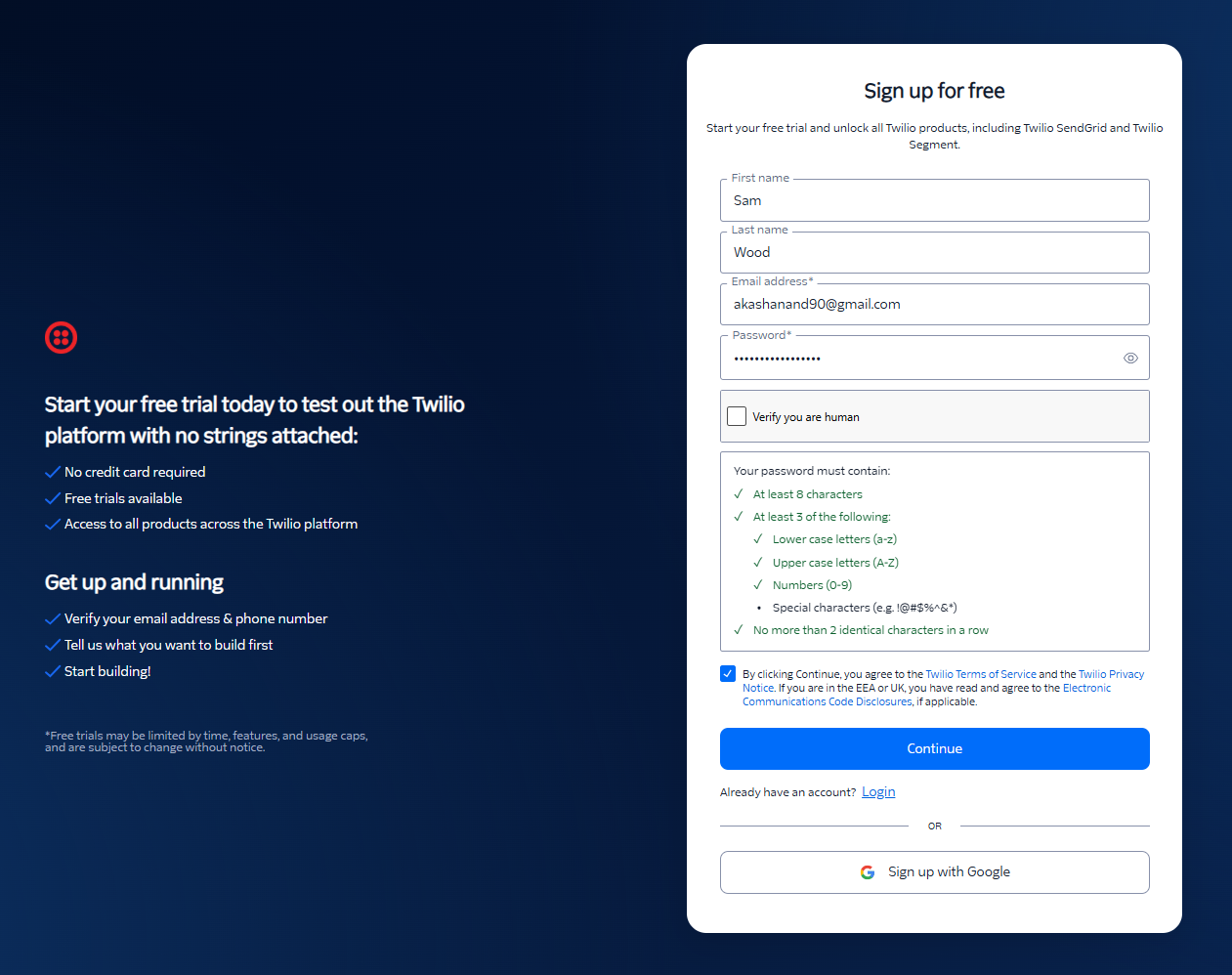
You’ll receive a verification email - confirm it to proceed.
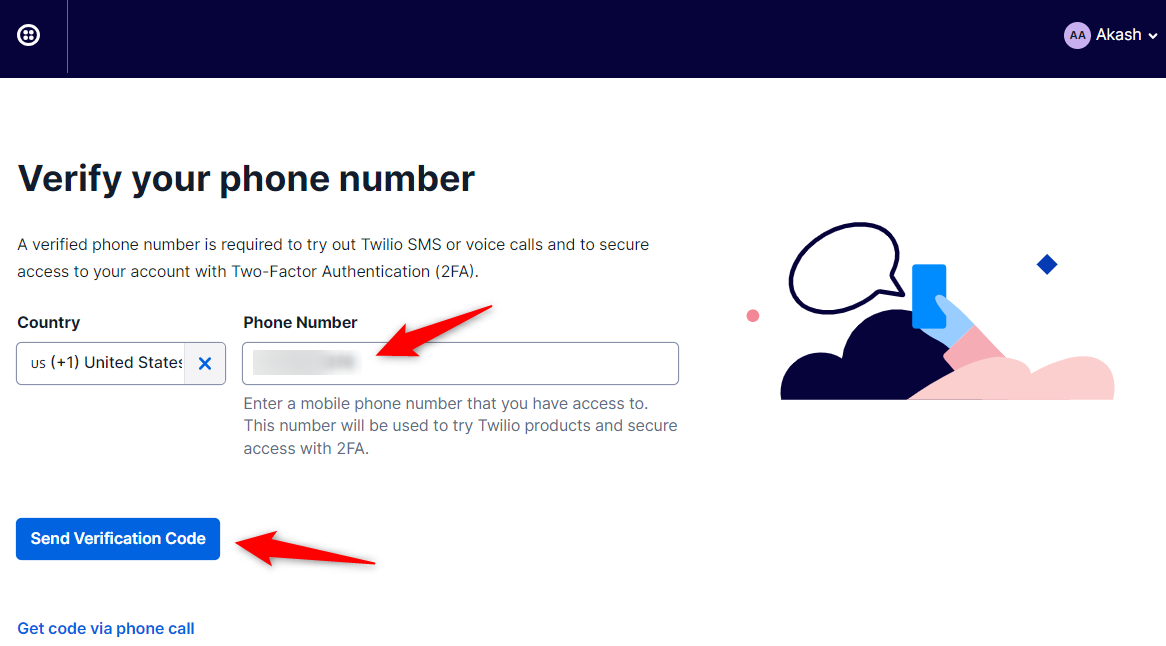
The next step is to verify your phone number.
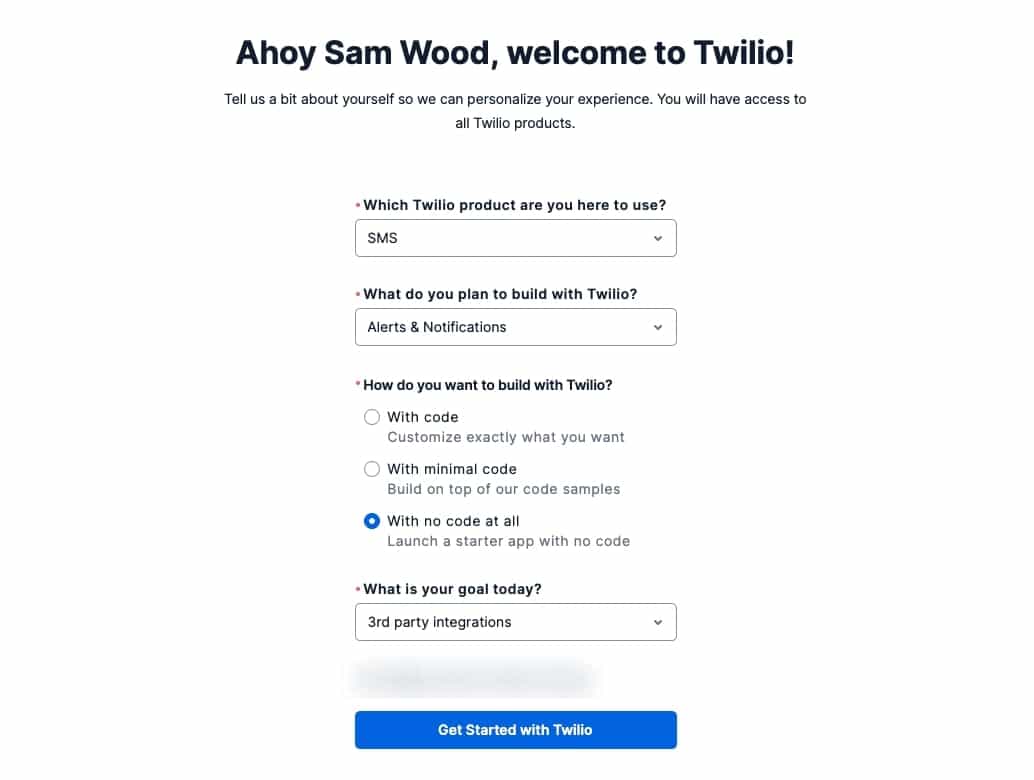
After that, select the products that you want to use.
Here, we’ll select the ‘SMS’ with ‘Alerts & Notifications’. Then choose ‘With no code at all’ and ‘3rd Party integrations’.
Click on Get Started with Twilio once done.
That’s it! Your Twilio account has been successfully set up. You’ll get directed to your Twilio dashboard.
If you’ve purchased a phone number, you can continue with that. Here, we’ll show the complete process with a trial phone number.
On the Twilio dashboard, click on ‘Get a Trial Phone Number’ to link a phone number to your account.
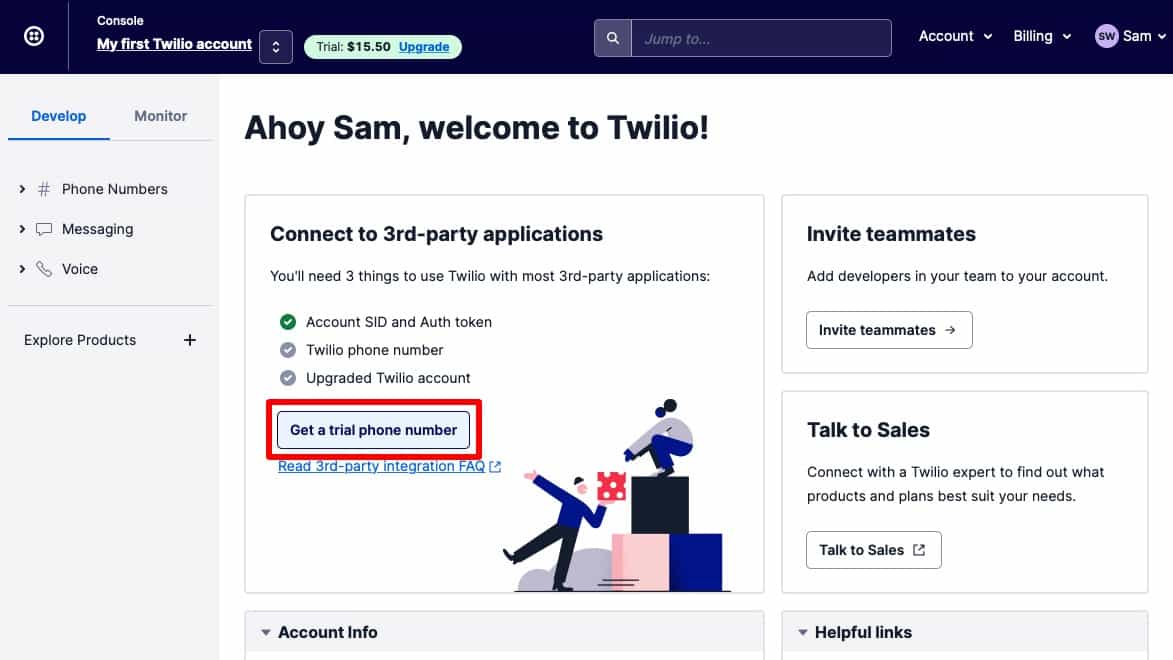
This will generate your trial phone number.
You can find your Account SID, Auth Token, and Twilio phone number here on this screen.
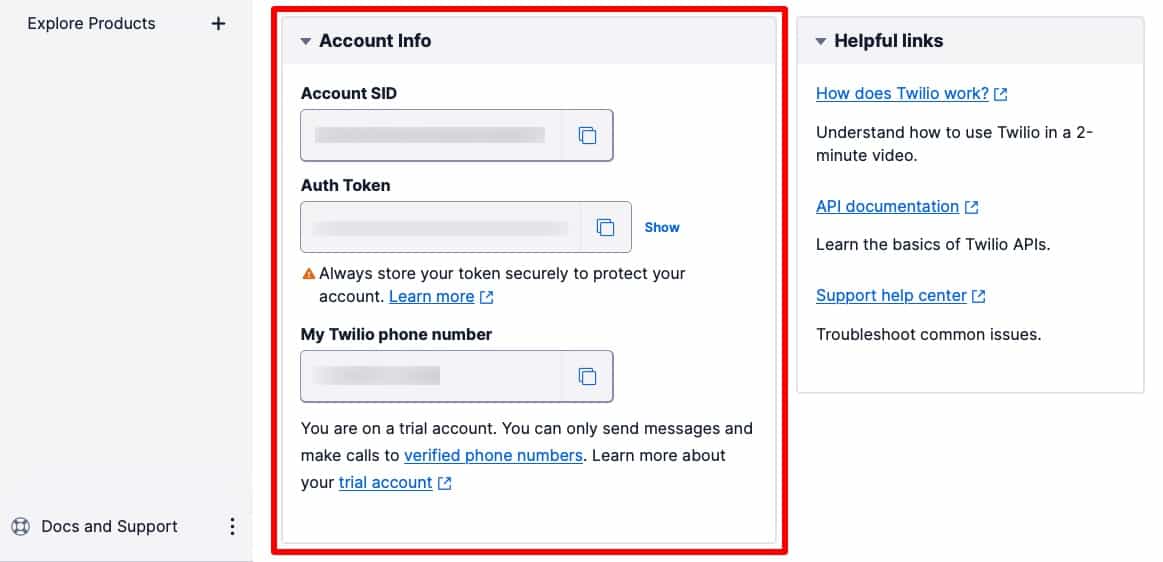
Copy all these details.
Step 2: Install and activate FunnelKit Automations
We will use an automation plugin to send SMS messages from WooCommerce.
FunnelKit Automations is the best marketing broadcast plugin for WordPress. It opens up infinite possibilities by integrating with different plugins and third-party applications to achieve your use cases.
Not just that, you can store unlimited contacts and send unlimited emails.
Get a copy of the FunnelKit Automations CRM from below.
Please note that FunnelKit Automations also has a Lite (free) version, but we will use the Pro version for advanced functionalities.
Refer to our documentation on installing and activating FunnelKit Automations on your WordPress website.
Step 3: Connect Twilio to FunnelKit Automations
In your WordPress dashboard, go to the Connectors tab under Tools in FunnelKit Automations and click on ‘Connect’ under Twilio.
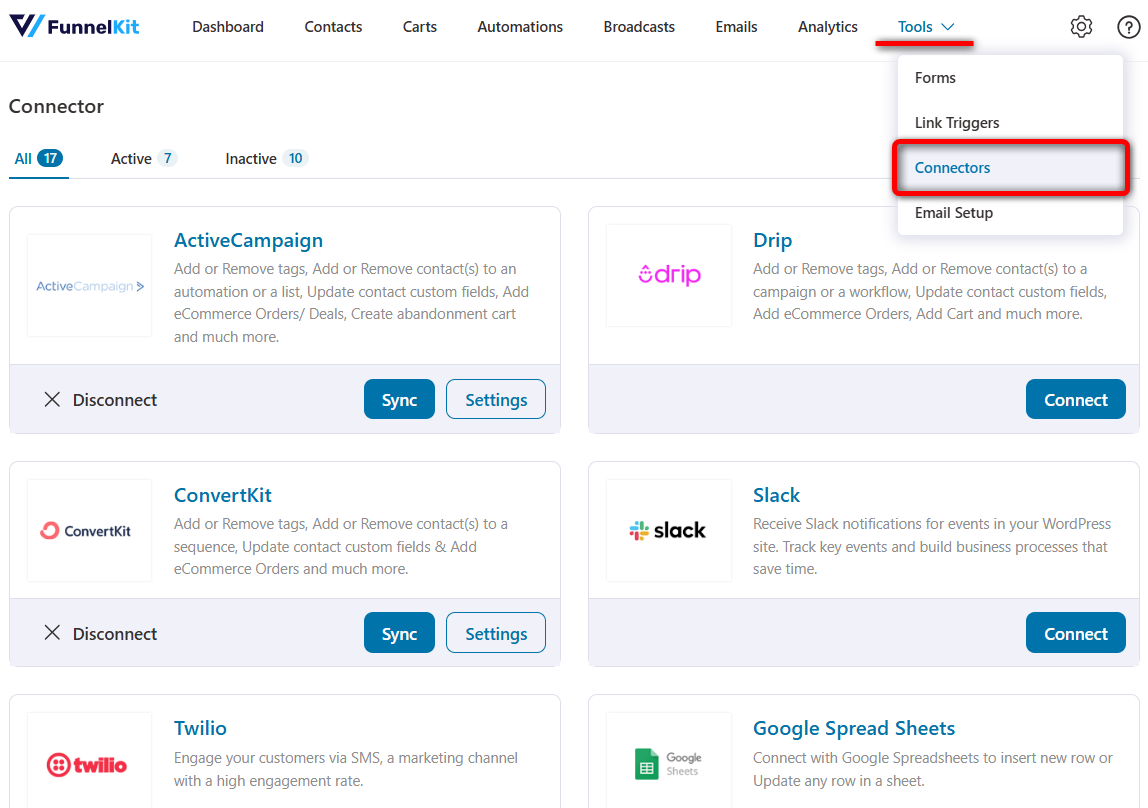
Paste your Twilio Account SID, Auth Token and Phone Number here.
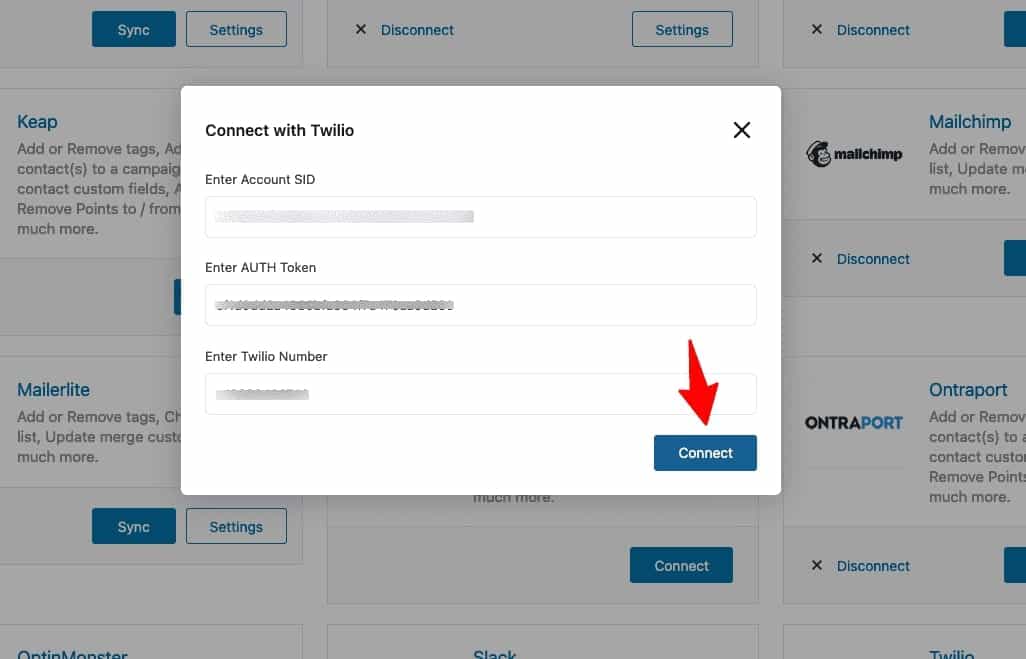
Once done, click on ‘Connect’.
Now that it's successfully connected, the WooCommerce-Twilio integration is complete.
How to Send Twilio SMS Notifications from WooCommerce
Now that you’ve connected Twilio with FunnelKit Automations, you can set up a Twilio SMS notification.
Let’s try this use case - when a user places an order, it'll automatically send them a message. So, we'll set up a simple WooCommerce order notification.
Step 1: Create a new automation
Go to the Automations section in FunnelKit Automations and click on the 'Create Automation' button.
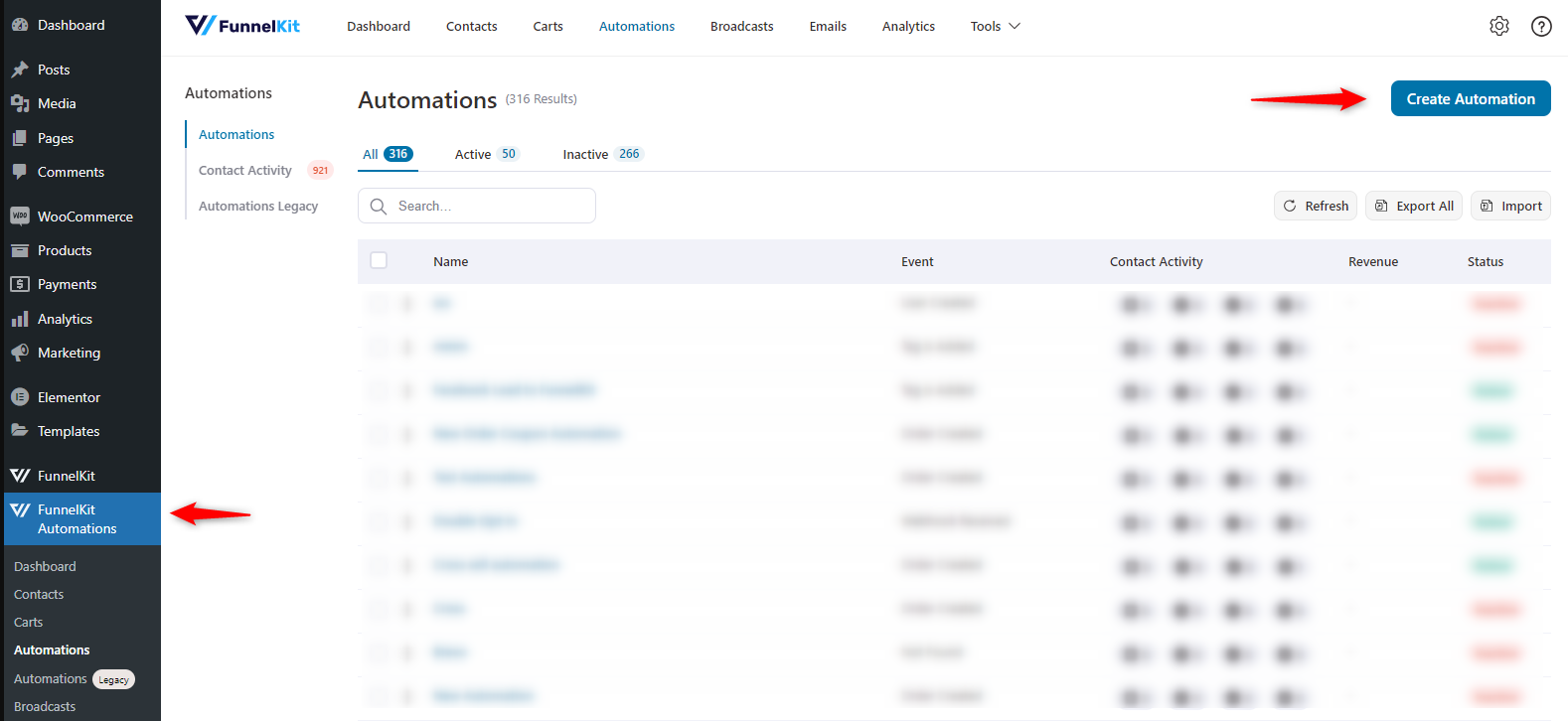
Here you can find various pre-built automation recipes. You can import and customize its events, actions, and more, exactly how you want, for faster setup.
If you want a fresh automation, click on ‘Start from Scratch’ and name it ‘WooCommerce Twilio Order SMS’.
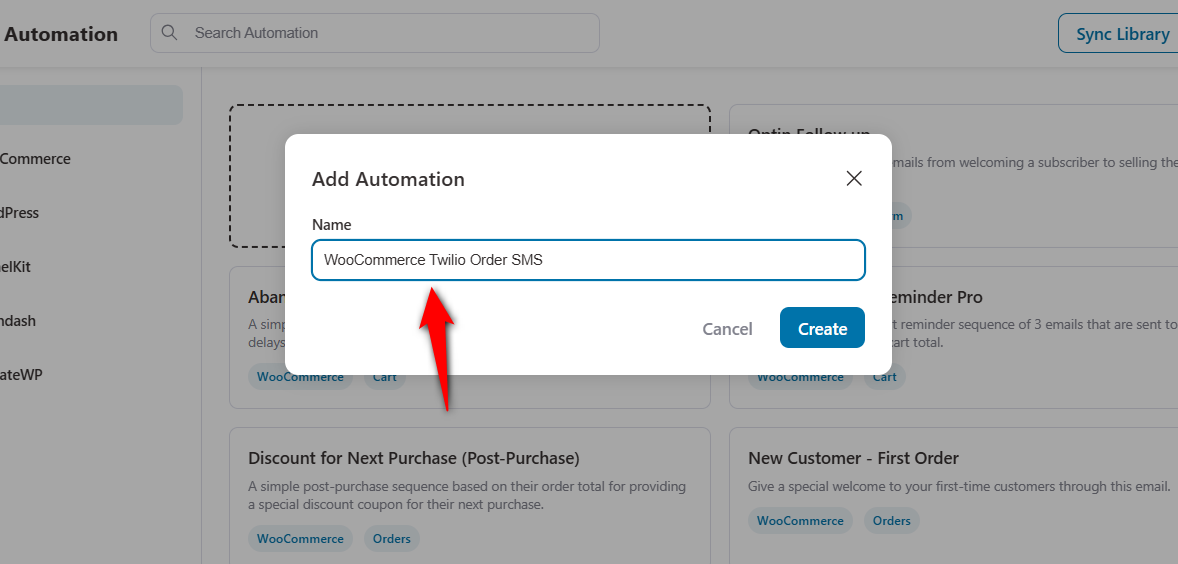
Clicking on 'Create' will add your newly created automation and you’ll be directed to the automation workspace area.
Step 2: Select the ‘Order Created’ event trigger
Select the event you want to trigger this automation. Click on the 'Select an Event' button and choose ‘Order Created’ under WooCommerce.
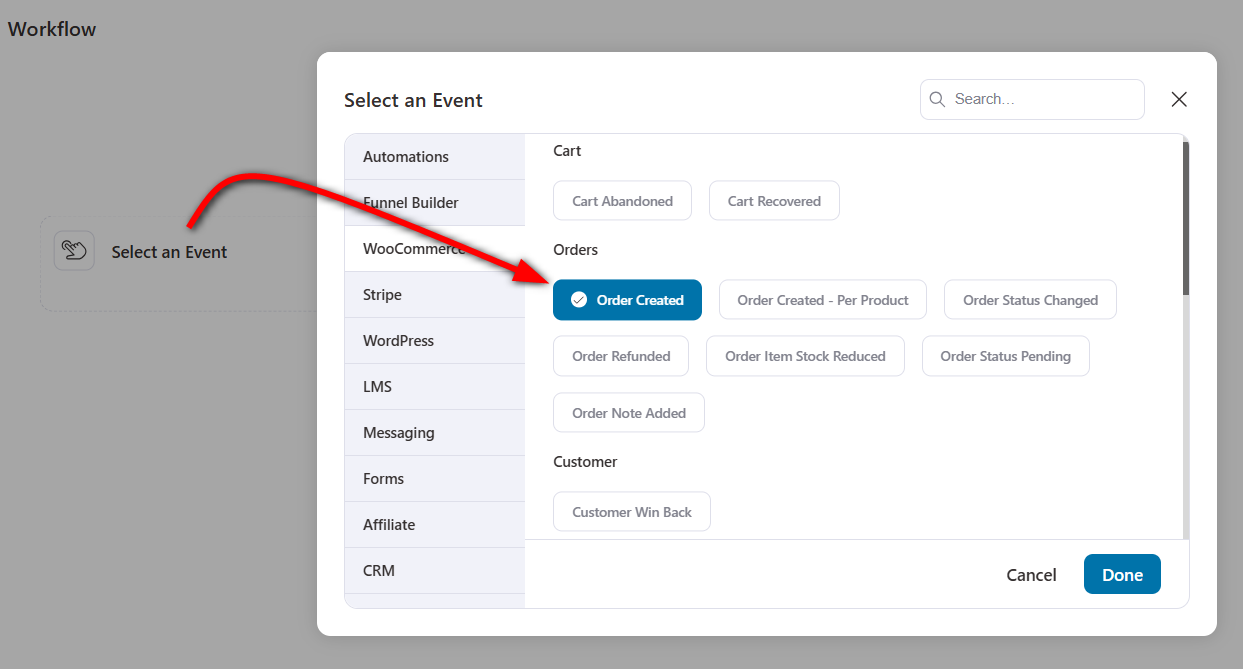
Configure the event by selecting the order status as 'Processing' and making the automation run ‘Multiple Times’.
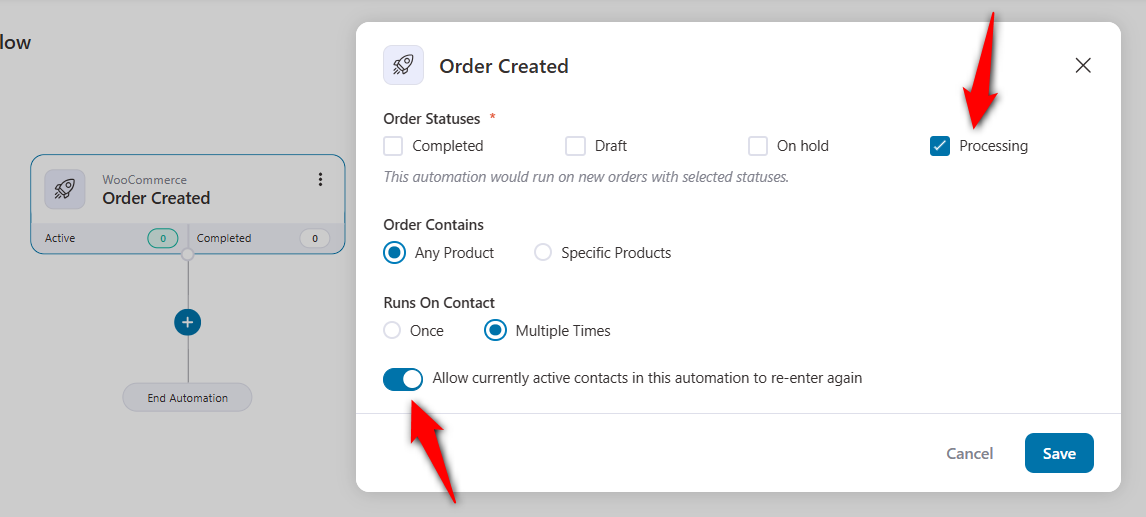
Click on 'Save' when done.
Step 3: Specify the ‘Send SMS’ action via Twilio
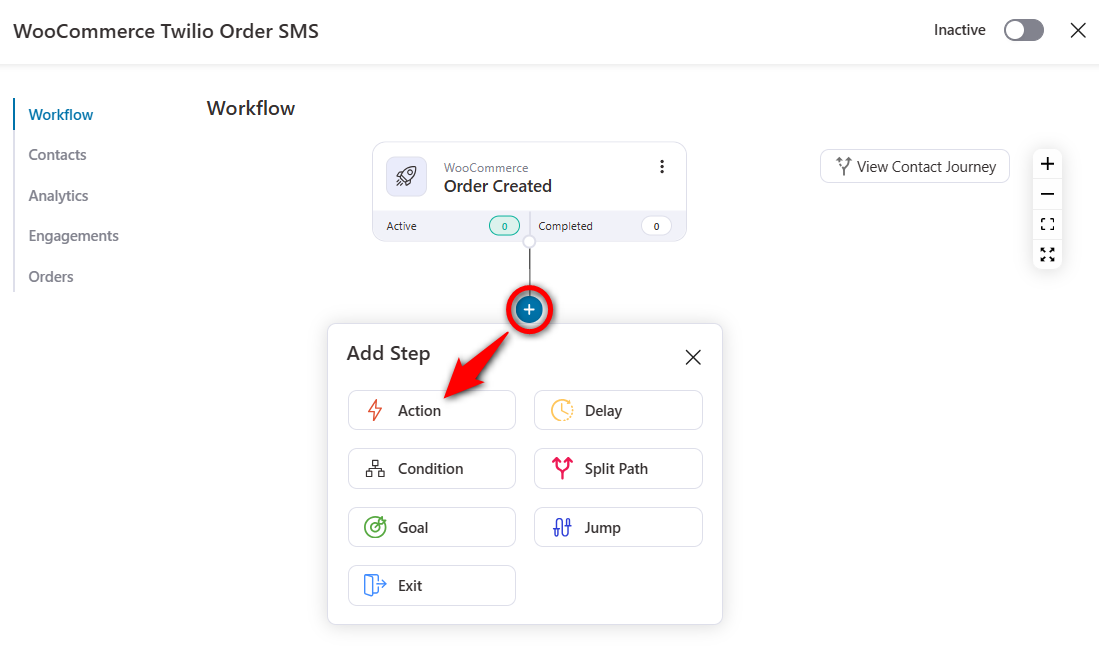
Next, click on the blue icon from where you can add actions, conditions, delays, exits and goals for your automation. Select 'Action' from here.
Click on the ‘Send SMS’ action under Messaging.
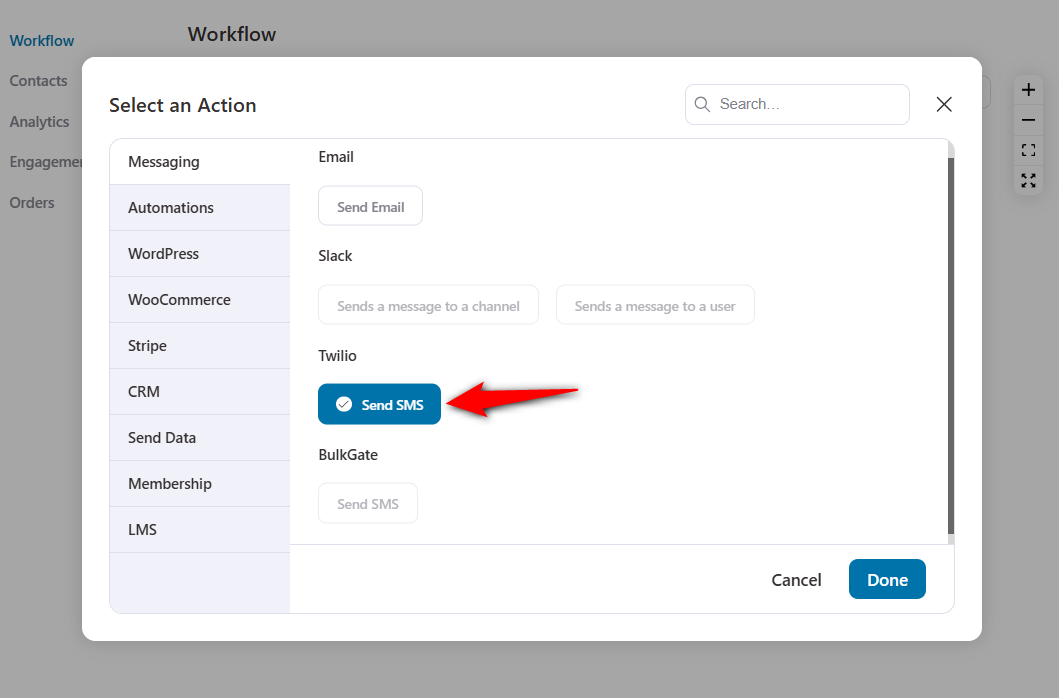
Click on ‘Done’ to insert this action into your workflow.
Step 4: Create the Twilio SMS content to be sent to your customer
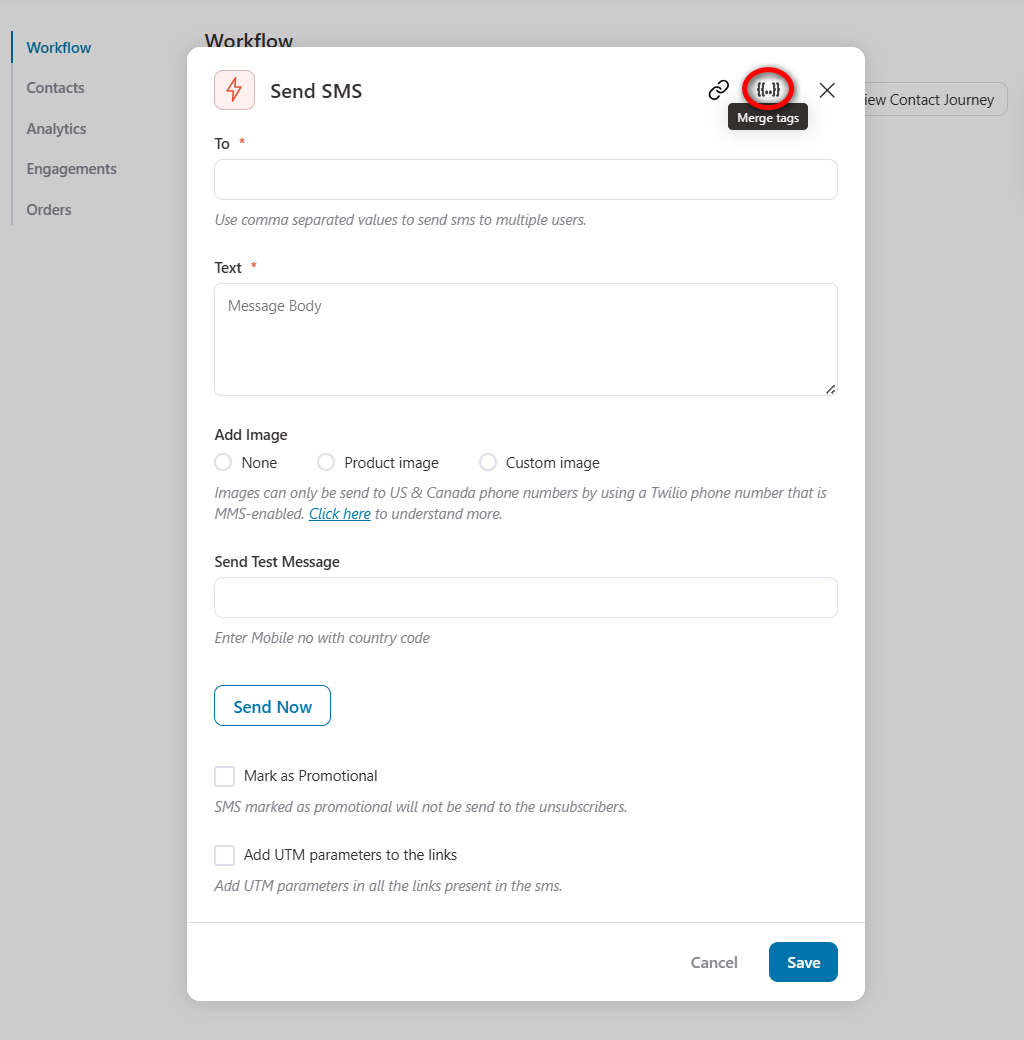
To fetch the customer's phone number details in the "To" field, click on 'Merge Tags'.
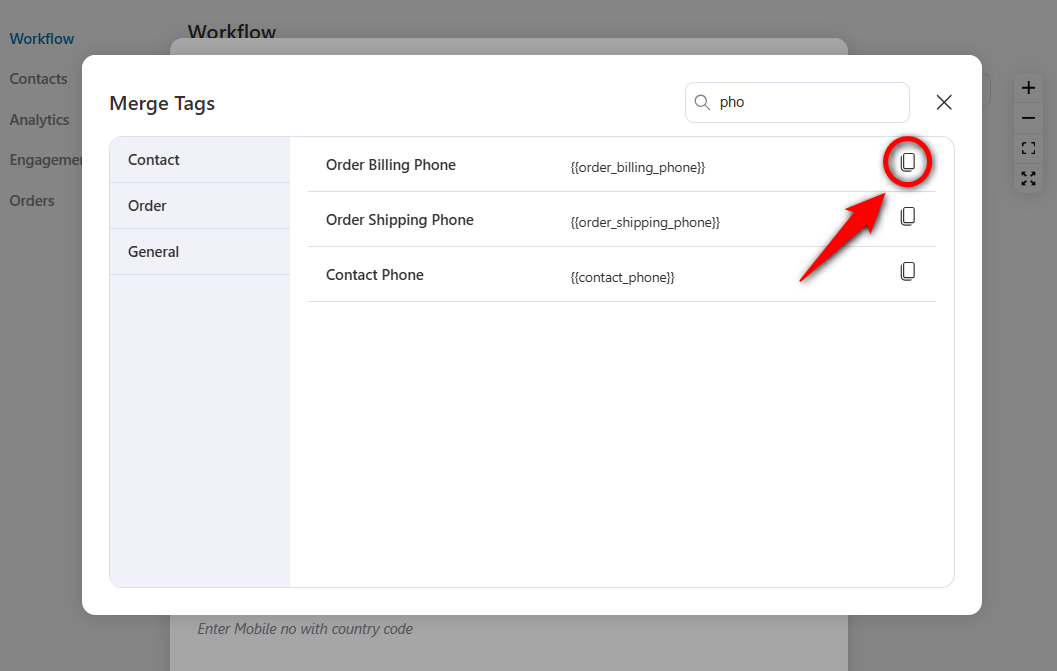
Copy the billing phone number merge tag, which will retrieve the phone number the customer entered during checkout.
Now, paste the ‘Order Billing Phone Number’ merge tag here.
Write the Twilio SMS body you want to send when someone orders from your WooCommerce store.
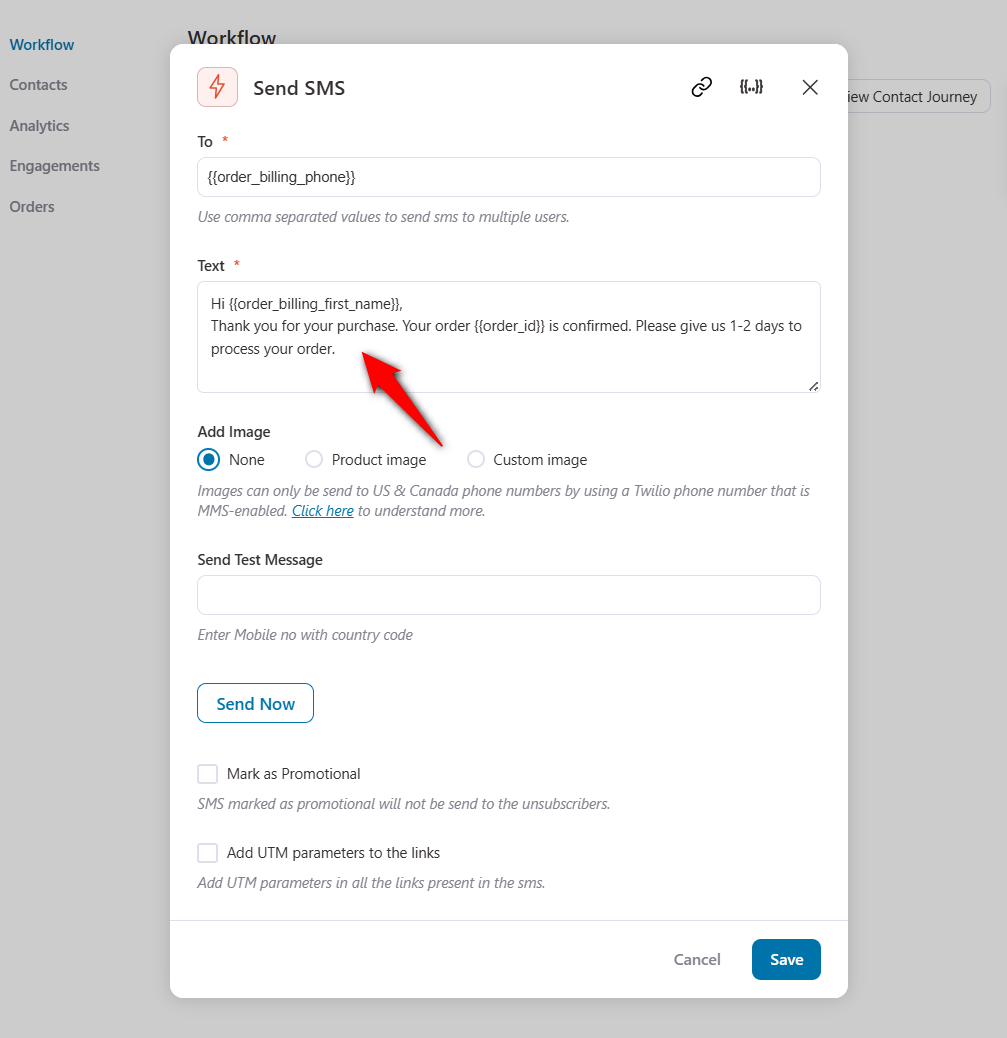
Since this is a transactional SMS, we will leave the promotional SMS box unchecked. Also, if you want to add UTM parameters to the links in your SMS, you can do so here.
Once done, hit the 'Save' button.
Step 5: Activate and test your automation
Activate your Twilio SMS automation by clicking on the toggle to ‘Active’.
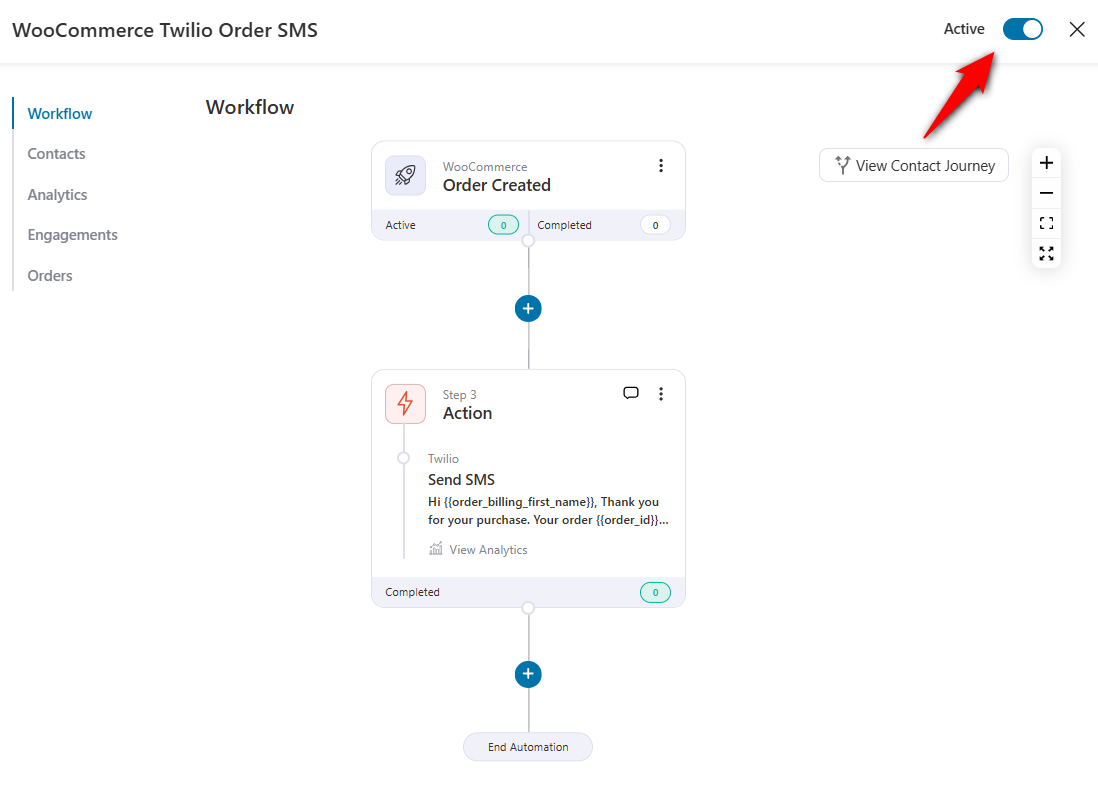
Well done! Your automation is now live and running. Your store now automatically sends a Twilio SMS with every new order.
To confirm everything is firing, place a test order and check that the SMS arrives. Sent messages also appear in your Twilio console's message log and in your contact's profile inside FunnelKit.
What Twilio Actually Costs
The plugin is only part of the bill. The real recurring cost is Twilio usage, and it's pay-as-you-go, no contracts, no monthly minimums beyond your phone number rental.
Here's the honest breakdown for a US store.
| Cost item | Typical US price | Notes |
|---|---|---|
| Outbound SMS | ~$0.0079-$0.0083 per segment | “Starts at 1 cent” is the marketing line; the base rate is just under a cent |
| Inbound SMS | ~$0.0075 per segment | If you accept replies |
| Local phone number | ~$1.15/month | One number, recurring |
| Toll-free number | ~$2.00/month | Alternative to a local number |
| MMS (image) | ~$0.02 per message | Higher than SMS |
| Trial credit | $15 free | Sends only to verified numbers |
The segment that doubles your cost
Twilio bills per segment, not per message. A plain-text SMS segment is 160 characters. Go one character over 161, and the message splits into two segments and costs twice as much.
If you even include an emoji or any non-standard character, the message switches to Unicode encoding, and the segment limit drops to 70 characters, so even short messages can be split.
So, a practical rule is to keep SMS under 160 plain GSM characters and skip emojis in transactional texts.
A link shortener can help here. FunnelKit Automations integrates with Bitly to shorten URLs automatically and protect your character count.
A realistic monthly estimate
Let's say, a small store sending 5,000 order-status texts a month on a local number pays roughly:
- 5,000 × ~$0.0079 = ~$39.50 in messages
- ~$1.15 for the phone number
- ≈ $41/month, all in.
Please note that high-volume US senders also need 10DLC registration (the A2P registration carriers require for application-to-person texting), which adds small per-campaign fees on top of that.
None of the plugins above charges you per message; you're only ever paying Twilio for usage and your one-time/annual plugin license.
WhatsApp Notifications via Twilio
Twilio is an official provider of the WhatsApp Business API, so you can send order updates and reminders over WhatsApp through the same Twilio account you use for SMS.
However, the pricing model differs from that of SMS.
WhatsApp uses conversation-based pricing. You're billed per 24-hour conversation window, not per message, and the rate depends on the conversation type.
Twilio's pass-through WhatsApp rate starts around $0.005 per message, and WhatsApp currently includes a pool of free service conversations each month (roughly 1,000) before per-conversation charges kick in.
Marketing-template conversations cost more than service ones, and rates vary by country.
For plugin users, WhatsApp via Twilio requires a more involved setup than SMS, including a WhatsApp Business sender, Meta's approval of message templates, and a connector that supports the WhatsApp channel.
The core notification plugins above (the official extension, ShopMagic, AutomateWoo) are built for SMS, not WhatsApp.
Within the FunnelKit ecosystem, WhatsApp is typically routed through Uncanny Automator, which has dedicated WhatsApp actions, rather than the native Twilio SMS connector.
So if WhatsApp is a must-have channel for you, plan for either Uncanny Automator, a dedicated WhatsApp plugin, or custom development against Twilio's WhatsApp API and use Twilio SMS (via FunnelKit) for your text campaigns.
OTP & Phone Verification with Twilio
Order notifications push information out. OTP (one-time password) and phone verification confirm that a number or a person at checkout or login is genuine.
For verification, you generally don't want to roll your own raw SMS. Twilio offers a purpose-built product, Twilio Verify, priced around $0.05 per successful verification.
It handles generating and expiring codes, rate-limiting to prevent abuse, retries, and supports multiple channels (SMS, voice, email, WhatsApp) behind a single API.
Some common WooCommerce use cases for Twilio Verify:
- Checkout phone verification: Confirm a real, reachable mobile before an order completes (especially valuable for cash-on-delivery stores fighting fake orders).
- Account/login OTP (2FA): Add a second factor to customer or admin logins.
- Password reset confirmation: Verify by phone before allowing the reset.
How does this differ from notification SMS? With notifications you send through Programmable Messaging and pay per segment (~a cent).
With Verify, you pay per verification (~5 cents) but offload all the security logic.
For pure 2FA, Verify is usually cheaper and safer than raw SMS because it handles edge cases for you.
The notification plugins in this guide don't do checkout OTP. You’d add a dedicated phone-verification plugin or Twilio Verify integration alongside your notification setup.
7 WooCommerce Twilio SMS Campaigns You Must Set Up
Order confirmations are important notifications. But the real return on a WooCommerce-Twilio setup comes from automated sequences.
Below are seven campaigns built as mini-recipes you can replicate directly using the trigger, delay, sample copy (under 160 characters), and the target segment.
Build each as a separate automation in FunnelKit, attach the trigger, drop in a delay step, and write the SMS.
1. Order confirmation
Send a confirmation SMS to customers who have successfully placed their order in your store.
Use the Order Created trigger when a buyer completes a purchase.
2. Shipping or out-for-delivery update
Inform your customers about shipment tracking or out-for-delivery order updates. Select the order status changed event from any to Completed (or Shipped, if you use a custom status).
Next, write the SMS to be sent to customers with a shipped order.
3. Abandoned cart recovery
8 out of 10 online shoppers tend to abandon their carts.
Use the pre-built recipes in FunnelKit Automations to reach out to cart abandoners via a series of SMS messages with appropriate delays and attractive incentives.
4. Subscription renewal reminder
SMS offers a great way to engage subscribers and to remind them when their subscriptions are due for renewal.
Configure the number of days before the renewal date, and the SMS will be automatically sent to active subscribers approaching renewal.
Furthermore, you can even set up a simple automation to remind them about subscription expiry, auto-renewal, payment details updation, and more.
5. Purchase anniversary celebrations
Celebrating your customers’ 3-month, 6-month, or 1-year purchase anniversary is a great way to stay top of mind.
Make sure to include attractive coupon codes to offer at their purchase anniversary.
6. Win-back (lapsed customers)
FunnelKit Automations allows you to send WooCommerce Twilio SMS notifications to your customers who haven’t bought in a particular time period.
So let’s say a customer bought from you around 3 months ago but hasn’t bought anything since then. You can send an automated SMS to win them back.
7. Shopping experience or product review request
Your VIPs are more likely to respond to your request for review and shout-out on social media than one-off buyers.
So it’s a great idea to send a blast campaign to your segmented list of VIP customers, asking them for reviews.
Campaigns 1-7 above are automated (event-triggered). For one-off promotions, such as a flash sale or a restock alert, use a broadcast instead. In FunnelKit, choose a contact segment, write the SMS, and either send it immediately or schedule it.
The Pro Smart Sending / A/B testing feature tests message variants on a small sample and sends the winner to the rest of the recipients, which is worth using for any broadcast with over a few hundred recipients.
In our next post, we will dive deeper into additional WooCommerce SMS campaign ideas and how to set them up in your store.
Troubleshooting Twilio SMS in WooCommerce
Most "Twilio SMS not sending" problems trace back to a handful of causes. Work through these in order.
- My SMS isn’t sending at all
Check in the following sequence. Your Account SID, Auth Token, and number are pasted correctly with no stray spaces
The recipient phone number includes the country code (example, +1 for the US). The automation/trigger is actually Live, not in Sandbox/Draft, and your Twilio account has credit or a valid payment method.
- It works for me, but not for customers (trial-account trap)
Free Twilio accounts can only send to verified numbers. If your own number works but real customers don't receive texts, you're still on the trial.
For this, add a payment method to upgrade and lift the restriction.
- Invalid phone number or messages silently failing
Twilio rejects numbers that aren’t valid mobile numbers or lack a country code.
If you’re collecting phone numbers at checkout, make the field required and validate the format. In AutomateWoo and FunnelKit Automations, a bad number shows up as a failed action in the logs.
- Messages blocked to certain countries
By default, Twilio restricts sending to some regions. In the Twilio console, go to Messaging → Settings → Geo Permissions and enable the countries you ship to.
- Where do errors show up
With the official extension, send errors are written to the Order Notes. Open the order to see exactly why a message failed.
In FunnelKit and AutomateWoo, check the plugin's Logs area. Twilio's own console message log is the source of truth for delivery status.
- Scheduling a message for later
With the official extension, scheduling is not supported due to the way Twilio’s API is used.
If you need scheduled or delayed sends, use an automation tool (FunnelKit Automations or AutomateWoo) and add a delay step, or schedule a broadcast.
- Replies aren't reaching me
Basic notification plugins are one-way; customer replies land in your Twilio dashboard, but don’t surface in WooCommerce. The official extension's return-SMS setting sends a fixed auto-reply.
For true two-way handling, FunnelKit’s Twilio SMS Received event can trigger an automation in response to an incoming reply.
Frequently Asked Questions
Yes. ShopMagic for Twilio is a free plugin that sends WooCommerce notifications through your own Twilio account, no extra paid plugin required. You’ll still pay Twilio for usage (about a cent per US text), and on a free Twilio trial, you can only send to verified numbers until you upgrade.
Text messages have higher open and click-through rates than any other communication channel. Here’s what you can do by enabling the Twilio SMS service on your WooCommerce store:
- Send notifications about flash sales on your store
- Notify customers about their orders and refunds
- Get in touch with your customers for product reviews or recommendations
- Alert users when the product is back in stock or subscription due notifications
- Remind abandoned shoppers to continue with their purchases
- Lure users in with exclusive discount coupon codes
WooCommerce Twilio SMS notifications can significantly improve customer engagement and satisfaction, thereby generating higher revenue.
It depends on what you need. For order-status texts only, the official WooCommerce Twilio SMS Notifications extension is the simplest. For free notifications, ShopMagic. For marketing sequences and broadcasts (abandoned cart, win-back, post-purchase), FunnelKit Automations is the most capable. If you already run AutomateWoo for email, adding its SMS action is the path of least resistance.
The trial works for testing and includes ~$15 in credit, but it only sends to numbers you’ve verified and adds a trial prefix to every message. To text real customers, add a payment method to upgrade to pay-as-you-go.
Yes, you can send SMS notifications for different WooCommerce events. For that, you must select an SMS gateway for WooCommerce (Twilio), then set a particular event under WooCommerce and specify the action in FunnelKit Automations.
Yes, Twilio supports multiple languages, allowing you to send SMS notifications in different languages per your WooCommerce business requirements.
Yes, you can customize the sender name when sending Twilio SMS notifications. Twilio supports alphanumeric sender IDs, which you can leverage to enhance your SMS open rates.
Please note that the alphanumeric sender ID only applies to supported countries and requires an upgraded Twilio account.
Create a Perfect Automated WooCommerce Twilio SMS Sequence!
We’re sure you are already excited to set up your automated SMS services to boost engagement in your store.
We covered the main ways to set up WooCommerce Twilio SMS notifications, from the official extension and free plugins to a full no-code automation and custom code.
We also compared the methods, walked through the complete setup, broke down Twilio’s actual costs, and shared campaigns and best practices to put it all into practice.
For most stores, we recommend FunnelKit Automations because it lets you trigger Twilio SMS from any WooCommerce event and run email and SMS sequences together in one visual builder.
That combination is what turns a simple order text into a complete retention system.
Ready to start? Get FunnelKit Automations and set up your first Twilio SMS automation today.
Editorial Team
October 6, 2026Abandoned cart subject lines decide whether a shopper opens your recovery email or scrolls right past it. Everything inside that email, from the product photos to the coupon and the...
Editorial Team
October 5, 2026WooCommerce email customizer plugins let you add your logo, brand colors, and preferred layout to order emails without touching code. The problem is that they don’t always cover every email...

Editorial Team
September 30, 2026Quick answer: A quiz funnel is a multi-step interactive path that replaces a static lead form where visitors answer 5-8 questions, opt in with their email, and receive a personalized...






