


A WooCommerce backorder allows customers to purchase products that are temporarily out of stock.
Without backorders, you lose the sale because WooCommerce's default behavior is to mark out-of-stock products as unavailable and gray out the "Add to Cart" button.
If you're restocking that item in 2 days, the customer who just landed on your product page has no way to place an order and no reason to wait.
In this guide, we'll walk you through enabling WooCommerce backorders for simple and variable products, customizing the message shoppers see on your product page, and automating notifications with a WordPress plugin.
Furthermore, we'll also share best practices for managing backorders without hurting customer trust.
Why Allow Backorders in Your WooCommerce Store?
Retailers lose roughly $1.73 trillion each year due to out-of-stock situations. Most of that loss happens right at the finish line. A buyer wants the item and they have their credit card out, but the store refuses to take the order.
Enabling backorders in WooCommerce turns that dead end into a revenue opportunity. Here is why we recommend setting up backorders for your store:
- Capture lost revenue
WooCommerce hides the purchase option on out-of-stock products by default. Backorders keep the "Add to Cart" button active, so customers can buy now and receive the item when it ships.
- Maintain your search rankings and ad performance
Google Shopping penalizes dead pages. Run paid search traffic to an out-of-stock item, and you risk instant disapprovals. Leaving the purchase pipeline open keeps those product listings alive. You stop burning ad budget on traffic that mathematically cannot convert.
- Gauge real demand for incoming inventory
Pre-arrival sales data tells you exactly how much product to buy next. Guesswork vanishes. You know the true demand volume, giving you better leverage with suppliers and letting you base restock orders on hard numbers.
- Improve the customer experience
No shopper wants to check a product page five separate times, hoping it comes back in stock. A backorder option with an estimated date lets them buy and move on.
- Reduce the risk of losing customers to competitors
When a shopper finds an item out of stock with no option to order, they will go to your competitor to buy the same product. Backorders give them a reason to stay.
Table of Contents
- 1 How to Set Up WooCommerce Backorders?
- 2 How to Customize WooCommerce Backorder Messages?
- 3 Sending Backorder Notifications in WooCommerce
- 4 8 Best Practices to Keep Backorder Customers Happy and Coming Back
- 5 Frequently Asked Questions About WooCommerce Backorder
- 6 Start Selling Through Stockouts With WooCommerce Backorders
How to Set Up WooCommerce Backorders?
WooCommerce handles the basics perfectly, so you can enable backorders directly from your product dashboard without using external tools.
Here is the exact configuration process.
Step 1: Enable stock management in WooCommerce
The platform cannot accept a backorder if it has no idea of your current stock levels.
Go to WooCommerce ⇨ Settings ⇨ Products ⇨ Inventory to make sure the 'Enable stock management' checkbox is enabled.
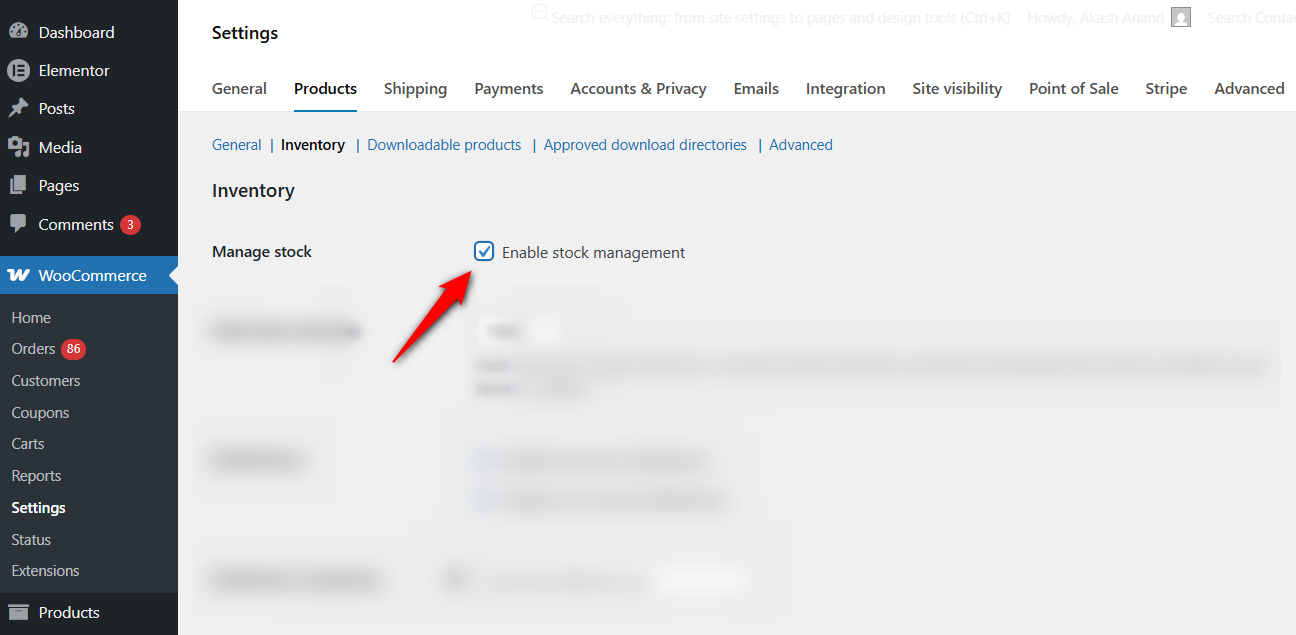
Now, WooCommerce is ready to track stock quantities at the product level, required for the backorder option to appear.
Step 2: Allow backorders on simple products
Open the product you want to accept backorders for and scroll down to the Product Data section. Click the Inventory tab on the left side.
Check the 'Manage stock' box at the product level to enable quantity tracking for this specific item.
You'll see three fields here. The first is Stock quantity, where you enter the current number of items you have. Set this to 0 if the product is currently out of stock.
The second is the 'Allow backorders?' dropdown, which gives you three options:
- Do not allow stops on all purchases when stock hits zero. This is the default setting.
- Allow, but notify the customer option lets customers purchase the item and displays a message on the product page notifying them that the item is on backorder. We recommend this option for most stores because it sets clear expectations.
- Allow accepts backorder purchases silently without showing any notice to the customer.
Select 'Allow, but notify customer' for the most transparent experience.
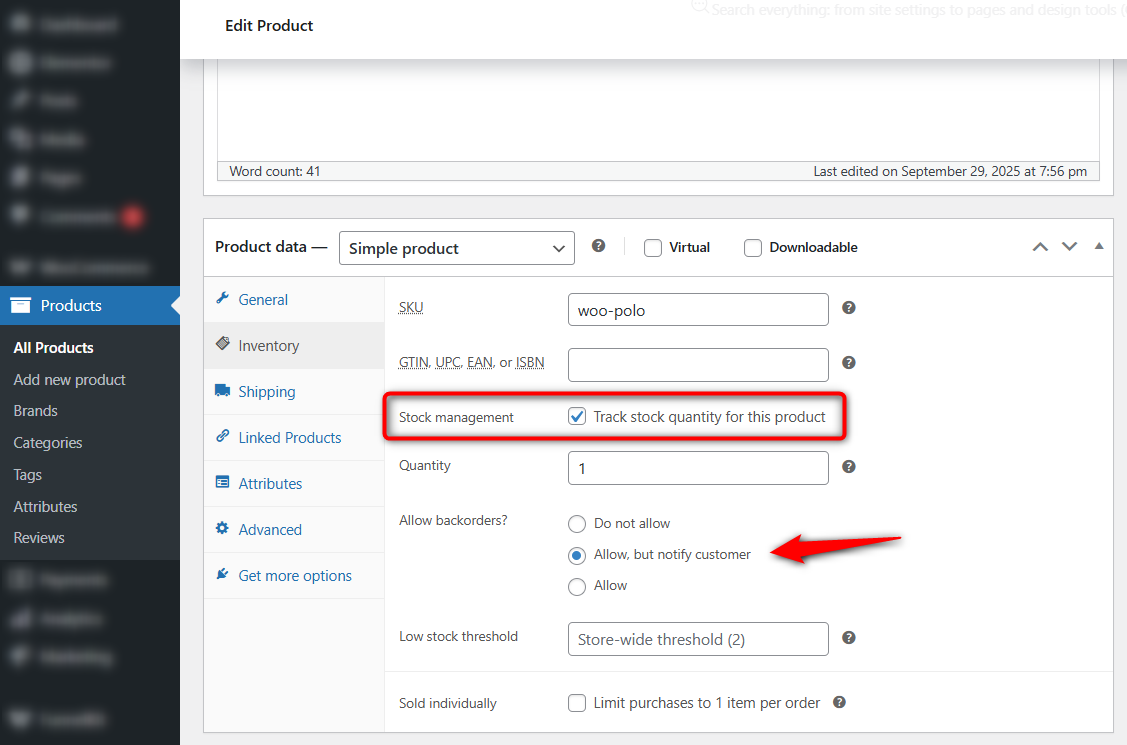
WooCommerce will display a default message, such as "Available on backorder", on the product page when stock is at 0 or below.
Still in the Inventory tab, you will see a “Low stock threshold” field. This number determines when WooCommerce sends you a low stock notification email.
For backordered products, set this to your supplier's lead time so you have enough notice to reorder before stock hits zero.
Math matters here. Let's say your supplier needs two full weeks to deliver new units, and you normally move 10 items a week. Set the threshold to 20. That creates a safe buffer.
The system pings you when you hit that exact number, giving you plenty of runway to submit a purchase order before your warehouse goes completely empty and angry customer emails start flooding in.
Global thresholds also exist in the main settings if you prefer applying one rule across the entire store.
Step 3: Configure backorders for variable products
T-shirts with multiple colors and sizes require a different approach. You must control inventory at the strict variation level.
Navigate to the Variations tab inside your product editor. Click on a specific size or color. The standard inventory fields will appear.
You can leave the medium shirts open for future orders while keeping the large size strictly locked to current inventory.
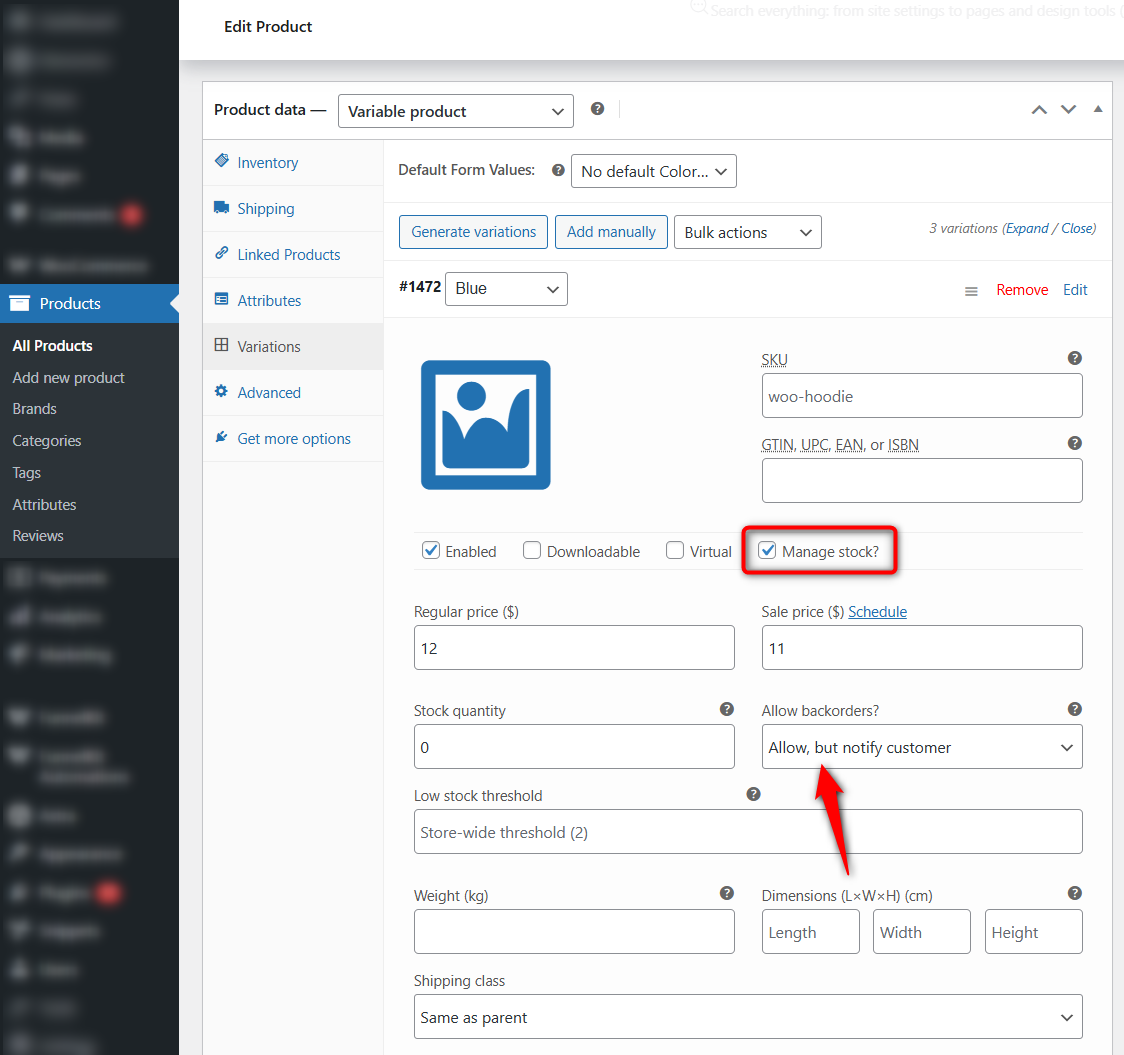
For example, if your medium size is out of stock but large and small are available, you can enable backorders only on the medium variation.
Each variation has its own stock quantity, backorder setting, and low stock threshold.
Make sure the 'Manage stock' option is checked at the variation level. If you only manage stock at the parent product level, the per-variation backorder options will not appear.
Click Update to save the product.
Step 4: Test your backorder setup
Open the product on the frontend of your store to verify that the backorder is working correctly.
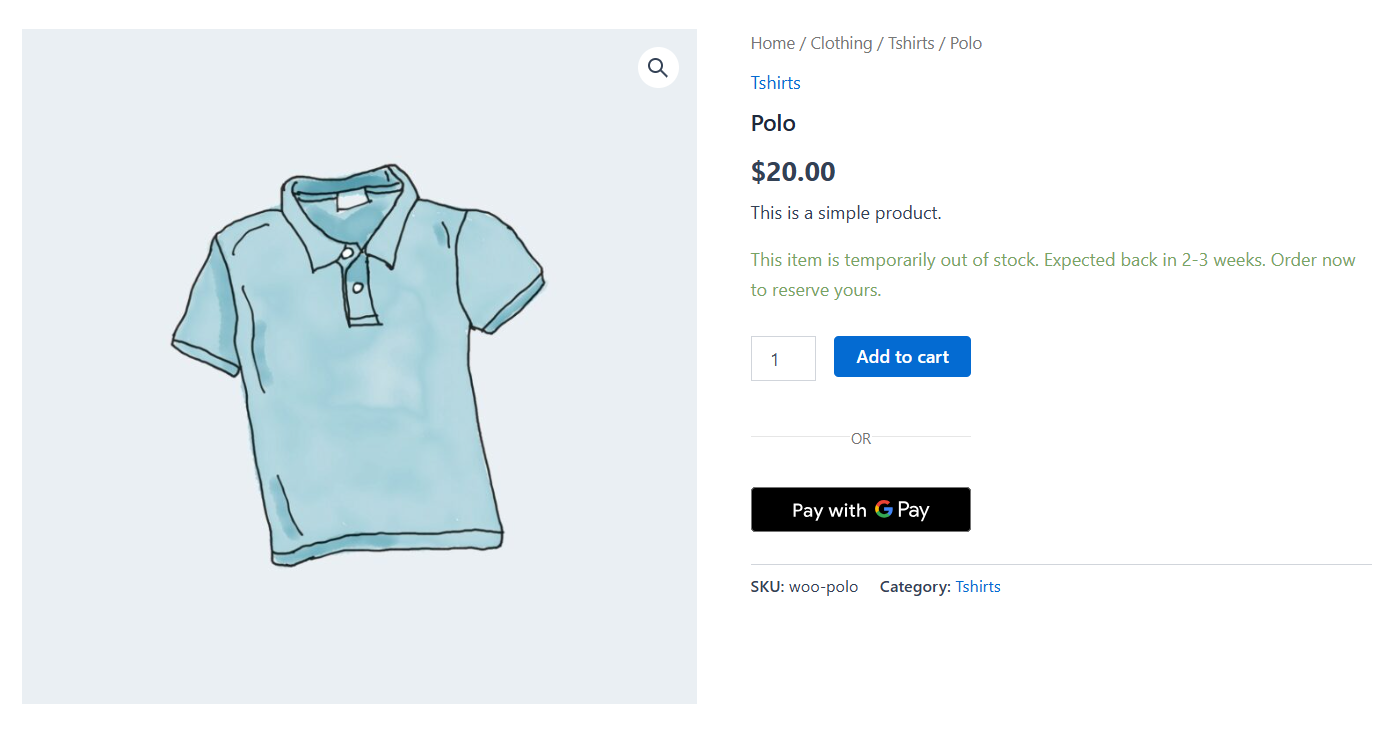
Stores using the notification option will see 'Available on backorder' right next to the buy button once physical stock hits zero. Push a test order through the checkout. Buy the item yourself.
Navigate to WooCommerce ⇨ Orders to verify the status logged correctly, and check your inbox to ensure the email receipts look right.
One final check is to look at the live product page on your phone. CSS overlap issues occur frequently with inventory warning text, so verify that the mobile layout looks clean.
How to Customize WooCommerce Backorder Messages?
Out of the box, WooCommerce displays the "Available on backorder" notice. It works.
However, buyers learn absolutely nothing about real-world shipping timelines, leaving them completely in the dark about whether they are waiting three days or three months for their credit card charge to yield a physical product.
You need text that reflects the realities of the warehouse.
Two solutions exist for this.
The first is a simple code snippet, and the second is using a dedicated plugin for granular control.
Changing the backorder text with a code snippet:
Filter that default text directly. Open your child theme's functions.php file or grab a code snippets plugin.
Here is the exact hook:
add_filter( 'woocommerce_get_availability_text', 'custom_backorder_message', 10, 2 );
function custom_backorder_message( $text, $product ) {
    if ( $product->managing_stock() && $product->is_on_backorder( 1 ) ) {
        $text = 'This item is temporarily out of stock. Expected back in 2-3 weeks. Order now to reserve yours.';
    }
    return $text;
}
Now your buyers see an exact expected shipping date. Modify the string in line four to match your real lead times.
Using a plugin for advanced backorder management:
Snippets fail the moment different items require different lead times. A custom desk might take six weeks while a t-shirt takes three days.
Dedicated plugins solve this by moving the timeline controls directly onto the individual product editing screen.
JEEP WooCommerce Advanced Pre-Order & Backorder handles this perfectly. WPC Product Timer offers similar countdowns and custom message fields. Neither requires touching a single line of PHP.
If you need estimated delivery dates, the free Order Delivery Date for WooCommerce plugin handles timeline displays without overcomplicating your backend operations.
Sending Backorder Notifications in WooCommerce
The hardest part of accepting backorders isn't the inventory math. It is the communication.
The moment a customer pays for an out-of-stock item, the clock starts ticking.
WooCommerce's default emails handle basic receipts perfectly fine, but they fail completely at the nuances of delayed fulfillment, leaving buyers wondering if their money just vanished.
Manual follow-ups do not scale. If you are emailing 50 different buyers every time a shipping container gets delayed, you are wasting hours.
For this, you need an automated workflow. We highly recommend FunnelKit Automations for this exact problem.
Built specifically for WordPress, FunnelKit Automations is a marketing automation engine that includes a visual workflow builder, pre-built automation recipes, and WooCommerce-specific triggers, letting you create automated email sequences for any order event, including backorders.
FunnelKit Automations offers a free version with core automation features. The Pro version adds advanced triggers, conditional logic, and unlimited automations.
Here is how a standard automated setup looks:
- Backorder confirmation email
Create an automation and select the Order Stock Reduced event trigger.
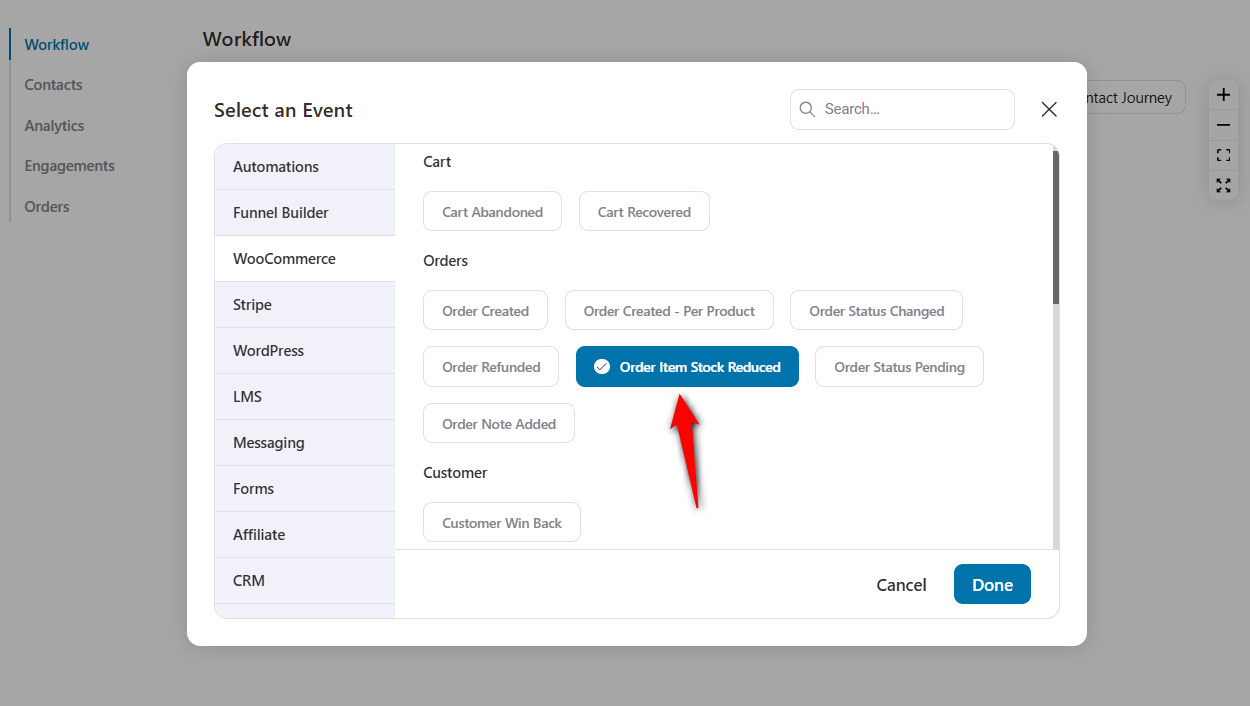
Set the condition to Product stock is less than or equal to zero (0).
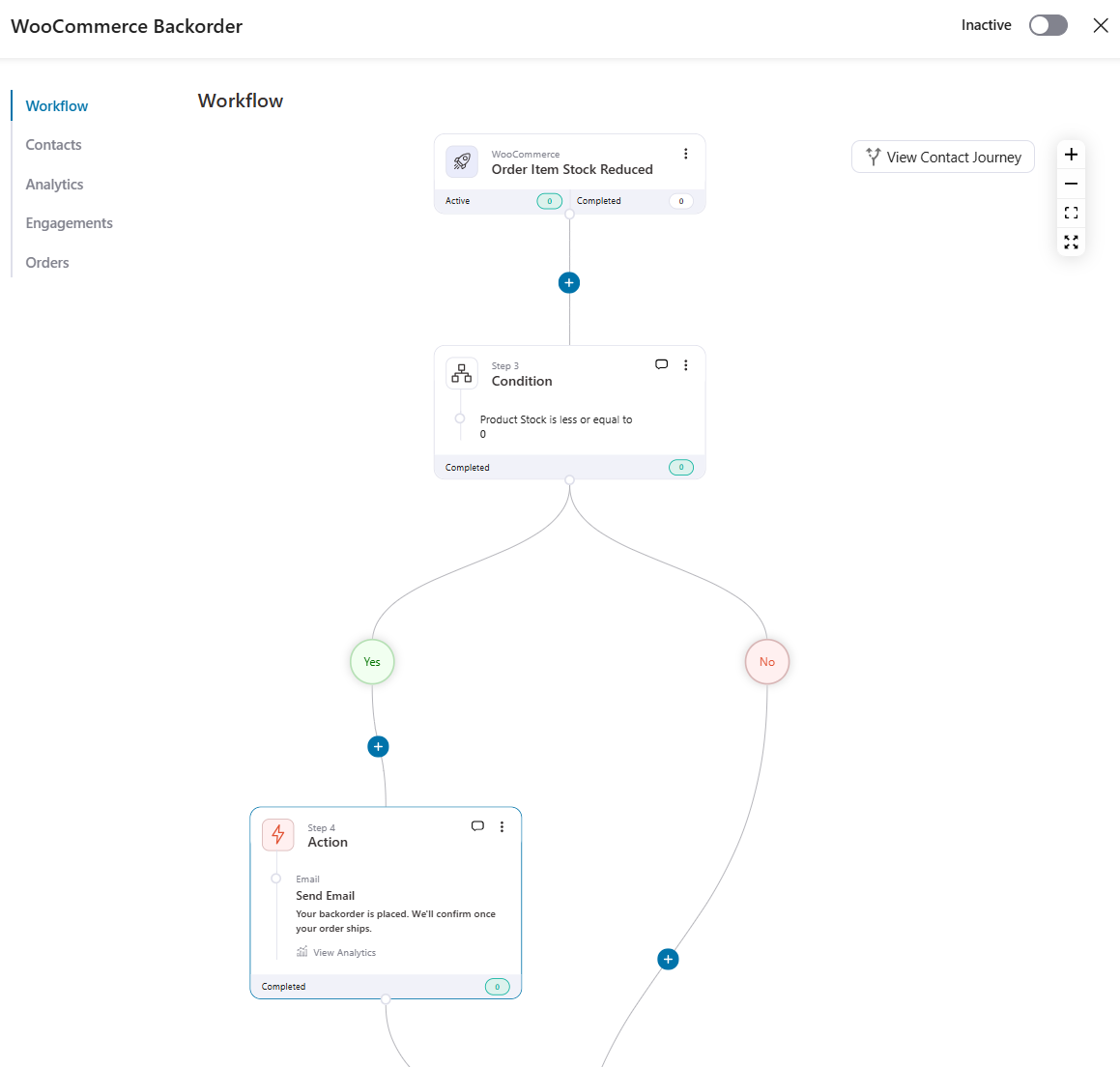
The visual builder lets you drag in the exact product data. Tell the customer directly that the item is secured. Give them a realistic delivery window.
Use personalization tags, such as their first name, to make the message feel personal.
- Restock and shipping notification
When that new inventory finally arrives and you flip the order status from 'On Hold' to 'Completed', send off an immediate update.
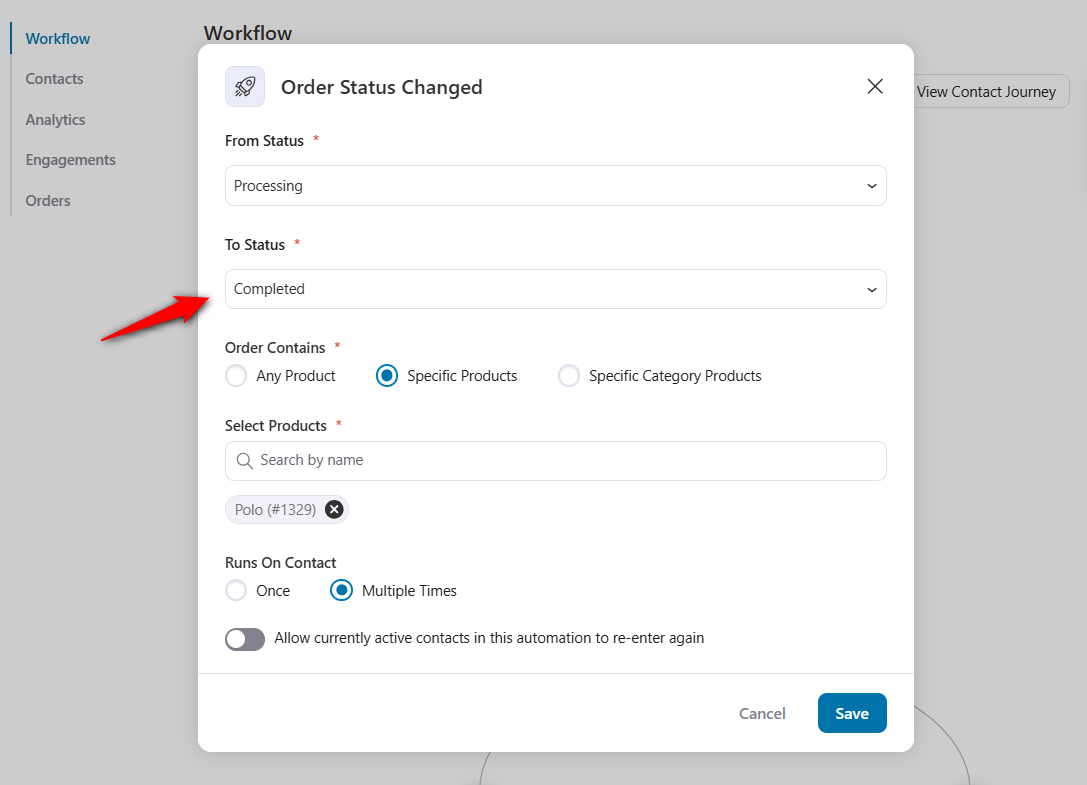
Hand them the tracking number and thank them for their patience.
Delay notification
When a promised two-week wait suddenly becomes a month, proactive emails save your customer support team.
Trigger a mass update to all pending backorders instantly. Getting ahead of bad news builds massive trust.
FunnelKit Automations tracks the open and click rates for all these sequences, so you know exactly who actually read your shipping update.
8 Best Practices to Keep Backorder Customers Happy and Coming Back
Here are some brilliant tips to keep your customers happy and coming back.
- Display estimated availability dates on the product page
"Available on backorder" means absolutely nothing to a buyer. It is completely vague. Give them a hard date instead. Tell them the item ships by March 25, or they have a three-week wait.
Narvar data shows nearly 45% of online shoppers base their checkout decisions on delivery estimates. Hard dates stop hesitation. They also keep your support inbox empty.
- Set backorder limits to protect your fulfillment capacity
Infinite pre-orders sound great until your supplier caps your next shipment. You end up overselling. Cap your backorders using a dedicated plugin or a quick PHP snippet. Control the exact maximum threshold.
This guarantees you actually have enough physical inventory arriving to box up and ship every single pending order.
- Send proactive updates if the restock timeline changes
Total radio silence kills buyer trust instantly. Did your manufacturer push the freight date back? Tell your buyers right now. Do not wait for them to ask. Send an email with the new timeline.
Getting in front of bad news proves you run a legitimate, professional business.
- Offer an incentive for waiting
Nobody likes waiting. Pay them for their patience. Drop a 10% discount code into their inbox, waive their shipping fees entirely, or dump extra loyalty points into their account.
First-time shoppers haven't yet learned to trust you. A financial perk bridges that gap.
- Optimize your checkout for backorder trust signals
Handing over credit card details for an invisible product requires a massive leap of faith. Your checkout page needs to do the heavy lifting here.
Display your SSL badges. Make the return policy impossible to miss. Show payment protection icons.
If you use FunnelKit Funnel Builder, drag and drop those trust widgets and buyer testimonials right next to the "Place Order" button.
- Monitor backorder metrics and adjust your inventory strategy
Watch the numbers closely. Which SKUs constantly run out? How many days do buyers actually wait before demanding a refund? Look at your cancellation rates.
Use this hard data as leverage when negotiating faster turnaround times with your vendors.
It also tells you exactly which items need a higher safety stock threshold and which ones you should just let sell out completely.
- Create a dedicated backorder policy page for your store
Stop answering the same three emails every day. Build a dedicated policy page and spell out exactly how long restocks take.
Explain the refund process clearly, tell them exactly when they will get their tracking number and link this page straight from the checkout screen.
- Use order filters and status labels to track backorders at scale
WooCommerce's default order dashboard turns into a disaster when you have 300 pending shipments.
Sort the chaos by adding a dedicated backorder column. Use status filters to isolate waiting buyers.
If you need to manage settings at scale, grab a plugin like Addify. It lets you toggle inventory rules across entire categories instantly, saving you from opening individual product pages one by one.
Frequently Asked Questions About WooCommerce Backorder
A backorder is not the same as being out of stock. In WooCommerce, “out of stock” means the product is completely unavailable for purchase.
A backordered product is also at zero stock, but the store is still accepting orders because new inventory is expected.
The difference is whether you have turned on the “Allow backorders” setting. Without it, zero stock means the product page shows no purchase option. With it, zero stock means the customer can still place an order that you will fulfill later.
A backorder is for a product that was previously available, sold out, and expected to be restocked. Buyers can read the existing reviews. They see the exact photos. They know the track record. The transaction is completely normal, except that delivery gets delayed.
A pre-order is for a product that has never been available to customers. It might be a new release, a limited edition, or an upcoming product line. You are selling hype. Shoppers lock in a strict future release date for something completely unproven.
Yes, WooCommerce processes payment at the time of purchase, even for backordered items. The order goes through the normal checkout and payment flow.
If you want to charge customers only when the item ships, you would need a pre-order plugin that supports “charge on release” functionality, which is a different workflow from standard backorders.
This is a common issue that usually comes down to one of two things. Either stock management is disabled at the store level (WooCommerce > Settings > Products > Inventory), or it is not checked at the individual product level in the Inventory tab.
Both need to be active for the 'Allow backorders' dropdown to appear. For variable products, you also need to enable stock management at the variation level, not just at the parent product level.
WooCommerce does not have a dedicated “backorder” order status. Backordered items appear as regular orders with a “Processing” or “On hold” status, which makes them hard to identify in a large order list.
The simplest approach is to add an internal order note marking which orders contain backordered products.
For stores with high backorder volume, plugins like Addify add backorder badges and filtering options, and FunnelKit Automations can auto-tag contacts who placed backorders so you can segment and track them in your CRM.
Start Selling Through Stockouts With WooCommerce Backorders
We covered how to enable WooCommerce backorders using the native inventory settings, customize the backorder message on your product pages, configure backorders for variable products, and automate customer notifications throughout the fulfillment process.
For the basic backorder setup, WooCommerce handles everything out of the box.
For the communication side, we recommend FunnelKit Automations to build automated email workflows that keep backorder customers informed at every stage, from order confirmation to shipping notification.
Related Resources:
- How to customize the WooCommerce checkout page
- 25 WooCommerce checkout optimization hacks
- Reduce cart abandonment in WooCommerce
- Set up WooCommerce order bumps
Editorial Team
March 27, 2026Want to turn one-time buyers into customers who keep coming back using WooCommerce? Then you need to find a WooCommerce subscription plugin. These plugins will help you automate billing, manage...
Editorial Team
March 25, 2026Forcing buyers to retype their credit card numbers is killing your conversion rate. A WooCommerce one click checkout fixes this. It strips out the forms. Baymard Institute's analysis of 50...
Editorial Team
March 23, 2026Does your WooCommerce store offer enough payment options? If not, you could be losing up to 13% of sales. [According to Baymard]. WooCommerce’s default payment options don’t always meet customer...






