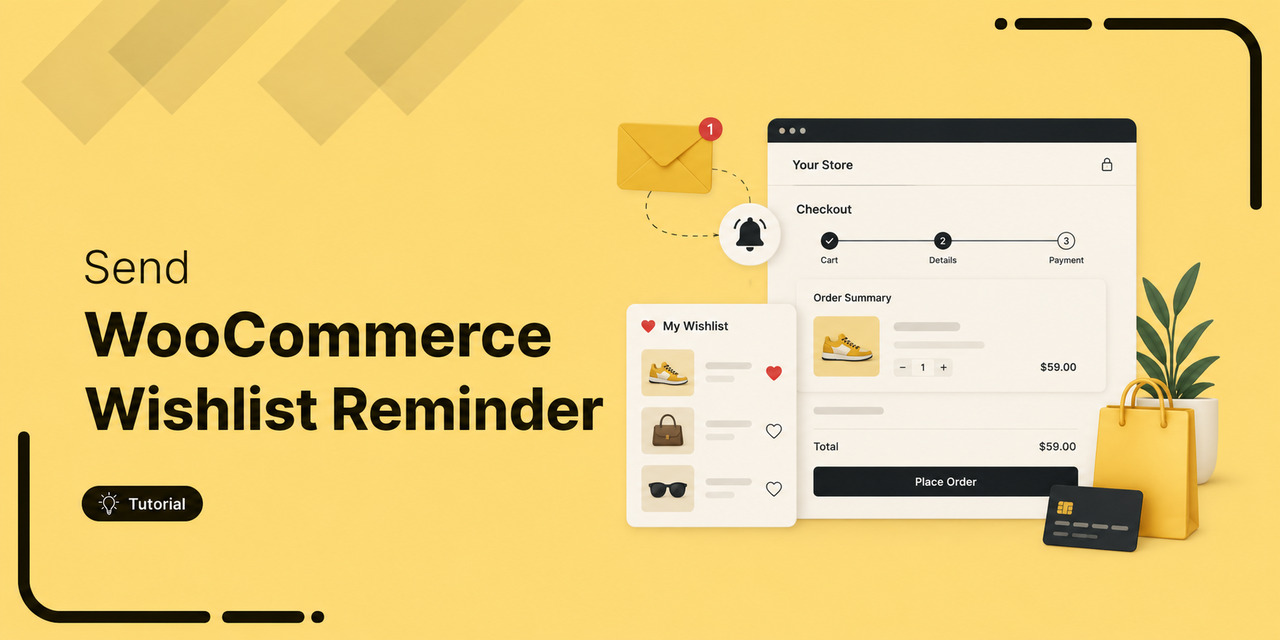
WooCommerce wishlist reminders are one of those things many stores set up once, collect the data for, and then completely forget about.
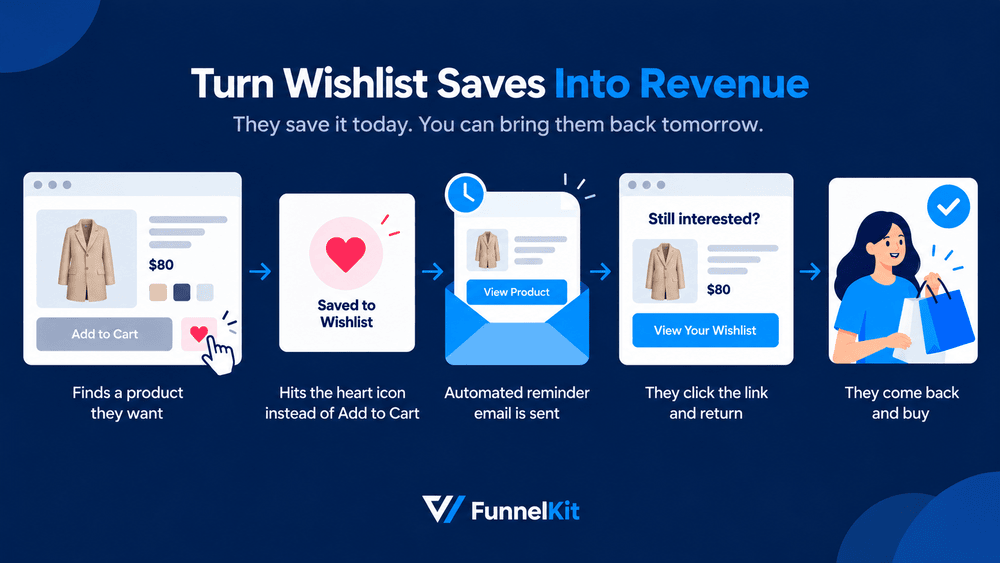
Think about a shopper who lands on your store, finds a product they want, hesitates on the price, and hits the heart icon instead of Add to Cart.
That little heart icon is actually a useful signal. You know what product they want, and there's a good chance they'll come back for it later.
But in many stores, that's where the process ends.
The product sits in their wishlist, untouched, while the same store might be sending multiple follow-up emails to shoppers who abandoned their carts.
Consider a store that gets 400 wishlist saves a month, with an average saved product worth $80. That's $32,000 worth of buying intent sitting in the background.
If just 3% of those shoppers come back and buy after a reminder, that's roughly $960 in additional monthly revenue from traffic you already paid to acquire.
That's the gap a WooCommerce wishlist reminder closes.
In this guide, we'll look at when to send these reminders, how to build a simple follow-up sequence, which messages make sense over SMS, and how to set everything up step by step.
We'll also cover what to check if your wishlist reminders aren't being sent.
Table of Contents
- 1 What Is a WooCommerce Wishlist Reminder Email?
- 2 Why Saved Products Are Worth Emailing About?
- 3 What Do You Need Before You Build a Wishlist Reminder?
- 4 How to Send Wishlist Reminder Emails in WooCommerce?
- 5 Should Wishlist Reminders Go Out By SMS or Push?
- 6 The 5 Wishlist Emails Worth Sending
- 7 When to Send: A Wishlist Email Sequence that Doesn't Annoy People
- 8 Wishlist Reminder Emails Not Working? Fix Them
- 9 Frequently Asked Questions
- 10 Start Turning Saved Products Into Orders!
What Is a WooCommerce Wishlist Reminder Email?
A wishlist reminder email is an automated message triggered by wishlist activity (someone saving a product, a saved product dropping in price, or a saved product coming back in stock) that brings the shopper back to finish the purchase.
It's the quieter cousin of cart recovery, and the two get confused all the time. But they're not the same.
| Parameter | Abandoned cart email | Wishlist reminder email |
|---|---|---|
| What the shopper did | Started buying, stopped | Chose not to buy yet |
| Intent | High, immediate | High, deferred |
| Typical window | 1 to 24 hours | 2 days to several weeks |
| Right tone | "You left something behind" | "This is still here when you're ready" |
| Best incentive | Discount or free shipping | Price drop, restock, or scarcity |
| Send frequency | 2 to 3 emails, then stop | 3 to 4 touches spread over a month |
Cart abandonment is a checkout problem, whereas a wishlist save is a timing problem.
The shopper wasn’t blocked on anything. They just weren’t ready and the email has to respect that difference.
For the cart side, see our WooCommerce cart abandonment recovery guide.
Why Saved Products Are Worth Emailing About?
Automated emails made up 2% of all email sends in 2025, yet they generated 30% of total email-driven revenue.
They earned an average of $2.87 per send, compared with $0.18 for scheduled campaigns.
Wishlist emails fit nearly into this category, yet most stores still overlook them.
A typical WooCommerce store installs a wishlist plugin, collects months or even years of saved-product data, and then does nothing with it.
The data stays in the database while those shoppers move on and potentially buy the same product somewhere else.
Saved products make particularly good email triggers for a few simple reasons:
- You already know which product they're interested in: There's no guessing at recommendations. The email writes itself around what they already picked.
- You can respond to common reasons for waiting: Price changes, low stock, and product availability are all reasons to follow up.
- The audience is small but highly interested: Wishlist adds are a fraction of your traffic, but those shoppers have already shown stronger buying intent than a typical visitor. Even a modest conversion rate can translate into meaningful revenue.
You need to consider one important detail, i.e., let guests save items without forcing an account.
Baymard's checkout research puts forced account creation as a reason shoppers abandon purchases.
The same principle is applicable here. If someone has to sign up just to tap the heart icon, you'll create unnecessary friction and collect far fewer wishlist saves to follow up on.
What Do You Need Before You Build a Wishlist Reminder?
Before you build a wishlist reminder in WooCommerce, it helps to understand that two different pieces are involved.
Your wishlist plugin adds the save button, stores each shopper’s list, and fires an event when something is added, removed, saved, and more.
Your automation plugin listens for those events, applies delays and conditions, and sends the email.
The trick with wishlist email is that not every wishlist plugin exposes its events to anything else.
If the wishlist plugin keeps its data and events locked away, your automation platform has nothing to listen for. You can configure the most detailed workflow imaginable, but the email still won't fire.
So, when comparing wishlist plugins for email automation, don't just look at how many wishlist features they offer.
The important question is whether they can actually pass wishlist activity to your automation tool.
Here's how the main options compare on that front:
| Wishlist plugin | Free version | Events available to automation tools | Best for |
|---|---|---|---|
| SaveTo Wishlist | Yes. Lite includes multiple lists, guest wishlists with auto-merge, and variation tracking | Product added to wishlist, product removed, wishlist saved. Merge tags for wishlist name and URL | Block themes, guest saving, and starting without paying upfront |
| YITH WooCommerce Wishlist | Yes, with one list per user. Premium adds multiple lists | User adds product to wishlist, wishlist reminder, wishlist item on sale. A wishlist product condition, plus merge tags for ID, item count, and items | The most established option, with 500,000+ active installs |
| WooCommerce Wishlists | No, this is a paid Woo Marketplace extension | User adds product to wishlist, wishlist reminder, wishlist item on sale. Rules for items and categories, plus merge tags for items, count, ID, title, and view link | Stores already running official Woo extensions and shareable public lists |
| TI WooCommerce Wishlist / WPC Smart Wishlist | Yes, with core saving features | None natively. You need the plugin’s own notifications, a webhook, or a connector such as Zapier | Stores that want a save button and are happy with the plugin’s built-in emails |
Pick the plugin and the automation tool together.
Choosing the wishlist plugin first and the email tool later is how stores end up rebuilding this twice.
For the broader playbook, see our guide to WooCommerce email marketing.
How to Send Wishlist Reminder Emails in WooCommerce?
To build this without code, we’ll use FunnelKit Automations.
It reads wishlist events from SaveTo Wishlist, YITH Wishlist, and WooCommerce Wishlists, then lets you add delays, conditions, and dynamic product blocks on a visual canvas.
The Lite version is free on WordPress.org and covers automations, contacts, and sending.
The wishlist integrations, conditions, and dynamic coupons are in Pro.
We’ll send a three-day reminder for the saved product (a wool coat).
Make sure both plugins are installed and activated on your site.
Step 1: Create the automation and pick your trigger
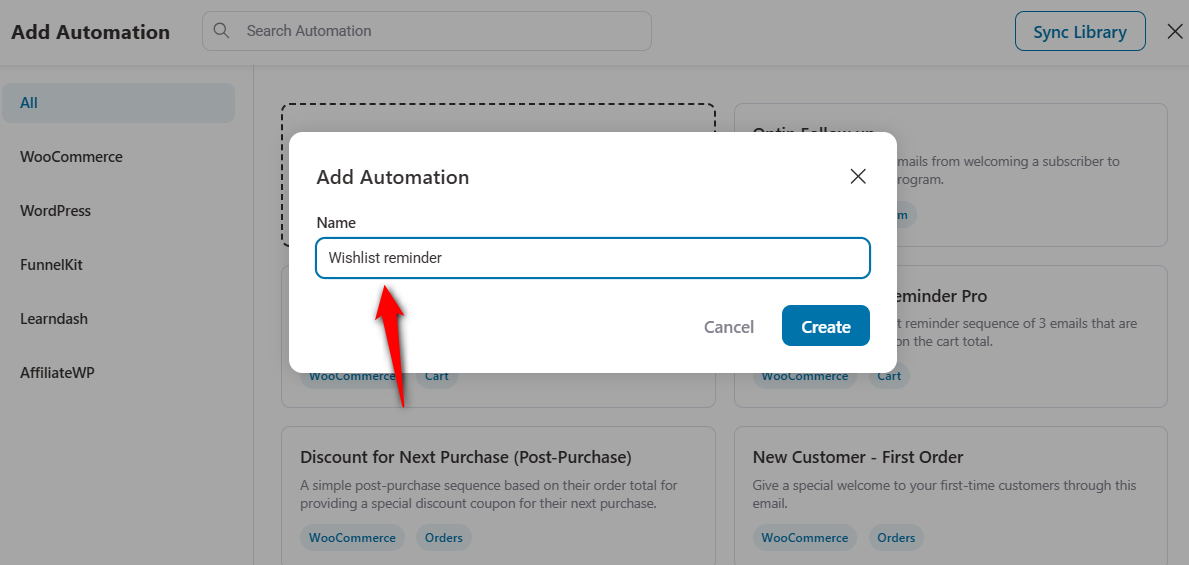
Go to FunnelKit Automations ⇨ Automations and click 'Create Automation'.
Choose Start from Scratch, name your automation, and hit Create.
Click Select an Event to choose the automation trigger.
Select 'Product Added to Wishlist' under the SaveTo Wishlist and click 'Done'.
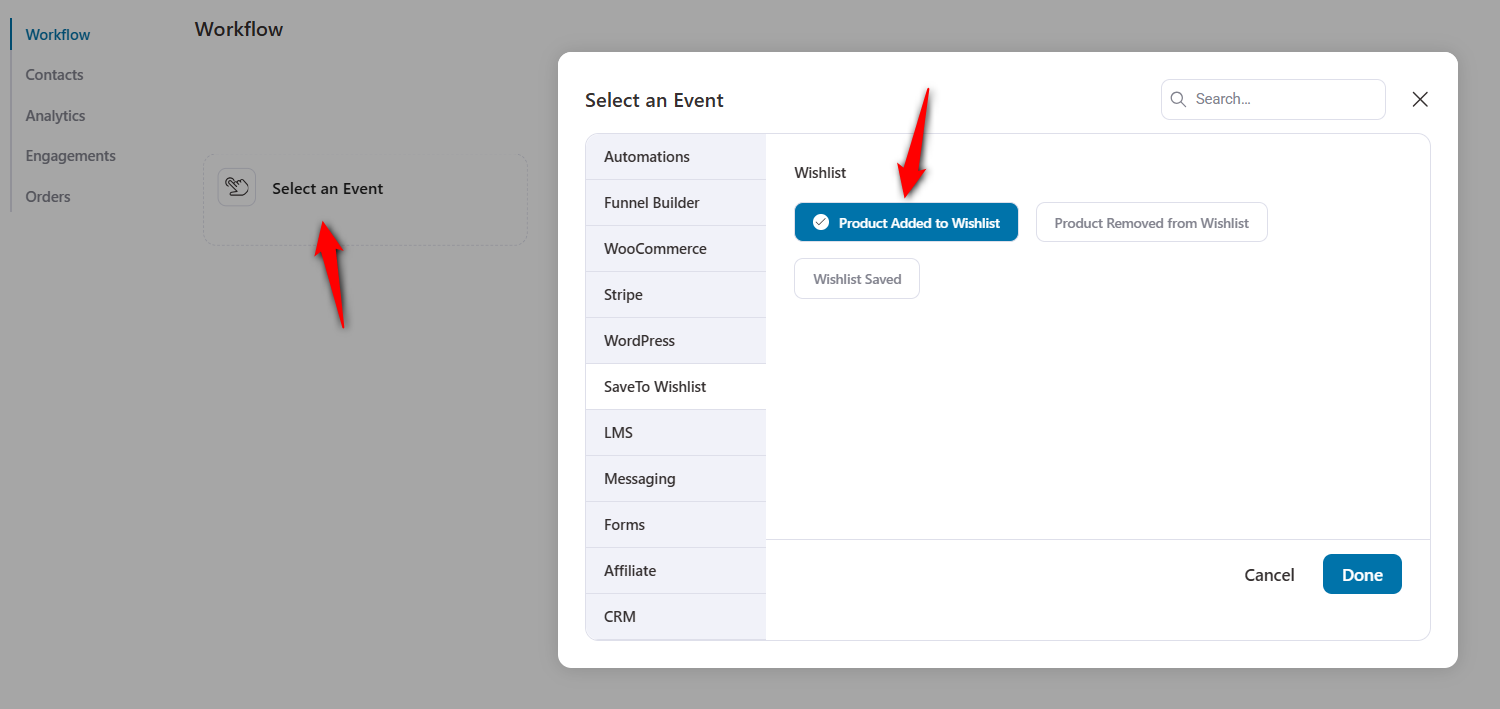
Configure this event to run on contact multiple times and allow active contacts to re-enter this automation again.
Step 2: Add the delay
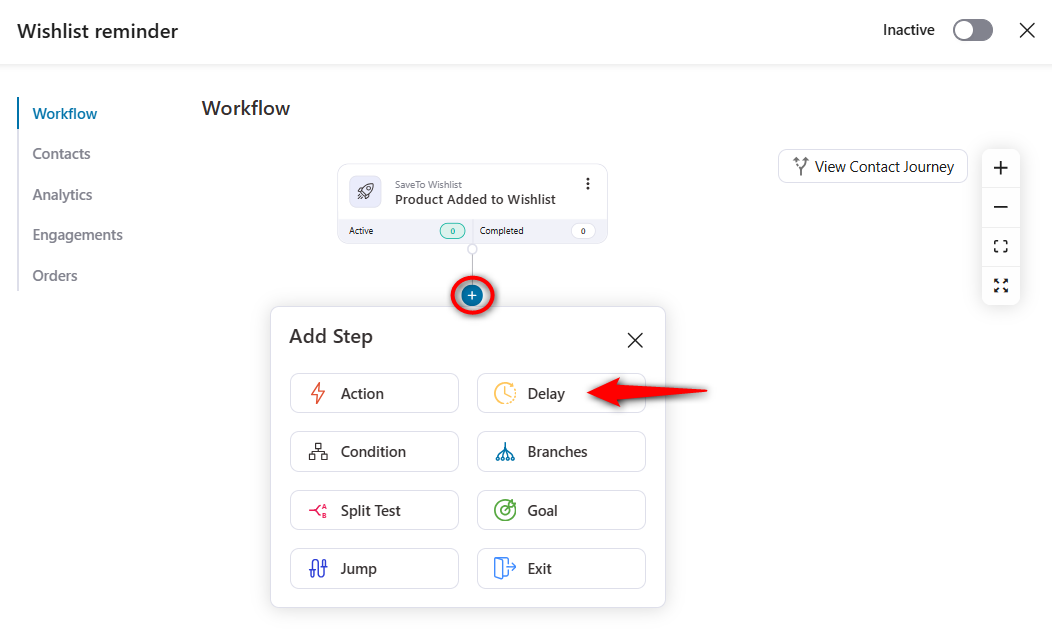
Drop a Delay step straight after the trigger and set it to three days.
Sending instantly reads as surveillance rather than service, because the shopper is often still on the site when it arrives.
Click on the (+) icon and hit 'Delay'.
Set the delay for 3 days.
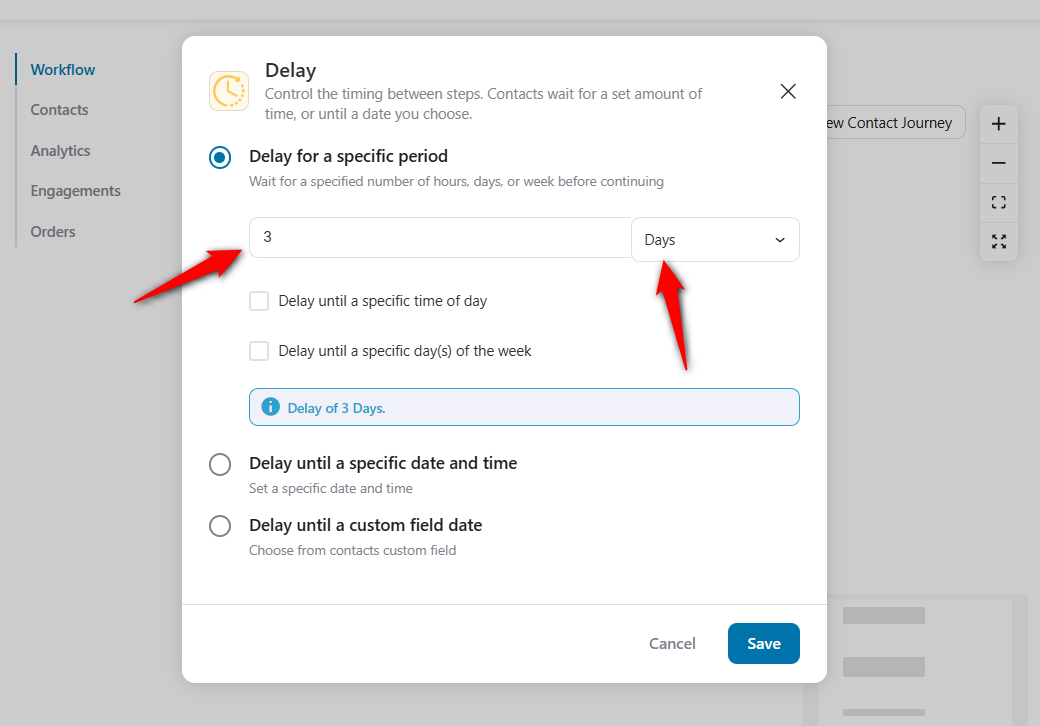
Two to three days is where we’d start. It clears the browsing session, gives them time to think, and still lands while the coat is memorable.
For considered purchases like furniture or jewelry, five to seven days works better.
Step 3: Build the email around the product
Build the email around the overcoat, not your brand, so the product image comes before any copy.
Click on the (+) icon and select the 'Action' step.
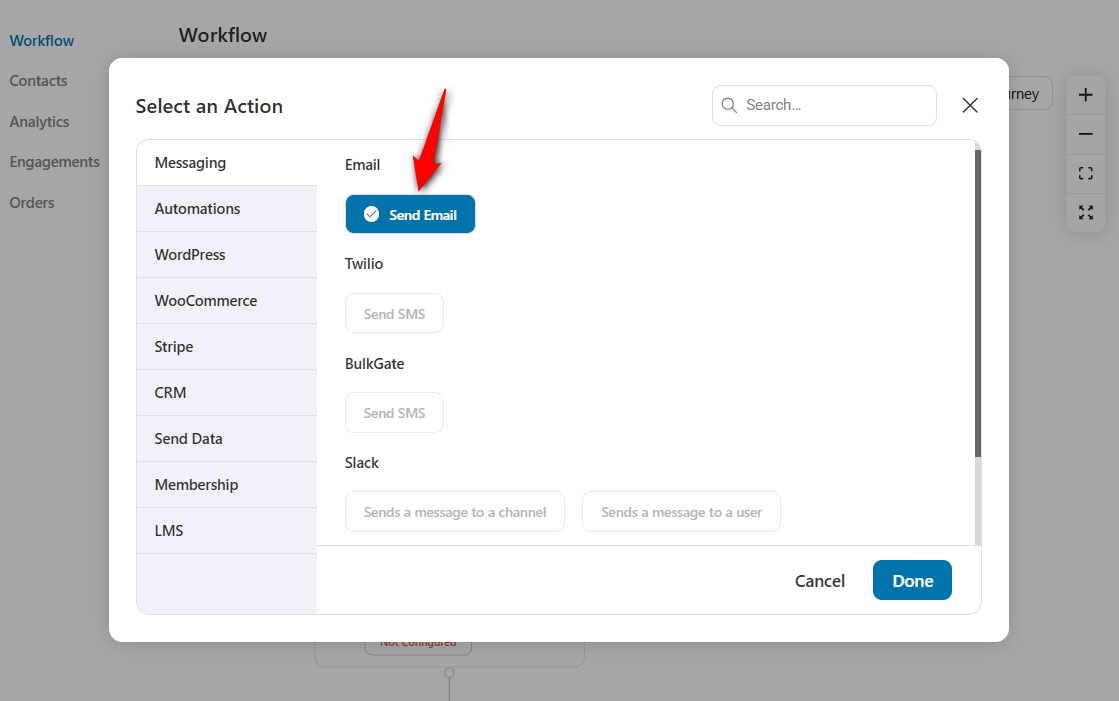
Write the subject line. It's worth testing your subject lines against each other: "Still thinking about your saved items?" or "Your wishlist misses you".
Keep them under 50 characters so they survive mobile truncation.
Write the email content to your shoppers reminding them about their wishlists:
Use merge tags so every recipient gets their own version:
| What you want to show | Merge tag |
|---|---|
| The name of the list | Wishlist Name |
| A link straight back to the list | Wishlist URL |
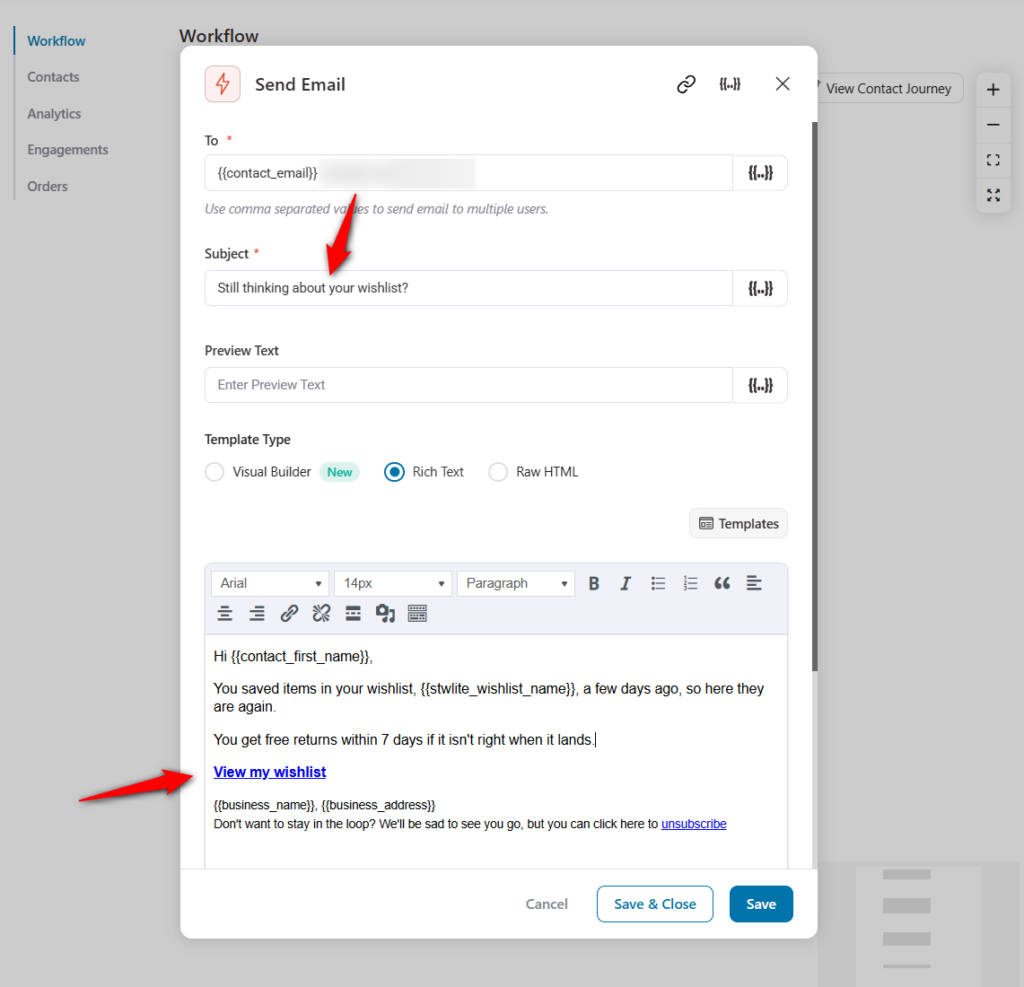
You can even design this email with our built-in drag-and-drop visual builder.
You can also add another 12-day delay, then send a second email: the social proof email.
Step 4: Activate and test your automation
Toggle the automation to active, then test it.
Create a test customer account on an inbox you can open, save the overcoat, and temporarily shorten the delay to a few minutes.
Check that the email lands and that the wishlist link opens the right list, not an empty page.
Open it on a phone and a desktop.
Confirm the email looks perfect and the button is big enough to tap.
When it passes, restore the three-day delay and switch it back on.
Should Wishlist Reminders Go Out By SMS or Push?
Email is the best place to start, but it doesn't have to be the only channel. In fact, two of the five wishlist messages we covered earlier can make more sense as SMS or push notifications.
Match the channel to how time-sensitive the message is. For example, a reminder about something someone saved last Tuesday doesn't need to interrupt them.
A product that just came back in stock is a different story.
| Channel | Good at | Best wishlist use | What it costs |
|---|---|---|---|
| Product images, several items at once, longer copy | The reminder, the digest, the incentive | Effectively nothing per send | |
| SMS | Getting read within minutes | Price drop, back in stock | Cents per message, so reserve it for high-value events |
| Push | Reaching people who never gave you an email address | Back in stock, price drop | Free per send, but only reaches browsers that opted in |
Push notifications are especially useful when you allow guest shoppers to create wishlists.
Most visitors aren't logged in. So if a guest saves an overcoat and leaves, you may not have an email address for them at all.
A browser push subscription solves that problem. It doesn't require an email address, which means you can still reach guests who opted into notifications.
If a significant portion of your wishlist activity comes from guest shoppers, that can make a big difference.
SMS is worth considering when the message is genuinely time-sensitive. Something like “The coat you saved is down to three left” is easy to read and understand in seconds.
Put the same message in an email inbox, and it has to compete with everything else waiting to be opened.
The good news is that you don't need to build a completely separate automation for each channel. Once your wishlist workflow is set up, the channel is just another action.
You can replace Send Email with Send SMS, or use both and add a condition. For example, only send an SMS when the saved product is above a certain value.
For SMS, you can connect services such as Twilio or BulkGate. For push notifications, you can use the PushEngage integration.
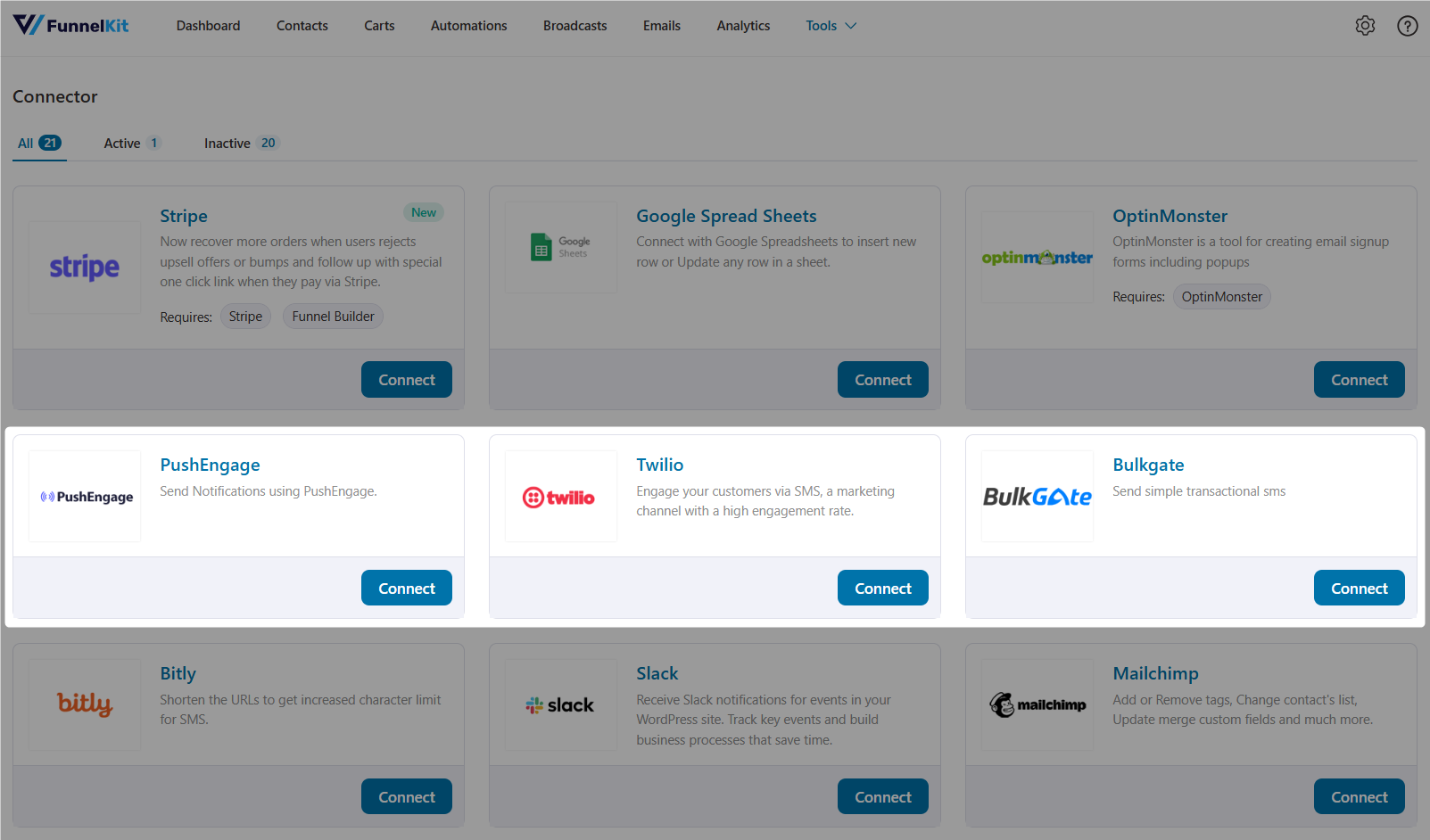
Please note that SMS consent is separate from email consent. An email marketing opt-in does not cover text messages, and the rules around them are stricter.
Make sure you collect SMS consent explicitly, keep a record of when it was given, and include a clear opt-out option in every message.
The 5 Wishlist Emails Worth Sending
Most stores stop at one generic reminder. These five cover the actual reasons a saved item doesn't convert.
1. Saved-item reminder
Show the product or remind them about the wishlist again two to three days after the save.
No discount, no urgency, just the item and a link back to the list. Build this first because it does most of the work.
2. Incentive email
Around week three, a small time-limited coupon closes shoppers who are still deciding.
Generate a personalized code with a short expiry so it can’t be shared.
Hold this until last, or you’ll teach customers to save products and wait for the discount.
3. Price drop alert
Fires on the wishlist item on sale trigger whenever you cut a price or launch a promotion.
Watching the price is one of the main reasons people save things, so this email answers a question the shopper was already asking.
Lead the subject line with the product and the new price, not with the word “Sale.”
4. Back-in-stock notification
Fires when a saved item returns to stock. Keep it to three lines and link straight to the product page.
If your wishlist plugin handles restock alerts natively, let it own this one and use your automation tool for everything else.
5. Low-stock nudge
Send this email when a saved product drops below a stock threshold quantity.
Scarcity works here because it's true and specific to something they chose. "Four left" beats "selling fast".
Use it once per product per shopper. Repeat scarcity claims, and they stop being believable fast.
When to Send: A Wishlist Email Sequence that Doesn't Annoy People
Timing is why these emails work at all. Here's the sequence we'd build first and adjust from there.
| Timing | Message | Channel | Goal |
|---|---|---|---|
| Day 0 | Wishlist saved confirmation (optional) | Confirm the save, link to the list | |
| Day 2 to 3 | Saved item reminder | Bring them back with no discount | |
| Any time | Price drop or back-in-stock alert | SMS and Email | Fire on the event, jump the queue |
| Day 14 | Social proof or usage email | Reviews, styling ideas, how people use it | |
| Day 30 | Time-boxed incentive | Close the fence-sitters, then exit |
Here are three important rules that keep the sequence from becoming spam:
- One reminder per item: If someone saves six things, one email with six products beats six emails.
- Event emails interrupt, scheduled emails wait: A price drop should send immediately and reset the schedule, not queue behind a Day 14 reminder.
- Everyone exits on purchase: Nothing damages trust faster than a discount code for an item someone bought at full price yesterday.
Wishlist Reminder Emails Not Working? Fix Them
These are the failures we run into most, roughly in the order they show up. Work down the list before you rebuild anything.
- The automation never triggers
Confirm the wishlist plugin is active and that your automation tool detects its integration.
Then check whether the trigger fires for guest wishlists. Many only fire for logged-in users, so a guest save creates no contact to email.
- No email address on the contact
Guest wishlists capture a save but not always an email.
Add an email capture step to the wishlist save flow, or restrict the automation to logged-in customers.
- Emails send but never arrive
Almost always deliverability, not automation. Check your SMTP connection, then verify SPF, DKIM, and DMARC.
Send a test to a Gmail address and inspect the headers for authentication passes.
- Emails land in spam
Image-heavy templates with a single link are a classic spam signal.
Add real text, use a From address on your sending domain, and gradually warm up a new sending domain.
- Merge tags render as raw text
The tag was copied from the wrong plugin group, or the item display template wasn't selected before copying.
Re-copy it from the merge tag picker rather than typing it out.
- SMS sends but never arrives
Check Geo Permissions in your Twilio console under Messaging ⇒ Settings.
Sending to a country you haven't enabled fails silently, and it's the first thing we check when a text campaign looks dead.
- Delays never fire
WP-Cron is unreliable on low-traffic sites. Replace it with a real server cron job.
See the WP-Cron setup guide for the server cron configuration.
Frequently Asked Questions
It will annoy customers if you send five emails in a week.
Cap the sequence at four in 30 days, set a goal so buyers exit immediately, and suppress anyone already in a cart recovery flow.
A reminder about a product someone deliberately saved is a service. A reminder every third day is not.
Yes, Free wishlist plugins like SaveTo Wishlist Lite will capture saves, and FunnelKit Automations Lite handles core automations at no cost.
The wishlist-specific triggers and merge tags sit in the paid tier of every tool we’ve looked at, so the free path gets you the data but not the automatic send.
Yes. Saving a product is not opt-in for marketing.
Capture consent at registration or with a checkbox on the wishlist itself, and keep the record. This matters more than the email copy does.
Add a condition checking for a specific product or category, then generate a dynamic coupon with an expiry as the next action.
That’s how you promote one category without discounting the whole catalog.
Only if you captured an address. Some plugins store guest lists in the browser session, and with no email on file, there’s nobody to send to.
Asking for an email in exchange for saving the list is the usual trade.
You could hook into the add-to-wishlist action, store a timestamp, and schedule a wp_cron event that queries saved items and calls wp_mail.
Then you’d rebuild delays, unsubscribe handling, deliverability, and reporting on top of it. For a production store, that’s a lot of maintenance to avoid a plugin.
Start Turning Saved Products Into Orders!
A wishlist is a list of things people told you they want. Most stores collect that information and then do nothing with it, which is a strange way to treat the highest-intent, lowest-cost list in the store.
You don't need all five emails on day one.
If we were building this on your store tomorrow, we'd ship the Day 2 reminder first, wire up the price drop alert second, and leave both alone for a month.
Those two cover most of the available revenue. Everything after them is refinement.
FunnelKit Automations connects to SaveTo Wishlist, YITH Wishlist, and WooCommerce Wishlists, so the triggers, conditions, and merge tags you need are already there, and the same automation is sent by email or SMS.
No webhooks, no external platform, no leaving your WordPress dashboard.
So what are you waiting for? Click on the link below and build smarter workflows at affordable prices!
Editorial Team
September 6, 2026A customer buys once, then disappears. No complaint, no unsubscribe click, just quiet. This silence costs more than most stores realize. Winning back someone who already knows your brand costs...
Editorial Team
September 3, 2026Do you want to send WooCommerce subscription emails to keep your customers informed and engaged with timely follow-ups? Every subscription business lives or dies by its emails. Those automated messages...
Editorial Team
August 26, 2026If you're solely focusing on email marketing and ignoring SMS notifications, you're leaving money on the table. A customer places an order, the confirmation email lands in an inbox next...