Maximize Your Profit with FunnelKit – Highest Rated with 1,013+ 5-Star ReviewsBFCM deal live

FunnelKit Blog

New launchSpotlight
funnelkit bundles

FunnelKit Bundles Is Here: Four Bundle Types That Grow Every Order

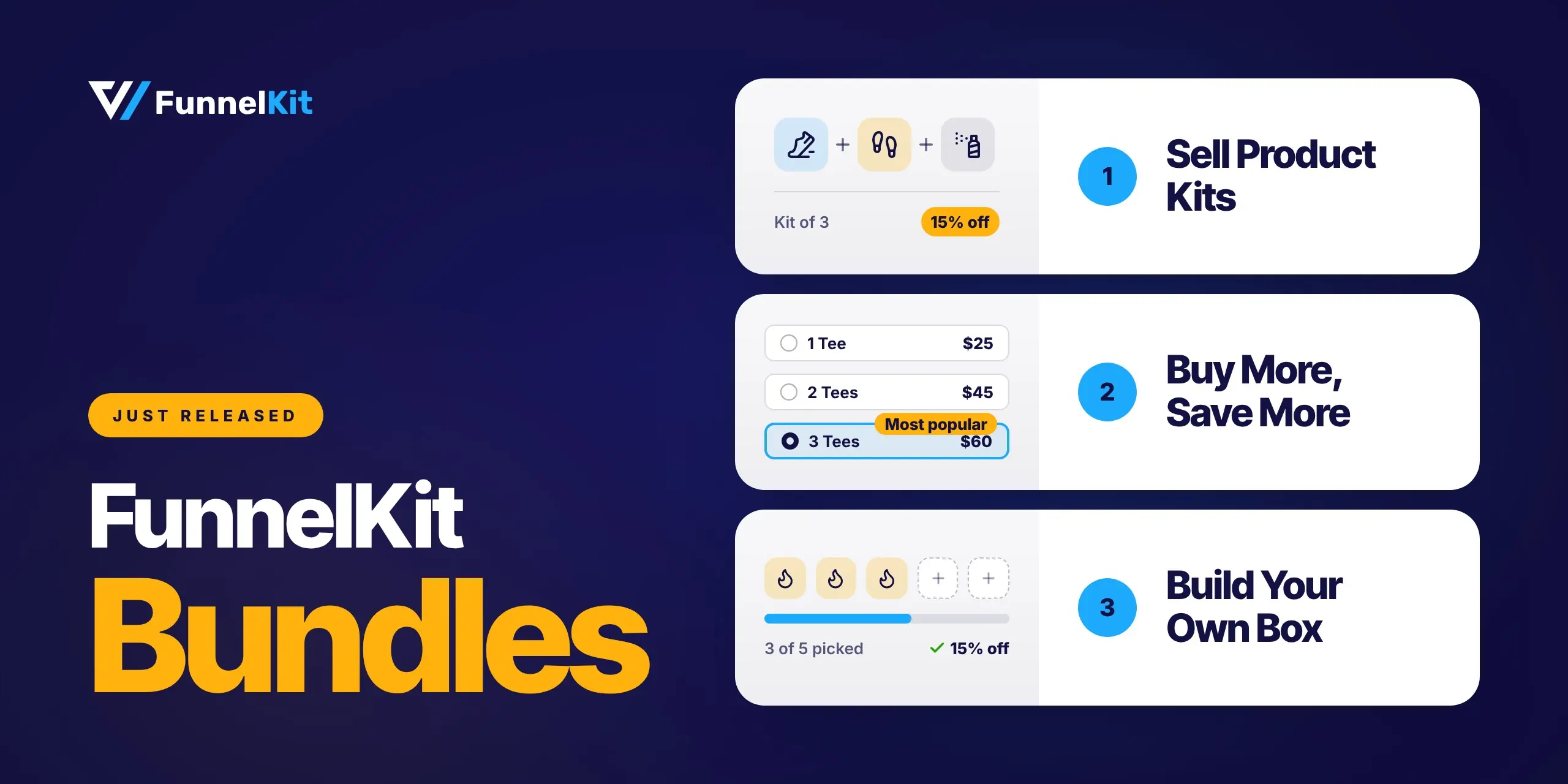
FunnelKit Bundles is here! You can now create and sell product bundles directly from Funnel Builder.  Choose from four bundle types, two of which are completely free. Whether you want to sell product kits, offer discounts on bulk purchases, or let customers put together their own boxes, you can do it all from the same dashboard you use for checkout pages, order bumps, and one-click upsells. You don't need to install another plugin or manage a separate set of discount rules. Let's say a shopper adds a $25 T-shirt to their cart. That’s a $25 order. Now imagine showing them an offer to get three T-shirts
Read the announcement →

Recent Blogs

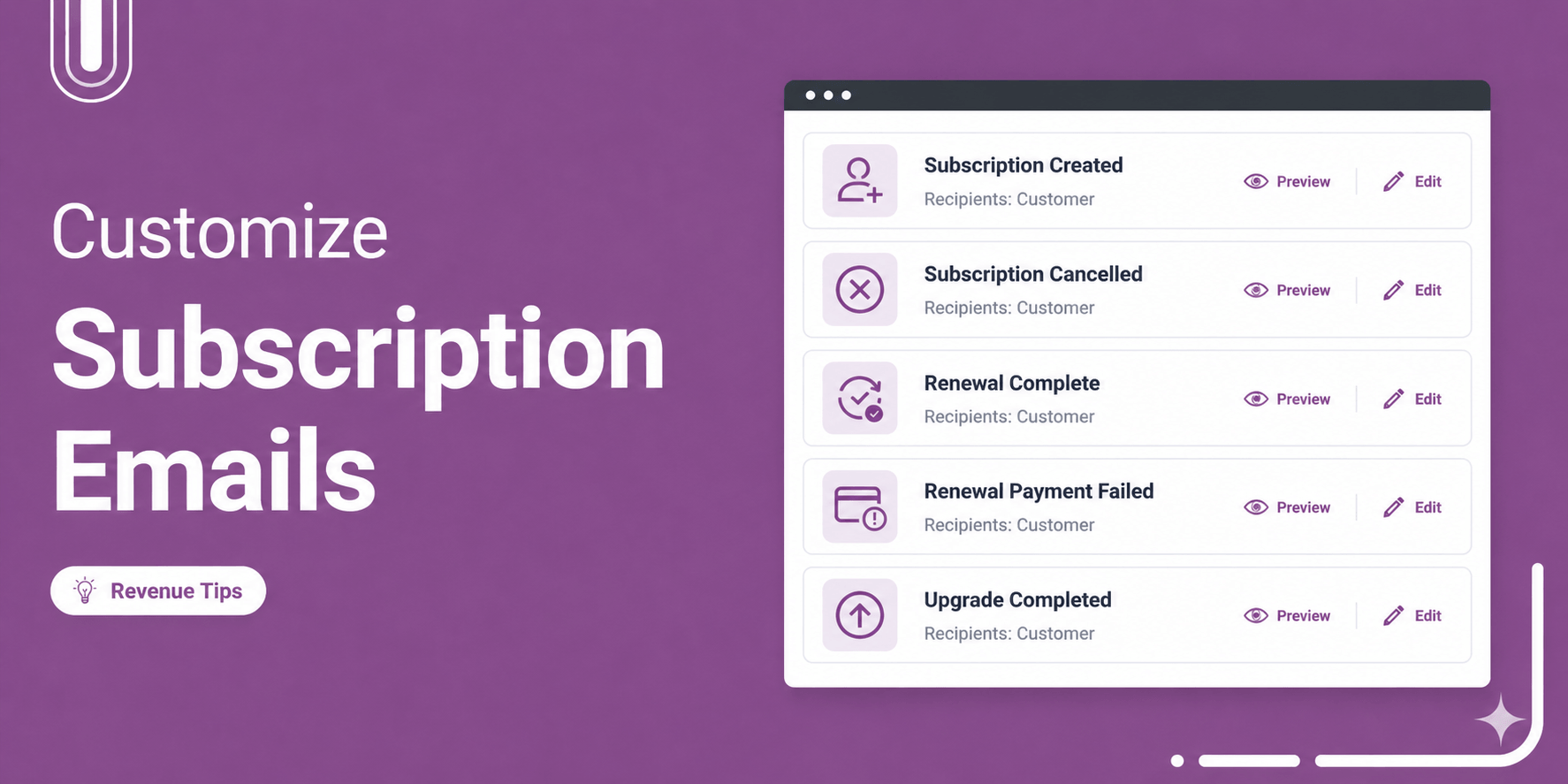
How to Customize WooCommerce Subscription Emails

How to Customize WooCommerce Subscription Emails

Do you want to send WooCommerce subscription emails to keep your customers informed and engaged with timely follow-ups? Every subscription business lives or dies by its emails. Those automated messages act as your primary renewal engine, catching failed payments and setting the tone for the entire customer relationship from day one. But most store owners leave their default subscription emails active, which means boring subject lines die in crowded inboxes while cancellation rates quietly creep upward. The fix isn't complicated, but it does require intention. Every single message you send out can either justify the recurring charge or accidentally remind the buyer to hit the cancel
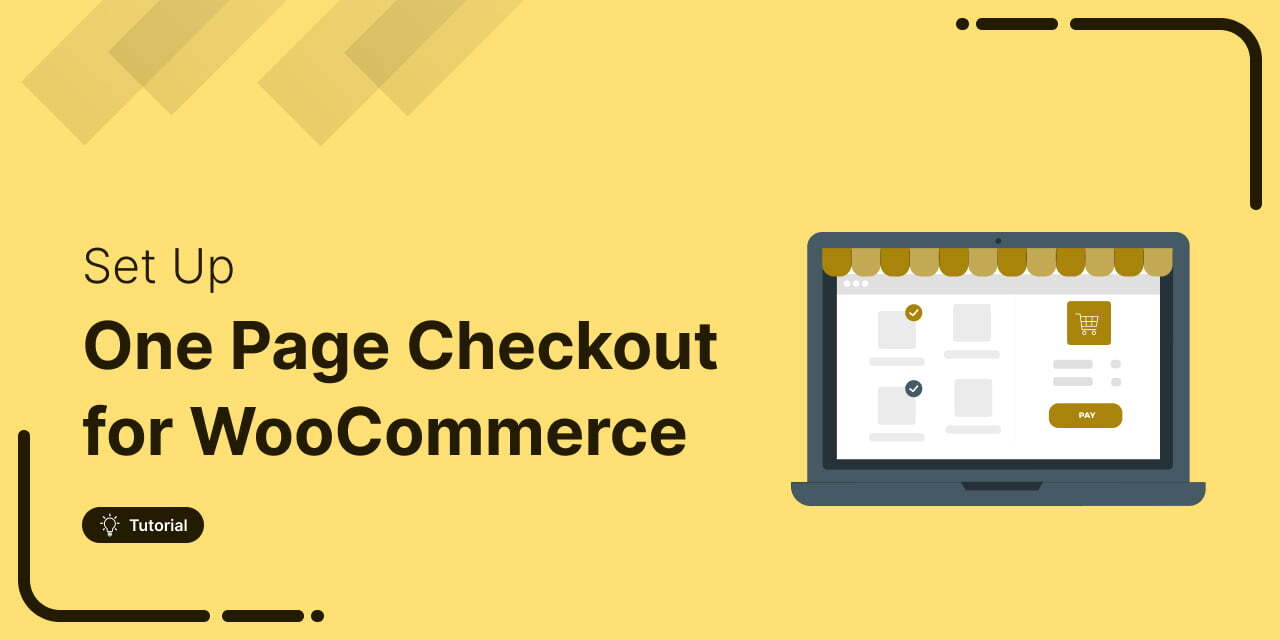
Illustration of a laptop storefront with items, a cart and a Pay button, for WooCommerce one page checkout

WooCommerce One Page Checkout: 6 Plugins Tested and Compared

WooCommerce one-page checkout sounds like one thing, but it can mean four different things. One tool puts products and payment on the same page. Another skips the cart. Another lets returning customers pay with a saved card. They target the same search, but they solve different problems. That’s why most guides end up being plugin tutorials. We’re taking a different approach: start with what you actually need, then choose the tool that fits.  But mind you, picking the wrong one can mean weeks of setup before you realize you need to rebuild the checkout. If you’re wondering why bother with single-page checkouts, it’s because the default
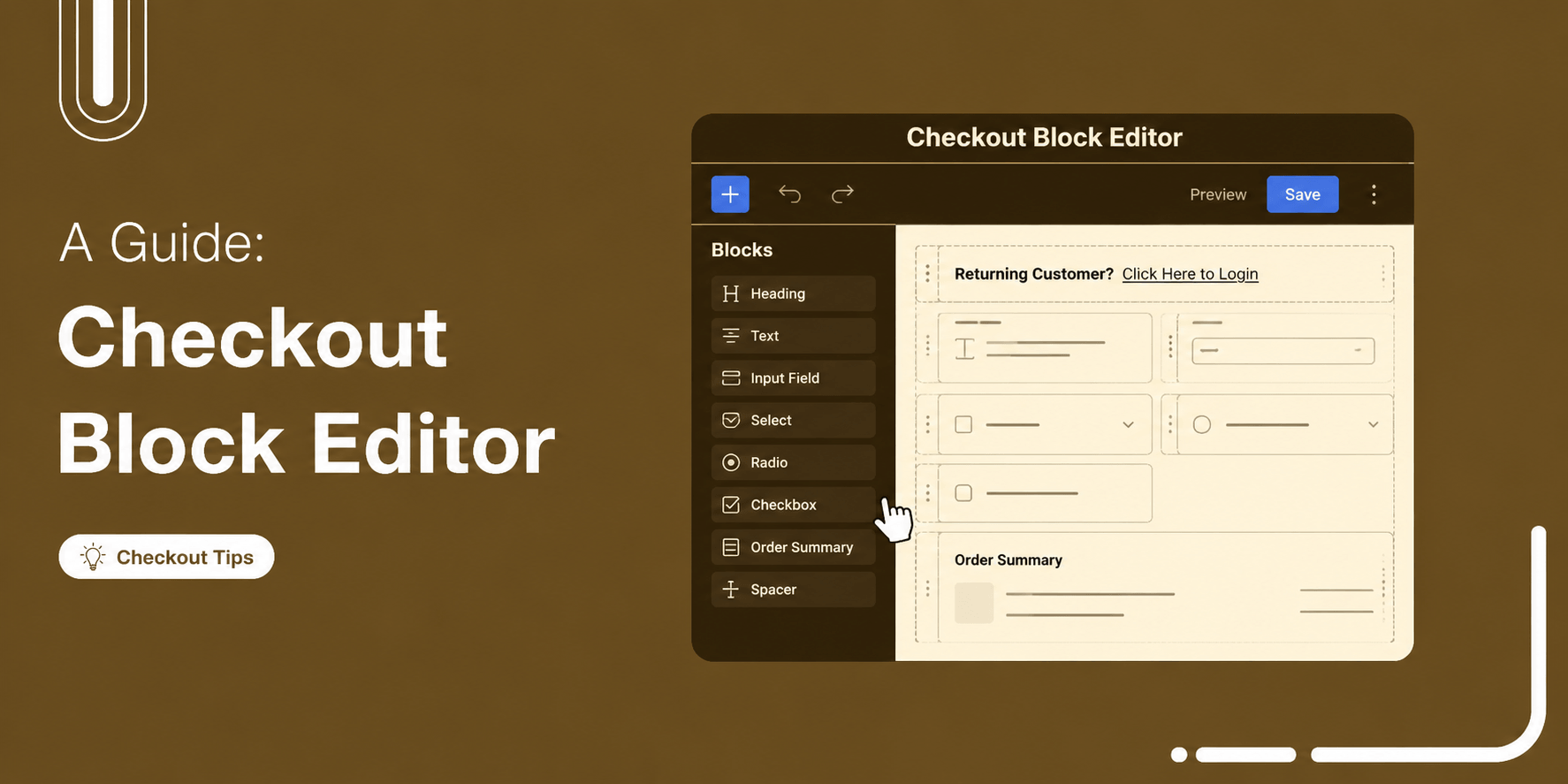
WooCommerce Checkout Block Editor: A Complete Guide

WooCommerce Checkout Block Editor: A Complete Guide

The WooCommerce checkout block editor lets you build and customize your checkout page using Gutenberg, WordPress's native block editor. It comes built into WooCommerce by default. But it’s more of a structured checkout editor than a full-blown checkout builder. You can rearrange sections, show or hide certain fields, edit text, and adjust built-in settings, but you don’t get unlimited control over every checkout field and element out of the box. That’s where the limitations start to show up. And if you’re using it for the first time, you might expect more customization than WooCommerce actually gives you. In this guide, we'll cover what the Block Editor
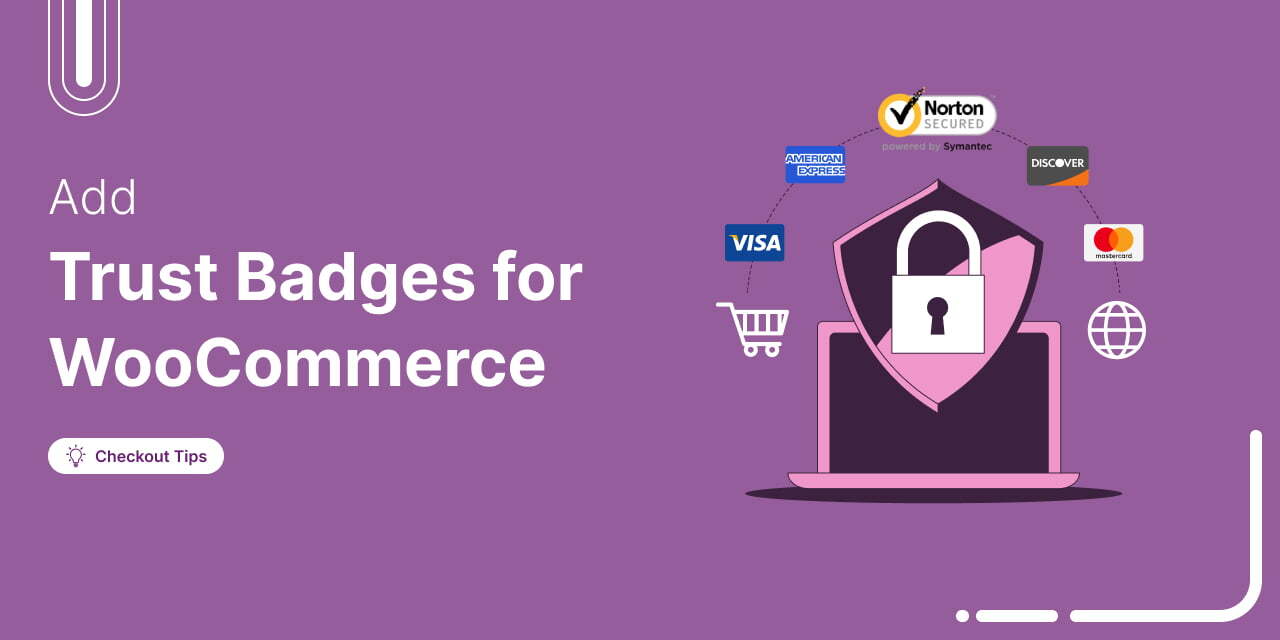
Illustration of a padlock shield ringed by Norton, Visa and card logos, for WooCommerce trust badges

How to Add Trust Badges to WooCommerce Checkout (Block & Classic)

Adding trust badges to your WooCommerce checkout can help remove the hesitation shoppers feel before entering their card details. That hesitation matters because 19% of shoppers abandon checkout because they don’t trust the site with their card details. [Source: Baymard Institute Research] With average checkout abandonment near 70%, even a small improvement can mean more completed orders. The problem is that adding a badge isn’t as straightforward as it sounds. WooCommerce has both classic and block-based checkout, and many snippets you’ll find online only work with the classic version. On the block checkout, they simply do nothing. This guide covers four ways to add trust badges
How to Set Up and Track WooCommerce Email Log

How to Set Up and Track WooCommerce Email Log

Ever had a customer claim they never got their order confirmation or shipping email? Ideally, you would double-check, but there’s no way to know if it was sent or why it didn’t reach the customer’s inbox. Without a proper WooCommerce email log, troubleshooting delivery issues is a guessing game. Plus, tracking email opens and clicks gives you valuable insights into your audience’s behavior. In this post, we’ll walk you through setting up WooCommerce email logs step by step so you can ensure your emails are delivered and have the data to back it up.  Understanding WooCommerce Email Log Data WooCommerce email logs give you valuable insights
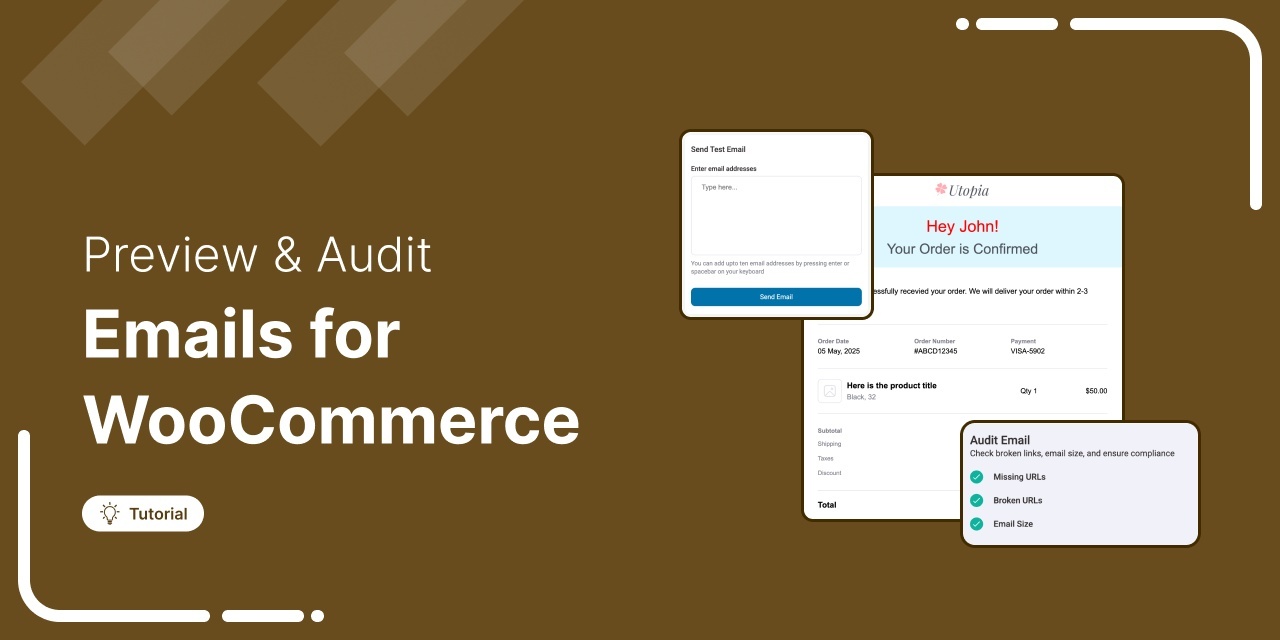
How to Test WooCommerce Emails: Step by Step Guide

How to Test WooCommerce Emails: Step-by-Step Guide

Knowing how to test WooCommerce emails properly becomes important the moment a customer emails you asking, “Where’s my receipt?” You check the order and everything looks fine. The payment went through, the order is marked as processing, and there are no obvious errors. But the email never reached the customer. You only find out because they took the time to contact you. And if that email has been failing for days, the problem can quickly affect dozens or even hundreds of orders. Your customers may end up contacting your support, wondering whether their payment actually went through, or even opening a dispute. However, the good news
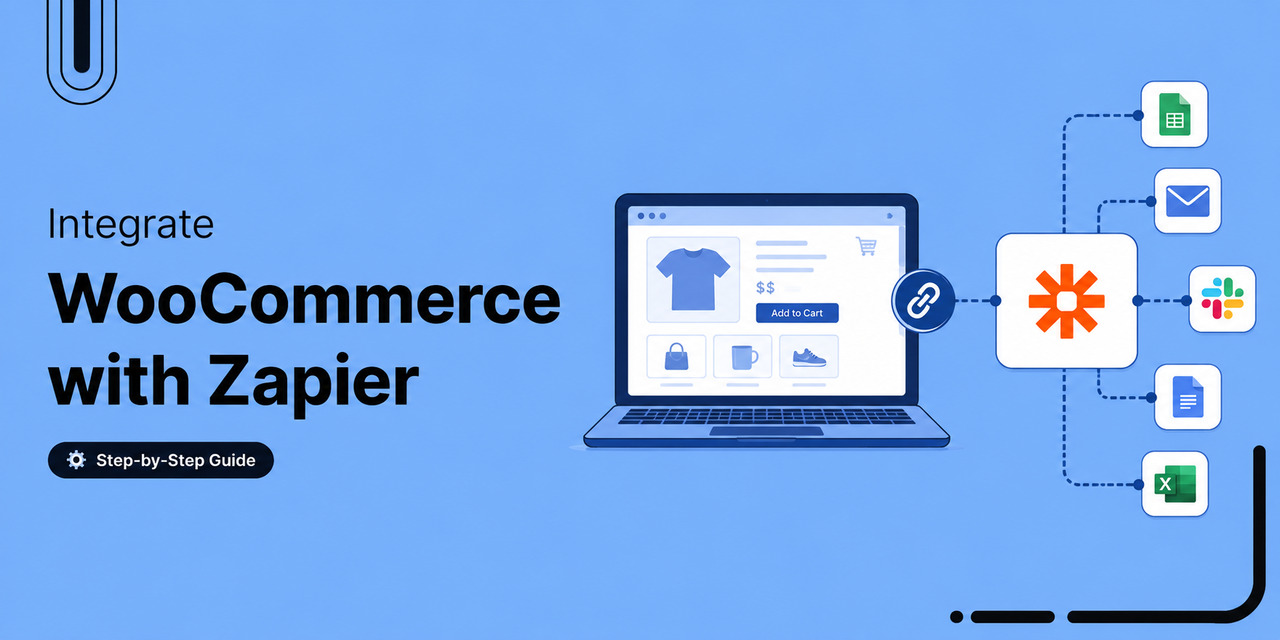
Illustration of a laptop store linked through Zapier to Sheets, email, Slack, Docs and Excel, for WooCommerce

WooCommerce Zapier: How to Connect, Automate and Scale Your Store

WooCommerce Zapier is the difference between a $180 order sitting quietly in your dashboard at 11:40 p.m. and that same order showing up in your spreadsheet, CRM, and accounting software before you even wake up. Without an integration, someone on your team has to open WordPress the next morning, copy the order number, billing name, email, and total into a spreadsheet, paste the email into Mailchimp, and then enter the line items into QuickBooks. That takes about four minutes, give or take. Now do that 500 times a month. You’re looking at roughly 33 hours of repetitive copy-paste work. And every time someone types or pastes

Subscribe For Latest Updates

Get free tips, tricks, and resources to grow your mailing list.

Make More From Every Sale

FunnelKit works at the three moments a store earns money: before checkout, at checkout and after the order.

Before checkout: cart upsells and free-shipping goals in a sliding cart
At checkout: a faster checkout with order bumps and one-click upsells
After checkout: abandoned-cart recovery and follow-ups that bring buyers back
Start Selling More Today →
★★★★★ 4.9/5 from 1,013+ reviews on WordPress.org