Maximize Your Profit with FunnelKit – Highest Rated with 1,012+ 5-Star ReviewsBFCM deal live

Maximize your profit with FunnelKit · 1,012+ five-star reviews

WooCommerce Checkout

Recent Blogs
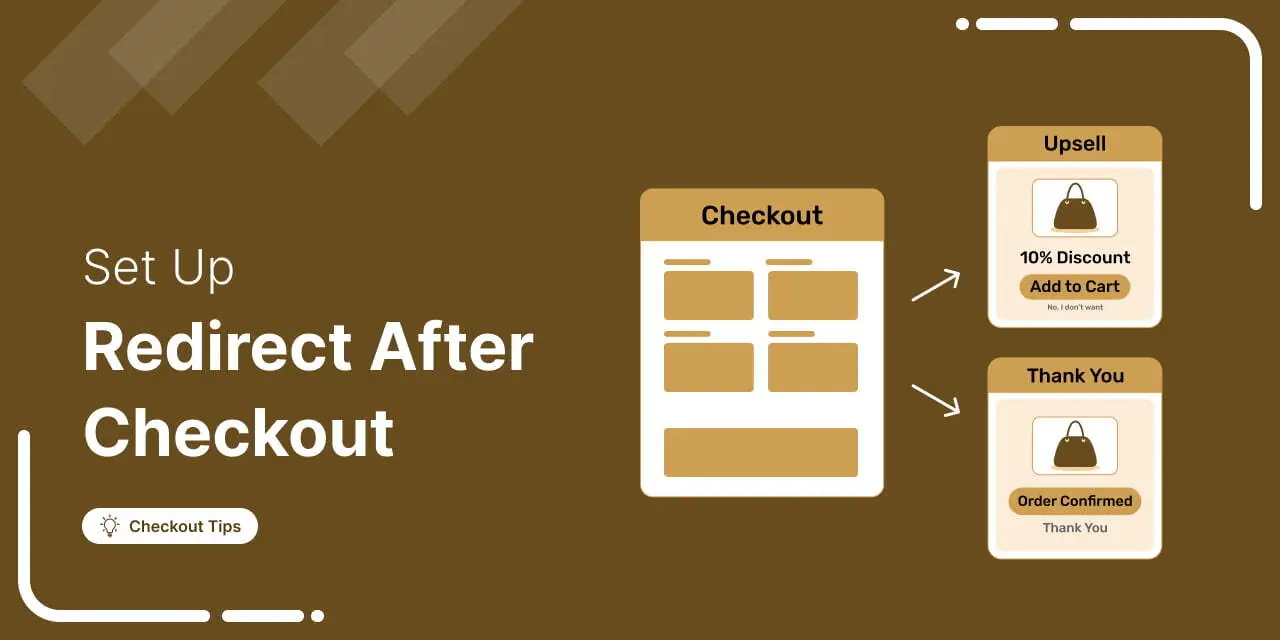
How to Set Up a Redirect After Checkout in WooCommerce

How to Set Up a Redirect After Checkout in WooCommerce: 3 Ways (No Code & PHP)

A WooCommerce redirect after checkout sends buyers to a page you choose once their order goes through, instead of the default Order Received page. The default page only confirms the order. A custom destination gives buyers a useful next step, like setup help, a coupon for their next order, or a product that pairs with what they just bought. In this blog, we'll share three ways to set it up: a no-code custom thank-you page with FunnelKit Funnel Builder, conditional rules that send different buyers to different pages, and a lightweight PHP snippet. Short on time? Watch the video 👇 Where Can You Redirect Customers After
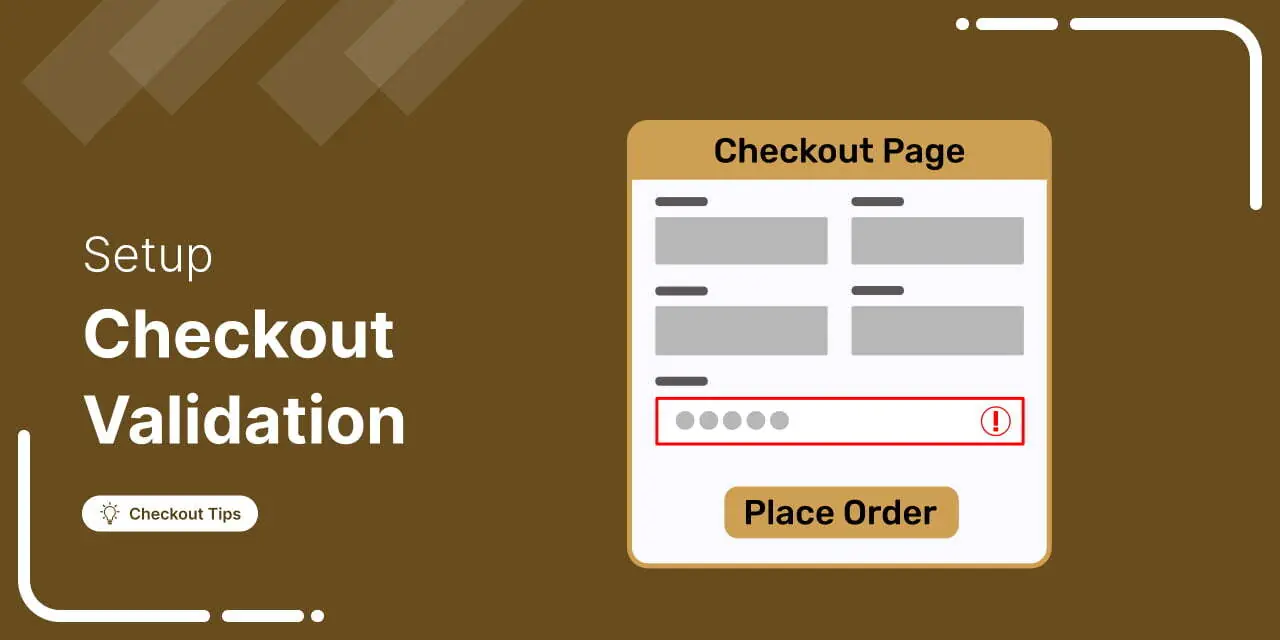
Order form with a password field outlined in red and a warning icon, for the WooCommerce checkout validation guide

WooCommerce Checkout Validation: Plugin and Code Methods

WooCommerce checkout validation is essential for ensuring a smooth order process and efficient order management.  It reduces errors, improves customer satisfaction, and boosts conversion rates, ensuring a seamless experience for both customers and store owners. Without proper validation, customers may encounter issues that lead to cart abandonment and lost sales. While WooCommerce automatically validates essential fields, it does not validate optional fields, such as phone numbers or custom fields, by default. In this post, we will show you how to set up WooCommerce checkout validation using both the WordPress plugin and through custom code. By the end, you'll be able to validate any checkout field. This
funnelkit lite vs pro

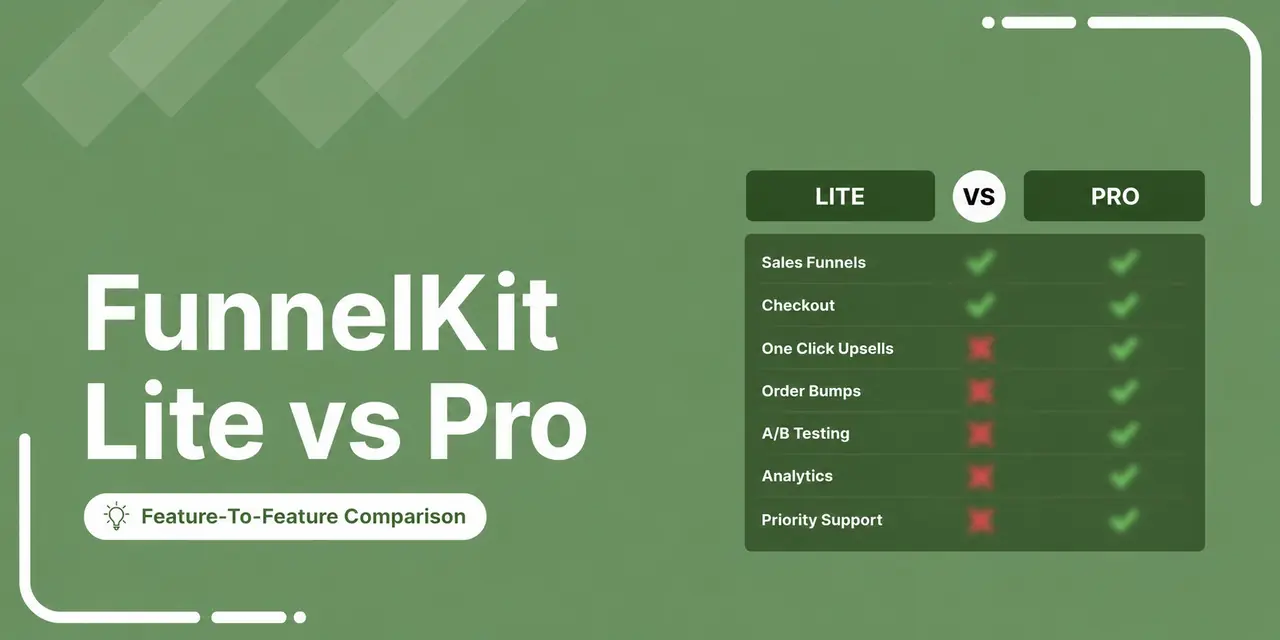
FunnelKit Lite vs Pro: A Complete Feature-by-Feature Comparison (2026)

If you run a WooCommerce store, you've almost certainly come across FunnelKit. FunnelKit is a suite of three separate products, each with its own Lite (free) and Pro versions: FunnelKit Funnel Builder: Sales funnels, checkout customization, order bumps, upsells, A/B testing, and analytics. FunnelKit Automations: Email/SMS marketing automation and CRM with abandoned cart recovery, broadcasts, contacts, and segmentation. FunnelKit Cart: A WooCommerce side cart with upsells and milestone rewards. Funnel Builder also includes FunnelKit Bundles, a product bundle builder with its own Pro add-on, so we compare it separately. So “FunnelKit Lite vs Pro” really means four Lite-vs-Pro comparisons: one for each plugin, plus FunnelKit Bundles.
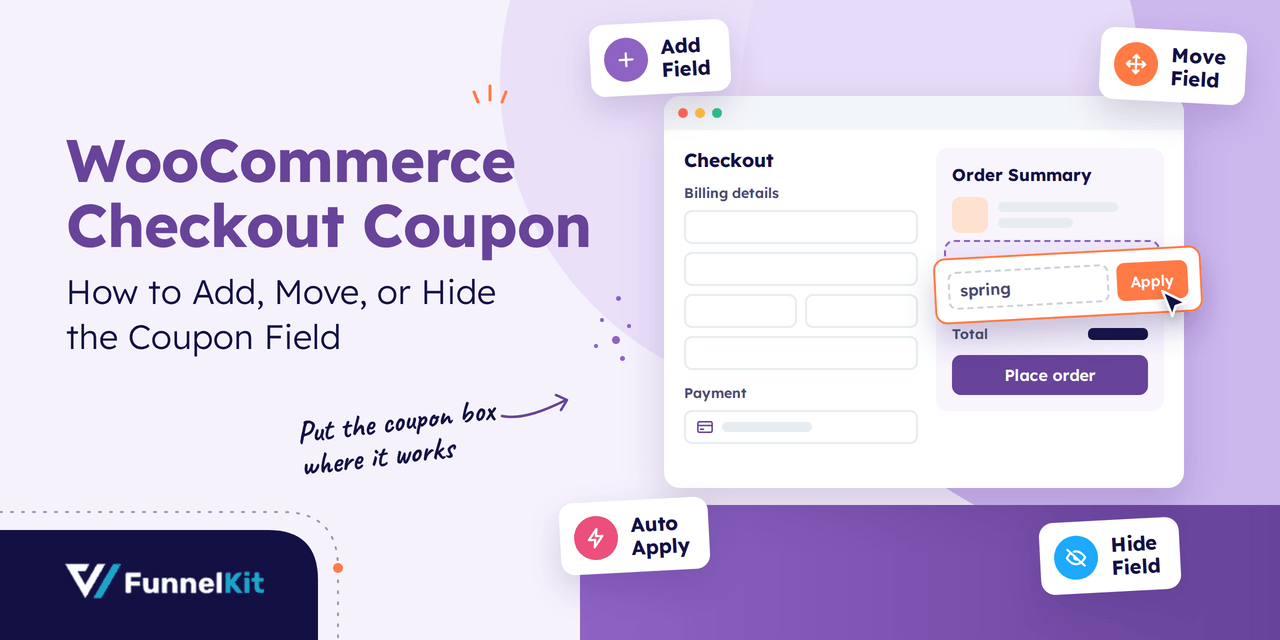
WooCommerce checkout coupon banner showing a coupon field being moved within a checkout page

WooCommerce Checkout Coupon: How to Add, Move, or Hide the Coupon Field

The WooCommerce checkout coupon field is where shoppers enter a discount code before they pay. Once coupons are turned on, WooCommerce adds it to both the cart and the checkout page. Its default spot doesn't suit every store, and it also differs between classic and block checkout. Some owners want it closer to the order total. Others want it off the checkout page while keeping it on the cart. In this blog, we'll share how to add the field, move it, hide it, and apply coupons automatically, either at checkout or through a shareable link. Quick Answers: WooCommerce Checkout Coupon: Before we dive into the step-by-step
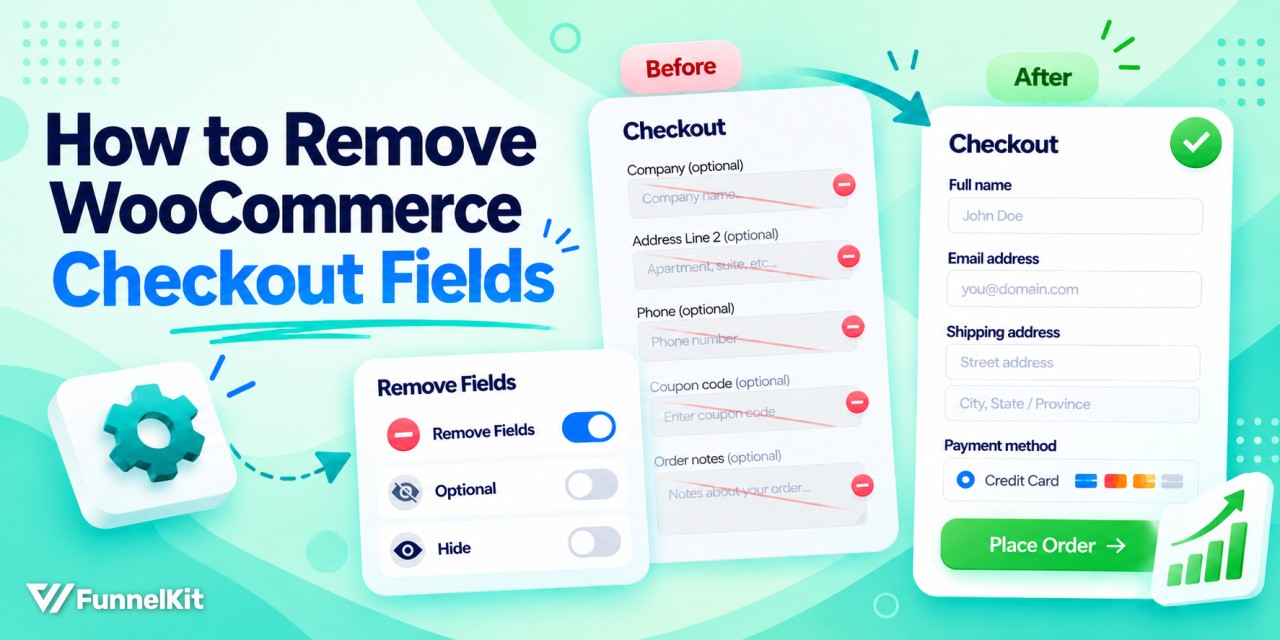
Cover art of a checkout form before and after removing optional fields, for the WooCommerce guide

How to Remove WooCommerce Checkout Fields (Block & Classic)

Removing checkout fields in WooCommerce is one of the fastest ways to simplify your store’s checkout and reduce cart abandonment. Every extra field you ask customers to fill in adds friction and gives them another reason to leave. But the catch is that WooCommerce now ships two different checkouts, i.e., the classic shortcode checkout and the newer Checkout Block. The method you choose depends on which checkout your store uses. A code snippet that works perfectly on the classic checkout often has no effect on the block checkout. That's where most store owners get stuck. First, check which checkout you're using. It only takes a few
Illustration of speeding up the WooCommerce checkout

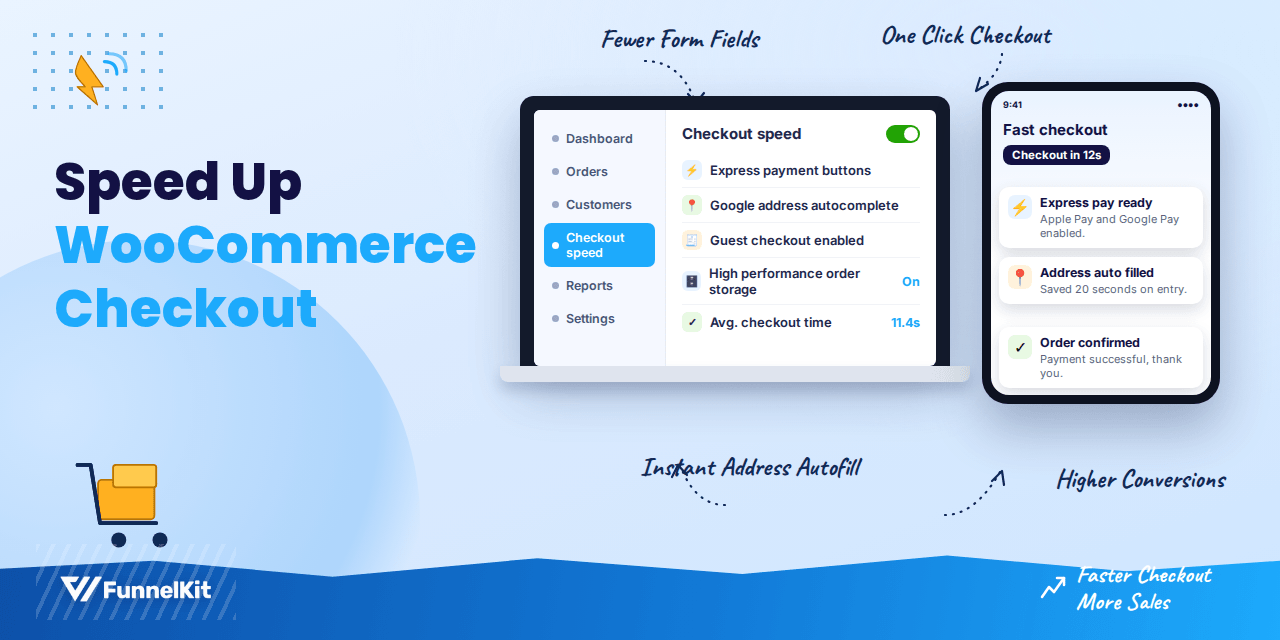
How to Speed Up WooCommerce Checkout: 12 Fixes That Actually Work

Speeding up your WooCommerce checkout starts with knowing where the delay actually lives. Is it your server, your scripts, your payment gateway, or the sheer number of fields on the form?  Most stores never find out. They install a caching plugin, call it done, and wonder why the checkout still crawls. The problem is that WooCommerce checkout runs on a dynamic page. It calculates totals, taxes, and shipping in real time, talks to your payment gateway, and writes order data to the database, all while a customer is watching a spinner.  A generic speed plugin that works wonders on your blog often does nothing for this
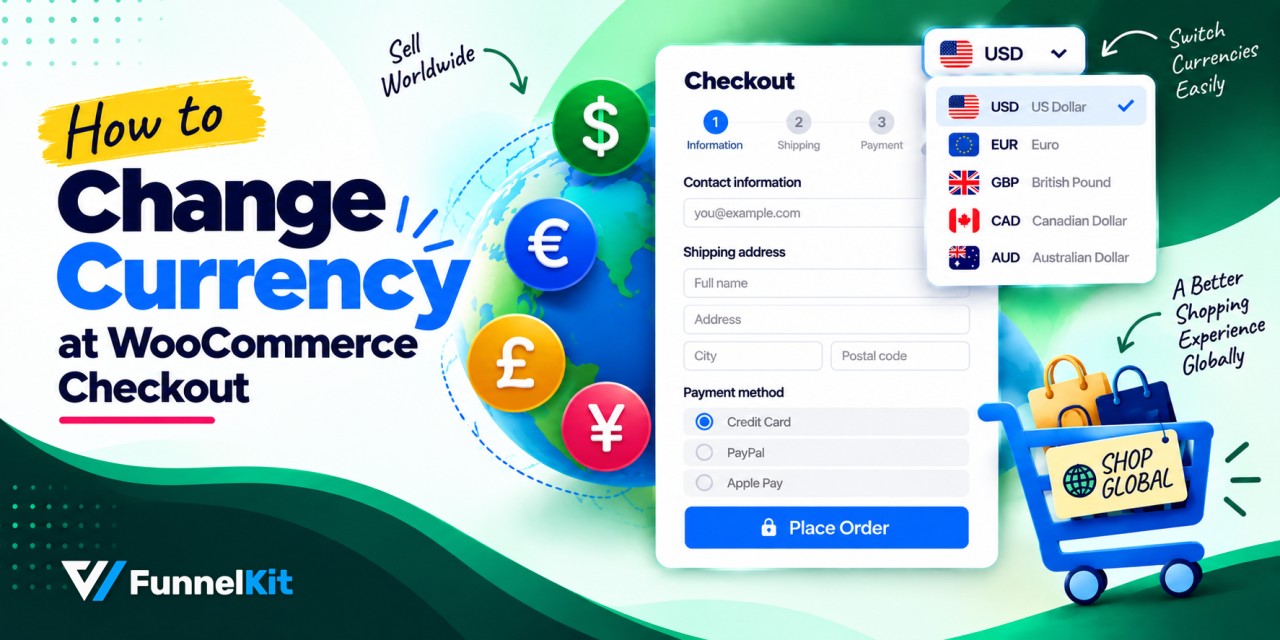
Cover art of a checkout form with a USD, EUR, GBP, CAD and AUD currency switcher, for WooCommerce currency

How to Change Currency at WooCommerce Checkout

Changing currency at WooCommerce checkout is easier to explain with a simple example: a shopper in Munich sees €169 instead of $184 for the same jacket. Nothing about the product changed. Your margin didn't change either. You've just shown the price in the currency your customer expects. That small change can remove a surprising amount of friction. When the shopper sees $184, they have to figure out what that will cost in euros, whether their bank will add a conversion fee, and what happens if they need a refund. So they open another tab to check the exchange rate. Once they leave your checkout, they may
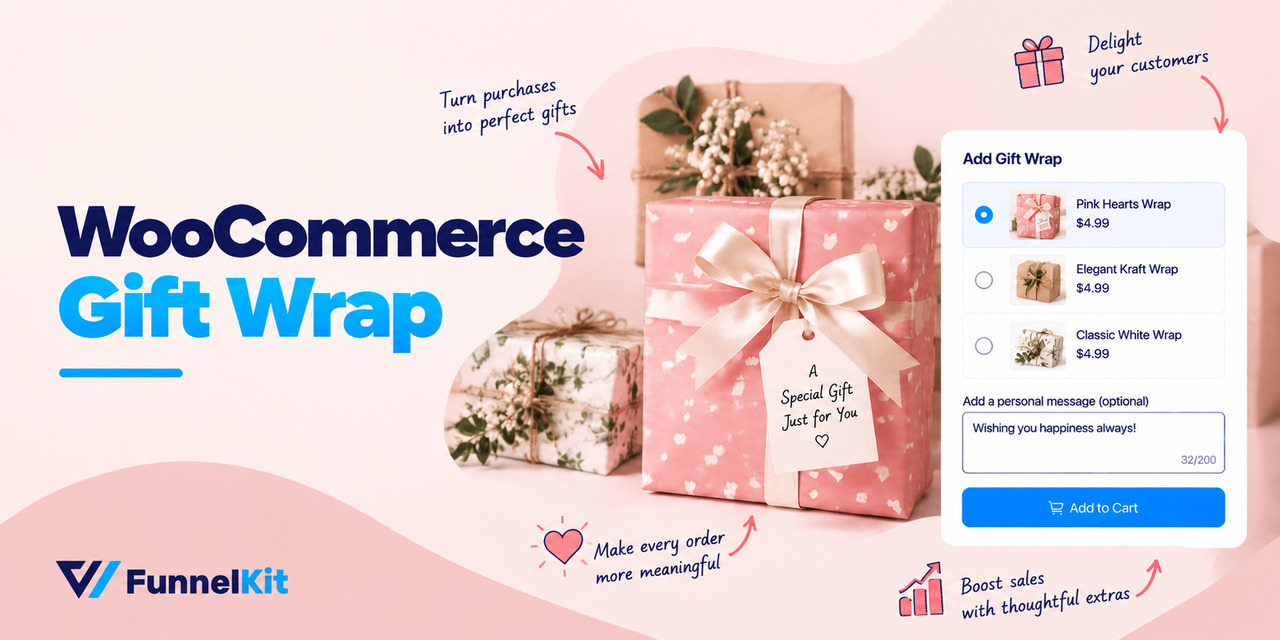
Cover art of a pink wrapped gift beside an Add Gift Wrap product option panel, for the WooCommerce gift wrap guide

WooCommerce Gift Wrap: How to Add a Gift Wrapping Option to Your Store

WooCommerce gift wrap might be the easiest extra money your store can make, yet most stores never offer it. Think about a department store in December. You buy a candle, and before you even put your card away, someone asks, "Would you like that gift wrapped?" It costs $4. You say yes because, honestly, you'd probably do a worse job wrapping it yourself. That small question can add up quickly. On a $38 candle, the store just made another $4 without spending anything on marketing or offering a discount. The paper and labor might cost around a dollar. If one out of every eight customers takes
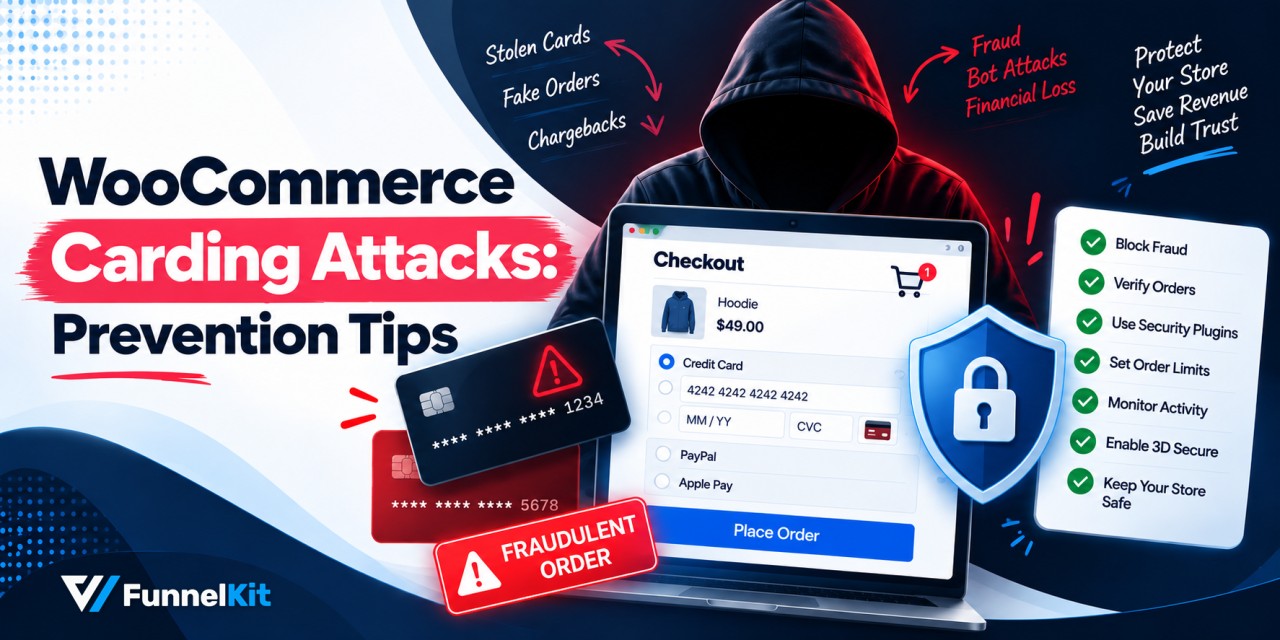
Cover art of a hooded attacker, flagged cards and a prevention checklist, for WooCommerce carding attacks

WooCommerce Carding Attacks: 7 Prevention Tips to Follow

Running a WooCommerce store means juggling a lot of moving parts. Security has to stay near the top of that list. WooCommerce's popularity cuts both ways though, since the same reach that draws customers also draws fraudsters. Carding attacks are one of the more common threats that comes with that territory. Here's how it works: bots test stolen credit card details by running small transactions through your store, just enough to see which cards still work. When it succeeds, you're the one left covering the transaction fees, fielding chargebacks, and cleaning up the reputational mess. In this guide, we’ll cover 7 effective ways to prevent WooCommerce

Make More From Every Sale.

FunnelKit works at the three moments a store earns money: before checkout, at checkout and after the order.

Before checkout: cart upsells and free-shipping goals in a sliding cart
At checkout: a faster checkout with order bumps and one-click upsells
After checkout: abandoned-cart recovery and follow-ups that bring buyers back
Start Selling More Today →
★★★★★ 4.9/5 from 1,012+ reviews on WordPress.org