


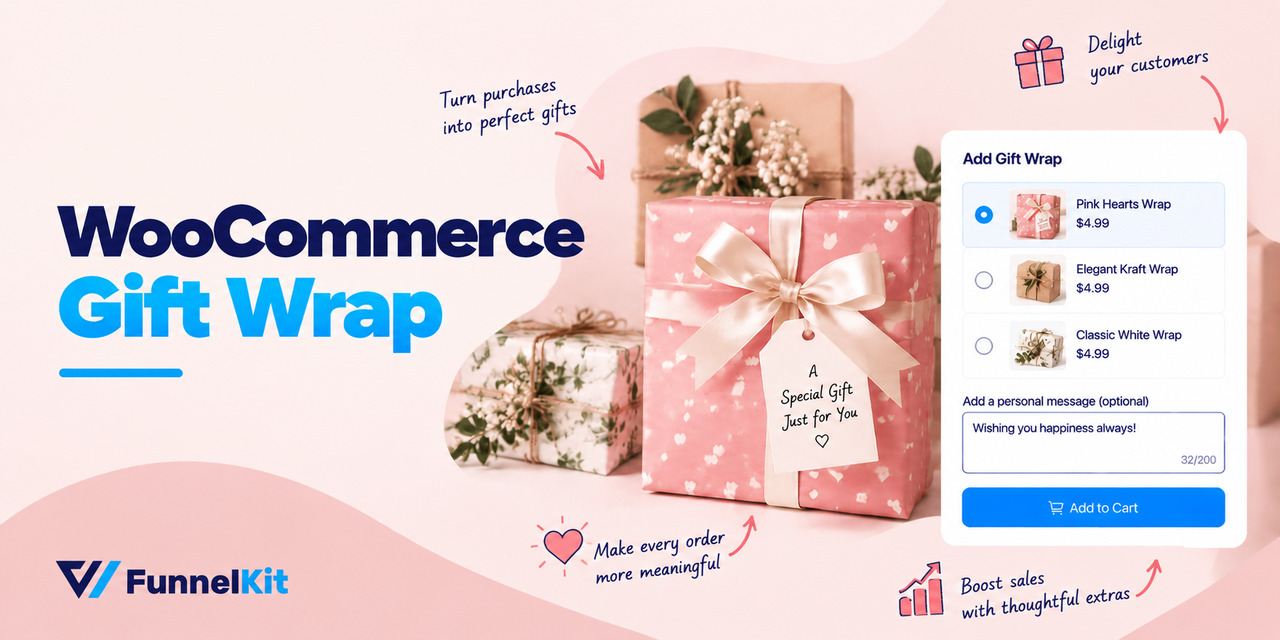
WooCommerce gift wrap might be the easiest extra money your store can make, yet most stores never offer it.
Think about a department store in December. You buy a candle, and before you even put your card away, someone asks, "Would you like that gift wrapped?" It costs $4.
You say yes because, honestly, you'd probably do a worse job wrapping it yourself.
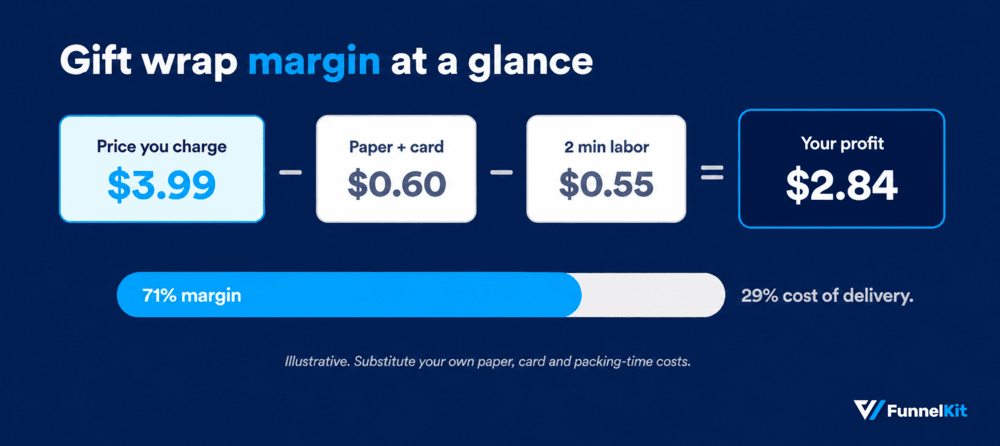
That small question can add up quickly. On a $38 candle, the store just made another $4 without spending anything on marketing or offering a discount. The paper and labor might cost around a dollar.
If one out of every eight customers takes the option, a store processing 800 orders a month could bring in roughly $300 in extra margin without getting another visitor or improving its conversion rate.
Online stores have a different problem: nobody is there to ask.
WooCommerce doesn't include gift wrapping in its core features, so you have to add it yourself with a plugin, a code snippet, or a checkout add-on.
And that's where things get a little messy.
The standard snippets you find online often don't work with WooCommerce's newer block checkout, while some popular gift wrap plugins don't clearly document whether they support it.
You can test everything on staging, see it working perfectly, and then discover that the option has disappeared when you move to the live checkout.
This guide puts everything in one place.
We'll compare nine gift wrap plugins, show you which ones support the block checkout, and walk you through working code for both checkout types.
Additionally, we'll also cover how much to charge and explain the fulfillment step that's easy to overlook.
Jump straight to the step-by-step process here
Table of Contents
- 1 What Is a WooCommerce Gift Wrap Option?
- 2 Best WooCommerce Gift Wrap Plugins Compared
- 3 How Much Should You Charge For Gift Wrapping?
- 4 Method 1: Sell Gift Wrap As a One-Click Add-On (Best For AOV)
- 5 Method 2: Add a Simple Gift Wrap Option With a Plugin (No Code)
- 6 Method 3: Add Gift Wrap to the WooCommerce Block Checkout
- 7 Method 4: Add Gift Wrap Without a Plugin (Classic Checkout)
- 8 Where Should the Gift Wrap Option Appear?
- 9 Gift Messages: Setup, Packing Slips and Fulfillment
- 10 Troubleshooting: Why Your Gift Wrap Option Isn't Showing
- 11 Frequently Asked Questions
- 12 Start Offering the WooCommerce Gift Wrap Option Today!
What Is a WooCommerce Gift Wrap Option?
A WooCommerce gift wrap option is a customer-facing field that lets shoppers request gift wrapping before they place an order.
Most stores use a simple checkbox on the product, cart, or checkout page, sometimes with a wrapping style selector and a box for a gift message.
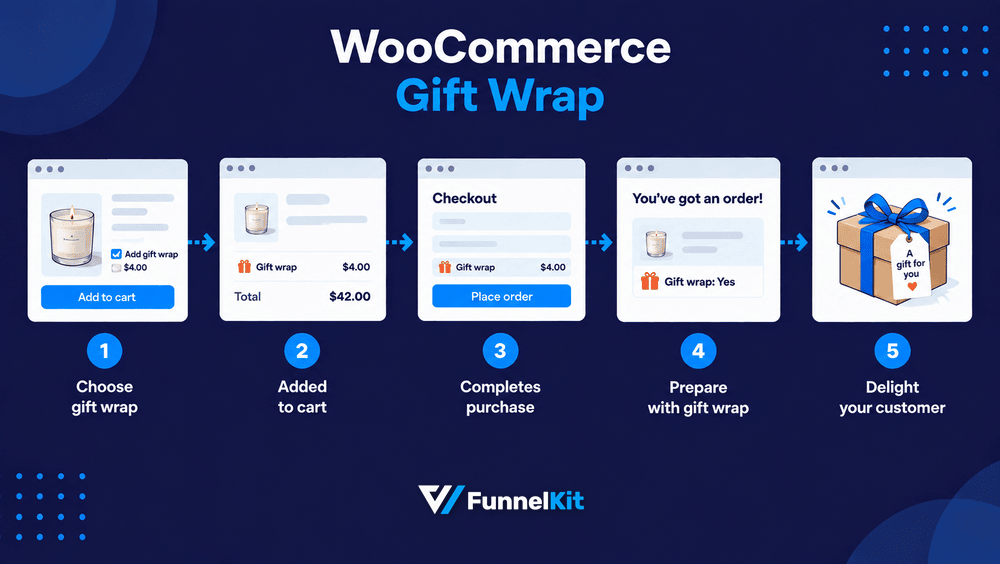
A good gift wrap setup needs to handle four things:
- Capture the choice: Give shoppers a simple toggle to add wrapping, whether you charge for it or offer it free.
- Capture the message: Let them enter the short note they want included with the gift.
- Add the charge: Add the cost as a cart fee or treat wrapping as a separate product added to the order.
- Send everything to fulfillment: The wrapping choice and gift message should show up in the order details, confirmation email, and packing slip.
That last part is where many setups go wrong. Everything looks fine at checkout, but the warehouse never sees the message.
You usually don't find out until a customer emails asking why their gift note wasn't included.
You also need to decide before choosing a tool: do you want wrapping per product or per order?
Per-product wrapping lets customers choose which individual items to wrap, which makes sense when they're buying gifts for several people.
Per-order wrapping applies to the entire purchase, so it's simpler for the customer and usually easier to manage.
If you're not sure which one to start with, go with per-order wrapping.
You can always add per-product options later if customers actually need them.
Best WooCommerce Gift Wrap Plugins Compared
| Plugin | Where the option appears | Per item / per order | Block checkout | Gift message | Price |
|---|---|---|---|---|---|
| FunnelKit Funnel Builder | Checkout page, side cart | Per order | Yes, replaces the default checkout with a beautiful custom one | Depends on the field you add on the checkout page | Free core. Pro starts at $99.50/year |
| Gift Wrapper for WooCommerce (Flintop) | Product, cart, checkout | Both | Yes, ships a Gift Wrapper block you place on the checkout page | Yes | $79/year |
| Gift Wrap Option (KoalaApps) | Product, cart, checkout | Both | Not documented. All cart and checkout placements are classic hook positions | Yes, with character limit | $49/year |
| Gift Wrapping for WooCommerce | Checkout checkbox only | Per order | Not documented. Uses the classic checkout field and the Fees API | No | Free |
| Gift Pack for WooCommerce (IT Path Solutions) | Product page | Per item | Yes, changelog states cart and checkout block compatibility | Yes, plus To and From fields | Free |
| Product Assembly / Gift Wrap (Naked Cat Plugins) | Product page fee | Per item | Yes, tested and confirmed against block cart and checkout | No | Free |
| Product Add-Ons (WooCommerce) | Product page | Per item | Product page fields, so checkout type is irrelevant | Yes, via a text field | $79/year |
| WooCommerce Product Options (Barn2) | Product page | Per item | Works with WooCommerce blocks per the vendor | Yes, via a text field | $149/year |
| Gift Wrap Pro (IgniteWoo) | Product page | Per item; separate plugin for whole order | Not documented. Last released in February 2024 | Not documented | $59/year |
The free version of The Gift Wrapper works a little differently from the other plugins in this list.
Instead of treating wrapping as a checkout field or fee, it creates a proper WooCommerce product for the wrapping service.
That means you can give it its own price, inventory, discounts, and tax settings.
It also means the wrapping isn't tied as closely to checkout hooks, making it less likely to break when you switch between checkout setups.
Paid extensions are another story, so it's worth checking recent reviews before buying.
One verified buyer of Gift Wrapper for WooCommerce reported a price increase followed by a breaking update shortly before the Christmas shopping period.
The update affected the site's styling and ultimately forced them to deactivate the plugin during their busiest time of year.
Gift wrapping is a seasonal feature for many stores, so don't wait until Q4 to find out how quickly a developer responds to problems.
Check the changelog and recent support activity before the holiday rush.
If you don't need different wrapping designs or anything fancy, Gift Pack for WooCommerce and Gift Wrapping for WooCommerce both offer a straightforward free option.
They're worth considering if you just want a simple wrap/no-wrap choice without adding another layer of complexity.
If you want a beautiful checkout and to offer gift wrapping as order bumps and side-cart add-ons, FunnelKit is the best option.
How Much Should You Charge For Gift Wrapping?
This is probably the most common question store owners have about gift wrapping, yet most guides don't give you a useful answer.
The simplest rule is to keep the fee low enough that customers barely think about it.
Once they start comparing the wrapping cost with the gift price, fewer people will choose it.
| Your average order value | Suggested fee | Why |
|---|---|---|
| Under $30 | $2 to $3 | Anything higher can feel like a big chunk of the order |
| $30 to $80 | $3 to $5 | A small enough add-on to feel like an easy yes |
| $80 to $200 | $5 to $8 | Customers at this level are more likely to expect nicer paper and a proper card |
| Over $200 | $8 to $15, or free | Higher-value orders can absorb the fee, or free wrapping can become a selling point |
You can also offer free gift wrapping once someone reaches a certain spend. That's not necessarily giving away revenue.
Set the threshold slightly above your current average order value, and the offer can become a reason for shoppers to add one more item to their cart.
Whatever price you choose, work out your actual cost first. Paper, ribbons, cards, packaging, and the time it takes someone to wrap the order all count.
A $3 wrapping fee doesn't look like much of a win if it costs you $2.40 to provide it.

Method 1: Sell Gift Wrap As a One-Click Add-On (Best For AOV)
This is the method we recommend for any store serious about revenue.
The cart and checkout are where buying intent is highest. The customer has already decided to purchase, so a gift-wrap offer there converts far better than a field buried on the product page.
Presenting wrapping as a one-click add-on captures incremental, near-pure-margin revenue without adding friction or clutter earlier in the journey.
FunnelKit gives you two purpose-built ways to do this, depending on where you want the offer to appear.
Option A: Gift Wrap as a Special Addon in the Side Cart (FunnelKit Cart)
If you'd rather catch shoppers earlier, FunnelKit Cart adds a modern sliding side cart to your store, and its Special Addons feature surfaces extra offers, such as gift-wrapping, shipping protection, or a gift message, right inside the cart.
First, enable the Special Addon, add the product as gift wrap (this will be in your catalog), choose the selection type, product heading, description, images, etc.
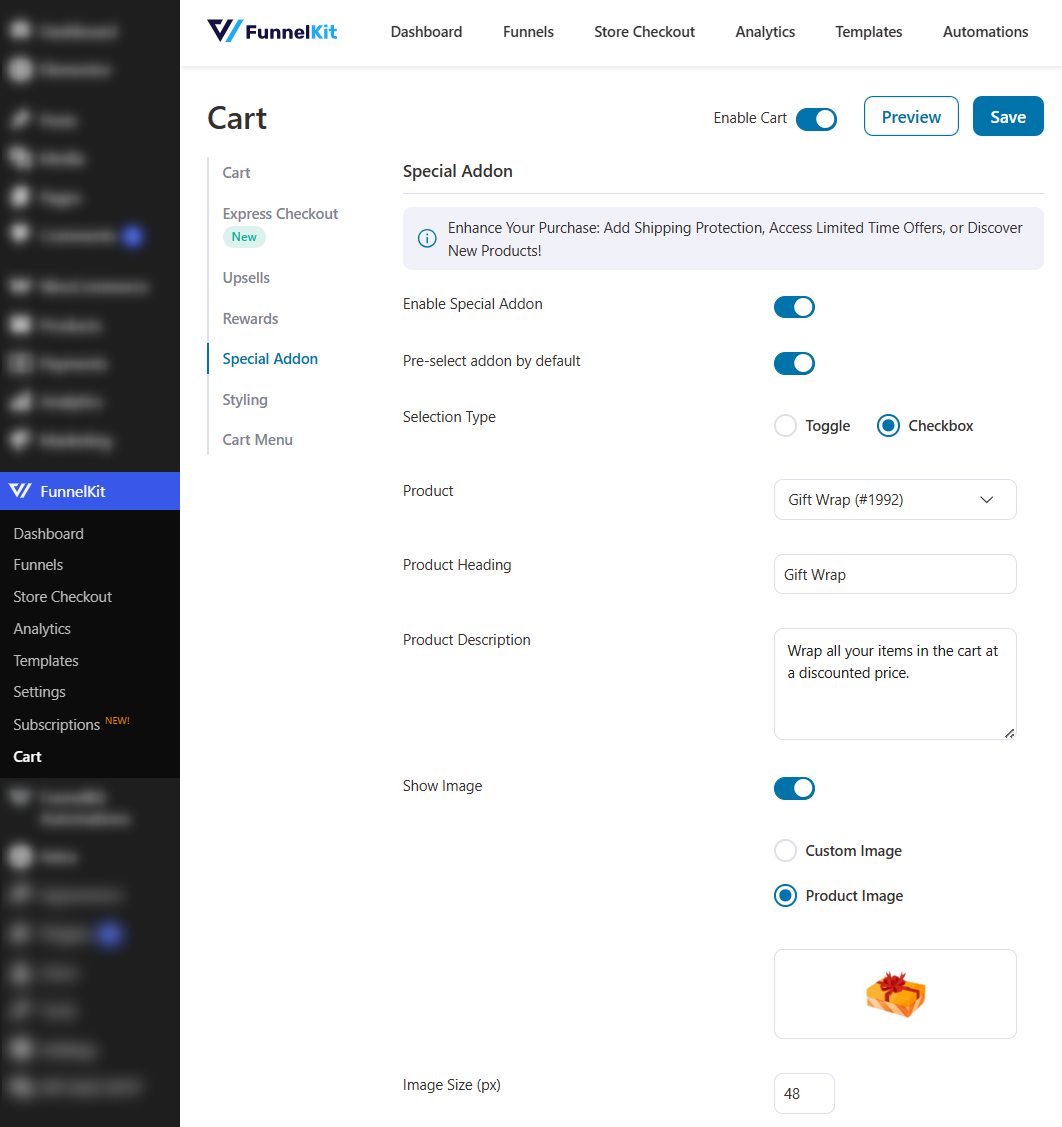
The customer ticks the add-on, the subtotal recalculates instantly, and they stay exactly where they are.
This is how it shows up on the front end:
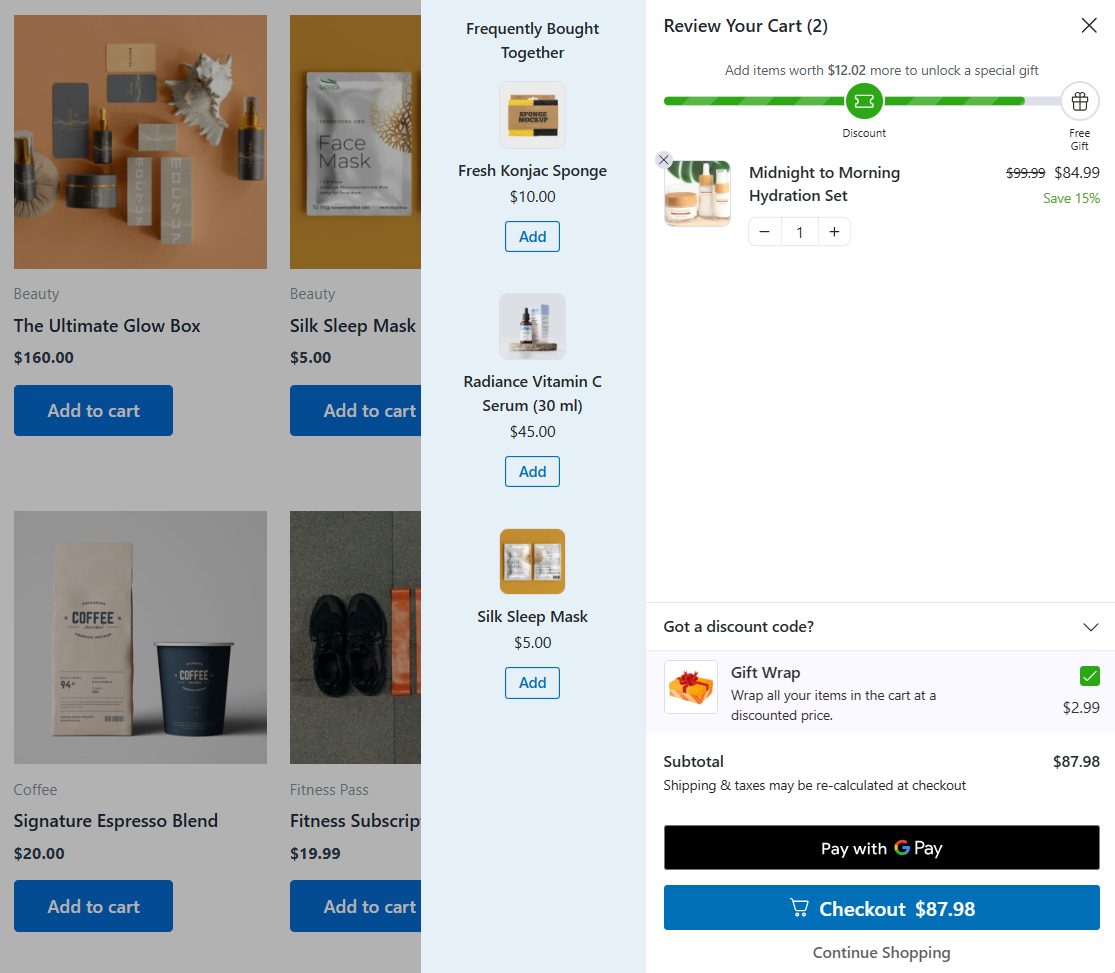
FunnelKit Cart also supports milestone rewards (free shipping, discounts, and free gifts), so you can pair gift wrapping with a "Spend $X, unlock a free gift" nudge to further lift average order value.
FunnelKit Cart has a free core version, but special add-ons, cart upsells, and rewards are part of the Pro plan.
Option B: Gift Wrap as an Order Bump on the Checkout (FunnelKit Funnel Builder)
With FunnelKit Funnel Builder, you can add a gift-wrapping order bump directly on the WooCommerce checkout page.
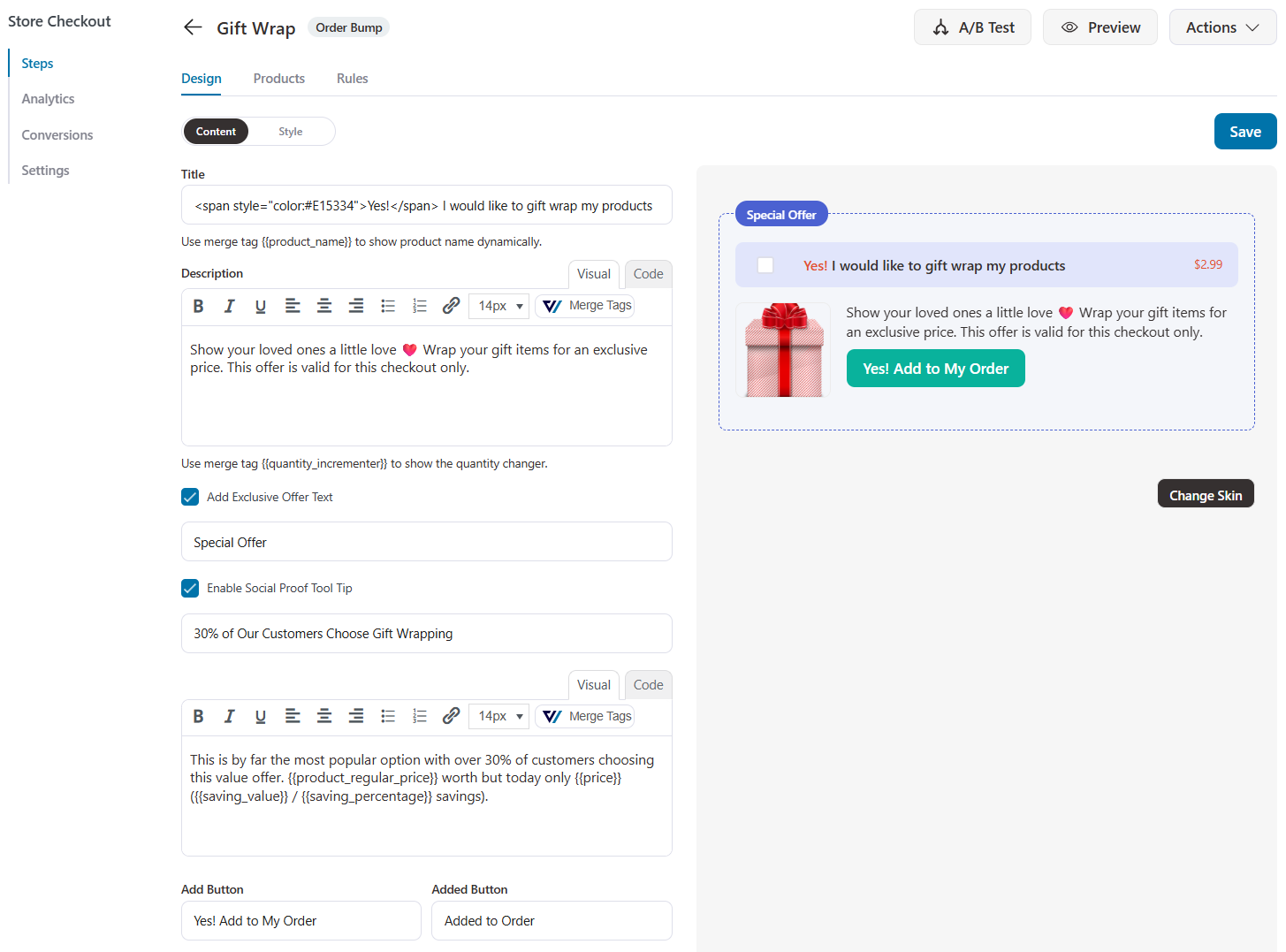
It appears as a tickable offer like "🎁 Yes, gift wrap my order for $2.99" that adds the charge with one click, with no page reload.
You can select the skin layout, add the product, and customize how you want to display it to your shoppers on the checkout page:
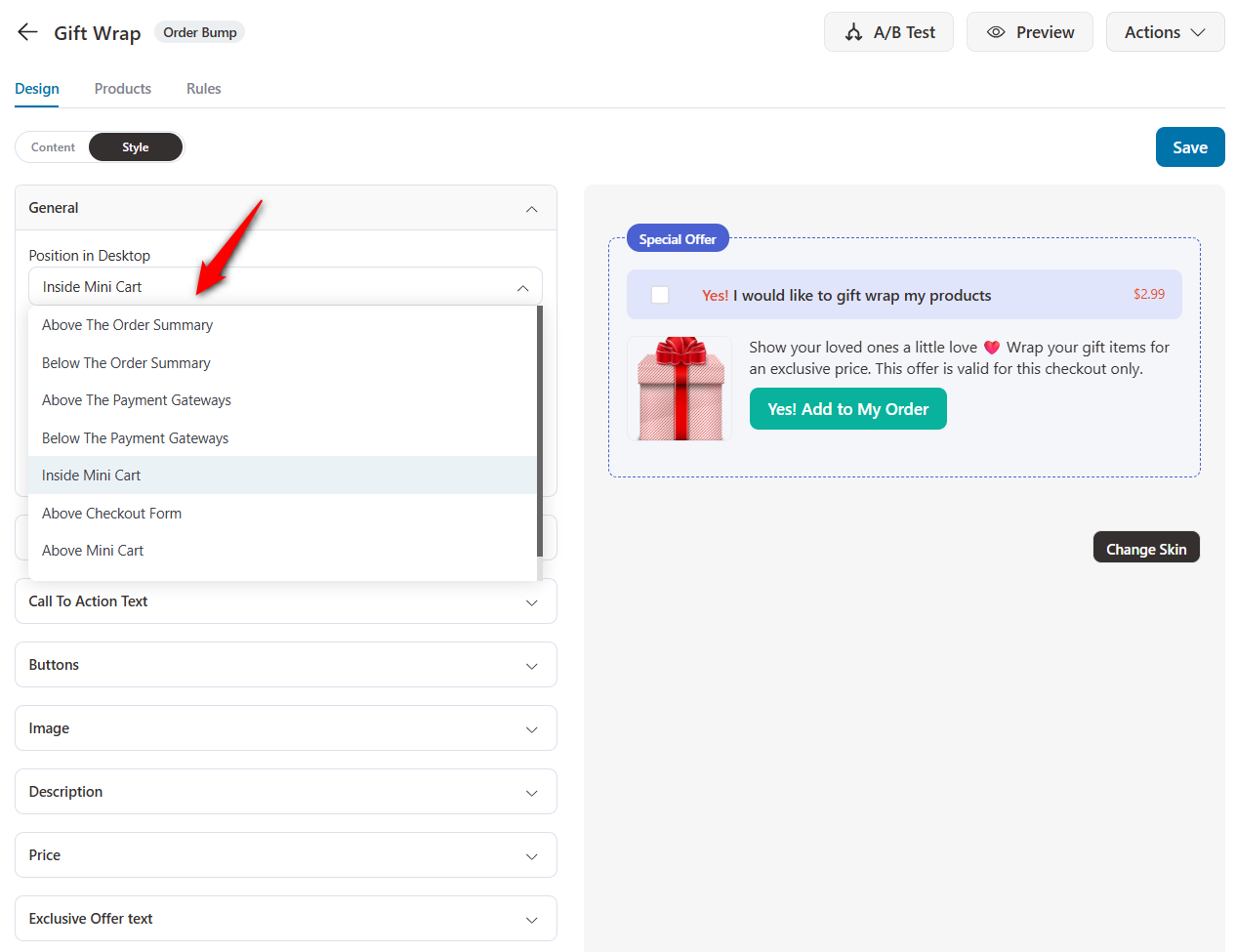
You can even set placements for this gift wrap offer on the checkout page:
Order bumps shine here because they support a rule-based engine that allows you to display the gift-wrap offer only when it's relevant, such as during the holidays, above a certain cart total, for specific categories, or based on what's already in the cart.
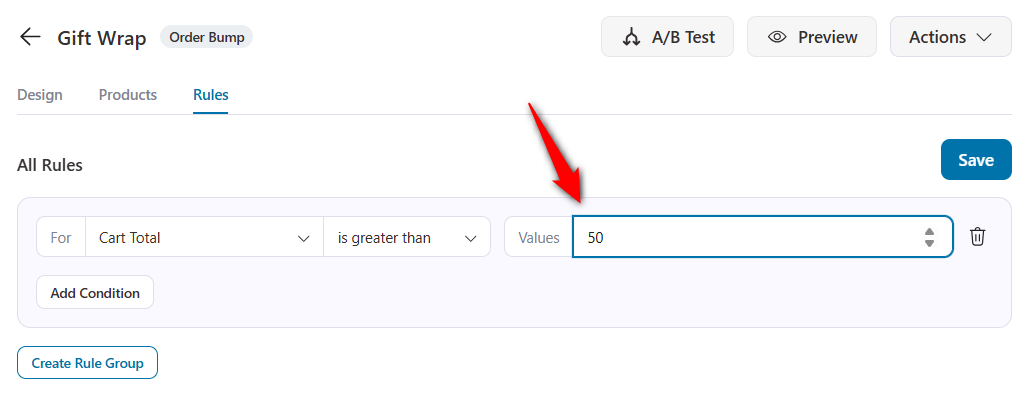
You can even stack it alongside other bumps (like a handwritten note or gift box) on the same checkout.
This is how it appears on the front end:
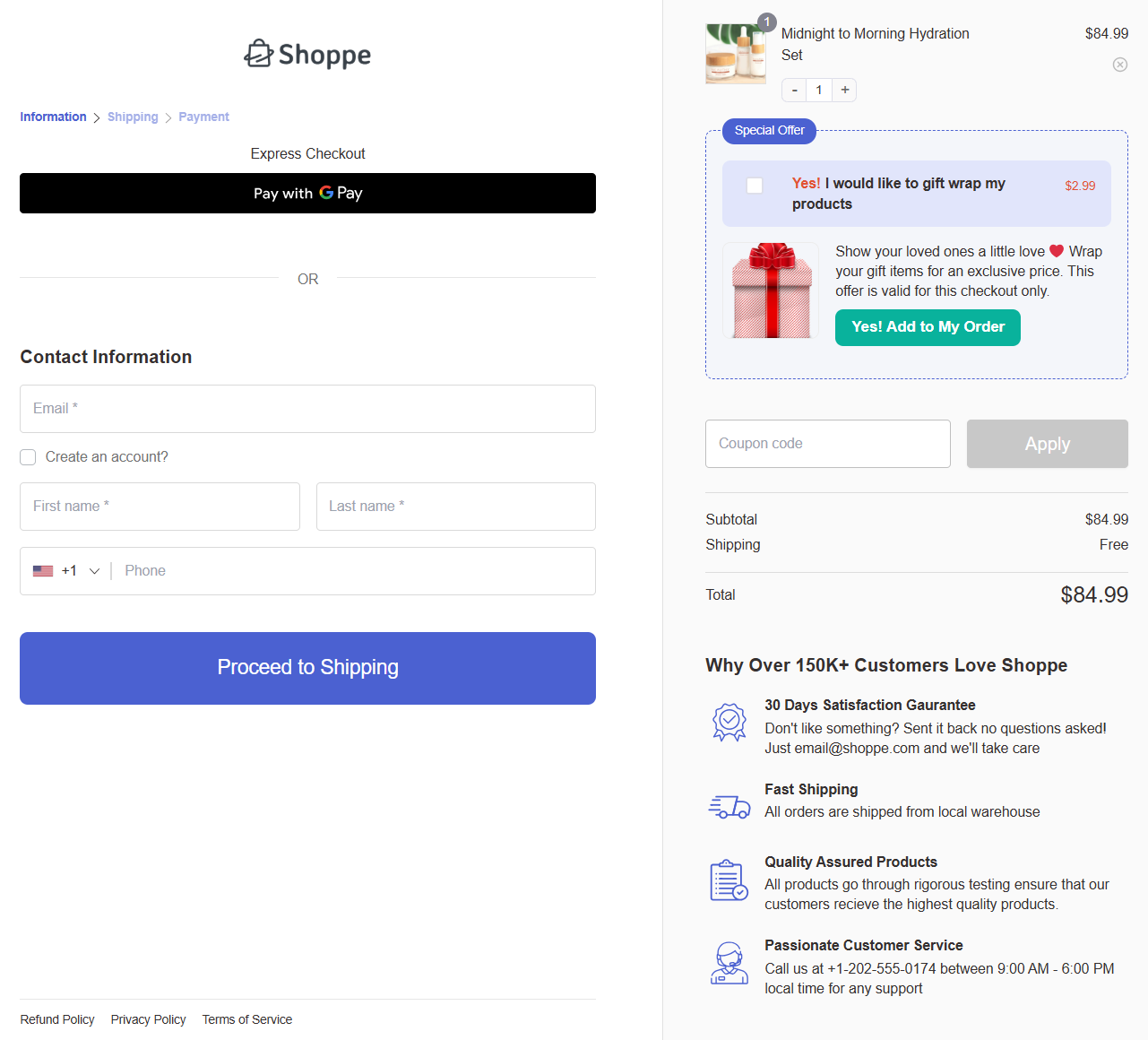
Because FunnelKit's global checkout can replace your default WooCommerce checkout store-wide, every shopper can see the gift-wrap bump not just people going through a single funnel.
Method 2: Add a Simple Gift Wrap Option With a Plugin (No Code)
Install a dedicated gift-wrap plugin or a flexible product-fields plugin. For this tutorial, we'll go with the Gift Wrapper for WooCommerce plugin.
From your WordPress dashboard, go to Plugins ⇨ Add New, upload the ZIP file, and activate it.
Follow these steps to add a basic gift wrap option:
Step 1: Configure the general settings
Go to WooCommerce ⇨ Gift Wrapper and set up the basics:
- Gift Wrapper Mode: Choose Without Designs for a single, simple gift-wrap option, or With Designs to let customers choose from wrapping paper designs (Birthday, Holiday, etc.). For a basic setup, start with Without Designs.
- Gift Wrapper Price: Set your fee here (for example, $3). Leave it empty or set it to 0 to offer free wrapping.
- Product(s) Applicable for Gift Wrapping: Include or exclude specific products or categories. Anything excluded won't show the option.
- Exclude Virtual Products: Enable this so that downloads and other virtual items don't show a wrapping option that doesn't make sense for them.
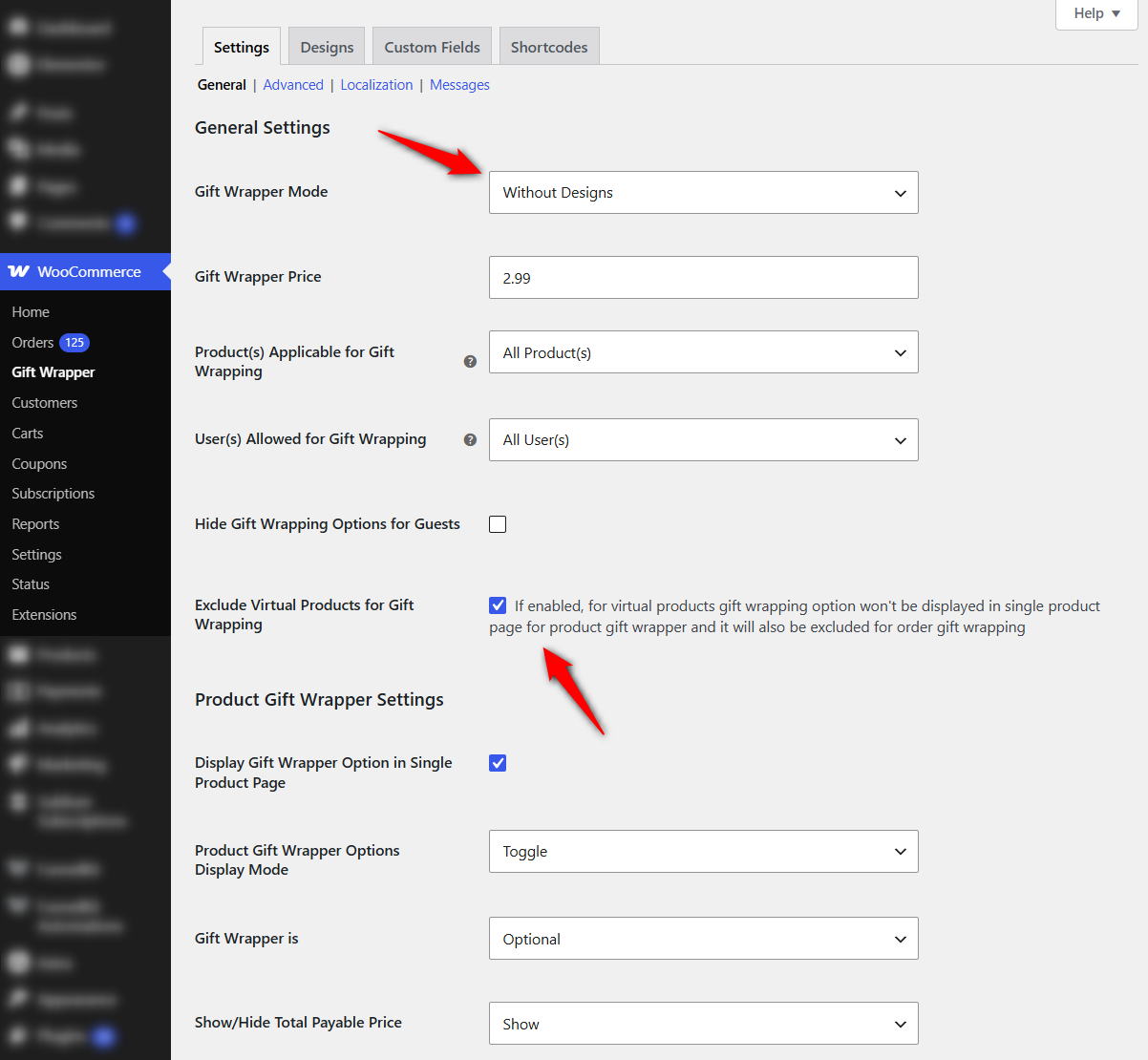
In the same settings screen, open Product Gift Wrapper Settings and enable Display Gift Wrapper Option in the Single Product Page. Then choose how it behaves:
- Display Mode: Show the options inline (Toggle) or in a Popup/Modal when the customer ticks the gift-wrap box.
- Gift Wrapper is: Set to Optional so customers choose whether to add it (set Mandatory only if every order must be wrapped).
- Show/Hide Total Payable Price: Set to Show so shoppers see the combined product + wrapping price before they add to cart.
Also, open Order Gift Wrapper Settings and enable the Display Gift Wrapper option for the Entire Order on the Cart Page and Checkout Page so customers can wrap their entire order in one click.
Step 2: Enable the gift message field
Go to the Custom Fields section and click 'Edit' next to the message field.
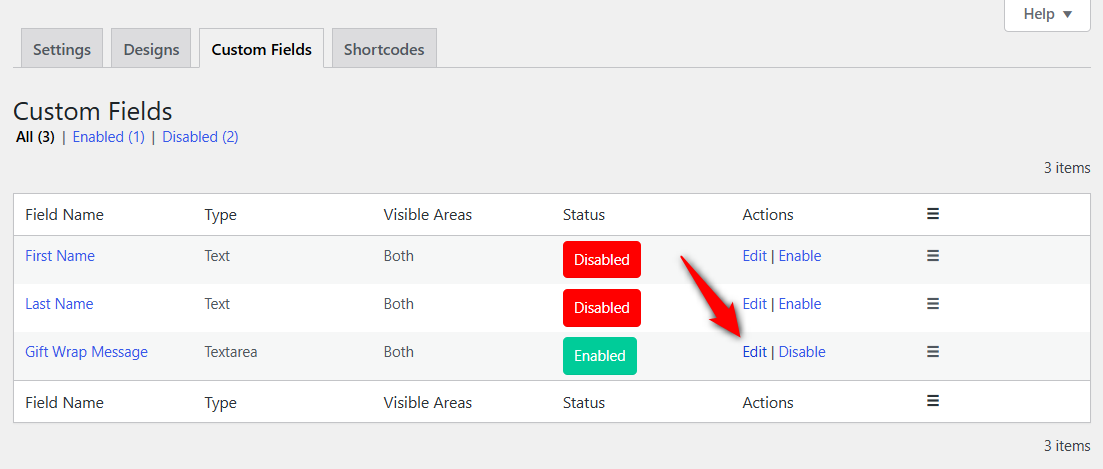
Set Field Status to Enabled, rename the label (e.g., "Add a gift message"), and choose where it appears with Field Visible Areas, such as Product Level, Order Level, or both.
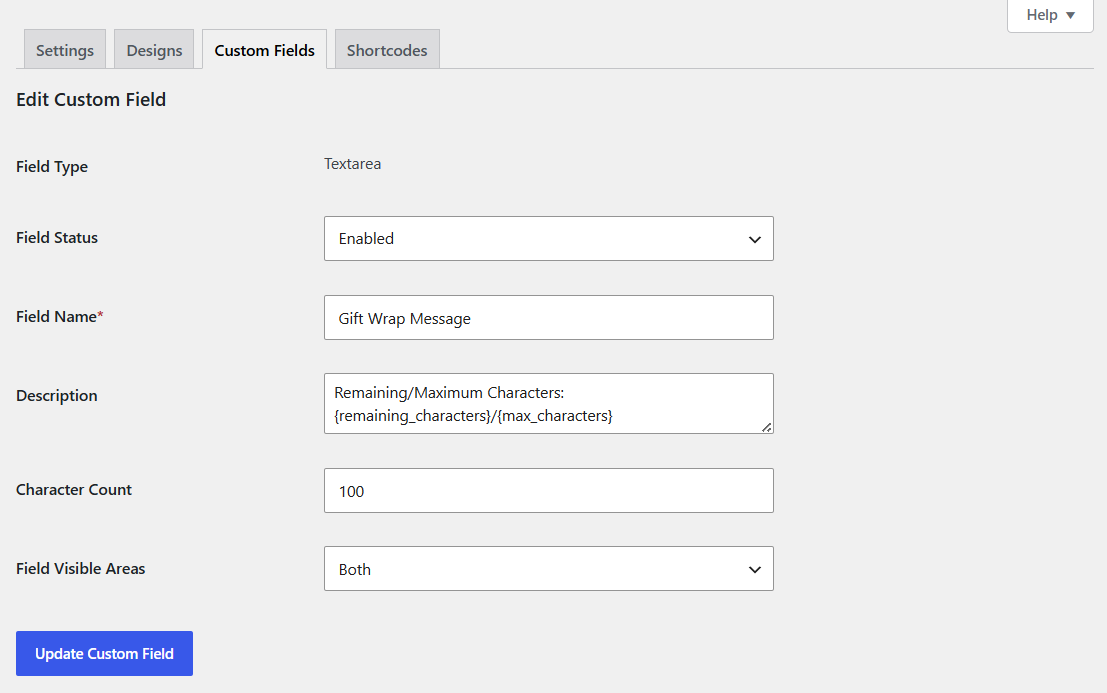
This is what lets buyers add a personal note to the wrapped gift.
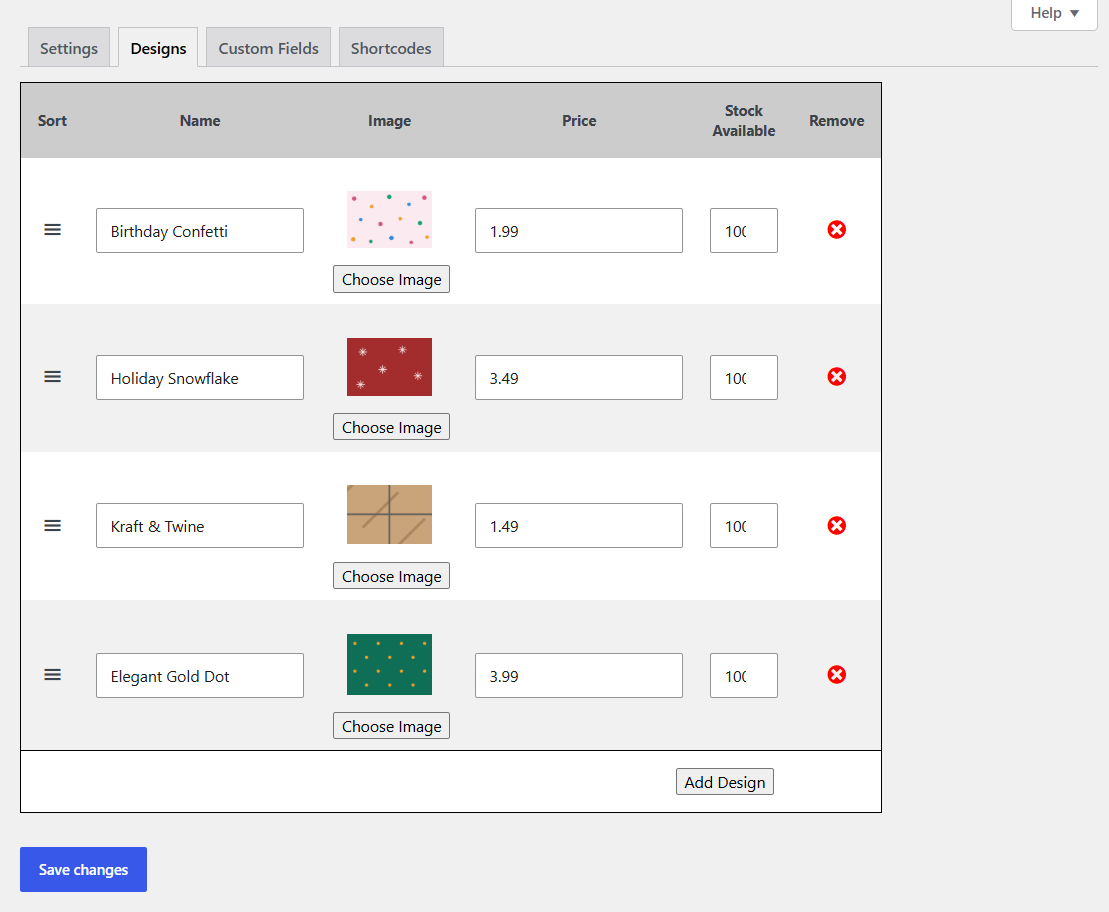
Step 3: Create wrapping designs (optional)
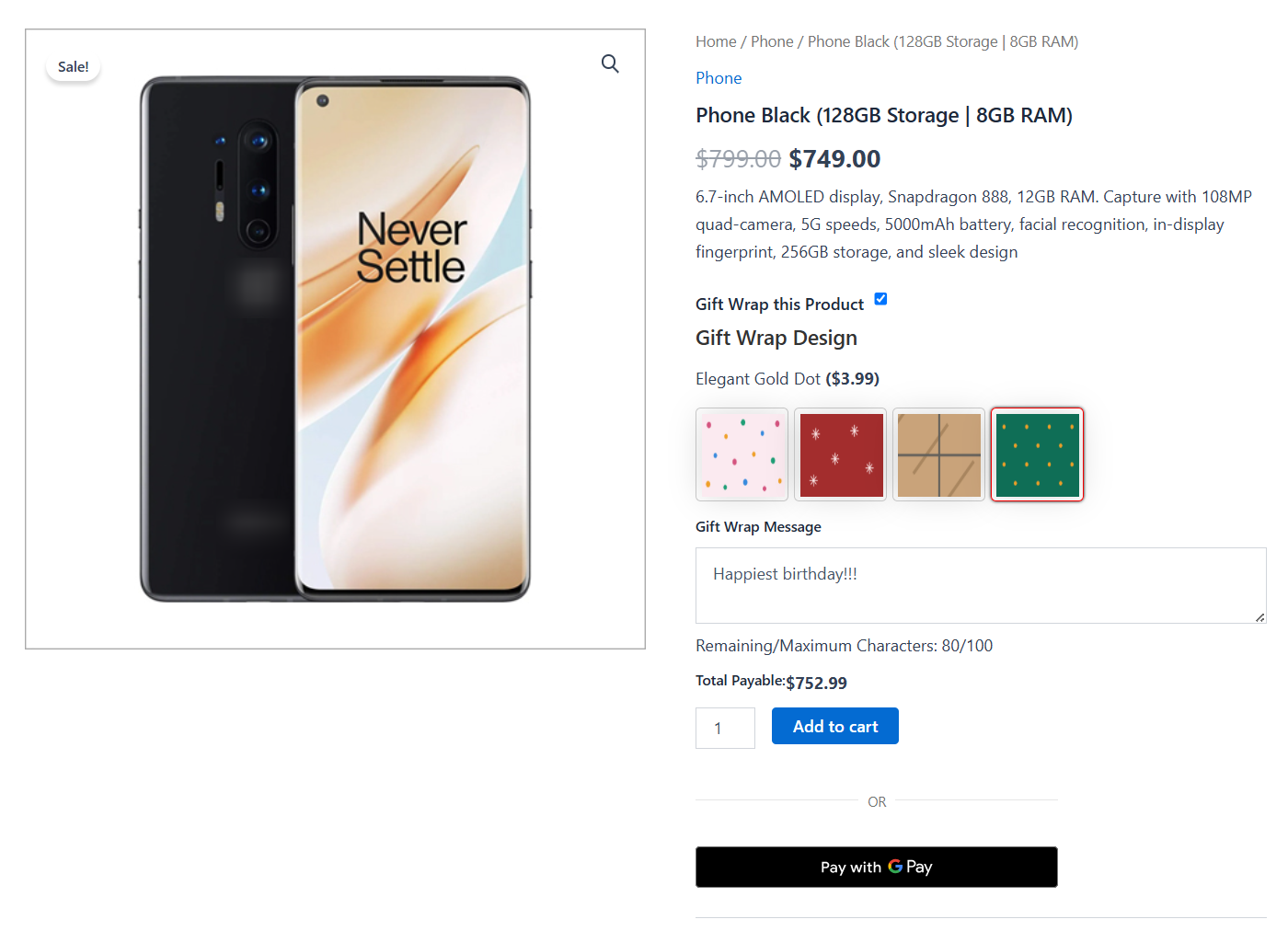
If you chose With Designs in Step 2, go to the Designs section, click Add Design, name each one, upload an image of the wrapping paper, and set an optional price.
Repeat for each style, then save your changes.
You can also create designs for each product in the Gift Wrapper section of any Edit Product page.
Step 4: Place a test order
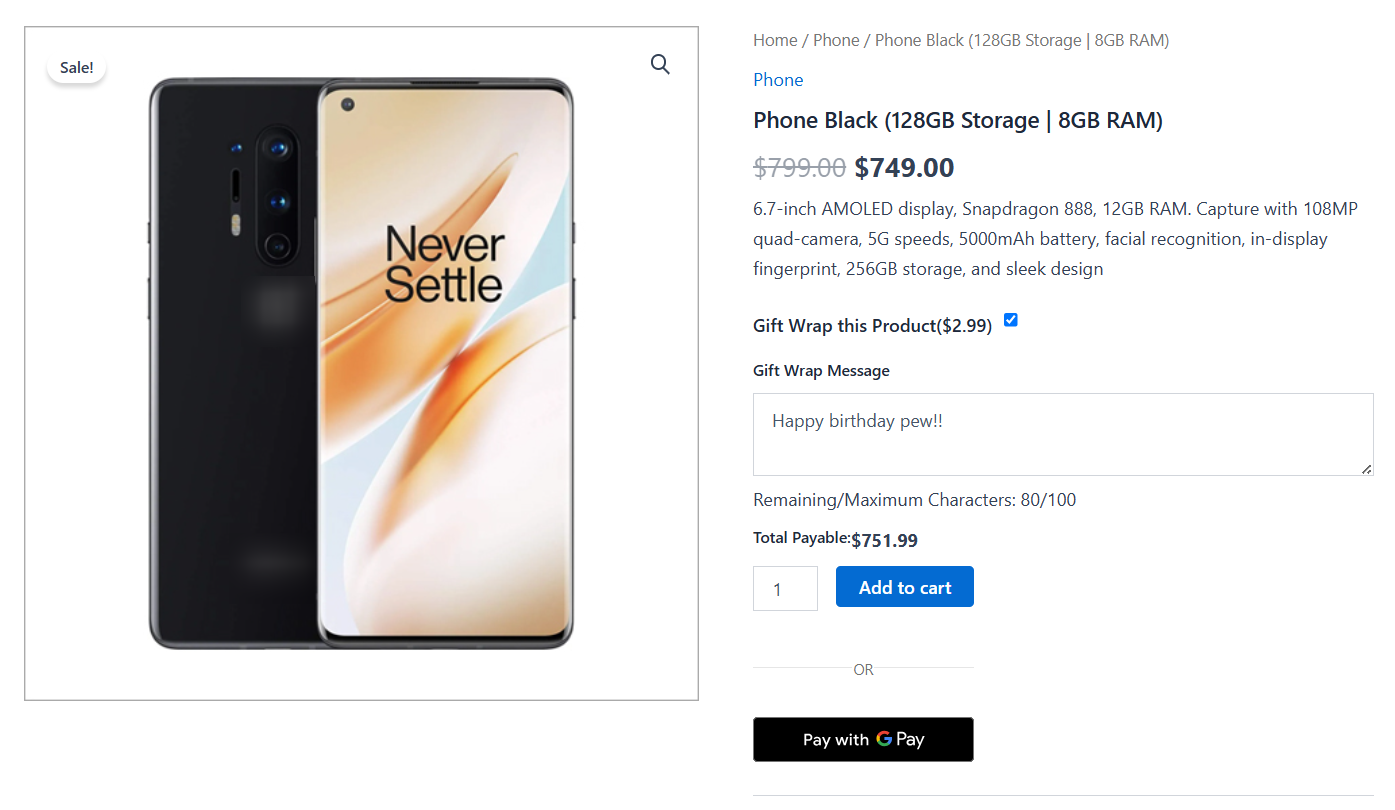
Place a test order end-to-end. Confirm the wrapping fee is added correctly, the gift message is saved, and the details appear on the order item and in your order emails.
This is the preview of your product page without any gift wrapping design:
And this is the preview with four gift wrapping designs, each with specific prices:

Method 3: Add Gift Wrap to the WooCommerce Block Checkout
This is the method you'll see documented the least, but it's also the one more stores need now.
It works with the latest checkout WooCommerce ships today.
The problem is that the block checkout doesn't use the old WooCommerce hooks. So snippets built around woocommerce_after_order_notes and similar checkout fields simply don't run.
Instead, you need two newer pieces of WooCommerce: the Additional Checkout Fields API to collect the wrapping choice, and the Store API update callback to add the $4 to the order total.
Both parts have to work together.
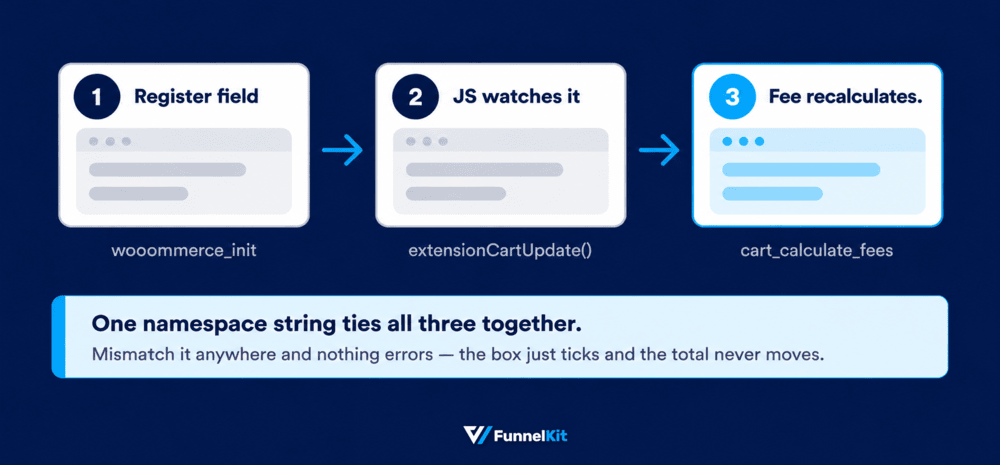
Collecting the checkbox is only half the job. You also need to make sure that choice actually changes the total.
Part 1: Register the checkbox and the message field
add_action( 'woocommerce_init', function () {

	woocommerce_register_additional_checkout_field( array(
		'id'       => 'yourstore/gift-wrap',
		'label'    => __( 'Gift wrap this order (+$4.00)', 'yourstore' ),
		'location' => 'order',
		'type'     => 'checkbox',
	) );

	woocommerce_register_additional_checkout_field( array(
		'id'       => 'yourstore/gift-message',
		'label'    => __( 'Gift message (optional)', 'yourstore' ),
		'location' => 'order',
		'type'     => 'text',
		'required' => false,
	) );
} );
Fields registered at the order location render in the checkout block’s Order information section and save to the order automatically, so the message reaches the admin screen with no extra code.
This beats the classic method, where you save the meta yourself.
Part 2: Turn the checkbox into a fee
Ticking a box doesn’t move the total on its own. Register a Store API callback, store the choice in the session, add the fee during cart calculation.
add_action( 'woocommerce_blocks_loaded', function () {

	woocommerce_store_api_register_update_callback( array(
		'namespace' => 'yourstore-gift-wrap',
		'callback'  => function ( $data ) {
			$wants_wrap = ! empty( $data['gift_wrap'] ) && filter_var( $data['gift_wrap'], FILTER_VALIDATE_BOOLEAN );
			WC()->session->set( 'yourstore_gift_wrap', $wants_wrap );
		},
	) );

	add_action( 'woocommerce_cart_calculate_fees', function ( $cart ) {
		if ( ! WC()->session || ! WC()->session->get( 'yourstore_gift_wrap' ) ) {
			return;
		}
		// Name, amount, taxable, tax class.
		$cart->add_fee( __( 'Gift wrapping', 'yourstore' ), 4.00, true, 'standard' );
	} );

	// Clear the choice on a fresh checkout load so it never carries over.
	add_action( 'woocommerce_blocks_checkout_enqueue_data', function () {
		WC()->session->set( 'yourstore_gift_wrap', null );
	} );
} );
Part 3: Tell the block when the box changes
let lastValue = null;

wp.data.subscribe( () => {
	const fields = wp.data.select( 'wc/store/checkout' ).getAdditionalFields();
	const wantsWrap = fields[ 'yourstore/gift-wrap' ];

	if ( wantsWrap !== lastValue ) {
		lastValue = wantsWrap;
		wc.blocksCheckout.extensionCartUpdate( {
			namespace: 'yourstore-gift-wrap',
			data: { gift_wrap: wantsWrap },
		} );
	}
}, 'wc/store/checkout' );
Enqueue that file on woocommerce_blocks_checkout_block_registration with wp-data and wc-blocks-checkout as dependencies.
Then test it the same way you tested Method 1.
Add the item, tick the box, and watch the total change without the page refreshing.
If the total doesn't move, there's probably a namespace mismatch somewhere.
Keep these things in mind:
- Keep the code in a small plugin or child theme: Don't put it in a parent theme functions.php unless you want it overwritten the next time the theme updates.
- Use the same namespace everywhere: The namespace string needs to match in all three places. If one is different, the code can fail silently, which makes for a particularly frustrating debugging session.
- Test with a coupon: Fees and percentage-based coupons can interact differently depending on how they're applied. Check the final calculation yourself before customers start finding the edge cases for you.
Still deciding which checkout to use? Our guide to block vs. classic checkout covers the main differences.
Method 4: Add Gift Wrap Without a Plugin (Classic Checkout)
If you only need a single, flat gift-wrap charge and you're comfortable editing your theme, a snippet is the lightest-weight option.
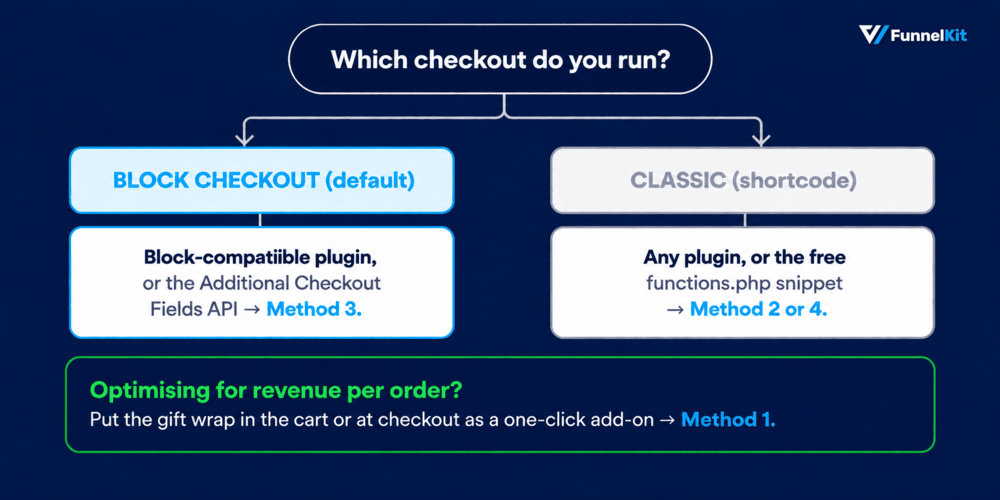
Please note that this snippet works on the classic (shortcode) checkout [woocommerce_checkout].
If your store uses the newer block checkout (the default on recent WooCommerce installs), these hooks won't fire. Either switch that page to the classic checkout shortcode, or use a plugin (Method 1) or FunnelKit (Method 2), which support both.
Always back up your site and add the code to a child theme's functions.php or a code-snippets plugin (never the parent theme).
/**
 * Add an optional gift-wrap checkbox + message to the classic WooCommerce checkout,
 * charge a fee when ticked, and save the details to the order.
 */

// 1. Render the checkbox and message field on the checkout
add_action( 'woocommerce_review_order_before_payment', 'custom_gift_wrap_fields' );
function custom_gift_wrap_fields() {
    $chosen = WC()->session->get( 'gift_wrap' );

    woocommerce_form_field( 'gift_wrap', array(
        'type'  => 'checkbox',
        'class' => array( 'gift-wrap-toggle form-row-wide' ),
        'label' => __( 'Add gift wrapping (+$3.00)', 'your-textdomain' ),
    ), $chosen );

    woocommerce_form_field( 'gift_wrap_message', array(
        'type'        => 'textarea',
        'class'       => array( 'gift-wrap-message form-row-wide' ),
        'label'       => __( 'Gift message (optional)', 'your-textdomain' ),
        'maxlength'   => 200,
        'placeholder' => __( 'e.g. Happy birthday! Love, Alex', 'your-textdomain' ),
    ), WC()->session->get( 'gift_wrap_message' ) );
}

// 2. Persist the choice to the session whenever the order review reloads
add_action( 'woocommerce_checkout_update_order_review', 'custom_gift_wrap_set_session' );
function custom_gift_wrap_set_session( $post_data ) {
    parse_str( $post_data, $data );
    WC()->session->set( 'gift_wrap', isset( $data['gift_wrap'] ) ? 1 : 0 );
    WC()->session->set( 'gift_wrap_message', isset( $data['gift_wrap_message'] ) ? sanitize_textarea_field( $data['gift_wrap_message'] ) : '' );
}

// 3. Add the fee when the box is ticked (4th arg = taxable; set your tax class in the 5th)
add_action( 'woocommerce_cart_calculate_fees', 'custom_gift_wrap_add_fee' );
function custom_gift_wrap_add_fee( $cart ) {
    if ( is_admin() && ! defined( 'DOING_AJAX' ) ) {
        return;
    }
    if ( WC()->session->get( 'gift_wrap' ) ) {
        $cart->add_fee( __( 'Gift Wrapping', 'your-textdomain' ), 3.00, true ); // true = taxable
    }
}

// 4. Force the checkout totals to refresh the moment the box is toggled
add_action( 'wp_footer', 'custom_gift_wrap_refresh_totals' );
function custom_gift_wrap_refresh_totals() {
    if ( ! is_checkout() ) {
        return;
    }
    ?>
    <script>
    jQuery( function( $ ) {
        $( document.body ).on( 'change', '#gift_wrap', function() {
            $( document.body ).trigger( 'update_checkout' );
        } );
    } );
    </script>
    <?php
}

// 5. Save the gift-wrap choice and message to the order
add_action( 'woocommerce_checkout_create_order', 'custom_gift_wrap_save_to_order', 20, 2 );
function custom_gift_wrap_save_to_order( $order, $data ) {
    if ( ! empty( $_POST['gift_wrap'] ) ) {
        $order->update_meta_data( '_gift_wrap', 'yes' );
        if ( ! empty( $_POST['gift_wrap_message'] ) ) {
            $order->update_meta_data( '_gift_wrap_message', sanitize_textarea_field( wp_unslash( $_POST['gift_wrap_message'] ) ) );
        }
    }
    // Clear the session so the next order starts fresh
    WC()->session->set( 'gift_wrap', 0 );
    WC()->session->set( 'gift_wrap_message', '' );
}

// 6. Show the gift message in the admin order screen + emails
add_action( 'woocommerce_admin_order_data_after_billing_address', 'custom_gift_wrap_admin_display' );
function custom_gift_wrap_admin_display( $order ) {
    if ( 'yes' === $order->get_meta( '_gift_wrap' ) ) {
        echo '<p><strong>' . esc_html__( 'Gift wrap:', 'your-textdomain' ) . '</strong> ' . esc_html__( 'Yes', 'your-textdomain' );
        $msg = $order->get_meta( '_gift_wrap_message' );
        if ( $msg ) {
            echo '<br><strong>' . esc_html__( 'Message:', 'your-textdomain' ) . '</strong> ' . esc_html( $msg );
        }
        echo '</p>';
    }
}
The woocommerce_cart_calculate_fees hook (step 3) adds the fee with the taxable flag set to true, so the charge follows your store's tax rules instead of silently being tax-free.
The small jQuery snippet (step 4) fixes the DIY gift-wrap code, which doesn't update the total when you tick the box, by triggering WooCommerce's update_checkout event on change.
Steps 5 and 6 save the choice and message as order meta and display them on the admin order screen and in emails, so your fulfillment team can actually see the request.
Snippets don't give you image-based designs, per-product wrapping, or a sales dashboard, and they break more easily during theme updates.
For anything beyond a single flat fee, a plugin-based method is the safer bet.
Where Should the Gift Wrap Option Appear?
| Placement | Wrapping Scope | Best When |
|---|---|---|
| Product page | Per individual product | Items are gifted separately or need different designs |
| Side cart | Whole order | You want an instant add-on (FunnelKit Cart Special Addon) without a page reload |
| Cart page | Whole order | Customers wrap everything together; quick review of the fee |
| Checkout page | Whole order | You want maximum AOV via a one-click order bump |
Many stores combine per-product options for shoppers who want separate wrapping, plus a whole-order option at checkout for convenience.
If you only pick one, checkout typically captures the most additional revenue.
Gift Messages: Setup, Packing Slips and Fulfillment
The store collects the extra $4, but the message never reaches the person packing the order.
Someone paid for a card that says "Happy birthday, Grandma", and Grandma receives a plain box and an invoice.
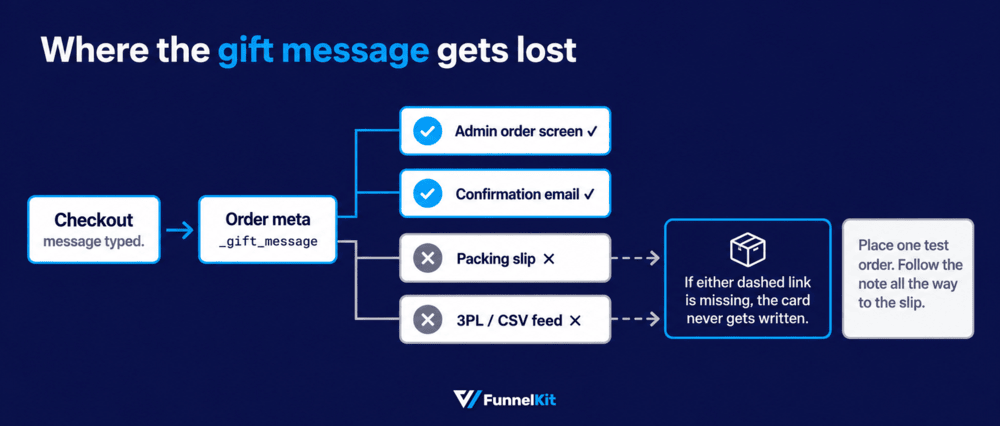
- Make sure the message is saved with the order
The Additional Checkout Fields API handles this for block checkout. If you're using custom code, you'll need to save the order meta yourself.
Either way, place a real test order and open it in the WooCommerce admin.
You should be able to find the gift message immediately, without digging through fields to work out where it went.
- Put it on the packing slip
Most PDF invoice and packing slip plugins let you display custom order fields.
Add _gift_message to the packing slip template, not the invoice. The invoice is for showing prices and payment details. A gift recipient shouldn't be seeing either.
- Make wrapped orders easy to spot
If you use ShipStation or another fulfillment system, pass the wrapping status into an order note or custom field so the team can see which orders need attention.
Some gift wrap plugins handle this automatically.
If yours doesn't, a small snippet that adds an order note when wrapping is selected is usually enough.
- Keep the invoice out of the box
If you're shipping directly to the gift recipient, include the packing slip but leave out the priced invoice.
It's an easy detail to miss, and plenty of stores end up fixing it during the holiday rush.
- Write the card when you pack the order
Don't leave twenty gift messages sitting in a queue until Friday.
That's how a card gets matched with the wrong package.
It sounds obvious, but a simple fulfillment mistake can turn a $4 add-on into a refund and an apology email.
Troubleshooting: Why Your Gift Wrap Option Isn't Showing
If the gift wrap option isn't appearing or the fee isn't being applied, work through these checks in order.
Most problems come down to the checkout type, product rules, or how the fee is added.
1. You're using the block checkout, but the plugin only supports classic checkout
This is by far the most common issue. Check the comparison table first, then look at the plugin's changelog or documentation for a specific block checkout compatibility note.
2. The product isn't eligible for wrapping
Many plugins exclude virtual, downloadable, and subscription products by default. Check the plugin's product rules, too.
A category exclusion you set months ago can be surprisingly easy to forget.
3. Your theme is interfering with the checkout hook
If the plugin adds its field through woocommerce_after_order_notes and your theme has replaced or modified the checkout template, the option may never appear.
Temporarily test with a default theme, with only WooCommerce and the gift wrap plugin active.
If it works there, you know the theme or another plugin is getting in the way.
4. The checkbox appears, but the total doesn't change
On classic checkout, check that the update_checkout event is firing when the box is ticked.
On block checkout, check the namespace your Store API callback uses.
A mismatch there can prevent the fee from being recalculated.
5. The option appears, but no fee is added
On classic checkout, make sure the value saved in the session is actually being read by woocommerce_cart_calculate_fees.
Also temporarily disable caching or cart-fragment optimization.
A cached cart can make it look like the fee logic isn't working when the problem is actually the cache.
6. It works for you but not for customers
Check the plugin's user-role restrictions. Some plugins let you limit gift wrapping to specific roles, and administrators may bypass those rules during testing.
7. It worked last week and suddenly stopped
Check what changed. Compare the plugin and WooCommerce update dates with the day the problem started.
If a checkout-related plugin updated within the last week, that's one of the first things we'd investigate.
Frequently Asked Questions
Yes. The Gift Wrapper and Gift Wrapping for WooCommerce are both free on the WordPress repository and handle a basic toggle with a message field.
Image designs, per-product wrapping and conditional logic generally need a paid upgrade.
Yes, on the classic shortcode checkout. The snippet in Method 3 adds a checkbox, a message field and a flat fee.
It won’t work on block checkout, which needs the Additional Checkout Fields API instead.
Free wrapping is a real strategy, but giving it away by default removes a margin line for no gain.
Charging above a spend threshold and offering it free below does both jobs.
Per-product wrapping suits stores where items are gifted separately or need different designs.
Per-order wrapping (at cart or checkout) is simpler for customers and tends to capture more add-on revenue.
It can be, and that usually depends on your local tax rules. Plugins that treat each wrap as a product let you assign a tax class to it.
In the code method, the add_fee function accepts a taxable flag, which we set to true in the example so the fee follows your store tax settings.
Yes, but treat the wrap as a one-time add-on rather than a recurring charge, so customers are not billed for wrapping on every renewal.
If you sell subscription boxes, you can offer wrapping on the first order through an order bump.
FunnelKit order bumps and checkouts are compatible with WooCommerce Subscriptions, and recurring billing tools like Sublium can manage the subscription itself.
Make sure it saves as order meta, then confirm it appears on the packing slip and in your order export.
If a 3PL fulfills for you, the note has to be in the CSV or API feed, or it won’t travel with the shipment.
Wrapping is a service added to a physical order. A gift card is a prepaid product the recipient redeems later.
Different problems, different plugins, though plenty of stores offer both in December.
Start Offering the WooCommerce Gift Wrap Option Today!
Gift wrapping is one of those WooCommerce add-ons that can be surprisingly easy to make profitable.
It costs relatively little to fulfill, doesn't require extra traffic, and can keep generating revenue year-round.
You've already done the hard part by getting the customer to place an order. You're simply asking if they'd like you to wrap it for them.
Choose the method that fits your store.
Use a plugin for the simplest setup, the Additional Checkout Fields API for the block checkout, a snippet if you just need a single flat fee on classic checkout, or a one-click add-on if your main goal is to increase revenue per order.
If your goal is to capture that revenue at the point of highest intent, the fastest path is to add gift wrapping as an order bump on your FunnelKit checkout or as a Special Addon inside the side cart.
So click the button below and start earning more from every order you already get.
Editorial Team
October 7, 2026WooCommerce upsells are products you recommend in place of the one a shopper is viewing, usually a better or higher-priced version of it. WooCommerce has a built-in upsell field for...
Editorial Team
October 6, 2026WooCommerce taxes start with a rate table you set up yourself. If you leave a state out of that table, orders going there can pass through with no tax. Say...
Editorial Team
October 5, 2026A WooCommerce Shopify checkout recreates the parts of Shopify’s checkout that shoppers already know. It includes a logo-only header, email first, express payment options at the top, address autocomplete, a...






