Maximize Your Profit with FunnelKit – Highest Rated with 1,012+ 5-Star ReviewsBFCM deal live

Maximize your profit with FunnelKit · 1,012+ five-star reviews

WooCommerce Checkout

Recent Blogs
WooCommerce Checkout Block Editor: A Complete Guide

WooCommerce Checkout Block Editor: A Complete Guide

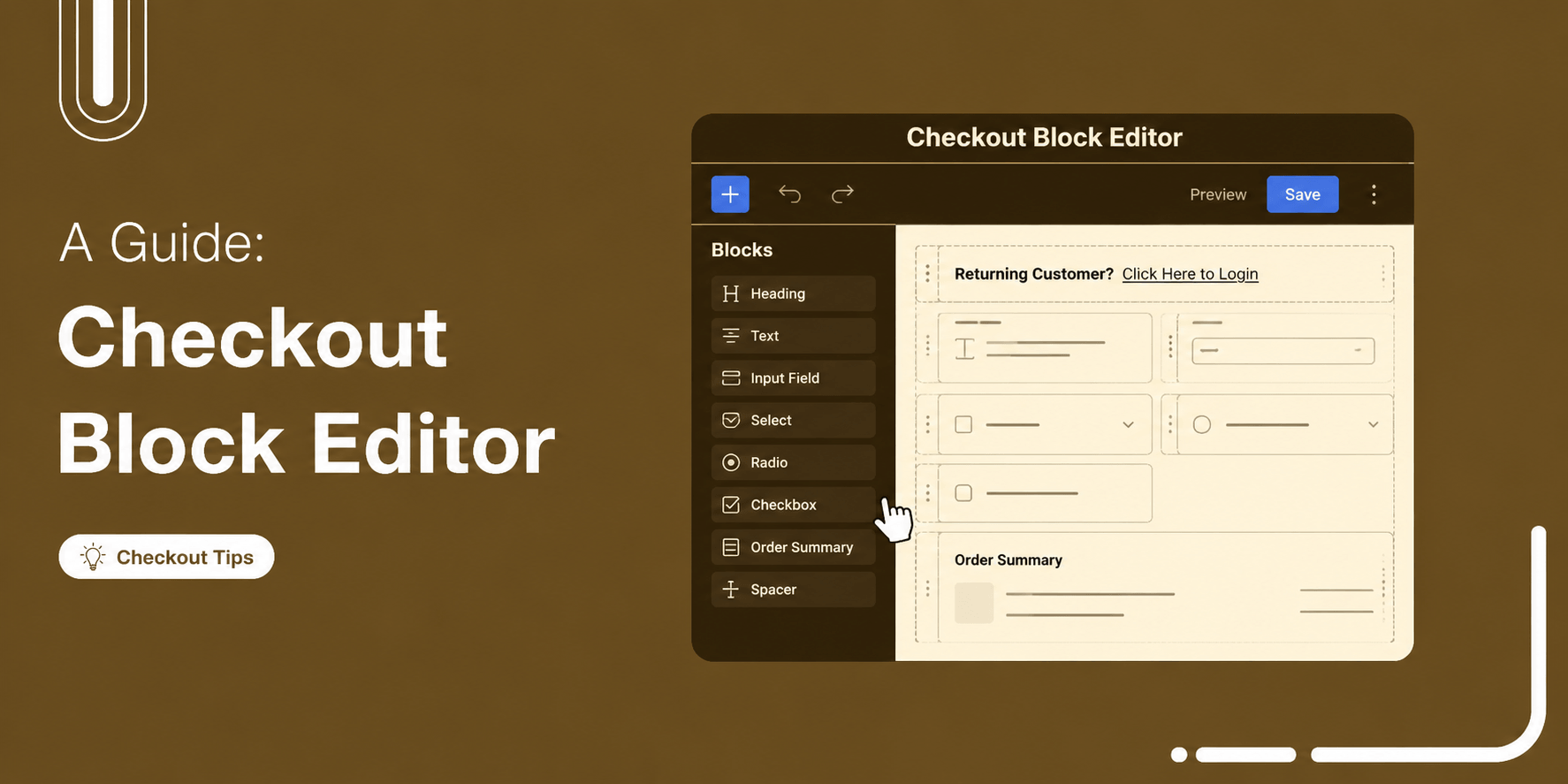
The WooCommerce checkout block editor lets you build and customize your checkout page using Gutenberg, WordPress's native block editor. It comes built into WooCommerce by default. But it’s more of a structured checkout editor than a full-blown checkout builder. You can rearrange sections, show or hide certain fields, edit text, and adjust built-in settings, but you don’t get unlimited control over every checkout field and element out of the box. That’s where the limitations start to show up. And if you’re using it for the first time, you might expect more customization than WooCommerce actually gives you. In this guide, we'll cover what the Block Editor
Illustration of a padlock shield ringed by Norton, Visa and card logos, for WooCommerce trust badges

How to Add Trust Badges to WooCommerce Checkout (Block & Classic)

Adding trust badges to your WooCommerce checkout can help remove the hesitation shoppers feel before entering their card details. That hesitation matters because 19% of shoppers abandon checkout because they don’t trust the site with their card details. [Source: Baymard Institute Research] With average checkout abandonment near 70%, even a small improvement can mean more completed orders. The problem is that adding a badge isn’t as straightforward as it sounds. WooCommerce has both classic and block-based checkout, and many snippets you’ll find online only work with the classic version. On the block checkout, they simply do nothing. This guide covers four ways to add trust badges
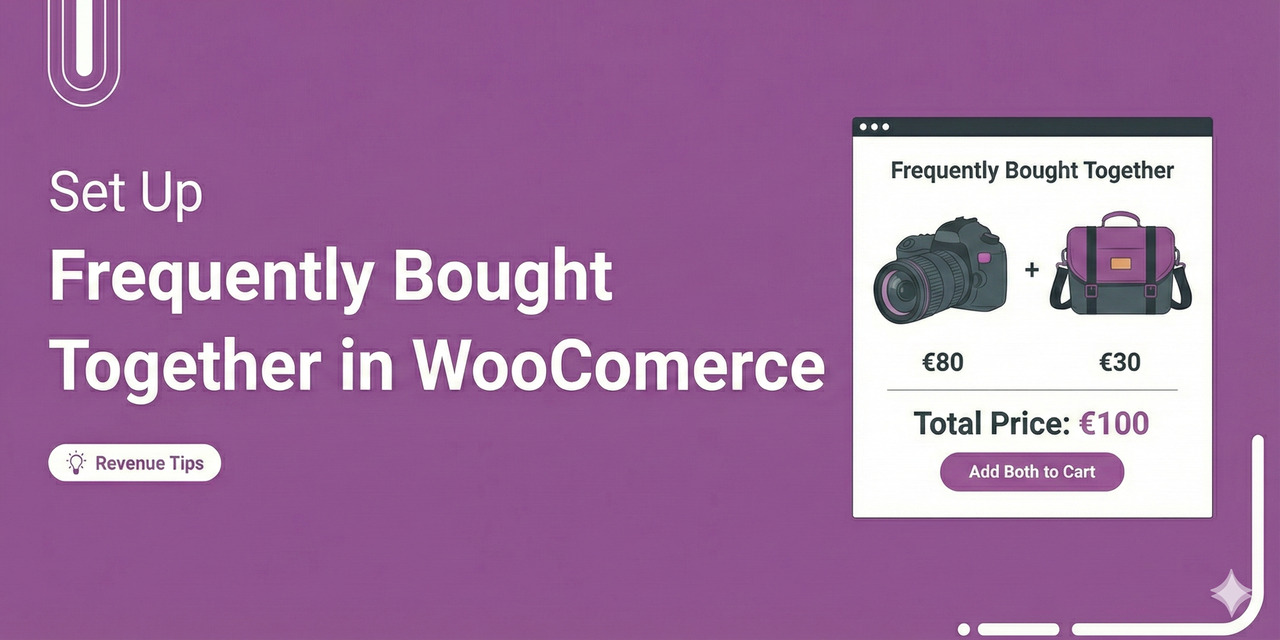
Illustration of a camera and bag bundle for 100 euros with Add Both to Cart, for WooCommerce frequently bought together

WooCommerce Frequently Bought Together: 4 Placements That Increase AOV

WooCommerce frequently bought together offers are one of the easiest ways to increase revenue on a product page. Think about the counter at a kitchen appliance store. Let's say someone buys an espresso machine, and the salesperson places a bag of beans, a descaling kit, and a milk frothing pitcher next to it. They’re not really selling the customer more stuff. They’re helping them get everything they need in one trip. That small recommendation can make a big difference. The espresso machine alone might be a $349 purchase. Add the three products the customer is likely to need in their first week, and suddenly you have
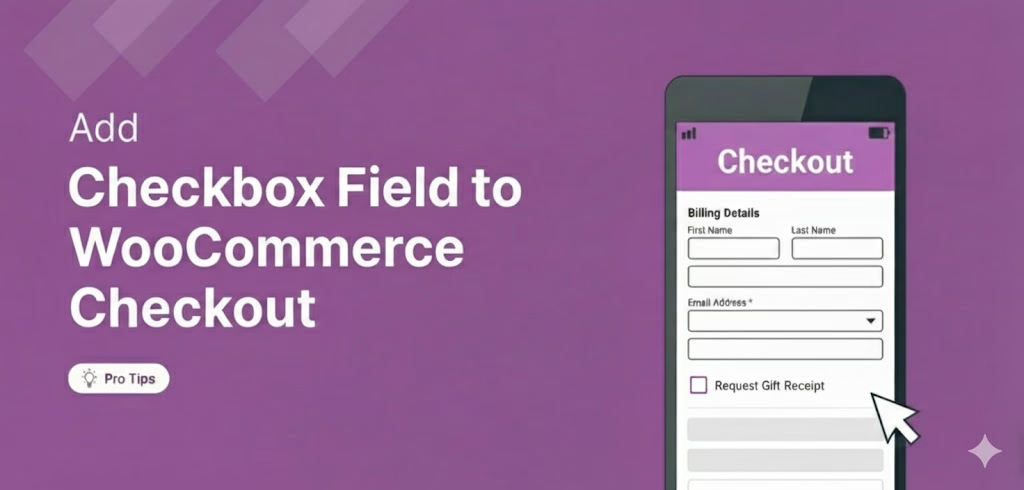
How to Add a Checkbox to WooCommerce Checkout (With & Without Code)

How to Add a Custom Checkbox to WooCommerce Checkout (With & Without Code)

Adding a checkbox to the WooCommerce checkout is one of the easiest ways to collect information from customers without asking them to do much extra. Think about it. The customer is already on the checkout page, entering their details, and about to click the Place Order button.  A single checkbox can prompt them to join your email list, request a gift receipt, add gift wrapping, confirm an age requirement, claim a warranty, and more, all in one tap. There’s no heavy extra work for customers. By default, WooCommerce doesn’t provide a way to add custom checkboxes to checkout. In this guide, we’ll show you two ways
WooCommerce Checkout Not Loading

WooCommerce Checkout Not Working? Fix It in 2 Minutes

WooCommerce checkout not working is a symptom of why most store owners spend an afternoon deactivating plugins and still cannot say what broke. The same complaint covers four different failures. A spinner that never stops. A blank page. A Place Order button that does nothing. Payment methods that never appear. Each has its own cause and its own fix, and the traffic you already paid for is bouncing off the page while you work out which one you have. If you want to skip guessing it over again, one browser check can tell you which category your failure falls into before you touch a single setting.
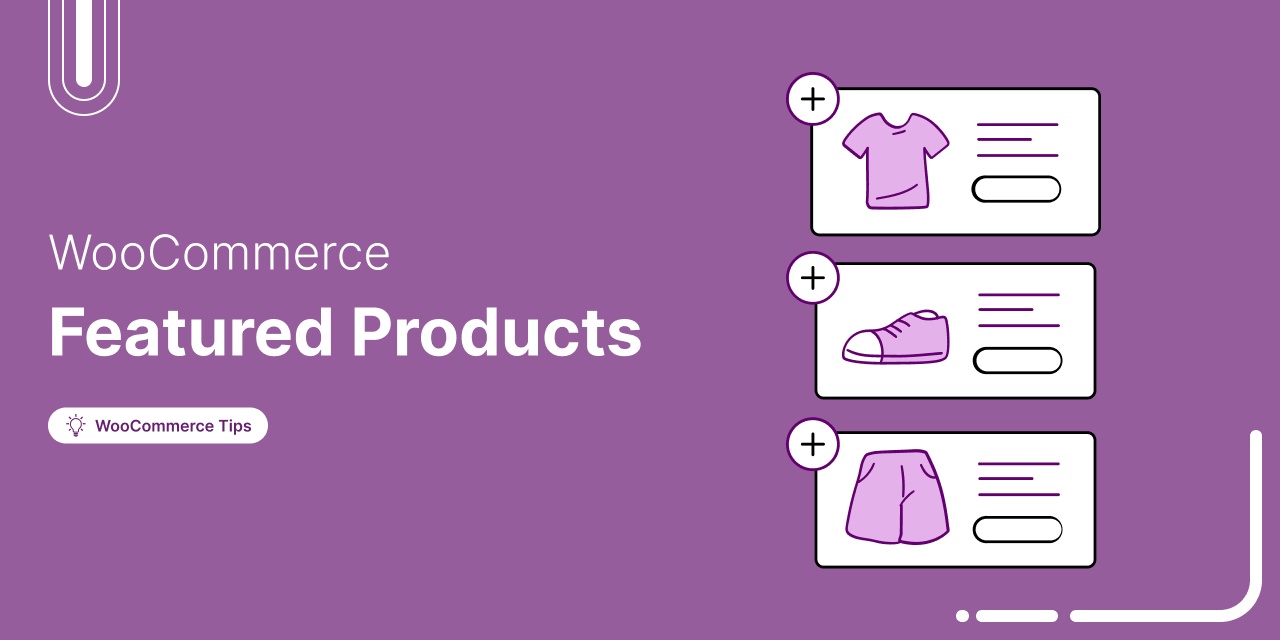
Three product cards for a t-shirt, sneaker and shorts with plus icons, for the WooCommerce featured products guide

How to Set and Display WooCommerce Featured Products (Step-by-Step)

WooCommerce featured products let you handpick items from your catalog and showcase them prominently across your store, making them easier for shoppers to find. You can highlight your best-selling items on your homepage, promote seasonal products in a sidebar, or draw attention to new arrivals on the checkout. WooCommerce, by default, does not feature anything for you automatically. Every product starts with equal visibility, which means your highest-margin items sit right next to products that barely sell. To change that, you need to manually flag products as 'Featured' in the dashboard and then choose where to display them on the front end. In this post, we
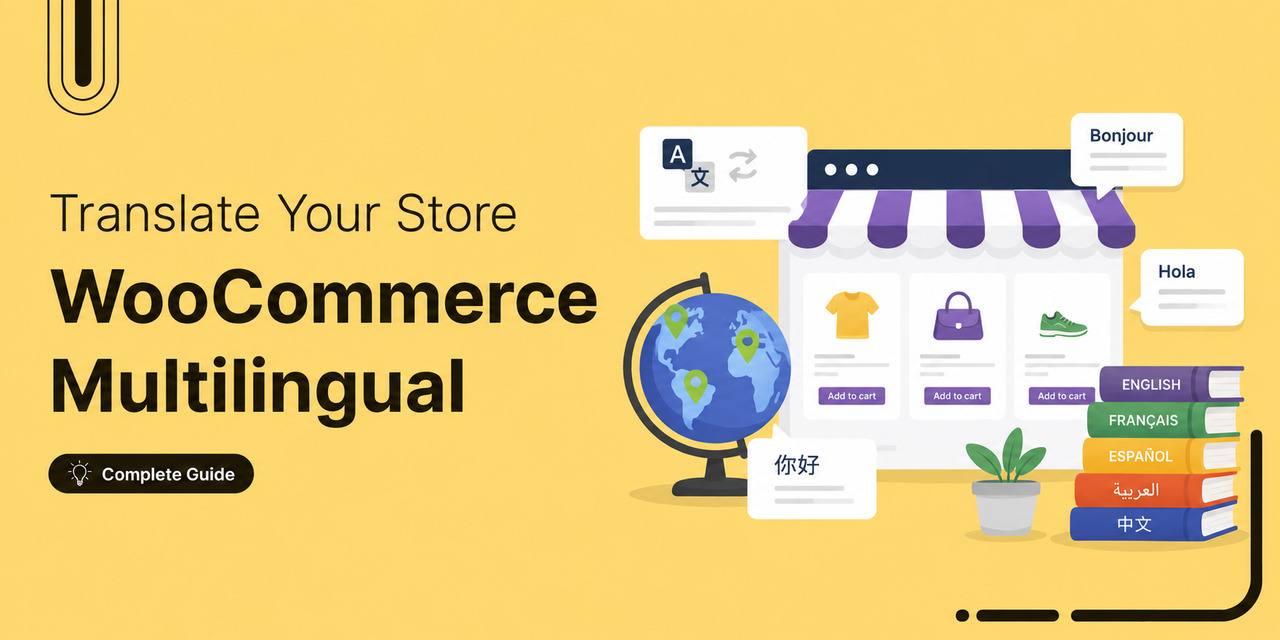
Storefront with greetings in several languages, a globe and stacked language books, for the WooCommerce multilingual guide

WooCommerce Multilingual: How to Translate Your Store Step by Step

WooCommerce multilingual stores tend to get built the day after a moment like this one. A shopper in Munich finds your store through Google. The product page is in German, the description reads well, the photos do their job. She adds a pour-over kettle to her cart, hits checkout, and the page flips to English with billing details, a place order button, every field label, and every validation message. She leaves because at the exact moment you asked for her card details, your store stopped speaking her language. Now multiply her by every German session you get. For a store doing 10,000 monthly sessions at a
How to Add WooCommerce Shipping Calculator on Checkout Page

How to Set Up the WooCommerce Shipping Calculator on the Checkout Page (2026)

The WooCommerce shipping calculator on the checkout page shows your customers their exact costs (with a breakdown of the shipping fee, tax, and item price, plus the total) the moment they start typing their address. When it’s missing or misconfigured, buying from your store feels like ordering dinner through an app. On the final payment screen, you added items worth $25, but some hidden fees push your total past $40. Suddenly, the leftovers in your fridge sound fine. Baymard Institute notes that extra costs like shipping cause roughly 48% of checkout abandonments. But do you know your online store already behaves this way natively? A customer

Make More From Every Sale.

FunnelKit works at the three moments a store earns money: before checkout, at checkout and after the order.

Before checkout: cart upsells and free-shipping goals in a sliding cart
At checkout: a faster checkout with order bumps and one-click upsells
After checkout: abandoned-cart recovery and follow-ups that bring buyers back
Start Selling More Today →
★★★★★ 4.9/5 from 1,012+ reviews on WordPress.org