WooCommerce multilingual stores tend to get built the day after a moment like this one.
A shopper in Munich finds your store through Google. The product page is in German, the description reads well, the photos do their job.
She adds a pour-over kettle to her cart, hits checkout, and the page flips to English with billing details, a place order button, every field label, and every validation message.
She leaves because at the exact moment you asked for her card details, your store stopped speaking her language.
Now multiply her by every German session you get.
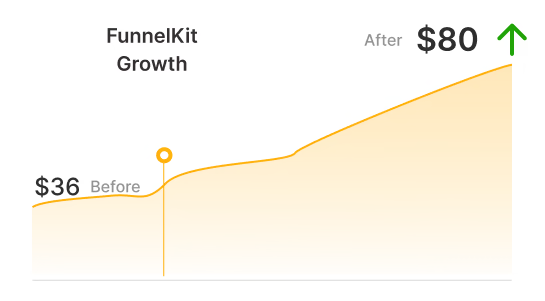
For a store doing 10,000 monthly sessions at a $65 average order value, closing that one language gap is worth roughly $15,600 a year.
CSA Research surveyed 8,709 consumers across 29 countries and found that 40% will never buy from a website that isn’t in their language.
WooCommerce ships without translation support, which makes this a plugin decision before it’s a translation project.
If you pick a wrong plugin, you’ll be locked into slow page loads, per-word billing, or a catalog you have to re-edit by hand every time a price changes.
This guide covers what a multi-language store actually involves, how the four main translation plugins differ, and a full build for products, attributes, checkout, cart, and order emails included.
Skip to the step-by-step process from here
Table of Contents
- 1 What Does a Multi-Language WooCommerce Store Actually Mean?
- 2 Do You Actually Need a Multilingual Store?
- 3 How to Make Your WooCommerce Store Multilingual (Step-by-Step)
- 4 The Smart Way to Translate Your WooCommerce Checkout, Cart, and Emails
- 5 4 Best WooCommerce Translation Plugins Compared
- 6 7 Best Practices to Rank and Sell in Every Language
- 7 Frequently Asked Questions
- 8 Ready to Sell in Every Language Your Traffic Already Speaks?
What Does a Multi-Language WooCommerce Store Actually Mean?
A multilingual WooCommerce store delivers your entire shopping experience in multiple languages.
A shopper in Berlin sees German. One in Lyon sees French. Same store, same domain, same stock count, same order queue in your admin.
What changes is every word the customer reads in product titles and descriptions, categories and attributes, cart and checkout, and order confirmation emails.
Also, the SEO metadata Google reads before any of them.
WordPress ships translation files for its own admin interface.
Translating your content is a separate job, and a translation plugin handles four parts of it:
- Content translation: Products, pages, categories, and attributes.
- String translation: Buttons, field labels, and hardcoded text from WooCommerce, your theme, and every other plugin.
- A language switcher: So visitors can change languages on every page, checkout included.
- Multilingual SEO: Hreflang tags, per-language URLs, and translated metadata so Google indexes each version as its own page.
Get all four and you have a store that ranks in multiple countries and closes in the buyer’s language.
If you miss even one, usually the order emails, you break trust at the worst possible moment.
Quick Answer: To make WooCommerce multilingual, you need to -
- Install a translation plugin, such as WPML, Polylang, TranslatePress, or Weglot
- Add your target languages
- Translate your products and store pages
- Add a language switcher
- Configure hreflang tags for SEO
The rest of this guide shows you exactly how.
Do You Actually Need a Multilingual Store?
Be honest before you install anything. Three signals that you need genuine translation and not just a currency switcher:
- You sell into markets with different primary languages
A store shipping across the EU qualifies. A US store shipping to Canada and the UK mostly doesn’t.
- Your analytics show non-English traffic converting well below your average
Segment by country in Google Analytics. If Germany brings 15% of sessions and 4% of revenue, you’ve found your first language.
- You want to rank in local search
Google serves country-specific results. Translated, indexable pages are how you compete there. A single English page will not.
You don’t need to launch in six languages.
Start with the one market where you’re already leaving revenue on the table, prove the build works end-to-end, then add the next.
A store that sells properly in two languages beats one that half-sells in five.
Translation isn’t the same as multicurrency
These get conflated constantly, and they solve different problems:
| Translation | Multicurrency | |
|---|---|---|
| What changes | The words on the page | The numbers on the page |
| Fixes | Comprehension and trust | Sticker shock and conversion math |
| Handled by | Polylang, WPML, TranslatePress, Weglot | Currency switcher, or WPML’s built-in multicurrency |
| Affects SEO | Yes, via indexable per-language URLs | Barely |
If shoppers understand your store but balk at seeing dollars, that’s a currency problem.
If they never make it past the product page, that’s a language problem.
Most stores expanding into Europe eventually need both, and every plugin below pairs with a currency solution.
How to Make Your WooCommerce Store Multilingual (Step-by-Step)
To make your WooCommerce store multilingual without writing any code, we will use Polylang together with its Polylang for WooCommerce add-on.
Polylang builds on WordPress’s native taxonomy system, so it adds no extra database tables.
Each translation is a full product or page in its own right, which keeps your store fast and works cleanly with themes and SEO plugins.
The core Polylang plugin is free. Translating a store requires the Polylang for WooCommerce add-on, which starts at €99 per year and keeps stock, prices, and the cart synchronized across languages.
The Business Pack bundles the add-on with Polylang Pro for €139 per year at the time of writing, adding DeepL machine translation, translatable URL slugs, and browser-based language redirection.
Follow the step-by-step instructions below to create your multilingual WooCommerce store:
Step 1: Install Polylang and add your languages
Install and activate Polylang from the WordPress plugin directory.
A setup wizard opens automatically. Use it to confirm your store’s default language (English, in our case) and add each language you want to sell in, with its flag and locale.
Add Spanish and French.
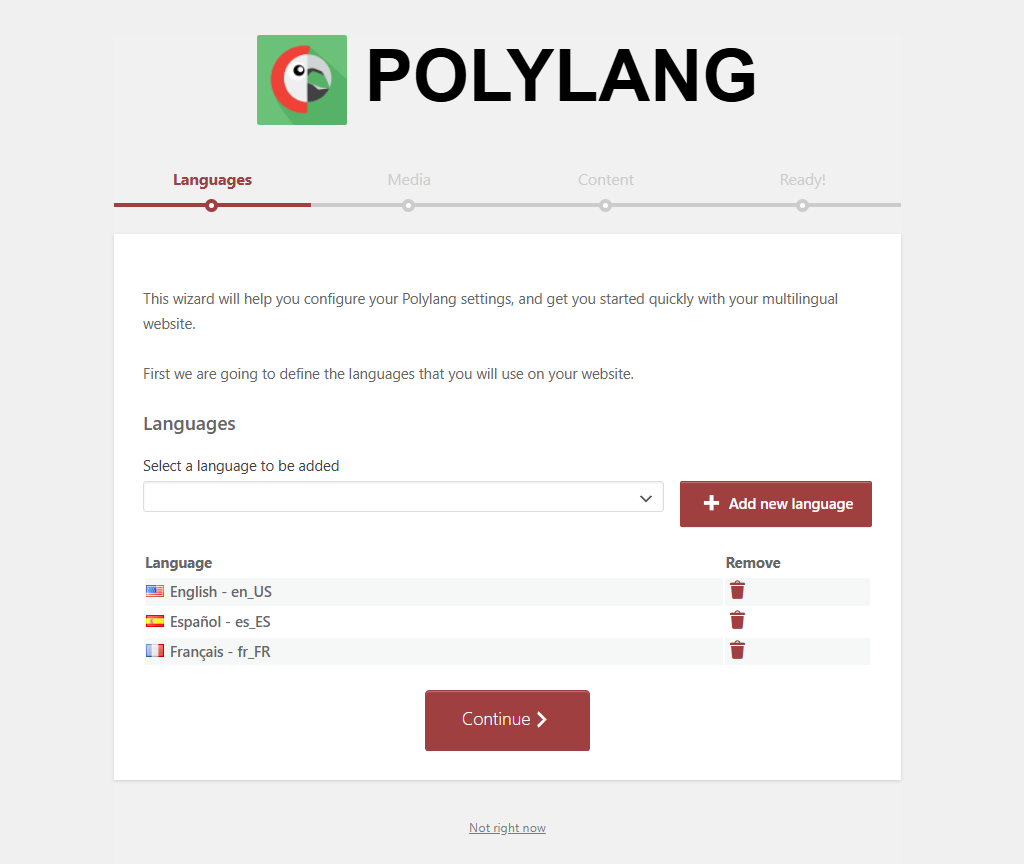
Then upload and activate the Polylang for WooCommerce add-on from your Polylang account.
It works with both the free and Pro versions and is what connects your languages to products, the cart, checkout, and order emails.
Without it, Polylang translates your blog but not your store.
Check Google Analytics or your order history before you pick.
The right first language is the one already sending you sessions that don’t convert, not the one with the biggest population.
Step 2: Set your URL structure and add the language switcher
Go to Languages ⇨ Settings and review URL modifications.
Polylang defaults to subdirectories, so Spanish lives at yourstore.com/es/, and we’d keep it that way.
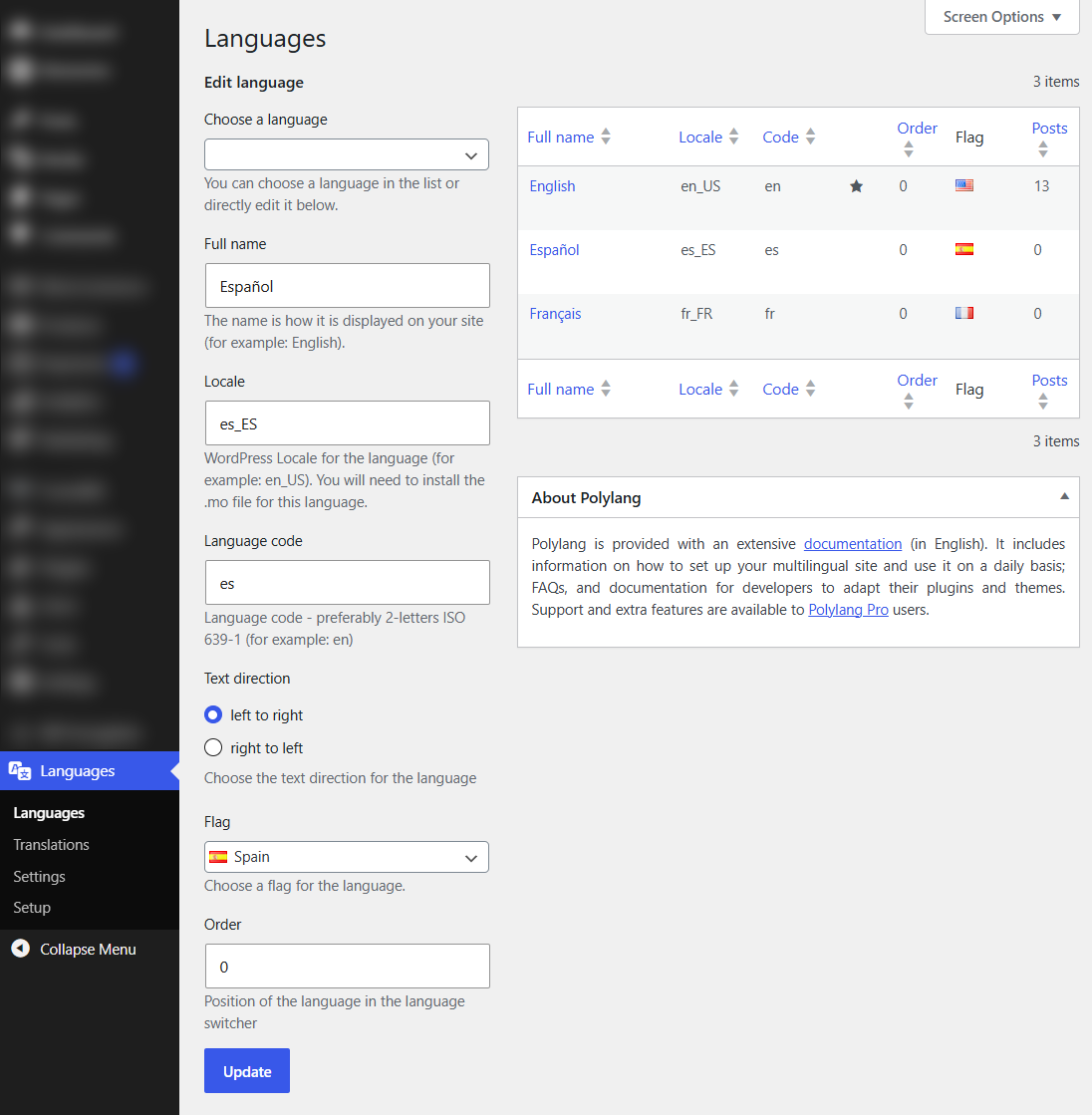
Subdirectories consolidate domain authority in one place instead of splitting it across properties.
Polylang’s cart synchronization works across subdirectory URLs but not across subdomains or separate domains, so a shopper who switches from English to German mid-session keeps her cart only if you’re on subdirectories.
A shopper who switches language mid-session keeps their cart only with subdirectories.
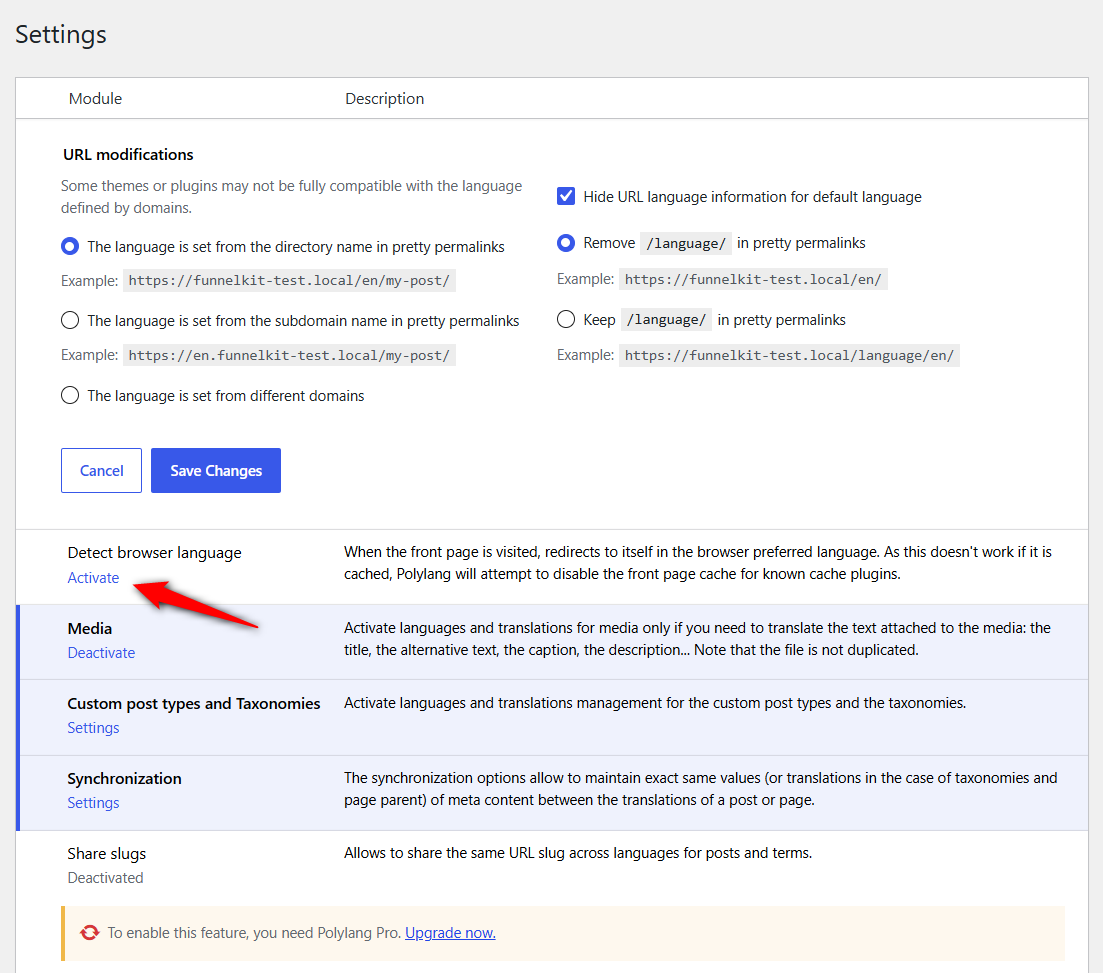
In settings, turn on browser language detection so first-time visitors land on their own language version automatically.
Now add the WooCommerce language switcher.
Go to Appearance ⇨ Widgets (or your theme’s menu editor) and drag the Languages item into your header.
You can show flags, language names, or both.
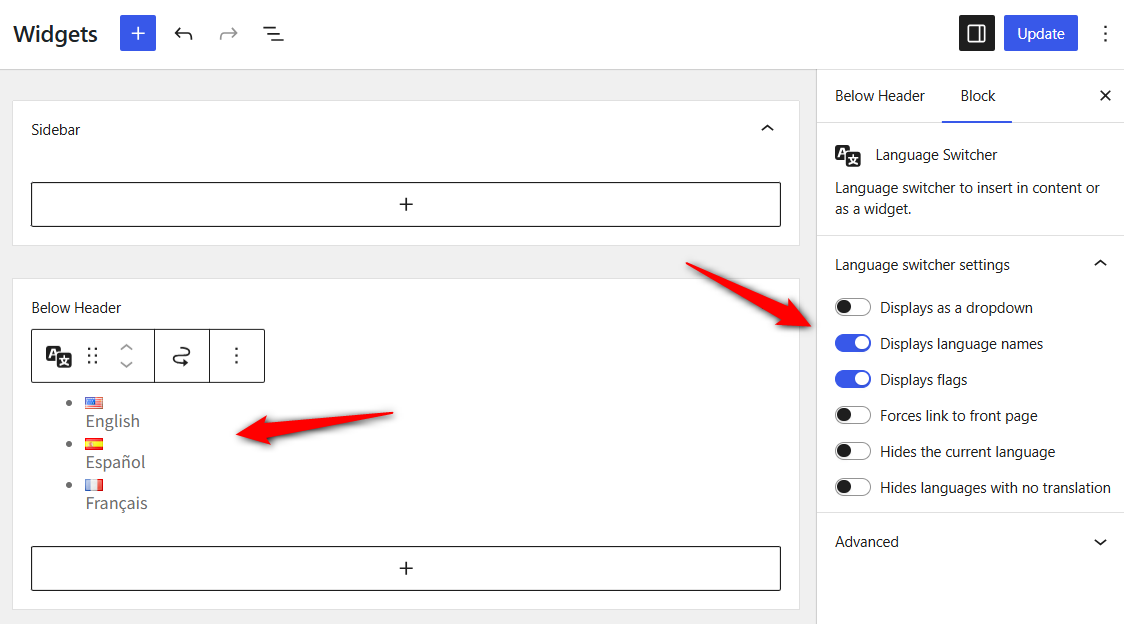
Keep it visible on every page, checkout included. A switcher that disappears at the payment step is the one place it actually needs to be.
Step 3: Translate WooCommerce products, categories, and attributes
Open Products ⇨ All Products and you’ll see a flag column for each language you added.
Click the + icon next to any product to create its translation.
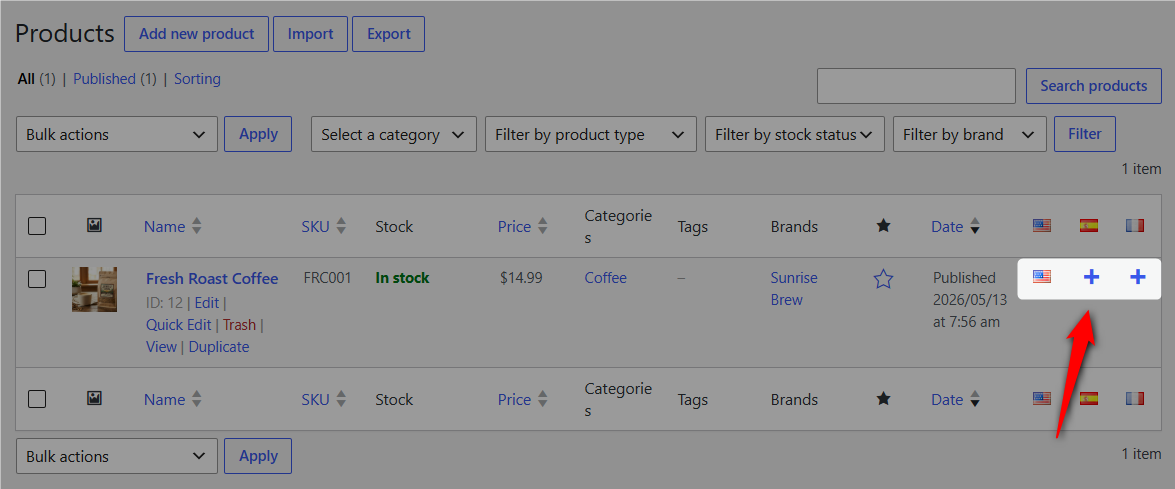
Polylang duplicates the product and takes you to the familiar WordPress editor, where you translate the title, long and short descriptions, and the slug.
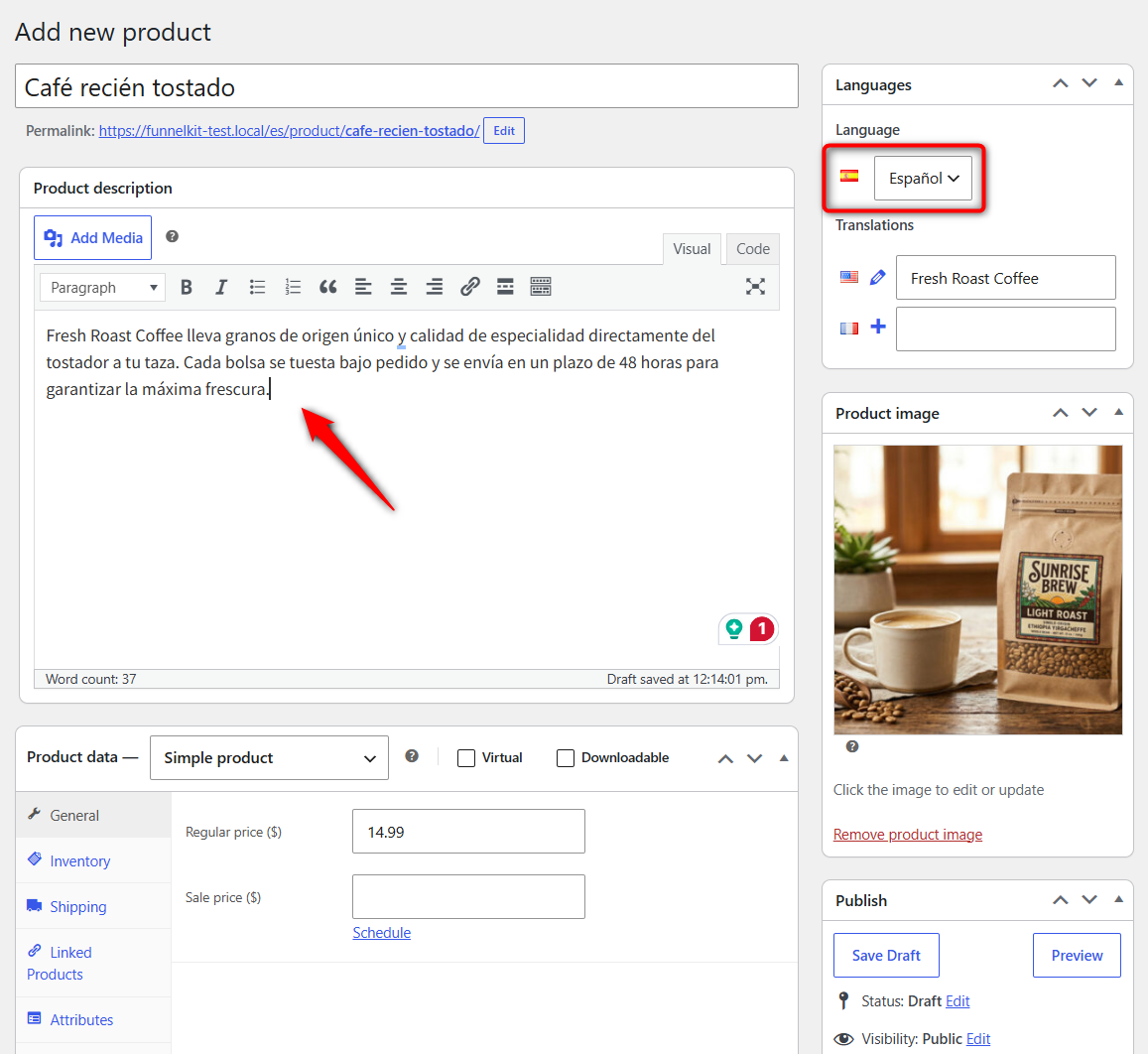
Prices, stock levels, SKUs, images, weights, and dimensions sync automatically across every translation.
You manage inventory once and all three language versions stay accurate, which is the whole reason database-native plugins beat proxy tools for a real store.
For variable products, translate the attribute terms first under Products ⇨ Attributes to turn values like Color and Size into Couleur and Taille.
Once the attributes are translated, your variations carry over to each language version instead of showing French/Spanish shoppers an English dropdown.
Finish by translating categories and tags the same way, using the + icons on their listing screens.
If translating a 400-product catalog by hand sounds unrealistic, Polylang Pro includes DeepL machine translation that pre-fills products, pages, categories, and tags right in the editor.
Bulk-translate, then edit the ones that matter: your bestsellers and anything with brand voice.
Note that the DeepL integration doesn’t yet support some page builders, including Elementor, so check compatibility before you buy based on that.
Step 4: Translate store pages and leftover strings
Polylang for WooCommerce loads the official WooCommerce language packs for every language you’ve added, so built-in strings across shop, cart, checkout, and My Account translate themselves.
That covers the Add to Cart button, field labels, and validation messages.
You still need language versions of the pages.
Open Pages and use the + icons to translate your Shop, Cart, Checkout, and My Account, along with any custom content on them.
Polylang for WooCommerce then automatically loads the right page for each language.
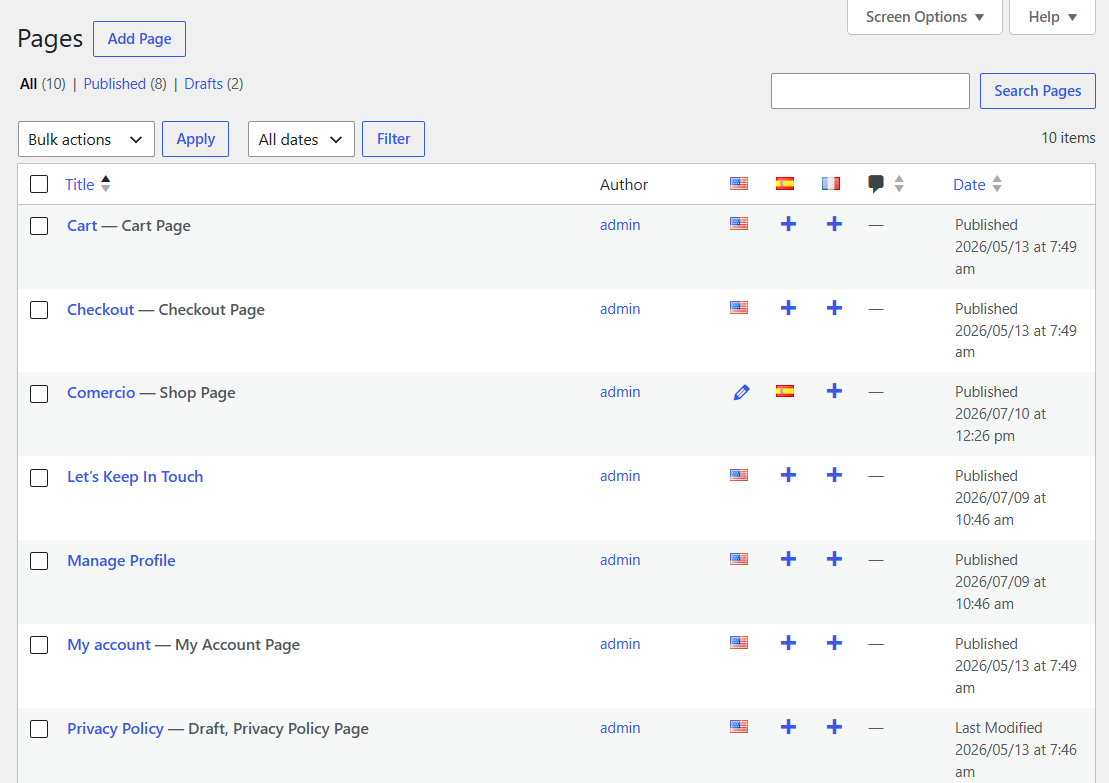
Then sweep up whatever’s left from your theme and other plugins under Languages ⇒ Translations.
This string table catches your site tagline, widget titles, custom checkout notices, and shipping method labels: the small stuff that gives away a half-translated store.
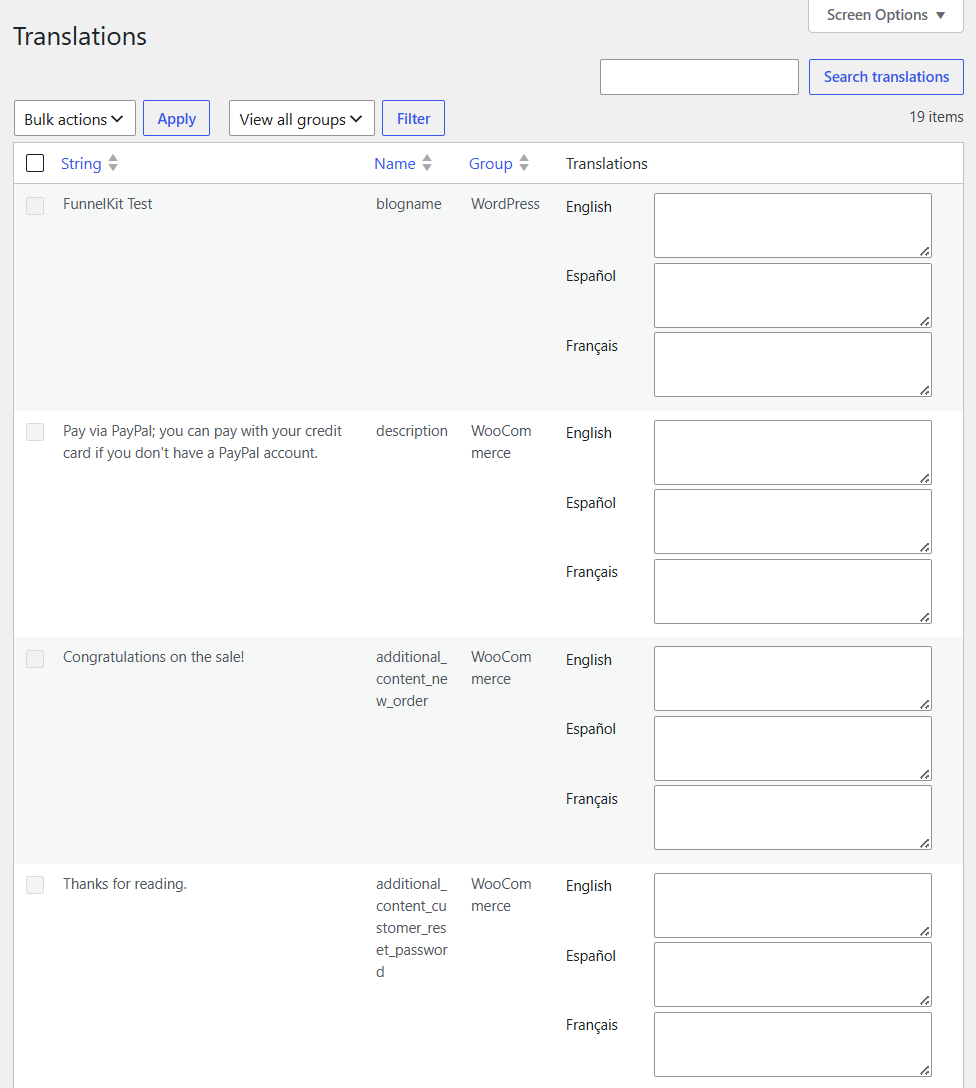
If a string is missing from the table, load the page that displays it once and it’ll appear.
That’s the fastest way to find them. Walk your own store in Spanish and write down every English word you see.
Step 5: Place a test order in every language
Switch your store to Spanish and buy something. Check each product page, add to cart, checkout, pay, order received.
Then do it again in French.
Check four things specifically:
- Every step displays in the right language, from the Add to Cart button through the order received page.
- The confirmation email arrives in the order language, not your default.
- Switching language mid-session carries the cart over.
- On mobile, the switcher is still reachable and translated text doesn’t overflow buttons or break the checkout layout.
Placing the order yourself is the only way to know the build works.
The Smart Way to Translate Your WooCommerce Checkout, Cart, and Emails
Checkout, cart, and transactional emails are where translation gaps cost real revenue, and they need more attention than the rest of your site.
Baymard puts average cart abandonment around 70% on a checkout the shopper can't read.
Hand them one they can’t, and you’re adding friction at the most expensive point in the funnel.
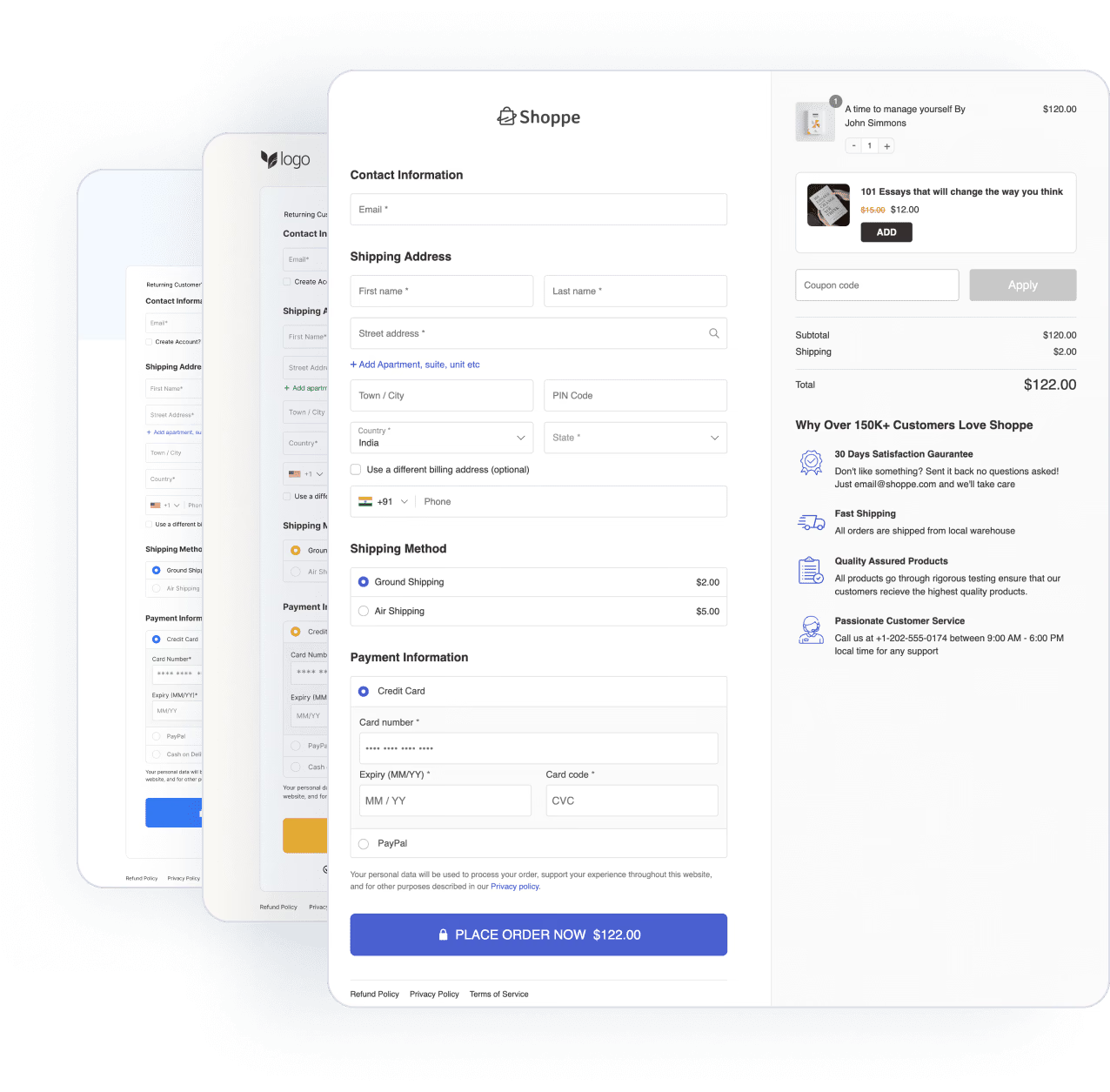
Custom checkout pages
If you’ve replaced the default WooCommerce checkout with a custom one, your translation plugin won’t touch it.
You need a version of that page per language, mapped so the right one loads for the right visitor.
FunnelKit Funnel Builder does this natively with WPML or Polylang active.
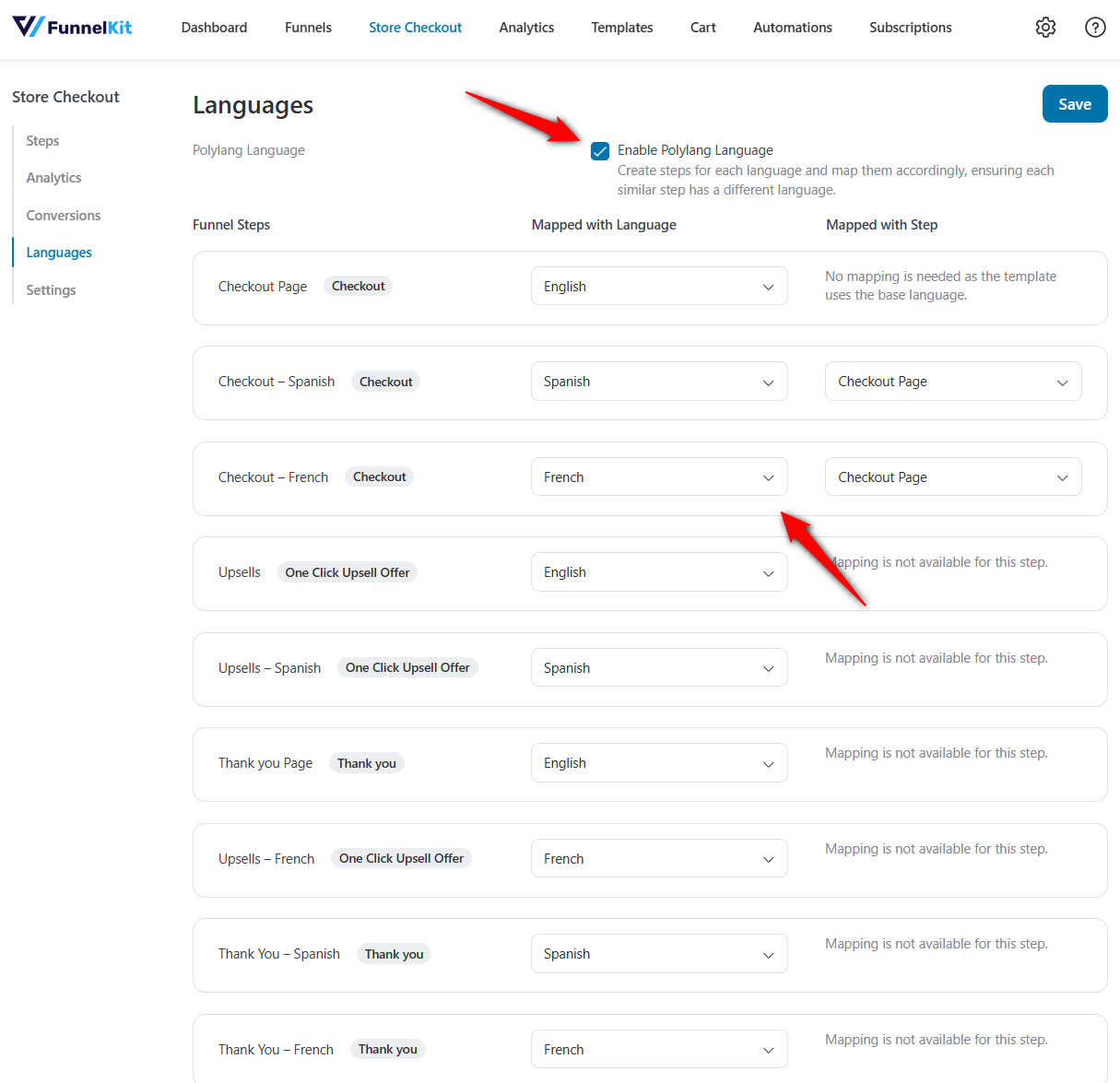
A Language tab appears in your store checkout settings, where you create and map separate checkout pages per language.
The same mapping applies to upsell and thank-you pages, and imported templates match your store’s default language.
You’re rebuilding these pages anyway, so fix the conversion problems while you’re in there. A translated version of a 24-field checkout is still a 24-field checkout.
For exact language-mapping steps, including sales funnels, see our multilingual funnel setup guide.
For the field-level work, see our guide to customizing the WooCommerce checkout page.
Side Cart
FunnelKit's slide-in cart carries its own text: headings, free-shipping progress messages, reward labels, upsell copy.
None of it lives in WooCommerce’s language packs.
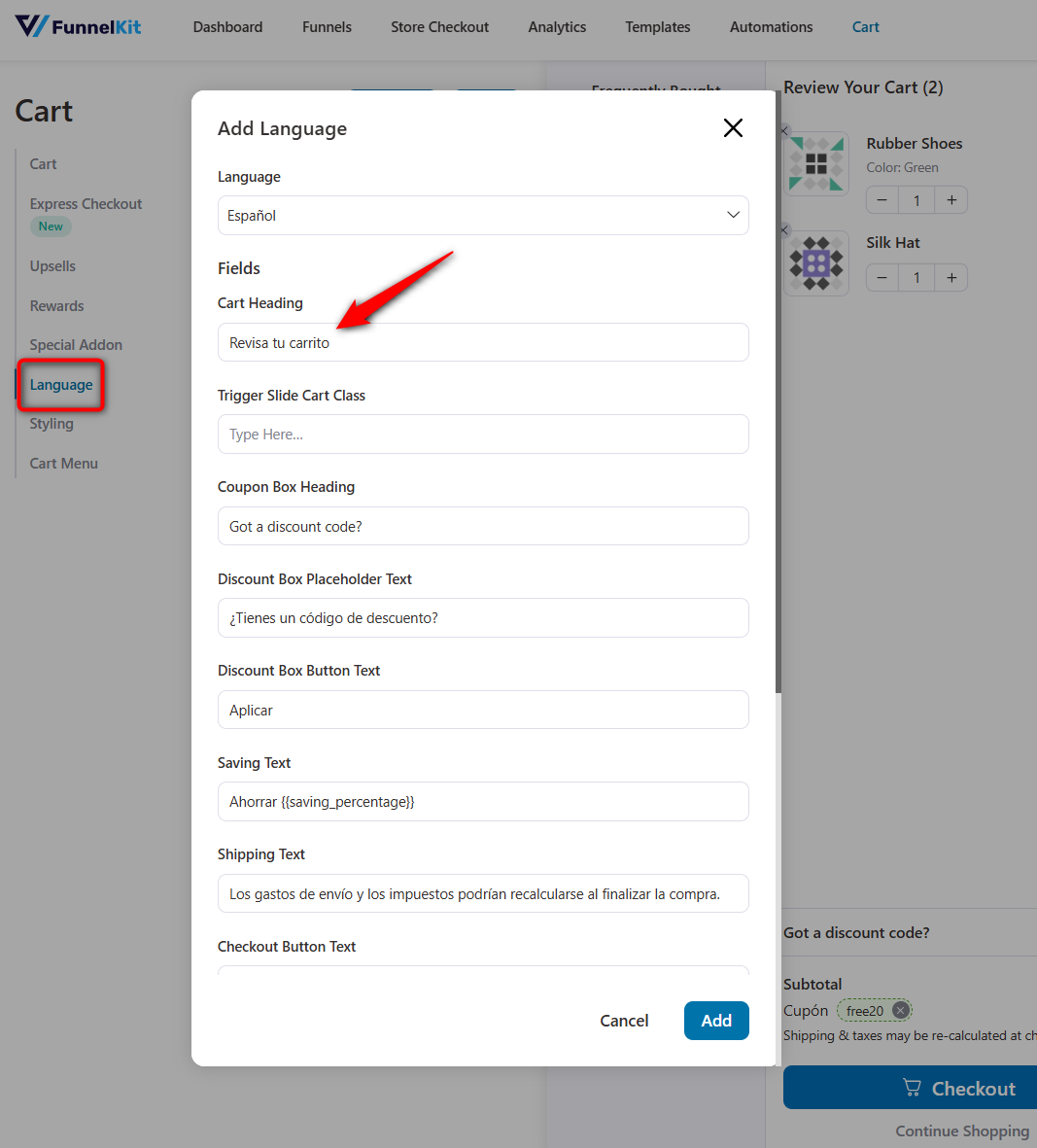
FunnelKit Cart includes a Language section that works with TranslatePress, WPML, Polylang, and Weglot, so you can add each language’s version of those strings without touching code.
Transactional and marketing emails
Polylang for WooCommerce tags each order with the language it was placed in and sends the confirmation email in that language.
WPML does the same job through String Translation.
Marketing emails are a separate problem. An abandoned cart reminder that arrives in English after a Spanish checkout undoes the work you just did.
Build one version of the flow per language and gate each on the customer’s language.
FunnelKit Automations integrates with WPML, Polylang, and TranslatePress and lets you set an email action to run only for a specific language, so the Spanish cart abandoner gets the Spanish reminder.
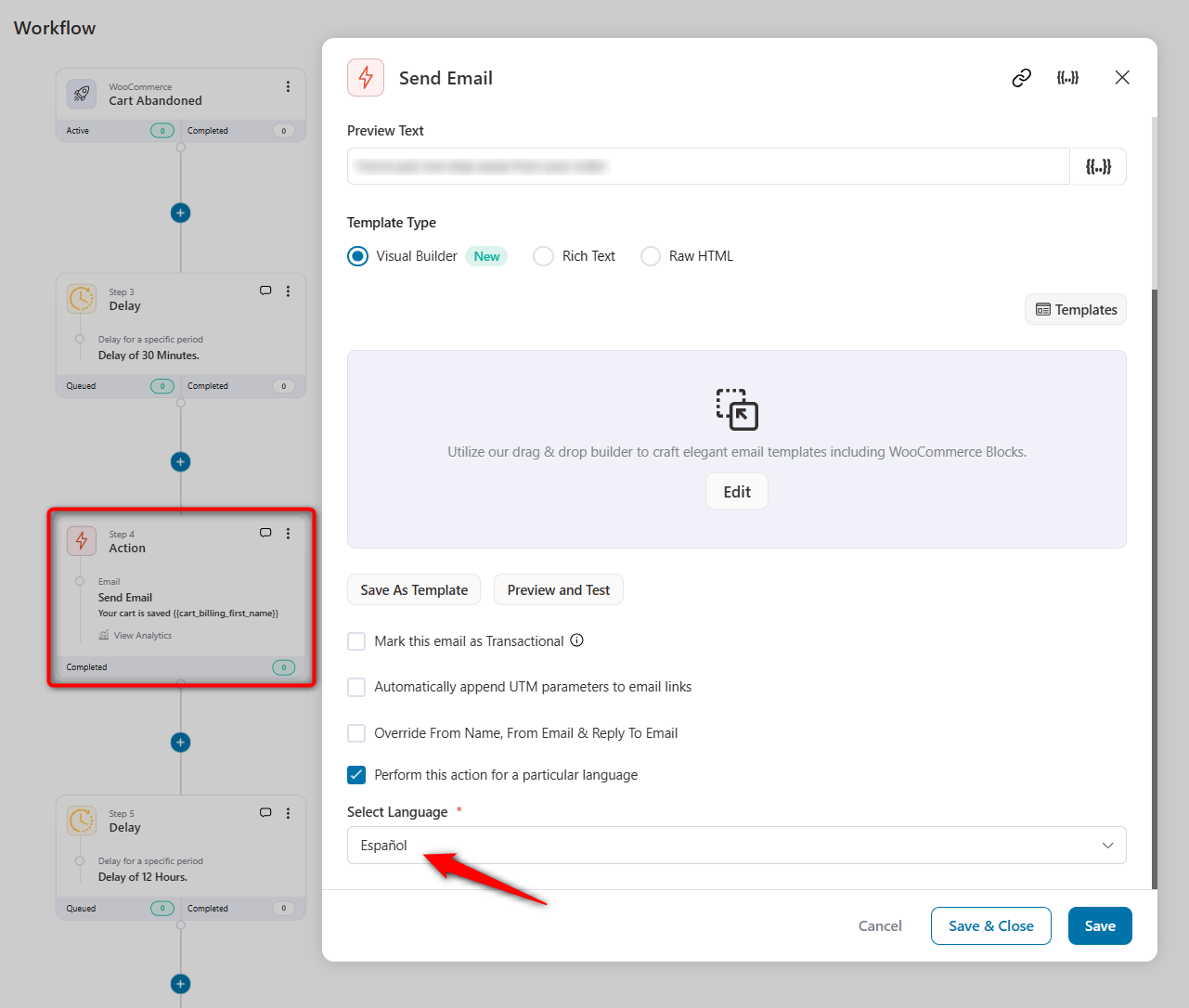
For the recovery sequence itself, see our WooCommerce abandoned cart recovery guide.
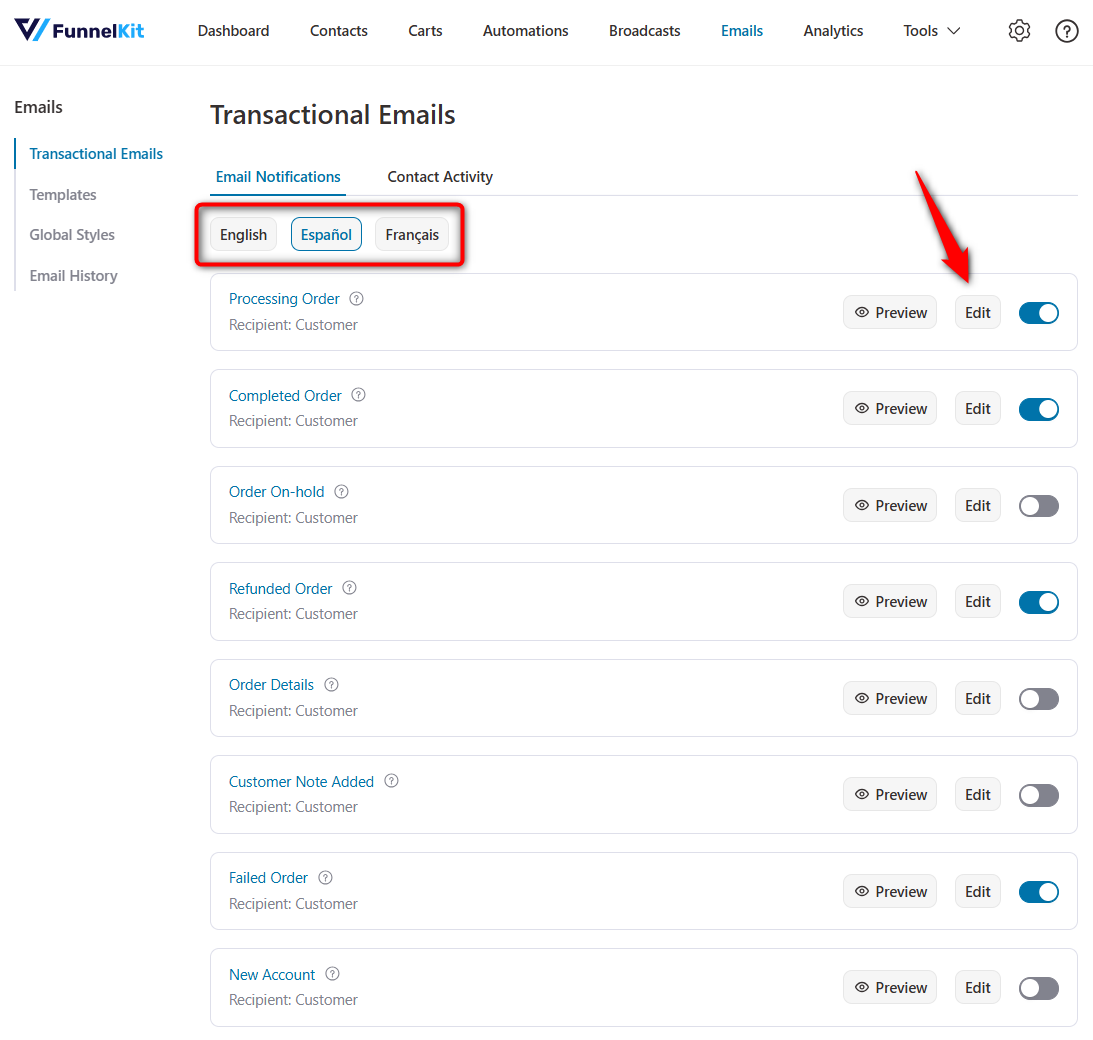
For transactional emails, simply select the target language and customize the content.
Use the built-in drag-and-drop visual builder to design your transactional and marketing emails in WooCommerce.
4 Best WooCommerce Translation Plugins Compared
Different stores need different translation architectures. Here’s how these plugins compare against each other:
| Plugin | Translation Approach | Performance | WooCommerce Depth | Price |
| Polylang | Manual + DeepL, stored in your database | Lightweight, no extra tables | Solid via paid Woo add-on | Free core; Woo add-on €99/year |
| WPML | Manual + AI/machine, stored in your database | Heavy on big catalogs | Deepest with products, variations, checkout, and multicurrency | €99/year (Multilingual CMS) |
| TranslatePress | Visual editor + AI/Google, stored in your database | Light on small/mid stores | Good; can struggle with heavy AJAX | Free core; Pro from €99/year |
| Weglot | Cloud proxy, auto-translated | Fast, but server emails stay untranslated | Handles dynamic content well | Starts from €150/year |
Let's go through them one by one.
Polylang: Best for small-to-mid stores that want speed and control
Polylang builds on WordPress’s native taxonomy system, so it adds no extra database tables and each translation is a full post in its own right.
That keeps page loads fast and plays cleanly with themes and SEO plugins.
WooCommerce support comes through the paid Polylang for WooCommerce add-on, which translates products, categories, tags, and attributes, syncs stock and prices across translations, and sends order emails in the language the order was placed in.
The catch is it's more hands-on than WPML. There’s no one-click translate button, and some page builders need extra configuration.
WPML: Best for large catalogs, complex stores, and agencies
WPML's WooCommerce Multilingual & Multicurrency add-on covers simple, variable, grouped, and external products, plus the full checkout flow and transactional emails, with native multicurrency and per-currency payment gateways.
The cost is performance at scale. Translations live in the database, and on catalogs running thousands of products with heavy variations, wp_postmeta balloons and uncached loads slow noticeably.
Store owners running 7,000+ products with heavy variations have reported multi-second load times without aggressive caching.
If you’re that size, budget for object caching, full-page caching, and WooCommerce’s High-Performance Order Storage.
TranslatePress: Best for owners who want to translate on the live page
TranslatePress' visual editor lets you click any text in a live preview of your store and translate it in place, which removes most of the intimidation from a translation project.
The free version handles one additional language with no word limit, which is a genuinely useful way to test a market.
SEO features like translated meta titles, slugs, and per-language sitemaps sit in the paid SEO Pack.
Weglot: Best for the fastest possible launch on a small catalog
Weglot translates through a cloud proxy and handles JavaScript-rendered cart and checkout content that file-based plugins sometimes miss.
Pricing is word-count based and climbs quickly on large catalogs.
And because it’s a proxy, server-side output never passes through it, so order confirmation and shipping emails go out in your source language unless you handle them separately.
Translations also live on Weglot’s servers rather than in your database, which makes it less of a purchase and more of a tenancy.
7 Best Practices to Rank and Sell in Every Language
Here are some best practices to follow if you want your WooCommerce store to be multilingual.
- Verify your hreflang tags exist
Most plugins add them automatically, but run a checker and confirm.
Correct hreflang tells Google which version to serve to which searcher and stops your language variants from competing as duplicates.
- Translate metadata and URL slugs
Meta titles, descriptions, and slugs in the local language are what earn the click in local results.
/de/handfilter-kaffeekanne/ outranks /de/pour-over-coffee-kettle/ for the query a German shopper actually types.
- Localize prices, payment methods, and formats
Use local currency, regional payment methods, and correct date and unit formats.
Language gets shoppers through the door; localization closes the sale.
- Have a human review checkout and legal pages
Machine translation is fine for 400 product descriptions.
A mistranslated refund policy or payment button destroys trust at the moment it’s most expensive to lose.
Pay a native speaker for a few hours on those pages specifically.
- Submit your multilingual sitemap to Search Console
Polylang works with Yoast and Rank Math to include translated URLs, and WPML and TranslatePress do the same.
It’s the fastest way to get every language version indexed.
- Cache each language version separately
Configure your caching plugin and CDN to store each language URL as its own entry, and exclude cart and checkout from cache entirely.
Serving a cached German page to a French visitor is the classic bug here.
- Keep translations in sync when products change
Set the rule now: price and stock edits happen once on the source product and sync automatically; content edits flag the translations for review.
Without that discipline, your German descriptions quietly drift six months out of date.
Frequently Asked Questions
Yes, you can make WooCommerce multilingual for free, with some paid add-ons.
Polylang’s core plugin and TranslatePress’s free version both translate a WooCommerce store, and TranslatePress’s free tier covers one extra language with no word limit, which is enough to test whether a market responds.
Full store translation, meaning product-level data, multicurrency, and advanced SEO, needs a paid add-on in every case.
Yes, WooCommerce uses different currencies for each language. WPML includes native multicurrency (with per-currency payment gateways), and other setups pair a translation plugin with a currency switcher.
This lets prices convert based on the visitor’s selected currency or region.
Yes, translated products share the same stock.
On database plugins like WPML and Polylang, stock and SKUs are synced across translations rather than duplicated, so inventory stays consistent no matter which language a customer buys in.
With Polylang or WPML, yes. Both send WooCommerce transactional emails in the language the order was placed in.
Cloud-proxy tools generally can’t, because those emails are generated server-side and never pass through the translation layer.
If order emails matter to you, that’s a real reason to rule out a proxy.
Ready to Sell in Every Language Your Traffic Already Speaks?
Translation isn’t a growth experiment. It’s plumbing for revenue that’s already knocking: traffic you paid to acquire, arriving on pages it can only half-read.
Pick the plugin for your store’s size, not its feature list.
Polylang for a lean, fast build. WPML for scale and multicurrency. TranslatePress for visual editing. Weglot for the quickest possible launch.
Then translate everything, including the parts nobody sees until after the order goes through.
And start at the checkout, because that’s the page every other one funnels into.
Translated product pages bring the shopper as far as the payment step.
What happens on that step, and in the emails that follow it, decides whether a shopper buys and whether they come back.
FunnelKit Funnel Builder maps a dedicated checkout, order bump, and one-click upsell flow to each language you sell in, so the pages that convert are as localized as the ones that rank.
Editorial Team
October 6, 2026The WooCommerce checkout coupon field is where shoppers enter a discount code before they pay. Once coupons are turned on, WooCommerce adds it to both the cart and the checkout...
Editorial Team
September 25, 2026Removing checkout fields in WooCommerce is one of the fastest ways to simplify your store’s checkout and reduce cart abandonment. Every extra field you ask customers to fill in adds...
Editorial Team
September 14, 2026Changing currency at WooCommerce checkout is easier to explain with a simple example: a shopper in Munich sees €169 instead of $184 for the same jacket. Nothing about the product...