


Everyone loves a good deal, and BOGO (Buy One, Get One) offers are among the most powerful ways to boost sales.
In fact, 93% of American shoppers have used a BOGO promotion at least once (Source: AMG Strategic Advisors).
A BOGO deal gives customers a free or discounted item when they purchase a qualifying product, making the offer immediately attractive.
While extremely effective in ecommerce, WooCommerce doesn’t support BOGO deals by default. Its coupon system handles flat or percentage discounts, but cannot apply “buy one, get one” logic automatically.
In this blog post, we will show you how to set up BOGO deals in WooCommerce efficiently. Plus, how to use different types of BOGO to get maximum revenue.
What Is a WooCommerce BOGO Offer?
A WooCommerce BOGO offer gives customers a free or discounted product when they purchase a qualifying item.
BOGO stands for Buy One Get One and can include different variations:
- Buy One, Get One Free: Purchase one item and receive another free.
- Buy One, Get One 50% Off: Purchase one item and get the second at half price.
- Buy Two, Get One Free: Add three items, pay for two.
- Cross-Category BOGO: Buy from one category and get a product from another category at a discount.
These offers create immediate value for customers and encourage larger orders, making them a popular choice for WooCommerce stores.
Table of Contents
- 1 When to Offer a WooCommerce BOGO Deal?
- 2 How To Set Up BOGO Deals in WooCommerce In Just 5 Steps
- 3 How Customers Can Use The BOGO Offer
- 4 6 Common WooCommerce BOGO Deal Types
- 5 5 BOGO Best Practices for WooCommerce Stores
- 6 Alternative Best WooCommerce BOGO Plugins
- 7 More Questions About WooCommerce BOGO
- 8 Coupon-triggered BOGO vs Automatic BOGO?
- 9 Does BOGO increase average order value?
- 10 How to promote BOGO offers?
- 11 How to auto-apply BOGO coupon in WooCommerce?
- 12 Ready to Offer WooCommerce BOGO Deals?
When to Offer a WooCommerce BOGO Deal?
BOGO (Buy One, Get One) offers are powerful, but they work best in the right situations:
- Clear slow-moving inventory: Pair unsold products with bestsellers to move stock without heavy markdowns.
- Launch new products: Let customers try a new item risk-free while gathering data and driving repeat sales.
- Boost low-ticket sales: Works well on inexpensive items, consumables, and add-ons to increase average order value.
- Cross-sell complementary products: Logical pairings, such as shampoo + conditioner or camera + memory card, increase perceived value.
- Seasonal campaigns: Time-limited BOGOs for Black Friday, holidays, or clearance events create urgency and shareability.
- Reward loyal customers: Restrict BOGOs to returning buyers or loyalty members for an exclusive feel.
Note: Avoid BOGO when margins are tight on both products. Instead, consider partial discounts (25–50%) to protect profits.
Why Add BOGO Deals to Your WooCommerce Store
BOGO (Buy One, Get One) deals, such as buy one get one free, buy one get one at 50% off, or buy two get one free, use a simple trigger and reward structure to instantly increase perceived value.
Research shows consumers prefer BOGO offers over equivalent percentage discounts, making them highly effective for ecommerce.
Key benefits of BOGO for WooCommerce stores:
- Increase average order value: Customers add extra items to maximize savings, often boosting orders by around 20%.
- Move slow-selling inventory: Pair popular products with slower movers to clear stock without heavy markdowns.
- Reduce cart abandonment: Offer free or discounted items to motivate shoppers to complete checkout.
- Drive repeat purchases: Satisfied customers are more likely to return for future orders.
- Easy to communicate: "Buy one, get one" is instantly understood and easy to promote via email, social media, and product pages.
Capital One research shows three times as many consumers choose a BOGO deal over a comparable percentage-off offer, making it one of the top-performing promotion types.
How To Set Up BOGO Deals in WooCommerce In Just 5 Steps
WooCommerce does not include a native BOGO feature. To set up WooCommerce BOGO deals, we will use Advanced Coupons.
In this tutorial, we will share how to offer the same product for free once users buy one, a classic BOGO (Buy one, get one) offer.
Before starting the main process, make sure to install and activate the plugin:
Step 1: Create a new coupon
Go to Marketing > Coupons and click “Add New Coupon”.
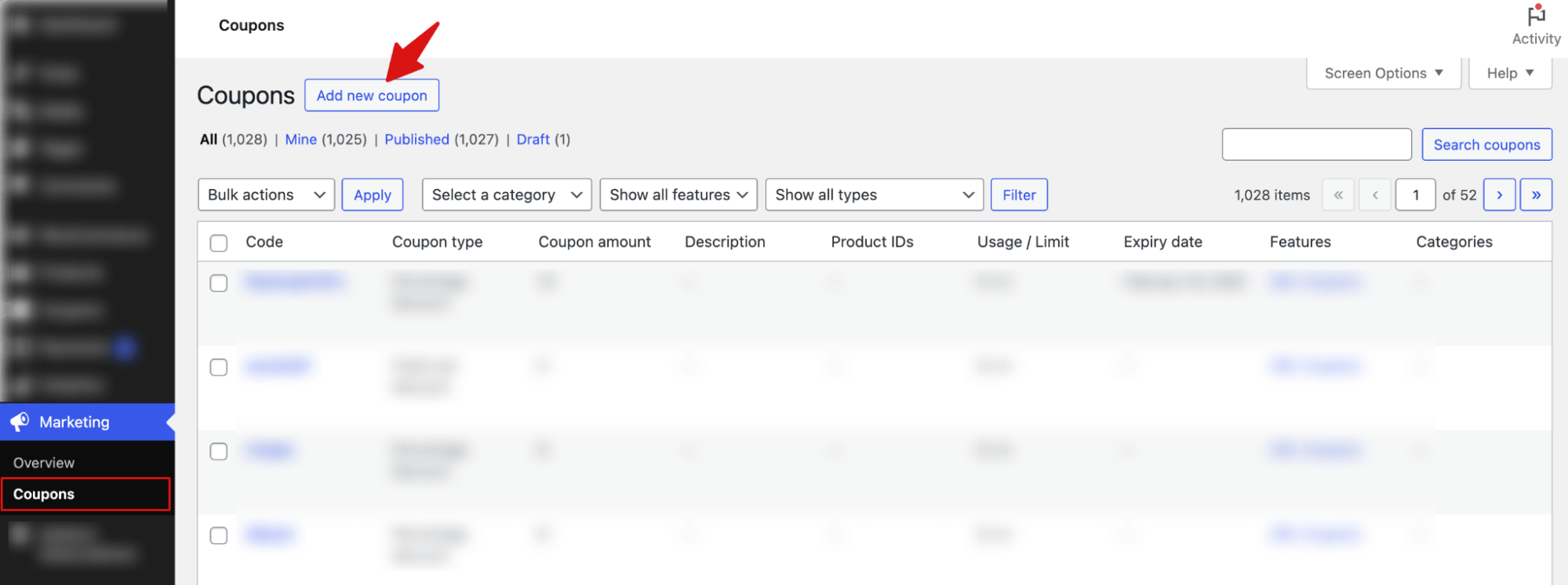
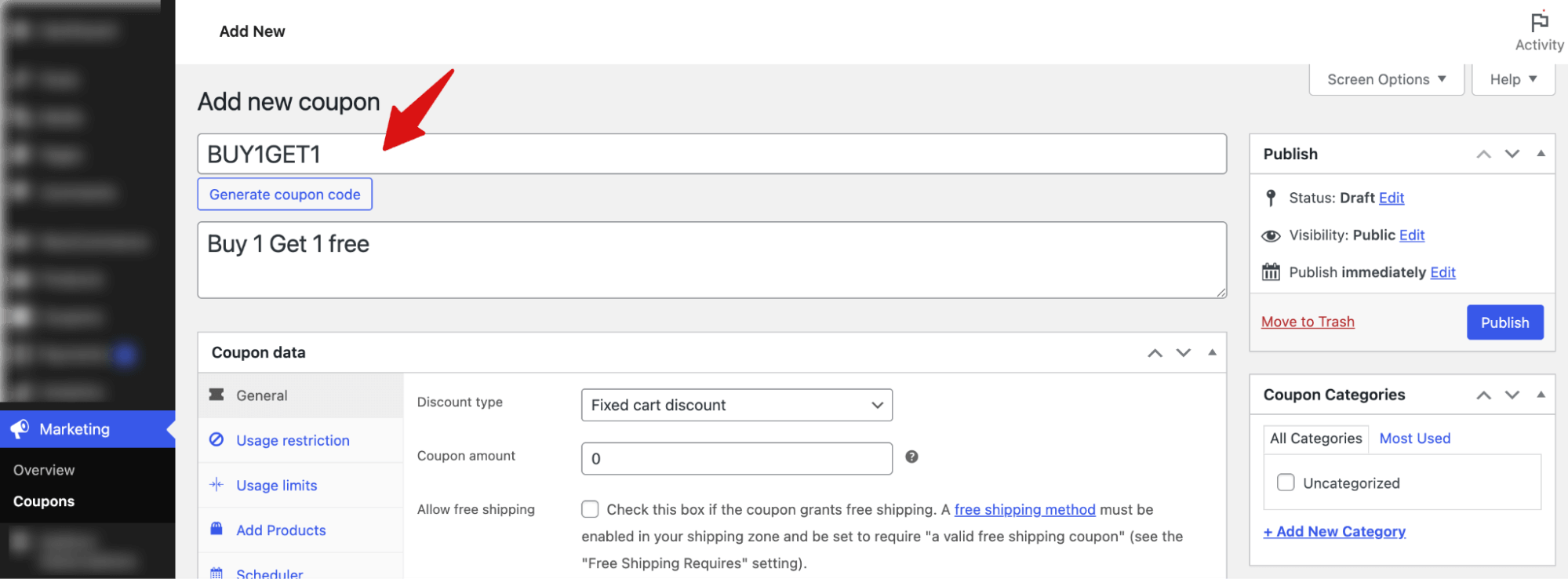
Give the coupon a code. This is what customers will enter at checkout.
You can also add an optional description of the deal. Something like BOGODEAL or BUY1GET1 works well.
Step 2: Set the discount type to BOGO
In the coupon data panel, open the General tab.
Click the Discount type dropdown and select “Buy X Get X Deal (BOGO)”.
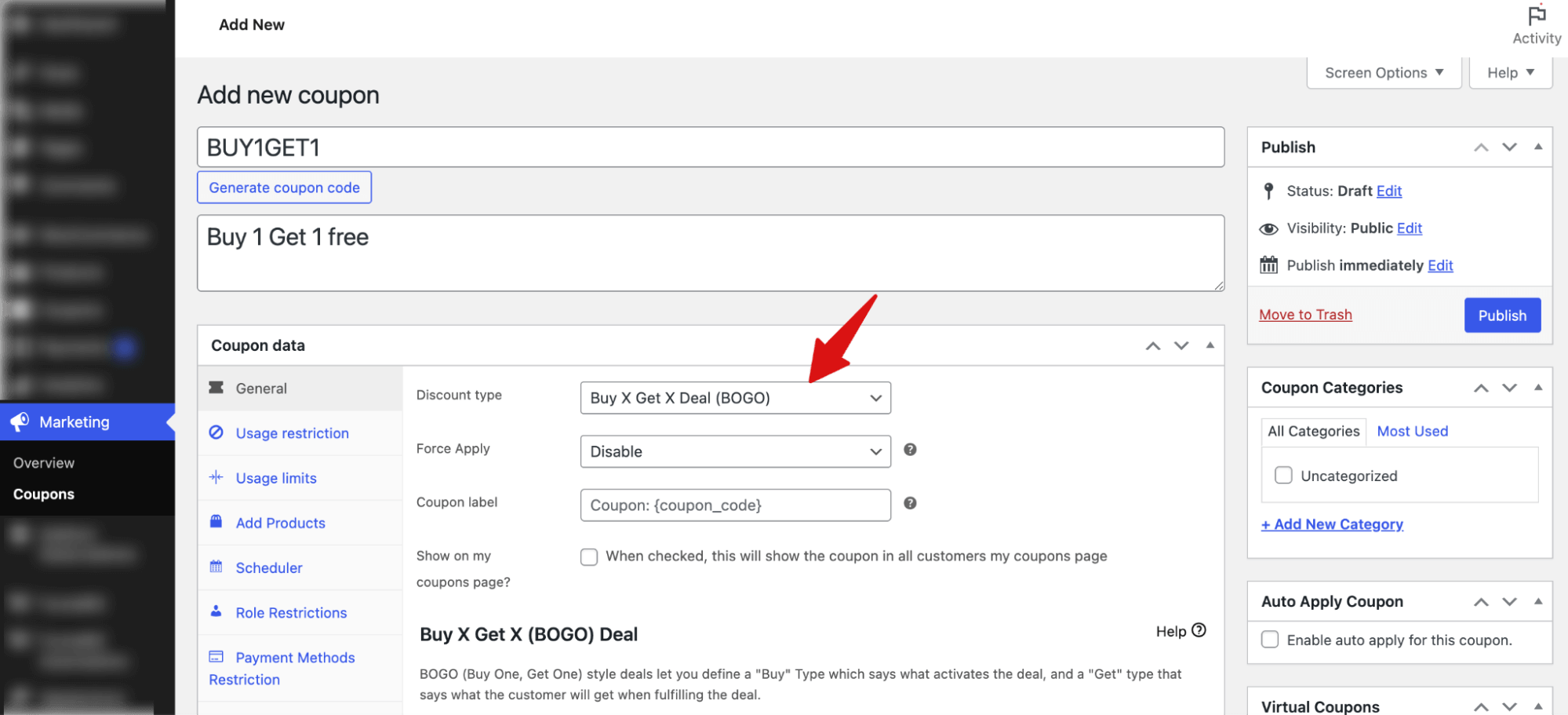
This will expand a dedicated BOGO configuration section below the standard coupon fields.
Step 3: Define BOGO trigger and reward
Next, define both what the customer must buy to trigger the BOGO and what they will get as a reward.
Customer Buys
For when the BOGO offer will be applicable, the Advanced Coupons offer 3 options:
- Specific Product/s: The deal applies only when customers add selected individual products to the cart.
- Any Combination of Products: The deal triggers when customers add any mix of chosen products that meet the required quantity.
- Product Categories: The offer activates when customers purchase items from selected product categories.
- Any Products: The deal applies regardless of what products are added, as long as the quantity condition is met.
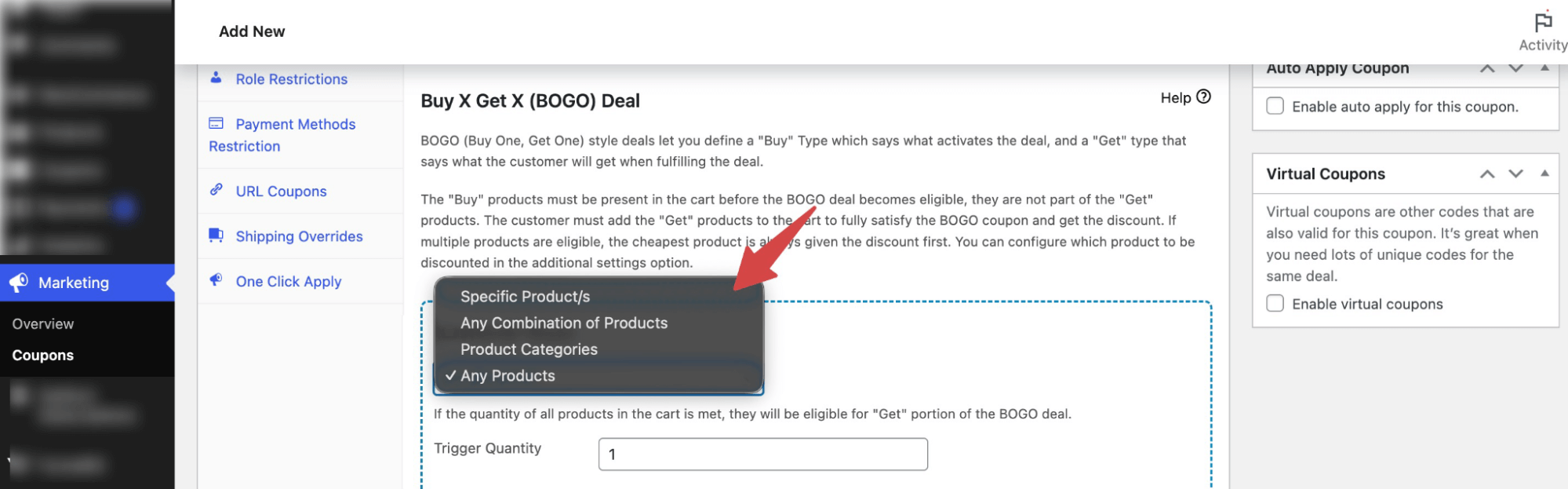
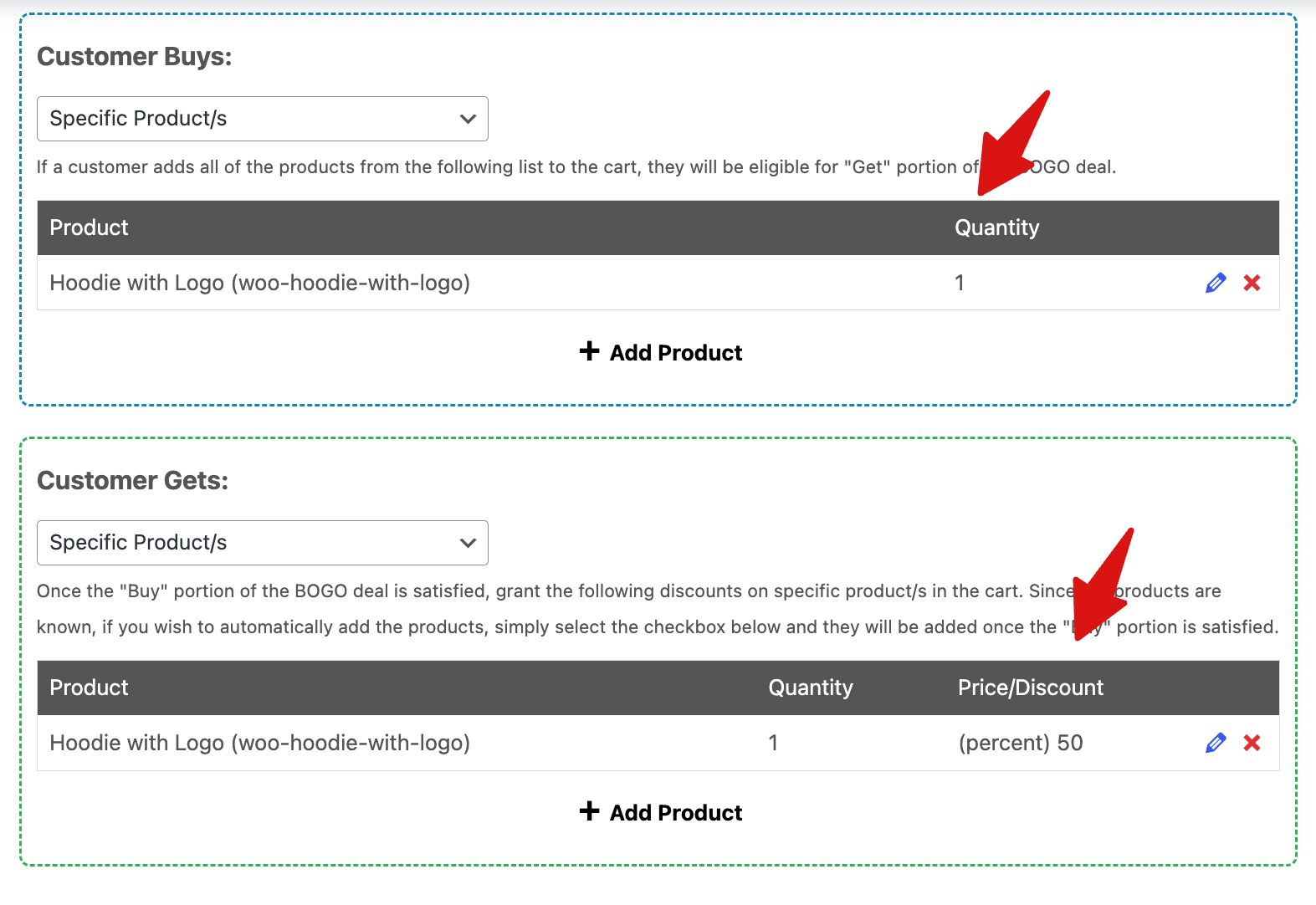
After choosing the type, search for and select the product. Then, the quantity that will trigger the use of the “Trigger Quantity” field.
Here, we will offer BOGO on a specific product with just 1 quantity.
For this, hit “+ Add Product”, search, and select the product. Then set the quantity and hit “Add” to add the trigger.
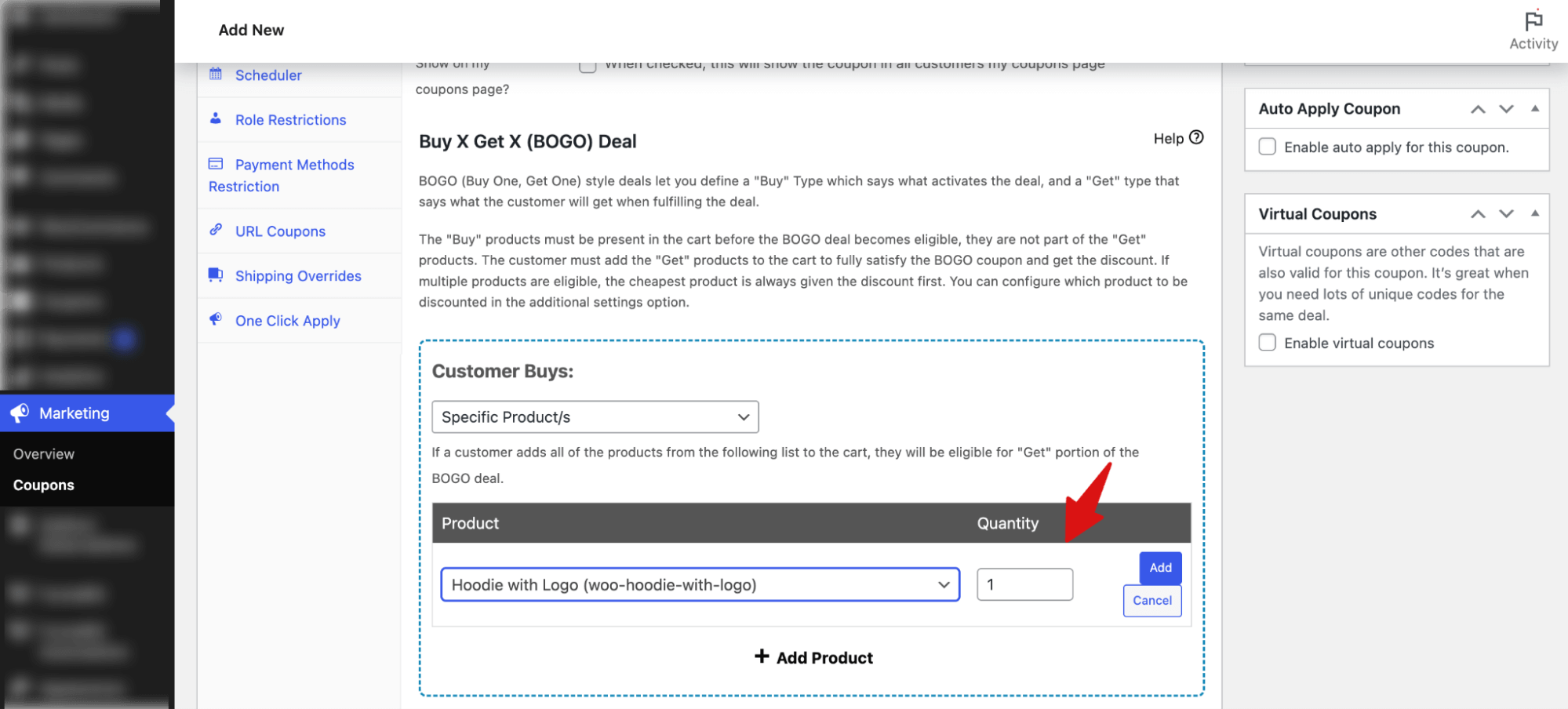
Next, configure what the customer receives after meeting the BOGO conditions. Scroll to the Customer Gets section.
Customer Gets
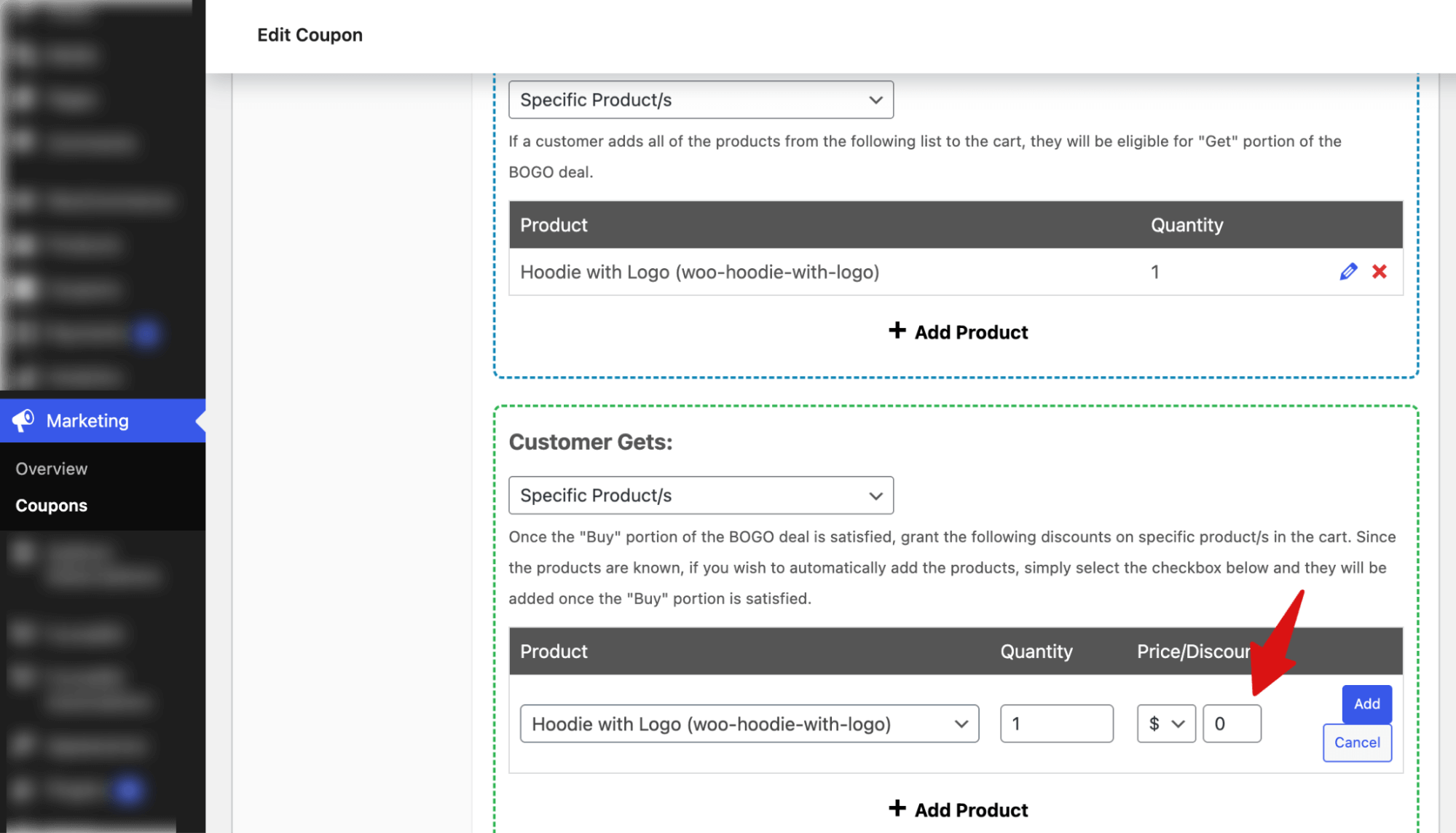
In this example, we’re offering the same product for free, so select “Specific Product” from the dropdown in the Customer Gets section.
Click “+ Add Product,” search for the product, and select the same item used in the Customer Buys section. Set the Quantity to 1, then choose the appropriate Discount Type.
Under Price/Discount, you’ll see three available options:
- Override Price ($): Set a custom price for the reward item.
- Percentage Discount (%): Apply a percentage discount to the reward.
- Fixed Discount (-$): Subtract a specific dollar amount from the reward.
Since we’re making the second item completely free, set Override Price to 0, then click “Add” to save.
Step 4: Set the BOGO to Apply Once or Repeatedly
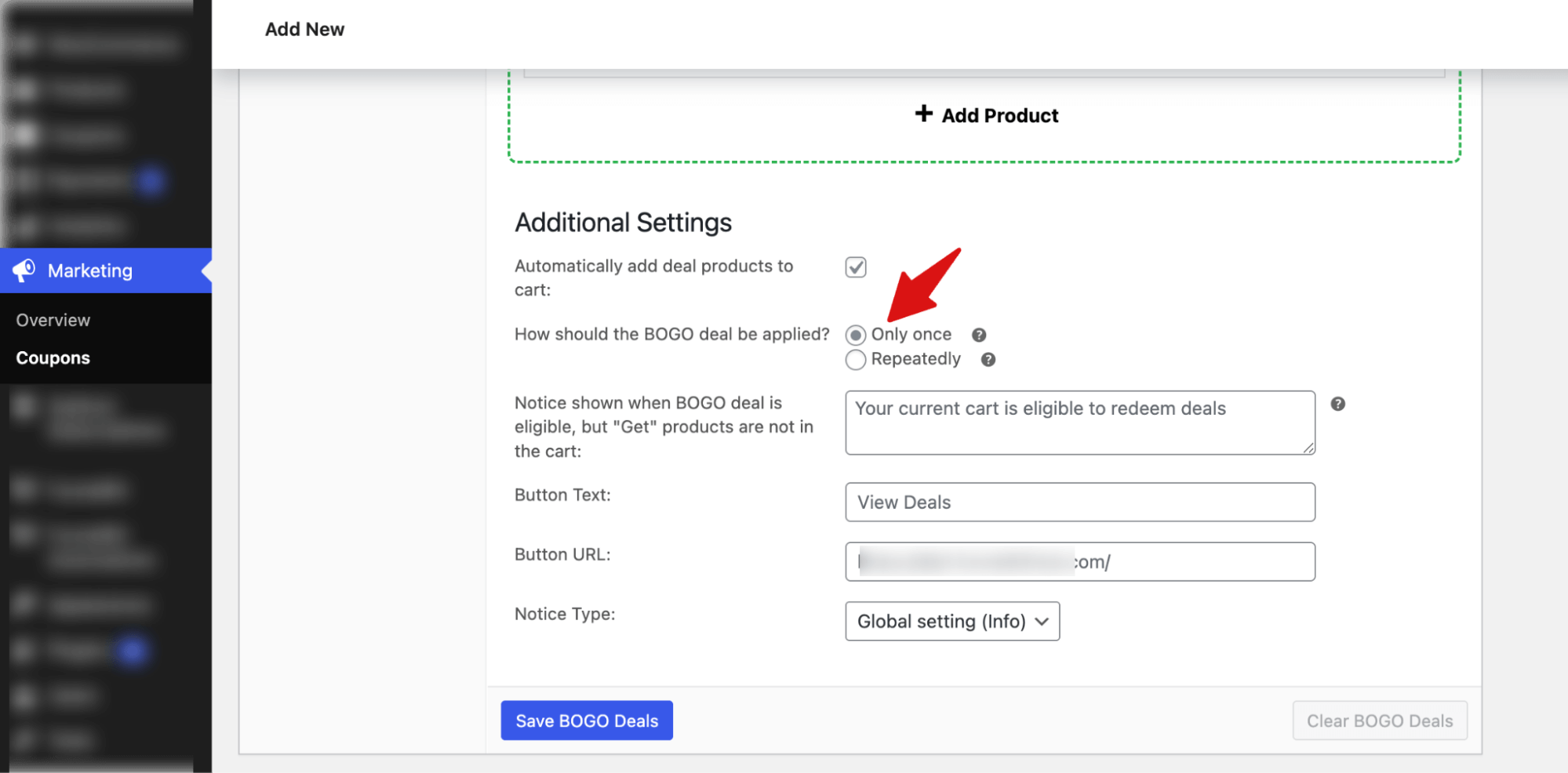
After setting the reward, scroll down to Additional Settings to control how the BOGO behaves in the cart.
- Automatically add deal products to cart: Enable this if you want the reward item added automatically once conditions are met.
- How should the BOGO deal be applied?
- Only once: The deal triggers only once per order.
- Repeatedly: The deal triggers multiple times based on quantity.
Next, configure the cart notice shown when the BOGO is eligible, but the reward item hasn’t been added yet:
- Notice message: Your current cart is eligible to redeem deals
- Button Text: Set the button text (e.g., "View Deals").
- Button URL: Add the URL shoppers will be redirected to.
- Notice Type: Choose the display style (e.g., info, success, warning) based on how prominent you want the message to appear.
These settings ensure customers clearly see and redeem their BOGO reward.
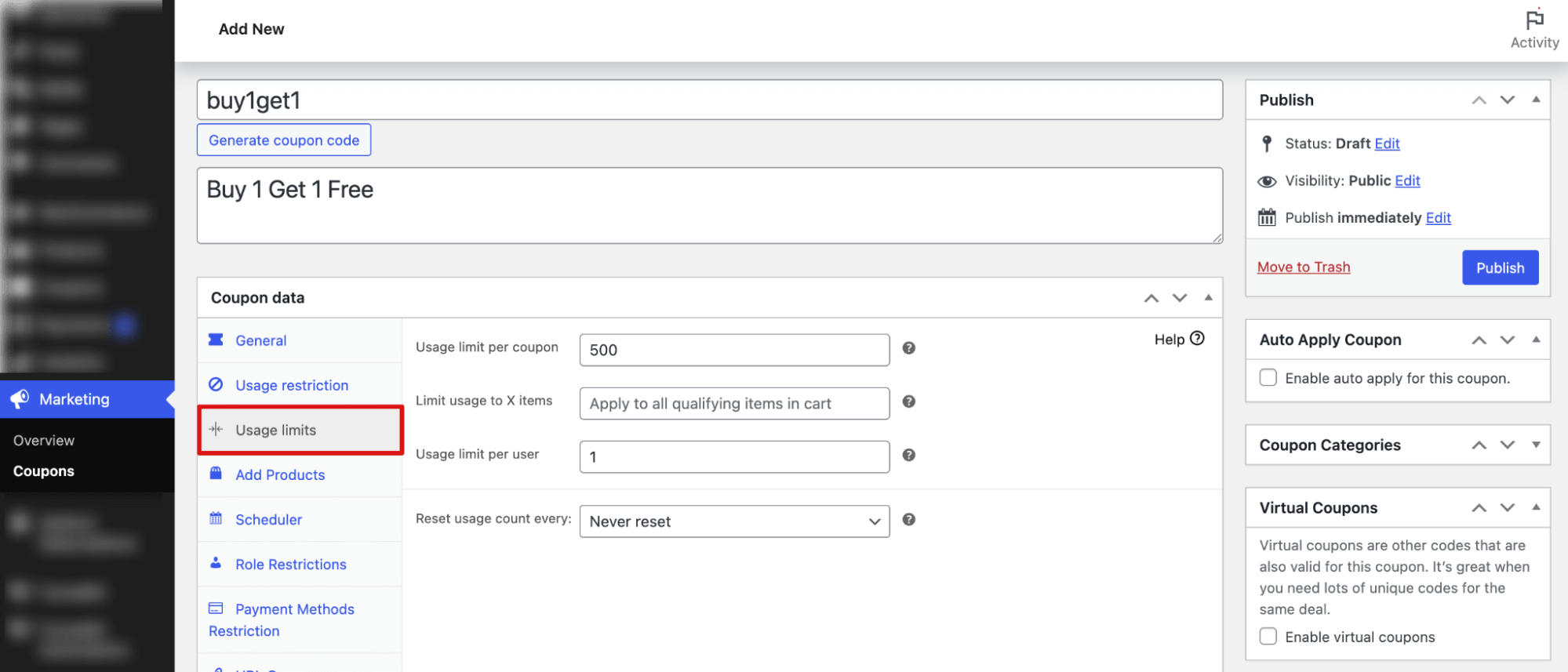
Note: Open the Usage Limits tab and set the total number of uses and the maximum number of uses per customer.
Step 5: Schedule the WooCommerce BOGO deal and publish
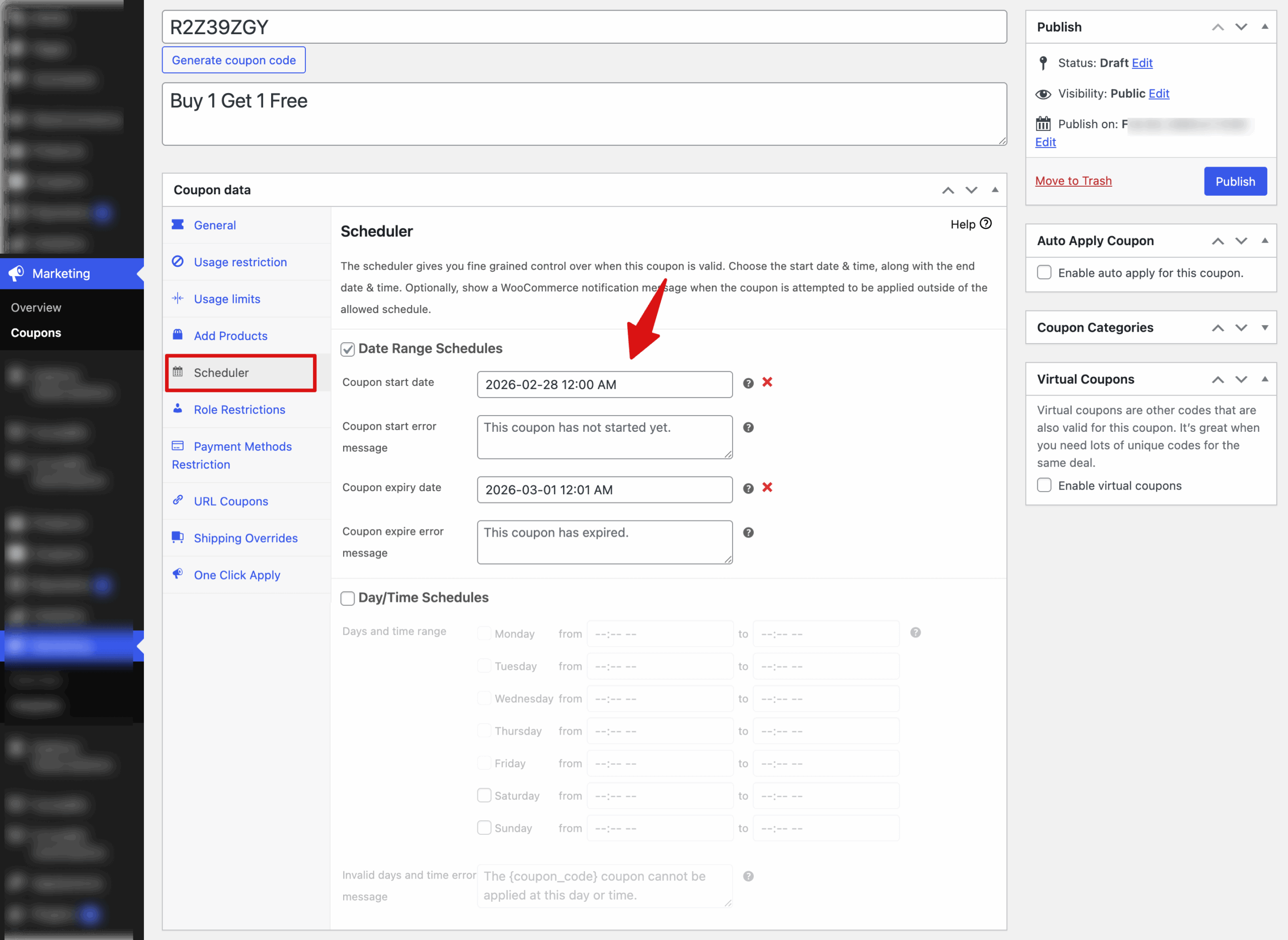
Next, move to the “Scheduler” tab and select “Date Range Schedules” to enable the scheduler for BOGO offers.
Set the following:
- Coupon start date: Set the date from which the coupon becomes active. Customers will only be able to use the coupon starting from this date.
- Coupon start error message: Enter the message that will be displayed to customers if they try to use the BOGO offer before the coupon start date. This message appears before the default system error message.
- Coupon expiry date: Set the date when the coupon will expire. After this date, the BOGO offer will no longer be available.
- Coupon expires error message: Enter the message to display to customers if they attempt to use the BOGO offer after the coupon has expired. This message appears before the default system error message.
Note: Enable the “Day/Time Schedules” option to make the coupon valid only on selected days and within specific time ranges. You can also set a custom error message that will appear if customers attempt to use the coupon outside the allowed schedule.
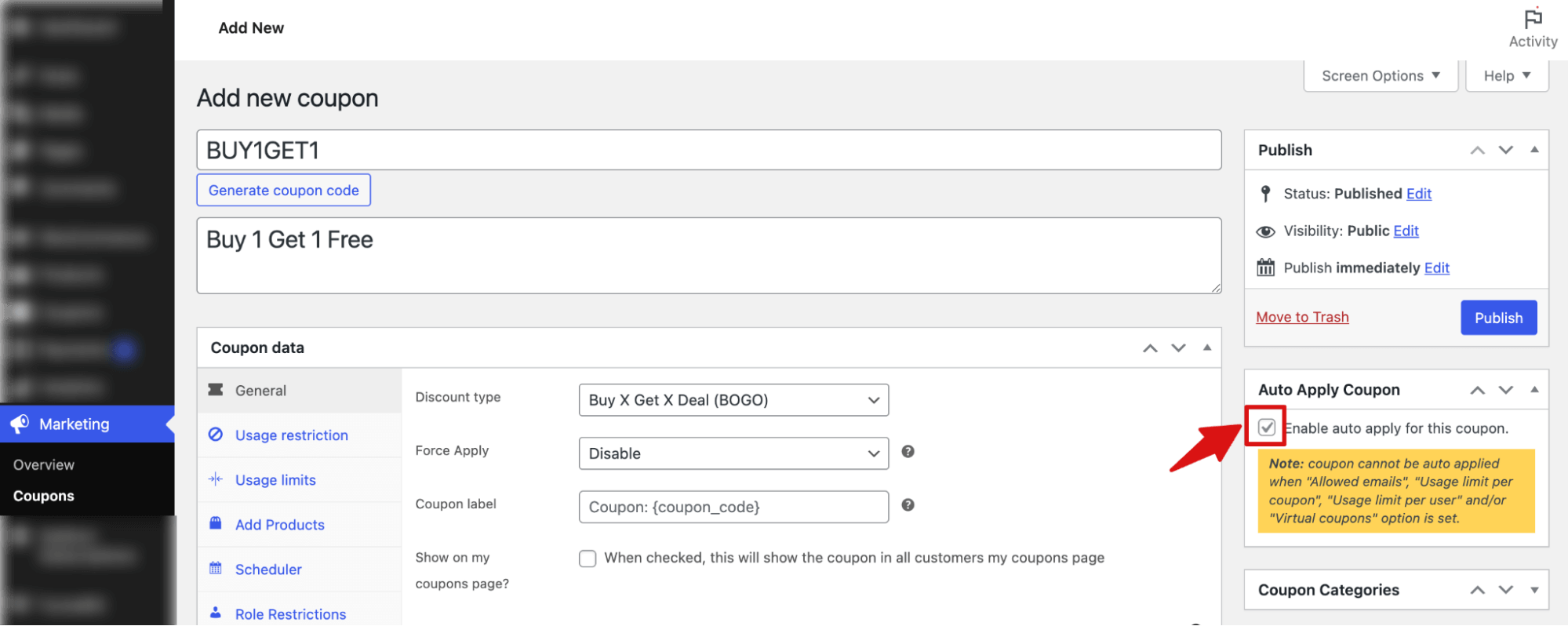
After scheduling, if you want to auto apply, check the “Auto Apply Coupon” option.
Finally, make sure to hit the “Publish” button.
Now your BOGO WooCommerce deal will be live for the audience at the scheduled time.
How Customers Can Use The BOGO Offer
With a manual BOGO Coupon
After the WooCommerce BOGO offer is live, they can add products to their cart like usual.
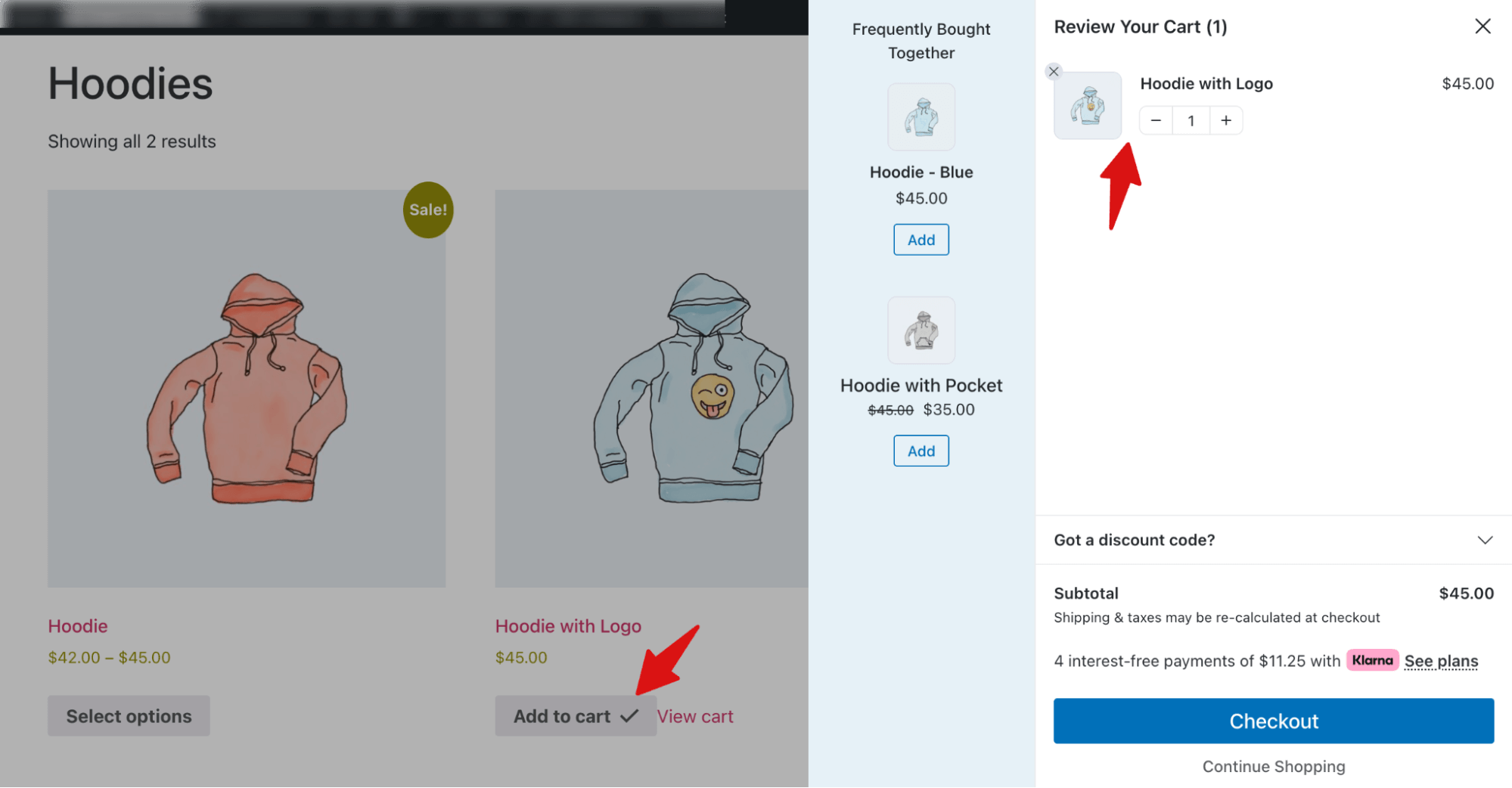
To activate the BOGO offer, they need to apply the coupon, and another free product will be added to their cart automatically.
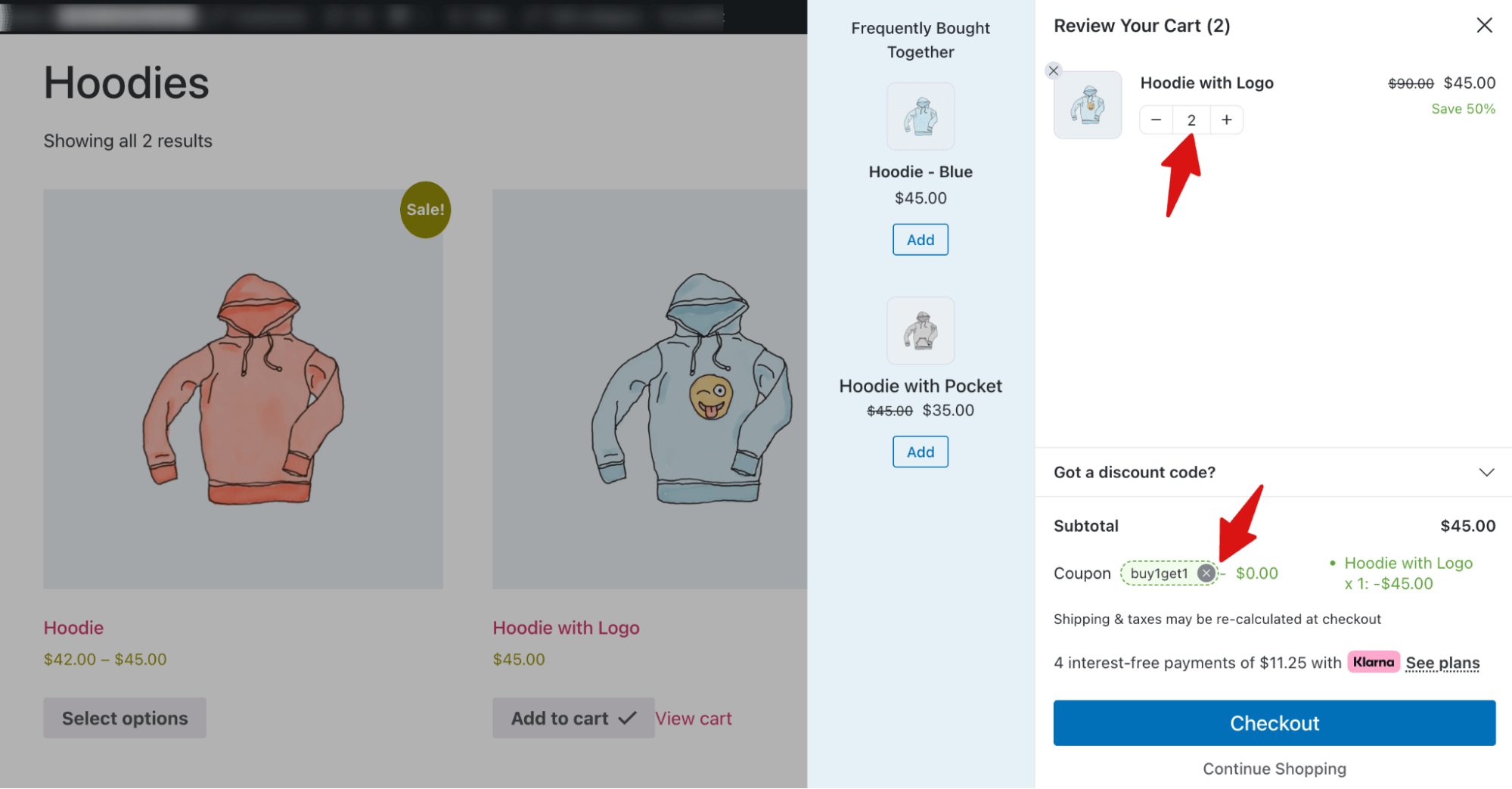
Auto apply BOGO Coupon
This applies only when the "Allowed emails", "Usage limit per coupon", "Usage limit per user", and/or "Virtual coupons" options are not set, and you checked the “enable auto apply for this coupon” option on the coupon page.
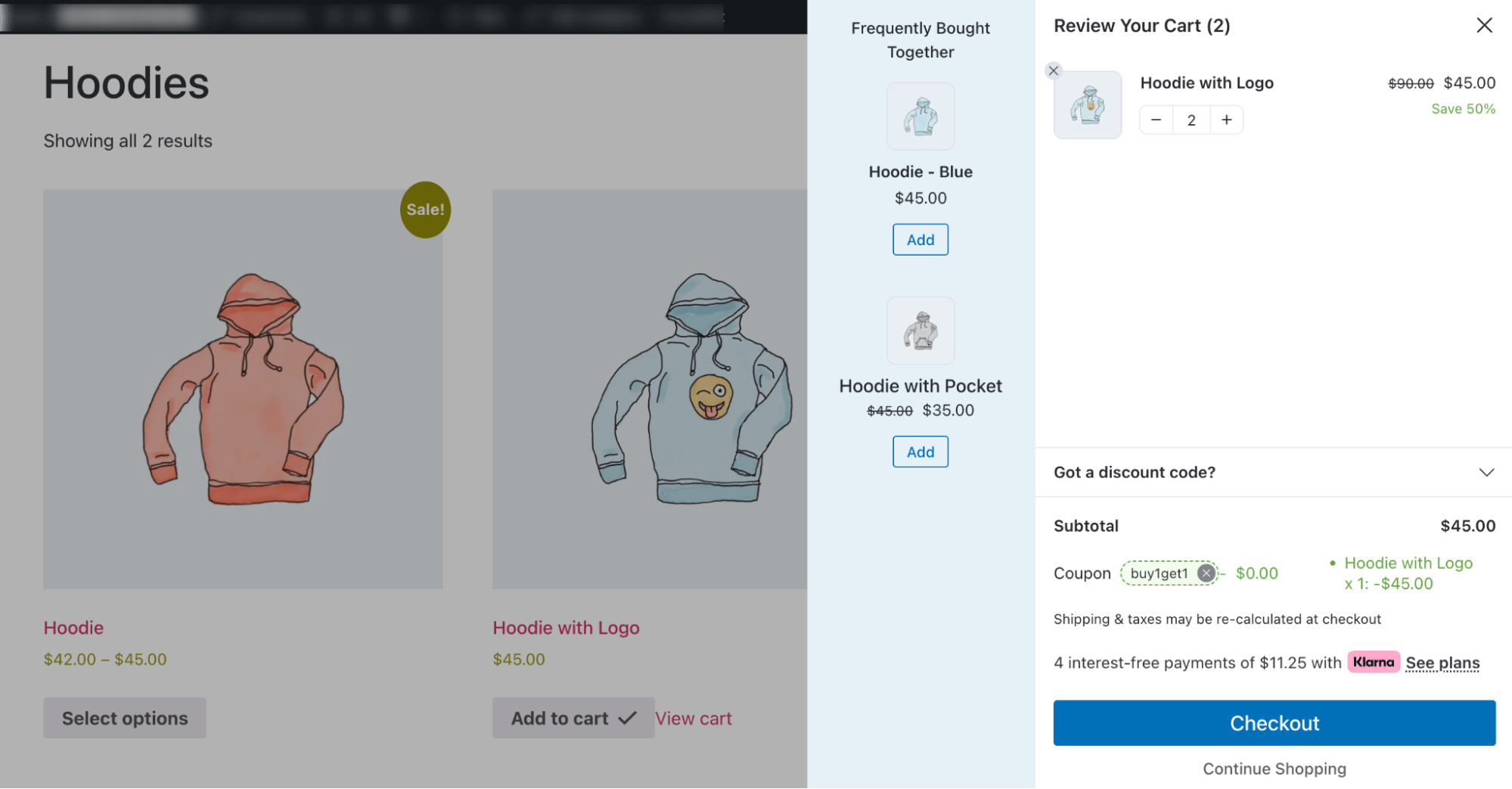
If the auto-apply BOGO coupon is applicable, once users add the first item to their cart, the coupon will be automatically applied, and the free product will be added to their cart.
Either way, they can simply go to the checkout page and complete the purchase as they would with any other purchase.
They can add more items to their cart if they want thats not included in the BOGO offer if needed.
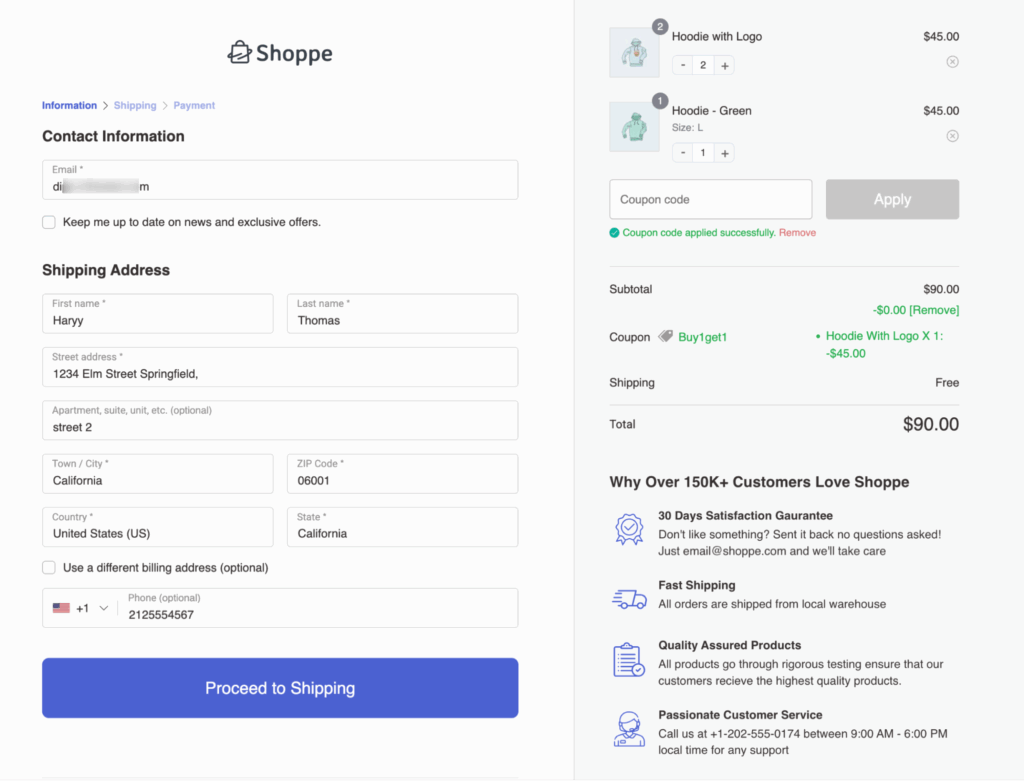

This is how customers can take advantage of the BOGO offer in your WooCommerce store.
6 Common WooCommerce BOGO Deal Types
BOGO covers a range of offer structures. Here are the most common types you can create with the plugins covered above:
1. Buy One Get One Free (BOGO)
The customer buys one unit and receives a second at no cost. The most recognizable BOGO format is performing consistently well for consumables, clothing, and accessories.
2. Buy One Get One at X% Off
The customer buys one unit and receives a second at a set percentage discount, such as 50% or 25% off. This protects your margins while still delivering a strong incentive.
For instance, to set up 50% discount for the second unit, follow the same process shown above, and the customer gets, set “Price/Discount” to “%: Percentage Discount” and value to 50.
3. Buy X Get Y Free
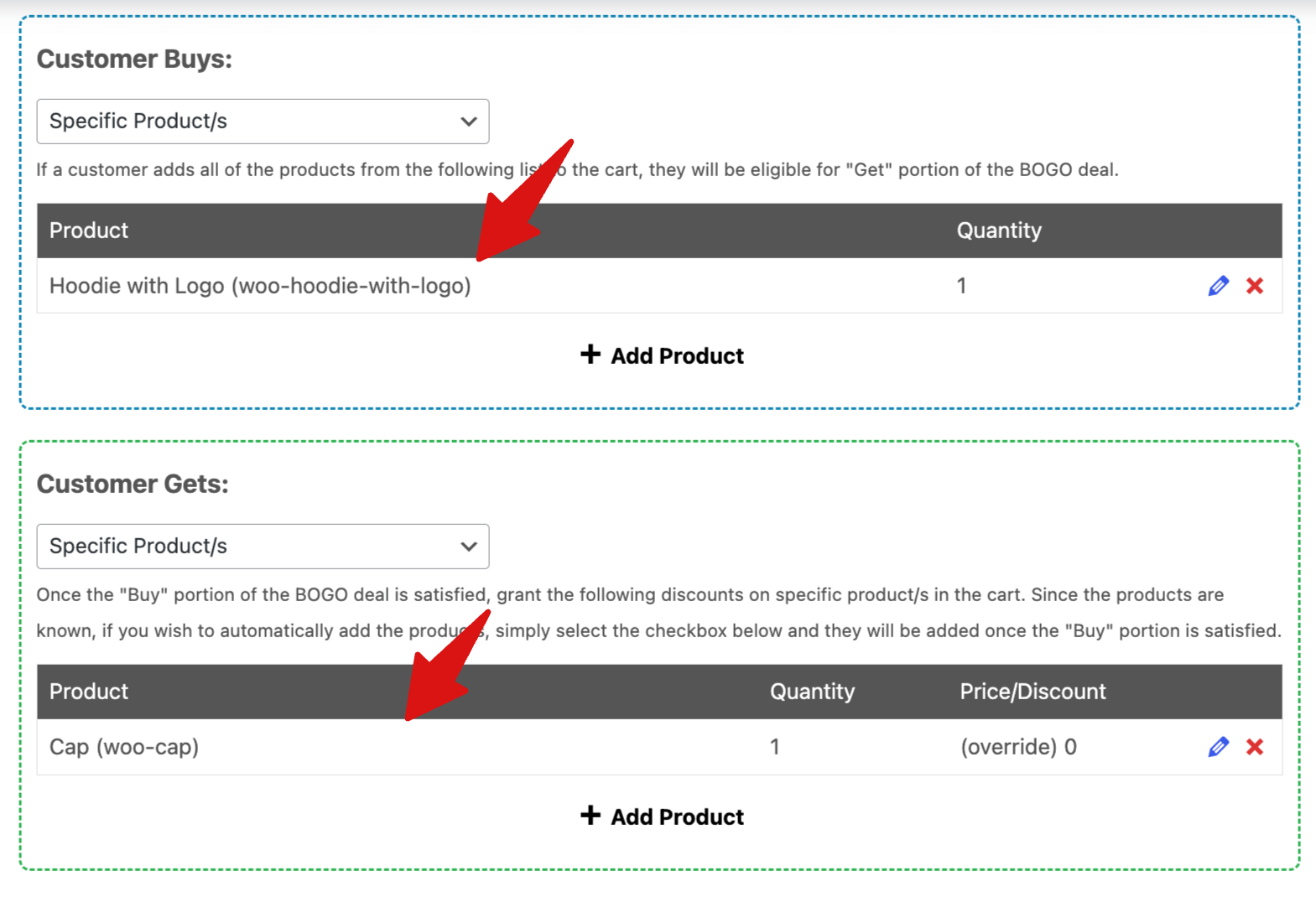
The customer purchases one product and receives a completely different product for free. This is effective for cross-selling complementary items, such as offering a Hoodie with a Cap at no cost.
To configure this, set the main product under “Customer Buys,” and the free product under “Customer Gets.” Then set the discount type to “$: Override Price” and enter 0 as the override amount to make the product free.
4. Buy 2 Get 1 Free
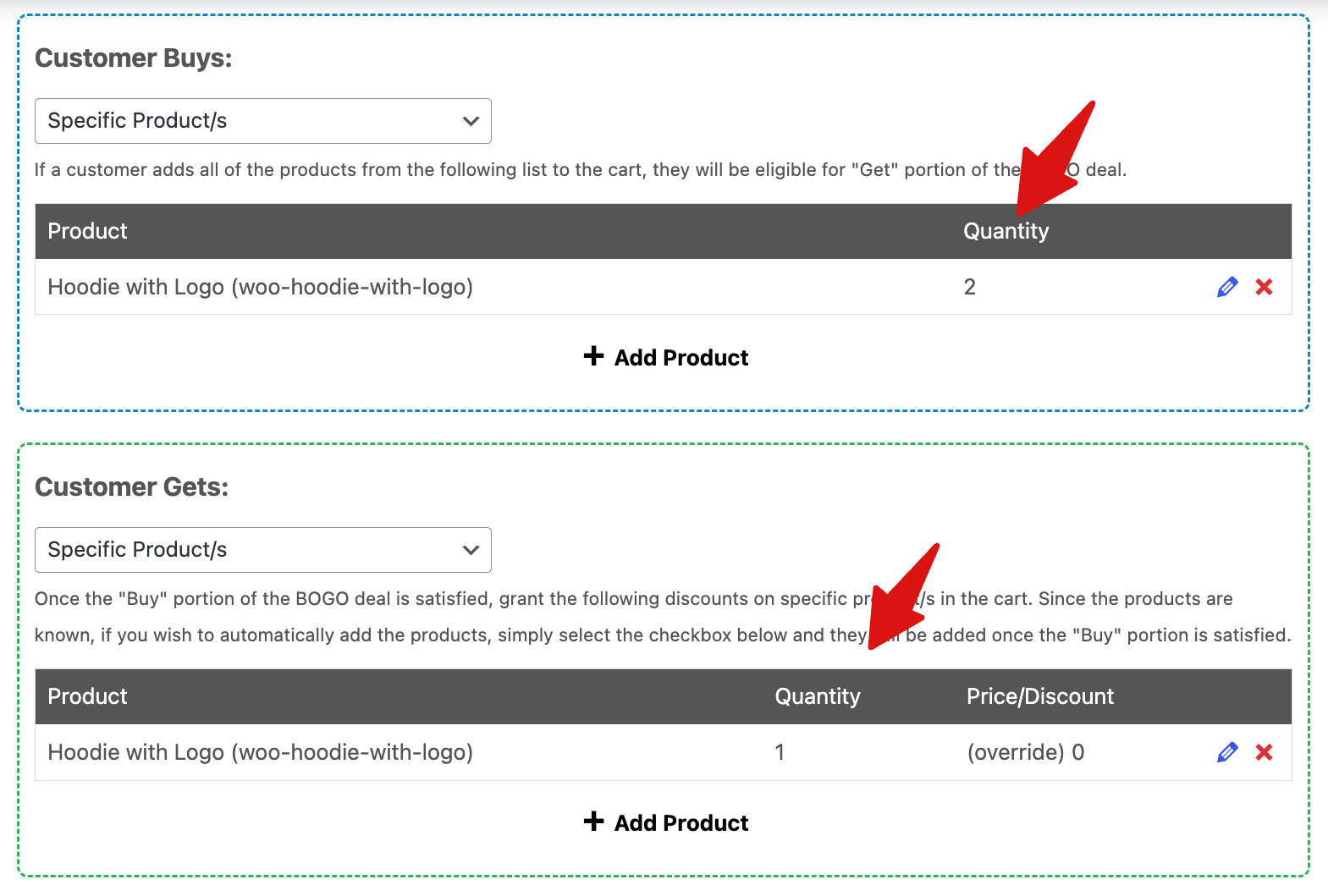
The customer must purchase two qualifying items before the reward is applied. This encourages higher transaction quantities and works well for bundled or multi-use products.
To configure this, set the main product under “Customer Buys” and the quantity to 2, and set the free product under “Customer Gets.” Then set the discount type to “$: Override Price” and enter 0 as the override amount to make the product free.
5. Category-based BOGO
The trigger and reward are defined at the category level rather than for individual products.
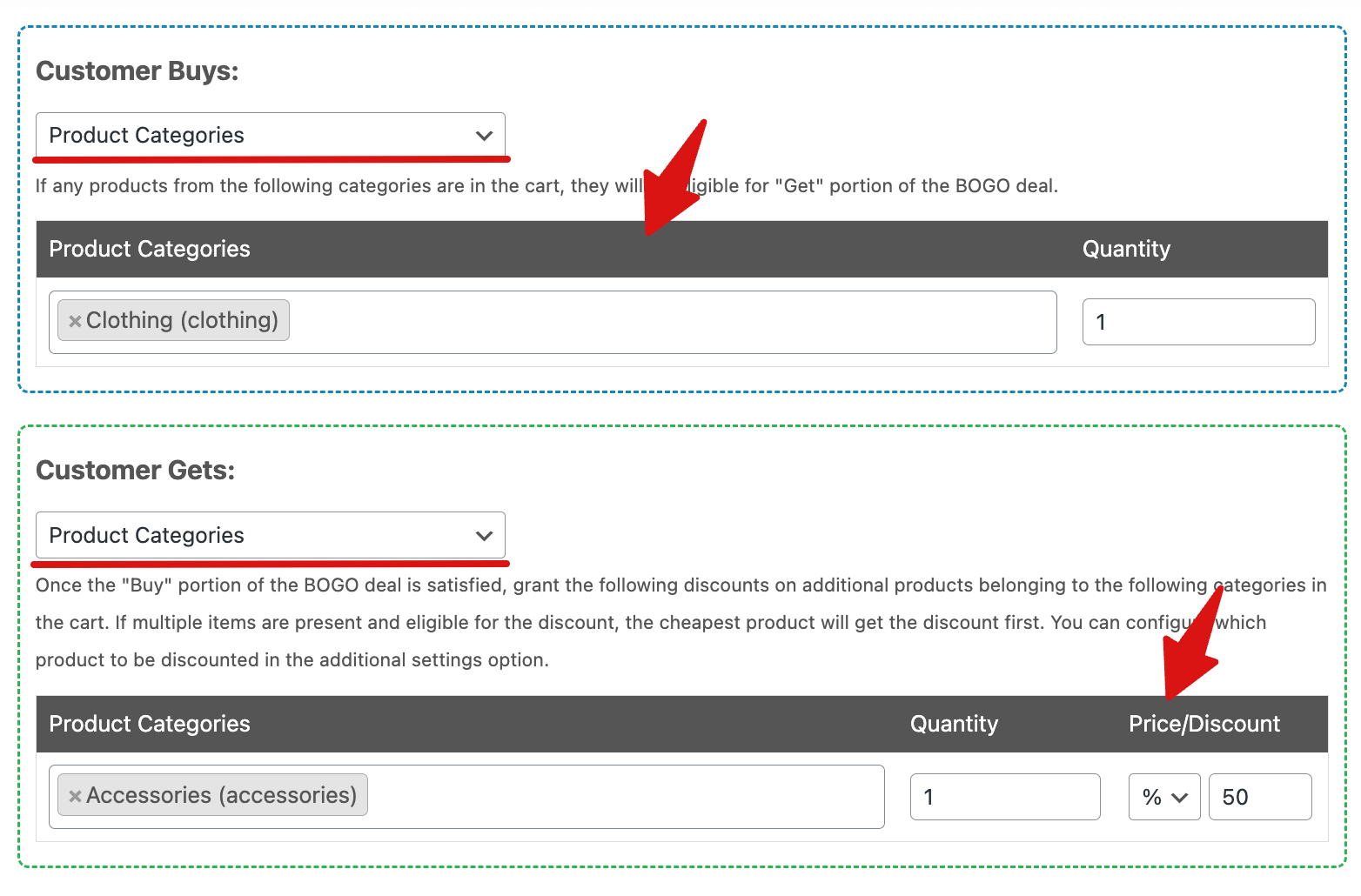
For example, buy any product from the Clothing category and receive any product from the Accessories category at 50% off. This format is ideal for large catalogs and is typically a premium feature in most BOGO plugins.
To configure this offer, select “Product Categories” under Customer Buys, choose the desired category, and set the quantity to 1. Then, under Customer Gets, select “Product Categories” as the reward category, set the quantity to 1, and set the discount type to “%: Percentage Discount” with a value of 50%.
6. Repeated BOGO
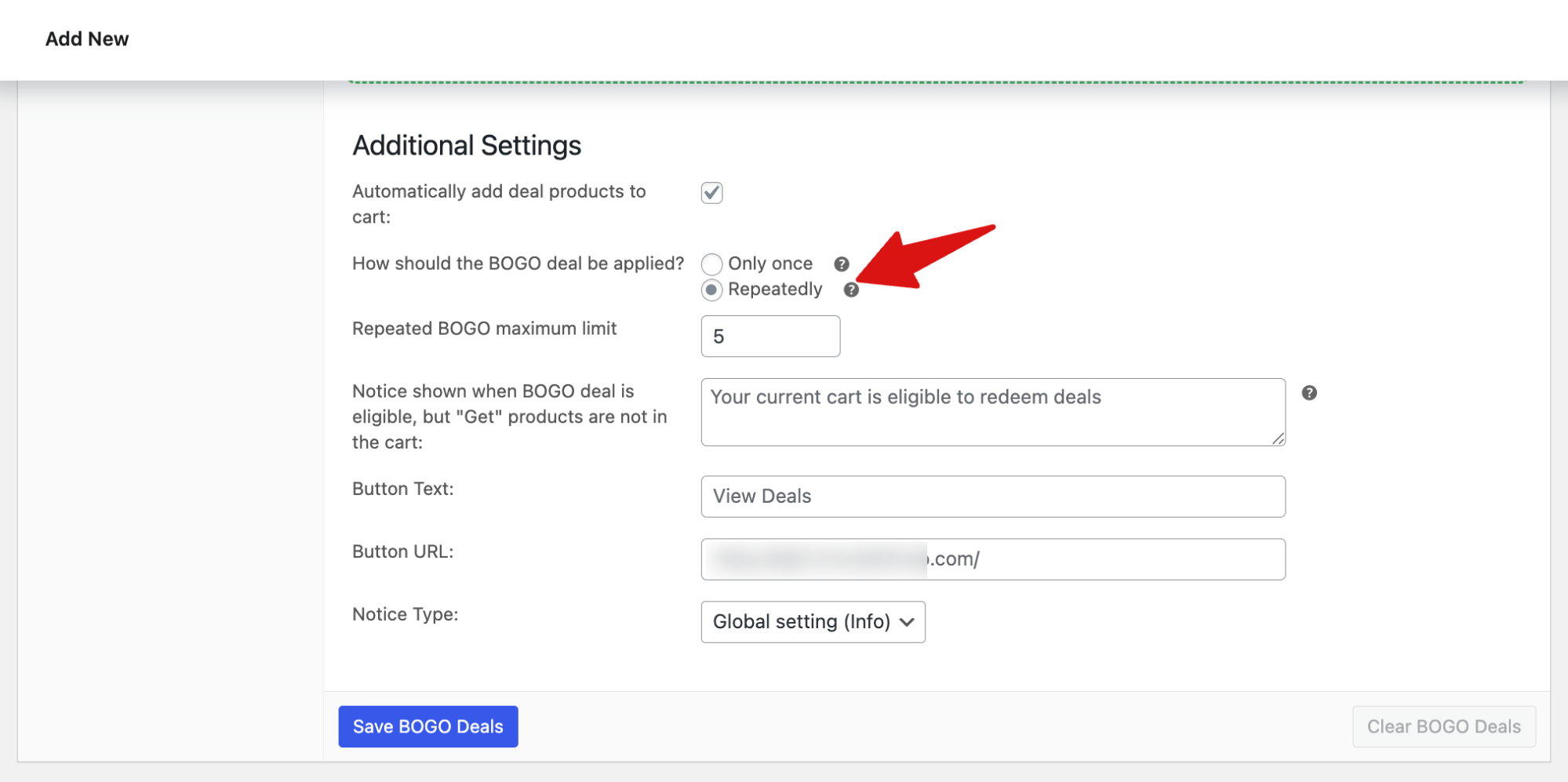
The deal triggers multiple times based on the quantity in the cart. On a buy 1, get 1 deal with Repeat enabled, a customer who adds 4 units receives 4 free units. Useful for wholesale-style buyers and consumable products purchased in bulk.
For this, set the BOGO deal to apply repeatedly, then set the maximum limit.
5 BOGO Best Practices for WooCommerce Stores
Setting up a BOGO rule is straightforward. Getting it to actually drive sales requires a few additional decisions.
1. Match the reward to the trigger logically
BOGO deals convert best when the reward feels relevant to the trigger.
A customer buying a guitar is a natural candidate for a free set of picks. A customer buying a camera bag makes sense as a trigger for a discounted memory card.
Irrelevant reward pairings feel promotional rather than useful and convert at a much lower rate.
2. Use clear, specific language
"Buy 1 T-shirt, get 1 T-shirt free" outperforms "Buy more, save more" every time.
Shoppers should know exactly what they are getting without having to read terms. This is especially important in your BOGO notification message and any on-site banners.
3. Use BOGO to move slow inventory strategically
Pairing a bestseller as the trigger with a slow-moving item as the reward is one of the most effective inventory management tactics available.
The customer perceives the reward as a win. You clear stock that would otherwise need to be discounted.
4. Set a time limit
Scheduled BOGO deals that run for a defined period, such as a weekend flash sale or a two-week seasonal promotion, create urgency that open-ended deals do not.
In the earlier section, we shared how you can schedule BOGO offers and make them valid during certain days o the week.
5. Run the margin math before you launch
A buy-one-get-one-free deal on a product with a 30% margin will cost you more than you might expect at scale.
Calculate your break-even point before setting the deal live and consider whether buy one get one 50% off achieves your promotional goal while protecting profitability.
Alternative Best WooCommerce BOGO Plugins
- Smart Coupons by WebToffee: Supports automatic BOGO deals without coupon codes, Buy X Get X and Buy X Get Y structures, scheduling, and category restrictions. A strong first choice for stores that want automatic deals with no code entry required.
- Smart Coupons by StoreApps.: A premium extension available on the WooCommerce marketplace. Supports BOGO via an "Add Products to Cart" action on a coupon. When the customer applies the code, the reward product is added to the cart automatically. Well-documented and widely used on established WooCommerce stores.
- PW WooCommerce BOGO Free: A lightweight free plugin on WordPress.org focused specifically on BOGO promotions. Supports basic buy-one-get-one-free deals. Lacks the advanced category rules, notification messages, and scheduling features of Smart Coupons or Advanced Coupons, but is a simple option for stores with straightforward requirements.
- Flexi BOGO for WooCommerce: A premium plugin from the WooCommerce marketplace that supports multiple BOGO structures and displays the offer directly on the product page so customers see the deal before adding items to their cart. A good fit for stores where product page visibility is a priority.
More Questions About WooCommerce BOGO
Got questions about running BOGO deals in WooCommerce? We’ve answered the most common ones below so you can get started with confidence.
Coupon-triggered BOGO vs Automatic BOGO?
If it’s coupon-triggered, the customer has to enter a code at checkout. If it’s automatic, the discount applies as soon as the conditions are met. Automatic usually converts better, but coupons give you a bit more control.
Does BOGO increase average order value?
Yes. Deals like Buy 2 Get 1 Free encourage larger cart sizes. Repeated BOGO triggers multiple rewards, boosting volume for consumables or high-demand items.
How to promote BOGO offers?
Promote BOGO offers with eye-catching banners on your homepage, product pages, and cart, and highlight the savings clearly to create urgency.
Boost visibility through email marketing, social media posts, and limited-time countdowns to drive quick conversions.
How to auto-apply BOGO coupon in WooCommerce?
To automatically apply the BOGO coupon, enable the option “Enable auto apply for this coupon.”
Note: The coupon cannot be auto-applied if “Allowed emails,” “Usage limit per coupon,” “Usage limit per user,” or “Virtual coupons” options are enabled.
Ready to Offer WooCommerce BOGO Deals?
BOGO deals are one of the most effective ways to boost sales, increase average order value, and encourage repeat purchases.
While WooCommerce doesn’t support BOGO natively, the right plugin makes it straightforward to set up coupon-triggered or automated BOGO deals with precise usage controls, product restrictions, and customer notifications.
We’ve walked you through the entire process step by step, so you can follow along and have your first BOGO deal live in minutes.
Pair that with the best practices we’ve shared, and you’ll be well-positioned to get the maximum return from every offer you run.
Once your deal structure, product pairing, and margins are dialed in, a well-executed BOGO campaign can become one of your most profitable promotions of the year.
To ensure you get the most orders and the highest return on your BOGO campaign, optimize your checkout with FunnelKit Funnel Builder for a frictionless experience.
Editorial Team
April 9, 2026WooCommerce transactional emails are the automated messages your store sends after a customer takes an action. This includes shipping updates, password resets, and welcome notices. Open rates for these alerts...
Editorial Team
April 6, 2026Almost every store owner needs to export WooCOmmerce orders sooner or later. Maybe you need to send order data to your accountant, move records to a new site, or pull...
Editorial Team
April 6, 2026Want to turn one-time buyers into customers who keep coming back using WooCommerce? Then you need to find a WooCommerce subscription plugin. These plugins will help you automate billing, manage...






