


First impressions matter, and in eCommerce, your welcome email is your first chance to shine.
A WooCommerce welcome email is an automated message sent to new customers right after they register or make their first purchase. It introduces your brand, sets expectations, and encourages them to explore your products.
The problem is that WooCommerce only sends a plain email with login details for a new account. It lacks branding, guidance, and a compelling reason for customers to come back.
In this guide, we will show you how to create a professional, automated welcome email in WooCommerce without any coding.
Why Send a Welcome Email to New WooCommerce Customers?
Welcome emails in WooCommerce are a powerful tool to turn first-time buyers into loyal customers.
They do more than just say hello. They:
- Build brand recognition by reinforcing who you are and what you sell
- Encourage repeat purchases with discounts or coupons
- Set expectations for future emails to reduce unsubscribe rates
- Boost sales with personalized product suggestions
- Increase customer lifetime value. Even a small retention boost can greatly increase profits
A strong welcome email creates trust, drives engagement, and gives customers a reason to return. Automating this message should be a top priority for any WooCommerce store.
Table of Contents
- 1 How to Enable Default WooCommerce Email For New Users?
- 2 Why Is The Default WooCommerce New Account Email Not Enough?
- 3 How to Send an Automated WooCommerce Welcome Email Without Code
- 4 How To Track The Performance Of WooCommerce Welcome Email?
- 5 5 High-Impact Elements to Add to Your WooCommerce Welcome Email
- 6 5 Best Practices to Turn Your WooCommerce Welcome Email Into a Repeat Purchase Driver
- 7 Frequently Asked Questions WooCommerce Welcome Email
- 8 Do welcome emails with reset-password or account setup need an unsubscribe link?
- 9 What is the difference between a WooCommerce welcome email and a new account email?
- 10 Can I send a welcome email after the first purchase instead of after registration?
- 11 How do I add a discount coupon to my WooCommerce welcome email?
- 12 What if my WooCommerce welcome email is not sending?
- 13 Can I send a welcome email series instead of a single email?
- 14 How do I customize the default WooCommerce new account email?
- 15 Start Building Stronger Customer Relationships From Day One With a Welcome Email!
How to Enable Default WooCommerce Email For New Users?
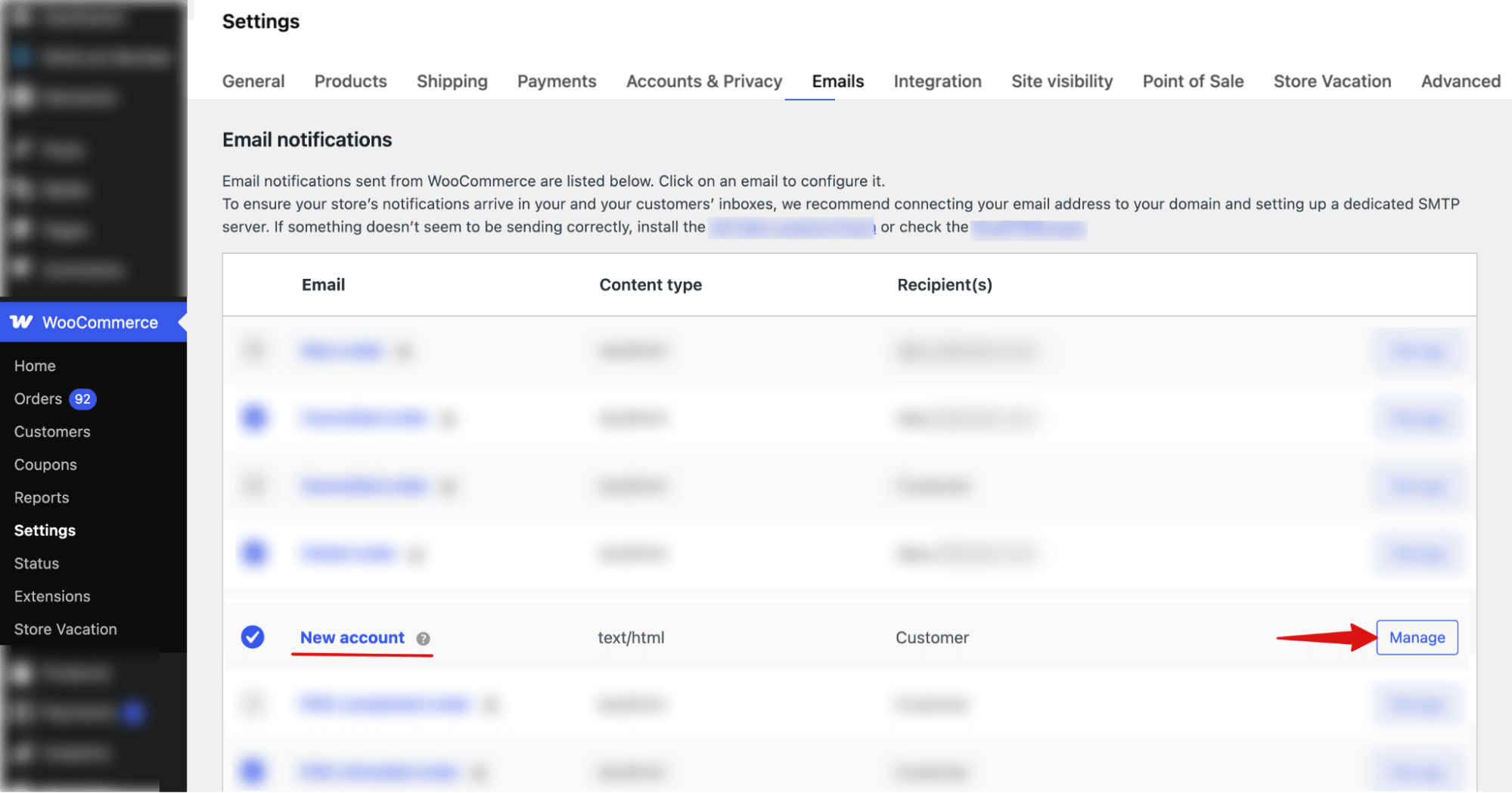
To enable the default WooCommerce welcome email, navigate to WooCommerce ⇒ Settings ⇒ Emails and click on Manage next to New Account.
Note: This email is sent to customers notifying them that they have created an account, not a proper welcome email.
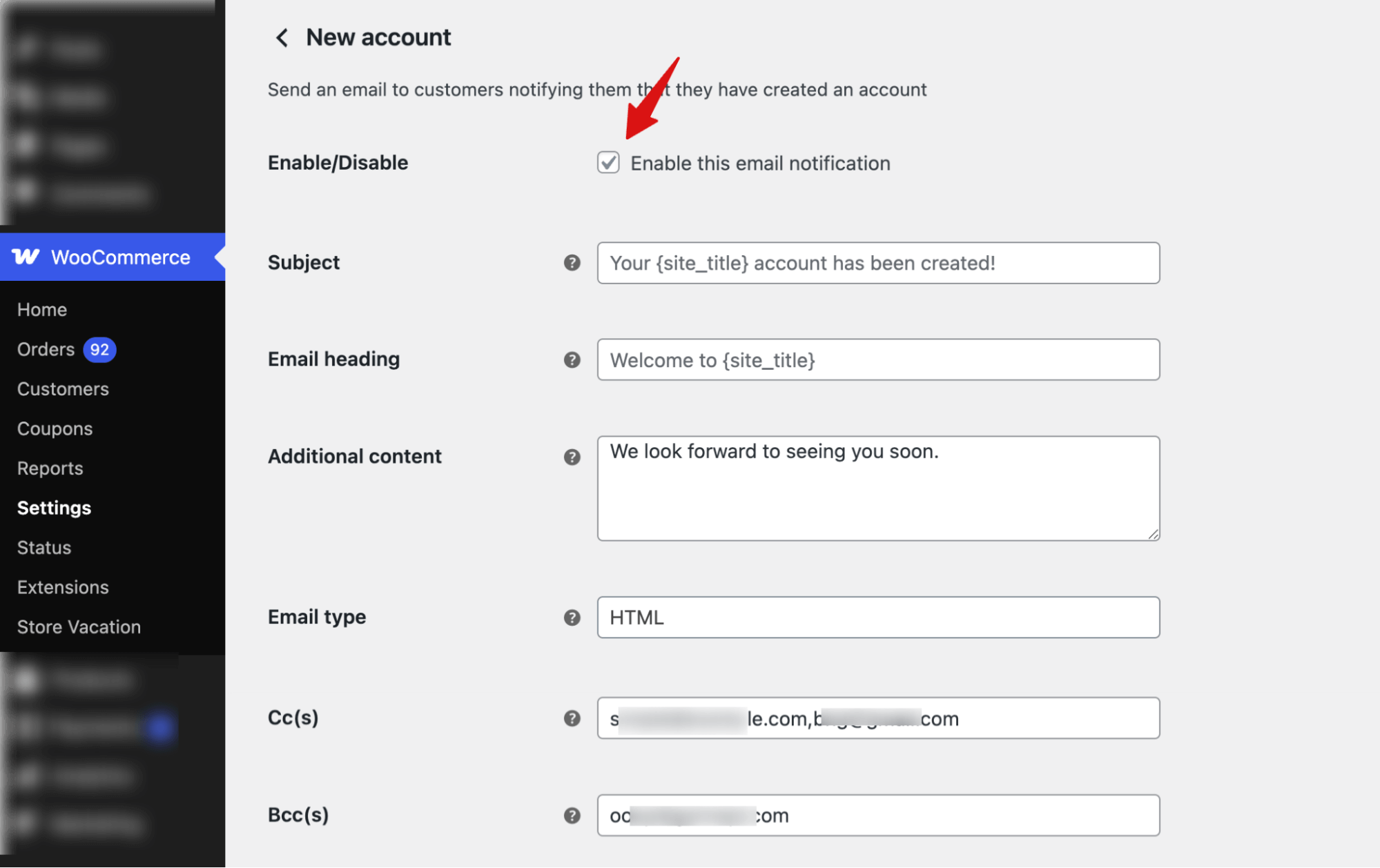
Now, make sure to enable this email notification by checking the box labeled “Enable this email notification”.
Next, you can configure the following:
- Subject – Set the email subject line shown in the inbox.
- Email heading – Define the main heading shown inside the email.
- Additional content – Add optional text below the main email message.
- Email type – Choose the email format (HTML or plain text).
- Cc(s) – Send a visible copy of the email to additional recipients.
- Bcc(s) – Send a hidden copy of the email to additional recipients.
You can check the preview and send test emails from this page.
Make sure to hit “Save Changes” to update. This is how you can enable the default welcome email in WooCommerce.
Why Is The Default WooCommerce New Account Email Not Enough?
As mentioned earlier, WooCommerce sends a basic new account email when a customer registers, but it is purely functional. It includes only login details.
Here is a sample of the default new account email in WooCommerce:
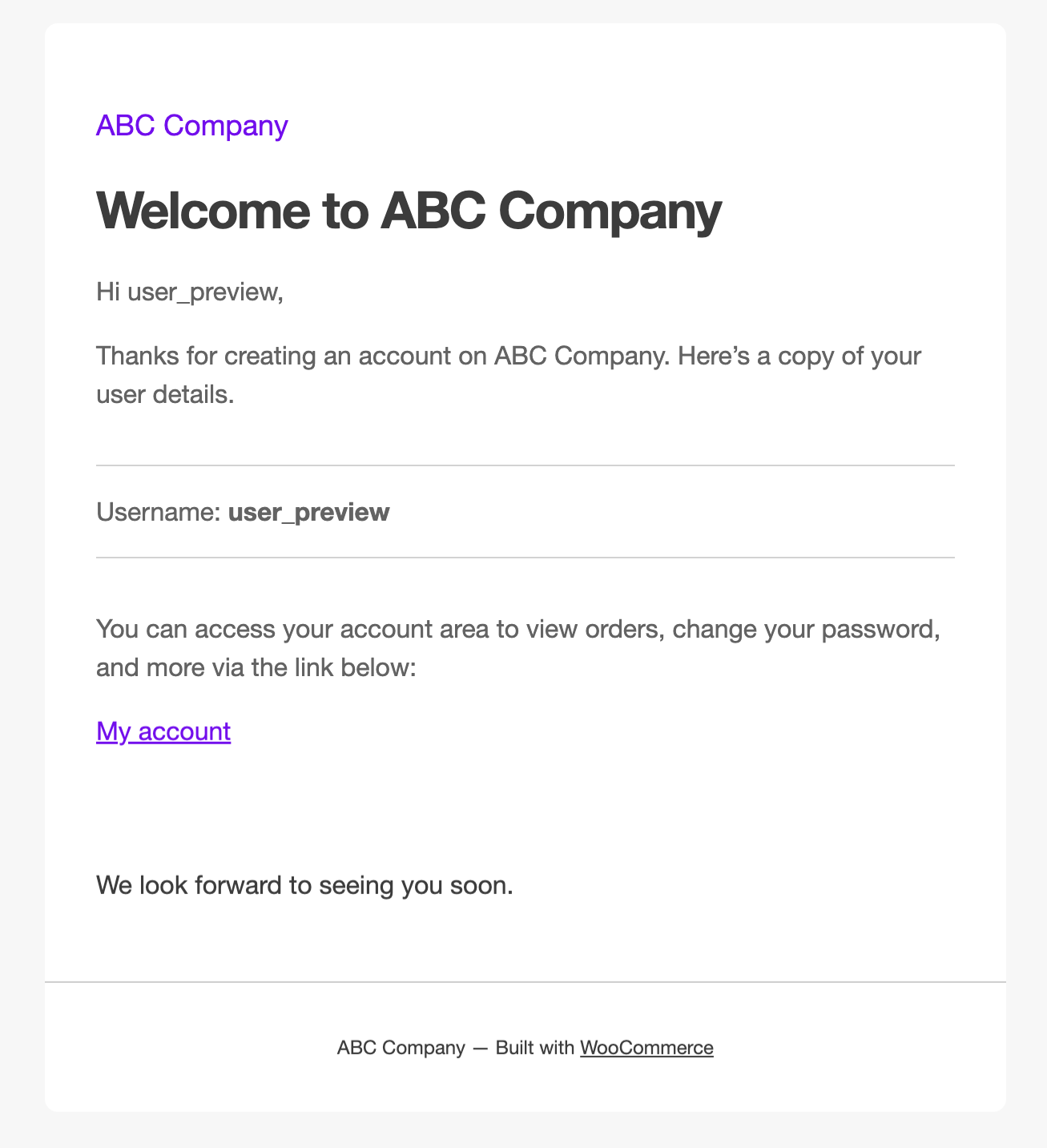
This email misses the mark in several important ways:
- Lacks branding
- Offers no product recommendations
- No clear guidance on what the customer should do next.
- Lacks social icons, making it difficult for users to follow the brand.
- No first-order discount option.
It doesn't create a welcoming atmosphere, build trust, or encourage repeat purchases.
By overlooking these key elements, you miss a valuable chance to engage with customers when they are most receptive to your brand.
A well-crafted welcome email can bridge this gap, turning a simple account confirmation into an opportunity to build relationships, strengthen customer trust, and drive repeat sales.
How to Send an Automated WooCommerce Welcome Email Without Code
To send a WooCommerce welcome email without writing any code, we will use FunnelKit Automations.
This is a marketing automation plugin built specifically for WooCommerce that lets you create automated email workflows triggered by customer actions like account registration, first purchase, or abandoned carts.
Follow the step-by-step instructions below to set up your WooCommerce welcome email:

Here are the steps you need to follow :
Step 1: Go to the Welcome Email
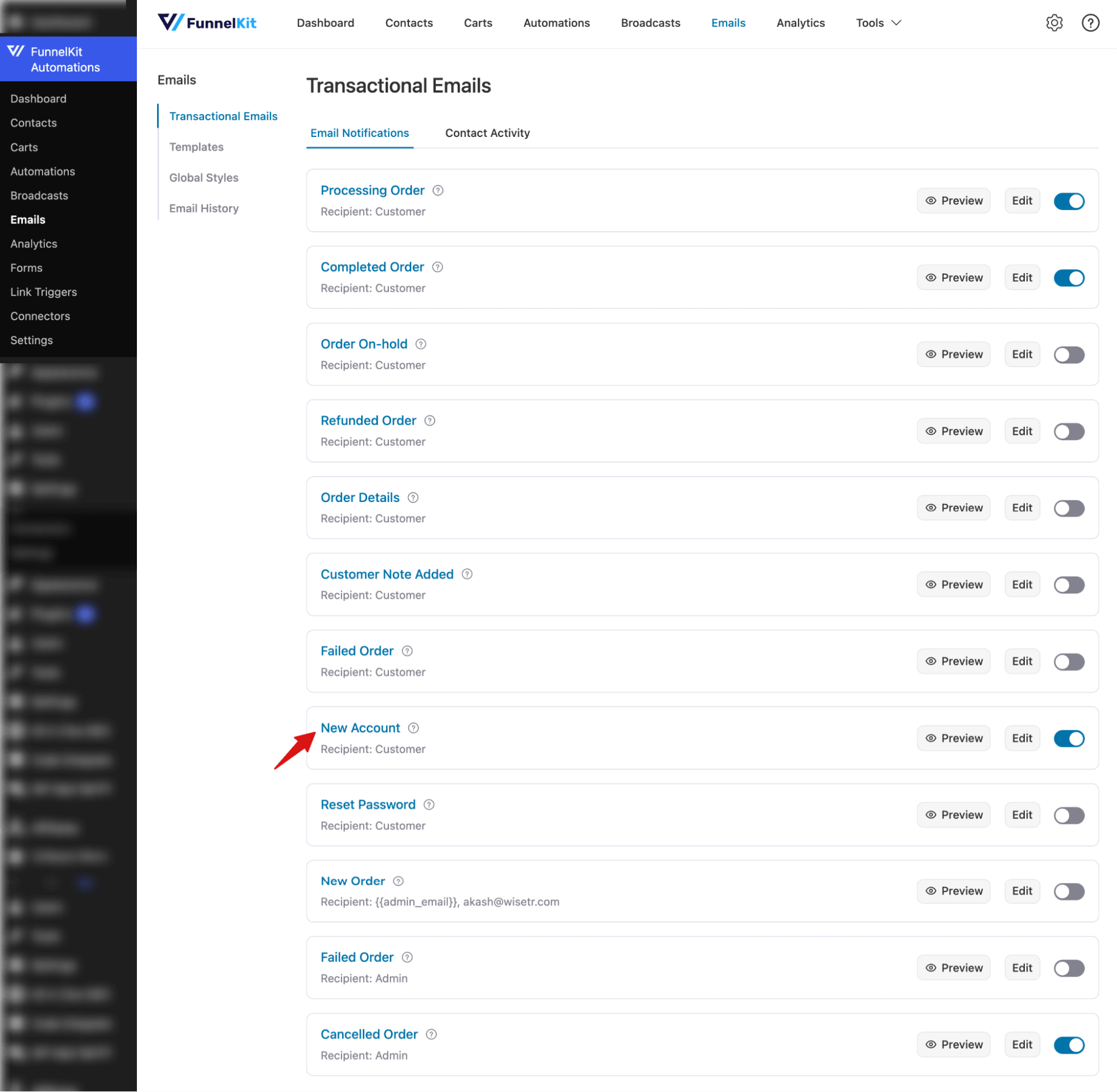
Navigate to FunnelKit Automations → Emails, then open the Transactional Emails tab.
You’ll see 12 ready-made transactional email notifications, including the New Account email sent to customers when they register on your WooCommerce store.
To start customizing, click on the New Account email.
Step 2: Configure the WooCommerce welcome email
Now it’s time to configure and design the welcome email.
The email is sent automatically to customers.
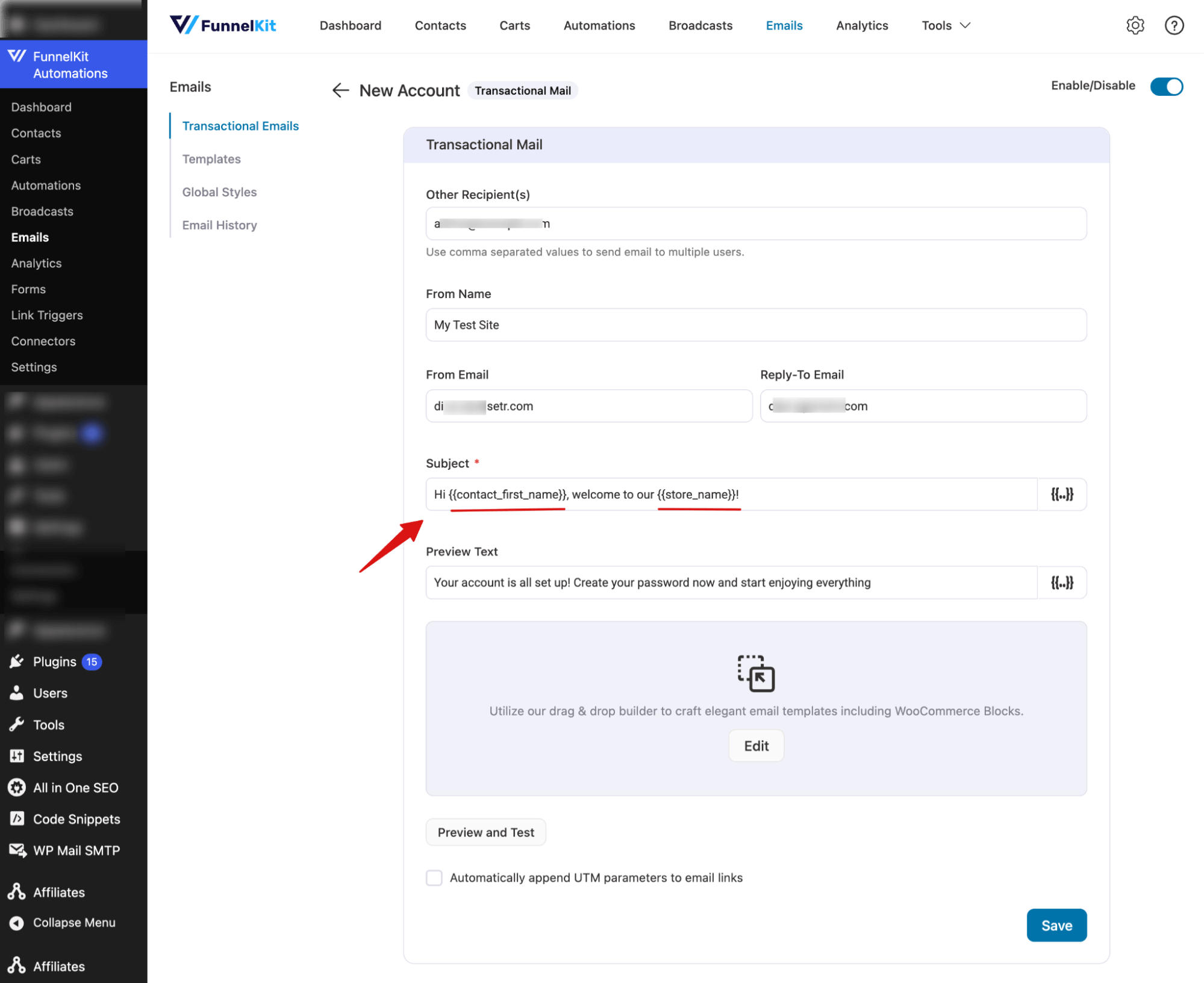
Check the From Name, From Email, and Reply-To Email.
Next, customize the subject line and preview text.
FunnelKit Automations allows you to personalize the subject line, preview text, and email content using merge tags.
Click the {{..}} icon, select a tag, and insert it into your email.
Make sure to personalize emails to get better open rates. You can check out various welcome email examples for ideas.
Step 3: Design the welcome email
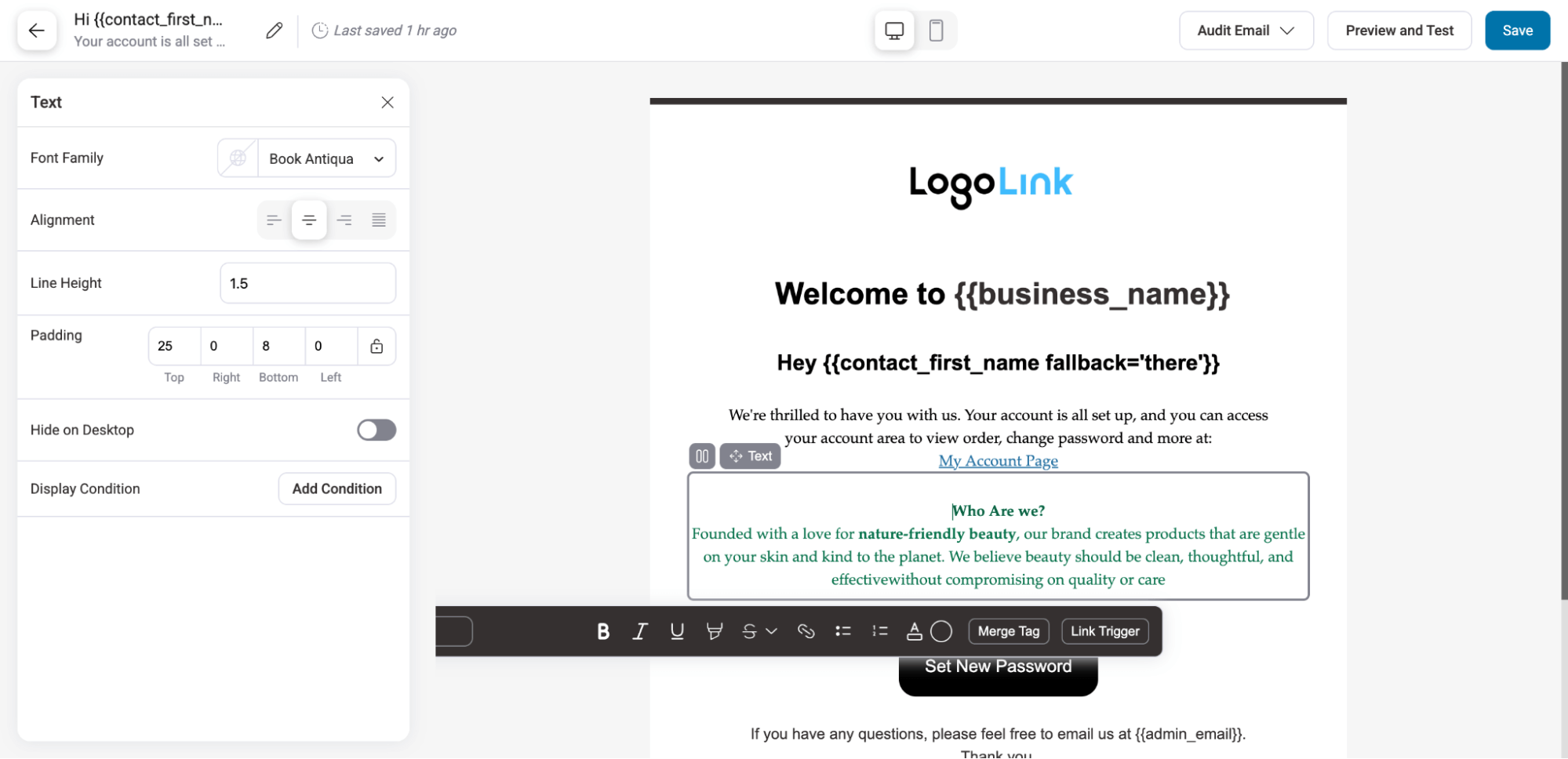
Next, click Edit to start customizing the email body using the drag-and-drop email builder.
Add a welcome message and your brand story
Here you can change the logo, the body text to introduce your brand, CTA style, everything.
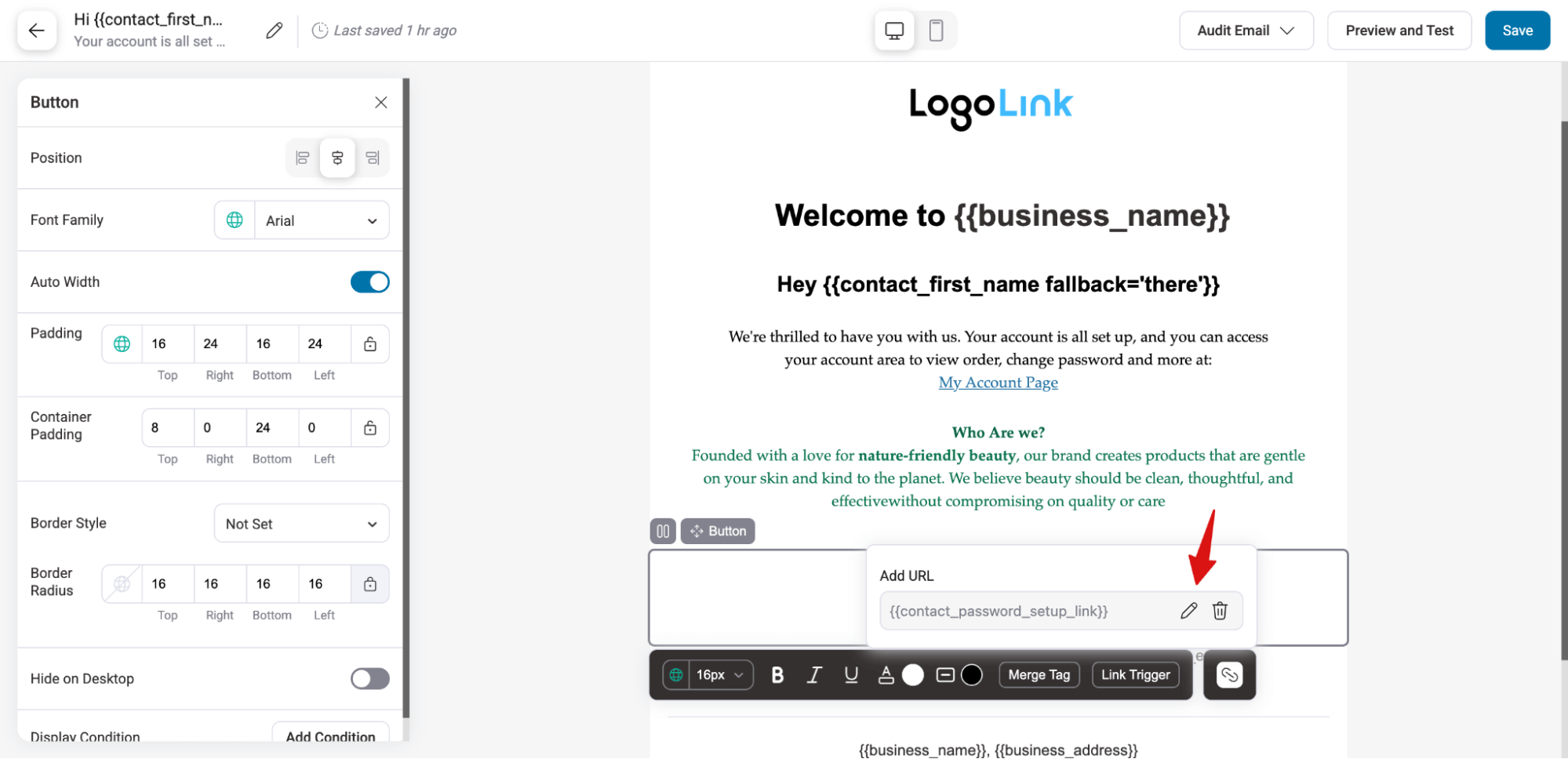
Share the link to reset the password
The “My Account” page link and Set New Password button already include built-in merge tags, so users are automatically directed to the correct pages. You don’t need to manually add any links.
Add discount for next purchase (optional)
In addition to customizing existing content, you can add new content by dragging and dropping blocks such as text, images, and social media links.
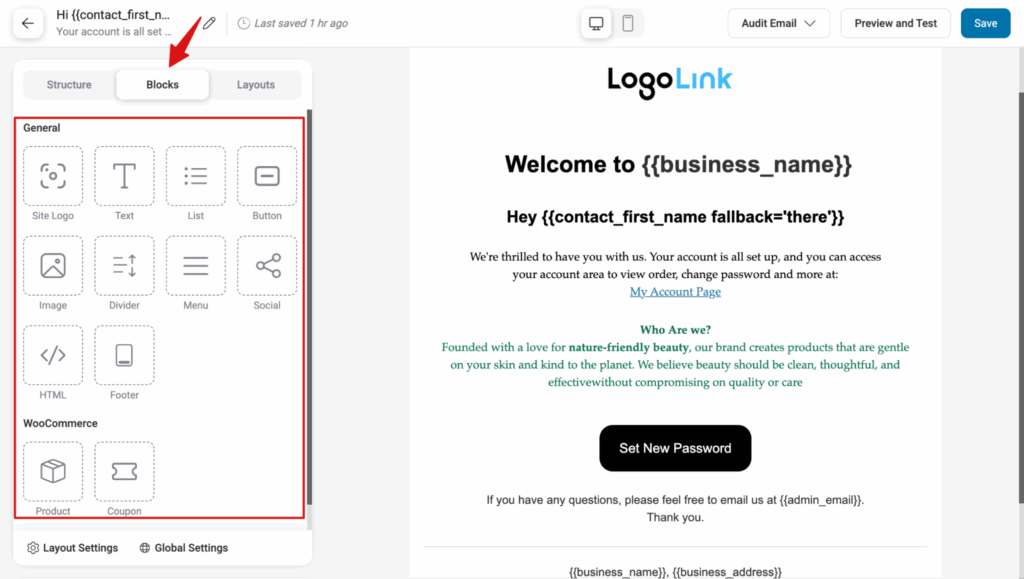
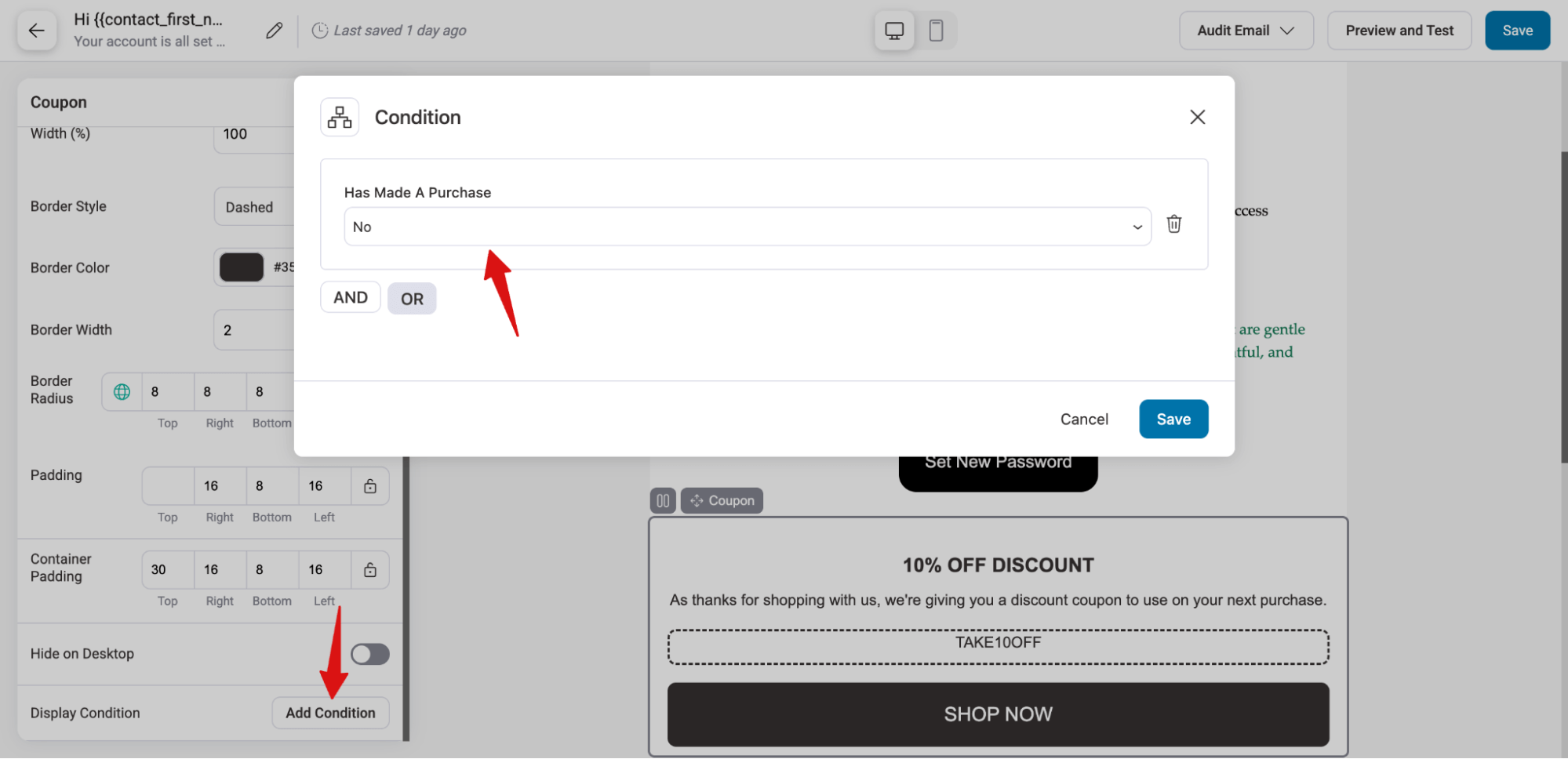
For example, you can use the Coupon block to offer a discount on the next order.
Just drag and drop the Coupon fields, then select the Store coupon code in the left panel.
Add testimonials to gain trust
Next, you can add testimonials to build trust with your new users.
FunnelKit Automations provides many prebuilt layouts, including headers, testimonials, newsletter subscription forms, and a footer, that you can easily add to your welcome email.
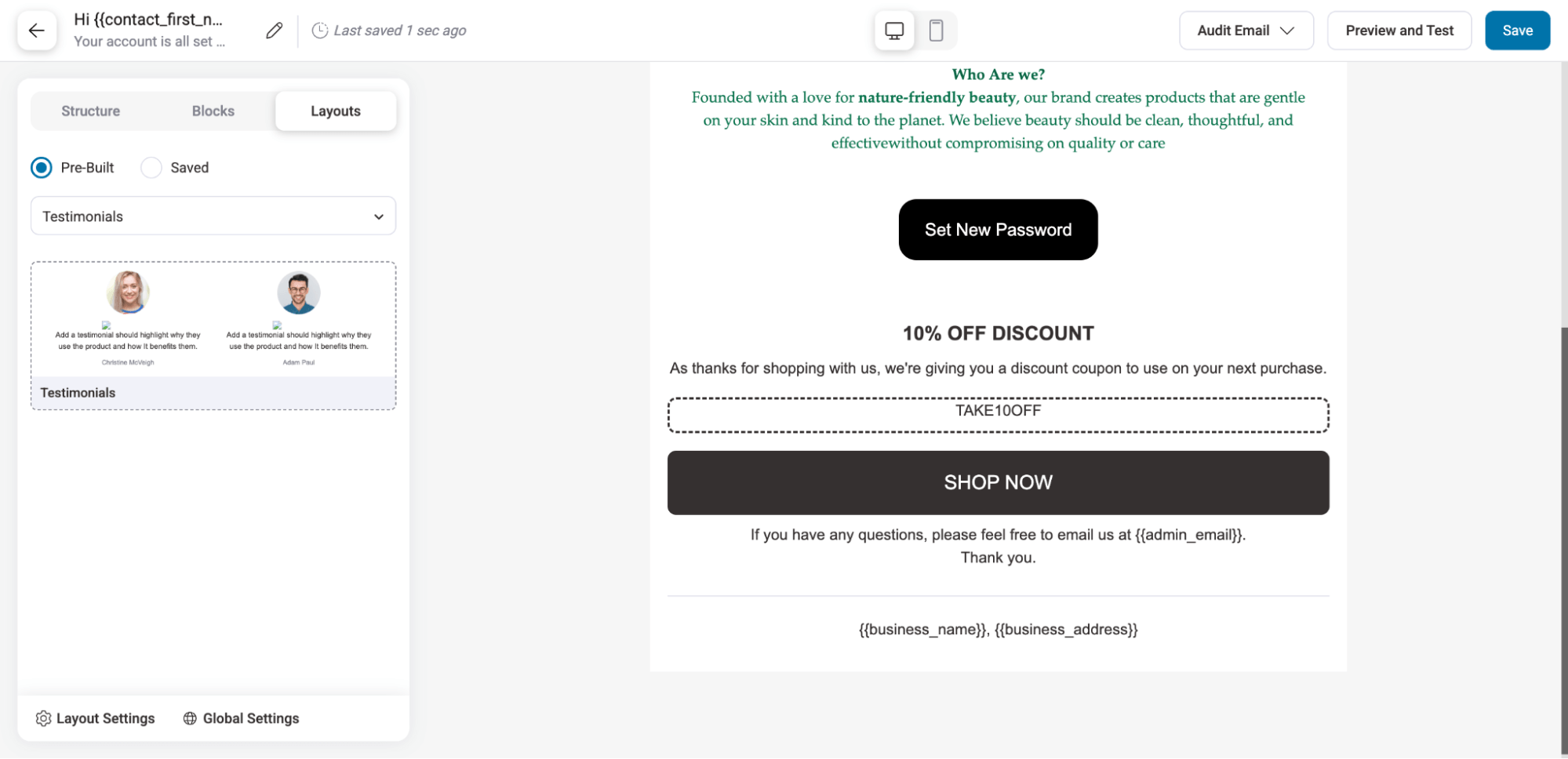
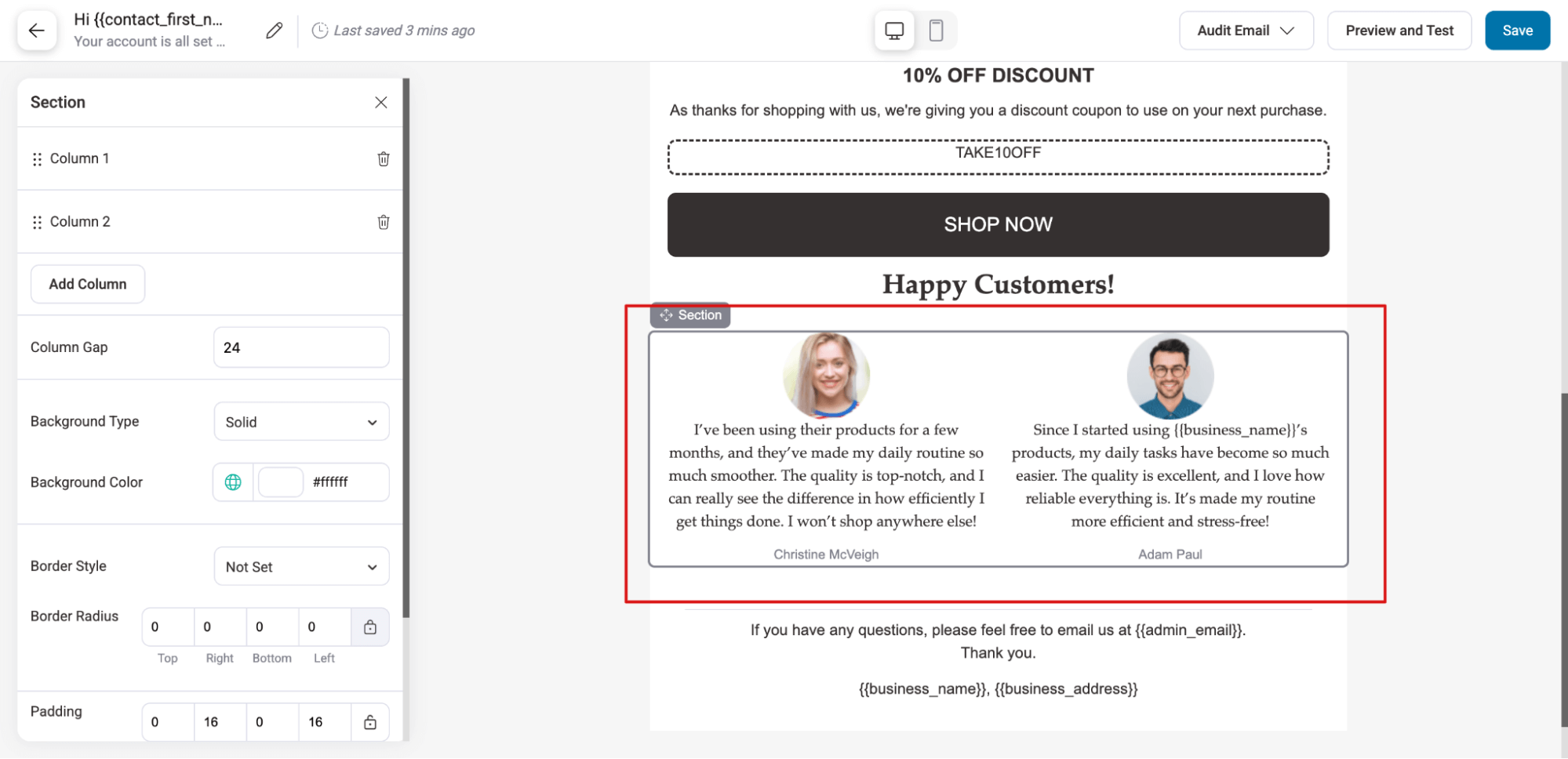
Add the testimonials layout and customize the content
Add social icons to grow the community
Next, drag and drop the Social block to add icons that link to their corresponding social media pages or groups.
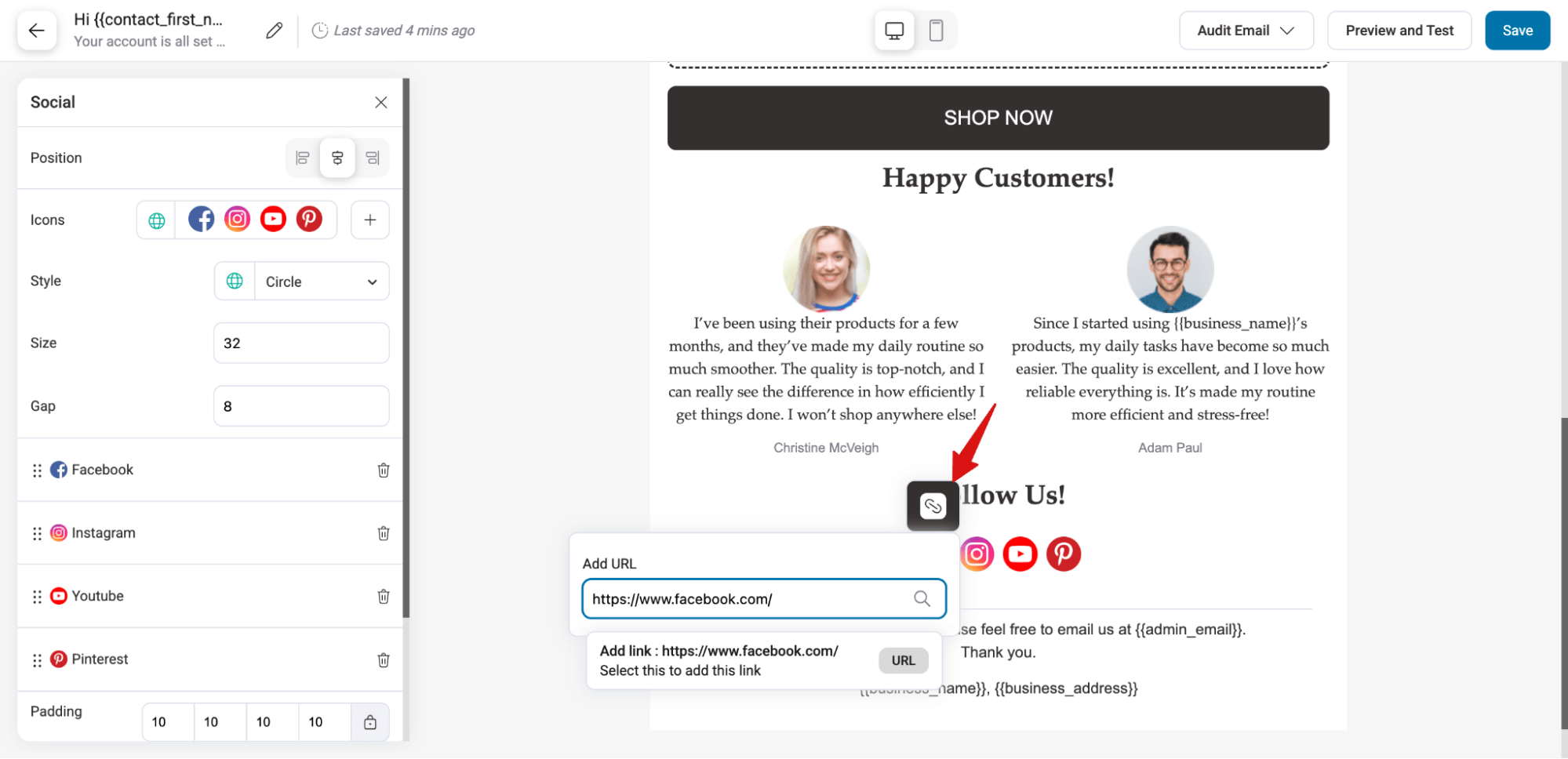
Similarly, you can add a newsletter subscription form, signature, etc., based on your store, target customer, and strategy.
After designing the welcome email, make sure to hit Save.
Step 4: Activate the WooCommerce welcome email
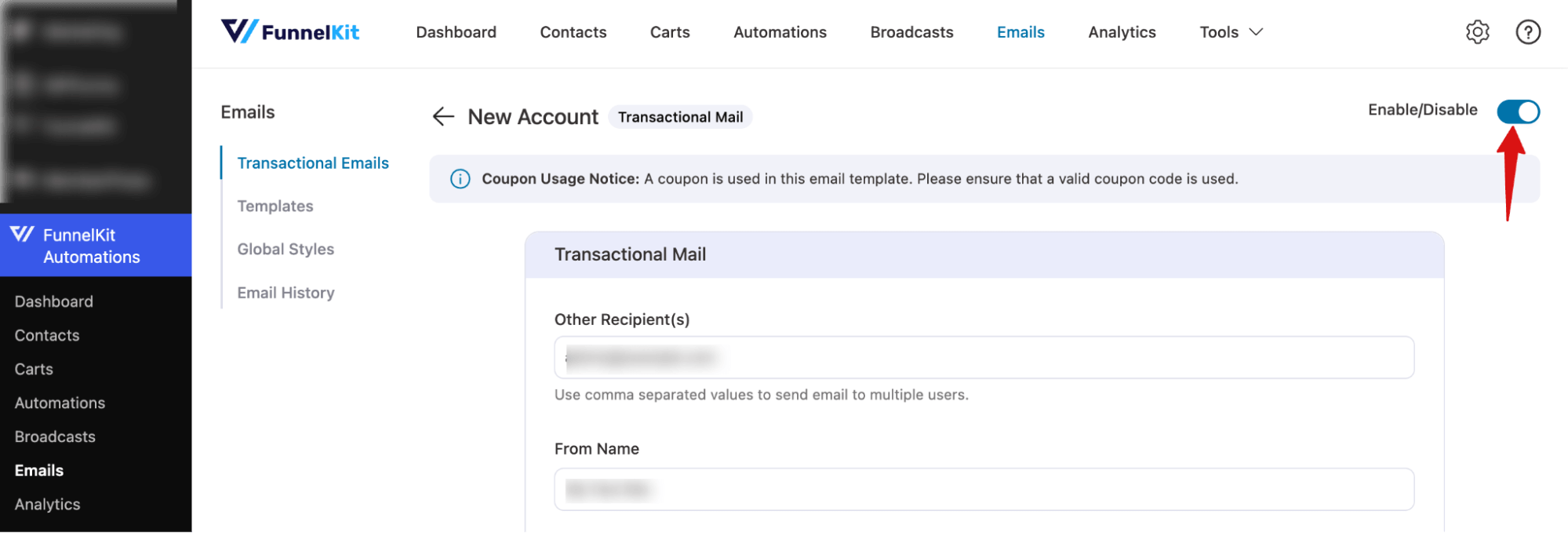
Finally, make sure to turn on the toggle to enable the custom WooCommerce emails for new account creation.
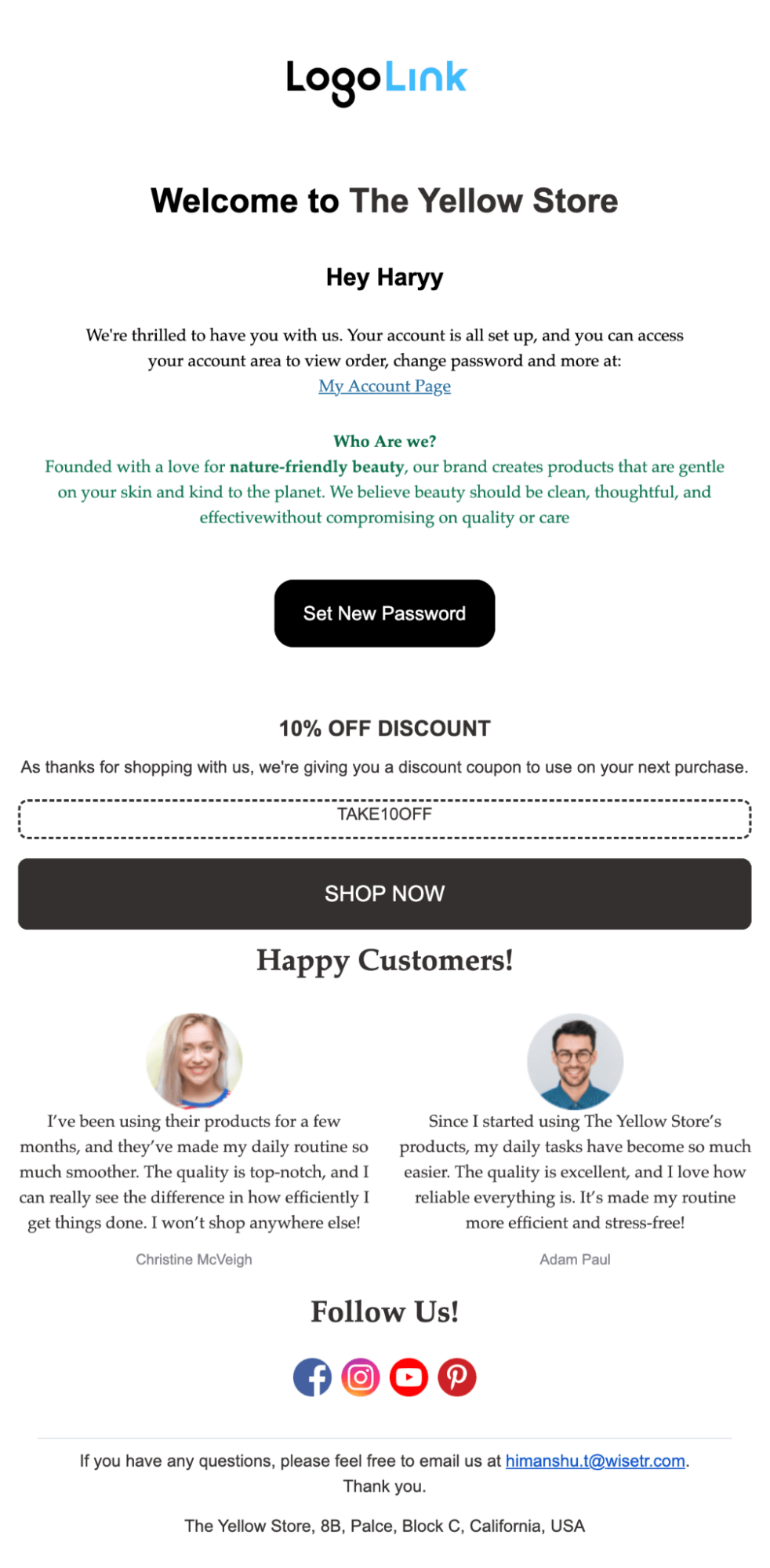
Here is the email we designed for this blog:
How To Track The Performance Of WooCommerce Welcome Email?
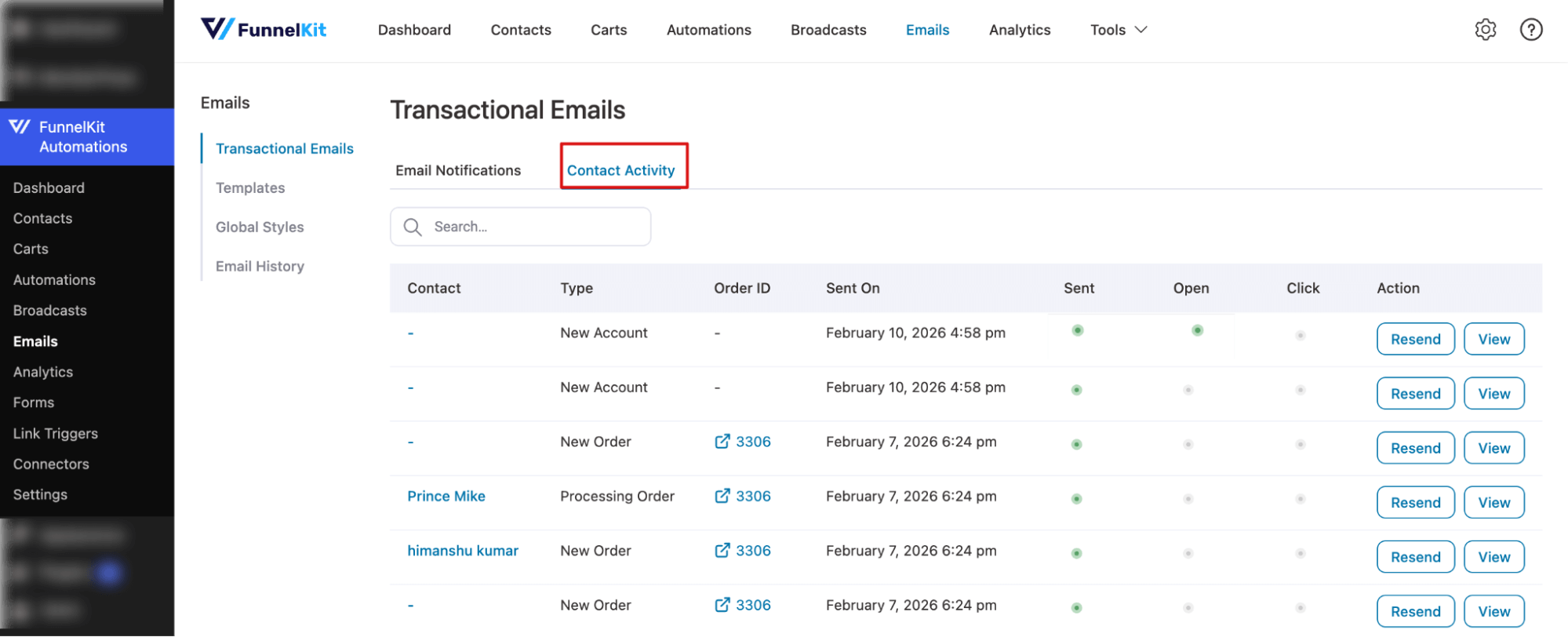
With FunnelKit Automations, you can easily track the welcome email activity.
Just navigate to the Contact Activity tab, and you will find sent on, sent, open, and click data for all types of transactional emails, including welcome emails for new accounts.
Plus, you can resend the email and view its details if needed.
5 High-Impact Elements to Add to Your WooCommerce Welcome Email
A well-designed welcome email does more than say hello. It gives customers a reason to return to your store and builds the foundation for long-term engagement.
Here are the most effective elements to include:
- Personalized Greeting With the Customer's First Name
Use merge tags to address the customer by their first name. Personalized emails feel more human and generate higher open rates.
Instead of "Welcome to Our Store”, write "Hi Sarah, welcome to [Your Store Name]."
This small change makes the email feel like a one-on-one conversation rather than a mass message.
- Clear Value Proposition or Brand Story
Tell customers what makes your store different.
Are you eco-friendly? Do you offer free shipping on all orders? Do you specialize in a specific niche?
Use 2-3 sentences to explain why they should shop with you instead of a competitor. This is especially important for first-time customers who may not yet be familiar with your brand.
- Discount Coupon or Incentive to Return
Offer a discount code for their next purchase. A 10-15% off coupon or a free shipping threshold encourages customers to return sooner.
Make the coupon code prominent, include a clear expiration date, and add a button that links directly to your shop page or a specific product category.
Dynamic coupons (where each customer gets a unique code) reduce sharing and improve tracking.
- Product Recommendations with your best sellers
Recommend your best-selling or complementary products based on what the customer has already purchased.
For example, if someone buys a cleanser, suggest a matching serum or moisturizer to complete their routine.
You can do this using the product block of FunnelKit Automations. You can show the latest products, bestsellers, or handpicked items. You can also design the layout using any number of columns and rows to display the products.
- Social Proof or Customer Testimonials
Include a short customer review or a trust badge to reinforce credibility. If you have a high number of 5-star reviews, mention it. If you have been featured in media or have notable brand partnerships, add logos or quotes.
Social proof reduces hesitation and builds trust with new customers who are still evaluating whether to buy from you again.
Each of these elements serves a specific purpose in moving the customer closer to their next purchase. Do not try to include everything in one email.
Choose 1 or 2 elements that align with your store's goals, and test different combinations to see which delivers the best results.
5 Best Practices to Turn Your WooCommerce Welcome Email Into a Repeat Purchase Driver
- Send the welcome email within 1 hour of registration
According to Experian, 74.4% of customers expect a welcome email immediately after signing up. Delays reduce open rates and make your store feel slow to respond. Automate the workflow to trigger immediately when the customer account is created.
- Use a clear, benefit-driven subject line
Avoid generic subject lines like "Welcome to Our Store." Instead, write something specific like "Welcome! Here's 15% Off Your Next Order" or "Your First Order is Just the Beginning." The subject line should immediately communicate value so customers open the email rather than delete it.
- Optimize for mobile devices
Over 60% of emails are opened on mobile devices. Use a single-column layout, large buttons (at least 44x44 pixels), and concise copy. Test your email on multiple devices and email clients to ensure images load correctly and links are tappable.
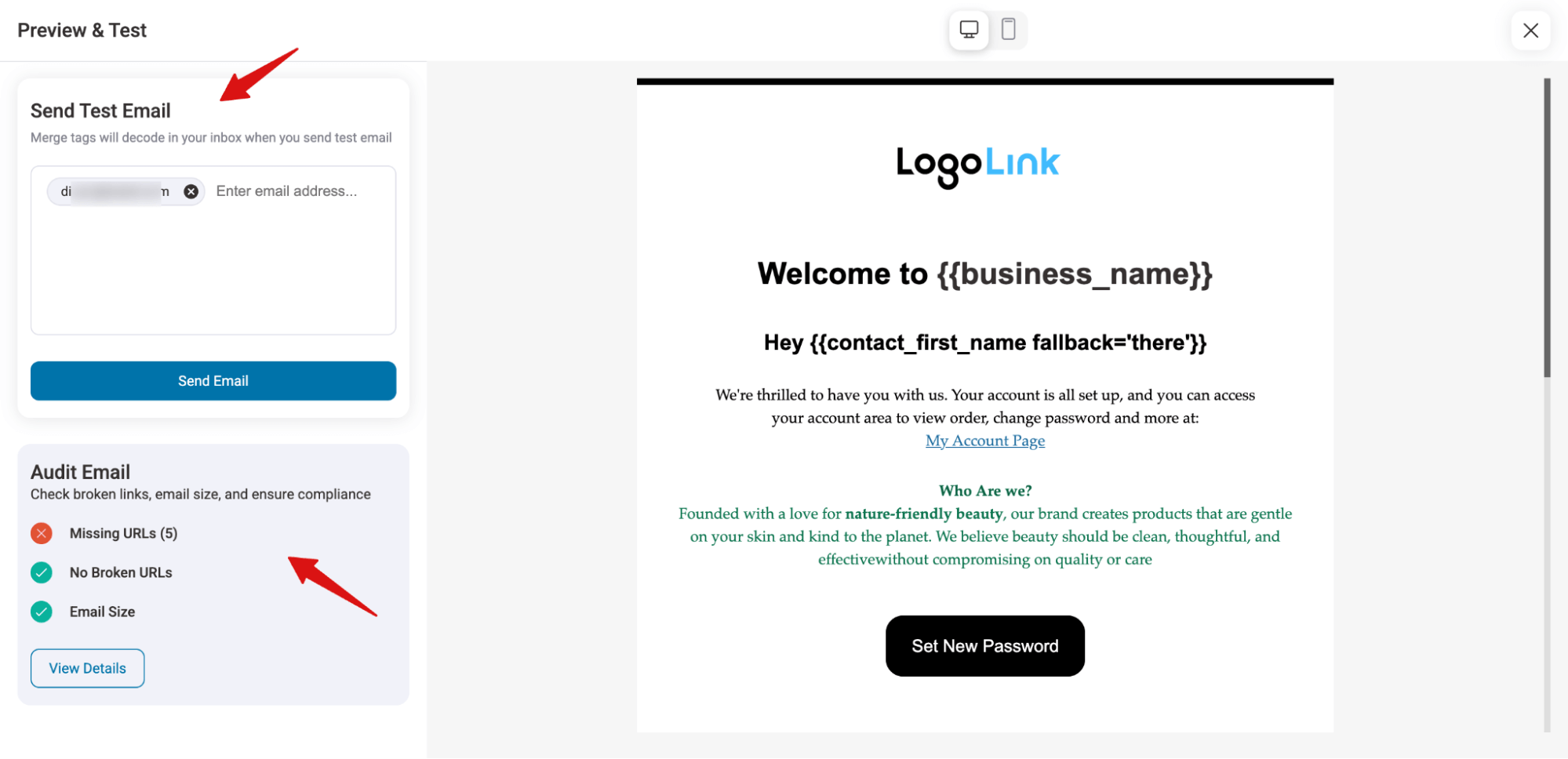
- Always audit and send a test email
Ensure there are no broken links or missing images, that personalization (like the customer’s name) works correctly, and that the email is mobile-responsive with a proper layout. Auditing and testing ensure your email looks professional and functions flawlessly, giving new subscribers the best first impression of your brand.
- Track performance and iterate
Monitor open, click-through, and conversion rates for your welcome email. If open rates are low, test different subject lines. If click-through rates are low, test different CTAs or email layouts. Use the data to continuously improve your welcome email.
Frequently Asked Questions WooCommerce Welcome Email
Do welcome emails with reset-password or account setup need an unsubscribe link?
No. Reset password and account setup emails are considered transactional, not marketing emails. Because their purpose is account access and security, they are not required to include an unsubscribe link under CAN-SPAM, GDPR, or similar email regulations.
What is the difference between a WooCommerce welcome email and a new account email?
The new account email is transactional and provides login credentials and password reset links. The welcome email is marketing-focused, introducing your brand, offering incentives, and encouraging engagement. Ideally, you can combine both into a single email to simplify communication and improve the customer experience.
Can I send a welcome email after the first purchase instead of after registration?
If your store allows guest checkout, you can still trigger a welcome email after the first order. This only works if an account is created for the guest during checkout; otherwise, there’s no user to receive the email. This ensures every customer gets a welcome message, whether they checked out as a guest or registered during checkout.
How do I add a discount coupon to my WooCommerce welcome email?
You can create a coupon code in WooCommerce under Marketing > Coupons and manually insert it into your email template. Then you can add it to your emails using the Coupon block like shown above in the blog.
What if my WooCommerce welcome email is not sending?
If emails aren’t going out, it’s usually your email delivery settings. WooCommerce uses PHP mail by default, which many hosts block. Use an SMTP plugin (WP Mail SMTP, FluentSMTP, or Post SMTP) with a service like SendGrid, Mailgun, or Amazon SES, and check your spam folder and email logs.
Can I send a welcome email series instead of a single email?
Yes. A welcome email series (also called an onboarding sequence) sends multiple emails over several days or weeks. For example, you might send a welcome email on day 1, a product education email on day 3, and a discount reminder on day 7. With FunnelKit Automations, you can easily do that. For more details, check our blog on email drip campaigns.
How do I customize the default WooCommerce new account email?
The default new account email can be customized under WooCommerce > Settings > Emails > New Account. You can edit the subject line, email heading, and footer text. For deeper customization (like adding images or changing the layout), you can override the email template by copying woocommerce/templates/emails/customer-new-account.php to your theme folder and editing the HTML. However, this requires coding knowledge and does not support automation or dynamic content.
Start Building Stronger Customer Relationships From Day One With a Welcome Email!
A well-crafted welcome email is one of the most powerful messages you can send. It reaches customers when their interest is at its peak and sets the tone for every interaction that follows.
Beyond introducing your brand, a welcome email can drive engagement, highlight bestsellers, share discounts, and encourage repeat purchases.
With FunnelKit Automations, creating and automating these emails is effortless. Plus, the drag-and-drop builder makes it simple to design engaging emails, even for non-technical store owners.
For stores focused on customer retention and long-term growth, FunnelKit Automations turns first-time buyers into loyal repeat customers.
Get started today and make every welcome count.
More WooCommerce Resources:
- How to Automate Next Order Coupons for Boosting Customer Lifetime Value
- How to Add a Custom Field to WooCommerce Emails
- How to send WooCommerce Cart Abandonment Recovery emails
- How to Automatically Create and Share WooCommerce Birthday Coupons
Editorial Team
March 23, 2026Adding a newsletter opt-in checkbox to your WooCommerce checkout is one of the simplest ways to grow an email list that actually drives revenue. Every customer completing a purchase is...
Editorial Team
March 5, 2026Are you constantly stressing about running out of your best-selling products and missing out on sales? Setting up and customizing WooCommerce low stock notification emails can really help your online...
Editorial Team
February 24, 2026Tired of manually checking your WooCommerce sales reports? Automating WooCommerce sales report emails not only saves you time but also keeps your marketing and performance tracking on autopilot. In this...






