


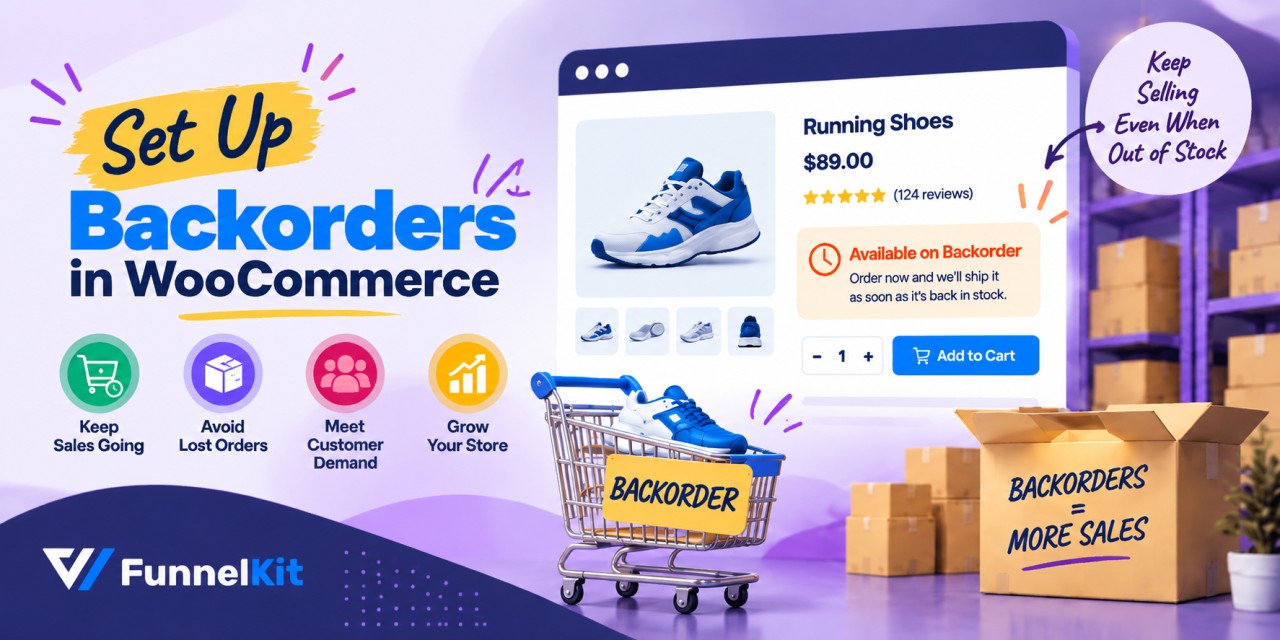
Quick answer: A WooCommerce backorder lets a customer buy a product after its stock hits zero, with delivery once you restock. WooCommerce supports this natively in two ways.
You can turn on Manage stock for a product and set 'Allow backorders?' to Allow or Allow, but notify customer.
Or you can leave stock management off and set Stock status to On backorder. The first method tracks quantities; the second doesn't.
Picture a bakery at four in the afternoon. The last sourdough sold out twenty minutes ago, but someone walks in asking for one.
The baker can tell you either of the two things: “Sorry, we're sold out” or “We're sold out right now, but another batch will be ready at six. Want me to put one aside?”
The first sentence ends the transaction. The second one keeps the money in the room.
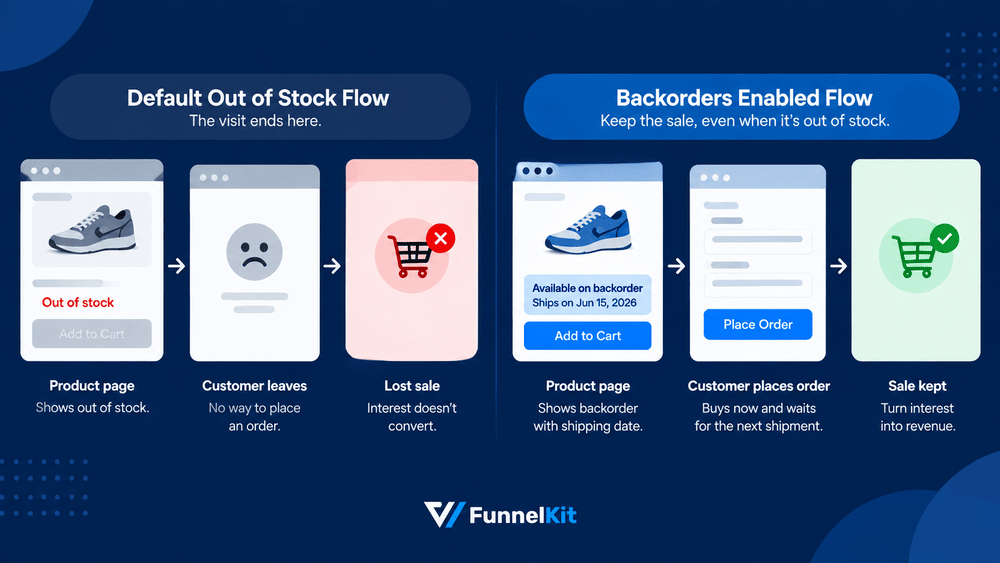
Your product page makes that choice every time a product stock hits zero. By default, it usually takes the first approach. The Add to Cart disappears, the page keeps its rankings and its traffic, but there’s no way to turn that visit into an order.
Backorders give you the second option. The product is still out of stock, but customers can place an order and wait for the next shipment. Same empty shelf, same wait, but two very different outcomes.
In this guide, we'll cover both native ways to enable WooCommerce backorders, how to apply them in bulk or by category, how to replace the vague default message with an actual shipping date, and how to find backordered orders once you have hundreds of them.
We'll also look at the seven most common reasons backorders stop working as expected.
Table of Contents
- 1 What "Available on Backorder" Actually Means?
- 2 How to Enable Backorders in WooCommerce (2 Methods)
- 3 How to Customize the WooCommerce Backorder Message
- 4 How to Manage the Orders Once They Start Coming In
- 5 How to Automate the Customer Emails in WooCommerce
- 6 WooCommerce Backorders Not Working? 7 Fixes
- 7 Frequently Asked Questions
- 8 Ready to Keep Selling When the Stock Runs Out?
What "Available on Backorder" Actually Means?
"Available on backorder" is the message WooCommerce shows when a product's stock has hit zero, but you're still taking orders.
It replaces the usual "Out of stock" message, while shoppers can still click Add to Cart and place their order.
For a shopper, that short message basically means four things: the product isn't ready to ship right now, you expect more stock, they can still buy it, and it will arrive later.
The problem is that the default message doesn't say how long the delay might be. This could take a few days or even months.
We'll discuss this uncertainty later in this guide.
In Stock vs. On Backorder vs. Out of Stock
WooCommerce has three stock statuses, and only two of them let someone finish a purchase.
| Stock status | What it means | Can customers buy it? | Best used for |
|---|---|---|---|
| In stock | Inventory is available and ships immediately | Yes | Normal catalog items |
| On backorder | Stock is at zero, but orders are still accepted | Yes, with a delay notice | Items you’re restocking soon |
| Out of stock | Stock is at zero and purchasing is blocked | No | Discontinued or unpredictable items |
The choice between on backorder and out of stock really comes down to one question: Do you have a reasonable idea of when the product will be available again?
If the products are coming back and you have a fairly reliable restock window, use backorders.
If the date is more of a guess, marking the product out of stock is safer. Otherwise, you may end up refunding later.
Does "on backorder" mean the product is sold out?
Not exactly. Both mean the shelf is empty, but a backordered item is still purchasable. Out of stock kills the buying option entirely.
On backorder means they can still place an order, but they'll have to wait a while for the product to become available.
Does it mean you’ll definitely get the item?
For the shopper, it's a commitment from the store, not a guarantee from the manufacturer.
If the supplier misses the expected delivery date, the store refunds or offers an alternative.
That’s why any restock or shipping date you publish should be one you can realistically meet.
How to Enable Backorders in WooCommerce (2 Methods)
WooCommerce handles the basics perfectly, so you can enable backorders directly from your product dashboard without using external tools.
Here is the exact configuration process.
Method 1: Manage stock and allow backorders
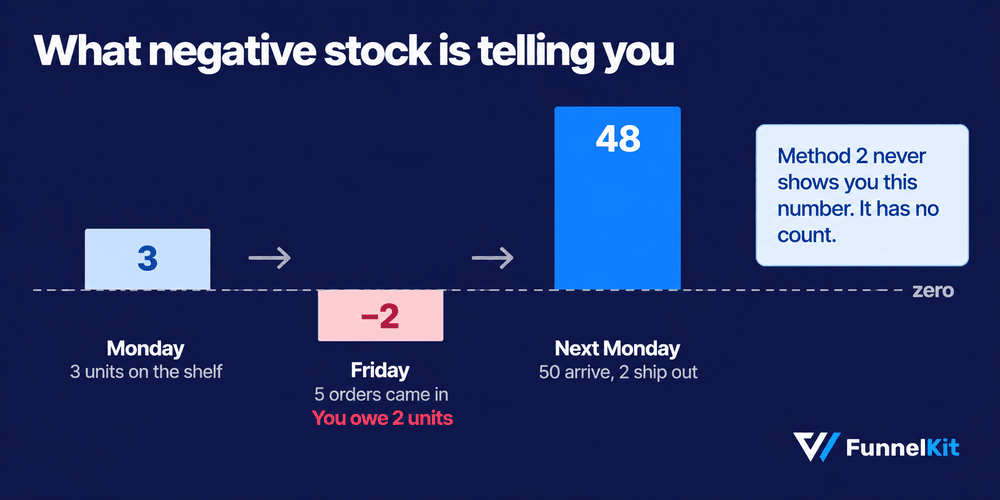
Use this method when you want WooCommerce to track quantities and drop into negative stock as orders come in.
That negative number shows you what you owe customers when the pallet arrives.
Step 1: Turn on stock management for your store
WooCommerce can't accept an order against zero stock if it isn't tracking any stock in the first place.
Go to WooCommerce ⇨ Settings ⇨ Products ⇨ Inventory and check that the 'Enable stock management' checkbox is on.
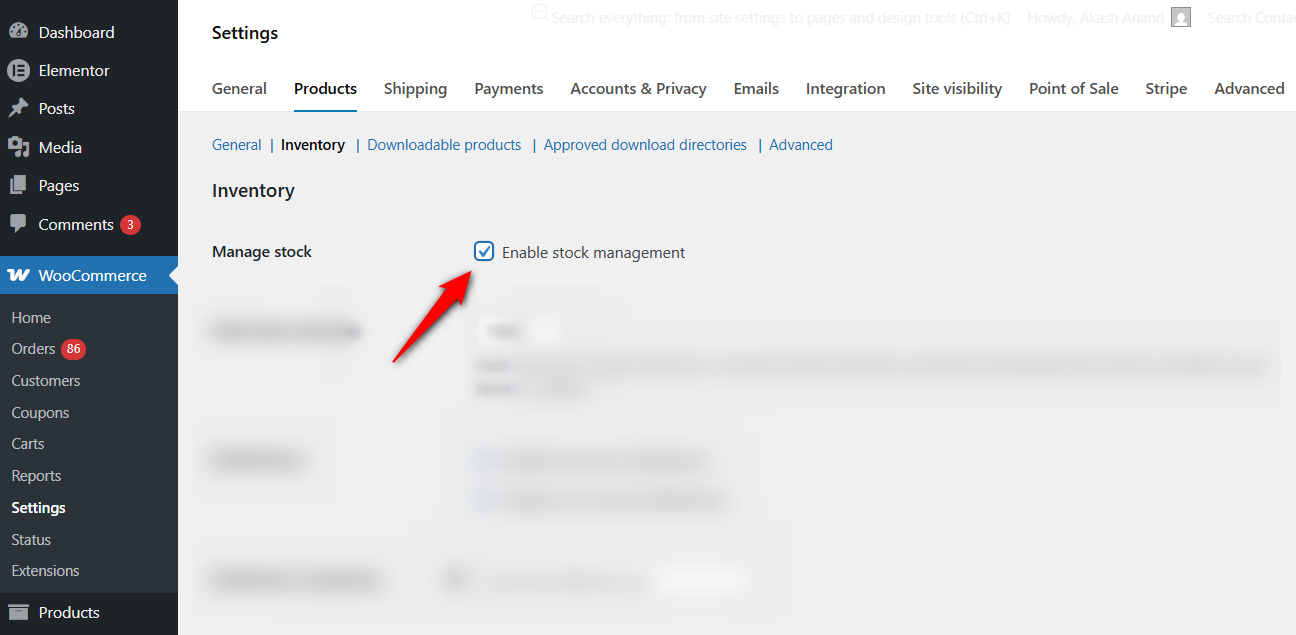
This one is store-wide. If you leave it off, the per-product inventory fields disappear completely.
Step 2: Turn on Manage stock and pick your rule
Open the product you want to accept backorders for and scroll down to the Product Data section. Click the Inventory tab on the left side.
Check the 'Manage stock' box at the product level to enable quantity tracking for this specific item.
You'll see three fields here. The first field is Stock quantity, where you enter the current number of items you have. Set this to 0 if the product is currently out of stock.
The second is the 'Allow backorders?' dropdown, which gives you three options:
- Do not allow backorders stops purchases once stock hits zero. It's the default setting.
- Allow, but notify customer takes the order and shows the "Available on backorder" notice on the product page.
- Allow takes the order silently, with nothing shown to the shopper.
Select 'Allow, but notify customer' for the most transparent experience.
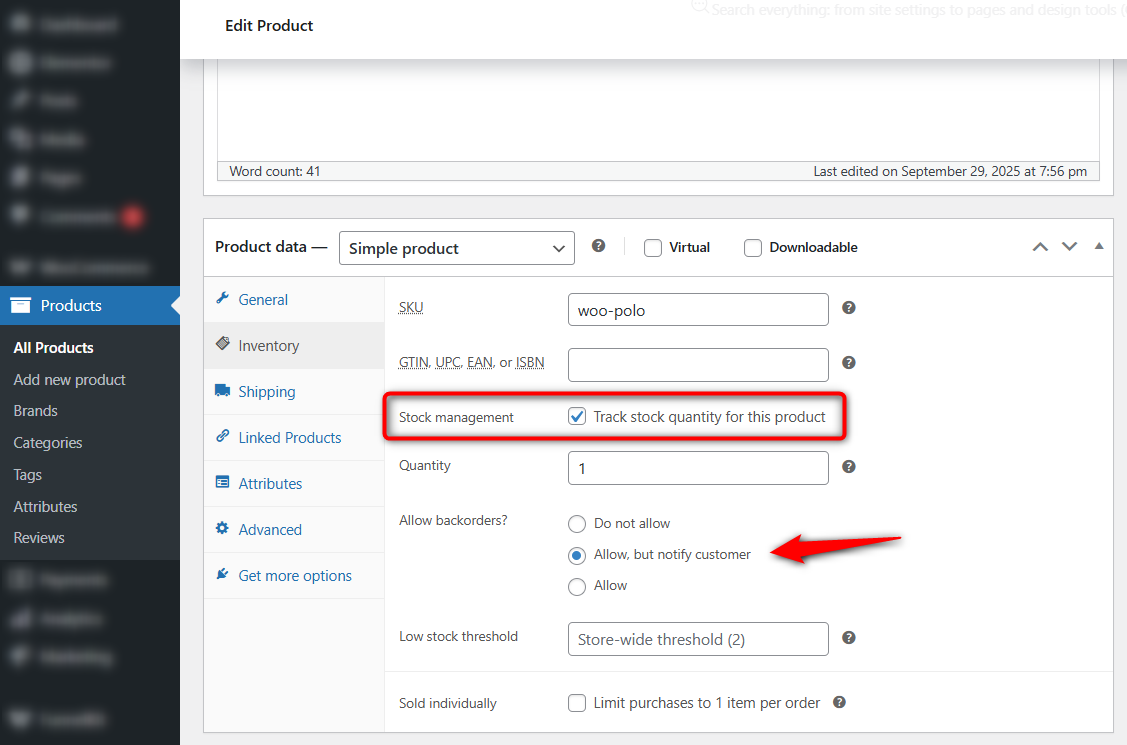
The silent option is what creates support tickets. Customers place an order, get charged, and only then discover there will be a delay.
Any friction you hide from the checkout eventually comes back as an email to your support team.
Step 3: Set a low stock threshold that matches your lead time
The Low stock threshold field in that same tab controls when WooCommerce emails you a restock warning.
The default setting works for many stores, but it can be too low if you plan to keep selling an out-of-stock product.
Instead, set the threshold based on your supplier's lead time. Let's say you sell 10 backpacks a week and your supplier takes two weeks to deliver.
Therefore, maintaining a threshold of 20 gives you enough time to place the purchase order before you run out.
WooCommerce also has a global low-stock threshold in the main Inventory settings if you want to use the same rule across your entire catalog.
For a complete walkthrough of restock alerts, see our guide to WooCommerce low stock notification emails.
Step 4: Configure the variations
T-shirts with multiple colors and sizes require a different approach. Variable products need inventory control at the variation level rather than the parent.
Navigate to the Variations tab and click on a specific size or color. Check the 'Manage stock?' option on the product variation.
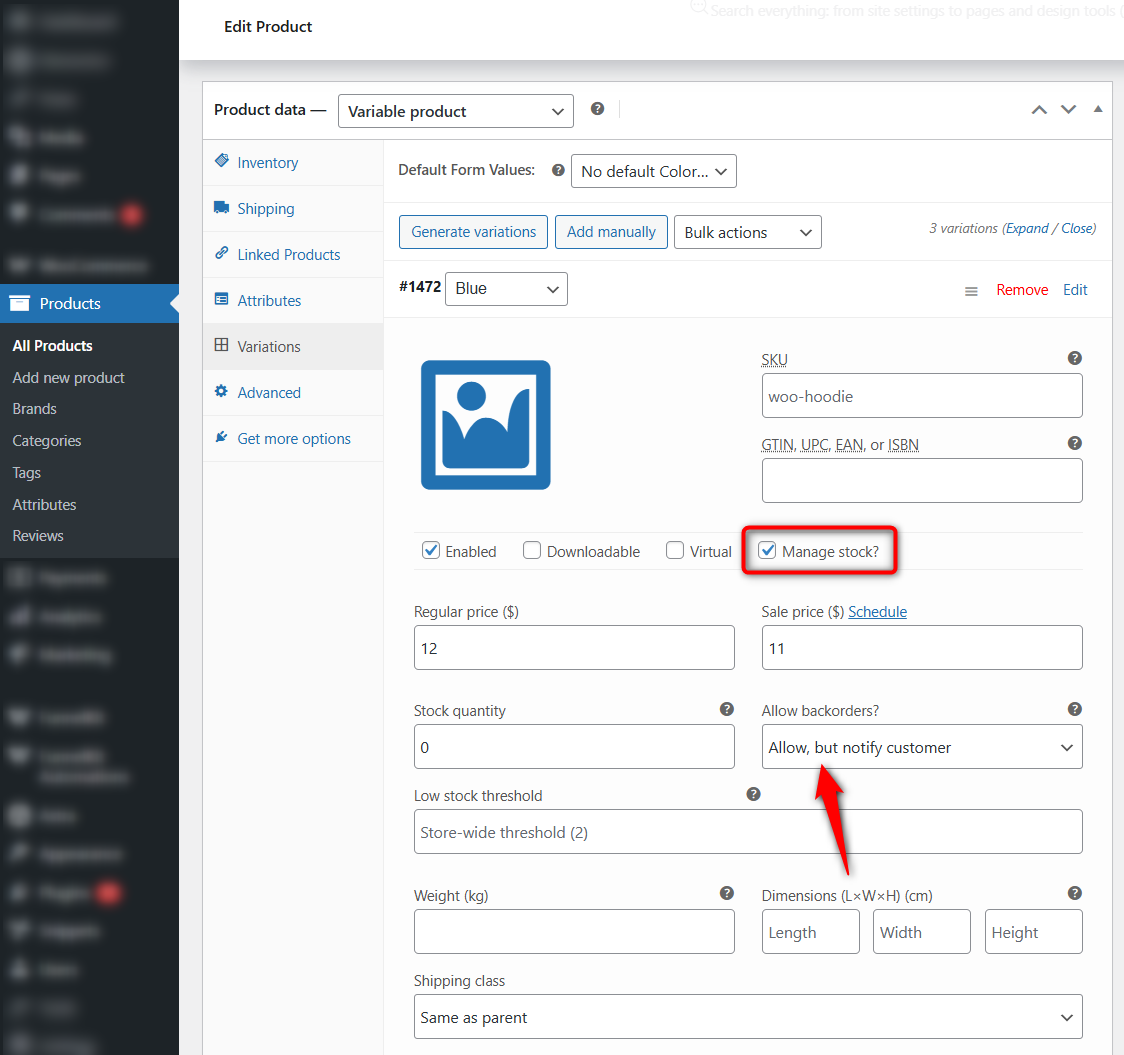
For example, if your medium size is out of stock but large and small are available, you can enable backorders only on the medium variation.
Each variation has its own stock quantity, backorder setting, and low stock threshold.
Make sure the 'Manage stock' option is checked at the variation level. If you only manage stock at the parent product level, the per-variation backorder options will not appear.
Click Update to save the product.
Step 5: Save and test your backorder setup
Open the product on the frontend of your store. With the notify option on, “Available on backorder” should sit right next to Add to Cart on the product.
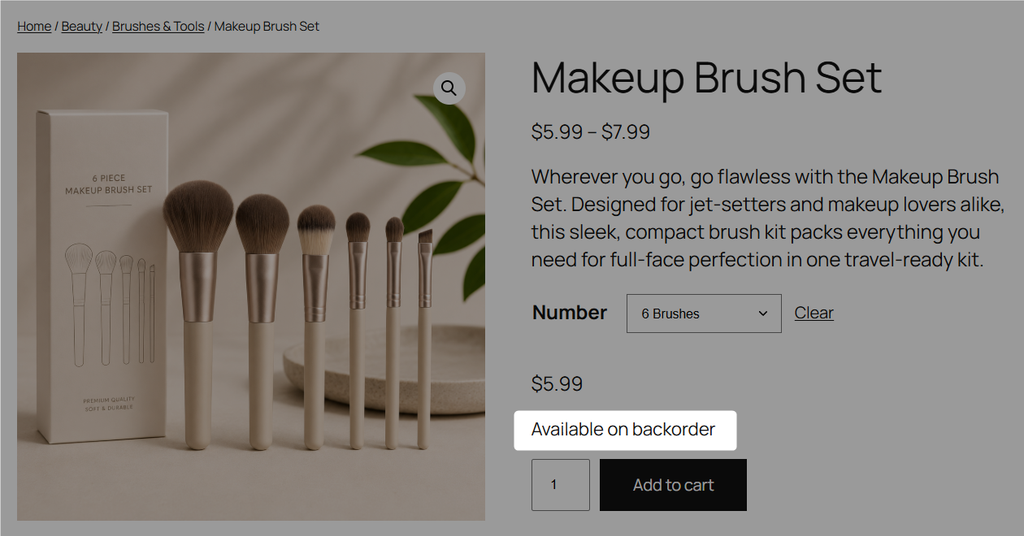
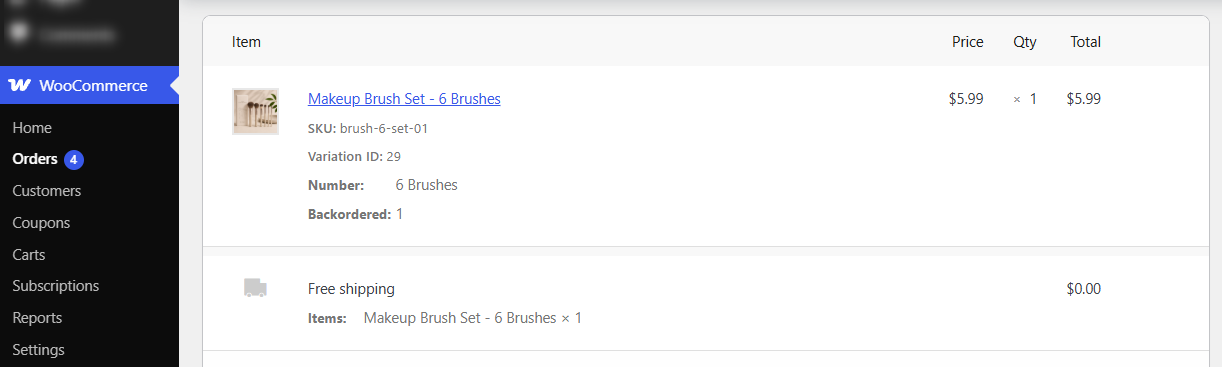
Push a real test order through checkout. Then open WooCommerce ⇨ Orders to confirm it was recorded properly, and check your inbox to see that the email looks right.
Test it on a phone as well. That availability text sits close to the price and the cart button, and depending on your theme, it wraps badly on narrow screens more often than you’d think.
Method 2: Set the stock status to "On backorder"
If you don’t track quantities, leave Manage stock unchecked.
The Inventory tab then shows a Stock status dropdown with three options: In stock, Out of stock, and On backorder.
Selecting 'On backorder' marks the product as backordered without tracking an inventory quantity.
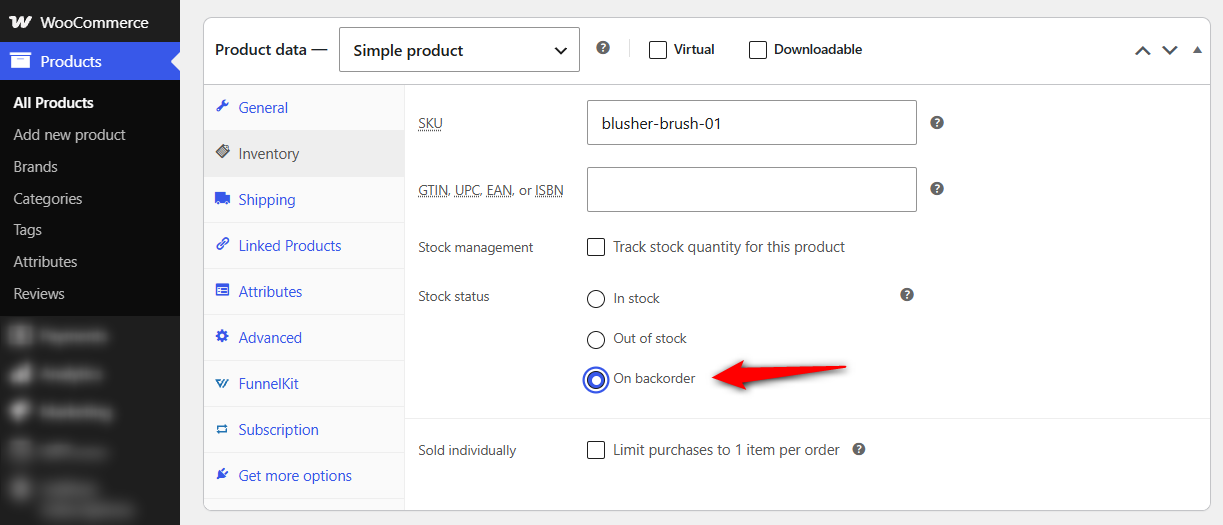
It’s the simpler option for made-to-order products, print-on-demand items, and anything where tracking individual units doesn't really matter.
Which method should you use?
| Parameters | Method 1: Manage stock | Method 2: Stock status |
|---|---|---|
| Tracks quantities | Yes, stock goes negative | No |
| Switches automatically at zero | Yes | No, you set it manually |
| Shows how many units are owed | Yes, via negative stock | No |
| Works per variation | Yes | Yes |
| Best for | Restockable catalog items | Made-to-order and custom goods |
Select Method 1 if you need to know exactly how many units you owe when the next shipment arrives.
Go for Method 2 if you make products on demand and the number in the stock field doesn’t really mean anything.
Enabling backorders in bulk
Editing products one at a time is too much work if you're dealing with dozens of SKUs.
WooCommerce gives you two quicker options:
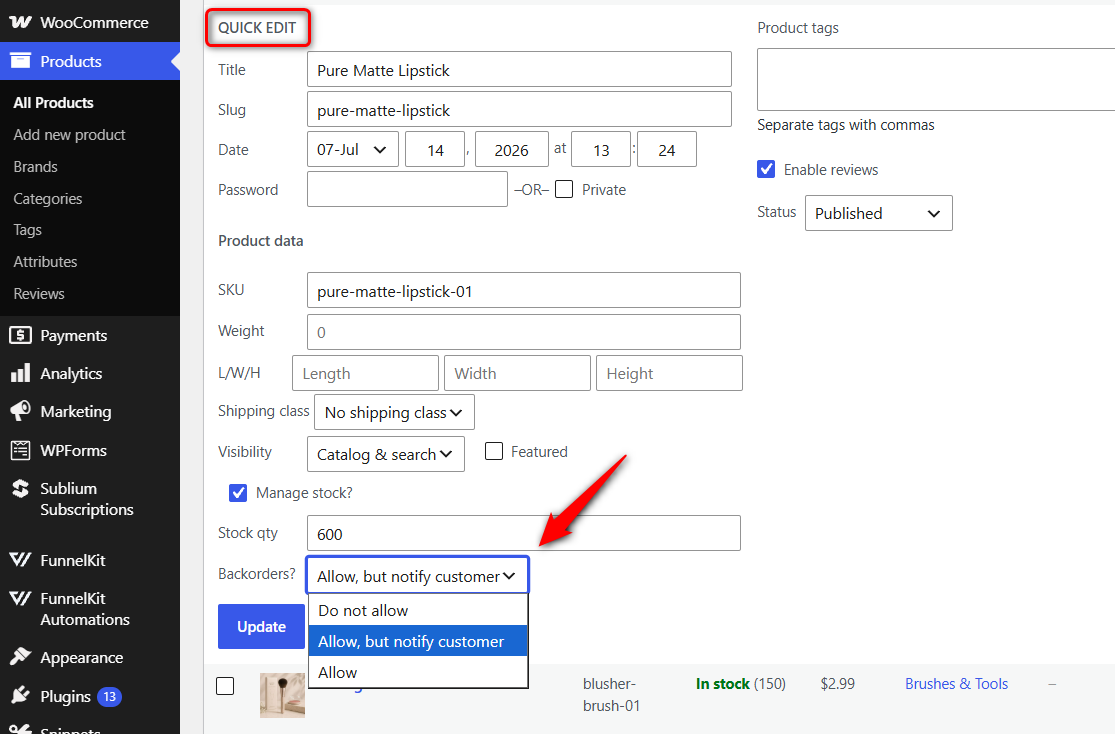
- Quick Edit shows up when you hover over a row under Products ⇨ All Products, and it includes the 'Backorders?' dropdown.
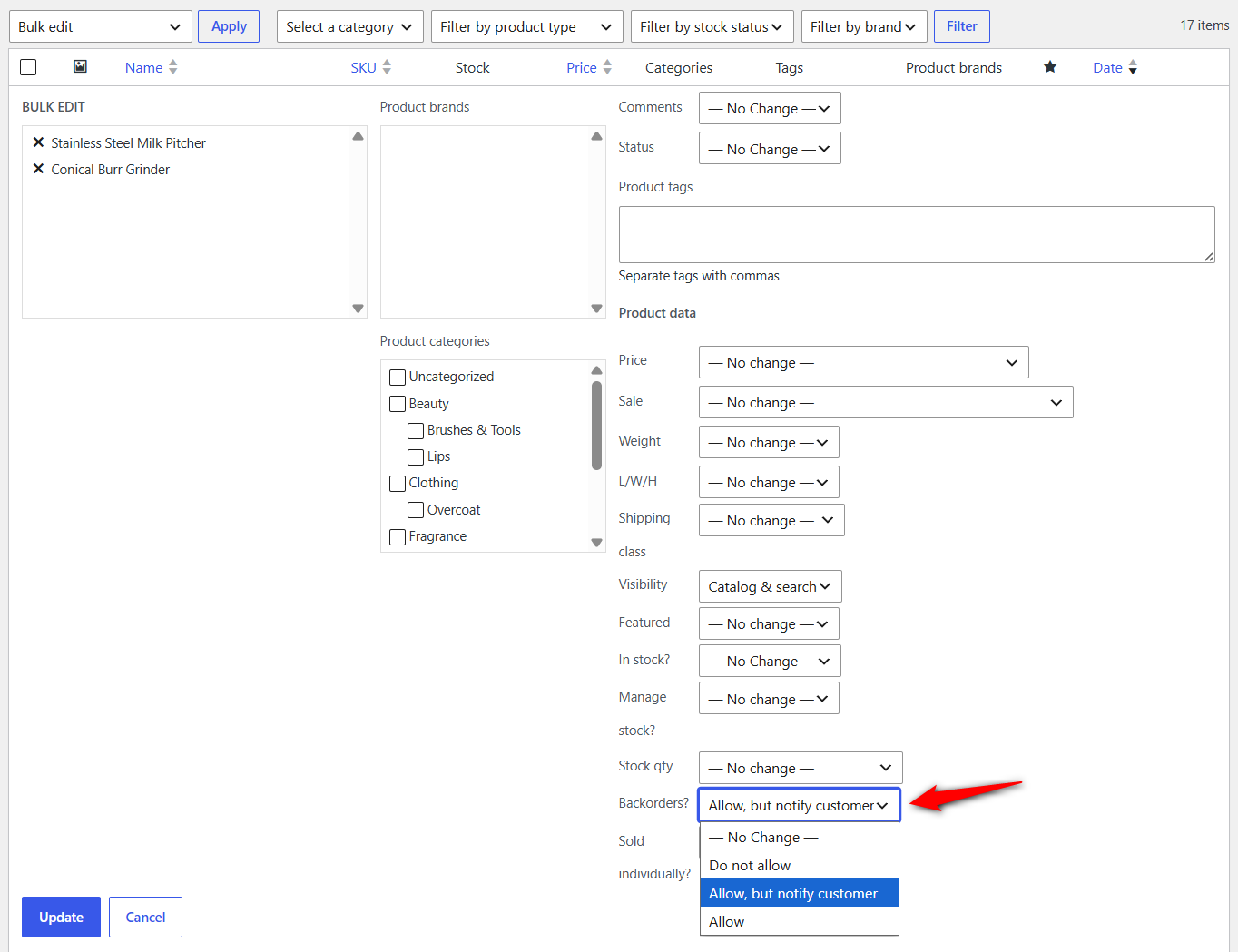
- Bulk Edit handles a batch at once. Tick the products, choose Edit from Bulk actions, hit Apply, and set the rule for the whole selection.
If you need a rule that applies across your store or to specific categories, WooCommerce's Backorder Manager extension can handle that too.
You can apply rules globally or to selected categories, and it can automatically treat products with zero stock as backordered.
This saves you from manually updating stock settings across the catalog.
How to Customize the WooCommerce Backorder Message
"Available on backorder" is technically accurate, but it doesn't tell the shopper much.
There's no indication of when the product will ship, so they're left to guess and customers usually assume the worst.
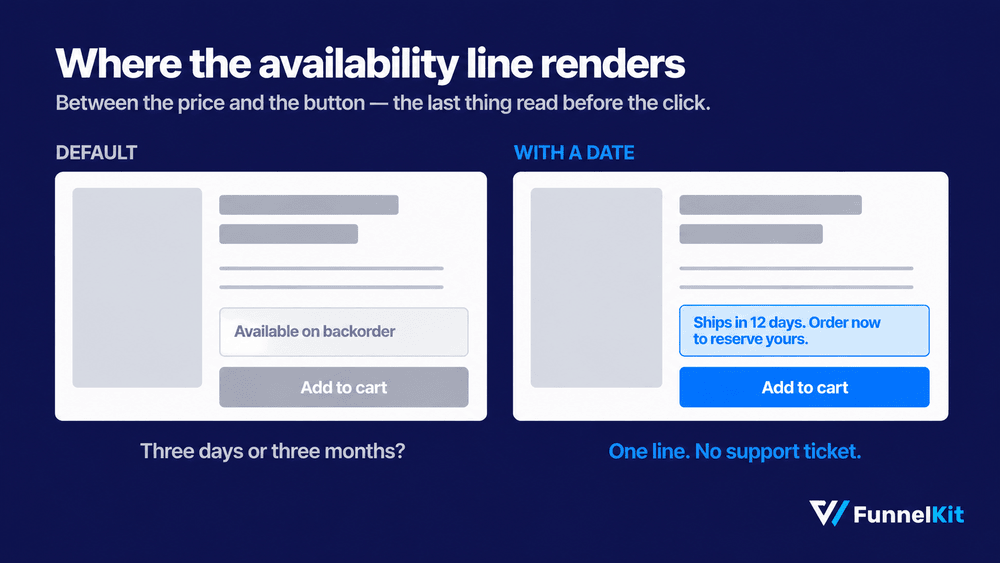
Baymard’s checkout research found that 41% of major eCommerce sites show shipping speed instead of a delivery date. This further leaves shoppers to work out the actual arrival date themselves.
Its guidance also recommends accounting for supply issues and backorders when showing delivery estimates, rather than ignoring them.
A specific date is more useful than writing a paragraph of reassurance.
Change the availability text with a code snippet
Use a child theme or a code snippets plugin before adding anything.
The woocommerce_get_availability_text filter swaps out the default string:
add_filter( 'woocommerce_get_availability_text', 'custom_backorder_message', 10, 2 );
function custom_backorder_message( $text, $product ) {
    if ( $product->managing_stock() && $product->is_on_backorder( 1 ) ) {
        $text = 'This item is temporarily out of stock. Expected back in 2-3 weeks. Order now to reserve yours.';
    }
    return $text;
}
Edit the string on line five to match your real lead time.
The condition checks that the product is both managing stock and is currently out of stock. That way, in-stock items keep their normal availability text.
Show per-product dates with a plugin
Dedicated plugins move timeline control onto the individual product screen, so each item carries its own estimated availability date.
| Plugin | What it adds | Best for |
|---|---|---|
| Advanced Pre-Order & Backorder | Stock availability date and time, custom Add to Cart labels, maximum order quantity, and user-role restrictions | Per-product dates and order caps |
| Backorder Manager: Global and Category Rules | Store-wide and category-level rules, plus zero-quantity handling at runtime | Large catalogs where per-product editing is impractical |
| WooCommerce Lead Time | Lead time text on product pages and shop listings, global and per-product | Showing expected wait times across the catalog |
| Back In Stock Notifications | Waitlist sign-up form on sold-out products with automated restock emails | Stores that would rather not take payment upfront |
The last one solves the waitlist problem rather than this one, so it's the right tool when you can't promise a delivery window.
How to Manage the Orders Once They Start Coming In
Turning the setting on is the easy part. The real work starts when 30 backordered orders are mixed in with your regular orders, and you need a quick way to spot them.
Finding the orders that contain delayed items
WooCommerce doesn’t have a dedicated backorder status, so they show up as normal orders, usually under Processing or On Hold, and easily get lost if your store deals in hundreds of orders.
If you only have a few, adding an internal order note to flag the delayed item may be enough.
But as order volume grows, a management plugin can add a filterable column, which makes it easy to find backordered orders with a single click.
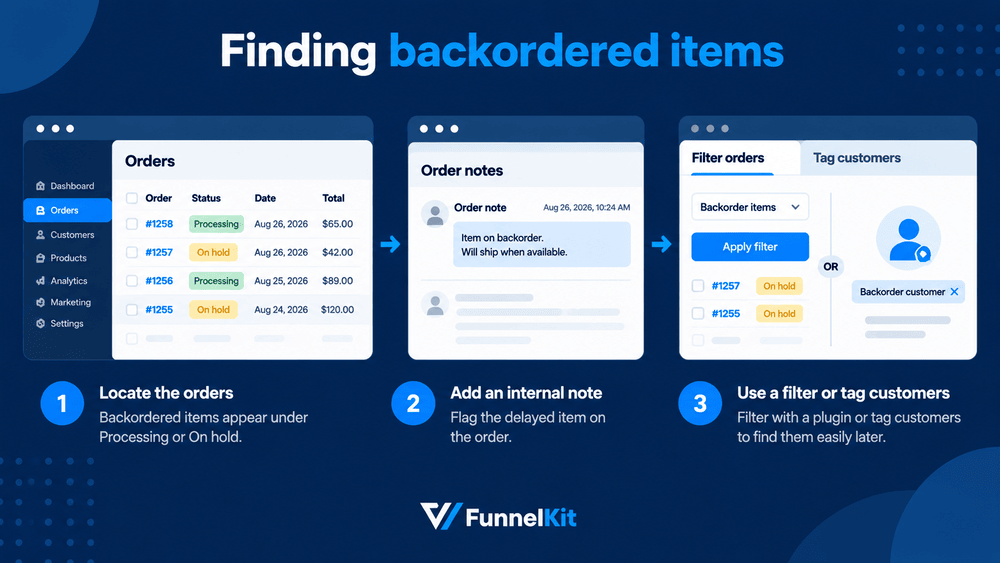
Another option is to tag the customer instead of the order. That’s useful if you want to contact everyone waiting on a delayed product later without digging through the order list.
Shipping mixed orders
Things get a little more complicated when a customer buys one item that's ready to ship and another that's on backorder.
By default, WooCommerce treats them as one order. For this, you have three options:
- Hold the whole order until everything is available. It’s the simplest option for you, but the customer waits longer.
- Split the shipment and send the in-stock item first. Better for the customer, but you’ll need a second shipment and shipping label.
- Separate them at checkout so delayed items are bought on their own. Fulfillment is cleaner, but the extra step adds friction.
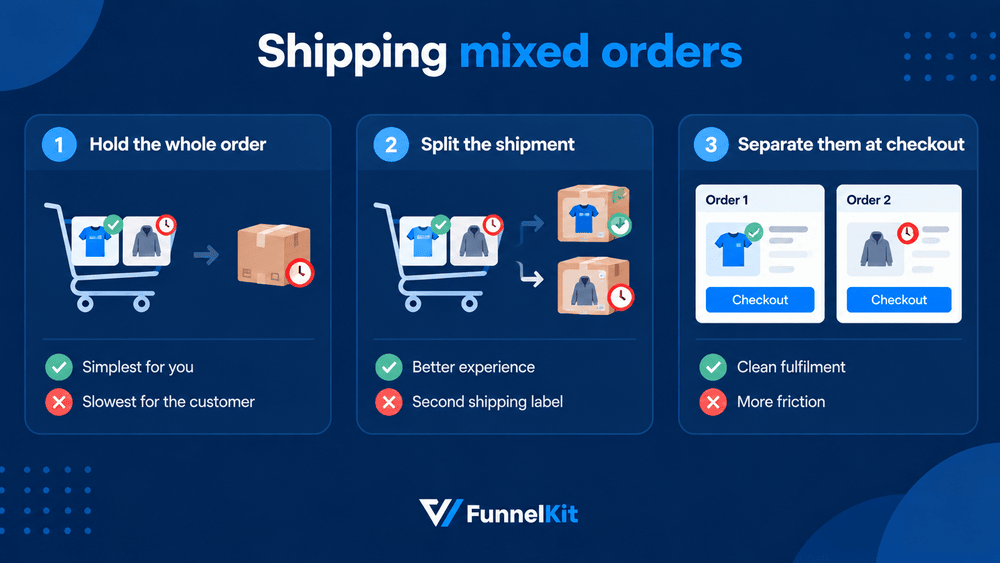
Whichever approach you pick, make it clear on the product page and again at checkout because customers usually handle delay just fine when they know about it upfront.
Shipping surprises generate more support tickets than delays ever do.
Capping how many backorders you accept
WooCommerce doesn’t offer a built-in backorder limit. So if a product suddenly takes off, you could end up selling 300 units even though your supplier is only sending 50.
That's where a backorder extension can add a maximum quantity for each product.
If you prefer code, you can also set a limit on how far negative the stock quantity can go, after which the product switches back to Out of stock.
How to Automate the Customer Emails in WooCommerce
The hardest part of accepting backorders isn't the inventory math. It is the communication.
The moment a customer pays for an out-of-stock item, the clock starts ticking.
WooCommerce's default emails handle basic receipts well, but they fail at the nuances of delayed fulfillment, leaving buyers wondering if their money just vanished.
Manual follow-ups do not scale. If you email 50 different buyers every time a shipping container gets delayed, you waste hours.
These are the four emails you need:
- Order confirmation to confirm the item is reserved and give the ship window as a plain date.
- Mid-wait check-in, around the halfway point. Even a short “still on track for the 24th” stops the customer from wondering.
- Delay notice the moment your timeline slips. New date, plus an option to cancel.
- Shipped confirmation, on dispatch, with tracking and a thank you for waiting.
For these notifications, you need an automated workflow. We highly recommend FunnelKit Automations for this exact problem.
Built specifically for WordPress, FunnelKit Automations is a marketing automation engine that includes a visual workflow builder, pre-built automation recipes, and WooCommerce-specific triggers, letting you create automated email sequences for any order event, including backorders.
FunnelKit Automations offers a free version with core automation features. The Pro version adds advanced triggers, conditional logic, and unlimited automations.
Here is how a standard automated setup looks:
- Backorder confirmation email
Create an automation and select the Order Stock Reduced event trigger.
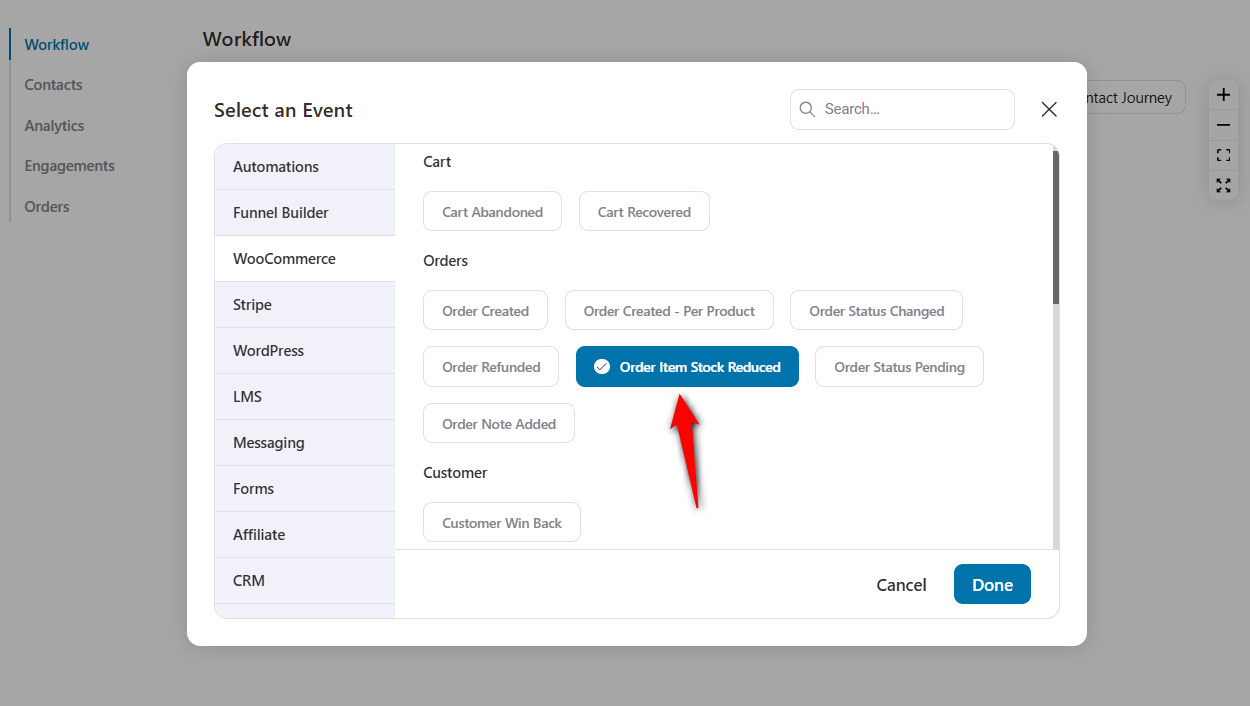
Set the condition to Product stock is less than or equal to zero (0).
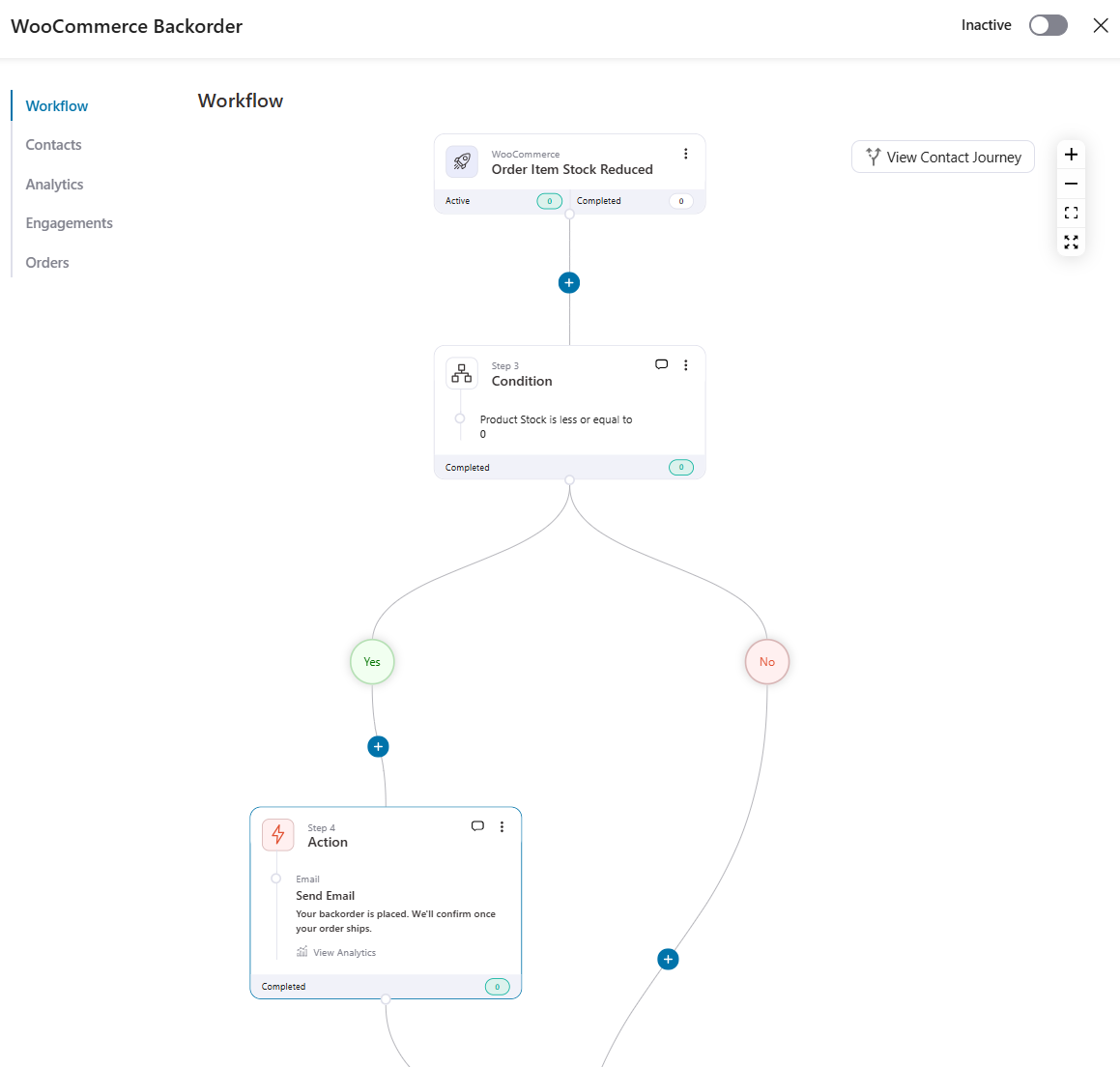
The visual builder lets you drag in the exact product data. Tell the customer directly that the item is secured. Give them a realistic delivery window.
Use personalization tags, such as their first name, to make the message feel personal.
- Restock and shipping notification
When that new inventory finally arrives, and you flip the order status from 'On Hold' to 'Completed', send off an immediate update.
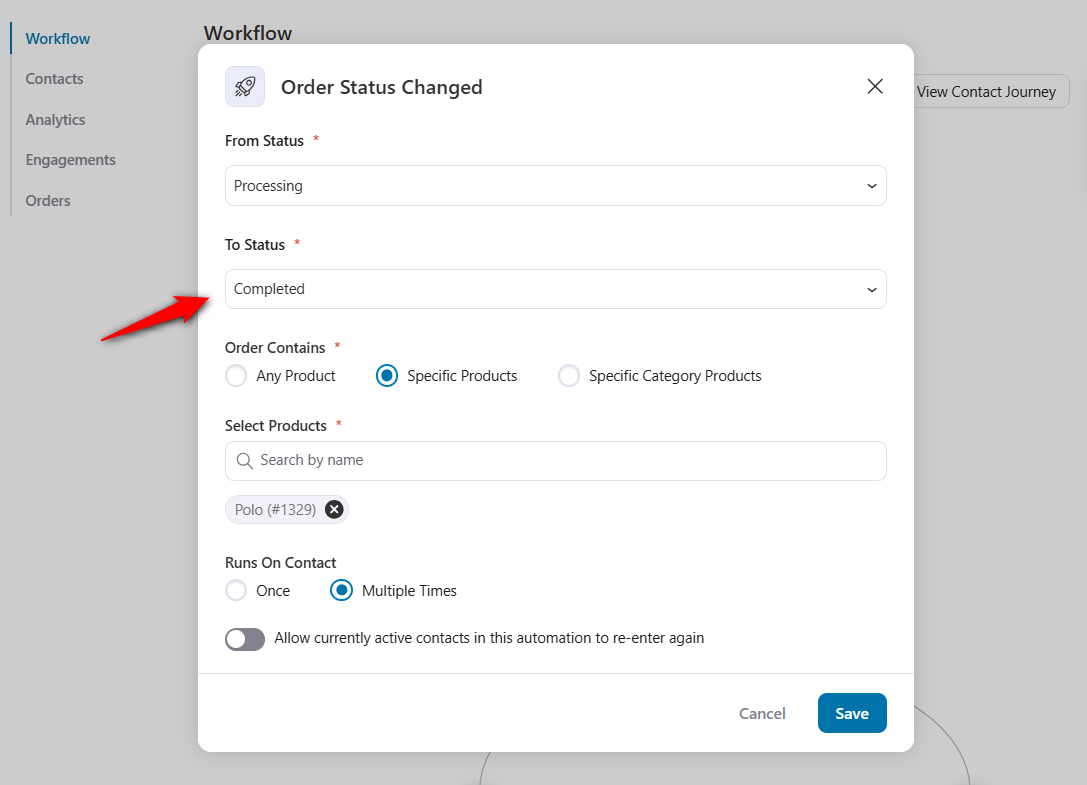
Hand them the tracking number and thank them for their patience.
Delay notification
When a promised two-week wait suddenly becomes a month, proactive emails save your customer support team.
Trigger a mass update to all pending backorders instantly. Getting ahead of bad news builds massive trust.
FunnelKit Automations tracks the open and click rates for all these sequences, so you know exactly who actually read your shipping update.
WooCommerce Backorders Not Working? 7 Fixes
- The "Allow backorders?" dropdown is missing
First, check Manage stock? option. If it's turned off, WooCommerce has no stock quantity to manage, so the Allow backorders? setting isn't available.
Turn on Manage stock? and the dropdown should appear. If you don't need quantity tracking, use Method 2 instead and set the product’s Stock status to On backorder.
- "Available on backorder" never shows on the product page
Check which backorder option you selected. If you've selected "Allow backorders", WooCommerce lets customers buy the product but doesn't display the backorder notice.
The specific availability message is shown when you choose the "Allow, but notify customer" option.
Change the dropdown, clear your page cache, and recheck in a private window.
- WooCommerce creates backorders when backorders are turned off
WooCommerce treats a product as backordered if its stock status is onbackorder.
That status takes precedence before WooCommerce checks the Allow backorders? setting. So a product can continue behaving as backordered even when the dropdown says Do not allow.
This happens when an importer, ERP, 3PL, or REST call writes the status directly and sends a status without the matching backorder value.
Fix the product by opening it and clicking Update, which forces WooCommerce to realign quantity, backorders, and status.
For a permanent fix, check whatever system updates your catalog and make sure it writes the related stock values together, rather than updating only the quantity.
- Variation-level backorder settings will not stick
This usually happens when stock management is on at the parent, not the variation.
Open Variations, expand the variation you’re editing, and turn on "Manage stock?" inside that variation.
The Allow backorders dropdown should then appear.
If you don't enable stock management at the variation level, WooCommerce has nowhere to store that variation-specific backorder setting.
- The product is stuck on backorder after you restock
There are two common causes. First, check your out-of-stock threshold under WooCommerce ⇨ Settings ⇨ Products ⇨ Inventory.
If that threshold is set above zero, a product with a small positive quantity can still be treated as depleted.
Second, your inventory sync may be changing the quantity directly without triggering a product save. In that case, WooCommerce may not recalculate the stock status.
Open the product, click Update, and check whether the status corrects itself.
If it does, the next step is to fix the sync process so it triggers the stock update properly.
- Backordered products disappear from the shop page
Start with Out of stock visibility under WooCommerce ⇨ Settings ⇨ Products ⇨ Inventory.
That setting controls products with the outofstock status. Products with the onbackorder status are separate and should normally remain visible.
If your backordered products are disappearing anyway, check their actual stock status.
They may be marked outofstock rather than onbackorder, or your product lookup data may be stale.
You can rebuild it under WooCommerce ⇨ Status ⇨ Tools by running Regenerate product lookup tables.
- Nobody gets an email telling them their order is delayed
Unfortunately, this is expected behavior. WooCommerce doesn’t include a dedicated backorder email. Customers receive the normal Processing order notification, but there isn’t a separate automatic email telling them that an item is delayed.
So there’s no setting you can simply switch on. If you want customers to receive backorder updates, you need to build that communication sequence yourself, such as the four-email sequence covered earlier in this guide.
Frequently Asked Questions
Not by default, and we would leave it that way. Telling a shopper that 43 people are ahead of them usually costs the sale.
A backorder is for a product that was previously available, sold out, and expected to be restocked. Buyers can read the existing reviews. They see the exact photos. They know the track record. The transaction is completely normal, except that delivery gets delayed.
A pre-order is for a product that has never been available to customers. It might be a new release, a limited edition, or an upcoming product line. You are selling hype. Shoppers lock in a strict future release date for something completely unproven.
There’s no universal answer. It depends on your supplier, production time, and shipping process. For many retail products, seven to 14 days from order to dispatch is a reasonable target.
But the exact number matters less than communicating it honestly. A three-week wait that’s clearly explained is usually easier for customers to accept than a one-week wait they weren’t told about until after ordering.
Not with the built-in settings, which apply equally to every visitor.
Extensions with user-role restrictions let you expose the option to specific roles while everyone else sees the product as out of stock.
Usually, since most feed plugins map onbackorder to an available or backorder value rather than out of stock.
Check what yours sends, because a feed that disagrees with the product page can get items disapproved.
Not natively. Delayed capture is a pre-order workflow, and it needs an extension that supports charge-on-release plus a gateway that allows authorization without immediate capture.
Yes. The products endpoint shows backorders, backorders_allowed, and backordered fields, so you can read and update the settings programmatically or fire a webhook when stock changes.
Ready to Keep Selling When the Stock Runs Out?
Turning on WooCommerce backorders takes only a couple of dropdowns, and you can have it set up in an afternoon. But that’s not where the revenue is.
The real difference comes in the eleven days that follow. Does the customer still trust that their coffee is on the way, or do they get frustrated and ask for a refund because they have no idea what’s happening?
Set everything up now. Add a real date to the product page, and write the four emails before your next stockout.
Selling an out-of-stock product is the easy part. Making backorders work is about keeping customers informed.
The stores that do it well aren’t necessarily the ones with better inventory. They’re the ones that never leave customers wondering what happens next.
FunnelKit Automations lets you build that follow-up sequence around the WooCommerce orders you already have, without code or a separate email platform.
Related Resources:
- How to send WooCommerce low stock notification emails
- WooCommerce order management: how to set up and streamline it
- How to add and manage WooCommerce products
- 15 WooCommerce automations to run your store on autopilot
- How to send WooCommerce shipment tracking emails
Editorial Team
October 11, 2026You can customize the WooCommerce cart page with the Cart block, a page builder like Elementor, or CSS and PHP snippets. Which method works for you depends on the cart...

Editorial Team
October 9, 2026A WooCommerce discount lowers what a shopper pays, either through a reduced product price or a code entered at checkout. Out of the box, WooCommerce gives you two ways to...
Editorial Team
October 9, 2026A downsell gives customers a cheaper option after they turn down your main offer. If you show it too soon, you might convince them to skip the original offer and...






