


Most store owners do not think much about their cart page until they start losing sales.
That is when it suddenly becomes important.
The default WooCommerce cart page handles the basics. It displays products, quantities, totals, and a checkout button, all styled according to your theme.
But beyond that, it offers very little flexibility. As a result, the cart often feels generic and purely functional rather than optimized for conversions.
In this blog, we will show you how to customize WooCommerce cart page using built-in options and explore more advanced methods using code for greater control over design, layout, and functionality.

How to Enable the Cart Page in WooCommerce?
When you install and activate WooCommerce, it automatically creates a Cart page and assigns it under WooCommerce ⇒ Settings ⇒ Advanced ⇒ Page Setup ⇒ Cart Page.
Make sure this page is assigned correctly.
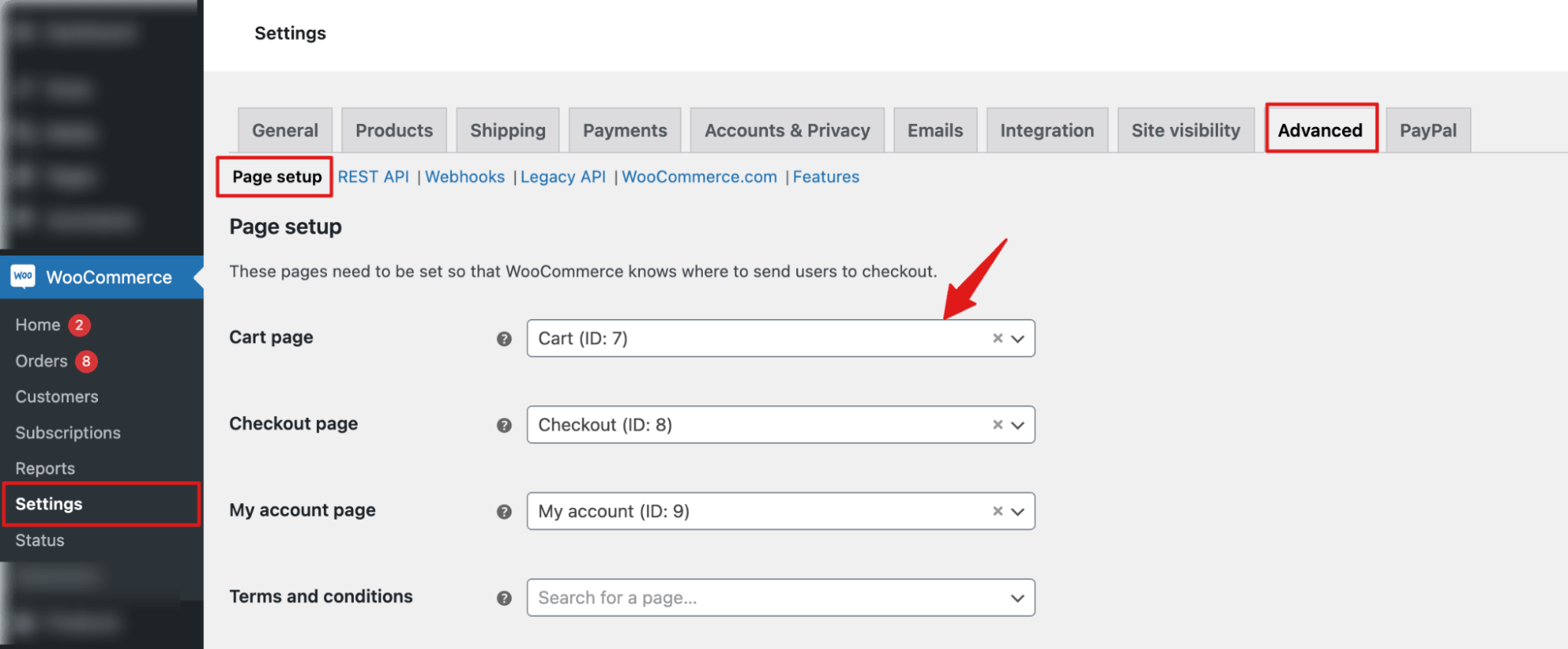
Note: If the Cart page doesn’t exist for any reason, you can create a new page, add the shortcode [woocommerce_cart], and assign it in WooCommerce settings.
If you want to redirect people directly to the cart page after adding any item to the cart, go to WooCommerce ⇒ Settings ⇒ Products and enable the option “Redirect to the cart page after successful addition”.
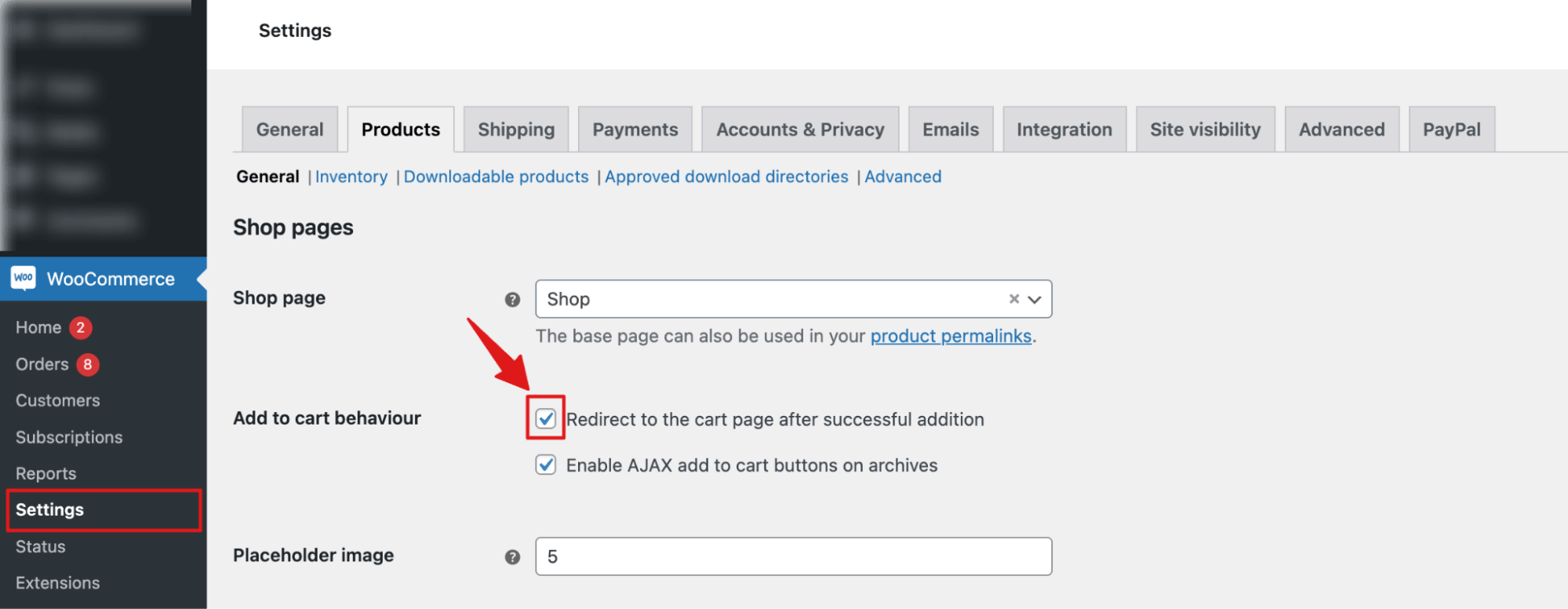
Table of Contents
- 1 What Does The Default WooCommerce Cart Page Include?
- 2 Method 1: How to Customize the WooCommerce Cart Page Without Code
- 3 Method 2: How to Customize the WooCommerce Cart Page With Coding
- 4 Cart Page Alternative: Use a Smart Side Cart for Frictionless Checkout
- 5 Frequently Asked Questions About WooCommerce Cart Page
- 6 Is a cart page still necessary for my WooCommerce store?
- 7 What is the WooCommerce Cart page URL?
- 8 What are the best plugins to customize the WooCommerce cart page?
- 9 Can I customize the WooCommerce cart page with Elementor?
- 10 Why doesn’t is_woocommerce() not work on my cart page?
- 11 Where is the WooCommerce cart template file located?
- 12 Will my cart customizations break after a WooCommerce update?
- 13 How do I add upsells to the WooCommerce cart page?
- 14 How do I redirect customers past the cart page directly to checkout?
- 15 Is the WooCommerce cart page different from the checkout page?
- 16 Final Thoughts: Customize Your WooCommerce Cart Page the Right Way
What Does The Default WooCommerce Cart Page Include?
The appearance of the cart page depends on your theme.
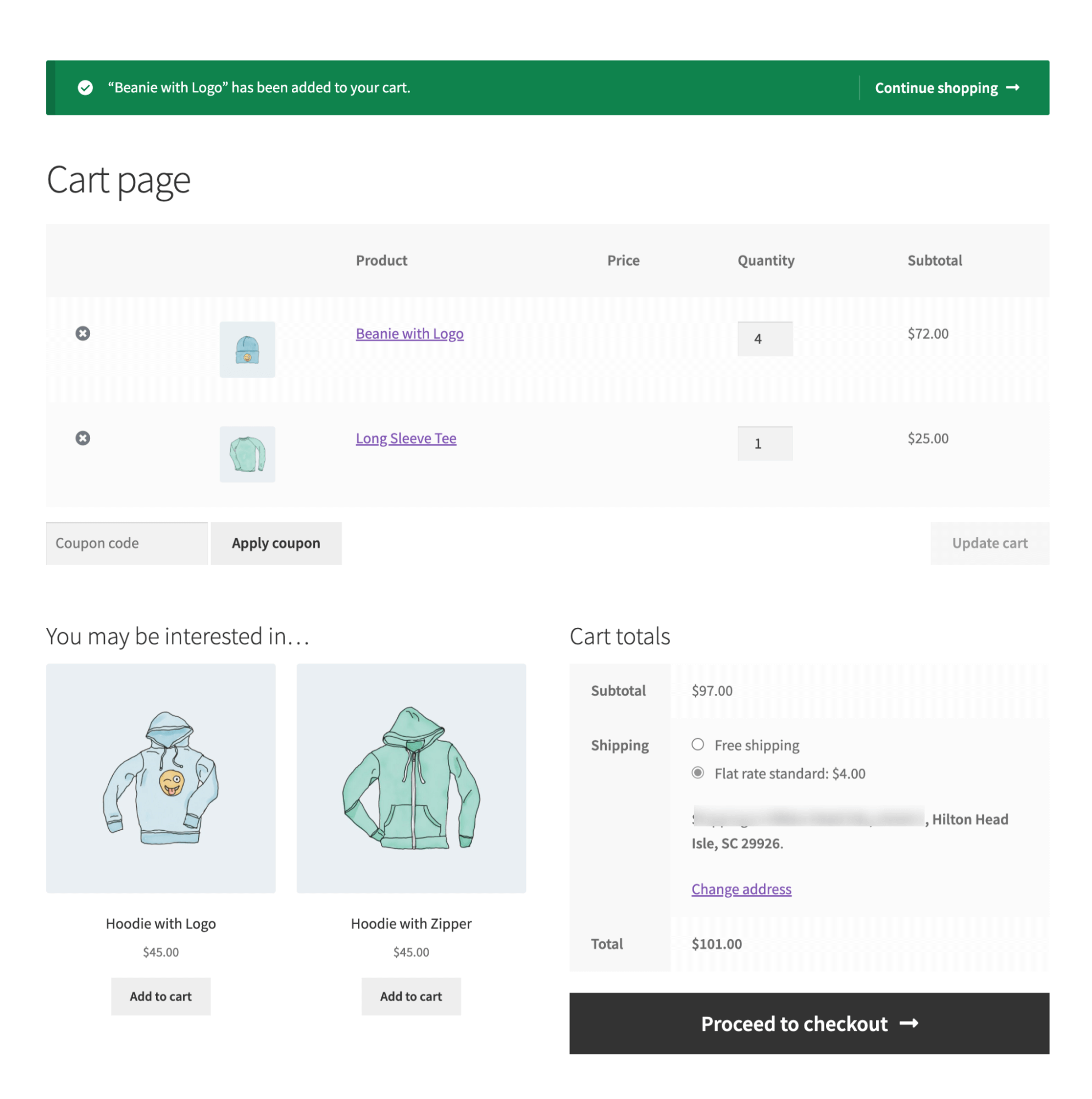
Below are the components of a default WooCommerce cart page using the official Storefront theme with a full-width layout:
- Cart Notification Banner – Confirms when a product is added and includes a “Continue Shopping” button.
- Cart Table – Lists cart items with product thumbnail, price, quantity controls, product total, and remove option.
- Cart Totals – Shows the coupon field, subtotal, shipping options, and total.
- Checkout Button – Takes users to the checkout page.
- You May Be Interested In – Displays cross-sell items associated with the products in the cart.
Why Customize or Remove Your WooCommerce Cart Page?
The default WooCommerce cart page works, but depending on your needs, you can either customize the cart or remove it entirely and replace it with a side cart.
Customize it to:
- Highlight key elements, such as the checkout button.
- Add motivators such as a free shipping bar so customers know how close they are to incentives.
- Add trust badges, customer reviews, and other confidence-building elements.
Remove or replace it to:
- Reduce friction, speed up the flow, and boost conversions.
- Streamline the shopping experience.
- Use a mini-cart or sidebar so users can view items anywhere and jump straight to checkout.
Method 1: How to Customize the WooCommerce Cart Page Without Code
With WordPress’s Block Editor, you can customize the WooCommerce cart page. However, you can’t change too many things.
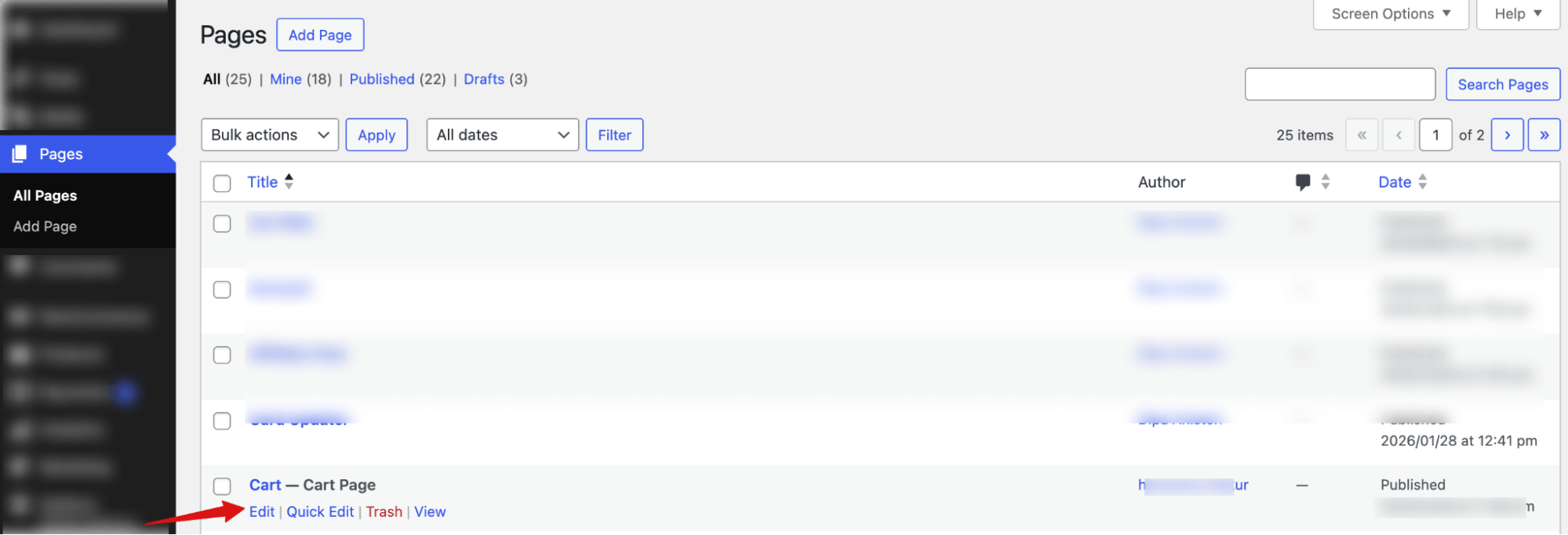
Step 1: Edit WooCommerce Cart page
To start the editing process, go to Pages ⇒ All Pages and hit the Edit option next to Cart Page.
Step 2: Customize available options
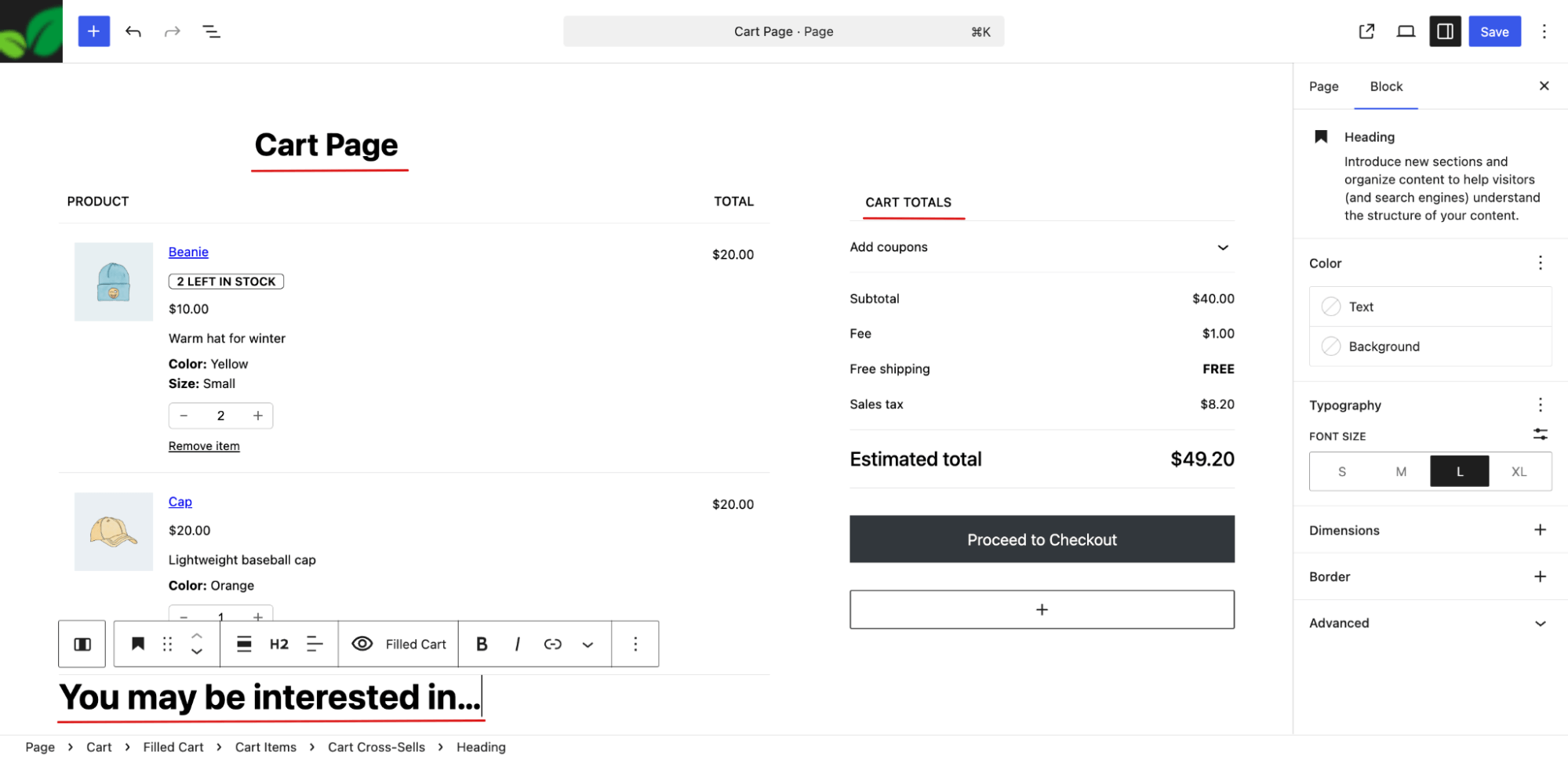
Now the page will open in Block Editor. Here, you can change the title of the cart page, cart total block, and also the cross-sell recommendation section titled “You may be interested in…”.
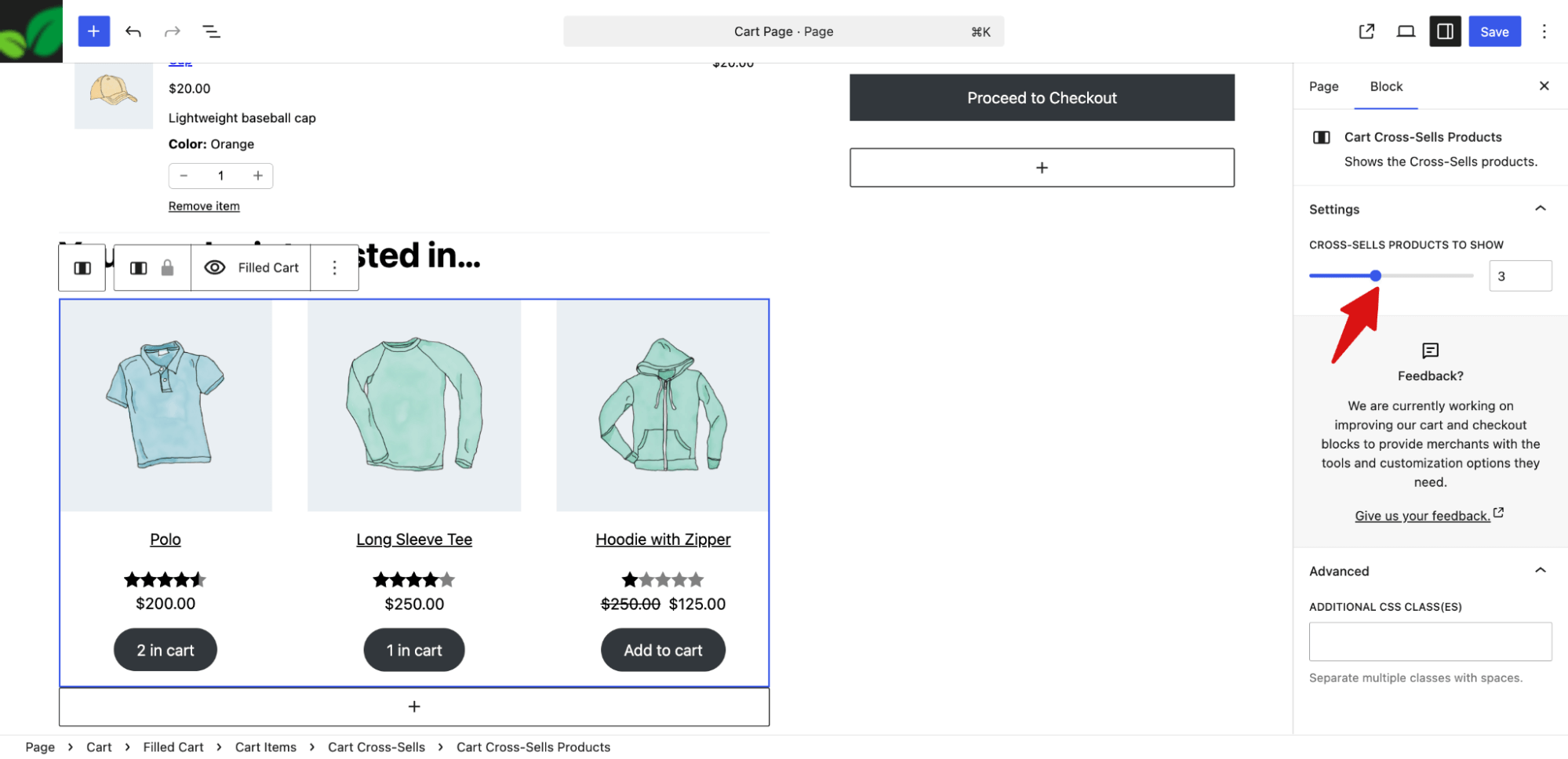
You can also configure how many cross-sell recommendations to show:
Step 3: Add new sections
Now, if you want, you can add a new section. To do this, click the “+” icon, and you can add a paragraph, heading, image, list, gallery, etc.
For example, here you are adding a static free shipping notice above the table using a paragraph block.
After adding the block, you can adjust text alignment, background color, text size, padding, margin, and more.
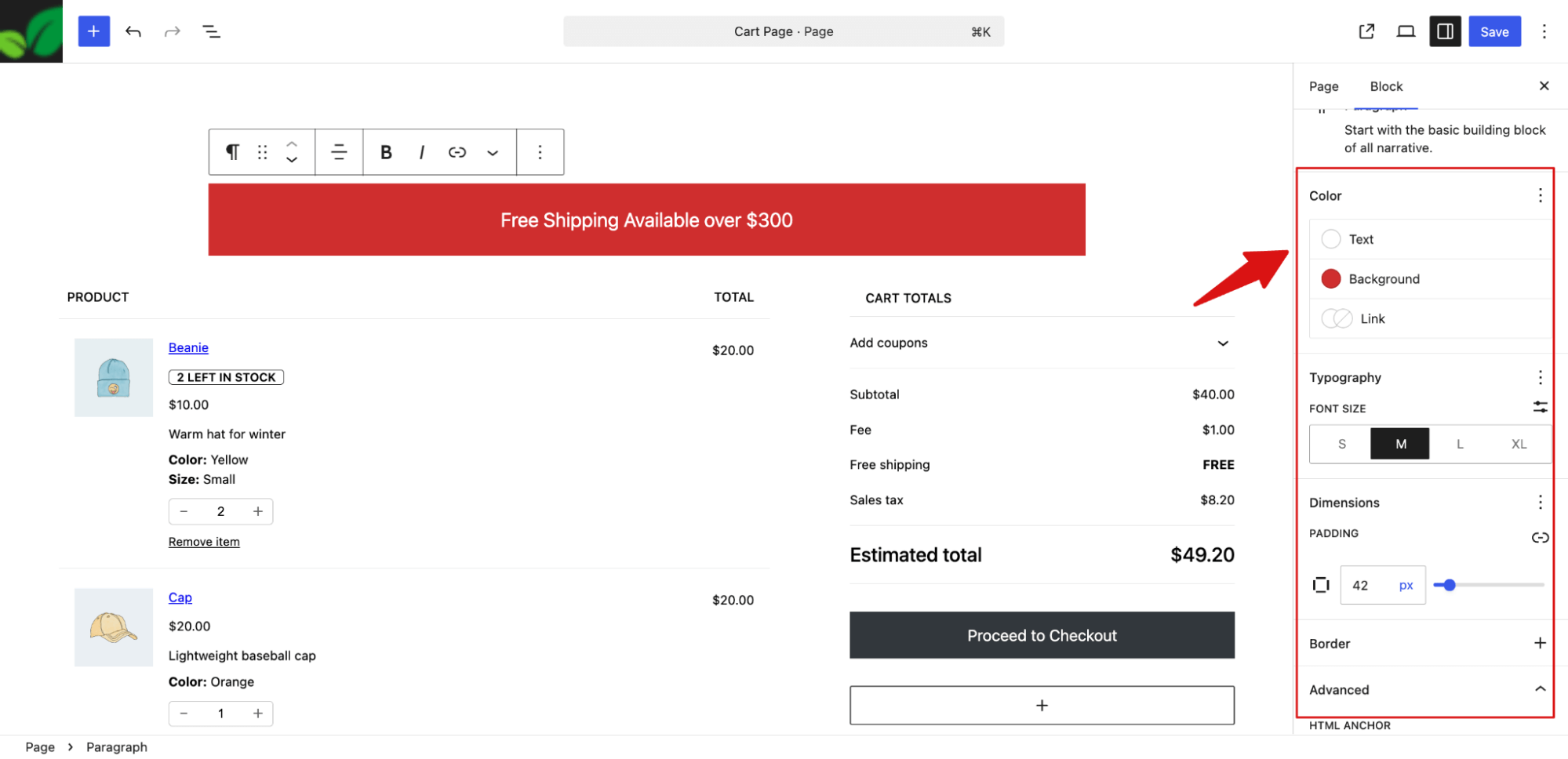
Like this, you can add new sections as needed.
Make sure to save changes after the update.
Method 2: How to Customize the WooCommerce Cart Page With Coding
The WooCommerce Block Editor offers very limited options for customizing the cart page. For example, you can only:
- Change the titles of different sections
- Add new sections
- Decide how many cross-sell products to show
If you want to go beyond these basic edits and change styles, layouts, or dynamic content, you need to use CSS, PHP hooks, or template overrides.
Here is a complete guide for advanced cart page customization.
1. Use custom CSS to restyle elements
CSS lets you change the appearance of any visible element on the cart page. You can adjust colors, fonts, spacing, buttons, and hide elements.
Where to add CSS:
Go to Appearance ⇒ Customize ⇒ Additional CSS, or add it in your child theme’s style.css file
Example: Full-width checkout button and remove sidebar
/* Make checkout button full-width and branded */
.wc-proceed-to-checkout .checkout-button {
   display: block;
   width: 100%;
   background-color: #2ecc71;
   color: #fff;
   font-size: 18px;
   font-weight: 700;
   padding: 16px;
   border-radius: 4px;
   border: none;
}

/* Remove sidebar and expand main content */
.woocommerce-cart #secondary { display: none; }
.woocommerce-cart #primary    { width: 100%; float: none; }
Tip: Sidebar selectors vary by theme. Use your browser’s inspector to find the correct class.
2. Use PHP hooks to modify behaviour or layout
Hooks let you add, remove, or modify content dynamically on WooCommerce pages without editing templates.
- Action hooks: Add or remove content (e.g., a message within the cart)
- Filter hooks: Modify existing content (e.g., change a label, price text, or product link)
Add all PHP code to your child theme’s functions.php file.
Example: Remove product links in the cart
add_filter( 'woocommerce_cart_item_permalink', 'remove_cart_product_links', 10, 3 );

function remove_cart_product_links( $url, $cart_item, $cart_item_key ) {
   return false; // disables the product link
}
Here are common WooCommerce cart page hooks:
| Cart Page hook | Use |
| woocommerce_before_cart | before the cart table starts |
| woocommerce_before_cart_table | before the cart table, inside the form |
| woocommerce_cart_contents | during the cart table loop, before the items |
| woocommerce_cart_collaterals | below the cart table and above the cart totals |
| woocommerce_cart_totals_before_shipping | after the shipping row in totals |
| woocommerce_cart_totals_before_order_total | before the total price row |
| woocommerce_cart_totals_after_order_total | after the total price row |
| woocommerce_proceed_to_checkout | where the “Proceed to Checkout” button is |
| woocommerce_after_cart | after the cart table ends |
3. Use template override to change structure
For advanced changes that hooks cannot achieve, such as reordering columns, removing table cells, or restructuring HTML, you can override WooCommerce templates.
Here are the steps you need to follow:
Step 1: Locate the original template
The main cart template is stored here in your WordPress site:
wp-content/plugins/woocommerce/templates/cart/cart.phpThis file controls the structure of the cart page.
Step 2: Copy the template to your child theme
Go to your child theme folder:
wp-content/themes/your-child-theme/Inside your child theme, create these folders if they don’t already exist:
woocommerce/cart/Paste the cart.php file (or any other template you want to override) into this folder:
wp-content/themes/your-child-theme/woocommerce/cart/cart.php
Step 3: Edit your copy safely
Open the copied file in a code editor. Make the changes you need. WooCommerce will now use this file instead of the default plugin version. You can add, remove, or reorder HTML, PHP hooks, or dynamic content.
Note: WooCommerce updates can introduce changes to the default templates. It’s important to stay aware of updates and periodically review any overridden files to ensure they continue to function correctly."
Cart Page Alternative: Use a Smart Side Cart for Frictionless Checkout
While the methods above work fine for customizing your default cart page, many ecommerce experts recommend reconsidering whether you need a cart page at all.
That’s because a long or complicated checkout process is a real conversion killer. Research from the Baymard Institute found that around 18% of shoppers abandon their carts because the checkout process feels too long or clunky. Every extra step you add is another opportunity for a customer to change their mind.
So the question is: why send shoppers to a separate cart page when there's a faster, smoother alternative?
A side cart, like FunnelKit Cart, keeps the shopping experience seamless by staying in line. Instead of redirecting customers to a separate page, the cart slides open whenever an item is added, and it remains accessible from anywhere on your site.
With this approach, customers can view their cart, update cart item quantities, apply coupons, and proceed to checkout without leaving the page.
Beyond these basics, a well-designed side cart can also:
- Display a free shipping progress bar so customers know how close they are to qualifying
- Dynamic rewards like discounts and free gifts, along with one-click special add-ons to encourage larger orders
- Enable express checkout (Apple Pay and Google Pay) from any page
- Suggest complementary products on the cart itself to boost order value
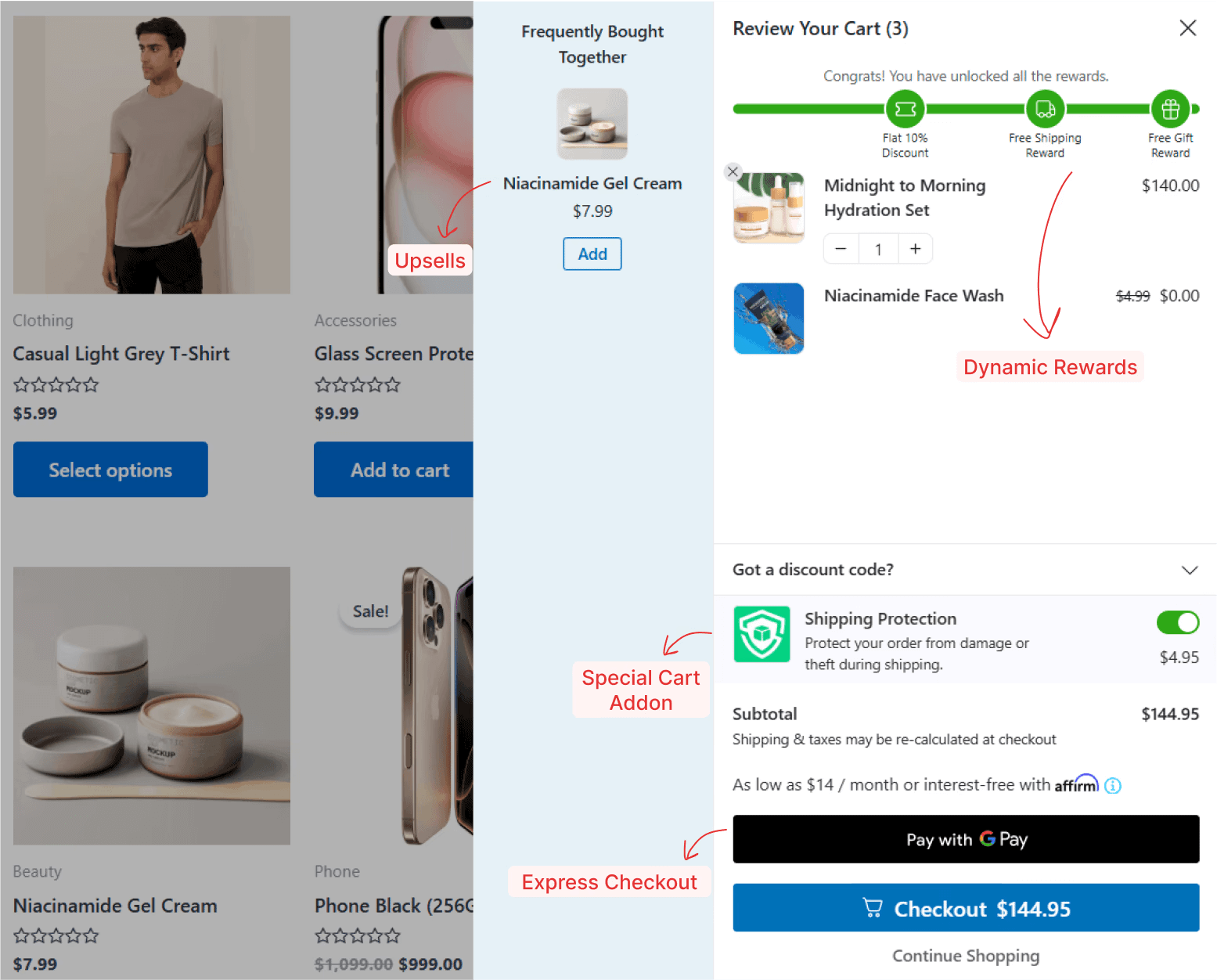
The result is a seamless checkout experience that helps reduce cart abandonment.
And the best part?
While these features might sound complex, setup is surprisingly simple
The admin interface is intuitive, and you can have everything up and running in under 10 minutes without writing a single line of code.
Frequently Asked Questions About WooCommerce Cart Page
Still got questions? Here are some of the commonly asked questions with answers about WooCommerce cart page:
Is a cart page still necessary for my WooCommerce store?
Not always. While the cart page has traditionally been a standard step in the checkout flow, modern side carts work better for most stores.
Instead of redirecting shoppers to a separate page, a side cart slides open right where they are, letting them review items, apply coupons, and head straight to checkout without losing their place. This reduces friction, speeds up the buying process, and can directly impact your conversion rate.
What is the WooCommerce Cart page URL?
By default, the WooCommerce cart page URL is:
https://yourwebsite.com/cartYou can also find or change this URL in WooCommerce → Settings → Advanced → Page setup → Cart page.
What are the best plugins to customize the WooCommerce cart page?
If you want to move beyond the default cart page and create a modern, frictionless checkout experience, here are the top options:
- FunnelKit Cart – Replace the cart page with a pop-up cart. Best for maximizing Average Order Value (AOV) with side-cart upsells, cross-sells, and free shipping bars.
- Mini Ajax Cart for WooCommerce – Provides a fast, lightweight sliding cart without page reloads.
- ShopEngine – Excellent for creating custom, stylish cart page designs using Elementor from scratch or using a template.
- WooCommerce Fast Cart – Offers an instant pop-up cart to minimize steps and reduce cart abandonment.
- ShopLentor - Gives you complete flexibility to customize the cart page in WooCommerce.
- XT Floating Cart for WooCommerce – Highly rated interactive floating cart for easy cart management and better conversions.
Can I customize the WooCommerce cart page with Elementor?
Yes, Elementor Pro includes WooCommerce widgets that let you design the cart page using a drag-and-drop builder. You can visually restyle the cart table, the totals section, and the buttons.
Why doesn’t is_woocommerce() not work on my cart page?
This is a common stumbling block for developers. The is_woocommerce() function returns true only on pages that use WooCommerce templates directly, such as the shop archive and single product pages. The cart and checkout pages are standard WordPress pages with WooCommerce shortcodes embedded, so to override it without editing core files, copy that file to WooCommerce (), which does not detect them.
Use is_cart() for the cart page and is_checkout() for the checkout page instead.
Where is the WooCommerce cart template file located?
The default cart template is located at
wp-content/plugins/woocommerce/templates/cart/cart.phpTo override it without editing core files, copy that file to
wp-content/themes/your-child-theme/woocommerce/cart/cart.phpWooCommerce will automatically use your child theme version instead of its own. If you are using a block theme, this template override approach does not apply. Use the site editor instead.
Will my cart customizations break after a WooCommerce update?
If you have overridden the cart.php template file in your child theme, major WooCommerce updates may change the core template in ways that conflict with your override.
You will need to manually review and merge those changes. If you do use template overrides, keep an eye on the "Outdated Templates" notice in WooCommerce > Status > Tools after each update.
How do I add upsells to the WooCommerce cart page?
WooCommerce, by default, shows the cross-sell products on the cart page as recommendations. So, you can set the cross-sell under the Linked products section.
FunnelKit Cart comes with its own settings where you can set up upsells and cross-sells from a single page without having to edit each product individually.
How do I redirect customers past the cart page directly to checkout?
You can skip the cart page entirely and redirect shoppers straight to checkout after they click "Add to Cart."
Add this snippet to your child theme's functions.php or a custom code plugin:
add_filter( 'woocommerce_add_to_cart_redirect', 'fk_skip_cart_go_to_checkout' );

function fk_skip_cart_go_to_checkout() {
    return wc_get_checkout_url();
}
This works best for single-product stores or boutique shops where customers rarely buy more than one item per session.
Alternatively, you can use CartHopper to skip the cart and send customers directly to the checkout page.
Is the WooCommerce cart page different from the checkout page?
Yes. The cart page is where shoppers review their items, adjust quantities, apply coupons, and see their subtotal before purchasing.
The checkout page is where they enter billing and shipping details and complete payment. They are separate pages with their own templates and customization options. Most conversion optimization strategies treat them as two distinct steps in the purchase flow.
Final Thoughts: Customize Your WooCommerce Cart Page the Right Way
We covered two ways to customize your WooCommerce cart page: no-code using the Block Editor and code-based using CSS, hooks, and template overrides. Both work well depending on your comfort level.
But if you really want to reduce cart abandonment and boost conversions, the bigger win is ditching the cart page altogether and switching to a side cart.
No extra steps, no redirects. Shoppers can review their cart, apply coupons, and check out from anywhere on your site.
Add a free shipping bar, express checkout, and product recommendations, and you have everything you need to turn more visitors into buyers.
Ready to make the switch?
Set up a WooCommerce side cart and upgrade the cart experience of your store.
More WooCommerce Resources
- How to Skip the Cart Page and Redirect to Checkout
- Best Cart Plugins for WooCommerce
- How to Customize the WooCommerce Checkout Page
- How to Create WooCommerce Cart Discounts in Your Store
- How to reduce WooCommerce Cart Abandonment
Editorial Team
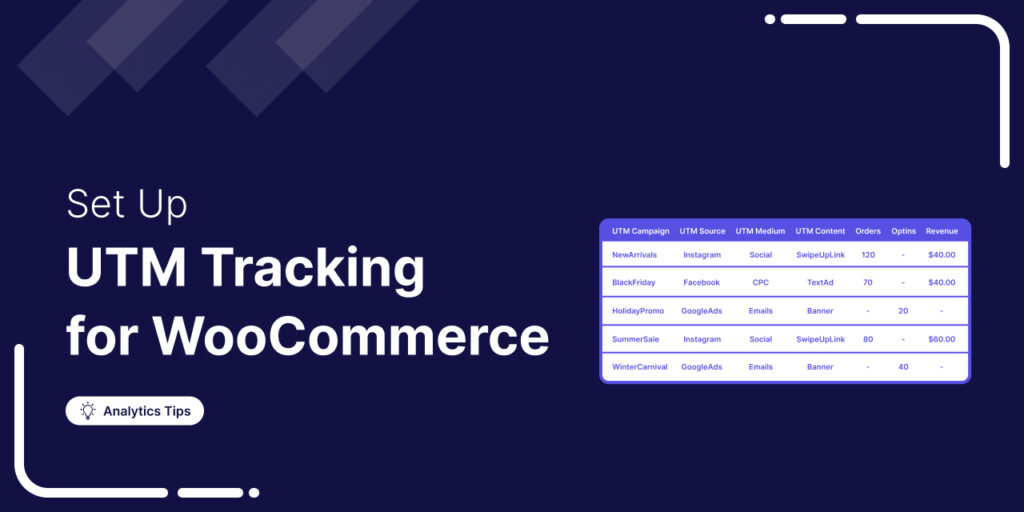
January 19, 2026It’s frustrating to spend money on ads and promotions without knowing which ones actually drive conversions. Was it Facebook ads? Google ads? An email campaign? If you don’t know for...
Editorial Team
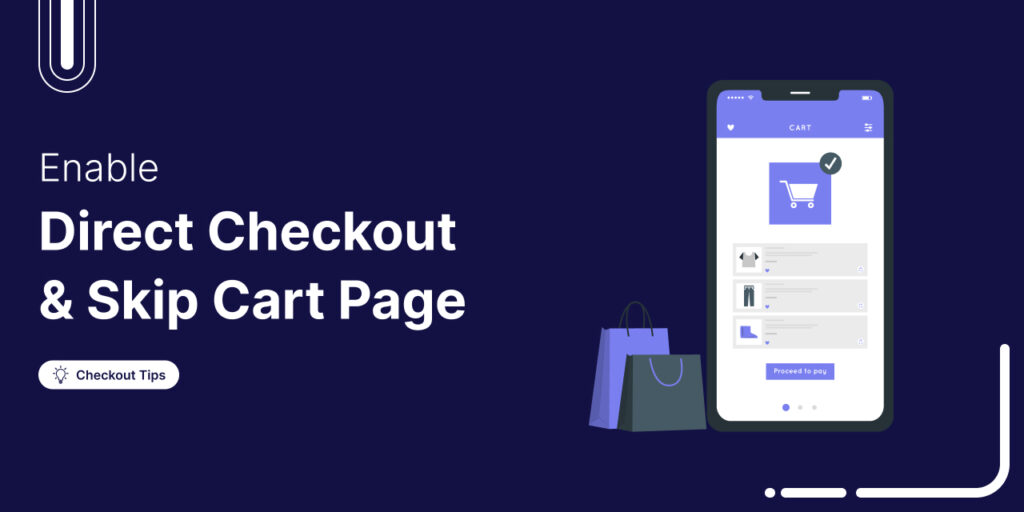
October 14, 2025Are shoppers dropping off before completing their purchase? You’re not alone! According to a Baymard Institute study, nearly 18% of customers abandon their carts because the checkout process is too...
Tavleen Kaur
October 6, 2021Updates! Updates! Updates! It's that time of the year when we're really excited about launching new features, you've been asking us to release in FunnelKit Automations. We do have a...






