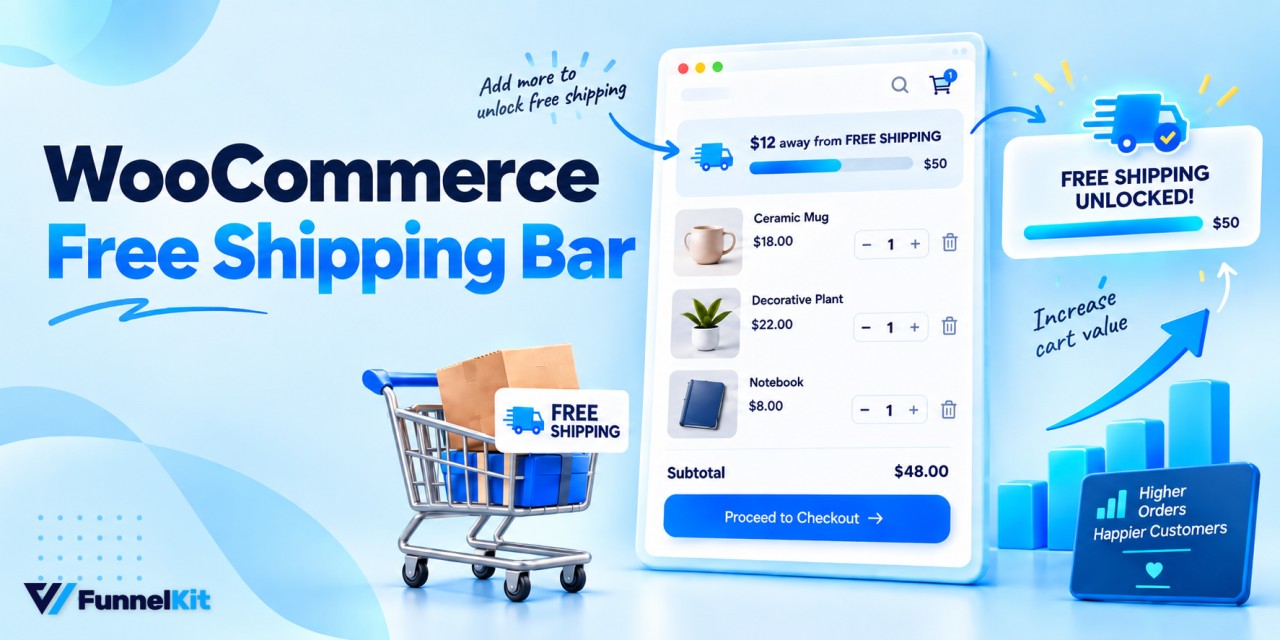
A WooCommerce free shipping bar puts the free shipping threshold where shoppers can actually see it and act on it.
Your store knows how much more a customer needs to spend to qualify for free shipping. Most shoppers don't.
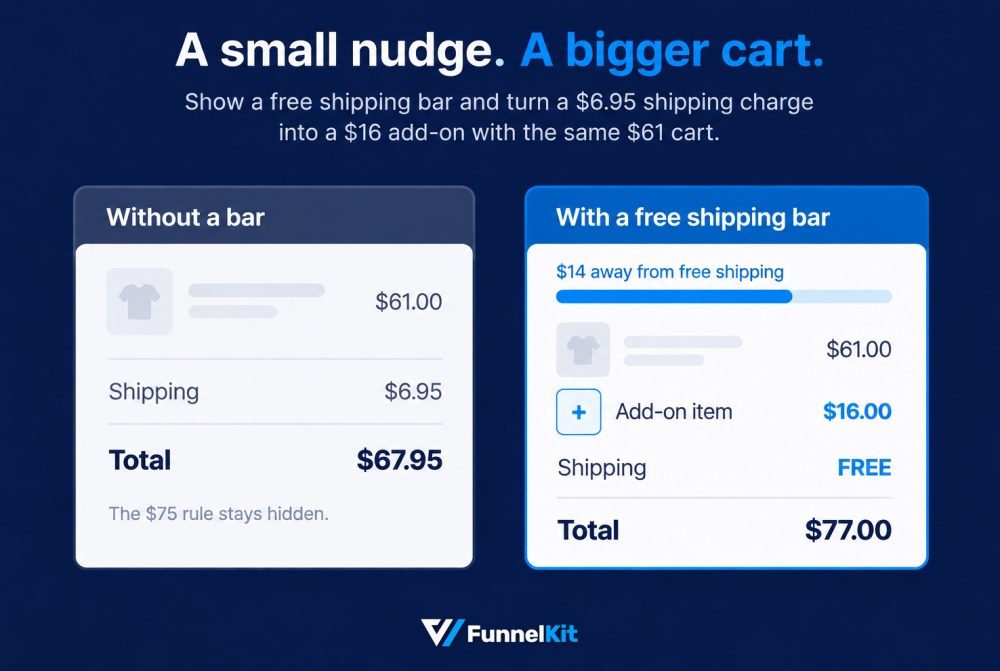
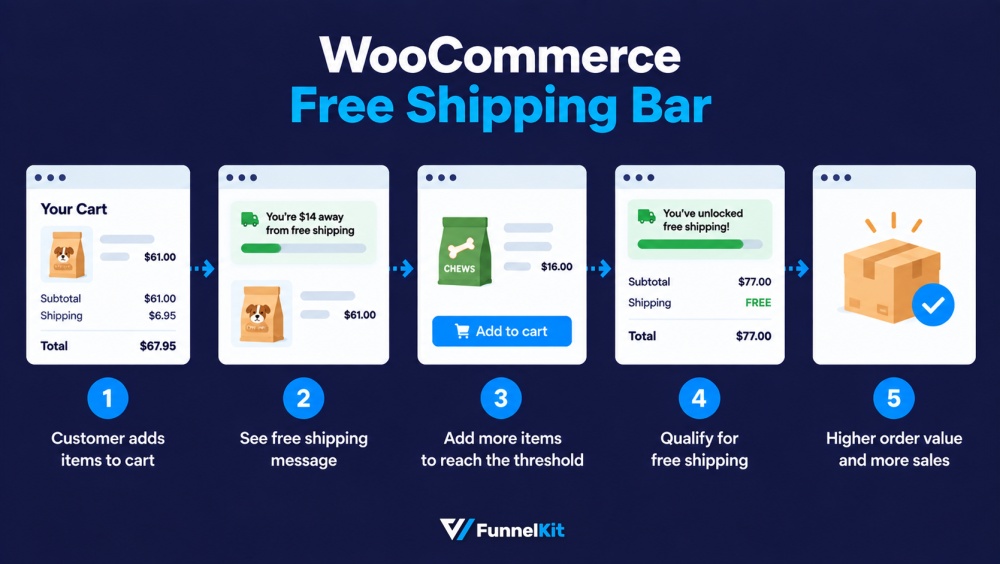
Say you run a dog treat store with free shipping on orders over $75. A customer adds $61 worth of treats to their cart, sees a $6.95 shipping charge, and checks out anyway.
Now show the same cart with a simple message at the top: "You're $14 away from free shipping".
They go back and add a $16 bag of chews, making the order total $77.
All it took was one simple message to add $16 to the order.
However, WooCommerce doesn't include a free shipping progress bar by default, so you'll need a plugin, a theme feature, or some custom code.
Below, we'll compare all three options and show you where to place the bar on your store.
We'll also look at the margin math, because setting the threshold too low can cost you more than it brings in.
Quick answer: Setting up a free shipping bar in WooCommerce is quite easy.
- Create a Free Shipping method with a minimum order amount under WooCommerce ⇨ Settings ⇨ Shipping.
- Add a plugin that reads that minimum and shows shoppers how much more they need to spend in the cart, side cart, product page, or top bar.
If you don't want to use a plugin, you can also add a PHP snippet to the classic cart. The block-based cart requires more work.
Table of Contents
- 1 What Is a Free Shipping Progress Bar?
- 2 Plugin, Theme or Code: Which Option Fits Your Store?
- 3 Before You Start: Set Your Free Shipping Threshold in WooCommerce
- 4 Method 1: Show a Free Shipping Progress Bar in Your Side Cart (With Upsells)
- 5 Method 2: Show the Amount Left For Free Shipping With a PHP Snippet
- 6 Method 3: Check Whether Your Theme Already Supports Free Shipping Bar
- 7 Track the Performance of the Free Shipping Bar in WooCommerce
- 8 Free Shipping Bar Not Working? 7 Things to Check
- 9 Frequently Asked Questions
- 10 Ready to Use a Free Shipping Progress Bar to Seal More Profitable Deals?
What Is a Free Shipping Progress Bar?
WooCommerce's free shipping method can apply when a customer reaches a minimum order amount, uses a coupon, meets either condition, or meets both.
But none of that information shows up for the shopper.
This information stays in your settings, while the customer with $61 in their cart has no idea they're just $14 away from free shipping.
Shipping costs are also a common reason shoppers abandon their carts. In a 2026 Baymard Institute survey, 40% of US adults said they had abandoned an online cart during checkout because extra costs, including shipping, taxes, and fees, were too high.
A WooCommerce free shipping bar makes that threshold visible.
It reads your minimum order amount and compares it with the current cart total whenever a product is added or removed.
The bar then shows shoppers how much more they need to spend.
Once they reach the threshold, the message changes to confirm that free shipping is available.
Static free shipping banner vs. dynamic progress bar
| Parameter | Static banner | Dynamic progress bar |
|---|---|---|
| What it shows | The threshold ("Free shipping over $75") | The amount left for this cart |
| When it changes | Never | Every time the cart changes |
| Best place | Homepage, header, category pages | Side cart, mini cart, cart page, checkout |
| Its job | Sets expectations before shopping | Changes behavior while shopping |
Use both when it makes sense. A static message in your header tells shoppers about free shipping before they add anything to their cart.
The dynamic bar then takes over in the cart and shows each shopper exactly how close they are to qualifying.
Plugin, Theme or Code: Which Option Fits Your Store?
| Option | Cost | Where the bar appears | Updates without reload | Best for |
|---|---|---|---|---|
| FunnelKit Cart | Paid | Inside the side cart, next to one-click product recommendations | Yes | Stores that want the bar plus a quick way for shoppers to close the gap, extra reward tiers, and reporting |
| Custom PHP snippet | Free | Classic cart, classic checkout, classic mini cart, shortcode | Yes, on classic pages | Developers on the classic cart and checkout |
| Theme feature (Blocksy Pro, aThemes Merchant Pro, WoodMart) | Included in the theme or add-on license | Cart, checkout, mini cart, product page, shortcode (varies by theme) | Yes | Stores already running that theme |
Start with a free option. If you only need shoppers to see the number, a plugin or your theme will do the job.
Paying for more makes sense when you also want to put a product in front of shoppers that closes the gap.
Before You Start: Set Your Free Shipping Threshold in WooCommerce
Every option below depends on this setting, so set it up first.
Go to WooCommerce ⇨ Settings ⇨ Shipping and click 'Add zone', or edit an existing shipping zone.
Name the zone and select its regions, such as United States (US).
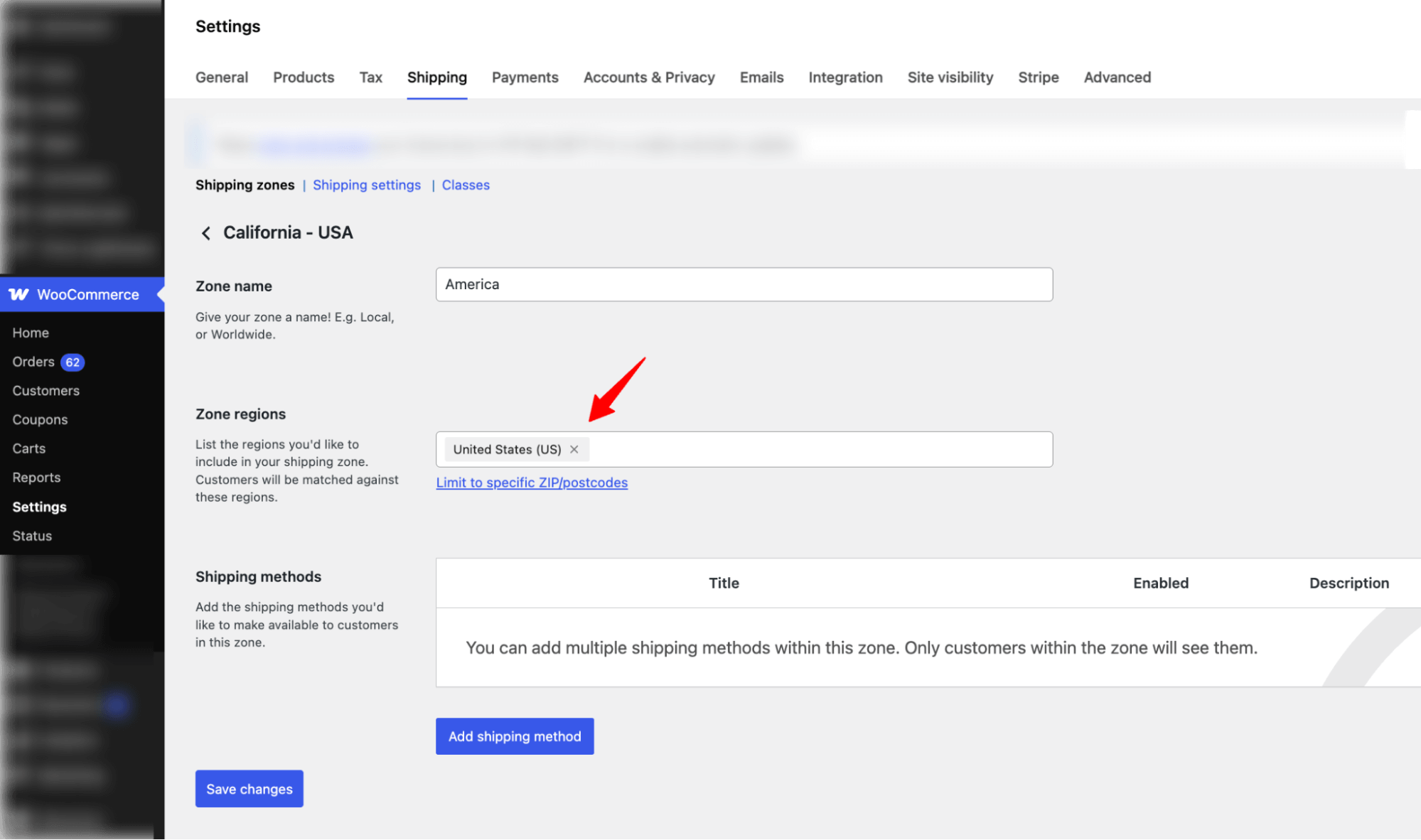
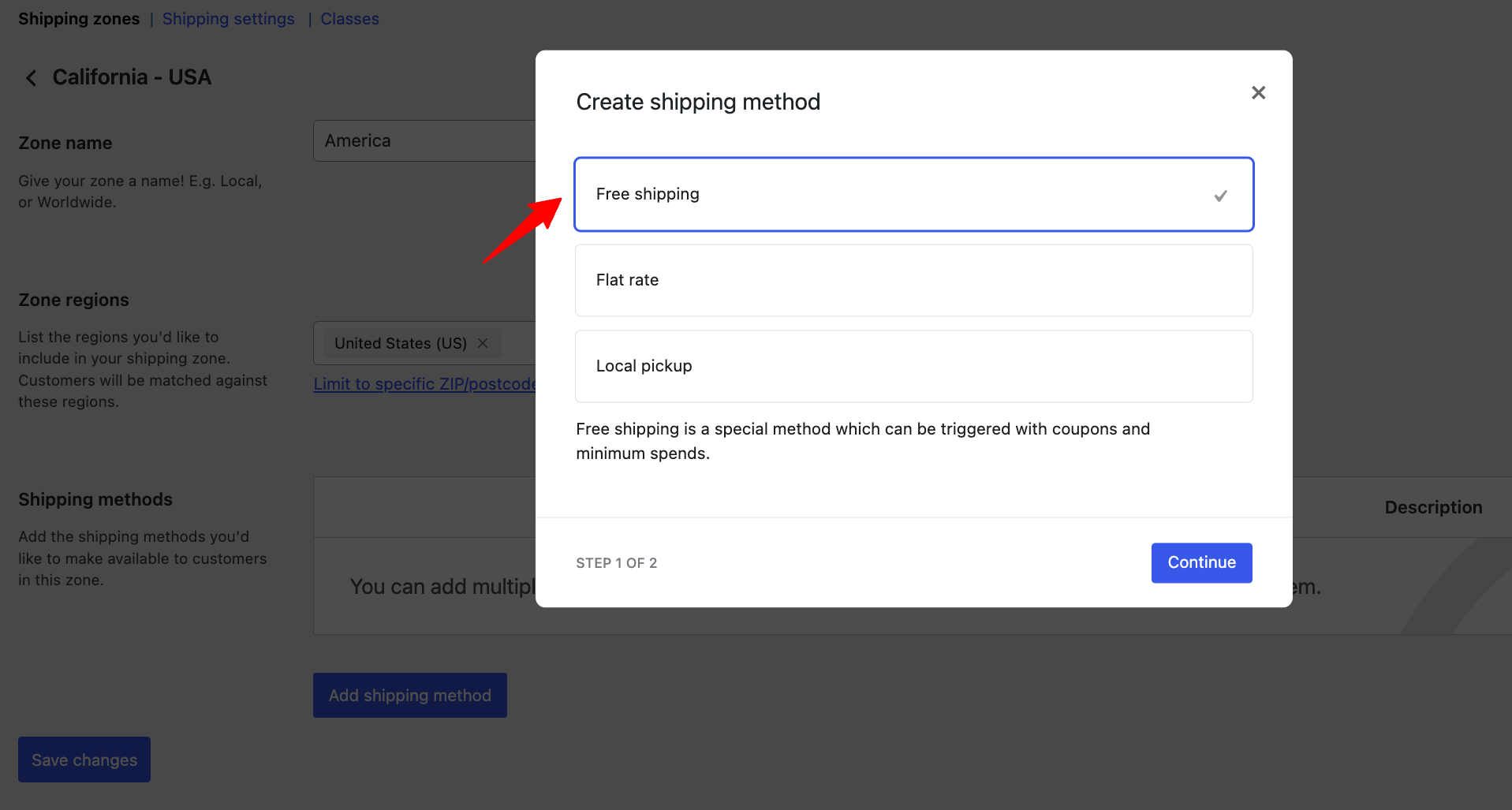
Next, click 'Add shipping method', select Free shipping, and continue.
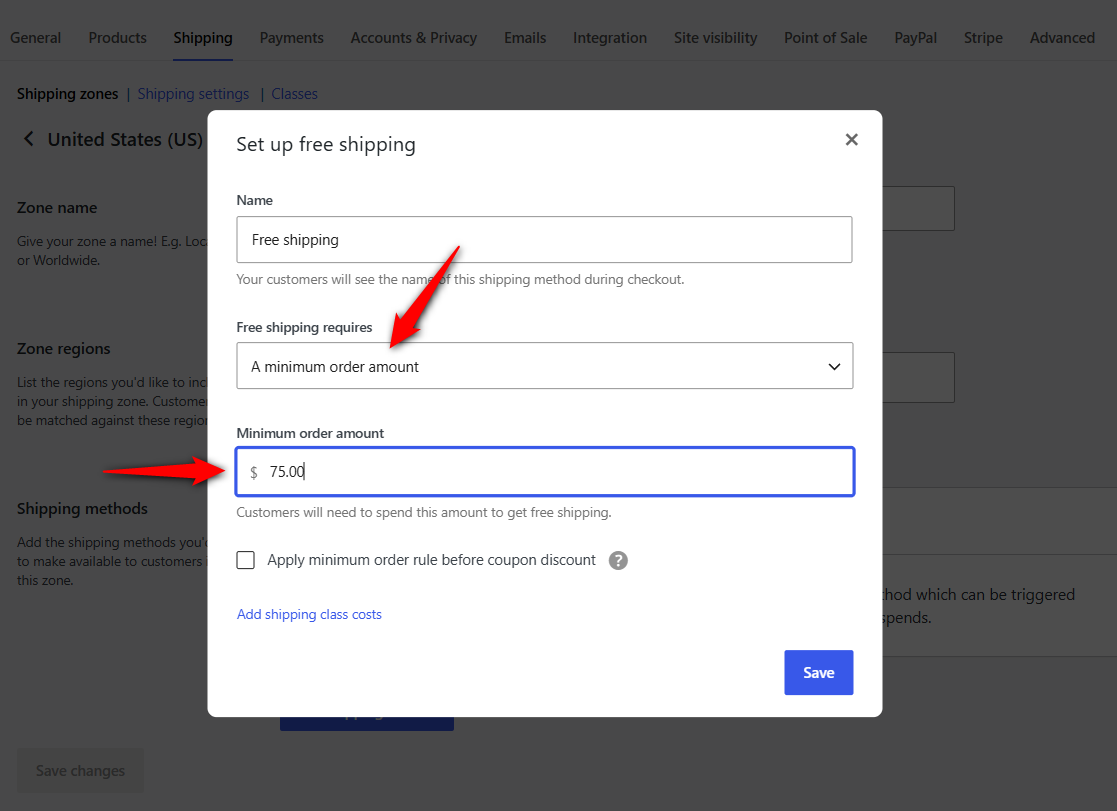
Set Free shipping requires to 'A minimum order amount'.
Enter the minimum order amount, such as $75, then click 'Create and save'.
Add a Free Shipping method to each shipping zone where you want the offer to apply.
If a shopper belongs to a zone without one, the bar won't show a free shipping threshold.
Don't have a threshold in mind yet? Start with your average order value and add the price of one typical item.
For the dog treat store, that's $58 plus $16, giving us $74, which we can round to $75. We'll check later whether that threshold makes sense for your margins.
Note: For the shipping setup itself, see our guide to setting up free shipping in WooCommerce.
Decide whether coupons and tax count toward the threshold
Two settings determine what your $75 threshold actually means.
Your free shipping bar needs to use the same rules as your checkout. Otherwise, the bar can tell shoppers they qualify when WooCommerce says they don't.
- Coupons: By default, WooCommerce checks the minimum after applying coupon discounts. If you enable Apply minimum order rule before coupon discount in the Free Shipping method, WooCommerce checks the cart total before the discount instead.
- Tax: WooCommerce uses the subtotal based on how your store displays prices. You can find this setting under WooCommerce ⇨ Settings ⇨ Tax ⇨ Display prices during cart and checkout. If prices include tax, the tax amount counts toward the minimum. If prices exclude tax, it doesn't.
For example, say the dog treat store offers a 10% welcome coupon. An $80 cart drops to $72 after the coupon, so WooCommerce considers it below the $75 minimum under the default rule.
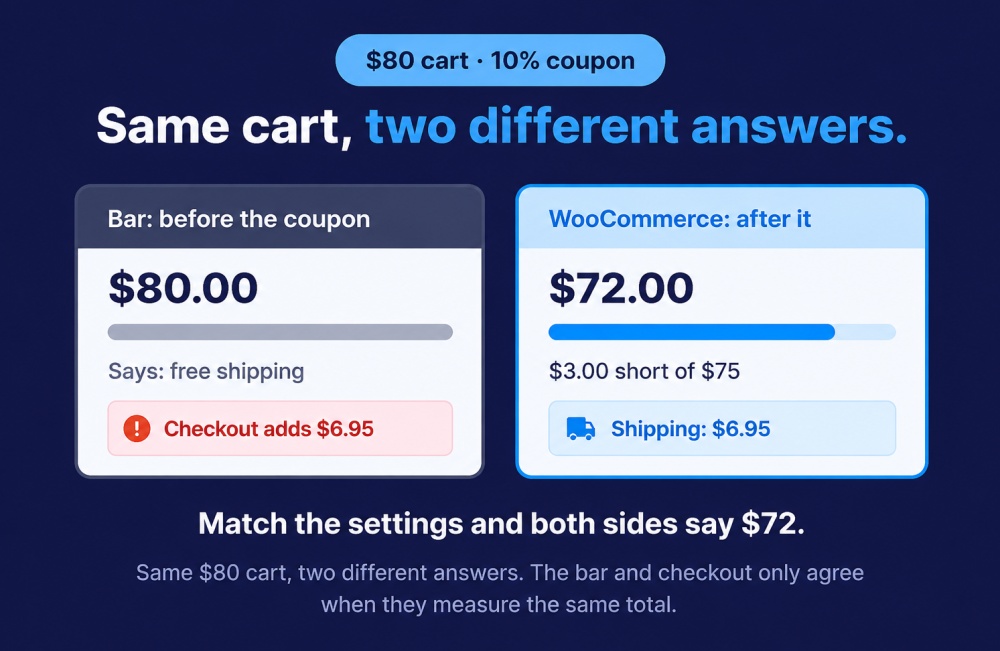
If your bar measures the original $80 instead, it could tell the shopper they've qualified for free shipping, only for checkout to add a shipping charge.
Set the default customer location to Geolocate
Until a shopper enters an address, WooCommerce guesses their zone from WooCommerce ⇨ Settings ⇨ General ⇨ Default customer location. If you leave it at No location by default, some bars can't identify the correct zone and won't appear.
Switch it to Geolocate. If you use full-page caching, pick Geolocate (with page caching support) instead.
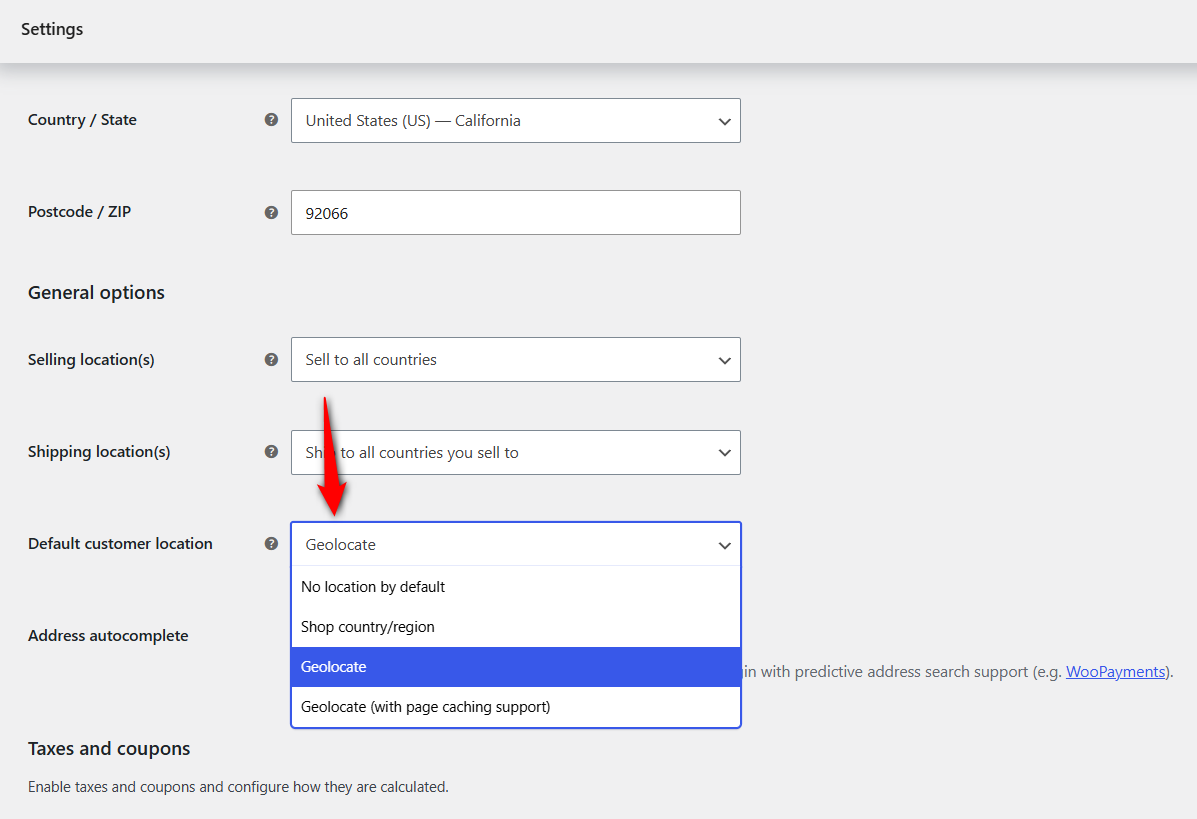
Using Table Rate, Flexible Shipping, or another shipping plugin?
Most of these tools read WooCommerce's native Free Shipping method.
If your free shipping comes from a rule inside another shipping plugin, the bar may have nothing to read.
Make sure your tool supports your shipping plugin, or set the threshold manually. Method 1 covers both approaches.
Method 1: Show a Free Shipping Progress Bar in Your Side Cart (With Upsells)
Right after someone clicks Add to Cart, they can choose to keep shopping or head to checkout.
A side cart puts the progress bar in front of them at that exact moment, with a product next to it that closes the gap in one tap.
FunnelKit Cart does both and over 30,000 stores worldwide trust it.
This side cart plugin lets customers view their cart details anytime with a single click from anywhere on the store.
Whenever users add an item to their cart, the side cart displays a dynamic progress bar showing their progress and how much more they need to spend to qualify for free shipping, both as an animated bar and as text.
The side cart is free on WordPress.org, but rewards (including the free shipping progress bar) and in-cart upsells need the FunnelKit Plus plan or above.
Once you activate the necessary plugins, follow these steps:
Step 1: Turn on the slide cart
Install FunnelKit Cart and FunnelKit Pro, go to FunnelKit ⇨ Cart, and turn on the slide cart.
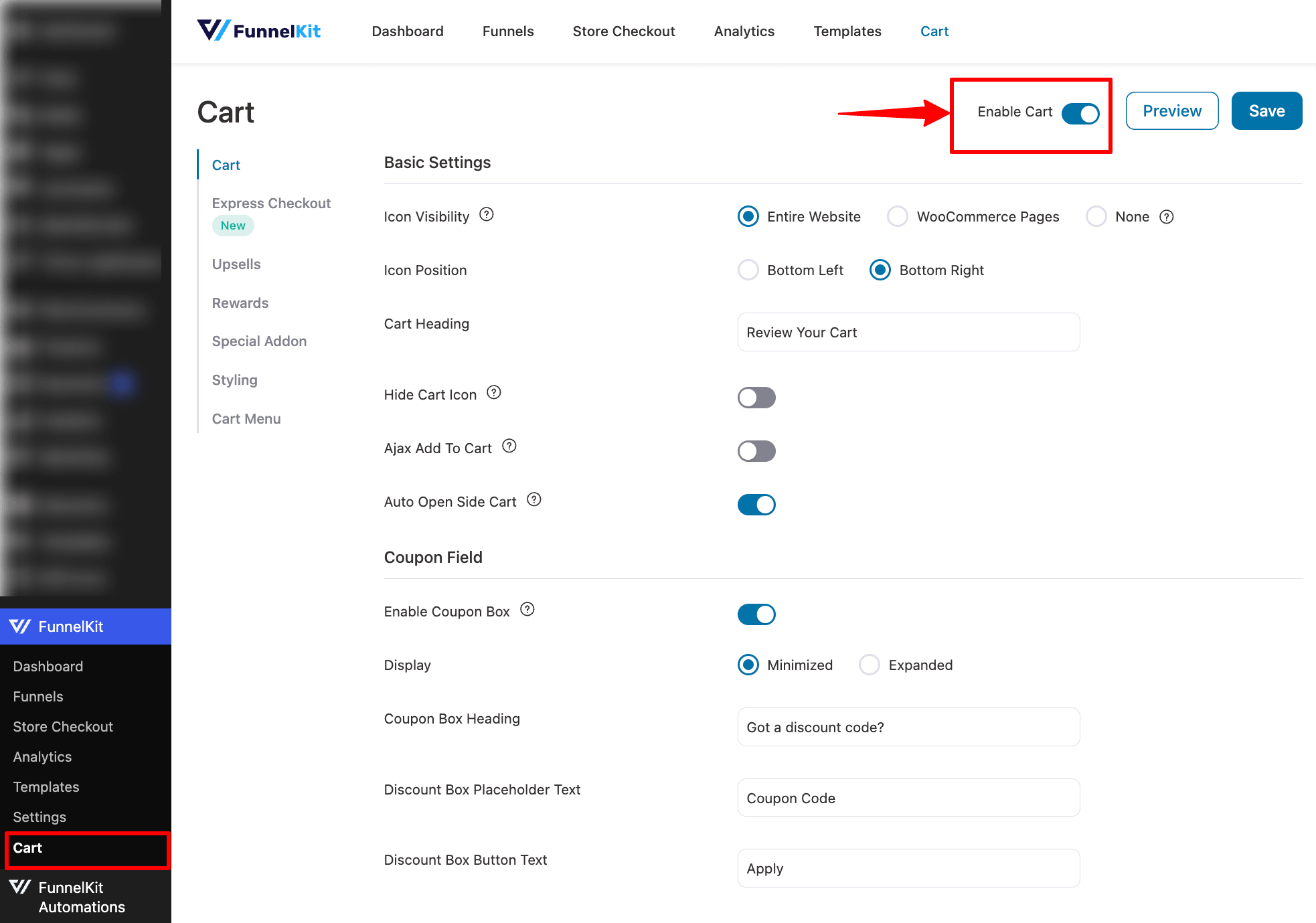
Turn on Auto Open Side Cart as well, so the drawer opens every time a shopper adds a product.
When the dog treat customer adds her $61 of treats, the drawer slides open with the bar right at the top.
Note: For every cart setting, see our guide to the WooCommerce side cart.
Step 2: Create the free shipping reward
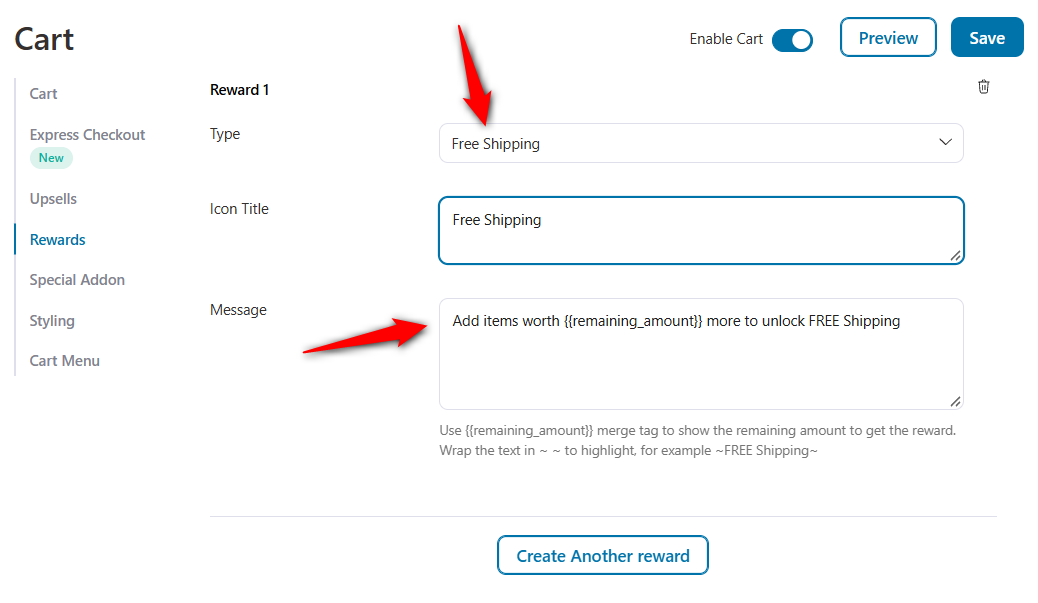
Now move to the Rewards tab, where you can set three types of rewards. To add a free shipping bar, hit the “Create Reward” button.
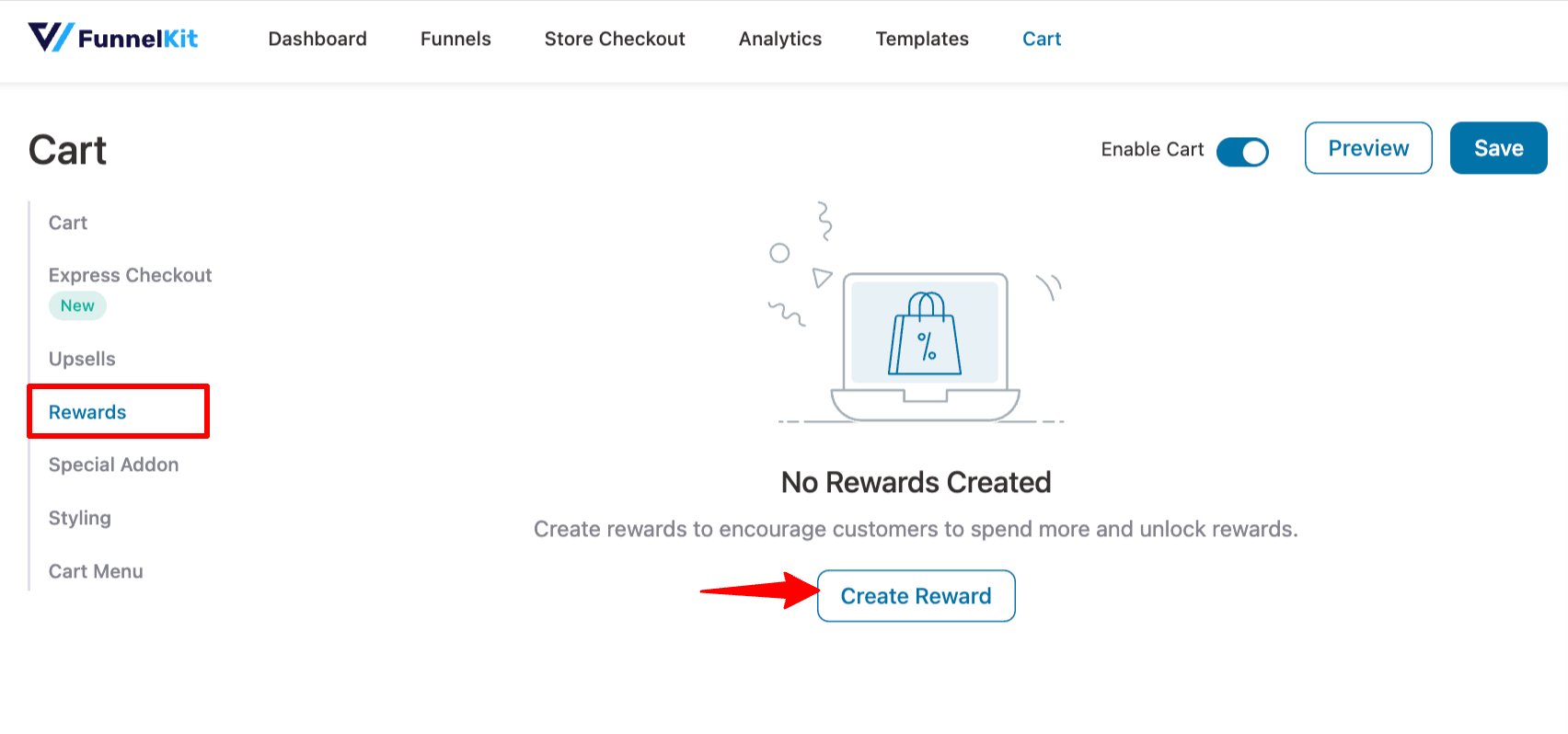
Now set the following:
- Type: Choose Free Shipping.
- Icon Title: Set the title, e.g., Free shipping.
- Message: Set the message. Use the {{remaining_amount}} merge tag to show the remaining amount to get the reward.
The reward takes its target from the Free Shipping minimum you set in WooCommerce, so it tracks the $75 from earlier.
For the customer with $61 of treats, the bar reads "You're $14 away from free shipping".
You can also set a custom congratulation or success message.
Step 3: Customize the style of the free shipping progress bar
Scroll down to the Reward Style section and choose a progress bar style. You get two options: Modern and Classic.
You can go for the Modern layout and customize the Icon Default Color.
Icon Active Color, Icon Background Active Color, Progress Bar Active Color, etc. You can also enable Animation.
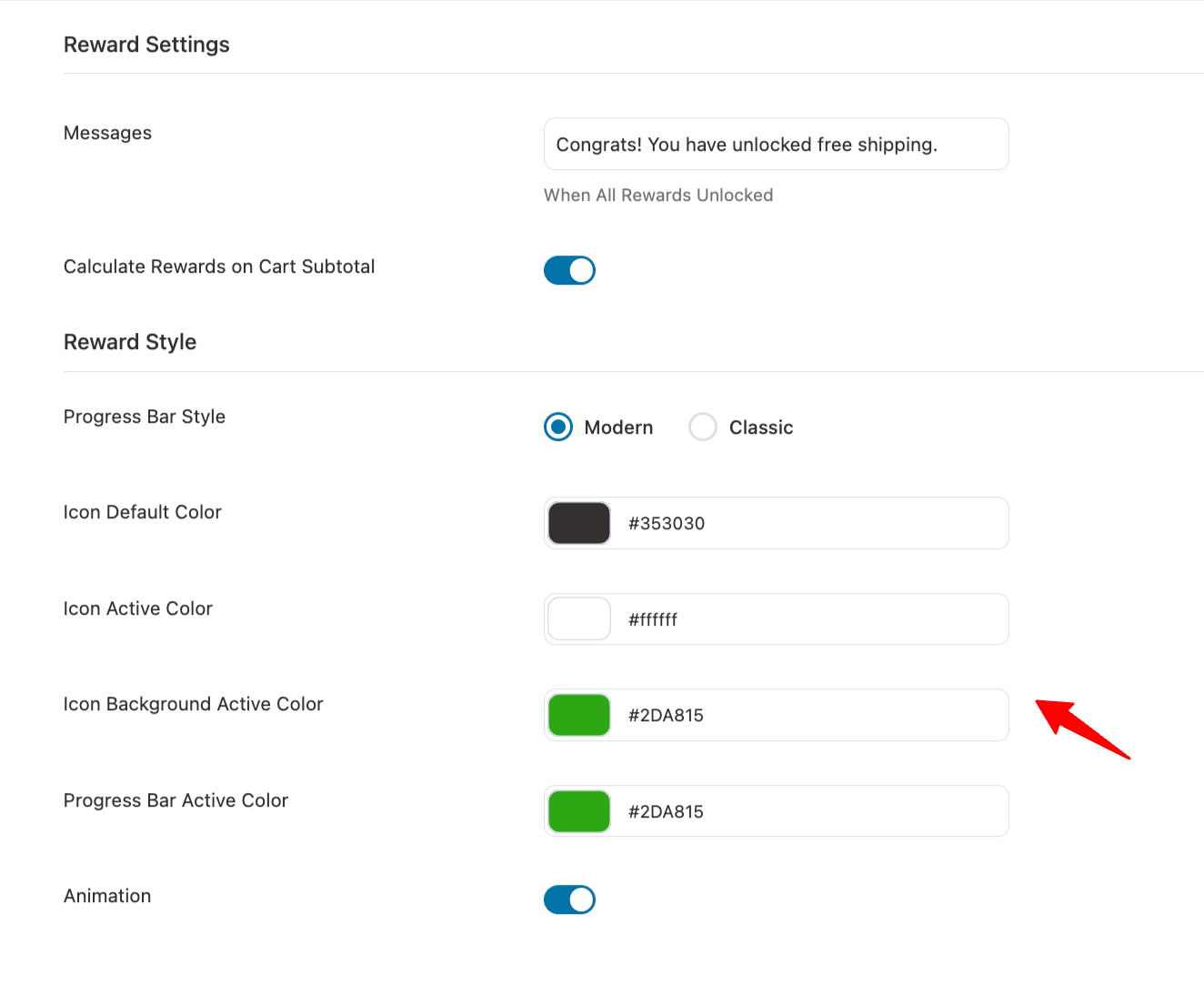
Make sure to save changes.

Step 4: Add cart upsells so users can add products to qualify for free shipping (recommended)
In-cart recommendations make it easier for users to add more products to their cart and increase the order total to qualify for the free shipping offer.
With FunnelKit Cart, you can easily offer in-cart recommendations. Just navigate to the Upsells tab and make sure the 'Enable Cart Upsells' option is activated.
Next, select the display type and product recommendation type, and set default upsells in case some products don't have any assigned.
Then add upsells and cross-sells to each item from the same page, without navigating to each product page individually.
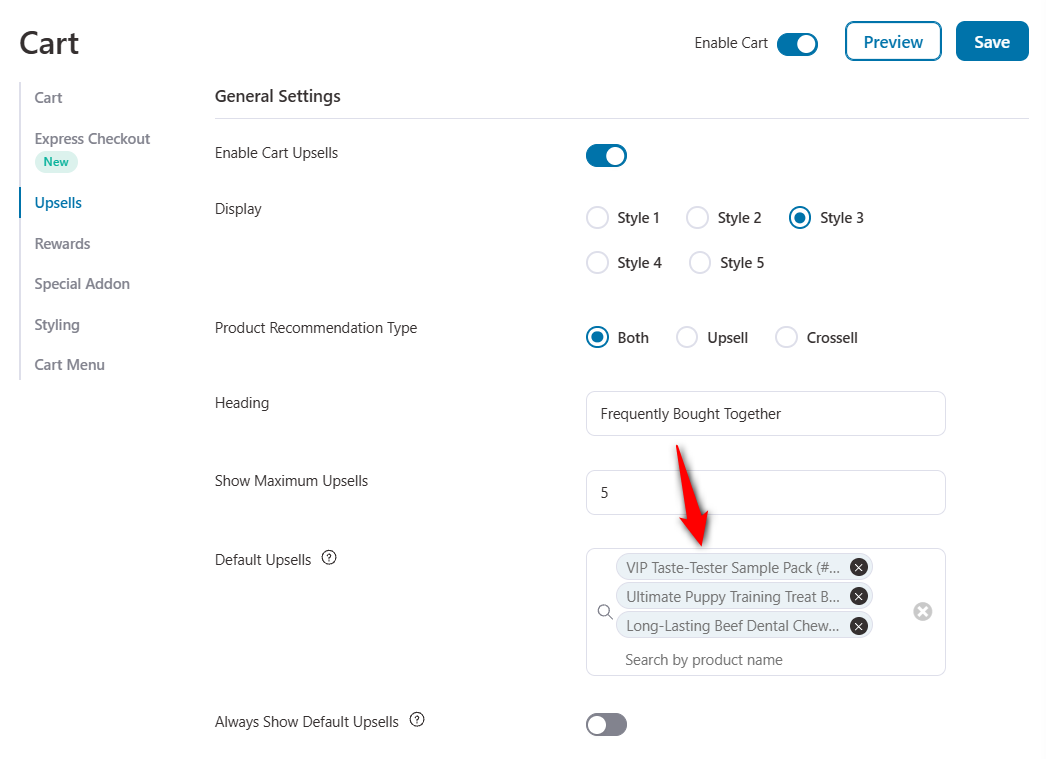

Save your changes when done.
Now, every time your customers add an item to their cart, the slide cart will open, and the progress bar will show how much more they need to add to qualify for free shipping.
Plus, with in-cart recommendations, they can add more items with a single click.
Here's how the free shipping progress bar will look:
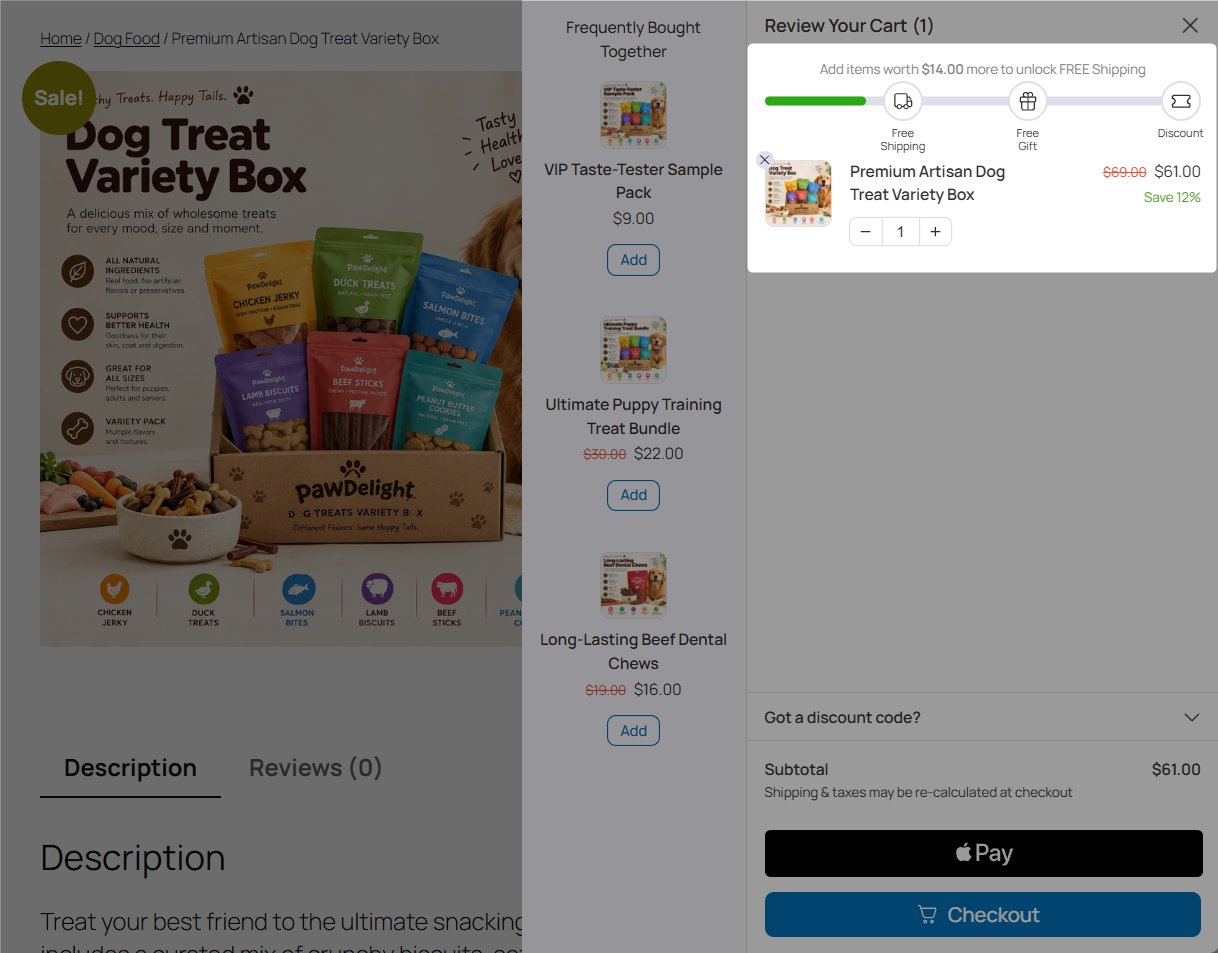
Did you notice?
The free shipping progress bar is just one reward. You can also offer free gifts and discounts to boost your order value even more.
Combining multiple milestone-based offers creates a powerful incentive for customers. It gamifies the process, making it more exciting and encouraging customers to buy more than a free shipping offer alone.
Not using WooCommerce's free shipping method?
If free shipping comes from another shipping plugin, you can hand FunnelKit Cart the threshold directly using its fkcart_free_shipping filter.
Add the code below through your child theme's functions.php or a code snippets plugin, and set min_amount to your threshold:
add_filter( 'fkcart_free_shipping', function ( $options ) {
	if ( false === $options ) {
		$options = [];
	}
	$options['method_id']  = '';
	$options['min_amount'] = 75; // Your free shipping threshold.

	return $options;
} );
Method 2: Show the Amount Left For Free Shipping With a PHP Snippet
If you're comfortable with code and your store uses the classic cart and checkout, a snippet can do the job without another plugin.
Most snippets you'll find online hardcode the threshold, and they don't update until the page reloads. This one fixes both:
- Reads the minimum from the Free Shipping method in the shopper's zone: If you change $75 in WooCommerce, the bar follows.
- Copies WooCommerce's coupon and tax math: The bar and checkout agree on carts like the welcome-coupon example.
- Lives in parts of the page WooCommerce already refreshes: It updates without a reload.
Add it with a code snippets plugin or your child theme’s functions.php. Try it on a staging site first.
<?php
/**
 * Free shipping progress bar for the classic WooCommerce cart, checkout and mini cart.
 * Reads the minimum from the shopper's matched shipping zone.
 * Shortcode: [free_shipping_bar]
 */

// 1. Find the Free Shipping minimum for the zone that matches the current cart.
function fsb_get_rule() {
	if ( ! function_exists( 'WC' ) || ! WC()->cart ) {
		return null;
	}

	$packages = WC()->cart->get_shipping_packages();
	if ( empty( $packages ) ) {
		return null;
	}

	$zone = WC_Shipping_Zones::get_zone_matching_package( reset( $packages ) );

	foreach ( $zone->get_shipping_methods( true ) as $method ) {
		if ( 'free_shipping' !== $method->id ) {
			continue;
		}
		if ( in_array( $method->get_option( 'requires' ), array( 'min_amount', 'either' ), true ) ) {
			return array(
				'min'              => (float) $method->get_option( 'min_amount', 0 ),
				'ignore_discounts' => 'yes' === $method->get_option( 'ignore_discounts' ),
			);
		}
	}

	return null;
}

// 2. Mirror WooCommerce's own eligibility math so the bar never disagrees with checkout.
function fsb_cart_amount( $ignore_discounts ) {
	$cart  = WC()->cart;
	$total = (float) $cart->get_displayed_subtotal();

	if ( ! $ignore_discounts ) {
		$total -= (float) $cart->get_discount_total();
		if ( $cart->display_prices_including_tax() ) {
			$total -= (float) $cart->get_discount_tax();
		}
	}

	return round( $total, wc_get_price_decimals() );
}

// 3. Build the bar.
function fsb_render() {
	$rule = fsb_get_rule();

	if ( ! $rule || $rule['min'] <= 0 ) {
		return '<div class="fsb" hidden></div>';
	}

	$amount    = WC()->cart->is_empty() ? 0 : fsb_cart_amount( $rule['ignore_discounts'] );
	$remaining = max( 0, $rule['min'] - $amount );
	$percent   = (int) min( 100, floor( ( $amount / $rule['min'] ) * 100 ) ); // floor(): never show 100% early.

	if ( $amount <= 0 ) {
		/* translators: %s: free shipping minimum */
		$message = sprintf( __( 'Free shipping on orders over %s.', 'fsb' ), wc_price( $rule['min'] ) );
	} elseif ( $remaining > 0 ) {
		/* translators: %s: amount left to spend */
		$message = sprintf( __( 'You are %s away from free shipping.', 'fsb' ), wc_price( $remaining ) );
	} else {
		$message = __( 'Your order ships free.', 'fsb' );
	}

	return sprintf(
		'<div class="fsb"><p class="fsb__text">%1$s</p><div class="fsb__track" role="progressbar" aria-label="%3$s" aria-valuemin="0" aria-valuemax="100" aria-valuenow="%2$d"><div class="fsb__fill" style="width:%2$d%%"></div></div></div>',
		wp_kses_post( $message ),
		$percent,
		esc_attr__( 'Progress toward free shipping', 'fsb' )
	);
}

// Classic cart: inside .cart_totals, which WooCommerce re-renders after every cart update.
add_action( 'woocommerce_before_cart_totals', function () {
	echo fsb_render(); // phpcs:ignore WordPress.Security.EscapeOutput -- escaped in fsb_render().
} );

// Classic checkout: inside the order review table, which refreshes on every checkout update.
add_action( 'woocommerce_review_order_before_cart_contents', function () {
	echo '<tr class="fsb-row"><td colspan="2">' . fsb_render() . '</td></tr>'; // phpcs:ignore
} );

// Classic mini cart widget: re-rendered with WooCommerce's own mini cart fragment.
add_action( 'woocommerce_before_mini_cart', function () {
	echo fsb_render(); // phpcs:ignore
} );

// Shortcode placements: refresh after AJAX add to cart and on cached pages.
add_filter( 'woocommerce_add_to_cart_fragments', function ( $fragments ) {
	$fragments['div.fsb'] = fsb_render();
	return $fragments;
} );

// [free_shipping_bar] for page builders, product pages, headers.
add_shortcode( 'free_shipping_bar', function () {
	if ( ! function_exists( 'WC' ) || ! WC()->cart ) {
		return '';
	}
	wp_enqueue_script( 'wc-cart-fragments' ); // Not loaded on every page since WooCommerce 7.8.
	return fsb_render();
} );
For styling, add this under Appearance ⇨ Customize ⇨ Additional CSS, or in your block theme's custom CSS:
.fsb { margin: 0 0 1.25em; }
.fsb__text { margin: 0 0 .5em; font-weight: 600; }
.fsb__track { height: 8px; background: #e5e7eb; border-radius: 999px; overflow: hidden; }
.fsb__fill { height: 100%; background: #16a34a; border-radius: inherit; transition: width .4s ease; }
.fsb-row td { padding-bottom: 1em; }
Classic cart vs. Cart and Checkout blocks
The hooks in the snippet only run on the classic cart and checkout templates. Since WooCommerce 8.3, new stores use the block-based Cart and Checkout by default, so the snippet won't display anything on those pages.
To see which setup you're using, open your Cart page in the WordPress editor. If you see a Cart block instead of the [woocommerce_cart] shortcode, you have three options:
- Switch the cart and checkout pages back to the classic shortcodes.
- Show the bar somewhere else, like a side cart or the [free_shipping_bar] shortcode on product pages.
- Build a block integration with the WooCommerce Store API. Plan for a proper JavaScript project with its own build process.
The Mini-Cart block has the same limitation. The woocommerce_before_mini_cart hook only runs with the classic Mini Cart widget, so it won't fire when you're using the block version.
Keeping the bar in sync when the cart changes
Each free shipping bar placement sits somewhere WooCommerce already refreshes when the cart changes:
- Cart page: The bar sits inside the cart totals block. WooCommerce re-renders this block whenever a shopper changes a quantity, removes an item, or applies a coupon.
- Checkout: The bar sits inside the order review table, which refreshes every time the checkout updates.
- Mini cart and shortcode placements: The bar is registered as a cart fragment, so it refreshes after an AJAX add to cart and updates itself on cached pages.
However, you need to keep these two limitations in mind:
- The snippet doesn't support Free Shipping methods that require both a coupon and a minimum order amount.
- Multi-currency plugins may convert the free shipping minimum differently from the cart total. Test the bar in every currency your store supports.
Method 3: Check Whether Your Theme Already Supports Free Shipping Bar
You might not need another plugin because some WooCommerce themes and add-ons already include their own free shipping bar:
- Blocksy Pro: Its Free Shipping Bar module is part of the Shop Extra extension. It can show the bar on the cart, checkout, mini cart, and single product pages. You can have it follow WooCommerce's free shipping rules or use a custom calculation, and you can choose whether coupon discounts affect the threshold. There's also a [blocksy_shipping_progress] shortcode for placing the bar elsewhere.
- aThemes Merchant Pro: Its Free Shipping Bar module can appear in a top or bottom bar, on product pages, in the mini cart, side cart, cart, or checkout. You can use {amount} and {amount_left} in the messages, and you can include tax in the calculation.
- WoodMart: Its free shipping progress bar is built into the theme. Go to WoodMart ⇨ Theme Settings ⇨ Shop ⇨ Free shipping bar to enable it. You can show it on the product page, mini cart, cart page, or checkout, and choose whether the threshold comes from your native free shipping method or a custom amount.
If your theme already has a free shipping bar, using it saves you from installing, updating, and troubleshooting another plugin.
Just make sure its threshold and calculation rules match the free Shipping method in WooCommerce.
Track the Performance of the Free Shipping Bar in WooCommerce
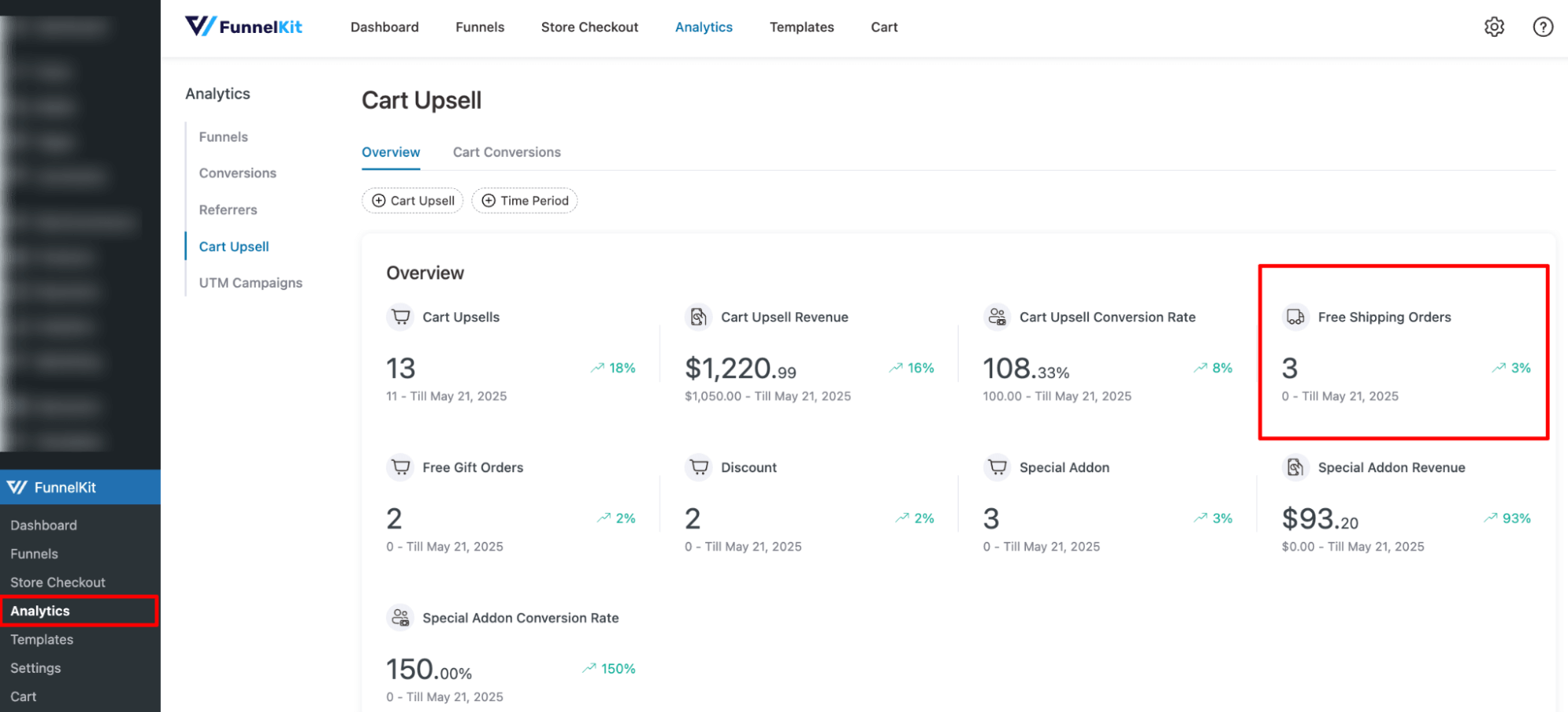
FunnelKit offers detailed analytics on how your free shipping offers perform in your store.
To check the performance, navigate to FunnelKit ⇒ Analytics ⇒ Cart Upsell. It shows how your cart upsell offers and rewards (free shipping, discounts, and free gifts) are performing.
Find the number of free shipping orders your store received during a selected time period, along with growth compared to the previous period.
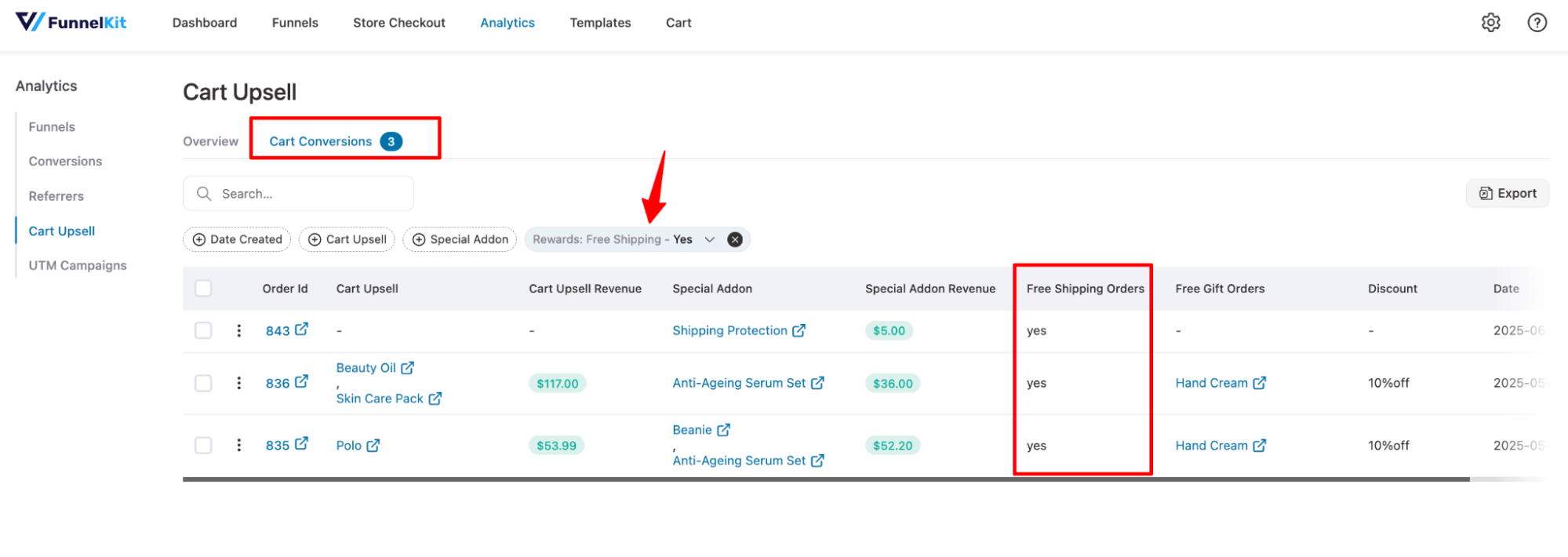
In addition, on the Cart Conversions tab, you can view all conversions and filter by free shipping to see orders where users availed free shipping.
Free Shipping Bar Not Working? 7 Things to Check
Work through these checks in order. Most issues come down to the shipping zone, how the minimum is calculated, caching, or the type of Cart and Checkout setup you're using.
1. The bar doesn't appear at all
Check that the shopper's shipping zone has a Free Shipping method set to 'Minimum order amount' or 'Minimum order amount OR a coupon'.
A coupon-only method doesn't have a threshold for the free shipping bar to track.
2. It shows for some shoppers but not others
This usually comes down to shipping zone matching.
Set the default customer location to 'Geolocate', then test the bar with addresses from each shipping zone.
3. The bar says free shipping, but checkout still charges for it
The bar and WooCommerce are probably using different calculations.
Run the discount coupon reward and compare your minimum order rule, coupon discount settings, and tax display settings with the calculation options your bar uses.
4. The amount looks wrong with tax or in another currency
If you display prices including tax, tax counts toward the minimum, and your bar needs to agree.
If you use a multi-currency plugin, test a cart close to the threshold in every currency you sell in.
5. The bar doesn't update until the page reloads
Exclude the Cart, Checkout, and My Account pages from page caching at both the plugin and hosting level.
Then make sure the bar sits inside an area WooCommerce refreshes when the cart changes or uses cart fragments.
6. Nothing shows on the cart or checkout page
Your store may be using the Cart and Checkout blocks, while your bar relies on classic WooCommerce hooks.
Method 2 covers this setup.
7. It worked, then stopped
Start with the usual suspects: a theme update, a new cart plugin, or a new shipping plugin.
On a staging site, switch to Storefront and disable plugins one at a time until the bar starts working again. That should help you identify the conflict without changing your live store.
Frequently Asked Questions
It depends on how the bar is built:
- Built on classic PHP hooks: It won't show up inside the blocks.
- Lives in a side cart or a sitewide header: It sits outside the cart page, so the blocks don't affect it.
Some plugins have added block support. For example, Freetop’s changelog lists an update to its full-bar message in the cart and checkout blocks. Check your tool’s documentation, then test it yourself.
Yes. Drop a Shortcode widget into your Elementor layout and use one of these:
- FunnelKit Cart lets you embed the side cart on any page or in your store's primary menu.
- [blocksy_shipping_progress] on Blocksy
- Your plugin's own shortcode
In WooCommerce, you can notify customers about the free shipping offer and threshold with two types of notices.
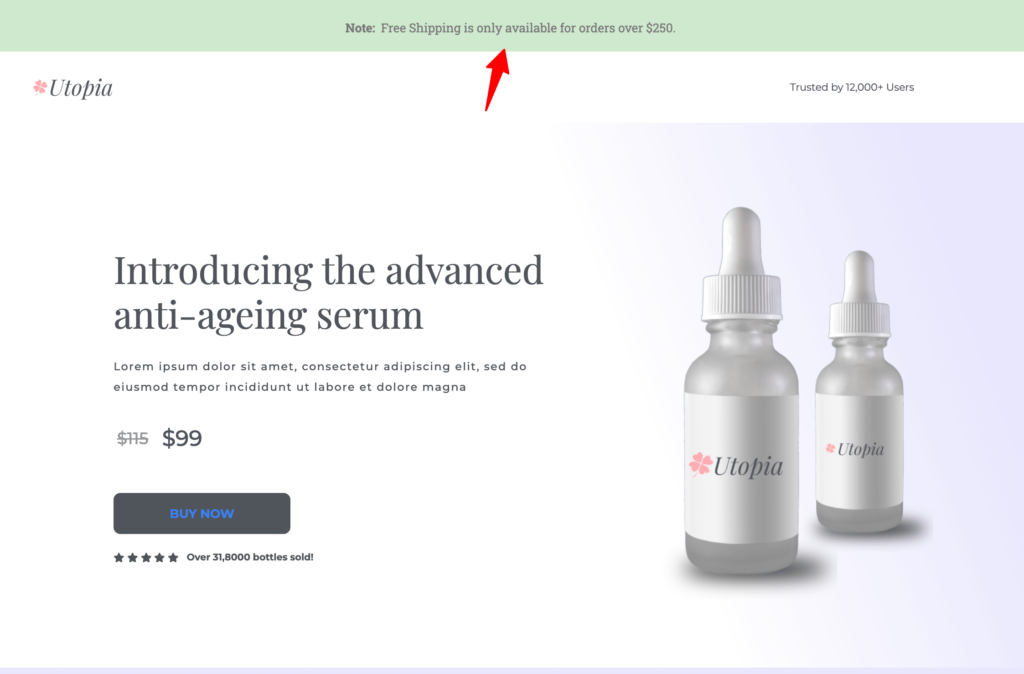
- Static message
This static message highlights the free shipping threshold. For instance, Free Shipping is only available for orders over $250.
A static free shipping message is usually shown on the home page to grab users' attention as soon as they land on your site. Once they see the offer, they are likely to get excited.
- Dynamic progress bar
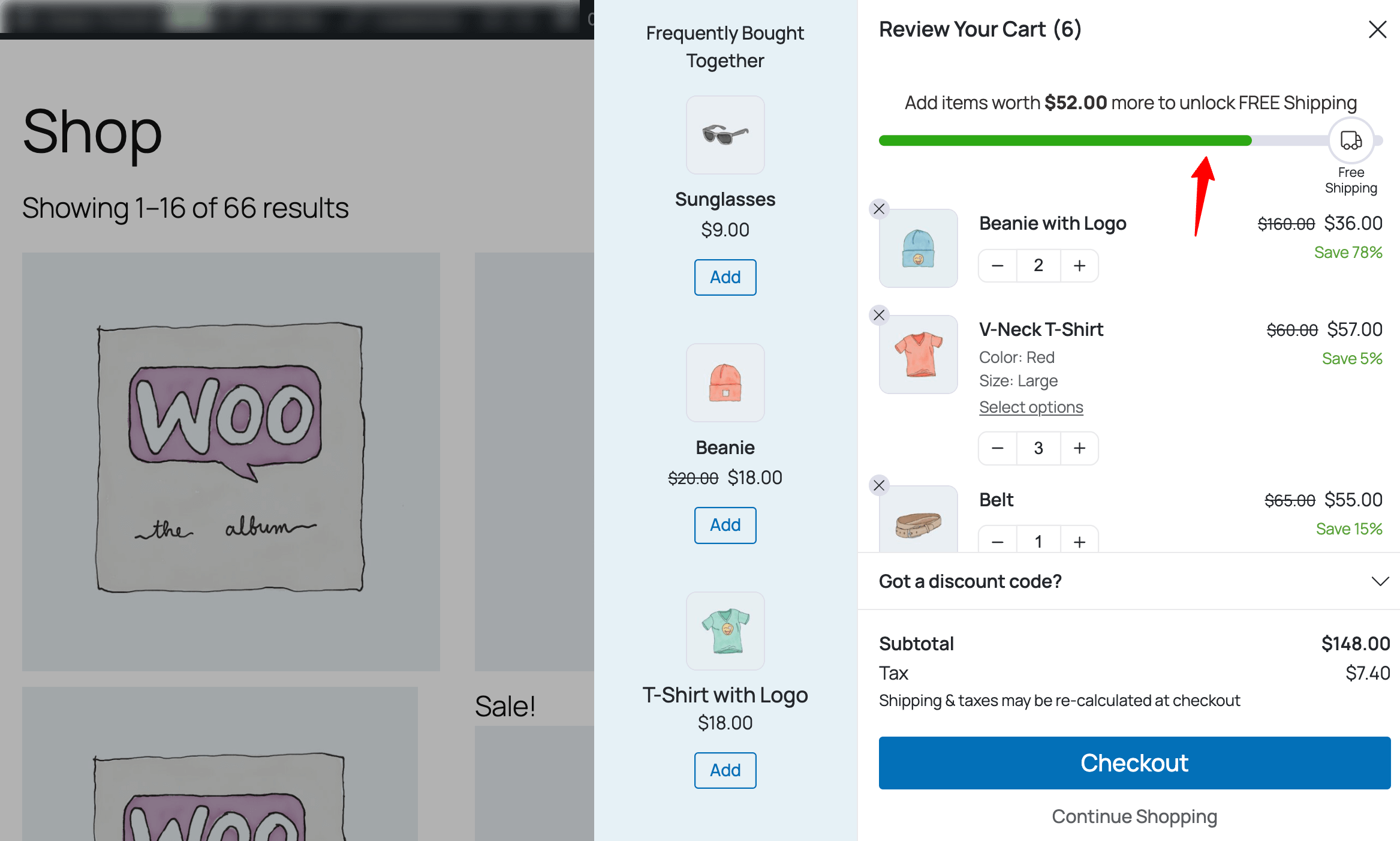
A dynamic progress bar shows how much users have added to their cart (the progress) and how much more they need to qualify for free shipping. It shows up as soon as users add their first item and updates in real time with every item they add afterward.
For example, you could pair a progress bar with a message like "Add $52 more to unlock FREE shipping!" This creates urgency and encourages customers to add more items to their cart.
Now, which one should you use? The answer is both.
You can display a static message throughout your website, including the home page, to inform users that you offer free shipping above a certain amount. Use a dynamic bar to show them how close they are to qualifying for free shipping, which will motivate them to add items.
Yes. Create a shipping zone for each region, each with its own Free Shipping method and minimum. Tools that read the matched zone show each shopper the right number.
WooCommerce.com’s Free Shipping Bar extension, for instance, supports multiple free shipping zones and can hide the bar in chosen countries.
The Free Shipping method covers whole orders in a zone, and it can't single out one product. To make one product ship free, put it in its own shipping class and set that class's cost to 0 in your Flat Rate method.
In mixed carts, the other items still carry their normal shipping cost. For rules like "free shipping when this product is in the cart", use a conditional shipping plugin.
That's up to you, as long as the bar and WooCommerce agree:
- Tax counts toward the minimum when you display prices including tax.
- Coupons come off before the check unless you tick "Apply minimum order rule before coupon discount".
Set your bar's calculation to match.
For most stores, one static message and one dynamic bar are enough. A sitewide message lets shoppers know about free shipping before they start shopping, while the dynamic free shipping bar shows them how close they are once they're in the cart.
Adding more copies usually just repeats information they've already seen.
Ready to Use a Free Shipping Progress Bar to Seal More Profitable Deals?
Free shipping is a great way to boost sales, and a progress bar just makes it more engaging and effective.
The free shipping bar simply gives shoppers a reason to add a little more when they're close.
What you recommend alongside the bar determines what those extra orders are worth.
If you want more than a progress bar, FunnelKit Cart puts the bar, a one-click product recommendation, and a second reward tier in the same drawer.
You can also track how many orders those offers influenced.
So, get FunnelKit Cart today and make use of the WooCommerce free shipping bar to boost sales while making a profit.
Editorial Team
October 11, 2026You can customize the WooCommerce cart page with the Cart block, a page builder like Elementor, or CSS and PHP snippets. Which method works for you depends on the cart...
Editorial Team
October 9, 2026A WooCommerce discount lowers what a shopper pays, either through a reduced product price or a code entered at checkout. Out of the box, WooCommerce gives you two ways to...
Editorial Team
October 9, 2026A downsell gives customers a cheaper option after they turn down your main offer. If you show it too soon, you might convince them to skip the original offer and...