


The WooCommerce phone field is one of the most commonly adjusted elements on the checkout page.
Store owners either want to make it required for delivery coordination, add country code validation for international customers, or remove it entirely to reduce checkout friction.
But the default setup is extremely rigid. No built-in format validation. No country flag dropdowns.
You barely get any customization options over whether the field is required, optional, or hidden entirely from the frontend.
Changing this behavior in the WordPress Customizer often does not work as expected.
In this guide, we will look at exactly how to fix this. Whether you prefer writing raw PHP snippets or using visual checkout builders.
You'll learn the mechanics behind making the phone field optional, enforcing country codes with visual flags, repositioning the fields, and optimizing it for international customers.
Why Customize the WooCommerce Phone Field?
The WooCommerce phone field, also known as the billing phone field, is where customers enter their phone numbers during checkout.
This field allows store owners to contact customers directly with any issues with their orders, such as payment problems, stock availability, or delivery queries.
By default, WooCommerce treats this field as required in the billing details section, but the level of customization available in the standard settings is minimal.
Here's why we recommend customizing the phone field for your store:
- Reduce unnecessary friction at checkout
Selling strictly digital downloads? Remove the phone field entirely.
The flexibility to make the phone field optional or required helps you speed up the checkout process and reduce cart abandonment.
- Comply with shipping carrier and regulatory requirements
You can't just leave the phone field off if you ship physical goods. FedEx, UPS, and local postal systems demand a valid contact number printed directly on the label.
Some regions also have regulations around data collection, and GDPR requires you to justify why you collect phone numbers and explain how you will use them.
- Collect valid, formatted phone numbers
You need real, usable data. By enforcing strict validation, such as mandating exact digit counts by region, you prevent users from entering invalid strings of numbers.
- Support international customers with country codes
Cross-border commerce breaks the default WooCommerce phone field input.
Adding a country flag visual instantly solves the formatting problem. Buyers stop guessing about plus signs or dial codes. They just pick their country and type.
- Enable SMS marketing and order notifications
CRMs and marketing tools fail if the phone data isn't clean.
You need structured formatting (like E.164) if you plan on pushing SMS alerts. Whether that's for rescuing abandoned carts, texting shipping updates, or running promotional blasts.
Table of Contents
- 1 Method 1: Customize the WooCommerce Phone Field Without Code
- 2 Method 2: Customize the WooCommerce Phone Field With Custom Code
- 3 7 Best Practices for Using Phone Numbers in WooCommerce
- 4 Frequently Asked Questions (FAQs) Related to WooCommerce Phone Field
- 5 Ready to Update the WooCommerce Phone Field on Your Checkout Page?
Method 1: Customize the WooCommerce Phone Field Without Code
Now it’s time to show the WooCommerce phone field customization. We’ll demonstrate three important use cases of the WooCommerce phone field.
For the tutorial part, we’ll use FunnelKit Funnel Builder.
It is a powerful WordPress funnel builder that helps you create high-converting sales funnels. It also lets you customize checkout fields, like the WooCommerce phone field, so your checkout process meets your specific needs and enhances the customer experience.
Before starting, make sure to install and activate FunnelKit builder on your WordPress site.
Step 1: Make the phone field required on the WooCommerce checkout page
Using FunnelKit, you can make the phone field required or optional, depending on your requirements.
Unlike the default settings of WooCommerce, you will have full control over customizing the phone field on your checkout page.
But before that, let’s preview the checkout page and see the current fields. You can see that no phone field has been added here on the checkout page.
Let’s add it.
First, navigate to FunnelKit > Store Checkout, then click the checkout page.
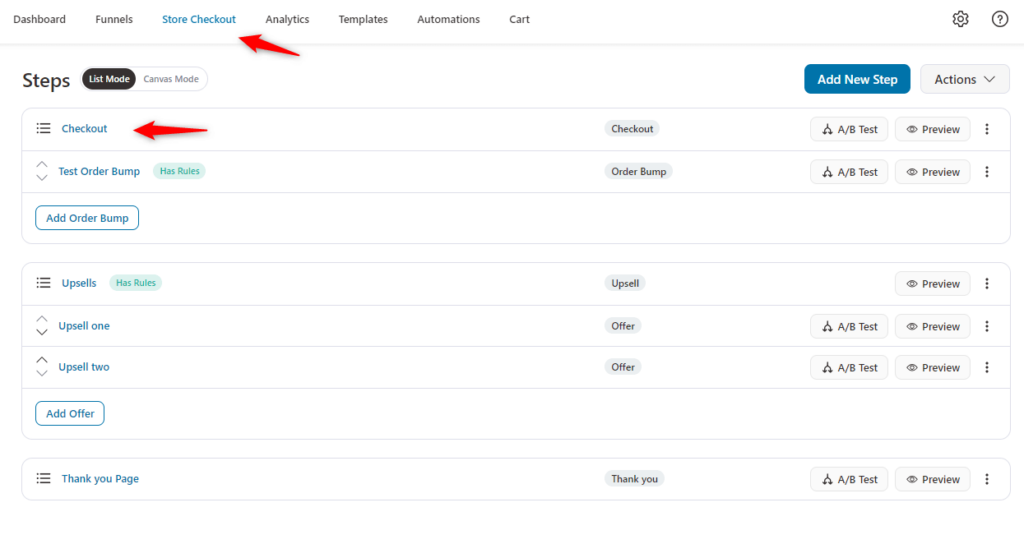
Now, slightly scroll down and you’ll find the phone field.
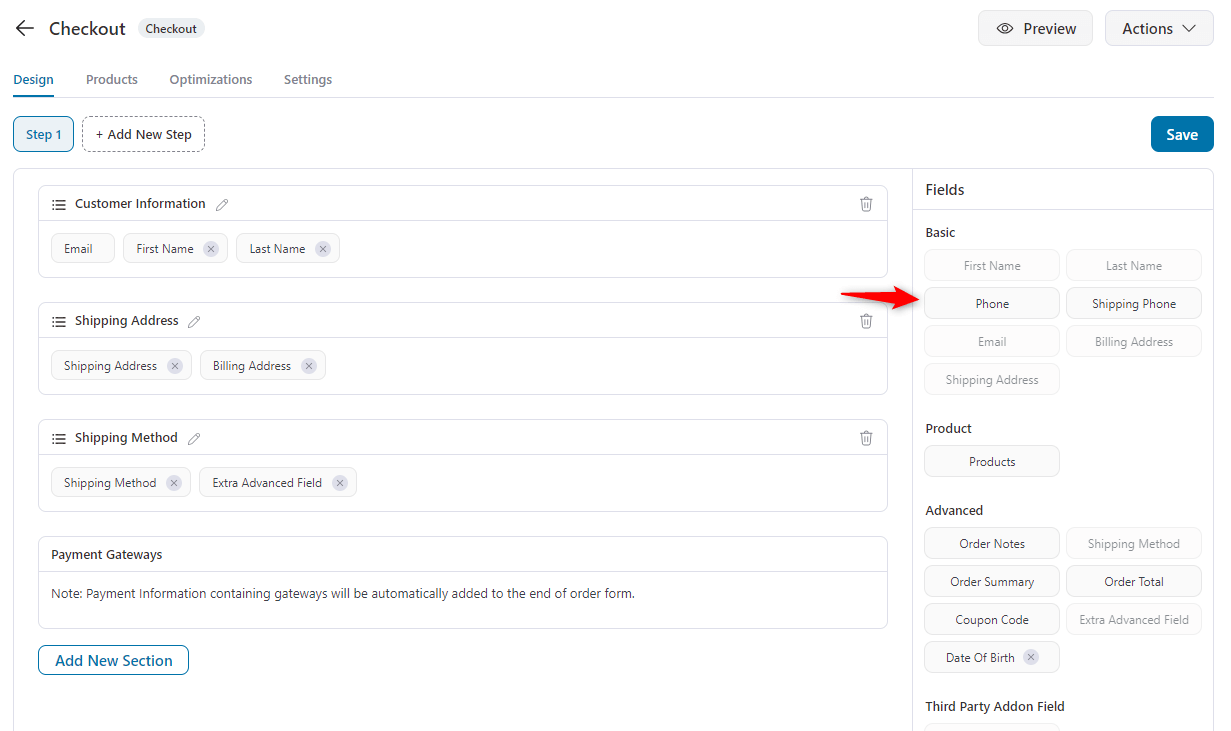
Drag and drop the phone field to your preferred area.
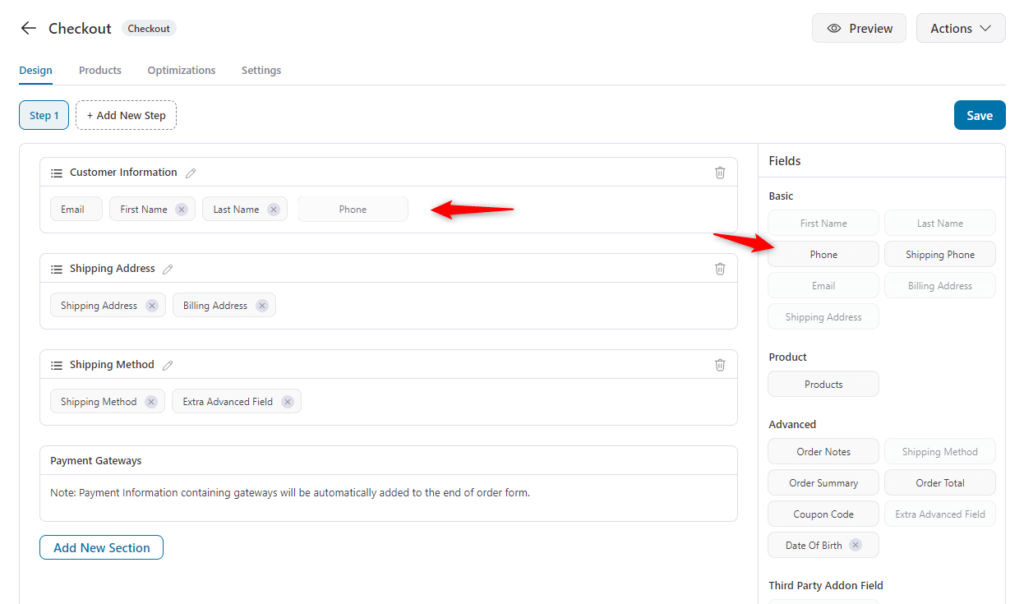
Now the phone field is added.
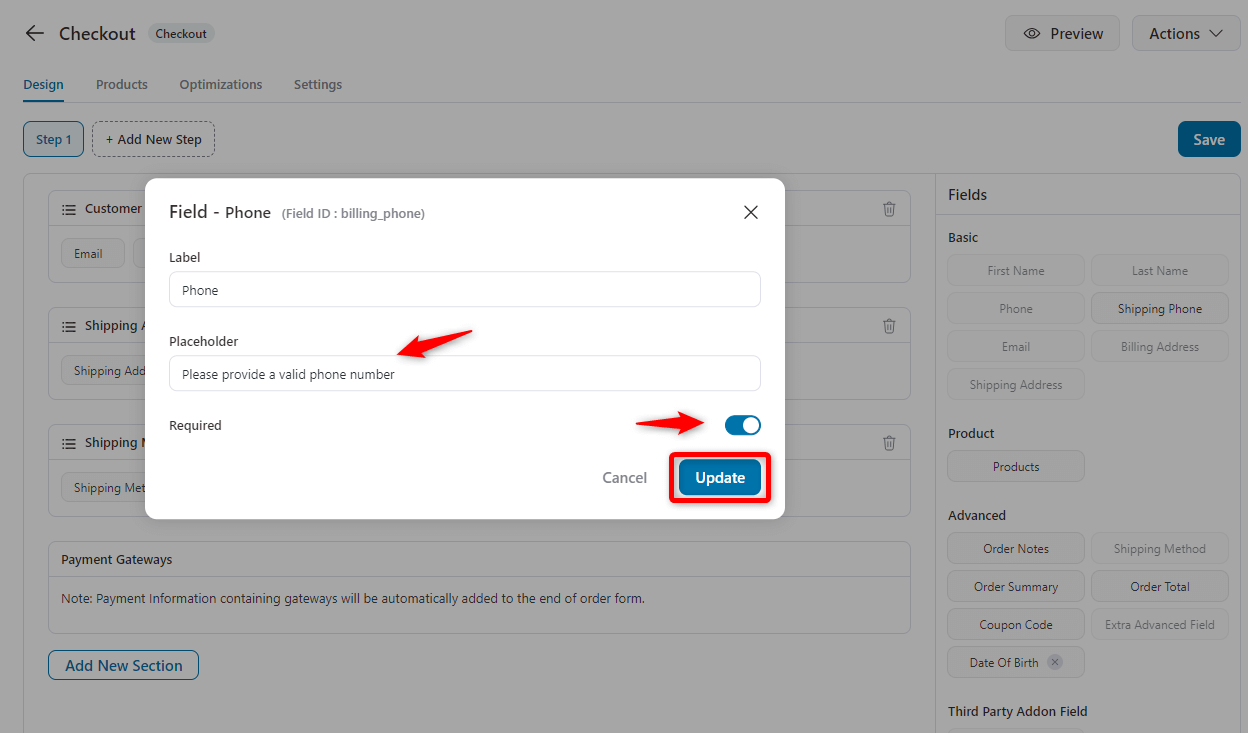
Click on the phone field button and enable the “Required” option. Also, you can add a placeholder to give a message to your users.
For example, we used “Please provide a valid phone number”. So it will remind users to provide a verified or valid phone number.
Once done, hit save on both screens and the preview.
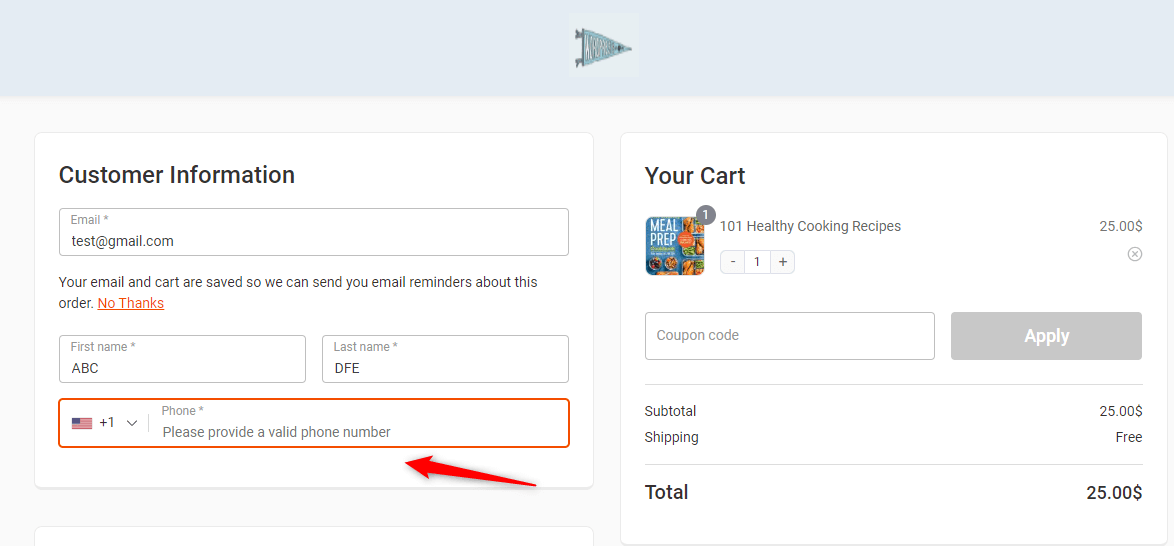
So when a user reaches the checkout page, they will see the phone field this way.
Now, let’s see how to enable the phone field section inside the shipping address area.
On the same store checkout page, inside the shipping address section.
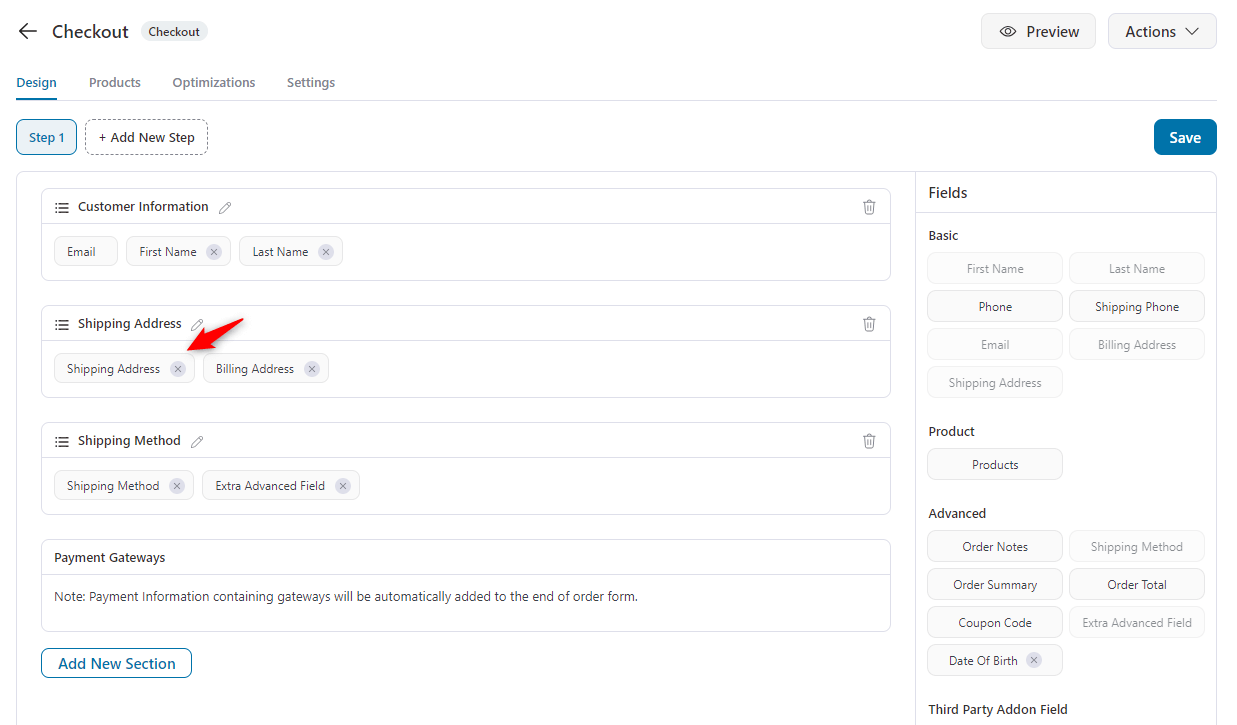
Scroll down and you’ll find the phone field option. Just enable and expand it to customize the settings.
Similarly, you can add a label or a placeholder and make it required.
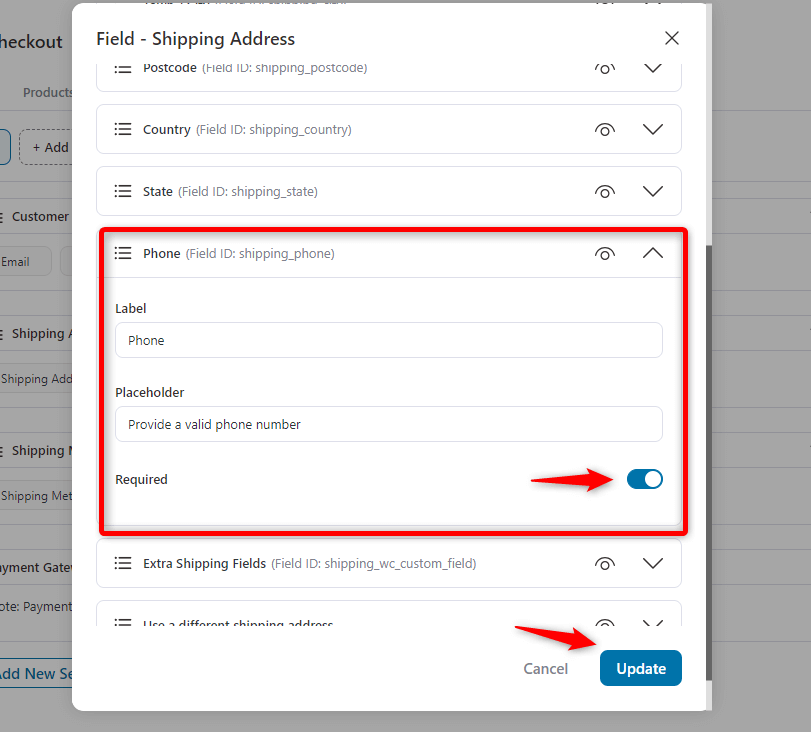
Once you’re done, hit the “Update” button and see it from the checkout page.
On the checkout page, you can see that the phone field is appearing under the shipping address section. Also, it’s working properly.
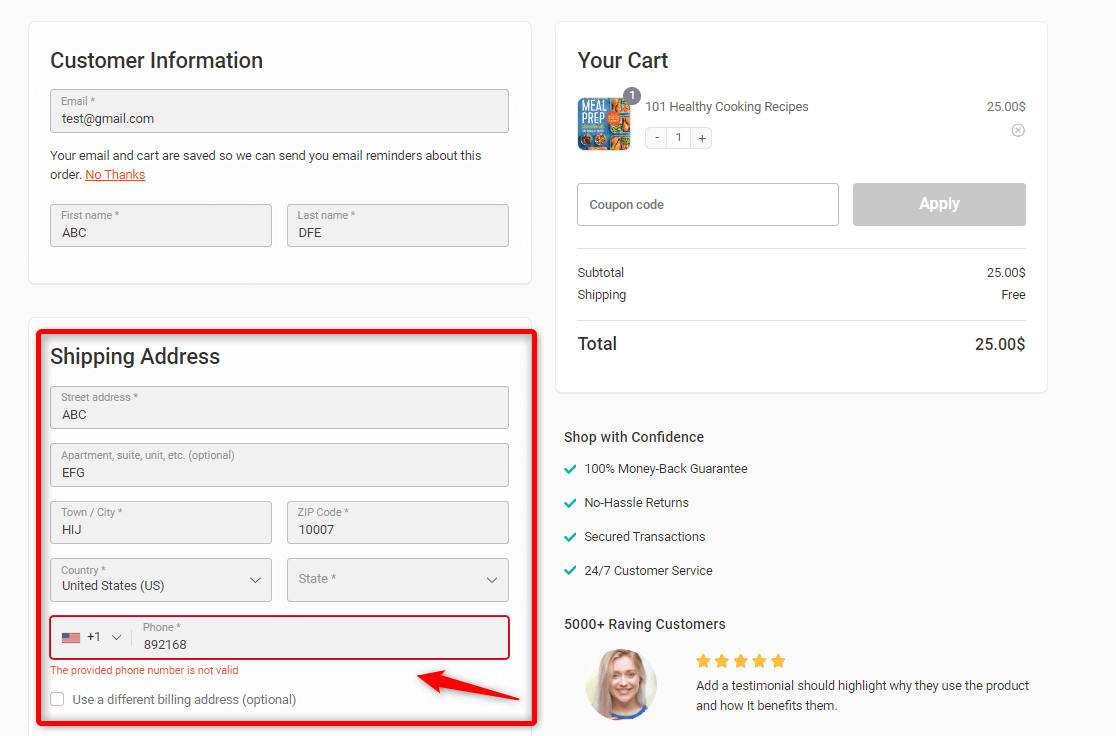
So this is how you can enable and make the phone field required on your WooCommerce checkout page using FunnelKit Funnel Builder.
Step 2: Customize the phone field on the WooCommerce checkout page
Click on the 'Edit Template' button to start customizing your checkout page.
In the Elementor editing panel, click the “Pen” icon on the checkout form, then go to Customer Information> Phone.
In the dropdown menu, you will find field styles to display your phone field on the checkout page. Currently, the full style is applied.
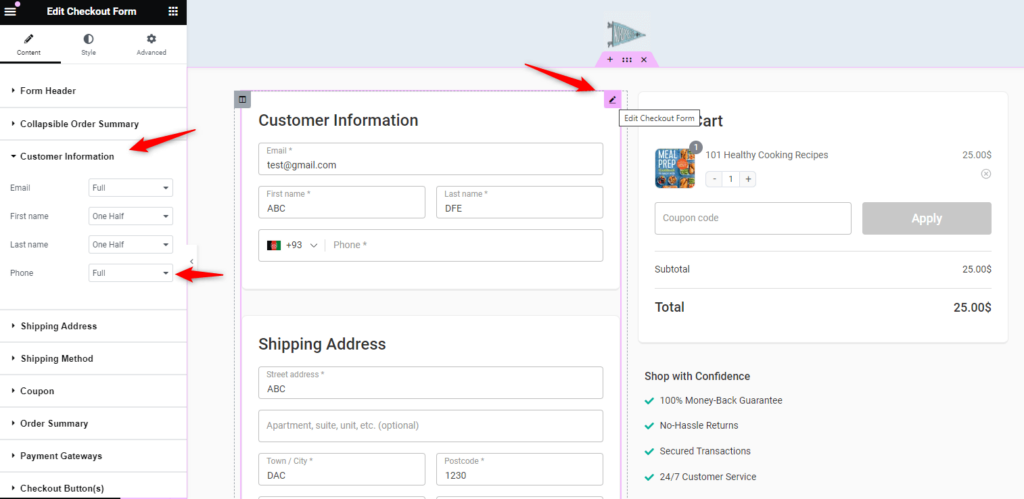
Depending on the structure, you can choose the best one that fits your needs.
If you want to stylize the field, you can easily do that from the “Style” tab. Click on it and expand the “Field” option.
Here you can change the label position, typography, and color. Similarly, you can customize the input, border, and section. Keep your checkout page fields as needed.
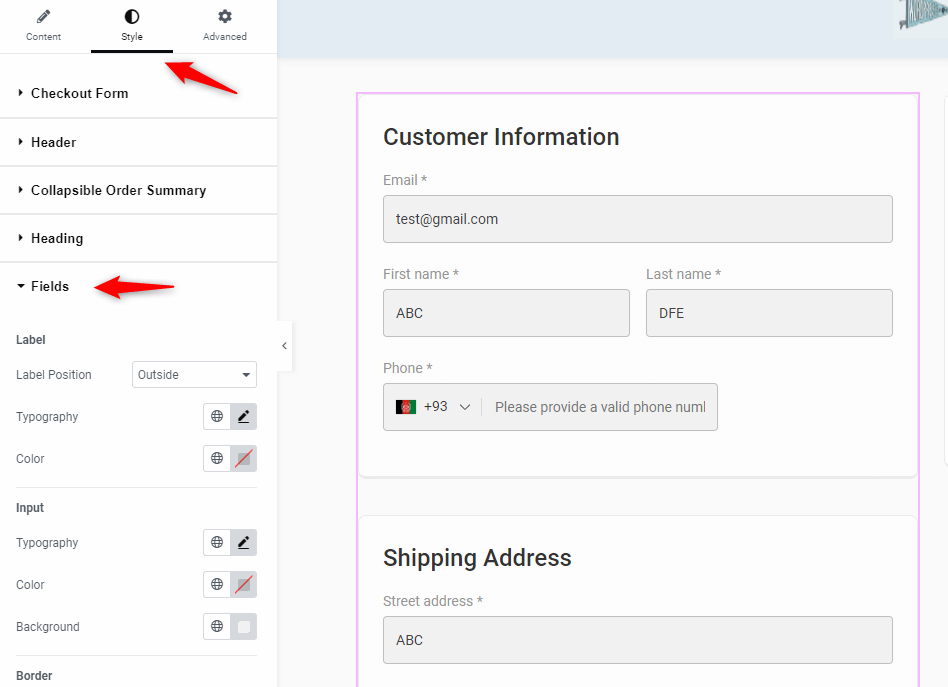
You can change the input color. The focus color and error validation colors.
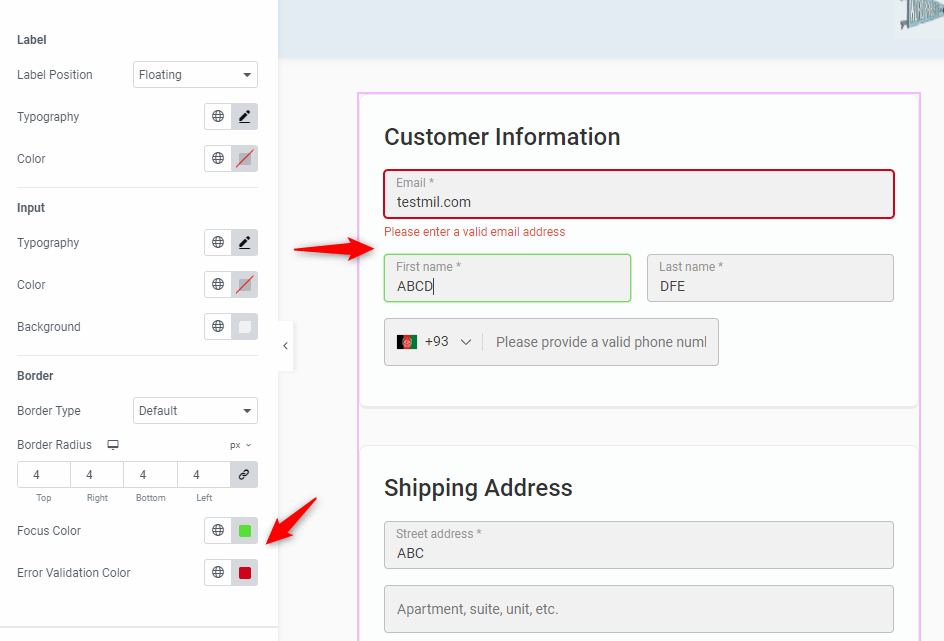
Here's the final look of the page.
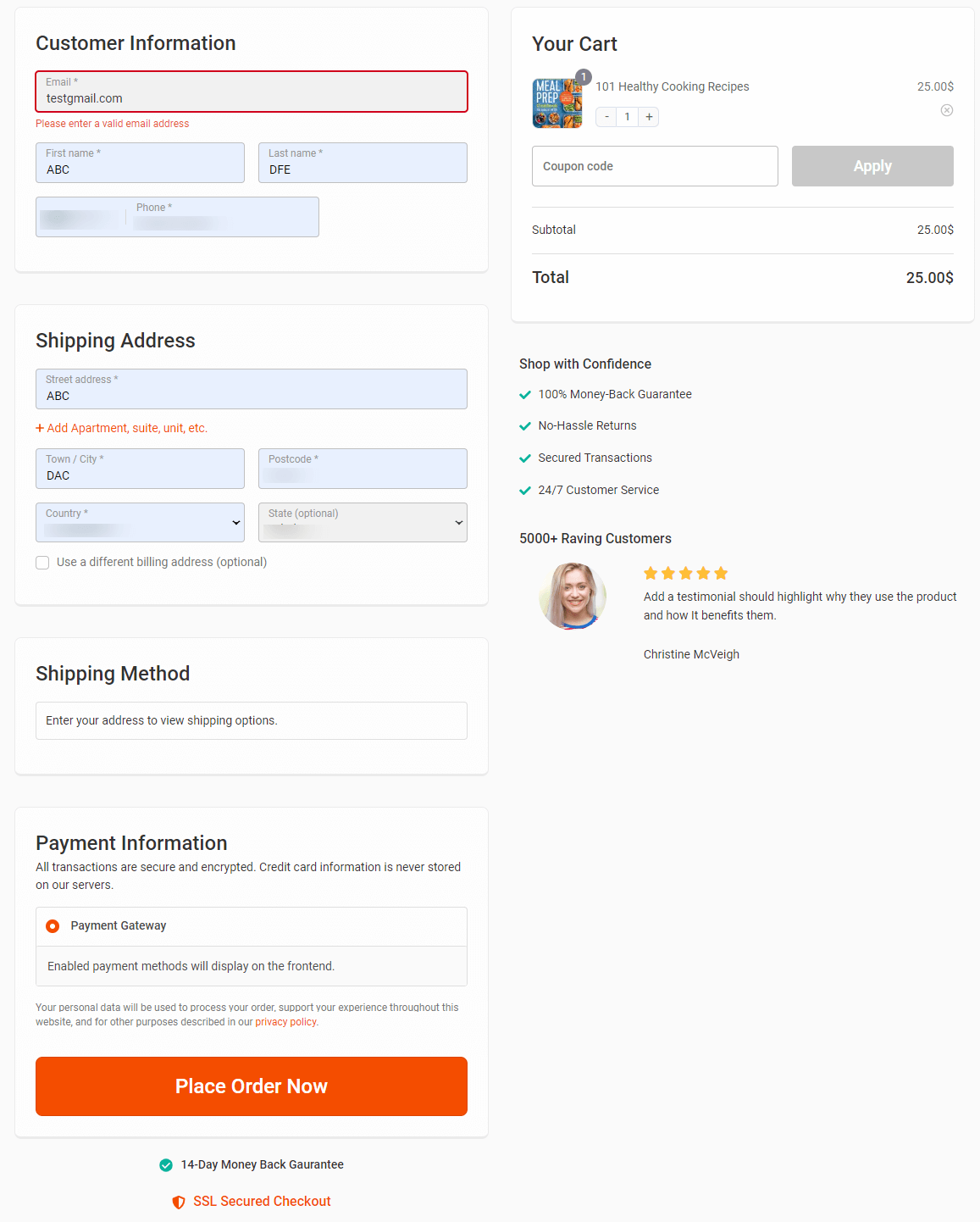
This is how you can customize the WooCommerce phone field on your checkout page
Step 3: Optimize the phone field on WooCommerce checkout for customer experience
You can optimize the WooCommerce phone field on your checkout page.
To do that, tap on the Optimization tab.
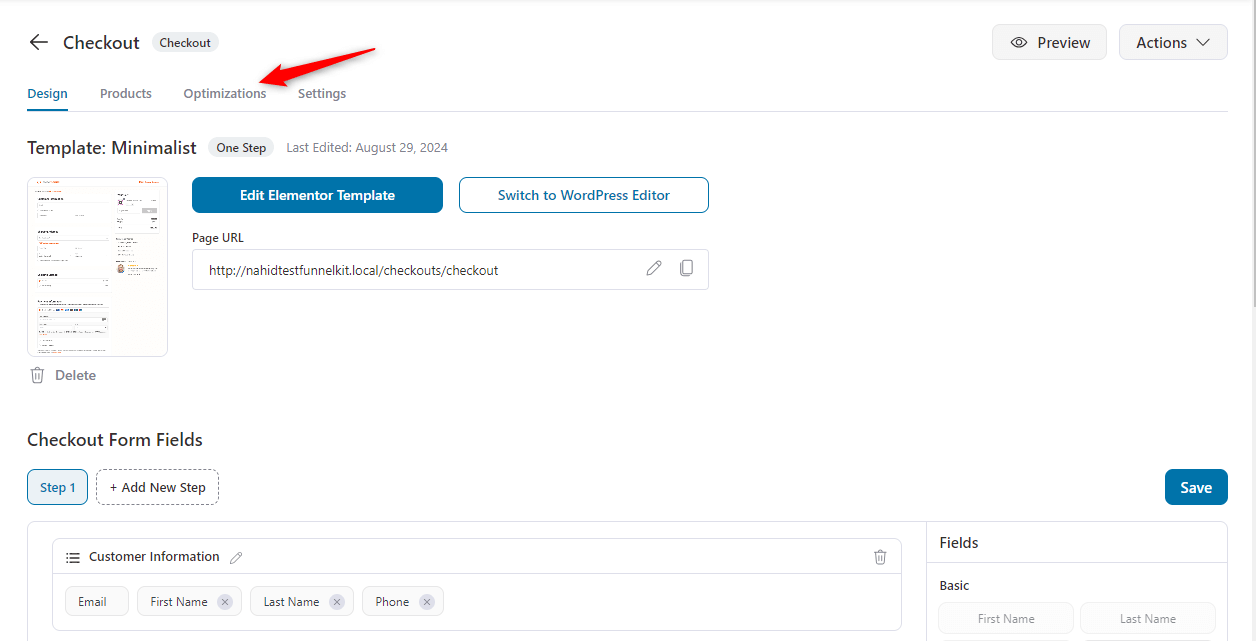
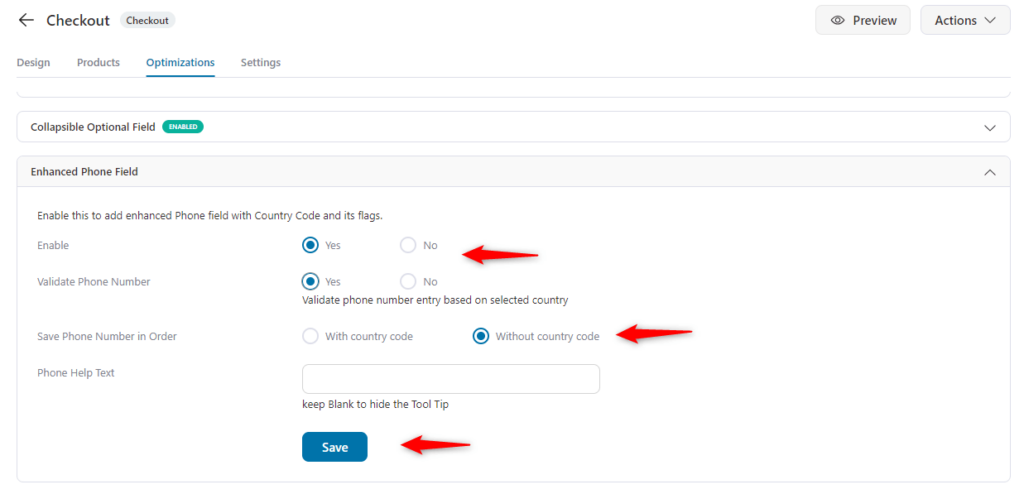
Here, you'll find a lot of optimization options for the checkout page. From here, click on the “Enhanced Phone Field” and expand it.
Now, enable the enhanced phone field option with phone validation. Also, you can choose whether to save a number with the country code.
Lastly, you can add a tooltip to display a message to customers.
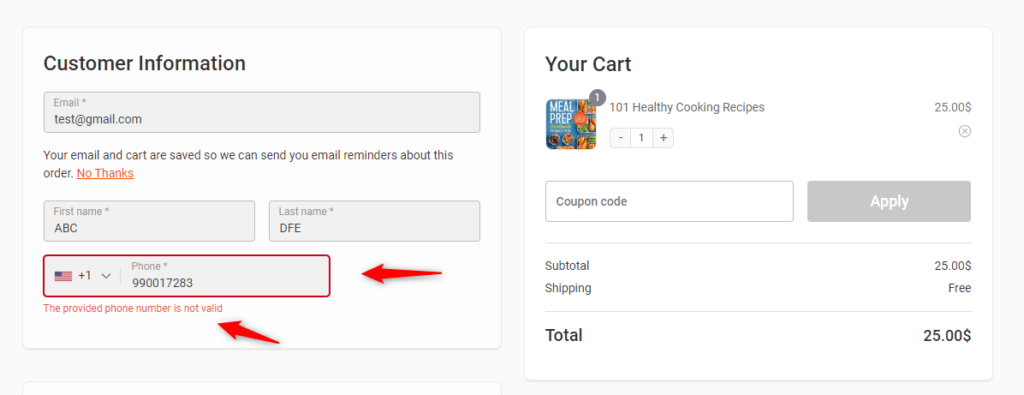
Preview it and add an error number. You can see the field is saying, “The provided number is not valid.”
Well done! This is how you can optimize your WooCommerce phone field.

Method 2: Customize the WooCommerce Phone Field With Custom Code
You can also customize the WooCommerce phone field using PHP hooks and filters.
WooCommerce exposes the checkout fields array through the woocommerce_checkout_fields and woocommerce_billing_fields filters, which let you modify field properties programmatically.
Always back up your site when editing your child theme’s functions.php file or using a code snippets plugin.
These are the codes.
- Make the phone field optional
add_filter( 'woocommerce_billing_fields', 'custom_phone_field_optional' );
function custom_phone_field_optional( $fields ) {
    $fields['billing_phone']['required'] = false;
    return $fields;
}- Remove the phone field entirely
add_filter( 'woocommerce_checkout_fields', 'remove_phone_field' );
function remove_phone_field( $fields ) {
    unset( $fields['billing']['billing_phone'] );
    return $fields;
}
Change the phone field label and placeholder:
add_filter( 'woocommerce_billing_fields', 'custom_phone_field_label' );
function custom_phone_field_label( $fields ) {
    $fields['billing_phone']['label'] = 'Mobile Number';
    $fields['billing_phone']['placeholder'] = 'e.g. +1 555-123-4567';
    return $fields;
}
The custom code approach works for basic changes, such as toggling the required status or changing labels.
However, it does not provide real-time international phone validation, country flag dropdowns, or format-aware error messages.
For these features, a plugin is necessary.
Additionally, code snippets only work with the classic WooCommerce checkout. If your store uses the newer block-based checkout, you will need a plugin (in method 1) that supports that checkout architecture.
7 Best Practices for Using Phone Numbers in WooCommerce
Collecting phone numbers from your customers is important. But it's crucial to do it in a way that’s both helpful and respectful of their experience.
Here’s how you can make the most of the phone field in WooCommerce:
1. Make phone numbers optional unless essential
Only ask for a phone number if it's really necessary. For example, if you need it for delivery or customer service, make that clear.
However, collecting a phone number becomes crucial if your business uses SMS for communication, such as order notifications, cart abandonment reminders, or flash sale alerts.
In these cases, clearly explain how the phone number will be used to enhance the customer experience. Otherwise, consider making it optional, as forcing customers to provide a phone number when it’s not needed can be frustrating and may even lead to cart abandonment.
2. Validate phone numbers for accuracy
Make sure the phone numbers entered by customers are correct. You can do this by using a validation feature that checks the format and length based on the country code.
FunnelKit provides an option to validate phone numbers and other checkout fields with inline validation. Accurate phone numbers help prevent issues when contacting customers for order updates or delivery.
3. Include a country code selector
Adding a country code selector helps customers enter their phone numbers correctly, especially if you sell internationally.
FunnelKit makes this easy by offering enhanced phone fields that automatically select the phone code when a customer picks their country in the shipping address.
This reduces input errors and ensures you get the right contact information.
4. Tell customers why you need their number
Let your customers know why you're asking for their phone number.
For example, you could include a short message near the phone field saying, "We'll only use your number for order updates or delivery questions."
This transparency builds trust and can make customers more willing to share their information.
5. Keep the phone field simple and user-friendly
The phone field should be easy to locate and fill out. Avoid unnecessary options or complex formats. A clean, straightforward design helps customers quickly enter their information without getting frustrated.
Consider placing the phone field logically within the checkout process where customers expect it, such as alongside other contact details.
6. Store phone numbers in a standardized format
If you plan to use phone numbers for SMS marketing, CRM syncing, or API integrations, save them in E.164 format (e.g., +14155551234).
This format is universally recognized by SMS gateways, CRMs, and telephony APIs.
Without standardization, the same number might be stored as "415-555-1234", "(415) 555-1234", and "+1 415 555 1234" across different orders, creating data quality issues.
7. Handle the phone field gracefully on the My Account page
A common oversight is making the phone field optional at checkout, but leaving it required on the My Account billing address form.
Customers who skipped the phone field during checkout will be unable to save their billing address later unless they enter a phone number.
Make sure the required status is consistent across both the checkout page and the account address editor.
Frequently Asked Questions (FAQs) Related to WooCommerce Phone Field
Yes, you can easily make the phone field optional or required in WooCommerce checkout, and FunnelKit makes this process simple.
Navigate to WooCommerce > FunnelKit > Checkout > Phone Field Settings. Make the phone field required or optional. Simply toggle this setting based on your preference. After making your selection, save the changes and visit your checkout page to ensure that the phone field behaves as expected.
It depends on your business model. For digital product stores where you never need to call or text customers, removing the phone field eliminates an unnecessary step. For physical product stores, especially those using shipping carriers that require a contact number, the phone field should stay.
As a middle ground, make the field optional so customers who want to provide a number can do so without being forced.
If phone field validation isn’t working as expected, you can troubleshoot the issue as follows:
- Check for plugin conflicts: Temporarily deactivate other plugins to see if any are interfering with the phone field validation. Reactivate them one by one to identify the culprit.
- Ensure your theme supports WooCommerce: Some themes might not be fully compatible with WooCommerce. Switch to a default theme, such as Storefront, to see if the problem persists.
- Use a custom validation hook: If the default validation isn’t working, you can implement custom validation using this code snippet in your functions.php file:
Here are the additional things to add to your phone field setup:
- Privacy note explaining the phone number usage
- Shipping phone field for separate delivery contact
- Connect the phone field to SMS marketing automation
- Add OTP verification to prevent fake orders
- Conditional phone fields on the checkout page
Yes, with conditional logic. FunnelKit supports this natively in its field settings. For the classic checkout, you’d need JavaScript to show/hide the field based on the selected shipping method or payment gateway, combined with server-side validation to enforce it on form submission.
Ready to Update the WooCommerce Phone Field on Your Checkout Page?
Tweaking the phone field might seem minor, but it’s crucial for your business. This field is where you collect customer contact numbers, making it a key part of your checkout process.
Keeping the phone field simple and user-friendly is important to ensure customers feel comfortable sharing their information.
While WooCommerce offers limited customization options, FunnelKit makes it easy to tailor the phone field to your needs. Plus, you can adjust the design, add a country code selector, and position the field wherever it works best.
Therefore, a well-optimized phone field, especially with FunnelKit’s help, makes it easier to connect with customers, resolve issues, and keep them engaged.
So, are you ready to take your checkout experience to the next level? Download FunnelKit today and start customizing your phone field and more with ease.
Editorial Team
October 6, 2026The WooCommerce checkout coupon field is where shoppers enter a discount code before they pay. Once coupons are turned on, WooCommerce adds it to both the cart and the checkout...
Editorial Team
September 25, 2026Removing checkout fields in WooCommerce is one of the fastest ways to simplify your store’s checkout and reduce cart abandonment. Every extra field you ask customers to fill in adds...

Editorial Team
September 14, 2026Changing currency at WooCommerce checkout is easier to explain with a simple example: a shopper in Munich sees €169 instead of $184 for the same jacket. Nothing about the product...






