


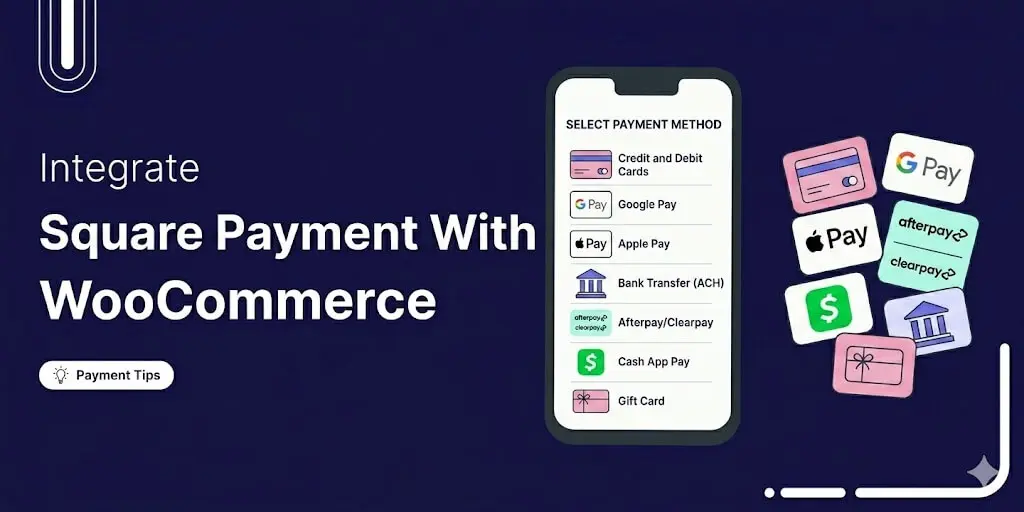
Square is one of the more popular payment options for WooCommerce, mainly because it handles both online and in-person sales from the same account.
With over 4 million merchants relying on this payment gateway, it’s a perfect choice for WooCommerce.
However, WooCommerce doesn’t offer any default way of integrating Square into your WooCommerce store.
In this blog, we will share what payment Square offers and how you can integrate WooCommerce Square Payment in easy steps for free.
Table of Contents
- 1 What Is Square Payment Gateway and What It Offers
- 2 Best Free WooCommerce Plugin to Integrate With Square Payment
- 3 How to Integrate Square Payment Gateway With WooCommerce In Easy Steps
- 4 Step 5: Test different payment options before going live
- 5 Start Accepting Payments With Square on WooCommerce Today
What Is Square Payment Gateway and What It Offers
Square is a payment processing platform built to help businesses accept payments online, in person, and on the go. For online businesses, it offers a robust suite of tools to handle transactions seamlessly across websites and digital storefronts.
Using Square, merchants can accept online payments using:
- Credit and Debit Cards such as Visa, Mastercard, American Express, and Discover.
- Google Pay for fast, one-tap checkout on Android and Chrome.
- Apple Pay for seamless checkout on iOS and Safari.
- ACH Bank Transfers for invoice-based and recurring payments directly from a customer's bank account.
- Cash App Pay allows customers to pay instantly using their Cash App balance.
- Afterpay for buy now, pay later payments, split into interest-free installments.
- Gift Cards, including digital eGift cards that customers can purchase and redeem directly through your online store. In addition to a wide range of payment methods, Square supports invoicing and recurring billing, making it a popular choice among eCommerce stores, service-based businesses, and subscription platforms.
Why You Should Integrate Square Payment With Your WooCommerce Store?
Integrating Square with WooCommerce helps you simplify payments, reduce manual work, and keep your store data in sync. It’s a reliable option for store owners who want secure payment processing and better operational control without extra complexity.
- Easy WooCommerce Payment Setup
Square connects directly with WooCommerce, allowing you to start accepting payments quickly without complex configuration.
- Multiple Payment Methods
Customers can pay using major credit and debit cards, ensuring a smooth and familiar checkout experience.
- Real-Time Inventory Sync
Product stock automatically updates between WooCommerce and Square, helping you avoid overselling and manual stock adjustments.
- Secure Payment Processing
Square offers PCI-compliant payments and built-in fraud protection to keep transactions safe and reliable.
- Transparent Pricing & No Setup Fees
Square uses simple, flat-rate pricing with no hidden setup costs, making it easier to manage transaction expenses.
- Built-In Reporting Tools
You can track sales and transactions from a central dashboard, helping you monitor performance and make better decisions.
Best Free WooCommerce Plugin to Integrate With Square Payment
If you are using Square with WooCommerce, the FunnelKit Square Payment Gateway plugin is worth looking at.
It is free, and it does more than process payments. The focus is on keeping WooCommerce and Square properly synced rather than just handling the transaction.
- Full WooCommerce and Square sync
Products, inventory, orders, and customer data stay in sync between both platforms automatically. If something sells through WooCommerce, Square knows about it, and vice versa.
- Multiple Payment method coverage
Supports credit and debit cards, Apple Pay, Google Pay, Cash App Pay, Afterpay, ACH bank transfers, and gift cards. Most customers will find their preferred option without any issue.
- Variable products, refunds, and order updates
You can manage these directly from WooCommerce and the changes carry over to Square in real time. No need to update both sides manually.
- Sandbox mode:
Test payments and workflows before going live. Useful for catching configuration issues before real transactions are involved.
- Admin-only test mode
Let's you run test payments on a live store without affecting the customer-facing experience. Handy for checking that everything still works after an update or configuration change.
- Consistent data across both platforms
Order and customer details stay matched between WooCommerce and Square, which keeps reporting accurately and avoids the kind of discrepancies that are annoying to track down later.
For stores that want Square to function as a properly integrated system rather than a standalone payment processor, this plugin covers the gap.
How to Integrate Square Payment Gateway With WooCommerce In Easy Steps
Follow the steps below to integrate the Square payment gateway in WooCommerce and receive payment seamlessly:
Step 1: Install and Activate the WooCommerce Square Payment Plugin
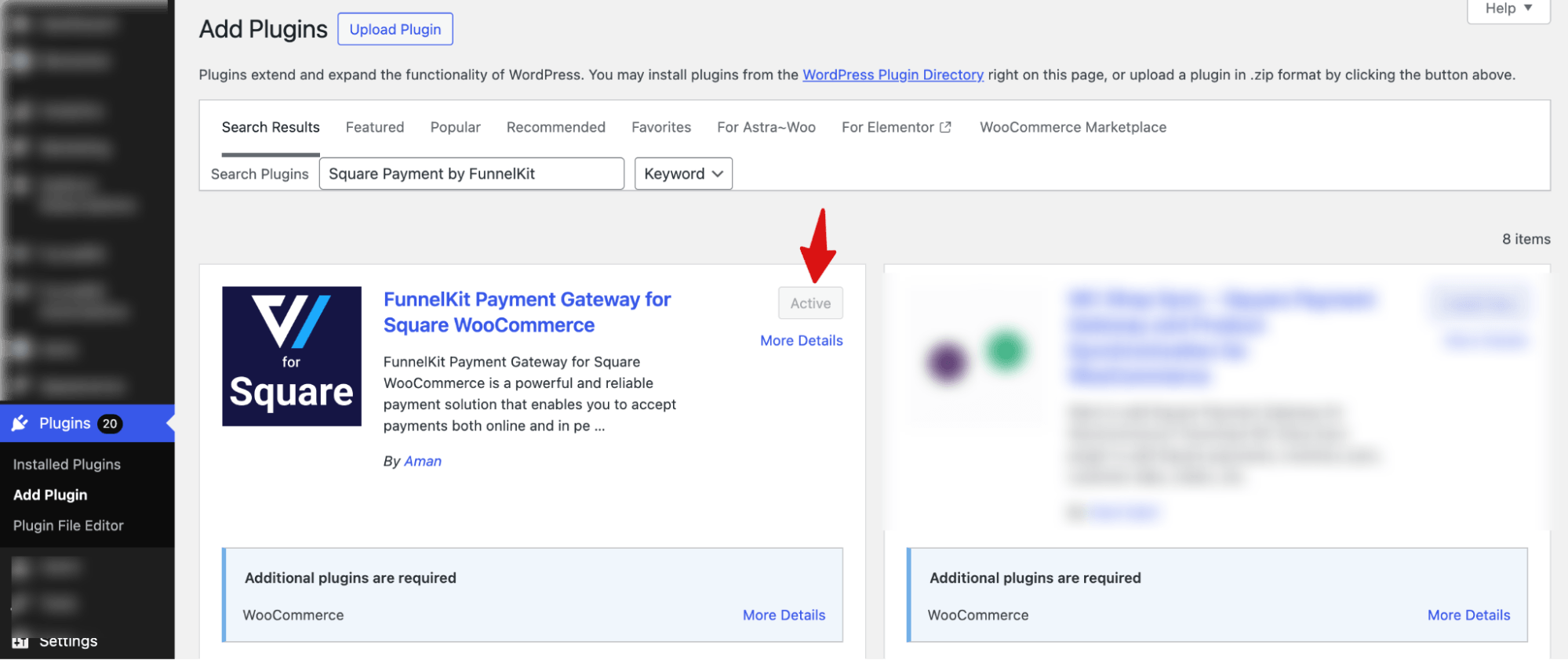
Go to Plugin ⇒ Add Plugin. Next, search for “FunnelKit Payment Gateway for Square WooCommerce”, then install and activate the plugin.
Step 2: Connect Your Square Account To WooCommerce
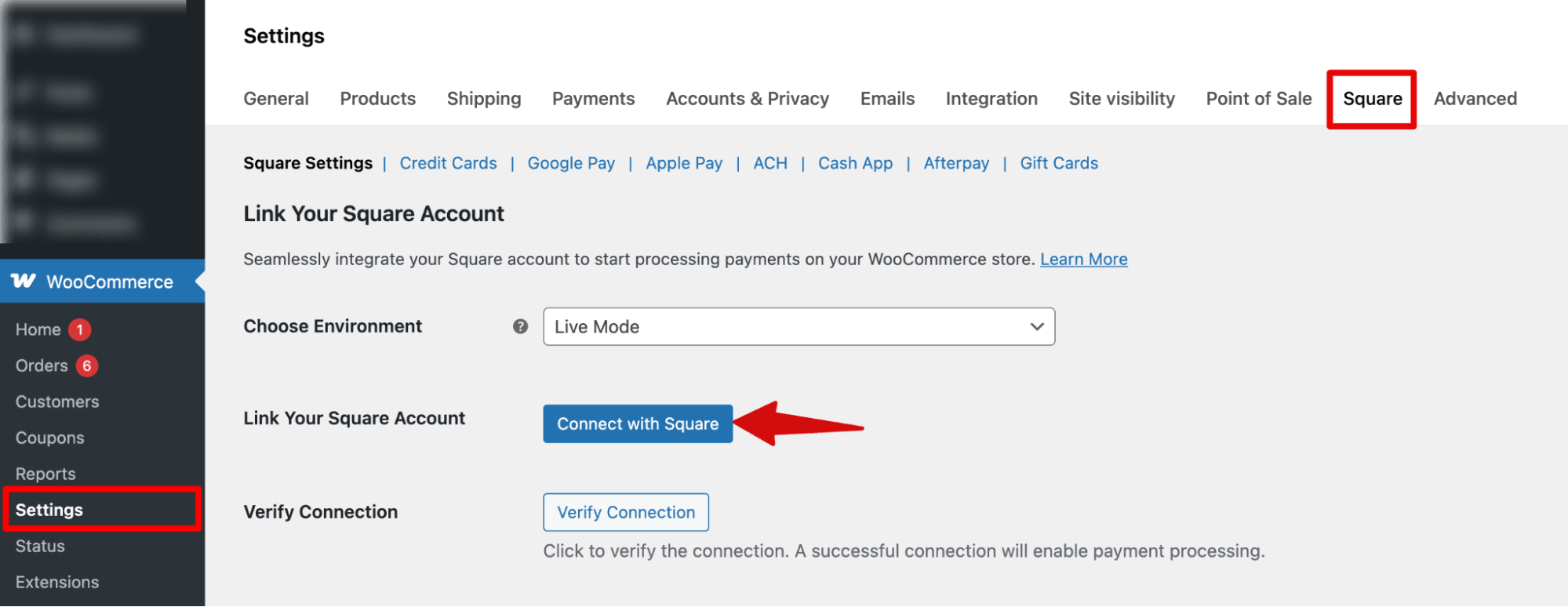
In your WordPress dashboard, go to WooCommerce ⇨ Settings and click on the Square tab.
From there, click on the Connect with Square button.
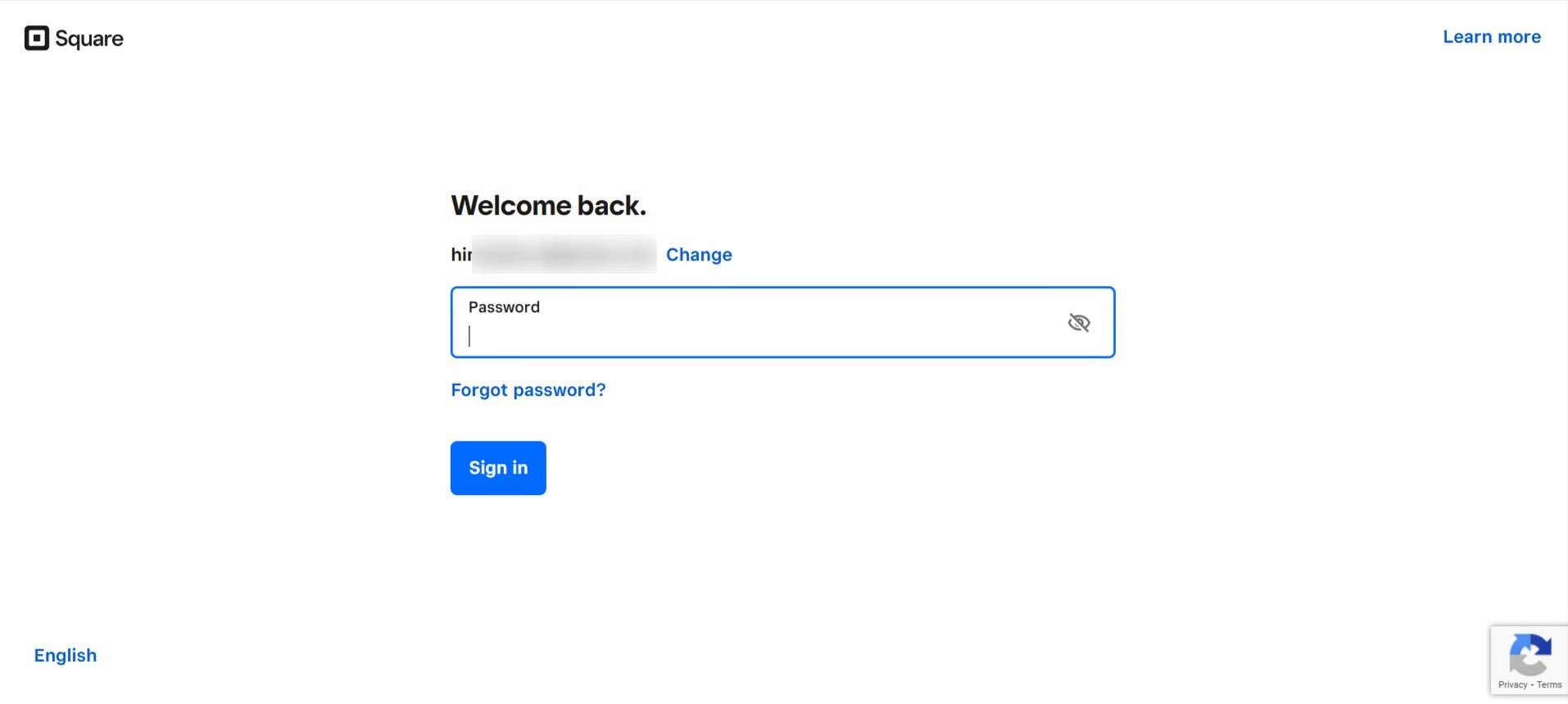
You will be redirected to the Square login page. Enter your Square login credentials (email and password) and click Sign In to log in to your Square account.
After logging in, you will be taken to the Square settings page within WooCommerce.
Step 3: Choose payment environment
On the Square Settings page, you will find several configuration options.

Such as the environment. Two options: Sandbox and Live.
For Sandbox, you can get two options:
- Test: Safely simulate and verify payment workflows before going live.
- Administration Only: Restrict test mode usage so only admin users can run and check transactions.
Next, provide the Sandbox API key and Sandbox Access Token.
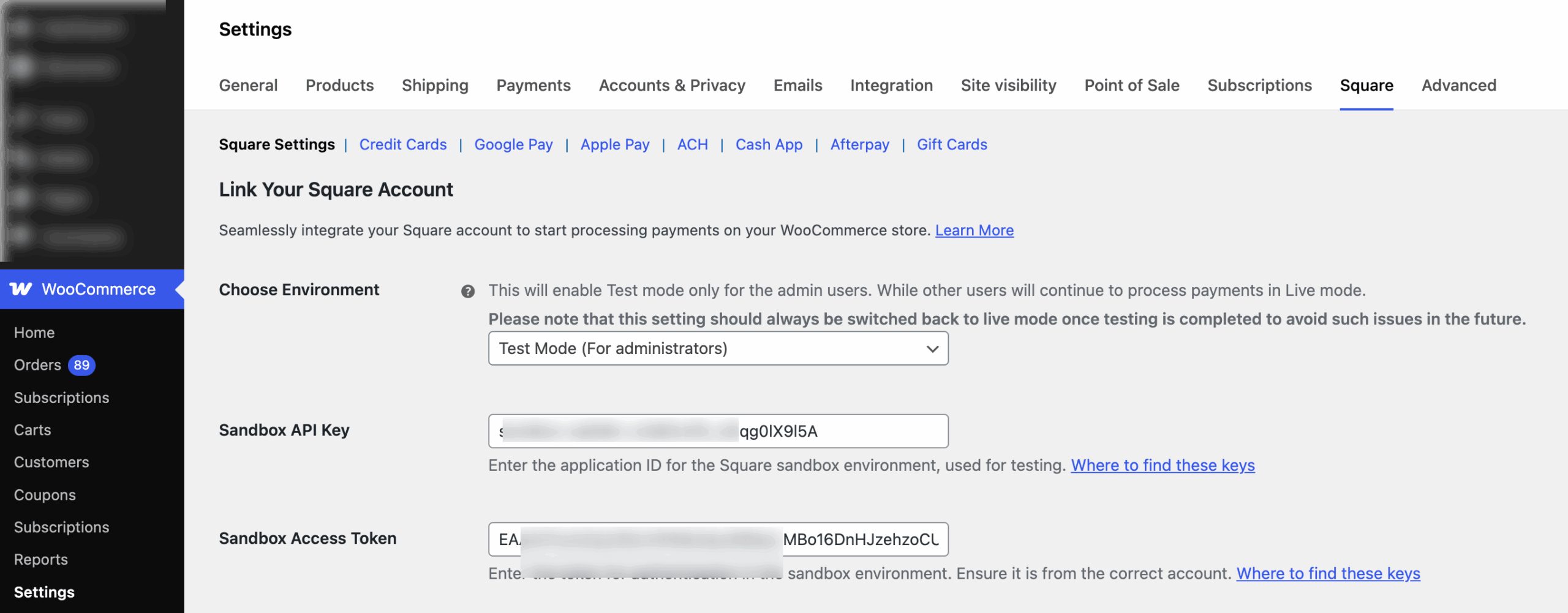
Step 4: Set up multiple payment options
Next, you can set up different payment options:
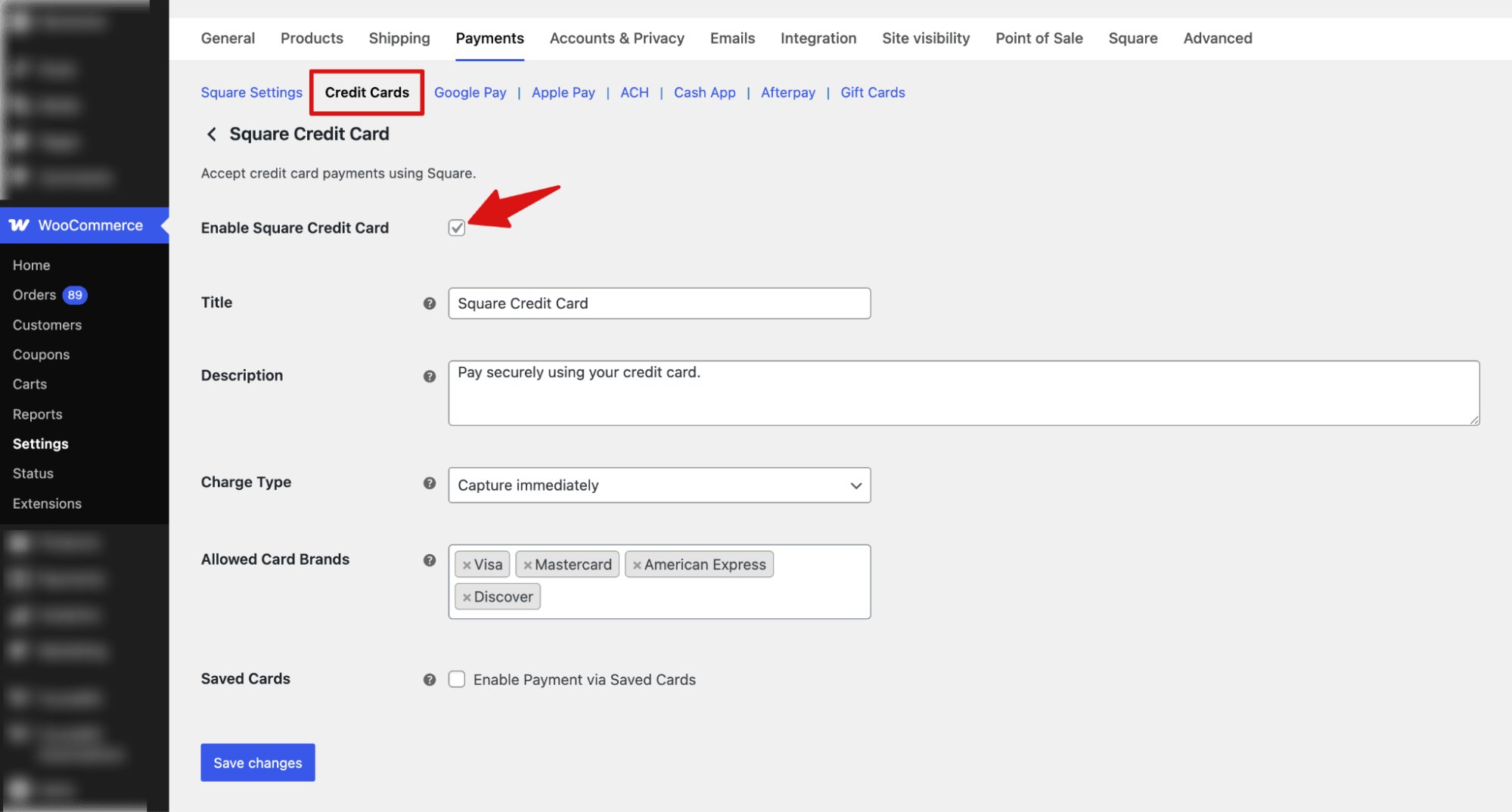
Credit and Debit Cards
Switch to the “Credit Cards” tab, and check the option. Next, enable Square Credit Card”. Next, set up the title, description, charge type, allowed cards, saved cards, etc.
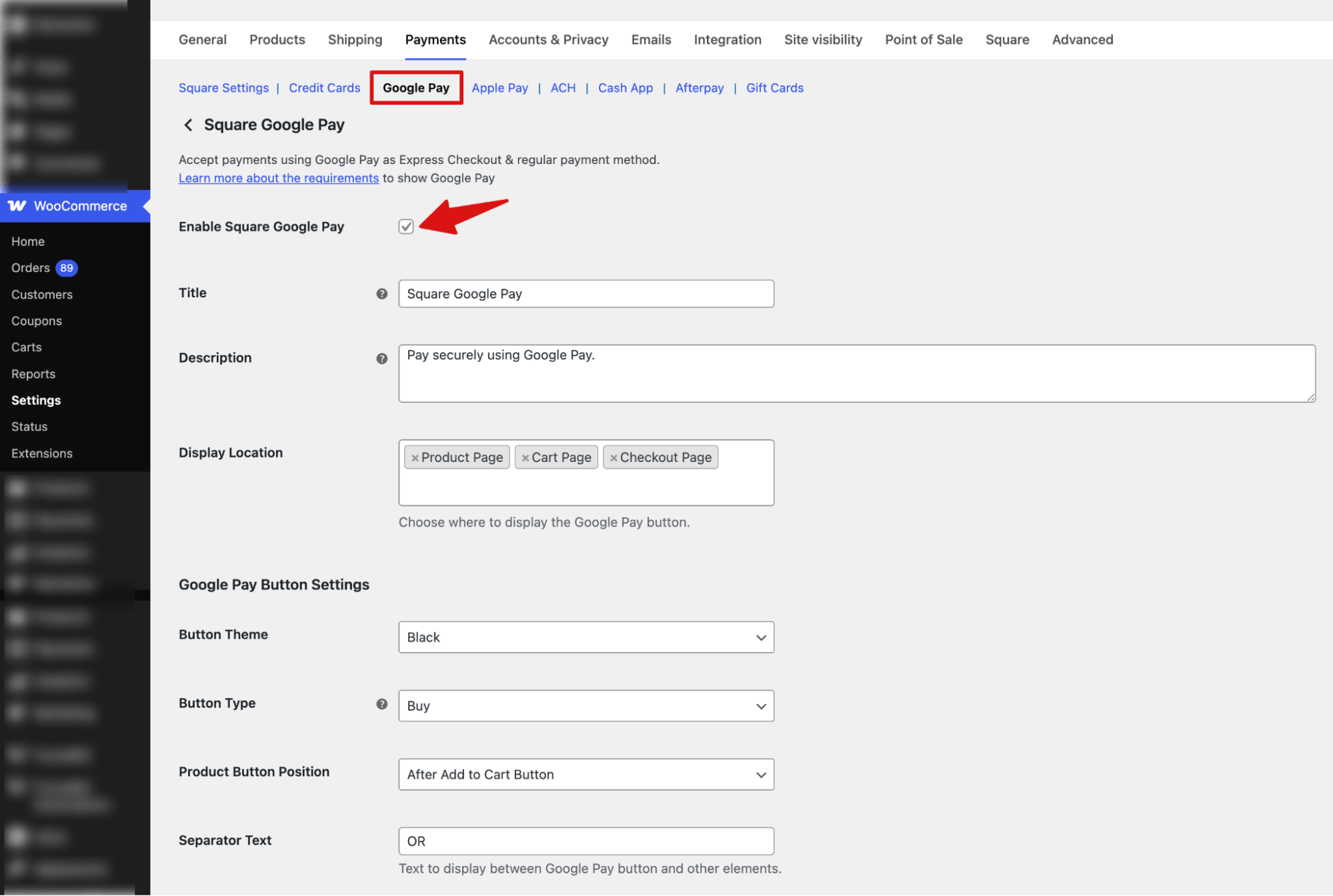
Google Pay
Switch to the “Google Pay” tab and enable Google Pay for express checkout. Next, set up the title, description, button style, display location, and customize button options like theme and type for your WooCommerce store.
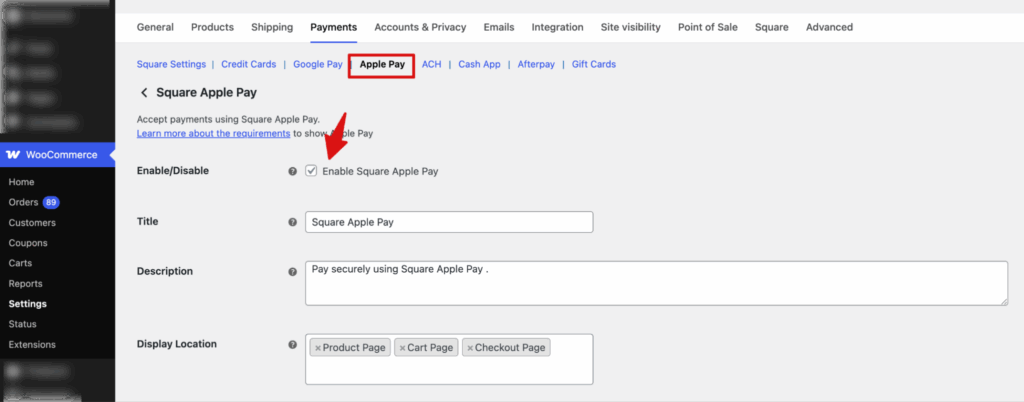
Apple Pay
Apple Pay lets customers pay instantly using their Apple devices with Face ID, Touch ID, or passcode instead of entering card details manually.
Enable Apple Pay under Square settings, then configure the title, description, display locations, and button style for your WooCommerce store.
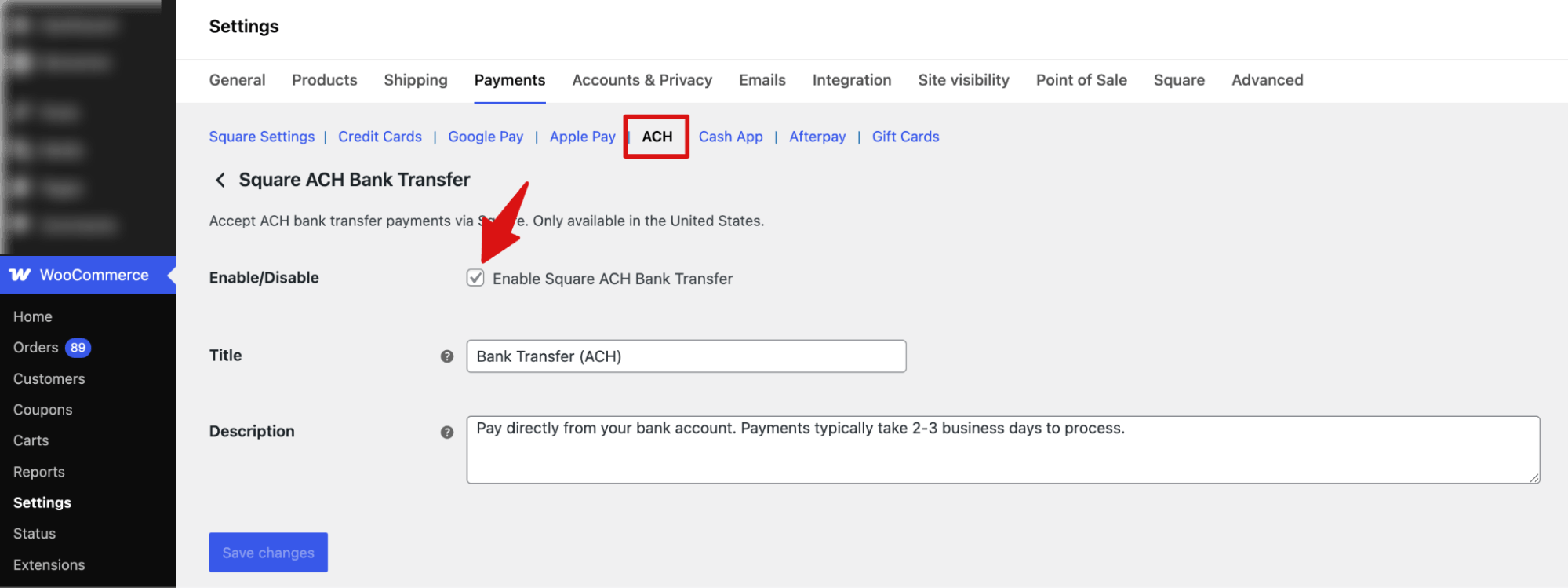
Bank Transfer (ACH)
Switch to the “ACH” tab and enable the ACH option under Square settings in WooCommerce, then set the title, description, and activate it to allow bank transfer payments at checkout.
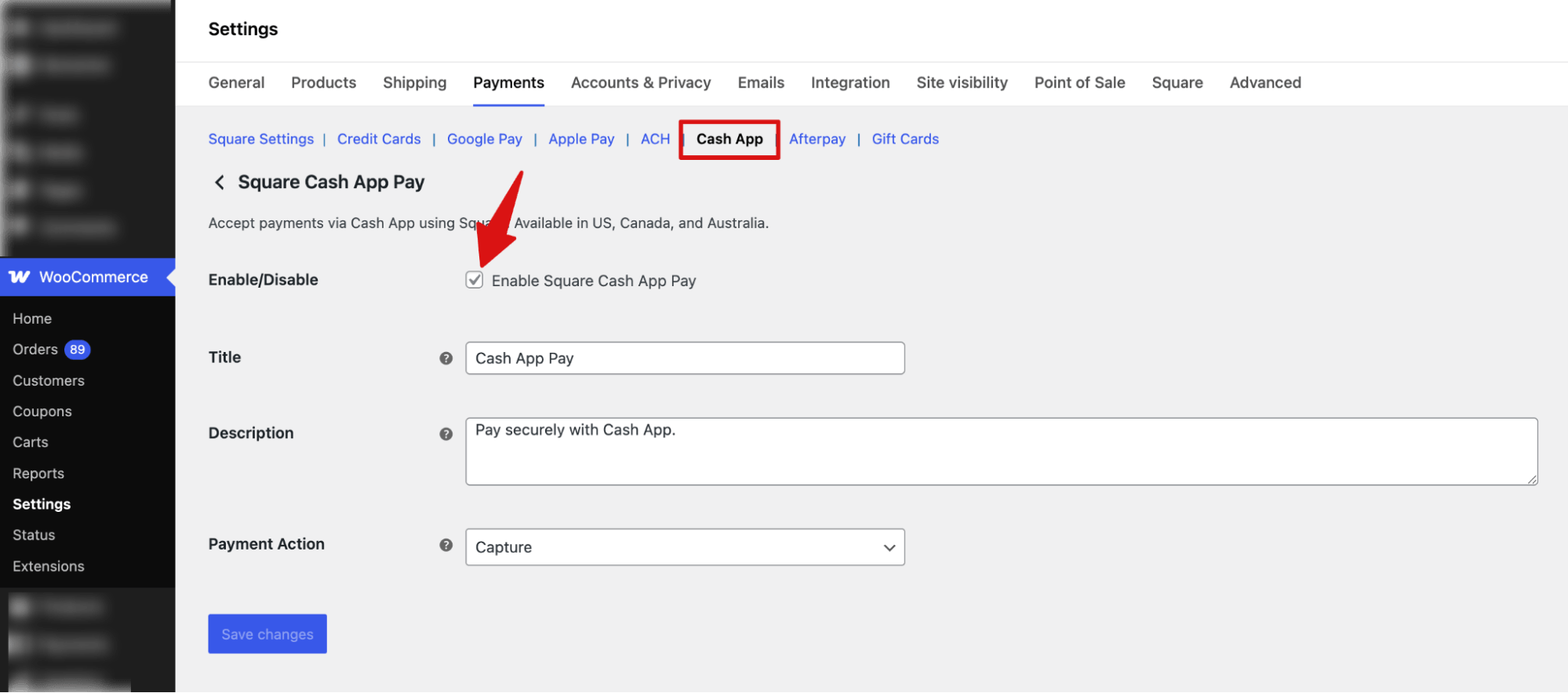
Cash App
Switch to the “Cash App Pay” tab and enable the Cash App Pay option under Square settings in WooCommerce, then configure the title, description, and payment action, and activate it to allow Cash App payments at checkout.
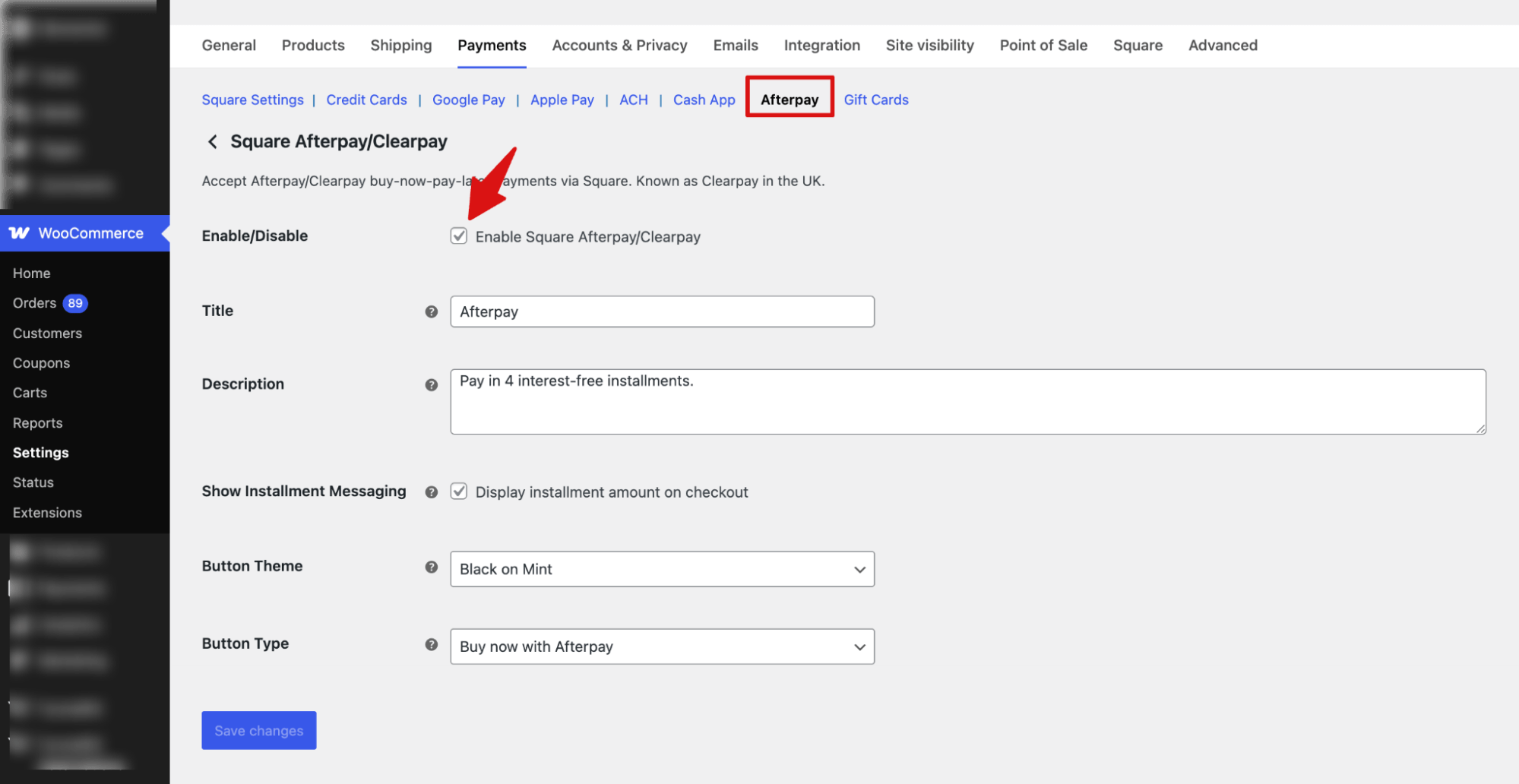
After Pay
Navigate to the “Afterpay/Clearpay” tab under Square settings in WooCommerce, then enable and configure the payment option by setting title, description, installment messaging, and button style, and activate it to allow buy-now-pay-later checkout.
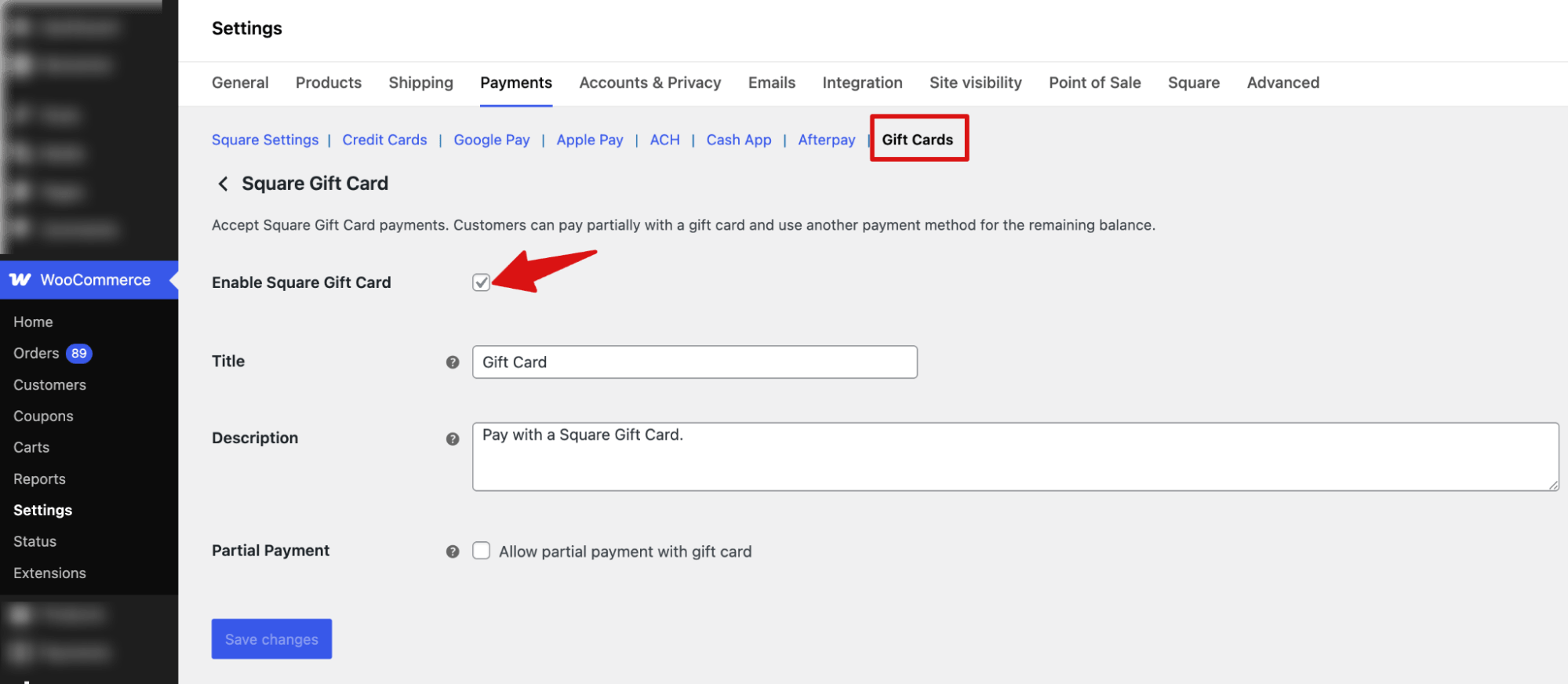
Gift Cards
Navigate to the “Gift Card” tab under Square settings in WooCommerce, then enable and configure Square Gift Card payments by setting the title, description, and partial payment option, and activate it to allow customers to pay using gift cards at checkout.
Step 5: Test different payment options before going live
After setting up the payment options, place test orders to ensure everything is working fine.
Note: The multi-step checkout page shown below is built with FunnelKit Checkout Page Customizer.
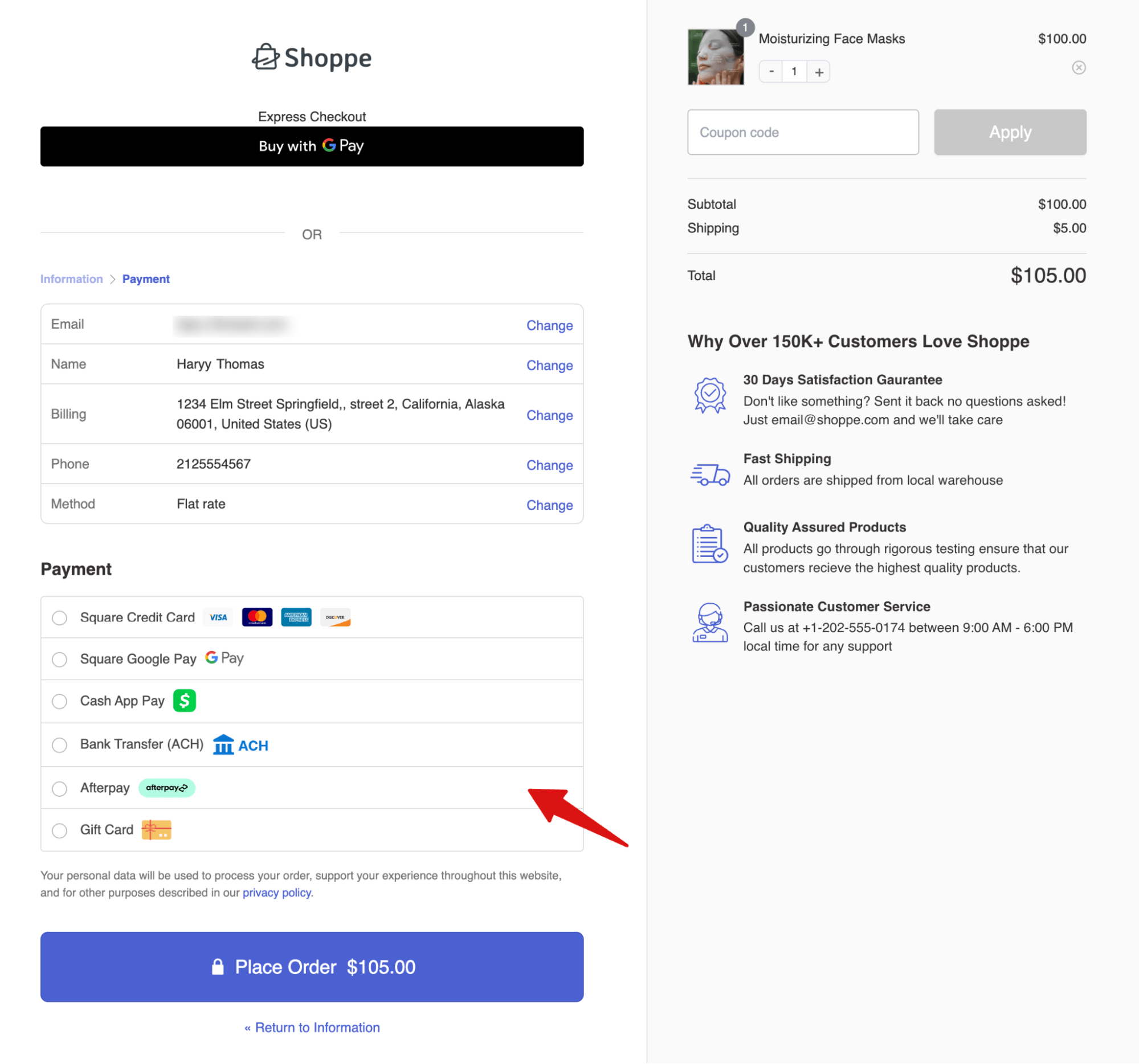
After testing successfully, make sure to put the Square mode to "Live Mode".
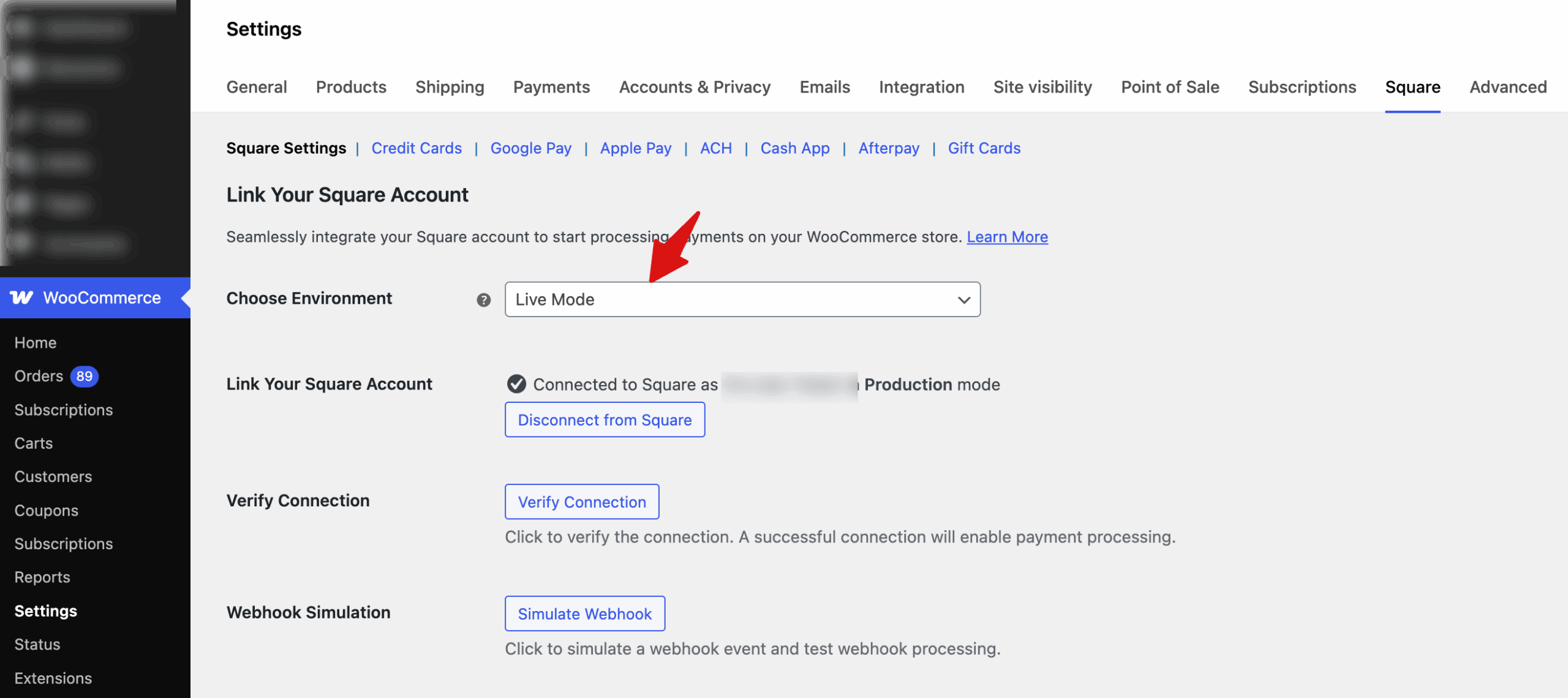
This is how you can easily integrate Square with your WooCommerce store.
Start Accepting Payments With Square on WooCommerce Today
Square covers most of what a WooCommerce store needs from a payment processor: cards, Apple Pay, Google Pay, ACH, Cash App, Afterpay, and gift cards, with inventory staying in sync across online and in-person sales. For merchants who sell through both channels, that last part alone is worth the setup.
The FunnelKit Square plugin handles the integration without requiring much technical knowledge. Sandbox mode and admin-only testing mean you can verify everything is working before any real transactions go through.
If you have been putting off setting up Square because the integration looked complicated, it is less involved than it appears.
Follow the steps, test in the sandbox first, and you will have a working checkout without much back and forth.
Along with Square payments, we highly recommend using FunnelKit Funnel Builder to replace the default checkout with a conversion-optimized one, ensuring your customers have a frictionless checkout experience.
Editorial Team
October 11, 2026You can customize the WooCommerce cart page with the Cart block, a page builder like Elementor, or CSS and PHP snippets. Which method works for you depends on the cart...

Editorial Team
October 9, 2026A WooCommerce discount lowers what a shopper pays, either through a reduced product price or a code entered at checkout. Out of the box, WooCommerce gives you two ways to...
Editorial Team
October 9, 2026A downsell gives customers a cheaper option after they turn down your main offer. If you show it too soon, you might convince them to skip the original offer and...






