


Almost every store owner needs to export WooCOmmerce orders sooner or later.
Maybe you need to send order data to your accountant, move records to a new site, or pull totals into a spreadsheet for analysis.
Whatever the reason, getting clean, usable order data out of WooCommerce is a real and recurring task.
WooCommerce does have a built-in way to download order data,
In this blog, we will share how to export order data in WooCommerce with or without filtering by specific conditions. Plus, additional plugins to use when WooCommerce's built-in options are not enough.
When Do You Actually Need to Export WooCommerce Orders?
Most store owners don’t think about exporting orders until a need arises. Here are the situations that come up most often:
- Historical data backup: Keeping a local copy of orders is a safety net if your site ever crashes or data gets corrupted.
- Website or hosting changes: When stores often migrate to a new host or redesign their site, they need past orders intact.
- Fulfillment partners / 3PLs: Many e-commerce businesses send order files to warehouses or logistics providers to automate packing and shipping.
- Reports outside WooCommerce: Exporting to Excel, Google Sheets, or accounting software is a standard practice for bookkeeping and analysis.
- Customer requests: GDPR, personal data requests, or just regular queries mean customers sometimes ask for a full order history.
- Tax/accountant needs: Accountants need clean, structured data for filing taxes, reconciling payments, or audits.
- Inventory audits or stock reconciliation: Exporting orders helps track what has sold, manage stock levels, and spot discrepancies.
- Marketing analysis: To analyze which products are popular, which customers are repeat buyers, or which campaigns worked best.
- Bulk refunds or order updates: If you need to issue refunds, update shipping info, or fix mistakes across multiple orders, exporting makes it much faster.
- Third-party integrations: Tools like CRM, ERP, or email marketing platforms often need structured order data to sync automatically.
Table of Contents
- 1 How to Export All Orders In WooCommerce?
- 2 How to Export Orders Based on Conditions in WooCommerce
- 3 How To Export Orders in an XML (WXR) File
- 4 Additional Plugins For Advanced WooCommerce Order Exports
- 5 More Questions About Exporting WooCommerce Orders
- 6 Can I apply multiple conditions to export WooCommerce orders?
- 7 What order data does WooCommerce export by default?
- 8 How do I export WooCommerce orders to Excel?
- 9 How do I export only completed orders in WooCommerce?
- 10 Can I export WooCommerce orders to Google Sheets?
- 11 What export format should I use?
- 12 Export WooCommerce Orders the Way That Actually Fits Your Workflow
How to Export All Orders In WooCommerce?
WooCommerce, by default, provides a flexible feature to export orders. You can export all orders or filtered orders based on preset time periods, or even a custom date range.
Here are the steps you need to follow to export all orders in WooCommerce:
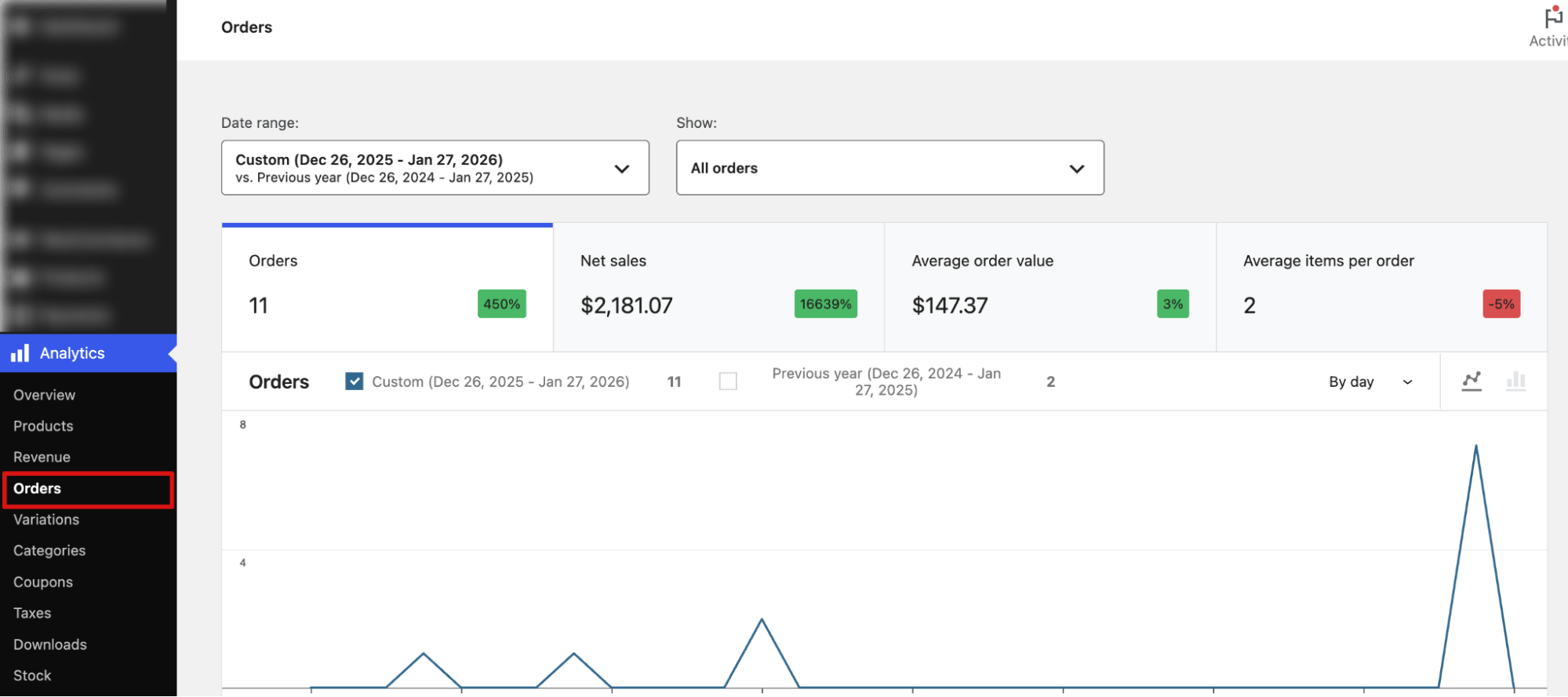
Step 1: Navigate to orders analytics
From the WordPress dashboard, navigate to Analytics ⇒ Orders.
Step 2: Select the date range
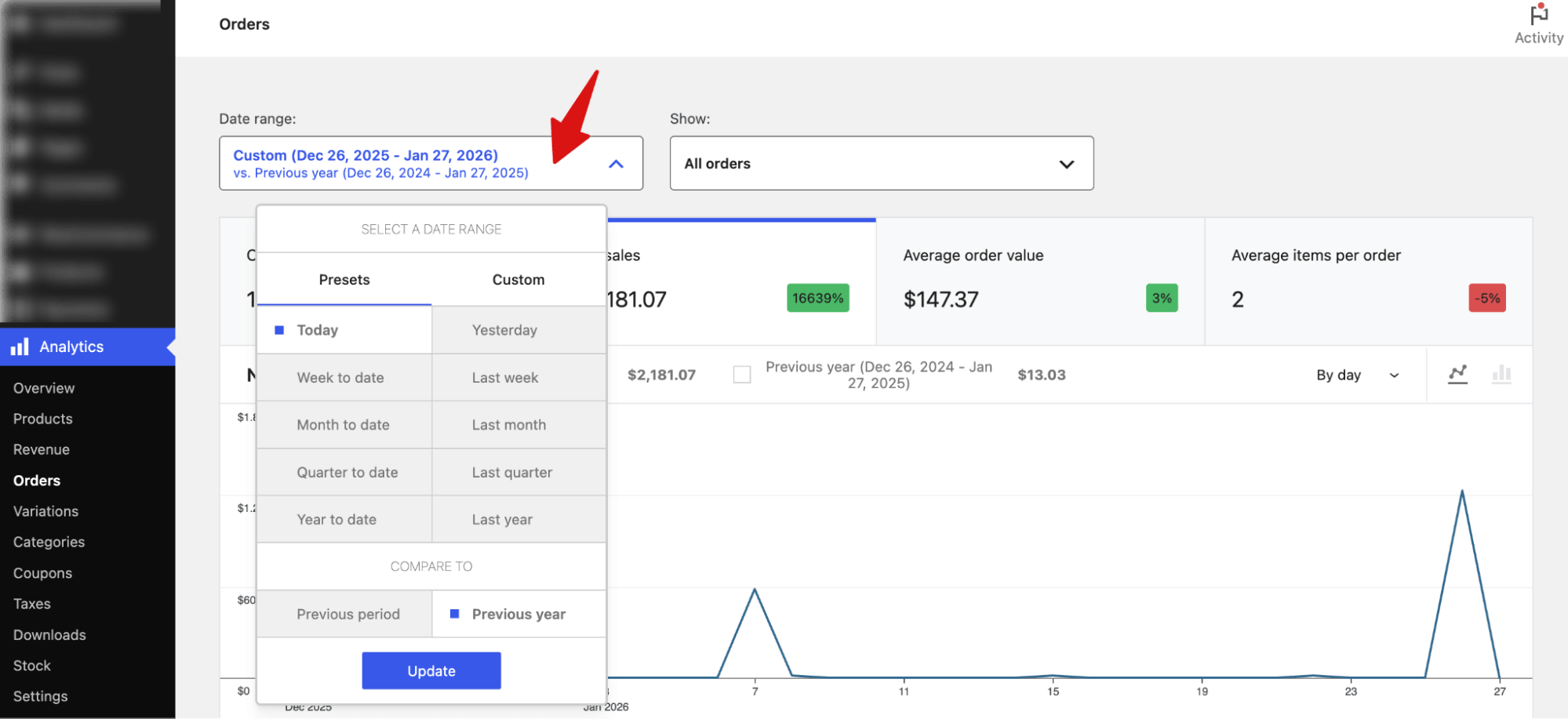
Next, choose the date range you want to analyze. You can select presets such as Today, Yesterday, Week to date, Last week, Month to date, Last month, Quarter to date, Last quarter, Year to date, or Last year, and compare the selected period with the previous one.
If none of the presets fit, you can also select a custom date range to specify the exact dates.
Note: You can leave the show “All orders” as it is to export all the orders of this period.
Step 3: Set the data you want to export
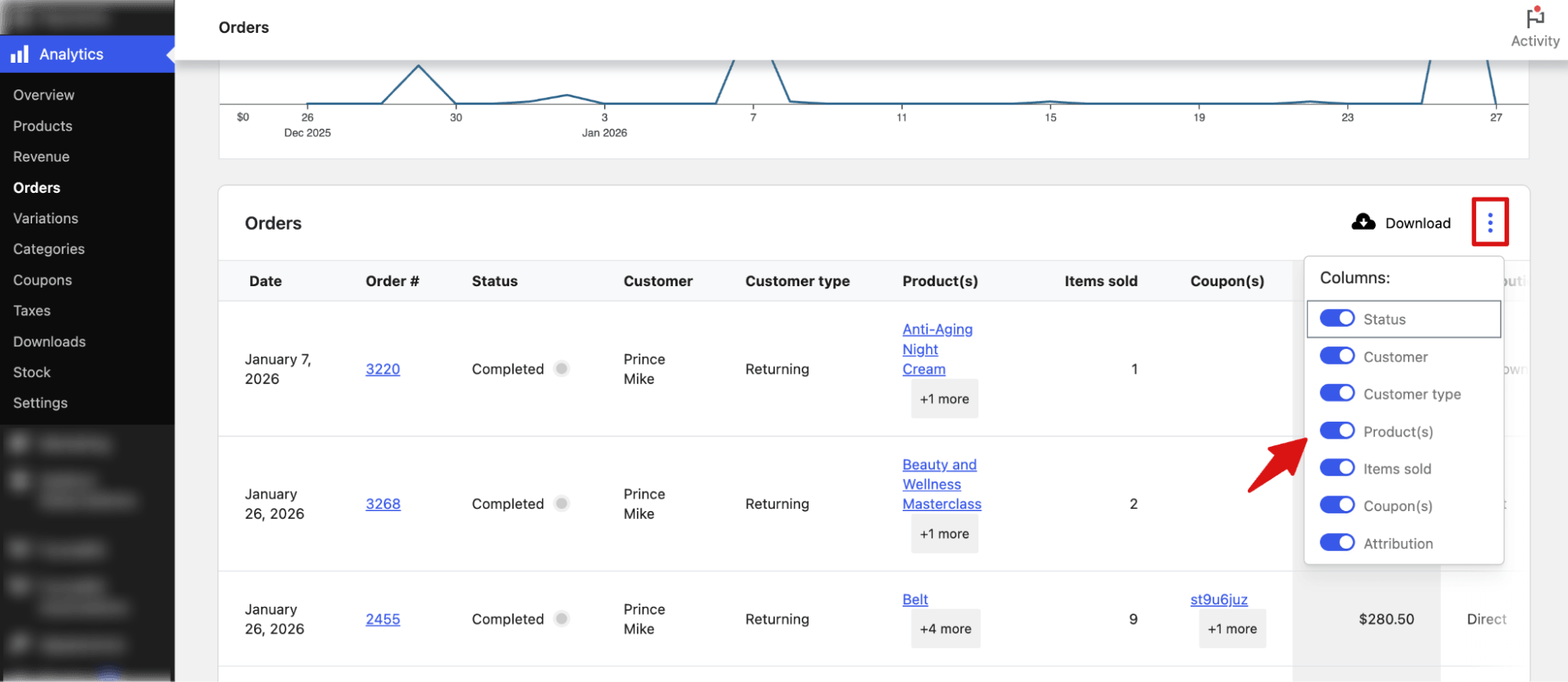
Now, scroll down to view all the orders for your selected time range. Before downloading, click on the three vertical dots and enable the columns you want to include in your download. The available options are:
- Status
- Customer
- Customer Type
- Products
- Items Sold
- Coupons
- Attribution
Once you’ve selected the desired columns, you can proceed to download your order data.
Step 4: Export WooCommerce order data
Once you’re ready, click the “Download” button.
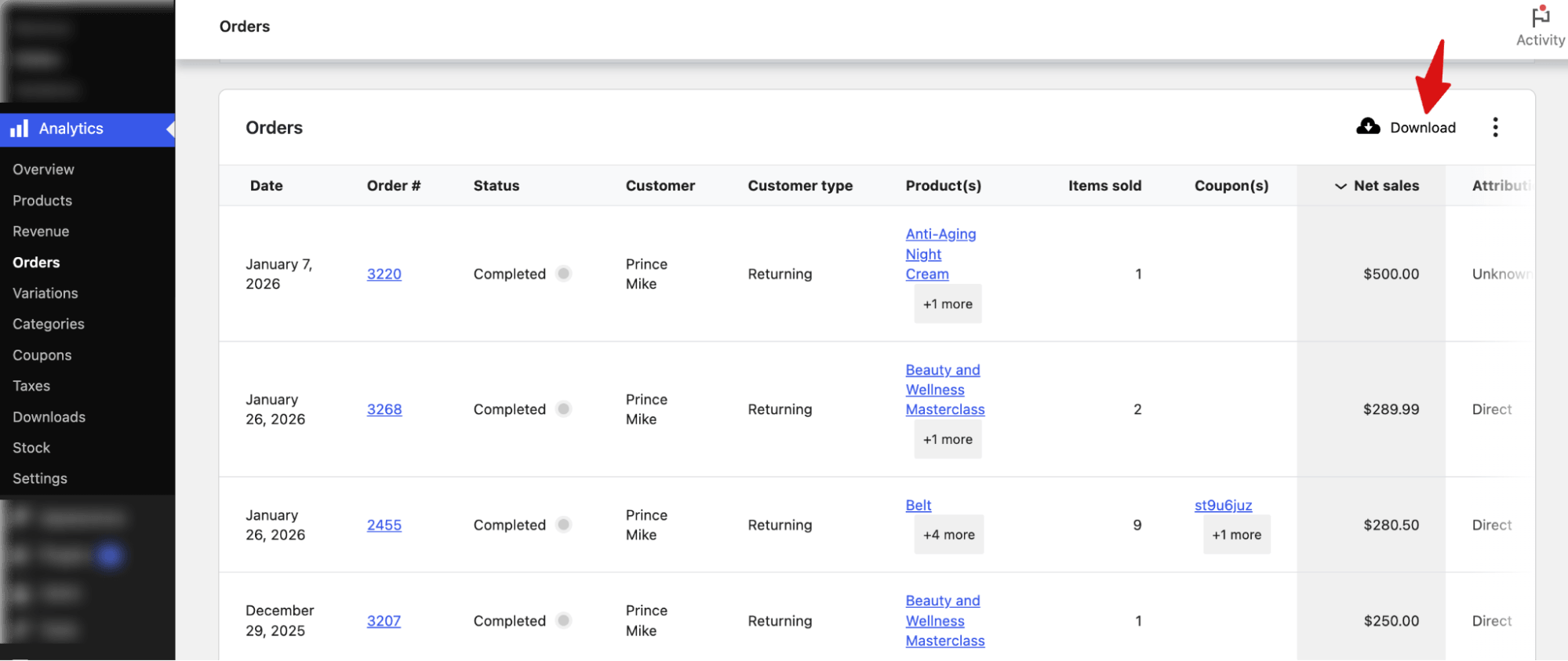
This will download a CSV file containing all your orders, including the columns you selected.
By default, the CSV file includes data, order ID, status, customer name, customer type, products, items sold, coupon used, net sales, and attribution.
How to Export Orders Based on Conditions in WooCommerce
With WooCommerce, you can also export filtered orders. The steps are the same as above.
The only difference is that you apply the desired filters before exporting.
For this, select “Advanced filters” under show, and then to add filters, hit “Add a Filter”.
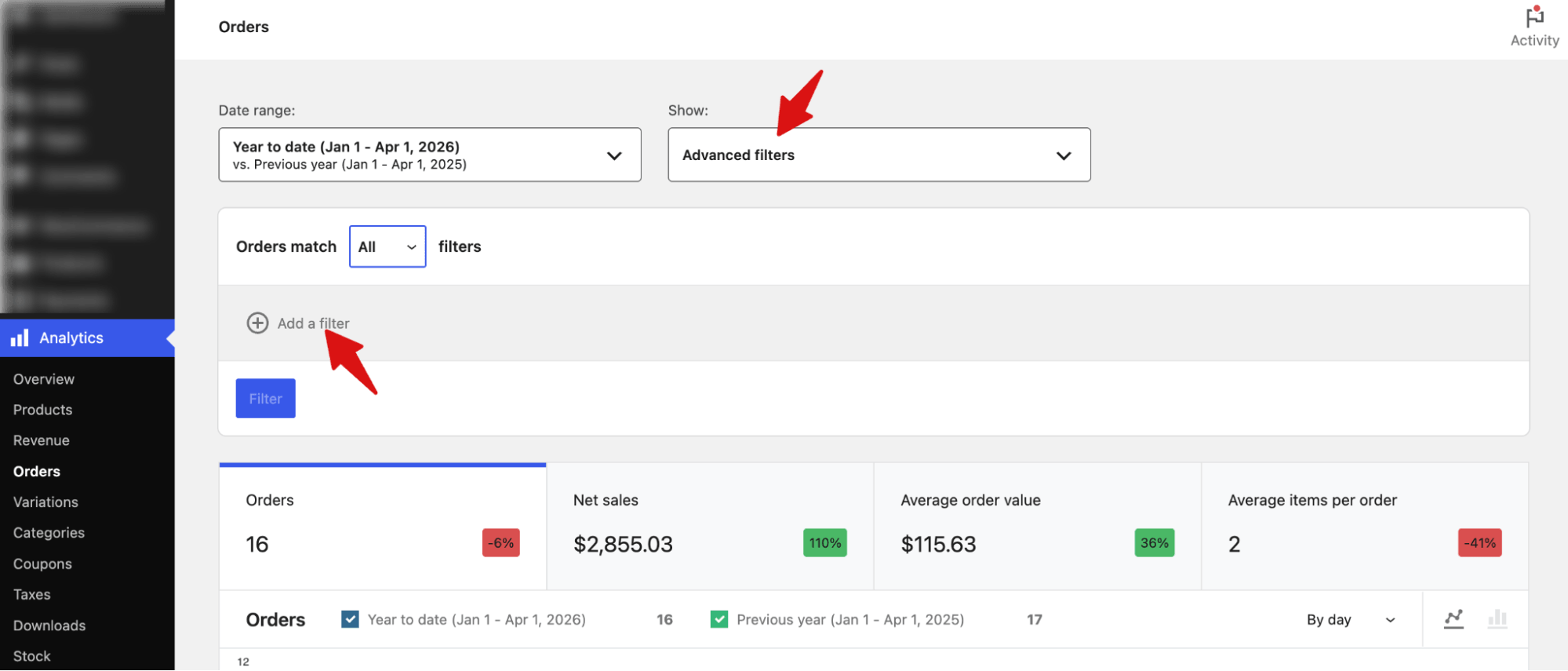
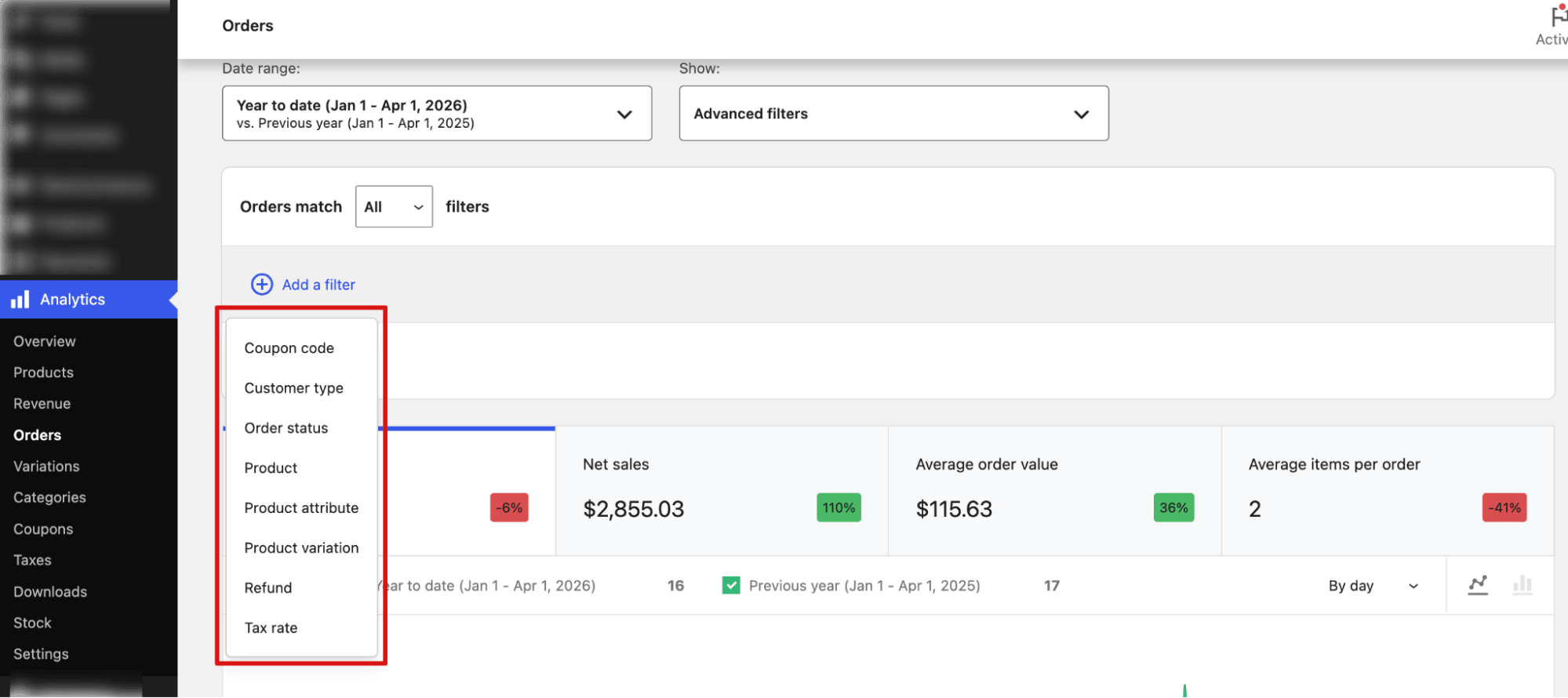
You can filter the existing order using the following parameters:
- Coupon code
- Customer type
- Order status
- Product
- Product attribute
- Product variation
- Refund
- Tax rate
Export Orders by Coupon Code
To export orders in WooCommerce by the coupon code customers used, select the Coupon Code as a parameter. You can add a parameter as well.
Then, hit Filter.
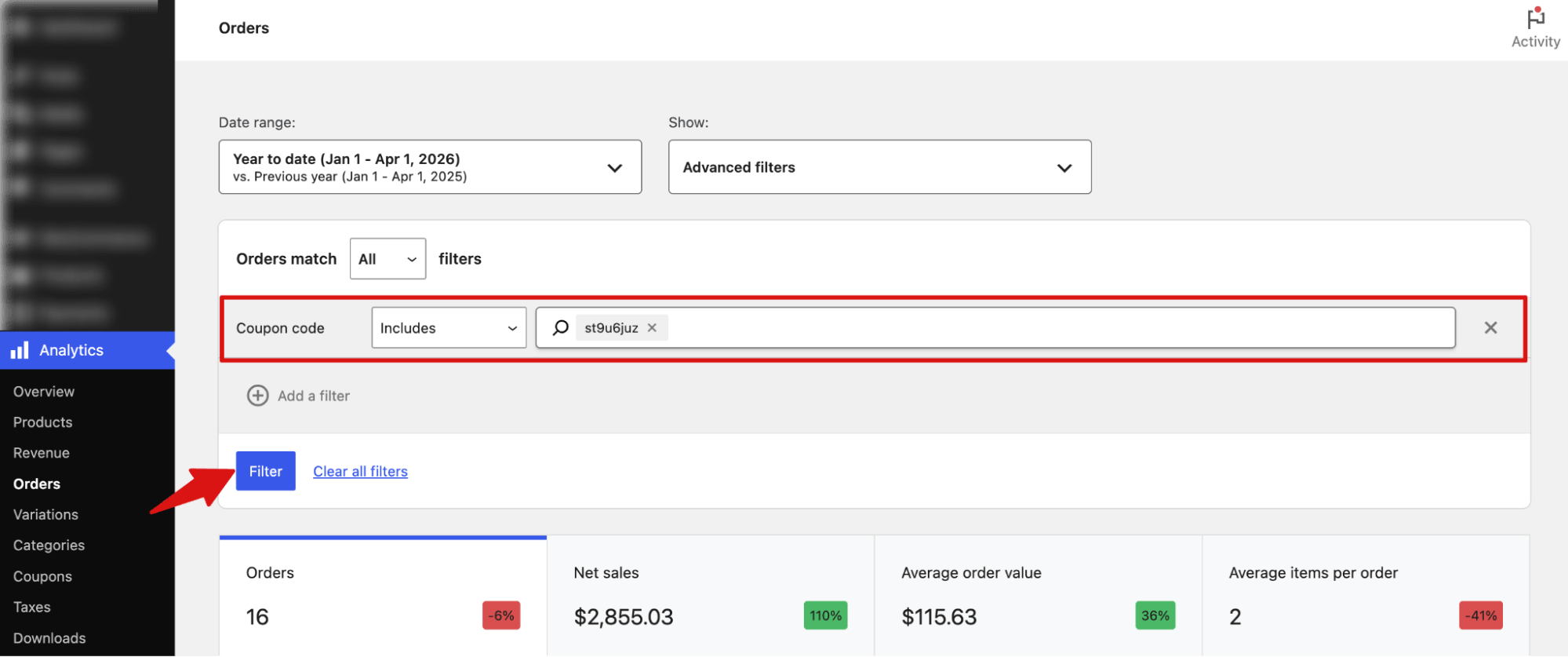
Next, scroll down and hit Download to export the WooCommerce orders with certain coupon usage.
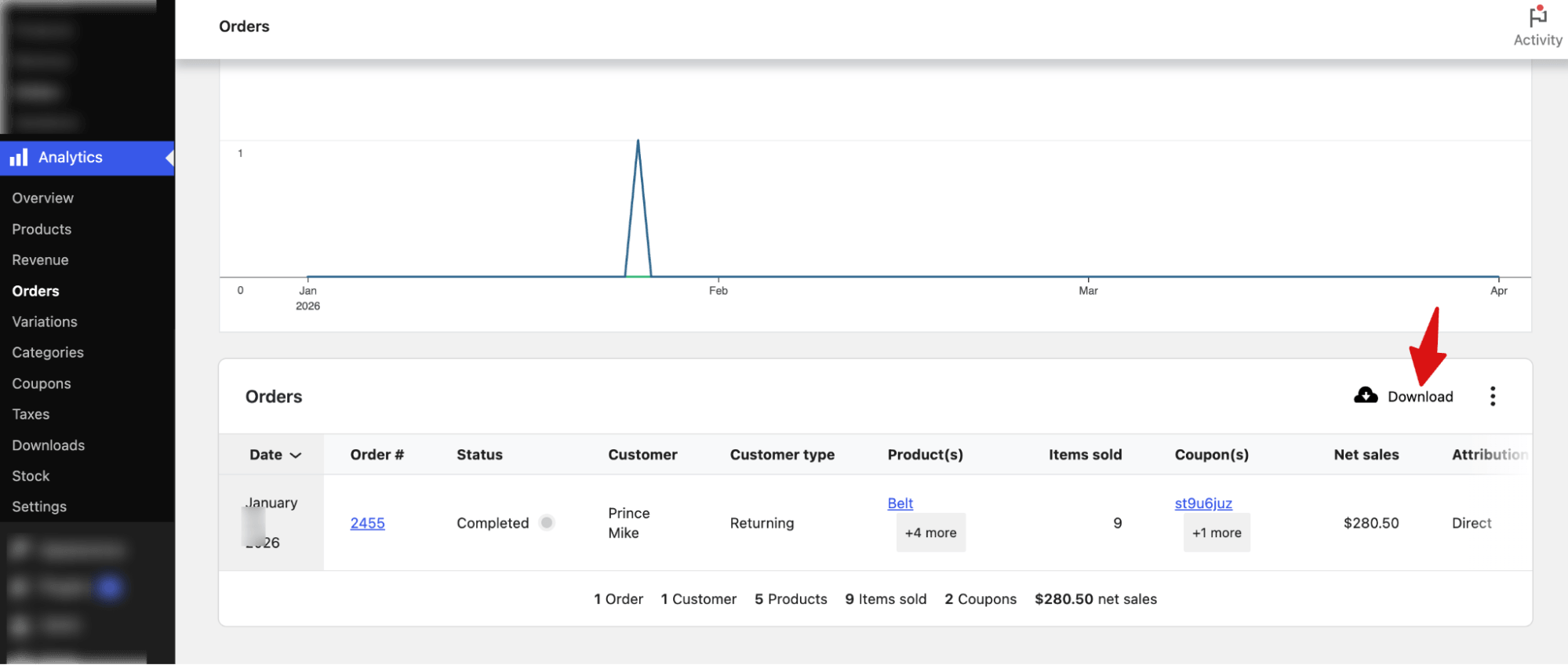
Note: You can also filter orders to exclude certain coupons before exporting, if needed.
Export Orders by Customer Type
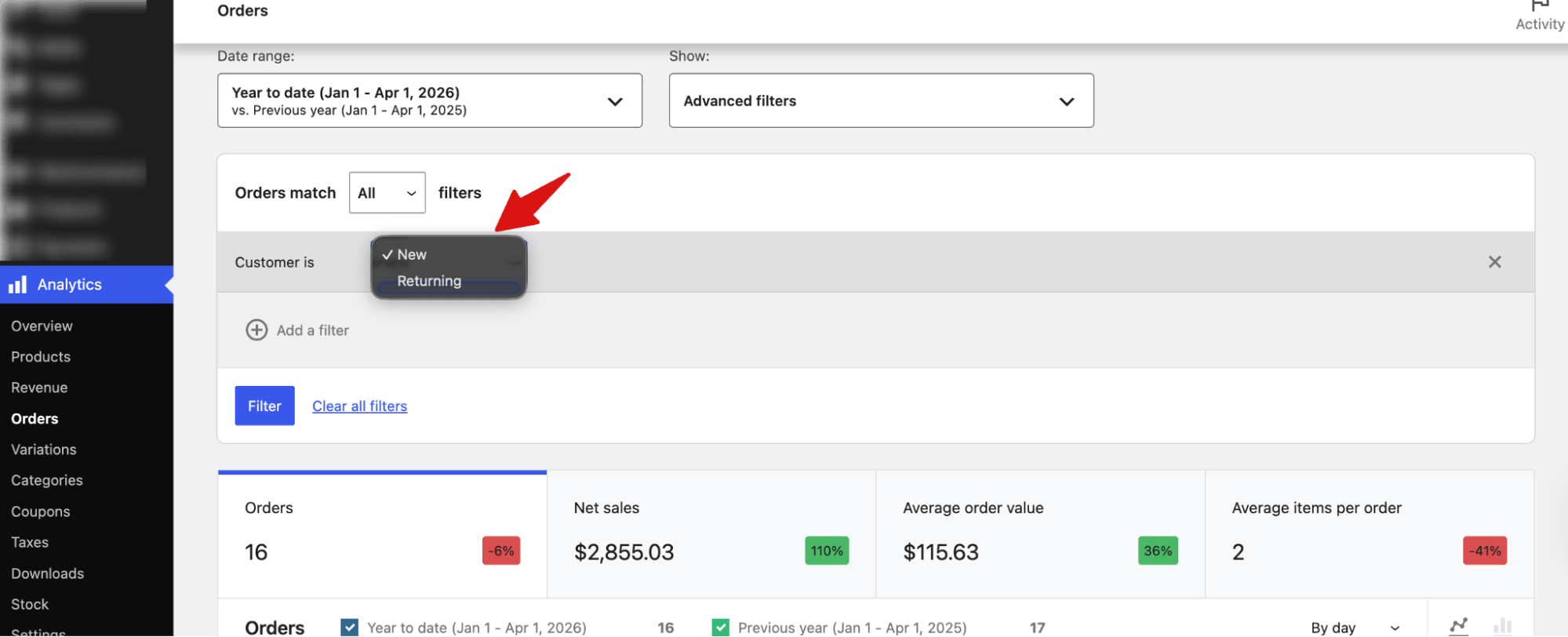
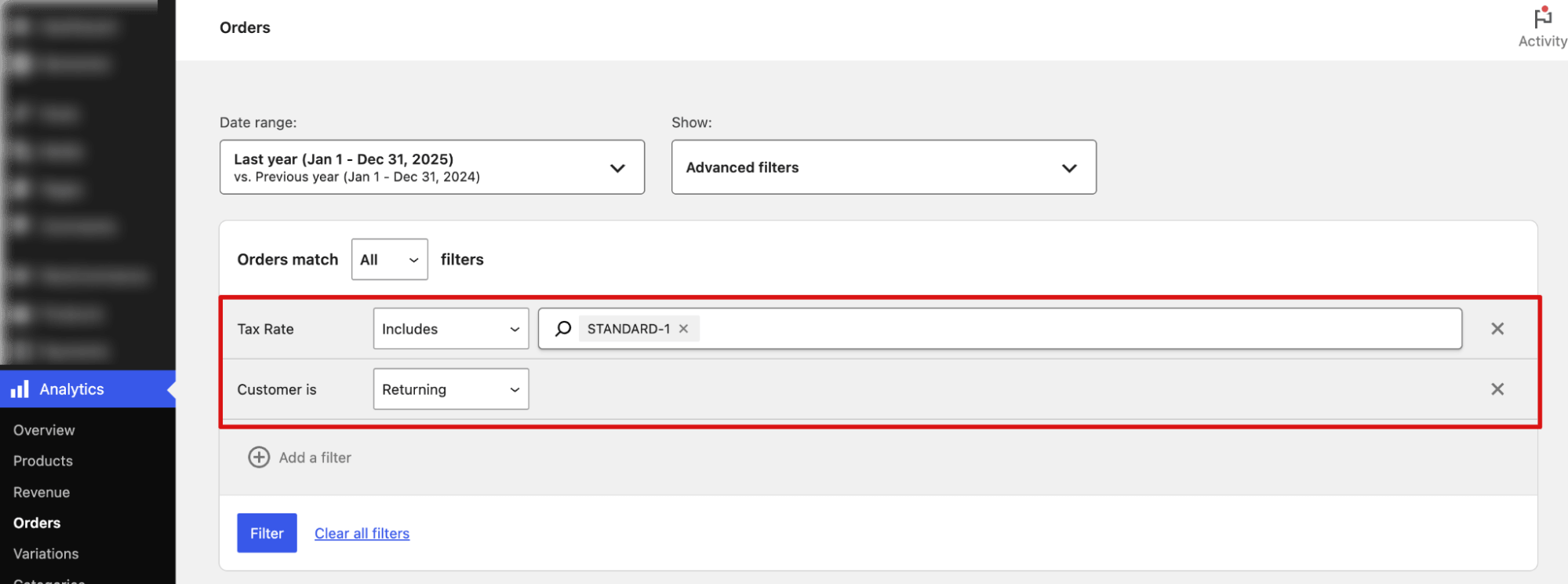
To export orders by new or returning customers, select ‘Customer Type’ and set the condition to ‘New’ or ‘Returning’. After that, you can filter and export order data.
Export Orders by Order Status
You can select “Order Status” as a parameter and set it to any of the default statues which include: Pending payment, Processing, On hold, Completed, Canceled, Refunded, Failed, and Draft.
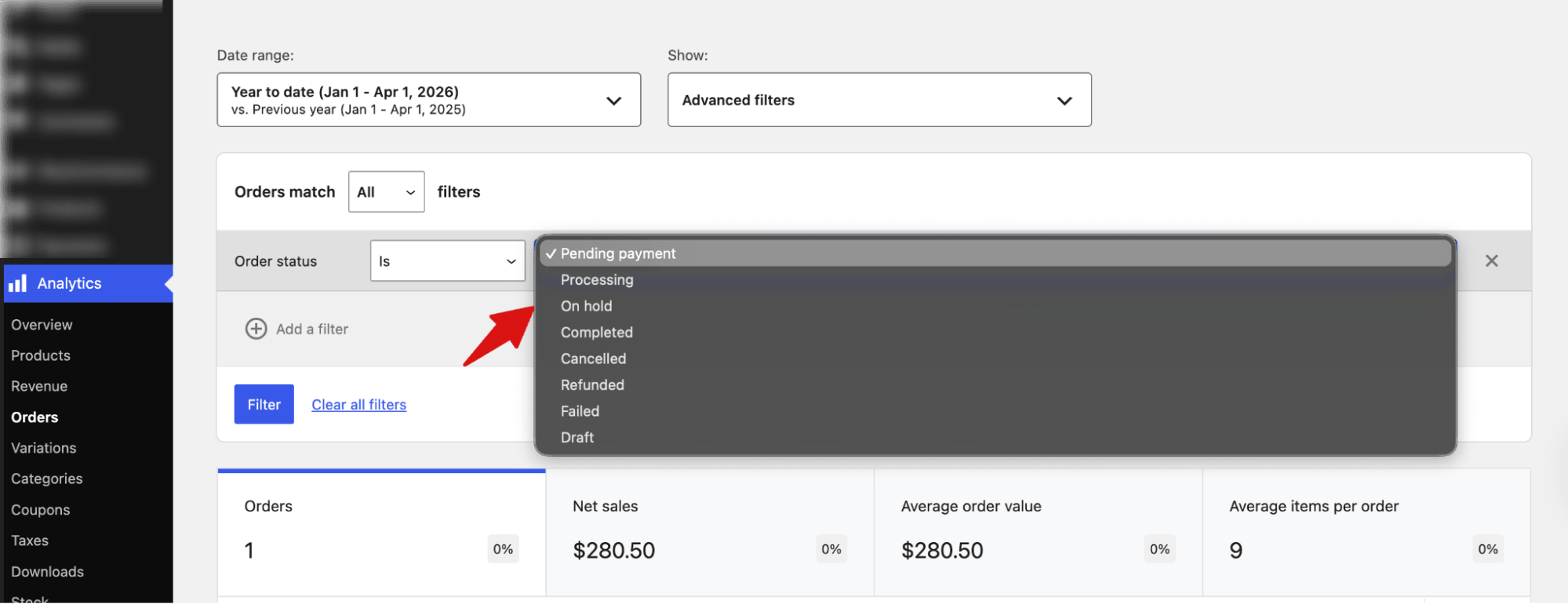
After adding the condition, you can filter and download to export the order data.
Export Orders by products
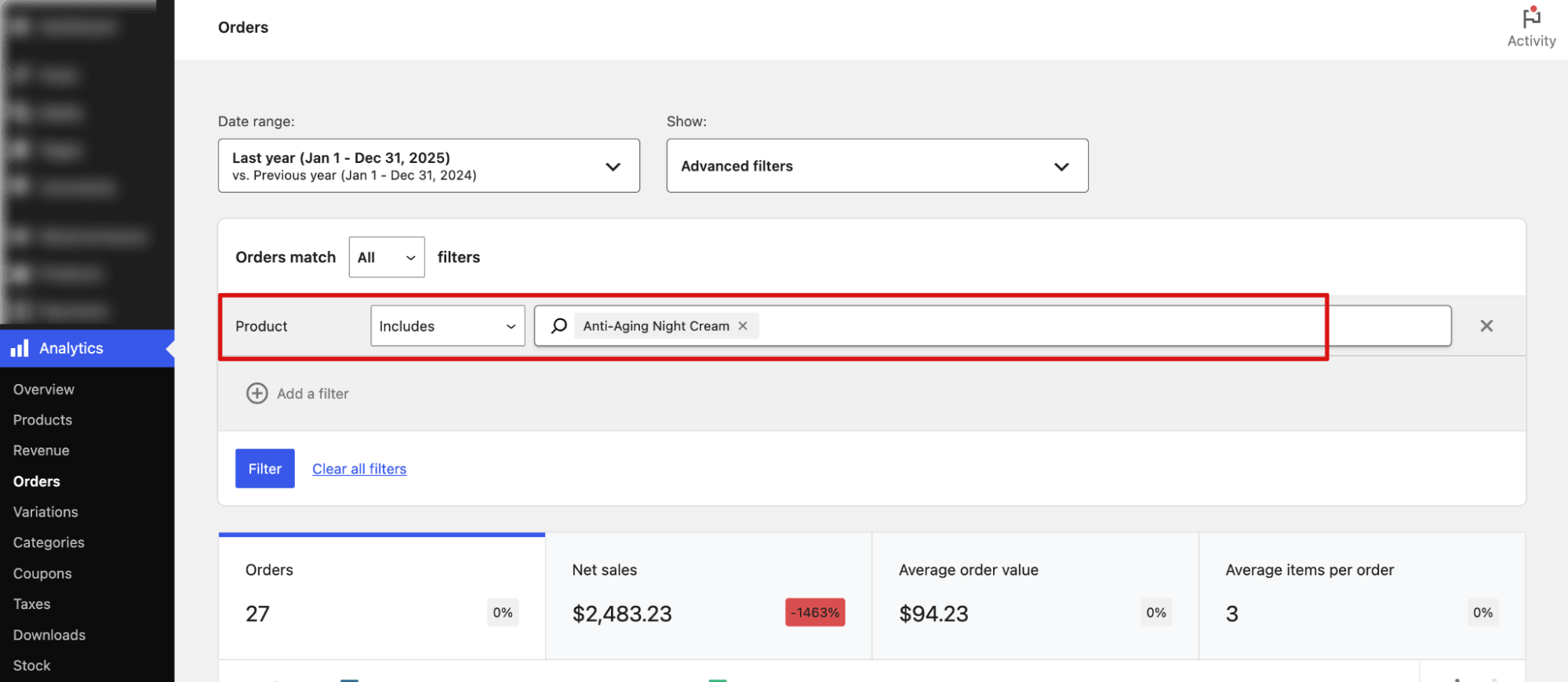
To export orders containing a specific product, choose Product as the parameter and set the condition to include the desired product(s).
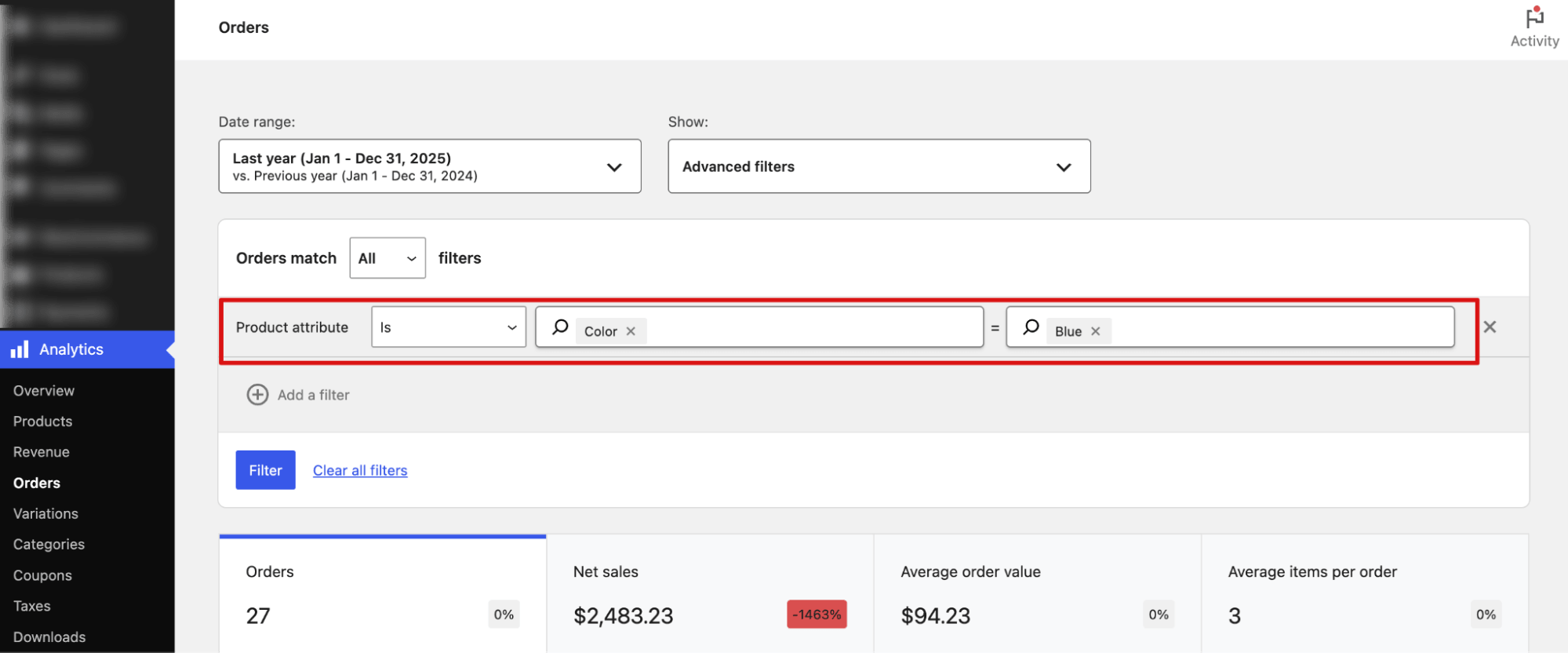
Export Orders by Product Attribute
To export orders with a specific product attribute, select Product Attribute as the parameter, choose the attribute (for example, Color), and set the condition to the desired value (for example, Blue).
This will export all orders that contain products matching the selected attribute.
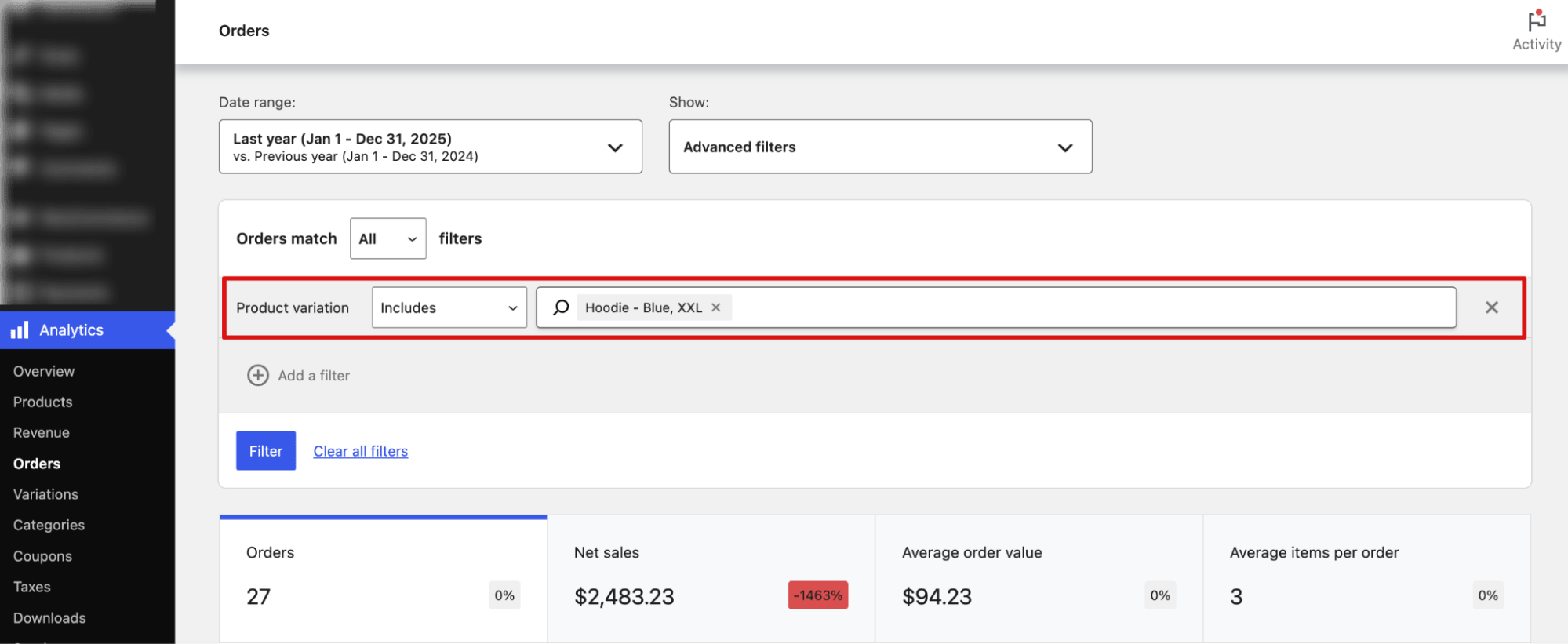
Export Orders by Product Variation
To export orders containing a specific product variation, select “Product Variation” as the parameter and set the condition to include the desired variation (for example, Hoodie – Blue, XXL). This will export all orders that contain the selected product variation.
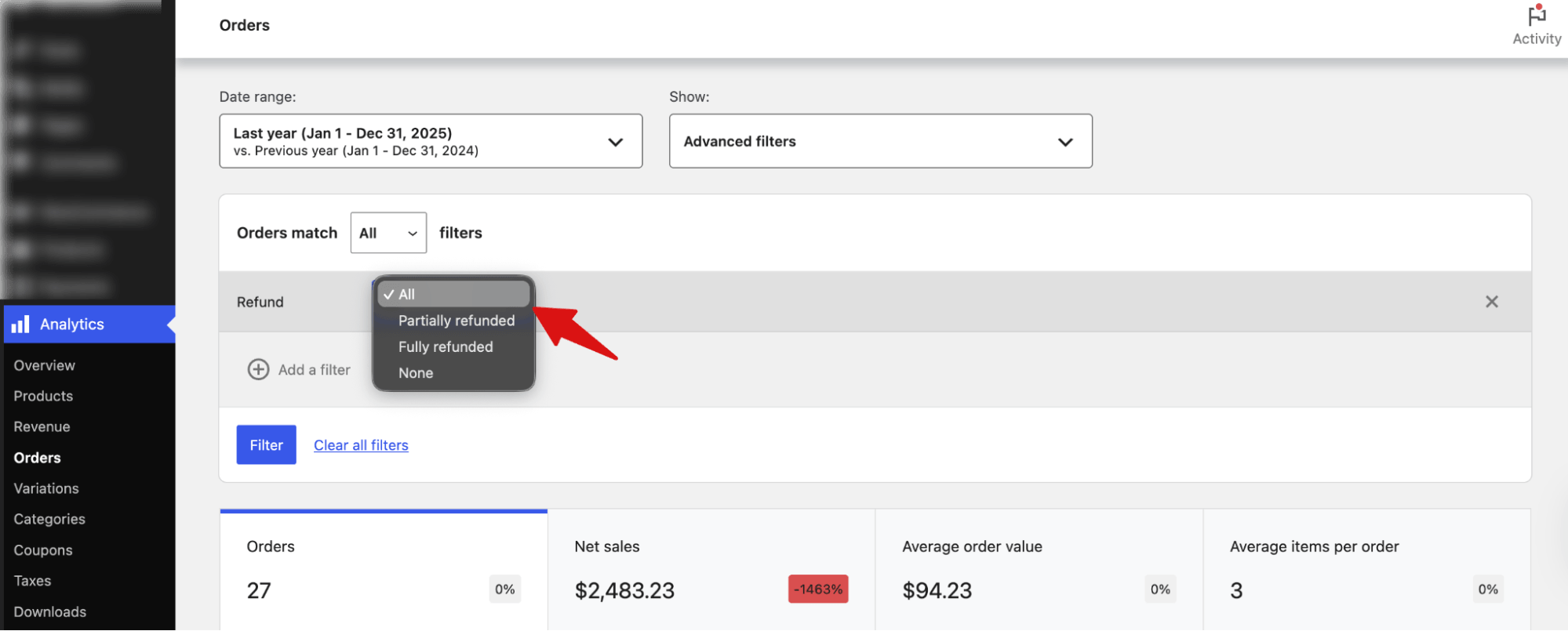
Export Orders by Refund Status
To export orders by refund status, select "Refund" as the parameter, then choose the condition: "Partially Refunded," "Fully Refunded," or "All." This will export orders that match the selected refund type.
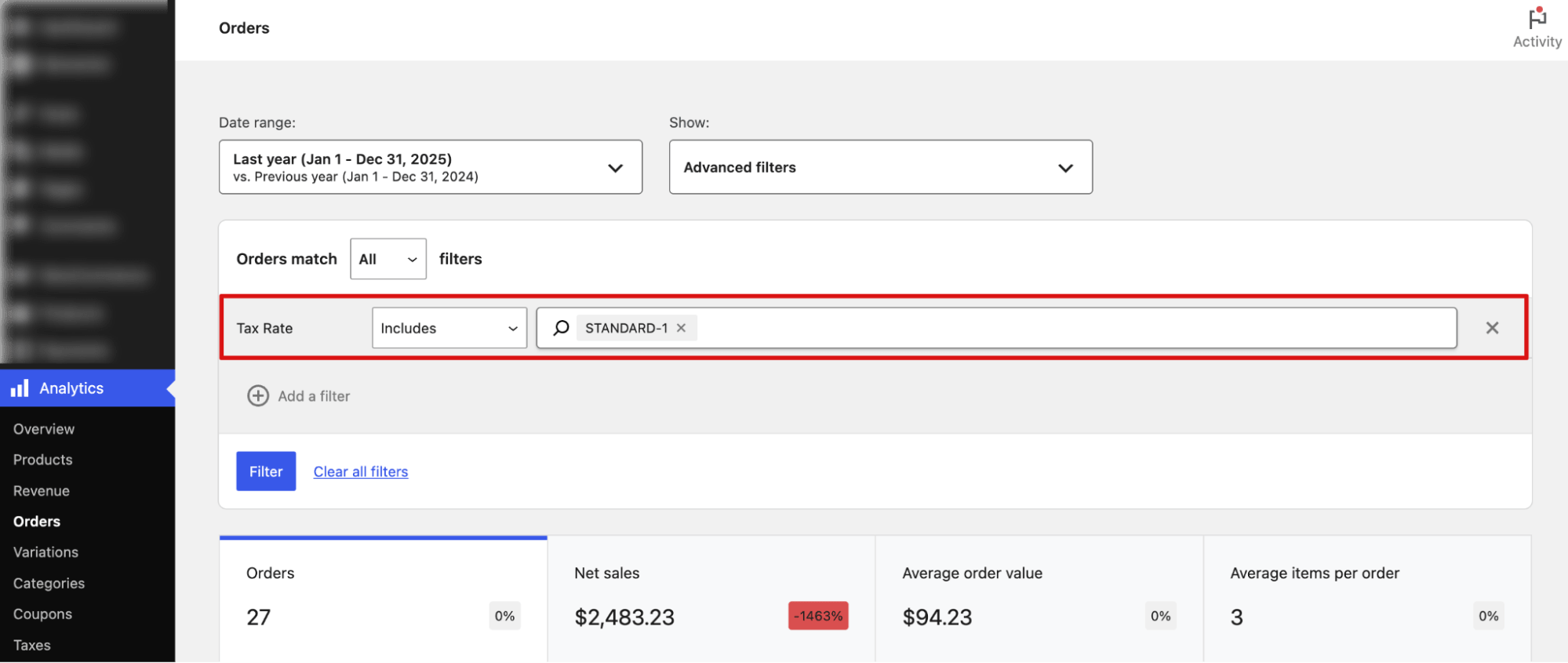
Export Orders by Tax Rate
To export orders based on tax rate, select "Tax Rate" as the parameter. Then choose the condition (for example, "Standard," "Reduced Rate," or a specific percentage) to include only the orders with that tax rate.
This is how you can export specific WooCommerce orders by applying different conditions.
How To Export Orders in an XML (WXR) File
If you need to migrate your WooCommerce site or move all order data to another WordPress site, you can export orders in an XML (WXR) file.
To do so, from the WordPress dashboard, go to Tools ⇒ Export. Next, select Orders and hit the button “Download Export File”.
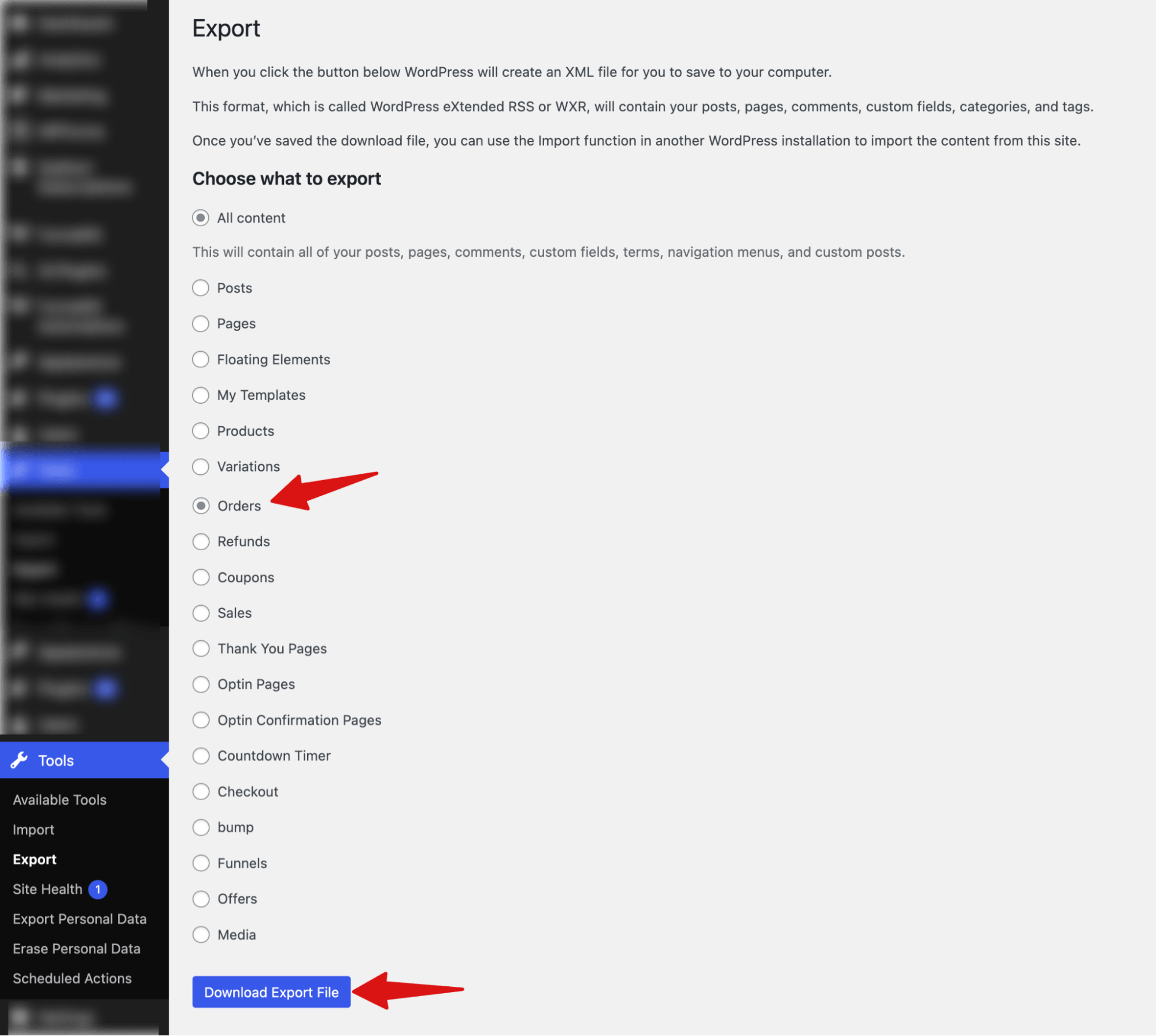
This will download the XML file to your device. The file is a WordPress export (WXR) file that includes all site information, not just orders, such as user accounts, site content, site logo, and generator metadata. It is mainly used for site migration rather than regular order management.
Additional Plugins For Advanced WooCommerce Order Exports
- FunnelKit Automations: Sends order data to a Google Sheet and shares it automatically via email, with no manual work required. You can also include custom data such as order notes, order meta (like payment ID, payment method), product meta, and more.
- Order Import Export for WooCommerce: Schedule recurring exports automatically so order files go to email or FTP without you touching anything.
- WP All Export: Build your exact column structure with drag-and-drop, useful when your export needs to match a specific accounting or fulfillment template format.
- Advanced Order Export For WooCommerce: Export custom fields and order notes, covering order meta that the native CSV leaves out entirely.
- Store Exporter Deluxe Exports in Excel, XML, and JSON formats natively, for when a CSV is not the format your destination system needs.
- WooCommerce Print Order List: Generates a printable pick list directly from your orders, built for warehouse workflows rather than spreadsheet exports.
- WP Sheet Editor: Edit and export order data directly into a live spreadsheet view inside WordPress, without downloading a file at all.
More Questions About Exporting WooCommerce Orders
Got more questions? Here are the answers to some frequently asked questions:
Can I apply multiple conditions to export WooCommerce orders?
After adding one condition, click on “+ Add a Filter” to add another. You can keep adding multiple conditions this way.
To control how these conditions are applied, choose “Order match”: select “All” if you want all conditions to apply, or “Any” if you want orders that meet at least one of the conditions.
What order data does WooCommerce export by default?
By default, the CSV file includes the following order data:
- Order ID
- Order status
- Customer name
- Customer type (new or returning)
- Products ordered
- Items sold
- Coupons used
- Net sales
- Attribution (source/medium of the order)
This default export gives you the key details needed for reporting, analysis, or order management.
How do I export WooCommerce orders to Excel?
WooCommerce's built-in export only produces a CSV file. To get a true Excel (.xlsx) file, you need a plugin like Tore Exporter Deluxe.
How do I export only completed orders in WooCommerce?
For this filter yoru orders with order status “Completed” and then export the orders. We shared the full process above.
Can I export WooCommerce orders to Google Sheets?
Yes, with FunnelKit Automations, you can set up an automation to export WooCommerce orders to Google Sheets directly.
What export format should I use?
CSV is the right default for most situations. It opens in Excel, Google Sheets, and most accounting tools without any conversion.
Use Excel (.xlsx) if your destination is a spreadsheet and you want proper column formatting from the start. XML or JSON makes sense if you are feeding data into a custom application or API. For migrations between WooCommerce sites, CSV with all fields exported is the most reliable option.
Export WooCommerce Orders the Way That Actually Fits Your Workflow
WooCommerce's built-in export covers more ground than most people realize. You can filter by status, product, coupon, refund, tax rate, and date range, all without installing anything. For most one-off needs, that is enough.
Where it falls short is format flexibility, order meta, and automation. If you need Excel output, custom fields, order notes, or a file that goes out automatically every week, that is where a plugin earns its place.
If you want to skip manual exports altogether, FunnelKit Automations connects WooCommerce directly to Google Sheets.
It can push new orders, track refunds, log failed payments, and capture order notes automatically as they happen. No scheduled downloads, no manual uploads.
Get FunnelKit Automations and stop exporting orders manually.
Related Resources:
- How to Send WooCommerce Orders to Google Sheets
- WooCommerce Taxes: How to Set Up, Automate, and Stay Compliant
- Proven Strategies to Increase WooCommerce Sales
- 15+ WooCommerce Automations to Boost Sales on Autopilot

Editorial Team
September 3, 2026The right WooCommerce subscription plugin turns one-time buyers into predictable recurring revenue. On the other hand, a wrong one breaks renewals, loses customers, and costs more than the license fee....
Editorial Team
August 28, 2026WooCommerce order attribution tells you where your orders come from. Out of the box, no extra plugin needed. But the built-in report only tells half the story, crediting whichever click...

Editorial Team
August 27, 2026Have you ever noticed the cart icon at the top of many online stores? It’s more than just a design choice. It can greatly improve your customers' experience. A cart...






