
WooCommerce Ajax add to cart removes the page reload from the one click that matters most.
Without it, buying from your store feels like a shop where the cashier empties your basket onto the counter, re-scans everything, then does it all again when you hand over the next item.
We're pretty sure nobody will shop there ever again.
Google and Deloitte found that a 0.1 second improvement in mobile site speed lifted retail conversion rates by 8.4% and average order value by 9.2%.
A full page reload is not a tenth of a second. It is one to three seconds, at the exact moment a shopper has decided to buy.
By default, WooCommerce only enables Ajax on shop, category, and tag (archive) pages.
Single product pages and variable products still trigger a full page reload, which is where most stores lose conversions.
In this guide, we will cover all three ways to close it: the native setting, a plugin, and a custom endpoint in code.
We will also cover the parts most tutorials skip, including variable products, keeping the mini cart in sync, and the six failures that break asynchronous cart additions after they were working fine.
Click here to jump to the step-by-step process below
Table of Contents
- 1 What Is WooCommerce Ajax Add to Cart?
- 2 Which Method Fits Your Store?
- 3 Method 1: Turn On the Built-In Setting for Shop and Category Pages
- 4 Method 2: Add Products to the Cart Without a Page Reload Using a Plugin
- 5 Method 3: Build a Custom Ajax Endpoint With Code
- 5.1 Step 1: Register the script and create a nonce
- 5.2 Step 2: Intercept the product page form
- 5.3 Step 3: Register the wc-ajax handler
- 5.4 Step 4: Refresh mini cart fragments
- 5.5 Step 5: Extend it to archive pages
- 5.6 Step 6: Handle variations and grouped products
- 5.7 Step 7: Trigger it programmatically
- 5.8 Limitations of the code method
- 6 Ajax Add to Cart with WooCommerce Blocks (Cart and Checkout Blocks)
- 7 3 Best WooCommerce Ajax Add to Cart Plugins Compared
- 8 Why Your Ajax Cart Stops Working and How to Fix Each Cause
- 9 7 Best Practices to Optimize WooCommerce Ajax Add to Cart
- 10 Frequently Asked Questions (FAQs)
- 11 Ready to Take the Reload Out of Your Add to Cart Button?
What Is WooCommerce Ajax Add to Cart?
A WooCommerce Ajax add-to-cart feature allows customers to add products to their shopping cart without triggering a page reload.
It sends the add request in the background and updates only the parts of the page that changed.
The product lands in the cart, the header count updates, and nothing else on the page moves.
Here is the difference in practice on a shop page:
- Without Ajax
Reloads the entire page. The cart updates server-side, but the user sees a flash of white, a re-rendered page, and a brief delay of 1 to 3 seconds.
So if you add five items, there'll be five clicks and five reloads.
- With Ajax
WooCommerce sends a request to the server via Ajax. Then, the cart updates instantly without reloading or redirecting shoppers to the cart page, ensuring a smooth experience.
Under the hood, three pieces do the work. WooCommerce exposes a global JavaScript object called wc_add_to_cart_params on every front-end page, which carries the endpoint URLs.
The request itself goes to a ?wc-ajax= endpoint. And the response comes back as cart fragments, small pieces of HTML that replace the mini cart and the cart count.
Fragments are a separate system from the add request.
A shopper can successfully add a product while your header counter sits at zero, because the counter only updates if it is registered as a fragment.
We come back to this in the troubleshooting section, because it is the single most common complaint about every plugin in this category.
Which Method Fits Your Store?
WooCommerce natively still doesn't have a setting for Ajax add to cart on single product pages.
An enhancement request asks for exactly that option, and it's been open in the WooCommerce repository for years.
That gap is the reason this whole category of plugins and snippets exists.
Three routes are available, and they are not interchangeable.
| Parameters | Native setting | Plugin | Custom code |
|---|---|---|---|
| Shop and category pages | Yes | Yes | Yes |
| Single product pages | No | Yes | Yes |
| Variable products | No | Varies by plugin | Yes, with extra handling |
| Grouped products | No | Varies by plugin | Yes, with extra handling |
| Quantity field support | No | Yes | Yes |
| Cart drawer opens on add | No | With a side cart | Custom work |
| Blocks theme compatible | Yes | Varies by plugin | Needs a selector change |
| Skill required | None | None | PHP and JavaScript |
| Who maintains it | WooCommerce | Plugin author | You |
If you only need to remove the reload on product pages, a small plugin does it in two clicks.
If you also want to improve the cart step, a side cart covers both problems at once.
If you have custom product fields or unusual validation rules, code is the only route that gives you control.
Method 1: Turn On the Built-In Setting for Shop and Category Pages
We would start here, whichever route you end up taking.
The native option is free; it covers your product archives, and it takes about thirty seconds.

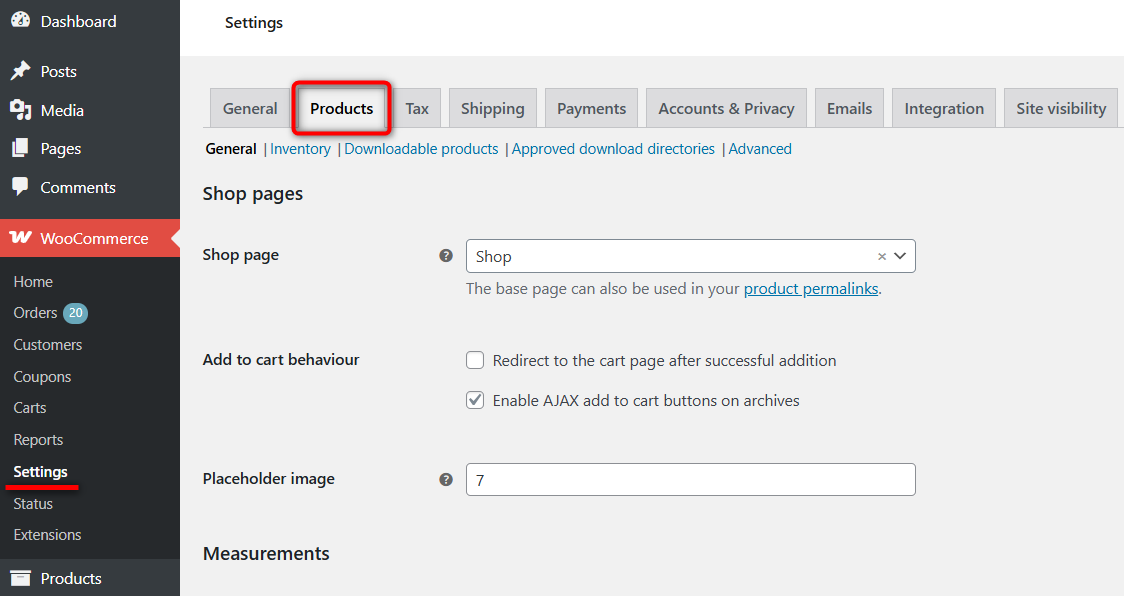
Step 1: Open your product settings
Navigate to WooCommerce ⇨ Settings ⇨ Products ⇨ General.
Here, you can configure what happens after a shopper clicks Add to Cart.
Step 2: Enable the AJAX add to cart buttons on archives
Under the Add to cart behavior section, check the box next to ‘Enable AJAX add to cart buttons on archives’.
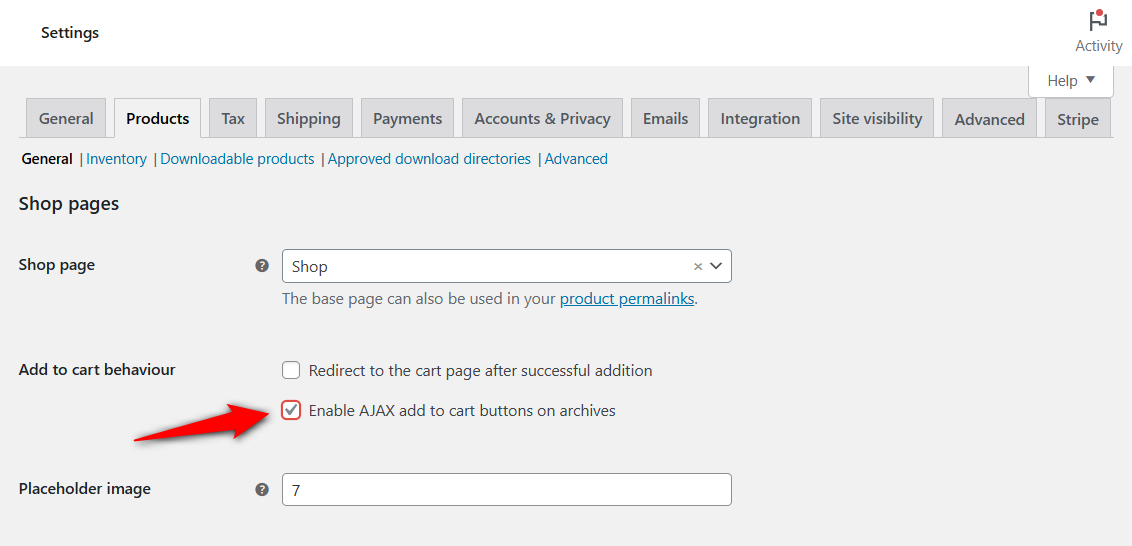
Before you leave the screen, check the second checkbox in that section. If Redirect to the cart page after successful addition is also ticked, AJAX will look broken.
WooCommerce will send the shopper to the cart page regardless, which cancels out the thing you just enabled.
We see this combination again and again in theme support threads, posted by people convinced the setting does nothing.
Step 3: Test it on your shop page
Go to the shop or category page in your store and add a product to your cart.
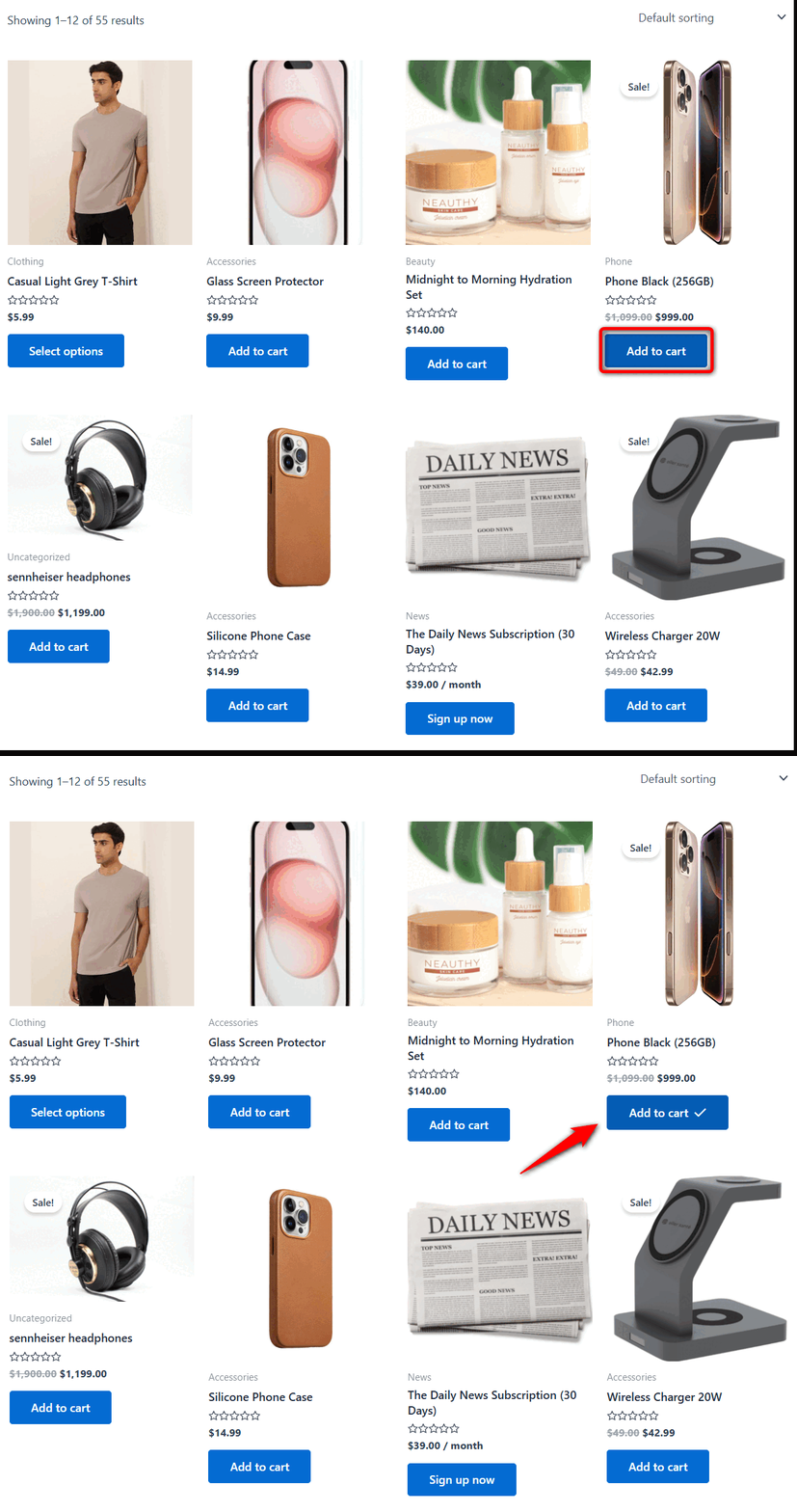
The Ajax implementation will kick in.
Limitations of the default WooCommerce Ajax Add to Cart Option
Though the native Ajax feature is functional, it has several limitations that can impact the shopping experience in your store.
- Does not work on product pages: The default Ajax function only enables on archive pages. If a shopper clicks ‘Add to Cart’ on single product pages, the whole page reloads.
- Does not support quantity selection: With the default Ajax function, customers can’t select product quantities directly on archive pages. Pressing the ‘Add to Cart’ option only adds a single unit of an item. So if a shopper wants to add three chocolates, they’ll have to navigate to individual product pages or update the quantity on the cart page (introducing extra steps).
- Does not work for variable products: Shoppers can’t add product variations like size or colors with the default Ajax implementation on archive pages.
- No mini cart drawer: It does not show any mini cart drawer or visual feedback beyond a small 'View Cart' link.
If these limitations matter for your store and you want to fix them, continue to method 2 (plugin) or method 3 (code).
Method 2: Add Products to the Cart Without a Page Reload Using a Plugin
Removing the reload is only half the job. The shopper still needs to see that the item landed and needs a short route to checkout.
Solve one without the other and you have a faster click that leads nowhere.
That is why we usually reach for a side cart here rather than a single-purpose Ajax plugin. The drawer that opens on add is the confirmation, and it is also the route to payment.
FunnelKit Cart does both. Its built-in Ajax feature is on by default across archives and product pages.
Additionally, it replaces the static WooCommerce cart page with a slide-out panel that carries the shopper through to checkout without leaving where they are.
The free version on WordPress.org includes the Ajax option, the sliding cart, and the styling controls.
The paid version adds in-cart product recommendations and milestone rewards such as free shipping thresholds.
Make sure to install and activate FunnelKit Cart on your WordPress website.
Here's the WooCommerce add-to-cart without page refresh tutorial:
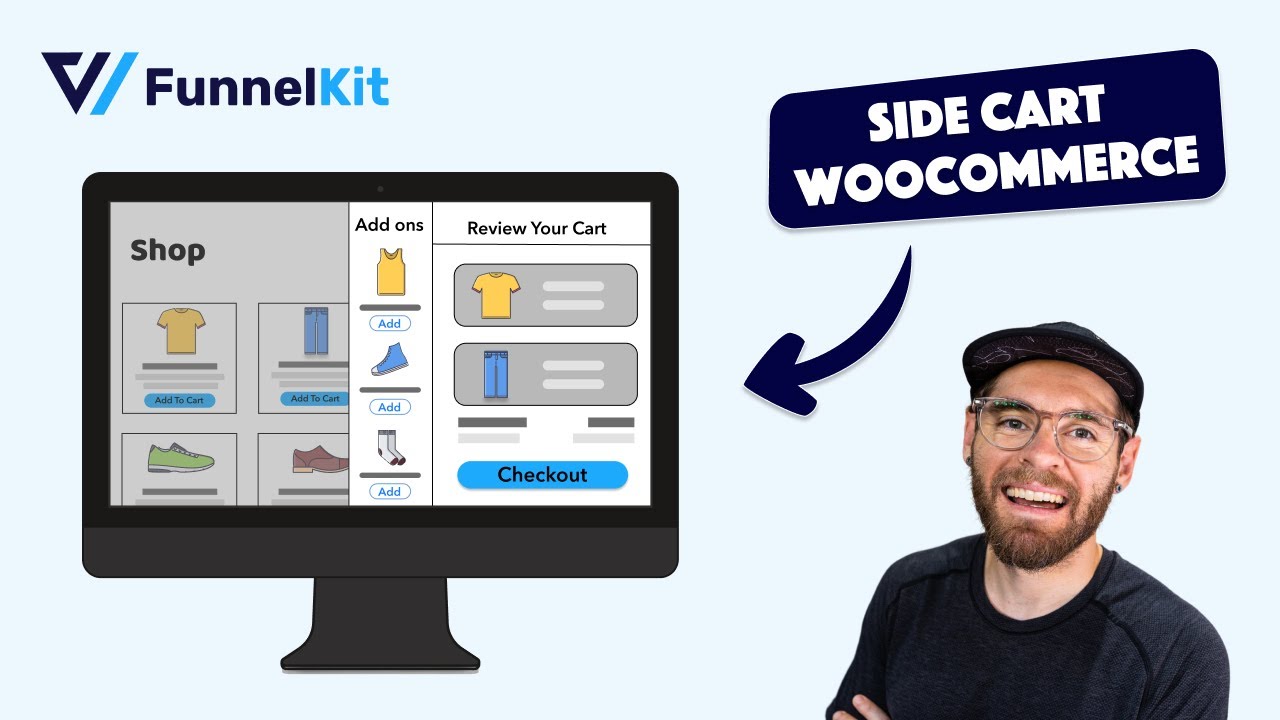
Follow the step-by-step process below:
Step 1: Enable the side cart in WooCommerce
Navigate to FunnelKit ⇨ Cart and turn on the ‘Enable cart’ toggle.
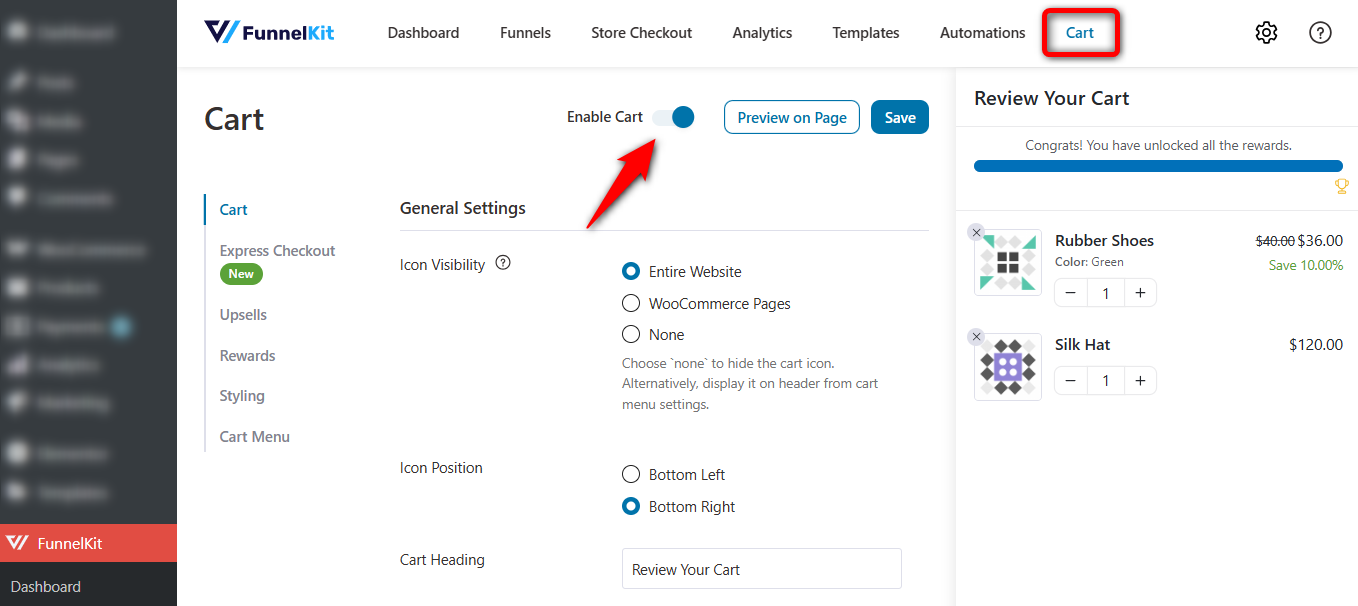
Clicking ‘Save’ will make the slide-out panel replace the default WooCommerce cart page.
Step 2: Enable Ajax and decide how the cart behaves on add
Configure the cart options:
- Icon Visibility: Choose whether you want to display the cart icon on the entire website, WooCommerce pages, or nowhere (place it in the website header).
- Icon Position: Display the icon on the bottom left or right of your screen.
- Cart Heading: Customize the title on top of your WooCommerce side cart
- Hide Cart Icon: Keeps the cart icon hidden until a shopper adds a product to their cart.
- Ajax Add To Cart: This setting enables Ajax functionality, allowing users to add products to their carts without a page reload.
- Auto Open Side Cart: Configure this setting to automatically open the cart when a user adds a product.
You can further configure the coupon field, cart summary, checkout section, and more on your side cart the way you want.
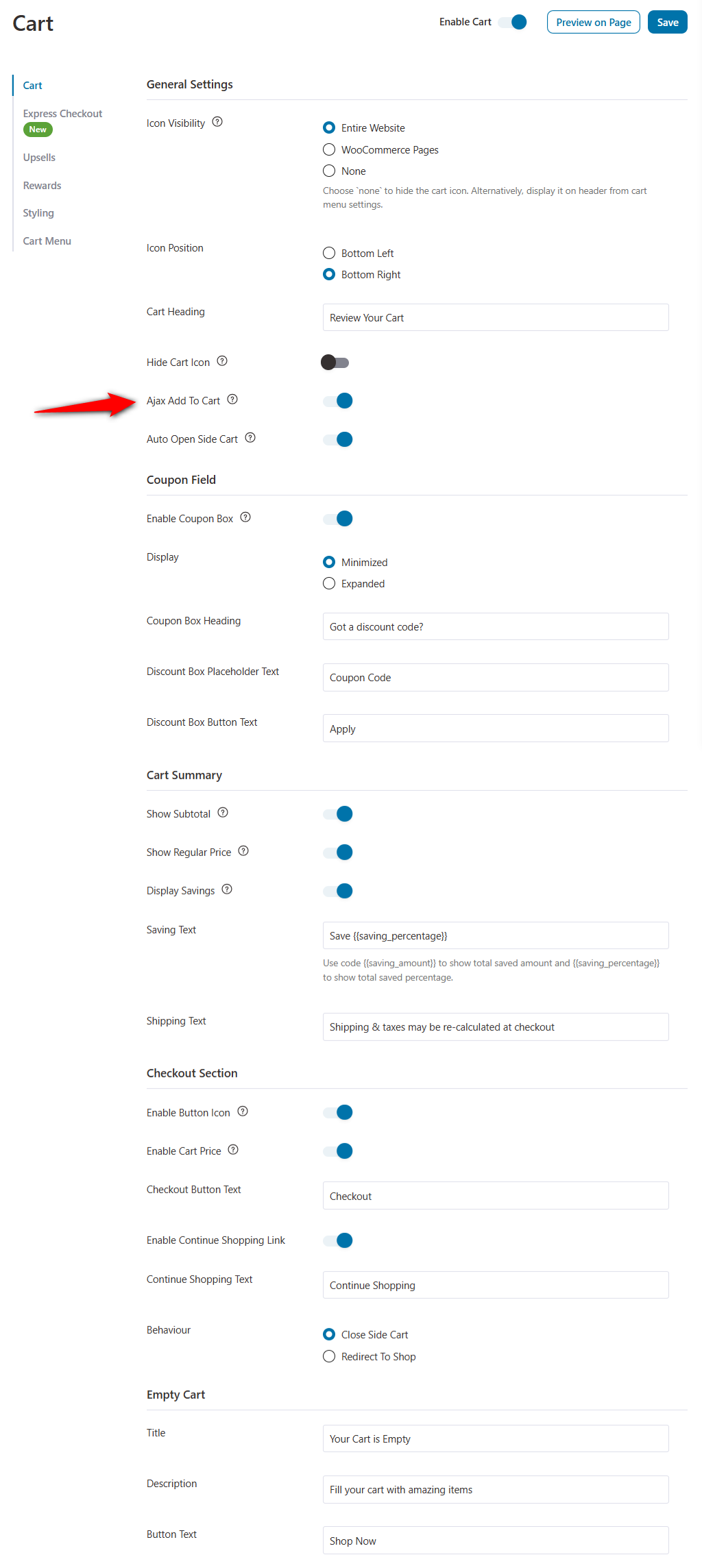
Once done, hit the ‘Save’ button to lock your changes.
Step 3: Style your cart so it reads as part of the store
This step decides whether the cart feels native or bolted on, so it deserves more than a passing glance.
Set the panel width separately for desktop and mobile. A width that reads well on a laptop is usually too cramped on a phone.
Match the checkout button color to your existing primary button rather than accepting the default.
Keep the animation fast enough to feel responsive but slow enough that the shopper registers what happened, since an instant snap reads as a glitch.
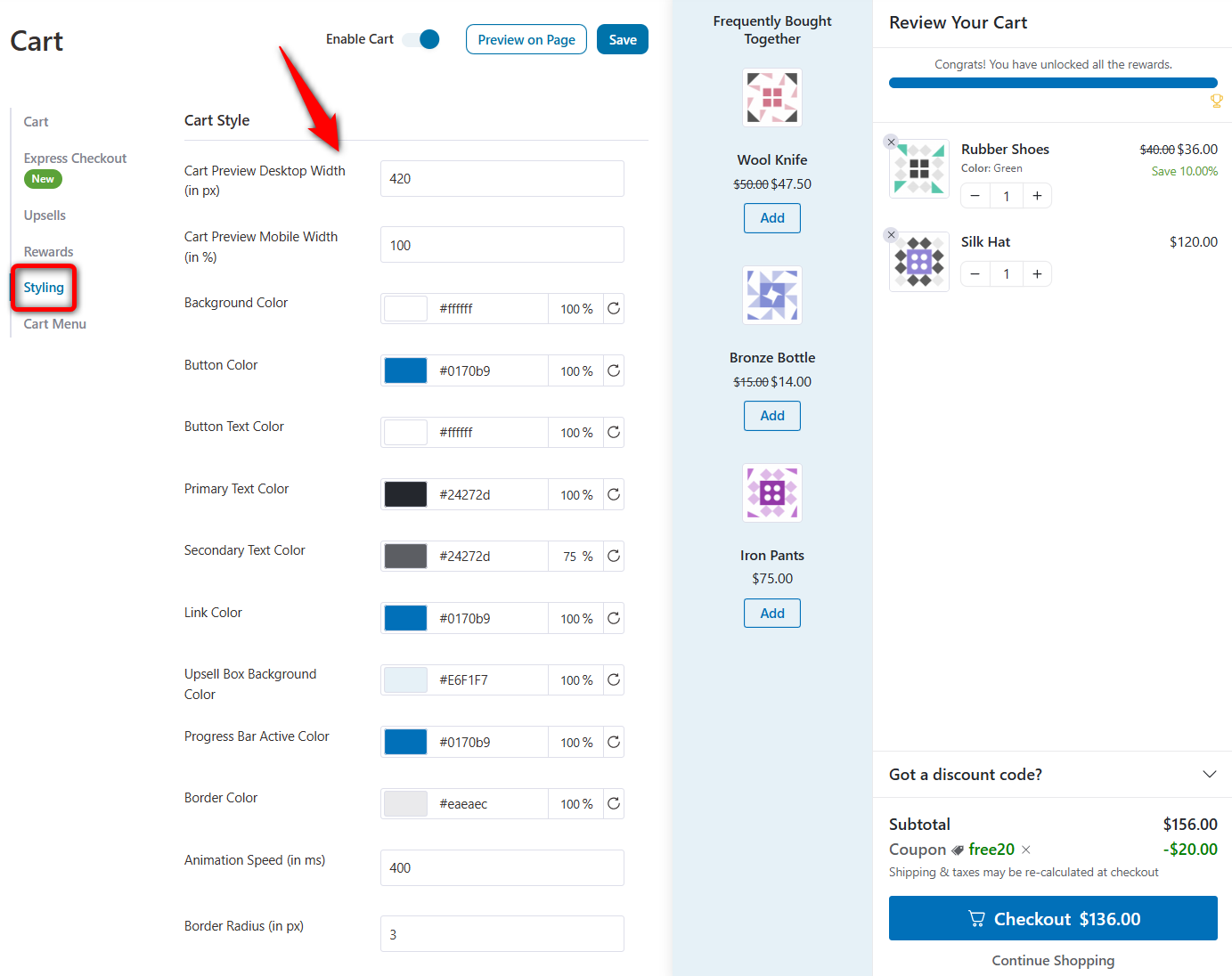
You can also ensure whether to show the coupon field in the cart or hold it for checkout. A visible coupon field invites users to open a new tab and search for a code.
Save the changes when done.
Step 4: Test the Ajax add to cart functionality
Go to the shop page of your website. Now, as soon as you add a product to the cart, the side cart slides out and that item is added without any page reload.
Even if you increase or decrease the product quantity, the Ajax support works like a charm.
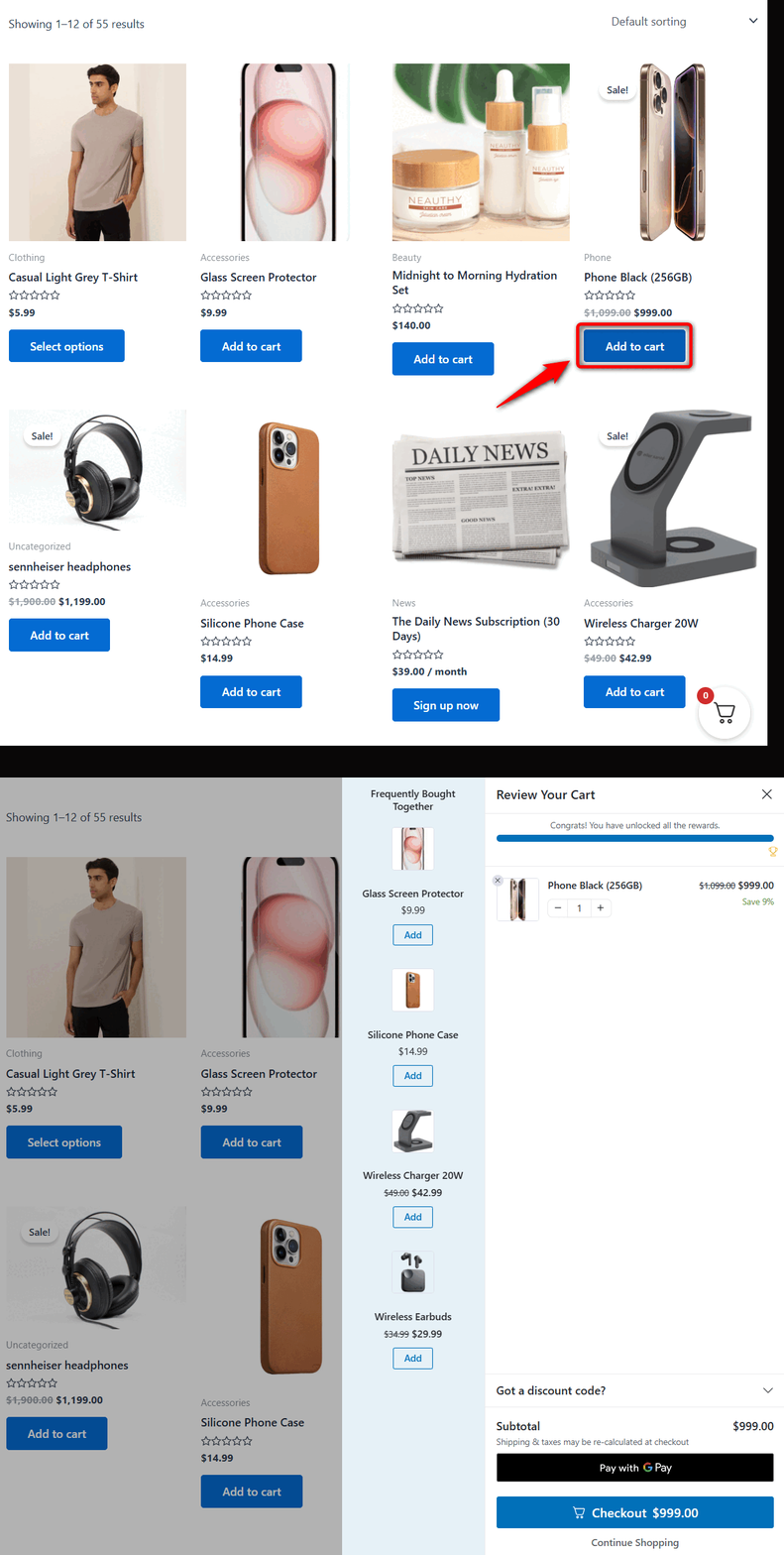
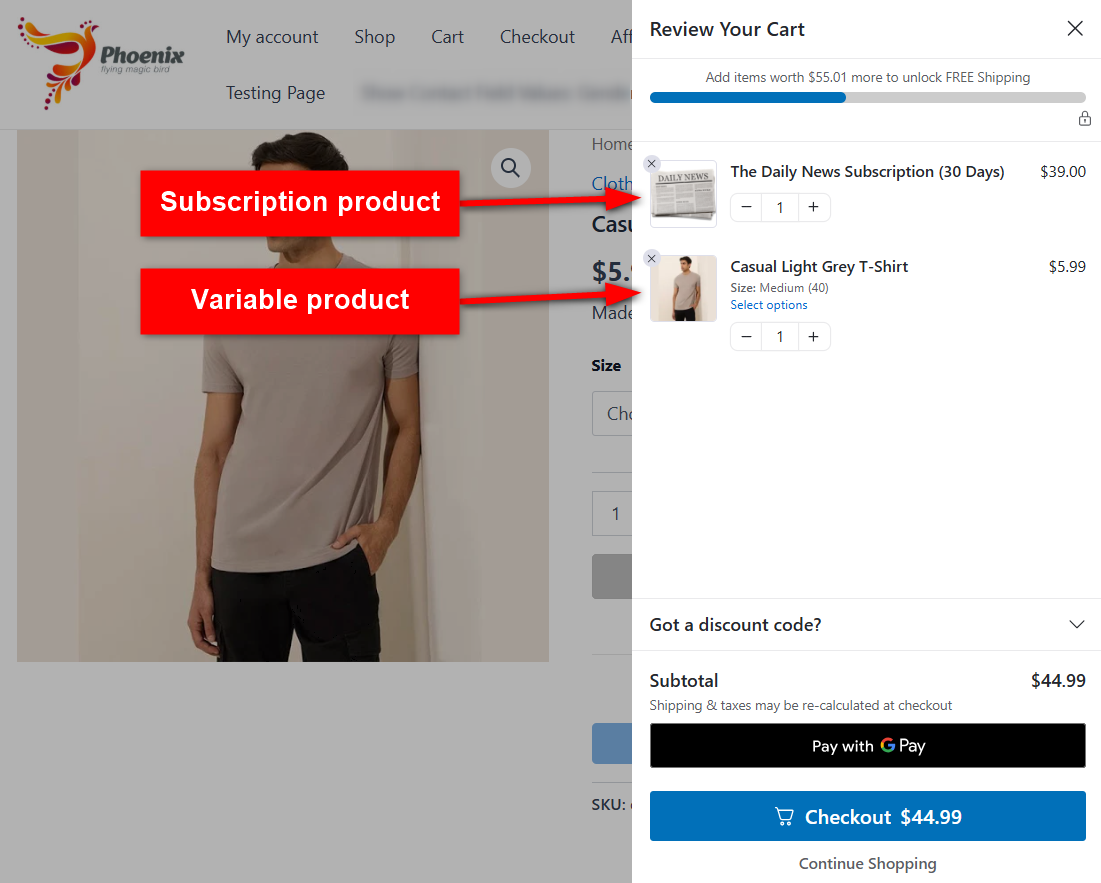
Its Ajax implementation works on single product and archive pages without coding.
Plus, it supports all kinds of products, such as simple, variable, grouped, subscription, and more.
For a full pre-launch checklist, see our guide to testing your WooCommerce checkout.
Method 3: Build a Custom Ajax Endpoint With Code
This method works on every page type (single, variable, archive) and gives you full control. It requires PHP and JavaScript knowledge.
One warning before you paste anything. Most add-to-cart snippets we find online post to admin-ajax.php and skip nonce verification.
Both choices cause problems that only show up later, so we've updated the code below to use the wc-ajax endpoint and validate the request.
Always test on a staging site first. Add these snippets to your child theme's functions.php or a code snippet plugin like WPCode.
Step 1: Register the script and create a nonce
WooCommerce already puts wc_add_to_cart_params on the front end.
We only need our own endpoint URL and a security token.
function fk_enqueue_ajax_atc_script() {
    if ( is_admin() ) {
        return;
    }

    wp_register_script( 'fk-ajax-atc', '', array( 'jquery', 'wc-add-to-cart' ), null, true );
    wp_enqueue_script( 'fk-ajax-atc' );

    wp_localize_script( 'fk-ajax-atc', 'fk_ajax_atc', array(
        'wc_ajax_url' => WC_AJAX::get_endpoint( '%%endpoint%%' ),
        'nonce'       => wp_create_nonce( 'fk_ajax_atc_nonce' ),
    ) );
}
add_action( 'wp_enqueue_scripts', 'fk_enqueue_ajax_atc_script' );
Step 2: Intercept the product page form
This script intercepts the form submission, sends the data to our endpoint, and fires WooCommerce’s own added_to_cart event so the mini cart refreshes itself.
function fk_ajax_atc_single_product_script() {
    if ( ! is_product() ) {
        return;
    }
    ?>
    <script>
    jQuery( function( $ ) {
        $( 'form.cart' ).on( 'submit', function( e ) {
            e.preventDefault();

            var $form    = $( this );
            var $button  = $form.find( 'button[type="submit"]' );
            var formData = $form.serialize();

            $.ajax({
                type: 'POST',
                url: fk_ajax_atc.wc_ajax_url.toString().replace( '%%endpoint%%', 'fk_add_to_cart' ),
                data: formData + '&security=' + fk_ajax_atc.nonce,
                beforeSend: function() {
                    $button.removeClass( 'added' ).addClass( 'loading' );
                },
                success: function( response ) {
                    if ( response.error && response.product_url ) {
                        window.location = response.product_url;
                        return;
                    }
                    $( document.body ).trigger( 'added_to_cart', [
                        response.fragments,
                        response.cart_hash,
                        $button
                    ] );
                },
                complete: function() {
                    $button.removeClass( 'loading' ).addClass( 'added' );
                }
            });
        });
    });
    </script>
    <?php
}
add_action( 'wp_footer', 'fk_ajax_atc_single_product_script' );
Please note the && in the error check. Many published snippets use a single & there, which is a bitwise operator rather than a logical one.
With a single &, failed validation slips through, and the shopper doesn't see anything happening.
Step 3: Register the wc-ajax handler
This receives the request, verifies it, adds the product, and returns refreshed fragments.
function fk_ajax_add_to_cart_handler() {

    check_ajax_referer( 'fk_ajax_atc_nonce', 'security' );

    $product_id   = apply_filters( 'woocommerce_add_to_cart_product_id', absint( $_POST['add-to-cart'] ) );
    $quantity     = empty( $_POST['quantity'] ) ? 1 : wc_stock_amount( wp_unslash( $_POST['quantity'] ) );
    $variation_id = isset( $_POST['variation_id'] ) ? absint( $_POST['variation_id'] ) : 0;
    $variations   = isset( $_POST['variation'] ) ? wc_clean( wp_unslash( $_POST['variation'] ) ) : array();

    $passed_validation = apply_filters( 'woocommerce_add_to_cart_validation', true, $product_id, $quantity );
    $product_status    = get_post_status( $product_id );

    if ( $passed_validation && 'publish' === $product_status && WC()->cart->add_to_cart( $product_id, $quantity, $variation_id, $variations ) ) {
        do_action( 'woocommerce_ajax_added_to_cart', $product_id );
        WC_AJAX::get_refreshed_fragments();
    } else {
        wp_send_json( array(
            'error'       => true,
            'product_url' => get_permalink( $product_id ),
        ) );
    }

    wp_die();
}
add_action( 'wc_ajax_fk_add_to_cart',        'fk_ajax_add_to_cart_handler' );
add_action( 'wc_ajax_nopriv_fk_add_to_cart', 'fk_ajax_add_to_cart_handler' );
Do not skip the nopriv line. Without it, the code works flawlessly for the one person on the site who is never going to buy anything, and fails for everybody else.
Step 4: Refresh mini cart fragments
If your header uses its own cart counter rather than the standard WooCommerce mini cart, register it as a fragment.
function fk_update_cart_count_fragment( $fragments ) {
    ob_start();
    ?>
    <span class="cart-count"><?php echo esc_html( WC()->cart->get_cart_contents_count() ); ?></span>
    <?php
    $fragments['.cart-count'] = ob_get_clean();
    return $fragments;
}
add_filter( 'woocommerce_add_to_cart_fragments', 'fk_update_cart_count_fragment' );
Step 5: Extend it to archive pages
The same endpoint handles archive clicks.
Bind to the button rather than a form, and exclude variable and grouped products, since those need a variation chosen first.
jQuery( function( $ ) {
    $( document ).on( 'click', '.add_to_cart_button:not(.product_type_variable):not(.product_type_grouped)', function( e ) {
        e.preventDefault();

        var $button = $( this );

        $.ajax({
            type: 'POST',
            url: fk_ajax_atc.wc_ajax_url.toString().replace( '%%endpoint%%', 'fk_add_to_cart' ),
            data: {
                'add-to-cart': $button.data( 'product_id' ),
                'quantity': $button.data( 'quantity' ) || 1,
                'security': fk_ajax_atc.nonce
            },
            beforeSend: function() {
                $button.removeClass( 'added' ).addClass( 'loading' );
            },
            success: function( response ) {
                if ( response.error && response.product_url ) {
                    window.location = response.product_url;
                    return;
                }
                $( document.body ).trigger( 'added_to_cart', [
                    response.fragments,
                    response.cart_hash,
                    $button
                ] );
            },
            complete: function() {
                $button.removeClass( 'loading' ).addClass( 'added' );
            }
        });
    });
});
Step 6: Handle variations and grouped products
Variable products need extra handling because the user selects a variation before clicking “Add to Cart.” The Step 2 script already supports this via formData = $form.serialize().
variation_id and the variation[attribute_pa_color] style fields are included automatically when the form contains them.
But WooCommerce’s default variations script must finish updating the form before AJAX fires. If you’re seeing variation IDs come through as 0, listen for found_variation first:
jQuery( function( $ ) {
    var selected_variation = null;

    $( '.variations_form' ).on( 'found_variation', function( e, variation ) {
        selected_variation = variation;
    });

    $( '.variations_form' ).on( 'reset_data', function() {
        selected_variation = null;
    });
});
The Starter Bundle posts an array instead, in the form quantity[123]=2&quantity[456]=1, so grouped products need their own branch:
if ( isset( $_POST['quantity'] ) && is_array( $_POST['quantity'] ) ) {
	foreach ( wp_unslash( $_POST['quantity'] ) as $id => $qty ) {
		$qty = wc_stock_amount( $qty );
		if ( $qty > 0 ) {
			WC()->cart->add_to_cart( absint( $id ), $qty );
		}
	}
	WC_AJAX::get_refreshed_fragments();
	wp_die();
}
Step 7: Trigger it programmatically
If you need to trigger an AJAX add-to-cart from JavaScript without a form click.
For example, from a “quick view” modal, a recommended product widget, or a one-click upsell, use the wc-ajax endpoint directly:
function fk_programmatic_add_to_cart( productId, quantity ) {
    quantity = quantity || 1;

    return $.ajax({
        type: 'POST',
        url: fk_ajax_atc.wc_ajax_url.toString().replace( '%%endpoint%%', 'fk_add_to_cart' ),
        data: {
            'add-to-cart': productId,
            'quantity': quantity,
            'security': fk_ajax_atc.nonce
        }
    }).done( function( response ) {
        if ( response.error && response.product_url ) {
            window.location = response.product_url;
            return;
        }
        jQuery( document.body ).trigger( 'added_to_cart', [
            response.fragments,
            response.cart_hash,
            null
        ] );
    });
}

// Usage:
// fk_programmatic_add_to_cart( 42, 2 );
Please note that this is also the hook you’d use to fire an in-cart cross-sell the moment something lands in the cart.
For timing, see our WooCommerce cross-sells guide.
Now test run it. Add the product from the shop page while logged out, add another item from its product page after choosing a variation, then increase the quantity and confirm the count reaches two rather than resetting.
Plenty of implementations pass the first add and fail the second, because the cart hash changes and the fragments have to reconcile.
Limitations of the code method
- No validation for custom fields: If you have custom fields on the product page, Ajax may bypass their validation. You must manually handle these in JavaScript and the Ajax function.
- Limited support for variable products: Variable products require extra coding to retrieve selected attributes and variation IDs before sending the Ajax request.
- Requires JavaScript and PHP coding knowledge: You should have a deep understanding of both PHP and JavaScript for Ajax requests and DOM manipulation. If you make even a small error in the syntax, the entire script can break.
- Does not work well with caching plugins: Some caching plugins, such as WP Rocket and LiteSpeed Cache, cache WooCommerce pages, which can break Ajax requests. This may prevent the cart from updating dynamically after adding products.
Ajax Add to Cart with WooCommerce Blocks (Cart and Checkout Blocks)
WooCommerce is steadily replacing the legacy shortcode-based cart and checkout pages with Cart Block and Checkout Block counterparts. As of WooCommerce 8.3, these are the default in new installs.
However, the good news is that Ajax add to cart works with Blocks out of the box, but with some differences you should know about.
What changes with Blocks
- Add to Cart buttons in Blocks themes use the wc-block-add-to-cart-form script, not the legacy wc-add-to-cart. The button element is <button class='wp-block-button__link wc-block-components-product-button__button">.
- The cart updates via the Store API, not the legacy AJAX endpoints. This means custom snippets that listen for added_to_cart events still fire, but fragment updates flow through a different mechanism.
- Fragments are still respected for backwards compatibility, but Blocks themes typically use the Store API’s useStoreCart() hook for cart state.
Quick compatibility check
- If you’re using the Cart and Checkout Blocks, the native WooCommerce 'Enable AJAX add to cart buttons on archives' setting still works.
- Custom code snippets like the ones above still work for the legacy add-to-cart forms (most product pages still use them).
- Side-cart plugins like FunnelKit Cart are Blocks-compatible.
If you’ve replaced your product page template with a custom Block layout that uses the Block-based Add to Cart button, the legacy form.cart selector in our Method 3 code won’t match.
Adjust the JS selector to .wp-block-add-to-cart-form or hook into the Block's own event:
document.addEventListener( 'wc-blocks_added_to_cart', function( e ) {
    // Block-based add-to-cart fired. e.detail contains product info.
    console.log( 'Block add to cart:', e.detail );
});
3 Best WooCommerce Ajax Add to Cart Plugins Compared
These WooCommerce cart plugins let customers add items to their cart without refreshing the page, providing a smooth, interactive shopping experience.
Which one fits depends on whether you want a narrow fix or a different cart experience, so here is how we would split them.
1. FunnelKit Cart for WooCommerce

FunnelKit Cart changes the cart step rather than just the request, which is what we did in Method 2.
To be straight about the trade-off: it is more than the problem needs if all you want is the reload gone, and it replaces your existing cart page, which not every store wants.
If your only requirement is Ajax on product pages and you are happy with your current cart, use the plugin by QuadLayers.
If improving the cart step is already on your list, doing both at once is less work than stacking two plugins and hoping they work together.
It lets you offer in-cart product upsells and set up smart rewards that help improve your store’s average order value (AOV).
2. Ajax Add to Cart for WooCommerce
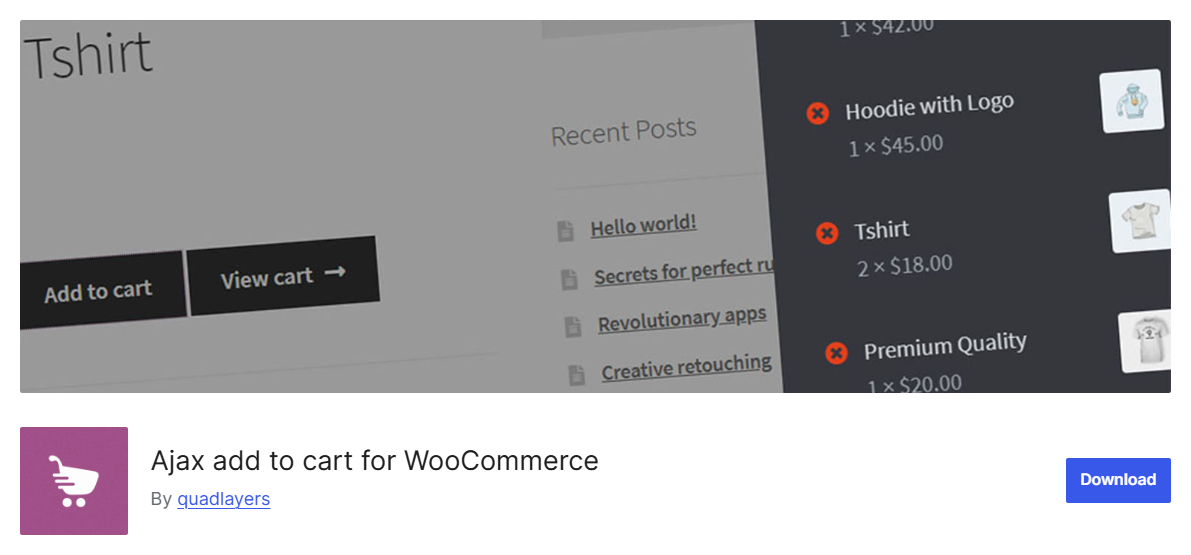
This WooCommerce plugin is the most direct answer to the product page gap.
Install, activate, and product pages stop reloading for simple, variable, and grouped products.
Recent releases track WooCommerce compatibility, which matters more than it sounds in a category where abandoned plugins break on core updates.
The trade-off is that it removes the reload and nothing else. No quantity control on archives, no drawer, no change to what happens after the item lands.
3. WPC Ajax Add to Cart for WooCommerce
This add to cart plugin takes a similar approach with slightly wider product-type coverage, including external products.
It is built to pair with other WPClever plugins, particularly their fly cart, so its full value depends on adopting more of that ecosystem.
Reviewers have flagged specific compatibility gaps, including WooCommerce Appointments and gift certificates issued through Smart Coupons, so test it against your own add-on stack rather than assuming.
Why Your Ajax Cart Stops Working and How to Fix Each Cause
Almost every broken cart we get asked about traces back to one of eight causes.
Work through these before you rewrite anything:
| Symptom | Likely cause | Fix |
|---|---|---|
| Button spins forever, console shows an undefined reference | The theme calls a script it never enqueued, commonly underscore.js | Enqueue the missing dependency or raise it with the theme author |
| Setting is on, but the page still redirects | Redirect to the cart page after successful addition is also enabled | Untick it in Products ⇒ General |
| Header cart count never moves | Your custom counter is not registered as a fragment | Add it via woocommerce_add_to_cart_fragments |
| Works logged in, fails for customers | The nopriv action is missing | Register the wc_ajax_nopriv_ hook too |
| Broke after a caching plugin was installed | Requests are going to admin-ajax.php | Move to the ?wc-ajax= endpoint |
| 403 on add to cart | The nonce on a cached page has expired | Serve the nonce through a fragment, not inline HTML |
| Variation adds as ID 0 | Ajax fires before the variation form updates | Listen for found_variation first |
| Duplicate items or wrong quantity | Two scripts are bound to the same button | Disable one source, usually a theme option competing with a plugin |
What we usually find the issue:
- Caching is the usual culprit once a store has been live a while
Nothing about your cart code changed, but a new caching or optimization plugin did.
WP Rocket, LiteSpeed Cache, and W3 Total Cache all exclude ?wc-ajax= patterns by default.
They don't treat admin-ajax.php reliably, especially when several plugins post to it.
When diagnosing, clear the site and CDN cache first, then switch off JavaScript minification, combination, and delay, then turn them back on one at a time.
- The cart count is a separate system from the add request
This is the point from the definition section, and it's why so many people conclude a working plugin is broken.
Divi users reviewing the QuadLayers plugin on WordPress.org report that the reload disappeared, and the header icon never changed.
The plugin was doing its job, but the counter was never registered as a fragment.
7 Best Practices to Optimize WooCommerce Ajax Add to Cart
Enabling Ajax Add to Cart is just the start. Optimize it to ensure your cart runs smoothly, loads quickly, and delivers a high-converting shopping experience.
Follow these best practices to get the best performance out of your WooCommerce Ajax Add to Cart setup:
- Use a lightweight and well-coded theme
Choose a WooCommerce-optimized theme that supports Ajax natively. Themes like Astra, GeneratePress, or Blocksy come with built-in Ajax compatibility and fast-loading scripts.
Avoid heavy, script-bloated themes that slow down add-to-cart requests.
- Minimize Ajax request load time
Every Ajax request communicates with your server, so optimize your hosting environment.
Use a high-performance hosting provider (e.g., Cloudways, WP Engine, or SiteGround) and enable object caching and PHP OPcache.
Optimize your database tables regularly to speed up cart operations.
- Avoid plugin conflicts
Too many plugins running Ajax scripts can cause duplicate requests or slowdowns. Therefore, deactivate unnecessary WooCommerce plugins that alter the cart or checkout.
Check your browser console for Ajax errors and resolve any 404 or 500 responses.
If you’re using a caching plugin, make sure it excludes WooCommerce’s Ajax endpoints like /wc-ajax=add_to_cart.
- Optimize cart fragments
WooCommerce uses cart fragments (wc-cart-fragments.js) to update mini-carts dynamically. While useful, they can impact performance.
To optimize:
- Use a plugin like Disable Cart Fragments if your theme handles Ajax updates separately.
- Or switch to FunnelKit Cart, which replaces default fragments with a faster, optimized system.
- Test on mobile devices
Ajax performance can vary by device. Test your add-to-cart flow on mobile, tablet, and desktop to ensure consistency.
Focus especially on network-heavy environments where slow 3G or 4G connections can expose script inefficiencies.
- Measure and monitor
Use tools like Chrome DevTools, GTmetrix, or PageSpeed Insights to analyze Ajax request timing and JavaScript execution.
Track how Ajax improvements affect metrics such as conversion rate, page load speed, cart abandonment, bounce rate, and more.
These analytics give you measurable proof of performance gains.
- Enhance UX with visual feedback
When users click “Add to Cart,” show instant feedback like a success message, loader animation, or a slide-in cart popup. It reassures customers their action worked.
Plugins like FunnelKit Cart make this effortless with built-in animations and real-time cart updates.
Frequently Asked Questions (FAQs)
You can customize the text, color, size, and behavior of the Ajax add-to-cart button using WordPress appearance options. You can even customize your buttons using CSS or custom JavaScript for advanced modifications. FunnelKit Cart lets you customize your cart style and icon the way you want.
Yes, Ajax functionality makes mobile shopping more seamless by letting shoppers add products to their cart without leaving the page. To set up Ajax implementation on mobile devices, you can use FunnelKit Cart, which seamlessly integrates with WooCommerce add to cart functionality along with smart customization options.
You can disable the Ajax add to cart feature by simply unchecking the option if you use WooCommerce’s default functionality. However, if you use FunnelKit Cart, you can just turn off the Ajax add to cart toggle with one click.
If the Ajax add to cart is not working, you can try the following troubleshooting options:
- Disabling conflicting plugins (some caching or security plugins may block AJAX requests)
- Switching to a default theme and checking if your theme is causing any issues
- Checking JavaScript errors using the browser console
- Using a reliable plugin like FunnelKit Cart for smooth integration
Only if you implement nonce verification (check_ajax_referer) on your custom endpoint. Without it, anyone can spam your endpoint to programmatically fill carts, annoying at minimum, and a potential vector for inventory exhaustion attacks on limited-stock products. The Method 3 code in this guide includes nonce verification.
Your theme has more say in this than most guides admit, and we would check it before installing anything.
Some themes ship their own Ajax handling.
WoodMart, Flatsome, Astra and Blocksy all include settings that go beyond the native option, and Divi and Elementor add product modules with separate toggles.
If yours already does this, stacking a plugin or a snippet on top is how you end up with the duplicate-request problem in the table above.
Check your theme settings before installing anything.
Themes that don't handle it will not gain this ability through configuration.
Add-to-cart markup comes from WooCommerce core, not the theme, which is why theme support teams route these tickets to a plugin rather than a setting.
Cart and Checkout Blocks shift things slightly.
They have been the default in new installs since WooCommerce 8.3, and the native archives setting works with them normally.
The difference shows up if you have rebuilt your product template with the block-based Add to Cart button, which is not the legacy form.cart element.
The Method 3 selector will never match it. Target .wp-block-add-to-cart-form, or listen for the block event:
document.addEventListener( 'wc-blocks_added_to_cart', function( e ) {
    console.log( 'Block add to cart fired:', e.detail );
});
Cart updates in Blocks run through the Store API rather than the legacy endpoints.
Fragments are still honored for backward compatibility, so existing mini cart code generally survives, but new work should target the Store API.
Ready to Take the Reload Out of Your Add to Cart Button?
Removing the reload from your add to cart button is one of the cheapest changes you can make to a WooCommerce store.
The native setting takes thirty seconds and covers your archives.
A plugin closes the product page and variation gap without code. A custom endpoint gives you control if your store needs it.
The defaults leave that revenue on the table, and in our experience, the fix is never a rebuild. It is a setting, a plugin, or eighty lines of code.
For most stores we would take the plugin route, because the reload is only half the problem and the cart step is the other half. FunnelKit Cart handles both, with Ajax on by default and a drawer that gives shoppers confirmation and a direct path to payment.
By integrating Ajax add to cart into your WooCommerce store, you create a fast, frictionless, and conversion-optimized shopping experience that keeps customers coming back for more.
Editorial Team
October 11, 2026You can customize the WooCommerce cart page with the Cart block, a page builder like Elementor, or CSS and PHP snippets. Which method works for you depends on the cart...

Editorial Team
October 9, 2026A WooCommerce discount lowers what a shopper pays, either through a reduced product price or a code entered at checkout. Out of the box, WooCommerce gives you two ways to...
Editorial Team
October 9, 2026A downsell gives customers a cheaper option after they turn down your main offer. If you show it too soon, you might convince them to skip the original offer and...